Overview
The Basics
Use the arrow keys to advance to next slide
or to reverse to the last slide.
Logging In
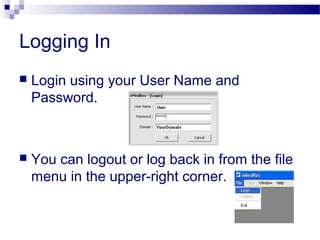
 Login using your User Name and
Password.
 You can logout or log back in from the file
menu in the upper-right corner.
Searching for a Patient
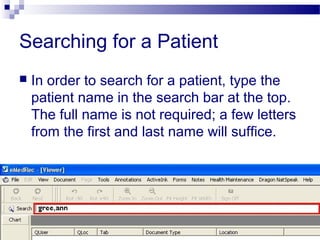
 In order to search for a patient, type the
patient name in the search bar at the top.
The full name is not required; a few letters
from the first and last name will suffice.
Searching for a Patient
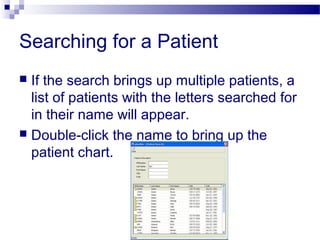
 If the search brings up multiple patients, a
list of patients with the letters searched for
in their name will appear.
 Double-click the name to bring up the
patient chart.
Viewer
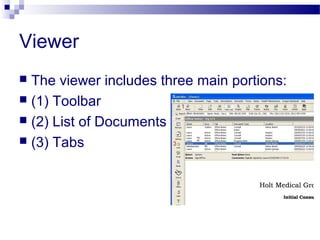
 The viewer includes three main portions:
 (1) Toolbar
 (2) List of Documents
 (3) Tabs
Viewer
 The list of documents is organized by
date, type, and tab. Click the document
name in the list to view the image.
Viewer
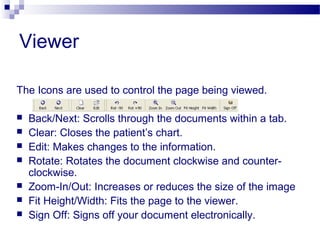
The Icons are used to control the page being viewed.
 Back/Next: Scrolls through the documents within a tab.
 Clear: Closes the patient’s chart.
 Edit: Makes changes to the information.
 Rotate: Rotates the document clockwise and counter-
clockwise.
 Zoom-In/Out: Increases or reduces the size of the image
 Fit Height/Width: Fits the page to the viewer.
 Sign Off: Signs off your document electronically.
Menu Bar
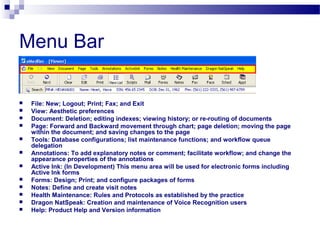
 File: New; Logout; Print; Fax; and Exit
 View: Aesthetic preferences
 Document: Deletion; editing indexes; viewing history; or re-routing of documents
 Page: Forward and Backward movement through chart; page deletion; moving the page
within the document; and saving changes to the page
 Tools: Database configurations; list maintenance functions; and workflow queue
delegation
 Annotations: To add explanatory notes or comment; facilitate workflow; and change the
appearance properties of the annotations
 Active Ink: (In Development) This menu area will be used for electronic forms including
Active Ink forms
 Forms: Design; Print; and configure packages of forms
 Notes: Define and create visit notes
 Health Maintenance: Rules and Protocols as established by the practice
 Dragon NatSpeak: Creation and maintenance of Voice Recognition users
 Help: Product Help and Version information
Face Sheet
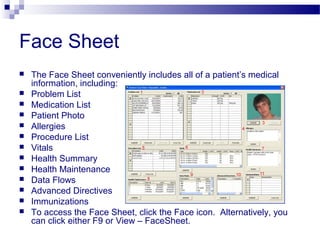
 The Face Sheet conveniently includes all of a patient’s medical
information, including:
 Problem List
 Medication List
 Patient Photo
 Allergies
 Procedure List
 Vitals
 Health Summary
 Health Maintenance
 Data Flows
 Advanced Directives
 Immunizations
 To access the Face Sheet, click the Face icon. Alternatively, you
can click either F9 or View – FaceSheet.
Printing Forms
 To print Forms, click the Forms icon on
the top icon bar.
 This will bring up the form-printing
interface.
 Forms may be printed individually, or in
packages designed for the type of visit.
Meaningful Use
 eMedRec Version 7 includes the ability to comply with the Core
Measures of the Medicare EHR Incentive Program.
 In Stage 1 of Meaningful Use, the provider will report on a variety of
clinical measures, for a reporting period of 90 days, in the first year.
The reporting is done through attestation on the government
website. eMedRec Support staff will assist you with the attestation
process.
There are Core Objectives and Clinical Quality Measures. Some are
Yes/No questions. Others require numerator and denominator
figures which will be calculated by the reporting functions within
eMedRec. Many of the objectives are met by ePrescribing,
maintaining a patient Problem List, and by recording Vitals and
patient Demographic information. Detailed training on meeting the
criteria will be provided.

1.eMedRec Overview

  • 1.
    Overview The Basics Use thearrow keys to advance to next slide or to reverse to the last slide.
  • 2.
    Logging In  Loginusing your User Name and Password.  You can logout or log back in from the file menu in the upper-right corner.
  • 3.
    Searching for aPatient  In order to search for a patient, type the patient name in the search bar at the top. The full name is not required; a few letters from the first and last name will suffice.
  • 4.
    Searching for aPatient  If the search brings up multiple patients, a list of patients with the letters searched for in their name will appear.  Double-click the name to bring up the patient chart.
  • 5.
    Viewer  The viewerincludes three main portions:  (1) Toolbar  (2) List of Documents  (3) Tabs
  • 6.
    Viewer  The listof documents is organized by date, type, and tab. Click the document name in the list to view the image.
  • 7.
    Viewer The Icons areused to control the page being viewed.  Back/Next: Scrolls through the documents within a tab.  Clear: Closes the patient’s chart.  Edit: Makes changes to the information.  Rotate: Rotates the document clockwise and counter- clockwise.  Zoom-In/Out: Increases or reduces the size of the image  Fit Height/Width: Fits the page to the viewer.  Sign Off: Signs off your document electronically.
  • 8.
    Menu Bar  File:New; Logout; Print; Fax; and Exit  View: Aesthetic preferences  Document: Deletion; editing indexes; viewing history; or re-routing of documents  Page: Forward and Backward movement through chart; page deletion; moving the page within the document; and saving changes to the page  Tools: Database configurations; list maintenance functions; and workflow queue delegation  Annotations: To add explanatory notes or comment; facilitate workflow; and change the appearance properties of the annotations  Active Ink: (In Development) This menu area will be used for electronic forms including Active Ink forms  Forms: Design; Print; and configure packages of forms  Notes: Define and create visit notes  Health Maintenance: Rules and Protocols as established by the practice  Dragon NatSpeak: Creation and maintenance of Voice Recognition users  Help: Product Help and Version information
  • 9.
    Face Sheet  TheFace Sheet conveniently includes all of a patient’s medical information, including:  Problem List  Medication List  Patient Photo  Allergies  Procedure List  Vitals  Health Summary  Health Maintenance  Data Flows  Advanced Directives  Immunizations  To access the Face Sheet, click the Face icon. Alternatively, you can click either F9 or View – FaceSheet.
  • 10.
    Printing Forms  Toprint Forms, click the Forms icon on the top icon bar.  This will bring up the form-printing interface.  Forms may be printed individually, or in packages designed for the type of visit.
  • 11.
    Meaningful Use  eMedRecVersion 7 includes the ability to comply with the Core Measures of the Medicare EHR Incentive Program.  In Stage 1 of Meaningful Use, the provider will report on a variety of clinical measures, for a reporting period of 90 days, in the first year. The reporting is done through attestation on the government website. eMedRec Support staff will assist you with the attestation process. There are Core Objectives and Clinical Quality Measures. Some are Yes/No questions. Others require numerator and denominator figures which will be calculated by the reporting functions within eMedRec. Many of the objectives are met by ePrescribing, maintaining a patient Problem List, and by recording Vitals and patient Demographic information. Detailed training on meeting the criteria will be provided.