What does the Horizontal buttons mean?
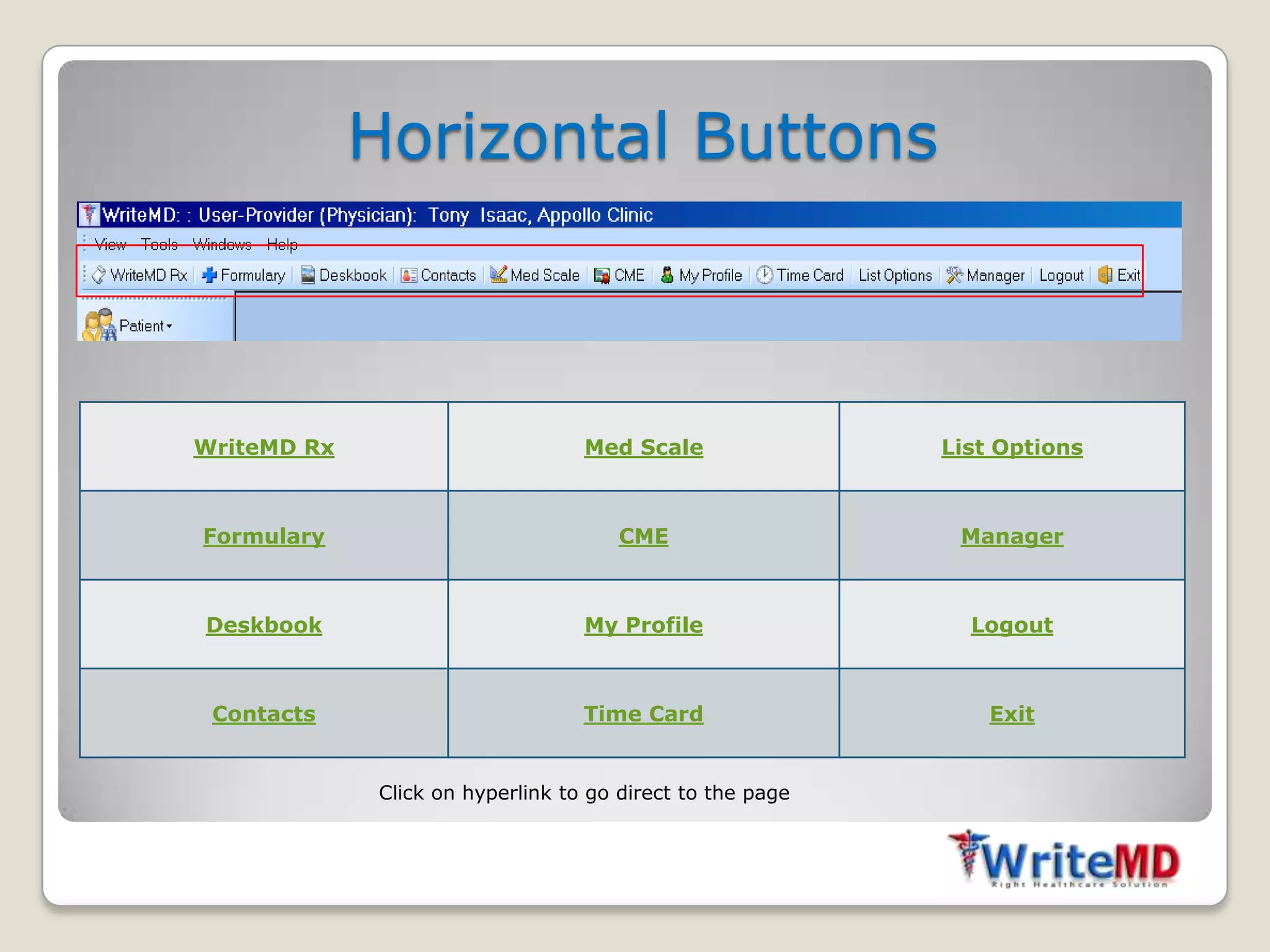
Horizontal Buttons


WriteMD Rx                        Med Scale                List Options


Formulary                             CME                   Manager


Deskbook                          My Profile                 Logout


 Contacts                         Time Card                    Exit


             Click on hyperlink to go direct to the page
Rx Manager
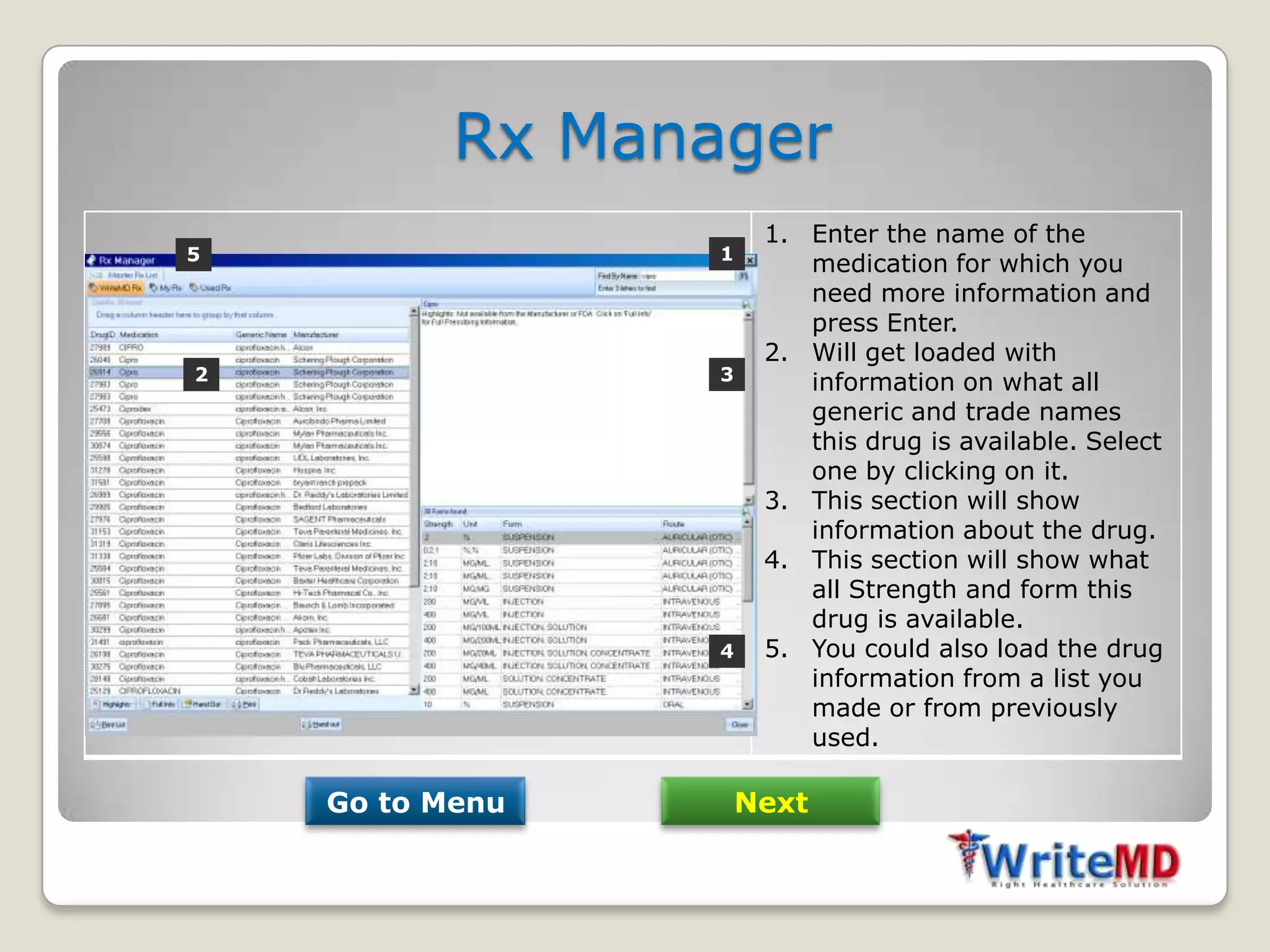
                       1. Enter the name of the
5                 1
                          medication for which you
                          need more information and
                          press Enter.
                       2. Will get loaded with
2                 3       information on what all
                          generic and trade names
                          this drug is available. Select
                          one by clicking on it.
                       3. This section will show
                          information about the drug.
                       4. This section will show what
                          all Strength and form this
                          drug is available.
                  4    5. You could also load the drug
                          information from a list you
                          made or from previously
                          used.

    Go to Menu        Next
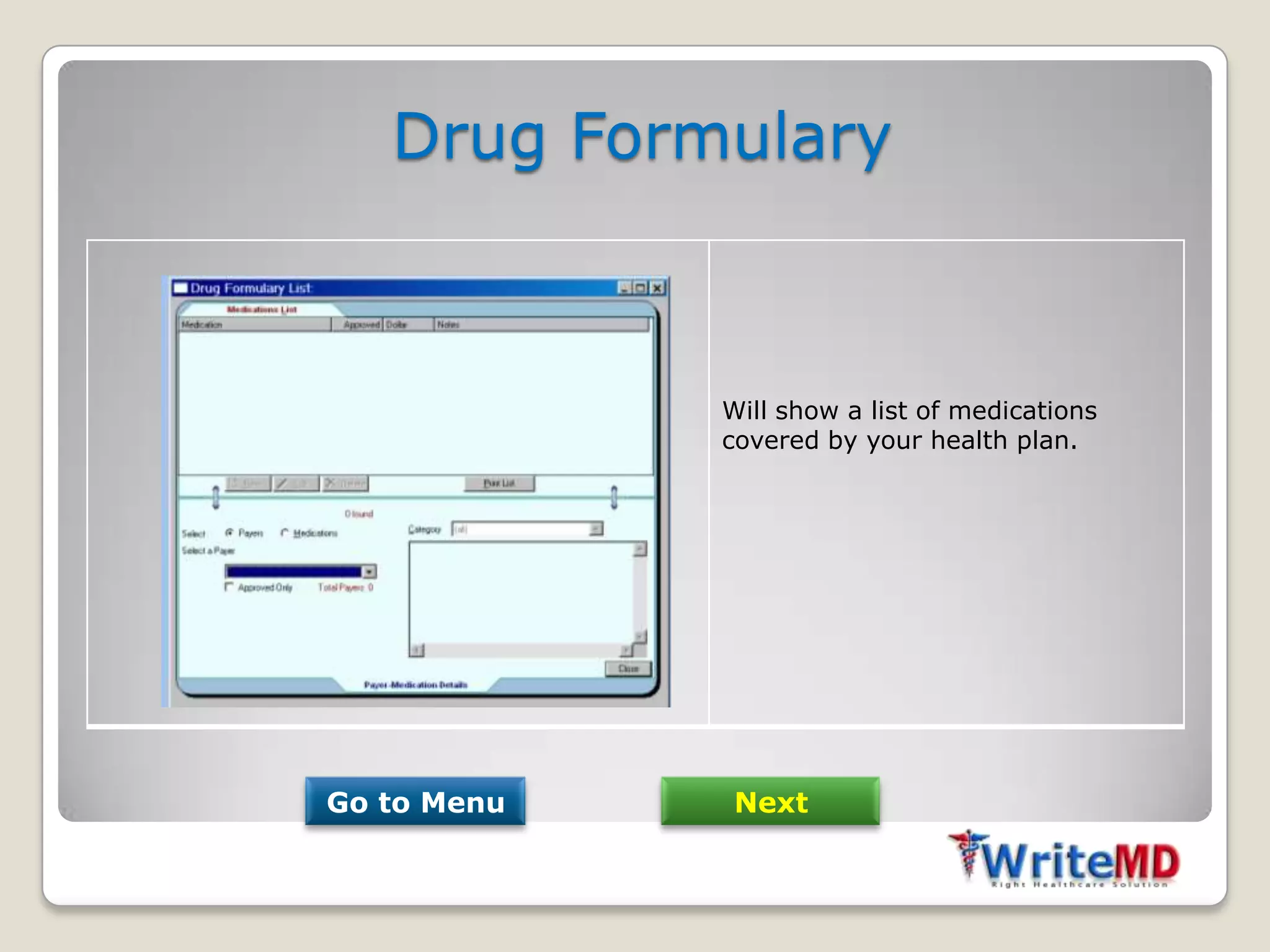
Drug Formulary


             Will show a list of medications
             covered by your health plan.


Go to Menu    Next
Desk Book
                 You could scan documents to
                 this area and save it.

                 You could look for scanned
                 documents from this area.


Go to Menu    Next
Contact List
1   2                    3
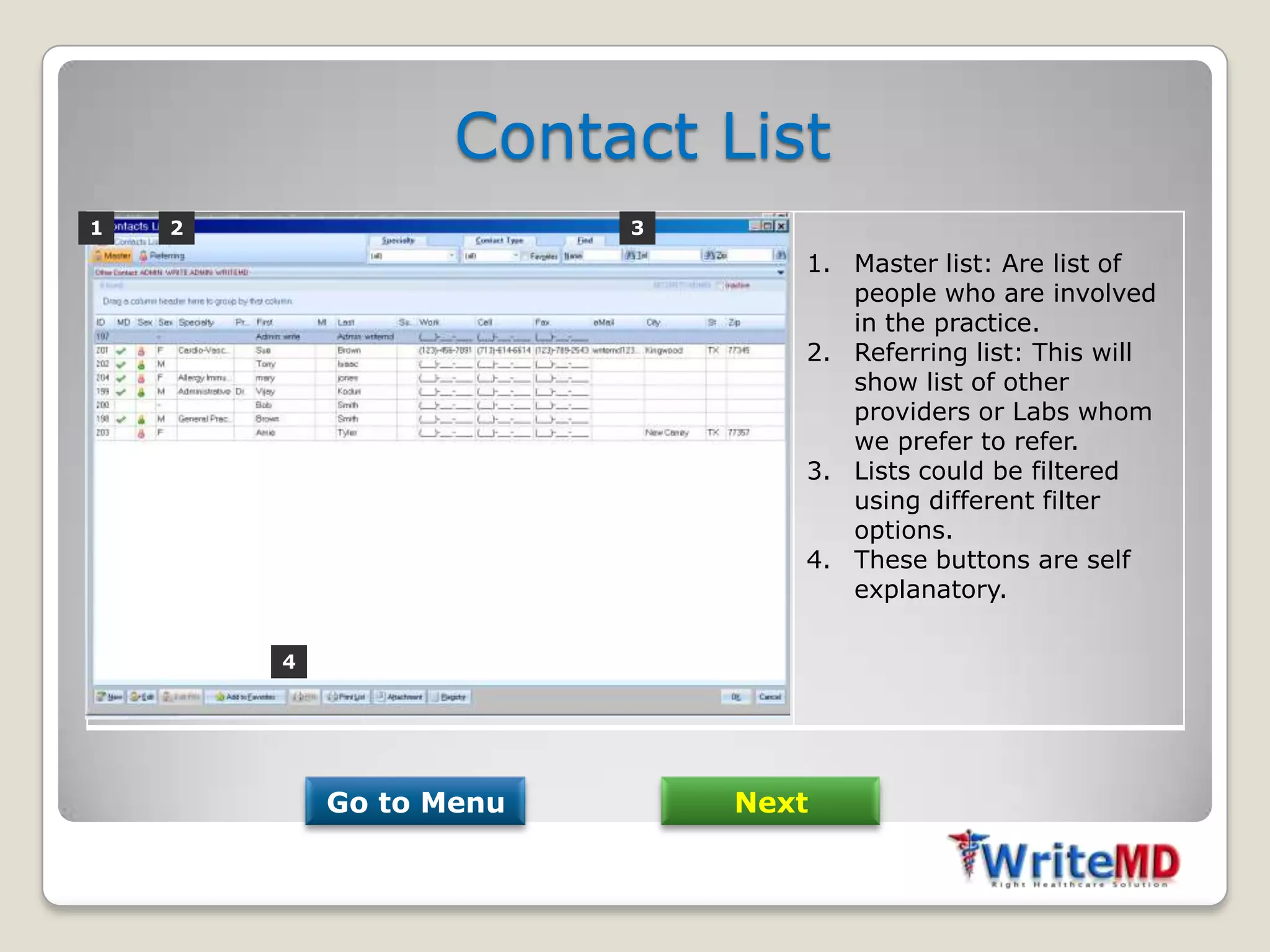
                                1. Master list: Are list of
                                   people who are involved
                                   in the practice.
                                2. Referring list: This will
                                   show list of other
                                   providers or Labs whom
                                   we prefer to refer.
                                3. Lists could be filtered
                                   using different filter
                                   options.
                                4. These buttons are self
                                   explanatory.

        4


            Go to Menu       Next
Medscale
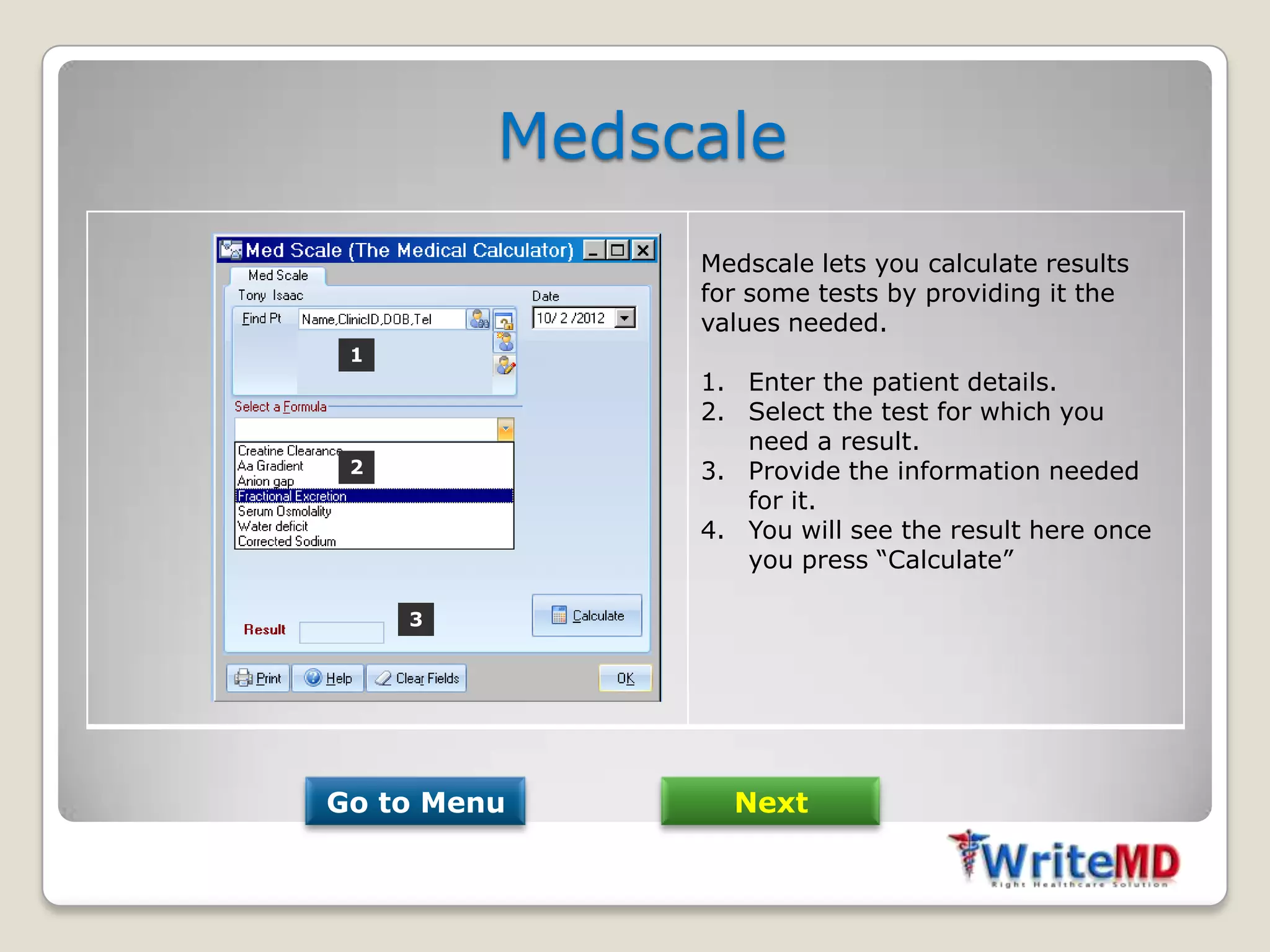
              Medscale lets you calculate results
              for some tests by providing it the
              values needed.
 1
              1. Enter the patient details.
              2. Select the test for which you
                 need a result.
 2            3. Provide the information needed
                 for it.
              4. You will see the result here once
                 you press “Calculate”

     3


Go to Menu      Next
CME

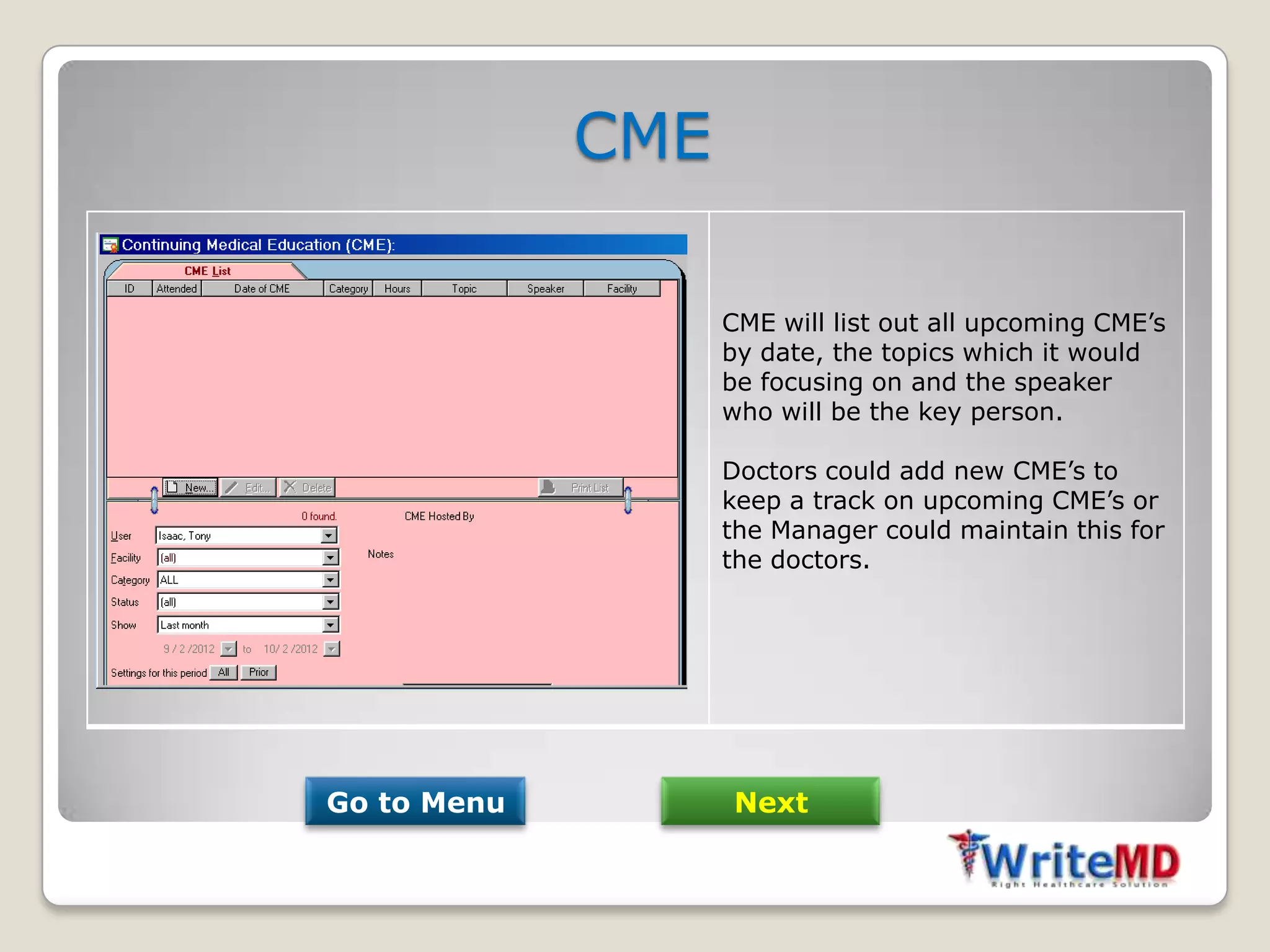
                   CME will list out all upcoming CME’s
                   by date, the topics which it would
                   be focusing on and the speaker
                   who will be the key person.

                   Doctors could add new CME’s to
                   keep a track on upcoming CME’s or
                   the Manager could maintain this for
                   the doctors.


Go to Menu         Next
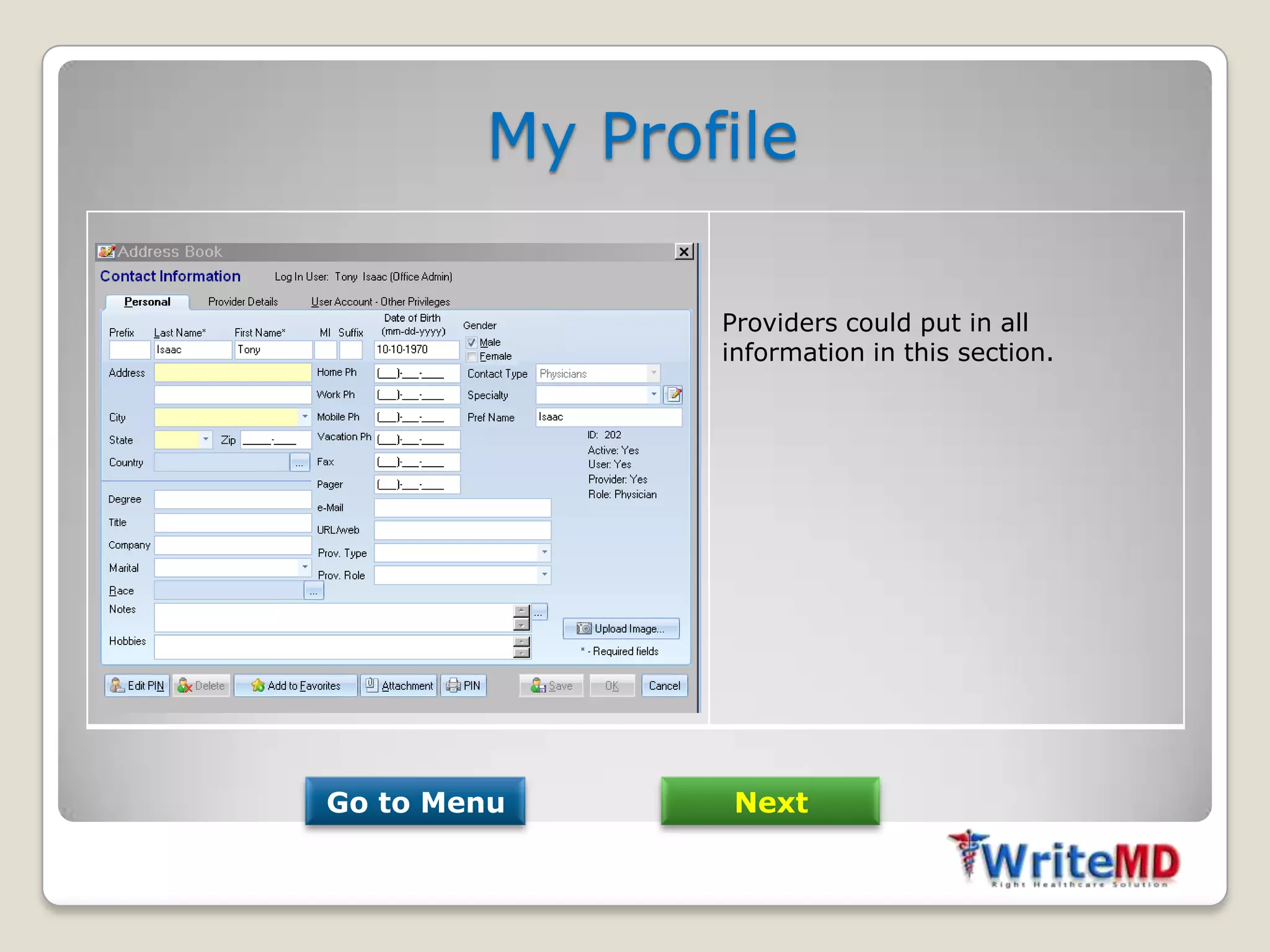
My Profile

               Providers could put in all
               information in this section.


Go to Menu      Next
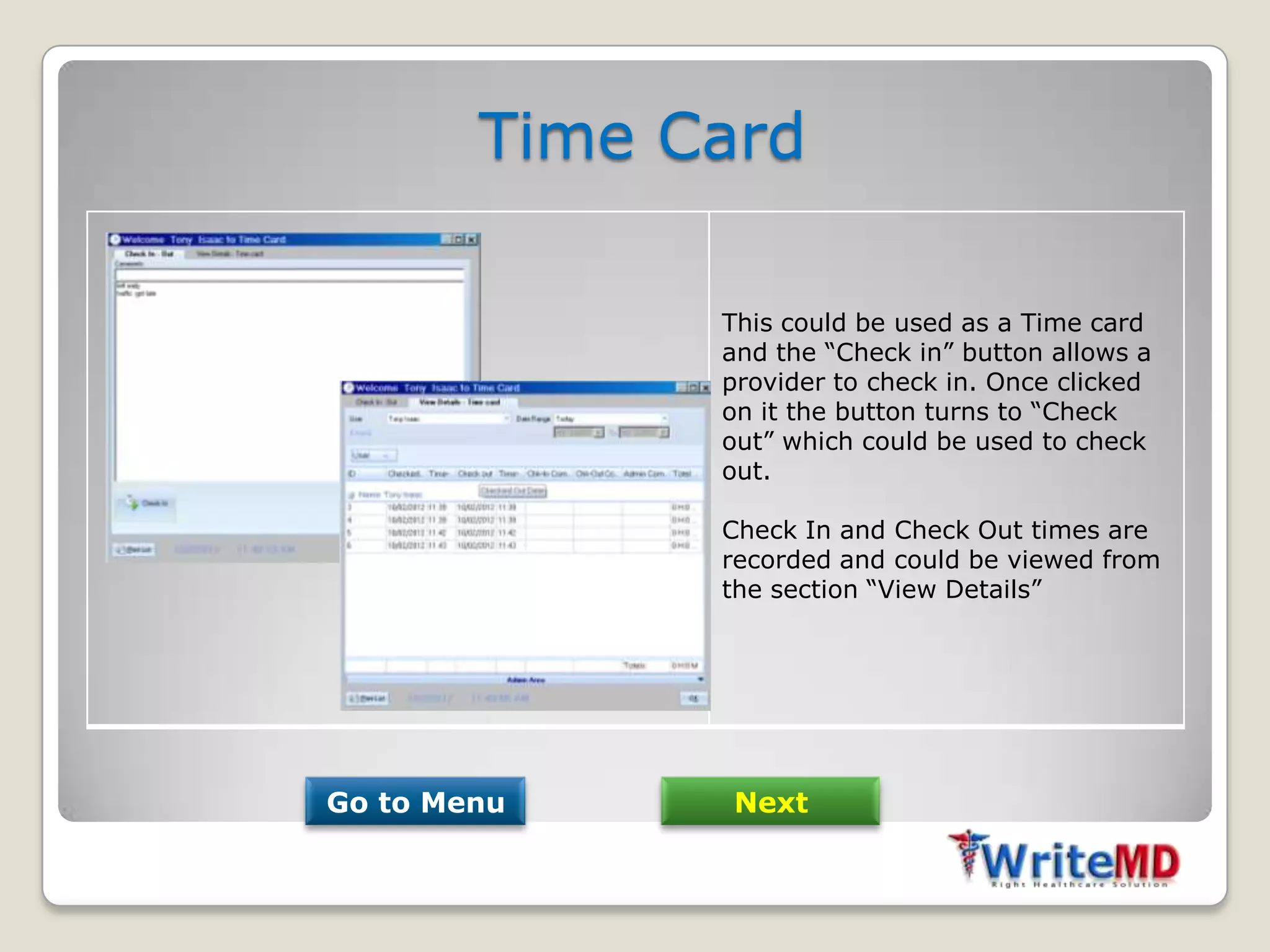
Time Card

              This could be used as a Time card
              and the “Check in” button allows a
              provider to check in. Once clicked
              on it the button turns to “Check
              out” which could be used to check
              out.

              Check In and Check Out times are
              recorded and could be viewed from
              the section “View Details”


Go to Menu     Next
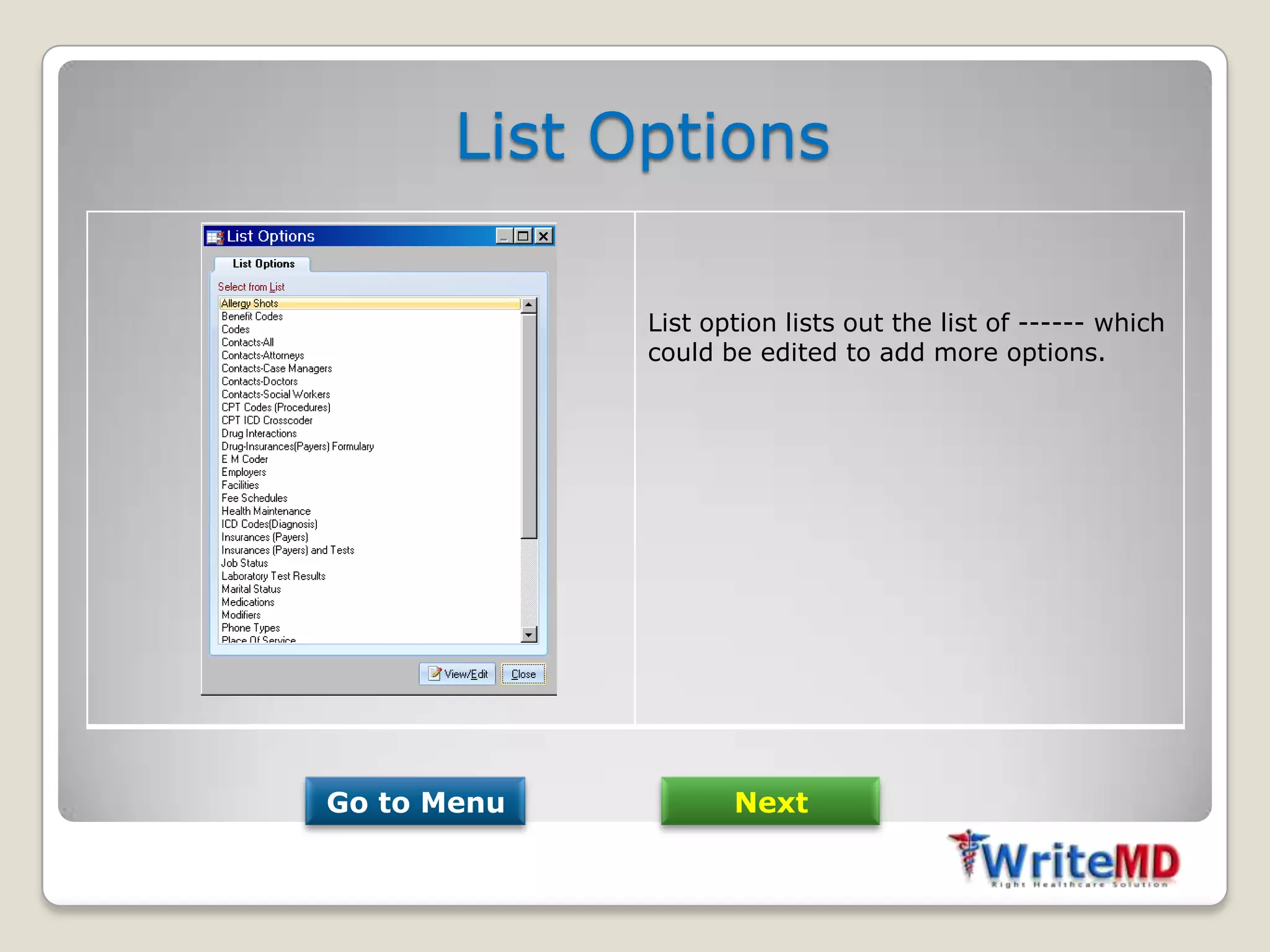
List Options

             List option lists out the list of ------ which
             could be edited to add more options.


Go to Menu          Next
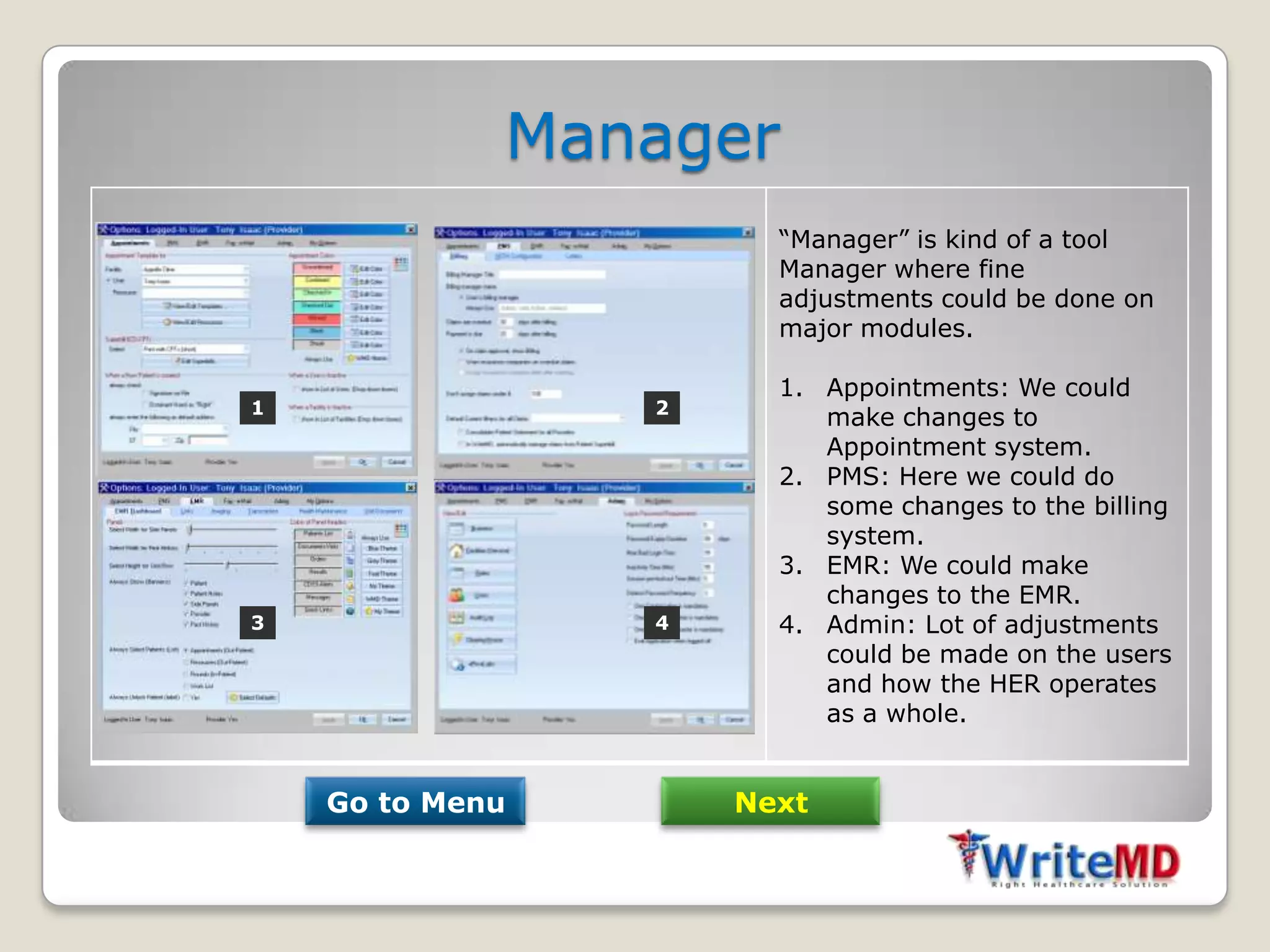
Manager
                       “Manager” is kind of a tool
                       Manager where fine
                       adjustments could be done on
                       major modules.

                       1. Appointments: We could
1                2
                          make changes to
                          Appointment system.
                       2. PMS: Here we could do
                          some changes to the billing
                          system.
                       3. EMR: We could make
                          changes to the EMR.
3                4     4. Admin: Lot of adjustments
                          could be made on the users
                          and how the HER operates
                          as a whole.


    Go to Menu       Next
Log off & Exit


Even though the Logoff and Exit sounds same kind of function they have two
different types of functions.

Log Off: This is kind of a temporary turn off option where the user could close the
EHR. In this type of temporary shut down the login section all other users will be
inactive. To make them active we could press “Cancel” to login as a different user.

Exit: This is total shut down of the EHR.


                  Go to Menu                       Next
Contact Us
Feel free to email us or contact us for a demo or for more details.


                Phone: (281) 661-8888
               Email: info@writemd.com

                           @writemd1

            @ www.facebook.com/writemd

         @ www.youtube.com/user/writemd

Buttons in WriteMD EHR

  • 1.
    What does theHorizontal buttons mean?
  • 2.
    Horizontal Buttons WriteMD Rx Med Scale List Options Formulary CME Manager Deskbook My Profile Logout Contacts Time Card Exit Click on hyperlink to go direct to the page
  • 3.
    Rx Manager 1. Enter the name of the 5 1 medication for which you need more information and press Enter. 2. Will get loaded with 2 3 information on what all generic and trade names this drug is available. Select one by clicking on it. 3. This section will show information about the drug. 4. This section will show what all Strength and form this drug is available. 4 5. You could also load the drug information from a list you made or from previously used. Go to Menu Next
  • 4.
    Drug Formulary Will show a list of medications covered by your health plan. Go to Menu Next
  • 5.
    Desk Book You could scan documents to this area and save it. You could look for scanned documents from this area. Go to Menu Next
  • 6.
    Contact List 1 2 3 1. Master list: Are list of people who are involved in the practice. 2. Referring list: This will show list of other providers or Labs whom we prefer to refer. 3. Lists could be filtered using different filter options. 4. These buttons are self explanatory. 4 Go to Menu Next
  • 7.
    Medscale Medscale lets you calculate results for some tests by providing it the values needed. 1 1. Enter the patient details. 2. Select the test for which you need a result. 2 3. Provide the information needed for it. 4. You will see the result here once you press “Calculate” 3 Go to Menu Next
  • 8.
    CME CME will list out all upcoming CME’s by date, the topics which it would be focusing on and the speaker who will be the key person. Doctors could add new CME’s to keep a track on upcoming CME’s or the Manager could maintain this for the doctors. Go to Menu Next
  • 9.
    My Profile Providers could put in all information in this section. Go to Menu Next
  • 10.
    Time Card This could be used as a Time card and the “Check in” button allows a provider to check in. Once clicked on it the button turns to “Check out” which could be used to check out. Check In and Check Out times are recorded and could be viewed from the section “View Details” Go to Menu Next
  • 11.
    List Options List option lists out the list of ------ which could be edited to add more options. Go to Menu Next
  • 12.
    Manager “Manager” is kind of a tool Manager where fine adjustments could be done on major modules. 1. Appointments: We could 1 2 make changes to Appointment system. 2. PMS: Here we could do some changes to the billing system. 3. EMR: We could make changes to the EMR. 3 4 4. Admin: Lot of adjustments could be made on the users and how the HER operates as a whole. Go to Menu Next
  • 13.
    Log off &Exit Even though the Logoff and Exit sounds same kind of function they have two different types of functions. Log Off: This is kind of a temporary turn off option where the user could close the EHR. In this type of temporary shut down the login section all other users will be inactive. To make them active we could press “Cancel” to login as a different user. Exit: This is total shut down of the EHR. Go to Menu Next
  • 14.
    Contact Us Feel freeto email us or contact us for a demo or for more details. Phone: (281) 661-8888 Email: info@writemd.com @writemd1 @ www.facebook.com/writemd @ www.youtube.com/user/writemd