ZWCAD history 
ZWCAD Software Co., Ltd. (shortname as ZWSOFT) is a 
CAD/CAM software provider with HQ in Guangzhou, 
China. 
It's founded in 1998 as Guangzhou Chinaweal 
Longteng Technology Co., Ltd. and changed the name 
as "ZWCAD Software Co., Ltd" in 2007. In the same 
year, the company became a founding member of the 
ODA (Open Design Alliance). It has three R&D Centres, 
separately located in Guangzhou, Wuhan and Melbourne, 
Florida (USA).
Introduction 
Design: is creating a real product from an idea 
Drafting: is the production of drawings that are 
used to document a design 
ZWCAD: can be used to create 2D and 3D computer 
models
Why should we use CAD 
Traditional drafting is repetitious and can be 
inaccurate but using CAD we can make complex 
drawing more efficiently 
In the traditional way it is not possible to do changes 
on the same drawing but in CAD it is very easy to do 
changes/modifications
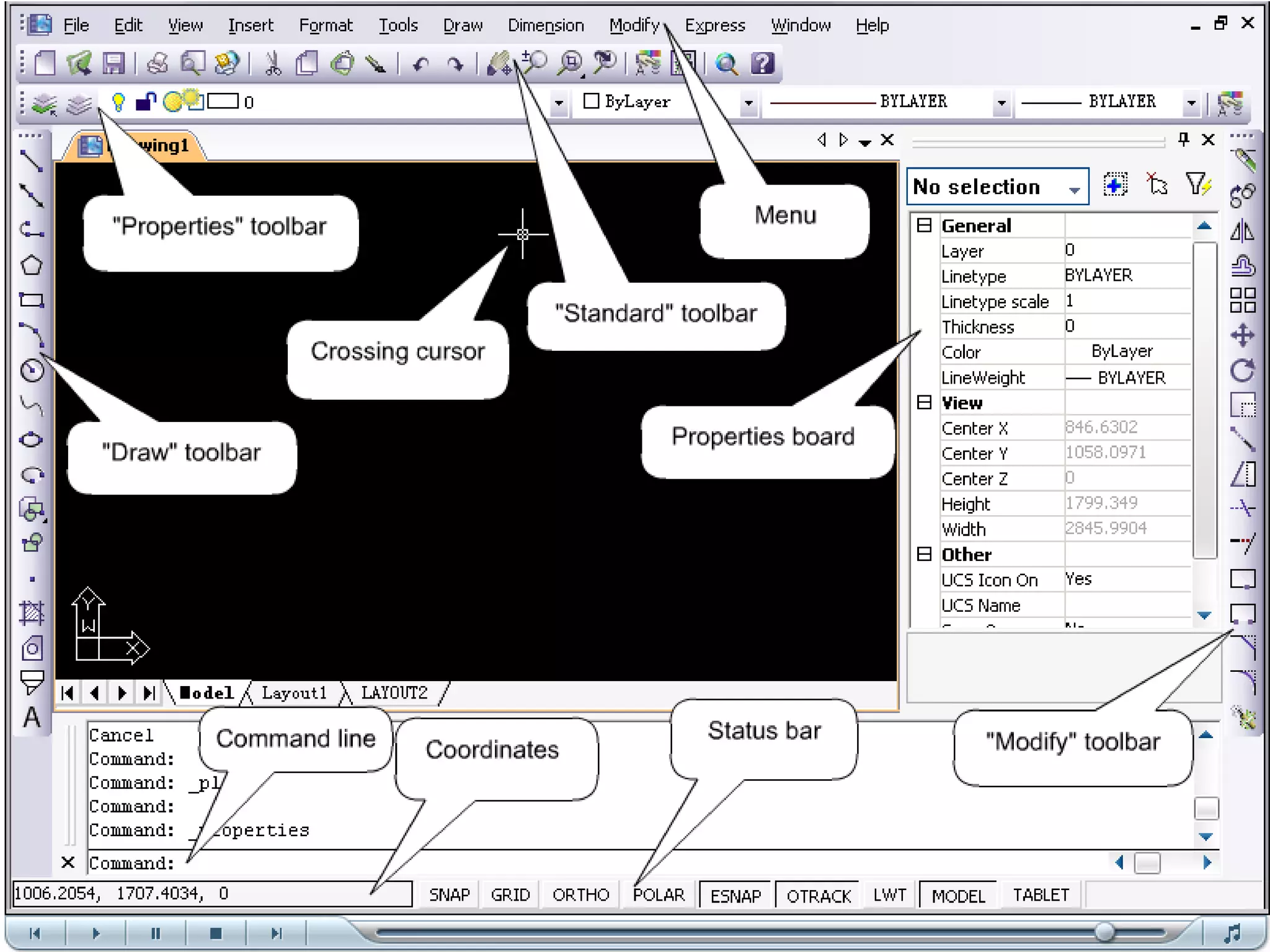
Status tool bar 
Snap(F9): controls the movement of cursor 
If it is OFF then cursor will move smoothly 
If it is ON, the cursor will jump in an incremental 
movement 
Incremental spacing can be changed at any time 
using: 
1) tools-> drafting setting->snap and 
2) Give a right click on snap
Grid(F7): is a visual drawing aid. 
We can change the grid spacing by using: 
1) tools-> drafting setting->grid and 
2) Give a right click on grid
Ortho(F8): when ortho is ON, cursor movement is 
restricted to horizontal or vertical 
When ortho is OFF cursor movement is free 
Polar(F10): creates ‘alignment paths’ at specified 
angles
ESANP/OSNAP(F3): specific object snap can be 
set to stay active until you turn them OFF 
OTRACK(F11): creates ‘alignment paths’ at precise 
positions using object snap locations 
LWT(LINEWEIGHT): display the width assigned 
to each object
MODEL: switches your drawing between paper-space 
and model-space 
DYN(DYNAMIC INPUT)(F12): displays the 
dynamic command input by the cursor 
Tablet: Calibrates the tablet with a paper drawing 
or photograph. Calibration is digitizing points on the 
drawing and mapping to them to their real 
coordinate
Special key function 
Escape key: cancel the current operation 
Enter key: ends a command, or will repeat the 
previous command if the command line/prompt is 
blank 
Space bar: same as enter key, except when entering 
text
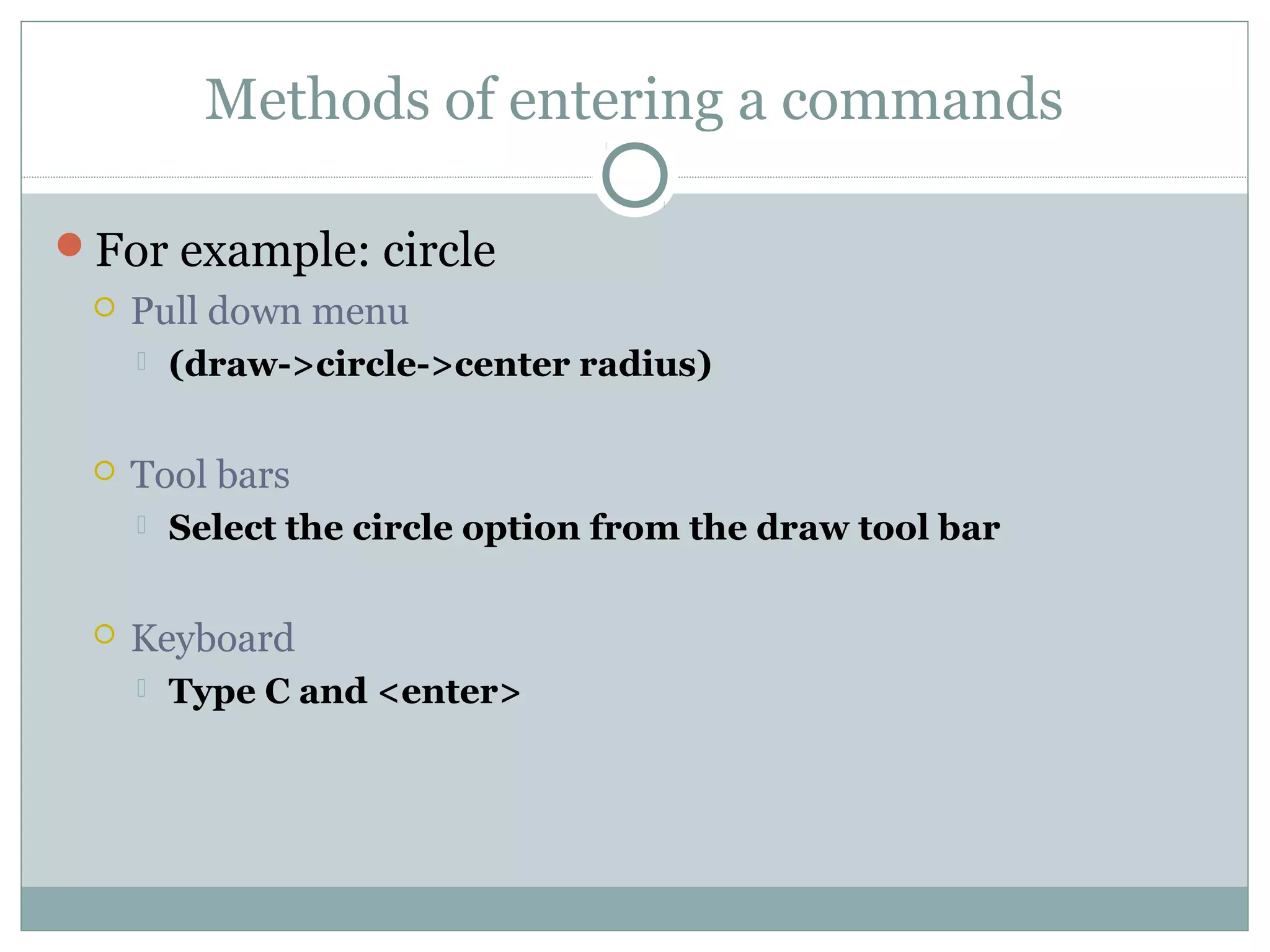
Methods of entering a commands 
For example: circle 
 Pull down menu 
 (draw->circle->center radius) 
 Tool bars 
 Select the circle option from the draw tool bar 
 Keyboard 
 Type C and <enter>
Shortcut menu 
To activate a shortcut menu, press the right mouse 
button when the bracketed options appear on the 
command line 
 First select a command then press right mouse button then 
shortcut menu will be visible
Command-erase 
3 methods to erase 
 Select the ERASE command first and then select the objects 
 Select the object first and then select the ERASE command 
from the shortcut menu 
 Select the objects and then press the DELETE key
Methods of selecting objects 
Pick box 
blue window: we have to cover whole objects 
Green window: if we are covering even a part of a 
object whole object will be selected
Grid and limits 
Format->drawing limits-> 0,0(enter) -> 
420,297(enter) 
In command line Limits->on 
Grid setting: unmark display limits beyond 
limits

17967 zwcad

  • 1.
    ZWCAD history ZWCADSoftware Co., Ltd. (shortname as ZWSOFT) is a CAD/CAM software provider with HQ in Guangzhou, China. It's founded in 1998 as Guangzhou Chinaweal Longteng Technology Co., Ltd. and changed the name as "ZWCAD Software Co., Ltd" in 2007. In the same year, the company became a founding member of the ODA (Open Design Alliance). It has three R&D Centres, separately located in Guangzhou, Wuhan and Melbourne, Florida (USA).
  • 2.
    Introduction Design: iscreating a real product from an idea Drafting: is the production of drawings that are used to document a design ZWCAD: can be used to create 2D and 3D computer models
  • 3.
    Why should weuse CAD Traditional drafting is repetitious and can be inaccurate but using CAD we can make complex drawing more efficiently In the traditional way it is not possible to do changes on the same drawing but in CAD it is very easy to do changes/modifications
  • 4.
    Status tool bar Snap(F9): controls the movement of cursor If it is OFF then cursor will move smoothly If it is ON, the cursor will jump in an incremental movement Incremental spacing can be changed at any time using: 1) tools-> drafting setting->snap and 2) Give a right click on snap
  • 5.
    Grid(F7): is avisual drawing aid. We can change the grid spacing by using: 1) tools-> drafting setting->grid and 2) Give a right click on grid
  • 6.
    Ortho(F8): when orthois ON, cursor movement is restricted to horizontal or vertical When ortho is OFF cursor movement is free Polar(F10): creates ‘alignment paths’ at specified angles
  • 7.
    ESANP/OSNAP(F3): specific objectsnap can be set to stay active until you turn them OFF OTRACK(F11): creates ‘alignment paths’ at precise positions using object snap locations LWT(LINEWEIGHT): display the width assigned to each object
  • 8.
    MODEL: switches yourdrawing between paper-space and model-space DYN(DYNAMIC INPUT)(F12): displays the dynamic command input by the cursor Tablet: Calibrates the tablet with a paper drawing or photograph. Calibration is digitizing points on the drawing and mapping to them to their real coordinate
  • 9.
    Special key function Escape key: cancel the current operation Enter key: ends a command, or will repeat the previous command if the command line/prompt is blank Space bar: same as enter key, except when entering text
  • 11.
    Methods of enteringa commands For example: circle  Pull down menu  (draw->circle->center radius)  Tool bars  Select the circle option from the draw tool bar  Keyboard  Type C and <enter>
  • 12.
    Shortcut menu Toactivate a shortcut menu, press the right mouse button when the bracketed options appear on the command line  First select a command then press right mouse button then shortcut menu will be visible
  • 13.
    Command-erase 3 methodsto erase  Select the ERASE command first and then select the objects  Select the object first and then select the ERASE command from the shortcut menu  Select the objects and then press the DELETE key
  • 14.
    Methods of selectingobjects Pick box blue window: we have to cover whole objects Green window: if we are covering even a part of a object whole object will be selected
  • 15.
    Grid and limits Format->drawing limits-> 0,0(enter) -> 420,297(enter) In command line Limits->on Grid setting: unmark display limits beyond limits