Virtual SAN - Day 2 Operations
Cormac Hogan, VMware, Inc
Paudie ORiordan, VMware, Inc
STO7534
#STO7534
• This presentation may contain product features that are currently under development.
• This overview of new technology represents no commitment from VMware to deliver these
features in any generally available product.
• Features are subject to change, and must not be included in contracts, purchase orders, or
sales agreements of any kind.
• Technical feasibility and market demand will affect final delivery.
• Pricing and packaging for any new technologies or features discussed or presented have not
been determined.
Disclaimer
CONFIDENTIAL 2
This Session…
• Virtual SAN has been available since March 2014, almost 2.5 years
• To date, we have over 5,000 VSAN customers.
• VMware recognises that dealing with Virtual SAN Operations on a day to day basis requires
more than 2 clicks
• Since the launch of Virtual SAN, additional tools for managing, monitoring and troubleshooting
Virtual SAN have become available.
• In this session, approaches to common problems that actual Virtual SAN administrators face
will be discussed.
• We will discuss how various tools and approaches to various problems can help you manage
your data now the VMware consultant left the building….
3CONFIDENTIAL
Agenda
4
1 Introduction to Session
2 Monitor – Getting The Basics Right
3 Alerting – What Are My Options?
4 Virtual SAN Upgrade
5 Bring it all together – Handling a Failure (Demo)
CONFIDENTIAL
Monitoring – Get the Basics Right
vSphere Logging
Virtual SAN Trace Files
ESXi Core Files
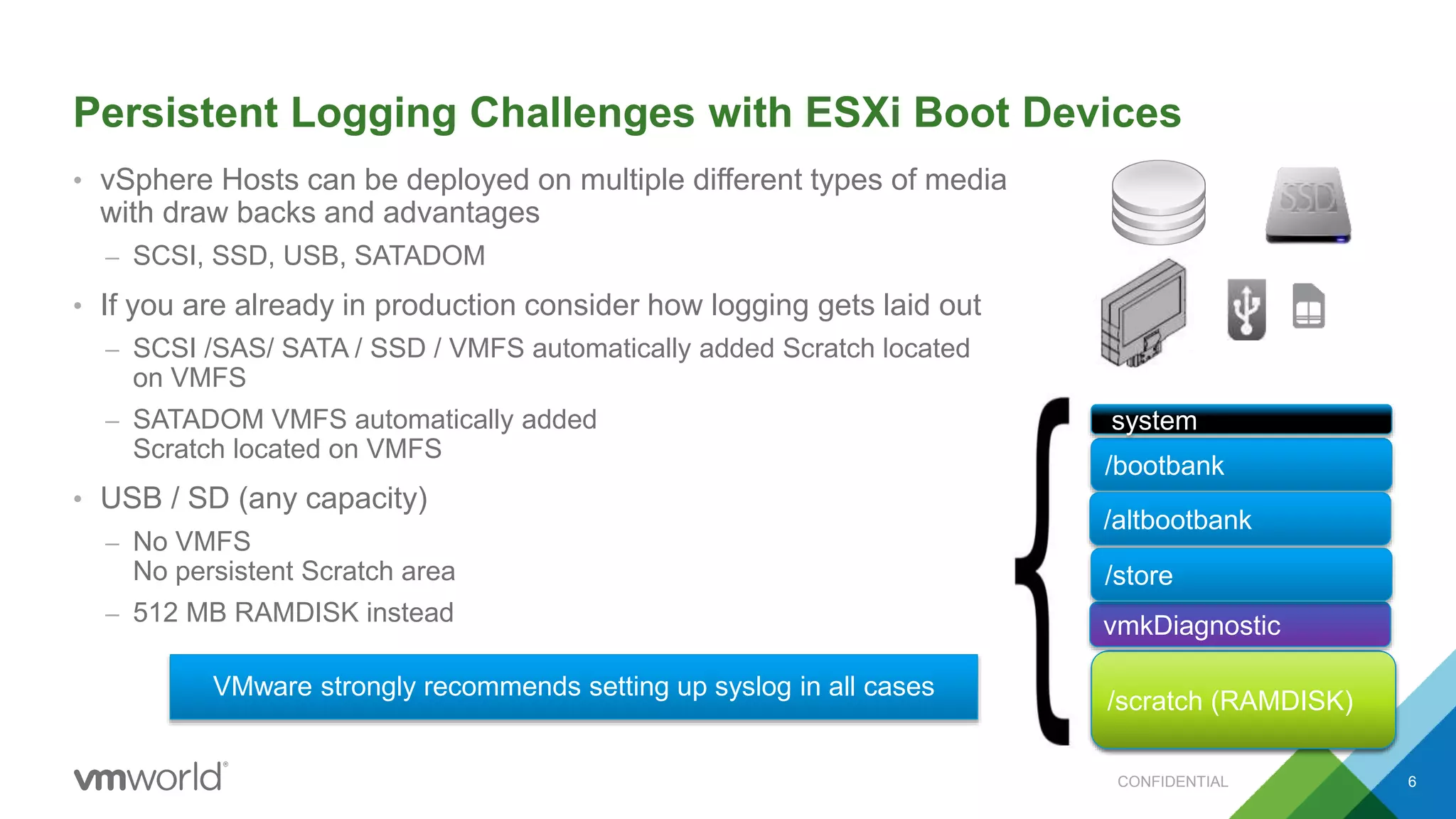
Persistent Logging Challenges with ESXi Boot Devices
• vSphere Hosts can be deployed on multiple different types of media
with draw backs and advantages
– SCSI, SSD, USB, SATADOM
• If you are already in production consider how logging gets laid out
– SCSI /SAS/ SATA / SSD / VMFS automatically added Scratch located
on VMFS
– SATADOM VMFS automatically added
Scratch located on VMFS
• USB / SD (any capacity)
– No VMFS
No persistent Scratch area
– 512 MB RAMDISK instead
VMFS/scratch (RAMDISK)
/bootbank
system
vmkDiagnostic
/altbootbank
/store
VMware strongly recommends setting up syslog in all cases
CONFIDENTIAL 6
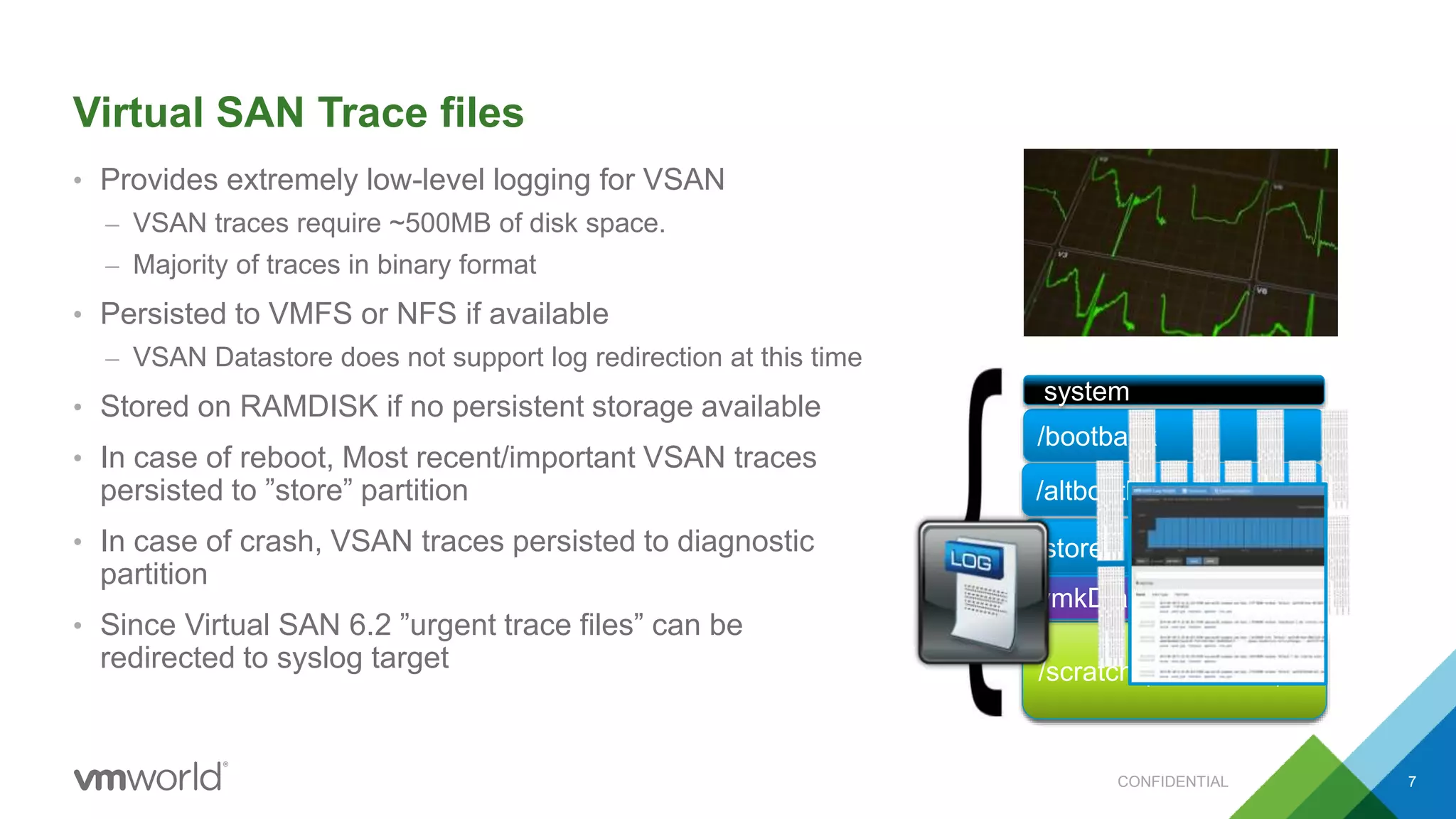
Virtual SAN Trace files
• Provides extremely low-level logging for VSAN
– VSAN traces require ~500MB of disk space.
– Majority of traces in binary format
• Persisted to VMFS or NFS if available
– VSAN Datastore does not support log redirection at this time
• Stored on RAMDISK if no persistent storage available
• In case of reboot, Most recent/important VSAN traces
persisted to ”store” partition
• In case of crash, VSAN traces persisted to diagnostic
partition
• Since Virtual SAN 6.2 ”urgent trace files” can be
redirected to syslog target
/bootbank
system
vmkDiagnostic
/altbootbank
/store
VMFS/scratch (RAMDISK)
/store
vmkDiagnostic
CONFIDENTIAL 7
ESXi Core Dump Partition
• Special Partition incase of diagnostic crash
– 2.2GB space set aside for memory dump
• Ensures full memory dump gets written to persistent media
• ESXI hosts with less than <= 512GB Physical Memory
– We can safely fit memory dump to USB/SD
• ESXi hosts greater than > 512GB Physical Memory
– Use SAS/SATA , SATADOM,
• vSphere ESXi Network Dump Collector
– if no suitable persistent media available
vmkDiagnostic
/scratch (RAMDISK)
/bootbank
system
/altbootbank
/store
CONFIDENTIAL 8
Alerting – What Are My Options?
vSphere Built-In
vRealize Operations
vRealize Log Insight
vSphere Built-in
• vSphere Native Alerting
– 70+ Virtual SAN Health
Alarms
– Many more vSphere alarms
– Alert via SNMP / SMTP
• Create custom alarms
– Use VMware ESXi VOBs or
Observation IDs for VSAN
• Virtual SAN Management API 6.2
interface for bespoke solution
CONFIDENTIAL 11
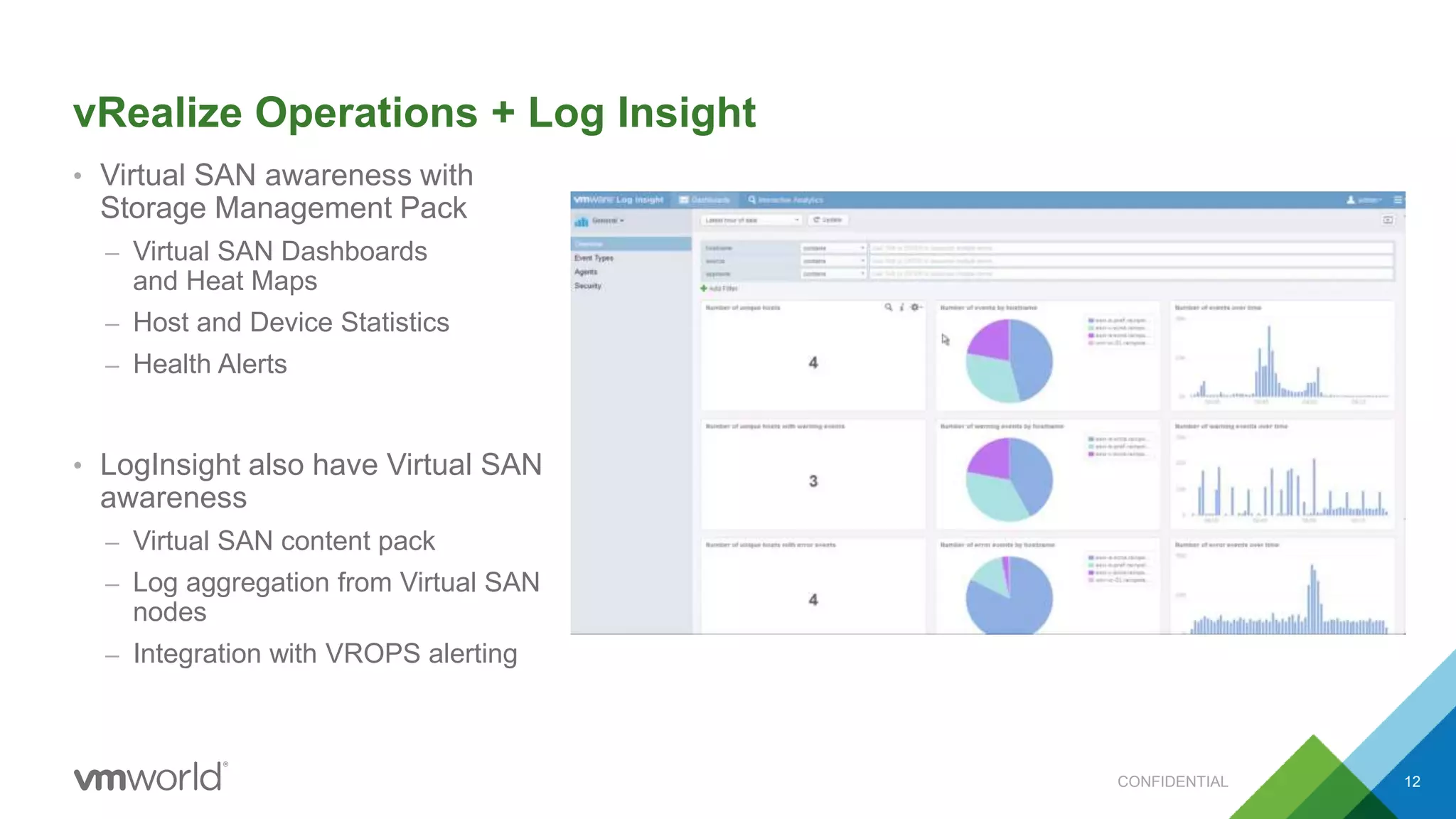
vRealize Operations + Log Insight
• Virtual SAN awareness with
Storage Management Pack
– Virtual SAN Dashboards
and Heat Maps
– Host and Device Statistics
– Health Alerts
• LogInsight also have Virtual SAN
awareness
– Virtual SAN content pack
– Log aggregation from Virtual SAN
nodes
– Integration with VROPS alerting
CONFIDENTIAL 12
Virtual SAN Upgrade
Prerequisites
Workflow
Monitoring
Gotchas
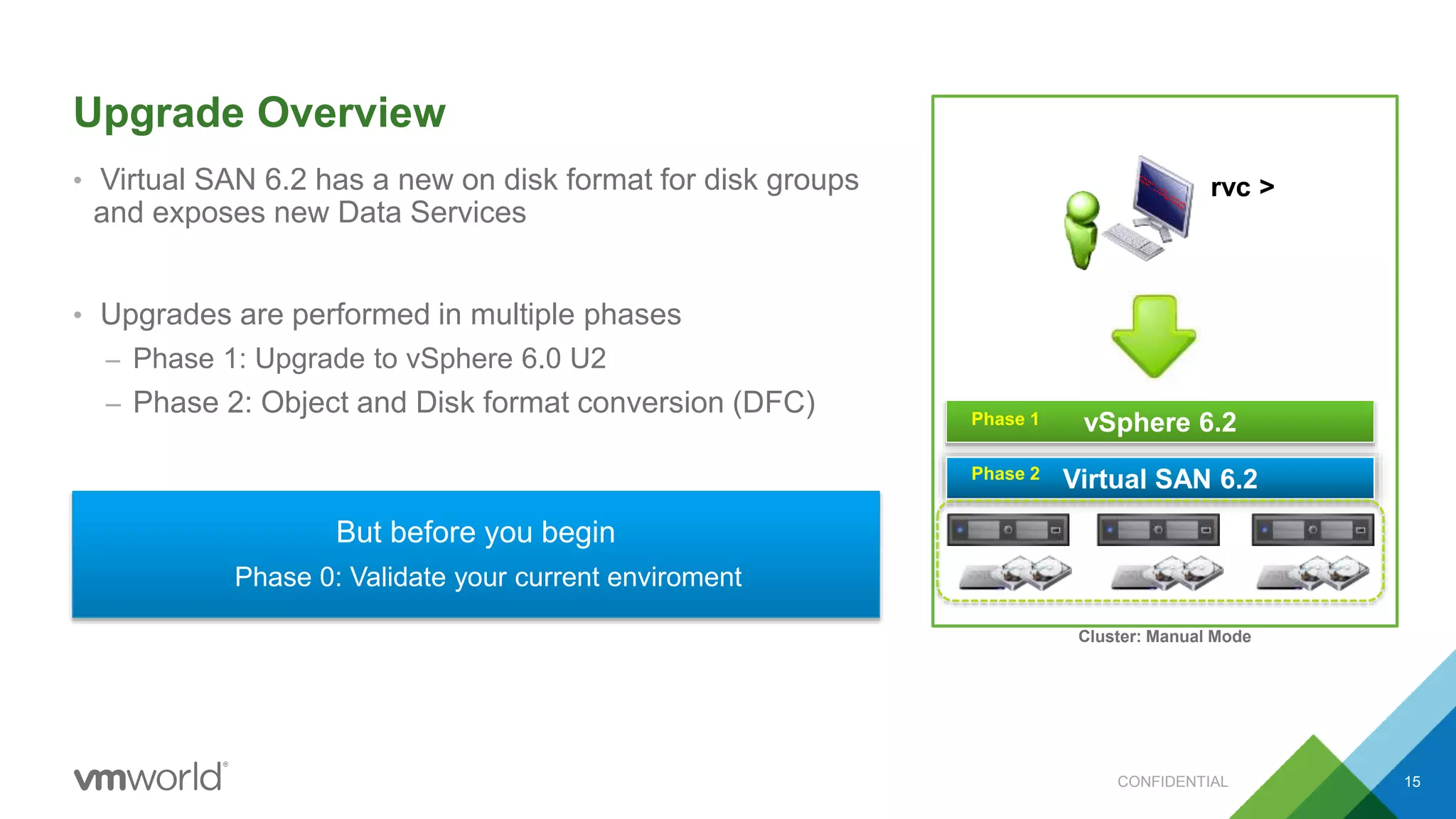
Upgrade Overview
• Virtual SAN 6.2 has a new on disk format for disk groups
and exposes new Data Services
• Upgrades are performed in multiple phases
– Phase 1: Upgrade to vSphere 6.0 U2
– Phase 2: Object and Disk format conversion (DFC)
Virtual SAN 6.2
vSphere 6.2
Cluster: Manual Mode
Phase 1
Phase 2
rvc >
But before you begin
Phase 0: Validate your current enviroment
CONFIDENTIAL 15
Phase 0 – Please Read Before You Start
• Virtual SAN 6.2 Release Notes
• VMware Product Interoperability
• VMware Virtual SAN Hardware
• Server, Controller, SSD, Disk on HCL
• Controller Firmware, Disk Firmware,
• Controller Driver, Enclosure Firmware
CONFIDENTIAL 16
Phase 1 - Upgrading from Virtual SAN 5.5
CONFIDENTIAL 17
• You can upgrade from VSAN 5.5 to VSAN 6.X
• However…patching is critical
• During upgrade some older releases of vSphere 5.5 may
cause VMware Virtual SAN Data Unavailability and Instability.
• Make sure all critical patches are installed prior to upgrade
• Not an issue between VSAN 6.0 and VSAN 6.X
More details – please read VMware KB 2113024 and
VMware KB 2139969
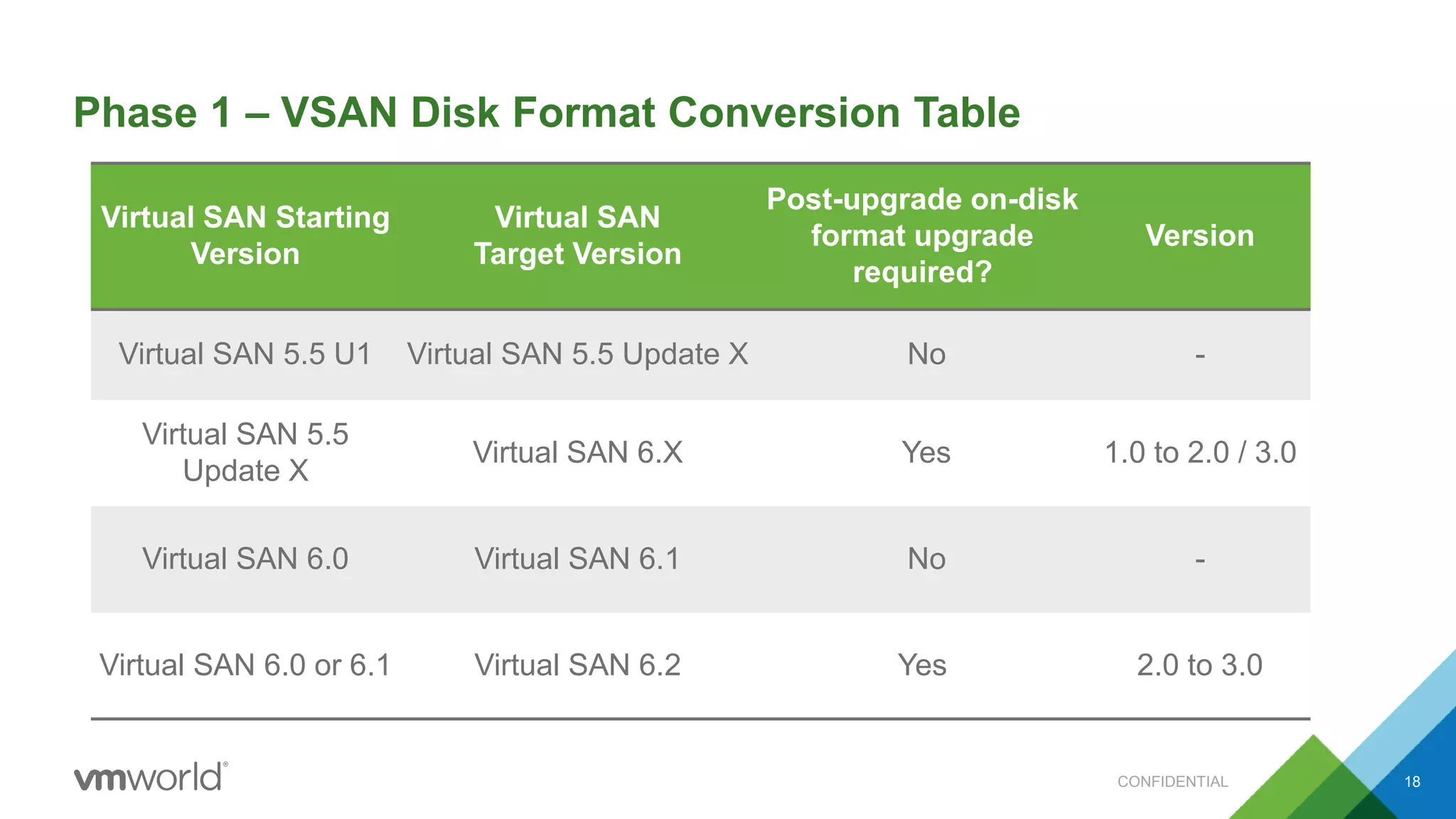
Phase 1 – VSAN Disk Format Conversion Table
CONFIDENTIAL 18
Virtual SAN Starting
Version
Virtual SAN
Target Version
Post-upgrade on-disk
format upgrade
required?
Version
Virtual SAN 5.5 U1 Virtual SAN 5.5 Update X No -
Virtual SAN 5.5
Update X
Virtual SAN 6.X Yes 1.0 to 2.0 / 3.0
Virtual SAN 6.0 Virtual SAN 6.1 No -
Virtual SAN 6.0 or 6.1 Virtual SAN 6.2 Yes 2.0 to 3.0
Phase 1 – vSphere Software Upgrade
• Step 1 – Upgrade vCenter Server to 6.0 U2
• Step 2 – Upgrade ESXi hosts to 6.0 U2
• Maintenance Mode?
– Ensure accessibility
• Fast, but with risk
– Full data migration
• Slower, but no risk
CONFIDENTIAL 19
Phase 1 – vSphere Software Health Check GOTCHA
• vCenter 6.0 Update 2 installed
– Health check will not work when ESXi version is < 6.0 U2
CONFIDENTIAL 20
Phase 1 – vSphere Software Health Check
• Software Upgraded?
– Check your Virtual SAN Health
– Update your HCL Database files
– Make sure it’s all Green
Address any failed tests
BEFORE
proceeding to the
On Disk Format Upgrade!
CONFIDENTIAL 21
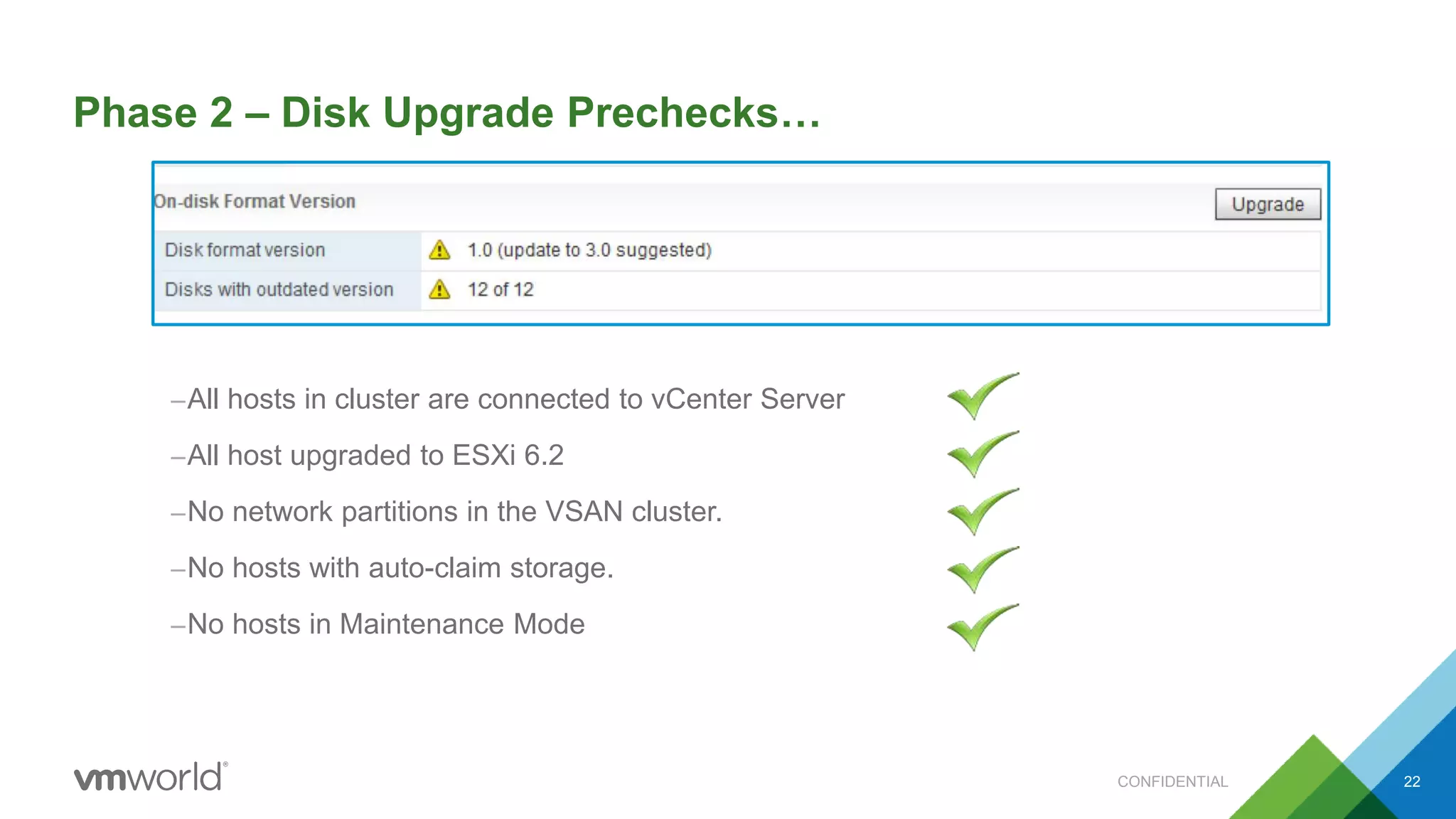
Phase 2 – Disk Upgrade Prechecks…
–All hosts in cluster are connected to vCenter Server
–All host upgraded to ESXi 6.2
–No network partitions in the VSAN cluster.
–No hosts with auto-claim storage.
–No hosts in Maintenance Mode
CONFIDENTIAL 22
Phase 2 – Are You Sure?
CONFIDENTIAL 23
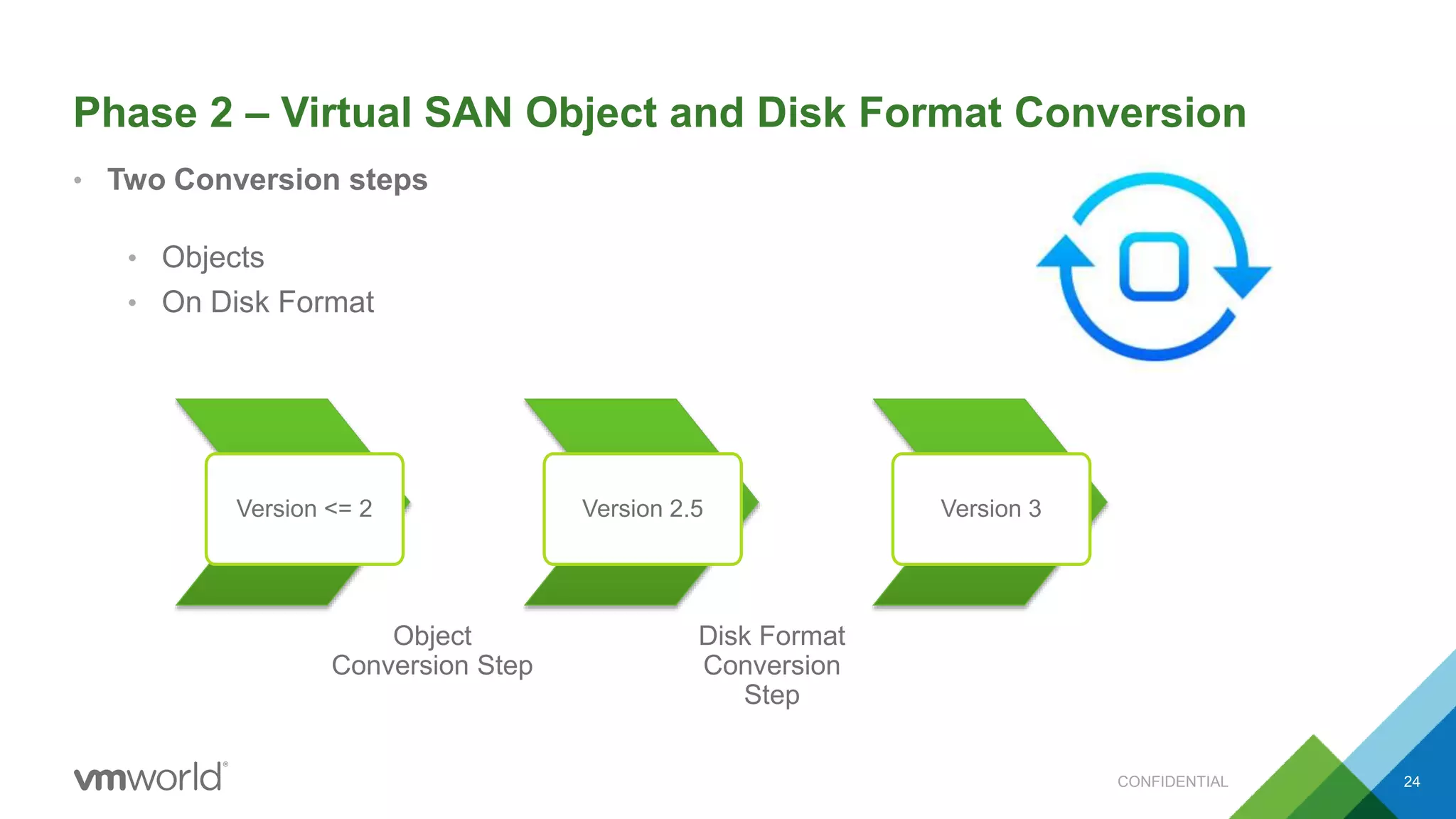
Phase 2 – Virtual SAN Object and Disk Format Conversion
• Two Conversion steps
• Objects
• On Disk Format
Version <= 2
Object
Conversion Step
Version 2.5 Version 3
Disk Format
Conversion
Step
CONFIDENTIAL 24
Phase 2 – Upgrade Process
• 1MB alignment of existing objects < Virtual SAN 6.0. Realigns vsanSparse objects to be on 4K boundaries
for Virtual SAN 6.2 Data Services
• During Virtual SAN on-disk format phase , a disk group evacuation is performed.
– Data is evacuated
– The disk group is removed
– The disk group is re-added
– Rinse and Repeat
Evacuate Evacuate Evacuate
Version 3 Version 3 Version 3 Version 3
EvacuateEvacuate Evacuate
CONFIDENTIAL 25
Phase 2 – Disk Format Upgrade Gotcha
• For two-node or three-node clusters, upgrade will fail
• Virtual SAN allows upgrades to be performed in
“reduced redundancy mode”
• Caveats
– You are now in “unprotected” mode
– Any failures during upgrade process may lead to data
unavailability.
– Workaround available with Ruby vSphere Console (RVC)
vsan.ondisk_upgrade –h
hosts_and_clusters: Path to all HostSystems of cluster or ClusterComputeResource
-a, --allow-reduced-redundancy Removes the need for one disk group worth of free
space, by allowing reduced redundancy during disk
upgrade
-f, --force Automatically answer all confirmation questions
with 'proceed'
CONFIDENTIAL 26
Phase 2 – Disk Format Upgrade Gotchas
More details – please read VMware KB 2146221
• Mismatched disk group versions
• After vSphere upgraded to 6.0 U2, any new disk
groups will be formatted with the latest version
• This means there will be incompatible Disk Group
versions, if you have not yet upgraded the on disk
format
• Workaround is to reset the disk group version of the
new disk group to match what is in the cluster
CONFIDENTIAL 27
Virtual SAN Stretched Cluster Upgrade Gotchas
• Witness Appliance Considerations
• Stretched Cluster Witness Appliances must be treated like ESXi hosts
• Avoid rip and replace of Witness Appliance as this will lead to On-Disk format mismatches as
discussed earlier
• Health Check is unavailable until Witness Appliance is upgraded
CONFIDENTIAL 28
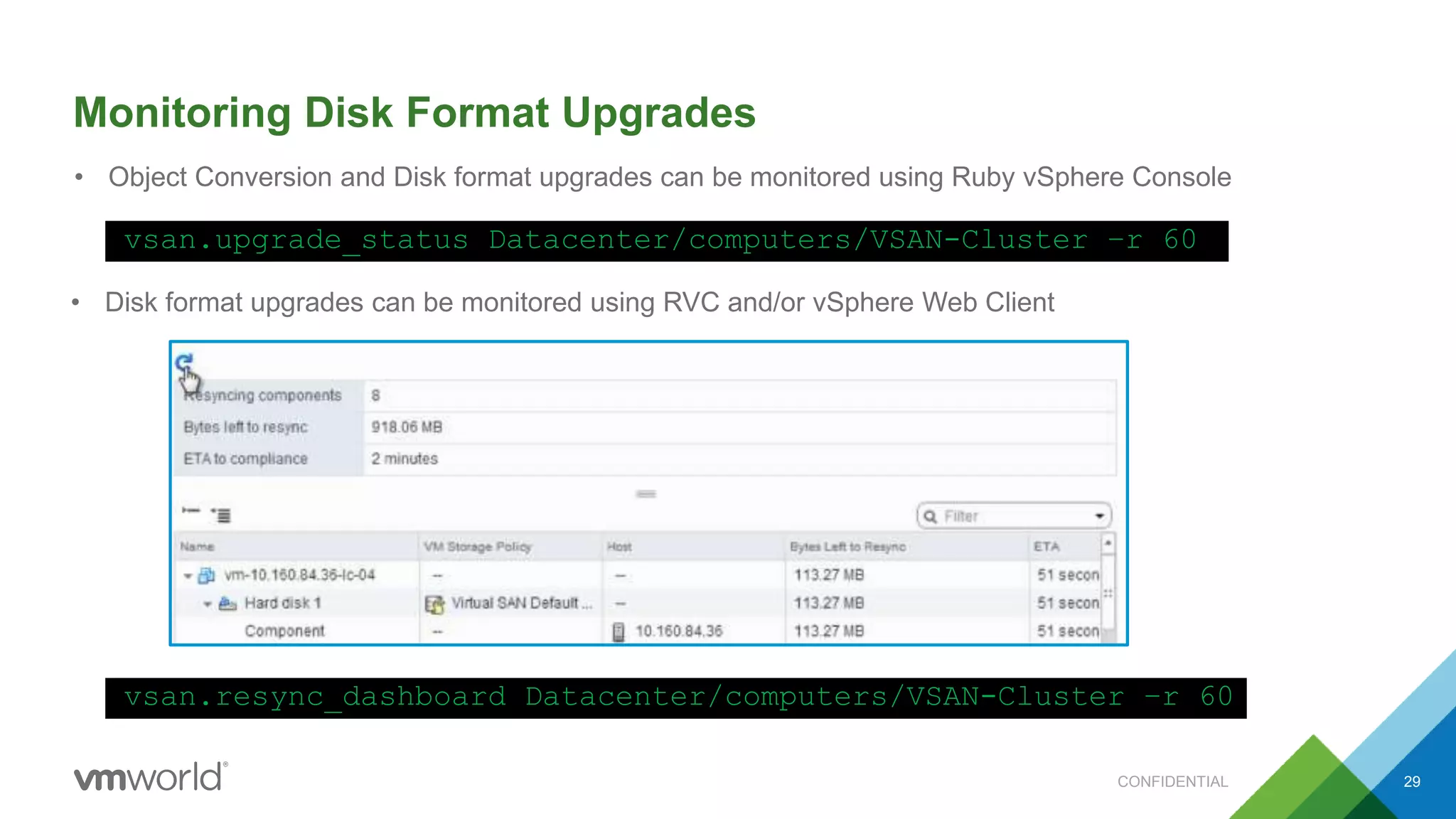
Monitoring Disk Format Upgrades
• Object Conversion and Disk format upgrades can be monitored using Ruby vSphere Console
vsan.upgrade_status Datacenter/computers/VSAN-Cluster –r 60
• Disk format upgrades can be monitored using RVC and/or vSphere Web Client
vsan.resync_dashboard Datacenter/computers/VSAN-Cluster –r 60
CONFIDENTIAL 29
Demo time…
Finally Get Somebody “Competent” to Replace Your Hardware!
CONFIDENTIAL 31
Q & A
CONFIDENTIAL 32
CONFIDENTIAL33
CONFIDENTIAL34

STO7534 VSAN Day 2 Operations (VMworld 2016)

  • 1.
    Virtual SAN -Day 2 Operations Cormac Hogan, VMware, Inc Paudie ORiordan, VMware, Inc STO7534 #STO7534
  • 2.
    • This presentationmay contain product features that are currently under development. • This overview of new technology represents no commitment from VMware to deliver these features in any generally available product. • Features are subject to change, and must not be included in contracts, purchase orders, or sales agreements of any kind. • Technical feasibility and market demand will affect final delivery. • Pricing and packaging for any new technologies or features discussed or presented have not been determined. Disclaimer CONFIDENTIAL 2
  • 3.
    This Session… • VirtualSAN has been available since March 2014, almost 2.5 years • To date, we have over 5,000 VSAN customers. • VMware recognises that dealing with Virtual SAN Operations on a day to day basis requires more than 2 clicks • Since the launch of Virtual SAN, additional tools for managing, monitoring and troubleshooting Virtual SAN have become available. • In this session, approaches to common problems that actual Virtual SAN administrators face will be discussed. • We will discuss how various tools and approaches to various problems can help you manage your data now the VMware consultant left the building…. 3CONFIDENTIAL
  • 4.
    Agenda 4 1 Introduction toSession 2 Monitor – Getting The Basics Right 3 Alerting – What Are My Options? 4 Virtual SAN Upgrade 5 Bring it all together – Handling a Failure (Demo) CONFIDENTIAL
  • 5.
    Monitoring – Getthe Basics Right vSphere Logging Virtual SAN Trace Files ESXi Core Files
  • 6.
    Persistent Logging Challengeswith ESXi Boot Devices • vSphere Hosts can be deployed on multiple different types of media with draw backs and advantages – SCSI, SSD, USB, SATADOM • If you are already in production consider how logging gets laid out – SCSI /SAS/ SATA / SSD / VMFS automatically added Scratch located on VMFS – SATADOM VMFS automatically added Scratch located on VMFS • USB / SD (any capacity) – No VMFS No persistent Scratch area – 512 MB RAMDISK instead VMFS/scratch (RAMDISK) /bootbank system vmkDiagnostic /altbootbank /store VMware strongly recommends setting up syslog in all cases CONFIDENTIAL 6
  • 7.
    Virtual SAN Tracefiles • Provides extremely low-level logging for VSAN – VSAN traces require ~500MB of disk space. – Majority of traces in binary format • Persisted to VMFS or NFS if available – VSAN Datastore does not support log redirection at this time • Stored on RAMDISK if no persistent storage available • In case of reboot, Most recent/important VSAN traces persisted to ”store” partition • In case of crash, VSAN traces persisted to diagnostic partition • Since Virtual SAN 6.2 ”urgent trace files” can be redirected to syslog target /bootbank system vmkDiagnostic /altbootbank /store VMFS/scratch (RAMDISK) /store vmkDiagnostic CONFIDENTIAL 7
  • 8.
    ESXi Core DumpPartition • Special Partition incase of diagnostic crash – 2.2GB space set aside for memory dump • Ensures full memory dump gets written to persistent media • ESXI hosts with less than <= 512GB Physical Memory – We can safely fit memory dump to USB/SD • ESXi hosts greater than > 512GB Physical Memory – Use SAS/SATA , SATADOM, • vSphere ESXi Network Dump Collector – if no suitable persistent media available vmkDiagnostic /scratch (RAMDISK) /bootbank system /altbootbank /store CONFIDENTIAL 8
  • 10.
    Alerting – WhatAre My Options? vSphere Built-In vRealize Operations vRealize Log Insight
  • 11.
    vSphere Built-in • vSphereNative Alerting – 70+ Virtual SAN Health Alarms – Many more vSphere alarms – Alert via SNMP / SMTP • Create custom alarms – Use VMware ESXi VOBs or Observation IDs for VSAN • Virtual SAN Management API 6.2 interface for bespoke solution CONFIDENTIAL 11
  • 12.
    vRealize Operations +Log Insight • Virtual SAN awareness with Storage Management Pack – Virtual SAN Dashboards and Heat Maps – Host and Device Statistics – Health Alerts • LogInsight also have Virtual SAN awareness – Virtual SAN content pack – Log aggregation from Virtual SAN nodes – Integration with VROPS alerting CONFIDENTIAL 12
  • 14.
  • 15.
    Upgrade Overview • VirtualSAN 6.2 has a new on disk format for disk groups and exposes new Data Services • Upgrades are performed in multiple phases – Phase 1: Upgrade to vSphere 6.0 U2 – Phase 2: Object and Disk format conversion (DFC) Virtual SAN 6.2 vSphere 6.2 Cluster: Manual Mode Phase 1 Phase 2 rvc > But before you begin Phase 0: Validate your current enviroment CONFIDENTIAL 15
  • 16.
    Phase 0 –Please Read Before You Start • Virtual SAN 6.2 Release Notes • VMware Product Interoperability • VMware Virtual SAN Hardware • Server, Controller, SSD, Disk on HCL • Controller Firmware, Disk Firmware, • Controller Driver, Enclosure Firmware CONFIDENTIAL 16
  • 17.
    Phase 1 -Upgrading from Virtual SAN 5.5 CONFIDENTIAL 17 • You can upgrade from VSAN 5.5 to VSAN 6.X • However…patching is critical • During upgrade some older releases of vSphere 5.5 may cause VMware Virtual SAN Data Unavailability and Instability. • Make sure all critical patches are installed prior to upgrade • Not an issue between VSAN 6.0 and VSAN 6.X More details – please read VMware KB 2113024 and VMware KB 2139969
  • 18.
    Phase 1 –VSAN Disk Format Conversion Table CONFIDENTIAL 18 Virtual SAN Starting Version Virtual SAN Target Version Post-upgrade on-disk format upgrade required? Version Virtual SAN 5.5 U1 Virtual SAN 5.5 Update X No - Virtual SAN 5.5 Update X Virtual SAN 6.X Yes 1.0 to 2.0 / 3.0 Virtual SAN 6.0 Virtual SAN 6.1 No - Virtual SAN 6.0 or 6.1 Virtual SAN 6.2 Yes 2.0 to 3.0
  • 19.
    Phase 1 –vSphere Software Upgrade • Step 1 – Upgrade vCenter Server to 6.0 U2 • Step 2 – Upgrade ESXi hosts to 6.0 U2 • Maintenance Mode? – Ensure accessibility • Fast, but with risk – Full data migration • Slower, but no risk CONFIDENTIAL 19
  • 20.
    Phase 1 –vSphere Software Health Check GOTCHA • vCenter 6.0 Update 2 installed – Health check will not work when ESXi version is < 6.0 U2 CONFIDENTIAL 20
  • 21.
    Phase 1 –vSphere Software Health Check • Software Upgraded? – Check your Virtual SAN Health – Update your HCL Database files – Make sure it’s all Green Address any failed tests BEFORE proceeding to the On Disk Format Upgrade! CONFIDENTIAL 21
  • 22.
    Phase 2 –Disk Upgrade Prechecks… –All hosts in cluster are connected to vCenter Server –All host upgraded to ESXi 6.2 –No network partitions in the VSAN cluster. –No hosts with auto-claim storage. –No hosts in Maintenance Mode CONFIDENTIAL 22
  • 23.
    Phase 2 –Are You Sure? CONFIDENTIAL 23
  • 24.
    Phase 2 –Virtual SAN Object and Disk Format Conversion • Two Conversion steps • Objects • On Disk Format Version <= 2 Object Conversion Step Version 2.5 Version 3 Disk Format Conversion Step CONFIDENTIAL 24
  • 25.
    Phase 2 –Upgrade Process • 1MB alignment of existing objects < Virtual SAN 6.0. Realigns vsanSparse objects to be on 4K boundaries for Virtual SAN 6.2 Data Services • During Virtual SAN on-disk format phase , a disk group evacuation is performed. – Data is evacuated – The disk group is removed – The disk group is re-added – Rinse and Repeat Evacuate Evacuate Evacuate Version 3 Version 3 Version 3 Version 3 EvacuateEvacuate Evacuate CONFIDENTIAL 25
  • 26.
    Phase 2 –Disk Format Upgrade Gotcha • For two-node or three-node clusters, upgrade will fail • Virtual SAN allows upgrades to be performed in “reduced redundancy mode” • Caveats – You are now in “unprotected” mode – Any failures during upgrade process may lead to data unavailability. – Workaround available with Ruby vSphere Console (RVC) vsan.ondisk_upgrade –h hosts_and_clusters: Path to all HostSystems of cluster or ClusterComputeResource -a, --allow-reduced-redundancy Removes the need for one disk group worth of free space, by allowing reduced redundancy during disk upgrade -f, --force Automatically answer all confirmation questions with 'proceed' CONFIDENTIAL 26
  • 27.
    Phase 2 –Disk Format Upgrade Gotchas More details – please read VMware KB 2146221 • Mismatched disk group versions • After vSphere upgraded to 6.0 U2, any new disk groups will be formatted with the latest version • This means there will be incompatible Disk Group versions, if you have not yet upgraded the on disk format • Workaround is to reset the disk group version of the new disk group to match what is in the cluster CONFIDENTIAL 27
  • 28.
    Virtual SAN StretchedCluster Upgrade Gotchas • Witness Appliance Considerations • Stretched Cluster Witness Appliances must be treated like ESXi hosts • Avoid rip and replace of Witness Appliance as this will lead to On-Disk format mismatches as discussed earlier • Health Check is unavailable until Witness Appliance is upgraded CONFIDENTIAL 28
  • 29.
    Monitoring Disk FormatUpgrades • Object Conversion and Disk format upgrades can be monitored using Ruby vSphere Console vsan.upgrade_status Datacenter/computers/VSAN-Cluster –r 60 • Disk format upgrades can be monitored using RVC and/or vSphere Web Client vsan.resync_dashboard Datacenter/computers/VSAN-Cluster –r 60 CONFIDENTIAL 29
  • 30.
  • 31.
    Finally Get Somebody“Competent” to Replace Your Hardware! CONFIDENTIAL 31
  • 32.
  • 33.
  • 34.

Editor's Notes

  • #7 SD/USB size of 4GB for a boot device, 2.2GB of the USB is set aside for the core dump. Before vSphere 5.5, the VMkcore partition was only 100MB in size
  • #8  Since these traces are of extreme importance to VMware support, extra efforts are made to preserve them when /scratch is not on persistent storage. In these cases, when the ESXi host is booted from SD/USB, and the VSAN traces are on a RAMdisk, they also get copied to /locker for persistence via/etc/init.d/vsantraced when the host reboots. Since /locker is relatively small, typically all the VSAN trace files will not fit. To accommodate this, they are saved in value order so that the most recent/significant information is captured first. When VSAN trace files are being written to a RAMdisk, they should also be persisted on a PSOD. This can be verified by the command “esxcli system visorfs ramdisk list”. A common question is why do we not just persist the VSAN traces to the SD/USB rather that doing this step? Again, it is due to the bandwidth of the VSAN trace files. The concern here is that the number of writes generated by VSAN traces, and there are a lot of them, can burn out a USB/SD card. DOM and CMMDS use vmkernel.log only for very important messages, but usually don’t publish to vmkernel logs VSAN traces. Two types: Urgent and normal traces. Urgent traces are supposed to be 1/10 as chatty as normal traces. vsanUrgent.log is that "urgent trace channel". Introduced it in 6.2 to give LogInsight and other aggregators access to more events from DOM/CMMDS
  • #9 SD/USB size of 4GB for a boot device, 2.2GB of the USB is set aside for the core dump. Before vSphere 5.5, the VMkcore partition was only 100MB in size Size irrelevant to SSD
  • #12 VMware ESXi Observation IDs for Virtual SAN Each VOB event is associated with an identifier (ID). Before you create a Virtual SAN alarm in the vCenter Server, you must identify an appropriate VOB ID for the Virtual SAN event for which you want to create an alert. You can create alerts in the VMware ESXi Observation Log file (vobd.log).  To review the list of VOB IDs for Virtual SAN, open the vobd.log file located on your ESXi host in the /var/log directory. The log file contains the following VOB IDs that you can use for creating Virtual SAN alarms.
  • #16 Phase 1: Fresh deployment or upgrade to vSphere 6.2 vCenter Server ESXi Hypervisor Apply critical patches* Phase 2: Disk format conversion (DFC) Prechecks Object Conversion Reformat disk grou
  • #17 Disk Format Conversion (DFC) conversion phase is where VMFS-L disk format will be replaced by VirstoFS on all participating magnetic devices. What happens during the disk reformat phase? All the nodes should have been completed its software --> ESXi 6.2 VSAN2.0 cluster) Operates on one node and one diskgroup at a time must be orchestrated at cluster level as objects get a 1 MB address space and get alligned to 4K Node --> DiskGroup --> Data Evacuation --> reformat disks --> DiskGroup comes Online The above flow repeats for remaining Diskgroups in the node and then the process jumps to the next node. No vsan node with ESXi55x software is allowed to join the VSAN2.0 cluster
  • #18  5.5 EP06 or 5.5 P04 to vSphere 6.0 GA can cause VMware Virtual SAN Data Unavailability (2113024) Resolved with patch  VMware ESXi 5.5, Patch Release ESXi550-201504001 (2112672) and VMware ESXi 5.5, Patch ESXi550-201504201-BG: Updates esx-base (2112675). Upgrading from ESXi 5.5 to ESXi 6.x in a Virtual SAN cluster can cause permanent loss of data (kb.vmware.com/kb/2139969) The cluster is mixed between ESXi host versions 5.5 and 6.0 such as during the upgrade of a cluster. A VSAN object is reconfigured while the cluster is in a mixed state. Resolved with  VMware ESXi 5.5, Patch Release ESXi550-201601501 (2141164).
  • #19 Starting verson can I go to 6.2????
  • #20 Disk Format Conversion (DFC) conversion phase is where VMFS-L disk format will be replaced by VirstoFS on all participating magnetic devices. What happens during the disk reformat phase? All the nodes should have been completed its software --> ESXi 6.2 VSAN2.0 cluster) Operates on one node and one diskgroup at a time must be orchestrated at cluster level as objects get alligned to 4K Node --> DiskGroup --> Data Evacuation --> reformat MDs with VirstoFs --> DiskGroup comes Online The above flow repeats for renaming Diskgroups in the node and then the process jumps to the next node. No vsan node with ESXi55x software is allowed to join the VSAN2.0 cluster after starting DFC.
  • #21 Disk Format Conversion (DFC) conversion phase is where VMFS-L disk format will be replaced by VirstoFS on all participating magnetic devices. What happens during the disk reformat phase? All the nodes should have been completed its software --> ESXi 6.2 VSAN2.0 cluster) Operates on one node and one diskgroup at a time must be orchestrated at cluster level as objects get alligned to 4K Node --> DiskGroup --> Data Evacuation --> reformat MDs with VirstoFs --> DiskGroup comes Online The above flow repeats for renaming Diskgroups in the node and then the process jumps to the next node. No vsan node with ESXi55x software is allowed to join the VSAN2.0 cluster after starting DFC.
  • #23 Once all the pre-checks are done CMMDS will not allow 5.5x hosts to join the cluster
  • #25 More Details VMware KB: Virtsan SAN 6.2 on disk upgrade fails at 10% (2144881) To mitigate against object conversion failures Install Patch ESXi600-201605401-BG released on May 12th This fixes Some VSAN objects are no longer referenced by anything. For Example VSWAP objects after VM crash Locked change block tracking (CBT) file  This patch does not fix Missing descriptor files Broken snapshot disk chain To address missing descriptor files Download python script attached to KB VMware Virtual SAN 6.2 on disk upgrade fails at 10% (2144881) Run script from any VSAN node with python VsanRealign.py precheck Amongst other things this identifies missing descriptors , re-creates them and puts them in lost and found directory on VSAN Broken snapshot chains will have to be addressed on a case by case scenario
  • #26 Insert Diagram for Animattions
  • #27 Insert Diagram for Animattions
  • #28 Insert Diagram for Animattions
  • #29 Insert Diagram for Animattions