Lesson 1: NameResolution for Windows Clients
and Servers
What Are the Computer Names Assigned to
Computers?
What Is DNS?
DNS Zones and Records
How Internet DNS Names Are Resolved
What Is Split DNS?
What Is Link-local Multicast Name Resolution?
How a Client Resolves a Name
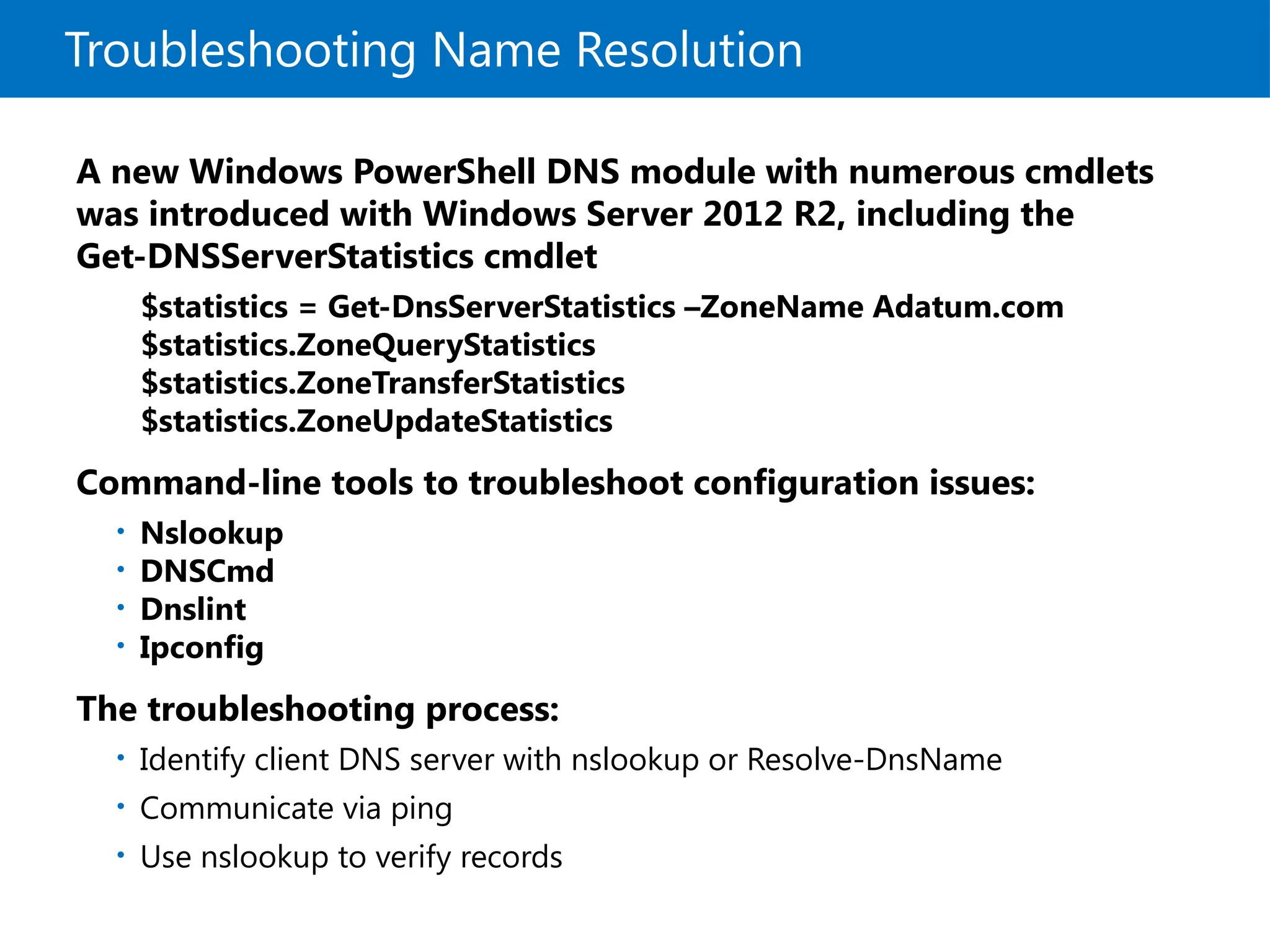
Troubleshooting Name Resolution
• Demonstration: Troubleshooting Name Resolution
4.
What Are theComputer Names Assigned to
Computers?
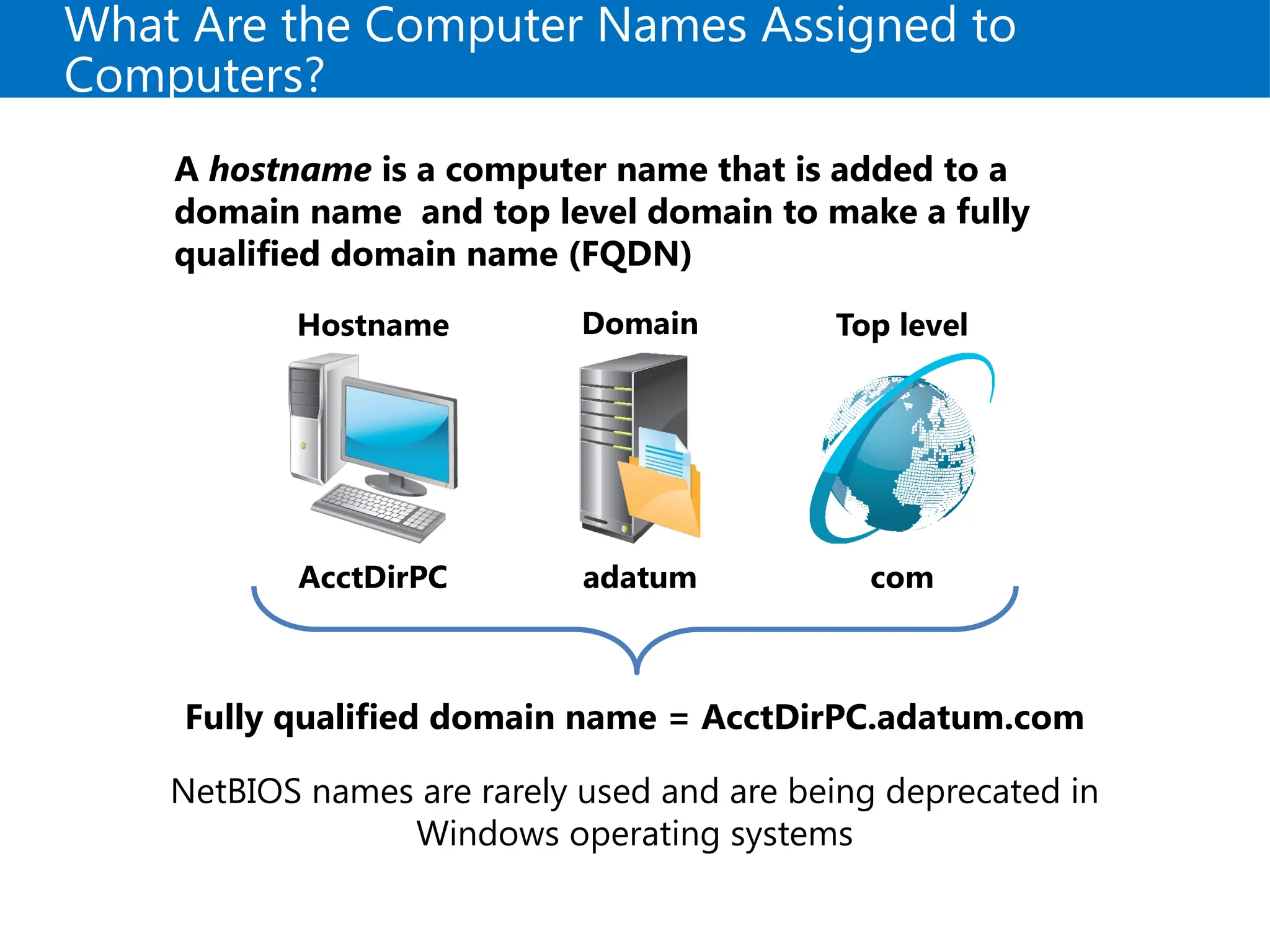
A hostname is a computer name that is added to a
domain name and top level domain to make a fully
qualified domain name (FQDN)
Hostname
AcctDirPC
Domain
adatum
Top level
com
Fully qualified domain name = AcctDirPC.adatum.com
NetBIOS names are rarely used and are being deprecated in
Windows operating systems
5.
What Is DNS?
DNScan be used to:
• Resolve host names to IP addresses
• Locate domain controllers and global catalog
servers
• Resolve IP addresses to host names
• Locate mail servers during email delivery
6.
DNS Zones andRecords
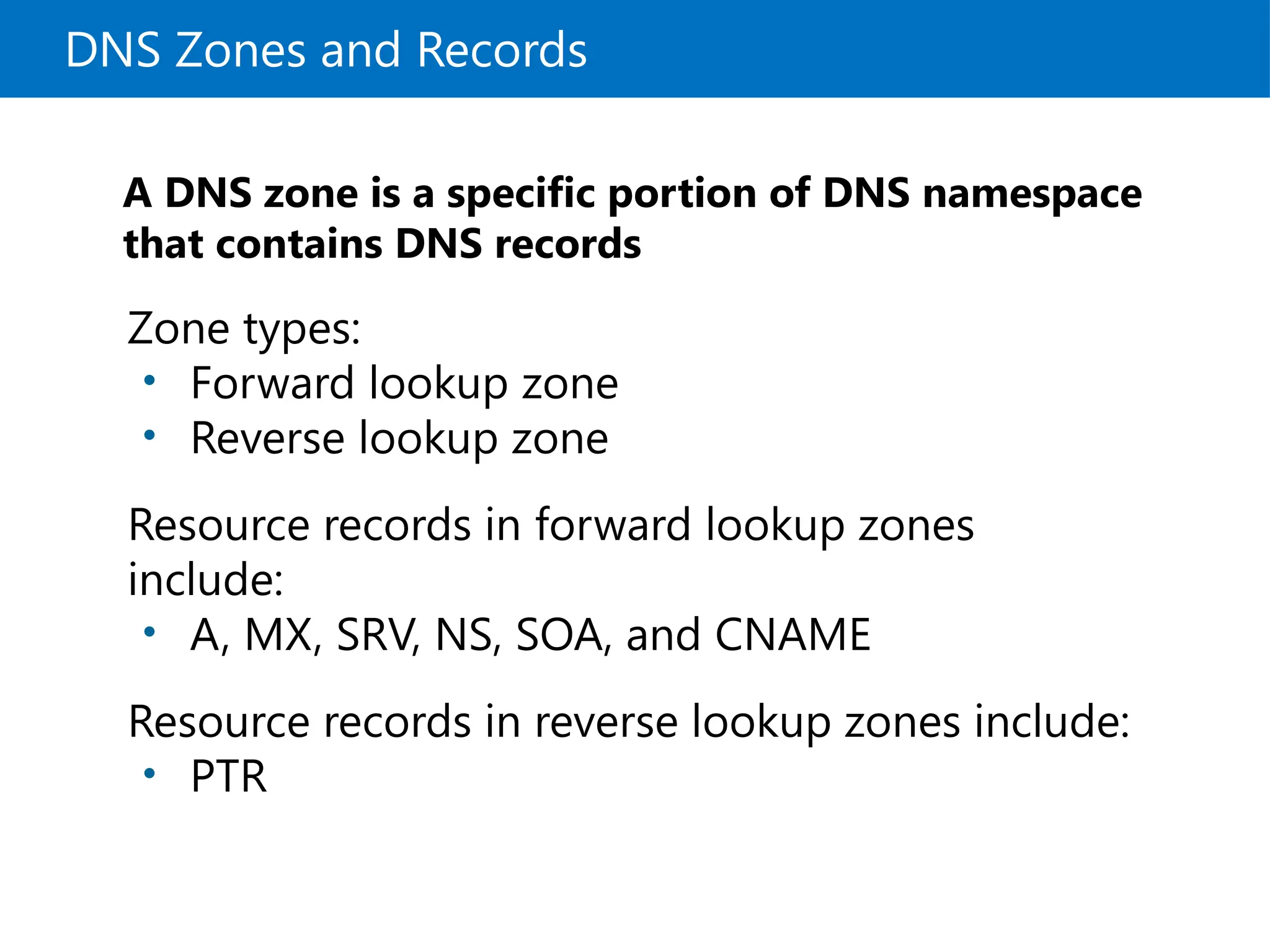
A DNS zone is a specific portion of DNS namespace
that contains DNS records
Zone types:
• Forward lookup zone
• Reverse lookup zone
Resource records in forward lookup zones
include:
• A, MX, SRV, NS, SOA, and CNAME
Resource records in reverse lookup zones include:
• PTR
7.
How Internet DNSNames Are Resolved
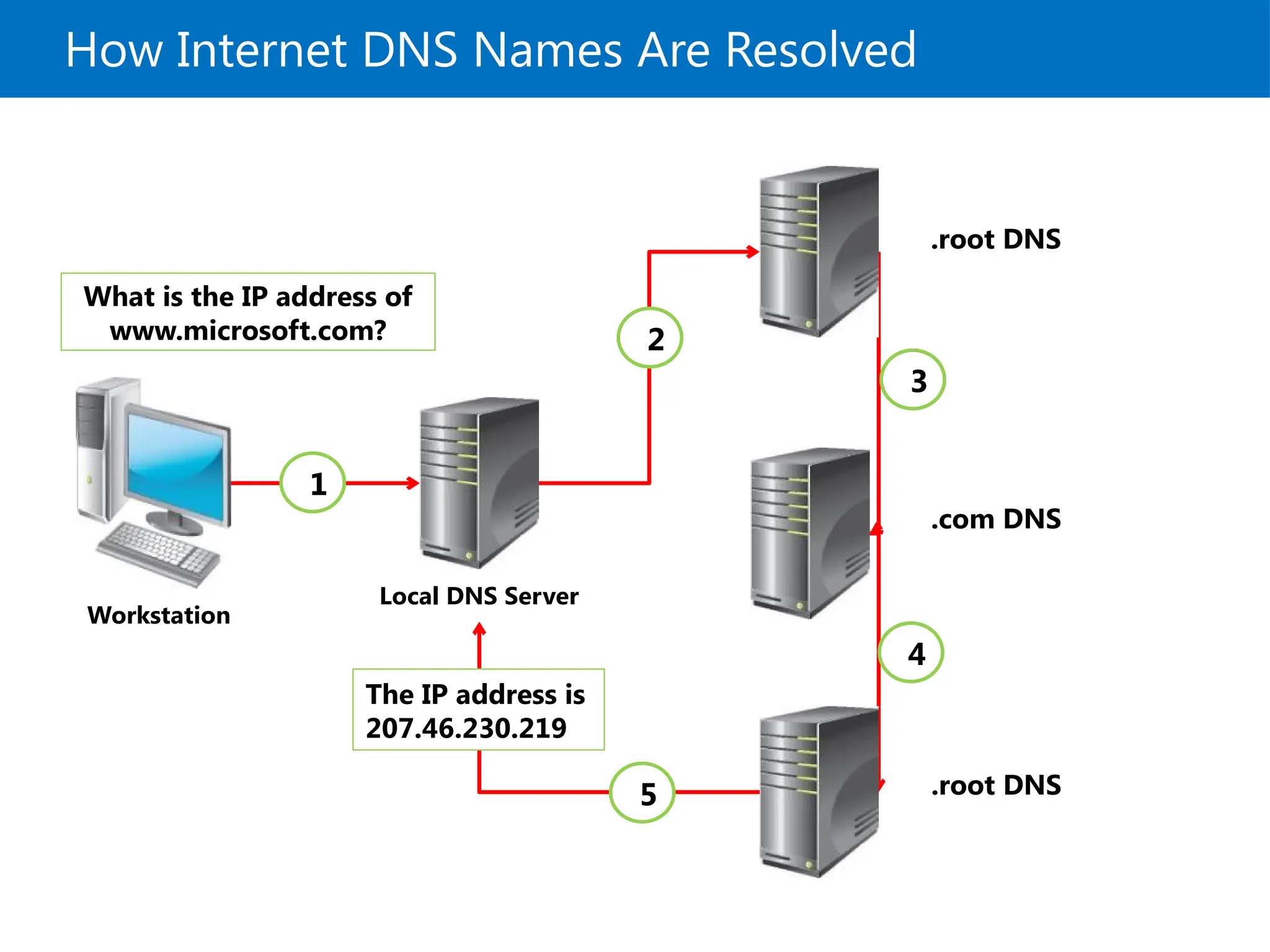
.root DNS
.root DNS
.com DNS
What is the IP address of
www.microsoft.com?
1
2
3
4
Workstation
Local DNS Server
5
The IP address is
207.46.230.219
8.
What Is SplitDNS?
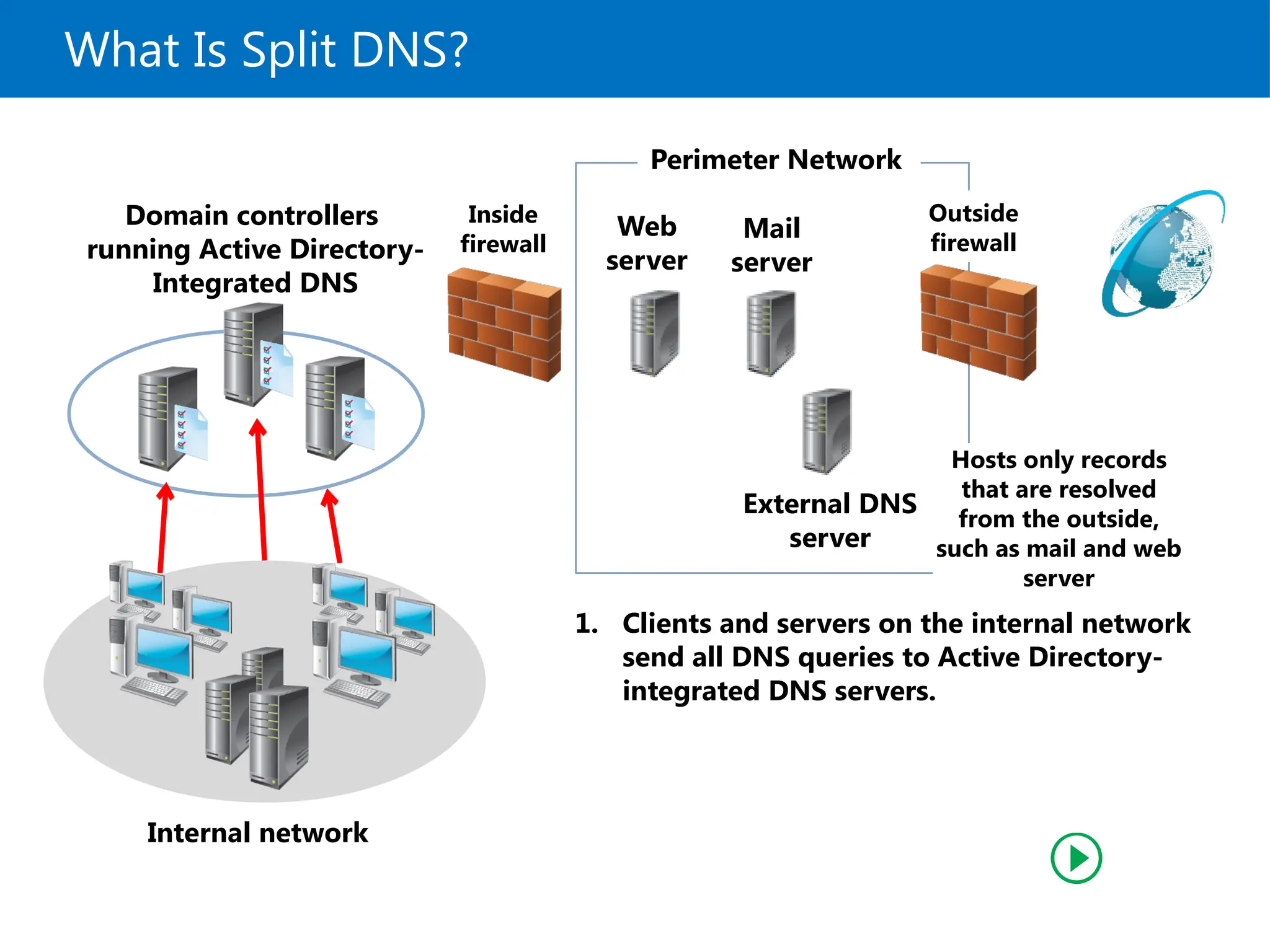
External DNS
server
Perimeter Network
Mail
server
Web
server
Domain controllers
running Active Directory-
Integrated DNS
Inside
firewall
Outside
firewall
Internal network
Hosts only records
that are resolved
from the outside,
such as mail and web
server
1. Clients and servers on the internal network
send all DNS queries to Active Directory-
integrated DNS servers.
9.
What Is SplitDNS?
External DNS
server
Perimeter Network
Mail
server
Web
server
Domain controllers
running Active Directory-
Integrated DNS
Inside
firewall
Outside
firewall
Internal network
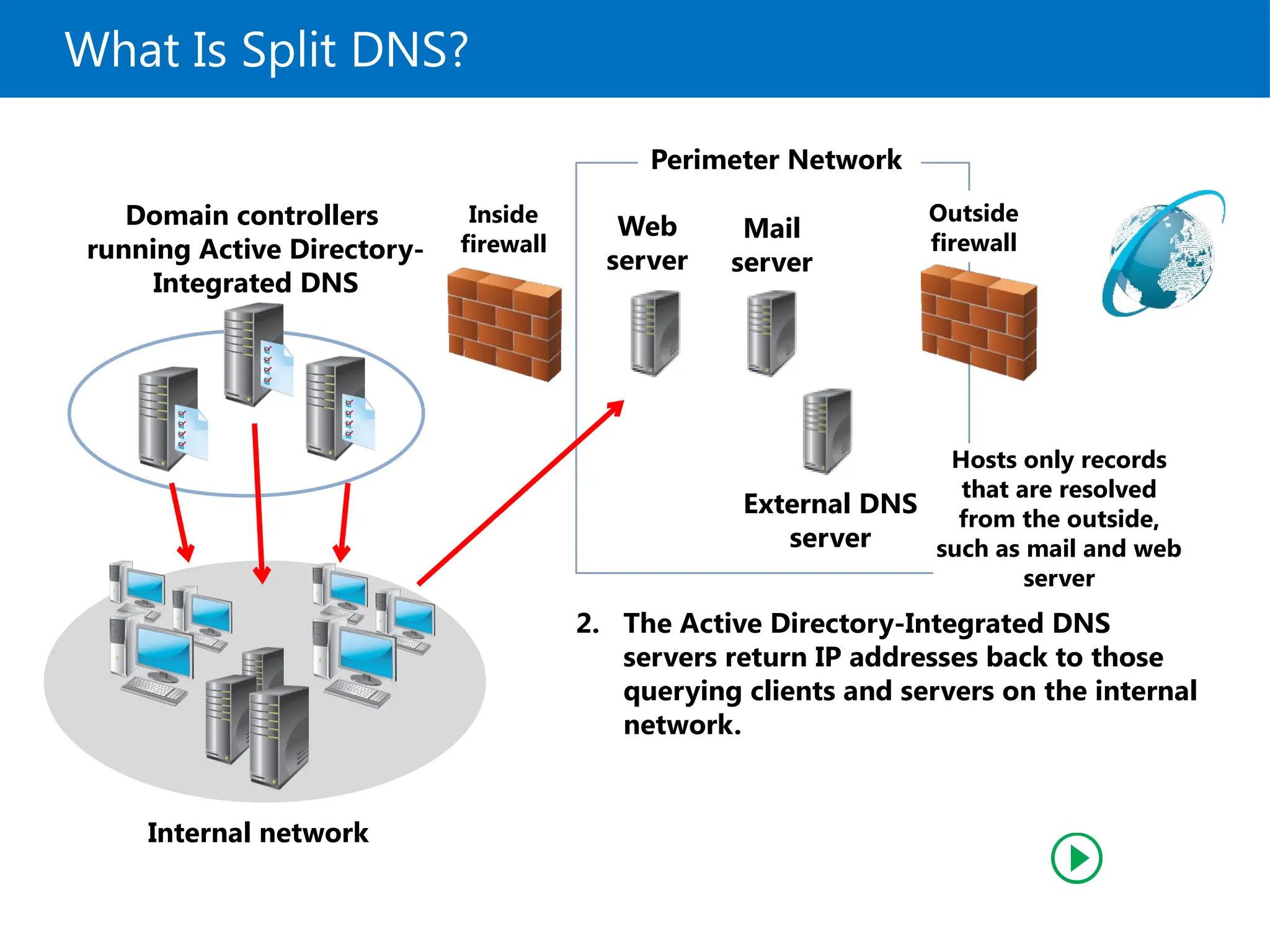
2. The Active Directory-Integrated DNS
servers return IP addresses back to those
querying clients and servers on the internal
network.
Hosts only records
that are resolved
from the outside,
such as mail and web
server
10.
What Is SplitDNS?
External DNS
server
Perimeter Network
Mail
server
Web
server
Domain controllers
running Active Directory-
Integrated DNS
Inside
firewall
Outside
firewall
Internal network
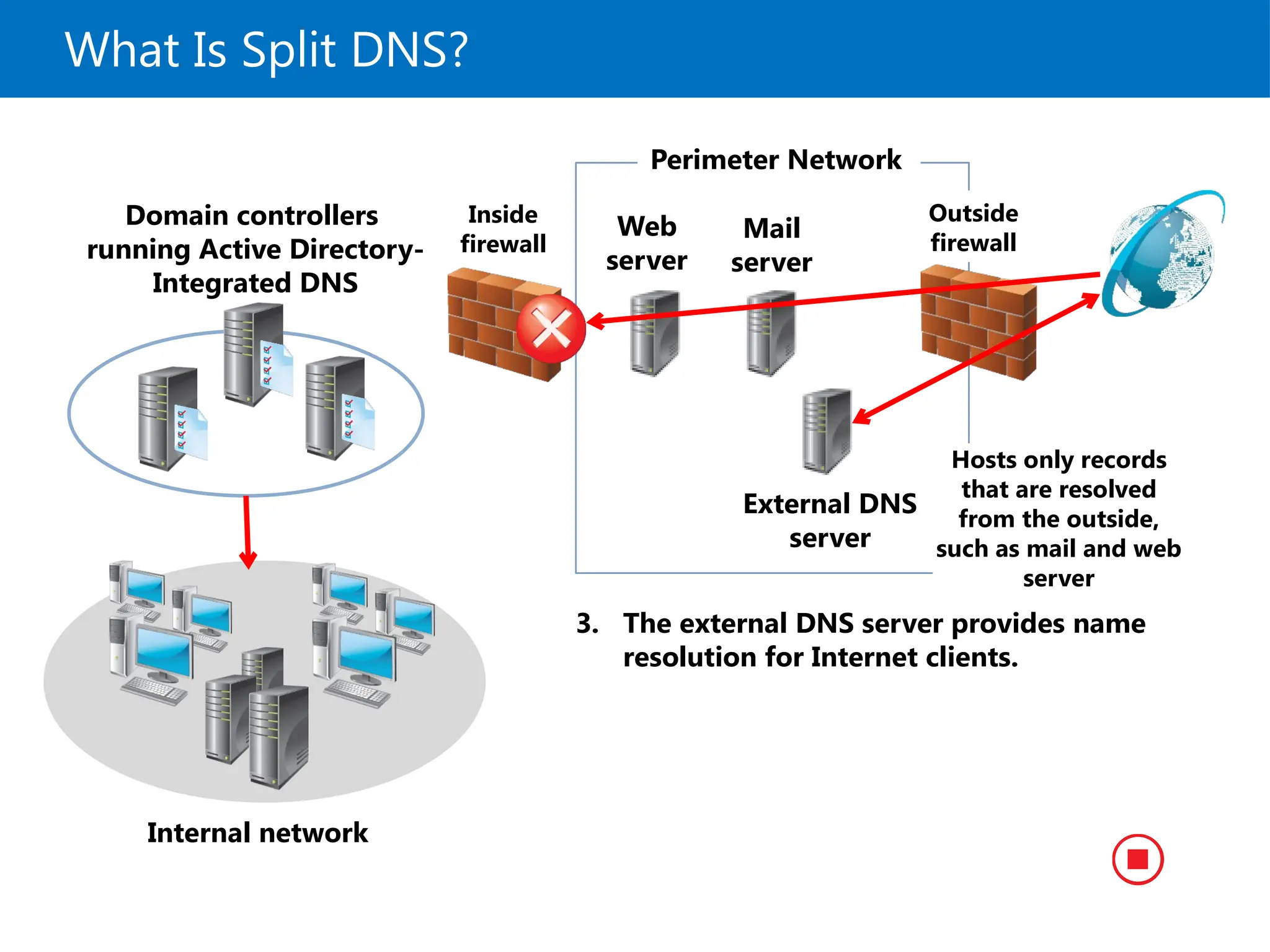
3. The external DNS server provides name
resolution for Internet clients.
Hosts only records
that are resolved
from the outside,
such as mail and web
server
11.
What Is Link-localMulticast Name Resolution?
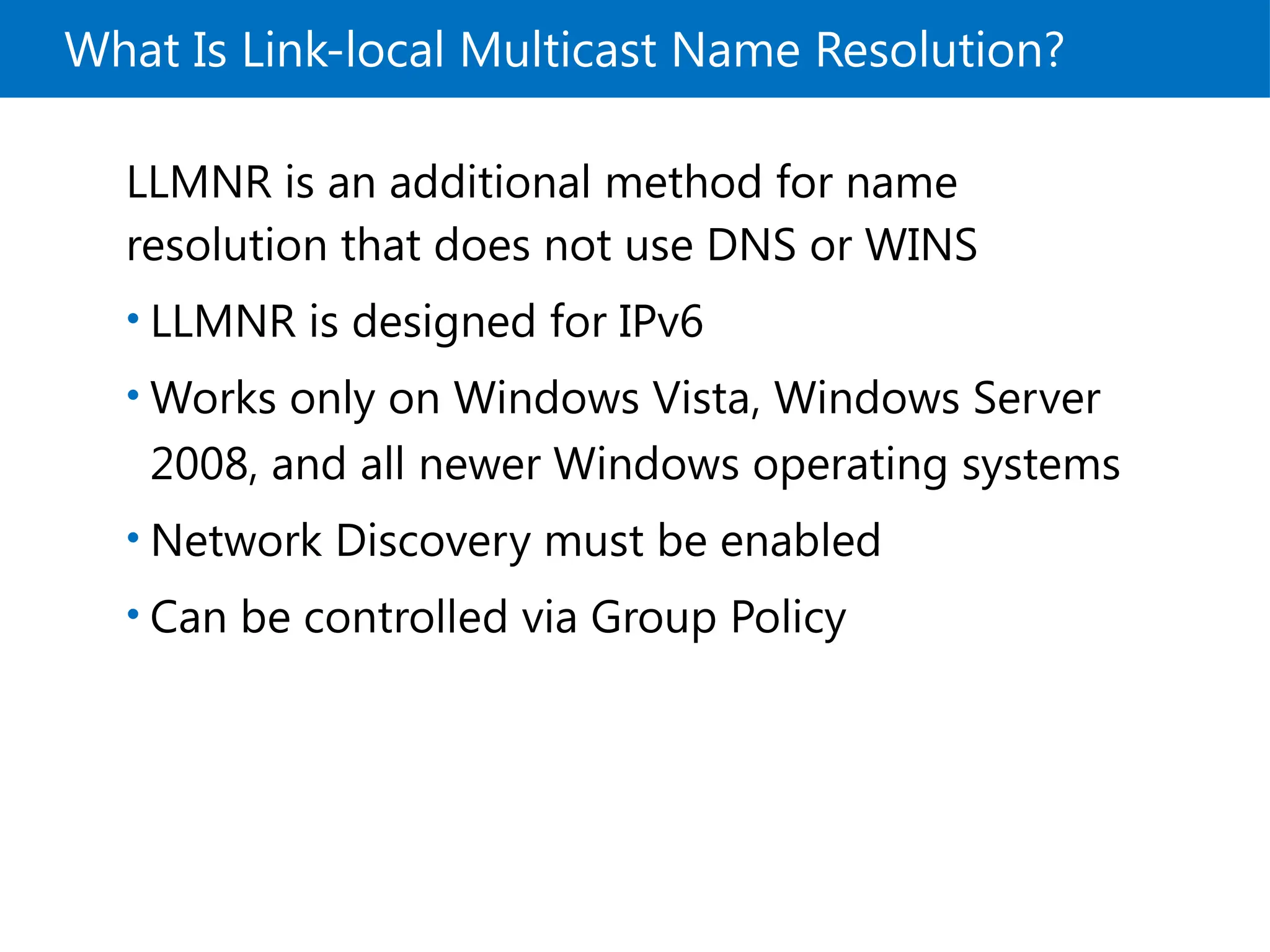
LLMNR is an additional method for name
resolution that does not use DNS or WINS
• LLMNR is designed for IPv6
• Works only on Windows Vista, Windows Server
2008, and all newer Windows operating systems
• Network Discovery must be enabled
• Can be controlled via Group Policy
12.
How a ClientResolves a Name
NetBIOS Name
Cache
WINS Server
Broadcast
DNS Resolver
Cache/Hosts file
content
Local Host
Name
LMHosts File
DNS Server
1
2
3
LLMNR
4
5
6
7
8
13.
Troubleshooting Name Resolution
Anew Windows PowerShell DNS module with numerous cmdlets
was introduced with Windows Server 2012 R2, including the
Get-DNSServerStatistics cmdlet
$statistics = Get-DnsServerStatistics –ZoneName Adatum.com
$statistics.ZoneQueryStatistics
$statistics.ZoneTransferStatistics
$statistics.ZoneUpdateStatistics
Command-line tools to troubleshoot configuration issues:
• Nslookup
• DNSCmd
• Dnslint
• Ipconfig
The troubleshooting process:
• Identify client DNS server with nslookup or Resolve-DnsName
• Communicate via ping
• Use nslookup to verify records
14.
Demonstration: Troubleshooting NameResolution
In this demonstration, you will see how to:
• Use Windows PowerShell cmdlets to
troubleshoot DNS
• Use command-line tools to troubleshoot DNS
15.
Lesson 2: Installinga DNS Server
What Are DNS Queries?
What Are Root Hints?
What Is Forwarding?
How DNS Server Caching Works
How to Install the DNS Server Role
• Demonstration: Installing the DNS Server Role
16.
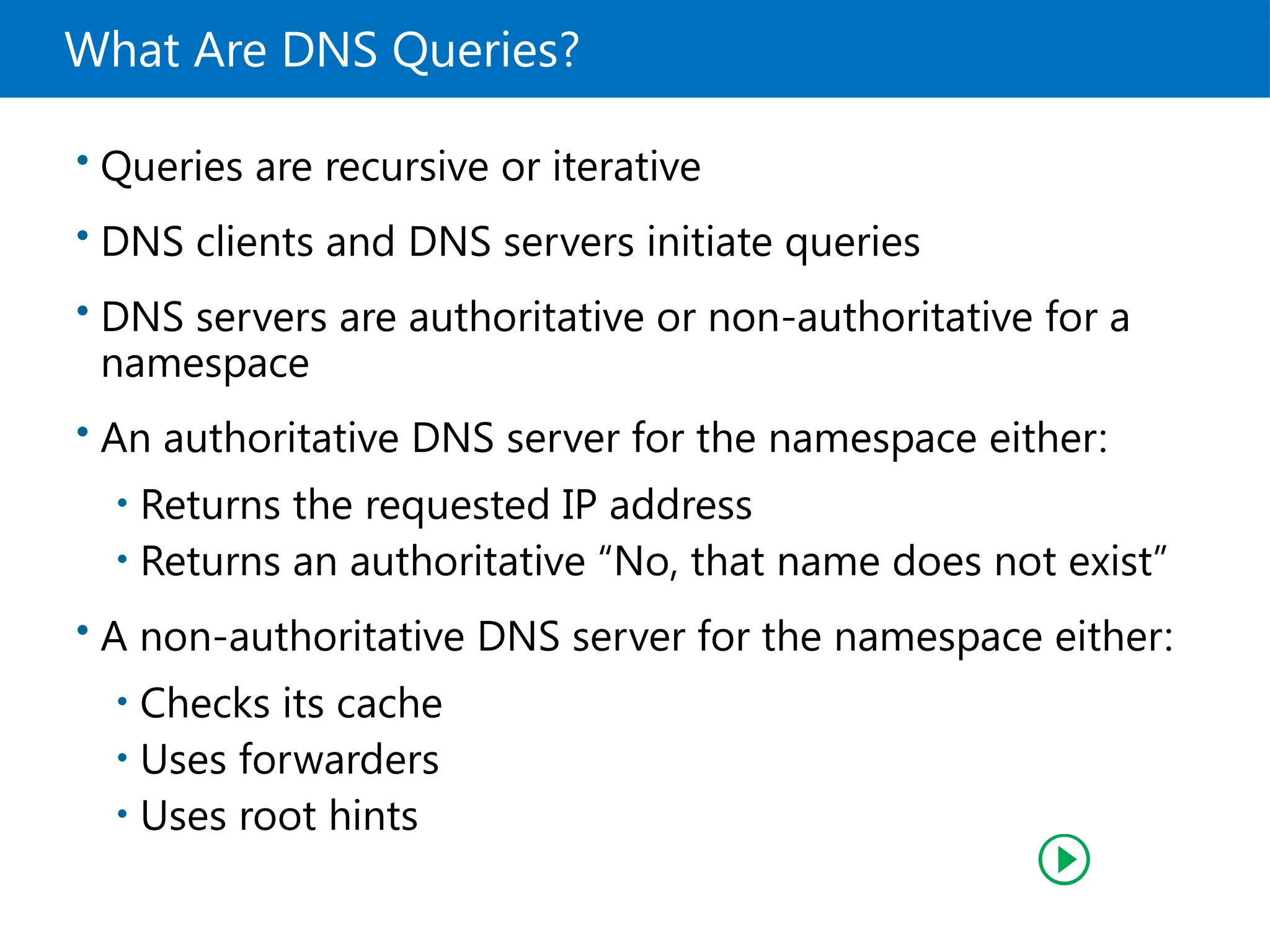
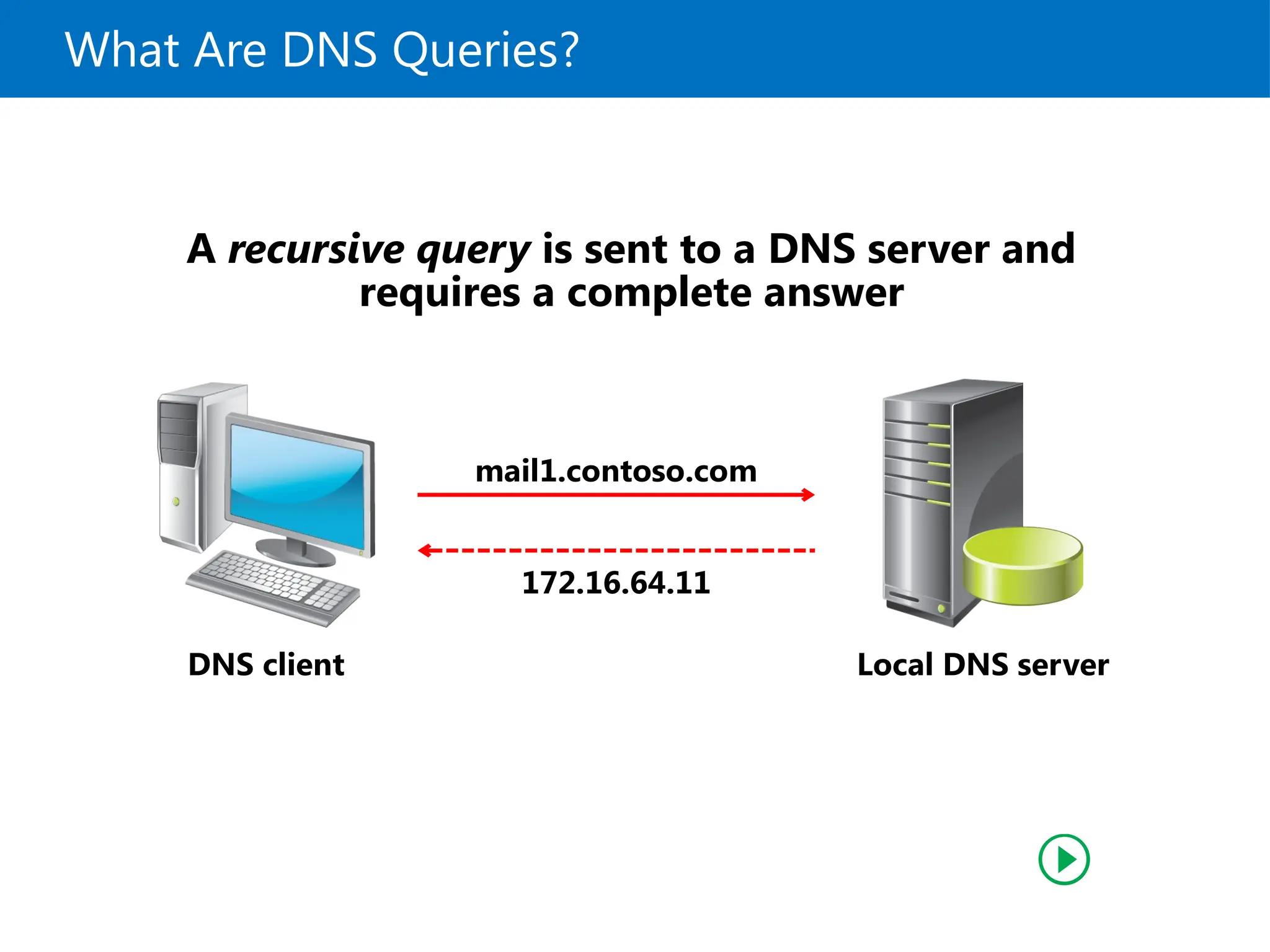
What Are DNSQueries?
• Queries are recursive or iterative
• DNS clients and DNS servers initiate queries
• DNS servers are authoritative or non-authoritative for a
namespace
• An authoritative DNS server for the namespace either:
• Returns the requested IP address
• Returns an authoritative “No, that name does not exist”
• A non-authoritative DNS server for the namespace either:
• Checks its cache
• Uses forwarders
• Uses root hints
17.
What Are DNSQueries?
DNS client
mail1.contoso.com
172.16.64.11
A recursive query is sent to a DNS server and
requires a complete answer
Local DNS server
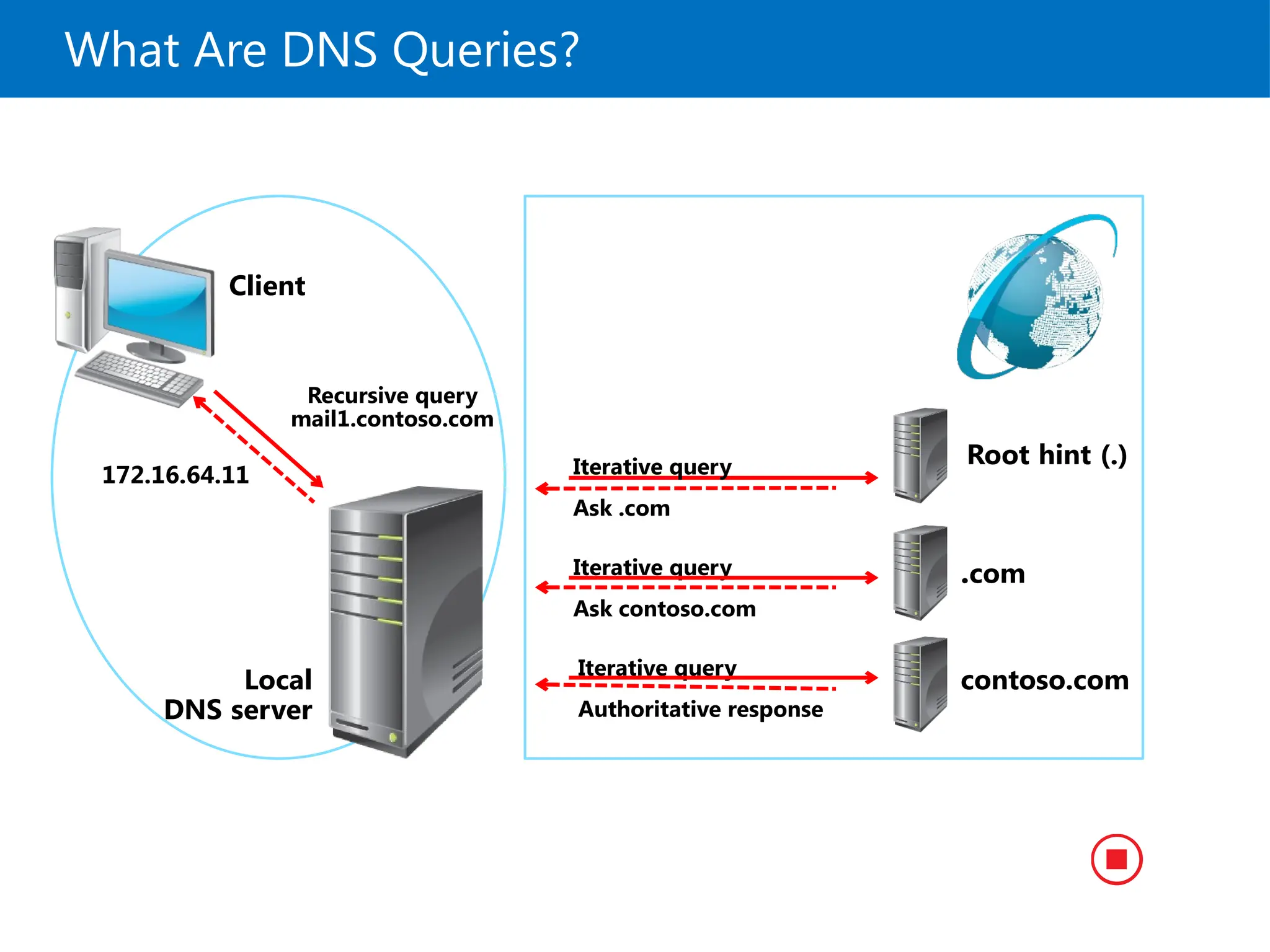
18.
What Are DNSQueries?
Client
Local
DNS server
Recursive query
mail1.contoso.com
172.16.64.11
Root hint (.)
.com
contoso.com
Iterative query
Ask .com
Iterative query
Authoritative response
Iterative query
Ask contoso.com
19.
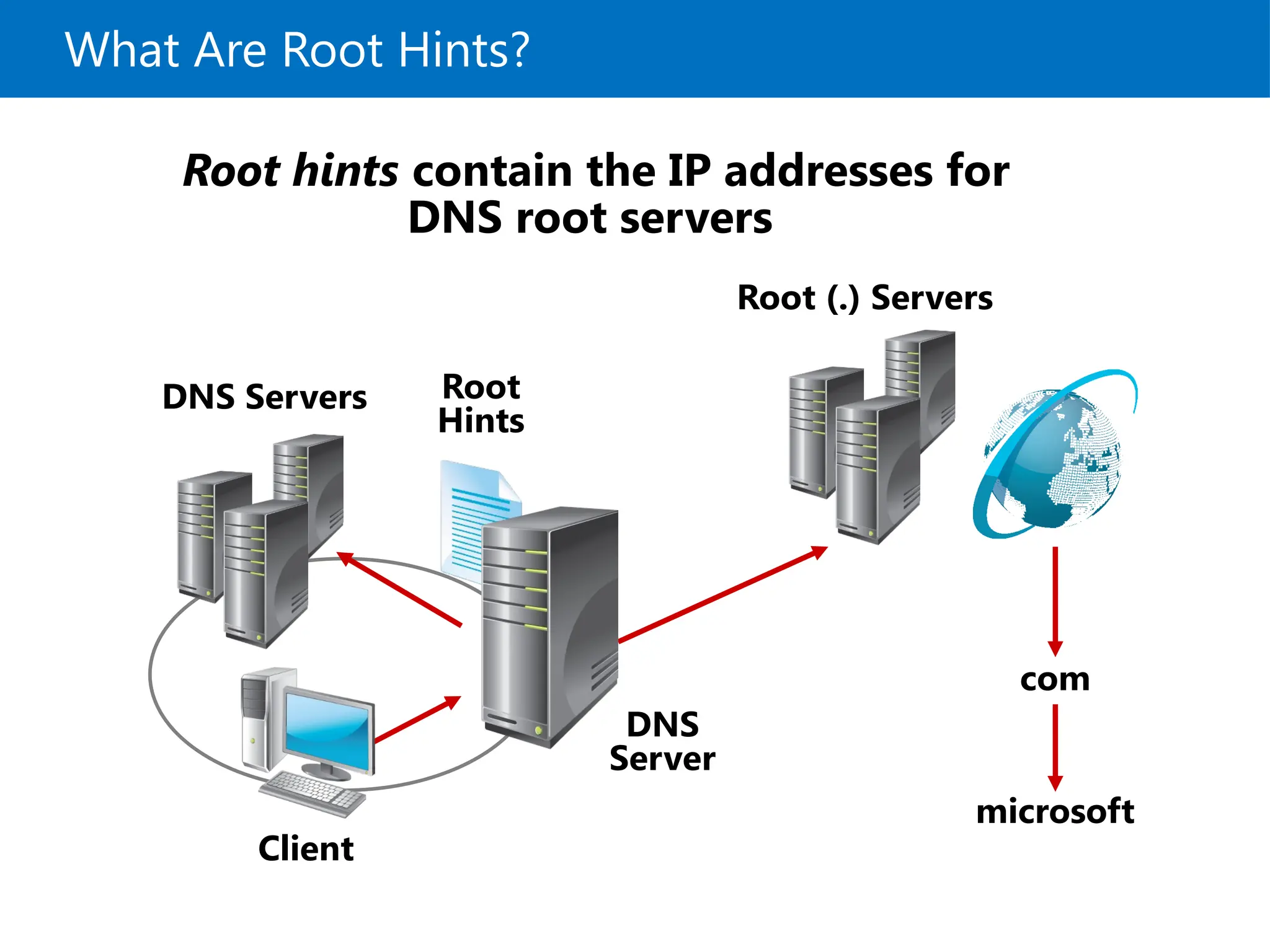
What Are RootHints?
microsoft
DNS Servers
DNS
Server
com
Client
Root
Hints
Root (.) Servers
Root hints contain the IP addresses for
DNS root servers
20.
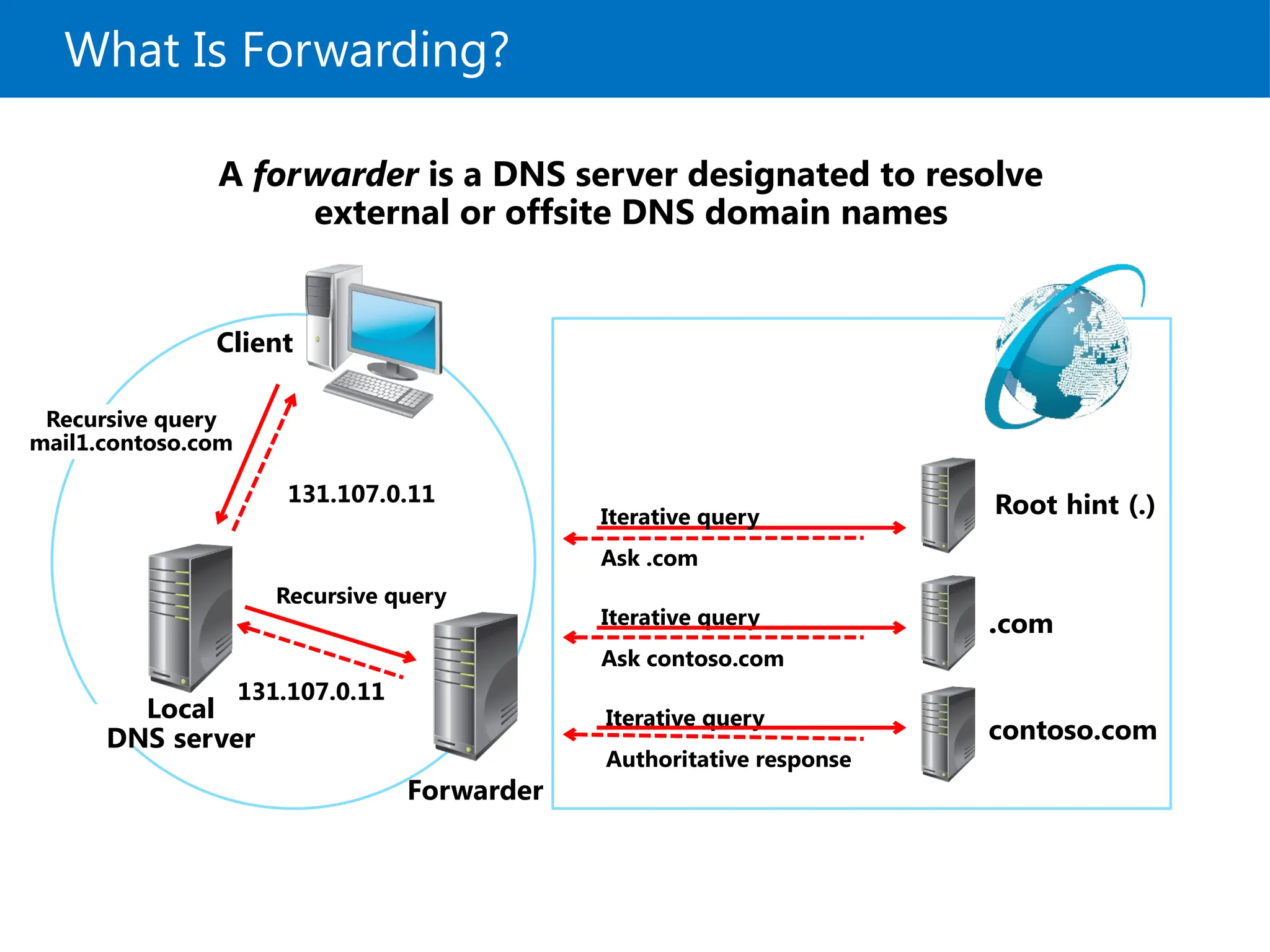
What Is Forwarding?
Client
Recursivequery
mail1.contoso.com
Root hint (.)
.com
contoso.com
Iterative query
Ask .com
Iterative query
Authoritative response
Iterative query
Ask contoso.com
Local
DNS server
131.107.0.11
Forwarder
Recursive query
131.107.0.11
A forwarder is a DNS server designated to resolve
external or offsite DNS domain names
21.
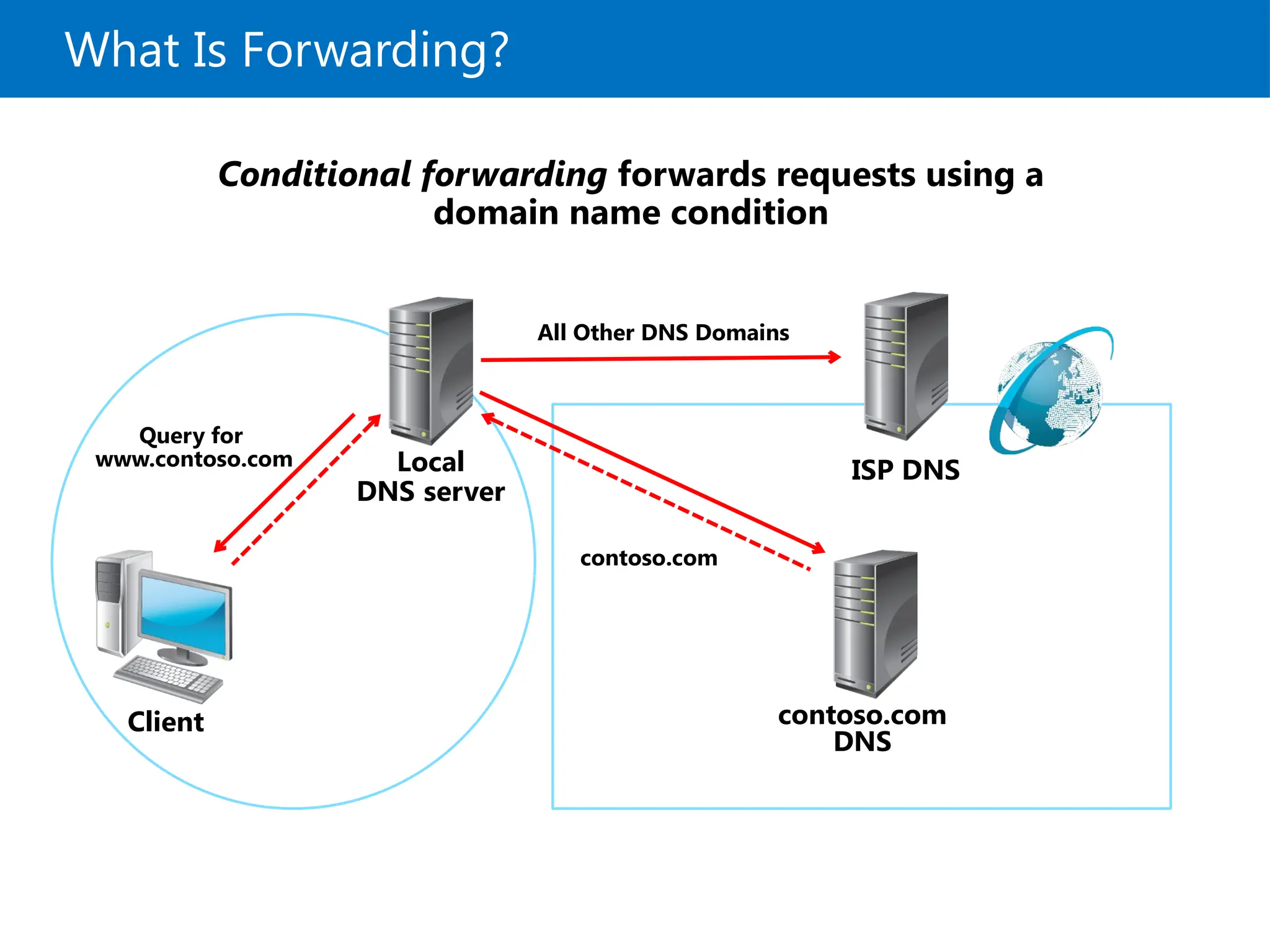
What Is Forwarding?
Conditionalforwarding forwards requests using a
domain name condition
Client
Query for
www.contoso.com Local
DNS server
contoso.com
DNS
ISP DNS
contoso.com
All Other DNS Domains
22.
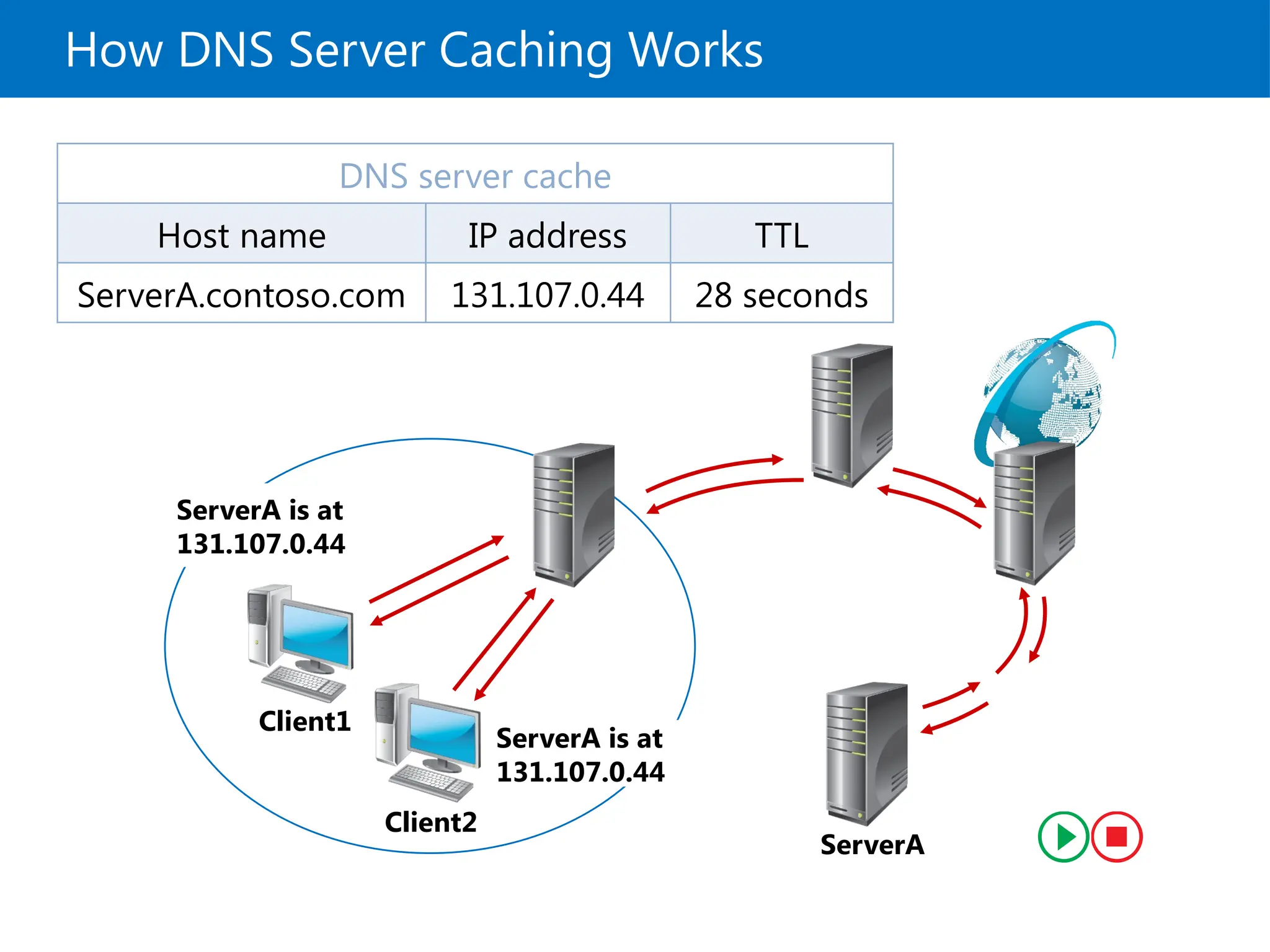
Client1
Client2
ServerA
Where is
ServerA?
ServerA isat
131.107.0.44
Where is
ServerA?
ServerA is at
131.107.0.44
How DNS Server Caching Works
DNS server cache
Host name IP address TTL
ServerA.contoso.com 131.107.0.44 28 seconds
23.
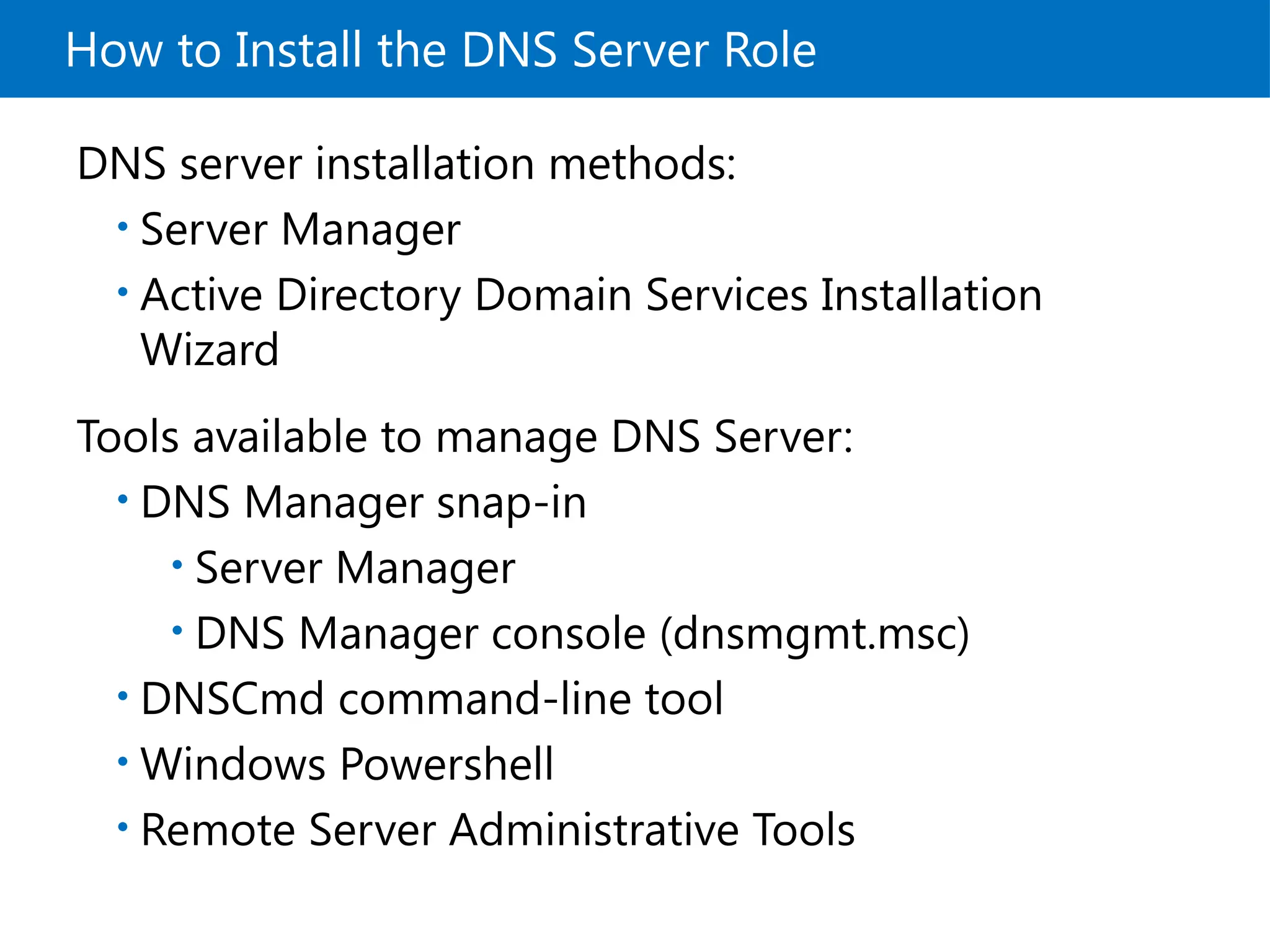
How to Installthe DNS Server Role
DNS server installation methods:
• Server Manager
• Active Directory Domain Services Installation
Wizard
Tools available to manage DNS Server:
• DNS Manager snap-in
• Server Manager
• DNS Manager console (dnsmgmt.msc)
• DNSCmd command-line tool
• Windows Powershell
• Remote Server Administrative Tools
24.
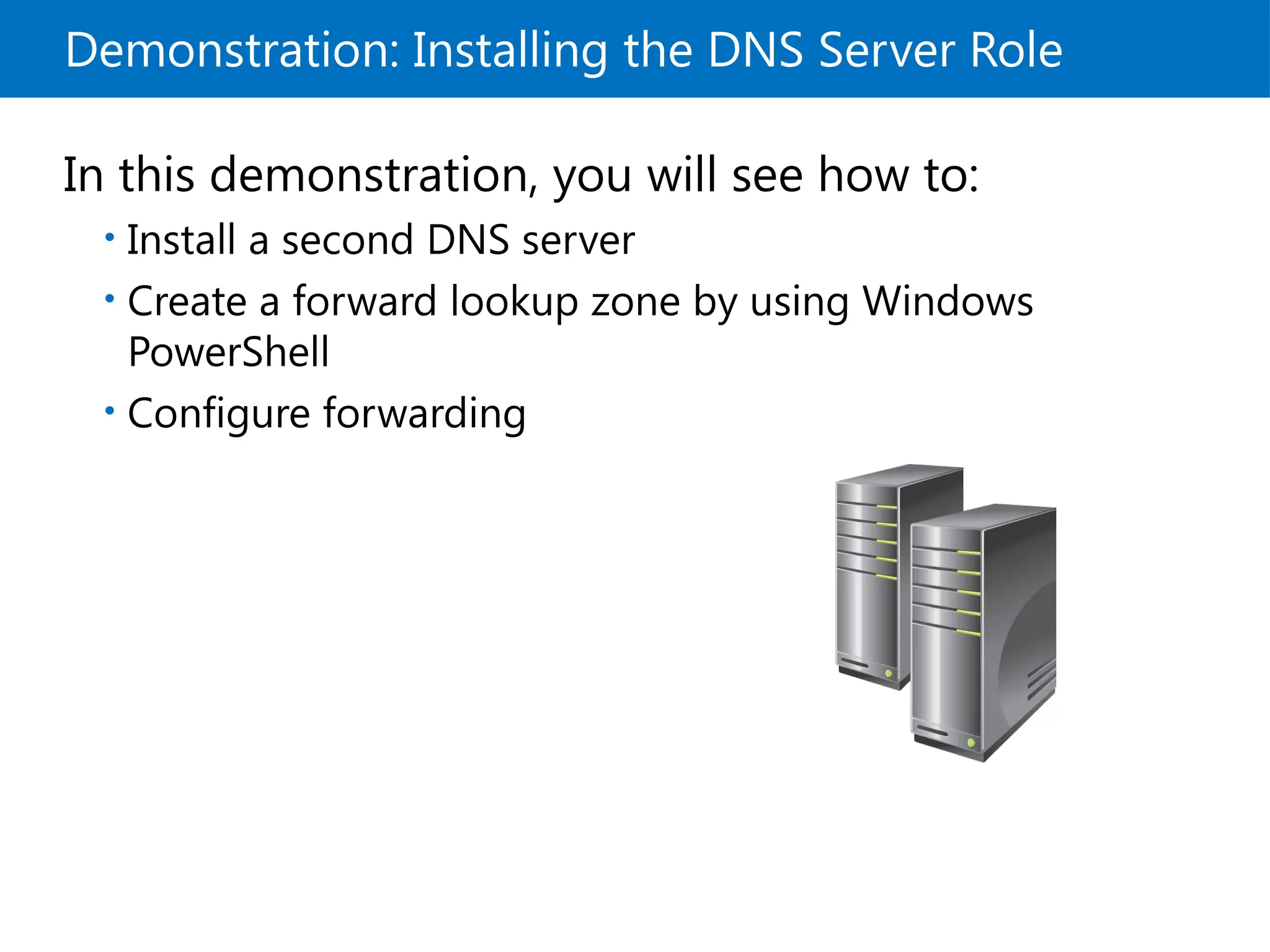
Demonstration: Installing theDNS Server Role
In this demonstration, you will see how to:
• Install a second DNS server
• Create a forward lookup zone by using Windows
PowerShell
• Configure forwarding
25.
Lesson 3: ManagingDNS Zones
What Are DNS Zone Types?
What Are Dynamic Updates?
What Are Active Directory–Integrated Zones?
• Demonstration: Creating an Active Directory–
Integrated Zone
26.
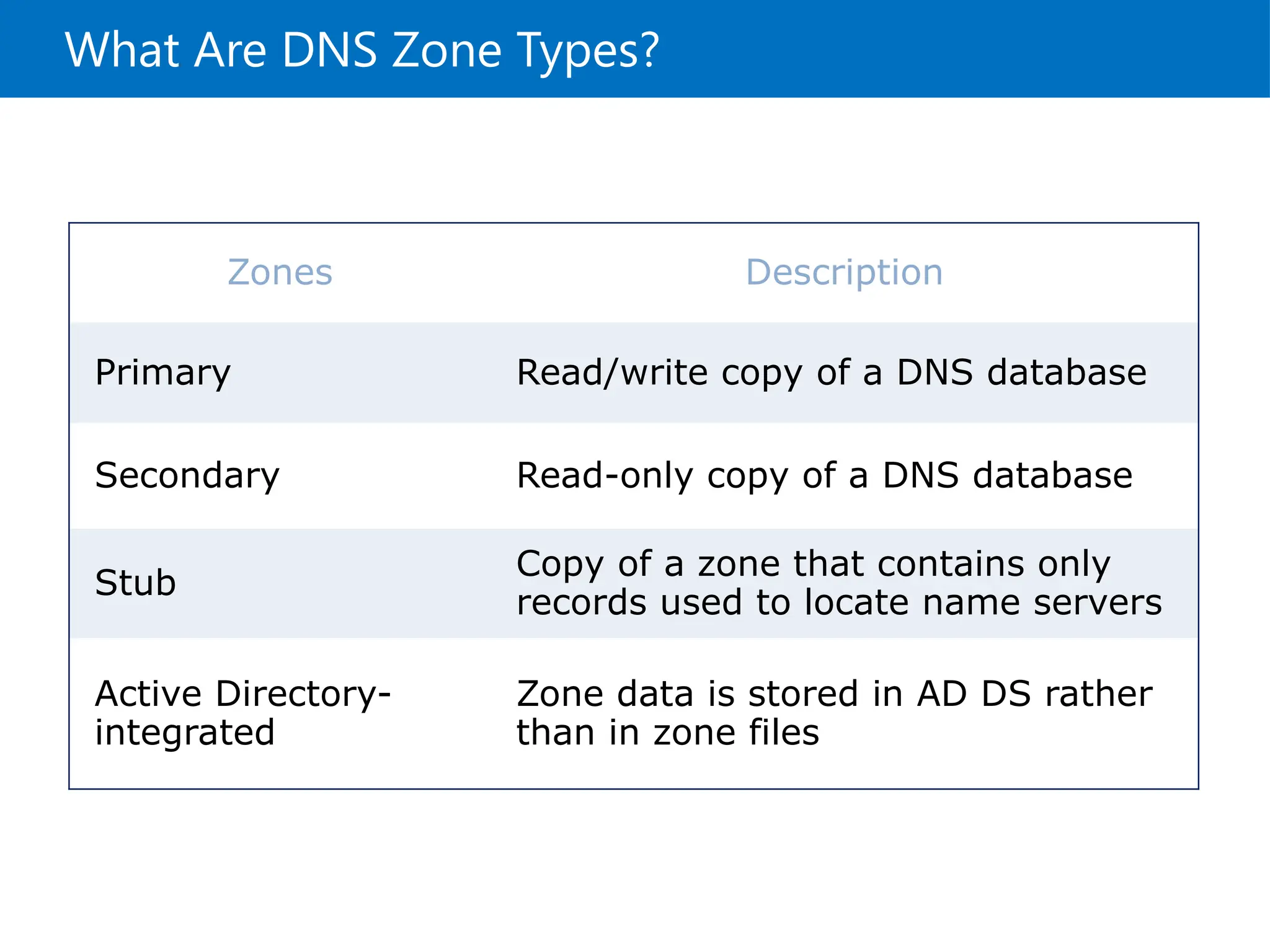
What Are DNSZone Types?
Zones Description
Primary Read/write copy of a DNS database
Secondary Read-only copy of a DNS database
Stub
Copy of a zone that contains only
records used to locate name servers
Active Directory-
integrated
Zone data is stored in AD DS rather
than in zone files
27.
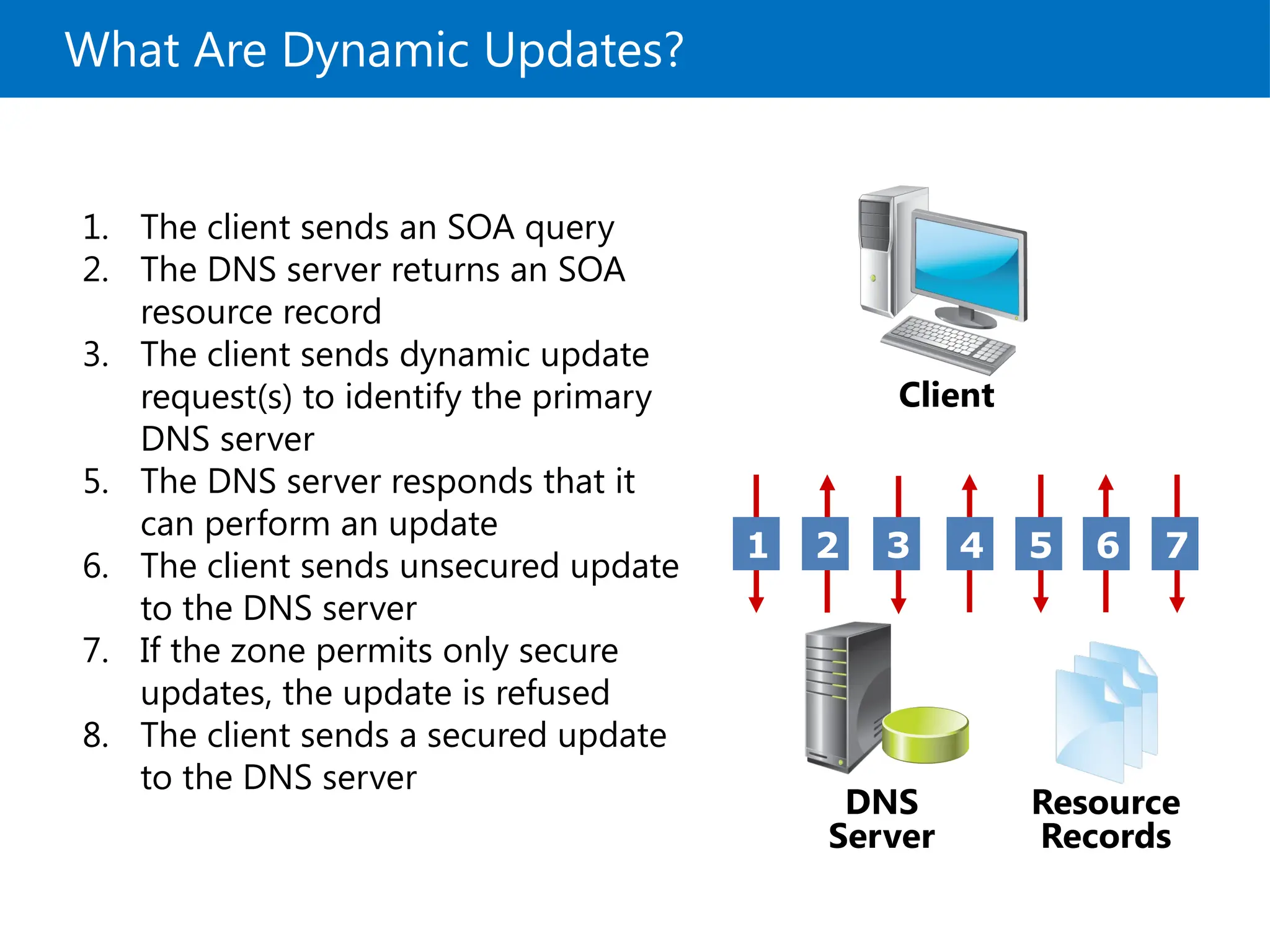
What Are DynamicUpdates?
1. The client sends an SOA query
2. The DNS server returns an SOA
resource record
3. The client sends dynamic update
request(s) to identify the primary
DNS server
5. The DNS server responds that it
can perform an update
6. The client sends unsecured update
to the DNS server
7. If the zone permits only secure
updates, the update is refused
8. The client sends a secured update
to the DNS server
Resource
Records
DNS
Server
1 2 3 4 5 6 7
Client
28.
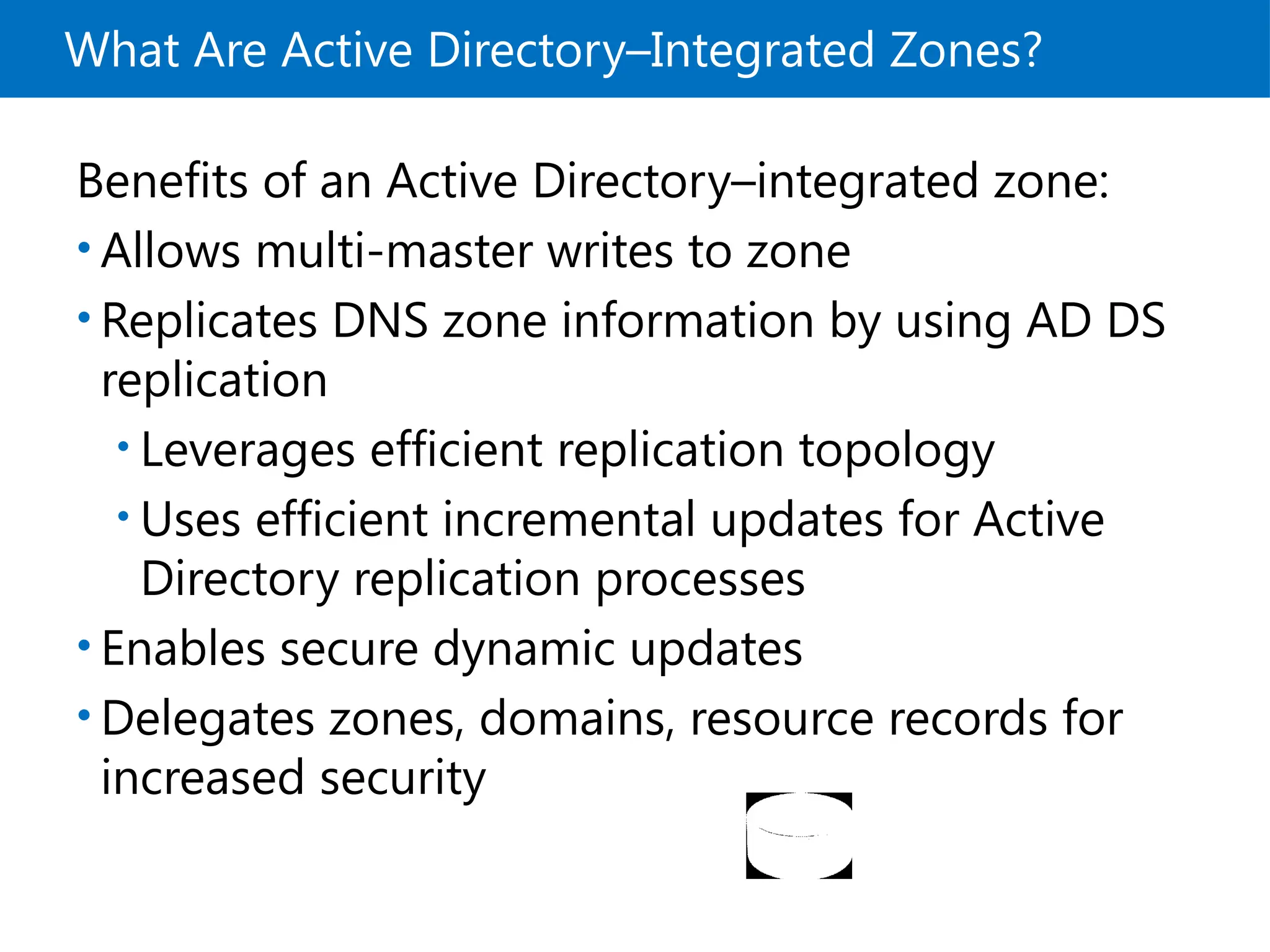
What Are ActiveDirectory–Integrated Zones?
Benefits of an Active Directory–integrated zone:
• Allows multi-master writes to zone
• Replicates DNS zone information by using AD DS
replication
• Leverages efficient replication topology
• Uses efficient incremental updates for Active
Directory replication processes
• Enables secure dynamic updates
• Delegates zones, domains, resource records for
increased security
29.
Demonstration: Creating anActive Directory–
Integrated Zone
In this demonstration, you will see how to:
• Promote a server as a domain controller
• Create an Active Directory–integrated zone
• Create a record
• Verify replication to a second DNS server
30.
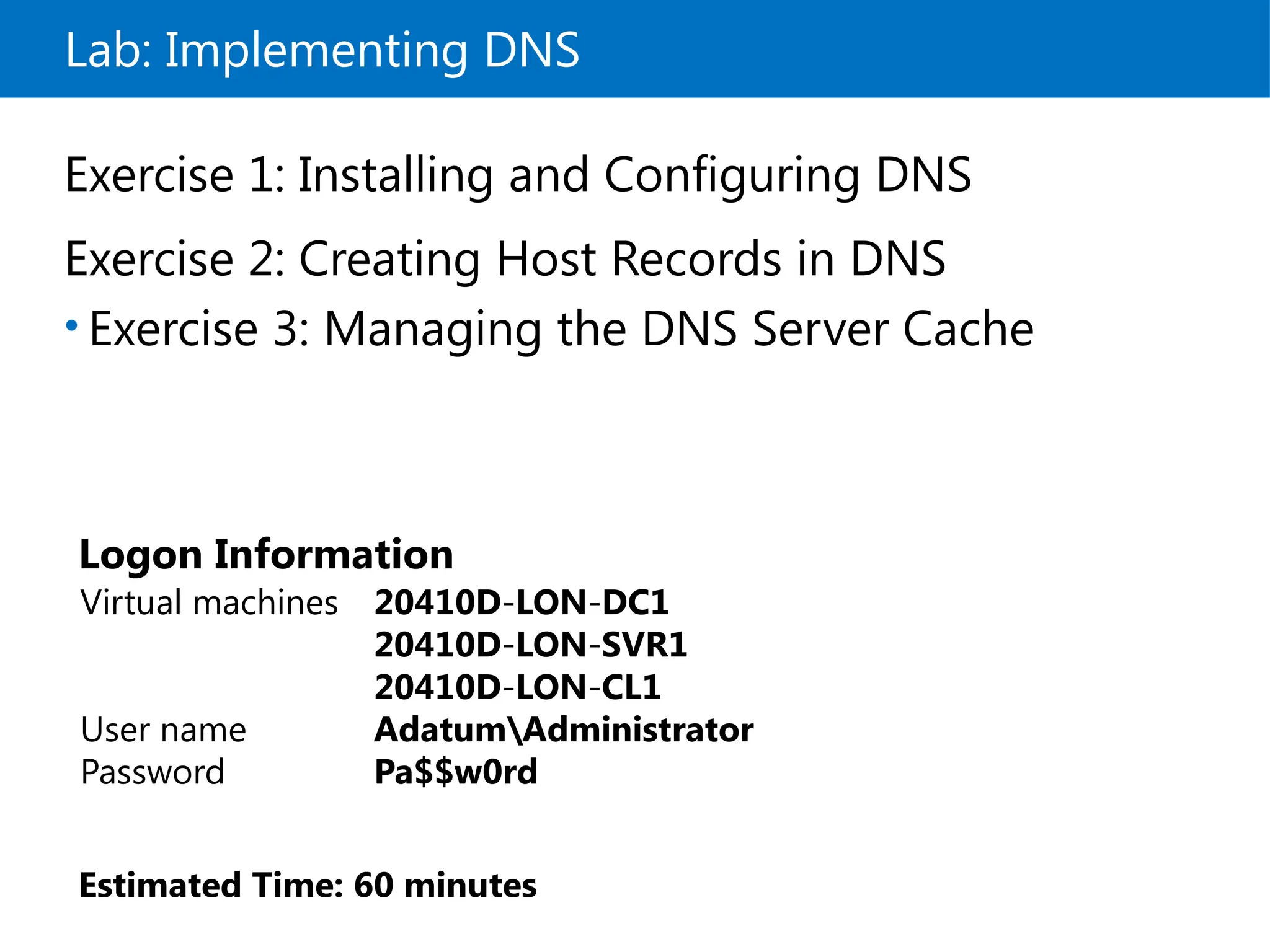
Lab: Implementing DNS
Exercise1: Installing and Configuring DNS
Exercise 2: Creating Host Records in DNS
• Exercise 3: Managing the DNS Server Cache
Logon Information
Virtual machines 20410D LON DC1
‑ ‑
20410D LON SVR1
‑ ‑
20410D LON CL1
‑ ‑
User name AdatumAdministrator
Password Pa$$w0rd
Estimated Time: 60 minutes
31.
Lab Scenario
Your managerhas asked you to configure the
domain controller in the branch office as a DNS
server. You also have been asked to create some
new host records to support a new app that is
being installed. Finally, you need to configure
forwarding on the DNS server in the branch office
to support Internet name resolution.
32.
Lab Review
Can youinstall the DNS server role on a server that
is not a domain controller? If yes, are there any
limitations?
What is the most common way to carry out Internet
name resolution on a local DNS?
• How can you browse the content of the DNS
resolver cache on a DNS server?
33.
Module Review andTakeaways
Review Questions
Best Practices
• Common Issues and Troubleshooting Tips
• Tools
Editor's Notes
#1 Presentation: 60 minutes
Lab: 60 minutes
After completing this module, students should be able to:
Describe name resolution for clients and servers.
Install and manage Domain Name System (DNS) service.
Manage DNS zones.
Required Materials
To teach this module, you need the Microsoft® Office PowerPoint® file 20410D_07.pptx.
Important: We recommend that you use Office PowerPoint 2007 or a newer version to display the slides for this course. If you use PowerPoint Viewer or an older version of Office PowerPoint, all the features of the slides might not display correctly.
Preparation Tasks
To prepare for this module:
Read all of the materials for this module.
Practice performing the demonstrations and the lab exercises.
Work through the Module Review and Takeaways section, and determine how you will use this section to reinforce student learning and promote knowledge transfer to on‑the‑job performance.
#2 Provide a brief overview of the module content.
#3 This is the introductory lesson to name resolution. Some students may be familiar with these concepts. If you have students who already understand the basics of name resolution, you can briefly review the first four topics, and then spend more time on Link‑local Multicast Name Resolution (LLMNR) and troubleshooting name resolution.
#4 Discuss the different types of names that computers can use. Emphasize that NetBIOS names are rarely used today, and that Windows 7® and newer versions support them only for legacy applications.
#5 Describe the tasks for which DNS is used.
Emphasize the need to use DNS to locate domain controllers and global catalog servers. Incorrectly configured DNS is one of the most common causes of slow workstation logons and logon failures. In addition, Active Directory® Domain Services (AD DS) replication may fail if DNS is configured incorrectly.
#6 Explain to students that a DNS zone is a specific portion of the DNS namespace that can contain DNS records. Use microsoft.com as an example of a zone. If the students are interested, you can discuss that subdomains can be either a separate zone, or part of the same zone.
Explain to students what each type of resource record is used for:
Host (A). Resolves names to IP addresses (you can use websites as an example).
Server (SRV). Locates a domain controller.
Mail exchanger (MX). Locates a mail server.
Pointer (PTR). Resolves an IP address to a host name, when troubleshooting.
Mention that, in most cases, the DNS records required for AD DS are added automatically to the necessary zone by domain controllers and global catalog servers. In addition, workstations and servers create their own A records and PTR records automatically through dynamic updating.
#7 Explain the information flow by using the steps in the student notes. Mention to students that understanding this process is important when they troubleshoot name resolution issues for clients and servers, for example, when a client cannot access a web-based app or file server. Note that to find the IP Address of www.microsoft.com, a client asks its DNS server as defined in the TCP/IP properties, and that DNS server might then ask several DNS servers in the DNS hierarchy until it has an answer for the client.
#8 This topic has three static slides. Explain the split DNS process as shown in each slide.
Slide 1 of 3
Clients and servers on the internal network send all DNS queries to DC/ADI DNS servers.
#9 Slide 2 of 3
The internal DNS respond to client requests for internal host names and SRV records and to client requests for servers in the perimeter network.
#10 Slide 3 of 3
The external DNS server in the perimeter network receives a query is received from the Internet. If the query is for the servers located on the perimeter network, such as the corporate web server, the external DNS server resolves it. However, if the query is for any of the internal resources hosted on the Active Directory-integrated DNS servers, the external server simply does not have these records, and because its zone name is the same, it issues an authoritative rejection of that query. Also, the inside firewall rejects all DNS queries coming into the internal network.
#11 Explain the basics of LLMNR. Emphasize that this protocol is supported only on newer operating systems. In addition, explain the Network Discovery feature in Network and Sharing Center, and if possible, demonstrate how to turn it on.
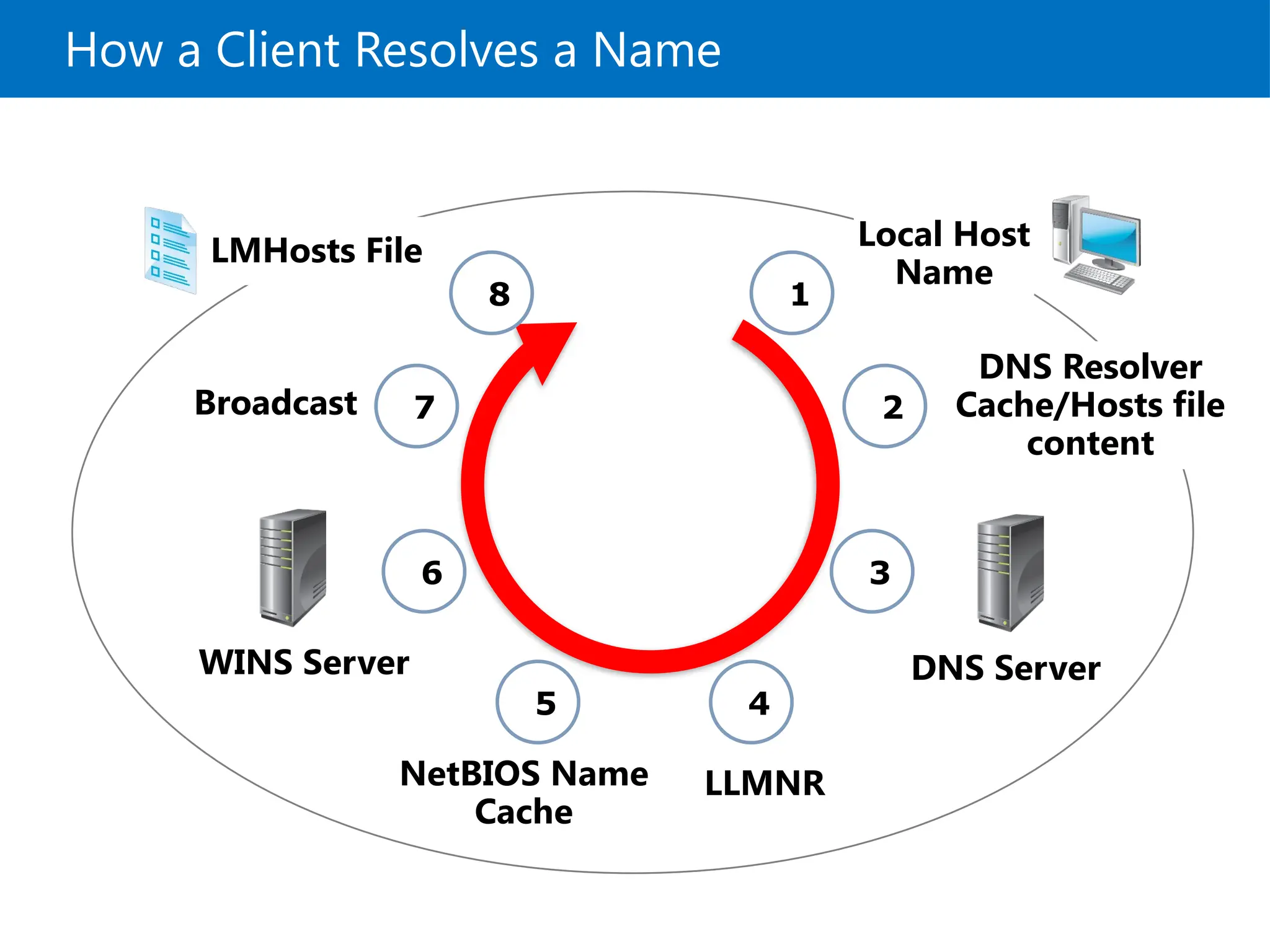
#12 Windows resolves host names by:
Checking whether the host name is the same as the local host name.
Searching the DNS resolver cache. The DNS resolver cache is a local cache that contains any DNS addresses that were recently requested.
Sending a DNS request to its configured DNS servers and this server attempting to resolve that request, either on its own or by forwarding that request to other DNS servers.
Using the LLMNR resolution method to resolve the host name in the local subnet using IPv6, if it is enabled.
Converting the host name to a NetBIOS name and checking the local NetBIOS name cache.
Contacting the host’s configured WINS servers.
Broadcasting as many as three NetBIOS Name Query Request messages on the subnet that is directly attached.
Searching the LMHosts file.
Explain how the name resolution process works, step-by-step. Emphasize the switch from DNS to NetBIOS methods in the process. Mention GlobalNames zone support.
#13 Discuss troubleshooting techniques for DNS.
Note that the new cmdlets from Windows Server 2012 R2 that discuss signing keys and trusts were introduced in Windows Server 2012 R2 to facilitate enhanced DNSSEC functionality. However, further discussion of them is beyond the scope of this course. Explain that, although they are listed in the course to show the new cmdlets available in Windows Server 2012 R2, they are not used in the lab.
You may want to go to the link on the Get-DnsServerStatistics cmdlet and show some of the parameters and other options for this cmdlet.
#14 Discuss troubleshooting techniques for DNS.
Note that the new cmdlets from Windows Server 2012 R2 that discuss signing keys and trusts were introduced in Windows Server 2012 R2 to facilitate enhanced DNSSEC functionality; however, further discussion of them is beyond the scope of this course. Explain that although these cmdlets are listed in the course to show the new cmdlets available in Windows Server 2012 R2, they are not used in the lab.
Preparation Steps
Start 20410D-LON-DC1 and 20410D-LON-CL1.
Demonstration Steps
Use Windows PowerShell cmdlets to troubleshoot DNS
Sign in to LON‑DC1 and LON-CL1 as Adatum\Administrator with the password Pa$$w0rd.
On LON-CL1, at the lower-left of the Start screen, click the white Down Arrow icon.
In the Apps screen, scroll to the right, and in the Windows System category, click Windows PowerShell.
In Windows PowerShell, type the following cmdlets, and press Enter after each one:
Get-DnsClientServerAddress
Clear-DnsClientCache
Note that the DNS Server address assigned to Ethernet IPv4 is 172.16.0.10. This is LON-DC1.
Explain the Interface Index number and how it is used to modify certain settings.
Note the entries labeled Ethernet in the InterfaceAlias column, and the entry labeled IPv4 in the Address Family column. In the Interface Index column, note the Interface Index number that is in the same row as Ethernet and IPv4. Write this number here:
You will use this specific Interface Index number in a later step.
In Windows PowerShell, type the following cmdlet, and then press Enter:
Resolve-DnsName lon-dc1
Note the address returned. Do not close Windows PowerShell.
#16 There are three static slides in this topic.
Slide 1 of 3
Explain that a DNS query is used to request name resolution, and that the query is sent to a DNS server. Briefly explain that there are two types of queries: recursive and iterative. DNS servers also can act as DNS clients and send DNS queries to other DNS servers.
Explain that a DNS server can be either authoritative or non‑authoritative for the namespace of the query.
Explain how recursive queries work.
Inform students that they should consider disabling recursive queries for specific domains. When this is done, the DNS server in question will not attempt to forward its DNS requests to another server. This is useful when you do not want a particular DNS server to communicate outside of its network. Disabling recursion is performed in the DNS administrative Microsoft Management Console (MMC).
Describe the purpose of an iterative query.
#19 Explain root hints and how they are used in name resolving process.
Mention to students that recursive queries are discussed in more detail later in the module.
#20 This topic has two static slides.
In this topic, emphasize the following:
Define forwarders and explain their purpose: A forwarder is a DNS server on a network that forwards DNS queries for external DNS names to DNS servers outside that network.
Define conditional forwarding: A conditional forwarder is a DNS server on a network that forwards DNS queries according to the DNS domain name in the query.
Go over the following example:
You can configure a DNS server to forward all of the queries that it receives for names ending with contoso.com to the IP address of a specific DNS server or to the IP addresses of multiple DNS servers.
Describe how conditional forwarding works by referring to the slide.
A best practice is to use conditional forwarders when you have multiple internal namespaces. This results in faster name resolution.
#22 This is a three-frame slide build. Click twice to see frames 2 and 3.
Explain DNS caching on the server and client side. If you have enough time, demonstrate how to view cached content on the server and on the client.
#23 Discuss the methods and tools available to install and manage the DNS server role.
#24 Preparation Steps
Start 20410D‑LON‑DC1 and 20410D‑LON‑SVR1.
Demonstration Steps
Install a second DNS server
Sign in to LON‑DC1 and LON-SVR1 as Adatum\Administrator with the password Pa$$w0rd.
On LON‑SVR1, in the Server Manager console, in the Manage tab, click Add roles and features.
On the Before you begin page, click Next.
On the Select installation type page, click Next.
On the Select destination server page, ensure that LON‑SVR1.Adatum.com is selected, and then click Next.
On the Select server roles page, click DNS Server.
In the Add Roles and Features Wizard window, click Add Features, and then click Next.
On the Select Features page, click Next.
On the DNS Server page, click Next.
On the Confirm installation selections page, click Install.
On the Installation progress page, when a message displays that installation succeeded, click Close.
Create a forward lookup zone by using Windows PowerShell
Switch to LON-DC1.
On the taskbar, select the Windows PowerShell icon.
In the Windows PowerShell window, type the following cmdlet, and then press Enter:
Add-DnsServerPrimaryZone –Name fabrikam.com –DynamicUpdate Secure
–ReplicationScope Domain
#25 Provide a brief overview of the lesson content.
#26 Explain that there are four DNS zone types:
Primary
Secondary
Stub
Active Directory–integrated
Make the following points about the zones:
Primary Zone:
DNS server is the primary source for zone information.
Primary zone stores the master copy of zone data in either a local file or in AD DS.
Primary zone file is named zone_name.dns by default, and is located in %windir%\System32\Dns.
Secondary Zone:
The server is a secondary source for zone information.
The secondary zone information must be obtained from another DNS server that also hosts the zone.
A secondary zone cannot be stored in AD DS.
Stub Zone:
Stub zones were introduced with Windows 2003 to solve several problems with large DNS namespaces and multiple-tree forests.
Active Directory–Integrated Zone:
Discuss the benefits of using the multi-master replication model to simultaneously edit zone data on more than one server.
#27 Describe how dynamic updates work.
Explain to students that when an IP address is configured (by DHCP or fixed), it is actually the DHCP client service (not to be confused with the DHCP server) that registers a client’s host records. This is triggered when an IP address is added or changed on any network connection. Registration also happens during computer startup. Remind students that you can also activate registration manually using the Windows PowerShell cmdlet Register-DNSClient, or by typing the ipconfig /registerdns command at a command prompt.
Ask students what they think would happen if dynamic updates were not enabled. They should answer that the biggest problem would be that domain controllers would not be able to register their records in DNS, so the domain controller records would have to be added manually.
Mention to students that there is an option they can set in the DHCP server so that it can dynamically update client computer resource records in DNS. Mention that, by default, Windows Server 2012 DNS servers are configured to support secure-only updates for Active Directory–integrated zones. Active Directory–integrated zones are covered in more detail in the next topic.
#28 Explain how DNS stores data in AD DS. Briefly review the benefits.
Question
Can you think of any disadvantages to storing DNS information in AD DS?
Answer
If you want to replicate DNS data to other non‑Microsoft DNS servers, you should not store it in AD DS.
#29 Preparation Steps
You need the 20410D‑LON‑DC1 and 20410D‑LON‑SVR1 virtual machines to complete this demonstration. They should already be running from the previous demonstration.
Demonstration Steps
Promote a server as a domain controller
On LON-SVR1, in the Server Manager console, click Add roles and features.
On the Before you begin page, click Next.
On the Select installation type page, click Next.
On the Select destination server page, ensure that LON‑SVR1.Adatum.com is selected, and then click Next.
On the Select server roles page, click Active Directory Domain Services.
When the Add Roles and Features Wizard window appears, click Add Features, and then click Next.
On the Select features page, click Next.
On the Active Directory Domain Services page, click Next.
On the Confirm installation selections page, click Install.
On the Installation progress page, when the Installation succeeded message displays, click Close.
In the Server Manager console, on the Navigation page, click AD DS.
On the title bar where Configuration required for Active Directory Domain Services at LON‑SVR1 is visible, click More.
On the All Server Task Details and Notifications page, click Promote this server to a domain controller.
#30 Before students begin the lab, read the lab scenario and display the next slide. Before each exercise, read the scenario associated with the exercise to the class. The scenarios give context to the lab and exercises, and help to facilitate the discussion at the end of the lab. Remind students to complete the discussion questions after the last lab exercise.
Exercise 1: Installing and Configuring DNS
Contoso is a partner organization that is working closely with users in the new branch office. To support name resolution between A Datum’s branch office and Contoso, you decide to enable DNS forwarding between the two DNS domains.
As part of configuring the infrastructure for the new branch office, you must configure a DNS server that provides name resolution for the branch office. This includes the forwarding for Contoso.com
The DNS server in the branch office will be a domain controller. The Active Directory integrated zones required to support logons will be replicated automatically to the branch office.
Exercise 2: Creating Host Records in DNS
Several new web-based apps are being implemented in the A. Datum head office. For each app, you must configure a host record in DNS. You have been asked to create the new host records for these apps.
Exercise 3: Managing the DNS Server Cache
After you changed some host records in zones configured on LON‑DC1, you noticed that clients that use LON‑SVR1 as their DNS server were still receiving old IP addresses during the name-resolving process. You want to determine which component is caching this data.
#32 Lab Review Questions
Question
Can you install the DNS server role on a server that is not a domain controller? If yes, are there any limitations?
Answer
Yes, you can. However, you cannot create Active Directory–integrated zones on a DNS server that is not a domain controller.
Question
What is the most common way to carry out Internet name resolution on a local DNS?
Answer
Companies typically configure their local DNS with a forwarder. That forwarder is most often a DNS server of their ISP.
Question
How can you browse the content of the DNS resolver cache on a DNS server?
Answer
You can browse the content of the DNS resolver cache on a DNS server by enabling the Advanced view in the DNS Manager console or by using Windows PowerShell cmdlets.
#33 Module Review Questions
Point students to the appropriate section in the course, so that they are able to answer the questions that this section presents.
Question
You are troubleshooting DNS name resolution from a client computer. What must you remember to do before each test?
Answer
You should clear the resolver cache before starting to troubleshoot.
Question
You are deploying DNS servers into an Active Directory domain, and your customer requires that the infrastructure be resistant to single points of failure. What must you consider when planning the DNS configuration?
Answer
You should deploy more than one AD DS domain controller with the DNS server role installed.
Question
What benefits do you realize by using forwarders?
Answer
Forwarders are used when your local DNS server cannot resolve a query from the client using its own local zones. You usually configure forwarders to resolve Internet names. However, you also can use forwarders to optimize performance, to optimize Internet link usage on your local DNS server, and to enhance security.
Best Practices
When you implement DNS, use the following best practices:
Always use host names instead of NetBIOS names.
Use forwarders rather than root hints.
Be aware of potential caching issues when you troubleshoot name resolution.
Use Active Directory–integrated zones instead of primary and secondary zones.


![Coded Agents – with UiPath SDK + LangGraph [Virtual Hands-on Workshop]](https://cdn.slidesharecdn.com/ss_thumbnails/codedagentsdeck-251215155422-5497c599-thumbnail.jpg?width=640&height=640&fit=bounds)


