DNS
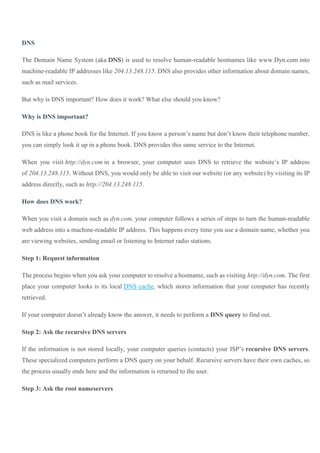
The Domain Name System (aka DNS) is used to resolve human-readable hostnames like www.Dyn.com into
machine-readable IP addresses like 204.13.248.115. DNS also provides other information about domain names,
such as mail services.
But why is DNS important? How does it work? What else should you know?
Why is DNS important?
DNS is like a phone book for the Internet. If you know a person’s name but don’t know their telephone number,
you can simply look it up in a phone book. DNS provides this same service to the Internet.
When you visit http://dyn.com in a browser, your computer uses DNS to retrieve the website’s IP address
of 204.13.248.115. Without DNS, you would only be able to visit our website (or any website) by visiting its IP
address directly, such as http://204.13.248.115.
How does DNS work?
When you visit a domain such as dyn.com, your computer follows a series of steps to turn the human-readable
web address into a machine-readable IP address. This happens every time you use a domain name, whether you
are viewing websites, sending email or listening to Internet radio stations.
Step 1: Request information
The process begins when you ask your computer to resolve a hostname, such as visiting http://dyn.com. The first
place your computer looks is its local DNS cache, which stores information that your computer has recently
retrieved.
If your computer doesn’t already know the answer, it needs to perform a DNS query to find out.
Step 2: Ask the recursive DNS servers
If the information is not stored locally, your computer queries (contacts) your ISP’s recursive DNS servers.
These specialized computers perform a DNS query on your behalf. Recursive servers have their own caches, so
the process usually ends here and the information is returned to the user.
Step 3: Ask the root nameservers
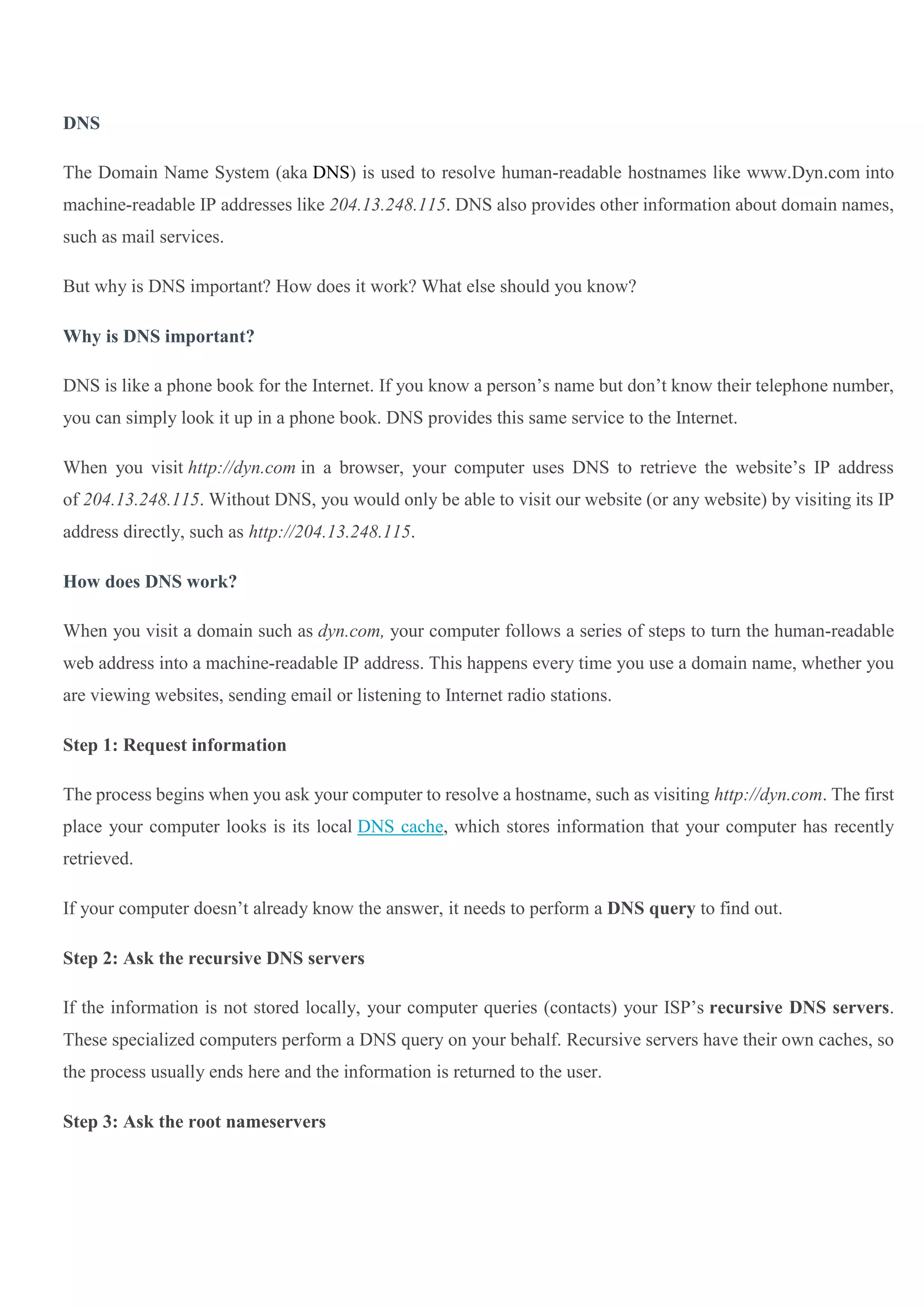
If the recursive servers don’t have the answer, they query the root nameservers. A nameserver is a computer
that answers questions about domain names, such as IP addresses. The thirteen root nameservers act as a kind of
telephone switchboard for DNS. They don’t know the answer, but they can direct our query to someone that
knows where to find it.
Step 4: Ask the TLD nameservers
The root nameservers will look at the first part of our request, reading from right to left — www.dyn.com — and
direct our query to the Top-Level Domain (TLD) nameservers for .com. Each TLD, such as .com, .org, and .us,
have their own set of nameservers, which act like a receptionist for each TLD. These servers don’t have the
information we need, but they can refer us directly to the servers that do have the information.
Step 5: Ask the authoritative DNS servers
The TLD nameservers review the next part of our request — www.dyn.com — and direct our query to the
nameservers responsible for this specific domain. These authoritative nameservers are responsible for
knowing all the information about a specific domain, which are stored in DNS records. There are many types
of records, which each contain a different kind of information. In this example, we want to know the IP address
for www.dyndns.com, so we ask the authoritative nameserver for the Address Record (A).
Step 6: Retrieve the record
The recursive server retrieves the A record for dyn.com from the authoritative nameservers and stores the record
in its local cache. If anyone else requests the host record for dyn.com, the recursive servers will already have the
answer and will not need to go through the lookup process again. All records have a time-to-live value, which
is like an expiration date. After a while, the recursive server will need to ask for a new copy of the record to
make sure the information doesn’t become out-of-date.
Step 7: Receive the answer
Armed with the answer, recursive server returns the A record back to your computer. Your computer stores the
record in its cache, reads the IP address from the record, then passes this information to your browser. The
browser then opens a connection to the webserver and receives the website
DNS
Element
Description
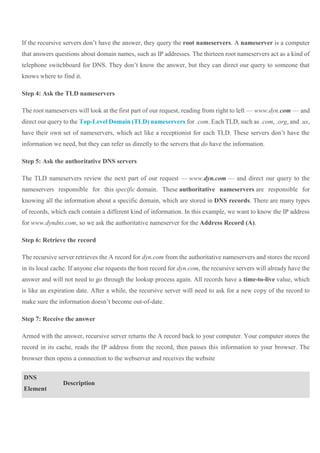
Nameserver Nameservers "point" your domain name to the company that controls its DNS settings. Usually,
this will be the company where you registered the domain name.
However, if your website is hosted by another company, sometimes they will provide
nameservers you need to point to instead.
Zone File Zone Files are simply the files that store all of your domain's DNS settings.
Your domain name's Zone File is stored on the company's nameserver.
A Record A Records point your domain name to an individual server using an IP address. An example IP
address is 123.4.67.5.
Every domain name has a primary A Record called "@," which controls what your domain
name does when some visits it directly.
You can also use A Records to point subdomains (for example subdomain.coolexample.com)
to a server's IP address.
CNAME CNAMEs point your subdomains to another server using a server name,
like server1.godaddy.com.
Most domain names have many CNAMEs.
Unlike A Records, CNAMEs cannot use IP addresses.
MX Records MX Records point your domain name's email to its email provider.
How to Setup and Configure DNS in Windows Server 2012
Setting up a Domain Name System (DNS) on Windows Server involves installing the DNS Server Role. This
tutorial will walk you through the DNS installation and configuration process in Windows Server 2012.
Microsoft Windows Server 2012 is a powerful server operating system capable of many different roles and
functions. However, to prevent overloading production servers with features and options that are never used,
Windows Server provides a modular approach in which the administrator manually installs the services needed.
To setup and configure DNS, one must install the DNS Server Role on Windows Server 2012.
Install DNS Server Role in Server 2012
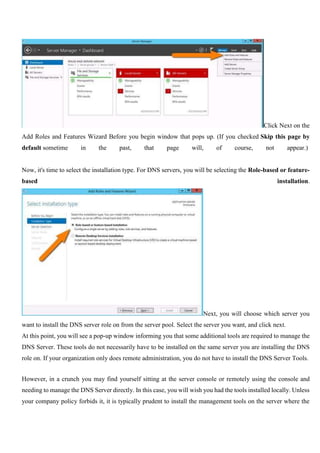
To add a new role to Windows Server 2012, you use Server Manager. Start Server Manager, click the Manage
menu, and then select Add Roles and Features.
Click Next on the
Add Roles and Features Wizard Before you begin window that pops up. (If you checked Skip this page by
default sometime in the past, that page will, of course, not appear.)
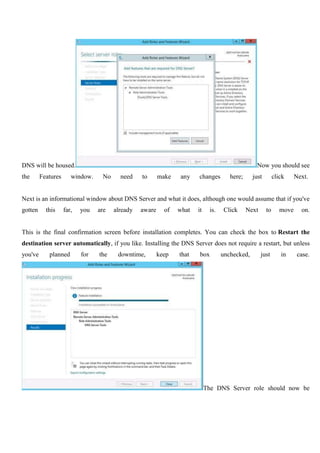
Now, it's time to select the installation type. For DNS servers, you will be selecting the Role-based or feature-
based installation.
Next, you will choose which server you
want to install the DNS server role on from the server pool. Select the server you want, and click next.
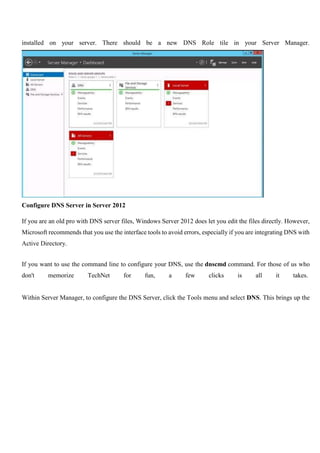
At this point, you will see a pop-up window informing you that some additional tools are required to manage the
DNS Server. These tools do not necessarily have to be installed on the same server you are installing the DNS
role on. If your organization only does remote administration, you do not have to install the DNS Server Tools.
However, in a crunch you may find yourself sitting at the server console or remotely using the console and
needing to manage the DNS Server directly. In this case, you will wish you had the tools installed locally. Unless
your company policy forbids it, it is typically prudent to install the management tools on the server where the
DNS will be housed. Now you should see
the Features window. No need to make any changes here; just click Next.
Next is an informational window about DNS Server and what it does, although one would assume that if you've
gotten this far, you are already aware of what it is. Click Next to move on.
This is the final confirmation screen before installation completes. You can check the box to Restart the
destination server automatically, if you like. Installing the DNS Server does not require a restart, but unless
you've planned for the downtime, keep that box unchecked, just in case.
The DNS Server role should now be
installed on your server. There should be a new DNS Role tile in your Server Manager.
Configure DNS Server in Server 2012
If you are an old pro with DNS server files, Windows Server 2012 does let you edit the files directly. However,
Microsoft recommends that you use the interface tools to avoid errors, especially if you are integrating DNS with
Active Directory.
If you want to use the command line to configure your DNS, use the dnscmd command. For those of us who
don't memorize TechNet for fun, a few clicks is all it takes.
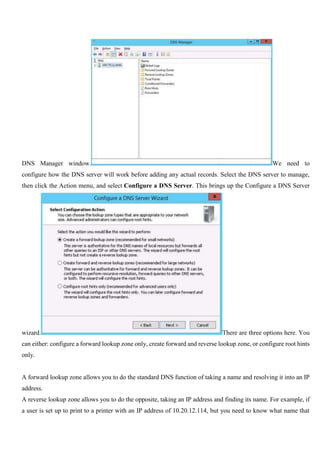
Within Server Manager, to configure the DNS Server, click the Tools menu and select DNS. This brings up the
DNS Manager window. We need to
configure how the DNS server will work before adding any actual records. Select the DNS server to manage,
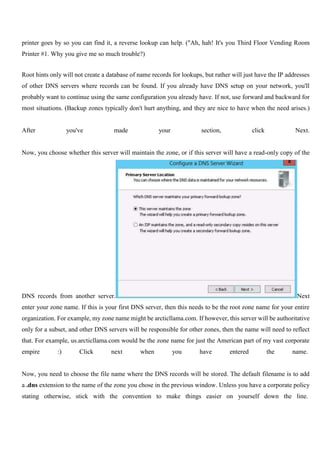
then click the Action menu, and select Configure a DNS Server. This brings up the Configure a DNS Server
wizard. There are three options here. You
can either: configure a forward lookup zone only, create forward and reverse lookup zone, or configure root hints
only.
A forward lookup zone allows you to do the standard DNS function of taking a name and resolving it into an IP
address.
A reverse lookup zone allows you to do the opposite, taking an IP address and finding its name. For example, if
a user is set up to print to a printer with an IP address of 10.20.12.114, but you need to know what name that
printer goes by so you can find it, a reverse lookup can help. ("Ah, hah! It's you Third Floor Vending Room
Printer #1. Why you give me so much trouble?)
Root hints only will not create a database of name records for lookups, but rather will just have the IP addresses
of other DNS servers where records can be found. If you already have DNS setup on your network, you'll
probably want to continue using the same configuration you already have. If not, use forward and backward for
most situations. (Backup zones typically don't hurt anything, and they are nice to have when the need arises.)
After you've made your section, click Next.
Now, you choose whether this server will maintain the zone, or if this server will have a read-only copy of the
DNS records from another server. Next
enter your zone name. If this is your first DNS server, then this needs to be the root zone name for your entire
organization. For example, my zone name might be arcticllama.com. If however, this server will be authoritative
only for a subset, and other DNS servers will be responsible for other zones, then the name will need to reflect
that. For example, us.arcticllama.com would be the zone name for just the American part of my vast corporate
empire :) Click next when you have entered the name.
Now, you need to choose the file name where the DNS records will be stored. The default filename is to add
a .dns extension to the name of the zone you chose in the previous window. Unless you have a corporate policy
stating otherwise, stick with the convention to make things easier on yourself down the line.
Next you select how this server will respond to Dynamic Updates. Although there are three choices here, only
two should actually be used in production. Select the first option to allow only secure dynamic updates if you
are integrating your DNS with Active Directory. Select do not allow dynamic updates if your DNS is not
integrated with Active Directory and you don't want to allow dynamic updates. Do not allow unsecured dynamic
updates unless you really know what you are doing and have a very good reason for doing so.
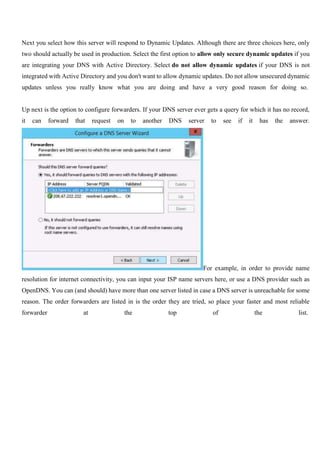
Up next is the option to configure forwarders. If your DNS server ever gets a query for which it has no record,
it can forward that request on to another DNS server to see if it has the answer.
For example, in order to provide name
resolution for internet connectivity, you can input your ISP name servers here, or use a DNS provider such as
OpenDNS. You can (and should) have more than one server listed in case a DNS server is unreachable for some
reason. The order forwarders are listed in is the order they are tried, so place your faster and most reliable
forwarder at the top of the list.
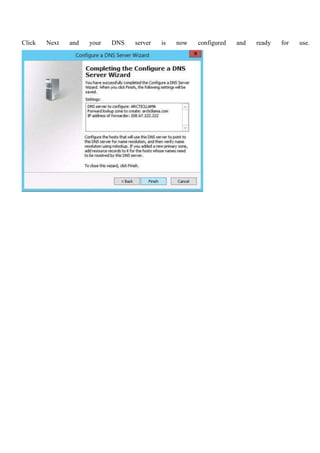
Click Next and your DNS server is now configured and ready for use.

DNS.docx

  • 1.
    DNS The Domain NameSystem (aka DNS) is used to resolve human-readable hostnames like www.Dyn.com into machine-readable IP addresses like 204.13.248.115. DNS also provides other information about domain names, such as mail services. But why is DNS important? How does it work? What else should you know? Why is DNS important? DNS is like a phone book for the Internet. If you know a person’s name but don’t know their telephone number, you can simply look it up in a phone book. DNS provides this same service to the Internet. When you visit http://dyn.com in a browser, your computer uses DNS to retrieve the website’s IP address of 204.13.248.115. Without DNS, you would only be able to visit our website (or any website) by visiting its IP address directly, such as http://204.13.248.115. How does DNS work? When you visit a domain such as dyn.com, your computer follows a series of steps to turn the human-readable web address into a machine-readable IP address. This happens every time you use a domain name, whether you are viewing websites, sending email or listening to Internet radio stations. Step 1: Request information The process begins when you ask your computer to resolve a hostname, such as visiting http://dyn.com. The first place your computer looks is its local DNS cache, which stores information that your computer has recently retrieved. If your computer doesn’t already know the answer, it needs to perform a DNS query to find out. Step 2: Ask the recursive DNS servers If the information is not stored locally, your computer queries (contacts) your ISP’s recursive DNS servers. These specialized computers perform a DNS query on your behalf. Recursive servers have their own caches, so the process usually ends here and the information is returned to the user. Step 3: Ask the root nameservers
  • 2.
    If the recursiveservers don’t have the answer, they query the root nameservers. A nameserver is a computer that answers questions about domain names, such as IP addresses. The thirteen root nameservers act as a kind of telephone switchboard for DNS. They don’t know the answer, but they can direct our query to someone that knows where to find it. Step 4: Ask the TLD nameservers The root nameservers will look at the first part of our request, reading from right to left — www.dyn.com — and direct our query to the Top-Level Domain (TLD) nameservers for .com. Each TLD, such as .com, .org, and .us, have their own set of nameservers, which act like a receptionist for each TLD. These servers don’t have the information we need, but they can refer us directly to the servers that do have the information. Step 5: Ask the authoritative DNS servers The TLD nameservers review the next part of our request — www.dyn.com — and direct our query to the nameservers responsible for this specific domain. These authoritative nameservers are responsible for knowing all the information about a specific domain, which are stored in DNS records. There are many types of records, which each contain a different kind of information. In this example, we want to know the IP address for www.dyndns.com, so we ask the authoritative nameserver for the Address Record (A). Step 6: Retrieve the record The recursive server retrieves the A record for dyn.com from the authoritative nameservers and stores the record in its local cache. If anyone else requests the host record for dyn.com, the recursive servers will already have the answer and will not need to go through the lookup process again. All records have a time-to-live value, which is like an expiration date. After a while, the recursive server will need to ask for a new copy of the record to make sure the information doesn’t become out-of-date. Step 7: Receive the answer Armed with the answer, recursive server returns the A record back to your computer. Your computer stores the record in its cache, reads the IP address from the record, then passes this information to your browser. The browser then opens a connection to the webserver and receives the website DNS Element Description
  • 3.
    Nameserver Nameservers "point"your domain name to the company that controls its DNS settings. Usually, this will be the company where you registered the domain name. However, if your website is hosted by another company, sometimes they will provide nameservers you need to point to instead. Zone File Zone Files are simply the files that store all of your domain's DNS settings. Your domain name's Zone File is stored on the company's nameserver. A Record A Records point your domain name to an individual server using an IP address. An example IP address is 123.4.67.5. Every domain name has a primary A Record called "@," which controls what your domain name does when some visits it directly. You can also use A Records to point subdomains (for example subdomain.coolexample.com) to a server's IP address. CNAME CNAMEs point your subdomains to another server using a server name, like server1.godaddy.com. Most domain names have many CNAMEs. Unlike A Records, CNAMEs cannot use IP addresses. MX Records MX Records point your domain name's email to its email provider. How to Setup and Configure DNS in Windows Server 2012
  • 4.
    Setting up aDomain Name System (DNS) on Windows Server involves installing the DNS Server Role. This tutorial will walk you through the DNS installation and configuration process in Windows Server 2012. Microsoft Windows Server 2012 is a powerful server operating system capable of many different roles and functions. However, to prevent overloading production servers with features and options that are never used, Windows Server provides a modular approach in which the administrator manually installs the services needed. To setup and configure DNS, one must install the DNS Server Role on Windows Server 2012. Install DNS Server Role in Server 2012 To add a new role to Windows Server 2012, you use Server Manager. Start Server Manager, click the Manage menu, and then select Add Roles and Features.
  • 5.
    Click Next onthe Add Roles and Features Wizard Before you begin window that pops up. (If you checked Skip this page by default sometime in the past, that page will, of course, not appear.) Now, it's time to select the installation type. For DNS servers, you will be selecting the Role-based or feature- based installation. Next, you will choose which server you want to install the DNS server role on from the server pool. Select the server you want, and click next. At this point, you will see a pop-up window informing you that some additional tools are required to manage the DNS Server. These tools do not necessarily have to be installed on the same server you are installing the DNS role on. If your organization only does remote administration, you do not have to install the DNS Server Tools. However, in a crunch you may find yourself sitting at the server console or remotely using the console and needing to manage the DNS Server directly. In this case, you will wish you had the tools installed locally. Unless your company policy forbids it, it is typically prudent to install the management tools on the server where the
  • 6.
    DNS will behoused. Now you should see the Features window. No need to make any changes here; just click Next. Next is an informational window about DNS Server and what it does, although one would assume that if you've gotten this far, you are already aware of what it is. Click Next to move on. This is the final confirmation screen before installation completes. You can check the box to Restart the destination server automatically, if you like. Installing the DNS Server does not require a restart, but unless you've planned for the downtime, keep that box unchecked, just in case. The DNS Server role should now be
  • 7.
    installed on yourserver. There should be a new DNS Role tile in your Server Manager. Configure DNS Server in Server 2012 If you are an old pro with DNS server files, Windows Server 2012 does let you edit the files directly. However, Microsoft recommends that you use the interface tools to avoid errors, especially if you are integrating DNS with Active Directory. If you want to use the command line to configure your DNS, use the dnscmd command. For those of us who don't memorize TechNet for fun, a few clicks is all it takes. Within Server Manager, to configure the DNS Server, click the Tools menu and select DNS. This brings up the
  • 8.
    DNS Manager window.We need to configure how the DNS server will work before adding any actual records. Select the DNS server to manage, then click the Action menu, and select Configure a DNS Server. This brings up the Configure a DNS Server wizard. There are three options here. You can either: configure a forward lookup zone only, create forward and reverse lookup zone, or configure root hints only. A forward lookup zone allows you to do the standard DNS function of taking a name and resolving it into an IP address. A reverse lookup zone allows you to do the opposite, taking an IP address and finding its name. For example, if a user is set up to print to a printer with an IP address of 10.20.12.114, but you need to know what name that
  • 9.
    printer goes byso you can find it, a reverse lookup can help. ("Ah, hah! It's you Third Floor Vending Room Printer #1. Why you give me so much trouble?) Root hints only will not create a database of name records for lookups, but rather will just have the IP addresses of other DNS servers where records can be found. If you already have DNS setup on your network, you'll probably want to continue using the same configuration you already have. If not, use forward and backward for most situations. (Backup zones typically don't hurt anything, and they are nice to have when the need arises.) After you've made your section, click Next. Now, you choose whether this server will maintain the zone, or if this server will have a read-only copy of the DNS records from another server. Next enter your zone name. If this is your first DNS server, then this needs to be the root zone name for your entire organization. For example, my zone name might be arcticllama.com. If however, this server will be authoritative only for a subset, and other DNS servers will be responsible for other zones, then the name will need to reflect that. For example, us.arcticllama.com would be the zone name for just the American part of my vast corporate empire :) Click next when you have entered the name. Now, you need to choose the file name where the DNS records will be stored. The default filename is to add a .dns extension to the name of the zone you chose in the previous window. Unless you have a corporate policy stating otherwise, stick with the convention to make things easier on yourself down the line.
  • 10.
    Next you selecthow this server will respond to Dynamic Updates. Although there are three choices here, only two should actually be used in production. Select the first option to allow only secure dynamic updates if you are integrating your DNS with Active Directory. Select do not allow dynamic updates if your DNS is not integrated with Active Directory and you don't want to allow dynamic updates. Do not allow unsecured dynamic updates unless you really know what you are doing and have a very good reason for doing so. Up next is the option to configure forwarders. If your DNS server ever gets a query for which it has no record, it can forward that request on to another DNS server to see if it has the answer. For example, in order to provide name resolution for internet connectivity, you can input your ISP name servers here, or use a DNS provider such as OpenDNS. You can (and should) have more than one server listed in case a DNS server is unreachable for some reason. The order forwarders are listed in is the order they are tried, so place your faster and most reliable forwarder at the top of the list.
  • 11.
    Click Next andyour DNS server is now configured and ready for use.