Microsoft®
Official Course
20410D
Installing and Configuring
Windows Server®
2012
Welcome!
Thank you for joining us today.
We have worked together with
Microsoft Learning Partners and
Microsoft IT Academies to bring you
a world-class learning experience,
including:
Microsoft Certified Trainers +
Instructors. Your instructor is a
premier technical and instructional
expert who meets ongoing
certification requirements.
Customer Satisfaction Guarantee.
Our Partners offer a satisfaction
guarantee and we hold them
accountable for it. At the end of class,
please complete an evaluation of
today’s experience. We value your
feedback!
Certification Benefits. After training,
consider pursuing a Microsoft
Certification, to help distinguish your
technical expertise and experience.
Ask your instructor about available
exam promotions and discounts.
We wish you a great learning
experience and ongoing career
success!
Hello
• Instructor: <Instructor Name>
• <Title or other credentials, e.g. Microsoft
Certified Trainer>
• <Affiliation/Company>
• <A few words about my technical and
professional experience>
Student Introductions
• Name
• Company affiliation
• Title/function
• Job responsibility
• Windows Server experience
• Your expectations for the course
Facilities
• Class hours
• Building hours
• Parking
• Restrooms
• Meals
• Phones
• Messages
• Smoking
• Internet access
• Recycling
• Emergency procedures
About This Course – Audience
Candidates who attend this course typically are:
• Windows Server administrators who are relatively new
to Windows Server administration and related
technologies
• IT professionals who are experienced in non-Microsoft
technologies
• IT professionals who have some knowledge and
experience working with Windows operating systems
• IT professionals who want to take the relevant exams or
certifications
About This Course - Prerequisites
Before attending this course, students must have:
• An understanding of networking fundamentals
• An understanding of basic Active Directory concepts
• An awareness and understanding of security best practices
• Basic knowledge of server hardware
• Experience working with, and configuring, Windows client
operating systems, such as Windows 7 or Windows 8
Microsoft Official Course Handbook
• Printed courseware book
• Organized by Modules
• Includes Labs + Lab Answer Keys
• Module Reviews + Takeaways—great for
on-the-job reference
Digital Companion Content
• Supplemental content + helpful links
• Download at:
http://www.microsoft.com/learning/companionmoc
Your Course Materials (Optional)
Designed to optimize your classroom learning experience
and support you back on the job.
Your Course Materials (Optional)
Microsoft Official Course Handbook
• Accessed online using the Arvato Skillpipe reader at
http://skillpipe.courseware-marketplace.com/reader
• Register/log in and redeem your digital courseware
• Add notes, add comments, and highlight content just
as you would with printed materials
• Organized by modules
• Includes Labs + Lab Answer Keys
• Module Reviews + Takeaways—great for
on-the-job reference
Digital Companion Content
• Supplemental content + helpful links
• Download at:
http://www.microsoft.com/learning/companionmoc
Course Outline
• Module 1: Deploying and Managing Windows
Server 2012
• Module 2: Introduction to Active Directory Domain
Services
• Module 3: Managing Active Directory Domain Services
Objects
• Module 4: Automating Active Directory Domain Services
Administration
• Module 5: Implementing IPv4
• Module 6: Implementing Dynamic Host Configuration
Protocol
Course Outline (continued)
• Module 7: Implementing DNS
• Module 8: Implementing IPv6
• Module 9: Implementing Local Storage
• Module 10: Implementing File and Print Services
• Module 11: Implementing Group Policy
• Module 12: Securing Windows Servers by Using Group
Policy Objects
• Module 13: Implementing Server Virtualization with
Hyper‑V
Microsoft Certification Program
Get trained. Get certified.
Get ahead.
Microsoft Certifications demonstrate that
you have the skills to design, deploy, and
optimize the latest technology solutions.
Ask your Microsoft Learning Partner how you
can prepare for certification.
Also see:
http://www.microsoft.com/learning/
certification
Windows Certification Paths
OR
MCSA Windows Server 2012
Exam 70-410
(20410)
Installing and
Configuring
Windows
Server 2012
Exam 70-411
(20411)
Administering
Windows
Server 2012
Exam 70-412
(20412)
Configuring
Advanced
Windows
Server 2012
Services
Exam 70-417
(20417)
Upgrading Your
Skills to MCSA
Windows Server
2012
MCSE Server Infrastructure
Exam 70-413
(20413)
Designing and
Implementing a
Server
Infrastructure
Exam 70-414
(20414)
Implementing
an Advanced
Server
Infrastructure
MCSE Desktop Infrastructure
Exam 70-415
(20415)
Implementing
a Desktop
Infrastructure
Exam 70-416
(20416)
Implementing
Desktop
Application
Environments
Exam 70-687
(20687)
Configuring
Windows 8.1
Exam 70-688
(20688)
Supporting
Windows 8.1
MCSA Windows 8
Exam 70-689
(20689)
Upgrading Your
Skills to MCSA
Windows 8
OR
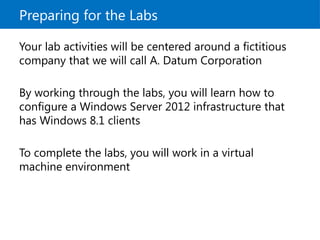
Preparing for the Labs
Your lab activities will be centered around a fictitious
company that we will call A. Datum Corporation
By working through the labs, you will learn how to
configure a Windows Server 2012 infrastructure that
has Windows 8.1 clients
To complete the labs, you will work in a virtual
machine environment
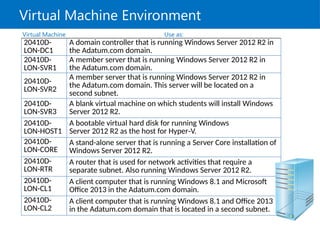
Virtual Machine Environment
Virtual Machine Use as:
20410D-
LON-DC1
A domain controller that is running Windows Server 2012 R2 in
the Adatum.com domain.
20410D-
LON-SVR1
A member server that is running Windows Server 2012 R2 in
the Adatum.com domain.
20410D-
LON-SVR2
A member server that is running Windows Server 2012 R2 in
the Adatum.com domain. This server will be located on a
second subnet.
20410D-
LON-SVR3
A blank virtual machine on which students will install Windows
Server 2012 R2.
20410D-
LON-HOST1
A bootable virtual hard disk for running Windows
Server 2012 R2 as the host for Hyper V.
‑
20410D-
LON-CORE
A stand-alone server that is running a Server Core installation of
Windows Server 2012 R2.
20410D-
LON-RTR
A router that is used for network activities that require a
separate subnet. Also running Windows Server 2012 R2.
20410D-
LON-CL1
A client computer that is running Windows 8.1 and Microsoft
Office 2013 in the Adatum.com domain.
20410D-
LON-CL2
A client computer that is running Windows 8.1 and Office 2013
in the Adatum.com domain that is located in a second subnet.
Demonstration: Using Microsoft Labs Online
(Optional)
In this demonstration, you will learn how to:
• Access the MLO lab environment
• Switch between virtual machines
Carefully read the online Lab Notes because some procedures
related to on-premises versus online labs may be different and
have slightly different steps. Any differences will be called out in
the Lab Notes
Demonstration: Using Hyper-V Manager
(Optional)
In this demonstration, you will learn how to:
• Open Hyper‑V Manager
• Navigate the various sections/panes within Hyper‑V
Manager:
• Virtual machines, snapshots, and actions: server-specific
and virtual machines-specific
• Identify the virtual machines used in the labs for this course
• Take a snapshot and apply a snapshot
• Connect to a virtual machine
• Start and sign in to a virtual machine
• Switch between full screen and window modes
• Revert to the previous snapshot
• Shut down a virtual machine
• When to use shut down or turn off
• Close Hyper-V Manager
Demonstration: Navigation in
Windows Server 2012 (Optional)
In this demonstration, you will learn how to:
• Configure Hyper-V to use Windows key
combinations in the virtual machine
• Sign in and sign out
• Access applications
• Access Control Panel
• Use shortcut keys

Installing and configuring windows server 2012.pptx

  • 1.
    Microsoft® Official Course 20410D Installing andConfiguring Windows Server® 2012
  • 2.
    Welcome! Thank you forjoining us today. We have worked together with Microsoft Learning Partners and Microsoft IT Academies to bring you a world-class learning experience, including: Microsoft Certified Trainers + Instructors. Your instructor is a premier technical and instructional expert who meets ongoing certification requirements. Customer Satisfaction Guarantee. Our Partners offer a satisfaction guarantee and we hold them accountable for it. At the end of class, please complete an evaluation of today’s experience. We value your feedback! Certification Benefits. After training, consider pursuing a Microsoft Certification, to help distinguish your technical expertise and experience. Ask your instructor about available exam promotions and discounts. We wish you a great learning experience and ongoing career success!
  • 3.
    Hello • Instructor: <InstructorName> • <Title or other credentials, e.g. Microsoft Certified Trainer> • <Affiliation/Company> • <A few words about my technical and professional experience>
  • 4.
    Student Introductions • Name •Company affiliation • Title/function • Job responsibility • Windows Server experience • Your expectations for the course
  • 5.
    Facilities • Class hours •Building hours • Parking • Restrooms • Meals • Phones • Messages • Smoking • Internet access • Recycling • Emergency procedures
  • 6.
    About This Course– Audience Candidates who attend this course typically are: • Windows Server administrators who are relatively new to Windows Server administration and related technologies • IT professionals who are experienced in non-Microsoft technologies • IT professionals who have some knowledge and experience working with Windows operating systems • IT professionals who want to take the relevant exams or certifications
  • 7.
    About This Course- Prerequisites Before attending this course, students must have: • An understanding of networking fundamentals • An understanding of basic Active Directory concepts • An awareness and understanding of security best practices • Basic knowledge of server hardware • Experience working with, and configuring, Windows client operating systems, such as Windows 7 or Windows 8
  • 8.
    Microsoft Official CourseHandbook • Printed courseware book • Organized by Modules • Includes Labs + Lab Answer Keys • Module Reviews + Takeaways—great for on-the-job reference Digital Companion Content • Supplemental content + helpful links • Download at: http://www.microsoft.com/learning/companionmoc Your Course Materials (Optional) Designed to optimize your classroom learning experience and support you back on the job.
  • 9.
    Your Course Materials(Optional) Microsoft Official Course Handbook • Accessed online using the Arvato Skillpipe reader at http://skillpipe.courseware-marketplace.com/reader • Register/log in and redeem your digital courseware • Add notes, add comments, and highlight content just as you would with printed materials • Organized by modules • Includes Labs + Lab Answer Keys • Module Reviews + Takeaways—great for on-the-job reference Digital Companion Content • Supplemental content + helpful links • Download at: http://www.microsoft.com/learning/companionmoc
  • 10.
    Course Outline • Module1: Deploying and Managing Windows Server 2012 • Module 2: Introduction to Active Directory Domain Services • Module 3: Managing Active Directory Domain Services Objects • Module 4: Automating Active Directory Domain Services Administration • Module 5: Implementing IPv4 • Module 6: Implementing Dynamic Host Configuration Protocol
  • 11.
    Course Outline (continued) •Module 7: Implementing DNS • Module 8: Implementing IPv6 • Module 9: Implementing Local Storage • Module 10: Implementing File and Print Services • Module 11: Implementing Group Policy • Module 12: Securing Windows Servers by Using Group Policy Objects • Module 13: Implementing Server Virtualization with Hyper‑V
  • 12.
    Microsoft Certification Program Gettrained. Get certified. Get ahead. Microsoft Certifications demonstrate that you have the skills to design, deploy, and optimize the latest technology solutions. Ask your Microsoft Learning Partner how you can prepare for certification. Also see: http://www.microsoft.com/learning/ certification
  • 13.
    Windows Certification Paths OR MCSAWindows Server 2012 Exam 70-410 (20410) Installing and Configuring Windows Server 2012 Exam 70-411 (20411) Administering Windows Server 2012 Exam 70-412 (20412) Configuring Advanced Windows Server 2012 Services Exam 70-417 (20417) Upgrading Your Skills to MCSA Windows Server 2012 MCSE Server Infrastructure Exam 70-413 (20413) Designing and Implementing a Server Infrastructure Exam 70-414 (20414) Implementing an Advanced Server Infrastructure MCSE Desktop Infrastructure Exam 70-415 (20415) Implementing a Desktop Infrastructure Exam 70-416 (20416) Implementing Desktop Application Environments Exam 70-687 (20687) Configuring Windows 8.1 Exam 70-688 (20688) Supporting Windows 8.1 MCSA Windows 8 Exam 70-689 (20689) Upgrading Your Skills to MCSA Windows 8 OR
  • 14.
    Preparing for theLabs Your lab activities will be centered around a fictitious company that we will call A. Datum Corporation By working through the labs, you will learn how to configure a Windows Server 2012 infrastructure that has Windows 8.1 clients To complete the labs, you will work in a virtual machine environment
  • 15.
    Virtual Machine Environment VirtualMachine Use as: 20410D- LON-DC1 A domain controller that is running Windows Server 2012 R2 in the Adatum.com domain. 20410D- LON-SVR1 A member server that is running Windows Server 2012 R2 in the Adatum.com domain. 20410D- LON-SVR2 A member server that is running Windows Server 2012 R2 in the Adatum.com domain. This server will be located on a second subnet. 20410D- LON-SVR3 A blank virtual machine on which students will install Windows Server 2012 R2. 20410D- LON-HOST1 A bootable virtual hard disk for running Windows Server 2012 R2 as the host for Hyper V. ‑ 20410D- LON-CORE A stand-alone server that is running a Server Core installation of Windows Server 2012 R2. 20410D- LON-RTR A router that is used for network activities that require a separate subnet. Also running Windows Server 2012 R2. 20410D- LON-CL1 A client computer that is running Windows 8.1 and Microsoft Office 2013 in the Adatum.com domain. 20410D- LON-CL2 A client computer that is running Windows 8.1 and Office 2013 in the Adatum.com domain that is located in a second subnet.
  • 16.
    Demonstration: Using MicrosoftLabs Online (Optional) In this demonstration, you will learn how to: • Access the MLO lab environment • Switch between virtual machines Carefully read the online Lab Notes because some procedures related to on-premises versus online labs may be different and have slightly different steps. Any differences will be called out in the Lab Notes
  • 17.
    Demonstration: Using Hyper-VManager (Optional) In this demonstration, you will learn how to: • Open Hyper‑V Manager • Navigate the various sections/panes within Hyper‑V Manager: • Virtual machines, snapshots, and actions: server-specific and virtual machines-specific • Identify the virtual machines used in the labs for this course • Take a snapshot and apply a snapshot • Connect to a virtual machine • Start and sign in to a virtual machine • Switch between full screen and window modes • Revert to the previous snapshot • Shut down a virtual machine • When to use shut down or turn off • Close Hyper-V Manager
  • 18.
    Demonstration: Navigation in WindowsServer 2012 (Optional) In this demonstration, you will learn how to: • Configure Hyper-V to use Windows key combinations in the virtual machine • Sign in and sign out • Access applications • Access Control Panel • Use shortcut keys

Editor's Notes

  • #1 This introduction module provides students with an overview of the course content materials and logistics for Course 20410D, Installing and Configuring Windows Server® 2012. Required Materials To teach this course, you need the following materials: Course Handbook Course Companion Content Trainer materials including: Trainer Preparation Guide Microsoft® Office PowerPoint® files for this course Microsoft Hyper‑V® Classroom Setup Guide Virtual machines for the course Latest error logs for the course (if any) Important: We recommend that you use PowerPoint 2007 or a newer version to display the slides for this course. If you use PowerPoint Viewer or an older version of Office PowerPoint, all of the features of the slides might not display correctly. Preparation Tasks To prepare for this course, you must follow and complete the tasks that the Trainer Preparation Guide outlines. Presentation: 30 minutes
  • #3 Welcome students to the course and introduce yourself. Provide a brief overview of your background to establish credibility.
  • #4 Ask students to introduce themselves and provide their backgrounds, product experience, and expectations for the course. Record student expectations on a whiteboard or flip chart that you can reference during class.
  • #5 Explain the: Class hours Extended building hours for labs Parking Restroom location Meals Phones Message posting Where smoking is or is not allowed Let students know if your facility has Internet access that is available for them to use during class breaks. Make sure that the students are aware of the recycling program, if one is available. Finally, inform students about any emergency procedures (for example, emergency exits) and plans in the event of fire or other such emergency.
  • #6 Describe the audience for this course. This is an opportunity for you to identify students who may not have the appropriate background or experience to attend this course.
  • #7 Describe the course prerequisites.
  • #8 <<< Use this slide for printed courseware and the next slide for digital courseware. >>> <<< Delete the slide that you are not using.>>> Introduce the students to their course materials. Explain how you intend for students to use the Course Handbook in the class and the Digital Companion Content outside the class: Explain that during the lecture, the students can refer to the Course Handbook, because it contains all of the critical technical information that they need in a crisp, tightly-focused format, which is just right for effective in-class learning experience. Mention that the Digital Companion Content on the http://www.microsoft.com/learning/companionmoc website supplements the Course Handbook, and provides an opportunity for extended self-oriented learning beyond the classroom.
  • #9 <<Use this slide for digital courseware and the previous slide for printed courseware.>> <<< Delete the slide that you are not using.>>> Introduce the students to their course materials. You should take the opportunity to make sure that all students can log in and access their content, and also demonstrate some of the features and functionality. You can also mention that the courseware is updated over time. Their content will also be updated so they always have the latest, most technically up-to-date content, and they will not lose any comments, notes, or highlights they have made.
  • #10 The objectives associated with these modules are, after completing this course, students will be able to: Deploy and Manage Windows Server 2012. Describe Active Directory® Domain Services (AD DS). Manage Active Directory objects. Automate AD DS Administration. Implement IPv4. Implement Dynamic Host Configuration Protocol (DHCP).
  • #11 The objectives associated with these modules include that, after completing this course, students will be able to: Implement Domain Name System (DNS). Implement IPv6. Implement local storage. Implement file and print services. Implement Group Policy. Secure Windows servers by using Group Policy Objects (GPOs). Implement Server Virtualization with Hyper-V.
  • #13 Inform students about the Microsoft Certified Professional (MCP) program, any certification exams that are related to this course, and the various certification options that are available to them. Explain the Microsoft Learning program, and present the list of additional recommended courses. For information about curriculum paths, refer students to the Microsoft Learning webpage at http://www.microsoft.com/learning/.
  • #14 Tell students whether the course labs will be run as on‑premises (local) labs, or as Microsoft Labs Online (MLO) hosted labs. On‑premises labs are run on the local host machines in Hyper‑V. MLO labs are accessed on the local host machines via a web browser, such as the virtual machines that are running on a hosted platform and accessed via a browser.
  • #15 These are the virtual machines that this course will use: 20410D‑LON‑DC1 20410D‑LON‑SVR1 20410D‑LON‑SVR2 20410D‑LON‑SVR3 20410D‑LON‑HOST1 20410D‑LON‑CORE 20410D‑LON‑RTR 20410D‑LON‑CL1 20410D‑LON‑CL2
  • #16 <<< Use this slide for MLO, and the next slide for on-premises (local) labs. >>> <<< Delete the slide that you are not using.>>> You should take this opportunity to show students the lab environment. Take a minute to log in and describe the environment to the students. Be sure to point out the online Lab Notes document, which contains details of any changes to the lab steps. Also, there is an optional Navigation in Windows Server 2012 demonstration (last slide), which is relevant if you are using MLO.
  • #17 <<< Use this slide for on-premises (local) labs and the previous slide for MLO.>>> <<< Delete the slide that you are not using.>>>
  • #18 As part of the classroom setup, you should configure Hyper‑V to pass-through Windows key combinations. This makes it much easier to move around the user interface in Windows Server 2012. Verify that this setting is configured with students on their computers: On the host computer, open Hyper‑V Manager. Right-click the host computer in Hyper‑V Manager, and then click Hyper‑V Settings. Under User, click Keyboard, click Use on the virtual computer, and then click OK. Open a virtual machine, and demonstrate the following: How to sign in. Administrative Tools are now in the Tools menu of Server Manager. Get to the Start screen, Settings, and Search, as follows: To get to the Start screen, in the lower-left corner of the screen, click the Start button. You can start typing on this screen to start searching. Right-clicking the lower-left corner also provides a context menu to help with some navigation tasks, such as Shutdown, Restart, accessing Control Panel, and similar. To get to Settings, point your mouse to the lower‑right corner of the screen, and click the Settings charm when it appears. Settings include Control Panel and Power. To get to Search, point your mouse to the lower‑right corner of the screen, and click the Search charm when it appears. Search results are filtered by Apps, Settings, and Files. Shortcut keys: Windows logo key: Opens the Start screen. Windows logo key +I: Opens the Settings window. Windows logo key +R: Opens the Run window. Windows logo key +C: Displays the selection of charms.