02 Raspberry Pi GPIO
Node-RED Control Hardware Interfaces
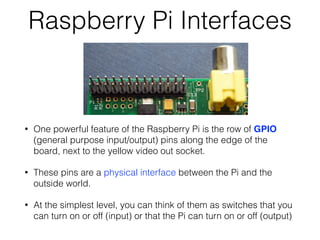
Raspberry Pi Interfaces
• One powerful feature of the Raspberry Pi is the row of GPIO
(general purpose input/output) pins along the edge of the
board, next to the yellow video out socket.
• These pins are a physical interface between the Pi and the
outside world.
• At the simplest level, you can think of them as switches that you
can turn on or off (input) or that the Pi can turn on or off (output)
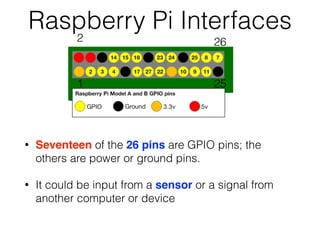
Raspberry Pi Interfaces
• Seventeen of the 26 pins are GPIO pins; the
others are power or ground pins.
• It could be input from a sensor or a signal from
another computer or device
1
2
25
26
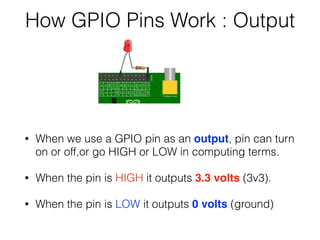
How GPIO Pins Work : Output
• When we use a GPIO pin as an output, pin can turn
on or off,or go HIGH or LOW in computing terms.
• When the pin is HIGH it outputs 3.3 volts (3v3).
• When the pin is LOW it outputs 0 volts (ground)
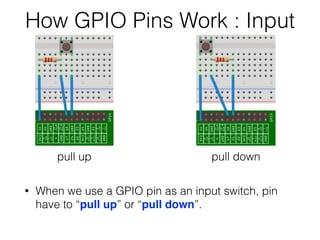
How GPIO Pins Work : Input
• When we use a GPIO pin as an input switch, pin
have to “pull up” or “pull down”.
pull up pull down
Node-RED Pi GPIO
• There are two main ways of interacting with a
Raspberry Pi using Node-RED
• rpi-gpio nodes, provided in the palette for
monitoring and controlling the GPIO pins. This is
the simplest and recommended way.
• wiring-pi module, this provides complete access
to the GPIO pins, and other devices, within
Function nodes.
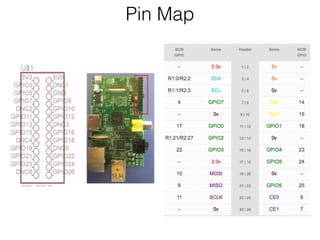
Pin Map
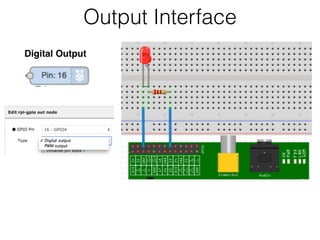
Output Interface
Digital Output
Create Flow for Digital Out
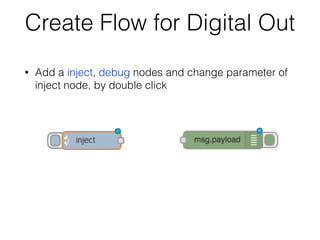
• Add a inject, debug nodes and change parameter of
inject node, by double click
Create Flow for Digital Out
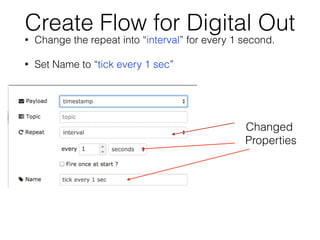
• Change the repeat into “interval” for every 1 second.
• Set Name to “tick every 1 sec”
Changed
Properties
Create Flow for Digital Out
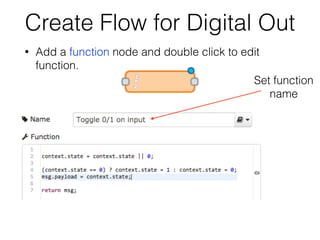
• Add a function node and double click to edit
function.
Set function
name
Create Flow for Digital Out
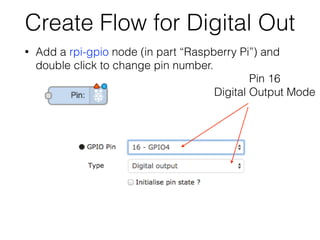
• Add a rpi-gpio node (in part “Raspberry Pi”) and
double click to change pin number.
Pin 16
Digital Output Mode
Create Flow for Digital Out
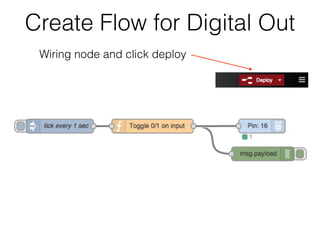
Wiring node and click deploy
Create Flow for PWM Out
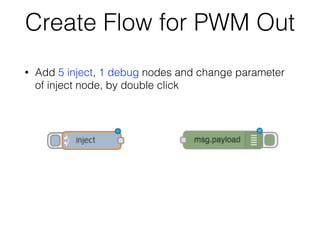
• Add 5 inject, 1 debug nodes and change parameter
of inject node, by double click
Create Flow for PWM Out
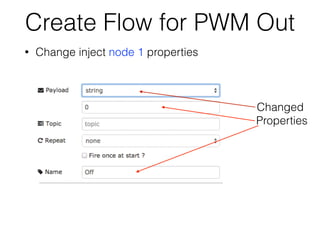
• Change inject node 1 properties
Changed
Properties
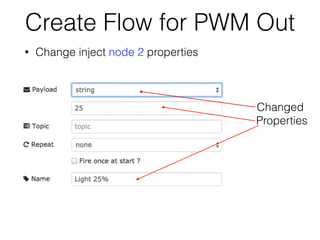
Create Flow for PWM Out
• Change inject node 2 properties
Changed
Properties
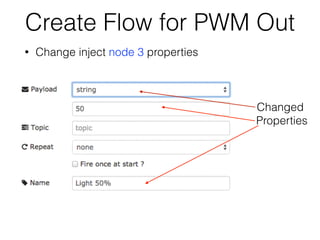
Create Flow for PWM Out
• Change inject node 3 properties
Changed
Properties
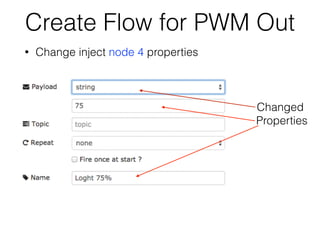
Create Flow for PWM Out
• Change inject node 4 properties
Changed
Properties
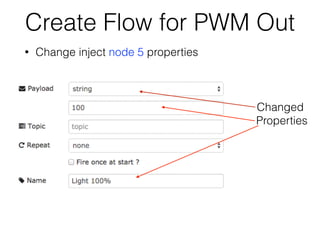
Create Flow for PWM Out
• Change inject node 5 properties
Changed
Properties
Create Flow for PWM Out
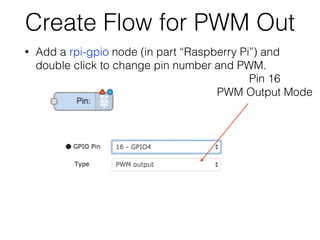
• Add a rpi-gpio node (in part “Raspberry Pi”) and
double click to change pin number and PWM.
Pin 16
PWM Output Mode
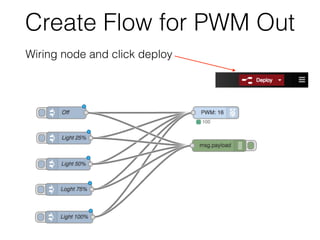
Create Flow for PWM Out
Wiring node and click deploy
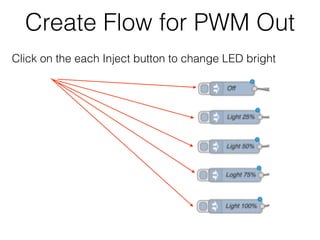
Create Flow for PWM Out
Click on the each Inject button to change LED bright
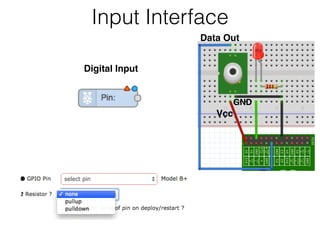
Input Interface
Vcc
GND
Data Out
Digital Input
Create Flow for Binary Sensor Input
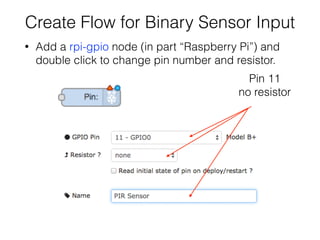
• Add a rpi-gpio node (in part “Raspberry Pi”) and
double click to change pin number and resistor.
Pin 11
no resistor
Create Flow for Binary Sensor Input
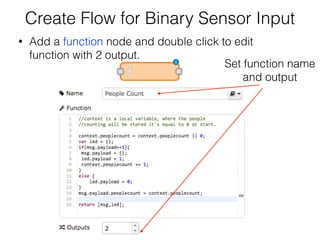
• Add a function node and double click to edit
function with 2 output.
Set function name
and output
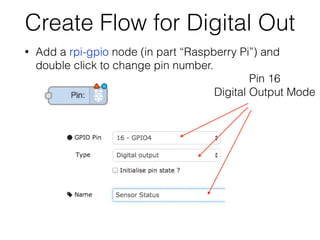
Create Flow for Digital Out
• Add a rpi-gpio node (in part “Raspberry Pi”) and
double click to change pin number.
Pin 16
Digital Output Mode
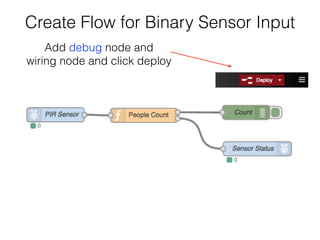
Create Flow for Binary Sensor Input
Add debug node and
wiring node and click deploy
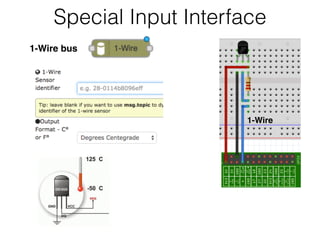
Special Input Interface
1-Wire
1-Wire bus
Special Input Interface
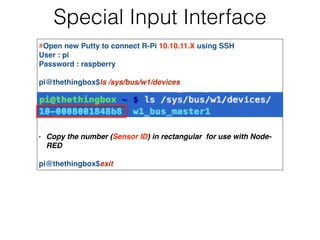
#Open new Putty to connect R-Pi 10.10.11.X using SSH!
User : pi!
Password : raspberry!
!
pi@thethingbox$ls /sys/bus/w1/devices!
!
!
!
!
!
- Copy the number (Sensor ID) in rectangular for use with Node-
RED!
!
pi@thethingbox$exit!
Create Flow for 1-Wire Bus
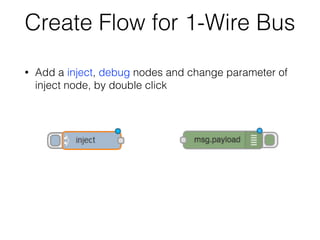
• Add a inject, debug nodes and change parameter of
inject node, by double click
Create Flow for 1-Wire Bus
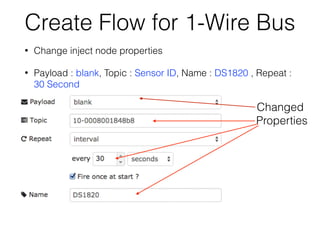
• Change inject node properties
• Payload : blank, Topic : Sensor ID, Name : DS1820 , Repeat :
30 Second
Changed
Properties
Create Flow for 1-Wire Bus
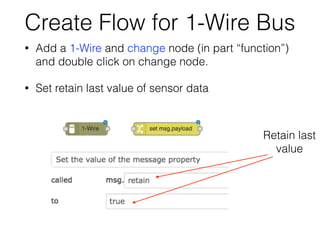
• Add a 1-Wire and change node (in part “function”)
and double click on change node.
• Set retain last value of sensor data
Retain last
value
Create Flow for 1-Wire Bus
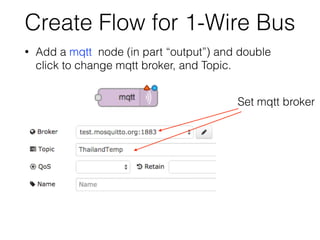
• Add a mqtt node (in part “output”) and double
click to change mqtt broker, and Topic.
Set mqtt broker
Create Flow for 1-Wire Bus
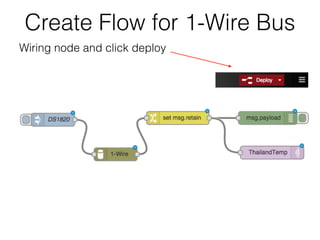
Wiring node and click deploy
Create Flow for 1-Wire Bus
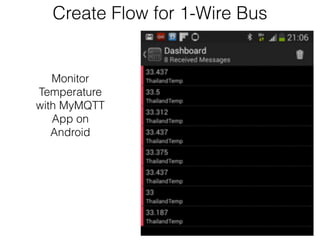
Monitor
Temperature
with MyMQTT
App on
Android

02 Raspberry Pi GPIO Interface on Node-RED (Some correction)

  • 1.
    02 Raspberry PiGPIO Node-RED Control Hardware Interfaces
  • 2.
    Raspberry Pi Interfaces •One powerful feature of the Raspberry Pi is the row of GPIO (general purpose input/output) pins along the edge of the board, next to the yellow video out socket. • These pins are a physical interface between the Pi and the outside world. • At the simplest level, you can think of them as switches that you can turn on or off (input) or that the Pi can turn on or off (output)
  • 3.
    Raspberry Pi Interfaces •Seventeen of the 26 pins are GPIO pins; the others are power or ground pins. • It could be input from a sensor or a signal from another computer or device 1 2 25 26
  • 4.
    How GPIO PinsWork : Output • When we use a GPIO pin as an output, pin can turn on or off,or go HIGH or LOW in computing terms. • When the pin is HIGH it outputs 3.3 volts (3v3). • When the pin is LOW it outputs 0 volts (ground)
  • 5.
    How GPIO PinsWork : Input • When we use a GPIO pin as an input switch, pin have to “pull up” or “pull down”. pull up pull down
  • 6.
    Node-RED Pi GPIO •There are two main ways of interacting with a Raspberry Pi using Node-RED • rpi-gpio nodes, provided in the palette for monitoring and controlling the GPIO pins. This is the simplest and recommended way. • wiring-pi module, this provides complete access to the GPIO pins, and other devices, within Function nodes.
  • 7.
  • 8.
  • 9.
    Create Flow forDigital Out • Add a inject, debug nodes and change parameter of inject node, by double click
  • 10.
    Create Flow forDigital Out • Change the repeat into “interval” for every 1 second. • Set Name to “tick every 1 sec” Changed Properties
  • 11.
    Create Flow forDigital Out • Add a function node and double click to edit function. Set function name
  • 12.
    Create Flow forDigital Out • Add a rpi-gpio node (in part “Raspberry Pi”) and double click to change pin number. Pin 16 Digital Output Mode
  • 13.
    Create Flow forDigital Out Wiring node and click deploy
  • 14.
    Create Flow forPWM Out • Add 5 inject, 1 debug nodes and change parameter of inject node, by double click
  • 15.
    Create Flow forPWM Out • Change inject node 1 properties Changed Properties
  • 16.
    Create Flow forPWM Out • Change inject node 2 properties Changed Properties
  • 17.
    Create Flow forPWM Out • Change inject node 3 properties Changed Properties
  • 18.
    Create Flow forPWM Out • Change inject node 4 properties Changed Properties
  • 19.
    Create Flow forPWM Out • Change inject node 5 properties Changed Properties
  • 20.
    Create Flow forPWM Out • Add a rpi-gpio node (in part “Raspberry Pi”) and double click to change pin number and PWM. Pin 16 PWM Output Mode
  • 21.
    Create Flow forPWM Out Wiring node and click deploy
  • 22.
    Create Flow forPWM Out Click on the each Inject button to change LED bright
  • 23.
  • 24.
    Create Flow forBinary Sensor Input • Add a rpi-gpio node (in part “Raspberry Pi”) and double click to change pin number and resistor. Pin 11 no resistor
  • 25.
    Create Flow forBinary Sensor Input • Add a function node and double click to edit function with 2 output. Set function name and output
  • 26.
    Create Flow forDigital Out • Add a rpi-gpio node (in part “Raspberry Pi”) and double click to change pin number. Pin 16 Digital Output Mode
  • 27.
    Create Flow forBinary Sensor Input Add debug node and wiring node and click deploy
  • 28.
  • 29.
    Special Input Interface #Opennew Putty to connect R-Pi 10.10.11.X using SSH! User : pi! Password : raspberry! ! pi@thethingbox$ls /sys/bus/w1/devices! ! ! ! ! ! - Copy the number (Sensor ID) in rectangular for use with Node- RED! ! pi@thethingbox$exit!
  • 30.
    Create Flow for1-Wire Bus • Add a inject, debug nodes and change parameter of inject node, by double click
  • 31.
    Create Flow for1-Wire Bus • Change inject node properties • Payload : blank, Topic : Sensor ID, Name : DS1820 , Repeat : 30 Second Changed Properties
  • 32.
    Create Flow for1-Wire Bus • Add a 1-Wire and change node (in part “function”) and double click on change node. • Set retain last value of sensor data Retain last value
  • 33.
    Create Flow for1-Wire Bus • Add a mqtt node (in part “output”) and double click to change mqtt broker, and Topic. Set mqtt broker
  • 34.
    Create Flow for1-Wire Bus Wiring node and click deploy
  • 35.
    Create Flow for1-Wire Bus Monitor Temperature with MyMQTT App on Android