P6 Security and Administration
Session ID#: 15476
REMINDER
Check in on the
COLLABORATE mobile app
Prepared by:
Brian Criss, PSP
Vice President of Professional Services
DRMcNatty & Associates, Inc.
Best Practice Overview for
Enterprise Administration
• What is the purpose of the P6 administrator?
• Establishment of Security for End Users
• Security Profiles / Project Access/ Policy
• Preservation of Global Data
• Codes• Codes
• Cost Accounts
• Calendars
• Resources
• Where to go to setup P6?....Depends on the
Version of Primavera you are running.
• P6 v7 and Earlier = Client Application
Primavera P6 Administration
• P6 r8 and Higher = ….depends?
• P6 Professional = Client Application
• P6 EPPM = Use P6 Web for admin.
• Administration of P6 EPPM version 8.x
• Most functions are in the web product related to
administration of the system.
• User Accounts, EPS, OBS, Project Codes
Primavera P6 Administration
• User Accounts, EPS, OBS, Project Codes
• Some items related to schedule functions are still
available in the Optional Client.
• Activity Codes, Resources, Calendars
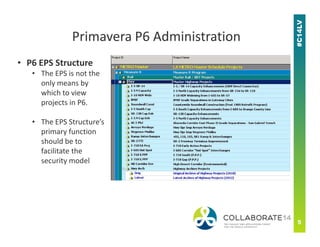
• P6 EPS Structure
• The EPS is not the
only means by
which to view
projects in P6.
• The EPS Structure’s
Primavera P6 Administration
• The EPS Structure’s
primary function
should be to
facilitate the
security model
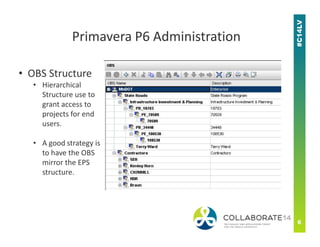
• OBS Structure
• Hierarchical
Structure use to
grant access to
projects for end
users.
Primavera P6 Administration
users.
• A good strategy is
to have the OBS
mirror the EPS
structure.
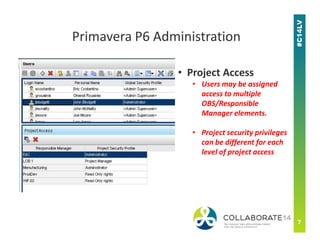
• Project Access
• Users may be assigned
access to multiple
OBS/Responsible
Manager elements.
Primavera P6 Administration
• Project security privileges
can be different for each
level of project access
Primavera P6 Administration
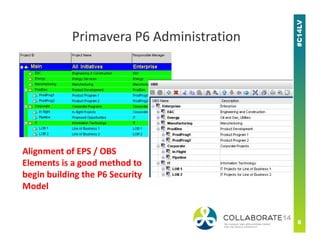
Alignment of EPS / OBS
Elements is a good method to
begin building the P6 Security
Model
• Admin considerations for an Enterprise
environment (i.e…not everyone is Superuser).
• Adding Projects – In order for end users to add a
new project in P6, they will require access to at
Primavera P6 Administration
new project in P6, they will require access to at
least 1 EPS node.
• For larger deployments, the process by which new
projects are added to P6 should be clearly defined
and communicated to users.
• Enterprise Deployments – Adding Projects
• Tip: Create a dedicated EPS node specifically for the
creation of new projects.
• Allows flexibility for people to freely use the system and
Primavera P6 Administration
Allows flexibility for people to freely use the system and
create new projects as required to capture all work in P6.
• Requires system administrator to move the project to the
appropriate EPS node.
• Provides a QA opportunity for System Admin or
Supervisor.
Primavera P6 Administration
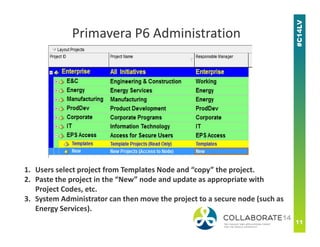
1. Users select project from Templates Node and “copy” the project.
2. Paste the project in the “New” node and update as appropriate with
Project Codes, etc.
3. System Administrator can then move the project to a secure node (such as
Energy Services).
• Global Data
• Primary elements which may be polluted are:
• Project Codes
• Activity Codes
• Calendars
Primavera P6 Administration
• Calendars
• Project Codes will end up being an essential
element for any reporting or integration solution for
any organization.
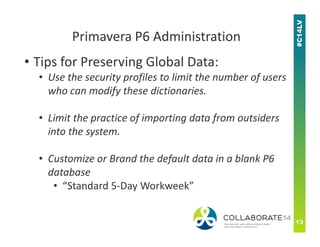
• Tips for Preserving Global Data:
• Use the security profiles to limit the number of users
who can modify these dictionaries.
• Limit the practice of importing data from outsiders
Primavera P6 Administration
• Limit the practice of importing data from outsiders
into the system.
• Customize or Brand the default data in a blank P6
database
• “Standard 5-Day Workweek”
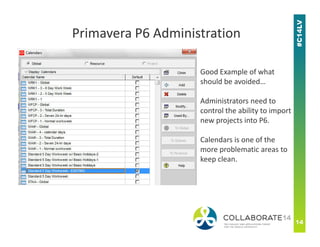
Good Example of what
should be avoided…
Administrators need to
control the ability to import
new projects into P6.
Primavera P6 Administration
new projects into P6.
Calendars is one of the
more problematic areas to
keep clean.
• Admin Settings
• Control Data Limits for several elements in
P6.
• Time Periods
Primavera P6 Administration
• Time Periods
• Do not modify the default settings for
days, weeks, months.
• Recommend to check the box which says
“use activity calendar work days”
Primavera P6 Administration
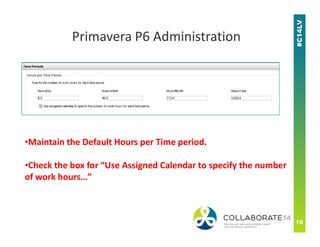
•Maintain the Default Hours per Time period.
•Check the box for “Use Assigned Calendar to specify the number
of work hours…”
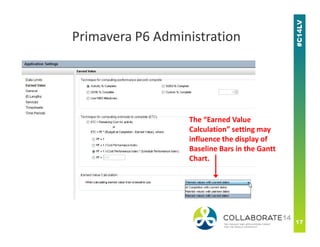
The “Earned Value
Primavera P6 Administration
The “Earned Value
Calculation” setting may
influence the display of
Baseline Bars in the Gantt
Chart.
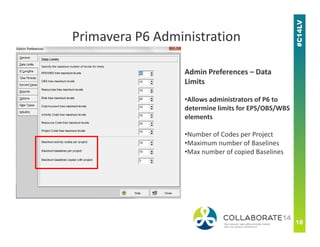
Admin Preferences – Data
Limits
•Allows administrators of P6 to
determine limits for EPS/OBS/WBS
elements
Primavera P6 Administration
•Number of Codes per Project
•Maximum number of Baselines
•Max number of copied Baselines
Primavera P6 Administration
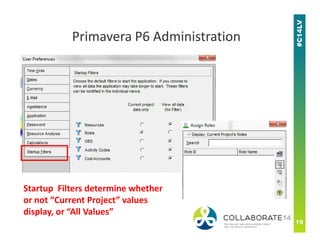
Startup Filters determine whether
or not “Current Project” values
display, or “All Values”
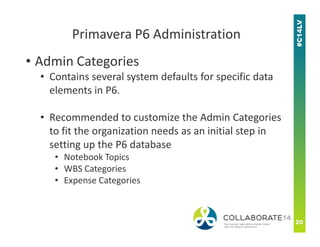
• Admin Categories
• Contains several system defaults for specific data
elements in P6.
• Recommended to customize the Admin Categories
Primavera P6 Administration
Recommended to customize the Admin Categories
to fit the organization needs as an initial step in
setting up the P6 database
• Notebook Topics
• WBS Categories
• Expense Categories
Primavera P6 Administration
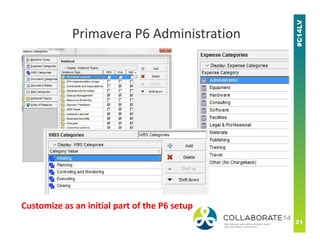
Customize as an initial part of the P6 setup
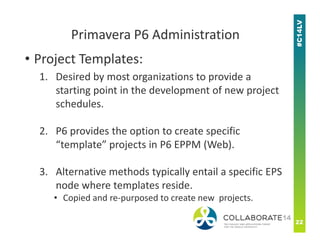
• Project Templates:
1. Desired by most organizations to provide a
starting point in the development of new project
schedules.
Primavera P6 Administration
2. P6 provides the option to create specific
“template” projects in P6 EPPM (Web).
3. Alternative methods typically entail a specific EPS
node where templates reside.
• Copied and re-purposed to create new projects.
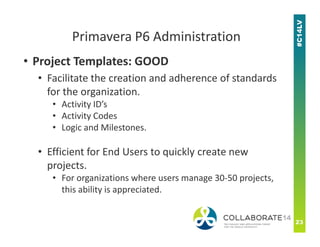
• Project Templates: GOOD
• Facilitate the creation and adherence of standards
for the organization.
• Activity ID’s
• Activity Codes
• Logic and Milestones.
Primavera P6 Administration
• Logic and Milestones.
• Efficient for End Users to quickly create new
projects.
• For organizations where users manage 30-50 projects,
this ability is appreciated.
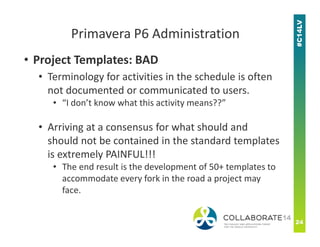
• Project Templates: BAD
• Terminology for activities in the schedule is often
not documented or communicated to users.
• “I don’t know what this activity means??”
• Arriving at a consensus for what should and
Primavera P6 Administration
• Arriving at a consensus for what should and
should not be contained in the standard templates
is extremely PAINFUL!!!
• The end result is the development of 50+ templates to
accommodate every fork in the road a project may
face.
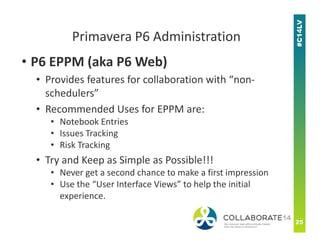
• P6 EPPM (aka P6 Web)
• Provides features for collaboration with “non-
schedulers”
• Recommended Uses for EPPM are:
• Notebook Entries
Primavera P6 Administration
• Notebook Entries
• Issues Tracking
• Risk Tracking
• Try and Keep as Simple as Possible!!!
• Never get a second chance to make a first impression
• Use the “User Interface Views” to help the initial
experience.
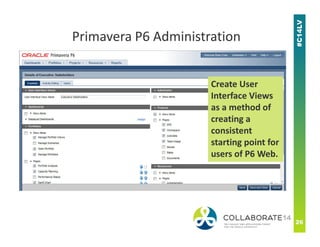
Create User
Interface Views
as a method of
creating a
Primavera P6 Administration
creating a
consistent
starting point for
users of P6 Web.
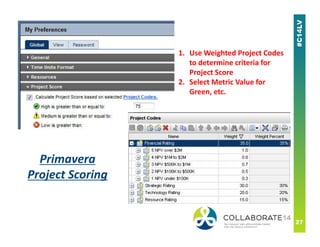
1. Use Weighted Project Codes
to determine criteria for
Project Score
2. Select Metric Value for
Green, etc.
Primavera
Project Scoring
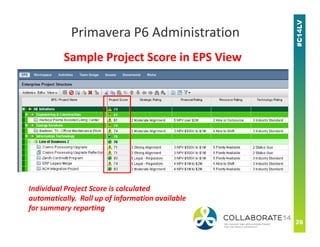
Sample Project Score in EPS View
Primavera P6 Administration
Individual Project Score is calculated
automatically. Roll up of information available
for summary reporting
Questions?
Brian Criss
VP of Professional Services
bcriss@drmcnatty.com
T. (877) 367-7990 x7995
Web www.drmcnatty.comWeb www.drmcnatty.com
Please complete the session
evaluation
We appreciate your feedback and insight
You may complete the session evaluation either
on paper or online via the mobile app

P6 security and administration - Oracle Primavera P6 Collaborate 14

  • 1.
    P6 Security andAdministration Session ID#: 15476 REMINDER Check in on the COLLABORATE mobile app Prepared by: Brian Criss, PSP Vice President of Professional Services DRMcNatty & Associates, Inc. Best Practice Overview for Enterprise Administration
  • 2.
    • What isthe purpose of the P6 administrator? • Establishment of Security for End Users • Security Profiles / Project Access/ Policy • Preservation of Global Data • Codes• Codes • Cost Accounts • Calendars • Resources
  • 3.
    • Where togo to setup P6?....Depends on the Version of Primavera you are running. • P6 v7 and Earlier = Client Application Primavera P6 Administration • P6 r8 and Higher = ….depends? • P6 Professional = Client Application • P6 EPPM = Use P6 Web for admin.
  • 4.
    • Administration ofP6 EPPM version 8.x • Most functions are in the web product related to administration of the system. • User Accounts, EPS, OBS, Project Codes Primavera P6 Administration • User Accounts, EPS, OBS, Project Codes • Some items related to schedule functions are still available in the Optional Client. • Activity Codes, Resources, Calendars
  • 5.
    • P6 EPSStructure • The EPS is not the only means by which to view projects in P6. • The EPS Structure’s Primavera P6 Administration • The EPS Structure’s primary function should be to facilitate the security model
  • 6.
    • OBS Structure •Hierarchical Structure use to grant access to projects for end users. Primavera P6 Administration users. • A good strategy is to have the OBS mirror the EPS structure.
  • 7.
    • Project Access •Users may be assigned access to multiple OBS/Responsible Manager elements. Primavera P6 Administration • Project security privileges can be different for each level of project access
  • 8.
    Primavera P6 Administration Alignmentof EPS / OBS Elements is a good method to begin building the P6 Security Model
  • 9.
    • Admin considerationsfor an Enterprise environment (i.e…not everyone is Superuser). • Adding Projects – In order for end users to add a new project in P6, they will require access to at Primavera P6 Administration new project in P6, they will require access to at least 1 EPS node. • For larger deployments, the process by which new projects are added to P6 should be clearly defined and communicated to users.
  • 10.
    • Enterprise Deployments– Adding Projects • Tip: Create a dedicated EPS node specifically for the creation of new projects. • Allows flexibility for people to freely use the system and Primavera P6 Administration Allows flexibility for people to freely use the system and create new projects as required to capture all work in P6. • Requires system administrator to move the project to the appropriate EPS node. • Provides a QA opportunity for System Admin or Supervisor.
  • 11.
    Primavera P6 Administration 1.Users select project from Templates Node and “copy” the project. 2. Paste the project in the “New” node and update as appropriate with Project Codes, etc. 3. System Administrator can then move the project to a secure node (such as Energy Services).
  • 12.
    • Global Data •Primary elements which may be polluted are: • Project Codes • Activity Codes • Calendars Primavera P6 Administration • Calendars • Project Codes will end up being an essential element for any reporting or integration solution for any organization.
  • 13.
    • Tips forPreserving Global Data: • Use the security profiles to limit the number of users who can modify these dictionaries. • Limit the practice of importing data from outsiders Primavera P6 Administration • Limit the practice of importing data from outsiders into the system. • Customize or Brand the default data in a blank P6 database • “Standard 5-Day Workweek”
  • 14.
    Good Example ofwhat should be avoided… Administrators need to control the ability to import new projects into P6. Primavera P6 Administration new projects into P6. Calendars is one of the more problematic areas to keep clean.
  • 15.
    • Admin Settings •Control Data Limits for several elements in P6. • Time Periods Primavera P6 Administration • Time Periods • Do not modify the default settings for days, weeks, months. • Recommend to check the box which says “use activity calendar work days”
  • 16.
    Primavera P6 Administration •Maintainthe Default Hours per Time period. •Check the box for “Use Assigned Calendar to specify the number of work hours…”
  • 17.
    The “Earned Value PrimaveraP6 Administration The “Earned Value Calculation” setting may influence the display of Baseline Bars in the Gantt Chart.
  • 18.
    Admin Preferences –Data Limits •Allows administrators of P6 to determine limits for EPS/OBS/WBS elements Primavera P6 Administration •Number of Codes per Project •Maximum number of Baselines •Max number of copied Baselines
  • 19.
    Primavera P6 Administration StartupFilters determine whether or not “Current Project” values display, or “All Values”
  • 20.
    • Admin Categories •Contains several system defaults for specific data elements in P6. • Recommended to customize the Admin Categories Primavera P6 Administration Recommended to customize the Admin Categories to fit the organization needs as an initial step in setting up the P6 database • Notebook Topics • WBS Categories • Expense Categories
  • 21.
    Primavera P6 Administration Customizeas an initial part of the P6 setup
  • 22.
    • Project Templates: 1.Desired by most organizations to provide a starting point in the development of new project schedules. Primavera P6 Administration 2. P6 provides the option to create specific “template” projects in P6 EPPM (Web). 3. Alternative methods typically entail a specific EPS node where templates reside. • Copied and re-purposed to create new projects.
  • 23.
    • Project Templates:GOOD • Facilitate the creation and adherence of standards for the organization. • Activity ID’s • Activity Codes • Logic and Milestones. Primavera P6 Administration • Logic and Milestones. • Efficient for End Users to quickly create new projects. • For organizations where users manage 30-50 projects, this ability is appreciated.
  • 24.
    • Project Templates:BAD • Terminology for activities in the schedule is often not documented or communicated to users. • “I don’t know what this activity means??” • Arriving at a consensus for what should and Primavera P6 Administration • Arriving at a consensus for what should and should not be contained in the standard templates is extremely PAINFUL!!! • The end result is the development of 50+ templates to accommodate every fork in the road a project may face.
  • 25.
    • P6 EPPM(aka P6 Web) • Provides features for collaboration with “non- schedulers” • Recommended Uses for EPPM are: • Notebook Entries Primavera P6 Administration • Notebook Entries • Issues Tracking • Risk Tracking • Try and Keep as Simple as Possible!!! • Never get a second chance to make a first impression • Use the “User Interface Views” to help the initial experience.
  • 26.
    Create User Interface Views asa method of creating a Primavera P6 Administration creating a consistent starting point for users of P6 Web.
  • 27.
    1. Use WeightedProject Codes to determine criteria for Project Score 2. Select Metric Value for Green, etc. Primavera Project Scoring
  • 28.
    Sample Project Scorein EPS View Primavera P6 Administration Individual Project Score is calculated automatically. Roll up of information available for summary reporting
  • 29.
    Questions? Brian Criss VP ofProfessional Services bcriss@drmcnatty.com T. (877) 367-7990 x7995 Web www.drmcnatty.comWeb www.drmcnatty.com
  • 30.
    Please complete thesession evaluation We appreciate your feedback and insight You may complete the session evaluation either on paper or online via the mobile app