Git and GitHub.com
Git 101 Git is a distributed revision control system Keeps track of changes made to one or more files over time Shows log messages of what changed and why Allows developers to share their changes easily
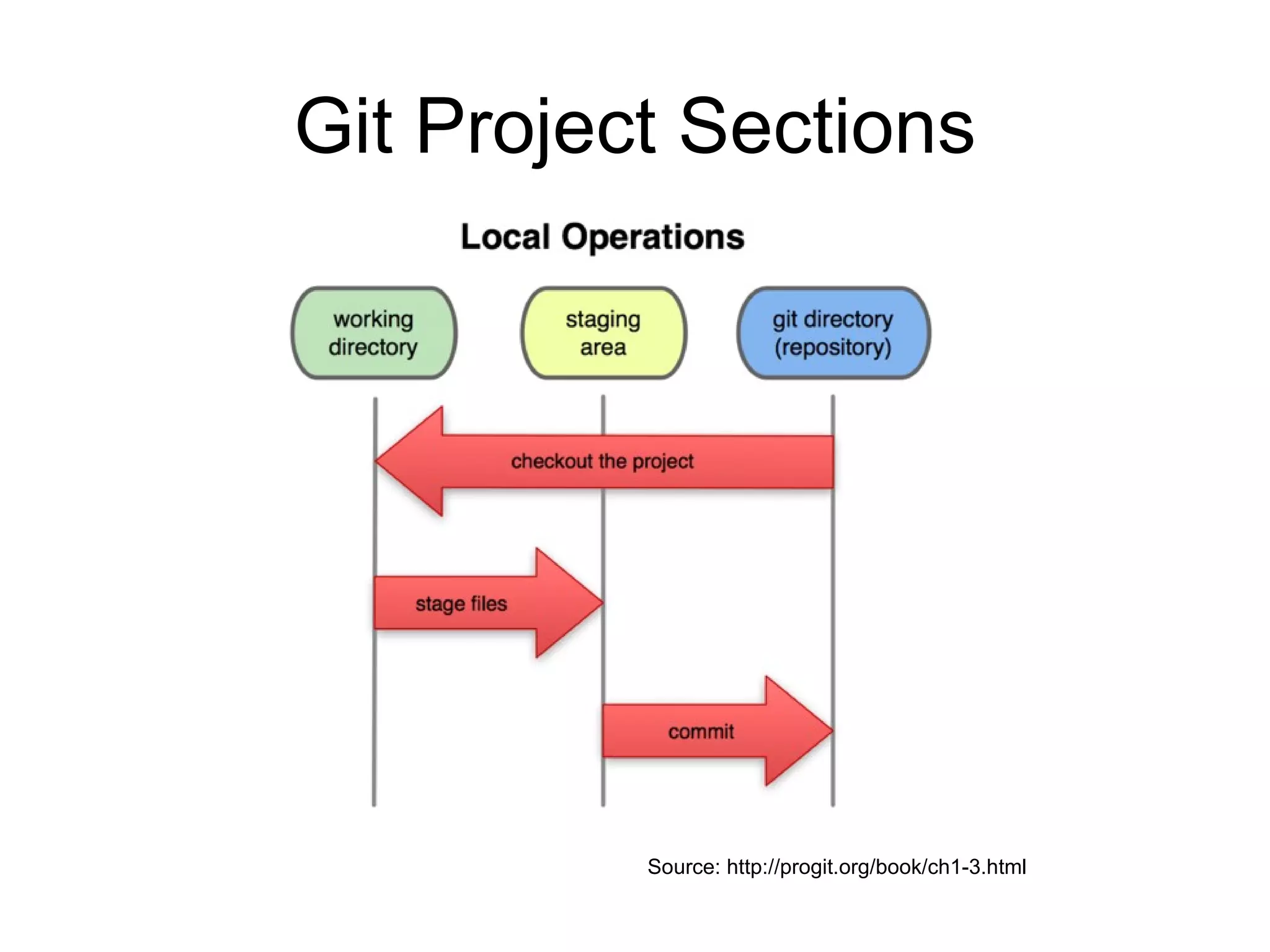
Git Project Sections Source: http://progit.org/book/ch1-3.html
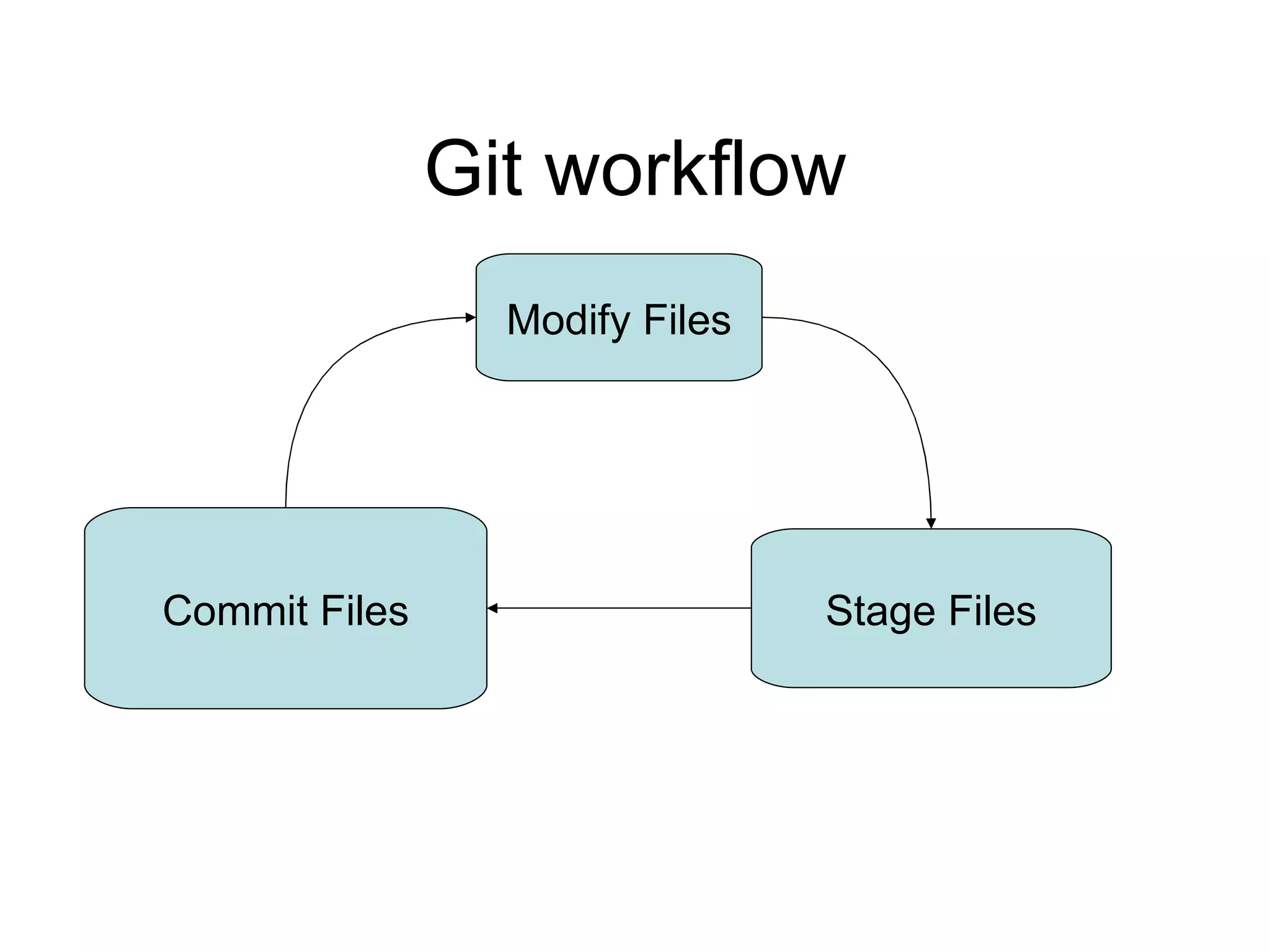
Git workflow Modify Files Stage Files Commit Files
Installing Git Covered in detail at http://progit.org/book/ch1-4.html
Initial Setup git config --global user.name “John Doe” git config --global user.email  [email_address] git config --global core.editor emacs By default, it uses GIT_EDITOR, VISUAL or EDITOR Environment variables Other editors are vi, mate -m, nano, etc git config --list Shows your git settings See  http://progit.org/book/ch1-5.html  for more
Getting help Most Git commands have help available git help commit git help branch git help tag
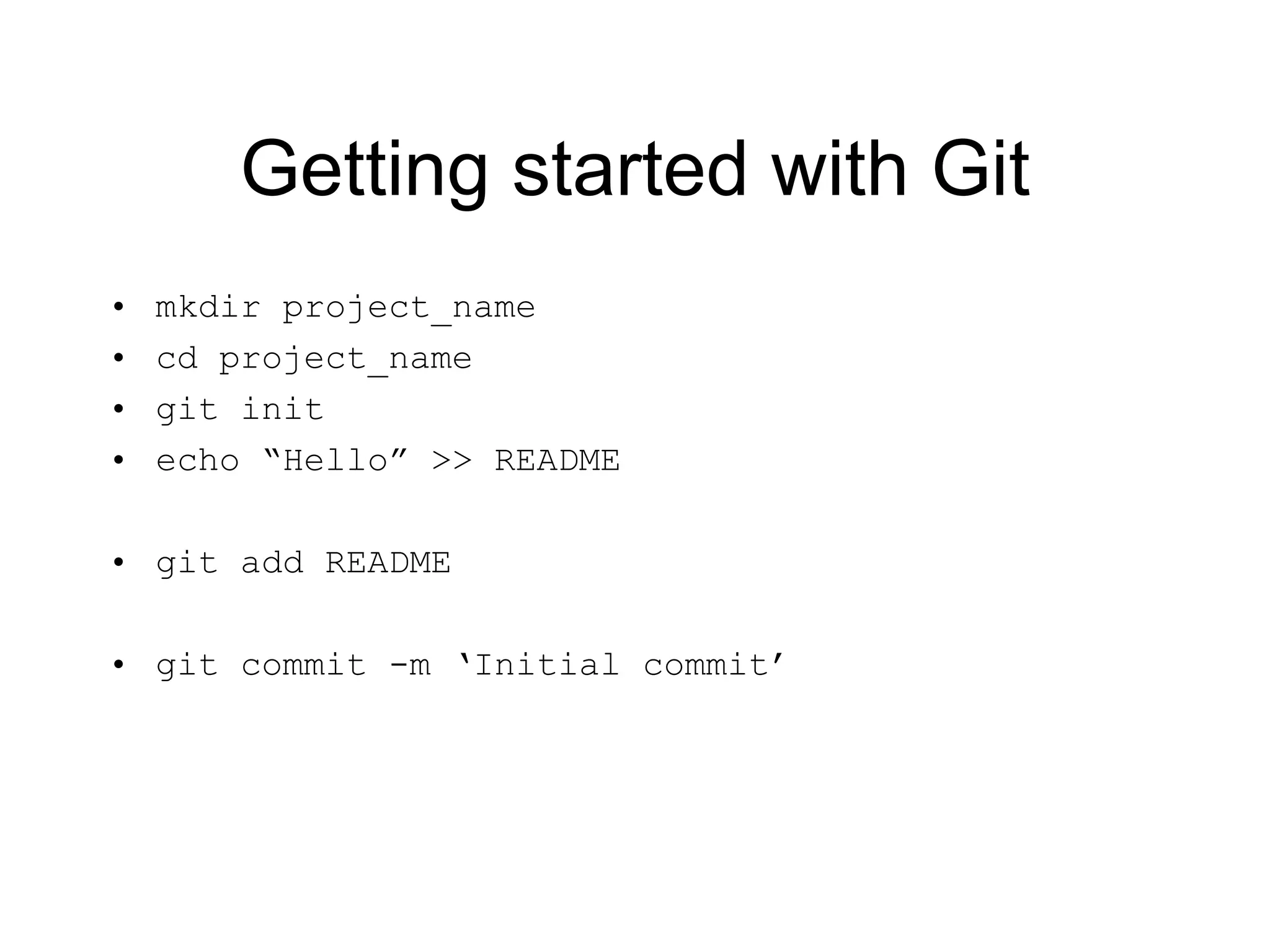
Getting started with Git mkdir project_name cd project_name git init echo “Hello” >> README git add README git commit -m ‘Initial commit’
Getting started Lab Create a new directory Initialize git Create/Edit a file Add/Stage that file Commit the stage to your local repo Repeat
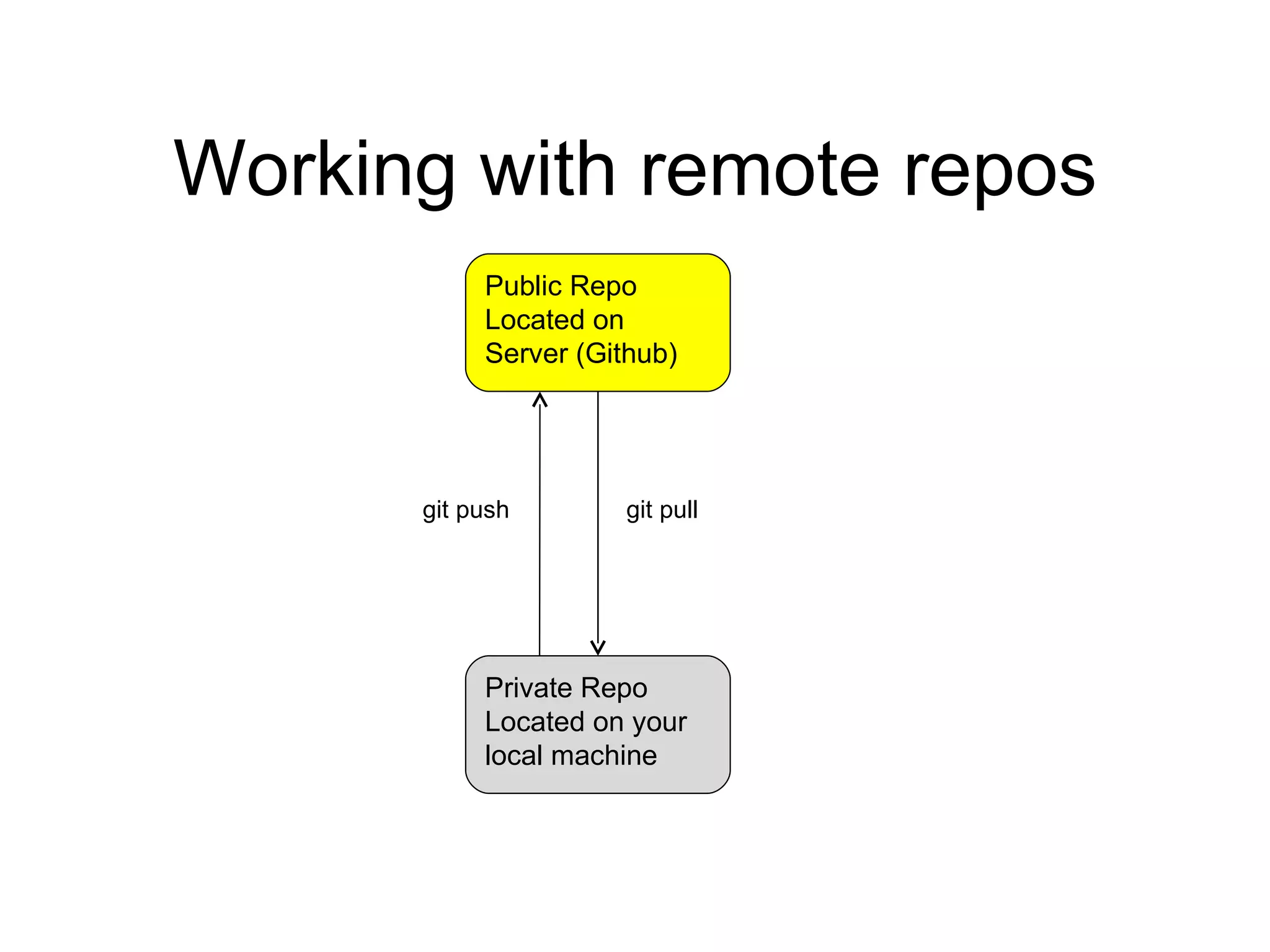
Working with remote repos Public Repo Located on Server (Github) Private Repo Located on your local machine git pull  git push
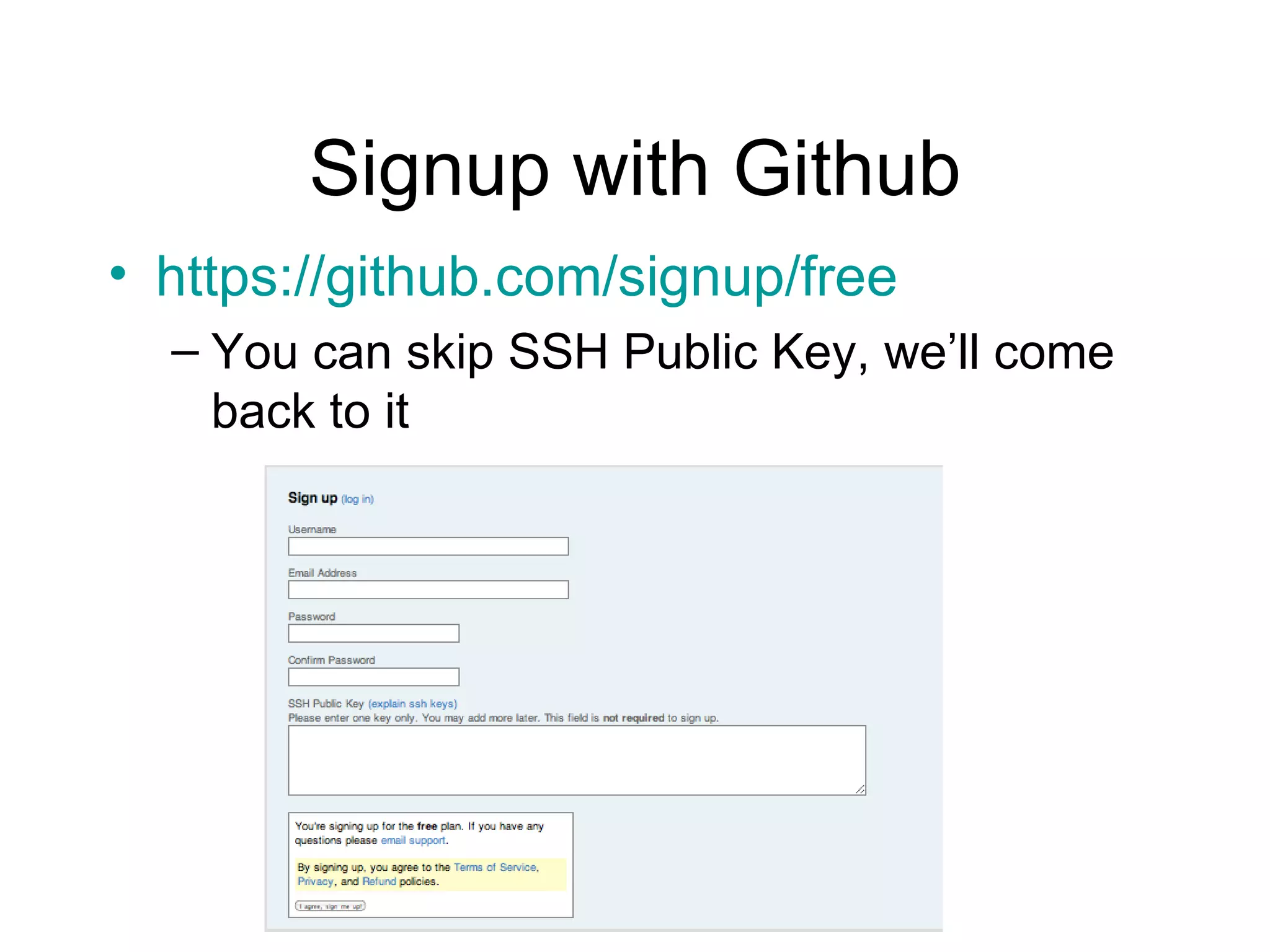
Signup with Github https: //github .com/signup/free You can skip SSH Public Key, we’ll come back to it
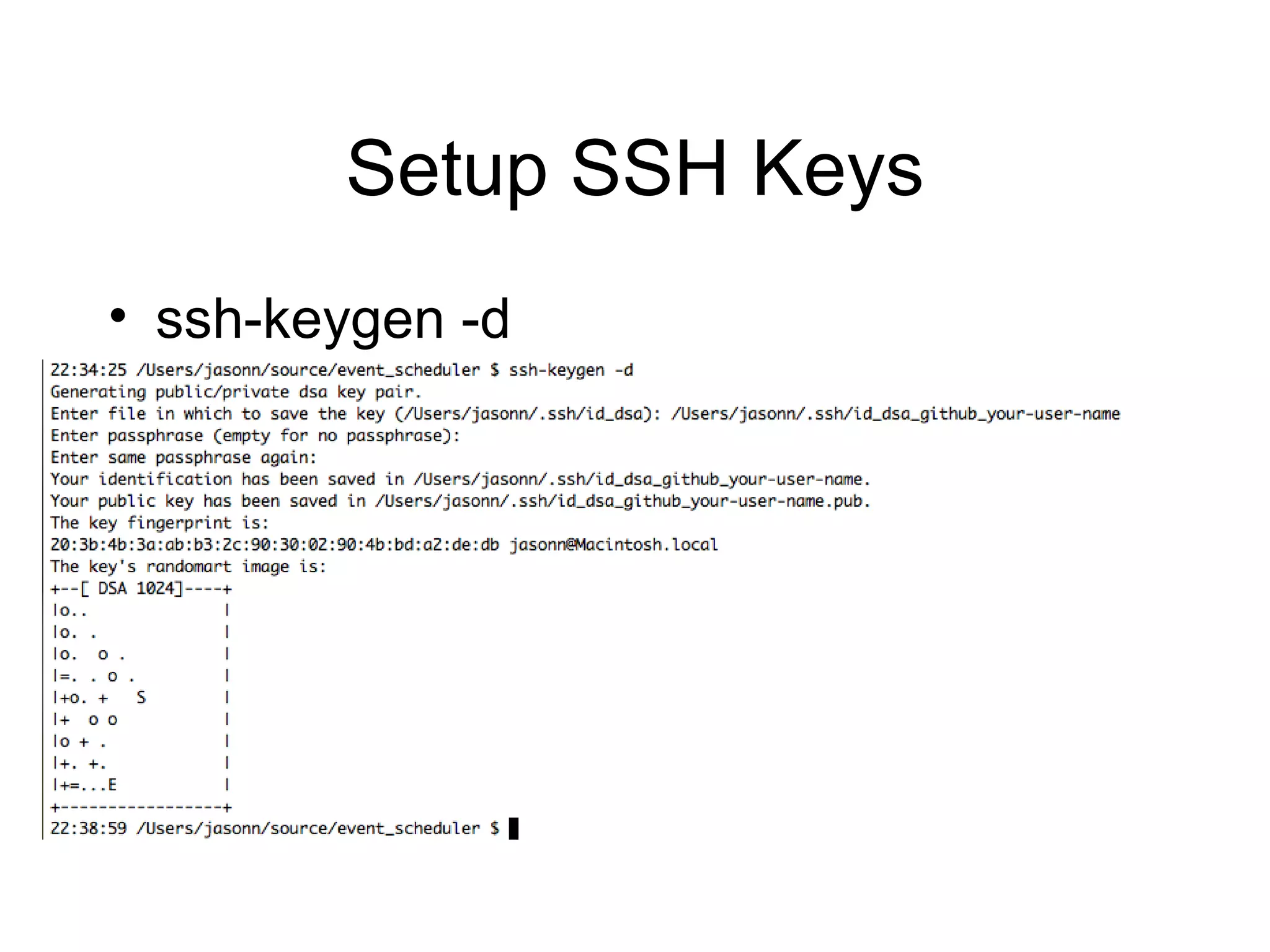
Setup SSH Keys ssh-keygen -d
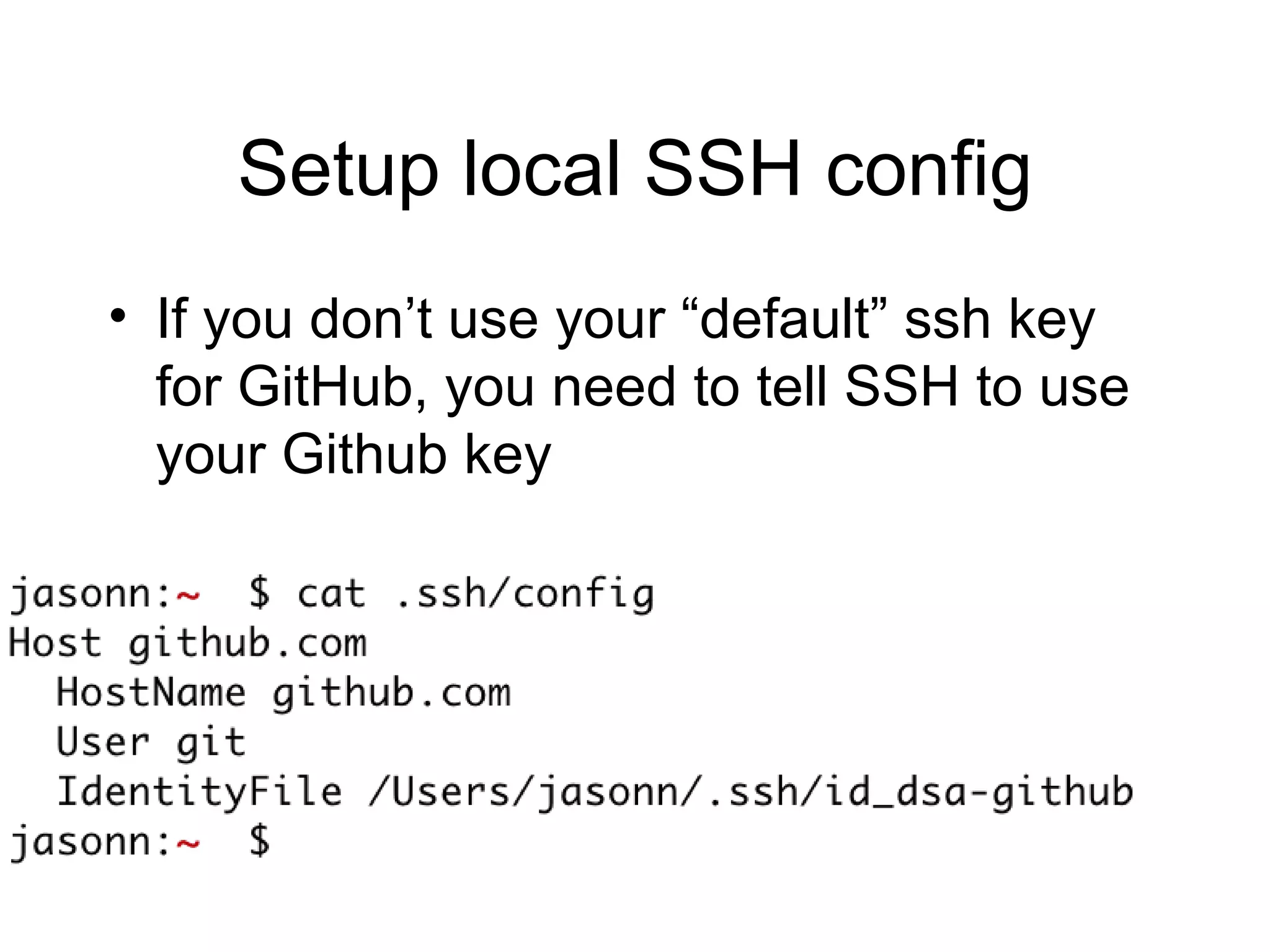
Setup local SSH config If you don’t use your “default” ssh key for GitHub, you need to tell SSH to use your Github key
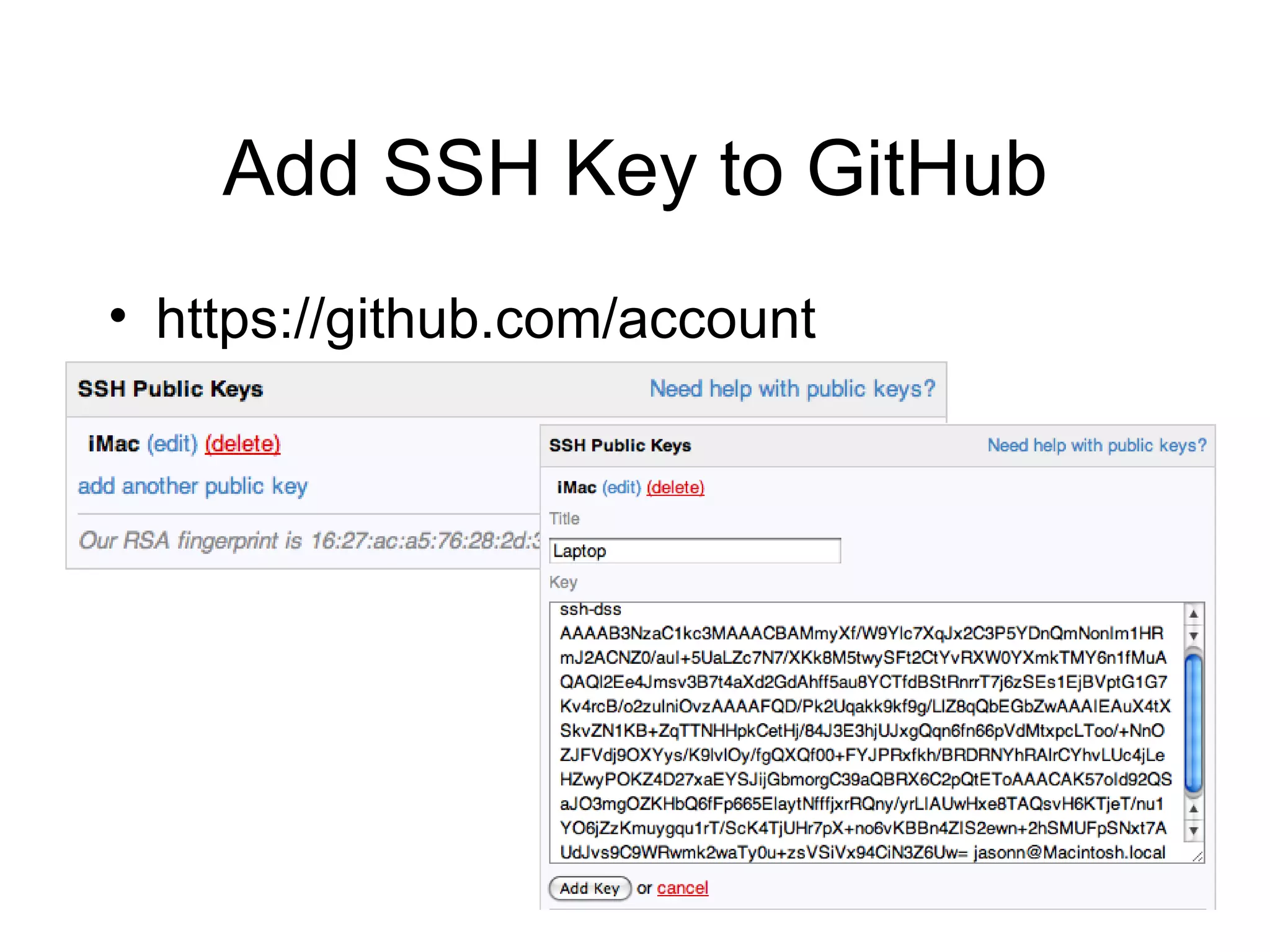
Add SSH Key to GitHub https://github.com/account
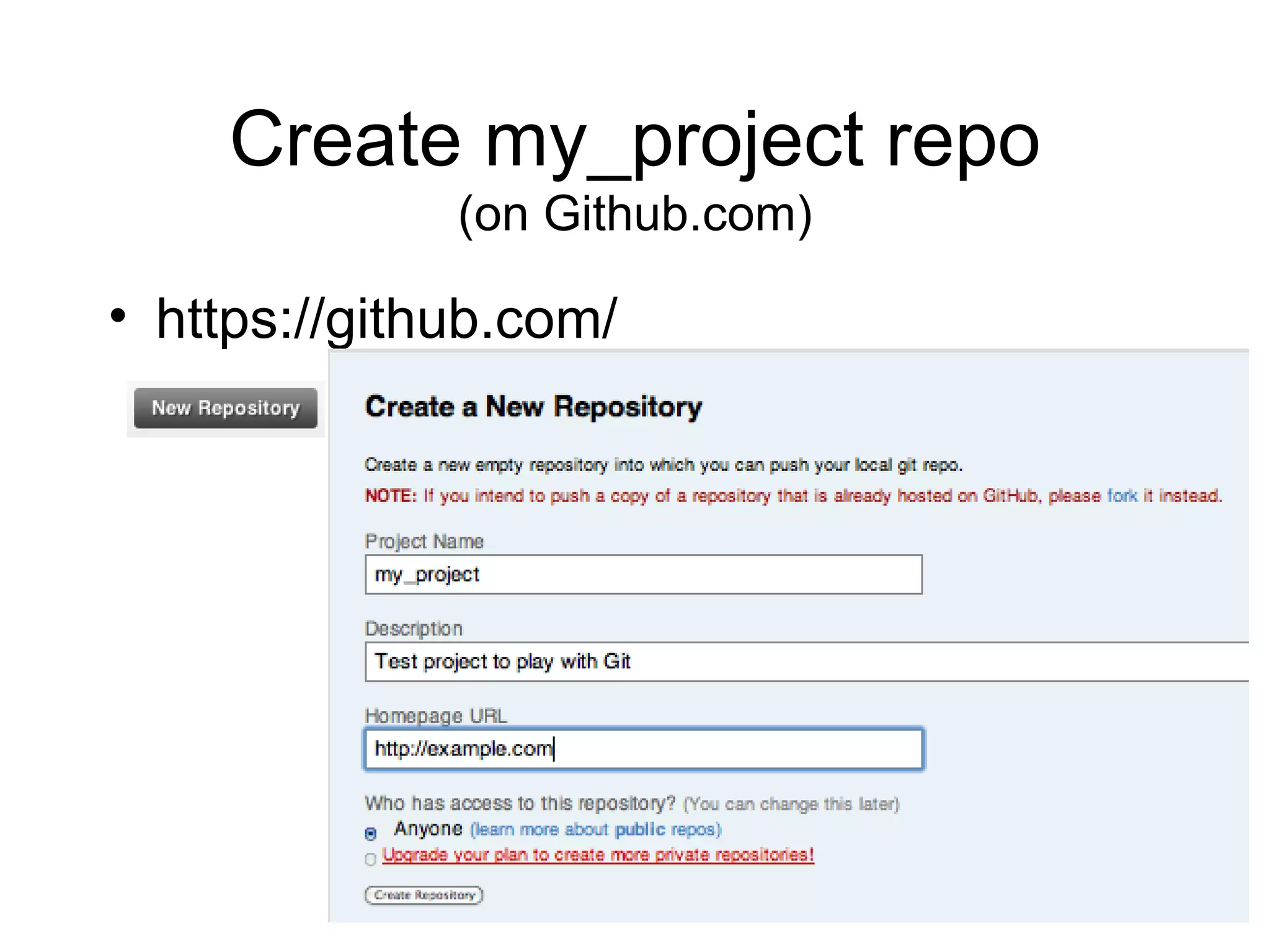
Create my_project repo (on Github.com) https://github.com/
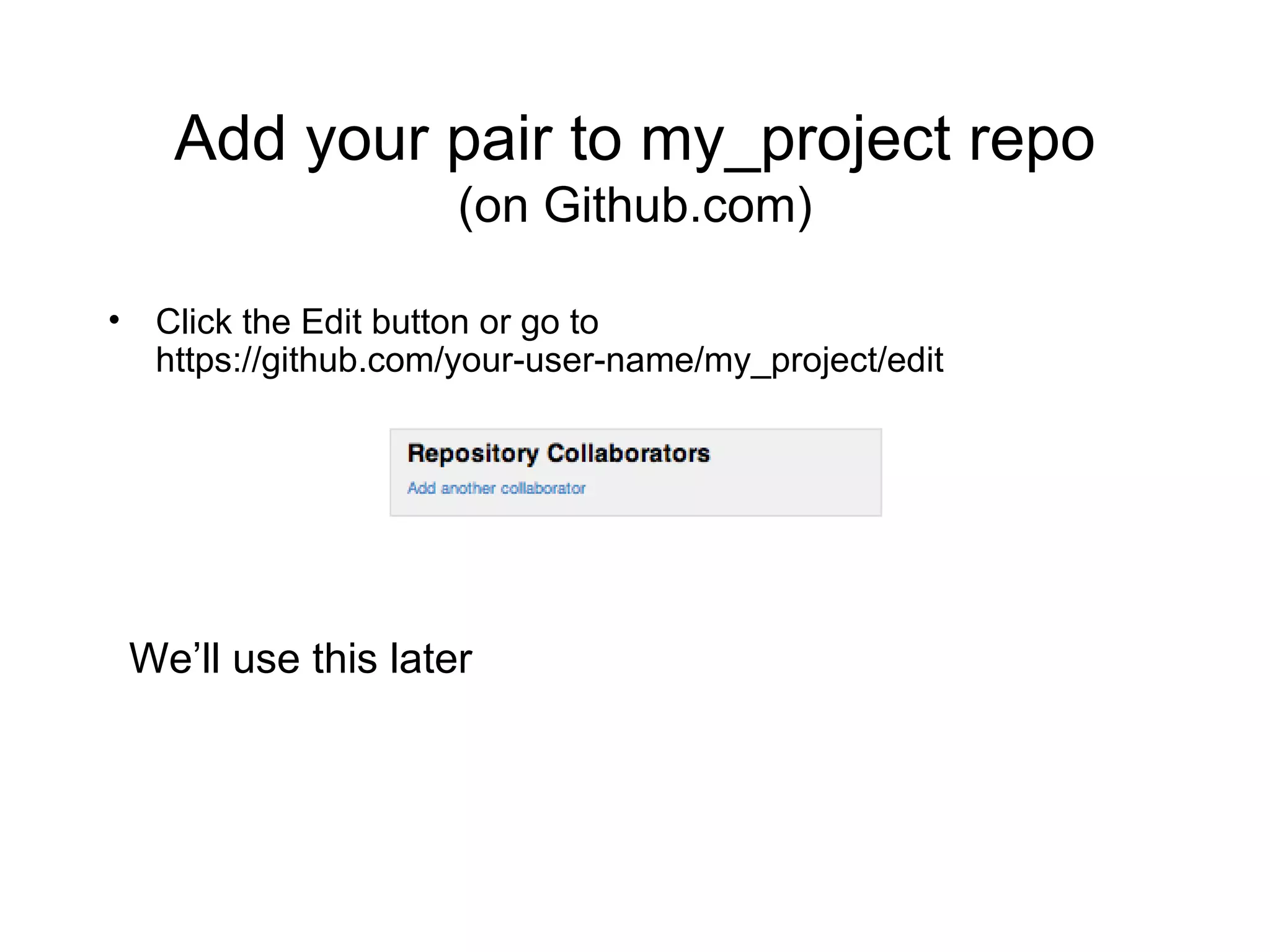
Add your pair to my_project repo (on Github.com) Click the Edit button or go to  https://github.com/your-user-name/my_project/edit We’ll use this later
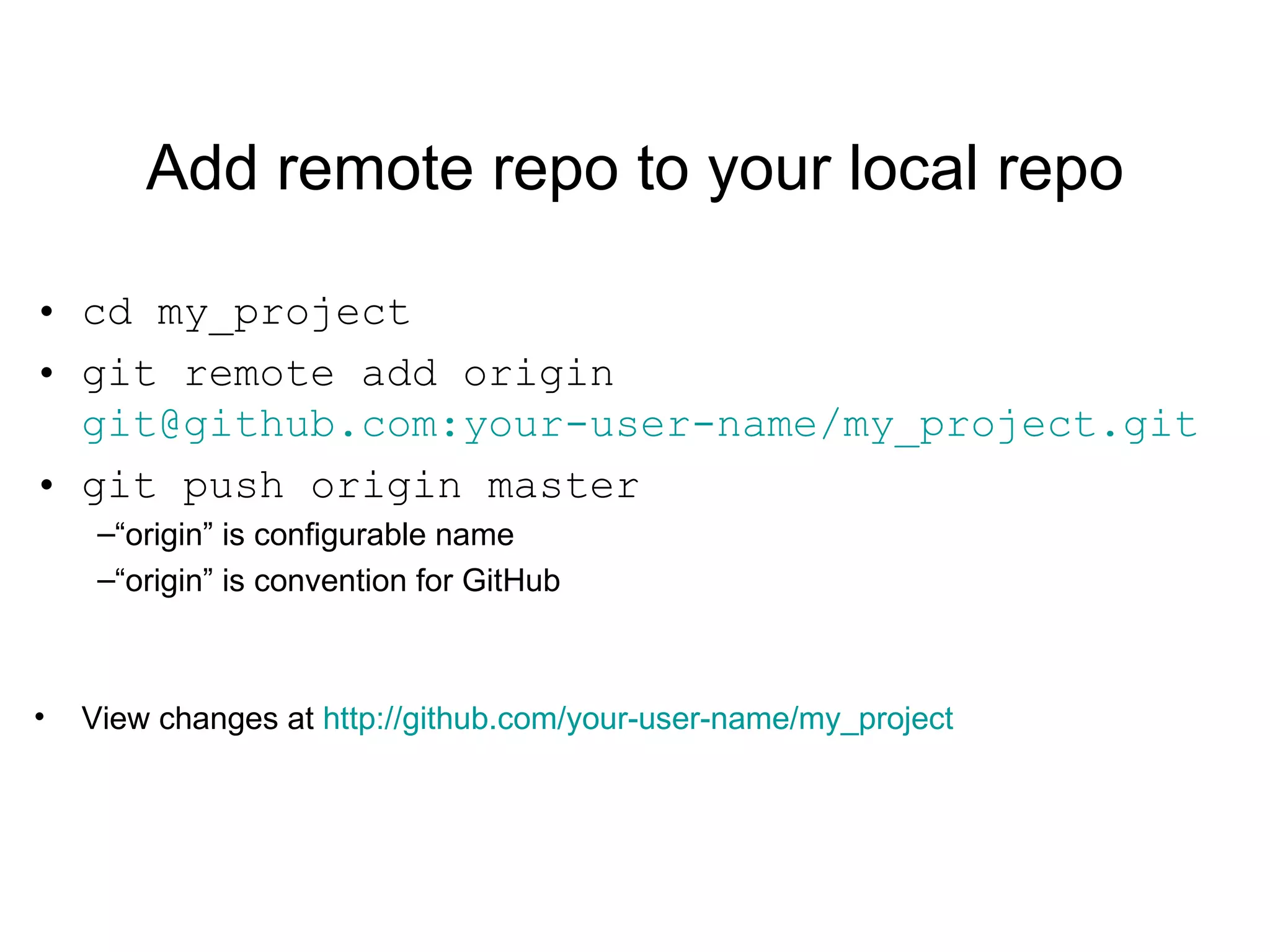
Add remote repo to your local repo cd my_project git remote add origin  git@github.com:your-user-name/my_project.git git push origin master “ origin” is configurable name “ origin” is convention for GitHub View changes at  http://github.com/your-user-name/my_project
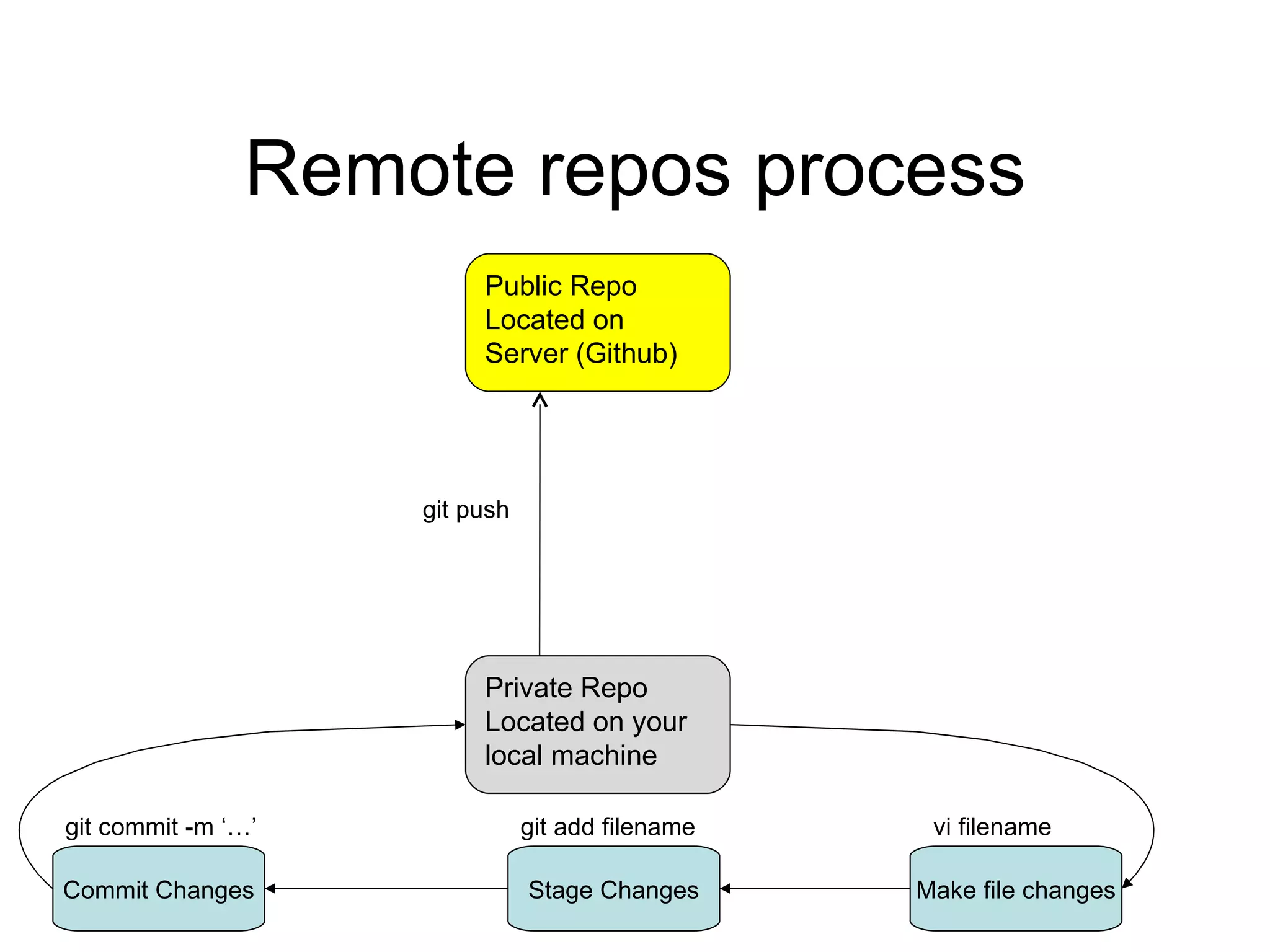
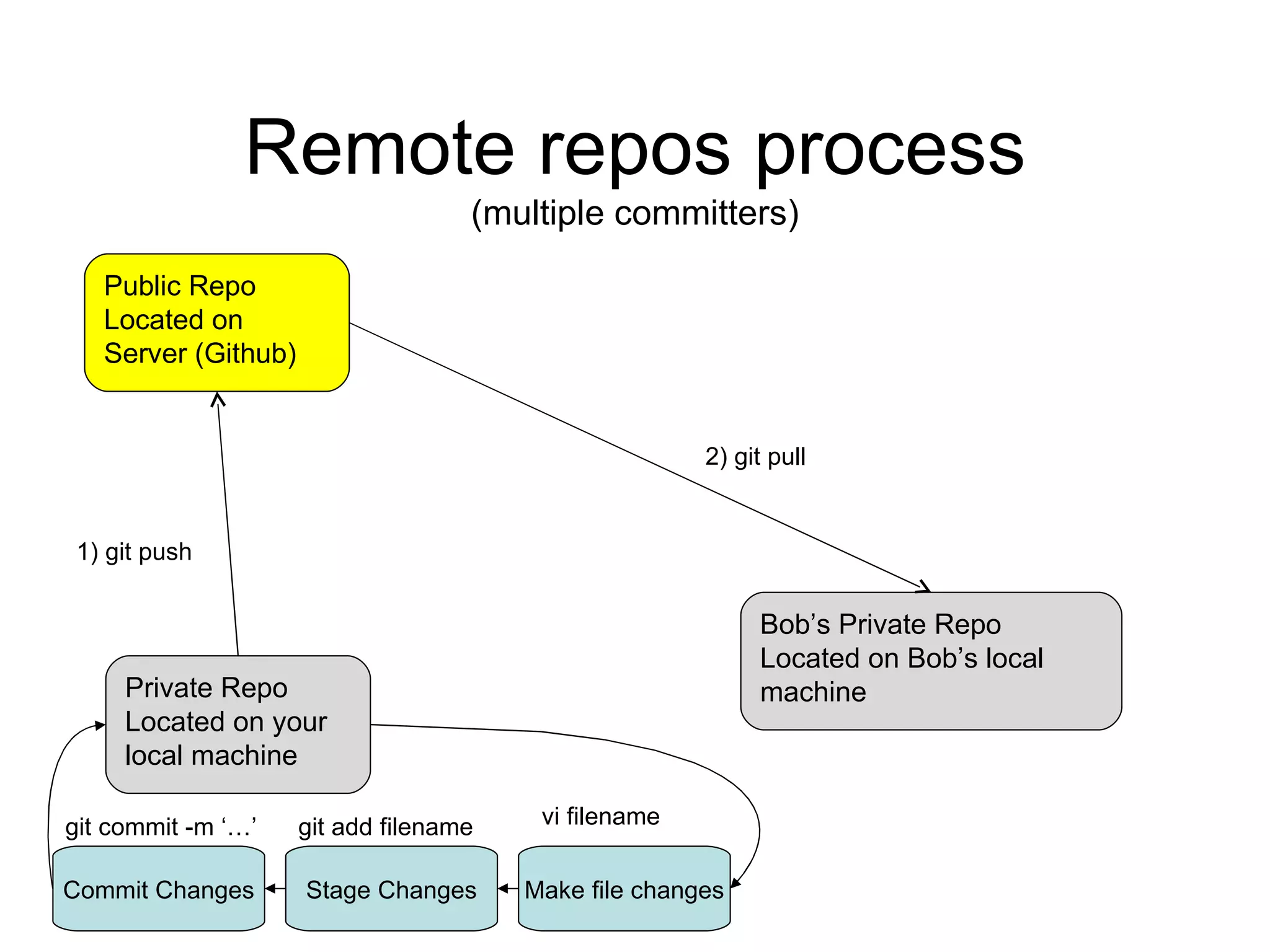
Remote repos process Public Repo Located on Server (Github) Private Repo Located on your local machine git push  Make file changes Stage Changes Commit Changes git add filename git commit -m ‘…’ vi filename
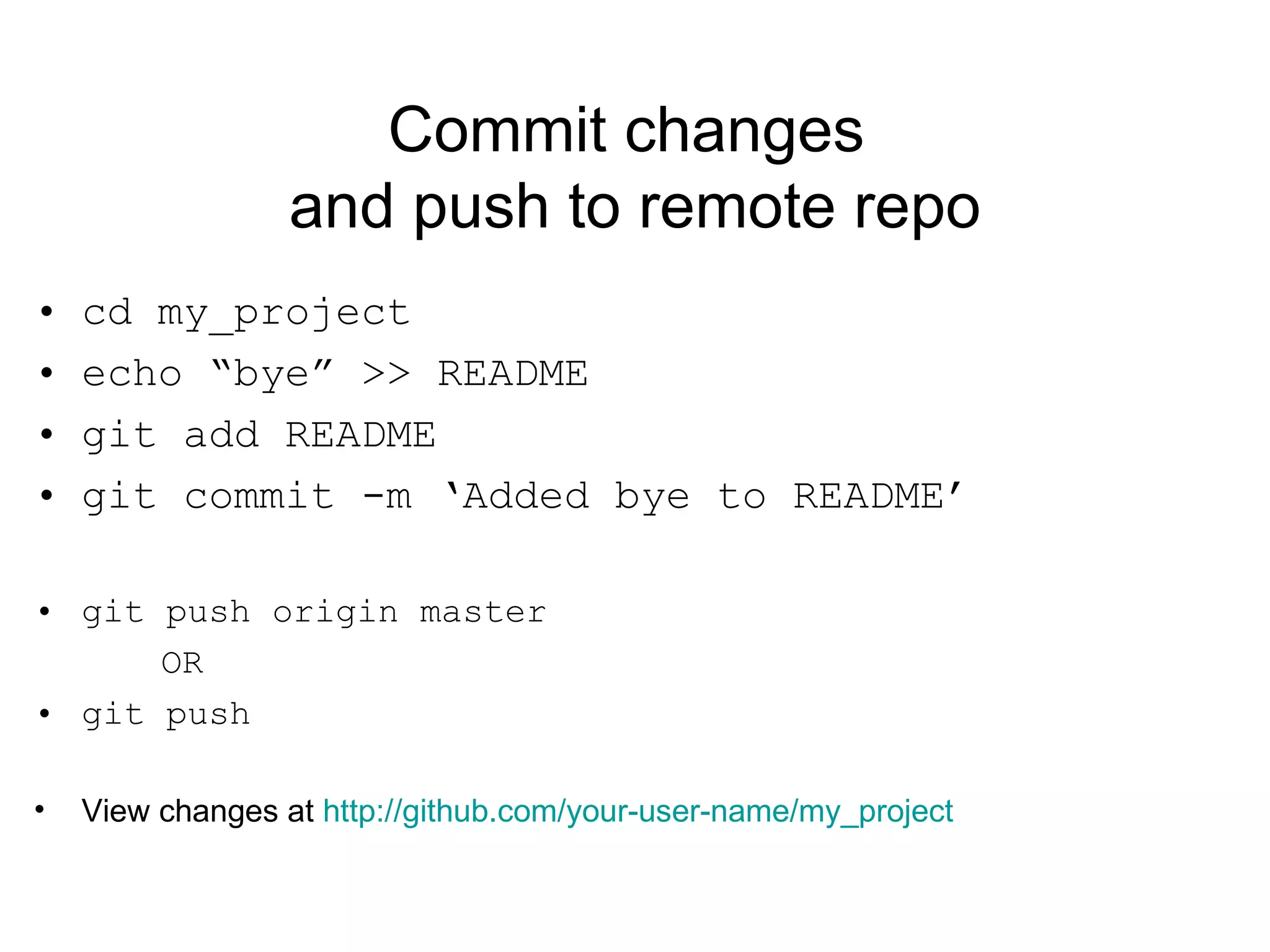
Commit changes  and push to remote repo cd my_project echo “bye” >> README git add README git commit -m ‘Added bye to README’ git push origin master OR git push View changes at  http://github.com/your-user-name/my_project
Lab with remote repos (on Github.com) Modify file locally Add/Stage that file to the commit Commit your changes Push those changes to GitHub
Remote repos process (multiple committers) Public Repo Located on Server (Github) Private Repo Located on your local machine 1) git push  Make file changes Stage Changes Commit Changes git add filename git commit -m ‘…’ vi filename Bob’s Private Repo Located on Bob’s local machine 2) git pull
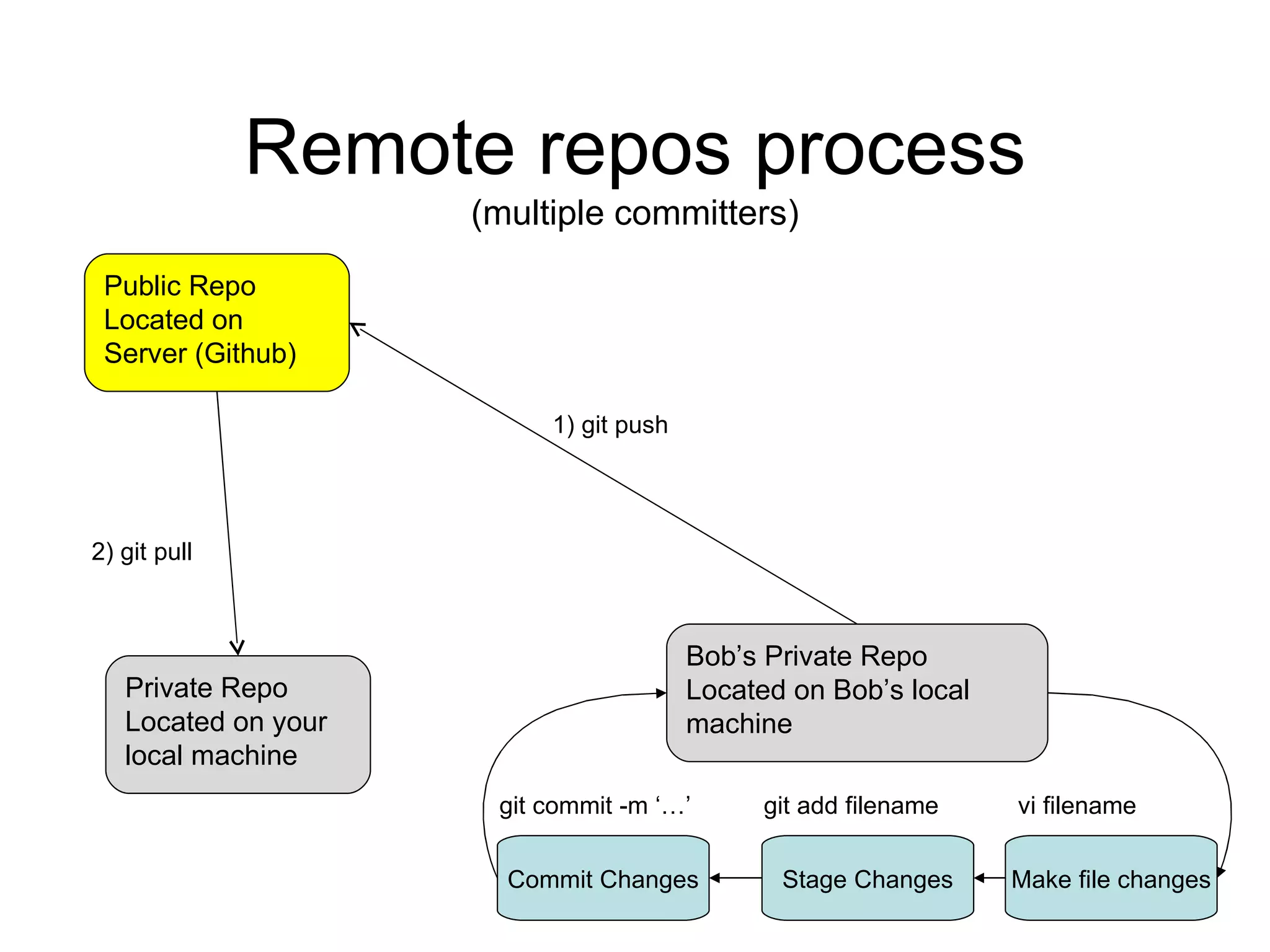
Remote repos process (multiple committers) Public Repo Located on Server (Github) Private Repo Located on your local machine 2) git pull  Bob’s Private Repo Located on Bob’s local machine Make file changes Stage Changes Commit Changes git add filename git commit -m ‘…’ vi filename 1) git push
Pull commits from remote repo cd my_project git pull origin master OR git pull
Lab with remote repos (on Github.com) User A  Modify file locally Add/Stage that file to the commit Commit your changes Push those changes to GitHub User B Pull those changes from GitHub

Git101

  • 1.
  • 2.
    Git 101 Gitis a distributed revision control system Keeps track of changes made to one or more files over time Shows log messages of what changed and why Allows developers to share their changes easily
  • 3.
    Git Project SectionsSource: http://progit.org/book/ch1-3.html
  • 4.
    Git workflow ModifyFiles Stage Files Commit Files
  • 5.
    Installing Git Coveredin detail at http://progit.org/book/ch1-4.html
  • 6.
    Initial Setup gitconfig --global user.name “John Doe” git config --global user.email [email_address] git config --global core.editor emacs By default, it uses GIT_EDITOR, VISUAL or EDITOR Environment variables Other editors are vi, mate -m, nano, etc git config --list Shows your git settings See http://progit.org/book/ch1-5.html for more
  • 7.
    Getting help MostGit commands have help available git help commit git help branch git help tag
  • 8.
    Getting started withGit mkdir project_name cd project_name git init echo “Hello” >> README git add README git commit -m ‘Initial commit’
  • 9.
    Getting started LabCreate a new directory Initialize git Create/Edit a file Add/Stage that file Commit the stage to your local repo Repeat
  • 10.
    Working with remoterepos Public Repo Located on Server (Github) Private Repo Located on your local machine git pull git push
  • 11.
    Signup with Githubhttps: //github .com/signup/free You can skip SSH Public Key, we’ll come back to it
  • 12.
    Setup SSH Keysssh-keygen -d
  • 13.
    Setup local SSHconfig If you don’t use your “default” ssh key for GitHub, you need to tell SSH to use your Github key
  • 14.
    Add SSH Keyto GitHub https://github.com/account
  • 15.
    Create my_project repo(on Github.com) https://github.com/
  • 16.
    Add your pairto my_project repo (on Github.com) Click the Edit button or go to https://github.com/your-user-name/my_project/edit We’ll use this later
  • 17.
    Add remote repoto your local repo cd my_project git remote add origin git@github.com:your-user-name/my_project.git git push origin master “ origin” is configurable name “ origin” is convention for GitHub View changes at http://github.com/your-user-name/my_project
  • 18.
    Remote repos processPublic Repo Located on Server (Github) Private Repo Located on your local machine git push Make file changes Stage Changes Commit Changes git add filename git commit -m ‘…’ vi filename
  • 19.
    Commit changes and push to remote repo cd my_project echo “bye” >> README git add README git commit -m ‘Added bye to README’ git push origin master OR git push View changes at http://github.com/your-user-name/my_project
  • 20.
    Lab with remoterepos (on Github.com) Modify file locally Add/Stage that file to the commit Commit your changes Push those changes to GitHub
  • 21.
    Remote repos process(multiple committers) Public Repo Located on Server (Github) Private Repo Located on your local machine 1) git push Make file changes Stage Changes Commit Changes git add filename git commit -m ‘…’ vi filename Bob’s Private Repo Located on Bob’s local machine 2) git pull
  • 22.
    Remote repos process(multiple committers) Public Repo Located on Server (Github) Private Repo Located on your local machine 2) git pull Bob’s Private Repo Located on Bob’s local machine Make file changes Stage Changes Commit Changes git add filename git commit -m ‘…’ vi filename 1) git push
  • 23.
    Pull commits fromremote repo cd my_project git pull origin master OR git pull
  • 24.
    Lab with remoterepos (on Github.com) User A Modify file locally Add/Stage that file to the commit Commit your changes Push those changes to GitHub User B Pull those changes from GitHub

Editor's Notes

  • #2 This presentation will cover the basics of the Git Workflow and how it works.
  • #4 The working directory is where you make changes to your files. By staging files to the staging area, you add them to the list of what will be committed next Committing the staged files adds those files (and their contents) to the Git Repo
  • #12 We’ll be using GitHub as a remote repository for our project. Go to this URL to sign up for an account.
  • #13 Generate a local SSH key for use with Github. You can use the default file provided, or give your own path to a key file.
  • #15 Copy and paste the contents of ~/.ssh/your-key.pub into the Key box
  • #19 The bottom commit loop happens frequently. Pushing the the remote happens “occasionally”
  • #22 You commit a change and push to your public repo Bob can then “pull” your change to his repo
  • #23 Bob commits a change and pushes to your public repo You can then “pull” his change to your local repo