PSIM: A Tutorial
Presentation Outline


 What   is PSIM?
 Circuit   Structure
 Getting   started with PSIM
 Hands-on    Examples
What is PSIM?
   PSIM is a simulation package specifically
    designed for power electronics and control
    circuits.
   Manufactured by Powersim Inc.
            ( www.powersimtech.com )
   It allows fast simulation and it has a friendly
    user interface.
   PSIM is indicated for system-level simulation,
    control loop design and motor drive system
    studies.
   The basic PSIM package consists of three
    programs:    circuit   schematic    program
    (SIMCAD), simulator program (PSIM), and
    waveform display program (SIMVIEW).
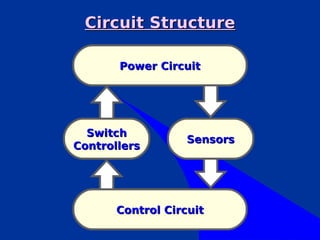
Circuit Structure

       Power Circuit


  Switch
                   Sensors
Controllers


       Control Circuit
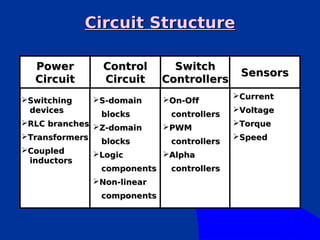
Circuit Structure

  Power         Control       Switch
                                            Sensors
  Circuit       Circuit     Controllers
                                           Current
Switching    S-domain     On-Off
 devices                                   Voltage
               blocks        controllers
RLC branches                             Torque
                Z-domain    PWM
Transformers                              Speed
                blocks       controllers
Coupled      Logic        Alpha
 inductors
               components    controllers
              Non-linear
               components
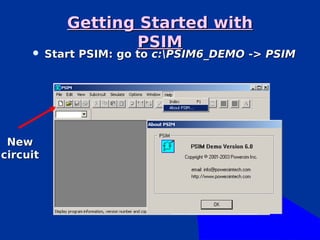
Getting Started with
                    PSIM
         Start PSIM: go to c:PSIM6_DEMO -> PSIM


 New
circuit
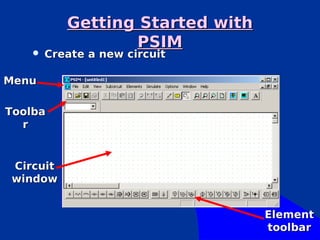
Getting Started with
                  PSIM
       Create a new circuit

Menu

Toolba
  r


Circuit
window


                                  Element
                                  toolbar
Getting Started with PSIM
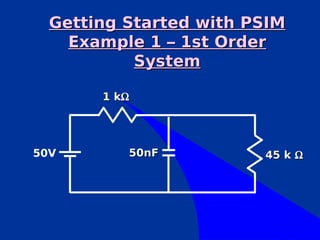
    Example 1 – 1st Order
           System

       1 kΩ


50V       50nF          45 k Ω
Example 1 – 1st Order
      System
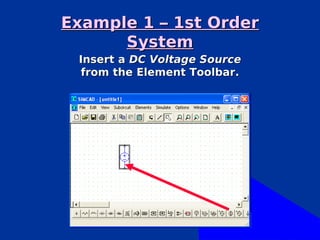
 Insert a DC Voltage Source
 from the Element Toolbar.
Example 1 – 1st Order
           System


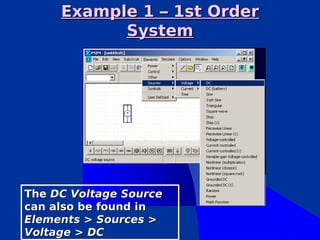
The DC Voltage Source
can also be found in
Elements > Sources >
Voltage > DC
Example 1 – 1st Order
               System
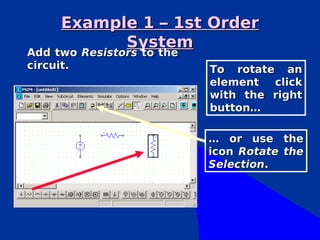
Add two Resistors to the
circuit.                   To rotate an
                           element  click
                           with the right
                           button…

                           … or use the
                           icon Rotate the
                           Selection.
Example 1 – 1st Order
      System
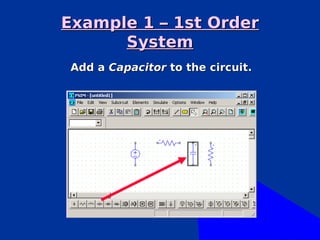
 Add a Capacitor to the circuit.
Example 1 – 1st Order
              System
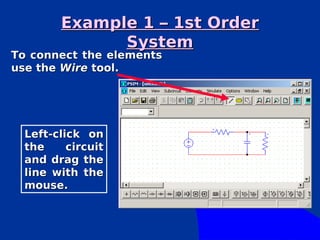
To connect the elements
use the Wire tool.


  Left-click on
  the     circuit
  and drag the
  line with the
  mouse.
Example 1 – 1st Order
      System
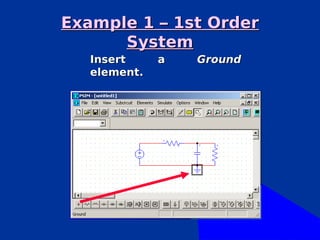
   Insert     a   Ground
   element.
Example 1 – 1st Order
                 System
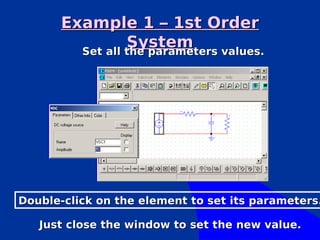
         Set all the parameters values.


Double-click on the element to set its parameters.

   Just close the window to set the new value.
Example 1 – 1st Order
        System
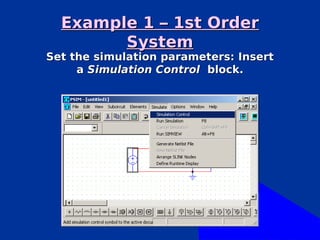
Set the simulation parameters: Insert
     a Simulation Control block.
Example 1 – 1st Order
        System
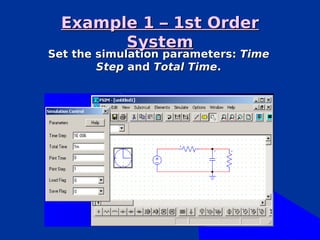
Set the simulation parameters: Time
        Step and Total Time.
Example 1 – 1st Order
          System
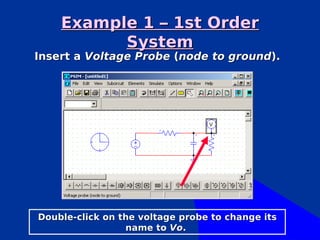
Insert a Voltage Probe (node to ground).


Double-click on the voltage probe to change its
                 name to Vo.
Example 1 – 1st Order
      System
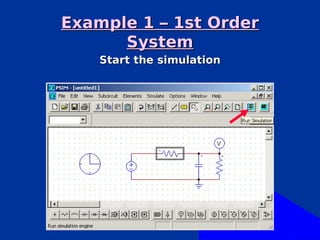
    Start the simulation
Example 1 – 1st Order
      System


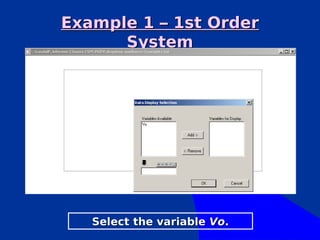
   Select the variable Vo.
Example 1 – 1st Order
      System
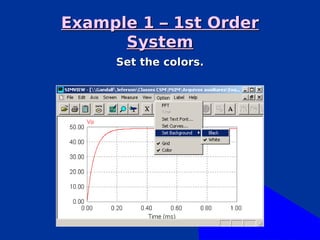
     Set the colors.
Example 1 – 1st Order
      System
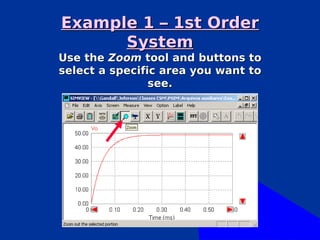
Use the Zoom tool and buttons to
select a specific area you want to
                see.
Example 1 – 1st Order
                System
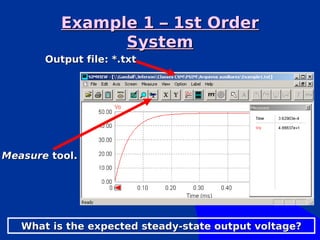
       Output file: *.txt


Measure tool.


   What is the expected steady-state output voltage?
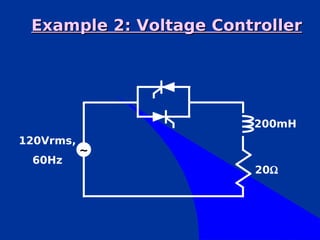
Example 2: Voltage Controller


                        200mH
120Vrms,
           ~
 60Hz
                        20Ω
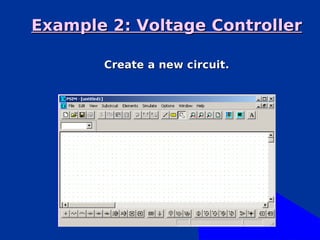
Example 2: Voltage Controller

       Create a new circuit.
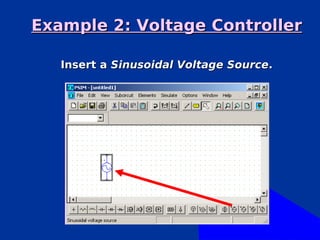
Example 2: Voltage Controller

   Insert a Sinusoidal Voltage Source.
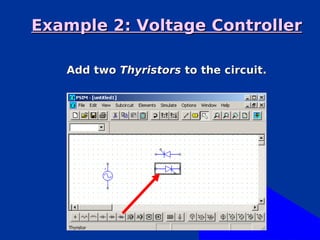
Example 2: Voltage Controller

   Add two Thyristors to the circuit.
Example 2: Voltage Controller

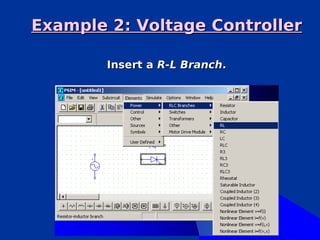
        Insert a R-L Branch.
Example 2: Voltage Controller

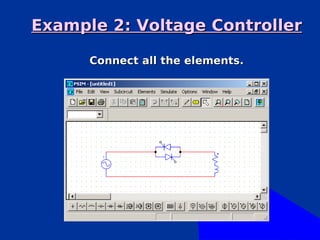
      Connect all the elements.
Example 2: Voltage Controller
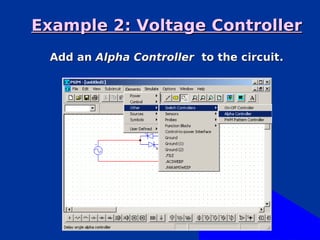
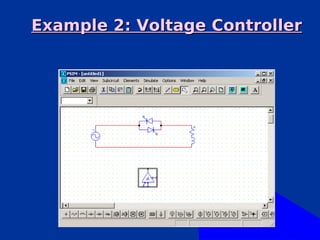
 Add an Alpha Controller to the circuit.
Example 2: Voltage Controller
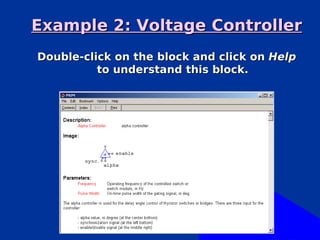
Double-click on the block and click on Help
          to understand this block.
Example 2: Voltage Controller
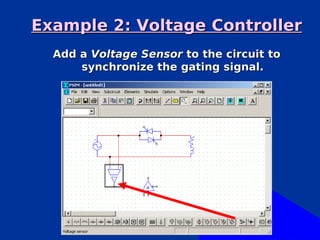
  Add a Voltage Sensor to the circuit to
      synchronize the gating signal.
Example 2: Voltage Controller
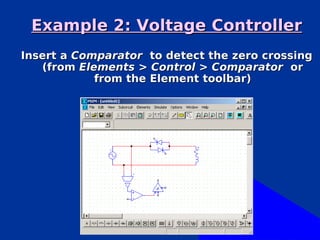
Insert a Comparator to detect the zero crossing
   (from Elements > Control > Comparator or
            from the Element toolbar)
Example 2: Voltage Controller
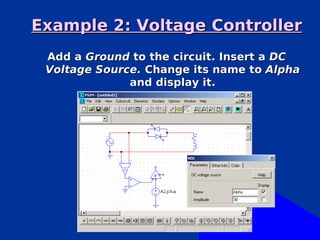
 Add a Ground to the circuit. Insert a DC
 Voltage Source. Change its name to Alpha
              and display it.
Example 2: Voltage Controller
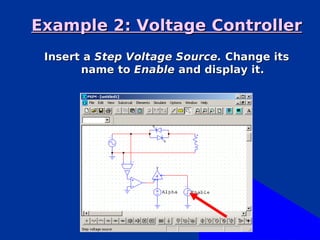
 Insert a Step Voltage Source. Change its
       name to Enable and display it.
Example 2: Voltage Controller
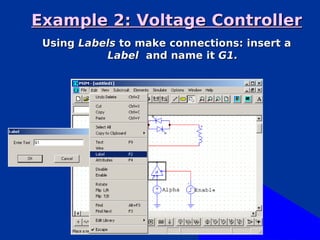
 Using Labels to make connections: insert a
           Label and name it G1.
Example 2: Voltage Controller
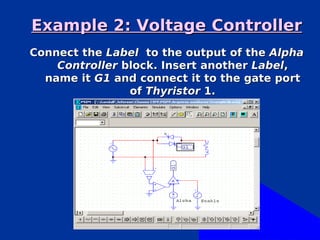
Connect the Label to the output of the Alpha
    Controller block. Insert another Label,
  name it G1 and connect it to the gate port
                of Thyristor 1.
Example 2: Voltage Controller
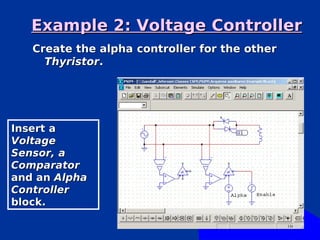
   Create the alpha controller for the other
     Thyristor.


Insert a
Voltage
Sensor, a
Comparator
and an Alpha
Controller
block.
Example 2: Voltage Controller
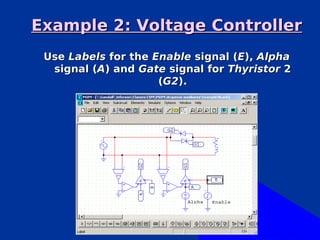
 Use Labels for the Enable signal (E), Alpha
  signal (A) and Gate signal for Thyristor 2
                     (G2).
Example 2: Voltage Controller
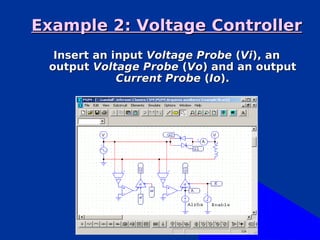
  Insert an input Voltage Probe (Vi), an
 output Voltage Probe (Vo) and an output
             Current Probe (Io).
Example 2: Voltage Controller
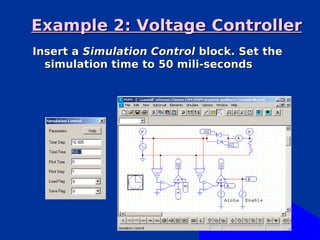
Insert a Simulation Control block. Set the
  simulation time to 50 mili-seconds
Example 2: Voltage Controller
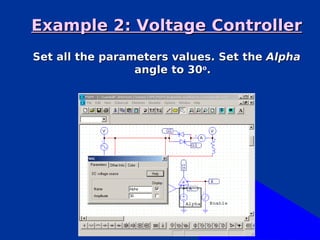
Set all the parameters values. Set the Alpha
                 angle to 30o.
Example 2: Voltage Controller

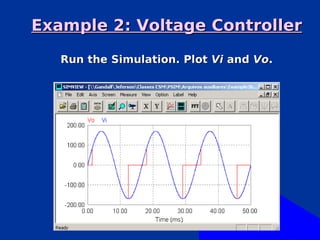
   Run the Simulation. Plot Vi and Vo.
Example 2: Voltage Controller
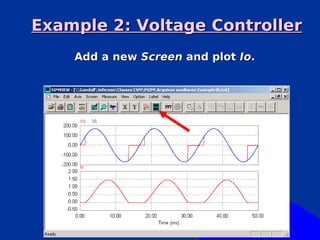
    Add a new Screen and plot Io.
Example 2: Voltage Controller

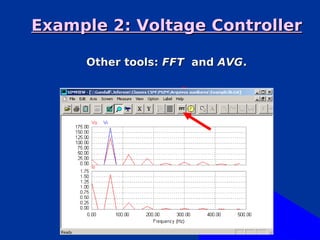
     Other tools: FFT and AVG.
Example 2: Voltage Controller
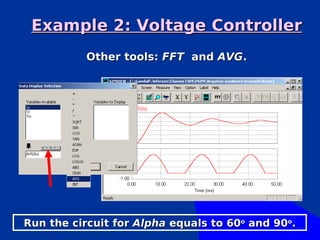
           Other tools: FFT and AVG.


Run the circuit for Alpha equals to 60o and 90o.
Example 2: Voltage Controller
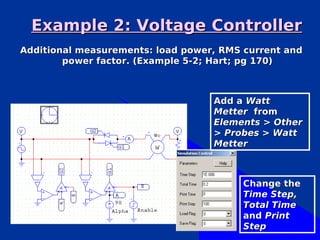
Additional measurements: load power, RMS current and
        power factor. (Example 5-2; Hart; pg 170)


                                   Add a Watt
                                   Metter from
                                   Elements > Other
                                   > Probes > Watt
                                   Metter


                                         Change the
                                         Time Step,
                                         Total Time
                                         and Print
                                         Step
Example 2: Voltage Controller
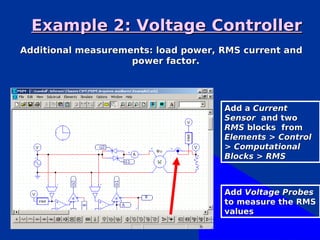
Additional measurements: load power, RMS current and
                    power factor.


                                     Add a Current
                                     Sensor and two
                                     RMS blocks from
                                     Elements > Control
                                     > Computational
                                     Blocks > RMS


                                     Add Voltage Probes
                                     to measure the RMS
                                     values
Example 2: Voltage Controller

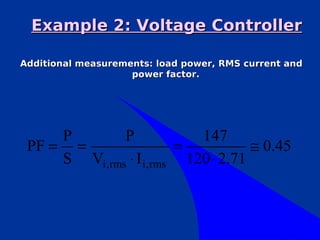
Additional measurements: load power, RMS current and
                    power factor.


     P        P             147
 PF = =                  =           ≅ 0.45
     S Vi, rms ⋅ I i, rms 120 ⋅ 2.71
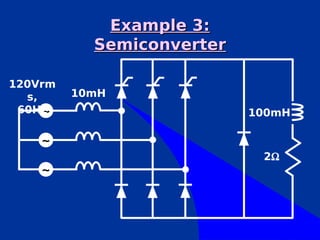
Example 3:
           Semiconverter

120Vrm
  s,     10mH
 60Hz~                     100mH

    ~
                            2Ω
    ~
Example 3:
          Semiconverter
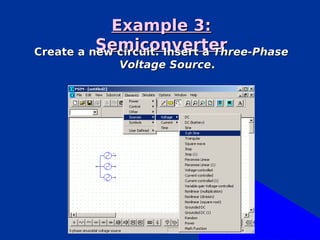
Create a new circuit. Insert a Three-Phase
              Voltage Source.
Example 3:
        Semiconverter
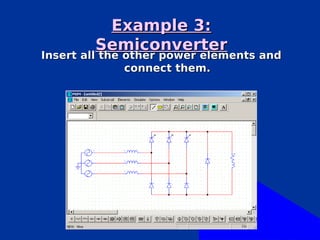
Insert all the other power elements and
               connect them.
Example 3:
         Semiconverter
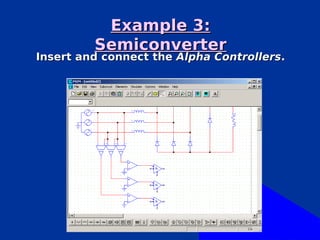
Insert and connect the Alpha Controllers.
Example 3:
           Semiconverter
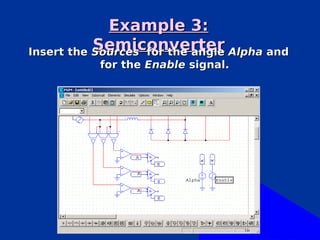
Insert the Sources for the angle Alpha and
           for the Enable signal.
Example 3:
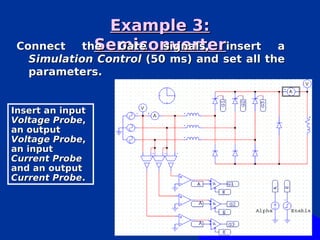
 Connect        Semiconverterinsert
              the  Gate signals,            a
   Simulation Control (50 ms) and set all the
   parameters.


Insert an input
Voltage Probe,
an output
Voltage Probe,
an input
Current Probe
and an output
Current Probe.
Example 3:
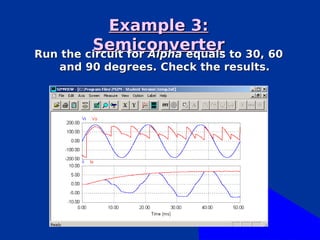
         Semiconverter to 30, 60
Run the circuit for Alpha equals
   and 90 degrees. Check the results.
Example 3:
          Semiconverter
Exercise:
 Implement the additional measurements for
   this circuit: THD, load power, RMS current
   and power factor.


  See Ex. 5.9; Rashid; pg 156

Psim tutorial- tiristor

  • 1.
  • 2.
    Presentation Outline  What is PSIM?  Circuit Structure  Getting started with PSIM  Hands-on Examples
  • 3.
    What is PSIM?  PSIM is a simulation package specifically designed for power electronics and control circuits.  Manufactured by Powersim Inc. ( www.powersimtech.com )  It allows fast simulation and it has a friendly user interface.  PSIM is indicated for system-level simulation, control loop design and motor drive system studies.  The basic PSIM package consists of three programs: circuit schematic program (SIMCAD), simulator program (PSIM), and waveform display program (SIMVIEW).
  • 4.
    Circuit Structure Power Circuit Switch Sensors Controllers Control Circuit
  • 5.
    Circuit Structure Power Control Switch Sensors Circuit Circuit Controllers Current Switching S-domain On-Off devices Voltage blocks controllers RLC branches  Torque Z-domain PWM Transformers Speed blocks controllers Coupled Logic Alpha inductors components controllers Non-linear components
  • 6.
    Getting Started with PSIM  Start PSIM: go to c:PSIM6_DEMO -> PSIM New circuit
  • 7.
    Getting Started with PSIM  Create a new circuit Menu Toolba r Circuit window Element toolbar
  • 8.
    Getting Started withPSIM Example 1 – 1st Order System 1 kΩ 50V 50nF 45 k Ω
  • 9.
    Example 1 –1st Order System Insert a DC Voltage Source from the Element Toolbar.
  • 10.
    Example 1 –1st Order System The DC Voltage Source can also be found in Elements > Sources > Voltage > DC
  • 11.
    Example 1 –1st Order System Add two Resistors to the Add two Resistors to the circuit. To rotate an element click with the right button… … or use the icon Rotate the Selection.
  • 12.
    Example 1 –1st Order System Add a Capacitor to the circuit.
  • 13.
    Example 1 –1st Order System To connect the elements use the Wire tool. Left-click on the circuit and drag the line with the mouse.
  • 14.
    Example 1 –1st Order System Insert a Ground element.
  • 15.
    Example 1 –1st Order System Set all the parameters values. Double-click on the element to set its parameters. Just close the window to set the new value.
  • 16.
    Example 1 –1st Order System Set the simulation parameters: Insert a Simulation Control block.
  • 17.
    Example 1 –1st Order System Set the simulation parameters: Time Step and Total Time.
  • 18.
    Example 1 –1st Order System Insert a Voltage Probe (node to ground). Double-click on the voltage probe to change its name to Vo.
  • 19.
    Example 1 –1st Order System Start the simulation
  • 20.
    Example 1 –1st Order System Select the variable Vo.
  • 21.
    Example 1 –1st Order System Set the colors.
  • 22.
    Example 1 –1st Order System Use the Zoom tool and buttons to select a specific area you want to see.
  • 23.
    Example 1 –1st Order System Output file: *.txt Measure tool. What is the expected steady-state output voltage?
  • 24.
    Example 2: VoltageController 200mH 120Vrms, ~ 60Hz 20Ω
  • 25.
    Example 2: VoltageController Create a new circuit.
  • 26.
    Example 2: VoltageController Insert a Sinusoidal Voltage Source.
  • 27.
    Example 2: VoltageController Add two Thyristors to the circuit.
  • 28.
    Example 2: VoltageController Insert a R-L Branch.
  • 29.
    Example 2: VoltageController Connect all the elements.
  • 30.
    Example 2: VoltageController Add an Alpha Controller to the circuit.
  • 31.
  • 32.
    Example 2: VoltageController Double-click on the block and click on Help to understand this block.
  • 33.
    Example 2: VoltageController Add a Voltage Sensor to the circuit to synchronize the gating signal.
  • 34.
    Example 2: VoltageController Insert a Comparator to detect the zero crossing (from Elements > Control > Comparator or from the Element toolbar)
  • 35.
    Example 2: VoltageController Add a Ground to the circuit. Insert a DC Voltage Source. Change its name to Alpha and display it.
  • 36.
    Example 2: VoltageController Insert a Step Voltage Source. Change its name to Enable and display it.
  • 37.
    Example 2: VoltageController Using Labels to make connections: insert a Label and name it G1.
  • 38.
    Example 2: VoltageController Connect the Label to the output of the Alpha Controller block. Insert another Label, name it G1 and connect it to the gate port of Thyristor 1.
  • 39.
    Example 2: VoltageController Create the alpha controller for the other Thyristor. Insert a Voltage Sensor, a Comparator and an Alpha Controller block.
  • 40.
    Example 2: VoltageController Use Labels for the Enable signal (E), Alpha signal (A) and Gate signal for Thyristor 2 (G2).
  • 41.
    Example 2: VoltageController Insert an input Voltage Probe (Vi), an output Voltage Probe (Vo) and an output Current Probe (Io).
  • 42.
    Example 2: VoltageController Insert a Simulation Control block. Set the simulation time to 50 mili-seconds
  • 43.
    Example 2: VoltageController Set all the parameters values. Set the Alpha angle to 30o.
  • 44.
    Example 2: VoltageController Run the Simulation. Plot Vi and Vo.
  • 45.
    Example 2: VoltageController Add a new Screen and plot Io.
  • 46.
    Example 2: VoltageController Other tools: FFT and AVG.
  • 47.
    Example 2: VoltageController Other tools: FFT and AVG. Run the circuit for Alpha equals to 60o and 90o.
  • 48.
    Example 2: VoltageController Additional measurements: load power, RMS current and power factor. (Example 5-2; Hart; pg 170) Add a Watt Metter from Elements > Other > Probes > Watt Metter Change the Time Step, Total Time and Print Step
  • 49.
    Example 2: VoltageController Additional measurements: load power, RMS current and power factor. Add a Current Sensor and two RMS blocks from Elements > Control > Computational Blocks > RMS Add Voltage Probes to measure the RMS values
  • 50.
    Example 2: VoltageController Additional measurements: load power, RMS current and power factor. P P 147 PF = = = ≅ 0.45 S Vi, rms ⋅ I i, rms 120 ⋅ 2.71
  • 51.
    Example 3: Semiconverter 120Vrm s, 10mH 60Hz~ 100mH ~ 2Ω ~
  • 52.
    Example 3: Semiconverter Create a new circuit. Insert a Three-Phase Voltage Source.
  • 53.
    Example 3: Semiconverter Insert all the other power elements and connect them.
  • 54.
    Example 3: Semiconverter Insert and connect the Alpha Controllers.
  • 55.
    Example 3: Semiconverter Insert the Sources for the angle Alpha and for the Enable signal.
  • 56.
    Example 3: Connect Semiconverterinsert the Gate signals, a Simulation Control (50 ms) and set all the parameters. Insert an input Voltage Probe, an output Voltage Probe, an input Current Probe and an output Current Probe.
  • 57.
    Example 3: Semiconverter to 30, 60 Run the circuit for Alpha equals and 90 degrees. Check the results.
  • 58.
    Example 3: Semiconverter Exercise: Implement the additional measurements for this circuit: THD, load power, RMS current and power factor. See Ex. 5.9; Rashid; pg 156