


MULTISIM TRANING
IN PHAGWARA
E2MATRIX
E2MATRIX
Contact : +91 9041262727, 9779363902
web: www.e2matrix.com
email : support@e2matrix.com
Multisim Tutorial
An Introduction to Multisim
Electronics Workbench
An Introduction to Multisim
Electronics Workbench
 Simulation is a mathematical way of
emulating(Emulation refers to the ability of a computer
program in an electronic device to emulate (imitate)
another program or device) the behavior of a circuit.
With simulation,
 You can determine a circuit’s performance without
physically constructing the circuit or using actual test
instruments. Multisim is a complete system design tool
that offers a very large component database,
schematic entry, full analog/digital SPICE simulation,
etc. It also offers a single easy to use graphical interface
for all design needs.
Multisim Interface Tutorial
 This tutorial will introduce the Multisim interface.
 Assumptions:
 You have Multisim version 11.0 installed on your computer.
 You can start the program successfully.
 An instruction to click means to left click with the mouse or other
pointing device.
 If you are to right-click or double-click, you will be instructed to
do so.
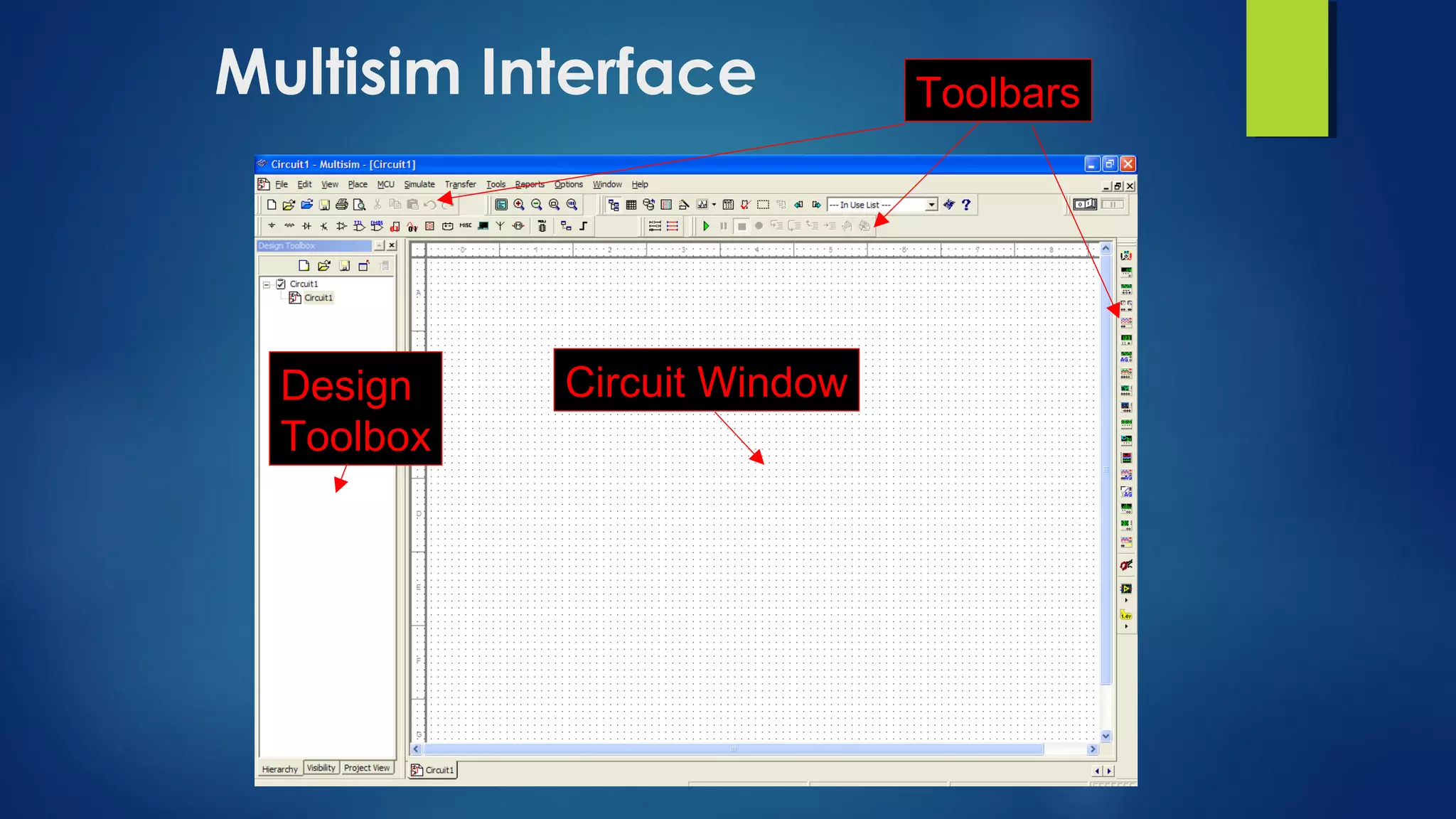
Multisim Interface
Circuit WindowDesign
Toolbox
Toolbars
Toolbars
• Multisim has movable toolbars located at the top and
side of the screen.
• The following slides identify the most commonly used
toolbars.
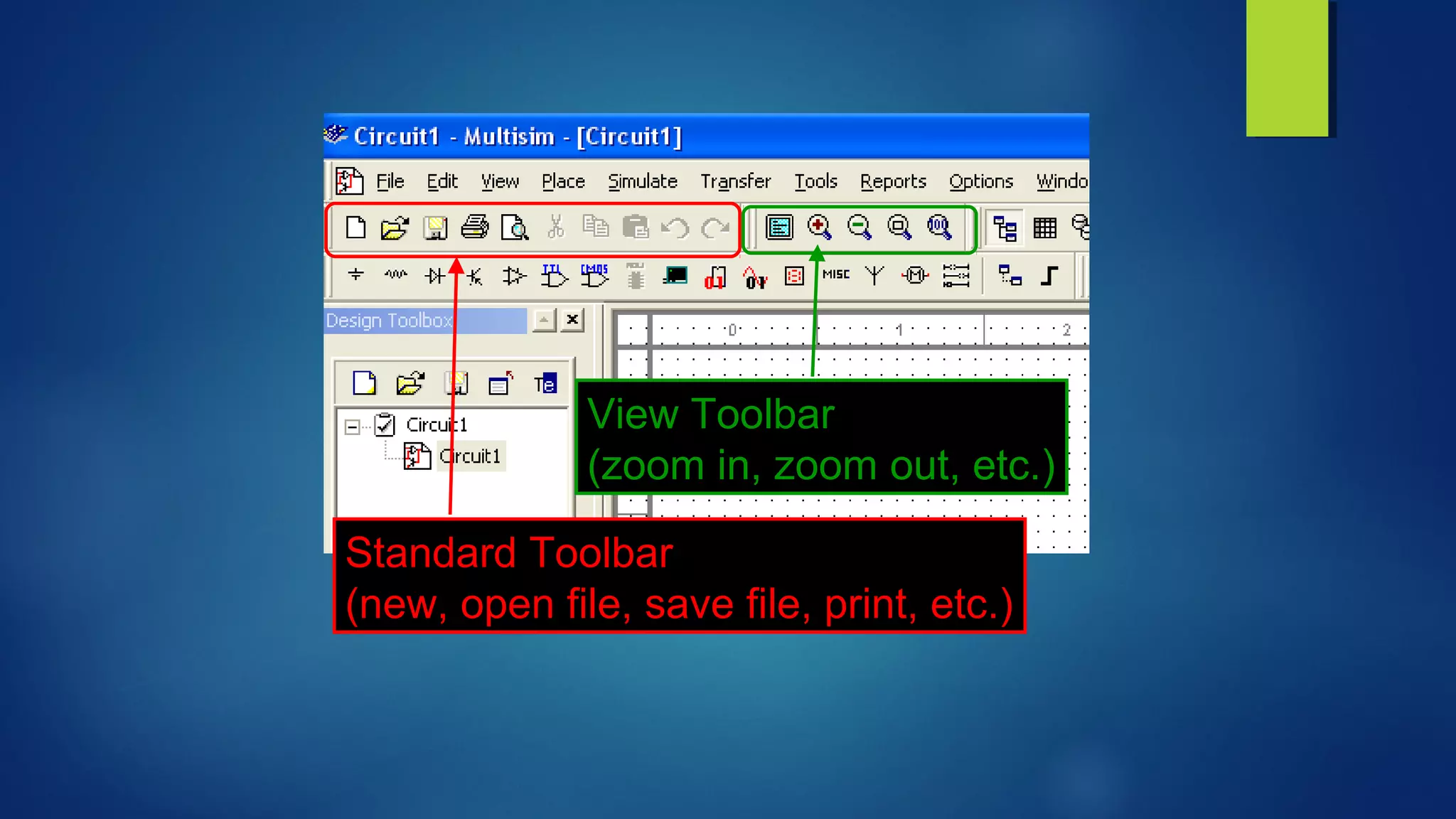
Standard Toolbar
(new, open file, save file, print, etc.)
View Toolbar
(zoom in, zoom out, etc.)
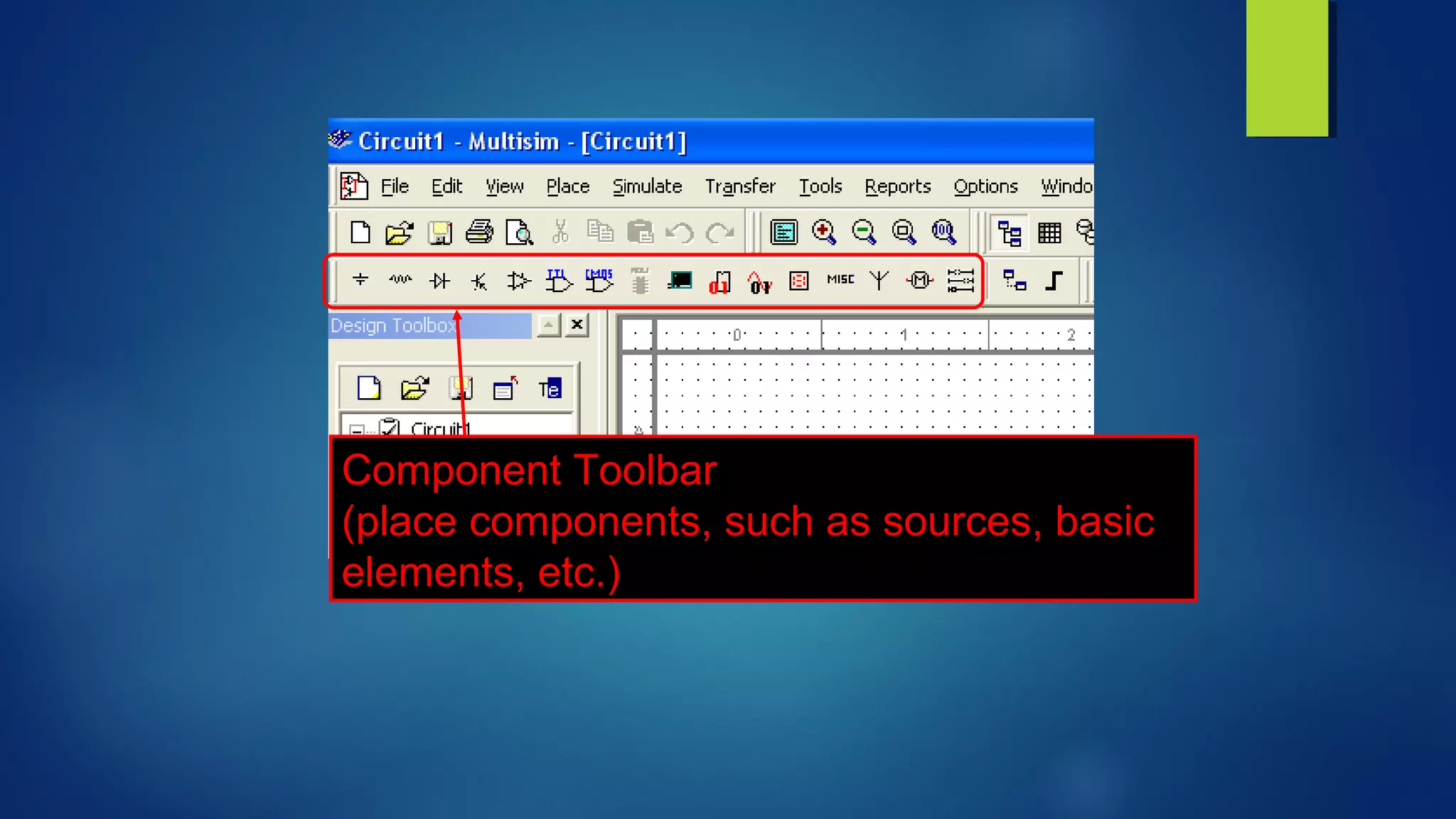
Component Toolbar
(place components, such as sources, basic
elements, etc.)
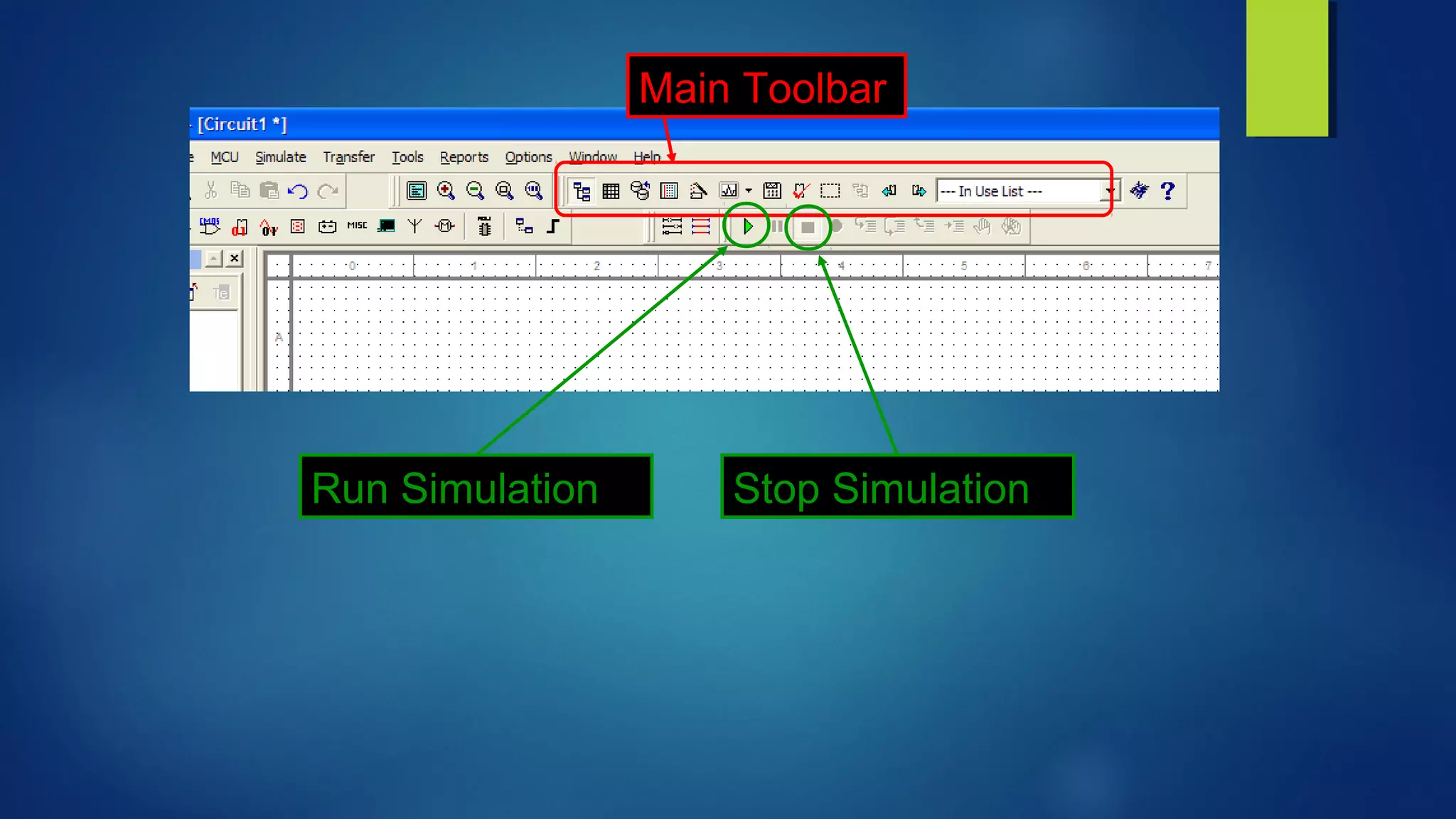
Main Toolbar
Run Simulation Stop Simulation
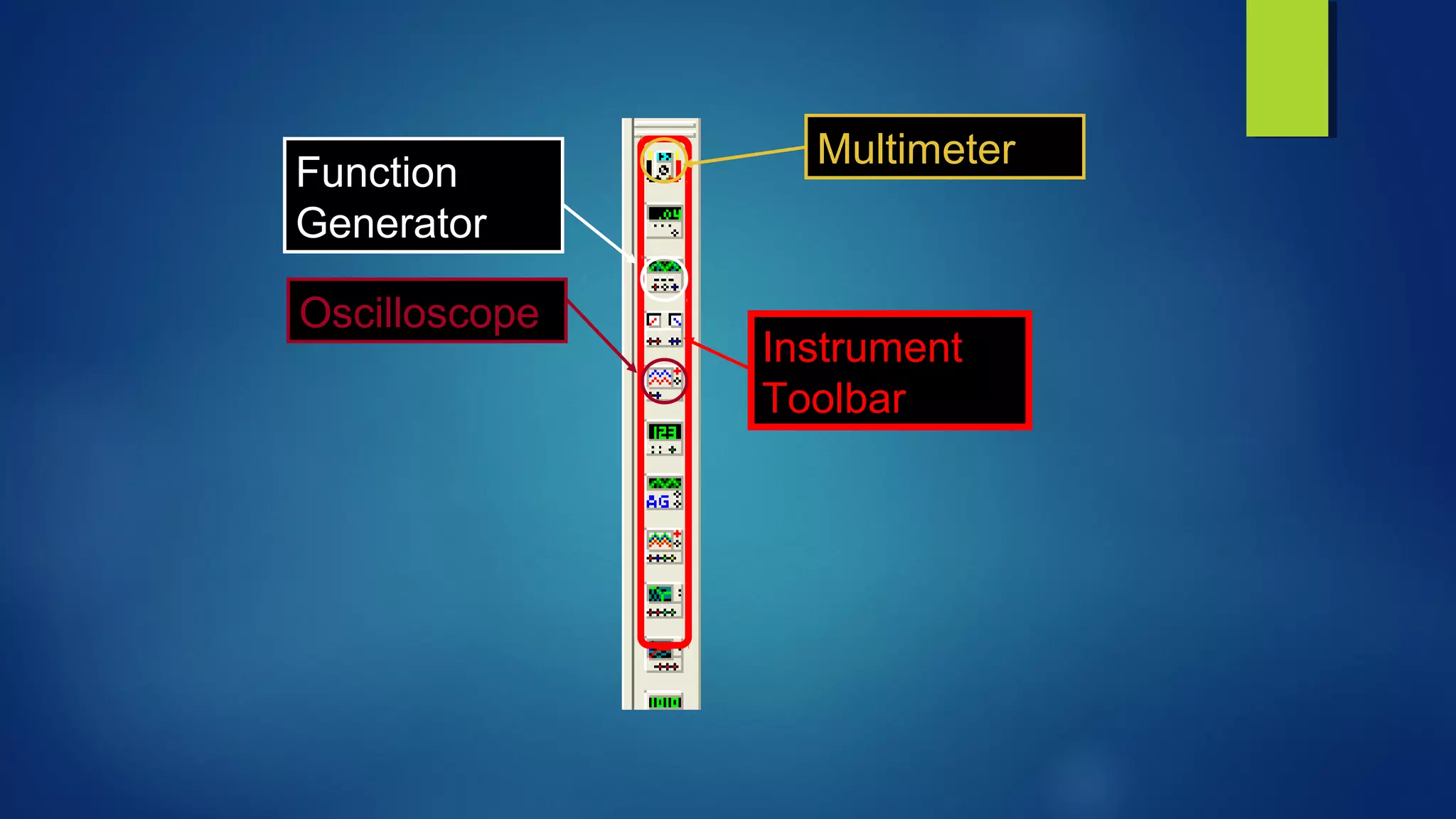
Instrument
Toolbar
Function
Generator
Oscilloscope
Multimeter
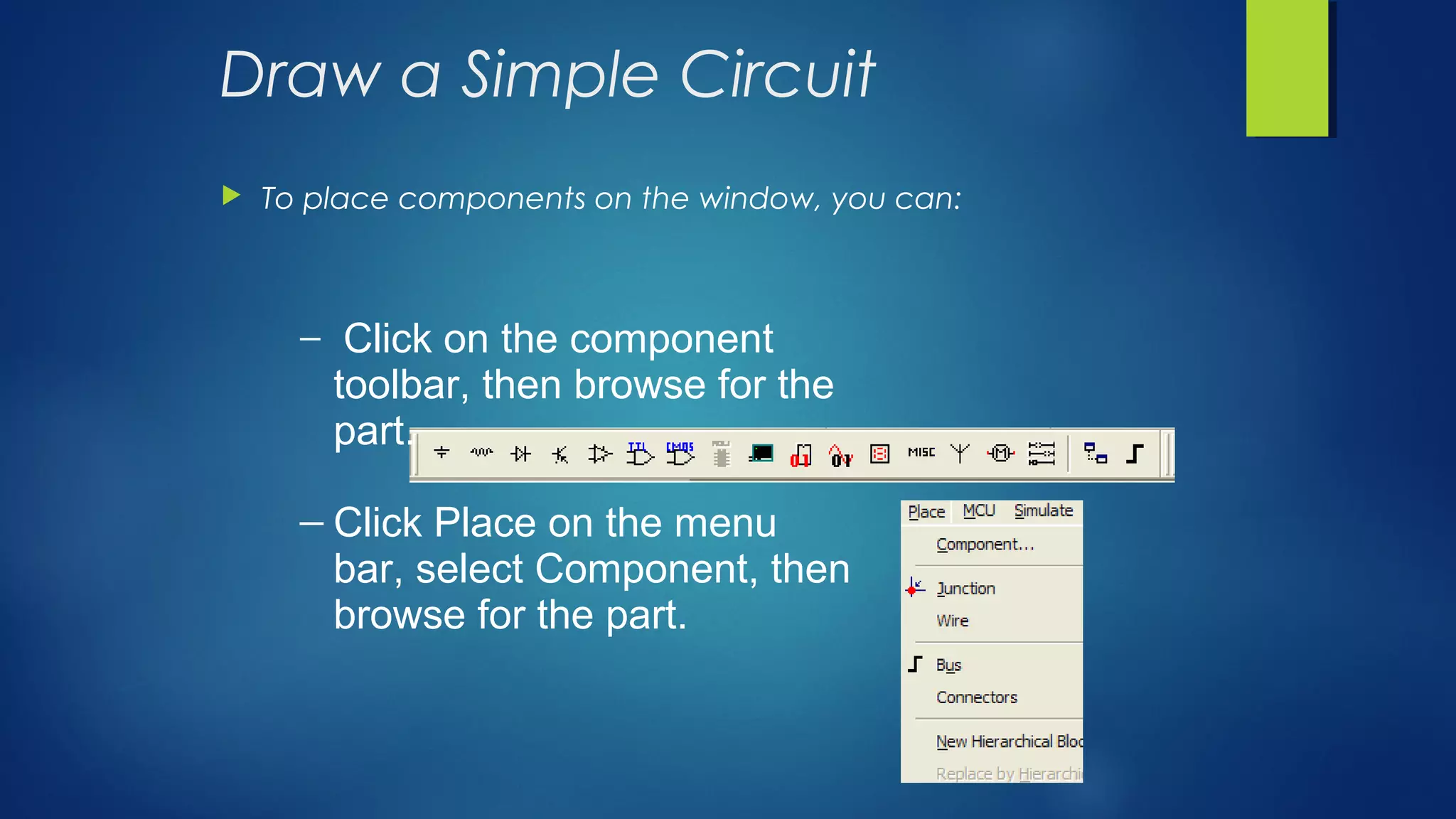
Draw a Simple Circuit
 To place components on the window, you can:
─ Click on the component
toolbar, then browse for the
part.
─ Click Place on the menu
bar, select Component, then
browse for the part.
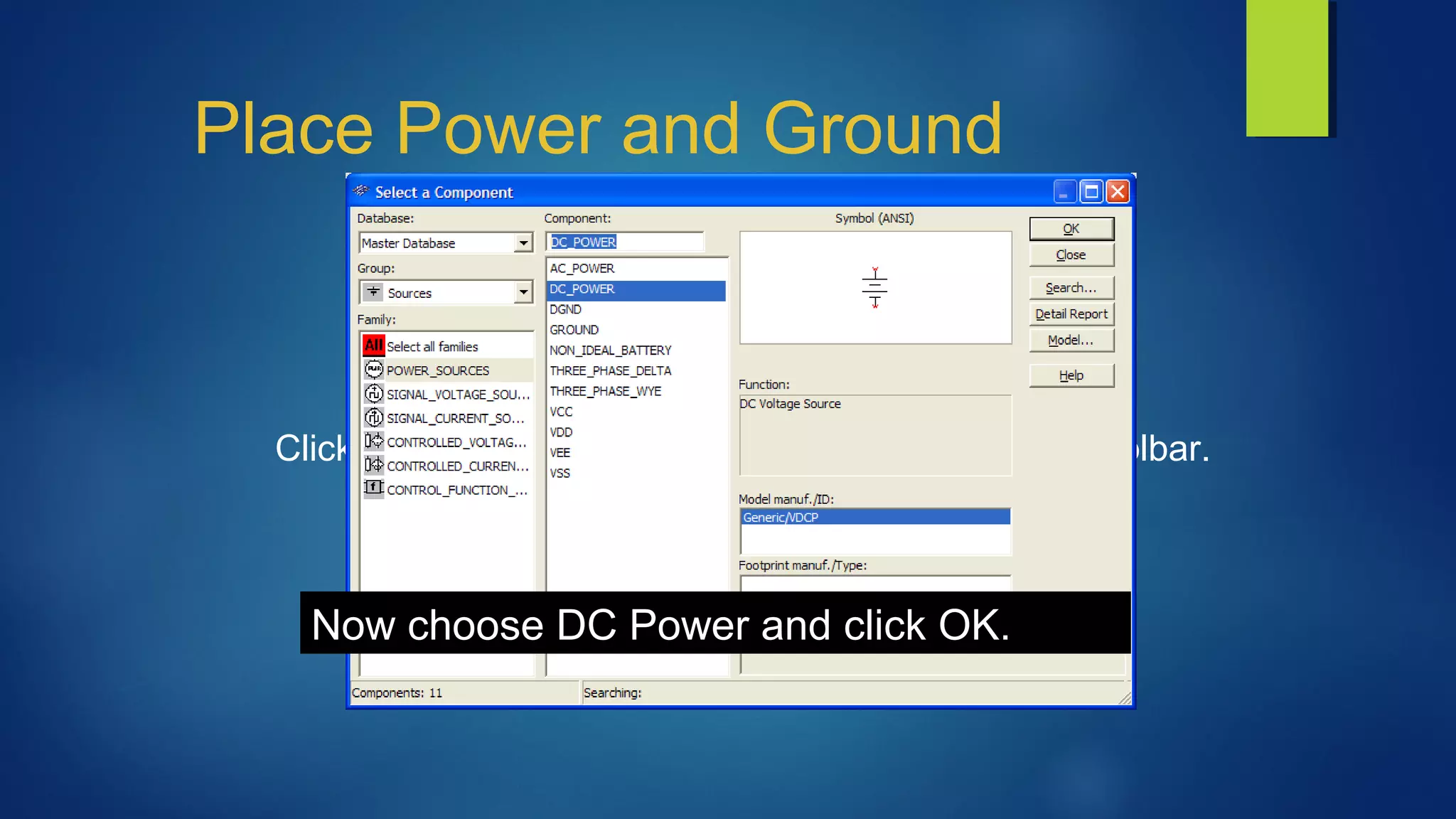
Place Power and Ground
Click the Place Source button on the Components toolbar.
Now choose DC Power and click OK.
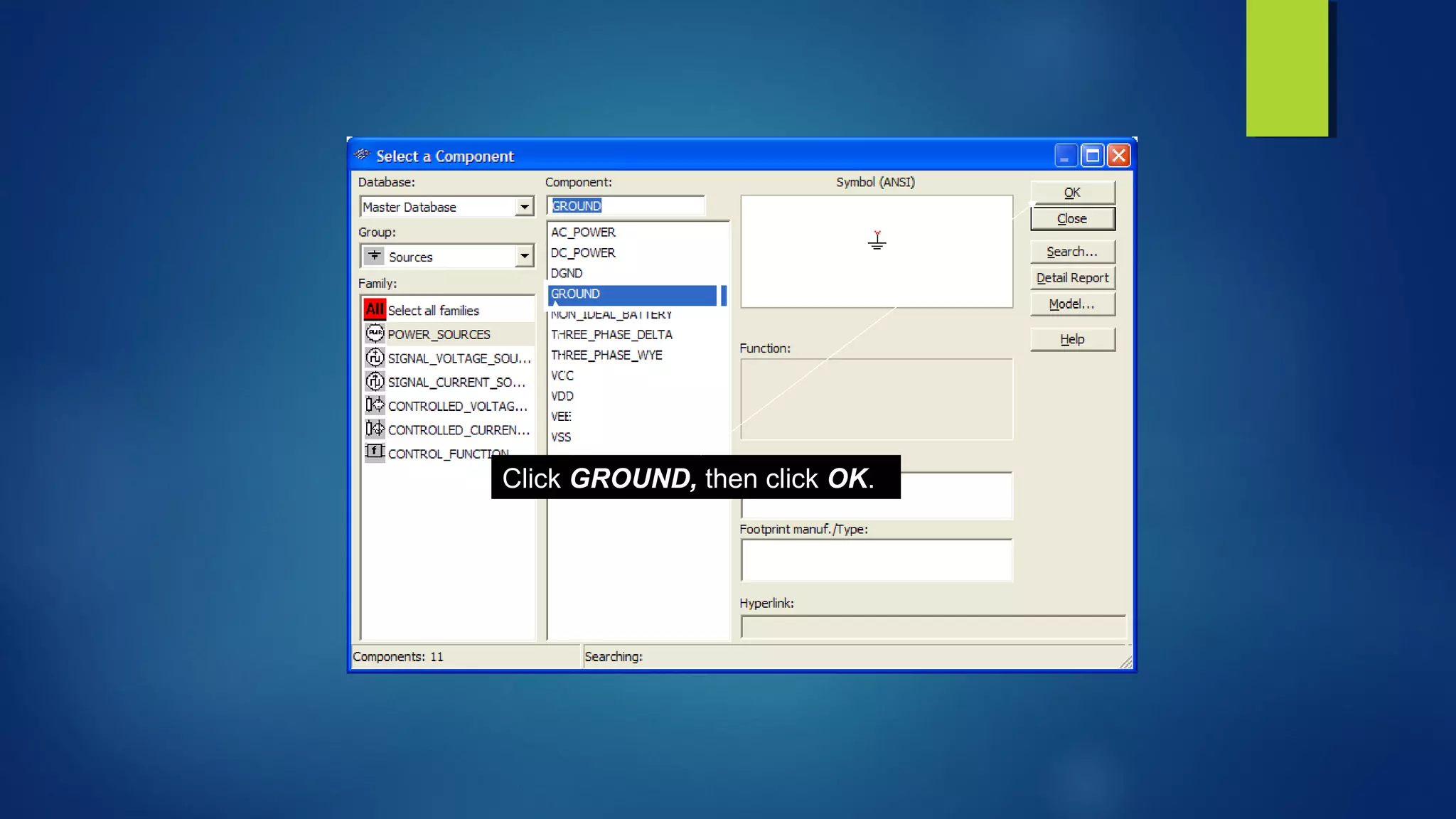
Click GROUND, then click OK.
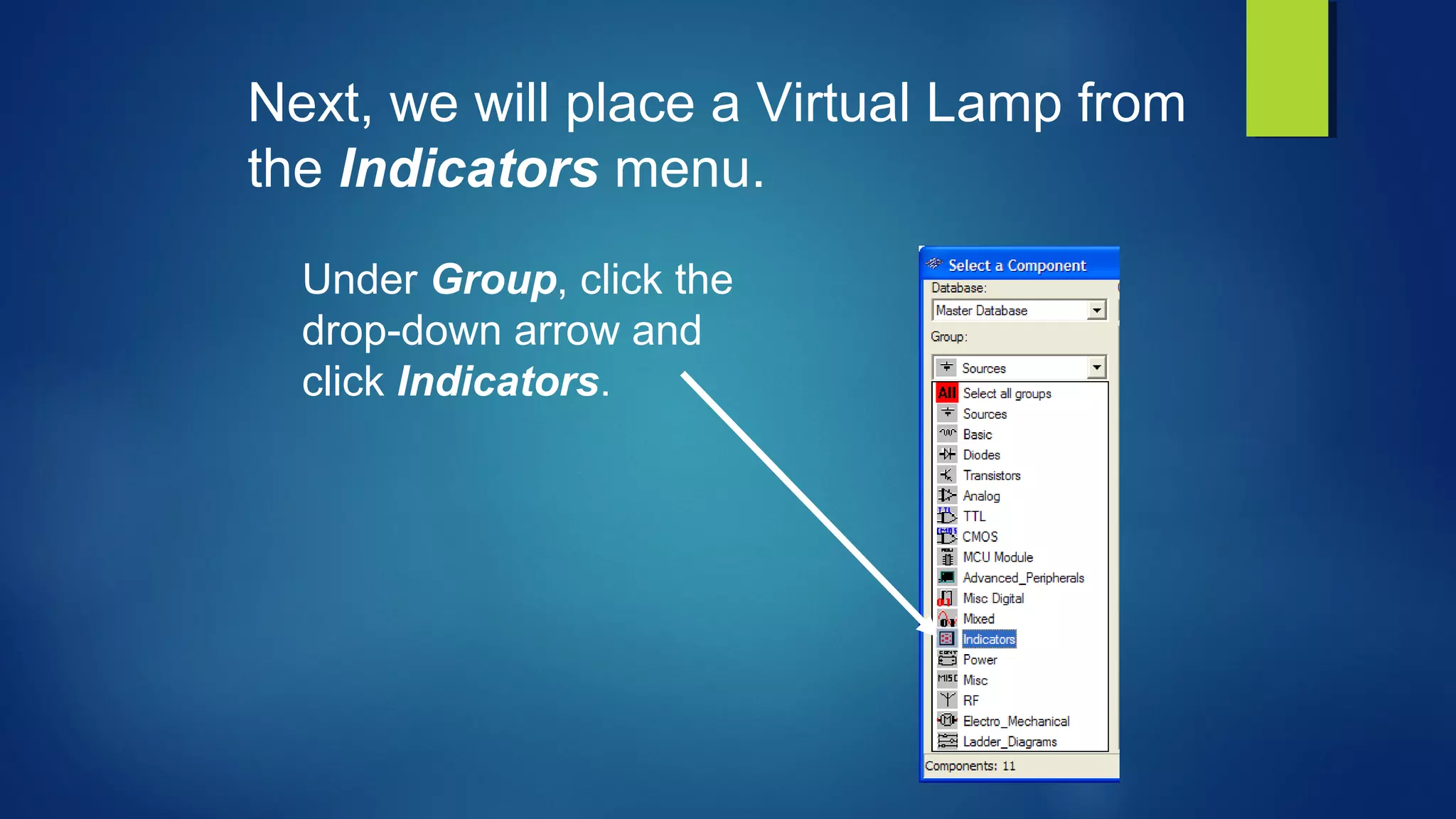
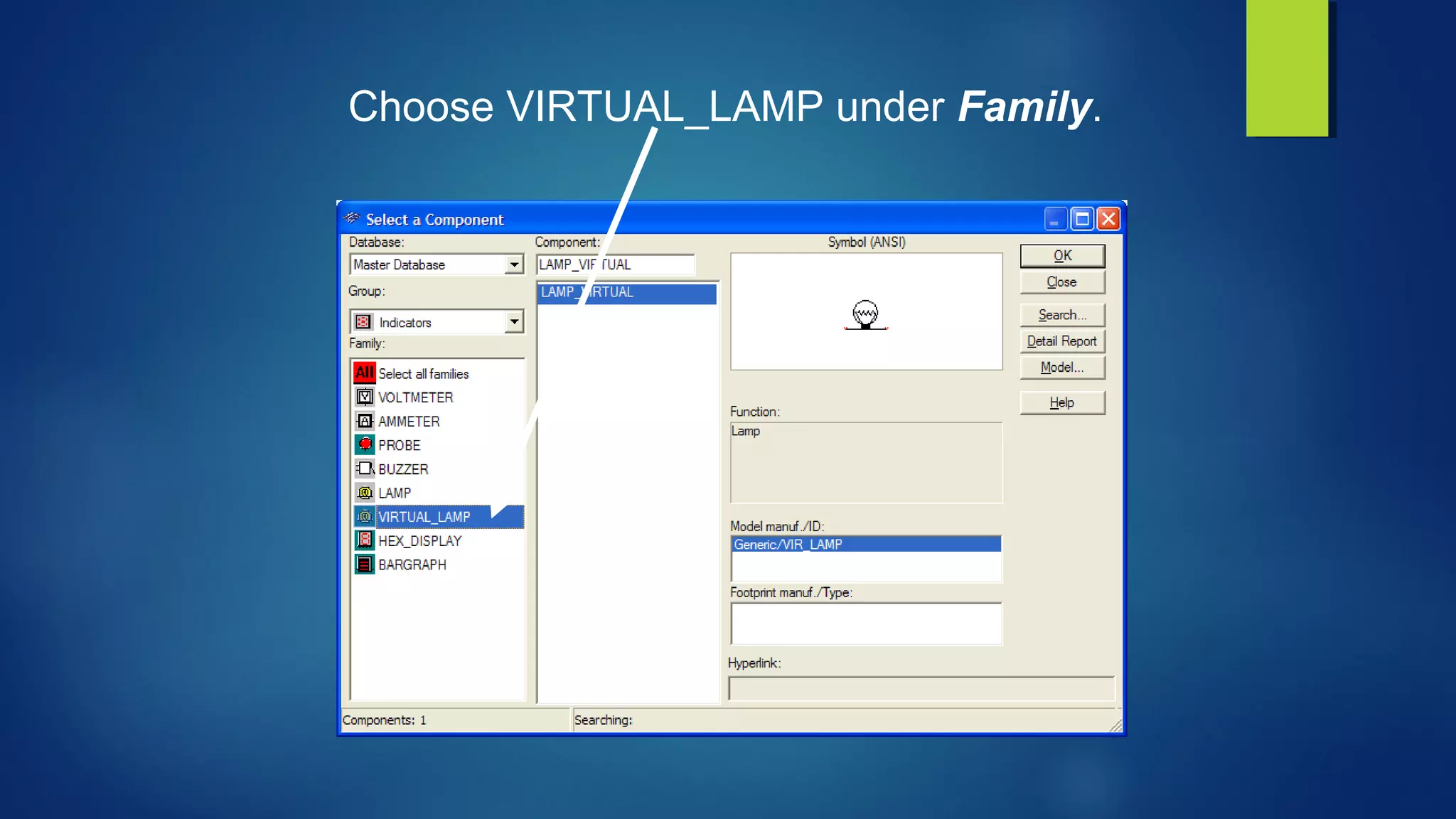
Under Group, click the
drop-down arrow and
click Indicators.
Next, we will place a Virtual Lamp from
the Indicators menu.
Choose VIRTUAL_LAMP under Family.
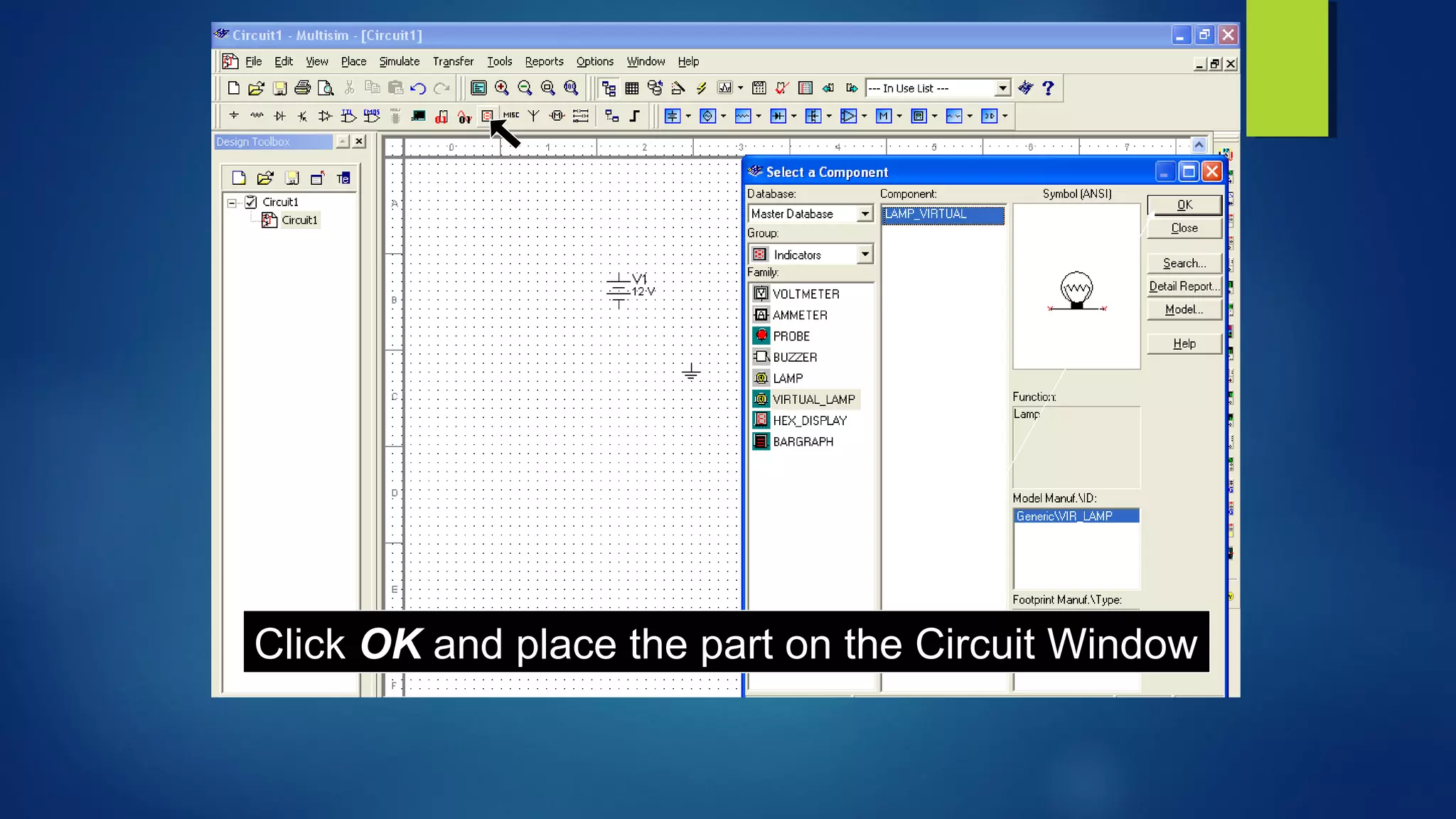
Click OK and place the part on the Circuit Window
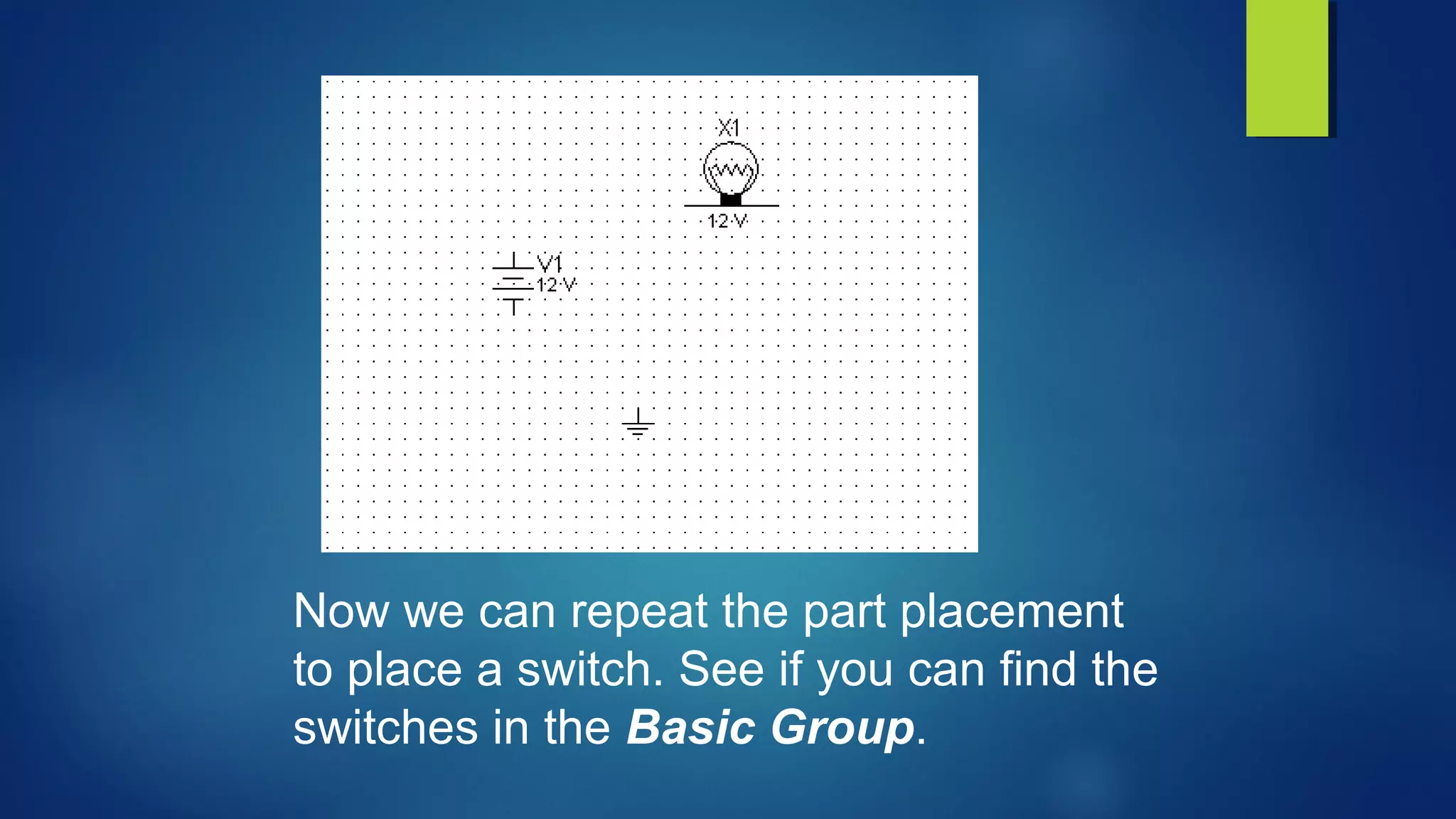
Now we can repeat the part placement
to place a switch. See if you can find the
switches in the Basic Group.
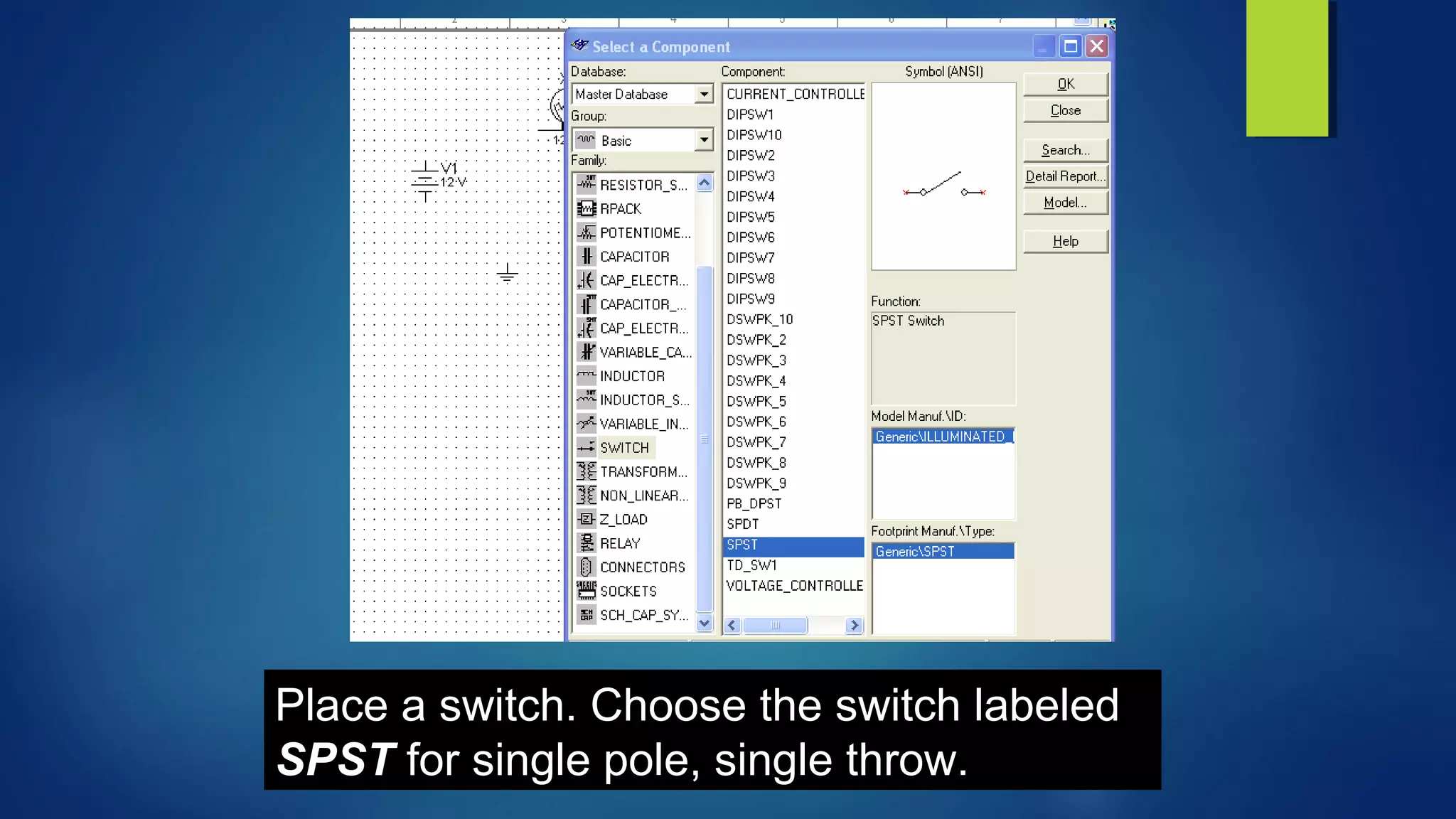
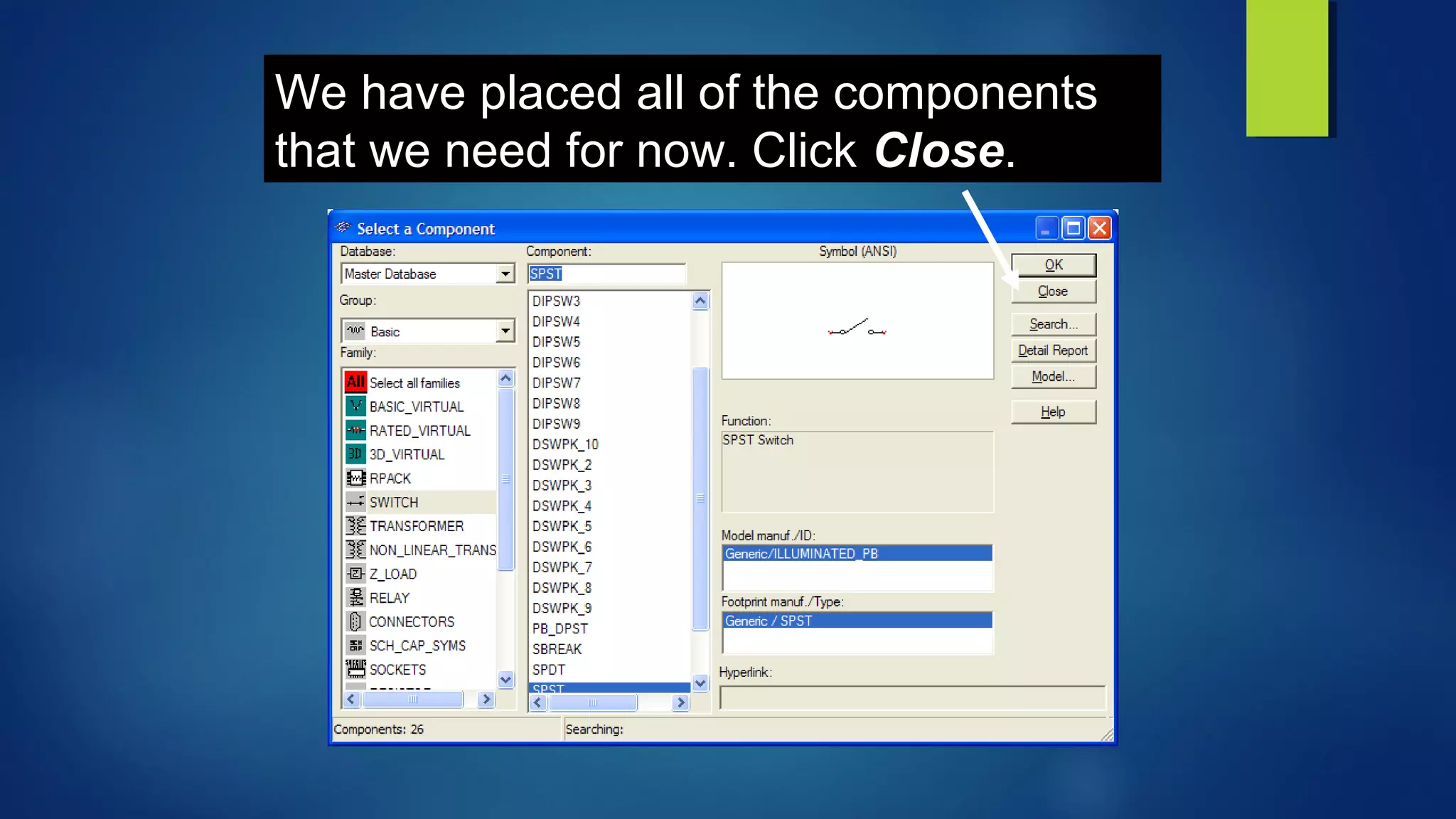
Place a switch. Choose the switch labeled
SPST for single pole, single throw.
We have placed all of the components
that we need for now. Click Close.
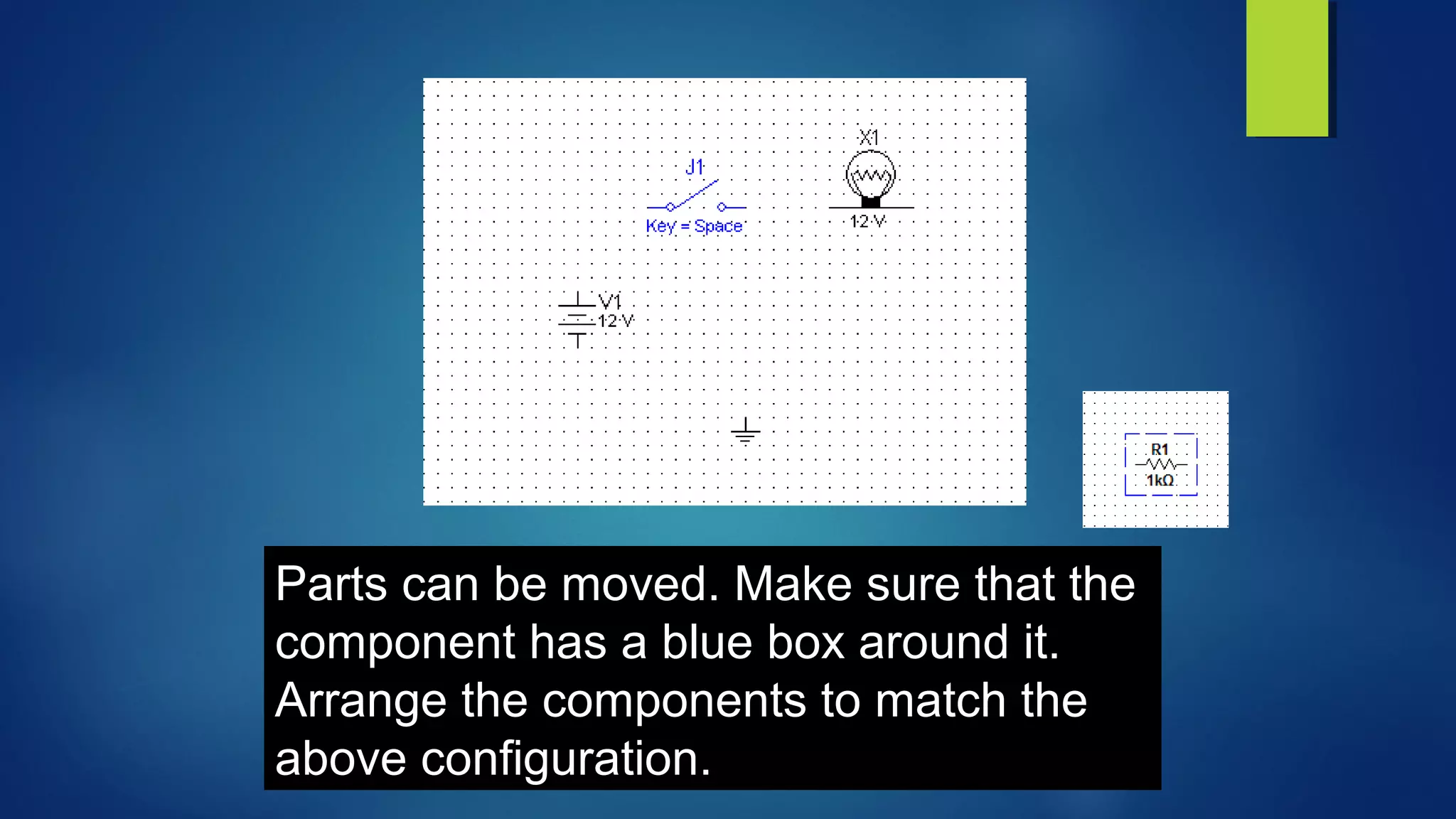
Parts can be moved. Make sure that the
component has a blue box around it.
Arrange the components to match the
above configuration.
Wiring
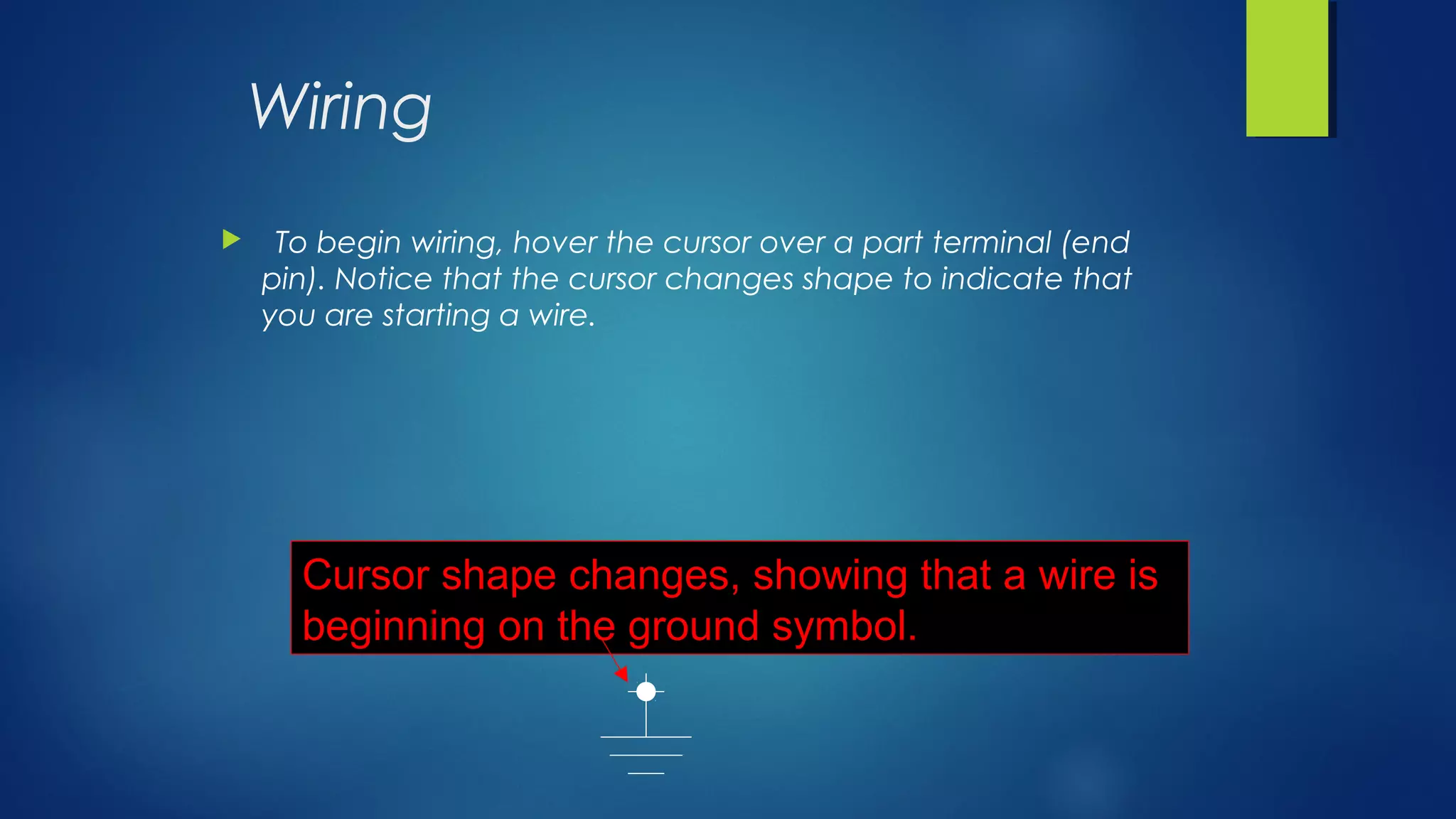
 To begin wiring, hover the cursor over a part terminal (end
pin). Notice that the cursor changes shape to indicate that
you are starting a wire.
Cursor shape changes, showing that a wire is
beginning on the ground symbol.
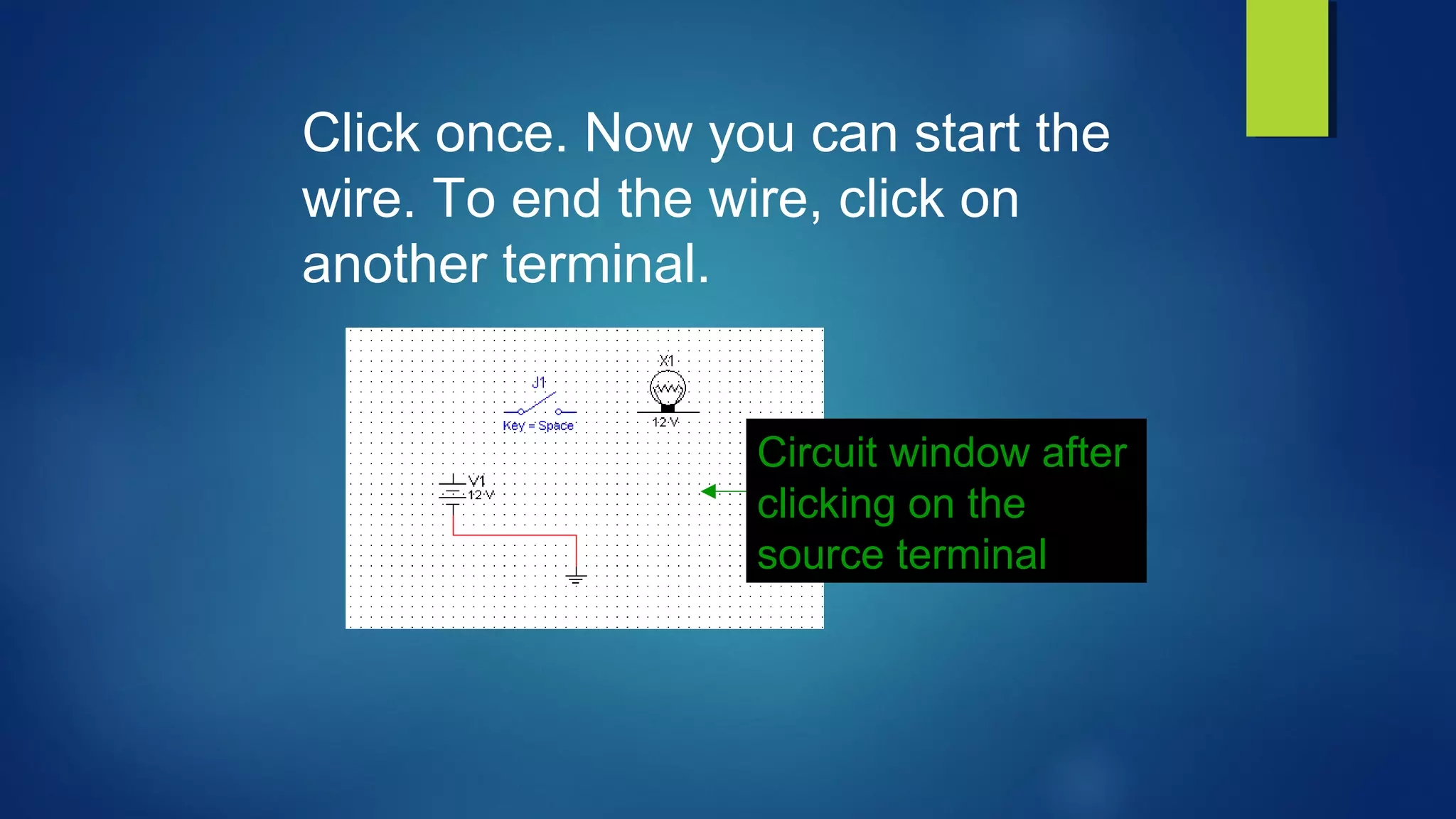
Circuit window after
clicking on the
source terminal
Click once. Now you can start the
wire. To end the wire, click on
another terminal.
Continue Wiring
• Click on the top of the source. Move the cursor to the left
switch terminal and click again. This should draw a wire
connecting the parts.
• Continue wiring the circuit until you have a complete circuit.
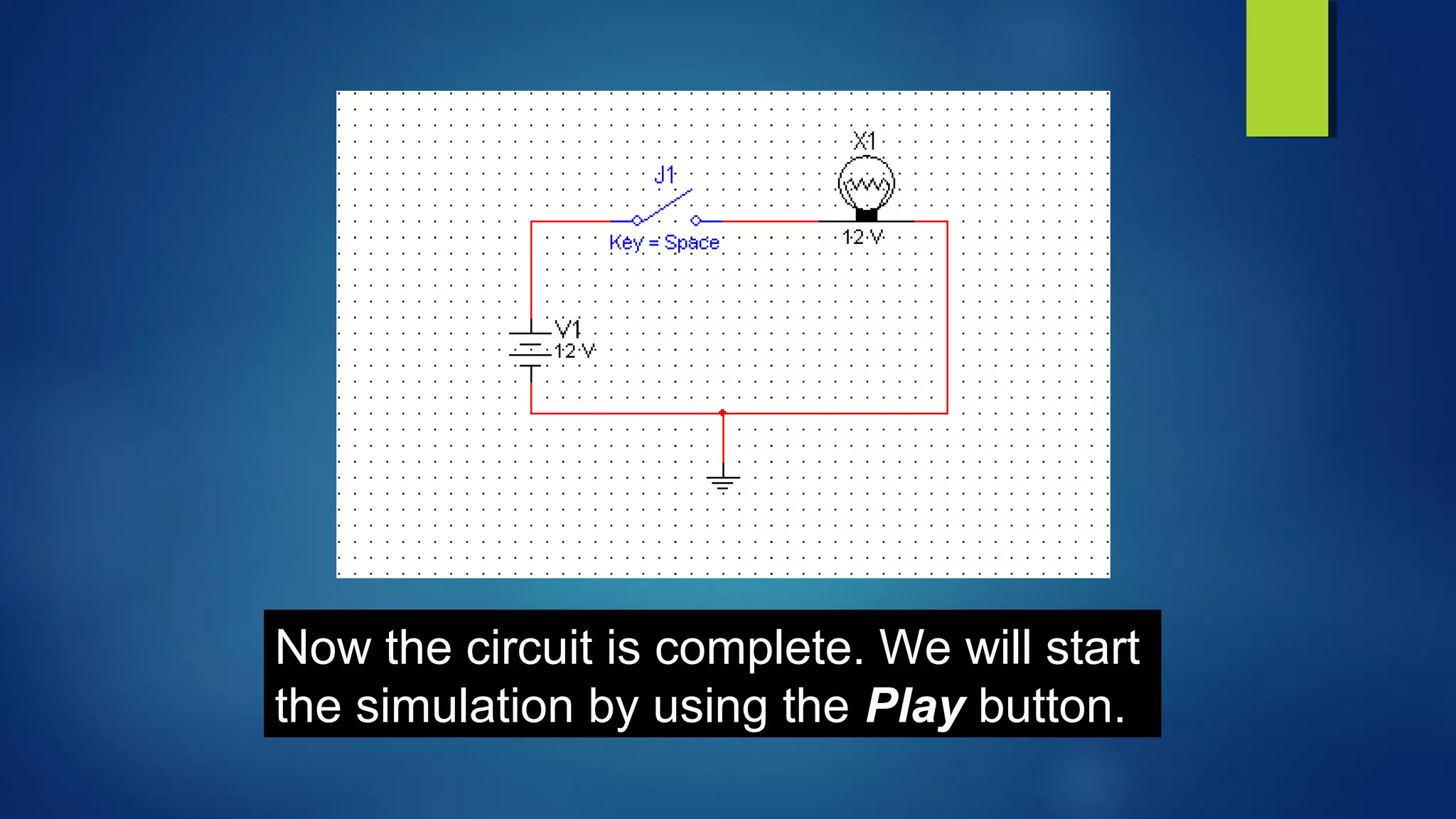
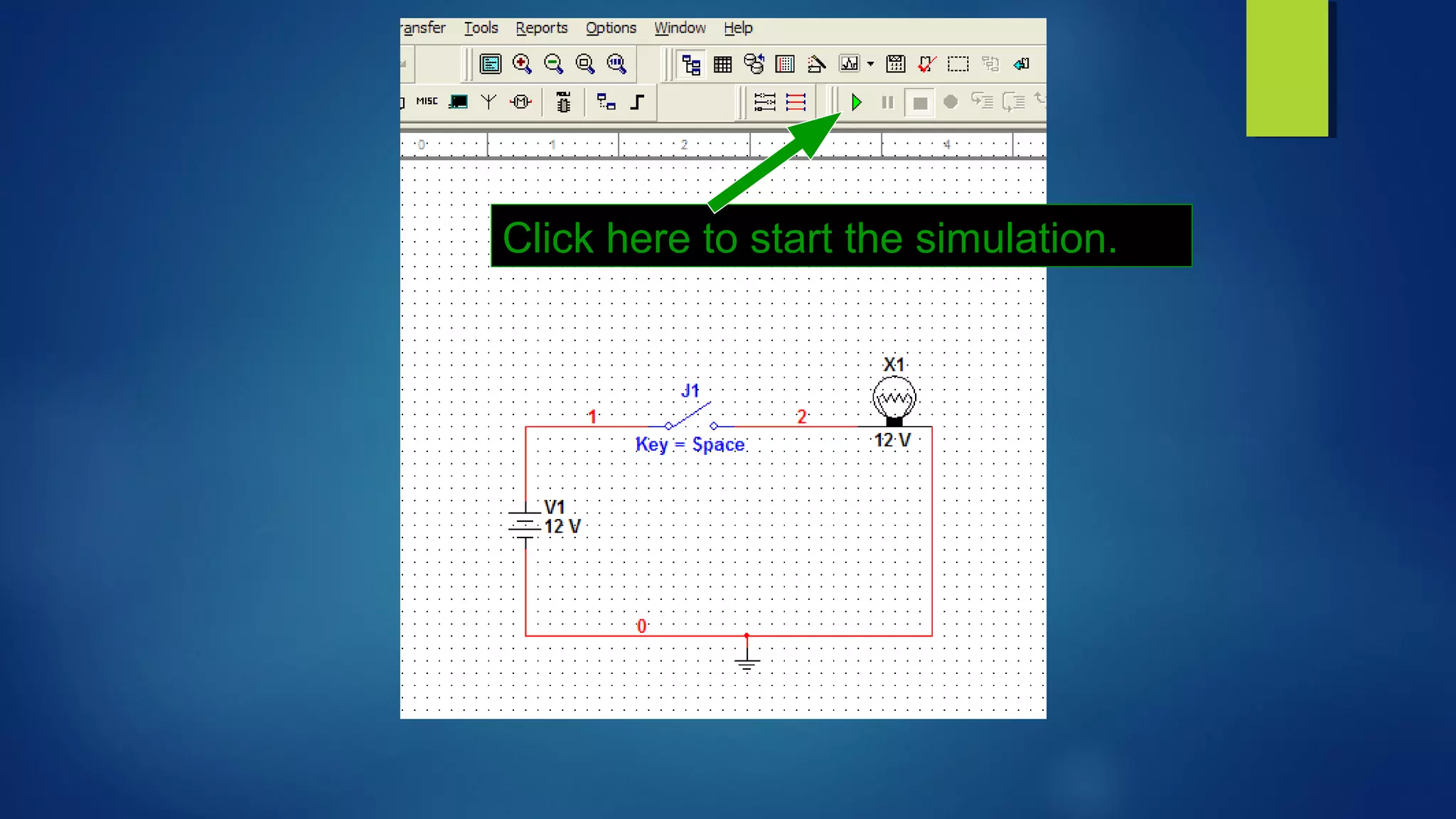
Now the circuit is complete. We will start
the simulation by using the Play button.
Click here to start the simulation.
Running the Simulation
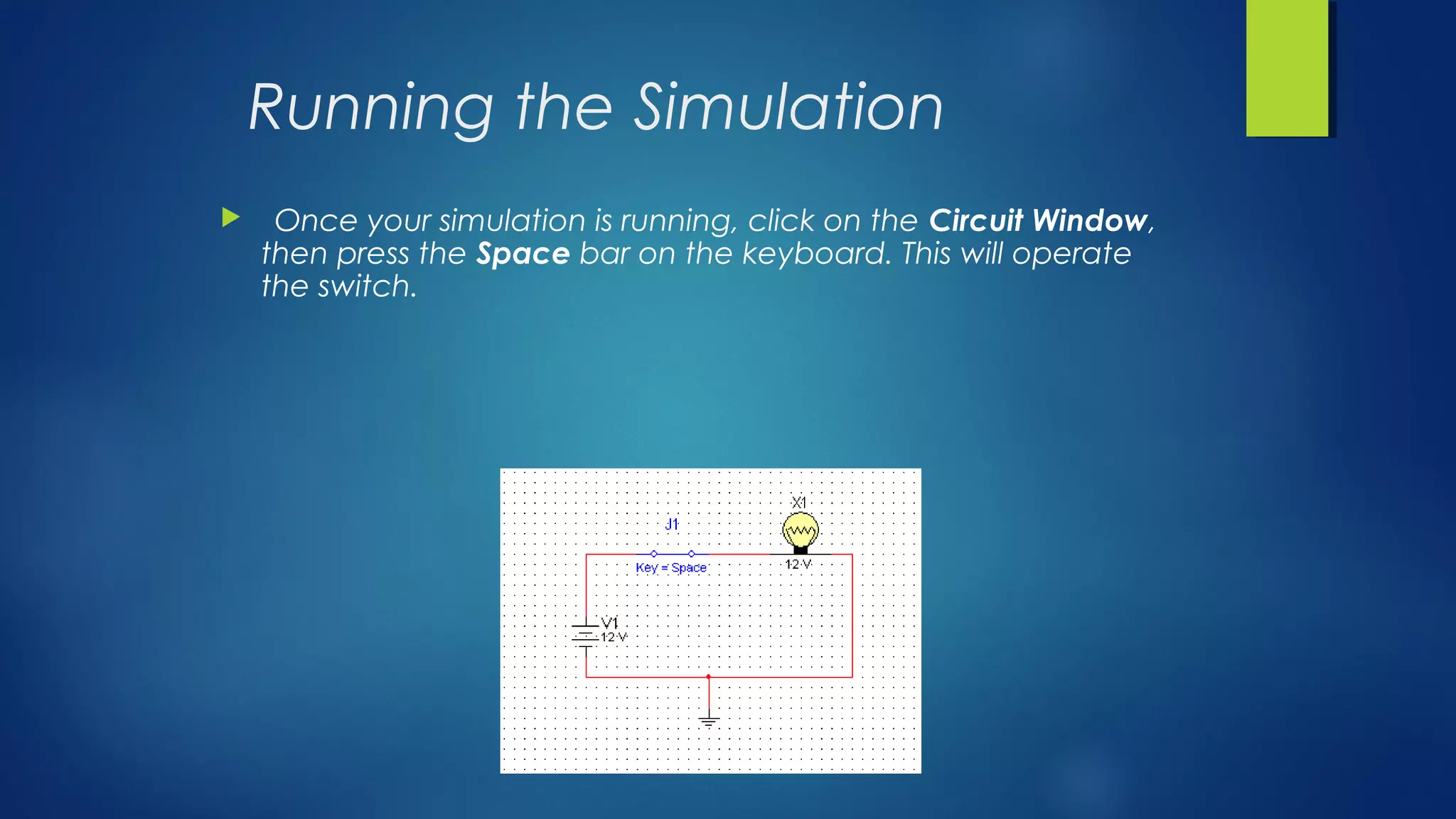
 Once your simulation is running, click on the Circuit Window,
then press the Space bar on the keyboard. This will operate
the switch.
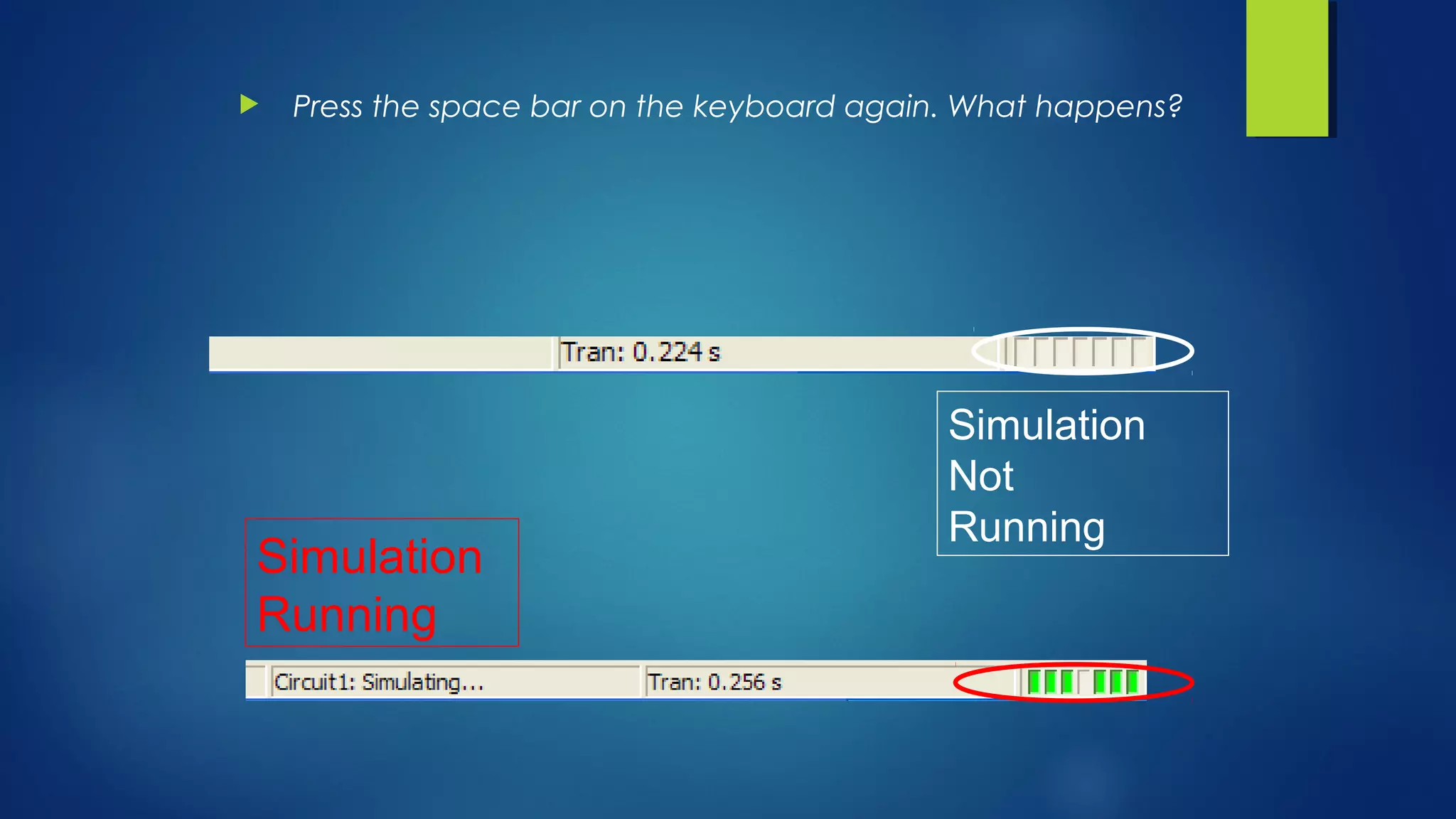
 Press the space bar on the keyboard again. What happens?
Simulation
Running
Simulation
Not
Running
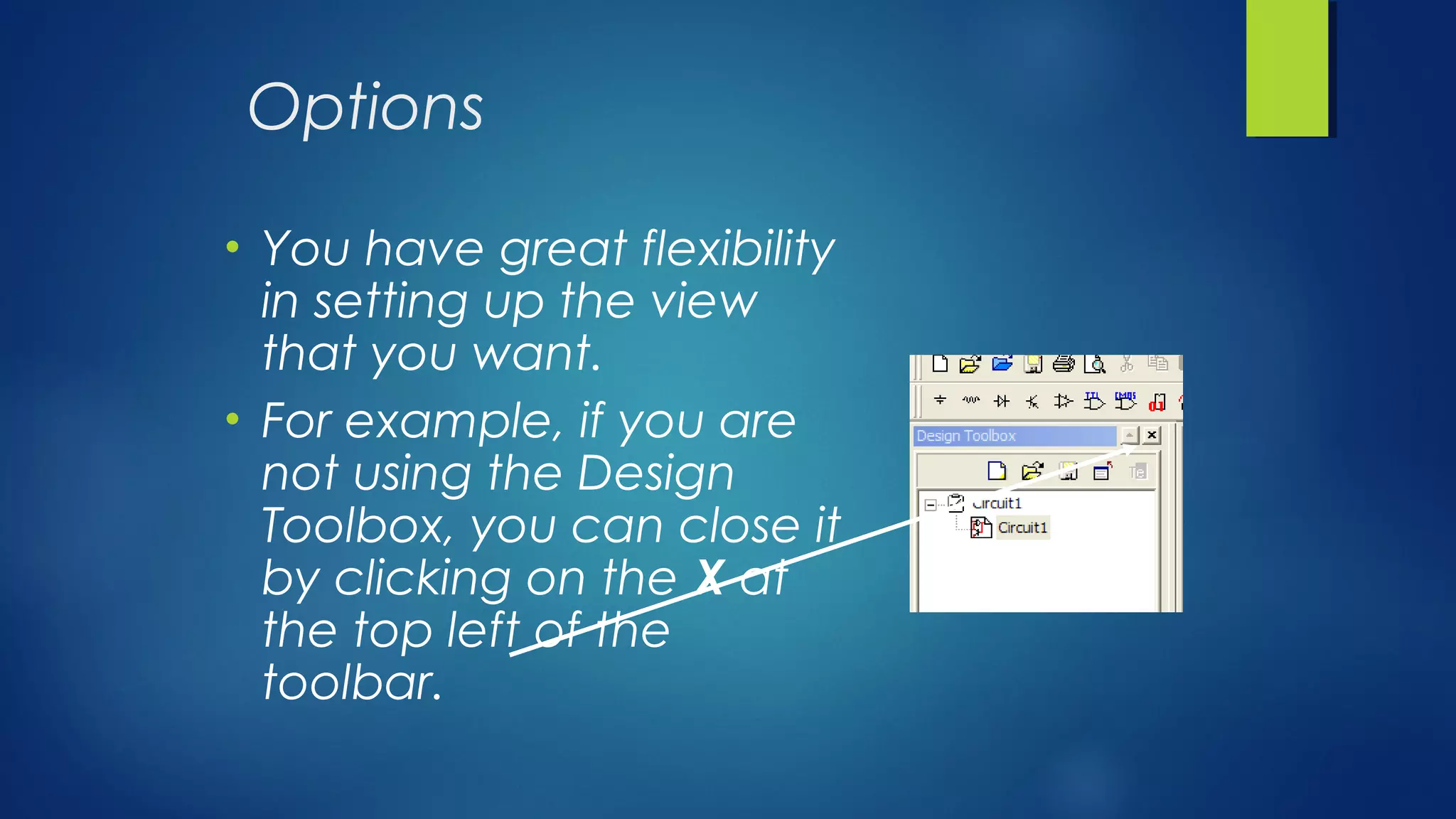
Options
• You have great flexibility
in setting up the view
that you want.
• For example, if you are
not using the Design
Toolbox, you can close it
by clicking on the X at
the top left of the
toolbar.
Virtual vs. Real Components
• Real components have a specific value that cannot be
changed and a footprint used for circuit board layout.
• Virtual components are for simulation only.
• For our purposes, there is almost no difference between the
component types.
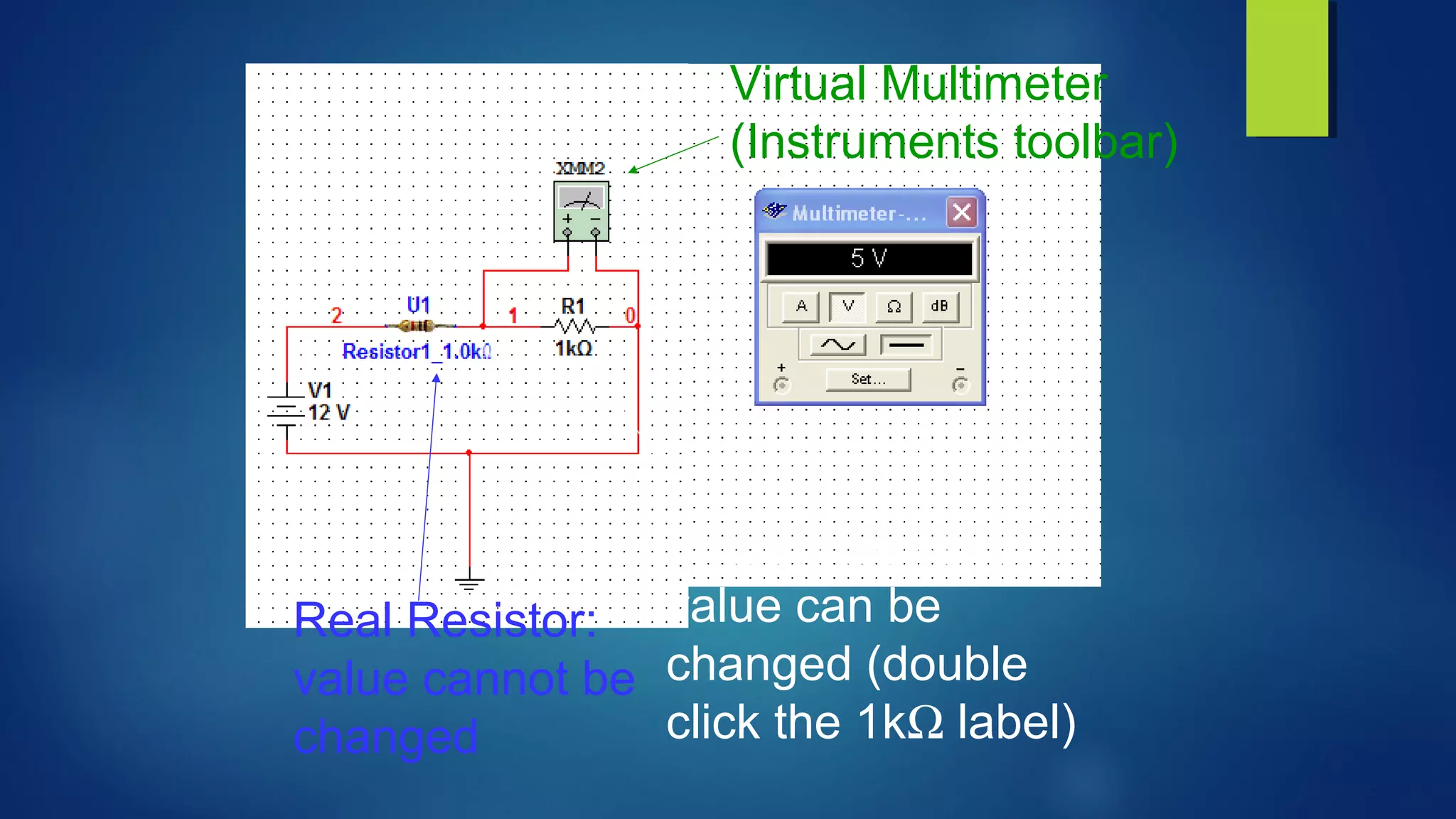
Real Resistor:
value cannot be
changed
Virtual Resistor:
value can be
changed (double
click the 1kΩ label)
Virtual Multimeter
(Instruments toolbar)
Wiring Hints
 To start a wire with no component terminal nearby:
 Double-click anywhere in the Circuit window to start the wiring action.
 Double-click anywhere to end the wiring action.
 From the menu bar, choose Place, then Junction, to place a junction.
Start the wire at this point.
Wiring Hints
 Single-click while wiring to place a corner.
 Right-click while wiring to delete the wire.
 Multisim uses an automatic wire router. This can cause trouble if
two terminals are very close to each other.
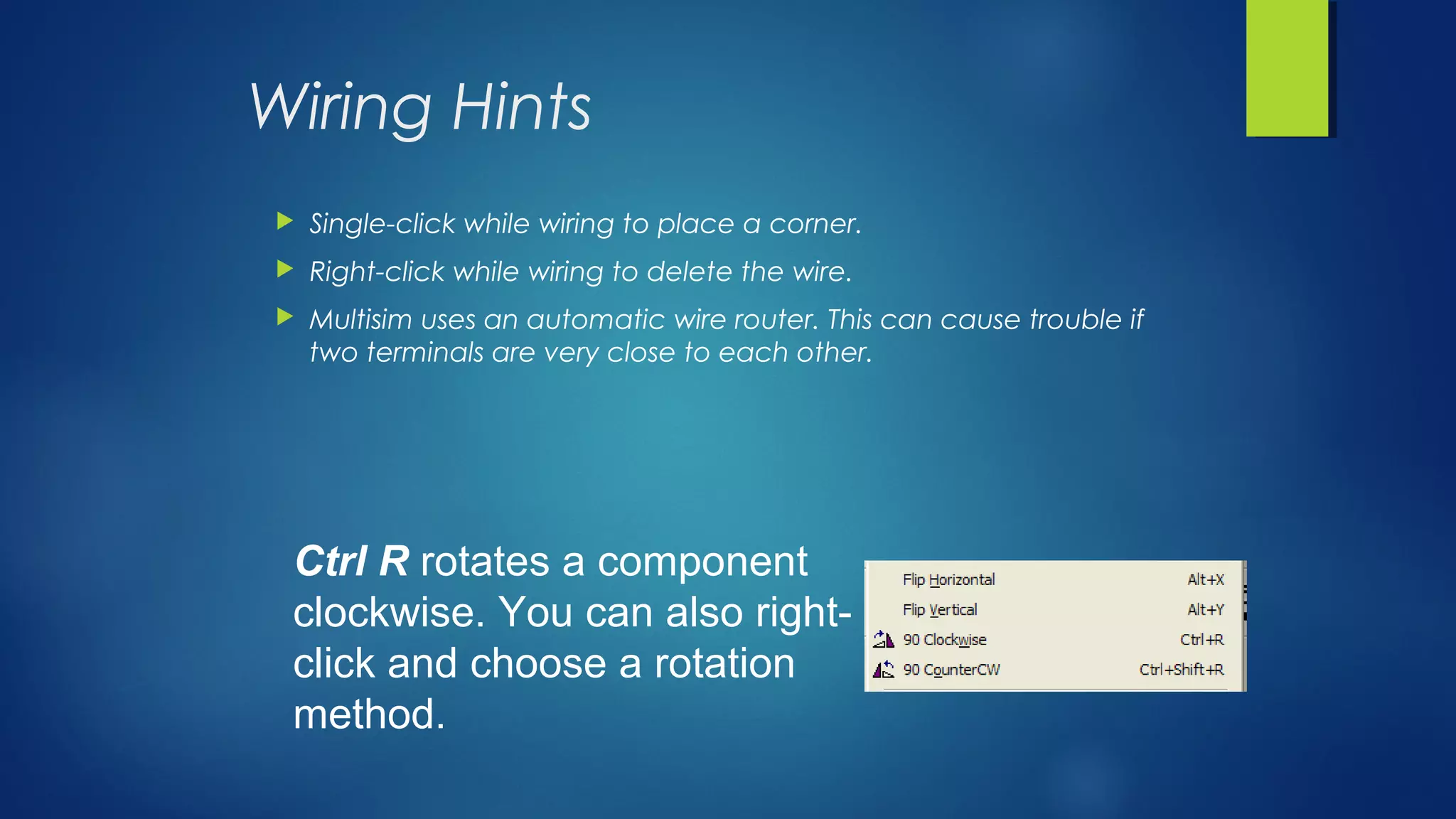
Ctrl R rotates a component
clockwise. You can also right-
click and choose a rotation
method.
Resistor R2 and
R3 terminals are
too close.
Circuit layout is
easier to follow
with components
separated.

Multisim Software Programming Training Phagwara Jalandhar

  • 1.
    MULTISIM TRANING IN PHAGWARA E2MATRIX E2MATRIX Contact: +91 9041262727, 9779363902 web: www.e2matrix.com email : support@e2matrix.com
  • 2.
    Multisim Tutorial An Introductionto Multisim Electronics Workbench
  • 3.
    An Introduction toMultisim Electronics Workbench  Simulation is a mathematical way of emulating(Emulation refers to the ability of a computer program in an electronic device to emulate (imitate) another program or device) the behavior of a circuit. With simulation,  You can determine a circuit’s performance without physically constructing the circuit or using actual test instruments. Multisim is a complete system design tool that offers a very large component database, schematic entry, full analog/digital SPICE simulation, etc. It also offers a single easy to use graphical interface for all design needs.
  • 4.
    Multisim Interface Tutorial This tutorial will introduce the Multisim interface.  Assumptions:  You have Multisim version 11.0 installed on your computer.  You can start the program successfully.  An instruction to click means to left click with the mouse or other pointing device.  If you are to right-click or double-click, you will be instructed to do so.
  • 5.
  • 6.
    Toolbars • Multisim hasmovable toolbars located at the top and side of the screen. • The following slides identify the most commonly used toolbars.
  • 7.
    Standard Toolbar (new, openfile, save file, print, etc.) View Toolbar (zoom in, zoom out, etc.)
  • 8.
    Component Toolbar (place components,such as sources, basic elements, etc.)
  • 9.
  • 10.
  • 11.
    Draw a SimpleCircuit  To place components on the window, you can: ─ Click on the component toolbar, then browse for the part. ─ Click Place on the menu bar, select Component, then browse for the part.
  • 12.
    Place Power andGround Click the Place Source button on the Components toolbar. Now choose DC Power and click OK.
  • 13.
  • 14.
    Under Group, clickthe drop-down arrow and click Indicators. Next, we will place a Virtual Lamp from the Indicators menu.
  • 15.
  • 16.
    Click OK andplace the part on the Circuit Window
  • 17.
    Now we canrepeat the part placement to place a switch. See if you can find the switches in the Basic Group.
  • 18.
    Place a switch.Choose the switch labeled SPST for single pole, single throw.
  • 19.
    We have placedall of the components that we need for now. Click Close.
  • 20.
    Parts can bemoved. Make sure that the component has a blue box around it. Arrange the components to match the above configuration.
  • 21.
    Wiring  To beginwiring, hover the cursor over a part terminal (end pin). Notice that the cursor changes shape to indicate that you are starting a wire. Cursor shape changes, showing that a wire is beginning on the ground symbol.
  • 22.
    Circuit window after clickingon the source terminal Click once. Now you can start the wire. To end the wire, click on another terminal.
  • 23.
    Continue Wiring • Clickon the top of the source. Move the cursor to the left switch terminal and click again. This should draw a wire connecting the parts. • Continue wiring the circuit until you have a complete circuit.
  • 24.
    Now the circuitis complete. We will start the simulation by using the Play button.
  • 25.
    Click here tostart the simulation.
  • 26.
    Running the Simulation Once your simulation is running, click on the Circuit Window, then press the Space bar on the keyboard. This will operate the switch.
  • 27.
     Press thespace bar on the keyboard again. What happens? Simulation Running Simulation Not Running
  • 28.
    Options • You havegreat flexibility in setting up the view that you want. • For example, if you are not using the Design Toolbox, you can close it by clicking on the X at the top left of the toolbar.
  • 29.
    Virtual vs. RealComponents • Real components have a specific value that cannot be changed and a footprint used for circuit board layout. • Virtual components are for simulation only. • For our purposes, there is almost no difference between the component types.
  • 30.
    Real Resistor: value cannotbe changed Virtual Resistor: value can be changed (double click the 1kΩ label) Virtual Multimeter (Instruments toolbar)
  • 31.
    Wiring Hints  Tostart a wire with no component terminal nearby:  Double-click anywhere in the Circuit window to start the wiring action.  Double-click anywhere to end the wiring action.  From the menu bar, choose Place, then Junction, to place a junction. Start the wire at this point.
  • 32.
    Wiring Hints  Single-clickwhile wiring to place a corner.  Right-click while wiring to delete the wire.  Multisim uses an automatic wire router. This can cause trouble if two terminals are very close to each other. Ctrl R rotates a component clockwise. You can also right- click and choose a rotation method.
  • 33.
    Resistor R2 and R3terminals are too close. Circuit layout is easier to follow with components separated.

Editor's Notes

  • #5 If you start Multisim and nothing happens for a minute or two, just wait. On some computers, it may take a while to start. If we mean to left click once with the mouse, we will just say click. If we mean double-click or right click, we will spell it out This tutorial is specific to version 10, but recent versions are very similar at the introductory level
  • #6 There are many options on how to set up the windows. This just shows one that will work. Make sure the Circuit Window is fairly large, since that's where you draw your circuit.
  • #7 If you are missing a toolbar, go to the menu (at the top) and select View, then Toolbars, and a dialog box will pop up so you can choose the one to show.
  • #8 Locate the standard toolbar and the view toolbar.
  • #9 The Component Toolbar is what you use to place components or circuit elements.
  • #10 On the Main toolbar, notice that the Play button is active but the Stop and Pause buttons are not. When the simulation is running, the Stop and Pause will become active.
  • #11 The instrument toolbar is usually on the right. The toolbars can be undocked and moved around anywhere that you like, but for now, leave them where they are.
  • #12 It is usually better to place most of the components on the Circuit Window, then wire the terminals up later. Components can be selected from the toolbar (as shown) or from the Place Menu from the menu bar at the top.
  • #13 First we need a source. Click the Place Source button on the Components toolbar. A window appears. Choose DC Power then click OK to place the component.
  • #14 Next, we need to add a Ground. The Select Component window automatically opens after the first component is placed, so all you need to do is click Ground then click OK. If your component window did not automatically open, click the Place Source button to reopen it.
  • #15 To add a lamp, you will need to change to the Indicators group. Because the component window is open, just click Indicators in the Group window.
  • #16 The choices change. You want the Virtual Lamp group and component Lamp Virtual.
  • #17 Remember to click on the Circuit Window to actually place the part.
  • #18 Change the Group to Basic.
  • #19 Follow the same procedure to place each part.
  • #20 The component window automatically opens after each component is placed. Close or cancel out of this window when you have placed all the needed components. If you forgot a component, you can always pull this window open again by clicking on any of the Place buttons in the component toolbar.
  • #21 Now that all the components are in place, we will connect the circuit by “wiring” it.
  • #22 When the cursor changes shape, it is information about what is happening. To “hover” the cursor, move the mouse so that the cursor is pointing at the terminal, but do not click right away. When you notice that the cursor has changed, click if you want to start a wire there.
  • #23 This shows what the cursor looks like as the wire is begun (by clicking on the ground symbol) and what the completed wire looks like after clicking on the source terminal.
  • #24 Continue wiring until your circuit looks like the one on the next slide.
  • #25 This shows the completed circuit. Notice the wire is shown in red by default, and the components are blue or black.
  • #26 If the simulation is idle, click the Play button to start the simulation. If the simulation is running, click the Stop button to stop the simulation.
  • #27 The switch is animated; pressing the space bar on the keyboard opens or closes the switch. To activate this, you must start the simulation, click on the Circuit Window, then press the space bar.
  • #28 Experiment with the space bar, start button, and stop button. Be sure to stop the simulation before you try to make changes; otherwise, you may find that you cannot make changes, or you may find that you change some parameter, but it does not affect the circuit. The program will let you set up any number of circuits, in different windows, but if any of them are running, you may find that you cannot make changes on the others. To avoid this, only simulate one circuit at a time.
  • #29 You will want to make the circuit window as large as possible. Remember, you can always re-open toolbars by clicking View, the Toolbar, and choosing the one you want to show.
  • #30 The issue of virtual versus real components sometimes causes confusion – but to the beginner, it makes no difference which you use. Since the virtual components are simpler, they are generally preferable for most of our simulations
  • #31 Notice the “real” resistor appears as an actual resistor while the virtual resistor is a schematic symbol.
  • #32 Both wires and junctions can be placed in the circuit if there is not a convenient component terminal nearby.
  • #33 These hints may be helpful for making your circuit look neat and easy to understand.
  • #34 Notice at the top, the autorouting of wires is not foolproof, particularly if the terminals are very close together. If possible, space the components out to make the wiring easier.