Globus Command Line Interface
With data automation examples
APS and ALCF Globus Training
October 13, 2021
Greg Nawrocki
greg@globus.org
nawrocki@uchicago.edu
If you want to follow along with the CLI exercises
• Install the Globus Command Line interface (CLI)
– Install the CLI
o https://docs.globus.org/cli/
– If you want to follow along with the automation examples
o Have a shell scripting environment available
o The CLI installed above must be accessible to that environment
o Currently set up for #!/bin/bash
o Pull down the automation examples
– https://github.com/globus/automation-examples
– git clone https://github.com/globus/automation-examples.git
– Or download a zip file, move it to where you like and expand
2
3
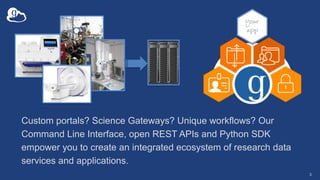
Custom portals? Science Gateways? Unique workflows? Our
Command Line Interface, open REST APIs and Python SDK
empower you to create an integrated ecosystem of research data
services and applications.
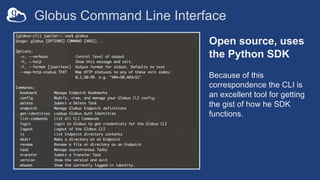
Globus Command Line Interface
Open source, uses
the Python SDK
Because of this
correspondence the CLI is
an excellent tool for getting
the gist of how he SDK
functions.
PaaS Security Challenges – Globus Auth
• How to provide:
– Login to apps
o Web apps (Jupyter Notebook, Portals), Mobile, Desktop, Command line
– Protect all REST API communications
o App à Globus service (Jupyter Notebook, Portals)
o App à non-Globus service (Portals)
o Service à service (Portals)
• While:
– Not introducing even more identities
o Providing a platform to consolidate those identities
– Providing least privileges security model (consents)
– Being agnostic to programming language and framework
– Being web friendly
– Making it easy for users and developers
5
Securing Apps with Globus Auth
• Native App (with refresh tokens – extend expiration)
– Authentication as user identity
– Authentication URL / come back with a auth code – exchanged for tokens
– Clients can’t keep a secret - tokens in plain text
– Jupyter Notebook examples / Timer Service
• Auth Code Grant – Templated App
– Authentication as user identity
– Browser redirect to Globus Auth, auth code returned (no manual copy)
– Tokens stored securely
– CLI / Jupyter Hub secured with Globus Auth
• Confidential Client:
– Authentication as application
– ClientID and Secret stored securely
– Custom apps
6
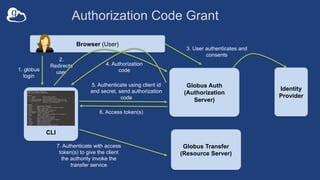
CLI
Globus Transfer
(Resource Server)
Globus Auth
(Authorization
Server)
5. Authenticate using client id
and secret, send authorization
code
Authorization Code Grant
Browser (User)
1. globus
login
2.
Redirects
user
3. User authenticates and
consents
4. Authorization
code
6. Access token(s)
7. Authenticate with access
token(s) to give the client
the authority invoke the
transfer service
Identity
Provider
Globus CLI
• It’s a stand alone application distributed by Globus
– https://docs.globus.org/cli/
– https://github.com/globus/globus-cli
• Easy install and updates
– Lets do just that!
• Command “globus login” gets access tokens
• All interactions with the service use the tokens
– Tokens for Globus Auth and Transfer services
• Command “globus logout” deletes those
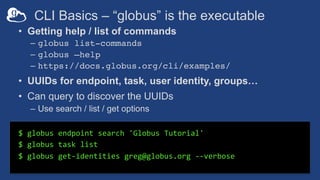
CLI Basics – “globus” is the executable
$ globus endpoint search 'Globus Tutorial'
$ globus task list
$ globus get-identities greg@globus.org --verbose
• Getting help / list of commands
– globus list-commands
– globus –help
– https://docs.globus.org/cli/examples/
• UUIDs for endpoint, task, user identity, groups…
• Can query to discover the UUIDs
– Use search / list / get options
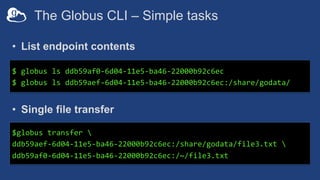
The Globus CLI – Simple tasks
$ globus ls ddb59af0-6d04-11e5-ba46-22000b92c6ec
$ globus ls ddb59aef-6d04-11e5-ba46-22000b92c6ec:/share/godata/
$globus transfer 
ddb59aef-6d04-11e5-ba46-22000b92c6ec:/share/godata/file3.txt 
ddb59af0-6d04-11e5-ba46-22000b92c6ec:/~/file3.txt
• List endpoint contents
• Single file transfer
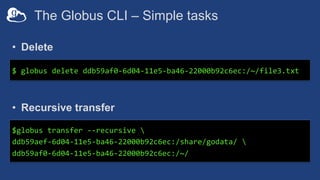
The Globus CLI – Simple tasks
$globus transfer --recursive 
ddb59aef-6d04-11e5-ba46-22000b92c6ec:/share/godata/ 
ddb59af0-6d04-11e5-ba46-22000b92c6ec:/~/
• Recursive transfer
$ globus delete ddb59af0-6d04-11e5-ba46-22000b92c6ec:/~/file3.txt
• Delete
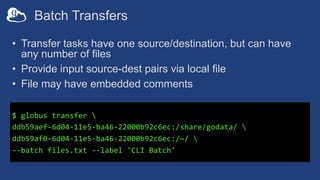
Batch Transfers
• Transfer tasks have one source/destination, but can have
any number of files
• Provide input source-dest pairs via local file
• File may have embedded comments
$ globus transfer 
ddb59aef-6d04-11e5-ba46-22000b92c6ec:/share/godata/ 
ddb59af0-6d04-11e5-ba46-22000b92c6ec:/~/ 
--batch files.txt --label 'CLI Batch'
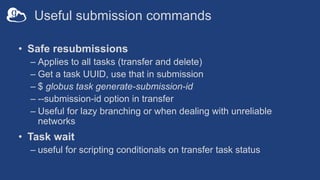
Useful submission commands
• Safe resubmissions
– Applies to all tasks (transfer and delete)
– Get a task UUID, use that in submission
– $ globus task generate-submission-id
– --submission-id option in transfer
– Useful for lazy branching or when dealing with unreliable
networks
• Task wait
– useful for scripting conditionals on transfer task status
Parsing CLI output
$ globus endpoint search --filter-scope my-endpoints
$ globus endpoint search --filter-scope my-endpoints --format json
$ globus endpoint search --filter-scope my-endpoints --jmespath
'DATA[].[id, display_name]'
• Default output is text; for JSON output use --format
json
• Extract specific attributes using --jmespath
<expression>
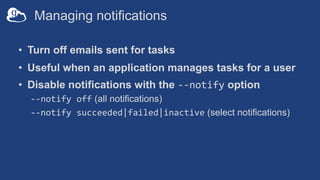
Managing notifications
• Turn off emails sent for tasks
• Useful when an application manages tasks for a user
• Disable notifications with the --notify option
--notify off (all notifications)
--notify succeeded|failed|inactive (select notifications)
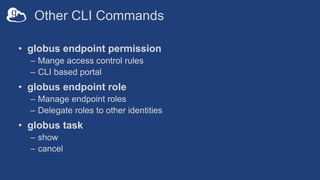
Other CLI Commands
• globus endpoint permission
– Mange access control rules
– CLI based portal
• globus endpoint role
– Manage endpoint roles
– Delegate roles to other identities
• globus task
– show
– cancel
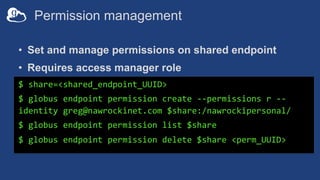
Permission management
• Set and manage permissions on shared endpoint
• Requires access manager role
$ share=<shared_endpoint_UUID>
$ globus endpoint permission create --permissions r --
identity greg@nawrockinet.com $share:/nawrockipersonal/
$ globus endpoint permission list $share
$ globus endpoint permission delete $share <perm_UUID>
Automation with the CLI
• Interactions are as user: both for data access and to
Globus services
– Globus login to get tokens
• Collection access
– Mapped Collections
o Use the –skip-activation-check to submit the task even if endpoint is not
activated at submit time
– Guest Collections
o Guest Collection / Shared Endpoints auto-activate
o Use Guest Collections whenever possible
• Reference
– Basic Data Automation with the Globus Command Line Interface
(CLI)
o https://www.youtube.com/watch?v=qIQTC6YOvrE
Automation Examples
• Syncing a directory
– Bash script that calls the Globus CLI and a
Python module that can be run as a script or
imported as a module.
• Removing directories after files are
transferred
– Python script
• Staging data in a shared directory
– Bash / Python
• Simple code examples for various use cases
using Globus
– https://github.com/globus/automation-examples
19
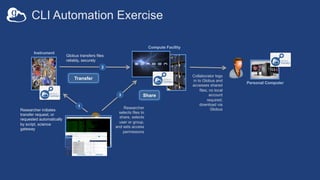
CLI Automation Exercise
Researcher initiates
transfer request; or
requested automatically
by script, science
gateway
1
Instrument
Compute Facility
Globus transfers files
reliably, securely
2
Researcher
selects files to
share, selects
user or group,
and sets access
permissions
3
Personal Computer
Transfer
Share
Collaborator logs
in to Globus and
accesses shared
files; no local
account
required;
download via
Globus
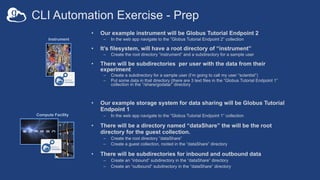
CLI Automation Exercise - Prep
Instrument
Compute Facility
• Our example instrument will be Globus Tutorial Endpoint 2
– In the web app navigate to the ”Globus Tutorial Endpoint 2” collection
• It’s filesystem, will have a root directory of “instrument”
– Create the root directory ”instrument” and a subdirectory for a sample user
• There will be subdirectories per user with the data from their
experiment
– Create a subdirectory for a sample user (I’m going to call my user “scientist”)
– Put some data in that directory (there are 3 text files in the “Globus Tutorial Endpoint 1”
collection in the “/share/godata/” directory
• Our example storage system for data sharing will be Globus Tutorial
Endpoint 1
– In the web app navigate to the ”Globus Tutorial Endpoint 1” collection
• There will be a directory named “dataShare” the will be the root
directory for the guest collection.
– Create the root directory ”dataShare”
– Create a guest collection, rooted in the “dataShare” directory
• There will be subdirectories for inbound and outbound data
– Create an “inbound” subdirectory in the “dataShare” directory
– Create an “outbound” subdirectory in the “dataShare” directory
Sharing Data with a shell script
• Data Automation Examples
– git clone https://github.com/globus/automation-examples.git
– Or download a zip file, move it to where you like and expand
– cd to the directory with the code in it
– ./share-data.sh
• Some UUIDs we’ll need
– --source-endpoint (our instrument)
o globus endpoint search “Globus Tutorial Endpoint 2”
o export data_source=ddb59af0-6d04-11e5-ba46-22000b92c6ec
– --shared-endpoint (your guest collection created via the Web App)
o globus endpoint search “Globus Tutorial Endpoint 1”
o globus endpoint my-shared-endpoint-list ddb59aef-6d04-11e5-ba46-22000b92c6ec
o export data_share=UUID from the process above
– --user-id
o The Globus Auth user UUID of the “scientist” you will share data with
o globus get-identities “text identity string” –verbose
o export scientist=UUID from the process above
22
Sharing Data with a shell script
• Let it rip!
./share-data.sh --source-endpoint $data_source 
--source-path /~/instrument/scientist 
--shared-endpoint $data_share 
--destination-path /outbound 
--user-id $scientist
• What did it do?
– Created a directory (named from the source path) on the guest collection in the
“outbound” directory
– Granted read only ACL on the above subdirectory to the appropriate Globus user
– Moved the data files from the instrument to the above subdirectory
23
What else could you do?
• Stage data in / out for a compute job
– Create a user specific subdirectory in the “inbound” directory
– Set read / write ACL on that subdirectory
o globus endpoint permission create --permissions rw
– When an inbound file appears, move it to be processed (could be moved with Globus)
– Create a user specific subdirectory in the “outbound” directory, set read ACL on that
subdirectory, move the processed file there for retrieval
o The example we previously ran
– Tear it all down after file is retrieved (or time expires)
o Remove ACL
o Delete files
o Remove subdirectories
• Notification
– Let a user know they have a place to put a file or that there is a file waiting for them for
retrieval
o globus endpoint permission create --notify-email --notify-message
– Need to find the email address for a user identity?
o globus get-identities --jmespath 'identities[0].[email]’ “identity_string_or_UUID" | tr -d '"[]n ‘
• Error Checking! 24
Support resources
• Globus documentation: docs.globus.org
• YouTube channel: youtube.com/user/GlobusOnline
• Helpdesk and issue escalation: support@globus.org
• Mailing lists
– https://www.globus.org/mailing-lists
• Globus customer team
– We’d love to be part of your events
– GlobusWorld Tours
– Office Hours

Globus Command Line Interface (APS Workshop)

  • 1.
    Globus Command LineInterface With data automation examples APS and ALCF Globus Training October 13, 2021 Greg Nawrocki greg@globus.org nawrocki@uchicago.edu
  • 2.
    If you wantto follow along with the CLI exercises • Install the Globus Command Line interface (CLI) – Install the CLI o https://docs.globus.org/cli/ – If you want to follow along with the automation examples o Have a shell scripting environment available o The CLI installed above must be accessible to that environment o Currently set up for #!/bin/bash o Pull down the automation examples – https://github.com/globus/automation-examples – git clone https://github.com/globus/automation-examples.git – Or download a zip file, move it to where you like and expand 2
  • 3.
    3 Custom portals? ScienceGateways? Unique workflows? Our Command Line Interface, open REST APIs and Python SDK empower you to create an integrated ecosystem of research data services and applications.
  • 4.
    Globus Command LineInterface Open source, uses the Python SDK Because of this correspondence the CLI is an excellent tool for getting the gist of how he SDK functions.
  • 5.
    PaaS Security Challenges– Globus Auth • How to provide: – Login to apps o Web apps (Jupyter Notebook, Portals), Mobile, Desktop, Command line – Protect all REST API communications o App à Globus service (Jupyter Notebook, Portals) o App à non-Globus service (Portals) o Service à service (Portals) • While: – Not introducing even more identities o Providing a platform to consolidate those identities – Providing least privileges security model (consents) – Being agnostic to programming language and framework – Being web friendly – Making it easy for users and developers 5
  • 6.
    Securing Apps withGlobus Auth • Native App (with refresh tokens – extend expiration) – Authentication as user identity – Authentication URL / come back with a auth code – exchanged for tokens – Clients can’t keep a secret - tokens in plain text – Jupyter Notebook examples / Timer Service • Auth Code Grant – Templated App – Authentication as user identity – Browser redirect to Globus Auth, auth code returned (no manual copy) – Tokens stored securely – CLI / Jupyter Hub secured with Globus Auth • Confidential Client: – Authentication as application – ClientID and Secret stored securely – Custom apps 6
  • 7.
    CLI Globus Transfer (Resource Server) GlobusAuth (Authorization Server) 5. Authenticate using client id and secret, send authorization code Authorization Code Grant Browser (User) 1. globus login 2. Redirects user 3. User authenticates and consents 4. Authorization code 6. Access token(s) 7. Authenticate with access token(s) to give the client the authority invoke the transfer service Identity Provider
  • 8.
    Globus CLI • It’sa stand alone application distributed by Globus – https://docs.globus.org/cli/ – https://github.com/globus/globus-cli • Easy install and updates – Lets do just that! • Command “globus login” gets access tokens • All interactions with the service use the tokens – Tokens for Globus Auth and Transfer services • Command “globus logout” deletes those
  • 9.
    CLI Basics –“globus” is the executable $ globus endpoint search 'Globus Tutorial' $ globus task list $ globus get-identities greg@globus.org --verbose • Getting help / list of commands – globus list-commands – globus –help – https://docs.globus.org/cli/examples/ • UUIDs for endpoint, task, user identity, groups… • Can query to discover the UUIDs – Use search / list / get options
  • 10.
    The Globus CLI– Simple tasks $ globus ls ddb59af0-6d04-11e5-ba46-22000b92c6ec $ globus ls ddb59aef-6d04-11e5-ba46-22000b92c6ec:/share/godata/ $globus transfer ddb59aef-6d04-11e5-ba46-22000b92c6ec:/share/godata/file3.txt ddb59af0-6d04-11e5-ba46-22000b92c6ec:/~/file3.txt • List endpoint contents • Single file transfer
  • 11.
    The Globus CLI– Simple tasks $globus transfer --recursive ddb59aef-6d04-11e5-ba46-22000b92c6ec:/share/godata/ ddb59af0-6d04-11e5-ba46-22000b92c6ec:/~/ • Recursive transfer $ globus delete ddb59af0-6d04-11e5-ba46-22000b92c6ec:/~/file3.txt • Delete
  • 12.
    Batch Transfers • Transfertasks have one source/destination, but can have any number of files • Provide input source-dest pairs via local file • File may have embedded comments $ globus transfer ddb59aef-6d04-11e5-ba46-22000b92c6ec:/share/godata/ ddb59af0-6d04-11e5-ba46-22000b92c6ec:/~/ --batch files.txt --label 'CLI Batch'
  • 13.
    Useful submission commands •Safe resubmissions – Applies to all tasks (transfer and delete) – Get a task UUID, use that in submission – $ globus task generate-submission-id – --submission-id option in transfer – Useful for lazy branching or when dealing with unreliable networks • Task wait – useful for scripting conditionals on transfer task status
  • 14.
    Parsing CLI output $globus endpoint search --filter-scope my-endpoints $ globus endpoint search --filter-scope my-endpoints --format json $ globus endpoint search --filter-scope my-endpoints --jmespath 'DATA[].[id, display_name]' • Default output is text; for JSON output use --format json • Extract specific attributes using --jmespath <expression>
  • 15.
    Managing notifications • Turnoff emails sent for tasks • Useful when an application manages tasks for a user • Disable notifications with the --notify option --notify off (all notifications) --notify succeeded|failed|inactive (select notifications)
  • 16.
    Other CLI Commands •globus endpoint permission – Mange access control rules – CLI based portal • globus endpoint role – Manage endpoint roles – Delegate roles to other identities • globus task – show – cancel
  • 17.
    Permission management • Setand manage permissions on shared endpoint • Requires access manager role $ share=<shared_endpoint_UUID> $ globus endpoint permission create --permissions r -- identity greg@nawrockinet.com $share:/nawrockipersonal/ $ globus endpoint permission list $share $ globus endpoint permission delete $share <perm_UUID>
  • 18.
    Automation with theCLI • Interactions are as user: both for data access and to Globus services – Globus login to get tokens • Collection access – Mapped Collections o Use the –skip-activation-check to submit the task even if endpoint is not activated at submit time – Guest Collections o Guest Collection / Shared Endpoints auto-activate o Use Guest Collections whenever possible • Reference – Basic Data Automation with the Globus Command Line Interface (CLI) o https://www.youtube.com/watch?v=qIQTC6YOvrE
  • 19.
    Automation Examples • Syncinga directory – Bash script that calls the Globus CLI and a Python module that can be run as a script or imported as a module. • Removing directories after files are transferred – Python script • Staging data in a shared directory – Bash / Python • Simple code examples for various use cases using Globus – https://github.com/globus/automation-examples 19
  • 20.
    CLI Automation Exercise Researcherinitiates transfer request; or requested automatically by script, science gateway 1 Instrument Compute Facility Globus transfers files reliably, securely 2 Researcher selects files to share, selects user or group, and sets access permissions 3 Personal Computer Transfer Share Collaborator logs in to Globus and accesses shared files; no local account required; download via Globus
  • 21.
    CLI Automation Exercise- Prep Instrument Compute Facility • Our example instrument will be Globus Tutorial Endpoint 2 – In the web app navigate to the ”Globus Tutorial Endpoint 2” collection • It’s filesystem, will have a root directory of “instrument” – Create the root directory ”instrument” and a subdirectory for a sample user • There will be subdirectories per user with the data from their experiment – Create a subdirectory for a sample user (I’m going to call my user “scientist”) – Put some data in that directory (there are 3 text files in the “Globus Tutorial Endpoint 1” collection in the “/share/godata/” directory • Our example storage system for data sharing will be Globus Tutorial Endpoint 1 – In the web app navigate to the ”Globus Tutorial Endpoint 1” collection • There will be a directory named “dataShare” the will be the root directory for the guest collection. – Create the root directory ”dataShare” – Create a guest collection, rooted in the “dataShare” directory • There will be subdirectories for inbound and outbound data – Create an “inbound” subdirectory in the “dataShare” directory – Create an “outbound” subdirectory in the “dataShare” directory
  • 22.
    Sharing Data witha shell script • Data Automation Examples – git clone https://github.com/globus/automation-examples.git – Or download a zip file, move it to where you like and expand – cd to the directory with the code in it – ./share-data.sh • Some UUIDs we’ll need – --source-endpoint (our instrument) o globus endpoint search “Globus Tutorial Endpoint 2” o export data_source=ddb59af0-6d04-11e5-ba46-22000b92c6ec – --shared-endpoint (your guest collection created via the Web App) o globus endpoint search “Globus Tutorial Endpoint 1” o globus endpoint my-shared-endpoint-list ddb59aef-6d04-11e5-ba46-22000b92c6ec o export data_share=UUID from the process above – --user-id o The Globus Auth user UUID of the “scientist” you will share data with o globus get-identities “text identity string” –verbose o export scientist=UUID from the process above 22
  • 23.
    Sharing Data witha shell script • Let it rip! ./share-data.sh --source-endpoint $data_source --source-path /~/instrument/scientist --shared-endpoint $data_share --destination-path /outbound --user-id $scientist • What did it do? – Created a directory (named from the source path) on the guest collection in the “outbound” directory – Granted read only ACL on the above subdirectory to the appropriate Globus user – Moved the data files from the instrument to the above subdirectory 23
  • 24.
    What else couldyou do? • Stage data in / out for a compute job – Create a user specific subdirectory in the “inbound” directory – Set read / write ACL on that subdirectory o globus endpoint permission create --permissions rw – When an inbound file appears, move it to be processed (could be moved with Globus) – Create a user specific subdirectory in the “outbound” directory, set read ACL on that subdirectory, move the processed file there for retrieval o The example we previously ran – Tear it all down after file is retrieved (or time expires) o Remove ACL o Delete files o Remove subdirectories • Notification – Let a user know they have a place to put a file or that there is a file waiting for them for retrieval o globus endpoint permission create --notify-email --notify-message – Need to find the email address for a user identity? o globus get-identities --jmespath 'identities[0].[email]’ “identity_string_or_UUID" | tr -d '"[]n ‘ • Error Checking! 24
  • 25.
    Support resources • Globusdocumentation: docs.globus.org • YouTube channel: youtube.com/user/GlobusOnline • Helpdesk and issue escalation: support@globus.org • Mailing lists – https://www.globus.org/mailing-lists • Globus customer team – We’d love to be part of your events – GlobusWorld Tours – Office Hours