Creating and Managing Globus
Endpoints
Raj Kettimuthu
Steve Tuecke
Vas Vasiliadis
Agenda
•  Setup and use a Globus Connect
Server endpoint
– What is Globus Connect Server and how does
it work?
– Setup an endpoint and configure it for sharing
– Transfer and share data on the endpoint
•  Configuring Globus Connect Server
– Common integration scenarios
Globus Connect Server
for resource providers
Deliver advanced data management
services to researchers
Provide an integrated user
experience
Reduce your support burden
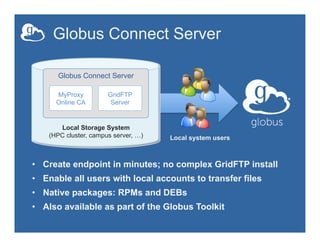
Globus Connect Server
•  Create endpoint in minutes; no complex GridFTP install
•  Enable all users with local accounts to transfer files
•  Native packages: RPMs and DEBs
•  Also available as part of the Globus Toolkit
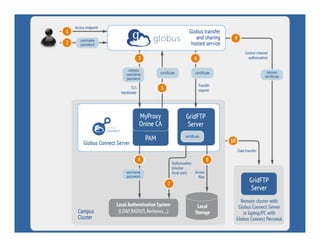
Local Storage System
(HPC cluster, campus server, …)
Globus Connect Server
MyProxy
Online CA
GridFTP
Server
Local system users
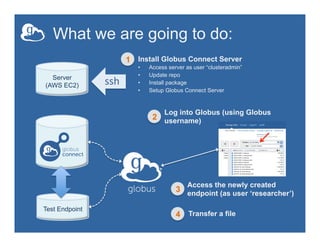
What we are going to do:
Install Globus Connect Server
•  Access server as user “clusteradmin”
•  Update repo
•  Install package
•  Setup Globus Connect Server
Server
(AWS EC2) ssh	
  
Test Endpoint
Log into Globus (using Globus
username)
Transfer a file
1
2
3
Access the newly created
endpoint (as user ‘researcher’)
4
Globus Connect Server
Demonstration
7
Globus Connect Server
Tutorial
Hands-on Access
•  Goal for this session: turn a storage
resource into a Globus endpoint
•  Each of you is provided with an
Amazon EC2 server for this tutorial
•  Step 1: Create a Globus account
(if you did not do it already)
Log into your host
•  Your slip of paper has the host
information
•  Log in as user ‘clusteradmin’:
ssh clusteradmin@ec2-x-x-x-x.compute-1.amazonaws.com
•  Use the password on the slip of paper
•  ‘clusteradmin’ has passwordless sudo
privileges
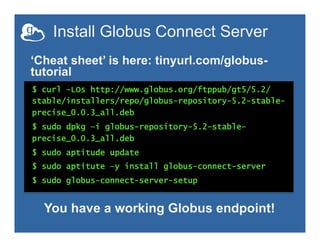
Install Globus Connect Server
$ curl –LOs http://www.globus.org/ftppub/gt5/5.2/
stable/installers/repo/globus-repository-5.2-stable-
precise_0.0.3_all.deb
$ sudo dpkg –i globus-repository-5.2-stable-
precise_0.0.3_all.deb
$ sudo aptitude update
$ sudo aptitute –y install globus-connect-server
$ sudo globus-connect-server-setup
‘Cheat sheet’ is here: tinyurl.com/globus-
tutorial
You have a working Globus endpoint!
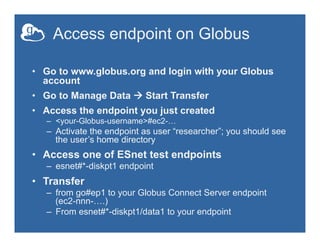
Access endpoint on Globus
•  Go to www.globus.org and login with your Globus
account
•  Go to Manage Data à Start Transfer
•  Access the endpoint you just created
–  <your-Globus-username>#ec2-…
–  Activate the endpoint as user “researcher”; you should see
the user’s home directory
•  Access one of ESnet test endpoints
–  esnet#*-diskpt1 endpoint
•  Transfer
–  from go#ep1 to your Globus Connect Server endpoint
(ec2-nnn-….)
–  From esnet#*-diskpt1/data1 to your endpoint
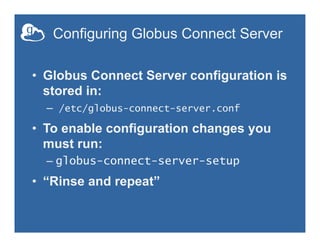
Configuring Globus Connect Server
•  Globus Connect Server configuration is
stored in:
–  /etc/globus-connect-server.conf
•  To enable configuration changes you
must run:
– globus-connect-server-setup
•  “Rinse and repeat”
Configuration file walkthrough
•  Structure based on .ini format:
[Section]
Option
•  Most common options to configure
Hostname
Public
RestrictedPaths
Sharing
SharingRestrictedPaths
IdentityMethod (CILogon, OAuth)
•  More details are available at:
support.globus.org/forums/22095911
Basic Configuration
•  Change your endpoint’s name in the
Globus Connect Server configuration file:
vim /etc/globus-connect-server.conf
–  Set [Endpoint] Name = “dtn”
•  Run: globus-connect-server-setup
–  Enter your Globus username and password when
prompted
•  Access the endpoint in your browser using
the new name
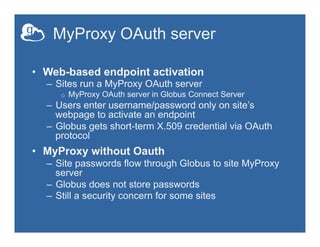
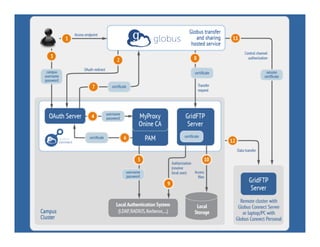
MyProxy OAuth server
•  Web-based endpoint activation
–  Sites run a MyProxy OAuth server
o  MyProxy OAuth server in Globus Connect Server
–  Users enter username/password only on site’s
webpage to activate an endpoint
–  Globus gets short-term X.509 credential via OAuth
protocol
•  MyProxy without Oauth
–  Site passwords flow through Globus to site MyProxy
server
–  Globus does not store passwords
–  Still a security concern for some sites
17
Making your endpoint public
•  Try to access the endpoint created by
the person sitting next to you
•  You will get the following message:
•  ‘Could not find endpoint with name
‘dtn’ owned by user ‘<neighbor’s
username>’
Making endpoint public
•  On your Globus Connect Server server:
–  sudo vim /etc/globus-connect-server.conf
–  Uncomment [Endpoint] Public = False
–  Replace ‘False’ with ‘True’
–  Run sudo globus-connect-server-setup
•  Try accessing your neighbor’s endpoint:
you will be prompted for credentials…
•  …but you cannot access it, since you do
not have an account on that server
Making endpoint public
•  On your Globus Connect Server server:
–  sudo vim /etc/globus-connect-
server.conf
– Uncomment [Endpoint] Public = False
– Replace ‘False’ with ‘True’
– Run sudo globus-connect-server-
setup
Enable sharing on your endpoint
•  sudo vim /etc/globus-connect-server.conf
•  Uncomment [GridFTP] Sharing = True
•  Go to the Web UI Start Transfer page
•  Select endpoint <username>#dtn
•  Users can create shared endpoints that
point to a specific directory on this
endpoint and share with other Globus
users
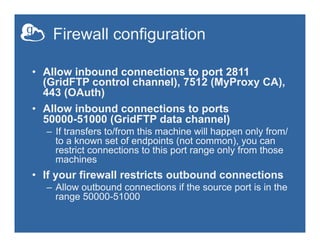
Firewall configuration
•  Allow inbound connections to port 2811
(GridFTP control channel), 7512 (MyProxy CA),
443 (OAuth)
•  Allow inbound connections to ports
50000-51000 (GridFTP data channel)
–  If transfers to/from this machine will happen only from/
to a known set of endpoints (not common), you can
restrict connections to this port range only from those
machines
•  If your firewall restricts outbound connections
–  Allow outbound connections if the source port is in the
range 50000-51000
23
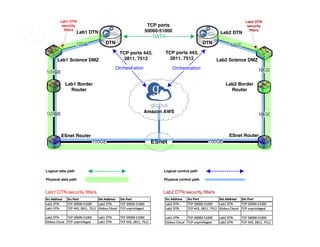
Amazon AWS
100GE
10GE10GE
100GE
10GE
10GE100GE
DATA
TCP ports
50000-51000
Lab1 Science DMZ
Lab1 Border
Router
ESnet 100GE
ESnet Router
Lab2 Border
Router
Lab2 Science DMZ
Lab1 DTN
DTN DTN
OrchestrationOrchestration
Lab2 DTN
ESnet Router
Lab1 DTN
security
filters
Lab2 DTN
security
filters
TCP ports 443,
2811, 7512
TCP ports 443,
2811, 7512
Logical data path
Physical data path
Logical control path
Physical control path
Lab1 DTN security filters Lab2 DTN security filters
Globus Connect Server Advanced
Configuration
•  Customizing filesystem access
•  Using host certificates
•  Using CILogon certificates
•  Enabling sharing on GT GridFTP server
•  Configuring multiple GridFTP servers
•  Setting up an anonymous endpoint
24
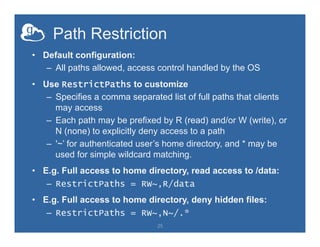
Path Restriction
•  Default configuration:
–  All paths allowed, access control handled by the OS
•  Use RestrictPaths to customize
–  Specifies a comma separated list of full paths that clients
may access
–  Each path may be prefixed by R (read) and/or W (write), or
N (none) to explicitly deny access to a path
–  '~’ for authenticated user’s home directory, and * may be
used for simple wildcard matching.
•  E.g. Full access to home directory, read access to /data:
–  RestrictPaths = RW~,R/data
•  E.g. Full access to home directory, deny hidden files:
–  RestrictPaths = RW~,N~/.*
25
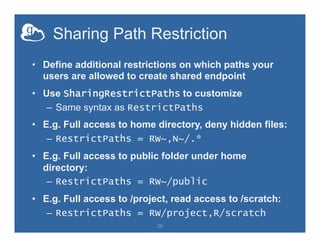
Sharing Path Restriction
•  Define additional restrictions on which paths your
users are allowed to create shared endpoint
•  Use SharingRestrictPaths to customize
–  Same syntax as RestrictPaths
•  E.g. Full access to home directory, deny hidden files:
–  RestrictPaths = RW~,N~/.*
•  E.g. Full access to public folder under home
directory:
–  RestrictPaths = RW~/public
•  E.g. Full access to /project, read access to /scratch:
–  RestrictPaths = RW/project,R/scratch
26
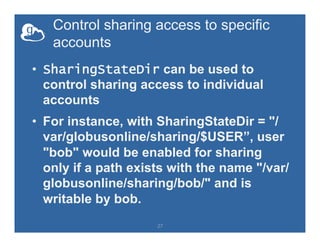
Control sharing access to specific
accounts
•  SharingStateDir can be used to
control sharing access to individual
accounts
•  For instance, with SharingStateDir = "/
var/globusonline/sharing/$USER”, user
"bob" would be enabled for sharing
only if a path exists with the name "/var/
globusonline/sharing/bob/" and is
writable by bob.
27
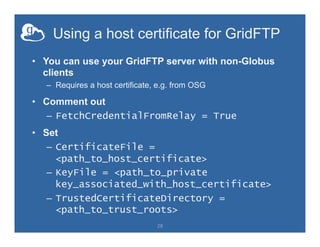
Using a host certificate for GridFTP
•  You can use your GridFTP server with non-Globus
clients
–  Requires a host certificate, e.g. from OSG
•  Comment out
–  FetchCredentialFromRelay = True
•  Set
–  CertificateFile =
<path_to_host_certificate>
–  KeyFile = <path_to_private
key_associated_with_host_certificate>
–  TrustedCertificateDirectory =
<path_to_trust_roots>
28
Single Sign-On with InCommon/CILogon
•  Requirements
–  Your organization’s Shibboleth server must release the
ePPN attribute to CILogon
–  Your local resource account names must match your
institutional identity (InCommon ID)
•  Set AuthorizationMethod = CILogon in the
Globus Connect Server configuration
•  Set CILogonIdentityProvider =
<your_institution_as_listed_in_CILogon_i
dentity_provider_list>
•  Add CILogon CA to your trustroots
–  /var/lib/globus-connect-server/grid-security/certificates/
–  Visit ca.cilogon.org/downloads for certificates
29
Enabling Sharing on a GT GridFTP
Installation
•  Get Globus Sharing CA certificates http://
toolkit.globus.org/toolkit/docs/latest-stable/gridftp/
securityd2b.tar.gz
•  Add to your trusted certificates directory (/etc/grid-
security/certificates)
•  Use '-sharing-dn' option in the server as follows: globus-
gridftp-server -sharing-dn "/C=US/O=Globus Consortium/
OU=Globus Connect User/CN=__transfer__”
•  Use '-sharing-rp' option to restrict the file paths allowed
for sharing: globus-gridftp-server -sharing-rp <path>
•  http://toolkit.globus.org/toolkit/docs/5.2/5.2.5/gridftp/
admin/#idp7491840
30
Deployment Scenarios
•  Globus Connect Server components
–  Globus-connect-server-io, -id, -web
•  Default: -io and –id (no –web) on single server
•  Common options
–  Multiple –io servers for load balancing, failover, and
performance
–  No -id server, e.g. third-party IdP such as CILogon
–  -id on separate server, e.g. non-DTN nodes
–  -web on either –id server or separate server for OAuth
interface
31
Setting up multiple –io servers
•  Guidelines
–  Use the same .conf file on all servers
–  First install on the server running the –id component, then all others
1.  Install Globus Connect Server on all servers
2.  Edit .conf file on one of the servers and set [MyProxy]
Server to the hostname of the server you want the –id
component installed on
3.  Copy the configuration file to all servers
–  /etc/globus-connect-server.conf
4.  Run globus-connect-server-setup on the server running
the –id component
5.  Run globus-connect-server-setup on all other servers
6.  Repeat steps 2-5 as necessary to update configurations
32
Enable your resource. It’s easy.
•  Signup: globus.org/signup
•  Connect your system:
globus.org/globus-connect-server
•  Learn and troubleshoot:
support.globus.org/forums/20133407
•  Need help? support.globus.org
•  Follow us: @globusonline

Globus Endpoint Setup and Configuration - XSEDE14 Tutorial

  • 1.
    Creating and ManagingGlobus Endpoints Raj Kettimuthu Steve Tuecke Vas Vasiliadis
  • 2.
    Agenda •  Setup anduse a Globus Connect Server endpoint – What is Globus Connect Server and how does it work? – Setup an endpoint and configure it for sharing – Transfer and share data on the endpoint •  Configuring Globus Connect Server – Common integration scenarios
  • 3.
    Globus Connect Server forresource providers Deliver advanced data management services to researchers Provide an integrated user experience Reduce your support burden
  • 4.
    Globus Connect Server • Create endpoint in minutes; no complex GridFTP install •  Enable all users with local accounts to transfer files •  Native packages: RPMs and DEBs •  Also available as part of the Globus Toolkit Local Storage System (HPC cluster, campus server, …) Globus Connect Server MyProxy Online CA GridFTP Server Local system users
  • 5.
    What we aregoing to do: Install Globus Connect Server •  Access server as user “clusteradmin” •  Update repo •  Install package •  Setup Globus Connect Server Server (AWS EC2) ssh   Test Endpoint Log into Globus (using Globus username) Transfer a file 1 2 3 Access the newly created endpoint (as user ‘researcher’) 4
  • 6.
  • 7.
  • 8.
  • 9.
    Hands-on Access •  Goalfor this session: turn a storage resource into a Globus endpoint •  Each of you is provided with an Amazon EC2 server for this tutorial •  Step 1: Create a Globus account (if you did not do it already)
  • 10.
    Log into yourhost •  Your slip of paper has the host information •  Log in as user ‘clusteradmin’: ssh clusteradmin@ec2-x-x-x-x.compute-1.amazonaws.com •  Use the password on the slip of paper •  ‘clusteradmin’ has passwordless sudo privileges
  • 11.
    Install Globus ConnectServer $ curl –LOs http://www.globus.org/ftppub/gt5/5.2/ stable/installers/repo/globus-repository-5.2-stable- precise_0.0.3_all.deb $ sudo dpkg –i globus-repository-5.2-stable- precise_0.0.3_all.deb $ sudo aptitude update $ sudo aptitute –y install globus-connect-server $ sudo globus-connect-server-setup ‘Cheat sheet’ is here: tinyurl.com/globus- tutorial You have a working Globus endpoint!
  • 12.
    Access endpoint onGlobus •  Go to www.globus.org and login with your Globus account •  Go to Manage Data à Start Transfer •  Access the endpoint you just created –  <your-Globus-username>#ec2-… –  Activate the endpoint as user “researcher”; you should see the user’s home directory •  Access one of ESnet test endpoints –  esnet#*-diskpt1 endpoint •  Transfer –  from go#ep1 to your Globus Connect Server endpoint (ec2-nnn-….) –  From esnet#*-diskpt1/data1 to your endpoint
  • 13.
    Configuring Globus ConnectServer •  Globus Connect Server configuration is stored in: –  /etc/globus-connect-server.conf •  To enable configuration changes you must run: – globus-connect-server-setup •  “Rinse and repeat”
  • 14.
    Configuration file walkthrough • Structure based on .ini format: [Section] Option •  Most common options to configure Hostname Public RestrictedPaths Sharing SharingRestrictedPaths IdentityMethod (CILogon, OAuth) •  More details are available at: support.globus.org/forums/22095911
  • 15.
    Basic Configuration •  Changeyour endpoint’s name in the Globus Connect Server configuration file: vim /etc/globus-connect-server.conf –  Set [Endpoint] Name = “dtn” •  Run: globus-connect-server-setup –  Enter your Globus username and password when prompted •  Access the endpoint in your browser using the new name
  • 16.
    MyProxy OAuth server • Web-based endpoint activation –  Sites run a MyProxy OAuth server o  MyProxy OAuth server in Globus Connect Server –  Users enter username/password only on site’s webpage to activate an endpoint –  Globus gets short-term X.509 credential via OAuth protocol •  MyProxy without Oauth –  Site passwords flow through Globus to site MyProxy server –  Globus does not store passwords –  Still a security concern for some sites
  • 17.
  • 18.
    Making your endpointpublic •  Try to access the endpoint created by the person sitting next to you •  You will get the following message: •  ‘Could not find endpoint with name ‘dtn’ owned by user ‘<neighbor’s username>’
  • 19.
    Making endpoint public • On your Globus Connect Server server: –  sudo vim /etc/globus-connect-server.conf –  Uncomment [Endpoint] Public = False –  Replace ‘False’ with ‘True’ –  Run sudo globus-connect-server-setup •  Try accessing your neighbor’s endpoint: you will be prompted for credentials… •  …but you cannot access it, since you do not have an account on that server
  • 20.
    Making endpoint public • On your Globus Connect Server server: –  sudo vim /etc/globus-connect- server.conf – Uncomment [Endpoint] Public = False – Replace ‘False’ with ‘True’ – Run sudo globus-connect-server- setup
  • 21.
    Enable sharing onyour endpoint •  sudo vim /etc/globus-connect-server.conf •  Uncomment [GridFTP] Sharing = True •  Go to the Web UI Start Transfer page •  Select endpoint <username>#dtn •  Users can create shared endpoints that point to a specific directory on this endpoint and share with other Globus users
  • 22.
    Firewall configuration •  Allowinbound connections to port 2811 (GridFTP control channel), 7512 (MyProxy CA), 443 (OAuth) •  Allow inbound connections to ports 50000-51000 (GridFTP data channel) –  If transfers to/from this machine will happen only from/ to a known set of endpoints (not common), you can restrict connections to this port range only from those machines •  If your firewall restricts outbound connections –  Allow outbound connections if the source port is in the range 50000-51000
  • 23.
    23 Amazon AWS 100GE 10GE10GE 100GE 10GE 10GE100GE DATA TCP ports 50000-51000 Lab1Science DMZ Lab1 Border Router ESnet 100GE ESnet Router Lab2 Border Router Lab2 Science DMZ Lab1 DTN DTN DTN OrchestrationOrchestration Lab2 DTN ESnet Router Lab1 DTN security filters Lab2 DTN security filters TCP ports 443, 2811, 7512 TCP ports 443, 2811, 7512 Logical data path Physical data path Logical control path Physical control path Lab1 DTN security filters Lab2 DTN security filters
  • 24.
    Globus Connect ServerAdvanced Configuration •  Customizing filesystem access •  Using host certificates •  Using CILogon certificates •  Enabling sharing on GT GridFTP server •  Configuring multiple GridFTP servers •  Setting up an anonymous endpoint 24
  • 25.
    Path Restriction •  Defaultconfiguration: –  All paths allowed, access control handled by the OS •  Use RestrictPaths to customize –  Specifies a comma separated list of full paths that clients may access –  Each path may be prefixed by R (read) and/or W (write), or N (none) to explicitly deny access to a path –  '~’ for authenticated user’s home directory, and * may be used for simple wildcard matching. •  E.g. Full access to home directory, read access to /data: –  RestrictPaths = RW~,R/data •  E.g. Full access to home directory, deny hidden files: –  RestrictPaths = RW~,N~/.* 25
  • 26.
    Sharing Path Restriction • Define additional restrictions on which paths your users are allowed to create shared endpoint •  Use SharingRestrictPaths to customize –  Same syntax as RestrictPaths •  E.g. Full access to home directory, deny hidden files: –  RestrictPaths = RW~,N~/.* •  E.g. Full access to public folder under home directory: –  RestrictPaths = RW~/public •  E.g. Full access to /project, read access to /scratch: –  RestrictPaths = RW/project,R/scratch 26
  • 27.
    Control sharing accessto specific accounts •  SharingStateDir can be used to control sharing access to individual accounts •  For instance, with SharingStateDir = "/ var/globusonline/sharing/$USER”, user "bob" would be enabled for sharing only if a path exists with the name "/var/ globusonline/sharing/bob/" and is writable by bob. 27
  • 28.
    Using a hostcertificate for GridFTP •  You can use your GridFTP server with non-Globus clients –  Requires a host certificate, e.g. from OSG •  Comment out –  FetchCredentialFromRelay = True •  Set –  CertificateFile = <path_to_host_certificate> –  KeyFile = <path_to_private key_associated_with_host_certificate> –  TrustedCertificateDirectory = <path_to_trust_roots> 28
  • 29.
    Single Sign-On withInCommon/CILogon •  Requirements –  Your organization’s Shibboleth server must release the ePPN attribute to CILogon –  Your local resource account names must match your institutional identity (InCommon ID) •  Set AuthorizationMethod = CILogon in the Globus Connect Server configuration •  Set CILogonIdentityProvider = <your_institution_as_listed_in_CILogon_i dentity_provider_list> •  Add CILogon CA to your trustroots –  /var/lib/globus-connect-server/grid-security/certificates/ –  Visit ca.cilogon.org/downloads for certificates 29
  • 30.
    Enabling Sharing ona GT GridFTP Installation •  Get Globus Sharing CA certificates http:// toolkit.globus.org/toolkit/docs/latest-stable/gridftp/ securityd2b.tar.gz •  Add to your trusted certificates directory (/etc/grid- security/certificates) •  Use '-sharing-dn' option in the server as follows: globus- gridftp-server -sharing-dn "/C=US/O=Globus Consortium/ OU=Globus Connect User/CN=__transfer__” •  Use '-sharing-rp' option to restrict the file paths allowed for sharing: globus-gridftp-server -sharing-rp <path> •  http://toolkit.globus.org/toolkit/docs/5.2/5.2.5/gridftp/ admin/#idp7491840 30
  • 31.
    Deployment Scenarios •  GlobusConnect Server components –  Globus-connect-server-io, -id, -web •  Default: -io and –id (no –web) on single server •  Common options –  Multiple –io servers for load balancing, failover, and performance –  No -id server, e.g. third-party IdP such as CILogon –  -id on separate server, e.g. non-DTN nodes –  -web on either –id server or separate server for OAuth interface 31
  • 32.
    Setting up multiple–io servers •  Guidelines –  Use the same .conf file on all servers –  First install on the server running the –id component, then all others 1.  Install Globus Connect Server on all servers 2.  Edit .conf file on one of the servers and set [MyProxy] Server to the hostname of the server you want the –id component installed on 3.  Copy the configuration file to all servers –  /etc/globus-connect-server.conf 4.  Run globus-connect-server-setup on the server running the –id component 5.  Run globus-connect-server-setup on all other servers 6.  Repeat steps 2-5 as necessary to update configurations 32
  • 33.
    Enable your resource.It’s easy. •  Signup: globus.org/signup •  Connect your system: globus.org/globus-connect-server •  Learn and troubleshoot: support.globus.org/forums/20133407 •  Need help? support.globus.org •  Follow us: @globusonline