Hyper Text Markup Language
(HTML)
-Varsha Kumari
02/02/19
Html
HTML is a language for describing web pages.
HTML stands for Hyper Text Markup Language
HTML is a markup language
A markup language is a set of markup tags
HTML tags are keywords (tag names) surrounded
by angle brackets like <html>
The tags describe document content
HTML documents contain HTML tags and plain text
HTML documents are also called web pages
02/02/19
HtML page structure
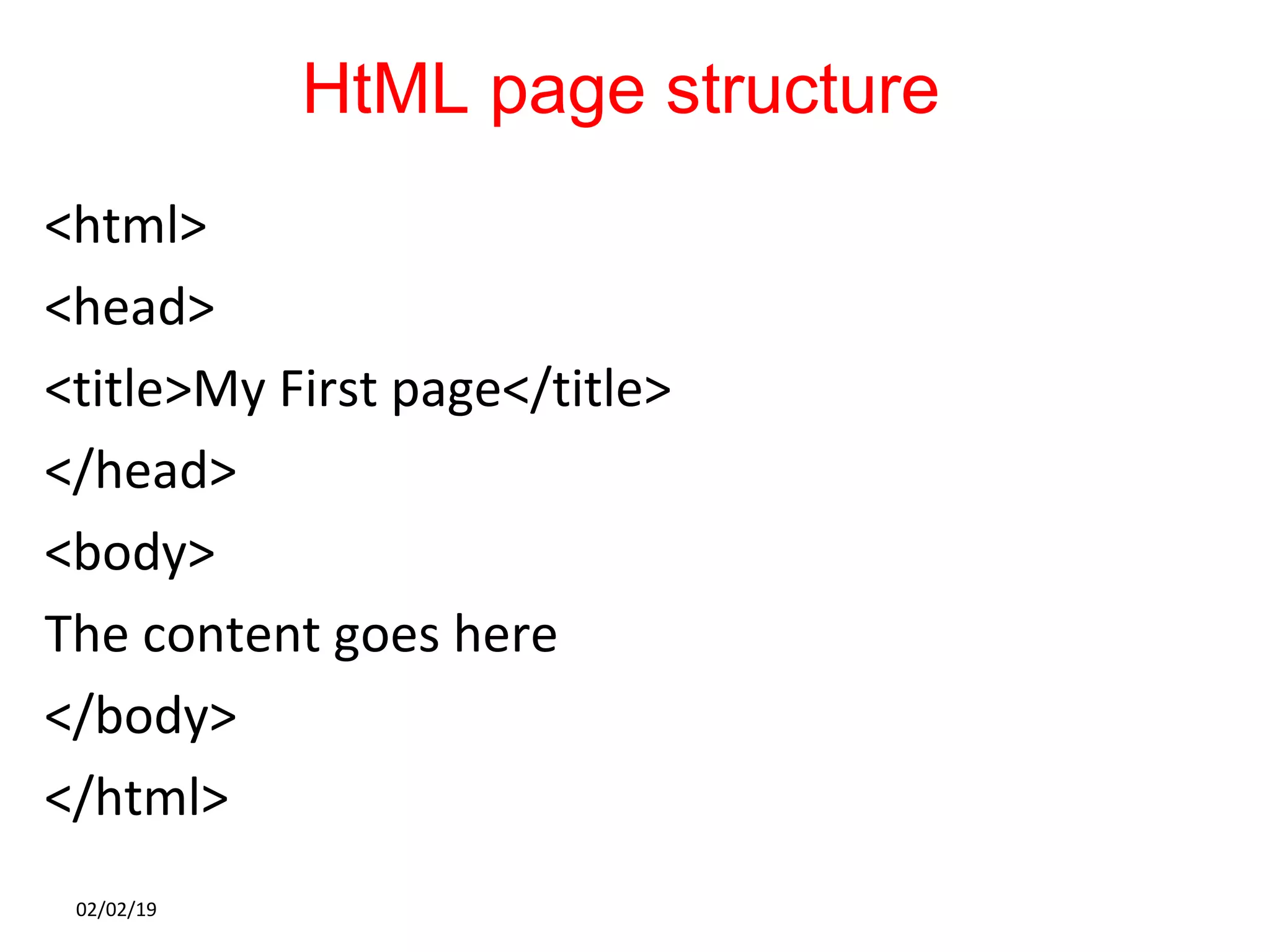
<html>
<head>
<title>My First page</title>
</head>
<body>
The content goes here
</body>
</html>
02/02/19
HtML page structure
 The HEAD of your document point to above window part.
The TITLE of your document appears in the very top line of
the user’s browser. If the user chooses to “Bookmark” your
page or save as a “Favorite”; it is the TITLE that is added to
the list.
 The text in your TITLE should be as descriptive as
possible because this is what many search engines, on
the internet, use for indexing your site.
The body contains the data to be displayed on the
web page.
02/02/19
Html Tags
 HTML tags are predefined tags that have special
meaning
 HTML tags normally come in pairs like <p> and </p>
 The first tag in a pair is the start tag, the second tag is
the end tag
 The end tag is written like the start tag, with
a slash before the tag name
 Start and end tags are also called opening
tags and closing tags
02/02/19
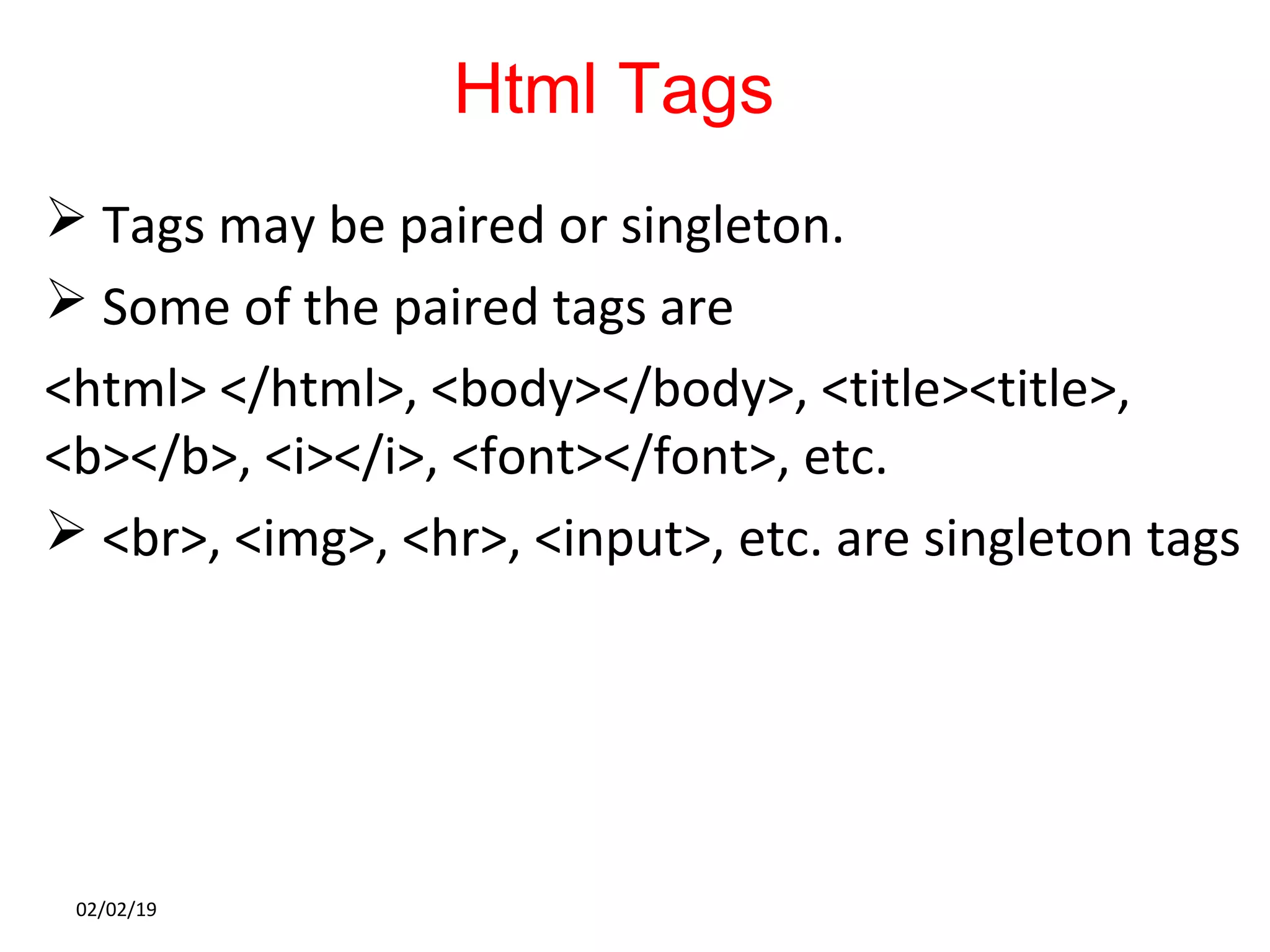
Html Tags
 Tags may be paired or singleton.
 Some of the paired tags are
<html> </html>, <body></body>, <title><title>,
<b></b>, <i></i>, <font></font>, etc.
 <br>, <img>, <hr>, <input>, etc. are singleton tags
02/02/19
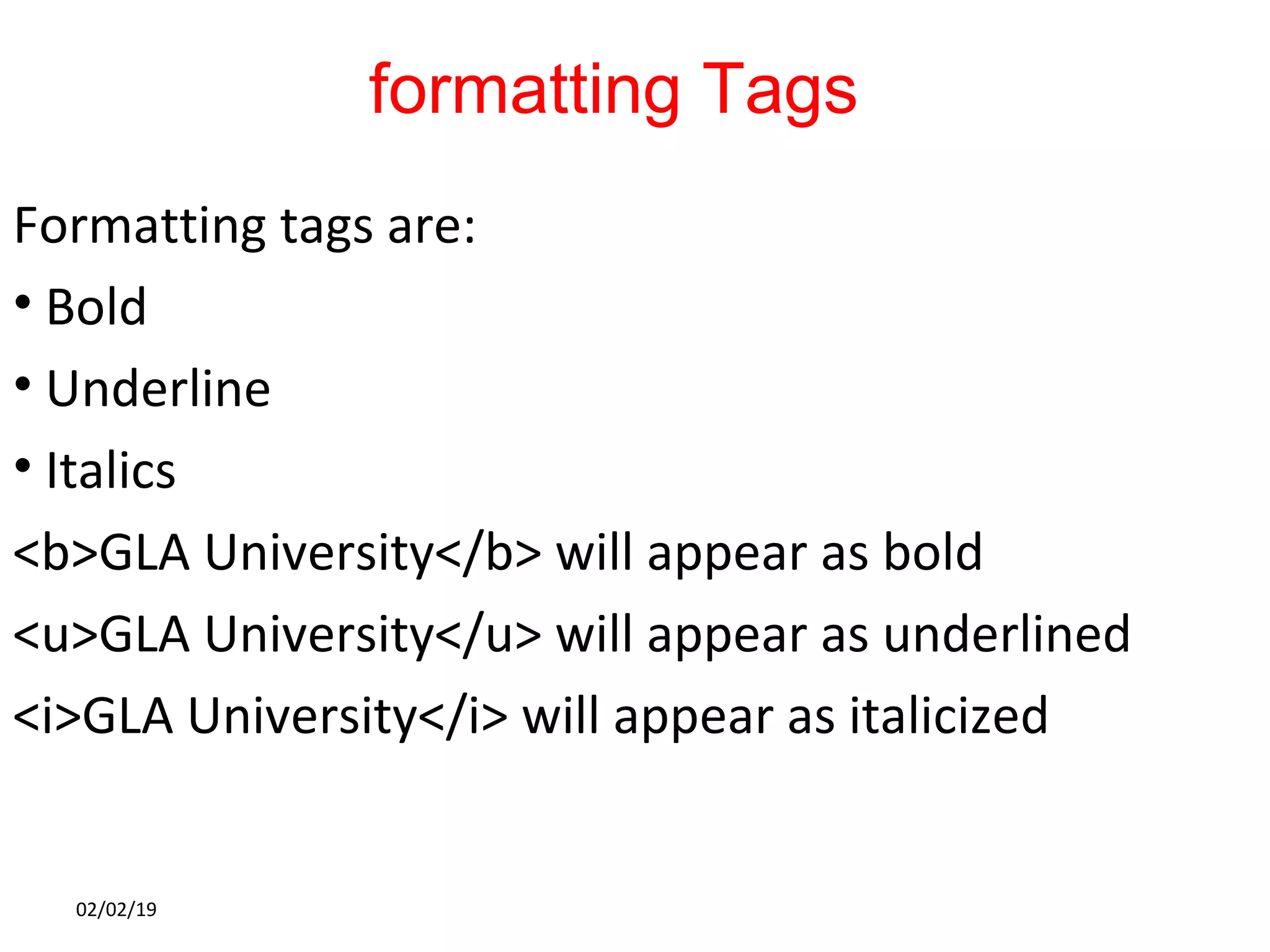
formatting Tags
Formatting tags are:
• Bold
• Underline
• Italics
<b>GLA University</b> will appear as bold
<u>GLA University</u> will appear as underlined
<i>GLA University</i> will appear as italicized
02/02/19
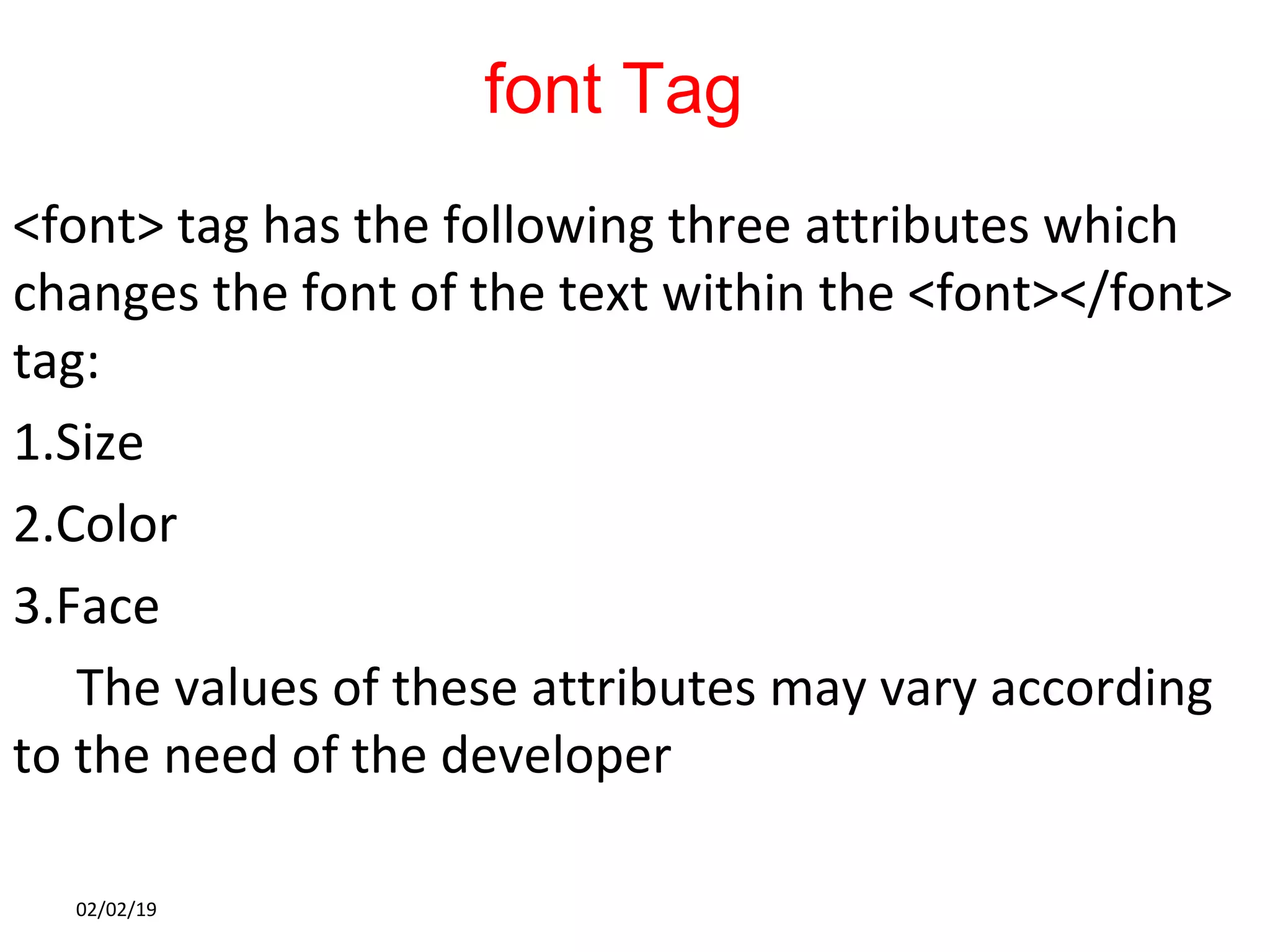
font Tag
<font> tag has the following three attributes which
changes the font of the text within the <font></font>
tag:
1.Size
2.Color
3.Face
The values of these attributes may vary according
to the need of the developer
02/02/19
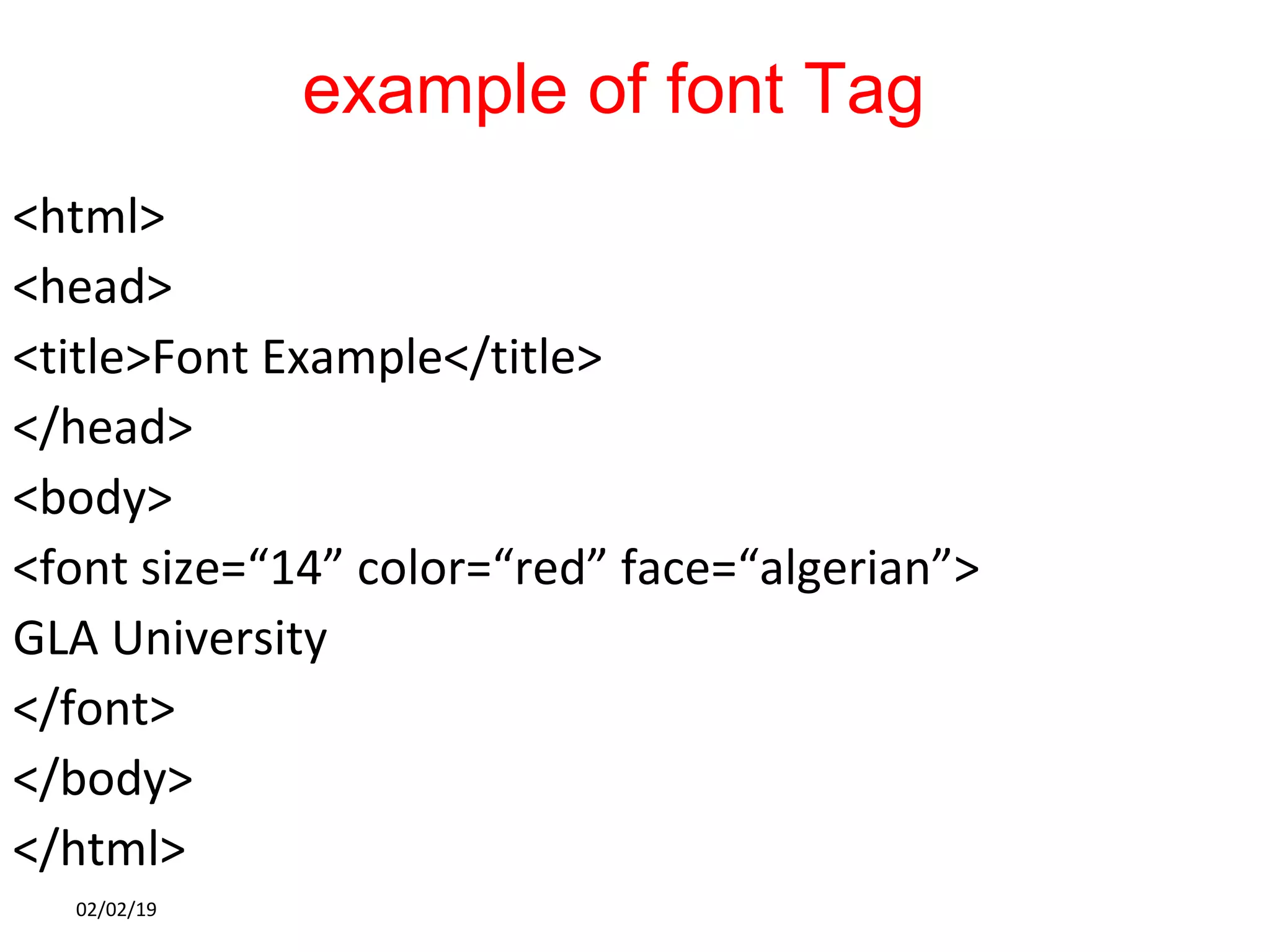
example of font Tag
<html>
<head>
<title>Font Example</title>
</head>
<body>
<font size=“14” color=“red” face=“algerian”>
GLA University
</font>
</body>
</html>
02/02/19
anchor Tag
A hyperlink can be displayed on a web page by
using anchor tag
Anchor tag is denoted by <a></a>
Anchor tag has an attribute href whose value
denotes the webpage that is to be opened on clicking
the hyperlink.
The new page can be opened on the same window,
a new window, on a new frame, etc., as per the value
of the target attribute.
02/02/19
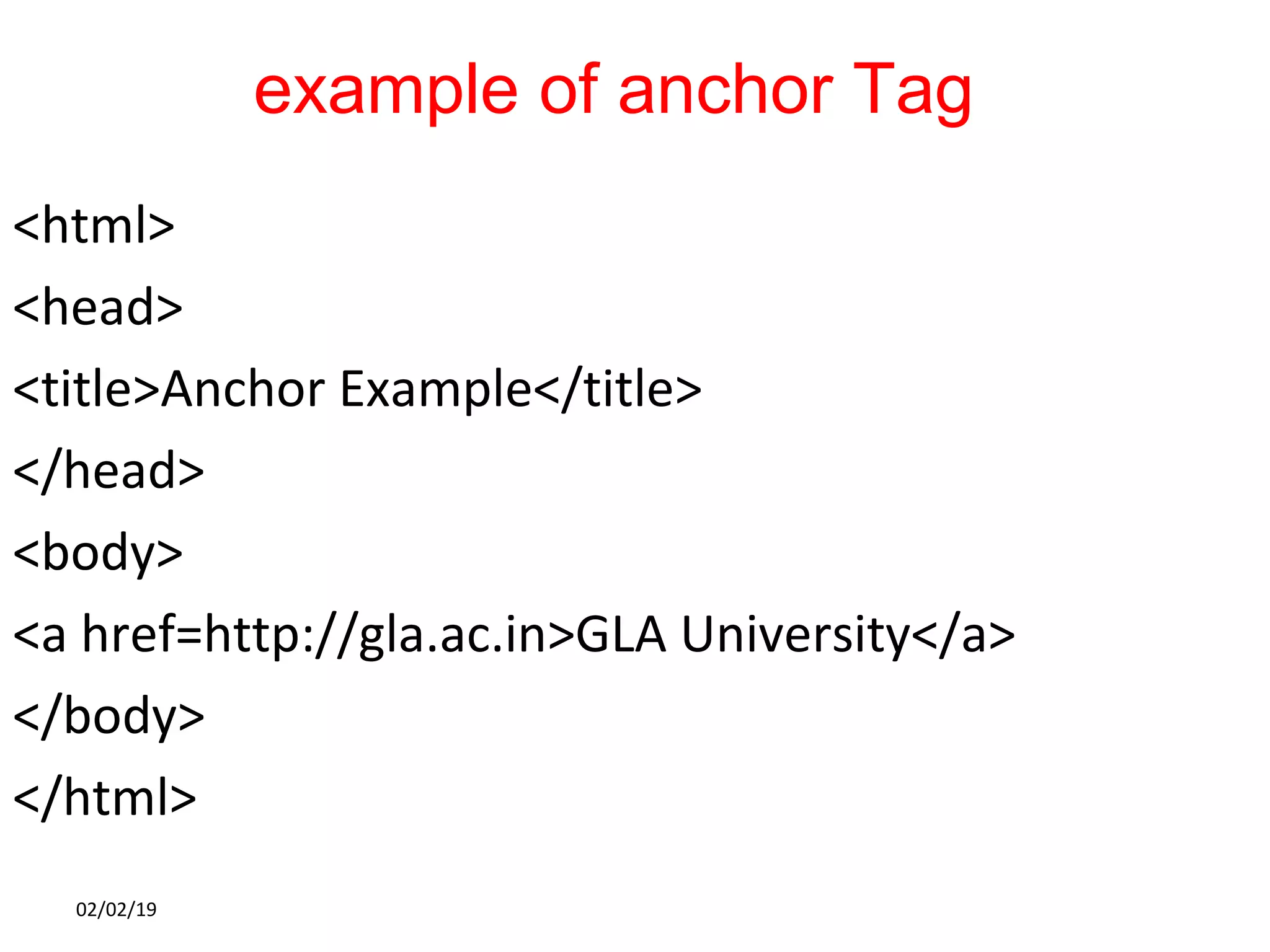
example of anchor Tag
<html>
<head>
<title>Anchor Example</title>
</head>
<body>
<a href=http://gla.ac.in>GLA University</a>
</body>
</html>
02/02/19
HEADER ELEMENTSHEADER ELEMENTS
Six Headers
<h1> is the biggest heading
<h6> is the smallest heading
Search Engine crawlers look into the header
elements to answer user’s query
Example:
<h1> GLA University</h1>
<h2> Ranked No. 1 University</h2>
and so on…..
02/02/19
image Tag
Images can be displayed on a webpage using the
<img> tag
The source of the image to be displayed is specified
in the src attribute.
Some other attributes of <img> tag are:
• Height
• Width
• Alt
• Hspace
• Vspace
02/02/19
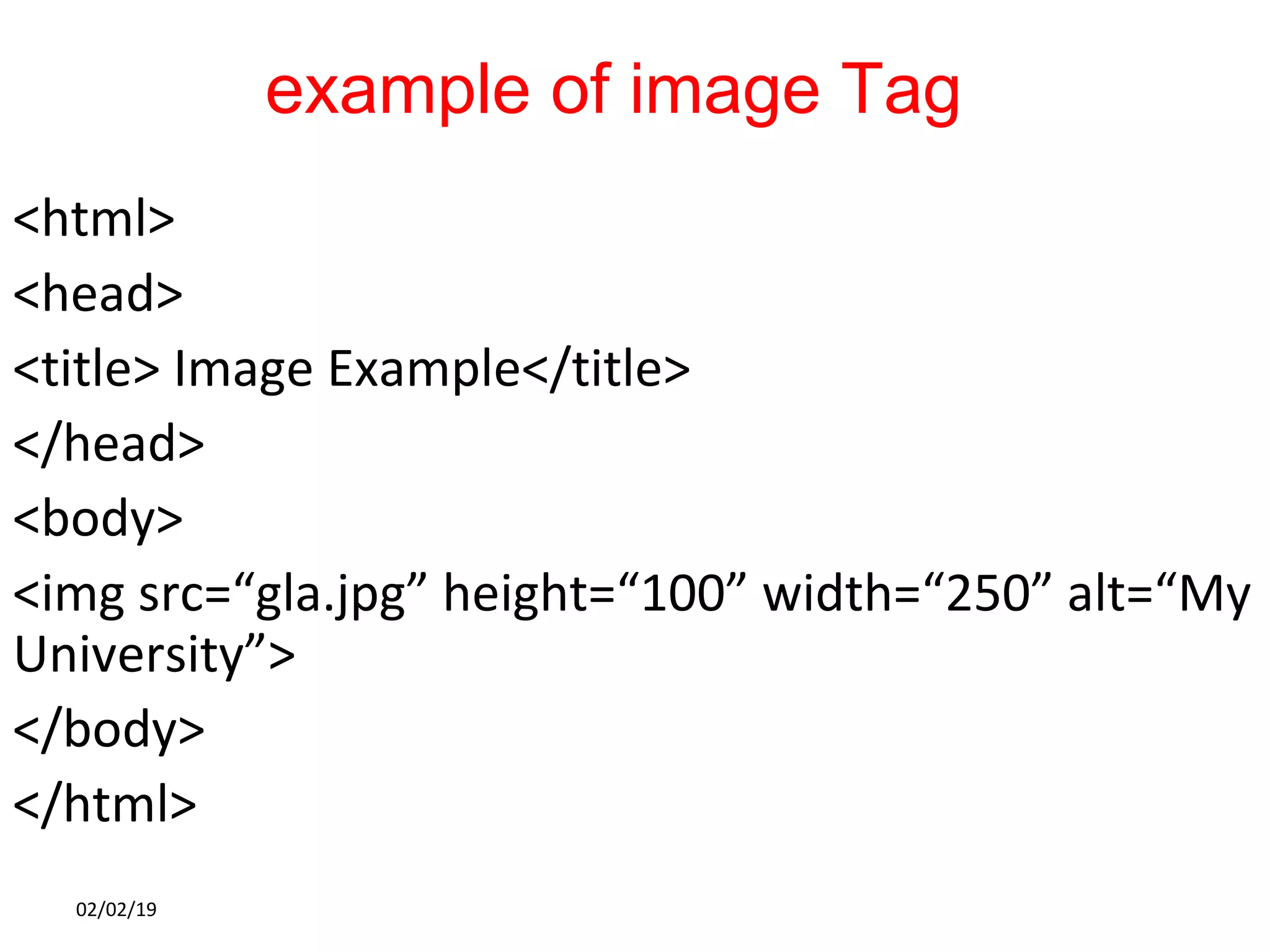
example of image Tag
<html>
<head>
<title> Image Example</title>
</head>
<body>
<img src=“gla.jpg” height=“100” width=“250” alt=“My
University”>
</body>
</html>
02/02/19
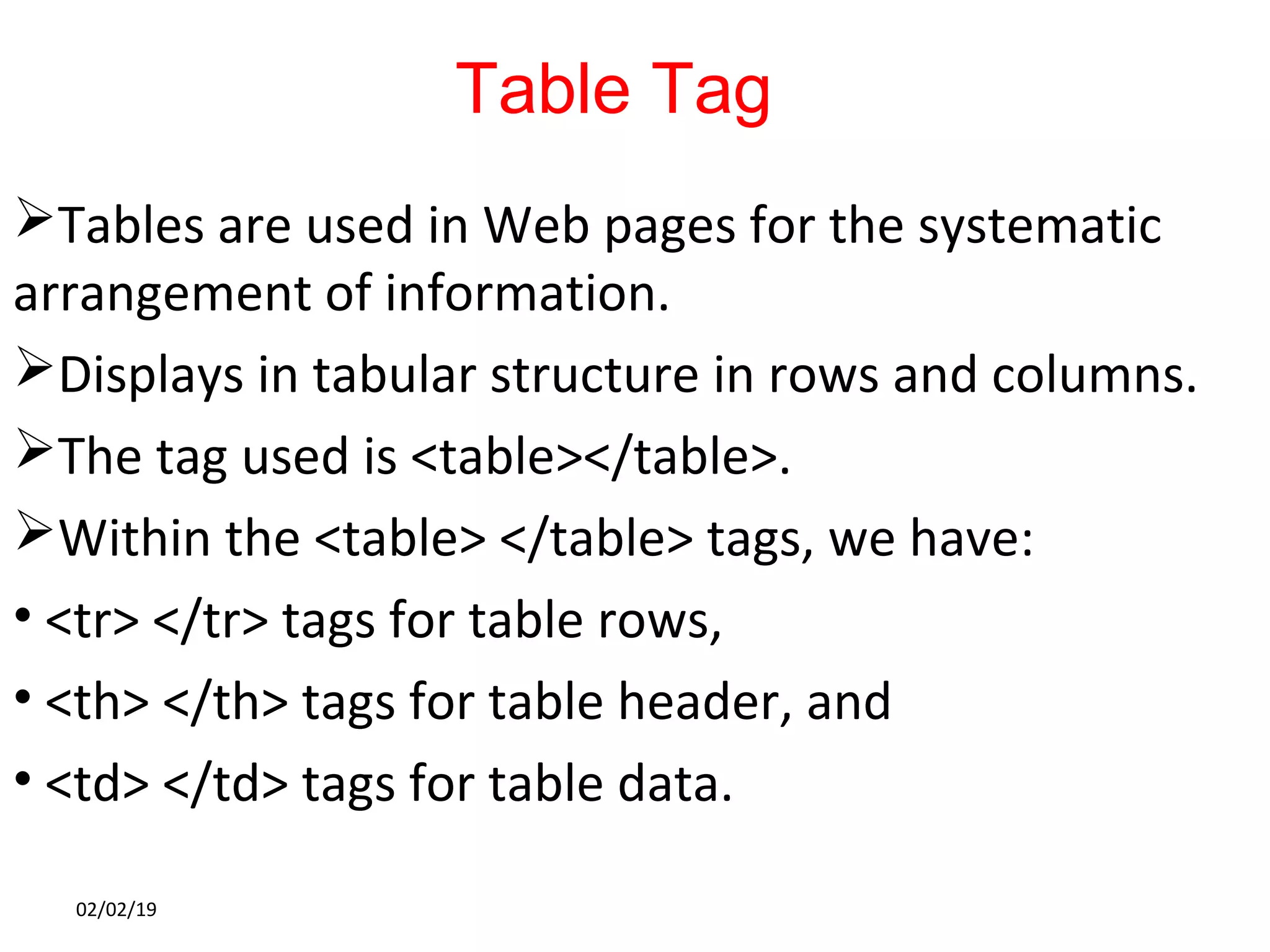
Table Tag
Tables are used in Web pages for the systematic
arrangement of information.
Displays in tabular structure in rows and columns.
The tag used is <table></table>.
Within the <table> </table> tags, we have:
• <tr> </tr> tags for table rows,
• <th> </th> tags for table header, and
• <td> </td> tags for table data.
02/02/19
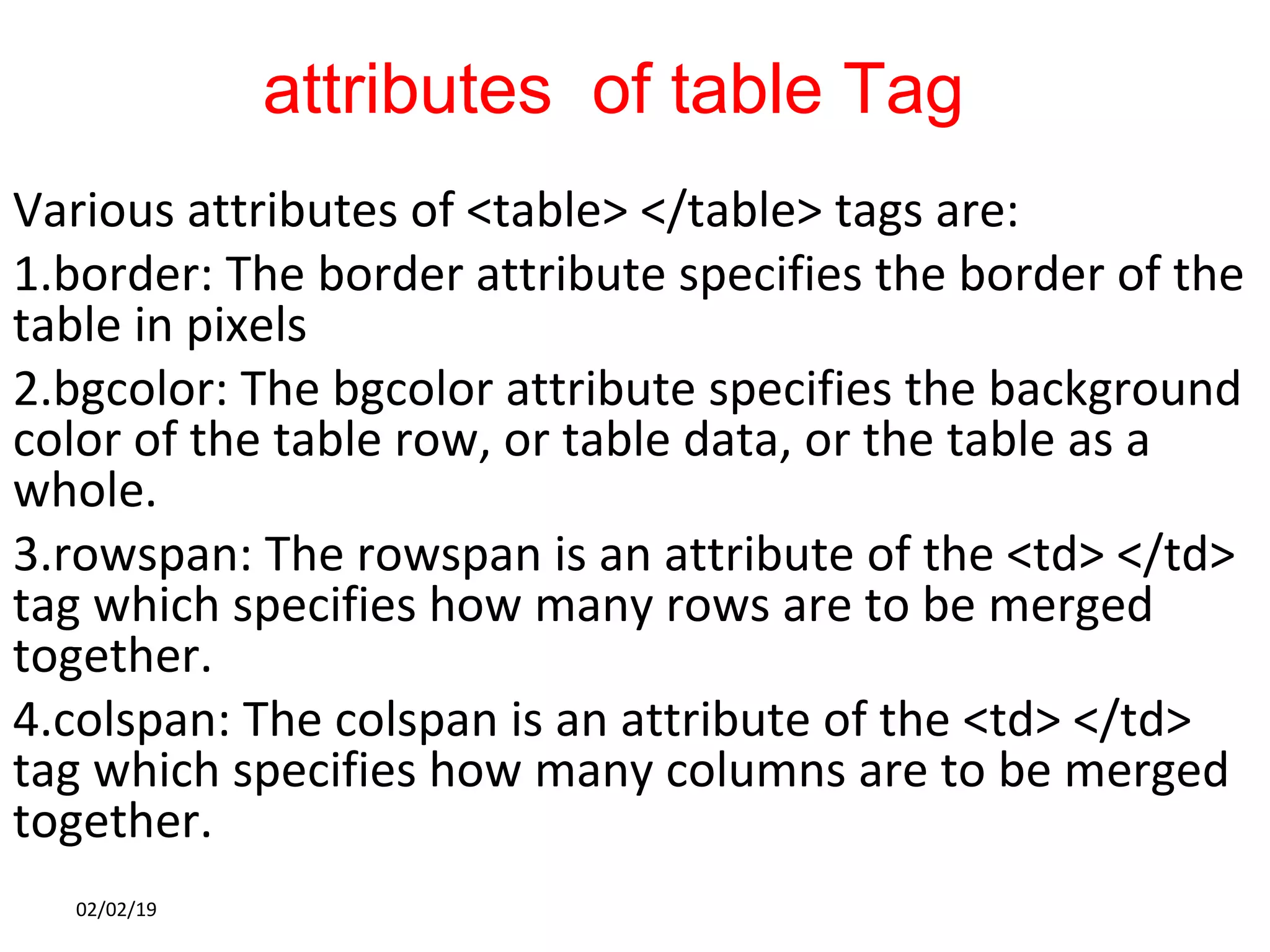
attributes of table Tag
Various attributes of <table> </table> tags are:
1.border: The border attribute specifies the border of the
table in pixels
2.bgcolor: The bgcolor attribute specifies the background
color of the table row, or table data, or the table as a
whole.
3.rowspan: The rowspan is an attribute of the <td> </td>
tag which specifies how many rows are to be merged
together.
4.colspan: The colspan is an attribute of the <td> </td>
tag which specifies how many columns are to be merged
together.
02/02/19
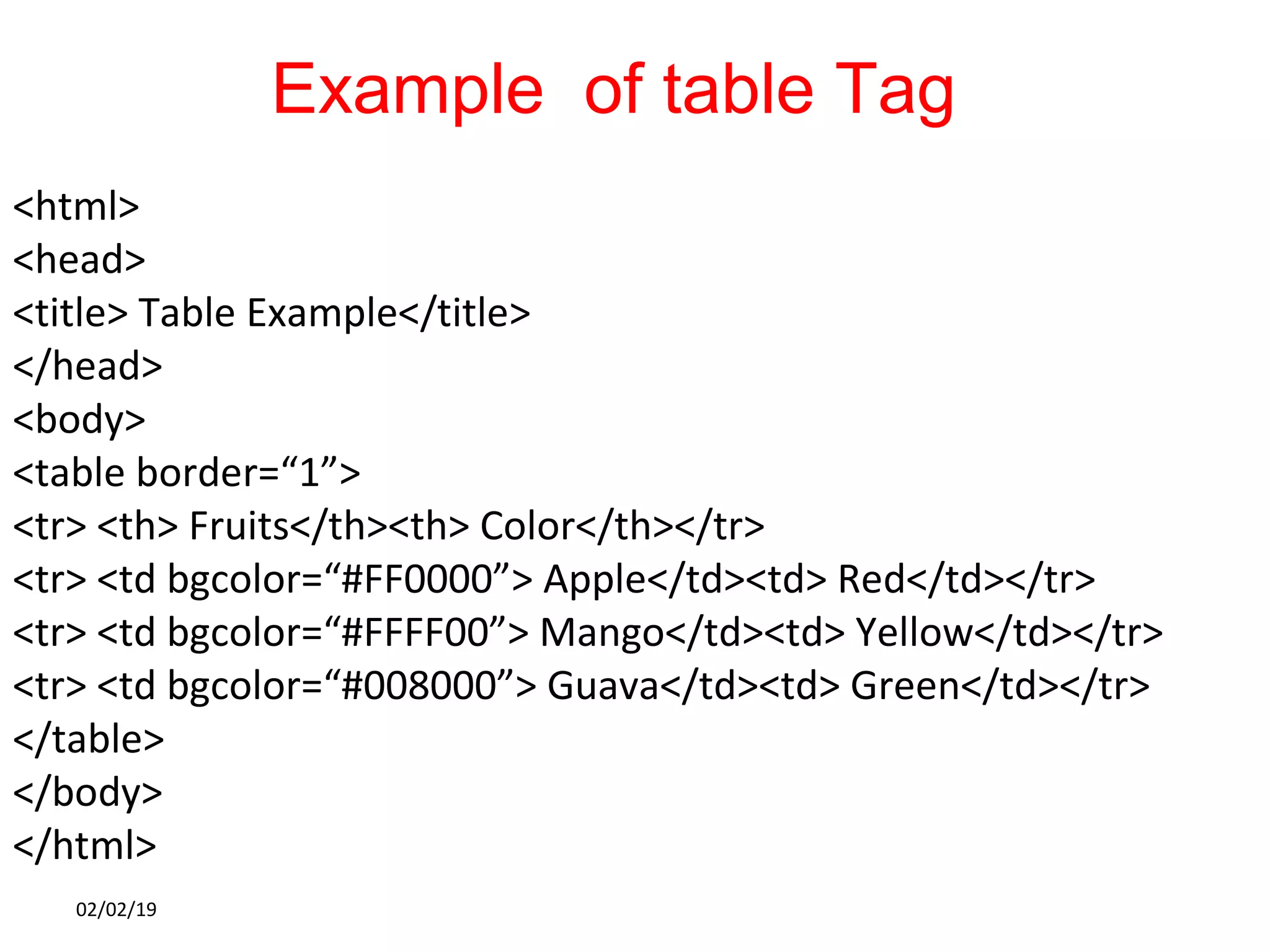
Example of table Tag
<html>
<head>
<title> Table Example</title>
</head>
<body>
<table border=“1”>
<tr> <th> Fruits</th><th> Color</th></tr>
<tr> <td bgcolor=“#FF0000”> Apple</td><td> Red</td></tr>
<tr> <td bgcolor=“#FFFF00”> Mango</td><td> Yellow</td></tr>
<tr> <td bgcolor=“#008000”> Guava</td><td> Green</td></tr>
</table>
</body>
</html>
02/02/19
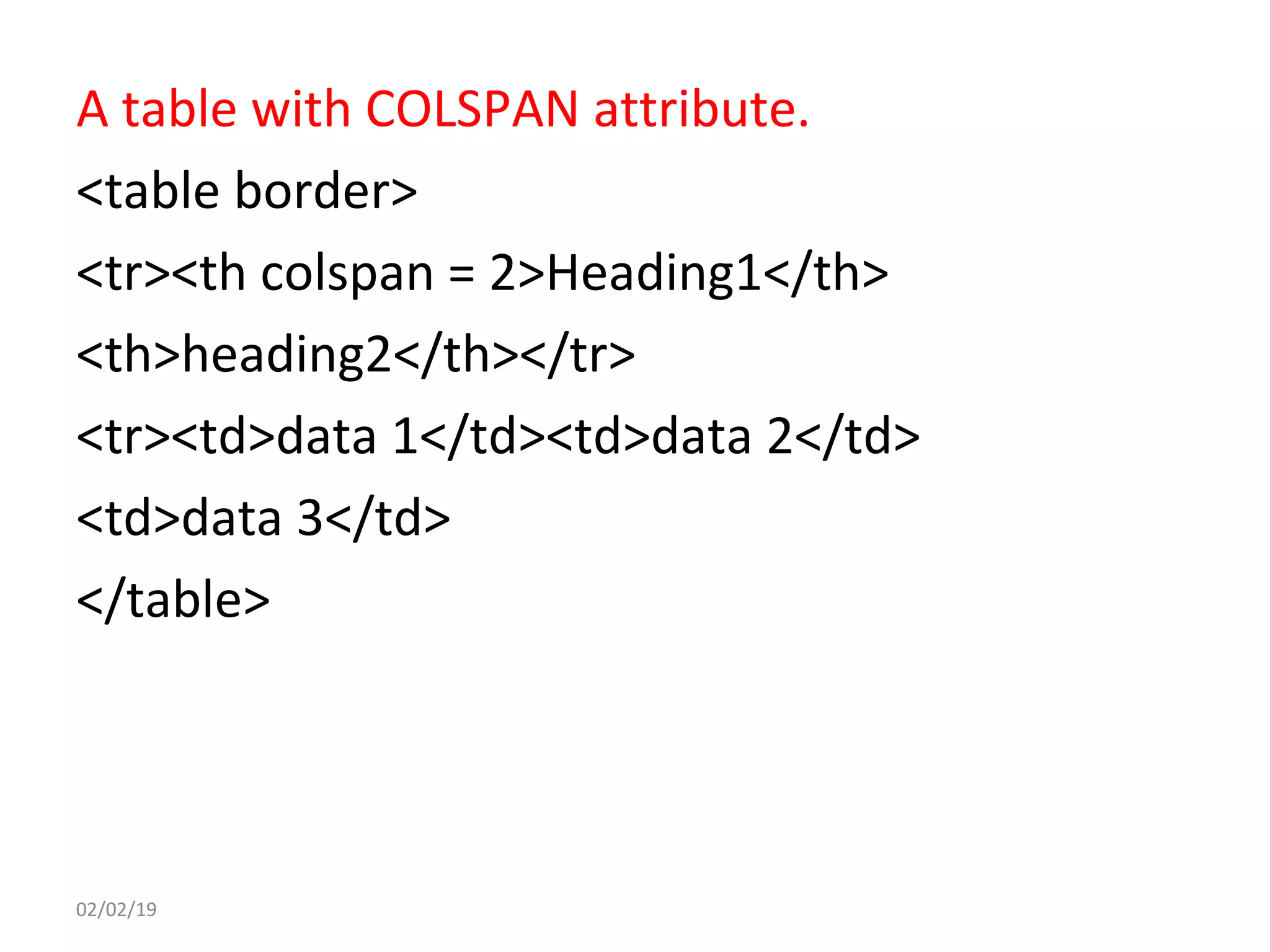
A table with COLSPAN attribute.
<table border>
<tr><th colspan = 2>Heading1</th>
<th>heading2</th></tr>
<tr><td>data 1</td><td>data 2</td>
<td>data 3</td>
</table>
02/02/19
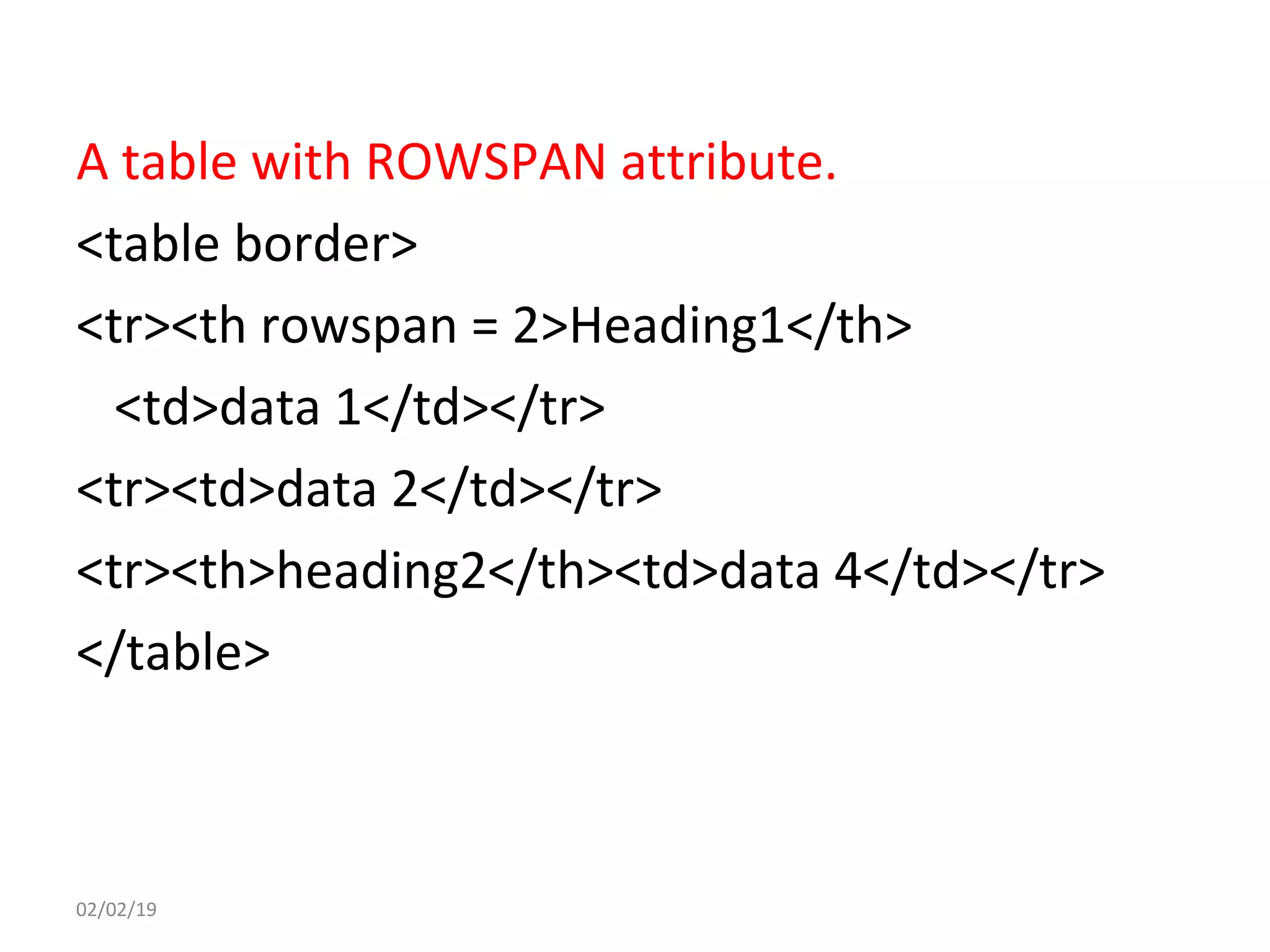
A table with ROWSPAN attribute.
<table border>
<tr><th rowspan = 2>Heading1</th>
<td>data 1</td></tr>
<tr><td>data 2</td></tr>
<tr><th>heading2</th><td>data 4</td></tr>
</table>
02/02/19
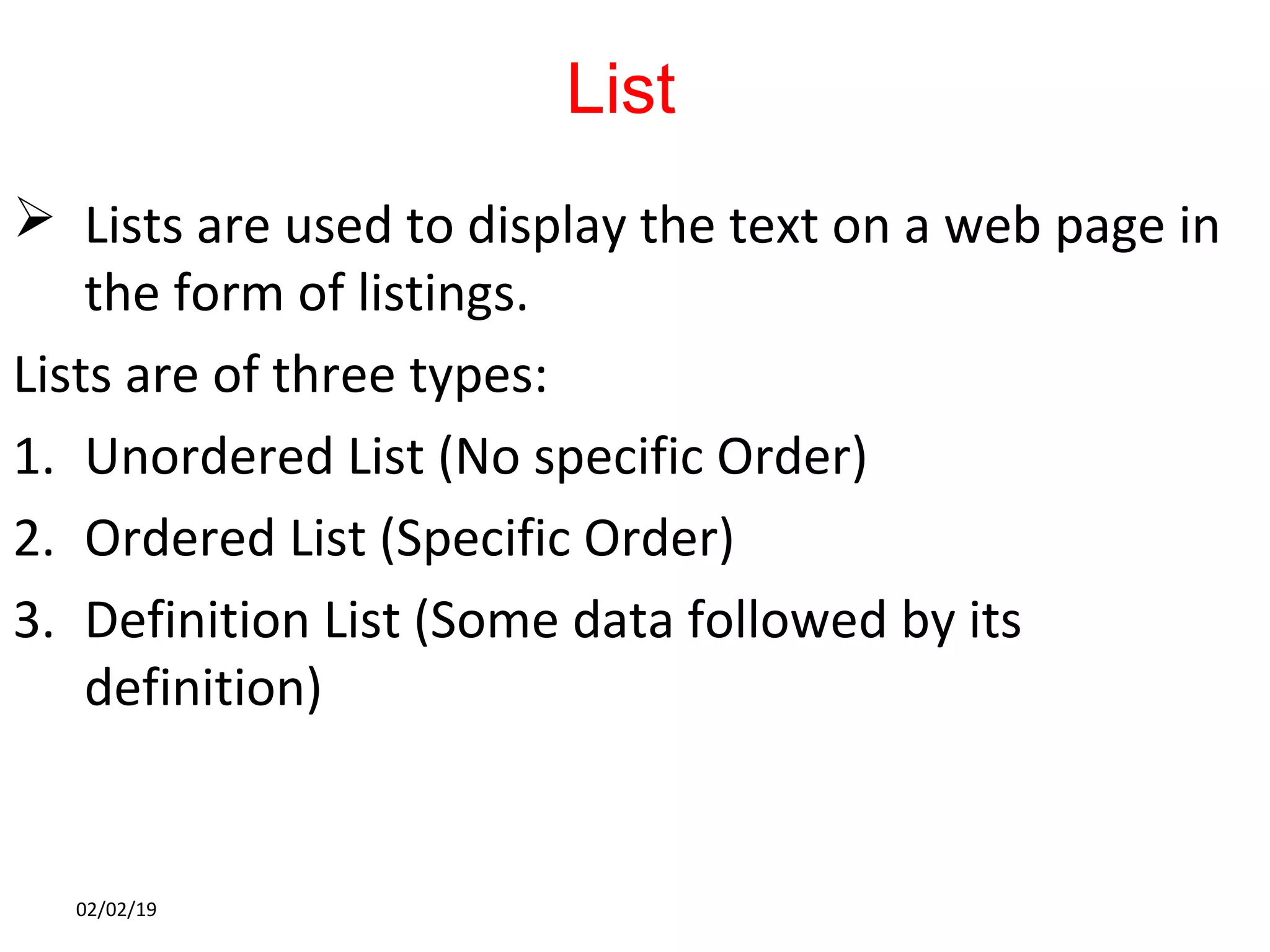
List
 Lists are used to display the text on a web page in
the form of listings.
Lists are of three types:
1. Unordered List (No specific Order)
2. Ordered List (Specific Order)
3. Definition List (Some data followed by its
definition)
02/02/19
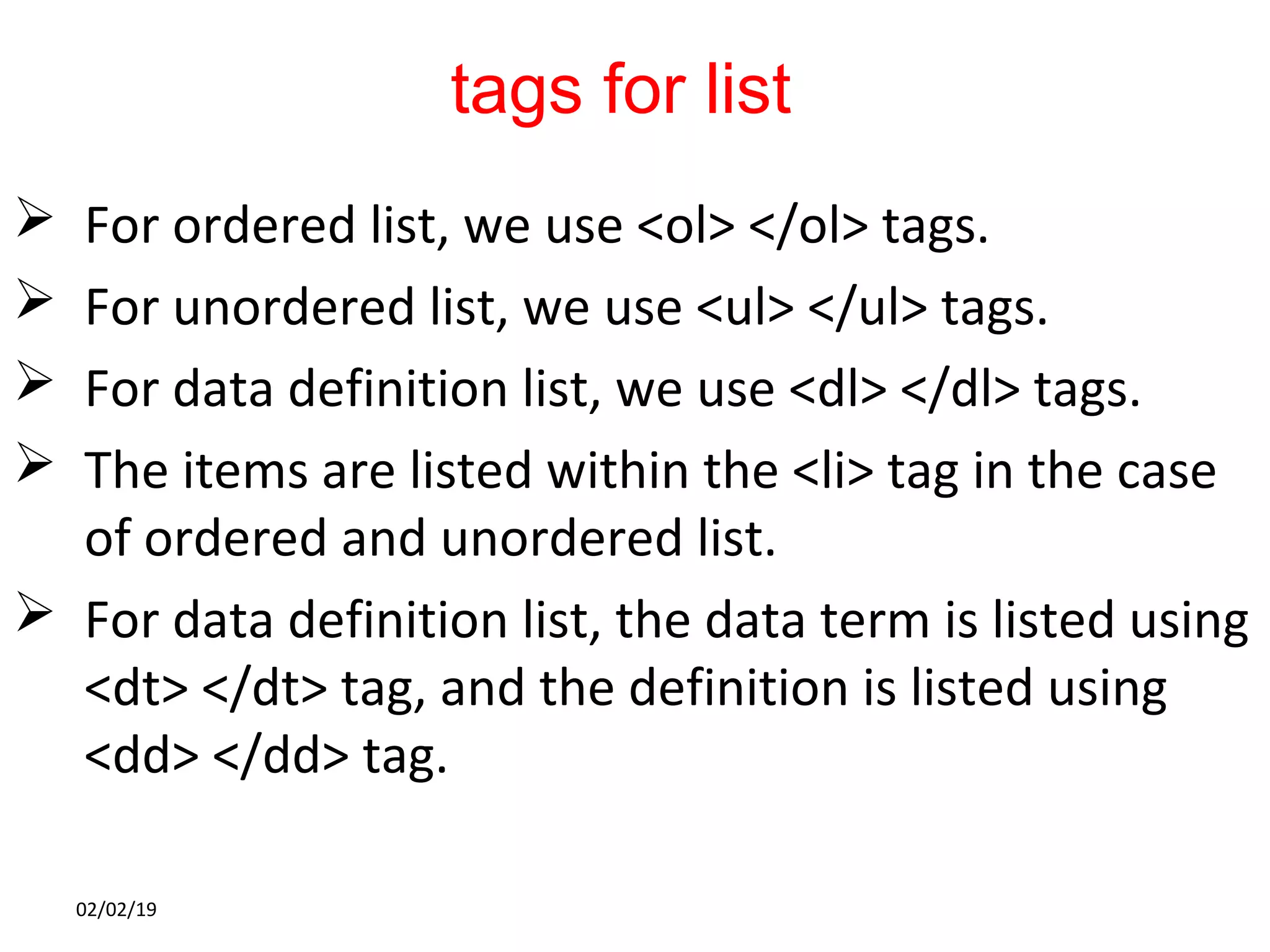
tags for list
 For ordered list, we use <ol> </ol> tags.
 For unordered list, we use <ul> </ul> tags.
 For data definition list, we use <dl> </dl> tags.
 The items are listed within the <li> tag in the case
of ordered and unordered list.
 For data definition list, the data term is listed using
<dt> </dt> tag, and the definition is listed using
<dd> </dd> tag.
02/02/19
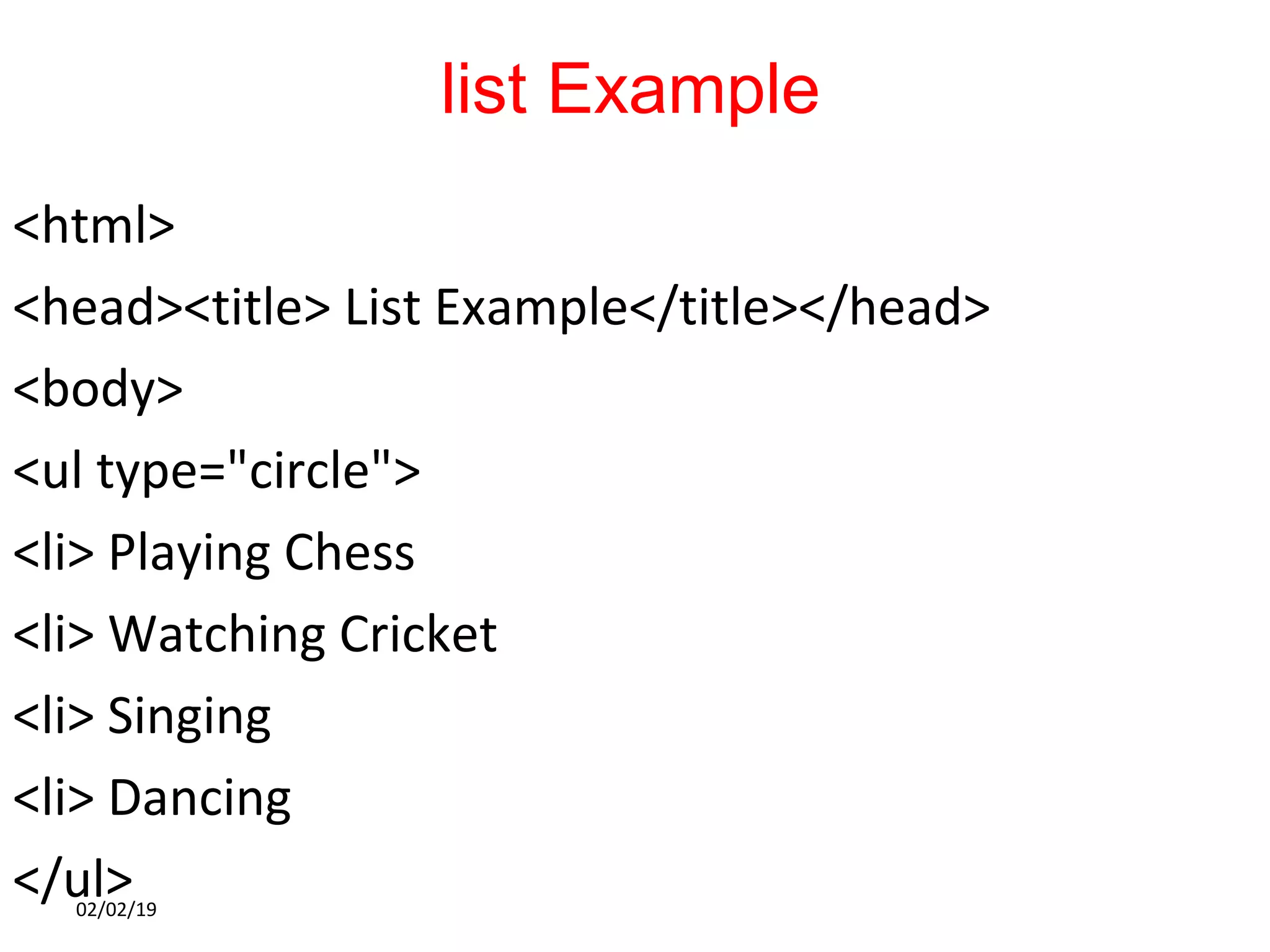
list Example
<html>
<head><title> List Example</title></head>
<body>
<ul type="circle">
<li> Playing Chess
<li> Watching Cricket
<li> Singing
<li> Dancing
</ul>02/02/19
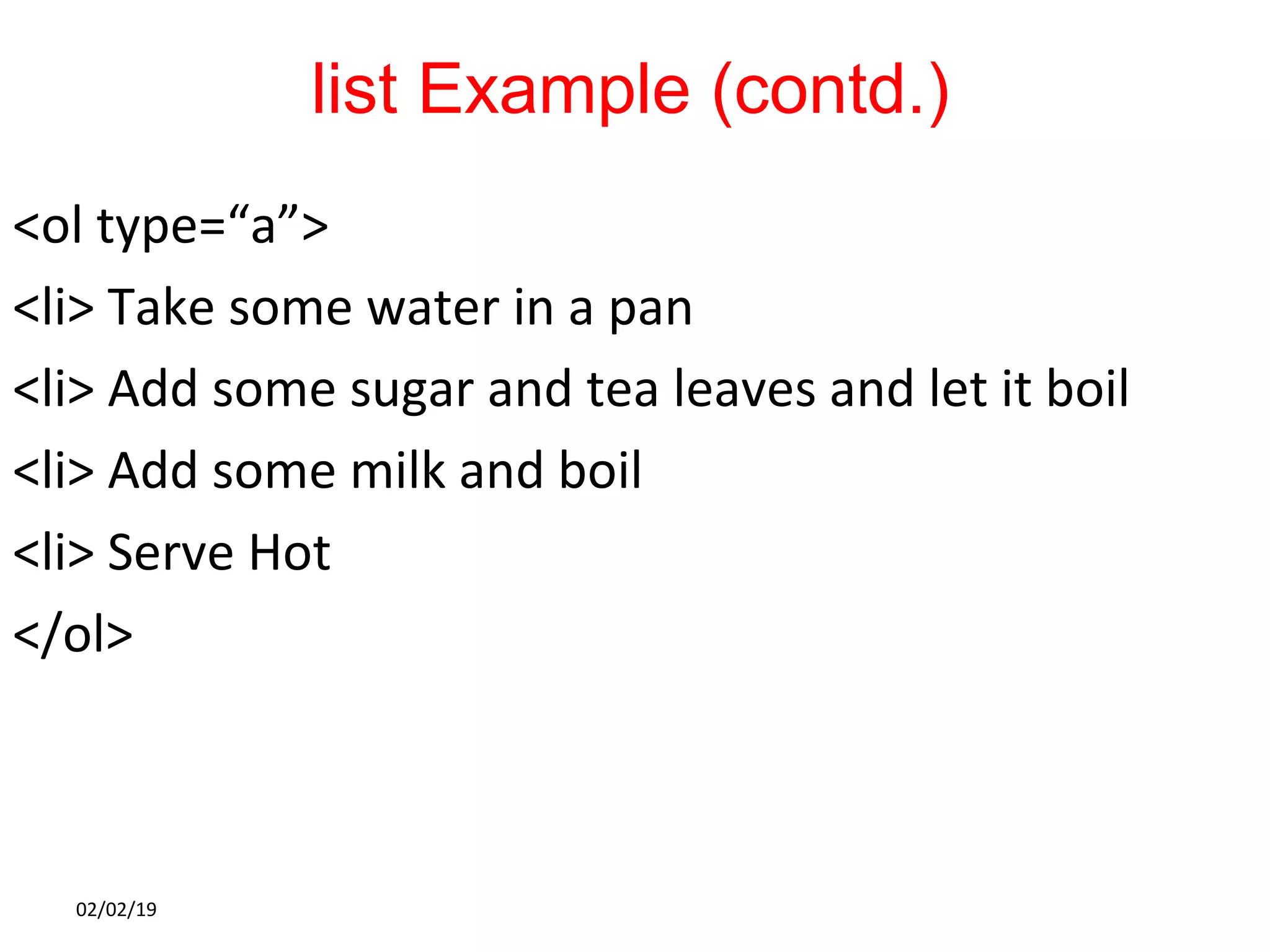
list Example (contd.)
<ol type=“a”>
<li> Take some water in a pan
<li> Add some sugar and tea leaves and let it boil
<li> Add some milk and boil
<li> Serve Hot
</ol>
02/02/19
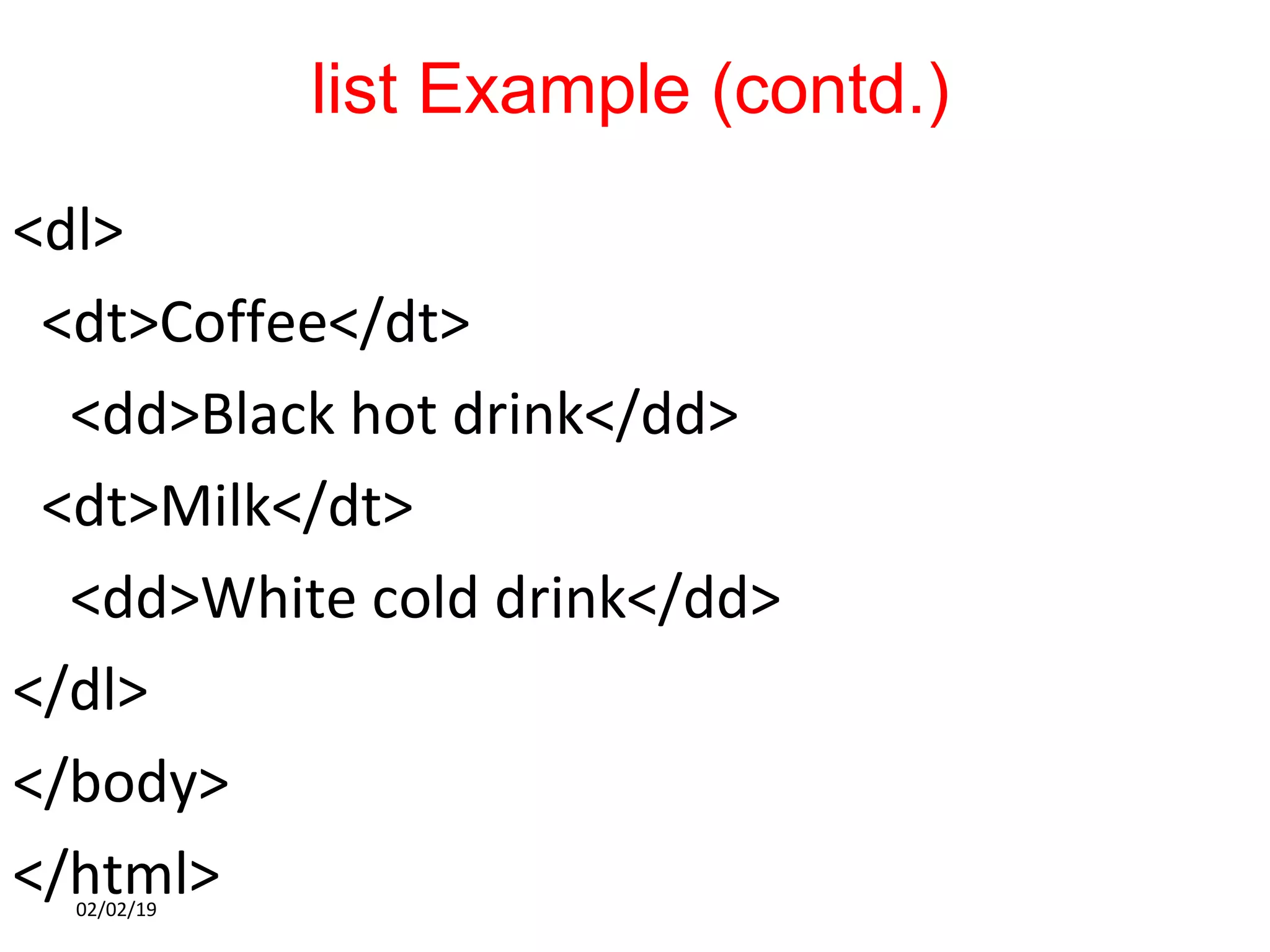
list Example (contd.)
<dl>
<dt>Coffee</dt>
<dd>Black hot drink</dd>
<dt>Milk</dt>
<dd>White cold drink</dd>
</dl>
</body>
</html>02/02/19
02/02/19
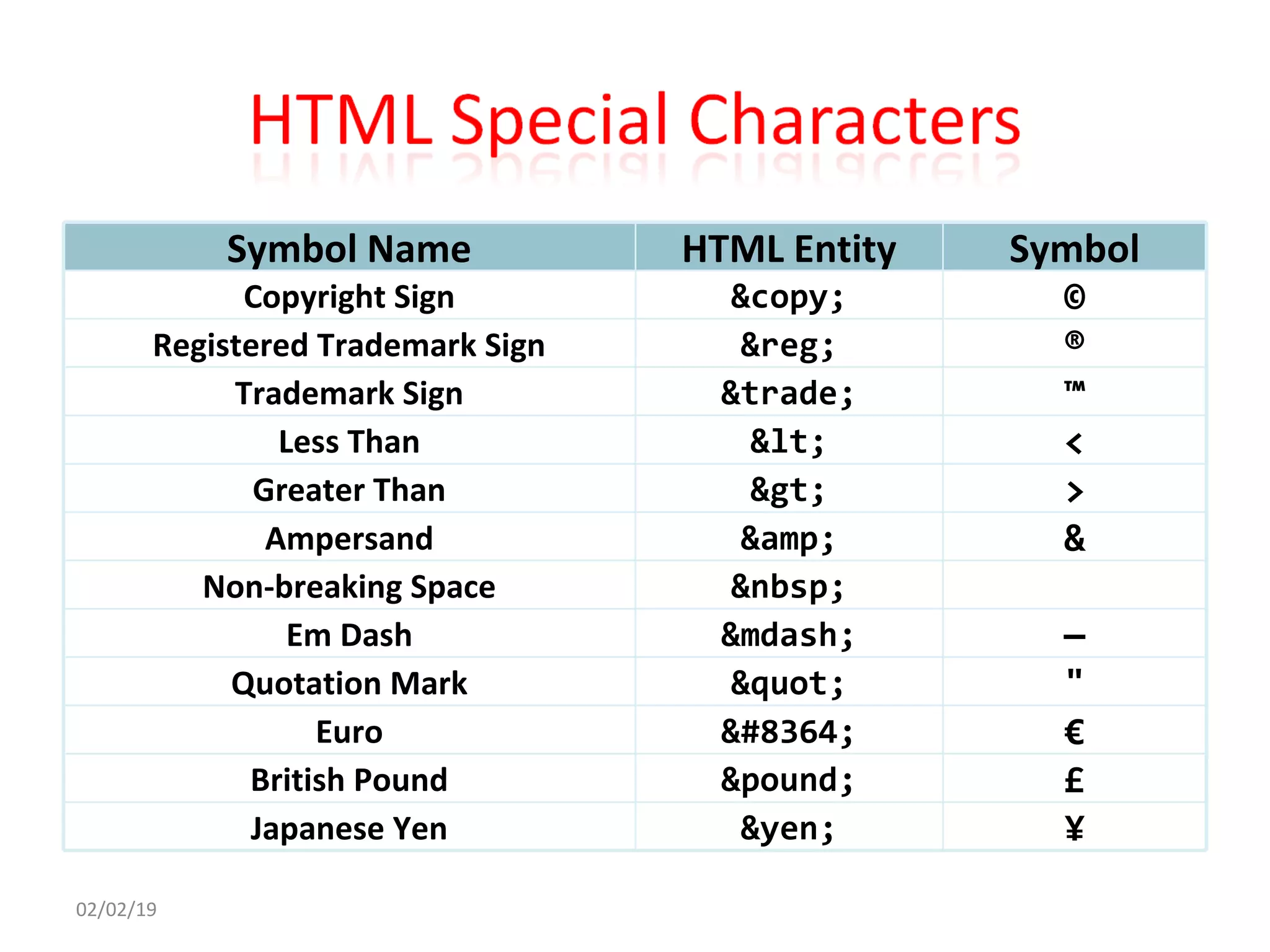
£&pound;British Pound
€&#8364;Euro
"&quot;Quotation Mark
¥&yen;Japanese Yen
—&mdash;Em Dash
&nbsp;Non-breaking Space
&&amp;Ampersand
>&gt;Greater Than
<&lt;Less Than
™&trade;Trademark Sign
®&reg;Registered Trademark Sign
©&copy;Copyright Sign
SymbolHTML EntitySymbol Name
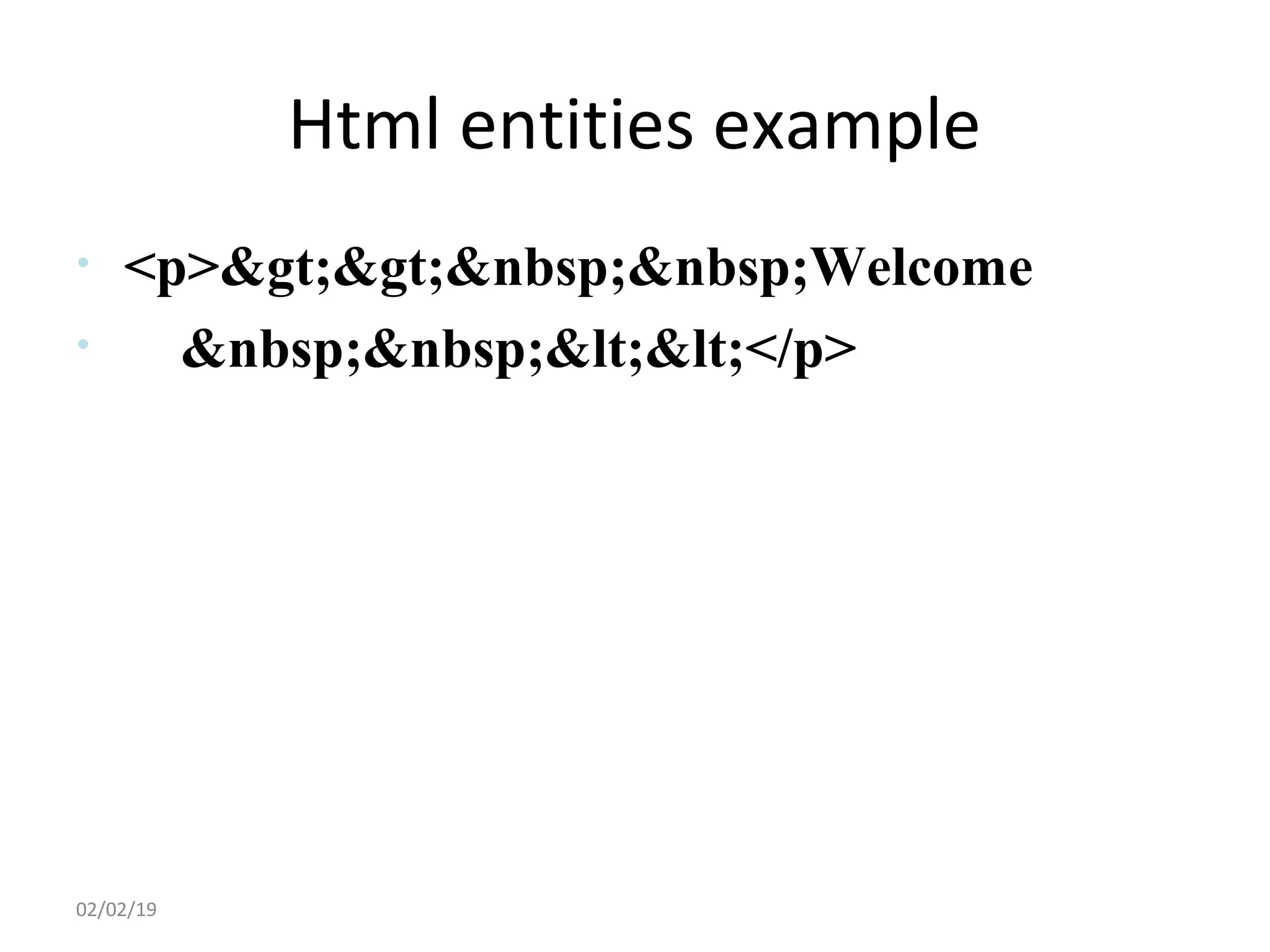
Html entities example
• <p>&gt;&gt;&nbsp;&nbsp;Welcome
• &nbsp;&nbsp;&lt;&lt;</p>
02/02/19
FORMFORM
Form is used to input data from the user and
send the data to the server
Encapsulates the data into an object
Object is sent to a specific file to the server
Object is sent on clicking on the “submit” button
Data is entered into a form using control
elements
Control elements are also known as fields
02/02/19
FORMFORM
Control elements:
Textbox
password
Radio Buttons
Check Boxes
Drop down Boxes
Textarea
Submit Buttons, etc.
02/02/19
FORMFORM
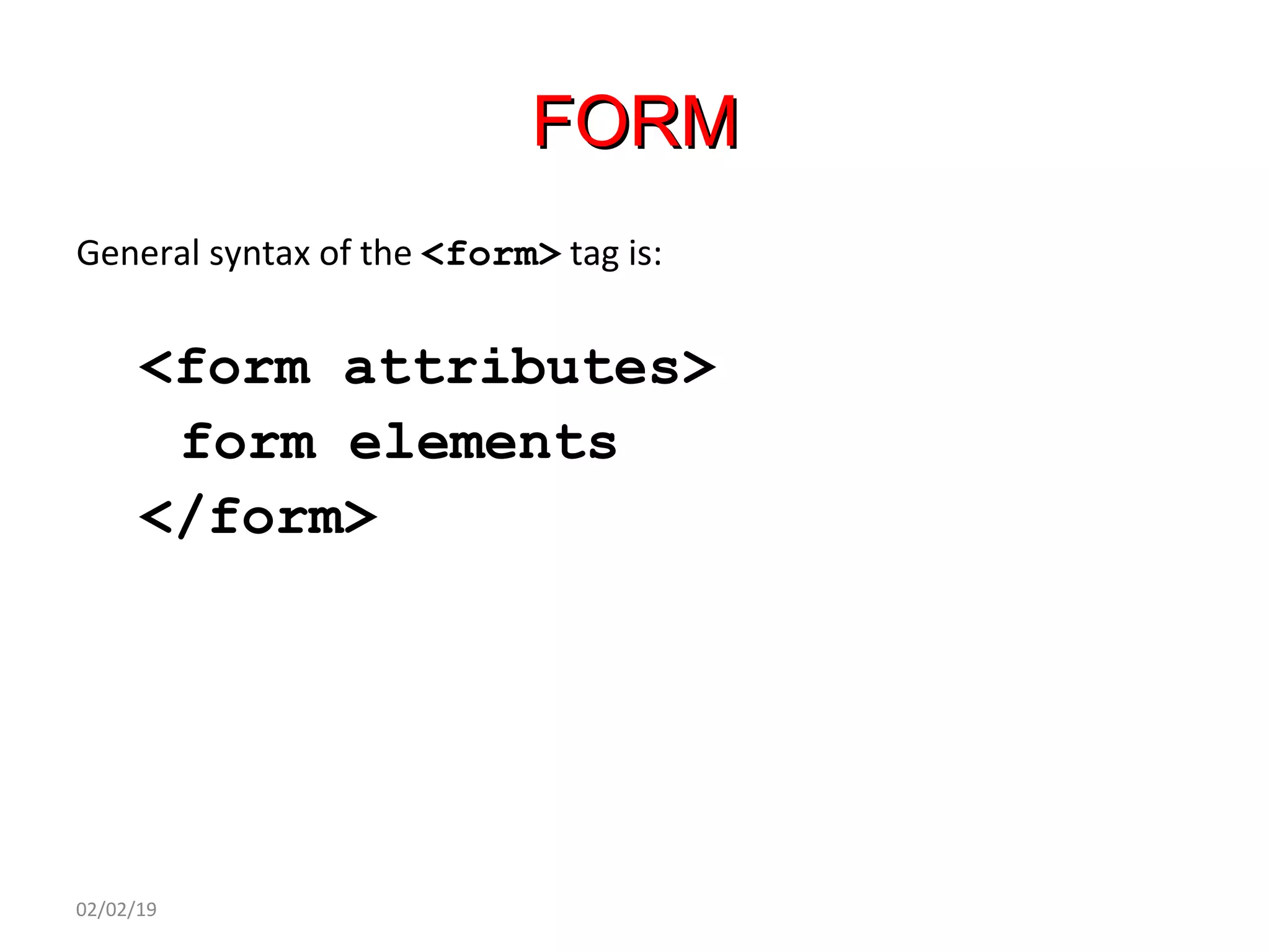
General syntax of the <form> tag is:
<form attributes>
form elements
</form>
02/02/19
FORMFORM
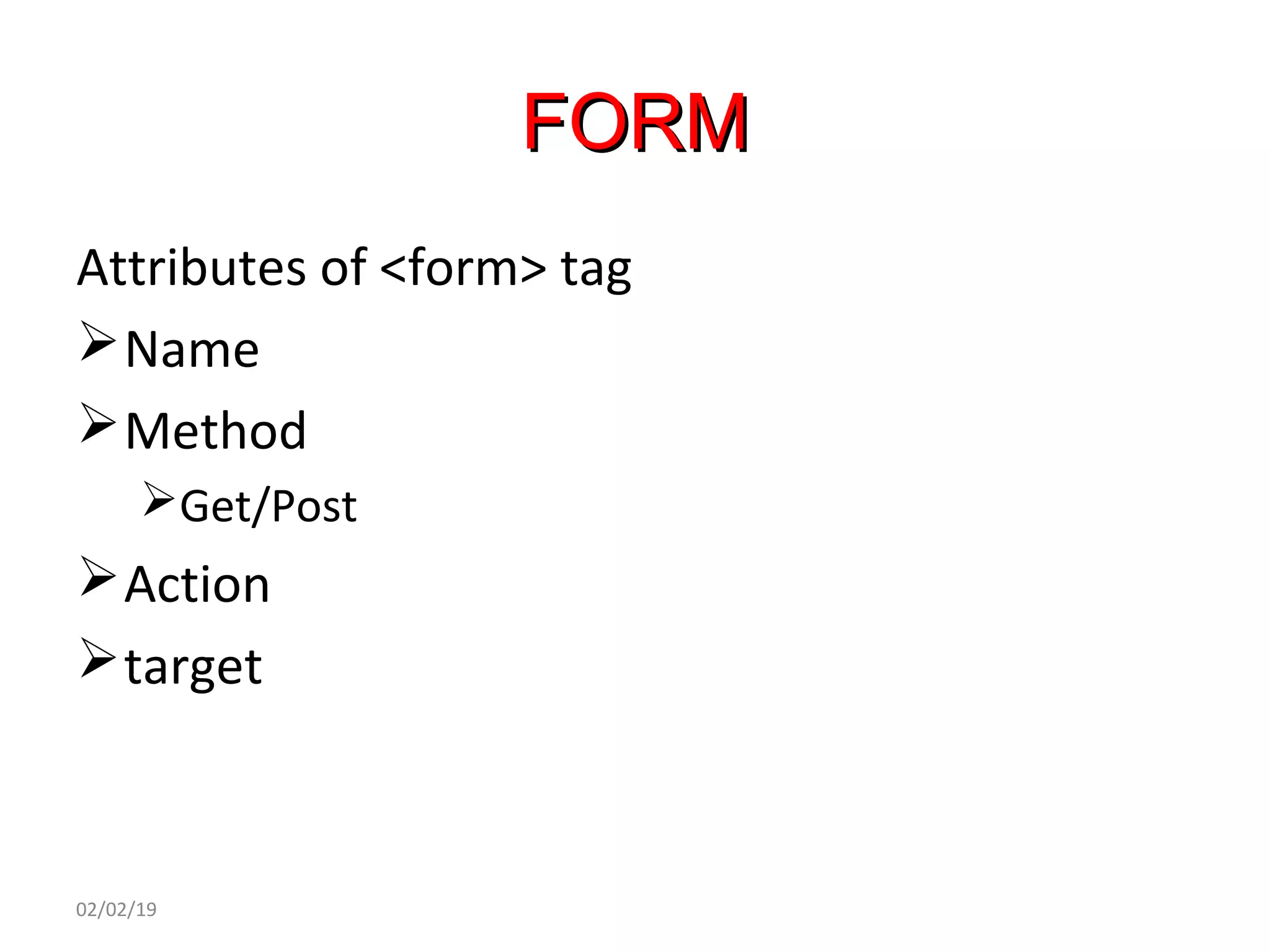
Attributes of <form> tag
Name
Method
Get/Post
Action
target
02/02/19
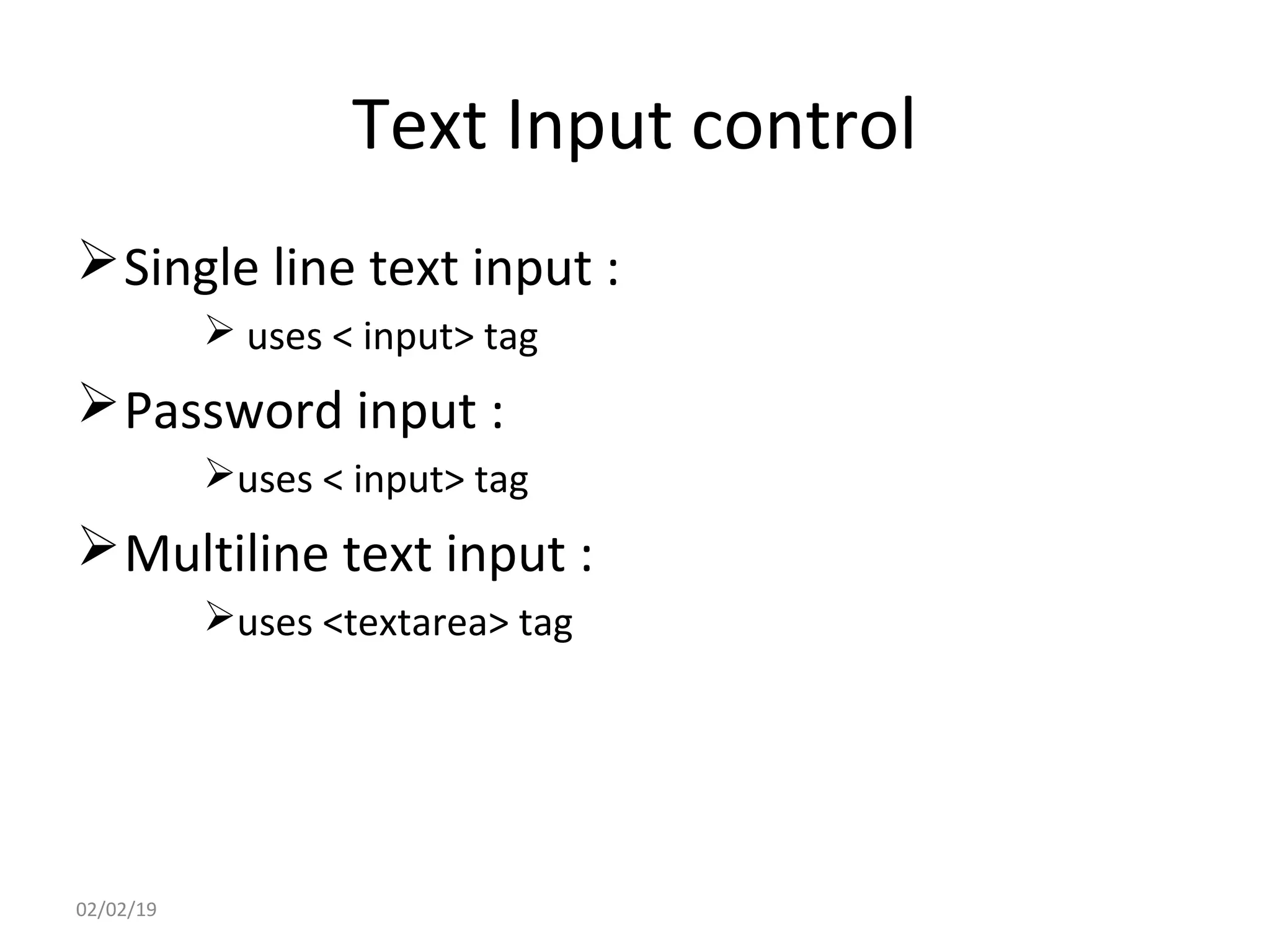
Text Input control
Single line text input :
 uses < input> tag
Password input :
uses < input> tag
Multiline text input :
uses <textarea> tag
02/02/19
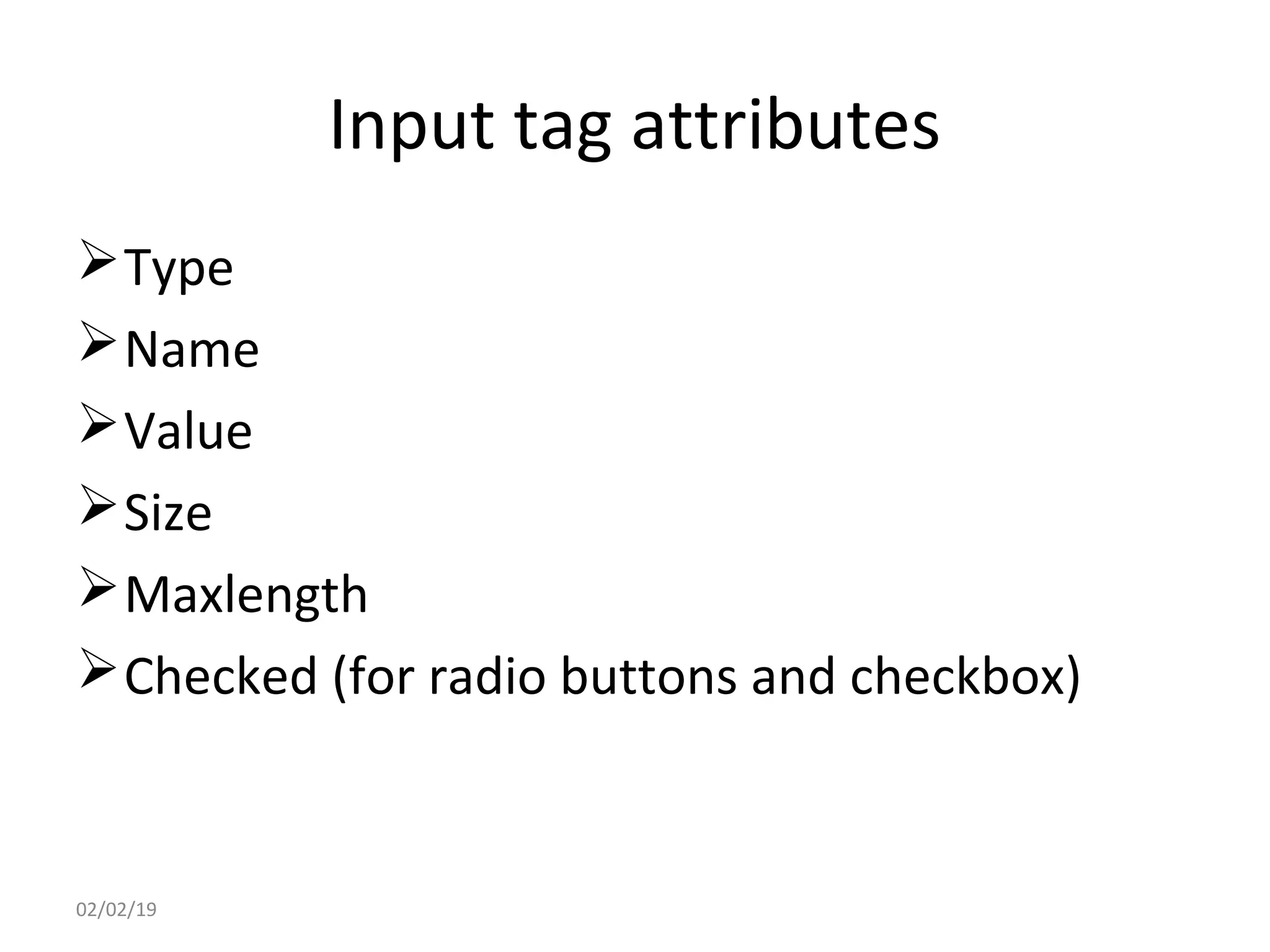
Input tag attributes
Type
Name
Value
Size
Maxlength
Checked (for radio buttons and checkbox)
02/02/19
Single line input
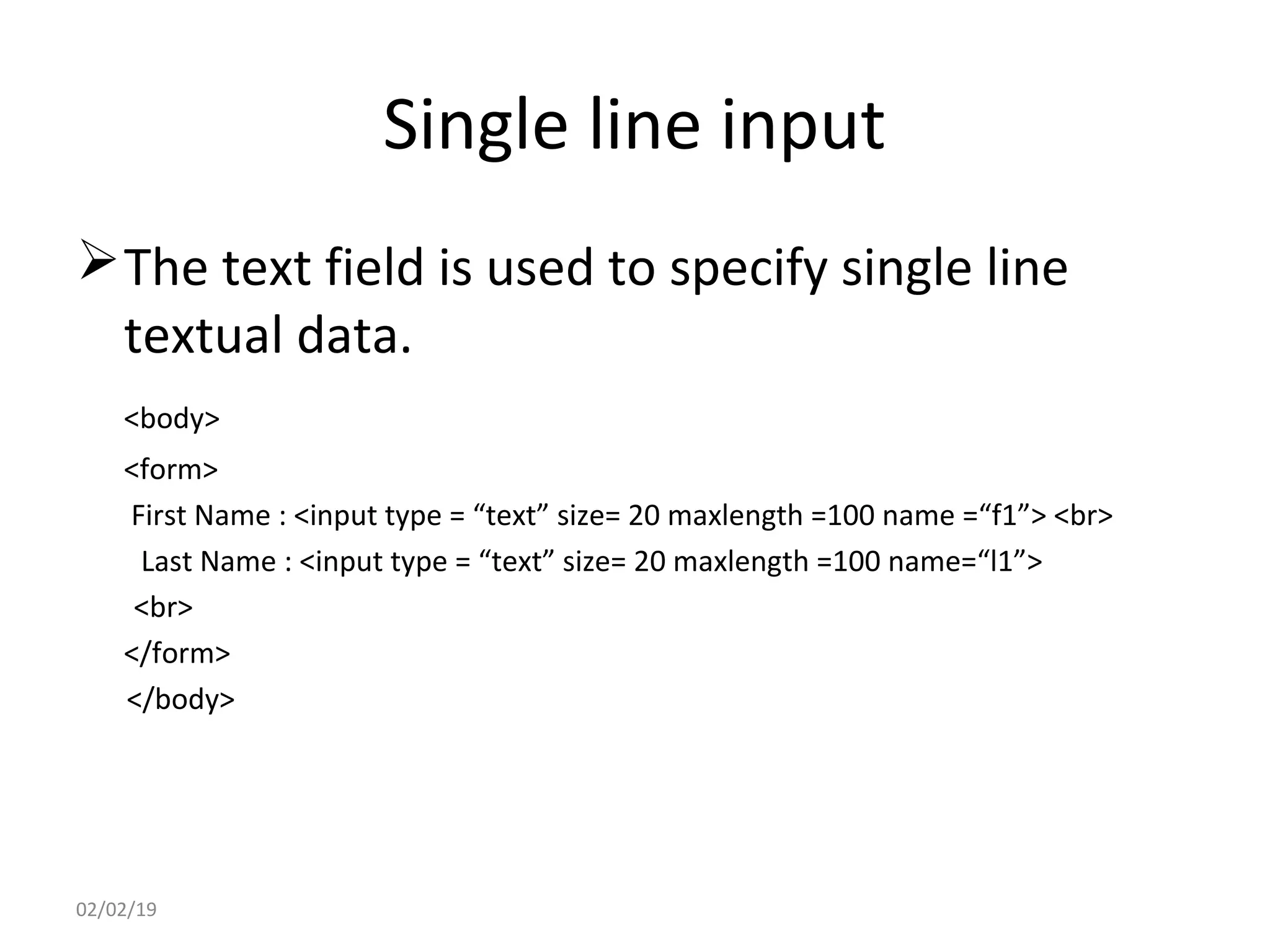
The text field is used to specify single line
textual data.
<body>
<form>
First Name : <input type = “text” size= 20 maxlength =100 name =“f1”> <br>
Last Name : <input type = “text” size= 20 maxlength =100 name=“l1”>
<br>
</form>
</body>
02/02/19
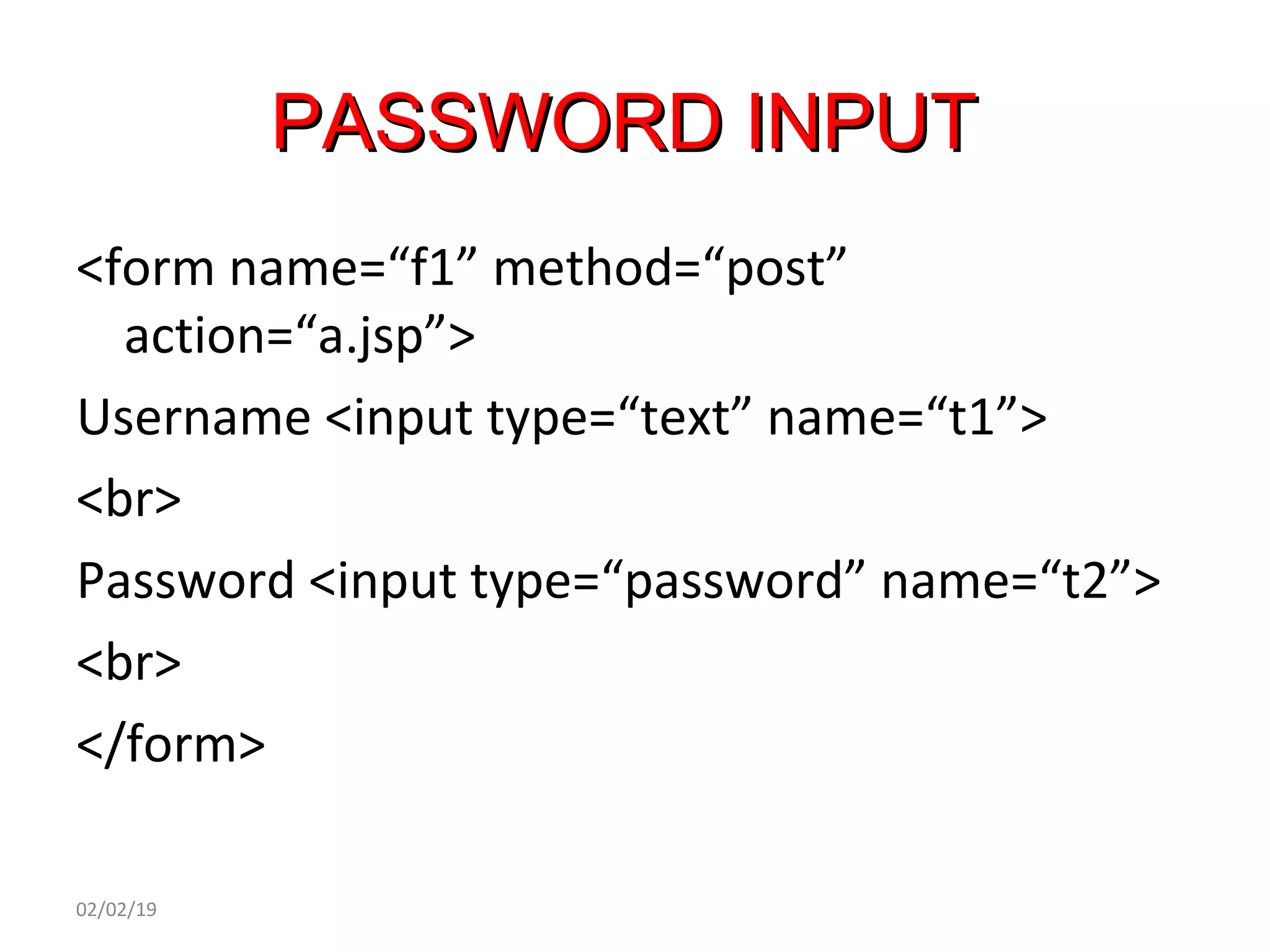
PASSWORD INPUTPASSWORD INPUT
<form name=“f1” method=“post”
action=“a.jsp”>
Username <input type=“text” name=“t1”>
<br>
Password <input type=“password” name=“t2”>
<br>
</form>
02/02/19
Multiline text input
<body>
<form>
Description: <br>
<textarea rows= “5” cols=“40”>
Enter the description here….
</textarea>
</form>
</body>
02/02/19
checkbox
The checkboxes are used to specify true/false
options by clicking with mouse pointer.
More than one option may be selected
<form>
<input type = “checkboxes” checked> CPU<br>
<input type = “checkboxes”> RAM<br>
<input type = “checkboxes”>Disk<br>
</form>
02/02/19
Radio buttons
only one radio button per group may be
selected at a time.
The group is specified by the NAME attribute.
<form>
<input type = “radio” name = “cpu” checked> CPU<br>
<input type = “radio” name = “cpu”> RAM<br>
<input type = “radio” name = “cpu”>Disk<br>
</form>
02/02/19
Select control
Allows the user to select items from a pull-
down menu
<select multiple>
<option selected>CPU
<option>RAM
<option>Disk
<option>Monitor
</select>
02/02/19
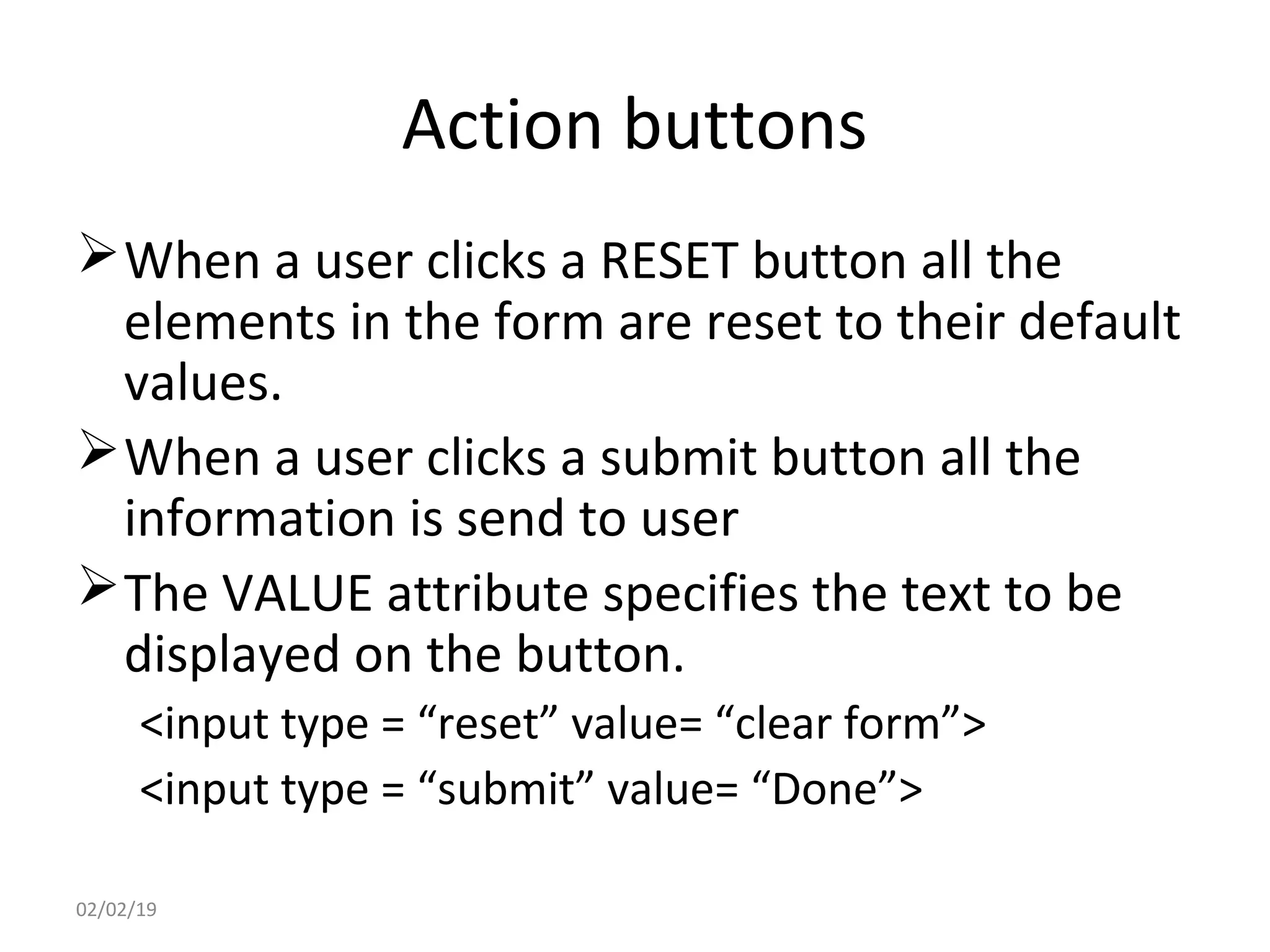
Action buttons
When a user clicks a RESET button all the
elements in the form are reset to their default
values.
When a user clicks a submit button all the
information is send to user
The VALUE attribute specifies the text to be
displayed on the button.
<input type = “reset” value= “clear form”>
<input type = “submit” value= “Done”>
02/02/19
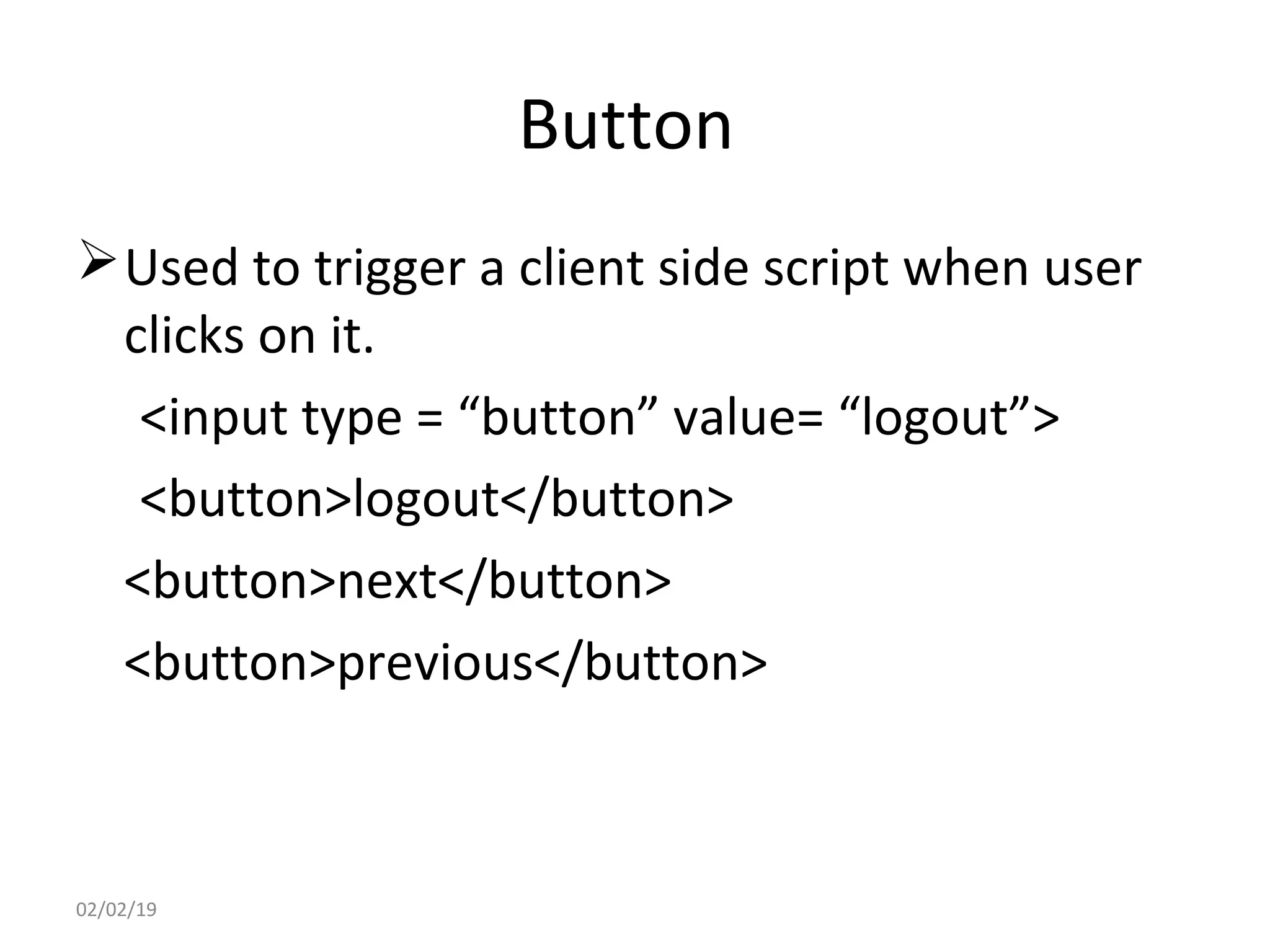
Button
Used to trigger a client side script when user
clicks on it.
<input type = “button” value= “logout”>
<button>logout</button>
<button>next</button>
<button>previous</button>
02/02/19
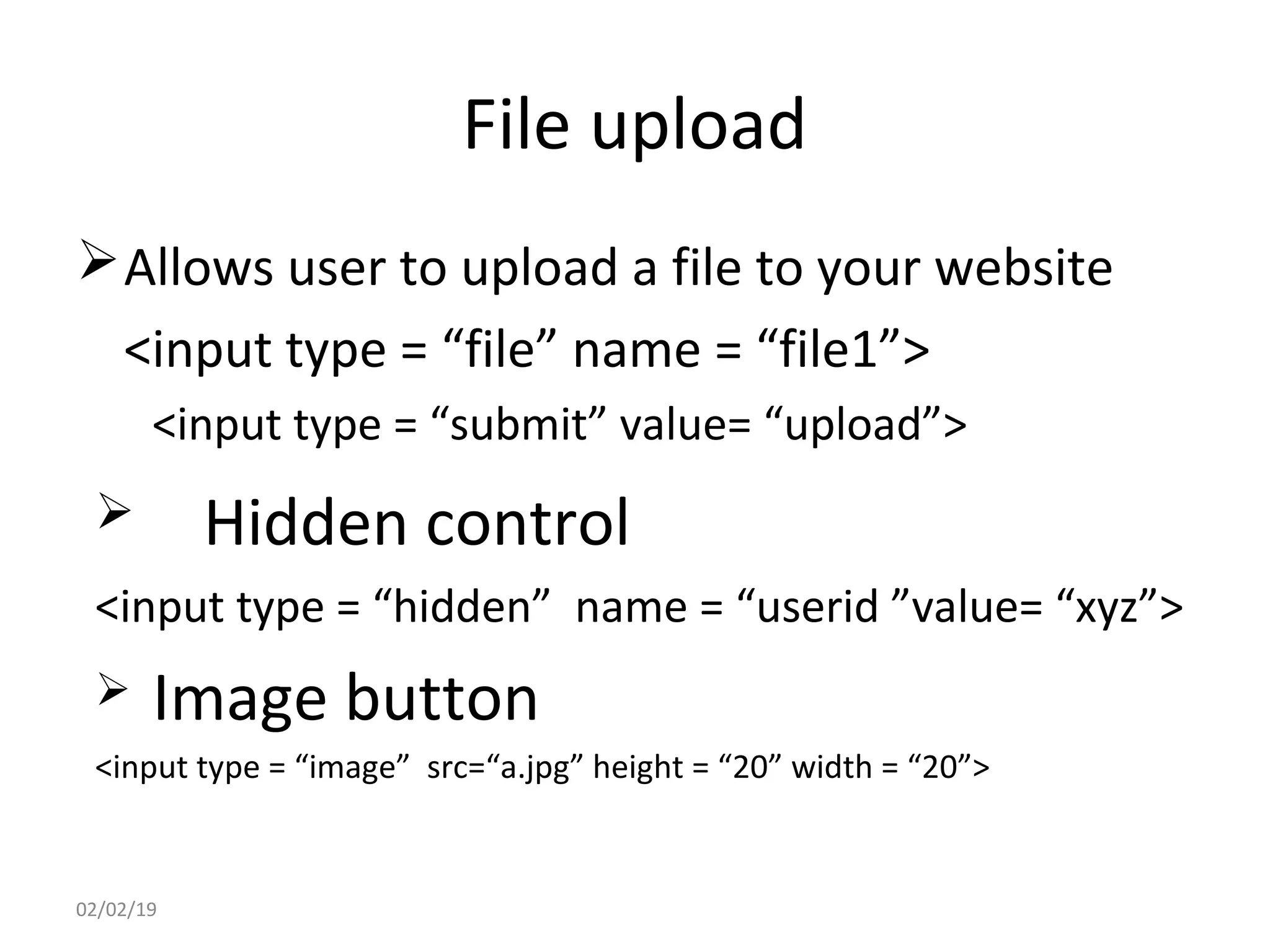
File upload
Allows user to upload a file to your website
<input type = “file” name = “file1”>
<input type = “submit” value= “upload”>
 Hidden control
<input type = “hidden” name = “userid ”value= “xyz”>
 Image button
<input type = “image” src=“a.jpg” height = “20” width = “20”>
02/02/19
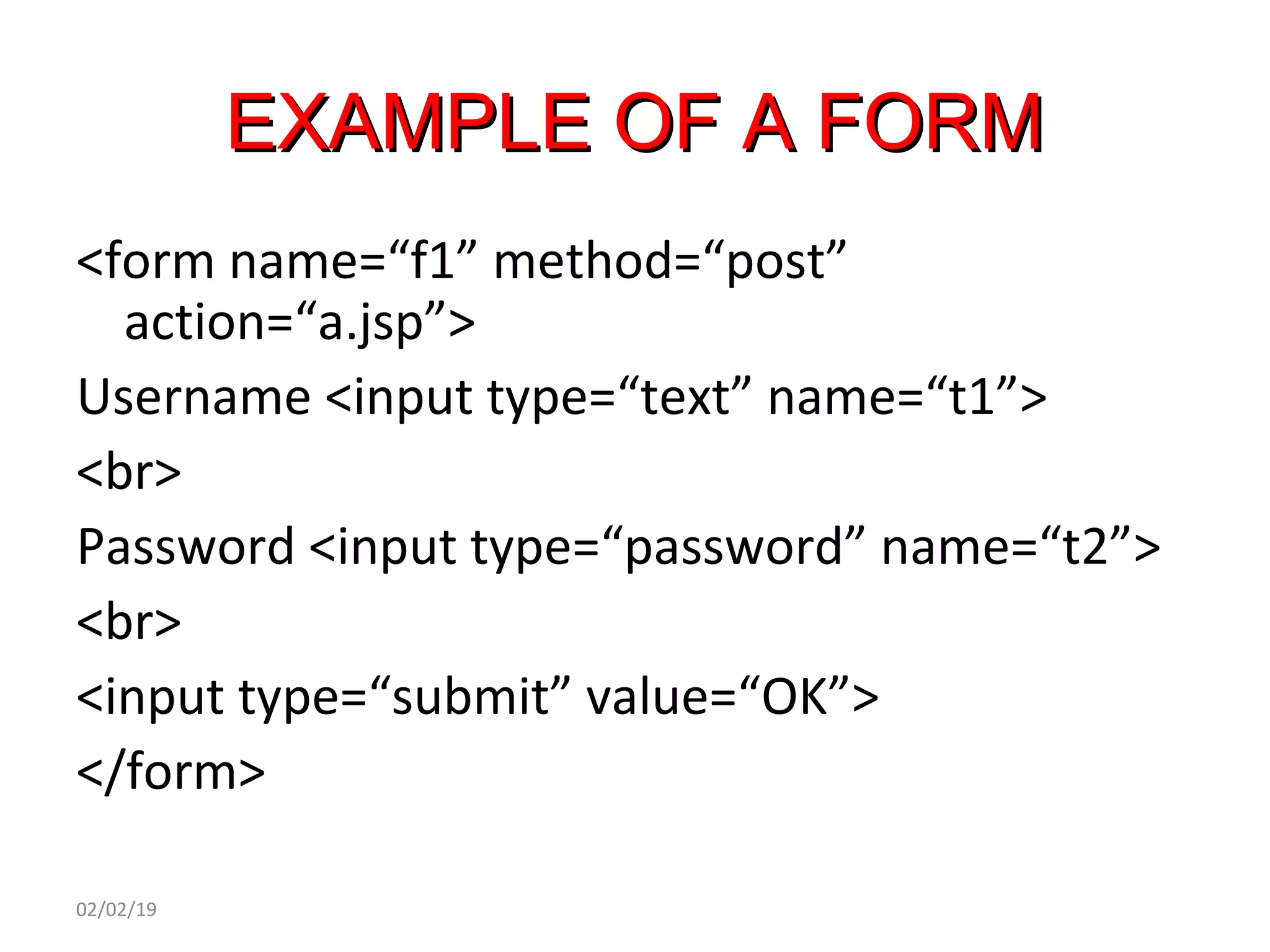
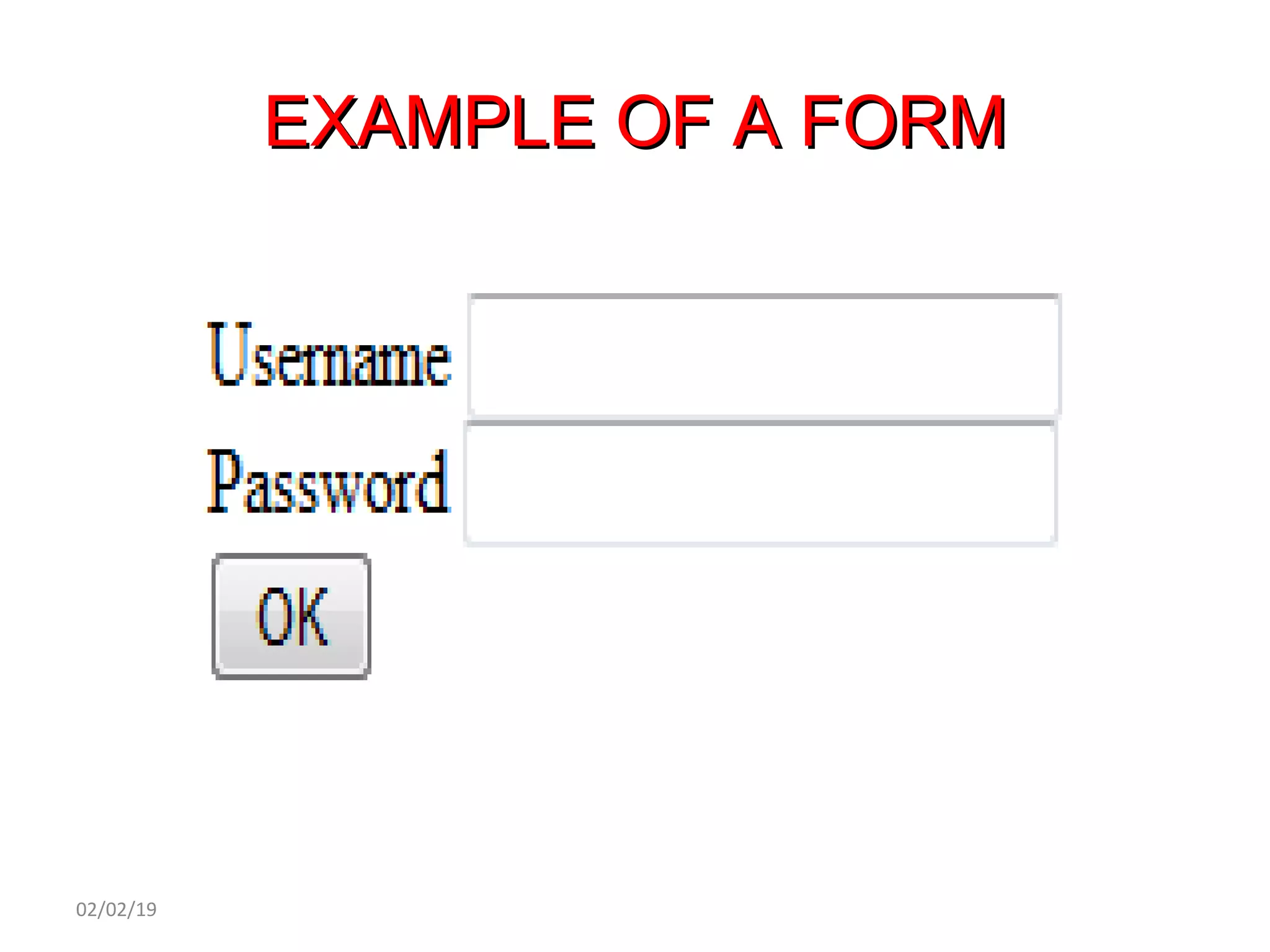
EXAMPLE OF A FORMEXAMPLE OF A FORM
<form name=“f1” method=“post”
action=“a.jsp”>
Username <input type=“text” name=“t1”>
<br>
Password <input type=“password” name=“t2”>
<br>
<input type=“submit” value=“OK”>
</form>
02/02/19
EXAMPLE OF A FORMEXAMPLE OF A FORM
02/02/19
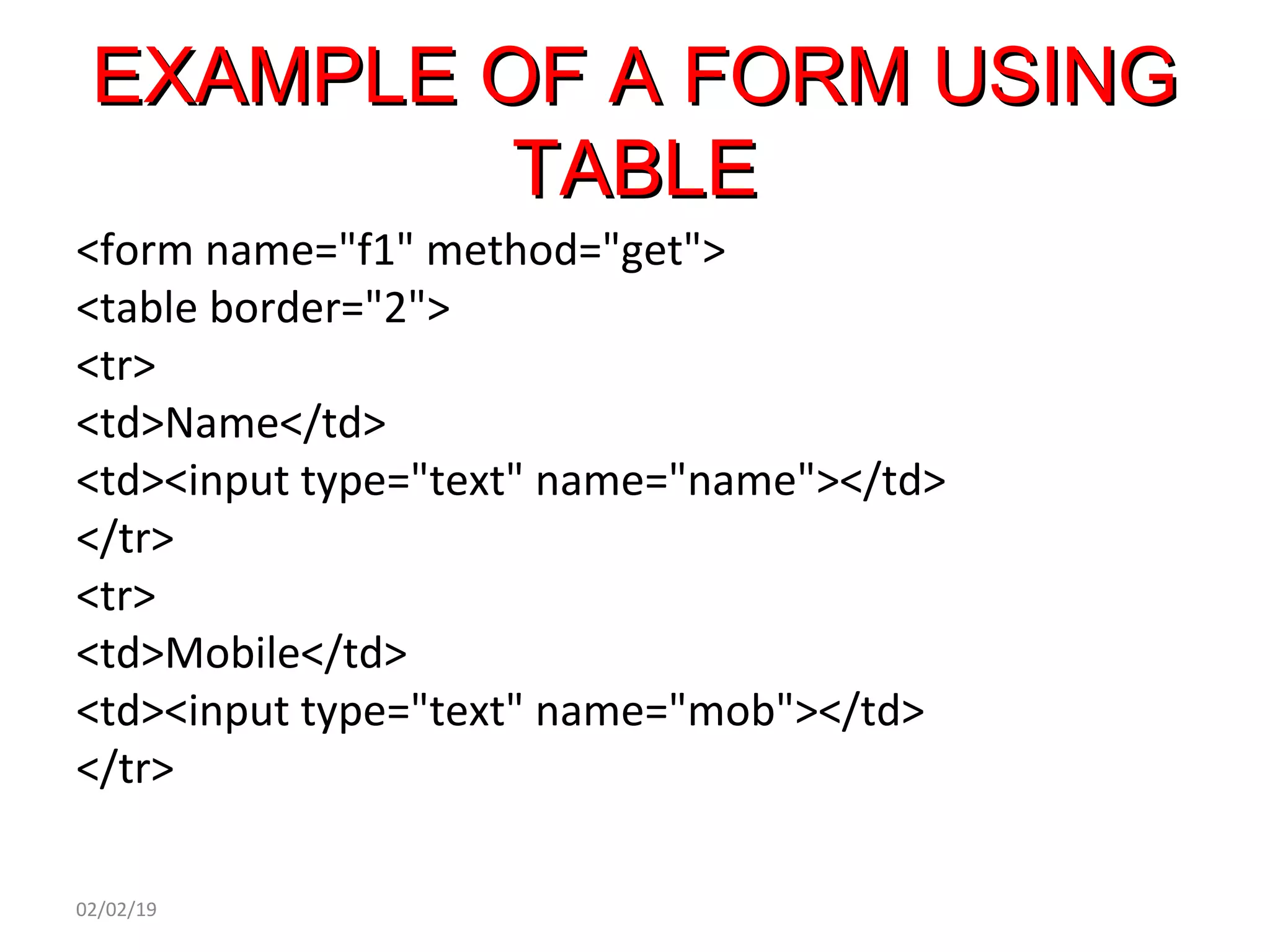
EXAMPLE OF A FORM USINGEXAMPLE OF A FORM USING
TABLETABLE
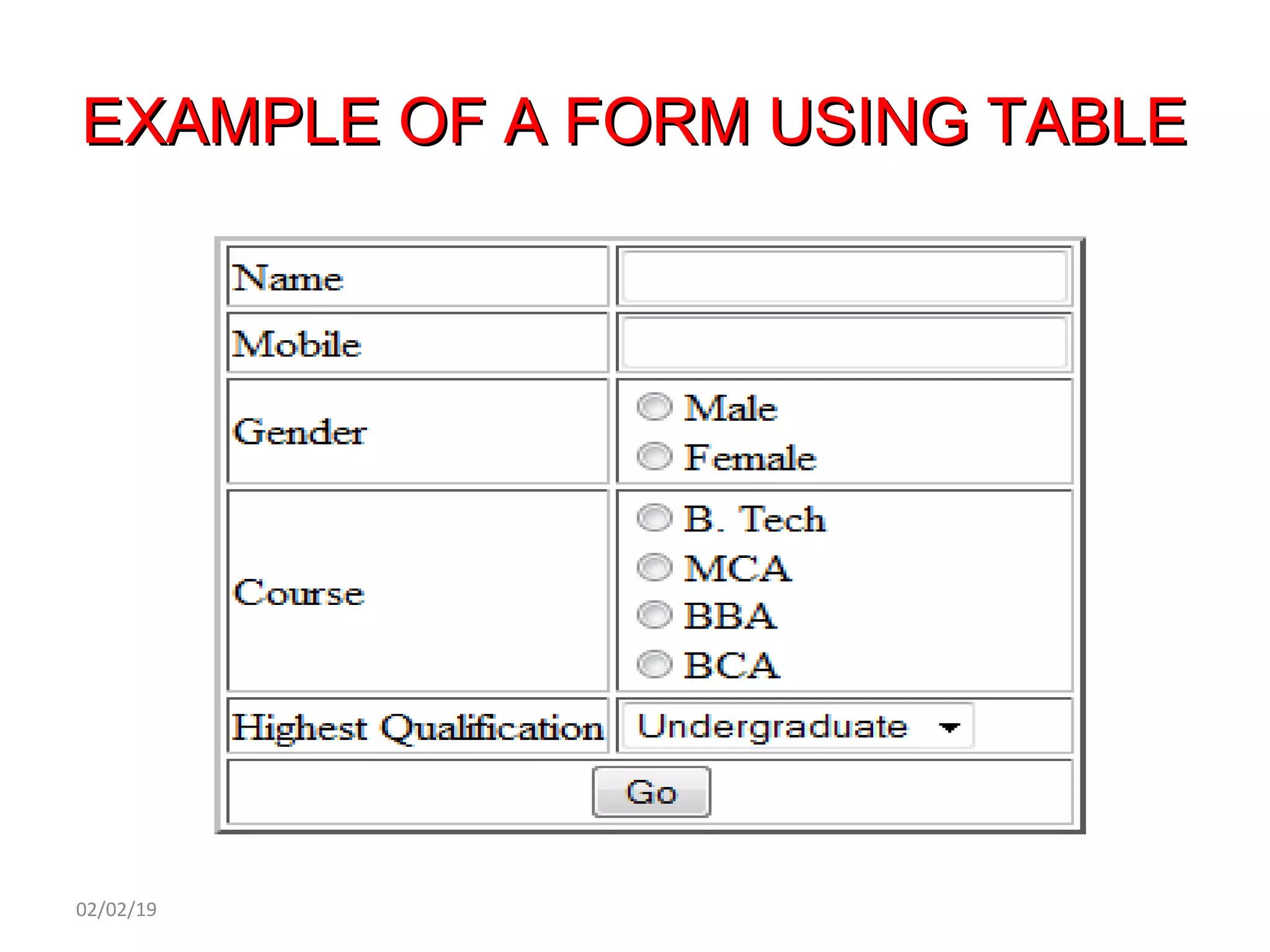
<form name="f1" method="get">
<table border="2">
<tr>
<td>Name</td>
<td><input type="text" name="name"></td>
</tr>
<tr>
<td>Mobile</td>
<td><input type="text" name="mob"></td>
</tr>
02/02/19
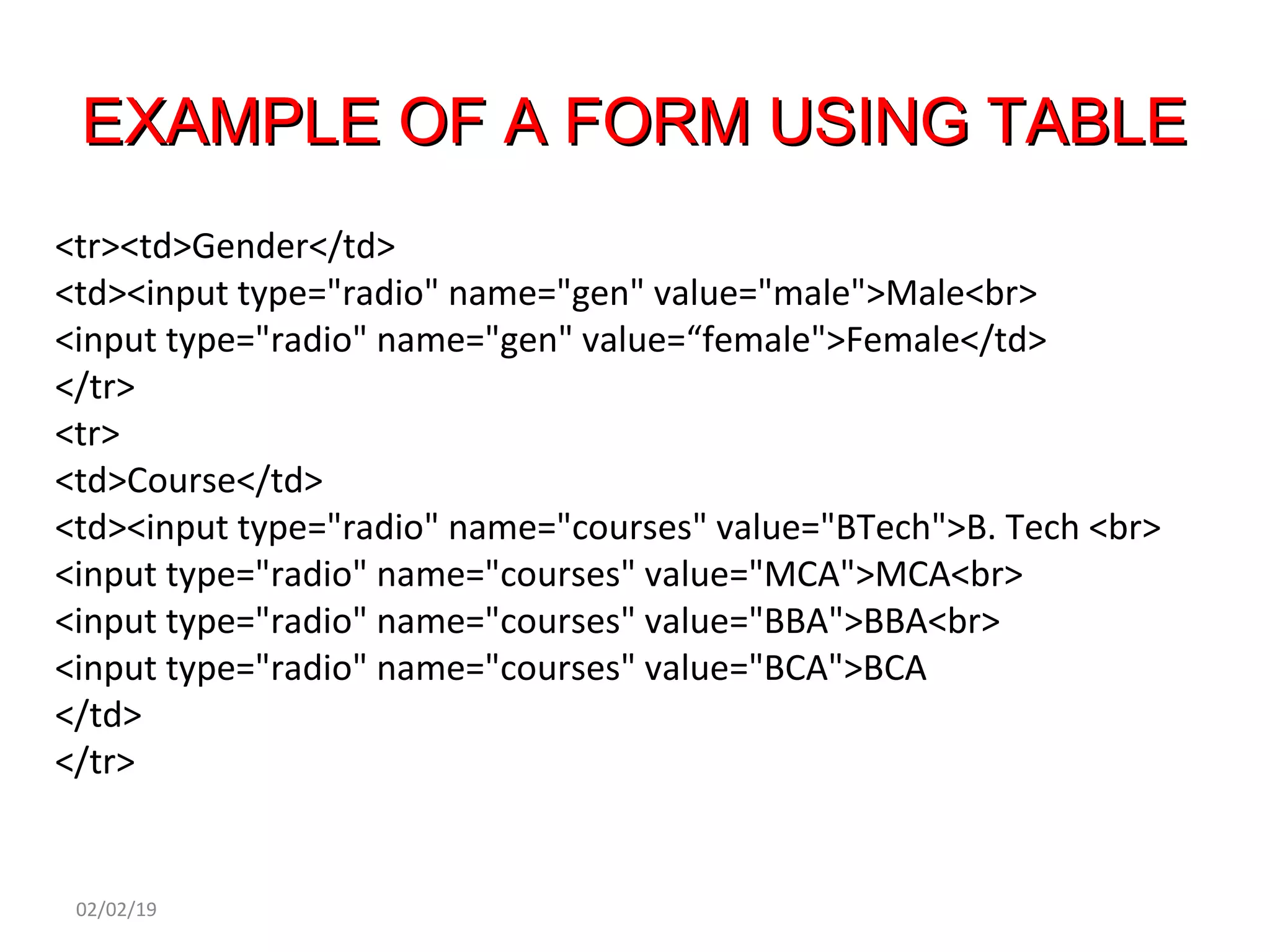
EXAMPLE OF A FORM USING TABLEEXAMPLE OF A FORM USING TABLE
<tr><td>Gender</td>
<td><input type="radio" name="gen" value="male">Male<br>
<input type="radio" name="gen" value=“female">Female</td>
</tr>
<tr>
<td>Course</td>
<td><input type="radio" name="courses" value="BTech">B. Tech <br>
<input type="radio" name="courses" value="MCA">MCA<br>
<input type="radio" name="courses" value="BBA">BBA<br>
<input type="radio" name="courses" value="BCA">BCA
</td>
</tr>
02/02/19
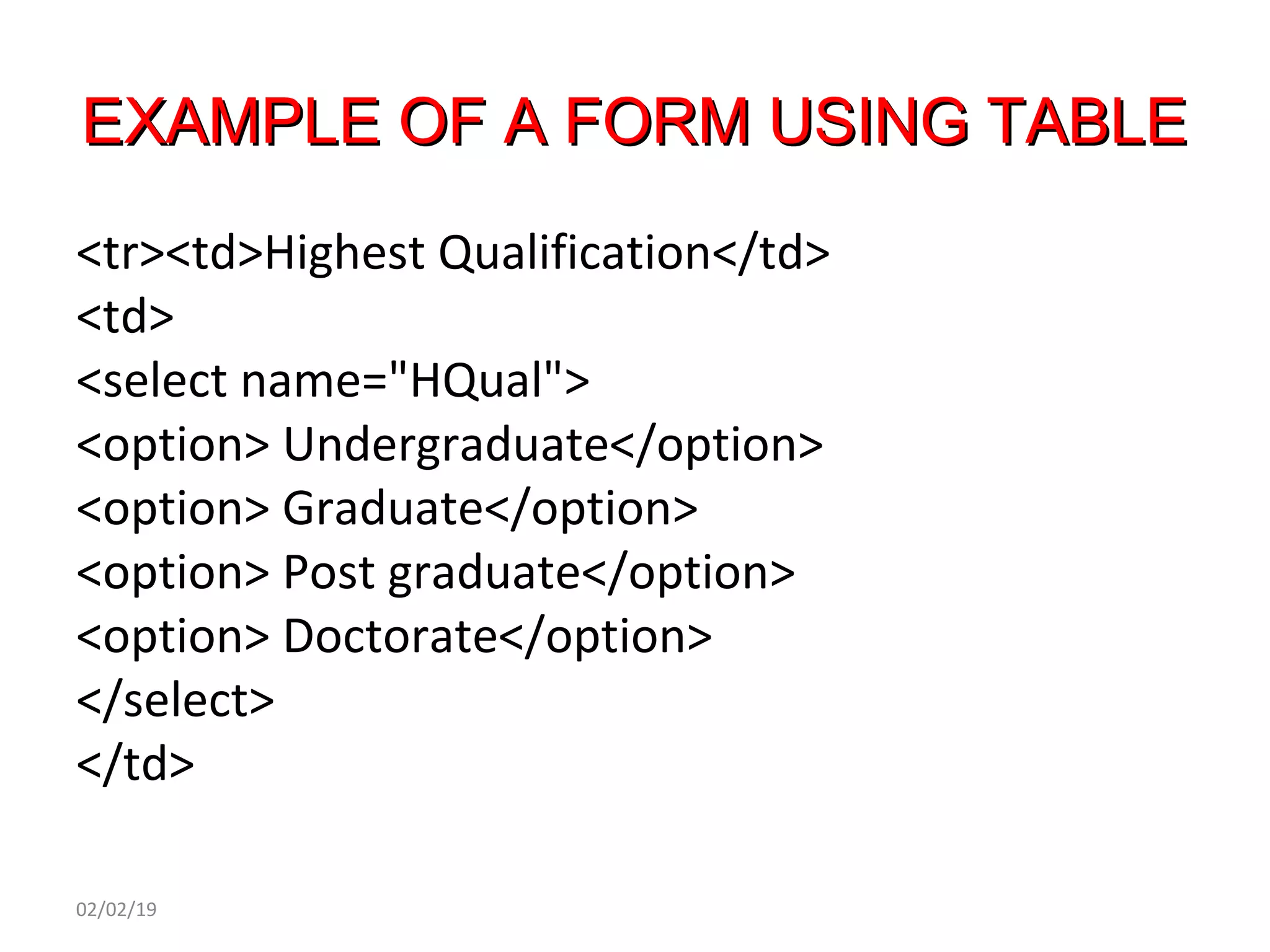
EXAMPLE OF A FORM USING TABLEEXAMPLE OF A FORM USING TABLE
<tr><td>Highest Qualification</td>
<td>
<select name="HQual">
<option> Undergraduate</option>
<option> Graduate</option>
<option> Post graduate</option>
<option> Doctorate</option>
</select>
</td>
02/02/19
EXAMPLE OF A FORM USINGEXAMPLE OF A FORM USING
TABLETABLE
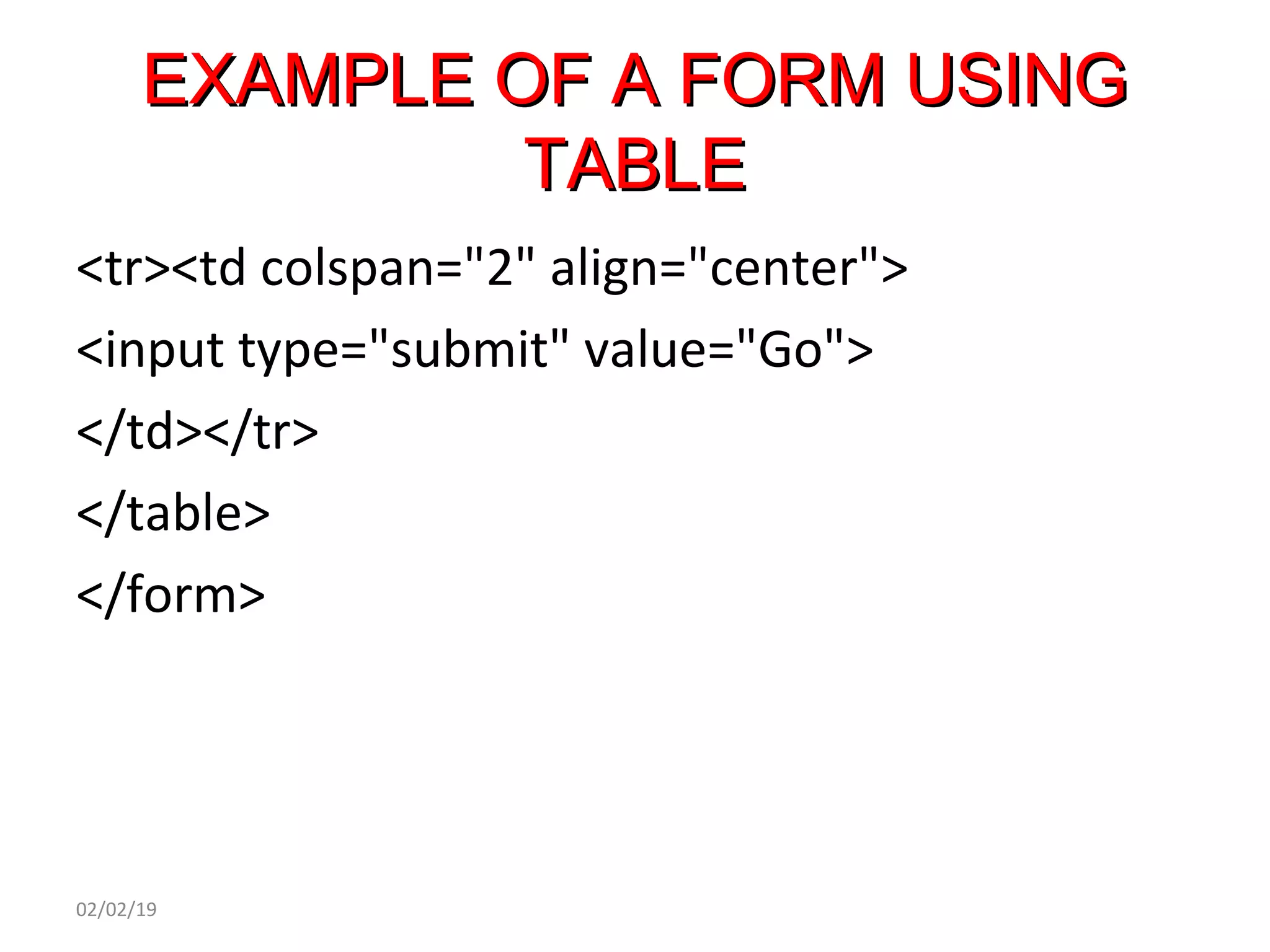
<tr><td colspan="2" align="center">
<input type="submit" value="Go">
</td></tr>
</table>
</form>
02/02/19
EXAMPLE OF A FORM USING TABLEEXAMPLE OF A FORM USING TABLE
02/02/19
frame
A frame structure allows us to display multiple
HTML documents at the same time on the
screen.
For this browser window needs to be
partitioned into different compartments
each compartment should be associated with
specific HTML files.
02/02/19
The document required to divide the browser
window into section or frames is called the
frame definition document
Frame differs from the normal HTML file in
that here the BODY tag is replaced by the
FRAMESET tag.
Each frame is given a name and the particular
file is to be shown in that frame is also
specified.
02/02/19
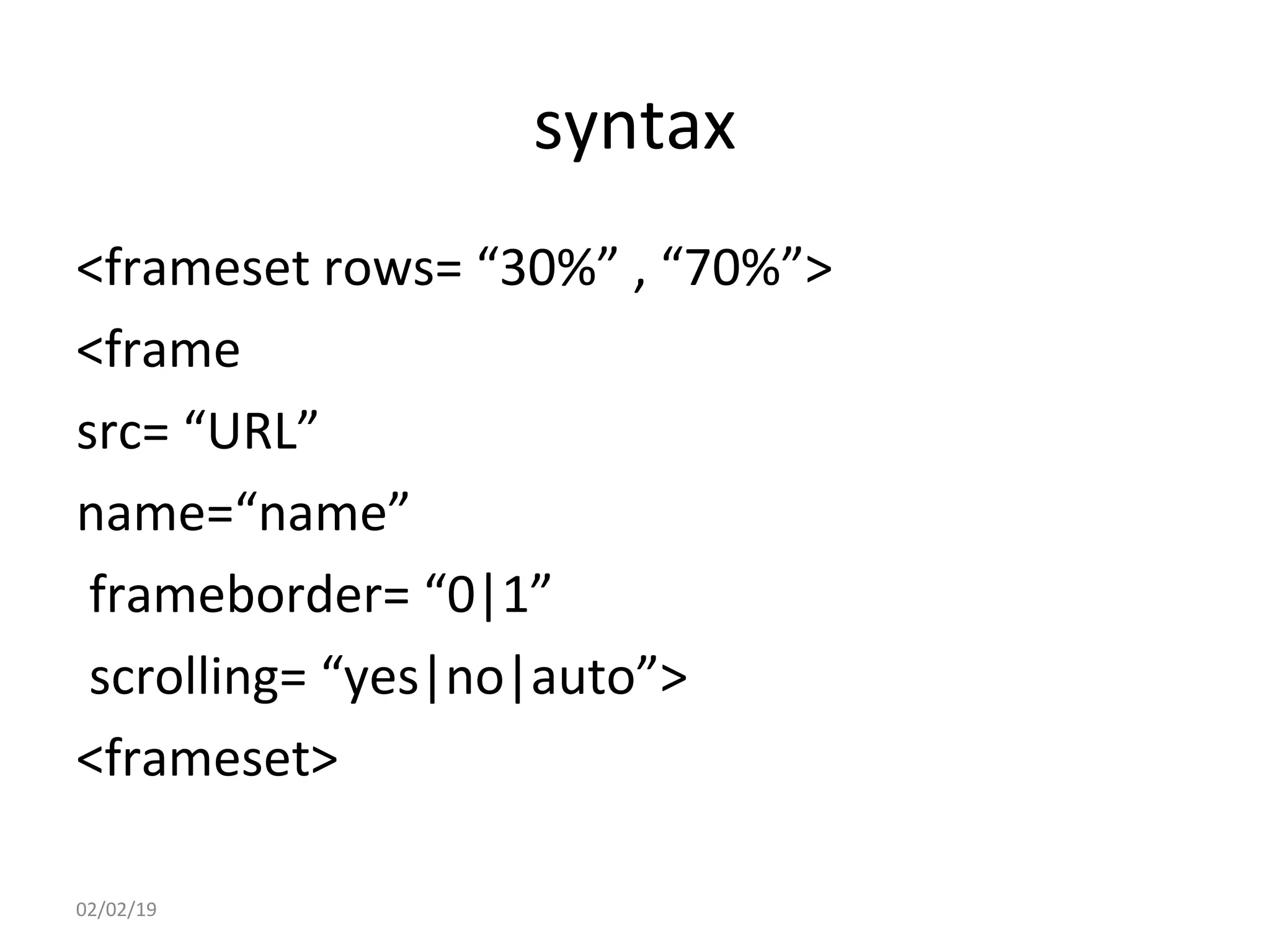
syntax
<frameset rows= “30%” , “70%”>
<frame
src= “URL”
name=“name”
frameborder= “0|1”
scrolling= “yes|no|auto”>
<frameset>
02/02/19
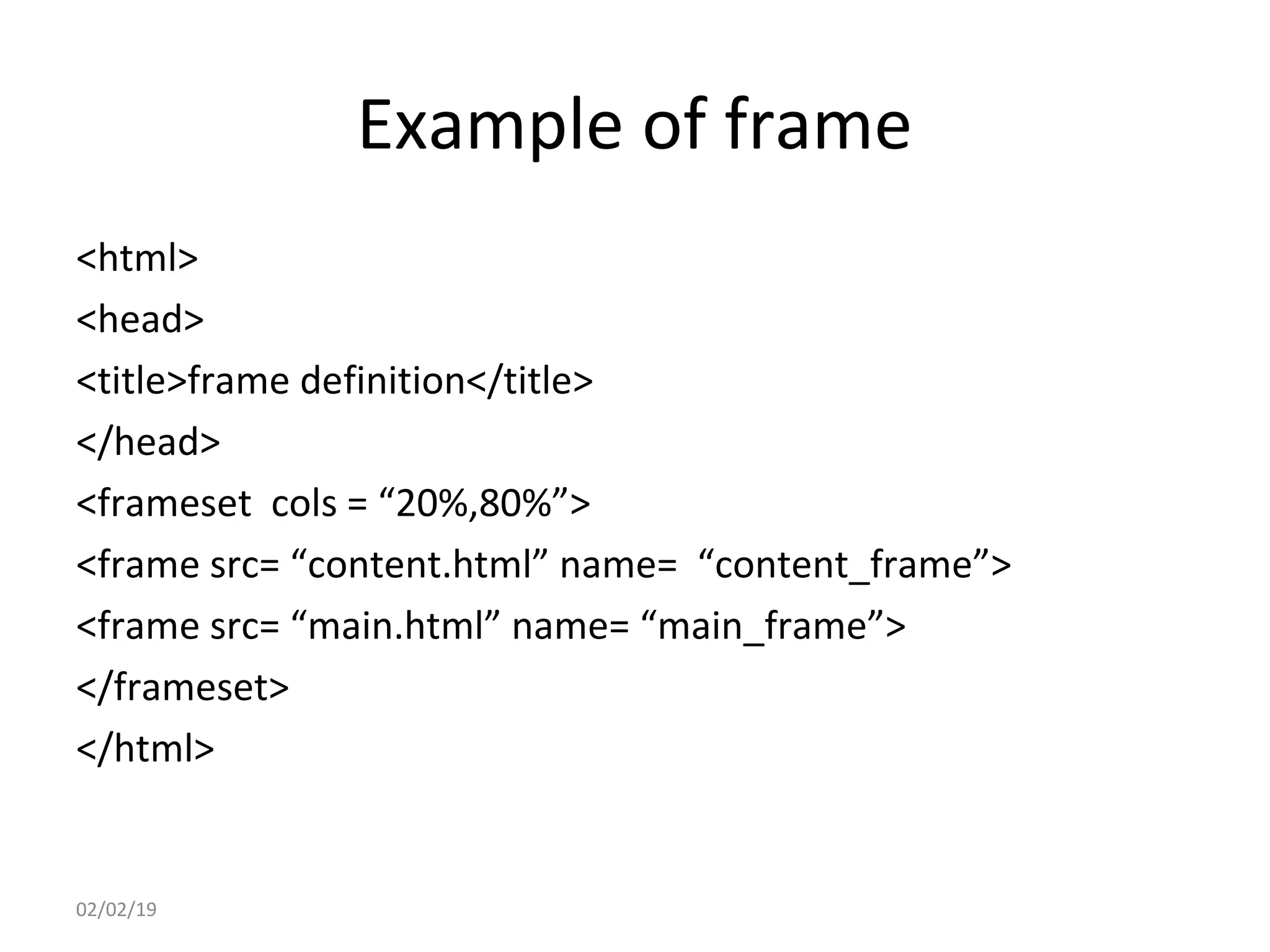
Example of frame
<html>
<head>
<title>frame definition</title>
</head>
<frameset cols = “20%,80%”>
<frame src= “content.html” name= “content_frame”>
<frame src= “main.html” name= “main_frame”>
</frameset>
</html>
02/02/19
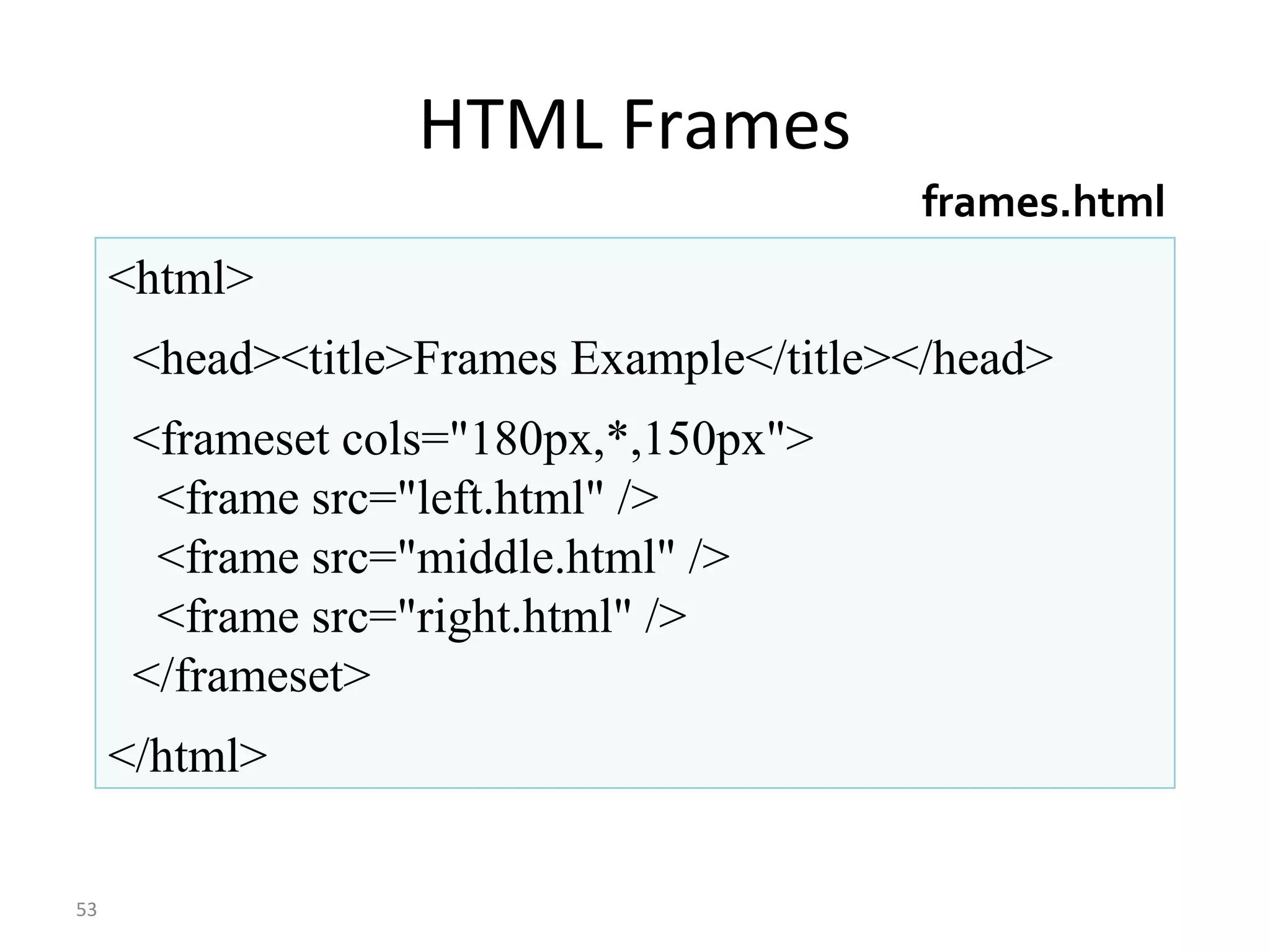
HTML Frames
53
<html>
<head><title>Frames Example</title></head>
<frameset cols="180px,*,150px">
<frame src="left.html" />
<frame src="middle.html" />
<frame src="right.html" />
</frameset>
</html>
frames.html
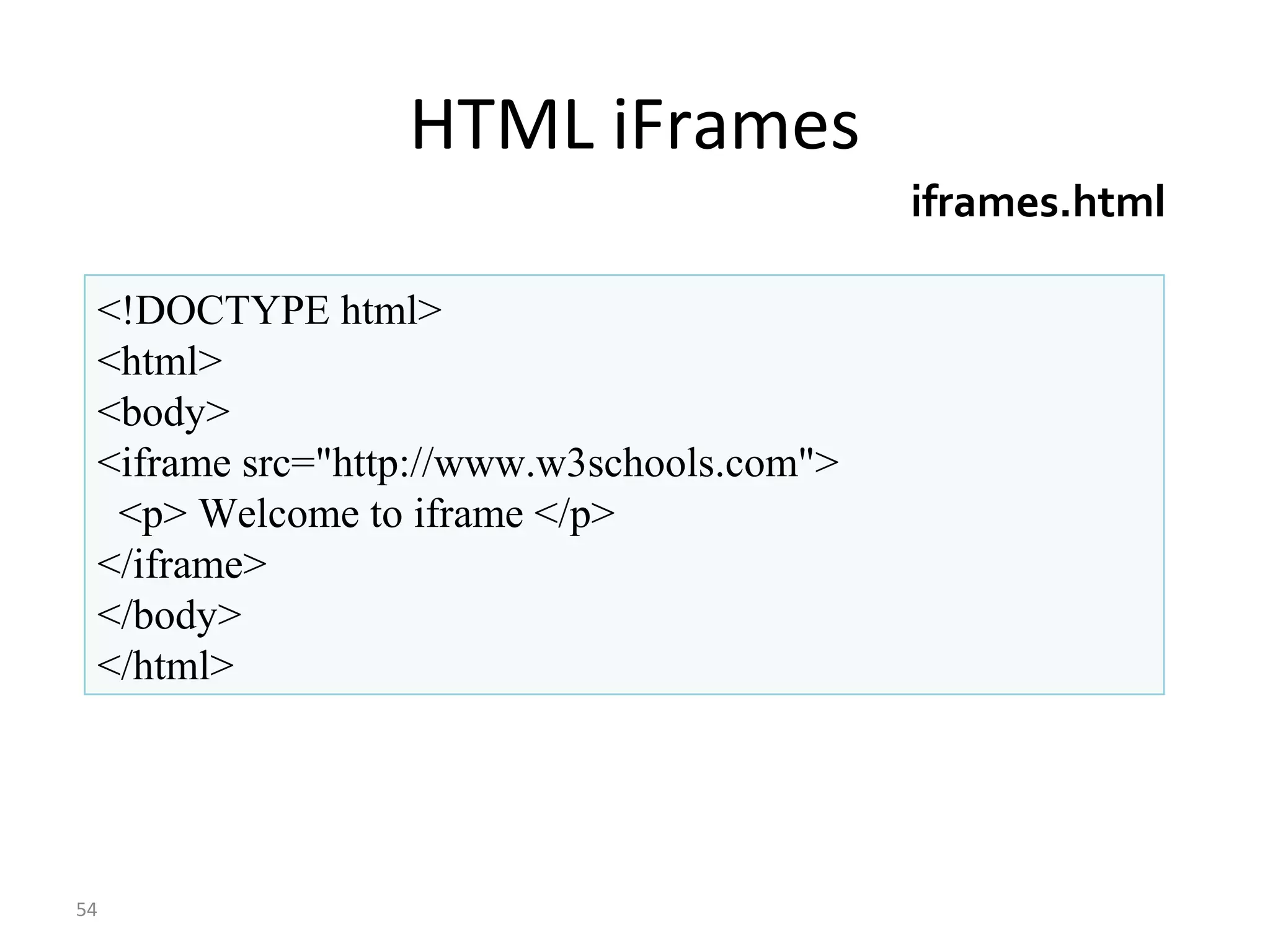
HTML iFrames
54
<!DOCTYPE html>
<html>
<body>
<iframe src="http://www.w3schools.com">
<p> Welcome to iframe </p>
</iframe>
</body>
</html>
iframes.html
Thank You
02/02/19

Html mod1

  • 1.
    Hyper Text MarkupLanguage (HTML) -Varsha Kumari 02/02/19
  • 2.
    Html HTML is alanguage for describing web pages. HTML stands for Hyper Text Markup Language HTML is a markup language A markup language is a set of markup tags HTML tags are keywords (tag names) surrounded by angle brackets like <html> The tags describe document content HTML documents contain HTML tags and plain text HTML documents are also called web pages 02/02/19
  • 3.
    HtML page structure <html> <head> <title>MyFirst page</title> </head> <body> The content goes here </body> </html> 02/02/19
  • 4.
    HtML page structure The HEAD of your document point to above window part. The TITLE of your document appears in the very top line of the user’s browser. If the user chooses to “Bookmark” your page or save as a “Favorite”; it is the TITLE that is added to the list.  The text in your TITLE should be as descriptive as possible because this is what many search engines, on the internet, use for indexing your site. The body contains the data to be displayed on the web page. 02/02/19
  • 5.
    Html Tags  HTMLtags are predefined tags that have special meaning  HTML tags normally come in pairs like <p> and </p>  The first tag in a pair is the start tag, the second tag is the end tag  The end tag is written like the start tag, with a slash before the tag name  Start and end tags are also called opening tags and closing tags 02/02/19
  • 6.
    Html Tags  Tagsmay be paired or singleton.  Some of the paired tags are <html> </html>, <body></body>, <title><title>, <b></b>, <i></i>, <font></font>, etc.  <br>, <img>, <hr>, <input>, etc. are singleton tags 02/02/19
  • 7.
    formatting Tags Formatting tagsare: • Bold • Underline • Italics <b>GLA University</b> will appear as bold <u>GLA University</u> will appear as underlined <i>GLA University</i> will appear as italicized 02/02/19
  • 8.
    font Tag <font> taghas the following three attributes which changes the font of the text within the <font></font> tag: 1.Size 2.Color 3.Face The values of these attributes may vary according to the need of the developer 02/02/19
  • 9.
    example of fontTag <html> <head> <title>Font Example</title> </head> <body> <font size=“14” color=“red” face=“algerian”> GLA University </font> </body> </html> 02/02/19
  • 10.
    anchor Tag A hyperlinkcan be displayed on a web page by using anchor tag Anchor tag is denoted by <a></a> Anchor tag has an attribute href whose value denotes the webpage that is to be opened on clicking the hyperlink. The new page can be opened on the same window, a new window, on a new frame, etc., as per the value of the target attribute. 02/02/19
  • 11.
    example of anchorTag <html> <head> <title>Anchor Example</title> </head> <body> <a href=http://gla.ac.in>GLA University</a> </body> </html> 02/02/19
  • 12.
    HEADER ELEMENTSHEADER ELEMENTS SixHeaders <h1> is the biggest heading <h6> is the smallest heading Search Engine crawlers look into the header elements to answer user’s query Example: <h1> GLA University</h1> <h2> Ranked No. 1 University</h2> and so on….. 02/02/19
  • 13.
    image Tag Images canbe displayed on a webpage using the <img> tag The source of the image to be displayed is specified in the src attribute. Some other attributes of <img> tag are: • Height • Width • Alt • Hspace • Vspace 02/02/19
  • 14.
    example of imageTag <html> <head> <title> Image Example</title> </head> <body> <img src=“gla.jpg” height=“100” width=“250” alt=“My University”> </body> </html> 02/02/19
  • 15.
    Table Tag Tables areused in Web pages for the systematic arrangement of information. Displays in tabular structure in rows and columns. The tag used is <table></table>. Within the <table> </table> tags, we have: • <tr> </tr> tags for table rows, • <th> </th> tags for table header, and • <td> </td> tags for table data. 02/02/19
  • 16.
    attributes of tableTag Various attributes of <table> </table> tags are: 1.border: The border attribute specifies the border of the table in pixels 2.bgcolor: The bgcolor attribute specifies the background color of the table row, or table data, or the table as a whole. 3.rowspan: The rowspan is an attribute of the <td> </td> tag which specifies how many rows are to be merged together. 4.colspan: The colspan is an attribute of the <td> </td> tag which specifies how many columns are to be merged together. 02/02/19
  • 17.
    Example of tableTag <html> <head> <title> Table Example</title> </head> <body> <table border=“1”> <tr> <th> Fruits</th><th> Color</th></tr> <tr> <td bgcolor=“#FF0000”> Apple</td><td> Red</td></tr> <tr> <td bgcolor=“#FFFF00”> Mango</td><td> Yellow</td></tr> <tr> <td bgcolor=“#008000”> Guava</td><td> Green</td></tr> </table> </body> </html> 02/02/19
  • 18.
    A table withCOLSPAN attribute. <table border> <tr><th colspan = 2>Heading1</th> <th>heading2</th></tr> <tr><td>data 1</td><td>data 2</td> <td>data 3</td> </table> 02/02/19
  • 19.
    A table withROWSPAN attribute. <table border> <tr><th rowspan = 2>Heading1</th> <td>data 1</td></tr> <tr><td>data 2</td></tr> <tr><th>heading2</th><td>data 4</td></tr> </table> 02/02/19
  • 20.
    List  Lists areused to display the text on a web page in the form of listings. Lists are of three types: 1. Unordered List (No specific Order) 2. Ordered List (Specific Order) 3. Definition List (Some data followed by its definition) 02/02/19
  • 21.
    tags for list For ordered list, we use <ol> </ol> tags.  For unordered list, we use <ul> </ul> tags.  For data definition list, we use <dl> </dl> tags.  The items are listed within the <li> tag in the case of ordered and unordered list.  For data definition list, the data term is listed using <dt> </dt> tag, and the definition is listed using <dd> </dd> tag. 02/02/19
  • 22.
    list Example <html> <head><title> ListExample</title></head> <body> <ul type="circle"> <li> Playing Chess <li> Watching Cricket <li> Singing <li> Dancing </ul>02/02/19
  • 23.
    list Example (contd.) <oltype=“a”> <li> Take some water in a pan <li> Add some sugar and tea leaves and let it boil <li> Add some milk and boil <li> Serve Hot </ol> 02/02/19
  • 24.
    list Example (contd.) <dl> <dt>Coffee</dt> <dd>Blackhot drink</dd> <dt>Milk</dt> <dd>White cold drink</dd> </dl> </body> </html>02/02/19
  • 25.
    02/02/19 £&pound;British Pound €&#8364;Euro "&quot;Quotation Mark ¥&yen;JapaneseYen —&mdash;Em Dash &nbsp;Non-breaking Space &&amp;Ampersand >&gt;Greater Than <&lt;Less Than ™&trade;Trademark Sign ®&reg;Registered Trademark Sign ©&copy;Copyright Sign SymbolHTML EntitySymbol Name
  • 26.
    Html entities example •<p>&gt;&gt;&nbsp;&nbsp;Welcome • &nbsp;&nbsp;&lt;&lt;</p> 02/02/19
  • 27.
    FORMFORM Form is usedto input data from the user and send the data to the server Encapsulates the data into an object Object is sent to a specific file to the server Object is sent on clicking on the “submit” button Data is entered into a form using control elements Control elements are also known as fields 02/02/19
  • 28.
    FORMFORM Control elements: Textbox password Radio Buttons CheckBoxes Drop down Boxes Textarea Submit Buttons, etc. 02/02/19
  • 29.
    FORMFORM General syntax ofthe <form> tag is: <form attributes> form elements </form> 02/02/19
  • 30.
    FORMFORM Attributes of <form>tag Name Method Get/Post Action target 02/02/19
  • 31.
    Text Input control Singleline text input :  uses < input> tag Password input : uses < input> tag Multiline text input : uses <textarea> tag 02/02/19
  • 32.
  • 33.
    Single line input Thetext field is used to specify single line textual data. <body> <form> First Name : <input type = “text” size= 20 maxlength =100 name =“f1”> <br> Last Name : <input type = “text” size= 20 maxlength =100 name=“l1”> <br> </form> </body> 02/02/19
  • 34.
    PASSWORD INPUTPASSWORD INPUT <formname=“f1” method=“post” action=“a.jsp”> Username <input type=“text” name=“t1”> <br> Password <input type=“password” name=“t2”> <br> </form> 02/02/19
  • 35.
    Multiline text input <body> <form> Description:<br> <textarea rows= “5” cols=“40”> Enter the description here…. </textarea> </form> </body> 02/02/19
  • 36.
    checkbox The checkboxes areused to specify true/false options by clicking with mouse pointer. More than one option may be selected <form> <input type = “checkboxes” checked> CPU<br> <input type = “checkboxes”> RAM<br> <input type = “checkboxes”>Disk<br> </form> 02/02/19
  • 37.
    Radio buttons only oneradio button per group may be selected at a time. The group is specified by the NAME attribute. <form> <input type = “radio” name = “cpu” checked> CPU<br> <input type = “radio” name = “cpu”> RAM<br> <input type = “radio” name = “cpu”>Disk<br> </form> 02/02/19
  • 38.
    Select control Allows theuser to select items from a pull- down menu <select multiple> <option selected>CPU <option>RAM <option>Disk <option>Monitor </select> 02/02/19
  • 39.
    Action buttons When auser clicks a RESET button all the elements in the form are reset to their default values. When a user clicks a submit button all the information is send to user The VALUE attribute specifies the text to be displayed on the button. <input type = “reset” value= “clear form”> <input type = “submit” value= “Done”> 02/02/19
  • 40.
    Button Used to triggera client side script when user clicks on it. <input type = “button” value= “logout”> <button>logout</button> <button>next</button> <button>previous</button> 02/02/19
  • 41.
    File upload Allows userto upload a file to your website <input type = “file” name = “file1”> <input type = “submit” value= “upload”>  Hidden control <input type = “hidden” name = “userid ”value= “xyz”>  Image button <input type = “image” src=“a.jpg” height = “20” width = “20”> 02/02/19
  • 42.
    EXAMPLE OF AFORMEXAMPLE OF A FORM <form name=“f1” method=“post” action=“a.jsp”> Username <input type=“text” name=“t1”> <br> Password <input type=“password” name=“t2”> <br> <input type=“submit” value=“OK”> </form> 02/02/19
  • 43.
    EXAMPLE OF AFORMEXAMPLE OF A FORM 02/02/19
  • 44.
    EXAMPLE OF AFORM USINGEXAMPLE OF A FORM USING TABLETABLE <form name="f1" method="get"> <table border="2"> <tr> <td>Name</td> <td><input type="text" name="name"></td> </tr> <tr> <td>Mobile</td> <td><input type="text" name="mob"></td> </tr> 02/02/19
  • 45.
    EXAMPLE OF AFORM USING TABLEEXAMPLE OF A FORM USING TABLE <tr><td>Gender</td> <td><input type="radio" name="gen" value="male">Male<br> <input type="radio" name="gen" value=“female">Female</td> </tr> <tr> <td>Course</td> <td><input type="radio" name="courses" value="BTech">B. Tech <br> <input type="radio" name="courses" value="MCA">MCA<br> <input type="radio" name="courses" value="BBA">BBA<br> <input type="radio" name="courses" value="BCA">BCA </td> </tr> 02/02/19
  • 46.
    EXAMPLE OF AFORM USING TABLEEXAMPLE OF A FORM USING TABLE <tr><td>Highest Qualification</td> <td> <select name="HQual"> <option> Undergraduate</option> <option> Graduate</option> <option> Post graduate</option> <option> Doctorate</option> </select> </td> 02/02/19
  • 47.
    EXAMPLE OF AFORM USINGEXAMPLE OF A FORM USING TABLETABLE <tr><td colspan="2" align="center"> <input type="submit" value="Go"> </td></tr> </table> </form> 02/02/19
  • 48.
    EXAMPLE OF AFORM USING TABLEEXAMPLE OF A FORM USING TABLE 02/02/19
  • 49.
    frame A frame structureallows us to display multiple HTML documents at the same time on the screen. For this browser window needs to be partitioned into different compartments each compartment should be associated with specific HTML files. 02/02/19
  • 50.
    The document requiredto divide the browser window into section or frames is called the frame definition document Frame differs from the normal HTML file in that here the BODY tag is replaced by the FRAMESET tag. Each frame is given a name and the particular file is to be shown in that frame is also specified. 02/02/19
  • 51.
    syntax <frameset rows= “30%”, “70%”> <frame src= “URL” name=“name” frameborder= “0|1” scrolling= “yes|no|auto”> <frameset> 02/02/19
  • 52.
    Example of frame <html> <head> <title>framedefinition</title> </head> <frameset cols = “20%,80%”> <frame src= “content.html” name= “content_frame”> <frame src= “main.html” name= “main_frame”> </frameset> </html> 02/02/19
  • 53.
    HTML Frames 53 <html> <head><title>Frames Example</title></head> <framesetcols="180px,*,150px"> <frame src="left.html" /> <frame src="middle.html" /> <frame src="right.html" /> </frameset> </html> frames.html
  • 54.
    HTML iFrames 54 <!DOCTYPE html> <html> <body> <iframesrc="http://www.w3schools.com"> <p> Welcome to iframe </p> </iframe> </body> </html> iframes.html
  • 55.