Graphical AnimationM5Satree PhuketAj. Jamie
Graphical AnimationWhat are graphics?Pictures displayed on a computer.What is animation?The creation of moving pictures or graphics.
Graphical AnimationAims of this course:Find out what graphical animation is.Discover what graphical animation can be used for.Learn to create animations using Adobe Flash.Be able to upload and display animations on the internet.
Adobe FlashAdobe Flash Player is a tool available in most web browsers that allows you to display animations.Adobe Flash also has many web animation authoring tools available for users.The authoring tool we will be using in class is Adobe Flash CS4.Note: In 2005 the company Macromedia was taken over by the company Adobe, so Macromedia Flash is now known as Adobe Flash.
FlashFlash allows you to create web applications, games and movies, as well as application for mobile phones, such as screensavers.Flash files are usually known as Flash movies, and have a .swf file extension.
Flash AnimationsTake a look at some Flash Movies and games on the internet.www.brainpop.com (Educational games)www.mousebreaker.com (Games)www.weeble-stuff.com (Fun cartoons)
Adobe FlashTask today – Introduction to Adobe Flash.Start – All programs – Adobe – Adobe Flash Create New – Flash DocumentYou have now created a blank Flash Movie and are ready to begin editing.
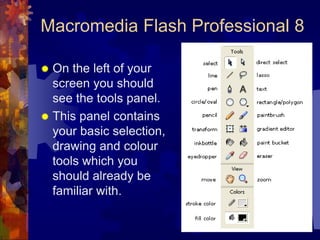
Macromedia Flash Professional 8On the left of your screen you should see the tools panel. This panel contains your basic selection, drawing and colour tools which you should already be familiar with.
Drawing ToolsSelection Tool (v) - Selecting whole objects and moving them. Subselection Tool - Selecting partial objects. Line Tool - Drawing straight lines. Lasso Tool - Selecting irregular shaped pieces of an object Pen Tool - Drawing non-straight and curved lines. Text Tool (t) - Inputting a textbox onto the stage. Oval Tool - Drawing oval and circle shapes. (Drag + Holding Shift = Circles) Shape Tool - By default draws rectangles. (Drag + Holding Shift = Squares) Pencil Tool - Free drawing thin lines. Brush Tool- Free drawing brush shapes. Free Transform - Scale, rotate, and skew an object. Fill Transform - Distort the gradient fill of an object. Stroke Tool - Change the color and size of a stroke. Fill Tool - Change the color of a fill. Eyedropper - Sample a color from the stage. Eraser - Use a brush to erase parts of an object. Hand Tool - Move the stage around if it is not all visible.Zoom - Zoom in or out.
LayersWe used layers in Photoshop.It is the same in Flash, layers can be used to create more complicated drawings or animations.For example, use a layer for each part of the drawing you want to animate.Use a separate layer for the background.
FramesAt the top of your screen you will see a timeline.Each of the frames in the timeline lasts for a small period of time.fps is the frame rate per second. The default is 12 frames per second. Your can change this if necessary in properties.
FramesTime to create your first animation!Draw a simple image.Then, right click frame 5, and select Insert Key FrameMake sure the red bar is over frame 5, and change the picture.Use Control – Test Movie to view your animation.This is a simple way to create an animation, it is called frame by frame animation.
FramesSomething else to try…Start again. Follow the same steps then but Insert – Blank Key Frame.What happens this time?A BLANK frame is inserted. Add something to this blank screen and test your movie again.Remember, use Insert Key Frame to CHANGE your original image, or use Insert Blank Key Frame to create a new, different image.Use Insert Frames to display a frame for a longer time, without changing it.
Saving your workWe need to save our work as a .swf file because this is the format that Flash files are displayed on the web as.To do this; File – Export – Export MovieGive your work a filename (ONLY use letters and numbers, and no Thai script)Hit OK at the next screen.You have now created a Flash movie ready for uploading to the internet.
TodayI want you to create a animation of anything you want. 		(your friend, a cartoon, a car, a sunset, 	a card, a dog…. up to you.)You should include some text on the animation. Try and make the animation 5-10 seconds long.
HelpIf you need any help to create pictures or you have never used graphic software before, there is an excellent beginners guide here: (pages 3 and 4 guide you completely through the drawing of a house)http://www.adobe.com/devnet/flash/articles/beg_drawing.htmlMore help can also be found here, another excellent beginners guide:http://www.webdevelopersnotes.com/tutorials/flash/flash_design_tutorial_drawing_tools_in_flash.php3

M5 - Graphical Animation - Lesson 1

  • 1.
  • 2.
    Graphical AnimationWhat aregraphics?Pictures displayed on a computer.What is animation?The creation of moving pictures or graphics.
  • 3.
    Graphical AnimationAims ofthis course:Find out what graphical animation is.Discover what graphical animation can be used for.Learn to create animations using Adobe Flash.Be able to upload and display animations on the internet.
  • 4.
    Adobe FlashAdobe FlashPlayer is a tool available in most web browsers that allows you to display animations.Adobe Flash also has many web animation authoring tools available for users.The authoring tool we will be using in class is Adobe Flash CS4.Note: In 2005 the company Macromedia was taken over by the company Adobe, so Macromedia Flash is now known as Adobe Flash.
  • 5.
    FlashFlash allows youto create web applications, games and movies, as well as application for mobile phones, such as screensavers.Flash files are usually known as Flash movies, and have a .swf file extension.
  • 6.
    Flash AnimationsTake alook at some Flash Movies and games on the internet.www.brainpop.com (Educational games)www.mousebreaker.com (Games)www.weeble-stuff.com (Fun cartoons)
  • 7.
    Adobe FlashTask today– Introduction to Adobe Flash.Start – All programs – Adobe – Adobe Flash Create New – Flash DocumentYou have now created a blank Flash Movie and are ready to begin editing.
  • 8.
    Macromedia Flash Professional8On the left of your screen you should see the tools panel. This panel contains your basic selection, drawing and colour tools which you should already be familiar with.
  • 9.
    Drawing ToolsSelection Tool(v) - Selecting whole objects and moving them. Subselection Tool - Selecting partial objects. Line Tool - Drawing straight lines. Lasso Tool - Selecting irregular shaped pieces of an object Pen Tool - Drawing non-straight and curved lines. Text Tool (t) - Inputting a textbox onto the stage. Oval Tool - Drawing oval and circle shapes. (Drag + Holding Shift = Circles) Shape Tool - By default draws rectangles. (Drag + Holding Shift = Squares) Pencil Tool - Free drawing thin lines. Brush Tool- Free drawing brush shapes. Free Transform - Scale, rotate, and skew an object. Fill Transform - Distort the gradient fill of an object. Stroke Tool - Change the color and size of a stroke. Fill Tool - Change the color of a fill. Eyedropper - Sample a color from the stage. Eraser - Use a brush to erase parts of an object. Hand Tool - Move the stage around if it is not all visible.Zoom - Zoom in or out.
  • 10.
    LayersWe used layersin Photoshop.It is the same in Flash, layers can be used to create more complicated drawings or animations.For example, use a layer for each part of the drawing you want to animate.Use a separate layer for the background.
  • 11.
    FramesAt the topof your screen you will see a timeline.Each of the frames in the timeline lasts for a small period of time.fps is the frame rate per second. The default is 12 frames per second. Your can change this if necessary in properties.
  • 12.
    FramesTime to createyour first animation!Draw a simple image.Then, right click frame 5, and select Insert Key FrameMake sure the red bar is over frame 5, and change the picture.Use Control – Test Movie to view your animation.This is a simple way to create an animation, it is called frame by frame animation.
  • 13.
    FramesSomething else totry…Start again. Follow the same steps then but Insert – Blank Key Frame.What happens this time?A BLANK frame is inserted. Add something to this blank screen and test your movie again.Remember, use Insert Key Frame to CHANGE your original image, or use Insert Blank Key Frame to create a new, different image.Use Insert Frames to display a frame for a longer time, without changing it.
  • 14.
    Saving your workWeneed to save our work as a .swf file because this is the format that Flash files are displayed on the web as.To do this; File – Export – Export MovieGive your work a filename (ONLY use letters and numbers, and no Thai script)Hit OK at the next screen.You have now created a Flash movie ready for uploading to the internet.
  • 15.
    TodayI want youto create a animation of anything you want. (your friend, a cartoon, a car, a sunset, a card, a dog…. up to you.)You should include some text on the animation. Try and make the animation 5-10 seconds long.
  • 16.
    HelpIf you needany help to create pictures or you have never used graphic software before, there is an excellent beginners guide here: (pages 3 and 4 guide you completely through the drawing of a house)http://www.adobe.com/devnet/flash/articles/beg_drawing.htmlMore help can also be found here, another excellent beginners guide:http://www.webdevelopersnotes.com/tutorials/flash/flash_design_tutorial_drawing_tools_in_flash.php3