1
CONTENTS
CHAPTER Ⅰ Introduction………………………………..38
CHAPTER Ⅱ Basic use………………………………..…..39
2.1 Field communicator basic performance and functions………………39
2.2 Power Considerations………………………………………………..41
2.3 Key areas of use and instructions……………………………………42
CHAPTER Ⅲ menu online operation
3.1 Test menu………………………...…………………………………..43
3.1.1 Always poll……………………………………………………43
3.1.2 Ask before polling……………………………………………….44
3.1.3 Select the type…………………………………….……………...44
3.2 PRESS TRANS MAIN MENU………………………………………45
3.2.1 Process variables…………………………….……………………45
3.2.2 Diagnostics and service……………….…………………………..45
3.2.3 Characterization…………………………………………………...48
3.2.4 Calibration………………………………………………………...54
3.2.5 Display mode……………………………………………………..56
3.2.6 General format…………………………………………………....57
3.3 ELECTROMAGNETIC FLOWMETER MAIN MENU…………....58
3.4 VORTEX FLOWMETER MAIN MENU………………………….. 58
3.5 FARGET FLOWMETER/ FLOAT LEV GAUGE MAIN MENU…. 58
3.6 METAL ROTAMETER MAIN MENU…………………………….. 58
3.7 GENERAL MAIN MENU………………………………………….. 58
3.8 LANGUAGE SETTINTS…………………………………………... 58
3.9 4-20mA…………………….………………………………………... 58
3.10 24v OUT………………….………………………………………... 58
CHAPTER Ⅳ Troubleshooting………………...…………59
4.1 Description and remedy fault………………………………………..59
4.2 Windows for warning………………………………………………..60
2
Appendix I……………………………………………………62
Appendix II…………………………………………………...63
Appendix Ⅲ…………………………………………………70
CHAPTER Ⅰ Introduction
Thank you for using HART475 Field Communicator,
Communicator for the HART Communication protocol smart
transmitter operation, and HART275, HART375,HART475
compatible with excellent compatibility, communication
1151,3051,EJA, ABB and flow aspects of the HART protocol
imported instruments. Completely and yung made a variety of
smart transmitters.Lithium battery powered 4500mA
contains internal equipment, in the maximum
powercondition can be used continuously for 30
hours, the only use of HATR communicationsituations can be a
month of continuous use. (Note: not when using the 24V
output close)
The manual describes the basic use of field communication
device, connection and operation in Content as well as
troubleshooting and in the course should pay attention.
Field Communicator using the HART475, please read the
manual, In order to better play to the best performance of the
product in use or maintenance of the product Before
understanding of the appropriate content.
Should the equipment needs repair, please contact our
company. We will do our best to for you.
The device is equipped with:
a manual operator
Battery a
Pack a
A charger
A communication cable
A power cord
3
Manual a
A 250 ohm resistor
CHAPTER Ⅱ Basic use
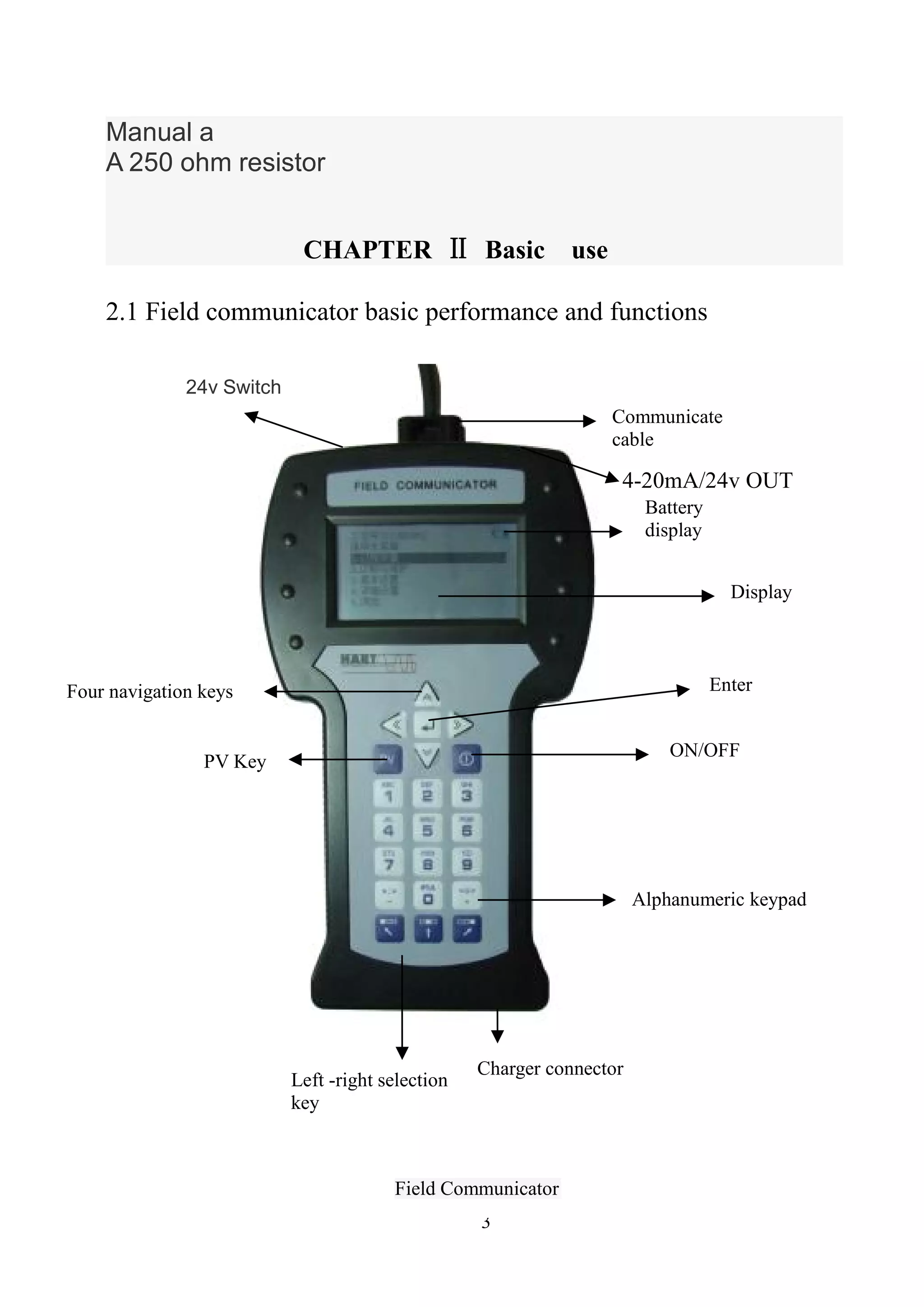
2.1 Field communicator basic performance and functions
Field Communicator
ON/OFF
Alphanumeric keypad
Display
PV Key
Left -right selection
key
Four navigation keys Enter
Charger connector
Communicate
cable
Battery
display
4-20mA/24v OUT
24v Switch
4
2.2 Power Considerations
In turn, ensure the following:
* The Field Communicator is no mechanical damage
* Battery is fully charged.
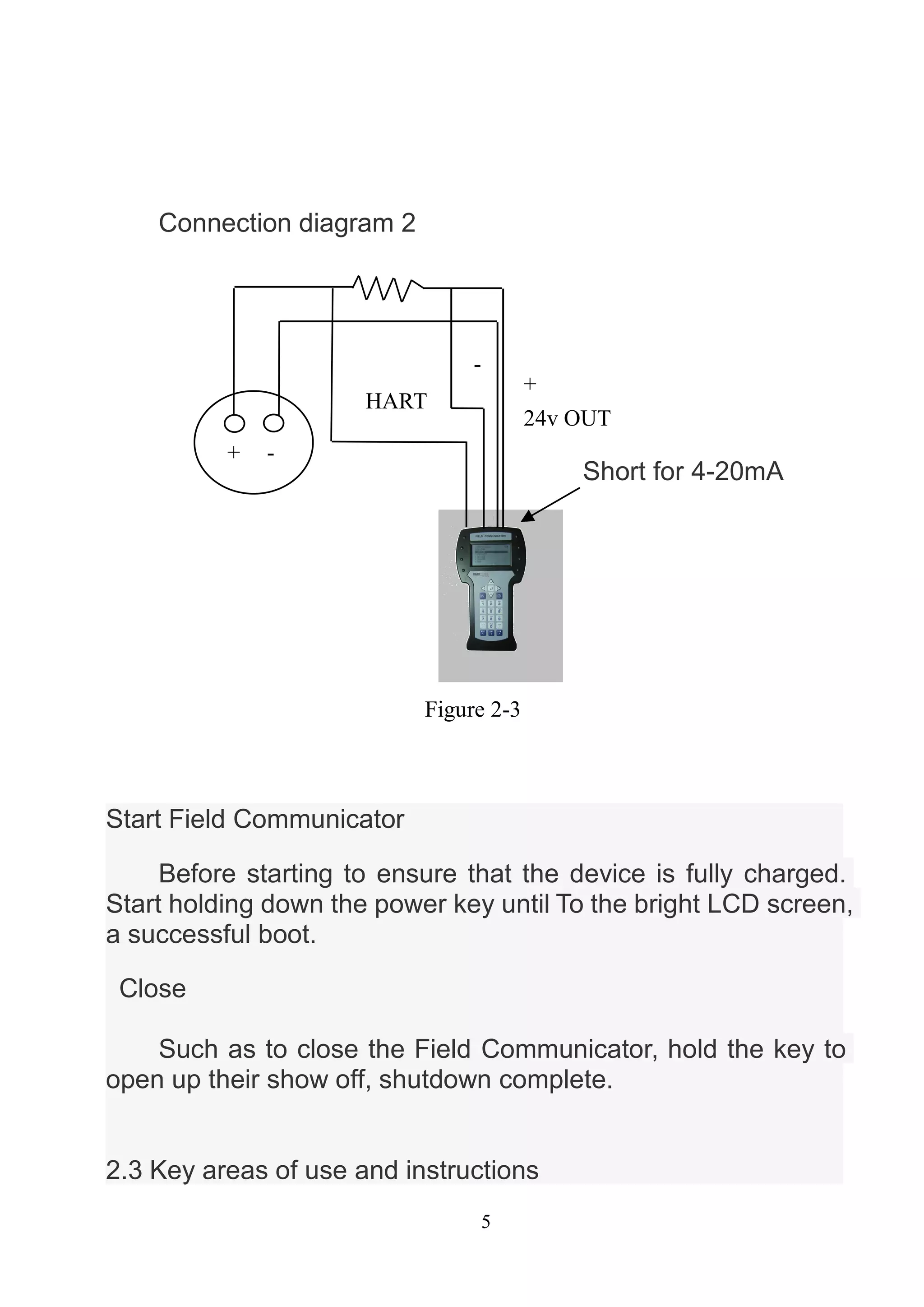
* The Field Communicator to connect to the circuit (Figure 2-2)
* String loop resistance of 250 ohms
·
·
Power —
-
+
+
Figure 2-2
5
Connection diagram 2
Start Field Communicator
Before starting to ensure that the device is fully charged.
Start holding down the power key until To the bright LCD screen,
a successful boot.
Close
Such as to close the Field Communicator, hold the key to
open up their show off, shutdown complete.
2.3 Key areas of use and instructions
Figure 2-3
-
24v OUT
+
+
-
Short for 4-20mA
HART
6
Open key
The key is used to enable or disable the Field Communicator.
Arrow navigation keys
Four navigation arrow keys provide menu options.
Press the right arrow navigation key to enter a menu of
specific options. Press Left navigation key to return to the
previous menu, up and down navigation keys can be cut
down in the menu Change. In the character input mode digital
down navigation keys can be used as a backspace key.
Enter
After entering the menu, you can modify the contents of the
LCD's bottom Line will automatically display the "Edit" to modify
the words For you press the Enter key, the change was
successful.
Alphanumeric keyboard
Character numeric keypad to enter characters, numbers
and other symbols, numbers, and he has Characters in both
input modes, field communication device according to the need
to select the appropriate input mode.To enter numbers, press
the number directly to where the keys to enter characters,
according to the word Character position on the keyboard, first
press
A key, then press the character
key is located. For example, to enter the character "A", the first
7
Press the left selection key, then press the number 1
character keyboard.
PV key
Monitoring real-time variable shortcuts, view real-time
pressure, current, percentage, Temperature, frequency and
other real-time variable. Digital input mode, the character, the
key is invalid.
CHAPTER Ⅲ menu online operation
3.1 Detection menu
3.1.1 Polling Detection
Select the menu, Field Communicator polling numbers
from the polling numbers from 0 to 15 followed by detection
equipment, if detected, the device will automatically detect the
transmitter and the station number(Figure 3-1-1), press the
right navigation key to enter the device type selection menu
(Figure 3-1-2); if not Have detected the device does not detect
the transmitter will appear warning.
How to poll:
1.Always Poll
2.Ask Bef Poll
3.LANGUAGE SET
4.2-20mA
Figure 3-1
8
3.1.2 Detection by poll numbers
Specified number of polling devices to detect, according to
the up and down navigation keys Choose between 0 to 15
polling numbers, then press the right navigation key to start
the test (test results If the same as Figure 3-1-1).
3.1.3 Select Device Type
1. Pressure Transmitter
2 electromagnetic flowmeter
3. Vortex Flowmeter
4. Target Flowmeter / float level gauge
5. Turn meter gold
6. Coriolis force mass
flow meter
7. General menu
8. Language Setting
9. 4-20mA
10. 24V OUT
When choosing the type of equipment must be selected
according to the type of field device into a specific menu, if you
select the type does not match the actual type, will cause an
error. If the site becomes non-pressure equipment,
electromagnetic, vortex, target-style, gold transfer device is
connected into the general menu. Press the down
Figure 3-1-1
TRANS detected:
TAG No[DS8001]
Figure 3-1-2
Select the type:
1.PRESS TRANS
2.Electromagnetic Flow meter
3.Vortex Flowmeter
4.Target Flowmeter / Float
LEV gauge
5.Metal Rotameter
6.General Menu
9
navigation key to select the device type, then press the right
navigation key to enter the selected device type detection, and
enter the corresponding menu, if you select the type does not
match with the test will be prompted.
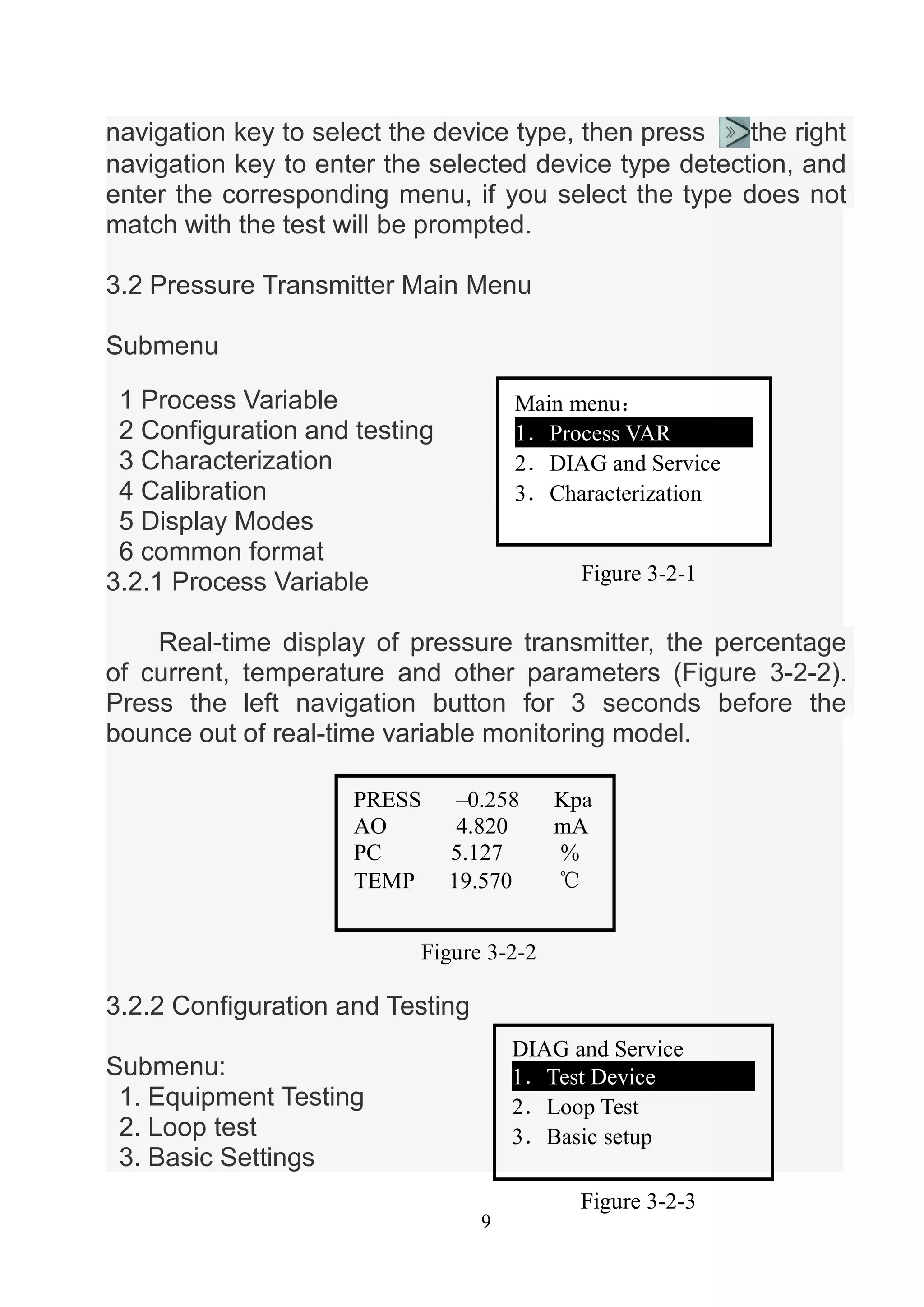
3.2 Pressure Transmitter Main Menu
Submenu
1 Process Variable
2 Configuration and testing
3 Characterization
4 Calibration
5 Display Modes
6 common format
3.2.1 Process Variable
Real-time display of pressure transmitter, the percentage
of current, temperature and other parameters (Figure 3-2-2).
Press the left navigation button for 3 seconds before the
bounce out of real-time variable monitoring model.
3.2.2 Configuration and Testing
Submenu:
1. Equipment Testing
2. Loop test
3. Basic Settings
Figure 3-2-1
Main menu:
1.Process VAR
2.DIAG and Service
3.Characterization
Figure 3-2-2
PRESS –0.258 Kpa
AO 4.820 mA
PC 5.127 %
TEMP 19.570 ℃
Figure 3-2-3
DIAG and Service
1.Test Device
2.Loop Test
3.Basic setup
10
4. User range
3.2.2.1 Test equipment
Testing equipment status, if everything is normal, liquid
crystal display "device normal", if wrong, will be a warning.
3.2.2.2 Loop Test
Detection of the D / A current output. First, a series
ammeter in the circuit, and then type a 4-20mA current between
the values into the transmitter, the transmitter will automatically
output the current value type, if the type of value and ammeter
display values are not equal, current fine-tuning to be done.
3.2.2.3 Basic Settings
Submenu:
1. Unit
2. Write Protect
3. Damp
4. Output
5. Device Information
6. Polling numbers
Unit
Change the primary variable units and display units. Provide
MPa, Kpa, Pa, InH2O, InHg, psi, g / cm ², kg / cm ², FtH2O, torr,
ATM, mmH2O, mmHg, Bar, mBar these 15 units. When the unit
of measure on behalf of the Not recognize the number will
automatically display "No" means that the unit "unknow". Repair
Change methods, see the menu tree.
Write Protect
Figure 3-2-4
Basic Setup
1.Unit
2.Write Protect
3.Damping
11
Read-write device protection status, when the
write-protected, the transmitter can not change the internal
data.
Damp
Read-write device damping coefficient (rounded to three
decimal places). Seconds.
Output
Read-write device output. Divided into linear, square root,
and the unknown. The default is linear.
Device Information
Read and write tag number, date, descriptor, message,
final assembly number
Polling numbers
3.2.2.4 User range
Keyboard input
Select this menu, the first prompt sensor range, then
enter
the range of the setup menu, press the down navigation key to
select zero or range, then enter the user needs to set the value
(rounded to three decimal places), then press the right
navigation key into the transmitter.
Figure 3-2-5
User Range
1.Keyboard input
2.Provide pressure
12
Provide pressure values
Pressure on the current value with the transmitter zero and
span settings, press the up and down navigation keys,
press the right navigation key to confirm.
3.2.3 Characterization
Submenu:
1 .Sensor trim
2. Sensor measuring range
3 user range
4.K coefficient
5 Formatting
6 small-signal removal
7 Device Address
8. Data Backup
9. Data Recovery
The menu will seriously affect the operation of the
transmitter to work and accuracy, so enter this menu, you need
Figure 3-2-6
Sensor Range
L –180.000KPa
H 180.000KPa
User Range
L –180.000KPa
H 180.000KPa
Figure 3-2-7
Figure 3-2-8
Provide Pressure
1.Zero
2.Range
Figure 3-2-9
Characterization
1.Sensor Trim
2.Sensor range
3.User range
13
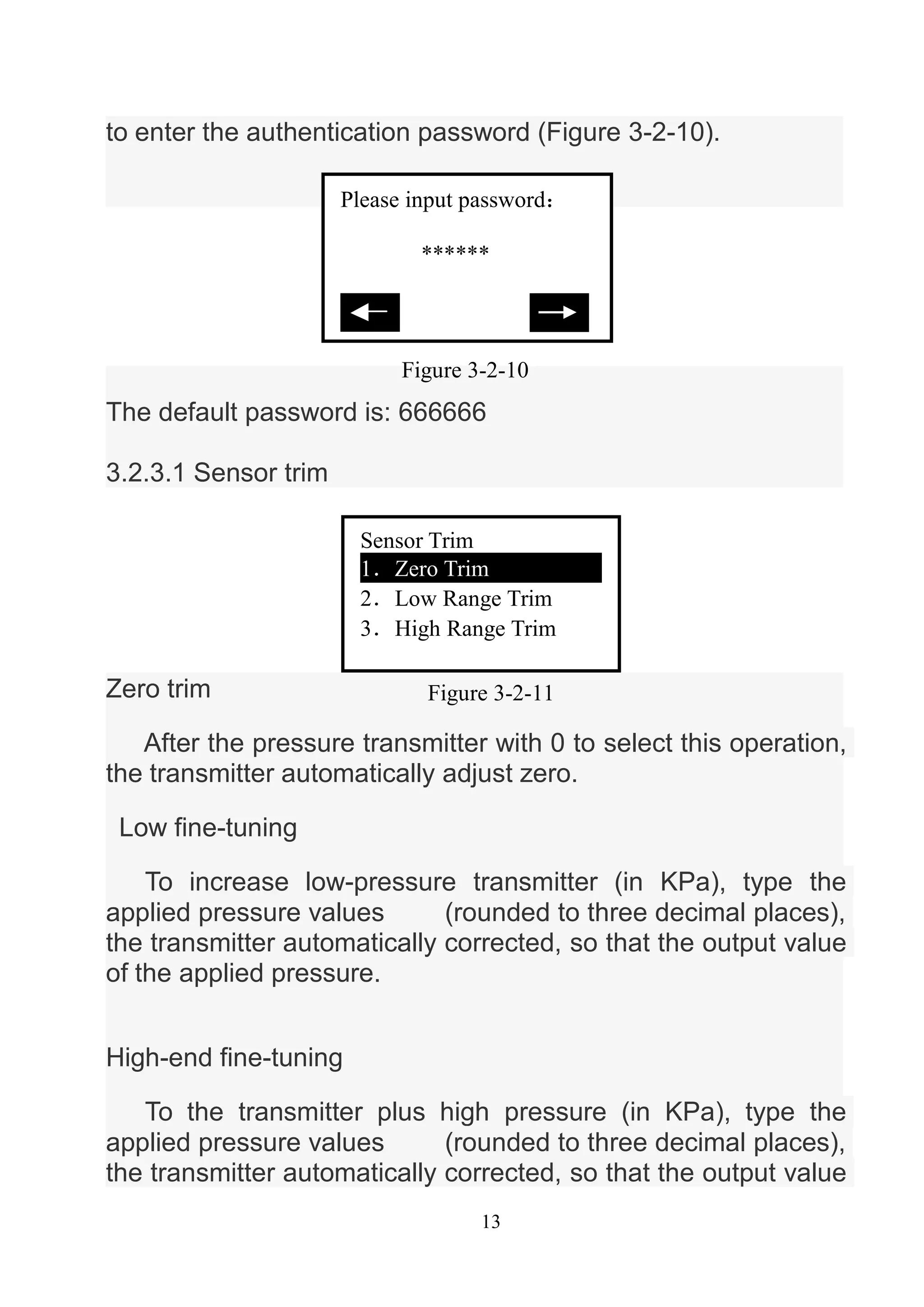
to enter the authentication password (Figure 3-2-10).
The default password is: 666666
3.2.3.1 Sensor trim
Zero trim
After the pressure transmitter with 0 to select this operation,
the transmitter automatically adjust zero.
Low fine-tuning
To increase low-pressure transmitter (in KPa), type the
applied pressure values ​ ​ (rounded to three decimal places),
the transmitter automatically corrected, so that the output value
of the applied pressure.
High-end fine-tuning
To the transmitter plus high pressure (in KPa), type the
applied pressure values ​ ​ (rounded to three decimal places),
the transmitter automatically corrected, so that the output value
Figure 3-2-10
Please input password:
******
Figure 3-2-11
Sensor Trim
1.Zero Trim
2.Low Range Trim
3.High Range Trim
14
of the applied pressure.
3.2.3.2 Sensor Range
Select the range
First select the type of sensor, and then select the range of
the sensor code, then press the Enter key into the transmitter.
(Figure 3-2-13,3-2-14)
Modify Range
First select the range sensor code, then enter the code in
the range of the scale. Note: The input pressure is measured in
Pa, can only enter a positive integer. Change and then select
the sensor range.
3.2.3.3 User range
Keyboard input
Figure 3-2-12
Sensor Range
1.Select the range
2.Madify range
Figure 3-2-13
Sensor type
[ DP ]
推出
Figure 3-2-14
Range Code
[5]
推出
15
Select this menu, the first prompt sensor range, then enter
the range of the setup menu, press the up and down
navigation key to select zero or range, then enter the user
needs to set the value (rounded to three decimal places), enter
and press the right navigation key to send into the
transmitter.
Provide pressure values
Pressure on the current value with the transmitter zero and
span settings, press the up and down navigation keys,
press the right navigation key to confirm.
3.2.3.4 K factor
Low-end need to be done, do high-end.
Sensor Range
L –180.000KPa
H 180.000KPa
Figure 3-2-15
User Range
L –180.000KPa
H 180.000KPa
Figure 3-2-16
Figure3-2-17
Provide Pressure
1.Zero
2.Range
Figure 3-2-18
K-factor
1.Low Range
2.High Range
16
Low Range
Add 0 to the pressure transmitter, type 0 in the increase of
pressure, press the right navigation key into the transmitter, the
transmitter automatically adjust the k-factor low.
High Range
Added to the positive terminal of a pressure transmitter
(close to or equal to the physical range), the pressure increases
the pressure must be greater than 0, type in the increase of
pressure values (rounded to three decimal places, units KPa),
press the right navigation key into the transmitter device, the
transmitter automatically adjusts the k-factor high.
Note: K factors must be operated in positive pressure
conditions,and the input unit KPa.
3.2.3.5 Format
Full-scale format
Note: This action will seriously affect the accuracy of the
transmitter, the user is best not to make their own format.
How-to: give added pressure transmitter (pressure points must
be positive from the negative pressure up to maximum
pressure), then enter the applied pressure (Figure 3-2-19, note:
do the negative pressure side formatting , the input pressure to
a minus sign in front.), then press the right navigation key to
format it, after a successful return to the next point format, an
unsuccessful return warning.
17
Interpolation
After the ultra-poor calibration point format.
Note: This action will seriously affect the accuracy of the
transmitter, the user is best not to make their own format.
How-to: give added pressure transmitter, and then enter the
increase of pressure. (Note: do the formatting in the negative
pressure side, the input pressure to a minus sign in front).
Press the right navigation key, the interpolation done at this
time point measured the pressure should be basically equal to
the applied pressure.
3.2.3.6 Small-signal removal
This function is to eliminate the zero drift. Enter the
number of users than the extreme range.
3.2.3.7 Device address
View a device's address. Device address is the unique
identification number the smart board.
3.2.3.8 Data Backup
Data backup: the value of the current user scale and
format all the data back to FLASH the database, this function is
All of range:01
PRESS:[ ]Pa
Figure 3-2-19
Interpolation
PRESS:[ ]Pa
Figure 3-2-20
18
to facilitate data recovery after a mistake. Click the menu
"Backup" button
3.2.3.9 Data Recovery
Data Recovery: The instrument factory, manufacturers
have the formatting operation on the instrument, and the correct
data formatted to do a backup, misuse of the instrument when
the user does not work, you can use the "Data Recovery"
function of its error Content removal operation, and
re-manufacturers will re-initialize the backup data is written
instrument, easy instrument to restore the original data. Click
the menu "Data Recovery" button.
3.2.4 Calibration
Submenu
1 Sensor trim
2 Output Trim
3.2.4.1 Sensor trim
Zero trim
After the pressure transmitter with 0 to select this operation,
the transmitter automatically adjust zero.
Low fine-tuning
To increase low-pressure transmitter (in KPa), type the
applied pressure values (rounded to three decimal places), the
Calibration
1.Sensor Trim
2.Output Trim
Figure 3-2-21
Sensor Trim
1.Zero Trim
2.Low Range Trim
3.High Range Trim
Figure 3-2-22
19
transmitter automatically corrected, so that the output value of
the applied pressure.
High-end fine-tuning
To the transmitter plus high pressure (in KPa), type the
applied pressure values (rounded to three decimal places), the
transmitter automatically corrected, so that the output value of
the applied pressure.
3.2.4.2 Output Trim
Output fine-tuning needs to be a precision ammeter in
series to the circuit, into the fine-tuning, the LCD will prompt
access ammeter, the current fine-tuning exit, the LCD will
prompt recovery circuit.
4mA current fine-tuning
Choose 4mA current fine-tuning, the output should be
4.000mA, if the ammeter shows the value is not equal to
4.000mA, select "No", an input box, type the ammeter shows
the input box value (rounded to three decimal places), then
press right navigation key to enter the current value into the
transmitter, the transmitter will automatically calibrate the
current output, the output of 4.000mA, if a less than satisfactory
results, repeat this operation.(Note: The meter accuracy should
be higher than the output precision of the table)
Figure 3-2-23
Warning:
Please access circuit
ammeter!
20
20mA current fine-tuning
4mA current methods of operation and fine-tuning the same.
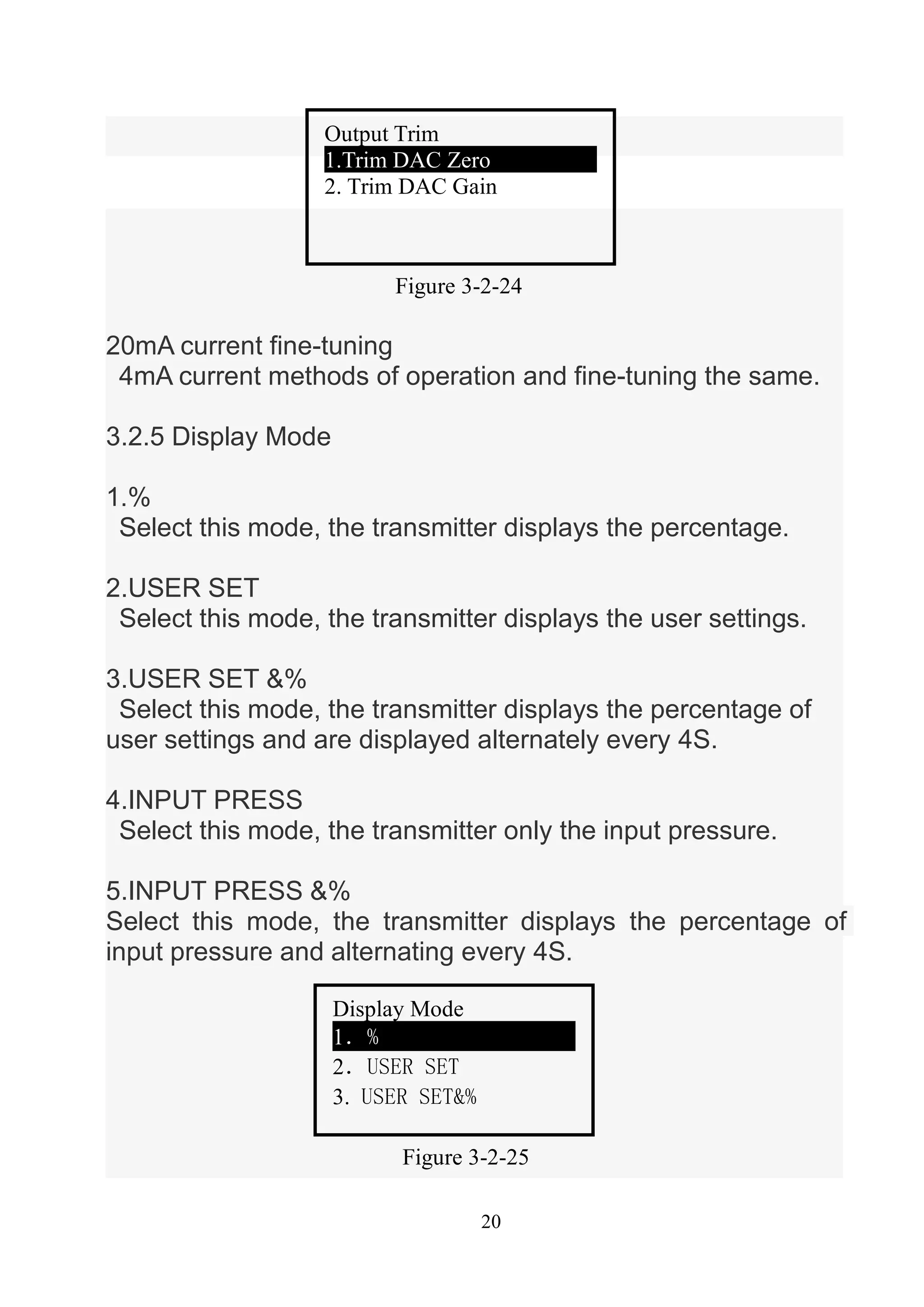
3.2.5 Display Mode
1.%
Select this mode, the transmitter displays the percentage.
2.USER SET
Select this mode, the transmitter displays the user settings.
3.USER SET &%
Select this mode, the transmitter displays the percentage of
user settings and are displayed alternately every 4S.
4.INPUT PRESS
Select this mode, the transmitter only the input pressure.
5.INPUT PRESS &%
Select this mode, the transmitter displays the percentage of
input pressure and alternating every 4S.
Figure 3-2-24
Output Trim
1.Trim DAC Zero
2. Trim DAC Gain
Figure 3-2-25
Display Mode
1.%
2.USER SET
3. USER SET&%
21
3.2.6 General Formatting
General Format: (known as three, five-point format)
This menu requires a password to enter the default password is
666666.
(1) Select the instrument type and range of code to determine
the instrument's physical range.
(2) in the common format into the format, the original plate for
1151 current 22mA, the order of the physical range of 0%, 60%,
100% three-point format, or 0%, 60%, 100%, -60%, 100%
five-point format. Communication device according to the first
line shows the calculation of the percentage range of physical
pressure, the pressure and the input Fill pressure (in Pa),
right-click until the pressure stabilized first sent.
(3) operation is successful, display the percentage of the next
point, to continue or exit.
Operation failed (such as the pressure increases the pressure
and display the corresponding percentage difference too large
to return to this point redo. Done 100% in three-point format
according to exit after completion of five-point format at 100%
done automatically exit. withdrawal of current from 22mA into a
measurement of current.
22
3.3 Electromagnetic Flowmeter Main Menu
See photos
3.4 Vortex Flowmeter
See photos
3.5 Target Flowmeter / float level gauge
See photos
3.6 meter gold transfer
See photos
3.7 Common main menu
See photos
3.8 Language Setting main menu
See photos
3.9 4-20mA main menu
See photos
3.10 24V OUT main menu
See photos
Remarks:
The handheld contains vortex flowmeter, the target flowmeter,
flow meter gold turn, Common menu and menu operation is
similar to the electromagnetic flow meter, this is not setting
them in, with Please refer to the distribution of body attached
page menu menu tree operation.
23
CHAPTER Ⅳ Troubleshooting
4.1 Introduction and troubleshooting faults
It does not really start
If in the course can not be switched, that can not start the Field
Communicator, First check the battery. Should the battery
power is still not start, there may be on-site Communication
device to open the key is damaged. (Note: Please do not use
the process of firm Hard thing to touch the buttons Field
Communicator film to avoid damage. )
Communication or communications are not interrupted
If there is no communication on the first check HART field
device loop and voltage. Almost all field devices have at least
4mA and 12VDC to Victoria maintain normal operation.
Check the loop impedance, to see whether the access loop
250 ohm external Impedance. Access to 250 ohm resistors, will
lead 250 ohm resistor at both ends of the access. And then
view the communication is normal.
Check the terminal and HART communications cable is
damaged.
HART communication by the control system interference.
At this point stop control system HART communication,
recognition and communication between the field device
communication.
24
4.2 Tips interface
Low battery warning
When the battery voltage is low, top right of the LCD display
will flash a battery-shaped pattern.
Communication Failure Warning
When the Field Communicator to the transmitter with the
communication failure warning (Figure 4-2-2).
Date Input Error
Allows you to enter a date range January 1, 1900 to
December 31, 2155, when the input is not in the range of dates,
enter the error message will appear (Figure 4-2-3), note the
date input format xxxx xx xx day in May.
Figure 4-2-1
TAG No(DS8001)
Online
PRESS 0.006 Kpa
AO 4.000 mA
Warning:
Communication interruption!
Check the equipment
Figure 4-2-2
Date entered incorrectly
Figure 4-2-3
25
Data entry errors
When the input parameter is incorrect when the prompt
appears, such as the removal of only a small signal input is an
integer, if you enter a negative number, an error message will
appear (Figure 4-2-4).
Figure 4-2-4
Entered incorrectly!
26
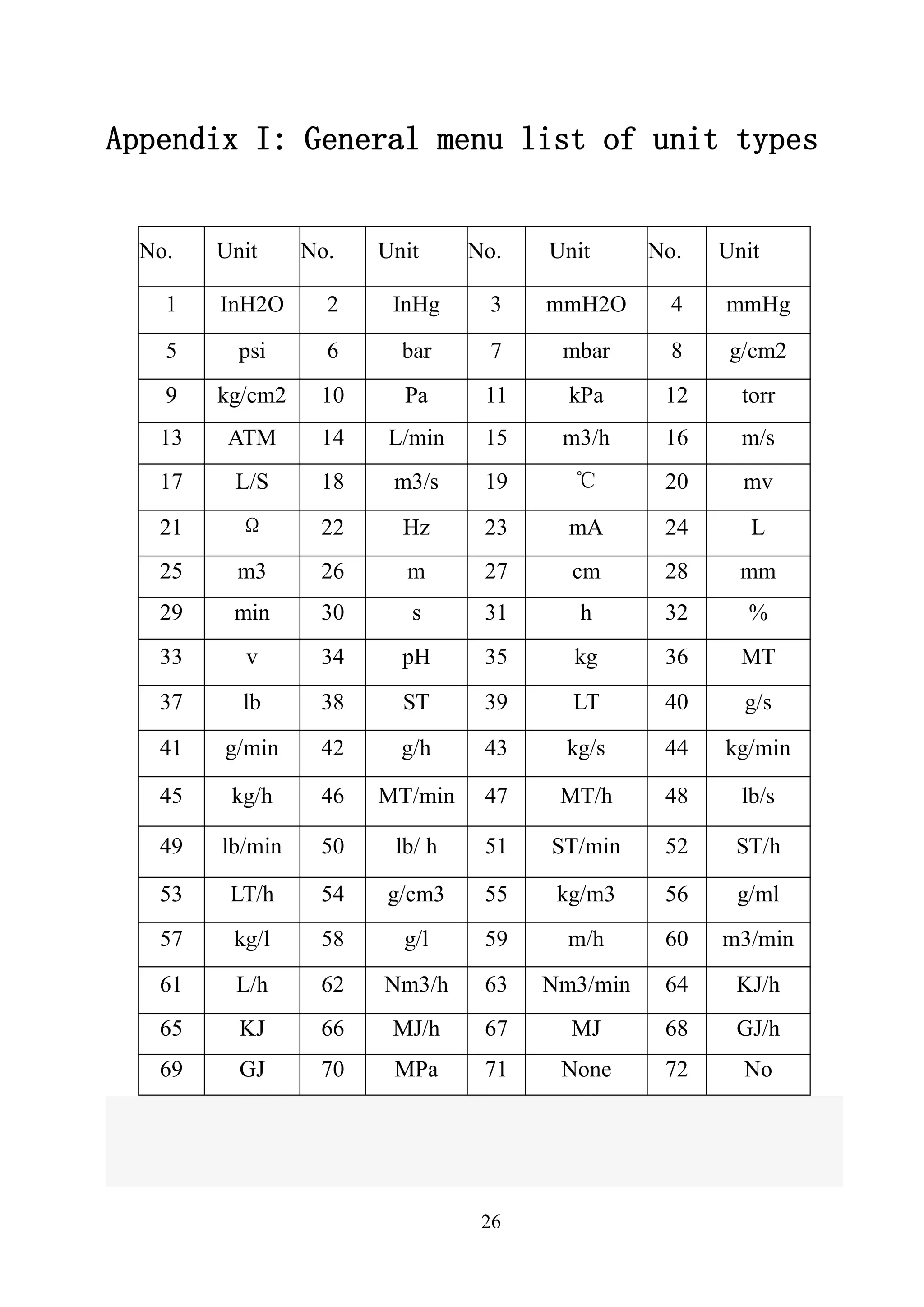
Appendix I: General menu list of unit types
No. Unit No. Unit No. Unit No. Unit
1 InH2O 2 InHg 3 mmH2O 4 mmHg
5 psi 6 bar 7 mbar 8 g/cm2
9 kg/cm2 10 Pa 11 kPa 12 torr
13 ATM 14 L/min 15 m3/h 16 m/s
17 L/S 18 m3/s 19 ℃ 20 mv
21 Ω 22 Hz 23 mA 24 L
25 m3 26 m 27 cm 28 mm
29 min 30 s 31 h 32 %
33 v 34 pH 35 kg 36 MT
37 lb 38 ST 39 LT 40 g/s
41 g/min 42 g/h 43 kg/s 44 kg/min
45 kg/h 46 MT/min 47 MT/h 48 lb/s
49 lb/min 50 lb/ h 51 ST/min 52 ST/h
53 LT/h 54 g/cm3 55 kg/m3 56 g/ml
57 kg/l 58 g/l 59 m/h 60 m3/min
61 L/h 62 Nm3/h 63 Nm3/min 64 KJ/h
65 KJ 66 MJ/h 67 MJ 68 GJ/h
69 GJ 70 MPa 71 None 72 No
27
Appendix II: various types of equipment menu tree
Pressure Transmitter menu tree:
1.PRESSTRANS
2.Electromagnetic
Flowmeter
3.VortexFlowmeter
4.TargetFlowmeter/
FloatLEVgauge
5.MetalRotameter
6.Coriolis force mass
flowmeter
7GeneralMenu
8.LanguageSetting
9.4-20Ma
10.24VOUT
1.Process
2.DIAGand
service
3.
Characterization
4.Calibration
5.displayMode
6.GeneralFormat
1.TestDrive
2.Looptest
4.UserRange
3.Basicsetup
1.Sensortrim
2.Sensorrange
3.UserRange
4.K-factor
5.Format
6.LowVALCutoff
7.Deviceaddress
8.DataBackup
9.DataRecovery
1.EJA Mode
2.3051Mode
1.SensorTrim
2.OutputTrim
1.PESS
2.AO
3.PC
4.TEMP
1.Selecttherange
2.Format
1.Unit
2.Write Protect
3.Damp
4.Output
5.Device
Information
6.Polling
number
1.LowRange
2.HigeRange
1.Zero
2.LowrangeTrim
3.HighrangeTrim
1.Selecttherange
2.ModifyRange
1.ZeroTrim
2.LowrangeTrim
3.HighrangeTrim
1.TrimDACZero
2.TrimDACGain
1.TAGNo
2.Date
3.Descriptor
4.Message
5.Thefinal
assemblynumber
1.Keyboardinupt
2.Providepressure
28
Electromagnetic Flowmeter menu tree:
1.PRESSTRANS
2.Electromagnetic
Flowmeter
3.VortexFlowmeter
4.TargetFlowmeter/
FloatLEVgauge
5.MetalRotameter
6.Coriolis force mass
flowmeter
7GeneralMenu
8.LanguageSetting
9.4-20Ma
10.24VOUT
1.Process
2.DIAGand
service
3.BasicSetup
4.DetailedSetup
5.Browse
1.TestDrive
2.Looptest
4.Outputragulation
1.Alarmsetup
2.Signalsetup
3.totalsetup
4.Pulseoutputsetup
5.WriteProtect
6.Flowcoefficient
7.Simulationflowsetup
8.Zerocompensate
9.Diameter
10.Flowdirection
11.Full-scalefrequency
1.PVunit
2.Transmission
3.Userrange
4.Damp
5.ZeroPV
6.Numberofleading
Characters
7.DeviceReset
8.DeviceInformation
9.SensorInformation
10.DataBackup
11.DataRecovery
12.PollingAddress
1.Flow
2.AO
3.PC
1.ManufacturerID
2.DeviceType
3.TRANSrelease
4.GenericVersionof
Thecommand
5.HardwareVersion
6.SoftwareVersion
7.Deviceaddress
8.Eoluipmentlogo
9.CurrentAlarm
10.Flaidresistance
11.Poweroutages
12.ATCalarm
13.RangeCode
1.TAGNo
2.Date
3.Descriptor
4.DeviceInformation
5.Thefinalassembly
number
1.Pulsewidth
2.Pulseequivalent
1.Setalarmtype
2.Alarmupper
3.Alarmlower
1.Sensortherange
2.Sensorserialnumber
1.LowVALcutoff
2.Doesnotvary
3.Timedoesnotchange
1.Totalpreset
2.totaltime
1.TrimDACZero
2.TrimDACGain
1.Userrangeupper
2.Userrangelower
1.Simulationswitch
2.SimulationFlow
29
Vortex Flowmeter menu tree:
1.PRESSTRANS
2.Electromagnetic
Flowmeter
3.VortexFlowmeter
4.TargetFlowmeter/
FloatLEVgauge
5.MetalRotameter
6.Coriolis force mass
flowmeter
7GeneralMenu
8.LanguageSetting
9.4-20Ma
10.24VOUT
1.Process
2.DIAGand
service
3.BasicSetup
4.DetailedSetup
5.Browse
1.TestDrive
2.Looptest
3.Outputragulation
1.Compensatesetup
2.Alarmsetup
3.Signalsetup
4.Totalsetup
5.Pulseoutputsetup
6.WriteProtect
7.Flowcoefficient
8.Simulationflowsetup
9.Diameter
10.Zerocompensate
1.PVunit
2.Transmission
3.Userrange
4.Damp
5.ZeroPV
6.Numberofleading
Characters
7.DeviceReset
8.DeviceInformation
9.SensorInformation
10.DataBackup
11.DataRecovery
12.PollingAddress
1.Flow
2.AO
3.PC
4.Frequency
1.ManufacturerID
2.DeviceType
3.TRANSrelease
4.GenericVersionof
Thecommand
5.HardwareVersion
6.SoftwareVersion
7.Deviceaddress
8.Eoluipmentlogo
1.TAGNo
2.Date
3.Descriptor
4.DeviceInformation
5.Thefinalassembly
number
1.Pulsewidth
2.Pulseequivalent
1.Setalarmtype
2.Alarmupper
3.Alarmlower
1.Sensortherange
2.Sensorserialnumber
1.LowVALcutoff
2.Doesnotvary
3.Timedoesnotchange
1.Totalpreset
2.totaltime
1.TrimDACZero
2.TrimDACGain
1.Userrangeupper
2.Userrangelower
1.Simulationswitch
2.SimulationFlow
1.Measurementtype
2.Compensatetype
3.Pressure
4.tempeerature
5.proprotion
30
Target Flowmeter / float level gauge menu tree:
1.PRESSTRANS
2.Electromagnetic
Flowmeter
3.VortexFlowmeter
4.TargetFlowmeter/
FloatLEVgauge
5.MetalRotameter
6.Coriolis force mass
flowmeter
7GeneralMenu
8.LanguageSetting
9.4-20Ma
10.24VOUT
1.Process
2.DIAGand
service
3.BasicSetup
4.DetailedSetup
5.Browse
1.TestDrive
2.Looptest
3.Outputragulation
1.LowVALCutoff
2.MediumDensity
3.Flowcoefficient
1.PVunit
2.Transmission
3.Userrange
4.Damp
5.ZeroPV
6.Numberofleading
Characters
7.DeviceReset
8.DeviceInformation
9.SensorInformation
10.DataBackup
11.DataRecovery
12.PollingAddress
1.Flow
2.AO
3.PC
1.ManufacturerID
2.DeviceType
3.TRANSrelease
4.GenericVersionof
Thecommand
5.HardwareVersion
6.SoftwareVersion
7.Deviceaddress
8.Eoluipmentlogo
1.TAGNo
2.Date
3.Descriptor
4.DeviceInformation
5.Thefinalassembly
number
1.Sensortherange
2.Sensorserialnumber
1.TrimDACZero
2.TrimDACGain
1.Userrangeupper
2.Userrangelower
31
Gold transfer meter menu tree:
1.PRESSTRANS
2.Electromagnetic
Flowmeter
3.VortexFlowmeter
4.TargetFlowmeter/
FloatLEVgauge
5.MetalRotameter
6.Coriolis force mass
flowmeter
7GeneralMenu
8.LanguageSetting
9.4-20Ma
10.24VOUT
1.Process
2.DIAGand
service
3.BasicSetup
4.DetailedSetup
5.Browse
1.TestDrive
2.Looptest
3.Outputragulation
1.Alarmsetup
2.Signalsetup
3.totalsetup
4.Pulseoutputsetup
5.WriteProtect
6.Flowcoefficient
7.Simulationflowsetup
8.Zerocompensate
1.PVunit
2.Transmission
3.Userrange
4.Damp
5.ZeroPV
6.Numberofleading
Characters
7.DeviceReset
8.DeviceInformation
9.SensorInformation
10.DataBackup
11.DataRecovery
12.PollingAddress
1.Flow
2.AO
3.PC
1.ManufacturerID
2.DeviceType
3.TRANSrelease
4.GenericVersionof
Thecommand
5.HardwareVersion
6.SoftwareVersion
7.Deviceaddress
8.Eoluipmentlogo
1.TAGNo
2.Date
3.Descriptor
4.DeviceInformation
5.Thefinalassembly
number
1.Pulsewidth
2.Pulseequivalent
1.Setalarmtype
2.Alarmupper
3.Alarmlower
1.Sensortherange
2.Sensorserialnumber
1.LowVALcutoff
2.Doesnotvary
3.Timedoesnotchange
1.Totalpreset
2.totaltime
1.TrimDACZero
2.TrimDACGain
1.Userrangeupper
2.Userrangelower
1.Simulationswitch
2.SimulationFlow
32
Common menu tree:
1.PRESSTRANS
2.Electromagnetic
Flowmeter
3.VortexFlowmeter
4.TargetFlowmeter/
FloatLEVgauge
5.MetalRotameter
6.Coriolis force mass
flowmeter
7GeneralMenu
8.LanguageSetting
9.4-20Ma
10.24VOUT
1.Process
2.DIAGand
service
3.BasicSetup
4.DetailedSetup
5.Browse
1.TestDrive
2.Looptest
3.Outputragulation
1.ChineseTEMPTRANS
sensortype
2.ROSEMOUNTTEMP
TRANSsensortype
3.248TEMPTRANS
Sensortype
1.PVunit
2.Transmission
3.Userrange
4.Damp
5.ZeroPV
6.Numberofleading
Characters
7.DeviceReset
8.DeviceInformation
9.SensorInformation
10.DataBackup
11.DataRecovery
12.PollingAddress
1.Flow
2.AO
3.PC
1.TAGNo
2.Date
3.Descriptor
4.DeviceInformation
5.Thefinalassembly
number
1.Sensortherange
2.Sensorserialnumber
1.TrimDACZero
2.TrimDACGain
1.Userrangeupper
2.Userrangelower
1.ManufacturerID
2.DeviceType
3.TRANSrelease
4.GenericVersionof
Thecommand
5.HardwareVersion
6.SoftwareVersion
7.Deviceaddress
8.Eoluipmentlogo
33
Language Setting/4-20Ma/24V OUT menu tree:
Language setting after a successful reboot device or exit to the top
menu.
1.PRESSTRANS
2.Electromagnetic
Flowmeter
3.VortexFlowmeter
4.TargetFlowmeter/
FloatLEVgauge
5.MetalRotameter
6.Coriolis force mass
flowmeter
7GeneralMenu
8.LanguageSetting
9.4-20Ma
10.24VOUT
1.中文
2.English
1.4-20mA
2.4-20mAcalibration
1.Realcurrent
2.Currentmetercalibration
34
Appendix 3: Glossary
Alphanumeric
Alphanumeric character set, often including other character
sets, such as punctuation marks.
Device configuration
Define the physical properties and operating characteristics of
the device parameters. Does not include dynamic data.
Device Description
Written in the HART Foundation fieldbus devices instruction set,
the device description language of the host application and the
HART or FOUNDATION fieldbus device communication
parameters, and methods of instruction are defined.
Field Equipment
In addition to HART digital communication signal, the field
device can generate or receive analog signals.
HART devices
Using the HART protocol for information communication
equipment.
HART Loop
One communication network, the master and slave devices are
HART smart or HART compatible devices.
HART protocol
Addressing a high-speed remote communications protocol
converter. One for the digital add-type 4-20mA communications
and intelligent field devices, industry-standard protocols.
Poll
One kind of query the network in order to determine the method
that the device online.

Hart 475

  • 1.
    1 CONTENTS CHAPTER Ⅰ Introduction………………………………..38 CHAPTERⅡ Basic use………………………………..…..39 2.1 Field communicator basic performance and functions………………39 2.2 Power Considerations………………………………………………..41 2.3 Key areas of use and instructions……………………………………42 CHAPTER Ⅲ menu online operation 3.1 Test menu………………………...…………………………………..43 3.1.1 Always poll……………………………………………………43 3.1.2 Ask before polling……………………………………………….44 3.1.3 Select the type…………………………………….……………...44 3.2 PRESS TRANS MAIN MENU………………………………………45 3.2.1 Process variables…………………………….……………………45 3.2.2 Diagnostics and service……………….…………………………..45 3.2.3 Characterization…………………………………………………...48 3.2.4 Calibration………………………………………………………...54 3.2.5 Display mode……………………………………………………..56 3.2.6 General format…………………………………………………....57 3.3 ELECTROMAGNETIC FLOWMETER MAIN MENU…………....58 3.4 VORTEX FLOWMETER MAIN MENU………………………….. 58 3.5 FARGET FLOWMETER/ FLOAT LEV GAUGE MAIN MENU…. 58 3.6 METAL ROTAMETER MAIN MENU…………………………….. 58 3.7 GENERAL MAIN MENU………………………………………….. 58 3.8 LANGUAGE SETTINTS…………………………………………... 58 3.9 4-20mA…………………….………………………………………... 58 3.10 24v OUT………………….………………………………………... 58 CHAPTER Ⅳ Troubleshooting………………...…………59 4.1 Description and remedy fault………………………………………..59 4.2 Windows for warning………………………………………………..60
  • 2.
    2 Appendix I……………………………………………………62 Appendix II…………………………………………………...63 AppendixⅢ…………………………………………………70 CHAPTER Ⅰ Introduction Thank you for using HART475 Field Communicator, Communicator for the HART Communication protocol smart transmitter operation, and HART275, HART375,HART475 compatible with excellent compatibility, communication 1151,3051,EJA, ABB and flow aspects of the HART protocol imported instruments. Completely and yung made a variety of smart transmitters.Lithium battery powered 4500mA contains internal equipment, in the maximum powercondition can be used continuously for 30 hours, the only use of HATR communicationsituations can be a month of continuous use. (Note: not when using the 24V output close) The manual describes the basic use of field communication device, connection and operation in Content as well as troubleshooting and in the course should pay attention. Field Communicator using the HART475, please read the manual, In order to better play to the best performance of the product in use or maintenance of the product Before understanding of the appropriate content. Should the equipment needs repair, please contact our company. We will do our best to for you. The device is equipped with: a manual operator Battery a Pack a A charger A communication cable A power cord
  • 3.
    3 Manual a A 250ohm resistor CHAPTER Ⅱ Basic use 2.1 Field communicator basic performance and functions Field Communicator ON/OFF Alphanumeric keypad Display PV Key Left -right selection key Four navigation keys Enter Charger connector Communicate cable Battery display 4-20mA/24v OUT 24v Switch
  • 4.
    4 2.2 Power Considerations Inturn, ensure the following: * The Field Communicator is no mechanical damage * Battery is fully charged. * The Field Communicator to connect to the circuit (Figure 2-2) * String loop resistance of 250 ohms · · Power — - + + Figure 2-2
  • 5.
    5 Connection diagram 2 StartField Communicator Before starting to ensure that the device is fully charged. Start holding down the power key until To the bright LCD screen, a successful boot. Close Such as to close the Field Communicator, hold the key to open up their show off, shutdown complete. 2.3 Key areas of use and instructions Figure 2-3 - 24v OUT + + - Short for 4-20mA HART
  • 6.
    6 Open key The keyis used to enable or disable the Field Communicator. Arrow navigation keys Four navigation arrow keys provide menu options. Press the right arrow navigation key to enter a menu of specific options. Press Left navigation key to return to the previous menu, up and down navigation keys can be cut down in the menu Change. In the character input mode digital down navigation keys can be used as a backspace key. Enter After entering the menu, you can modify the contents of the LCD's bottom Line will automatically display the "Edit" to modify the words For you press the Enter key, the change was successful. Alphanumeric keyboard Character numeric keypad to enter characters, numbers and other symbols, numbers, and he has Characters in both input modes, field communication device according to the need to select the appropriate input mode.To enter numbers, press the number directly to where the keys to enter characters, according to the word Character position on the keyboard, first press A key, then press the character key is located. For example, to enter the character "A", the first
  • 7.
    7 Press the leftselection key, then press the number 1 character keyboard. PV key Monitoring real-time variable shortcuts, view real-time pressure, current, percentage, Temperature, frequency and other real-time variable. Digital input mode, the character, the key is invalid. CHAPTER Ⅲ menu online operation 3.1 Detection menu 3.1.1 Polling Detection Select the menu, Field Communicator polling numbers from the polling numbers from 0 to 15 followed by detection equipment, if detected, the device will automatically detect the transmitter and the station number(Figure 3-1-1), press the right navigation key to enter the device type selection menu (Figure 3-1-2); if not Have detected the device does not detect the transmitter will appear warning. How to poll: 1.Always Poll 2.Ask Bef Poll 3.LANGUAGE SET 4.2-20mA Figure 3-1
  • 8.
    8 3.1.2 Detection bypoll numbers Specified number of polling devices to detect, according to the up and down navigation keys Choose between 0 to 15 polling numbers, then press the right navigation key to start the test (test results If the same as Figure 3-1-1). 3.1.3 Select Device Type 1. Pressure Transmitter 2 electromagnetic flowmeter 3. Vortex Flowmeter 4. Target Flowmeter / float level gauge 5. Turn meter gold 6. Coriolis force mass flow meter 7. General menu 8. Language Setting 9. 4-20mA 10. 24V OUT When choosing the type of equipment must be selected according to the type of field device into a specific menu, if you select the type does not match the actual type, will cause an error. If the site becomes non-pressure equipment, electromagnetic, vortex, target-style, gold transfer device is connected into the general menu. Press the down Figure 3-1-1 TRANS detected: TAG No[DS8001] Figure 3-1-2 Select the type: 1.PRESS TRANS 2.Electromagnetic Flow meter 3.Vortex Flowmeter 4.Target Flowmeter / Float LEV gauge 5.Metal Rotameter 6.General Menu
  • 9.
    9 navigation key toselect the device type, then press the right navigation key to enter the selected device type detection, and enter the corresponding menu, if you select the type does not match with the test will be prompted. 3.2 Pressure Transmitter Main Menu Submenu 1 Process Variable 2 Configuration and testing 3 Characterization 4 Calibration 5 Display Modes 6 common format 3.2.1 Process Variable Real-time display of pressure transmitter, the percentage of current, temperature and other parameters (Figure 3-2-2). Press the left navigation button for 3 seconds before the bounce out of real-time variable monitoring model. 3.2.2 Configuration and Testing Submenu: 1. Equipment Testing 2. Loop test 3. Basic Settings Figure 3-2-1 Main menu: 1.Process VAR 2.DIAG and Service 3.Characterization Figure 3-2-2 PRESS –0.258 Kpa AO 4.820 mA PC 5.127 % TEMP 19.570 ℃ Figure 3-2-3 DIAG and Service 1.Test Device 2.Loop Test 3.Basic setup
  • 10.
    10 4. User range 3.2.2.1Test equipment Testing equipment status, if everything is normal, liquid crystal display "device normal", if wrong, will be a warning. 3.2.2.2 Loop Test Detection of the D / A current output. First, a series ammeter in the circuit, and then type a 4-20mA current between the values into the transmitter, the transmitter will automatically output the current value type, if the type of value and ammeter display values are not equal, current fine-tuning to be done. 3.2.2.3 Basic Settings Submenu: 1. Unit 2. Write Protect 3. Damp 4. Output 5. Device Information 6. Polling numbers Unit Change the primary variable units and display units. Provide MPa, Kpa, Pa, InH2O, InHg, psi, g / cm ², kg / cm ², FtH2O, torr, ATM, mmH2O, mmHg, Bar, mBar these 15 units. When the unit of measure on behalf of the Not recognize the number will automatically display "No" means that the unit "unknow". Repair Change methods, see the menu tree. Write Protect Figure 3-2-4 Basic Setup 1.Unit 2.Write Protect 3.Damping
  • 11.
    11 Read-write device protectionstatus, when the write-protected, the transmitter can not change the internal data. Damp Read-write device damping coefficient (rounded to three decimal places). Seconds. Output Read-write device output. Divided into linear, square root, and the unknown. The default is linear. Device Information Read and write tag number, date, descriptor, message, final assembly number Polling numbers 3.2.2.4 User range Keyboard input Select this menu, the first prompt sensor range, then enter the range of the setup menu, press the down navigation key to select zero or range, then enter the user needs to set the value (rounded to three decimal places), then press the right navigation key into the transmitter. Figure 3-2-5 User Range 1.Keyboard input 2.Provide pressure
  • 12.
    12 Provide pressure values Pressureon the current value with the transmitter zero and span settings, press the up and down navigation keys, press the right navigation key to confirm. 3.2.3 Characterization Submenu: 1 .Sensor trim 2. Sensor measuring range 3 user range 4.K coefficient 5 Formatting 6 small-signal removal 7 Device Address 8. Data Backup 9. Data Recovery The menu will seriously affect the operation of the transmitter to work and accuracy, so enter this menu, you need Figure 3-2-6 Sensor Range L –180.000KPa H 180.000KPa User Range L –180.000KPa H 180.000KPa Figure 3-2-7 Figure 3-2-8 Provide Pressure 1.Zero 2.Range Figure 3-2-9 Characterization 1.Sensor Trim 2.Sensor range 3.User range
  • 13.
    13 to enter theauthentication password (Figure 3-2-10). The default password is: 666666 3.2.3.1 Sensor trim Zero trim After the pressure transmitter with 0 to select this operation, the transmitter automatically adjust zero. Low fine-tuning To increase low-pressure transmitter (in KPa), type the applied pressure values ​ ​ (rounded to three decimal places), the transmitter automatically corrected, so that the output value of the applied pressure. High-end fine-tuning To the transmitter plus high pressure (in KPa), type the applied pressure values ​ ​ (rounded to three decimal places), the transmitter automatically corrected, so that the output value Figure 3-2-10 Please input password: ****** Figure 3-2-11 Sensor Trim 1.Zero Trim 2.Low Range Trim 3.High Range Trim
  • 14.
    14 of the appliedpressure. 3.2.3.2 Sensor Range Select the range First select the type of sensor, and then select the range of the sensor code, then press the Enter key into the transmitter. (Figure 3-2-13,3-2-14) Modify Range First select the range sensor code, then enter the code in the range of the scale. Note: The input pressure is measured in Pa, can only enter a positive integer. Change and then select the sensor range. 3.2.3.3 User range Keyboard input Figure 3-2-12 Sensor Range 1.Select the range 2.Madify range Figure 3-2-13 Sensor type [ DP ] 推出 Figure 3-2-14 Range Code [5] 推出
  • 15.
    15 Select this menu,the first prompt sensor range, then enter the range of the setup menu, press the up and down navigation key to select zero or range, then enter the user needs to set the value (rounded to three decimal places), enter and press the right navigation key to send into the transmitter. Provide pressure values Pressure on the current value with the transmitter zero and span settings, press the up and down navigation keys, press the right navigation key to confirm. 3.2.3.4 K factor Low-end need to be done, do high-end. Sensor Range L –180.000KPa H 180.000KPa Figure 3-2-15 User Range L –180.000KPa H 180.000KPa Figure 3-2-16 Figure3-2-17 Provide Pressure 1.Zero 2.Range Figure 3-2-18 K-factor 1.Low Range 2.High Range
  • 16.
    16 Low Range Add 0to the pressure transmitter, type 0 in the increase of pressure, press the right navigation key into the transmitter, the transmitter automatically adjust the k-factor low. High Range Added to the positive terminal of a pressure transmitter (close to or equal to the physical range), the pressure increases the pressure must be greater than 0, type in the increase of pressure values (rounded to three decimal places, units KPa), press the right navigation key into the transmitter device, the transmitter automatically adjusts the k-factor high. Note: K factors must be operated in positive pressure conditions,and the input unit KPa. 3.2.3.5 Format Full-scale format Note: This action will seriously affect the accuracy of the transmitter, the user is best not to make their own format. How-to: give added pressure transmitter (pressure points must be positive from the negative pressure up to maximum pressure), then enter the applied pressure (Figure 3-2-19, note: do the negative pressure side formatting , the input pressure to a minus sign in front.), then press the right navigation key to format it, after a successful return to the next point format, an unsuccessful return warning.
  • 17.
    17 Interpolation After the ultra-poorcalibration point format. Note: This action will seriously affect the accuracy of the transmitter, the user is best not to make their own format. How-to: give added pressure transmitter, and then enter the increase of pressure. (Note: do the formatting in the negative pressure side, the input pressure to a minus sign in front). Press the right navigation key, the interpolation done at this time point measured the pressure should be basically equal to the applied pressure. 3.2.3.6 Small-signal removal This function is to eliminate the zero drift. Enter the number of users than the extreme range. 3.2.3.7 Device address View a device's address. Device address is the unique identification number the smart board. 3.2.3.8 Data Backup Data backup: the value of the current user scale and format all the data back to FLASH the database, this function is All of range:01 PRESS:[ ]Pa Figure 3-2-19 Interpolation PRESS:[ ]Pa Figure 3-2-20
  • 18.
    18 to facilitate datarecovery after a mistake. Click the menu "Backup" button 3.2.3.9 Data Recovery Data Recovery: The instrument factory, manufacturers have the formatting operation on the instrument, and the correct data formatted to do a backup, misuse of the instrument when the user does not work, you can use the "Data Recovery" function of its error Content removal operation, and re-manufacturers will re-initialize the backup data is written instrument, easy instrument to restore the original data. Click the menu "Data Recovery" button. 3.2.4 Calibration Submenu 1 Sensor trim 2 Output Trim 3.2.4.1 Sensor trim Zero trim After the pressure transmitter with 0 to select this operation, the transmitter automatically adjust zero. Low fine-tuning To increase low-pressure transmitter (in KPa), type the applied pressure values (rounded to three decimal places), the Calibration 1.Sensor Trim 2.Output Trim Figure 3-2-21 Sensor Trim 1.Zero Trim 2.Low Range Trim 3.High Range Trim Figure 3-2-22
  • 19.
    19 transmitter automatically corrected,so that the output value of the applied pressure. High-end fine-tuning To the transmitter plus high pressure (in KPa), type the applied pressure values (rounded to three decimal places), the transmitter automatically corrected, so that the output value of the applied pressure. 3.2.4.2 Output Trim Output fine-tuning needs to be a precision ammeter in series to the circuit, into the fine-tuning, the LCD will prompt access ammeter, the current fine-tuning exit, the LCD will prompt recovery circuit. 4mA current fine-tuning Choose 4mA current fine-tuning, the output should be 4.000mA, if the ammeter shows the value is not equal to 4.000mA, select "No", an input box, type the ammeter shows the input box value (rounded to three decimal places), then press right navigation key to enter the current value into the transmitter, the transmitter will automatically calibrate the current output, the output of 4.000mA, if a less than satisfactory results, repeat this operation.(Note: The meter accuracy should be higher than the output precision of the table) Figure 3-2-23 Warning: Please access circuit ammeter!
  • 20.
    20 20mA current fine-tuning 4mAcurrent methods of operation and fine-tuning the same. 3.2.5 Display Mode 1.% Select this mode, the transmitter displays the percentage. 2.USER SET Select this mode, the transmitter displays the user settings. 3.USER SET &% Select this mode, the transmitter displays the percentage of user settings and are displayed alternately every 4S. 4.INPUT PRESS Select this mode, the transmitter only the input pressure. 5.INPUT PRESS &% Select this mode, the transmitter displays the percentage of input pressure and alternating every 4S. Figure 3-2-24 Output Trim 1.Trim DAC Zero 2. Trim DAC Gain Figure 3-2-25 Display Mode 1.% 2.USER SET 3. USER SET&%
  • 21.
    21 3.2.6 General Formatting GeneralFormat: (known as three, five-point format) This menu requires a password to enter the default password is 666666. (1) Select the instrument type and range of code to determine the instrument's physical range. (2) in the common format into the format, the original plate for 1151 current 22mA, the order of the physical range of 0%, 60%, 100% three-point format, or 0%, 60%, 100%, -60%, 100% five-point format. Communication device according to the first line shows the calculation of the percentage range of physical pressure, the pressure and the input Fill pressure (in Pa), right-click until the pressure stabilized first sent. (3) operation is successful, display the percentage of the next point, to continue or exit. Operation failed (such as the pressure increases the pressure and display the corresponding percentage difference too large to return to this point redo. Done 100% in three-point format according to exit after completion of five-point format at 100% done automatically exit. withdrawal of current from 22mA into a measurement of current.
  • 22.
    22 3.3 Electromagnetic FlowmeterMain Menu See photos 3.4 Vortex Flowmeter See photos 3.5 Target Flowmeter / float level gauge See photos 3.6 meter gold transfer See photos 3.7 Common main menu See photos 3.8 Language Setting main menu See photos 3.9 4-20mA main menu See photos 3.10 24V OUT main menu See photos Remarks: The handheld contains vortex flowmeter, the target flowmeter, flow meter gold turn, Common menu and menu operation is similar to the electromagnetic flow meter, this is not setting them in, with Please refer to the distribution of body attached page menu menu tree operation.
  • 23.
    23 CHAPTER Ⅳ Troubleshooting 4.1Introduction and troubleshooting faults It does not really start If in the course can not be switched, that can not start the Field Communicator, First check the battery. Should the battery power is still not start, there may be on-site Communication device to open the key is damaged. (Note: Please do not use the process of firm Hard thing to touch the buttons Field Communicator film to avoid damage. ) Communication or communications are not interrupted If there is no communication on the first check HART field device loop and voltage. Almost all field devices have at least 4mA and 12VDC to Victoria maintain normal operation. Check the loop impedance, to see whether the access loop 250 ohm external Impedance. Access to 250 ohm resistors, will lead 250 ohm resistor at both ends of the access. And then view the communication is normal. Check the terminal and HART communications cable is damaged. HART communication by the control system interference. At this point stop control system HART communication, recognition and communication between the field device communication.
  • 24.
    24 4.2 Tips interface Lowbattery warning When the battery voltage is low, top right of the LCD display will flash a battery-shaped pattern. Communication Failure Warning When the Field Communicator to the transmitter with the communication failure warning (Figure 4-2-2). Date Input Error Allows you to enter a date range January 1, 1900 to December 31, 2155, when the input is not in the range of dates, enter the error message will appear (Figure 4-2-3), note the date input format xxxx xx xx day in May. Figure 4-2-1 TAG No(DS8001) Online PRESS 0.006 Kpa AO 4.000 mA Warning: Communication interruption! Check the equipment Figure 4-2-2 Date entered incorrectly Figure 4-2-3
  • 25.
    25 Data entry errors Whenthe input parameter is incorrect when the prompt appears, such as the removal of only a small signal input is an integer, if you enter a negative number, an error message will appear (Figure 4-2-4). Figure 4-2-4 Entered incorrectly!
  • 26.
    26 Appendix I: Generalmenu list of unit types No. Unit No. Unit No. Unit No. Unit 1 InH2O 2 InHg 3 mmH2O 4 mmHg 5 psi 6 bar 7 mbar 8 g/cm2 9 kg/cm2 10 Pa 11 kPa 12 torr 13 ATM 14 L/min 15 m3/h 16 m/s 17 L/S 18 m3/s 19 ℃ 20 mv 21 Ω 22 Hz 23 mA 24 L 25 m3 26 m 27 cm 28 mm 29 min 30 s 31 h 32 % 33 v 34 pH 35 kg 36 MT 37 lb 38 ST 39 LT 40 g/s 41 g/min 42 g/h 43 kg/s 44 kg/min 45 kg/h 46 MT/min 47 MT/h 48 lb/s 49 lb/min 50 lb/ h 51 ST/min 52 ST/h 53 LT/h 54 g/cm3 55 kg/m3 56 g/ml 57 kg/l 58 g/l 59 m/h 60 m3/min 61 L/h 62 Nm3/h 63 Nm3/min 64 KJ/h 65 KJ 66 MJ/h 67 MJ 68 GJ/h 69 GJ 70 MPa 71 None 72 No
  • 27.
    27 Appendix II: varioustypes of equipment menu tree Pressure Transmitter menu tree: 1.PRESSTRANS 2.Electromagnetic Flowmeter 3.VortexFlowmeter 4.TargetFlowmeter/ FloatLEVgauge 5.MetalRotameter 6.Coriolis force mass flowmeter 7GeneralMenu 8.LanguageSetting 9.4-20Ma 10.24VOUT 1.Process 2.DIAGand service 3. Characterization 4.Calibration 5.displayMode 6.GeneralFormat 1.TestDrive 2.Looptest 4.UserRange 3.Basicsetup 1.Sensortrim 2.Sensorrange 3.UserRange 4.K-factor 5.Format 6.LowVALCutoff 7.Deviceaddress 8.DataBackup 9.DataRecovery 1.EJA Mode 2.3051Mode 1.SensorTrim 2.OutputTrim 1.PESS 2.AO 3.PC 4.TEMP 1.Selecttherange 2.Format 1.Unit 2.Write Protect 3.Damp 4.Output 5.Device Information 6.Polling number 1.LowRange 2.HigeRange 1.Zero 2.LowrangeTrim 3.HighrangeTrim 1.Selecttherange 2.ModifyRange 1.ZeroTrim 2.LowrangeTrim 3.HighrangeTrim 1.TrimDACZero 2.TrimDACGain 1.TAGNo 2.Date 3.Descriptor 4.Message 5.Thefinal assemblynumber 1.Keyboardinupt 2.Providepressure
  • 28.
    28 Electromagnetic Flowmeter menutree: 1.PRESSTRANS 2.Electromagnetic Flowmeter 3.VortexFlowmeter 4.TargetFlowmeter/ FloatLEVgauge 5.MetalRotameter 6.Coriolis force mass flowmeter 7GeneralMenu 8.LanguageSetting 9.4-20Ma 10.24VOUT 1.Process 2.DIAGand service 3.BasicSetup 4.DetailedSetup 5.Browse 1.TestDrive 2.Looptest 4.Outputragulation 1.Alarmsetup 2.Signalsetup 3.totalsetup 4.Pulseoutputsetup 5.WriteProtect 6.Flowcoefficient 7.Simulationflowsetup 8.Zerocompensate 9.Diameter 10.Flowdirection 11.Full-scalefrequency 1.PVunit 2.Transmission 3.Userrange 4.Damp 5.ZeroPV 6.Numberofleading Characters 7.DeviceReset 8.DeviceInformation 9.SensorInformation 10.DataBackup 11.DataRecovery 12.PollingAddress 1.Flow 2.AO 3.PC 1.ManufacturerID 2.DeviceType 3.TRANSrelease 4.GenericVersionof Thecommand 5.HardwareVersion 6.SoftwareVersion 7.Deviceaddress 8.Eoluipmentlogo 9.CurrentAlarm 10.Flaidresistance 11.Poweroutages 12.ATCalarm 13.RangeCode 1.TAGNo 2.Date 3.Descriptor 4.DeviceInformation 5.Thefinalassembly number 1.Pulsewidth 2.Pulseequivalent 1.Setalarmtype 2.Alarmupper 3.Alarmlower 1.Sensortherange 2.Sensorserialnumber 1.LowVALcutoff 2.Doesnotvary 3.Timedoesnotchange 1.Totalpreset 2.totaltime 1.TrimDACZero 2.TrimDACGain 1.Userrangeupper 2.Userrangelower 1.Simulationswitch 2.SimulationFlow
  • 29.
    29 Vortex Flowmeter menutree: 1.PRESSTRANS 2.Electromagnetic Flowmeter 3.VortexFlowmeter 4.TargetFlowmeter/ FloatLEVgauge 5.MetalRotameter 6.Coriolis force mass flowmeter 7GeneralMenu 8.LanguageSetting 9.4-20Ma 10.24VOUT 1.Process 2.DIAGand service 3.BasicSetup 4.DetailedSetup 5.Browse 1.TestDrive 2.Looptest 3.Outputragulation 1.Compensatesetup 2.Alarmsetup 3.Signalsetup 4.Totalsetup 5.Pulseoutputsetup 6.WriteProtect 7.Flowcoefficient 8.Simulationflowsetup 9.Diameter 10.Zerocompensate 1.PVunit 2.Transmission 3.Userrange 4.Damp 5.ZeroPV 6.Numberofleading Characters 7.DeviceReset 8.DeviceInformation 9.SensorInformation 10.DataBackup 11.DataRecovery 12.PollingAddress 1.Flow 2.AO 3.PC 4.Frequency 1.ManufacturerID 2.DeviceType 3.TRANSrelease 4.GenericVersionof Thecommand 5.HardwareVersion 6.SoftwareVersion 7.Deviceaddress 8.Eoluipmentlogo 1.TAGNo 2.Date 3.Descriptor 4.DeviceInformation 5.Thefinalassembly number 1.Pulsewidth 2.Pulseequivalent 1.Setalarmtype 2.Alarmupper 3.Alarmlower 1.Sensortherange 2.Sensorserialnumber 1.LowVALcutoff 2.Doesnotvary 3.Timedoesnotchange 1.Totalpreset 2.totaltime 1.TrimDACZero 2.TrimDACGain 1.Userrangeupper 2.Userrangelower 1.Simulationswitch 2.SimulationFlow 1.Measurementtype 2.Compensatetype 3.Pressure 4.tempeerature 5.proprotion
  • 30.
    30 Target Flowmeter /float level gauge menu tree: 1.PRESSTRANS 2.Electromagnetic Flowmeter 3.VortexFlowmeter 4.TargetFlowmeter/ FloatLEVgauge 5.MetalRotameter 6.Coriolis force mass flowmeter 7GeneralMenu 8.LanguageSetting 9.4-20Ma 10.24VOUT 1.Process 2.DIAGand service 3.BasicSetup 4.DetailedSetup 5.Browse 1.TestDrive 2.Looptest 3.Outputragulation 1.LowVALCutoff 2.MediumDensity 3.Flowcoefficient 1.PVunit 2.Transmission 3.Userrange 4.Damp 5.ZeroPV 6.Numberofleading Characters 7.DeviceReset 8.DeviceInformation 9.SensorInformation 10.DataBackup 11.DataRecovery 12.PollingAddress 1.Flow 2.AO 3.PC 1.ManufacturerID 2.DeviceType 3.TRANSrelease 4.GenericVersionof Thecommand 5.HardwareVersion 6.SoftwareVersion 7.Deviceaddress 8.Eoluipmentlogo 1.TAGNo 2.Date 3.Descriptor 4.DeviceInformation 5.Thefinalassembly number 1.Sensortherange 2.Sensorserialnumber 1.TrimDACZero 2.TrimDACGain 1.Userrangeupper 2.Userrangelower
  • 31.
    31 Gold transfer metermenu tree: 1.PRESSTRANS 2.Electromagnetic Flowmeter 3.VortexFlowmeter 4.TargetFlowmeter/ FloatLEVgauge 5.MetalRotameter 6.Coriolis force mass flowmeter 7GeneralMenu 8.LanguageSetting 9.4-20Ma 10.24VOUT 1.Process 2.DIAGand service 3.BasicSetup 4.DetailedSetup 5.Browse 1.TestDrive 2.Looptest 3.Outputragulation 1.Alarmsetup 2.Signalsetup 3.totalsetup 4.Pulseoutputsetup 5.WriteProtect 6.Flowcoefficient 7.Simulationflowsetup 8.Zerocompensate 1.PVunit 2.Transmission 3.Userrange 4.Damp 5.ZeroPV 6.Numberofleading Characters 7.DeviceReset 8.DeviceInformation 9.SensorInformation 10.DataBackup 11.DataRecovery 12.PollingAddress 1.Flow 2.AO 3.PC 1.ManufacturerID 2.DeviceType 3.TRANSrelease 4.GenericVersionof Thecommand 5.HardwareVersion 6.SoftwareVersion 7.Deviceaddress 8.Eoluipmentlogo 1.TAGNo 2.Date 3.Descriptor 4.DeviceInformation 5.Thefinalassembly number 1.Pulsewidth 2.Pulseequivalent 1.Setalarmtype 2.Alarmupper 3.Alarmlower 1.Sensortherange 2.Sensorserialnumber 1.LowVALcutoff 2.Doesnotvary 3.Timedoesnotchange 1.Totalpreset 2.totaltime 1.TrimDACZero 2.TrimDACGain 1.Userrangeupper 2.Userrangelower 1.Simulationswitch 2.SimulationFlow
  • 32.
    32 Common menu tree: 1.PRESSTRANS 2.Electromagnetic Flowmeter 3.VortexFlowmeter 4.TargetFlowmeter/ FloatLEVgauge 5.MetalRotameter 6.Coriolisforce mass flowmeter 7GeneralMenu 8.LanguageSetting 9.4-20Ma 10.24VOUT 1.Process 2.DIAGand service 3.BasicSetup 4.DetailedSetup 5.Browse 1.TestDrive 2.Looptest 3.Outputragulation 1.ChineseTEMPTRANS sensortype 2.ROSEMOUNTTEMP TRANSsensortype 3.248TEMPTRANS Sensortype 1.PVunit 2.Transmission 3.Userrange 4.Damp 5.ZeroPV 6.Numberofleading Characters 7.DeviceReset 8.DeviceInformation 9.SensorInformation 10.DataBackup 11.DataRecovery 12.PollingAddress 1.Flow 2.AO 3.PC 1.TAGNo 2.Date 3.Descriptor 4.DeviceInformation 5.Thefinalassembly number 1.Sensortherange 2.Sensorserialnumber 1.TrimDACZero 2.TrimDACGain 1.Userrangeupper 2.Userrangelower 1.ManufacturerID 2.DeviceType 3.TRANSrelease 4.GenericVersionof Thecommand 5.HardwareVersion 6.SoftwareVersion 7.Deviceaddress 8.Eoluipmentlogo
  • 33.
    33 Language Setting/4-20Ma/24V OUTmenu tree: Language setting after a successful reboot device or exit to the top menu. 1.PRESSTRANS 2.Electromagnetic Flowmeter 3.VortexFlowmeter 4.TargetFlowmeter/ FloatLEVgauge 5.MetalRotameter 6.Coriolis force mass flowmeter 7GeneralMenu 8.LanguageSetting 9.4-20Ma 10.24VOUT 1.中文 2.English 1.4-20mA 2.4-20mAcalibration 1.Realcurrent 2.Currentmetercalibration
  • 34.
    34 Appendix 3: Glossary Alphanumeric Alphanumericcharacter set, often including other character sets, such as punctuation marks. Device configuration Define the physical properties and operating characteristics of the device parameters. Does not include dynamic data. Device Description Written in the HART Foundation fieldbus devices instruction set, the device description language of the host application and the HART or FOUNDATION fieldbus device communication parameters, and methods of instruction are defined. Field Equipment In addition to HART digital communication signal, the field device can generate or receive analog signals. HART devices Using the HART protocol for information communication equipment. HART Loop One communication network, the master and slave devices are HART smart or HART compatible devices. HART protocol Addressing a high-speed remote communications protocol converter. One for the digital add-type 4-20mA communications and intelligent field devices, industry-standard protocols. Poll One kind of query the network in order to determine the method that the device online.