10 August 2023 Instrumentation and Control 1
Basic Instrument Tools & Tackle Introduction
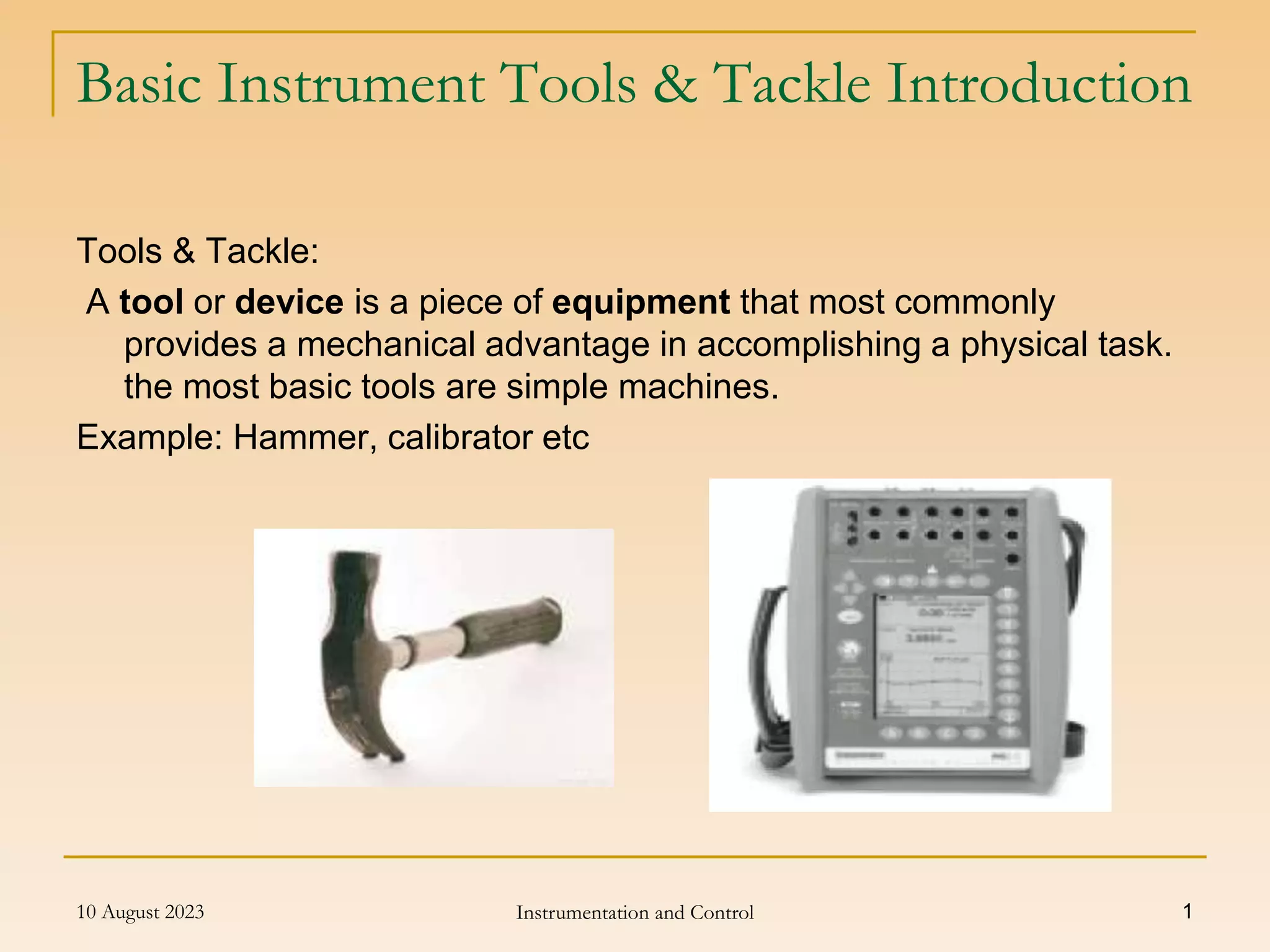
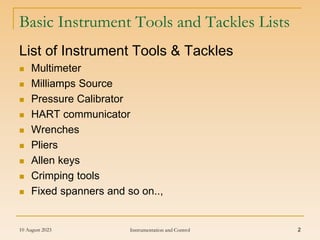
Tools & Tackle:
A tool or device is a piece of equipment that most commonly
provides a mechanical advantage in accomplishing a physical task.
the most basic tools are simple machines.
Example: Hammer, calibrator etc
10 August 2023 Instrumentation and Control 2
Basic Instrument Tools and Tackles Lists
List of Instrument Tools & Tackles
 Multimeter
 Milliamps Source
 Pressure Calibrator
 HART communicator
 Wrenches
 Pliers
 Allen keys
 Crimping tools
 Fixed spanners and so on..,
10 August 2023 Instrumentation and Control 3
What do meters measure
 A meter is a measuring instrument.
 An ammeter measures current,
 A voltmeter measures the potential difference (voltage) between
two points, and
 An ohmmeter measures resistance.
 A multimeter combines these functions, and possibly some
additional ones as well, into a single instrument.
 Before going in to detail about multimeter, it is important to have a
clear idea of how meters are connected into circuits.
 Diagrams in Next Slides show a circuit before and after connecting
an ammeter.
10 August 2023 Instrumentation and Control 4
What do meters measure
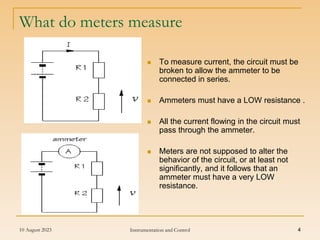
 To measure current, the circuit must be
broken to allow the ammeter to be
connected in series.
 Ammeters must have a LOW resistance .
 All the current flowing in the circuit must
pass through the ammeter.
 Meters are not supposed to alter the
behavior of the circuit, or at least not
significantly, and it follows that an
ammeter must have a very LOW
resistance.
10 August 2023 Instrumentation and Control 5
What do meters measure
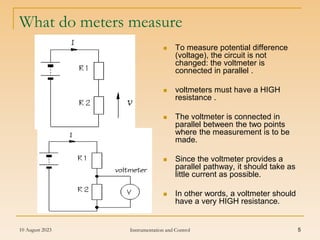
 To measure potential difference
(voltage), the circuit is not
changed: the voltmeter is
connected in parallel .
 voltmeters must have a HIGH
resistance .
 The voltmeter is connected in
parallel between the two points
where the measurement is to be
made.
 Since the voltmeter provides a
parallel pathway, it should take as
little current as possible.
 In other words, a voltmeter should
have a very HIGH resistance.
10 August 2023 Instrumentation and Control 6
What do meters measure
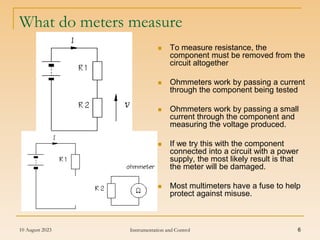
 To measure resistance, the
component must be removed from the
circuit altogether
 Ohmmeters work by passing a current
through the component being tested
 Ohmmeters work by passing a small
current through the component and
measuring the voltage produced.
 If we try this with the component
connected into a circuit with a power
supply, the most likely result is that
the meter will be damaged.
 Most multimeters have a fuse to help
protect against misuse.
10 August 2023 Instrumentation and Control 7
Multimeters
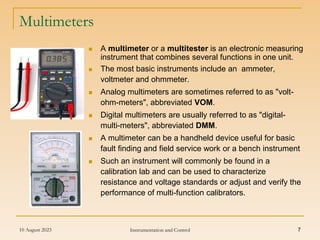
 A multimeter or a multitester is an electronic measuring
instrument that combines several functions in one unit.
 The most basic instruments include an ammeter,
voltmeter and ohmmeter.
 Analog multimeters are sometimes referred to as "volt-
ohm-meters", abbreviated VOM.
 Digital multimeters are usually referred to as "digital-
multi-meters", abbreviated DMM.
 A multimeter can be a handheld device useful for basic
fault finding and field service work or a bench instrument
 Such an instrument will commonly be found in a
calibration lab and can be used to characterize
resistance and voltage standards or adjust and verify the
performance of multi-function calibrators.
10 August 2023 Instrumentation and Control 8
Analogue Multimeter
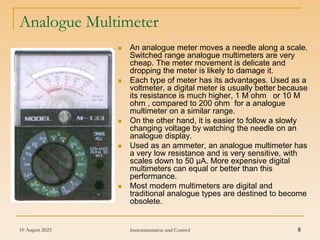
 An analogue meter moves a needle along a scale.
Switched range analogue multimeters are very
cheap. The meter movement is delicate and
dropping the meter is likely to damage it.
 Each type of meter has its advantages. Used as a
voltmeter, a digital meter is usually better because
its resistance is much higher, 1 M ohm or 10 M
ohm , compared to 200 ohm for a analogue
multimeter on a similar range.
 On the other hand, it is easier to follow a slowly
changing voltage by watching the needle on an
analogue display.
 Used as an ammeter, an analogue multimeter has
a very low resistance and is very sensitive, with
scales down to 50 µA. More expensive digital
multimeters can equal or better than this
performance.
 Most modern multimeters are digital and
traditional analogue types are destined to become
obsolete.
10 August 2023 Instrumentation and Control 9
Digital Multimeter
 Multimeters are designed and mass produced
for electronics engineers.
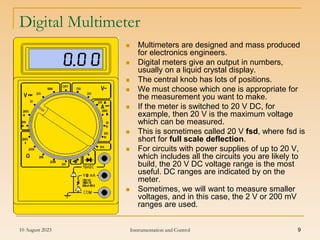
 Digital meters give an output in numbers,
usually on a liquid crystal display.
 The central knob has lots of positions.
 We must choose which one is appropriate for
the measurement you want to make.
 If the meter is switched to 20 V DC, for
example, then 20 V is the maximum voltage
which can be measured.
 This is sometimes called 20 V fsd, where fsd is
short for full scale deflection.
 For circuits with power supplies of up to 20 V,
which includes all the circuits you are likely to
build, the 20 V DC voltage range is the most
useful. DC ranges are indicated by on the
meter.
 Sometimes, we will want to measure smaller
voltages, and in this case, the 2 V or 200 mV
ranges are used.
10 August 2023 Instrumentation and Control 10
Hart Communicator Introduction
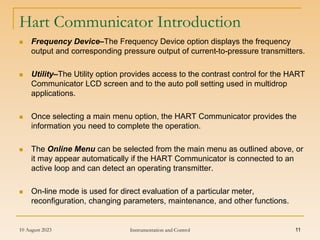
 The HART Communicator is a menu driven
system. Each screen provides a menu of options
that can be selected as outlined above, or
provides direction for input of data, warnings,
messages, or other instructions.
 When the HART Communicator is turned on, one
of two menus will appear.
 If the HART Communicator is connected to an
operating loop, the communicator will find the
device and display the Online Menu (see below).
 If it is not connected to a loop, the communicator
will indicate that no device was found. When you
press OK (F4), it will display the Main menu.
 The Main Menu provides the following options:
• Offline–saves or retrieves transmitter
configuration information.
• Online–connects the communicator to a
compatible device.
10 August 2023 Instrumentation and Control 11
Hart Communicator Introduction
 Frequency Device–The Frequency Device option displays the frequency
output and corresponding pressure output of current-to-pressure transmitters.
 Utility–The Utility option provides access to the contrast control for the HART
Communicator LCD screen and to the auto poll setting used in multidrop
applications.
 Once selecting a main menu option, the HART Communicator provides the
information you need to complete the operation.
 The Online Menu can be selected from the main menu as outlined above, or
it may appear automatically if the HART Communicator is connected to an
active loop and can detect an operating transmitter.
 On-line mode is used for direct evaluation of a particular meter,
reconfiguration, changing parameters, maintenance, and other functions.
10 August 2023 Instrumentation and Control 12
Hart Communicator Keys
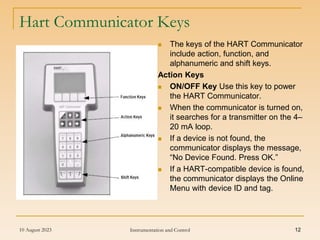
 The keys of the HART Communicator
include action, function, and
alphanumeric and shift keys.
Action Keys
 ON/OFF Key Use this key to power
the HART Communicator.
 When the communicator is turned on,
it searches for a transmitter on the 4–
20 mA loop.
 If a device is not found, the
communicator displays the message,
“No Device Found. Press OK.”
 If a HART-compatible device is found,
the communicator displays the Online
Menu with device ID and tag.
10 August 2023 Instrumentation and Control 13
Hart communicator Keys
Directional Keys
 Use these keys to move the cursor
up, down, left, or right.
 The right arrow key also selects
menu options, and the left arrow
key returns to the previous menu.
HOT Key
 Use this key to quickly access
important, user-selectable options
when connected to a HART-
compatible device.
 Pressing the Hot Key turns the
HART Communicator on and
displays the Hot Key Menu.
 See Customizing the Hot Key Menu
in the HART Communicator manual
for more information.
10 August 2023 Instrumentation and Control 14
Hart communicator Keys
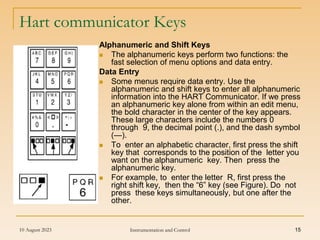
 Use the four software-defined function keys, located below the LCD,
to perform software functions. On any given menu, the label
appearing above a function key indicates the function of that key for
the current menu. As you move among menus, different function key
labels appear over the four keys.
 For example, In menus providing access to on-line help, the label
may appear above the F1 key. Simply press the key to activate the
function.
 In menus providing access to the On-line Menu, the label may
appear above the F3 key. Simply press the key to activate the
function.
10 August 2023 Instrumentation and Control 15
Hart communicator Keys
Alphanumeric and Shift Keys
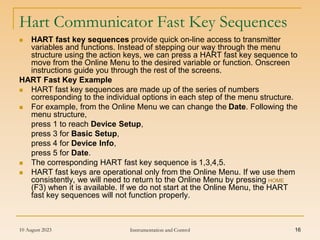
 The alphanumeric keys perform two functions: the
fast selection of menu options and data entry.
Data Entry
 Some menus require data entry. Use the
alphanumeric and shift keys to enter all alphanumeric
information into the HART Communicator. If we press
an alphanumeric key alone from within an edit menu,
the bold character in the center of the key appears.
These large characters include the numbers 0
through 9, the decimal point (.), and the dash symbol
(—).
 To enter an alphabetic character, first press the shift
key that corresponds to the position of the letter you
want on the alphanumeric key. Then press the
alphanumeric key.
 For example, to enter the letter R, first press the
right shift key, then the “6” key (see Figure). Do not
press these keys simultaneously, but one after the
other.
10 August 2023 Instrumentation and Control 16
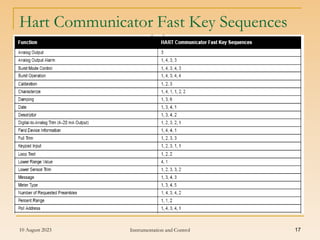
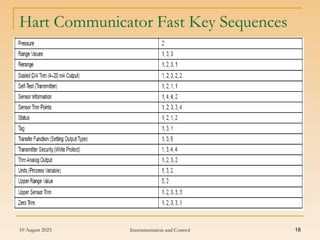
Hart Communicator Fast Key Sequences
 HART fast key sequences provide quick on-line access to transmitter
variables and functions. Instead of stepping our way through the menu
structure using the action keys, we can press a HART fast key sequence to
move from the Online Menu to the desired variable or function. Onscreen
instructions guide you through the rest of the screens.
HART Fast Key Example
 HART fast key sequences are made up of the series of numbers
corresponding to the individual options in each step of the menu structure.
 For example, from the Online Menu we can change the Date. Following the
menu structure,
press 1 to reach Device Setup,
press 3 for Basic Setup,
press 4 for Device Info,
press 5 for Date.
 The corresponding HART fast key sequence is 1,3,4,5.
 HART fast keys are operational only from the Online Menu. If we use them
consistently, we will need to return to the Online Menu by pressing HOME
(F3) when it is available. If we do not start at the Online Menu, the HART
fast key sequences will not function properly.
10 August 2023 Instrumentation and Control 17
Hart Communicator Fast Key Sequences
10 August 2023 Instrumentation and Control 18
Hart Communicator Fast Key Sequences
10 August 2023 Instrumentation and Control 19
Hart Communicator Connections
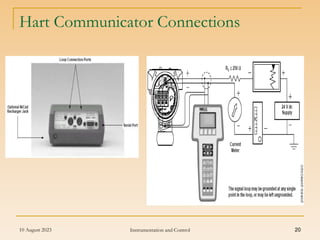
 The HART Communicator Model 275 / 375 can interface with a
transmitter from the control room, the instrument site, or any wiring
termination point in the loop through the rear connection panel as
shown in Figure next slide.
 To communicate, connect the HART Communicator in parallel with the
instrument or load resistor. The connections are non-polarized.
 Avoid contact with leads and terminals.
 Do not make connections to the serial port or NiCad recharger jack in
an explosive atmosphere.
 Before connecting the HART Communicator in an explosive
atmosphere, make sure the instruments in the loop are installed in
accordance with intrinsically safe or non incendive field wiring practices.
 Both transmitter covers must be fully engaged to meet explosion proof
requirements.
 The HART Communicator needs a minimum of 250 ohms resistance in
the loop to function properly. The HART Communicator does not
measure loop current directly.
10 August 2023 Instrumentation and Control 20
Hart Communicator Connections
10 August 2023 Instrumentation and Control 21
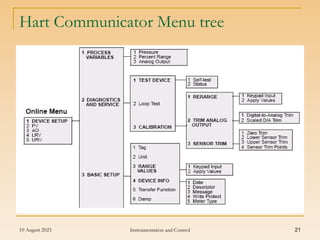
Hart Communicator Menu tree
10 August 2023 Instrumentation and Control 22
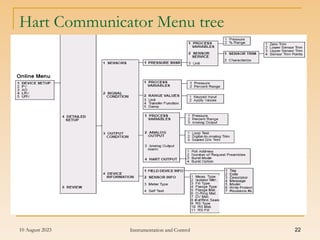
Hart Communicator Menu tree
10 August 2023 Instrumentation and Control 23
Milliamp Calibrator Introduction
 Basic functions Sources & Reads
Mill volts, Volts, Milliamps, Sources
Frequency, Simulates RTD values
Sink & Reads Millivolt / Volts,
Milliamps, Indicates Continuity.
 portable calibrator is the result of
many years of combined field
experience that sets a new
standard of portable multifunction
calibrators.
 calibrator can be used to calibrate
any instrument in the industry Its
dual operation of source & sink of
signals make it useful in Labs &
Process Plants.
10 August 2023 Instrumentation and Control 24
Calibrator Instruction
Turn-on
 Each time you turn on the Model 434-KP the LCD will display all segments for
about 1 second. It then displays the most recently selected scaling for the
function selected by the selector knob.
Turn-off
 Press the POWER push-button to turn the 434-KP off. If AUTO-OFF is
enabled the 434-KP will turn itself off after 30 minutes of inactivity.
Choosing milliamp or percent
 You may choose to display from 0.000 to 24.000 mA or -25.00 to 125.00%.
Press the MILLIAMP / PERCENT push-button to toggle the display. When
scaled in percent, 100.00% corresponds to 20.000 mA and 0.00%
corresponds to 4.000 mA.
Auto cal
 To maintain accuracy, the Model 434-KP periodically recalibrates its
measuring circuitry against internal references. While this is occurring the
word CAL will appear on the display for less than 2 seconds.
10 August 2023 Instrumentation and Control 25
Calibrator General Details
General
 Milliamp accuracy: ±(0.015% of reading + 0.002 mA)
 Temperature effect: ±0.008%/°C based on 23°C ±25°C
 Batteries: Six "AA" batteries (Alkaline supplied and recommended)
 Battery life:
 Milliamp Source & 2-wire Modes: Nominal 44 hours at 12 mA, 30 hours
at 20 mA into 250 Ohm load
 Other Functions: Nominal 75 hours
 AC Adapters: Optional, 120 or 240 VAC, 50/60 Hz Low battery
indication: "BAT" indication on the display at 6.5 V nominal,
approximately 4 hours left
 Operating temperature range: -5 to +130°F (-20 to +55°C)
 Storage temperature range: -13 to +130°F (-25 to +55°C)
 Relative humidity: 10 to 90%, non-condensing for 24 hours
 Warm up time: 10 seconds to rated accuracy, 2 minutes to full
 accuracy
 Overall size: 6.23 x 3.27 x 1.94 inches (158.1 x 83.1x 49.3 mm)
 Weight: 1lb, 2oz (0.5 kg)
10 August 2023 Instrumentation and Control 26
Calibrator Specification
Milliamp source
 Ranges: 0.000 to 24.000mA with 1 micro amp resolution -25.00 to 125.00% of
4-20mA with 0.01% resolution
 Typical drive capability: 1200 Ohms @ 20.000 mA
 Power to drive receiver: Nominal 24 VDC
 Compliance voltage: 0 to 500 Ohm Load: 12 V nominal @ 20.000 mA
500 to 1200 Ohm load: 24 V nominal @ 20.000 mA
Power & measure 2-wire transmitters
 Ranges: Same as Milliamp Source
 Output current: up to 24.000 mA
 Typical drive capability: 1200 Ohms @ 20.000 mA
 Power to external 2-wire transmitter: Nominal 24 VDC
Read milliamps
 Ranges: Same as Milliamp Source
 Voltage burden: 0.9 V at 4 mA, 1.2 V at 20 mA,1.4 V at 24 mA
10 August 2023 Instrumentation and Control 27
Calibrator Specification
Read transmitter test jacks or across loop diodes
 Ranges: Same as Milliamp Source
 Over voltage protection: Fuse, 5 x 20 mm, 250 mA, 250 V
 Input impedance: 15 ohms
Simulate 2-wire transmitters
 Ranges: 1.000 to 24.000 mA
 Loop voltage limits: Minimum, 2 VDC; Maximum 50 VDC
Measure DC Volts
 Range: -100.0 to +100.0 DC Volts
 Accuracy: ±0.5% of Full Scale Reading from 0.0 to 100.0V
 Input resistance: > 1 Meg ohm
 Source resistance effect: 0.01% per 100 Ohms
10 August 2023 Instrumentation and Control 28
Universal Calibrator Applications
APPLICATION:
 Calibrations of instruments
 Commissioning of field instruments
 Repair & Maintenance of field instruments
 Use as millimeter with limited facilities
USER INDUSTRIES :
 Chemical Process Industries
 Cement Plant
 Paper & Pulp Industries
 Petrochemical Industries
 Textile Industries
 Fertilizer Industries
 Pharmaceutical Industries
 Instrument manufacturing unit
 Automobile Industries
 Instrument Calibration Labs
10 August 2023 Instrumentation and Control 29
Introduction about Calibrator
 MC5-IS is an Intrinsically Safe, documenting, All-In-One
Multifunction Calibrator with calibration capability of pressure,
temperature, electrical and frequency signals.
 MC5-IS performs automatic calibration of electrical and temperature
process instruments.
 MC5-IS also communicates with HART field instruments.
 MC5-IS represents the state of the art in accuracy, adaptability and
all-round usability.
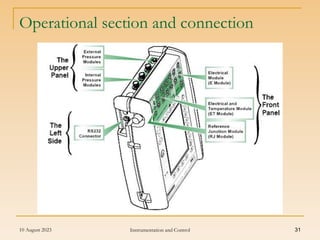
The Upper Panel
The upper panel has 5 places for the following modules/connectors:
External Pressure Modules
MC5-IS has a connector for External Pressure Modules (EXTs). The
connector is located on the right hand side of the upper panel and is
marked with PX1 in a sticker on the upper panel.
10 August 2023 Instrumentation and Control 30
Calibrator Introduction
Internal Pressure Modules
 Up to three Internal Pressure Modules may be installed in MC5-IS.One of them
may be an internal barometric module. The connectors for Internal Pressure
modules start from the second connector on the left. The possible Barometric
Module is always located as second from right and it measures the barometric
pressure through a connection in the back panel of MC5-IS. Normally nothing
need to connected to the barometric pressure module’s connector.
 Internal pressure modules are marked with P1 … P3.
 The recommended pressure medium for all internal pressure modules is clean
air.
 Clean non-corrosive liquids may optionally be used in modules with a measuring
range of 20 bar/300 psi or more.
 Avoid spilling liquid on MC5-IS when connecting/disconnecting pressure hoses
to/from pressure modules.
 To avoid damaging the calibrator, use hand tightening only when connecting the
pressure measurement hoses (max. torque 5 Nm,approx. 3.6 lbf ft).
 If the use of tools is required to secure the connection (typically pressure
modules with a pressure range higher than 20 bar), apply the counterforce with a
spanner on the connector body’s hexagonal part.
 The overpressure protection of the internal pressure modules vents to the back of
the calibrator.
10 August 2023 Instrumentation and Control 31
Operational section and connection
10 August 2023 Instrumentation and Control 32
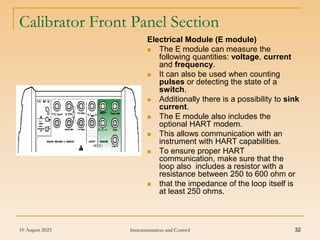
Calibrator Front Panel Section
Electrical Module (E module)
 The E module can measure the
following quantities: voltage, current
and frequency.
 It can also be used when counting
pulses or detecting the state of a
switch.
 Additionally there is a possibility to sink
current.
 The E module also includes the
optional HART modem.
 This allows communication with an
instrument with HART capabilities.
 To ensure proper HART
communication, make sure that the
loop also includes a resistor with a
resistance between 250 to 600 ohm or
 that the impedance of the loop itself is
at least 250 ohms.
10 August 2023 Instrumentation and Control 33
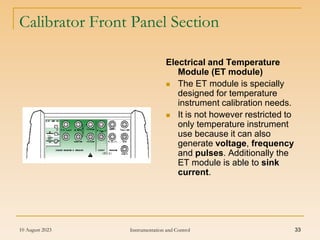
Calibrator Front Panel Section
Electrical and Temperature
Module (ET module)
 The ET module is specially
designed for temperature
instrument calibration needs.
 It is not however restricted to
only temperature instrument
use because it can also
generate voltage, frequency
and pulses. Additionally the
ET module is able to sink
current.
10 August 2023 Instrumentation and Control 34
Calibrator Measuring capability
Measuring capabilities:
 Low Voltage measurement and T/C measurement using either the
internal reference junction or the Low Voltage connectors.
 Resistance and RTD measurement.
Generation/simulation capabilities:
 T/C simulation using either the internal reference junction or the Low
Voltage connectors.
 Resistance and RTD simulation.
 Voltage, frequency and pulse generation.
 Current sink.
10 August 2023 Instrumentation and Control 35
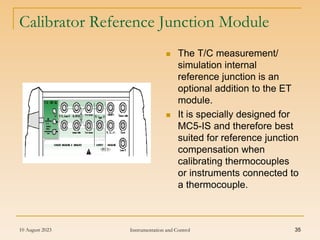
 The T/C measurement/
simulation internal
reference junction is an
optional addition to the ET
module.
 It is specially designed for
MC5-IS and therefore best
suited for reference junction
compensation when
calibrating thermocouples
or instruments connected to
a thermocouple.
Calibrator Reference Junction Module
10 August 2023 Instrumentation and Control 36
Calibrator Reference Junction Module
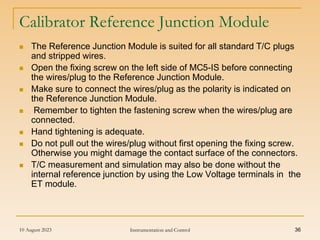
 The Reference Junction Module is suited for all standard T/C plugs
and stripped wires.
 Open the fixing screw on the left side of MC5-IS before connecting
the wires/plug to the Reference Junction Module.
 Make sure to connect the wires/plug as the polarity is indicated on
the Reference Junction Module.
 Remember to tighten the fastening screw when the wires/plug are
connected.
 Hand tightening is adequate.
 Do not pull out the wires/plug without first opening the fixing screw.
Otherwise you might damage the contact surface of the connectors.
 T/C measurement and simulation may also be done without the
internal reference junction by using the Low Voltage terminals in the
ET module.
10 August 2023 Instrumentation and Control 37
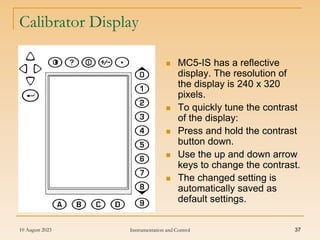
Calibrator Display
 MC5-IS has a reflective
display. The resolution of
the display is 240 x 320
pixels.
 To quickly tune the contrast
of the display:
 Press and hold the contrast
button down.
 Use the up and down arrow
keys to change the contrast.
 The changed setting is
automatically saved as
default settings.
10 August 2023 Instrumentation and Control 38
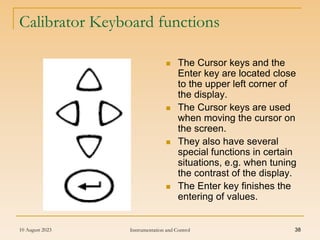
Calibrator Keyboard functions
 The Cursor keys and the
Enter key are located close
to the upper left corner of
the display.
 The Cursor keys are used
when moving the cursor on
the screen.
 They also have several
special functions in certain
situations, e.g. when tuning
the contrast of the display.
 The Enter key finishes the
entering of values.
10 August 2023 Instrumentation and Control 39
Calibrator Keyboard functions
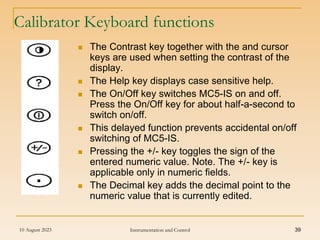
 The Contrast key together with the and cursor
keys are used when setting the contrast of the
display.
 The Help key displays case sensitive help.
 The On/Off key switches MC5-IS on and off.
Press the On/Off key for about half-a-second to
switch on/off.
 This delayed function prevents accidental on/off
switching of MC5-IS.
 Pressing the +/- key toggles the sign of the
entered numeric value. Note. The +/- key is
applicable only in numeric fields.
 The Decimal key adds the decimal point to the
numeric value that is currently edited.
10 August 2023 Instrumentation and Control 40
Calibrator Keyboard functions
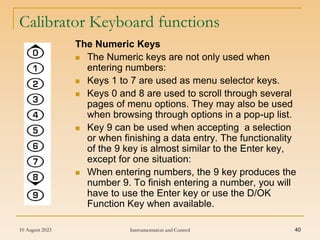
The Numeric Keys
 The Numeric keys are not only used when
entering numbers:
 Keys 1 to 7 are used as menu selector keys.
 Keys 0 and 8 are used to scroll through several
pages of menu options. They may also be used
when browsing through options in a pop-up list.
 Key 9 can be used when accepting a selection
or when finishing a data entry. The functionality
of the 9 key is almost similar to the Enter key,
except for one situation:
 When entering numbers, the 9 key produces the
number 9. To finish entering a number, you will
have to use the Enter key or use the D/OK
Function Key when available.
10 August 2023 Instrumentation and Control 41
Calibrator General Description
10 August 2023 Instrumentation and Control 42
Calibrator General Description
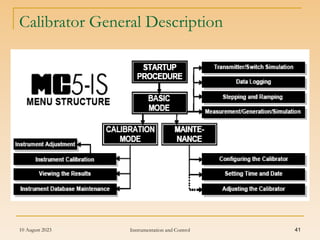
Startup Procedure
 Every time MC5-IS is started the Startup Procedure checks the
functionality of the device by performing a self test.
 If the self-test is passed successfully, some basic calibrator data is
displayed.
 After that MC5-IS automatically proceeds to Basic Mode.
Basic Mode
 In Basic Mode you can measure and generate/simulate signals. There
are two separately configurable windows available. Basic Mode is often
used for testing connections before starting the actual calibration
procedure of an instrument.
 Stepping and Ramping tools enable generating/simulating signals that
vary with time.
Maintenance
 This main function handles calibrator configuration settings. Additionally
there is the possibility to recalibrate MC5-IS (requires a password).
10 August 2023 Instrumentation and Control 43
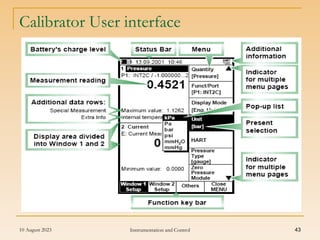
Calibrator User interface
10 August 2023 Instrumentation and Control 44
Calibrator User interface
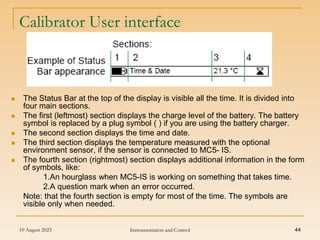
 The Status Bar at the top of the display is visible all the time. It is divided into
four main sections.
 The first (leftmost) section displays the charge level of the battery. The battery
symbol is replaced by a plug symbol ( ) if you are using the battery charger.
 The second section displays the time and date.
 The third section displays the temperature measured with the optional
environment sensor, if the sensor is connected to MC5- IS.
 The fourth section (rightmost) section displays additional information in the form
of symbols, like:
1.An hourglass when MC5-IS is working on something that takes time.
2.A question mark when an error occurred.
Note: that the fourth section is empty for most of the time. The symbols are
visible only when needed.
10 August 2023 Instrumentation and Control 45
Calibrator User interface
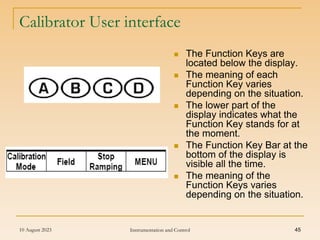
 The Function Keys are
located below the display.
 The meaning of each
Function Key varies
depending on the situation.
 The lower part of the
display indicates what the
Function Key stands for at
the moment.
 The Function Key Bar at the
bottom of the display is
visible all the time.
 The meaning of the
Function Keys varies
depending on the situation.
10 August 2023 Instrumentation and Control 46
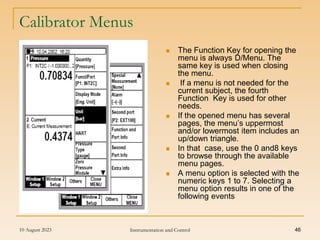
Calibrator Menus
 The Function Key for opening the
menu is always D/Menu. The
same key is used when closing
the menu.
 If a menu is not needed for the
current subject, the fourth
Function Key is used for other
needs.
 If the opened menu has several
pages, the menu’s uppermost
and/or lowermost item includes an
up/down triangle.
 In that case, use the 0 and8 keys
to browse through the available
menu pages.
 A menu option is selected with the
numeric keys 1 to 7. Selecting a
menu option results in one of the
following events
10 August 2023 Instrumentation and Control 47
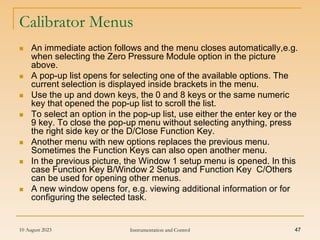
Calibrator Menus
 An immediate action follows and the menu closes automatically,e.g.
when selecting the Zero Pressure Module option in the picture
above.
 A pop-up list opens for selecting one of the available options. The
current selection is displayed inside brackets in the menu.
 Use the up and down keys, the 0 and 8 keys or the same numeric
key that opened the pop-up list to scroll the list.
 To select an option in the pop-up list, use either the enter key or the
9 key. To close the pop-up menu without selecting anything, press
the right side key or the D/Close Function Key.
 Another menu with new options replaces the previous menu.
Sometimes the Function Keys can also open another menu.
 In the previous picture, the Window 1 setup menu is opened. In this
case Function Key B/Window 2 Setup and Function Key C/Others
can be used for opening other menus.
 A new window opens for, e.g. viewing additional information or for
configuring the selected task.
10 August 2023 Instrumentation and Control 48
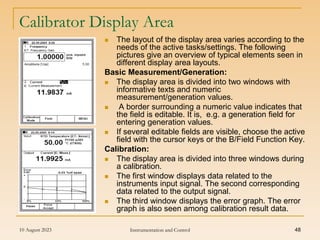
Calibrator Display Area
 The layout of the display area varies according to the
needs of the active tasks/settings. The following
pictures give an overview of typical elements seen in
different display area layouts.
Basic Measurement/Generation:
 The display area is divided into two windows with
informative texts and numeric
measurement/generation values.
 A border surrounding a numeric value indicates that
the field is editable. It is, e.g. a generation field for
entering generation values.
 If several editable fields are visible, choose the active
field with the cursor keys or the B/Field Function Key.
Calibration:
 The display area is divided into three windows during
a calibration.
 The first window displays data related to the
instruments input signal. The second corresponding
data related to the output signal.
 The third window displays the error graph. The error
graph is also seen among calibration result data.
10 August 2023 Instrumentation and Control 49
Calibrator Ramping
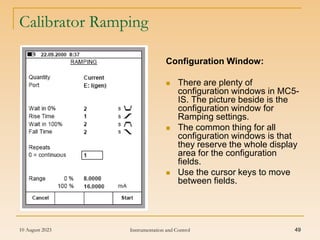
Configuration Window:
 There are plenty of
configuration windows in MC5-
IS. The picture beside is the
configuration window for
Ramping settings.
 The common thing for all
configuration windows is that
they reserve the whole display
area for the configuration
fields.
 Use the cursor keys to move
between fields.
10 August 2023 Instrumentation and Control 50
Calibrator Table
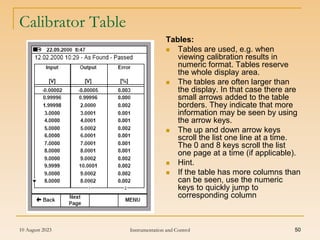
Tables:
 Tables are used, e.g. when
viewing calibration results in
numeric format. Tables reserve
the whole display area.
 The tables are often larger than
the display. In that case there are
small arrows added to the table
borders. They indicate that more
information may be seen by using
the arrow keys.
 The up and down arrow keys
scroll the list one line at a time.
The 0 and 8 keys scroll the list
one page at a time (if applicable).
 Hint.
 If the table has more columns than
can be seen, use the numeric
keys to quickly jump to
corresponding column
10 August 2023 Instrumentation and Control 51
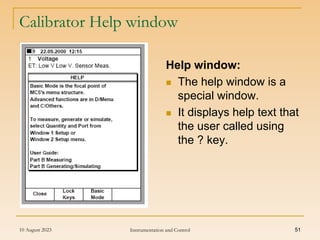
Calibrator Help window
Help window:
 The help window is a
special window.
 It displays help text that
the user called using
the ? key.
10 August 2023 Instrumentation and Control 52
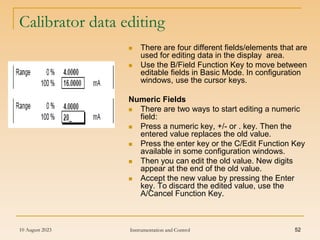
Calibrator data editing
 There are four different fields/elements that are
used for editing data in the display area.
 Use the B/Field Function Key to move between
editable fields in Basic Mode. In configuration
windows, use the cursor keys.
Numeric Fields
 There are two ways to start editing a numeric
field:
 Press a numeric key, +/- or . key. Then the
entered value replaces the old value.
 Press the enter key or the C/Edit Function Key
available in some configuration windows.
 Then you can edit the old value. New digits
appear at the end of the old value.
 Accept the new value by pressing the Enter
key. To discard the edited value, use the
A/Cancel Function Key.
10 August 2023 Instrumentation and Control 53
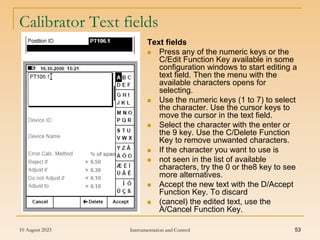
Calibrator Text fields
Text fields
 Press any of the numeric keys or the
C/Edit Function Key available in some
configuration windows to start editing a
text field. Then the menu with the
available characters opens for
selecting.
 Use the numeric keys (1 to 7) to select
the character. Use the cursor keys to
move the cursor in the text field.
 Select the character with the enter or
the 9 key. Use the C/Delete Function
Key to remove unwanted characters.
 If the character you want to use is
 not seen in the list of available
characters, try the 0 or the8 key to see
more alternatives.
 Accept the new text with the D/Accept
Function Key. To discard
 (cancel) the edited text, use the
A/Cancel Function Key.
10 August 2023 Instrumentation and Control 54
Calibrator Safety Precautions
 MC5-IS calibrator is a precision calibration tool that should be used by
skilled people.
 Working with MC5-IS involves the usage of pressure, temperature
and/or electrical instruments. Be sure to know how to work with these
instruments and how to safely connect/disconnect pressure hoses as
well as electrical test leads clips, etc.
 Use MC5-IS only if you are certain of that it can be used safely. Safe
use of MC5-IS is no longer possible if one or more of the following
cases are true:
• When the case of MC5-IS is evidently damaged
• When MC5-IS is not functioning as expected
• After prolonged storage in unfavorable conditions
• After serious damage during transport
 Sometimes it is necessary to use a portable radio transceiver while
working with the calibrator.
 To prevent calibration errors caused by the radio frequency
interference, keep the radio far (at least 1 meter) from the calibrator and
the circuit under calibration while sending.
10 August 2023 Instrumentation and Control 55
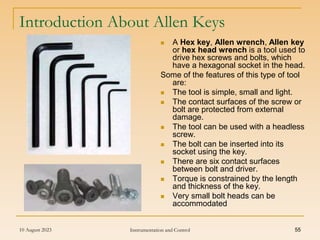
Introduction About Allen Keys
 A Hex key, Allen wrench, Allen key
or hex head wrench is a tool used to
drive hex screws and bolts, which
have a hexagonal socket in the head.
Some of the features of this type of tool
are:
 The tool is simple, small and light.
 The contact surfaces of the screw or
bolt are protected from external
damage.
 The tool can be used with a headless
screw.
 The bolt can be inserted into its
socket using the key.
 There are six contact surfaces
between bolt and driver.
 Torque is constrained by the length
and thickness of the key.
 Very small bolt heads can be
accommodated
10 August 2023 Instrumentation and Control 56
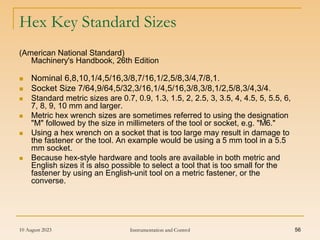
Hex Key Standard Sizes
(American National Standard)
Machinery's Handbook, 26th Edition
 Nominal 6,8,10,1/4,5/16,3/8,7/16,1/2,5/8,3/4,7/8,1.
 Socket Size 7/64,9/64,5/32,3/16,1/4,5/16,3/8,3/8,1/2,5/8,3/4,3/4.
 Standard metric sizes are 0.7, 0.9, 1.3, 1.5, 2, 2.5, 3, 3.5, 4, 4.5, 5, 5.5, 6,
7, 8, 9, 10 mm and larger.
 Metric hex wrench sizes are sometimes referred to using the designation
"M" followed by the size in millimeters of the tool or socket, e.g. "M6."
 Using a hex wrench on a socket that is too large may result in damage to
the fastener or the tool. An example would be using a 5 mm tool in a 5.5
mm socket.
 Because hex-style hardware and tools are available in both metric and
English sizes it is also possible to select a tool that is too small for the
fastener by using an English-unit tool on a metric fastener, or the
converse.
10 August 2023 Instrumentation and Control 57
Introduction About Screw Driver
 A screwdriver is a device specifically
designed to insert and tighten, or to
loosen and remove screws.
 The screwdriver comprises a head or
tip which engages with a screw, a
mechanism to apply torque by rotating
the tip, and some way to position and
support the screwdriver .
 A typical hand screwdriver comprises
an approximately cylindrical handle of
a size and shape to be held by a
human hand, and an axial shaft fixed
to the handle, the tip of which is
shaped to fit a particular type of screw.
 The handle and shaft allow the
screwdriver to be positioned and
supported and, when rotated, to apply
torque.
 Screwdrivers are made in a variety of
shapes, and the tip can be rotated
manually or by an electric or other
motor.
10 August 2023 Instrumentation and Control 58
Screw Driver
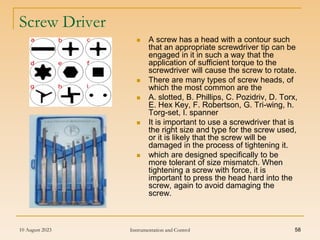
 A screw has a head with a contour such
that an appropriate screwdriver tip can be
engaged in it in such a way that the
application of sufficient torque to the
screwdriver will cause the screw to rotate.
 There are many types of screw heads, of
which the most common are the
 A. slotted, B. Phillips, C. Pozidriv, D. Torx,
E. Hex Key, F. Robertson, G. Tri-wing, h.
Torg-set, I. spanner
 It is important to use a screwdriver that is
the right size and type for the screw used,
or it is likely that the screw will be
damaged in the process of tightening it.
 which are designed specifically to be
more tolerant of size mismatch. When
tightening a screw with force, it is
important to press the head hard into the
screw, again to avoid damaging the
screw.
10 August 2023 Instrumentation and Control 59
Introduction about Pliers
 Pliers are hand tools, designed primarily for gripping objects by using
leverage. Pliers are designed for numerous purposes and require different
jaw configurations to grip, turn, pull, or crimp a variety of things. They are a
tool common to many dexterous trades and occupations.
 Many types of pliers also include jaws for cutting.
10 August 2023 Instrumentation and Control 60
Introduction about Lineman’s Pliers
 Lineman's pliers (US English), also called combination pliers are
a type of pliers used by Electricians and other tradesmen for
gripping small objects, to cut and bend wire and cable, and to
hammer other small tools, such as a chisel or screwdriver, and to
hammer various types of hardware, especially staples and small
nails.
 Lineman's pliers have a gripping joint at their snub nose, and cutting
edge in their craw, and insulating handle grips that reduce (but do
not eliminate) the risk of electric shock from contact with live wires
(versions with properly tested and guaranteed insulation in two
colors to make faults visible are also available).
 Some versions include either an additional gripping or crimping
device at the crux of the handle side of the pliers' joint. Lineman's
pliers typically are machined from forged steel and the two handles
precisely joined with a heavy-duty rivet that maintains the pliers'
accuracy even after repeated use under extreme force on heavy-
gauge wire -- and even use as a hammer.
10 August 2023 Instrumentation and Control 61
Introduction about Nose Player
 Needle-nose pliers (also
known as Long-nose pliers)
are both cutting and gripping
pliers used by electricians and
other tradespersons to bend,
re-position and cut wire.
 Their namesake long gripping
nose provides excellent control
and reach for fine work in small
or crowded electrical
enclosures, while cutting
edges nearer the pliers' joint
provide "one-tool"
convenience.
 Given their long shape, they
are useful for reaching into
cavities where cables (or other
materials) have become stuck
or unreachable to fingers or
other means.
10 August 2023 Instrumentation and Control 62
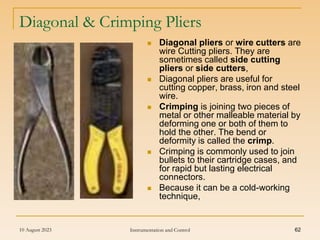
Diagonal & Crimping Pliers
 Diagonal pliers or wire cutters are
wire Cutting pliers. They are
sometimes called side cutting
pliers or side cutters,
 Diagonal pliers are useful for
cutting copper, brass, iron and steel
wire.
 Crimping is joining two pieces of
metal or other malleable material by
deforming one or both of them to
hold the other. The bend or
deformity is called the crimp.
 Crimping is commonly used to join
bullets to their cartridge cases, and
for rapid but lasting electrical
connectors.
 Because it can be a cold-working
technique,
10 August 2023 Instrumentation and Control 63
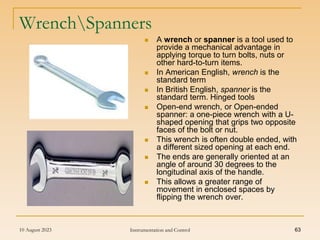
WrenchSpanners
 A wrench or spanner is a tool used to
provide a mechanical advantage in
applying torque to turn bolts, nuts or
other hard-to-turn items.
 In American English, wrench is the
standard term
 In British English, spanner is the
standard term. Hinged tools
 Open-end wrench, or Open-ended
spanner: a one-piece wrench with a U-
shaped opening that grips two opposite
faces of the bolt or nut.
 This wrench is often double ended, with
a different sized opening at each end.
 The ends are generally oriented at an
angle of around 30 degrees to the
longitudinal axis of the handle.
 This allows a greater range of
movement in enclosed spaces by
flipping the wrench over.
10 August 2023 Instrumentation and Control 64
Ring & Adjustable Spanner
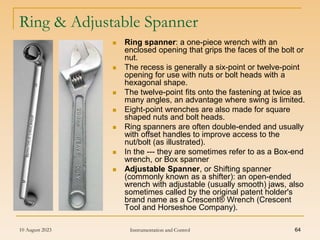
 Ring spanner: a one-piece wrench with an
enclosed opening that grips the faces of the bolt or
nut.
 The recess is generally a six-point or twelve-point
opening for use with nuts or bolt heads with a
hexagonal shape.
 The twelve-point fits onto the fastening at twice as
many angles, an advantage where swing is limited.
 Eight-point wrenches are also made for square
shaped nuts and bolt heads.
 Ring spanners are often double-ended and usually
with offset handles to improve access to the
nut/bolt (as illustrated).
 In the --- they are sometimes refer to as a Box-end
wrench, or Box spanner
 Adjustable Spanner, or Shifting spanner
(commonly known as a shifter): an open-ended
wrench with adjustable (usually smooth) jaws, also
sometimes called by the original patent holder's
brand name as a Crescent® Wrench (Crescent
Tool and Horseshoe Company).
10 August 2023 Instrumentation and Control 65
Introduction about Pipe Wrench
 The pipe wrench, or Stillson®
wrench is an adjustable wrench
used for turning soft iron pipes and
fittings with a rounded surface.
 The design of the adjustable jaw
allows it to rock in the frame, such
that any forward pressure on the
handle tends to pull the jaws tighter
together.
 Teeth angled in the direction of turn
dig into the soft pipe. They are not
for use on hard hex nuts.
 Pipe wrenches are usually sold in the
following sizes (in inches): 10, 14,
18, 24, 36, and 48.
 They are usually made of either
Steel or aluminum.

basic-instrumen-tools-1.ppt

  • 1.
    10 August 2023Instrumentation and Control 1 Basic Instrument Tools & Tackle Introduction Tools & Tackle: A tool or device is a piece of equipment that most commonly provides a mechanical advantage in accomplishing a physical task. the most basic tools are simple machines. Example: Hammer, calibrator etc
  • 2.
    10 August 2023Instrumentation and Control 2 Basic Instrument Tools and Tackles Lists List of Instrument Tools & Tackles  Multimeter  Milliamps Source  Pressure Calibrator  HART communicator  Wrenches  Pliers  Allen keys  Crimping tools  Fixed spanners and so on..,
  • 3.
    10 August 2023Instrumentation and Control 3 What do meters measure  A meter is a measuring instrument.  An ammeter measures current,  A voltmeter measures the potential difference (voltage) between two points, and  An ohmmeter measures resistance.  A multimeter combines these functions, and possibly some additional ones as well, into a single instrument.  Before going in to detail about multimeter, it is important to have a clear idea of how meters are connected into circuits.  Diagrams in Next Slides show a circuit before and after connecting an ammeter.
  • 4.
    10 August 2023Instrumentation and Control 4 What do meters measure  To measure current, the circuit must be broken to allow the ammeter to be connected in series.  Ammeters must have a LOW resistance .  All the current flowing in the circuit must pass through the ammeter.  Meters are not supposed to alter the behavior of the circuit, or at least not significantly, and it follows that an ammeter must have a very LOW resistance.
  • 5.
    10 August 2023Instrumentation and Control 5 What do meters measure  To measure potential difference (voltage), the circuit is not changed: the voltmeter is connected in parallel .  voltmeters must have a HIGH resistance .  The voltmeter is connected in parallel between the two points where the measurement is to be made.  Since the voltmeter provides a parallel pathway, it should take as little current as possible.  In other words, a voltmeter should have a very HIGH resistance.
  • 6.
    10 August 2023Instrumentation and Control 6 What do meters measure  To measure resistance, the component must be removed from the circuit altogether  Ohmmeters work by passing a current through the component being tested  Ohmmeters work by passing a small current through the component and measuring the voltage produced.  If we try this with the component connected into a circuit with a power supply, the most likely result is that the meter will be damaged.  Most multimeters have a fuse to help protect against misuse.
  • 7.
    10 August 2023Instrumentation and Control 7 Multimeters  A multimeter or a multitester is an electronic measuring instrument that combines several functions in one unit.  The most basic instruments include an ammeter, voltmeter and ohmmeter.  Analog multimeters are sometimes referred to as "volt- ohm-meters", abbreviated VOM.  Digital multimeters are usually referred to as "digital- multi-meters", abbreviated DMM.  A multimeter can be a handheld device useful for basic fault finding and field service work or a bench instrument  Such an instrument will commonly be found in a calibration lab and can be used to characterize resistance and voltage standards or adjust and verify the performance of multi-function calibrators.
  • 8.
    10 August 2023Instrumentation and Control 8 Analogue Multimeter  An analogue meter moves a needle along a scale. Switched range analogue multimeters are very cheap. The meter movement is delicate and dropping the meter is likely to damage it.  Each type of meter has its advantages. Used as a voltmeter, a digital meter is usually better because its resistance is much higher, 1 M ohm or 10 M ohm , compared to 200 ohm for a analogue multimeter on a similar range.  On the other hand, it is easier to follow a slowly changing voltage by watching the needle on an analogue display.  Used as an ammeter, an analogue multimeter has a very low resistance and is very sensitive, with scales down to 50 µA. More expensive digital multimeters can equal or better than this performance.  Most modern multimeters are digital and traditional analogue types are destined to become obsolete.
  • 9.
    10 August 2023Instrumentation and Control 9 Digital Multimeter  Multimeters are designed and mass produced for electronics engineers.  Digital meters give an output in numbers, usually on a liquid crystal display.  The central knob has lots of positions.  We must choose which one is appropriate for the measurement you want to make.  If the meter is switched to 20 V DC, for example, then 20 V is the maximum voltage which can be measured.  This is sometimes called 20 V fsd, where fsd is short for full scale deflection.  For circuits with power supplies of up to 20 V, which includes all the circuits you are likely to build, the 20 V DC voltage range is the most useful. DC ranges are indicated by on the meter.  Sometimes, we will want to measure smaller voltages, and in this case, the 2 V or 200 mV ranges are used.
  • 10.
    10 August 2023Instrumentation and Control 10 Hart Communicator Introduction  The HART Communicator is a menu driven system. Each screen provides a menu of options that can be selected as outlined above, or provides direction for input of data, warnings, messages, or other instructions.  When the HART Communicator is turned on, one of two menus will appear.  If the HART Communicator is connected to an operating loop, the communicator will find the device and display the Online Menu (see below).  If it is not connected to a loop, the communicator will indicate that no device was found. When you press OK (F4), it will display the Main menu.  The Main Menu provides the following options: • Offline–saves or retrieves transmitter configuration information. • Online–connects the communicator to a compatible device.
  • 11.
    10 August 2023Instrumentation and Control 11 Hart Communicator Introduction  Frequency Device–The Frequency Device option displays the frequency output and corresponding pressure output of current-to-pressure transmitters.  Utility–The Utility option provides access to the contrast control for the HART Communicator LCD screen and to the auto poll setting used in multidrop applications.  Once selecting a main menu option, the HART Communicator provides the information you need to complete the operation.  The Online Menu can be selected from the main menu as outlined above, or it may appear automatically if the HART Communicator is connected to an active loop and can detect an operating transmitter.  On-line mode is used for direct evaluation of a particular meter, reconfiguration, changing parameters, maintenance, and other functions.
  • 12.
    10 August 2023Instrumentation and Control 12 Hart Communicator Keys  The keys of the HART Communicator include action, function, and alphanumeric and shift keys. Action Keys  ON/OFF Key Use this key to power the HART Communicator.  When the communicator is turned on, it searches for a transmitter on the 4– 20 mA loop.  If a device is not found, the communicator displays the message, “No Device Found. Press OK.”  If a HART-compatible device is found, the communicator displays the Online Menu with device ID and tag.
  • 13.
    10 August 2023Instrumentation and Control 13 Hart communicator Keys Directional Keys  Use these keys to move the cursor up, down, left, or right.  The right arrow key also selects menu options, and the left arrow key returns to the previous menu. HOT Key  Use this key to quickly access important, user-selectable options when connected to a HART- compatible device.  Pressing the Hot Key turns the HART Communicator on and displays the Hot Key Menu.  See Customizing the Hot Key Menu in the HART Communicator manual for more information.
  • 14.
    10 August 2023Instrumentation and Control 14 Hart communicator Keys  Use the four software-defined function keys, located below the LCD, to perform software functions. On any given menu, the label appearing above a function key indicates the function of that key for the current menu. As you move among menus, different function key labels appear over the four keys.  For example, In menus providing access to on-line help, the label may appear above the F1 key. Simply press the key to activate the function.  In menus providing access to the On-line Menu, the label may appear above the F3 key. Simply press the key to activate the function.
  • 15.
    10 August 2023Instrumentation and Control 15 Hart communicator Keys Alphanumeric and Shift Keys  The alphanumeric keys perform two functions: the fast selection of menu options and data entry. Data Entry  Some menus require data entry. Use the alphanumeric and shift keys to enter all alphanumeric information into the HART Communicator. If we press an alphanumeric key alone from within an edit menu, the bold character in the center of the key appears. These large characters include the numbers 0 through 9, the decimal point (.), and the dash symbol (—).  To enter an alphabetic character, first press the shift key that corresponds to the position of the letter you want on the alphanumeric key. Then press the alphanumeric key.  For example, to enter the letter R, first press the right shift key, then the “6” key (see Figure). Do not press these keys simultaneously, but one after the other.
  • 16.
    10 August 2023Instrumentation and Control 16 Hart Communicator Fast Key Sequences  HART fast key sequences provide quick on-line access to transmitter variables and functions. Instead of stepping our way through the menu structure using the action keys, we can press a HART fast key sequence to move from the Online Menu to the desired variable or function. Onscreen instructions guide you through the rest of the screens. HART Fast Key Example  HART fast key sequences are made up of the series of numbers corresponding to the individual options in each step of the menu structure.  For example, from the Online Menu we can change the Date. Following the menu structure, press 1 to reach Device Setup, press 3 for Basic Setup, press 4 for Device Info, press 5 for Date.  The corresponding HART fast key sequence is 1,3,4,5.  HART fast keys are operational only from the Online Menu. If we use them consistently, we will need to return to the Online Menu by pressing HOME (F3) when it is available. If we do not start at the Online Menu, the HART fast key sequences will not function properly.
  • 17.
    10 August 2023Instrumentation and Control 17 Hart Communicator Fast Key Sequences
  • 18.
    10 August 2023Instrumentation and Control 18 Hart Communicator Fast Key Sequences
  • 19.
    10 August 2023Instrumentation and Control 19 Hart Communicator Connections  The HART Communicator Model 275 / 375 can interface with a transmitter from the control room, the instrument site, or any wiring termination point in the loop through the rear connection panel as shown in Figure next slide.  To communicate, connect the HART Communicator in parallel with the instrument or load resistor. The connections are non-polarized.  Avoid contact with leads and terminals.  Do not make connections to the serial port or NiCad recharger jack in an explosive atmosphere.  Before connecting the HART Communicator in an explosive atmosphere, make sure the instruments in the loop are installed in accordance with intrinsically safe or non incendive field wiring practices.  Both transmitter covers must be fully engaged to meet explosion proof requirements.  The HART Communicator needs a minimum of 250 ohms resistance in the loop to function properly. The HART Communicator does not measure loop current directly.
  • 20.
    10 August 2023Instrumentation and Control 20 Hart Communicator Connections
  • 21.
    10 August 2023Instrumentation and Control 21 Hart Communicator Menu tree
  • 22.
    10 August 2023Instrumentation and Control 22 Hart Communicator Menu tree
  • 23.
    10 August 2023Instrumentation and Control 23 Milliamp Calibrator Introduction  Basic functions Sources & Reads Mill volts, Volts, Milliamps, Sources Frequency, Simulates RTD values Sink & Reads Millivolt / Volts, Milliamps, Indicates Continuity.  portable calibrator is the result of many years of combined field experience that sets a new standard of portable multifunction calibrators.  calibrator can be used to calibrate any instrument in the industry Its dual operation of source & sink of signals make it useful in Labs & Process Plants.
  • 24.
    10 August 2023Instrumentation and Control 24 Calibrator Instruction Turn-on  Each time you turn on the Model 434-KP the LCD will display all segments for about 1 second. It then displays the most recently selected scaling for the function selected by the selector knob. Turn-off  Press the POWER push-button to turn the 434-KP off. If AUTO-OFF is enabled the 434-KP will turn itself off after 30 minutes of inactivity. Choosing milliamp or percent  You may choose to display from 0.000 to 24.000 mA or -25.00 to 125.00%. Press the MILLIAMP / PERCENT push-button to toggle the display. When scaled in percent, 100.00% corresponds to 20.000 mA and 0.00% corresponds to 4.000 mA. Auto cal  To maintain accuracy, the Model 434-KP periodically recalibrates its measuring circuitry against internal references. While this is occurring the word CAL will appear on the display for less than 2 seconds.
  • 25.
    10 August 2023Instrumentation and Control 25 Calibrator General Details General  Milliamp accuracy: ±(0.015% of reading + 0.002 mA)  Temperature effect: ±0.008%/°C based on 23°C ±25°C  Batteries: Six "AA" batteries (Alkaline supplied and recommended)  Battery life:  Milliamp Source & 2-wire Modes: Nominal 44 hours at 12 mA, 30 hours at 20 mA into 250 Ohm load  Other Functions: Nominal 75 hours  AC Adapters: Optional, 120 or 240 VAC, 50/60 Hz Low battery indication: "BAT" indication on the display at 6.5 V nominal, approximately 4 hours left  Operating temperature range: -5 to +130°F (-20 to +55°C)  Storage temperature range: -13 to +130°F (-25 to +55°C)  Relative humidity: 10 to 90%, non-condensing for 24 hours  Warm up time: 10 seconds to rated accuracy, 2 minutes to full  accuracy  Overall size: 6.23 x 3.27 x 1.94 inches (158.1 x 83.1x 49.3 mm)  Weight: 1lb, 2oz (0.5 kg)
  • 26.
    10 August 2023Instrumentation and Control 26 Calibrator Specification Milliamp source  Ranges: 0.000 to 24.000mA with 1 micro amp resolution -25.00 to 125.00% of 4-20mA with 0.01% resolution  Typical drive capability: 1200 Ohms @ 20.000 mA  Power to drive receiver: Nominal 24 VDC  Compliance voltage: 0 to 500 Ohm Load: 12 V nominal @ 20.000 mA 500 to 1200 Ohm load: 24 V nominal @ 20.000 mA Power & measure 2-wire transmitters  Ranges: Same as Milliamp Source  Output current: up to 24.000 mA  Typical drive capability: 1200 Ohms @ 20.000 mA  Power to external 2-wire transmitter: Nominal 24 VDC Read milliamps  Ranges: Same as Milliamp Source  Voltage burden: 0.9 V at 4 mA, 1.2 V at 20 mA,1.4 V at 24 mA
  • 27.
    10 August 2023Instrumentation and Control 27 Calibrator Specification Read transmitter test jacks or across loop diodes  Ranges: Same as Milliamp Source  Over voltage protection: Fuse, 5 x 20 mm, 250 mA, 250 V  Input impedance: 15 ohms Simulate 2-wire transmitters  Ranges: 1.000 to 24.000 mA  Loop voltage limits: Minimum, 2 VDC; Maximum 50 VDC Measure DC Volts  Range: -100.0 to +100.0 DC Volts  Accuracy: ±0.5% of Full Scale Reading from 0.0 to 100.0V  Input resistance: > 1 Meg ohm  Source resistance effect: 0.01% per 100 Ohms
  • 28.
    10 August 2023Instrumentation and Control 28 Universal Calibrator Applications APPLICATION:  Calibrations of instruments  Commissioning of field instruments  Repair & Maintenance of field instruments  Use as millimeter with limited facilities USER INDUSTRIES :  Chemical Process Industries  Cement Plant  Paper & Pulp Industries  Petrochemical Industries  Textile Industries  Fertilizer Industries  Pharmaceutical Industries  Instrument manufacturing unit  Automobile Industries  Instrument Calibration Labs
  • 29.
    10 August 2023Instrumentation and Control 29 Introduction about Calibrator  MC5-IS is an Intrinsically Safe, documenting, All-In-One Multifunction Calibrator with calibration capability of pressure, temperature, electrical and frequency signals.  MC5-IS performs automatic calibration of electrical and temperature process instruments.  MC5-IS also communicates with HART field instruments.  MC5-IS represents the state of the art in accuracy, adaptability and all-round usability. The Upper Panel The upper panel has 5 places for the following modules/connectors: External Pressure Modules MC5-IS has a connector for External Pressure Modules (EXTs). The connector is located on the right hand side of the upper panel and is marked with PX1 in a sticker on the upper panel.
  • 30.
    10 August 2023Instrumentation and Control 30 Calibrator Introduction Internal Pressure Modules  Up to three Internal Pressure Modules may be installed in MC5-IS.One of them may be an internal barometric module. The connectors for Internal Pressure modules start from the second connector on the left. The possible Barometric Module is always located as second from right and it measures the barometric pressure through a connection in the back panel of MC5-IS. Normally nothing need to connected to the barometric pressure module’s connector.  Internal pressure modules are marked with P1 … P3.  The recommended pressure medium for all internal pressure modules is clean air.  Clean non-corrosive liquids may optionally be used in modules with a measuring range of 20 bar/300 psi or more.  Avoid spilling liquid on MC5-IS when connecting/disconnecting pressure hoses to/from pressure modules.  To avoid damaging the calibrator, use hand tightening only when connecting the pressure measurement hoses (max. torque 5 Nm,approx. 3.6 lbf ft).  If the use of tools is required to secure the connection (typically pressure modules with a pressure range higher than 20 bar), apply the counterforce with a spanner on the connector body’s hexagonal part.  The overpressure protection of the internal pressure modules vents to the back of the calibrator.
  • 31.
    10 August 2023Instrumentation and Control 31 Operational section and connection
  • 32.
    10 August 2023Instrumentation and Control 32 Calibrator Front Panel Section Electrical Module (E module)  The E module can measure the following quantities: voltage, current and frequency.  It can also be used when counting pulses or detecting the state of a switch.  Additionally there is a possibility to sink current.  The E module also includes the optional HART modem.  This allows communication with an instrument with HART capabilities.  To ensure proper HART communication, make sure that the loop also includes a resistor with a resistance between 250 to 600 ohm or  that the impedance of the loop itself is at least 250 ohms.
  • 33.
    10 August 2023Instrumentation and Control 33 Calibrator Front Panel Section Electrical and Temperature Module (ET module)  The ET module is specially designed for temperature instrument calibration needs.  It is not however restricted to only temperature instrument use because it can also generate voltage, frequency and pulses. Additionally the ET module is able to sink current.
  • 34.
    10 August 2023Instrumentation and Control 34 Calibrator Measuring capability Measuring capabilities:  Low Voltage measurement and T/C measurement using either the internal reference junction or the Low Voltage connectors.  Resistance and RTD measurement. Generation/simulation capabilities:  T/C simulation using either the internal reference junction or the Low Voltage connectors.  Resistance and RTD simulation.  Voltage, frequency and pulse generation.  Current sink.
  • 35.
    10 August 2023Instrumentation and Control 35  The T/C measurement/ simulation internal reference junction is an optional addition to the ET module.  It is specially designed for MC5-IS and therefore best suited for reference junction compensation when calibrating thermocouples or instruments connected to a thermocouple. Calibrator Reference Junction Module
  • 36.
    10 August 2023Instrumentation and Control 36 Calibrator Reference Junction Module  The Reference Junction Module is suited for all standard T/C plugs and stripped wires.  Open the fixing screw on the left side of MC5-IS before connecting the wires/plug to the Reference Junction Module.  Make sure to connect the wires/plug as the polarity is indicated on the Reference Junction Module.  Remember to tighten the fastening screw when the wires/plug are connected.  Hand tightening is adequate.  Do not pull out the wires/plug without first opening the fixing screw. Otherwise you might damage the contact surface of the connectors.  T/C measurement and simulation may also be done without the internal reference junction by using the Low Voltage terminals in the ET module.
  • 37.
    10 August 2023Instrumentation and Control 37 Calibrator Display  MC5-IS has a reflective display. The resolution of the display is 240 x 320 pixels.  To quickly tune the contrast of the display:  Press and hold the contrast button down.  Use the up and down arrow keys to change the contrast.  The changed setting is automatically saved as default settings.
  • 38.
    10 August 2023Instrumentation and Control 38 Calibrator Keyboard functions  The Cursor keys and the Enter key are located close to the upper left corner of the display.  The Cursor keys are used when moving the cursor on the screen.  They also have several special functions in certain situations, e.g. when tuning the contrast of the display.  The Enter key finishes the entering of values.
  • 39.
    10 August 2023Instrumentation and Control 39 Calibrator Keyboard functions  The Contrast key together with the and cursor keys are used when setting the contrast of the display.  The Help key displays case sensitive help.  The On/Off key switches MC5-IS on and off. Press the On/Off key for about half-a-second to switch on/off.  This delayed function prevents accidental on/off switching of MC5-IS.  Pressing the +/- key toggles the sign of the entered numeric value. Note. The +/- key is applicable only in numeric fields.  The Decimal key adds the decimal point to the numeric value that is currently edited.
  • 40.
    10 August 2023Instrumentation and Control 40 Calibrator Keyboard functions The Numeric Keys  The Numeric keys are not only used when entering numbers:  Keys 1 to 7 are used as menu selector keys.  Keys 0 and 8 are used to scroll through several pages of menu options. They may also be used when browsing through options in a pop-up list.  Key 9 can be used when accepting a selection or when finishing a data entry. The functionality of the 9 key is almost similar to the Enter key, except for one situation:  When entering numbers, the 9 key produces the number 9. To finish entering a number, you will have to use the Enter key or use the D/OK Function Key when available.
  • 41.
    10 August 2023Instrumentation and Control 41 Calibrator General Description
  • 42.
    10 August 2023Instrumentation and Control 42 Calibrator General Description Startup Procedure  Every time MC5-IS is started the Startup Procedure checks the functionality of the device by performing a self test.  If the self-test is passed successfully, some basic calibrator data is displayed.  After that MC5-IS automatically proceeds to Basic Mode. Basic Mode  In Basic Mode you can measure and generate/simulate signals. There are two separately configurable windows available. Basic Mode is often used for testing connections before starting the actual calibration procedure of an instrument.  Stepping and Ramping tools enable generating/simulating signals that vary with time. Maintenance  This main function handles calibrator configuration settings. Additionally there is the possibility to recalibrate MC5-IS (requires a password).
  • 43.
    10 August 2023Instrumentation and Control 43 Calibrator User interface
  • 44.
    10 August 2023Instrumentation and Control 44 Calibrator User interface  The Status Bar at the top of the display is visible all the time. It is divided into four main sections.  The first (leftmost) section displays the charge level of the battery. The battery symbol is replaced by a plug symbol ( ) if you are using the battery charger.  The second section displays the time and date.  The third section displays the temperature measured with the optional environment sensor, if the sensor is connected to MC5- IS.  The fourth section (rightmost) section displays additional information in the form of symbols, like: 1.An hourglass when MC5-IS is working on something that takes time. 2.A question mark when an error occurred. Note: that the fourth section is empty for most of the time. The symbols are visible only when needed.
  • 45.
    10 August 2023Instrumentation and Control 45 Calibrator User interface  The Function Keys are located below the display.  The meaning of each Function Key varies depending on the situation.  The lower part of the display indicates what the Function Key stands for at the moment.  The Function Key Bar at the bottom of the display is visible all the time.  The meaning of the Function Keys varies depending on the situation.
  • 46.
    10 August 2023Instrumentation and Control 46 Calibrator Menus  The Function Key for opening the menu is always D/Menu. The same key is used when closing the menu.  If a menu is not needed for the current subject, the fourth Function Key is used for other needs.  If the opened menu has several pages, the menu’s uppermost and/or lowermost item includes an up/down triangle.  In that case, use the 0 and8 keys to browse through the available menu pages.  A menu option is selected with the numeric keys 1 to 7. Selecting a menu option results in one of the following events
  • 47.
    10 August 2023Instrumentation and Control 47 Calibrator Menus  An immediate action follows and the menu closes automatically,e.g. when selecting the Zero Pressure Module option in the picture above.  A pop-up list opens for selecting one of the available options. The current selection is displayed inside brackets in the menu.  Use the up and down keys, the 0 and 8 keys or the same numeric key that opened the pop-up list to scroll the list.  To select an option in the pop-up list, use either the enter key or the 9 key. To close the pop-up menu without selecting anything, press the right side key or the D/Close Function Key.  Another menu with new options replaces the previous menu. Sometimes the Function Keys can also open another menu.  In the previous picture, the Window 1 setup menu is opened. In this case Function Key B/Window 2 Setup and Function Key C/Others can be used for opening other menus.  A new window opens for, e.g. viewing additional information or for configuring the selected task.
  • 48.
    10 August 2023Instrumentation and Control 48 Calibrator Display Area  The layout of the display area varies according to the needs of the active tasks/settings. The following pictures give an overview of typical elements seen in different display area layouts. Basic Measurement/Generation:  The display area is divided into two windows with informative texts and numeric measurement/generation values.  A border surrounding a numeric value indicates that the field is editable. It is, e.g. a generation field for entering generation values.  If several editable fields are visible, choose the active field with the cursor keys or the B/Field Function Key. Calibration:  The display area is divided into three windows during a calibration.  The first window displays data related to the instruments input signal. The second corresponding data related to the output signal.  The third window displays the error graph. The error graph is also seen among calibration result data.
  • 49.
    10 August 2023Instrumentation and Control 49 Calibrator Ramping Configuration Window:  There are plenty of configuration windows in MC5- IS. The picture beside is the configuration window for Ramping settings.  The common thing for all configuration windows is that they reserve the whole display area for the configuration fields.  Use the cursor keys to move between fields.
  • 50.
    10 August 2023Instrumentation and Control 50 Calibrator Table Tables:  Tables are used, e.g. when viewing calibration results in numeric format. Tables reserve the whole display area.  The tables are often larger than the display. In that case there are small arrows added to the table borders. They indicate that more information may be seen by using the arrow keys.  The up and down arrow keys scroll the list one line at a time. The 0 and 8 keys scroll the list one page at a time (if applicable).  Hint.  If the table has more columns than can be seen, use the numeric keys to quickly jump to corresponding column
  • 51.
    10 August 2023Instrumentation and Control 51 Calibrator Help window Help window:  The help window is a special window.  It displays help text that the user called using the ? key.
  • 52.
    10 August 2023Instrumentation and Control 52 Calibrator data editing  There are four different fields/elements that are used for editing data in the display area.  Use the B/Field Function Key to move between editable fields in Basic Mode. In configuration windows, use the cursor keys. Numeric Fields  There are two ways to start editing a numeric field:  Press a numeric key, +/- or . key. Then the entered value replaces the old value.  Press the enter key or the C/Edit Function Key available in some configuration windows.  Then you can edit the old value. New digits appear at the end of the old value.  Accept the new value by pressing the Enter key. To discard the edited value, use the A/Cancel Function Key.
  • 53.
    10 August 2023Instrumentation and Control 53 Calibrator Text fields Text fields  Press any of the numeric keys or the C/Edit Function Key available in some configuration windows to start editing a text field. Then the menu with the available characters opens for selecting.  Use the numeric keys (1 to 7) to select the character. Use the cursor keys to move the cursor in the text field.  Select the character with the enter or the 9 key. Use the C/Delete Function Key to remove unwanted characters.  If the character you want to use is  not seen in the list of available characters, try the 0 or the8 key to see more alternatives.  Accept the new text with the D/Accept Function Key. To discard  (cancel) the edited text, use the A/Cancel Function Key.
  • 54.
    10 August 2023Instrumentation and Control 54 Calibrator Safety Precautions  MC5-IS calibrator is a precision calibration tool that should be used by skilled people.  Working with MC5-IS involves the usage of pressure, temperature and/or electrical instruments. Be sure to know how to work with these instruments and how to safely connect/disconnect pressure hoses as well as electrical test leads clips, etc.  Use MC5-IS only if you are certain of that it can be used safely. Safe use of MC5-IS is no longer possible if one or more of the following cases are true: • When the case of MC5-IS is evidently damaged • When MC5-IS is not functioning as expected • After prolonged storage in unfavorable conditions • After serious damage during transport  Sometimes it is necessary to use a portable radio transceiver while working with the calibrator.  To prevent calibration errors caused by the radio frequency interference, keep the radio far (at least 1 meter) from the calibrator and the circuit under calibration while sending.
  • 55.
    10 August 2023Instrumentation and Control 55 Introduction About Allen Keys  A Hex key, Allen wrench, Allen key or hex head wrench is a tool used to drive hex screws and bolts, which have a hexagonal socket in the head. Some of the features of this type of tool are:  The tool is simple, small and light.  The contact surfaces of the screw or bolt are protected from external damage.  The tool can be used with a headless screw.  The bolt can be inserted into its socket using the key.  There are six contact surfaces between bolt and driver.  Torque is constrained by the length and thickness of the key.  Very small bolt heads can be accommodated
  • 56.
    10 August 2023Instrumentation and Control 56 Hex Key Standard Sizes (American National Standard) Machinery's Handbook, 26th Edition  Nominal 6,8,10,1/4,5/16,3/8,7/16,1/2,5/8,3/4,7/8,1.  Socket Size 7/64,9/64,5/32,3/16,1/4,5/16,3/8,3/8,1/2,5/8,3/4,3/4.  Standard metric sizes are 0.7, 0.9, 1.3, 1.5, 2, 2.5, 3, 3.5, 4, 4.5, 5, 5.5, 6, 7, 8, 9, 10 mm and larger.  Metric hex wrench sizes are sometimes referred to using the designation "M" followed by the size in millimeters of the tool or socket, e.g. "M6."  Using a hex wrench on a socket that is too large may result in damage to the fastener or the tool. An example would be using a 5 mm tool in a 5.5 mm socket.  Because hex-style hardware and tools are available in both metric and English sizes it is also possible to select a tool that is too small for the fastener by using an English-unit tool on a metric fastener, or the converse.
  • 57.
    10 August 2023Instrumentation and Control 57 Introduction About Screw Driver  A screwdriver is a device specifically designed to insert and tighten, or to loosen and remove screws.  The screwdriver comprises a head or tip which engages with a screw, a mechanism to apply torque by rotating the tip, and some way to position and support the screwdriver .  A typical hand screwdriver comprises an approximately cylindrical handle of a size and shape to be held by a human hand, and an axial shaft fixed to the handle, the tip of which is shaped to fit a particular type of screw.  The handle and shaft allow the screwdriver to be positioned and supported and, when rotated, to apply torque.  Screwdrivers are made in a variety of shapes, and the tip can be rotated manually or by an electric or other motor.
  • 58.
    10 August 2023Instrumentation and Control 58 Screw Driver  A screw has a head with a contour such that an appropriate screwdriver tip can be engaged in it in such a way that the application of sufficient torque to the screwdriver will cause the screw to rotate.  There are many types of screw heads, of which the most common are the  A. slotted, B. Phillips, C. Pozidriv, D. Torx, E. Hex Key, F. Robertson, G. Tri-wing, h. Torg-set, I. spanner  It is important to use a screwdriver that is the right size and type for the screw used, or it is likely that the screw will be damaged in the process of tightening it.  which are designed specifically to be more tolerant of size mismatch. When tightening a screw with force, it is important to press the head hard into the screw, again to avoid damaging the screw.
  • 59.
    10 August 2023Instrumentation and Control 59 Introduction about Pliers  Pliers are hand tools, designed primarily for gripping objects by using leverage. Pliers are designed for numerous purposes and require different jaw configurations to grip, turn, pull, or crimp a variety of things. They are a tool common to many dexterous trades and occupations.  Many types of pliers also include jaws for cutting.
  • 60.
    10 August 2023Instrumentation and Control 60 Introduction about Lineman’s Pliers  Lineman's pliers (US English), also called combination pliers are a type of pliers used by Electricians and other tradesmen for gripping small objects, to cut and bend wire and cable, and to hammer other small tools, such as a chisel or screwdriver, and to hammer various types of hardware, especially staples and small nails.  Lineman's pliers have a gripping joint at their snub nose, and cutting edge in their craw, and insulating handle grips that reduce (but do not eliminate) the risk of electric shock from contact with live wires (versions with properly tested and guaranteed insulation in two colors to make faults visible are also available).  Some versions include either an additional gripping or crimping device at the crux of the handle side of the pliers' joint. Lineman's pliers typically are machined from forged steel and the two handles precisely joined with a heavy-duty rivet that maintains the pliers' accuracy even after repeated use under extreme force on heavy- gauge wire -- and even use as a hammer.
  • 61.
    10 August 2023Instrumentation and Control 61 Introduction about Nose Player  Needle-nose pliers (also known as Long-nose pliers) are both cutting and gripping pliers used by electricians and other tradespersons to bend, re-position and cut wire.  Their namesake long gripping nose provides excellent control and reach for fine work in small or crowded electrical enclosures, while cutting edges nearer the pliers' joint provide "one-tool" convenience.  Given their long shape, they are useful for reaching into cavities where cables (or other materials) have become stuck or unreachable to fingers or other means.
  • 62.
    10 August 2023Instrumentation and Control 62 Diagonal & Crimping Pliers  Diagonal pliers or wire cutters are wire Cutting pliers. They are sometimes called side cutting pliers or side cutters,  Diagonal pliers are useful for cutting copper, brass, iron and steel wire.  Crimping is joining two pieces of metal or other malleable material by deforming one or both of them to hold the other. The bend or deformity is called the crimp.  Crimping is commonly used to join bullets to their cartridge cases, and for rapid but lasting electrical connectors.  Because it can be a cold-working technique,
  • 63.
    10 August 2023Instrumentation and Control 63 WrenchSpanners  A wrench or spanner is a tool used to provide a mechanical advantage in applying torque to turn bolts, nuts or other hard-to-turn items.  In American English, wrench is the standard term  In British English, spanner is the standard term. Hinged tools  Open-end wrench, or Open-ended spanner: a one-piece wrench with a U- shaped opening that grips two opposite faces of the bolt or nut.  This wrench is often double ended, with a different sized opening at each end.  The ends are generally oriented at an angle of around 30 degrees to the longitudinal axis of the handle.  This allows a greater range of movement in enclosed spaces by flipping the wrench over.
  • 64.
    10 August 2023Instrumentation and Control 64 Ring & Adjustable Spanner  Ring spanner: a one-piece wrench with an enclosed opening that grips the faces of the bolt or nut.  The recess is generally a six-point or twelve-point opening for use with nuts or bolt heads with a hexagonal shape.  The twelve-point fits onto the fastening at twice as many angles, an advantage where swing is limited.  Eight-point wrenches are also made for square shaped nuts and bolt heads.  Ring spanners are often double-ended and usually with offset handles to improve access to the nut/bolt (as illustrated).  In the --- they are sometimes refer to as a Box-end wrench, or Box spanner  Adjustable Spanner, or Shifting spanner (commonly known as a shifter): an open-ended wrench with adjustable (usually smooth) jaws, also sometimes called by the original patent holder's brand name as a Crescent® Wrench (Crescent Tool and Horseshoe Company).
  • 65.
    10 August 2023Instrumentation and Control 65 Introduction about Pipe Wrench  The pipe wrench, or Stillson® wrench is an adjustable wrench used for turning soft iron pipes and fittings with a rounded surface.  The design of the adjustable jaw allows it to rock in the frame, such that any forward pressure on the handle tends to pull the jaws tighter together.  Teeth angled in the direction of turn dig into the soft pipe. They are not for use on hard hex nuts.  Pipe wrenches are usually sold in the following sizes (in inches): 10, 14, 18, 24, 36, and 48.  They are usually made of either Steel or aluminum.