Internet Basics

A class for people who are just getting

    started using the Internet
What We’ll Cover Today
• What is the Internet?
• How do I use the Internet?
• What is key word searching using
  internet browsing software?
• What is e-mail & www?
• How do I evaluate the information I
  find?
• Where can I learn more?


                                        2
What is the Internet?

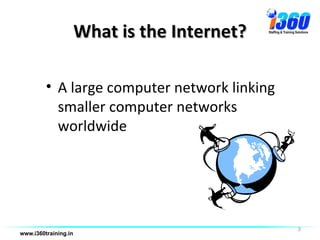
• A large computer network linking
  smaller computer networks
  worldwide


                                     3
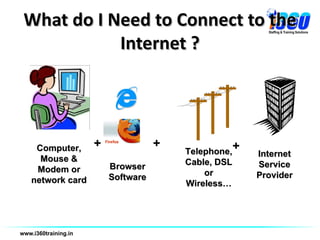
What do I Need to Connect to the
           Internet ?


               +              +
 Computer,                        Telephone,+   Internet
  Mouse &                         Cable, DSL
                   Browser                      Service
 Modem or                             or
                   Software                     Provider
network card                      Wireless…
Why Use the Internet?
• To search for Information on
  the World Wide Web

• To use e-mail

• The World Wide Web (www) and
  e-mail (user-name)@(provider) are two different
  Internet services!


                                                    5
What is E-mail?


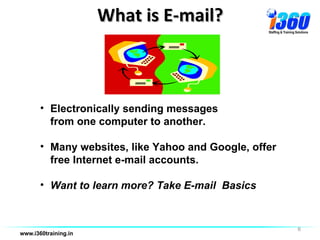
• Electronically sending messages
  from one computer to another.

• Many websites, like Yahoo and Google, offer
  free Internet e-mail accounts.

• Want to learn more? Take E-mail Basics


                                                6
Websites and E-mail
           Use Addresses:

   E-mail addresses:     Website addresses:
     jdoe@hclib.org        www.hclib.org


“at” sign for e-mail   “World Wide Web” for
                       websites
Address that you
use to send            Address that gets you
electronic messages    to a website
                                               7
Avoid Mistakes
  in the Address

• Check for typos.
• Include all periods, hyphens,
  underscores & back-slashes (/)
• Leave no empty spaces.


                                   8
Pop-up are advertisements
Find either the X or area to
skip the pop-ups.


                               9
Internet Search Engines
What are they?
   • A search engine is programmed to search for
     websites using keywords and web addresses.

   • To do a search, you type in keywords that describe
     your topic such as recipes, investments or travel
     destinations.

   • Google and Yahoo! are two popular search
     engines


                                                      10
Internet Search Engines
Descriptions of search engines and
web addresses are easy to find at
          www.hclib.org


                                     11
Hands-On Practice!
Keyword Searching


                     12
Security
       Time for some good tips…
If you shop online:
• Look for the padlock.
  • Look for https.www (website address) this
   indicates a secure site.
  • Don’t enter personal information if you don’t
    know the site is secure.


                                             13
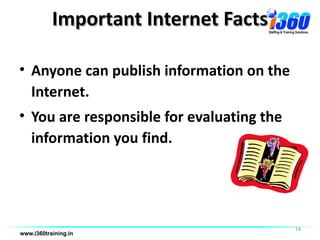
Important Internet Facts

• Anyone can publish information on the
  Internet.
• You are responsible for evaluating the
  information you find.


                                           14
“On   the Internet, nobody knows you’re a dog”

Cartoon by Peter Steiner. The New Yorker, July 5, 1993 issue (Vol.69) p. 61.


                                                                               15
Tips for Evaluating Websites
Ask yourself these two questions:

3. Who wrote or published the information?

2. Is this author or publisher a reliable source
   of information?


                                                   16
Website Authors & Publishers
 Websites should tell you:
 • Who is the author or publisher
 • The author or publisher’s credentials
 Look for these kinds of links to find
 information about the web page author
 “Who we are” “Mission” “Contact us”
   “Philosophy” “About us”

                                           17
Thanks for Attending

• Practice what you’ve learned.
• Have fun learning to use computers!
• We will be happy to assist you.


                                        18

Internet basics

  • 1.
    Internet Basics A classfor people who are just getting started using the Internet
  • 2.
    What We’ll CoverToday • What is the Internet? • How do I use the Internet? • What is key word searching using internet browsing software? • What is e-mail & www? • How do I evaluate the information I find? • Where can I learn more? 2
  • 3.
    What is theInternet? • A large computer network linking smaller computer networks worldwide 3
  • 4.
    What do INeed to Connect to the Internet ? + + Computer, Telephone,+ Internet Mouse & Cable, DSL Browser Service Modem or or Software Provider network card Wireless…
  • 5.
    Why Use theInternet? • To search for Information on the World Wide Web • To use e-mail • The World Wide Web (www) and e-mail (user-name)@(provider) are two different Internet services! 5
  • 6.
    What is E-mail? •Electronically sending messages from one computer to another. • Many websites, like Yahoo and Google, offer free Internet e-mail accounts. • Want to learn more? Take E-mail Basics 6
  • 7.
    Websites and E-mail Use Addresses: E-mail addresses: Website addresses: jdoe@hclib.org www.hclib.org “at” sign for e-mail “World Wide Web” for websites Address that you use to send Address that gets you electronic messages to a website 7
  • 8.
    Avoid Mistakes in the Address • Check for typos. • Include all periods, hyphens, underscores & back-slashes (/) • Leave no empty spaces. 8
  • 9.
    Pop-up are advertisements Findeither the X or area to skip the pop-ups. 9
  • 10.
    Internet Search Engines Whatare they? • A search engine is programmed to search for websites using keywords and web addresses. • To do a search, you type in keywords that describe your topic such as recipes, investments or travel destinations. • Google and Yahoo! are two popular search engines 10
  • 11.
    Internet Search Engines Descriptionsof search engines and web addresses are easy to find at www.hclib.org 11
  • 12.
  • 13.
    Security Time for some good tips… If you shop online: • Look for the padlock. • Look for https.www (website address) this indicates a secure site. • Don’t enter personal information if you don’t know the site is secure. 13
  • 14.
    Important Internet Facts •Anyone can publish information on the Internet. • You are responsible for evaluating the information you find. 14
  • 15.
    “On the Internet, nobody knows you’re a dog” Cartoon by Peter Steiner. The New Yorker, July 5, 1993 issue (Vol.69) p. 61. 15
  • 16.
    Tips for EvaluatingWebsites Ask yourself these two questions: 3. Who wrote or published the information? 2. Is this author or publisher a reliable source of information? 16
  • 17.
    Website Authors &Publishers Websites should tell you: • Who is the author or publisher • The author or publisher’s credentials Look for these kinds of links to find information about the web page author “Who we are” “Mission” “Contact us” “Philosophy” “About us” 17
  • 18.
    Thanks for Attending •Practice what you’ve learned. • Have fun learning to use computers! • We will be happy to assist you. 18

Editor's Notes

  • #4 Suggestion to use a different definition for this slide: “A large computer network linking smaller computer networks worldwide” from Random House Webster’s Unabridged Dictionary .Old Definition: a network of computer networks that spans the globe.
  • #5 This isn’t that important, but to have the slide more “visually” appealing, I suggest finding a different image for the person working at the computer. Actually the image is okay, but I think the person should be facing the other way (toward the center of the page), so the viewer’s eye isn’t taken off the page, but focused more on the rest of the information in the center. Does that make sense? I just remember from working on my high school yearbook and learning about the layouts for pages—you want your eye to be drawn toward the middle of the page rather than off the edge of the page.
  • #9 This slide (#11) should swap places with slide #10 so that it comes before the first practice session. (AS, 6/28/06)