LECTURE 1- BASIC CAD
Parts of the screen
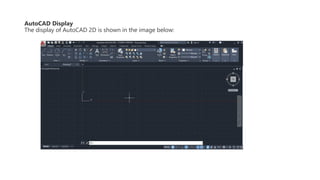
AutoCAD Display
The display of AutoCAD 2D is shown in the image below:
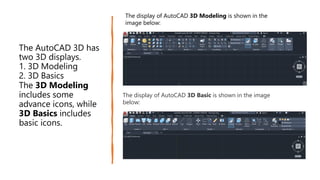
The AutoCAD 3D has
two 3D displays.
1. 3D Modeling
2. 3D Basics
The 3D Modeling
includes some
advance icons, while
3D Basics includes
basic icons.
The display of AutoCAD 3D Modeling is shown in the
image below:
The display of AutoCAD 3D Basic is shown in the image
below:
Parts of the screen
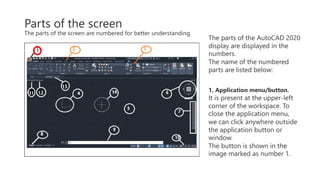
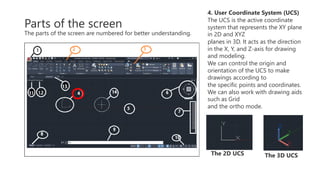
The parts of the screen are numbered for better understanding.
The parts of the AutoCAD 2020
display are displayed in the
numbers.
The name of the numbered
parts are listed below:
1. Application menu/button.
It is present at the upper-left
corner of the workspace. To
close the application menu,
we can click anywhere outside
the application button or
window.
The button is shown in the
image marked as number 1.
Parts of the screen
The parts of the screen are numbered for better understanding.
2. Quick Access Toolbar
The Quick Access Toolbar is located
at the top of the application
window and right of
the application menu. It consists of
the set of frequently used
commands. We can add
and remove the commands
according to the requirements.
3. Ribbon Panel
It provides access to the dialog box
related to that panel. If the ribbon
panel
disappears, then we need to enter
the 'ribbon' on the command line to
display the
ribbon panel on the workspace.
Parts of the screen
The parts of the screen are numbered for better understanding.
4. User Coordinate System (UCS)
The UCS is the active coordinate
system that represents the XY plane
in 2D and XYZ
planes in 3D. It acts as the direction
in the X, Y, and Z-axis for drawing
and modeling.
We can control the origin and
orientation of the UCS to make
drawings according to
the specific points and coordinates.
We can also work with drawing aids
such as Grid
and the ortho mode.
The 2D UCS The 3D UCS
Parts of the screen
The parts of the screen are numbered for better understanding.
5. Model Space / Work Space /
Drawing Window
It is defined as the area to create 2D
and 3D drawings, models, and
objects. We can
create using different commands
according to the requirements.
6. View Cube
The View Cube is termed as the
navigation tool that is displayed
when we are working
on a 2D or 3D model space. We can
switch between the isometric view
and the
standard view of our drawings or
model.
Parts of the screen
The parts of the screen are numbered for better understanding.
7. Navigation Bar
The Navigation Bar is used to
access the navigation tools. It is a
user interface element,
where we can access both unified
(common tools) and product-
specific tools (unique
product tools).
The navigation bar is shown in the
below image:
Parts of the screen
The parts of the screen are numbered for better
understanding.
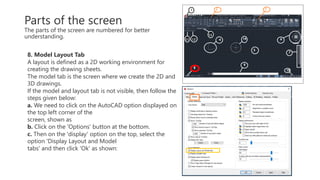
8. Model Layout Tab
A layout is defined as a 2D working environment for
creating the drawing sheets.
The model tab is the screen where we create the 2D and
3D drawings.
If the model and layout tab is not visible, then follow the
steps given below:
a. We need to click on the AutoCAD option displayed on
the top left corner of the
screen, shown as
b. Click on the 'Options' button at the bottom.
c. Then on the 'display' option on the top, select the
option 'Display Layout and Model
tabs' and then click 'Ok' as shown:
Parts of the screen
The parts of the screen are numbered for better understanding.
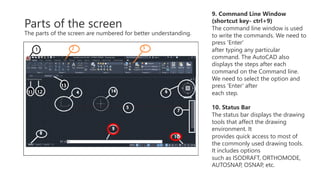
9. Command Line Window
(shortcut key- ctrl+9)
The command line window is used
to write the commands. We need to
press 'Enter'
after typing any particular
command. The AutoCAD also
displays the steps after each
command on the Command line.
We need to select the option and
press 'Enter' after
each step.
10. Status Bar
The status bar displays the drawing
tools that affect the drawing
environment. It
provides quick access to most of
the commonly used drawing tools.
It includes options
such as ISODRAFT, ORTHOMODE,
AUTOSNAP, OSNAP, etc.
Parts of the screen
The parts of the screen are numbered for better understanding.
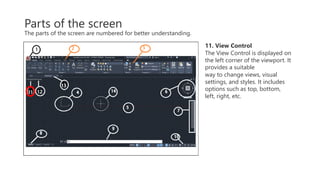
11. View Control
The View Control is displayed on
the left corner of the viewport. It
provides a suitable
way to change views, visual
settings, and styles. It includes
options such as top, bottom,
left, right, etc.
Parts of the screen
The parts of the screen are numbered for better understanding.
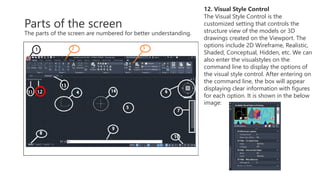
12. Visual Style Control
The Visual Style Control is the
customized setting that controls the
structure view of the models or 3D
drawings created on the Viewport. The
options include 2D Wireframe, Realistic,
Shaded, Conceptual, Hidden, etc. We can
also enter the visualstyles on the
command line to display the options of
the visual style control. After entering on
the command line, the box will appear
displaying clear information with figures
for each option. It is shown in the below
image:
Parts of the screen
The parts of the screen are numbered for better understanding.
13. File Tab
The file tab consists of the current
drawing files opened on the screen.
We can also type FILETAB command
in the command line to turn on turn
on the file
tabs. To close the file tab, we can
type FILETABCLOSE command in
the command line
window.
We can click on the '+' sign to add
a new tab on the File Tab.
Parts of the screen
The parts of the screen are numbered for better understanding.
14. Mouse Cursor
The cursor used to draw
figures, etc. is known as the
mouse cursor.
The cursor in 2D is shown
in the given image:
The cursor in 3D is shown
in the given image:
End.

LECTURE 1- BASIC CAD.pdf

  • 1.
    LECTURE 1- BASICCAD Parts of the screen
  • 2.
    AutoCAD Display The displayof AutoCAD 2D is shown in the image below:
  • 3.
    The AutoCAD 3Dhas two 3D displays. 1. 3D Modeling 2. 3D Basics The 3D Modeling includes some advance icons, while 3D Basics includes basic icons. The display of AutoCAD 3D Modeling is shown in the image below: The display of AutoCAD 3D Basic is shown in the image below:
  • 4.
    Parts of thescreen The parts of the screen are numbered for better understanding. The parts of the AutoCAD 2020 display are displayed in the numbers. The name of the numbered parts are listed below: 1. Application menu/button. It is present at the upper-left corner of the workspace. To close the application menu, we can click anywhere outside the application button or window. The button is shown in the image marked as number 1.
  • 5.
    Parts of thescreen The parts of the screen are numbered for better understanding. 2. Quick Access Toolbar The Quick Access Toolbar is located at the top of the application window and right of the application menu. It consists of the set of frequently used commands. We can add and remove the commands according to the requirements. 3. Ribbon Panel It provides access to the dialog box related to that panel. If the ribbon panel disappears, then we need to enter the 'ribbon' on the command line to display the ribbon panel on the workspace.
  • 6.
    Parts of thescreen The parts of the screen are numbered for better understanding. 4. User Coordinate System (UCS) The UCS is the active coordinate system that represents the XY plane in 2D and XYZ planes in 3D. It acts as the direction in the X, Y, and Z-axis for drawing and modeling. We can control the origin and orientation of the UCS to make drawings according to the specific points and coordinates. We can also work with drawing aids such as Grid and the ortho mode. The 2D UCS The 3D UCS
  • 7.
    Parts of thescreen The parts of the screen are numbered for better understanding. 5. Model Space / Work Space / Drawing Window It is defined as the area to create 2D and 3D drawings, models, and objects. We can create using different commands according to the requirements. 6. View Cube The View Cube is termed as the navigation tool that is displayed when we are working on a 2D or 3D model space. We can switch between the isometric view and the standard view of our drawings or model.
  • 8.
    Parts of thescreen The parts of the screen are numbered for better understanding. 7. Navigation Bar The Navigation Bar is used to access the navigation tools. It is a user interface element, where we can access both unified (common tools) and product- specific tools (unique product tools). The navigation bar is shown in the below image:
  • 9.
    Parts of thescreen The parts of the screen are numbered for better understanding. 8. Model Layout Tab A layout is defined as a 2D working environment for creating the drawing sheets. The model tab is the screen where we create the 2D and 3D drawings. If the model and layout tab is not visible, then follow the steps given below: a. We need to click on the AutoCAD option displayed on the top left corner of the screen, shown as b. Click on the 'Options' button at the bottom. c. Then on the 'display' option on the top, select the option 'Display Layout and Model tabs' and then click 'Ok' as shown:
  • 10.
    Parts of thescreen The parts of the screen are numbered for better understanding. 9. Command Line Window (shortcut key- ctrl+9) The command line window is used to write the commands. We need to press 'Enter' after typing any particular command. The AutoCAD also displays the steps after each command on the Command line. We need to select the option and press 'Enter' after each step. 10. Status Bar The status bar displays the drawing tools that affect the drawing environment. It provides quick access to most of the commonly used drawing tools. It includes options such as ISODRAFT, ORTHOMODE, AUTOSNAP, OSNAP, etc.
  • 11.
    Parts of thescreen The parts of the screen are numbered for better understanding. 11. View Control The View Control is displayed on the left corner of the viewport. It provides a suitable way to change views, visual settings, and styles. It includes options such as top, bottom, left, right, etc.
  • 12.
    Parts of thescreen The parts of the screen are numbered for better understanding. 12. Visual Style Control The Visual Style Control is the customized setting that controls the structure view of the models or 3D drawings created on the Viewport. The options include 2D Wireframe, Realistic, Shaded, Conceptual, Hidden, etc. We can also enter the visualstyles on the command line to display the options of the visual style control. After entering on the command line, the box will appear displaying clear information with figures for each option. It is shown in the below image:
  • 13.
    Parts of thescreen The parts of the screen are numbered for better understanding. 13. File Tab The file tab consists of the current drawing files opened on the screen. We can also type FILETAB command in the command line to turn on turn on the file tabs. To close the file tab, we can type FILETABCLOSE command in the command line window. We can click on the '+' sign to add a new tab on the File Tab.
  • 14.
    Parts of thescreen The parts of the screen are numbered for better understanding. 14. Mouse Cursor The cursor used to draw figures, etc. is known as the mouse cursor. The cursor in 2D is shown in the given image: The cursor in 3D is shown in the given image:
  • 15.