CITATION
MANAGEMENT USING
ZOTERO*
Ahmed Elmoughazy
Internal medicine resident, HGU, Medical
research institute
*Adopted from ppt developed by others according to my POV, If any of these slides is your work kindly contact me for reference
mougazi@Hotmail.com
the next-generation research tool
www.zotero.org
most library catalogs
and hundreds of other sites and
databases...
works with...
 Come away with a basic understanding of how to use Zotero:
Including features such as:
Grab your research with a single click.Collect
It has never been easier to sort your research
You’re never more than a click away from a bibliography
Your data is always where you need it
Work together and share with the world.
Organize
Cite
Sync
Collaborate
4
• You have the choice of using Zotero as a Firefox extension or a
standalone desktop program on your computer. This page offers
information on both options.
• Zotero for Firefox runs as a plugin for the Firefox web browser, not as a
separate program.
• The same version of Zotero for Firefox works on any computer that runs
Firefox; there are no separate Windows and Mac versions.
• Zotero Standalone (unlike Zotero for Firefox) runs as a separate
program instead of part of your web browser.
• It works with Firefox, Chrome and Safari.
• Download and install Zotero Standalone just as you would any other
program. You will also need to install the connectors to allow your
browser to save items to your Zotero library.
• You can install both Zotero Standalone and Zotero for Firefox and use
both on the same computer.
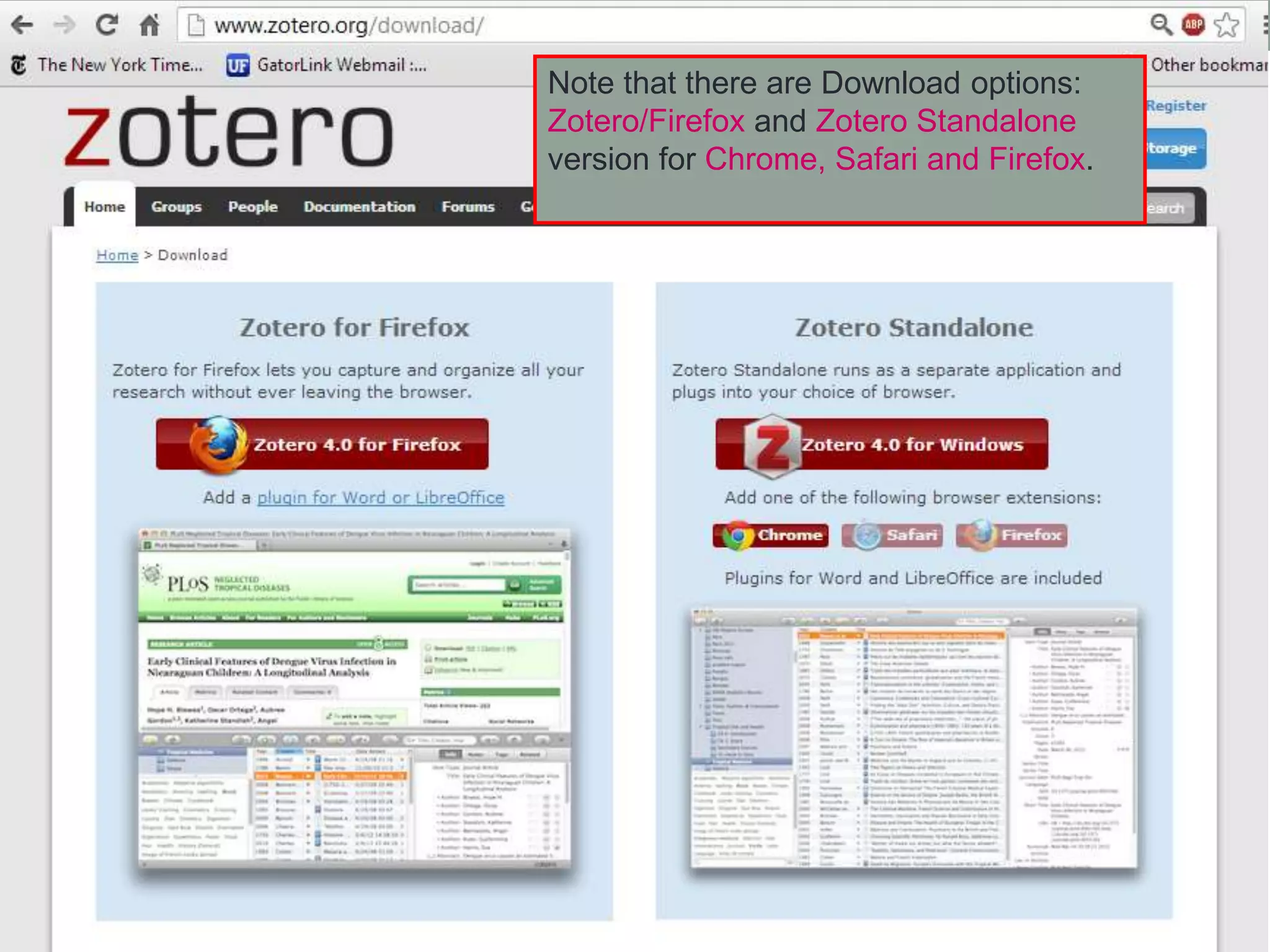
go to the Zotero website at
http://www.zotero.org and click
on the red Download button.
Note that there are Download options:
Zotero/Firefox and Zotero Standalone
version for Chrome, Safari and Firefox.
This will open the Zotero window within the browser. The
window has three columns that represent different levels of
specificity for your references:
• The left column shows your Zotero libraries and collections
as well as 'tags' (keywords)
• The middle column displays items contained within the
selected library
• The right column displays information about a selected item.
Left column Middle column Right column
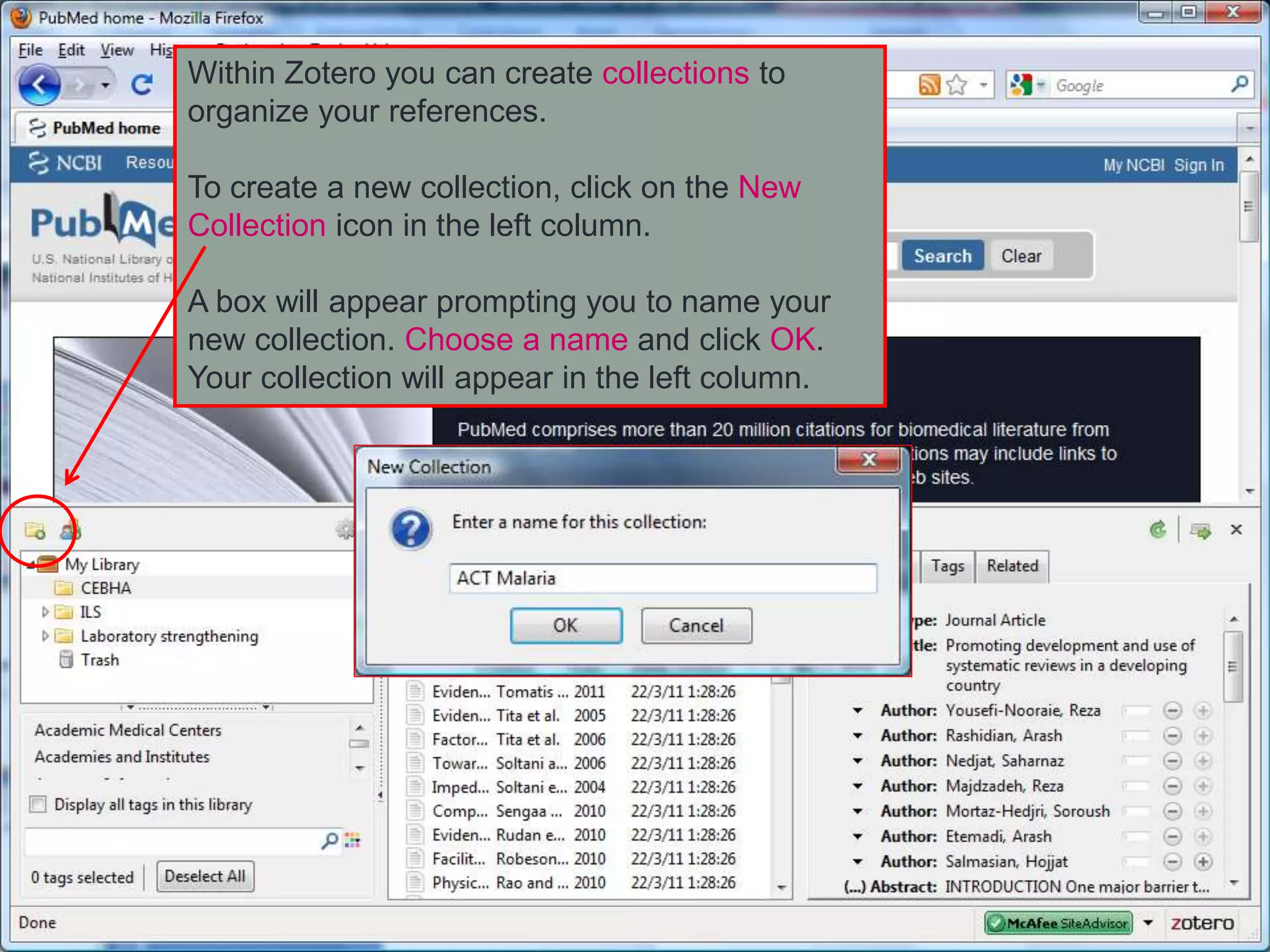
Within Zotero you can create collections to
organize your references.
To create a new collection, click on the New
Collection icon in the left column.
A box will appear prompting you to name your
new collection. Choose a name and click OK.
Your collection will appear in the left column.
If you open an individual PubMed
entry, you will see a Save to Zotero
icon in the address bar of the browser.
By clicking on the icon, the Saving to
My Library... message will appear and
save the record to the open collection.
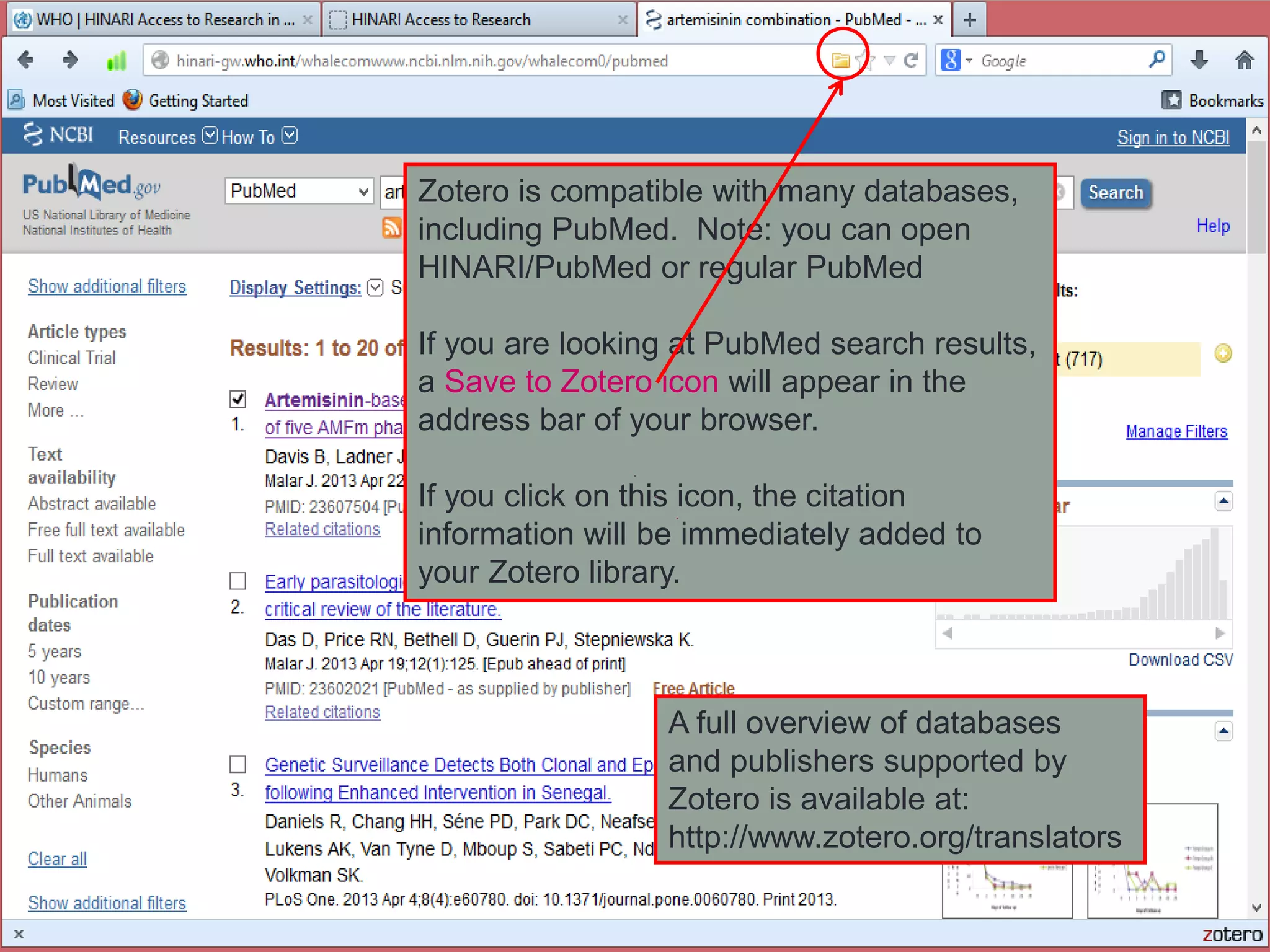
Zotero is compatible with many databases,
including PubMed. Note: you can open
HINARI/PubMed or regular PubMed
If you are looking at PubMed search results,
a Save to Zotero icon will appear in the
address bar of your browser.
If you click on this icon, the citation
information will be immediately added to
your Zotero library.
A full overview of databases
and publishers supported by
Zotero is available at:
http://www.zotero.org/translators
To import citations for webpages into your
library, click on the Create New Item from
Current Page icon in the middle column.
Information about the current webpage will
automatically be saved. You can edit the
information by clicking on the fields in the
right column.
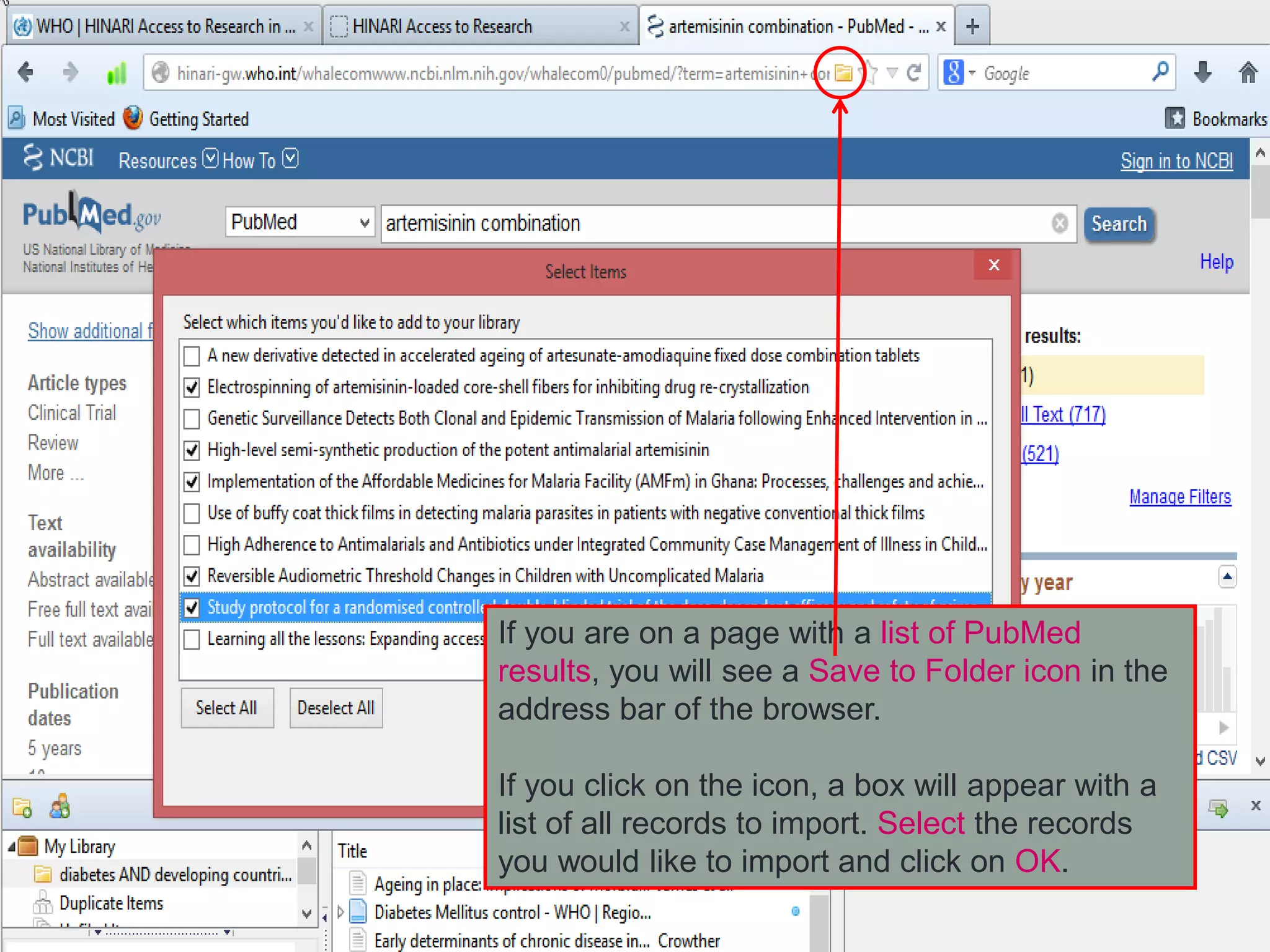
If you are on a page with a list of PubMed
results, you will see a Save to Folder icon in the
address bar of the browser.
If you click on the icon, a box will appear with a
list of all records to import. Select the records
you would like to import and click on OK.
To create a Zotero
bibliography:
• Select the items you want
to include in the middle
column.
• Next, right-click the
selected items.
• Choose the option Create
Bibliography from Selected
Items, a new dialog box
will appear.
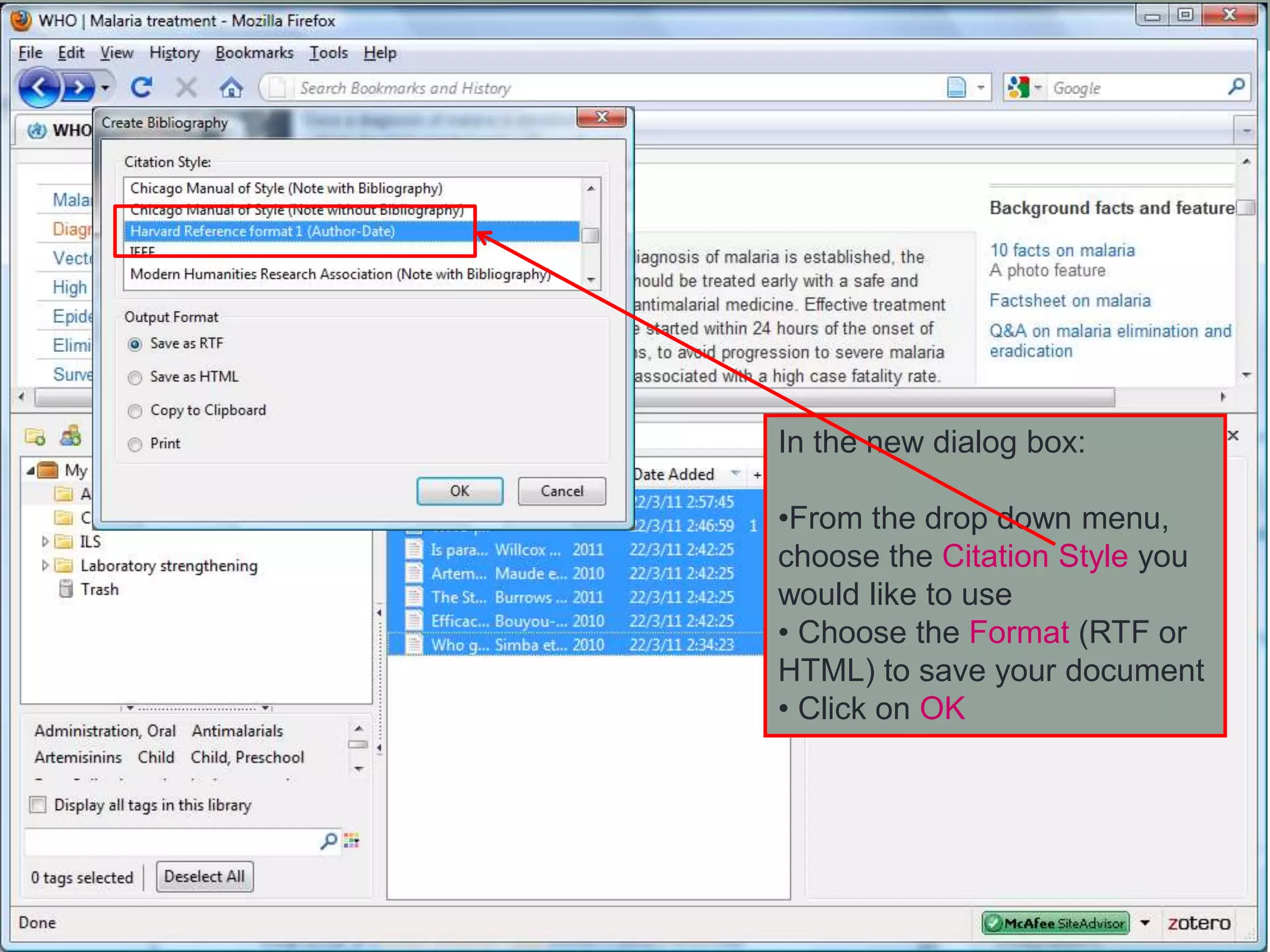
In the new dialog box:
•From the drop down menu,
choose the Citation Style you
would like to use
• Choose the Format (RTF or
HTML) to save your document
• Click on OK
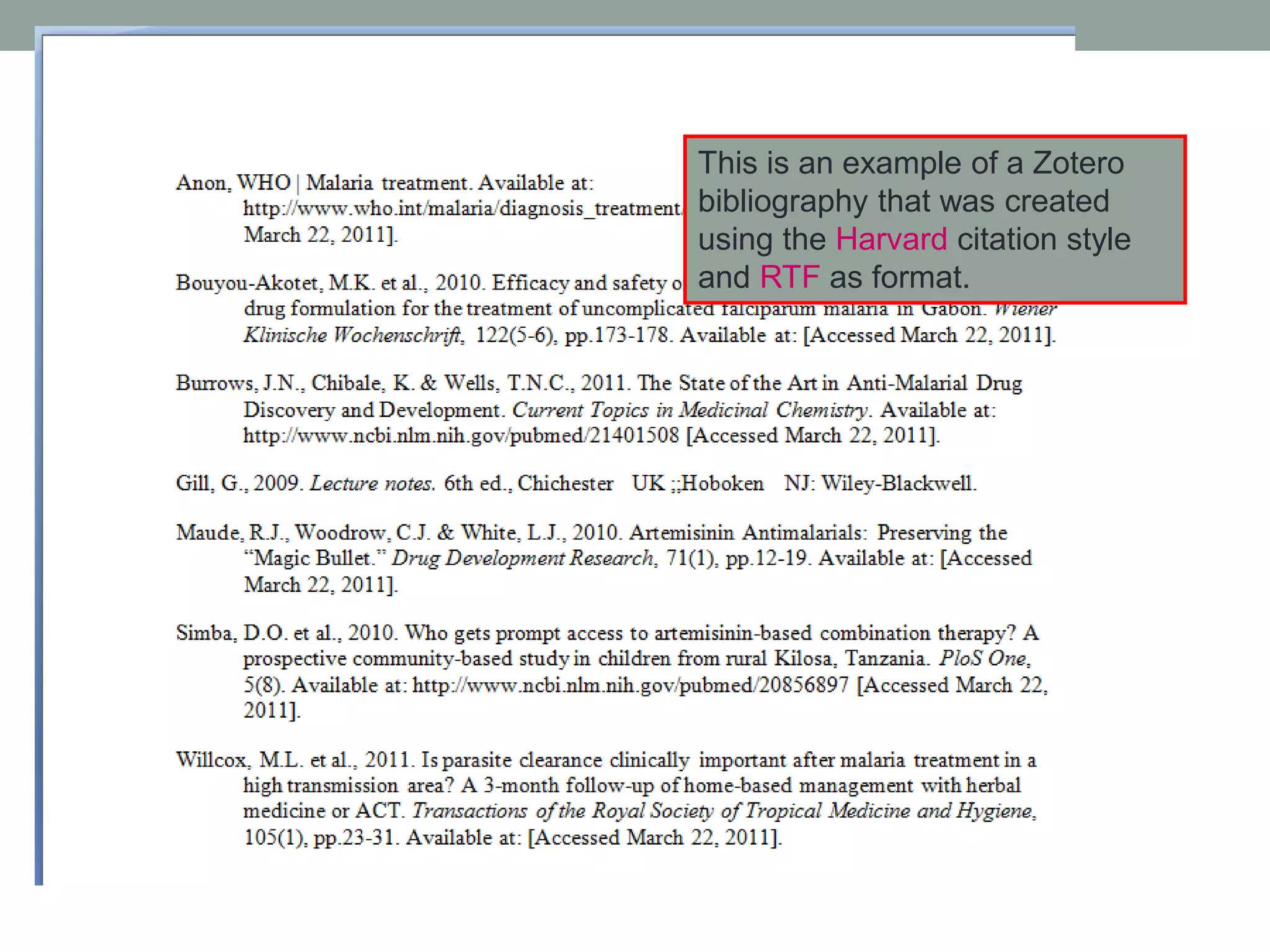
This is an example of a Zotero
bibliography that was created
using the Harvard citation style
and RTF as format.
Word Processor Integration
• Zotero's Word and OpenOffice plugins allow users to
insert citations directly from their word processing
software.
• You can find a link to install the plugin on the Zotero
homepage (www.zotero.org).
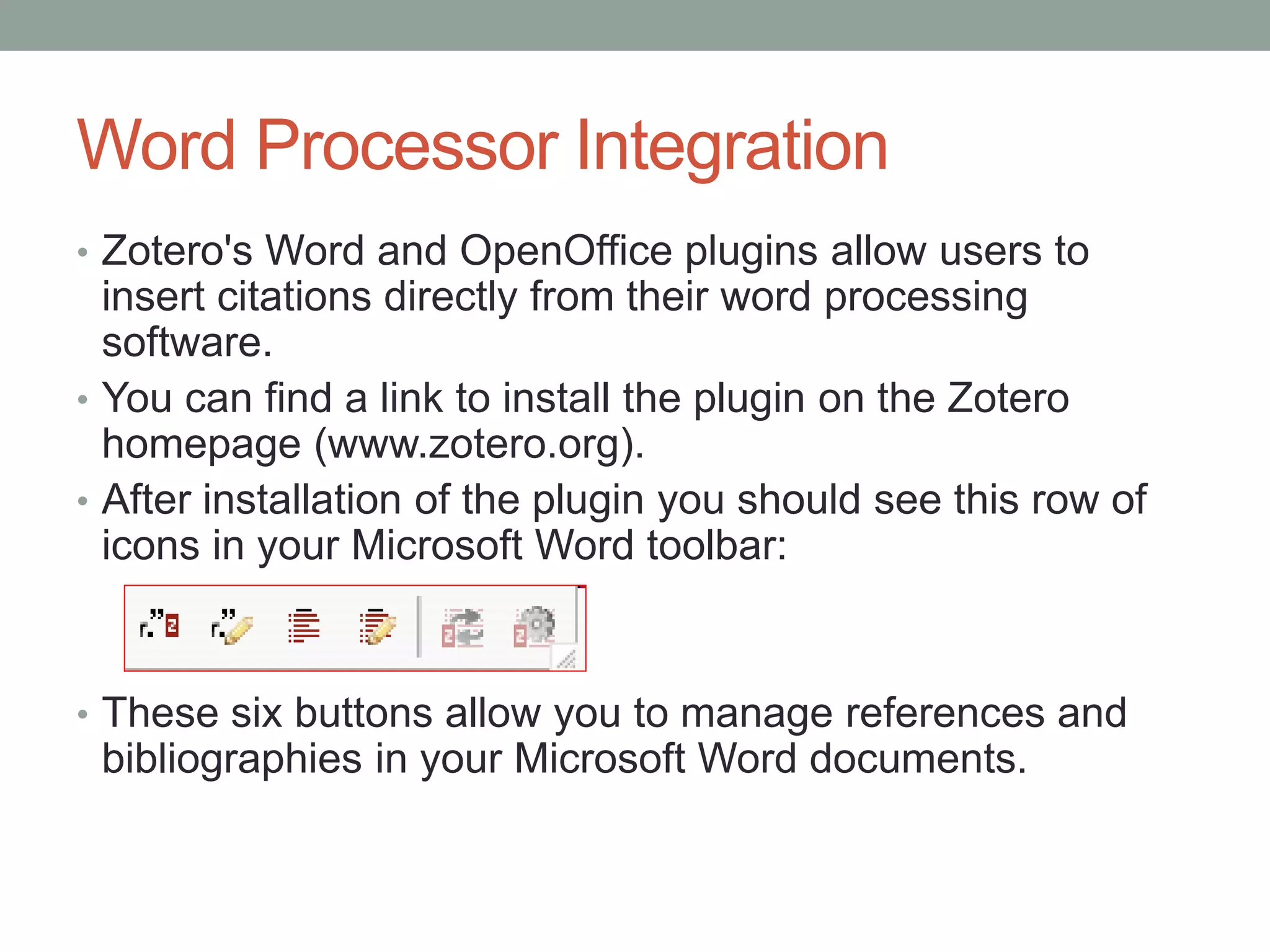
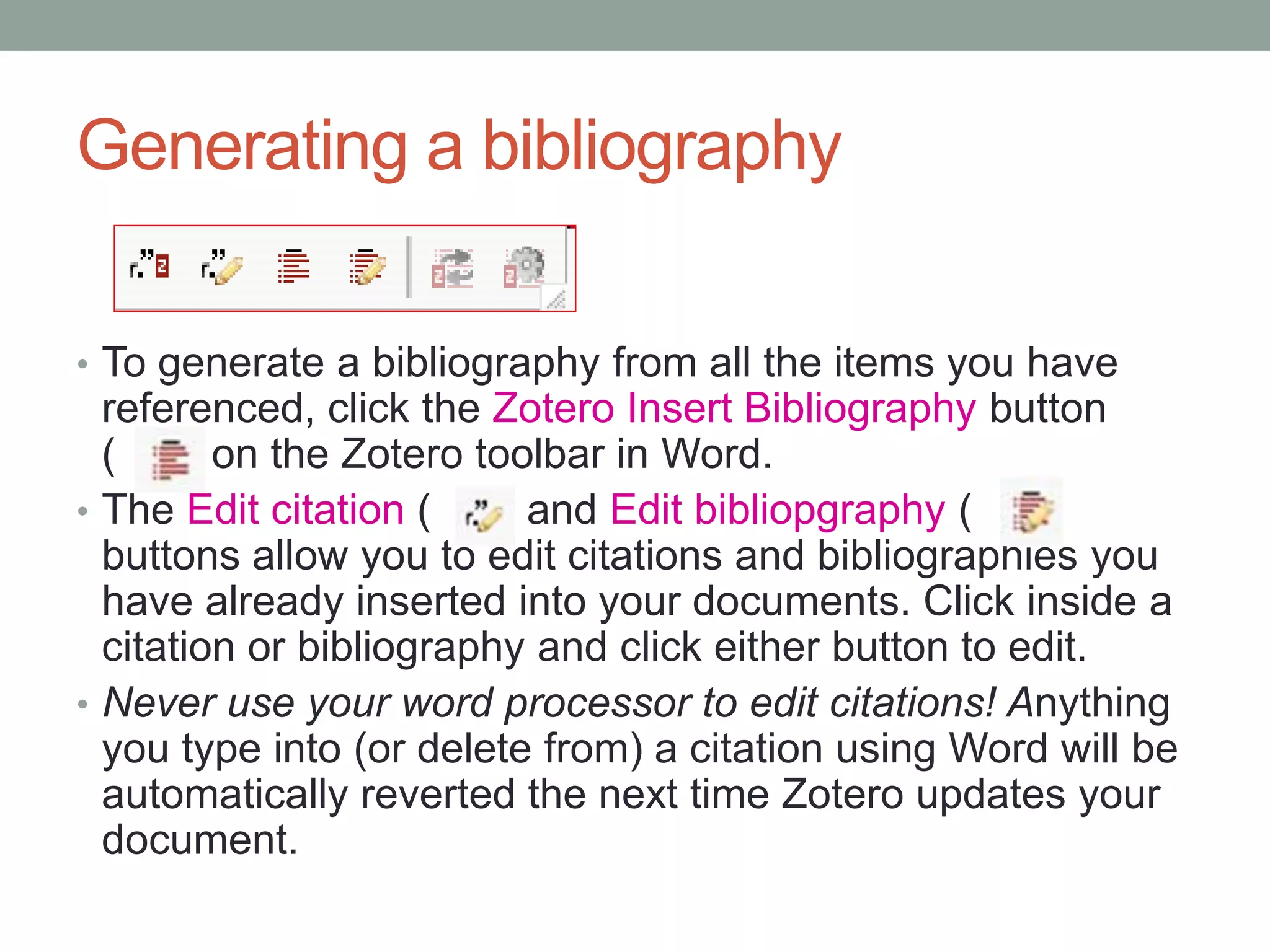
• After installation of the plugin you should see this row of
icons in your Microsoft Word toolbar:
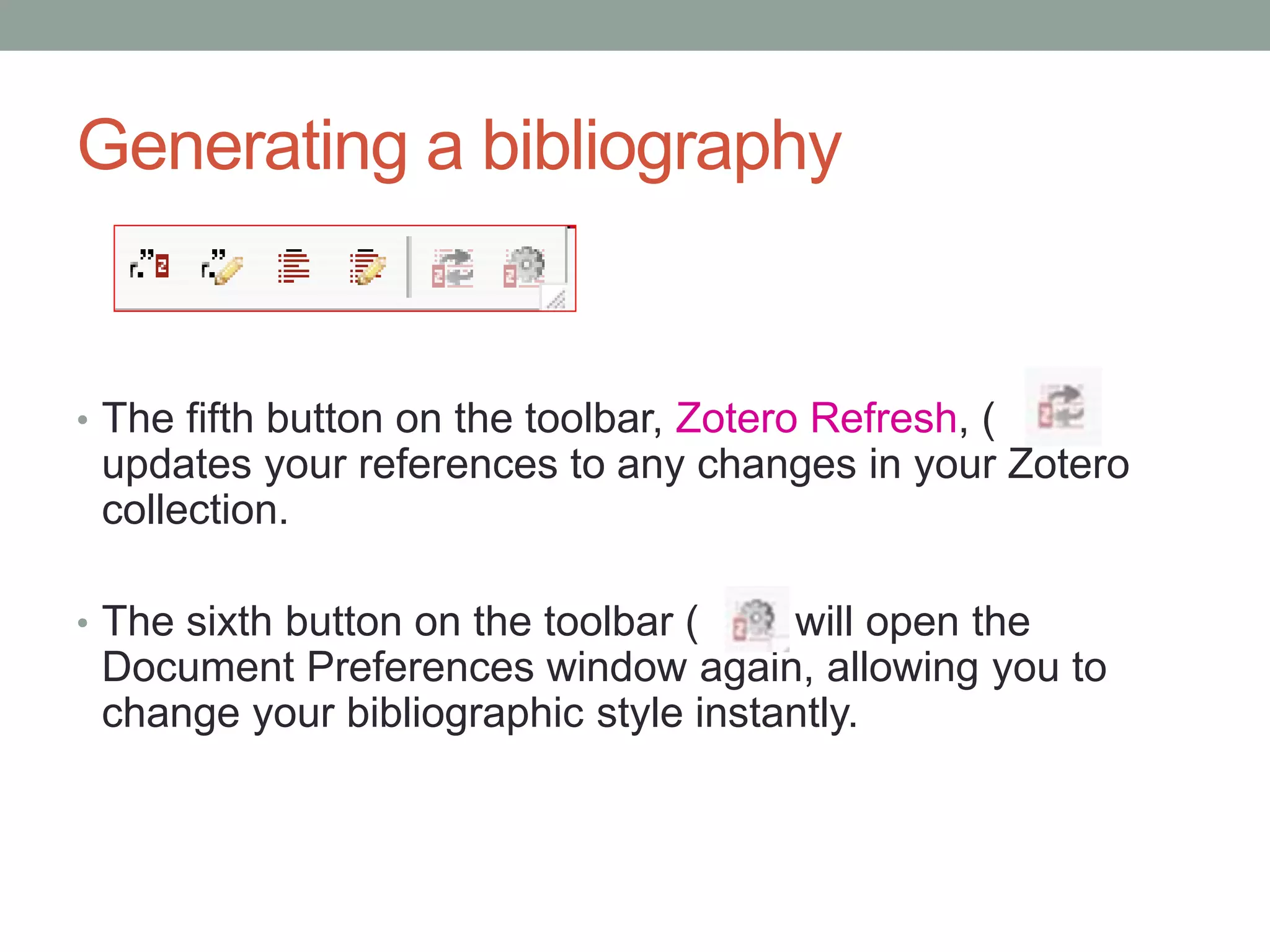
• These six buttons allow you to manage references and
bibliographies in your Microsoft Word documents.
Click on Add a plugin for
Word or LibreOffice.
From this page, download and
install the Word for Windows
Plugin (Firefox extension).
Note that this plugin option only
can be used with Firefox.
Location on Word toolbar
In Word, click on the Add-ins option on the toolbar. This will
display the Zotero Plugin.
Using The Zotero Word Plugin
Click on the “Zotero Insert Citation” icon
• If this is the first citation you
have added to the document
the Document Preferences
window will open. Chose the
bibliographic format you
would like to use from the list
and click OK.
Adding a Citation in Word
• Once you have chosen a format, the Add citation window
will pop up. Sort through your collection in this window,
select the item you would like to cite and click on OK.
You can add the
specific page
number in the text
box at the bottom
of the window.
Generating a bibliography
• To generate a bibliography from all the items you have
referenced, click the Zotero Insert Bibliography button
( ) on the Zotero toolbar in Word.
• The Edit citation ( ) and Edit bibliopgraphy ( )
buttons allow you to edit citations and bibliographies you
have already inserted into your documents. Click inside a
citation or bibliography and click either button to edit.
• Never use your word processor to edit citations! Anything
you type into (or delete from) a citation using Word will be
automatically reverted the next time Zotero updates your
document.
Generating a bibliography
• The fifth button on the toolbar, Zotero Refresh, ( )
updates your references to any changes in your Zotero
collection.
• The sixth button on the toolbar ( ) will open the
Document Preferences window again, allowing you to
change your bibliographic style instantly.
Zotero web account
• On www.zotero.org you can create a Zotero account.
• You need a Zotero account to synchronize your library,
participate in groups, or post to the support forums.
• Data synchronization transfers library items, notes, links,
tags, etc.—everything except attachment files—between
your local computer and the Zotero servers, allowing you
to work with your data from any computer with the Zotero
extension. It also allows you to view your library online on
www.zotero.org.
• To synchronize your data with the Zotero web server,
open Zotero's Sync preferences tab and enter your login
information in the Zotero Sync Server section.
Zotero Online Library
Zotero Groups
• Zotero Groups provide a way to share collections with a
class, work with colleagues on a project or keep track of
conversations in a specific field of research.
• Groups can be private or public.
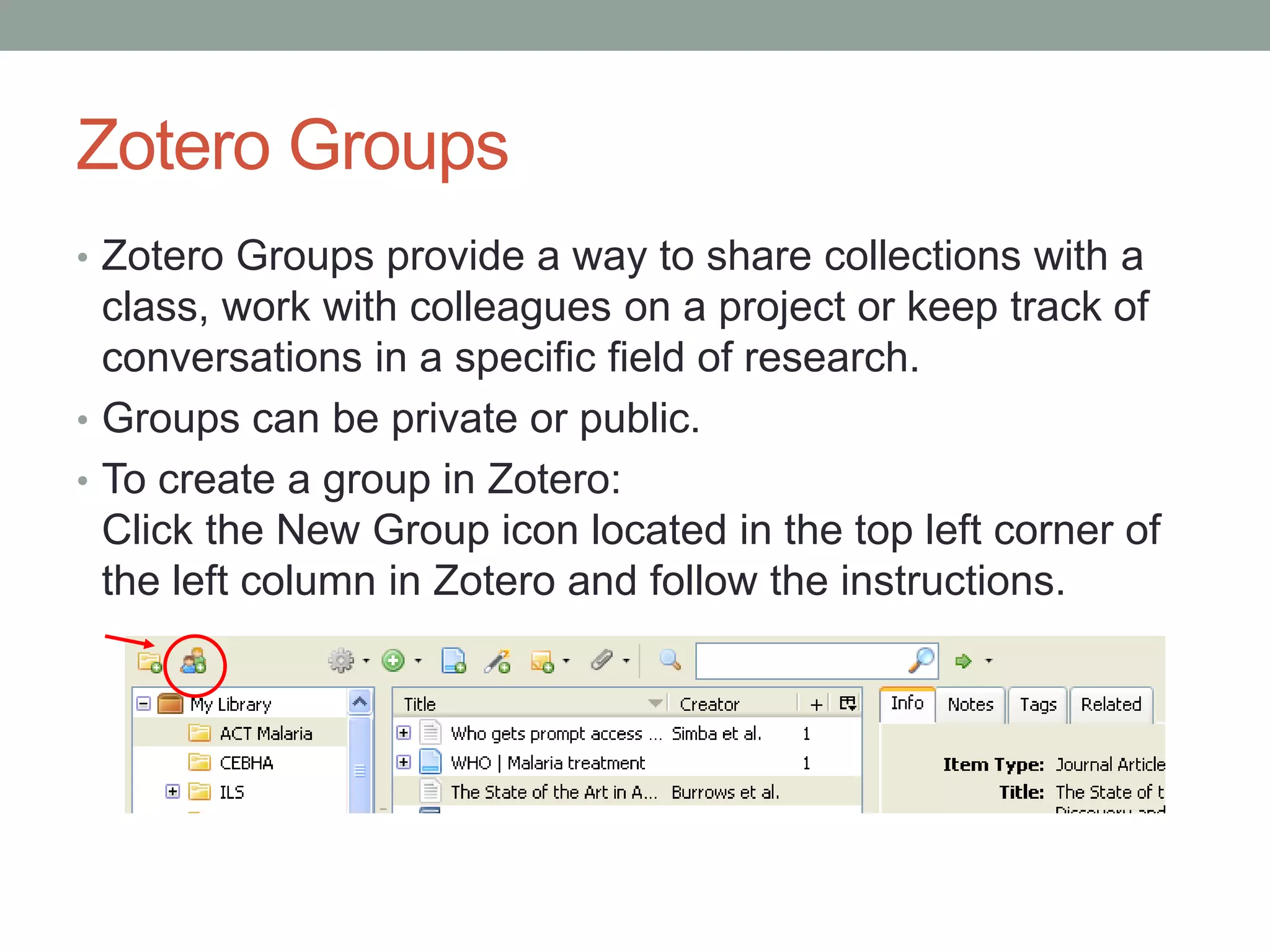
• To create a group in Zotero:
Click the New Group icon located in the top left corner of
the left column in Zotero and follow the instructions.

Citation management using Zotero

  • 1.
    CITATION MANAGEMENT USING ZOTERO* Ahmed Elmoughazy Internalmedicine resident, HGU, Medical research institute *Adopted from ppt developed by others according to my POV, If any of these slides is your work kindly contact me for reference mougazi@Hotmail.com
  • 2.
    the next-generation researchtool www.zotero.org
  • 3.
    most library catalogs andhundreds of other sites and databases... works with...
  • 4.
     Come awaywith a basic understanding of how to use Zotero: Including features such as: Grab your research with a single click.Collect It has never been easier to sort your research You’re never more than a click away from a bibliography Your data is always where you need it Work together and share with the world. Organize Cite Sync Collaborate 4
  • 5.
    • You havethe choice of using Zotero as a Firefox extension or a standalone desktop program on your computer. This page offers information on both options. • Zotero for Firefox runs as a plugin for the Firefox web browser, not as a separate program. • The same version of Zotero for Firefox works on any computer that runs Firefox; there are no separate Windows and Mac versions. • Zotero Standalone (unlike Zotero for Firefox) runs as a separate program instead of part of your web browser. • It works with Firefox, Chrome and Safari. • Download and install Zotero Standalone just as you would any other program. You will also need to install the connectors to allow your browser to save items to your Zotero library. • You can install both Zotero Standalone and Zotero for Firefox and use both on the same computer.
  • 6.
    go to theZotero website at http://www.zotero.org and click on the red Download button.
  • 7.
    Note that thereare Download options: Zotero/Firefox and Zotero Standalone version for Chrome, Safari and Firefox.
  • 8.
    This will openthe Zotero window within the browser. The window has three columns that represent different levels of specificity for your references: • The left column shows your Zotero libraries and collections as well as 'tags' (keywords) • The middle column displays items contained within the selected library • The right column displays information about a selected item. Left column Middle column Right column
  • 9.
    Within Zotero youcan create collections to organize your references. To create a new collection, click on the New Collection icon in the left column. A box will appear prompting you to name your new collection. Choose a name and click OK. Your collection will appear in the left column.
  • 10.
    If you openan individual PubMed entry, you will see a Save to Zotero icon in the address bar of the browser. By clicking on the icon, the Saving to My Library... message will appear and save the record to the open collection.
  • 11.
    Zotero is compatiblewith many databases, including PubMed. Note: you can open HINARI/PubMed or regular PubMed If you are looking at PubMed search results, a Save to Zotero icon will appear in the address bar of your browser. If you click on this icon, the citation information will be immediately added to your Zotero library. A full overview of databases and publishers supported by Zotero is available at: http://www.zotero.org/translators
  • 12.
    To import citationsfor webpages into your library, click on the Create New Item from Current Page icon in the middle column. Information about the current webpage will automatically be saved. You can edit the information by clicking on the fields in the right column.
  • 13.
    If you areon a page with a list of PubMed results, you will see a Save to Folder icon in the address bar of the browser. If you click on the icon, a box will appear with a list of all records to import. Select the records you would like to import and click on OK.
  • 14.
    To create aZotero bibliography: • Select the items you want to include in the middle column. • Next, right-click the selected items. • Choose the option Create Bibliography from Selected Items, a new dialog box will appear.
  • 15.
    In the newdialog box: •From the drop down menu, choose the Citation Style you would like to use • Choose the Format (RTF or HTML) to save your document • Click on OK
  • 16.
    This is anexample of a Zotero bibliography that was created using the Harvard citation style and RTF as format.
  • 17.
    Word Processor Integration •Zotero's Word and OpenOffice plugins allow users to insert citations directly from their word processing software. • You can find a link to install the plugin on the Zotero homepage (www.zotero.org). • After installation of the plugin you should see this row of icons in your Microsoft Word toolbar: • These six buttons allow you to manage references and bibliographies in your Microsoft Word documents.
  • 18.
    Click on Adda plugin for Word or LibreOffice.
  • 19.
    From this page,download and install the Word for Windows Plugin (Firefox extension). Note that this plugin option only can be used with Firefox.
  • 20.
    Location on Wordtoolbar In Word, click on the Add-ins option on the toolbar. This will display the Zotero Plugin.
  • 21.
    Using The ZoteroWord Plugin Click on the “Zotero Insert Citation” icon • If this is the first citation you have added to the document the Document Preferences window will open. Chose the bibliographic format you would like to use from the list and click OK.
  • 22.
    Adding a Citationin Word • Once you have chosen a format, the Add citation window will pop up. Sort through your collection in this window, select the item you would like to cite and click on OK. You can add the specific page number in the text box at the bottom of the window.
  • 23.
    Generating a bibliography •To generate a bibliography from all the items you have referenced, click the Zotero Insert Bibliography button ( ) on the Zotero toolbar in Word. • The Edit citation ( ) and Edit bibliopgraphy ( ) buttons allow you to edit citations and bibliographies you have already inserted into your documents. Click inside a citation or bibliography and click either button to edit. • Never use your word processor to edit citations! Anything you type into (or delete from) a citation using Word will be automatically reverted the next time Zotero updates your document.
  • 24.
    Generating a bibliography •The fifth button on the toolbar, Zotero Refresh, ( ) updates your references to any changes in your Zotero collection. • The sixth button on the toolbar ( ) will open the Document Preferences window again, allowing you to change your bibliographic style instantly.
  • 25.
    Zotero web account •On www.zotero.org you can create a Zotero account. • You need a Zotero account to synchronize your library, participate in groups, or post to the support forums. • Data synchronization transfers library items, notes, links, tags, etc.—everything except attachment files—between your local computer and the Zotero servers, allowing you to work with your data from any computer with the Zotero extension. It also allows you to view your library online on www.zotero.org. • To synchronize your data with the Zotero web server, open Zotero's Sync preferences tab and enter your login information in the Zotero Sync Server section.
  • 26.
  • 27.
    Zotero Groups • ZoteroGroups provide a way to share collections with a class, work with colleagues on a project or keep track of conversations in a specific field of research. • Groups can be private or public. • To create a group in Zotero: Click the New Group icon located in the top left corner of the left column in Zotero and follow the instructions.