Transition to College
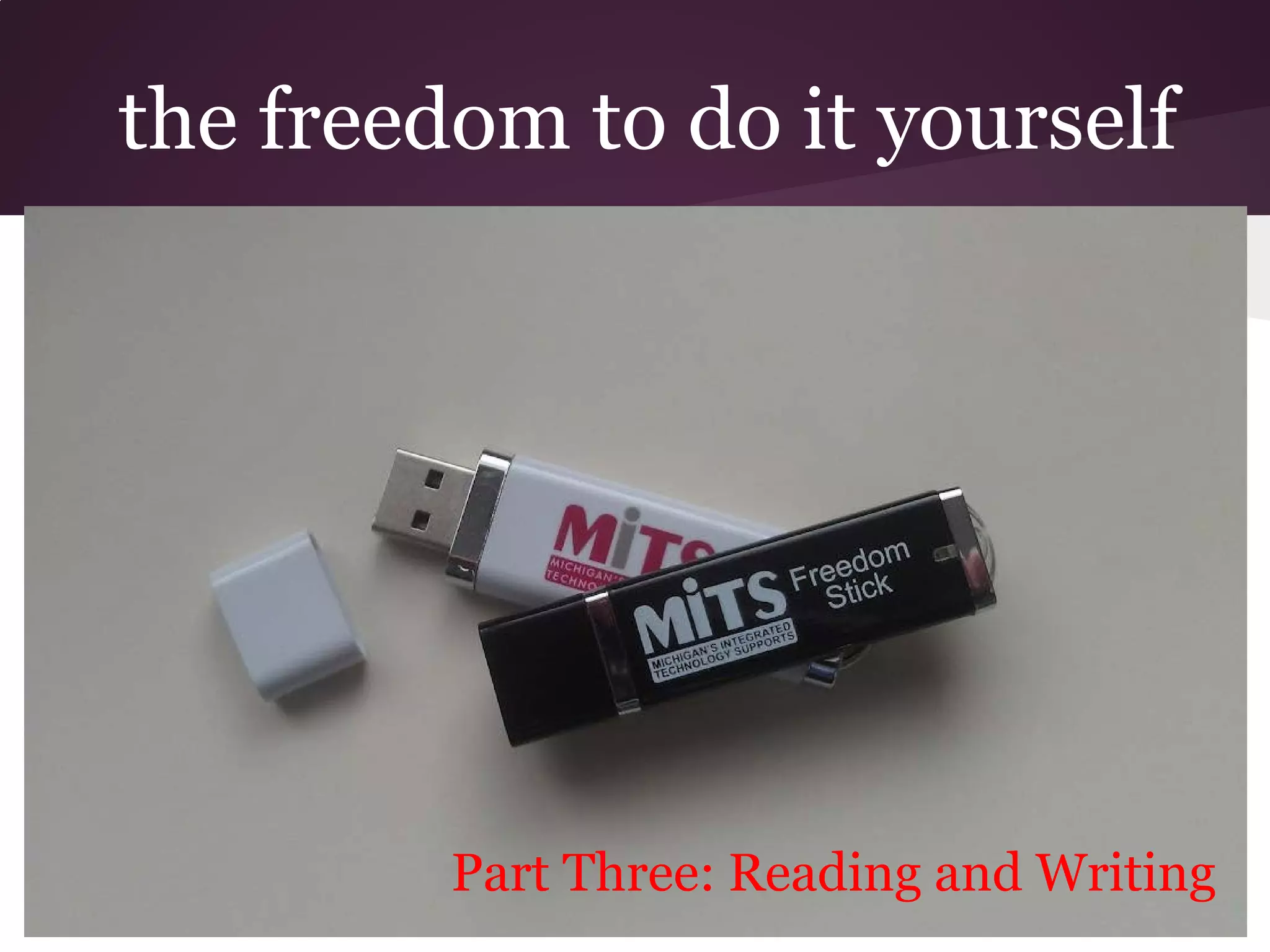
 with the MITS Freedom Stick
the freedom to do it yourself


         Part Three: Reading and Writing
Reading and Writing Support
1. Balabolka
2. Using the Kindle App for Windows
3. Using Windows Speech Recognition
4. Phone Support
5. PowerTalk for PowerPoint
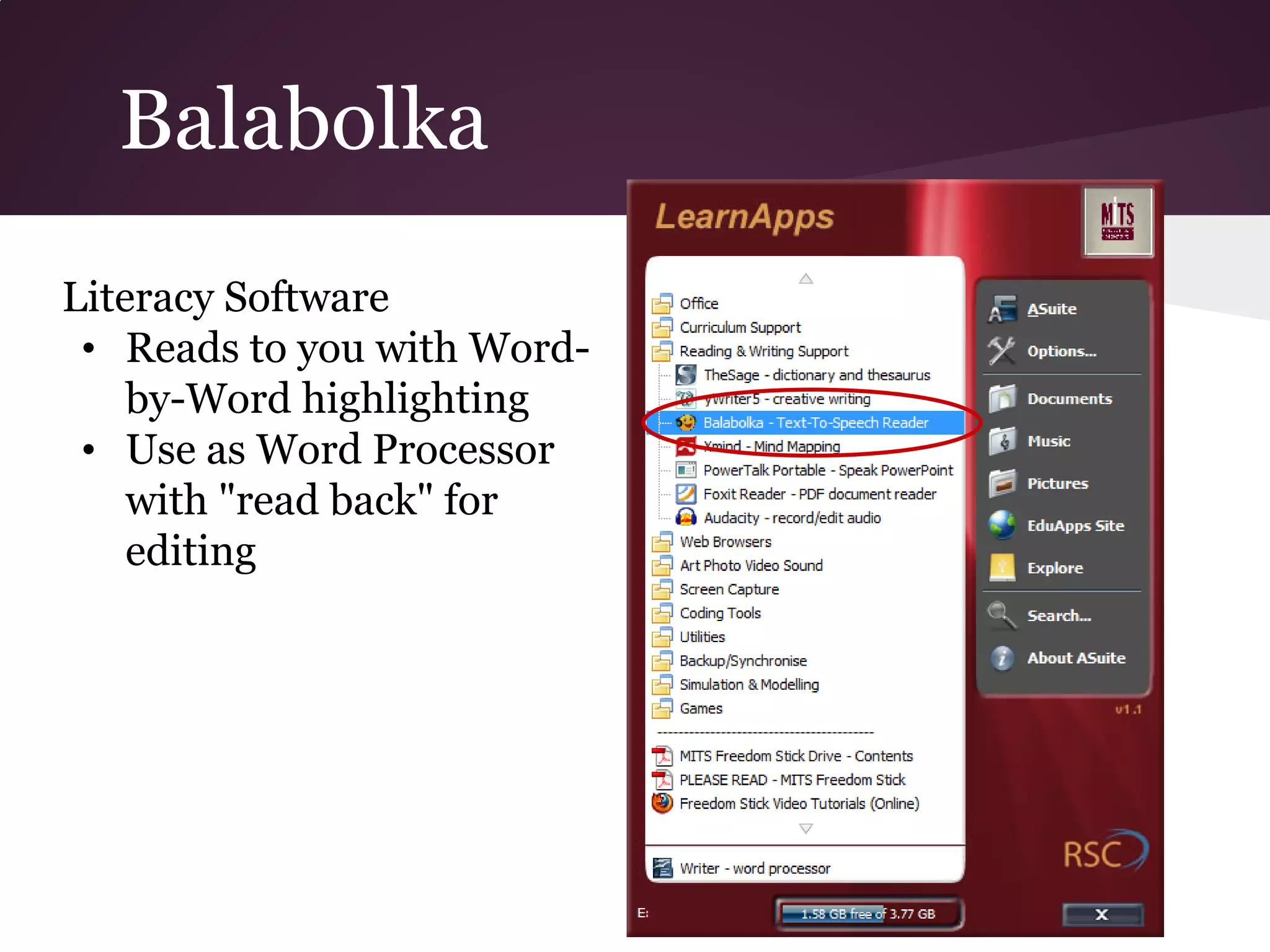
Balabolka
Literacy Software
 • Reads to you with Word-
    by-Word highlighting
 • Use as Word Processor
    with "read back" for
    editing
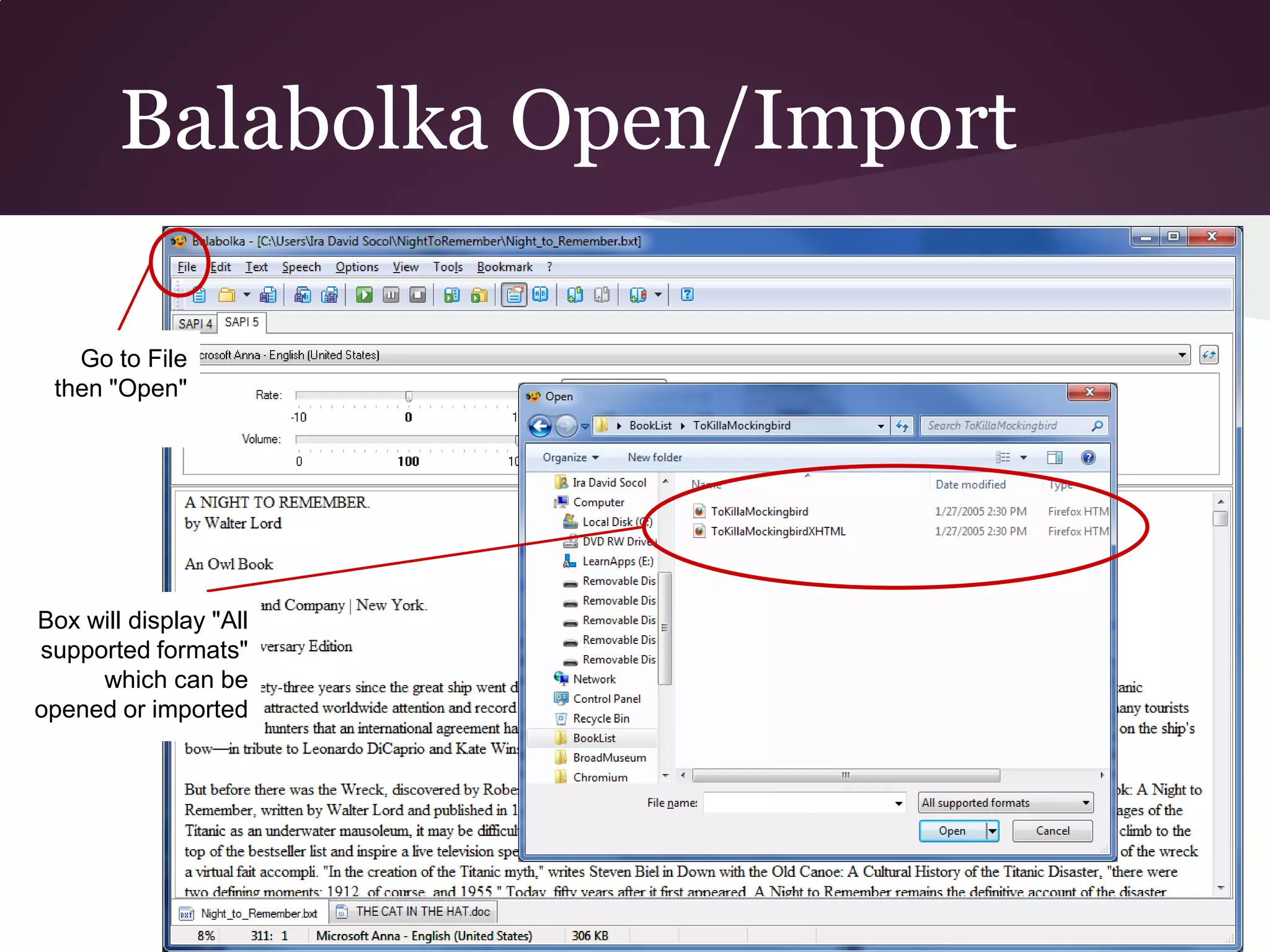
Balabolka Open/Import

   Go to File
 then "Open"


Box will display "All
supported formats"
     which can be
opened or imported
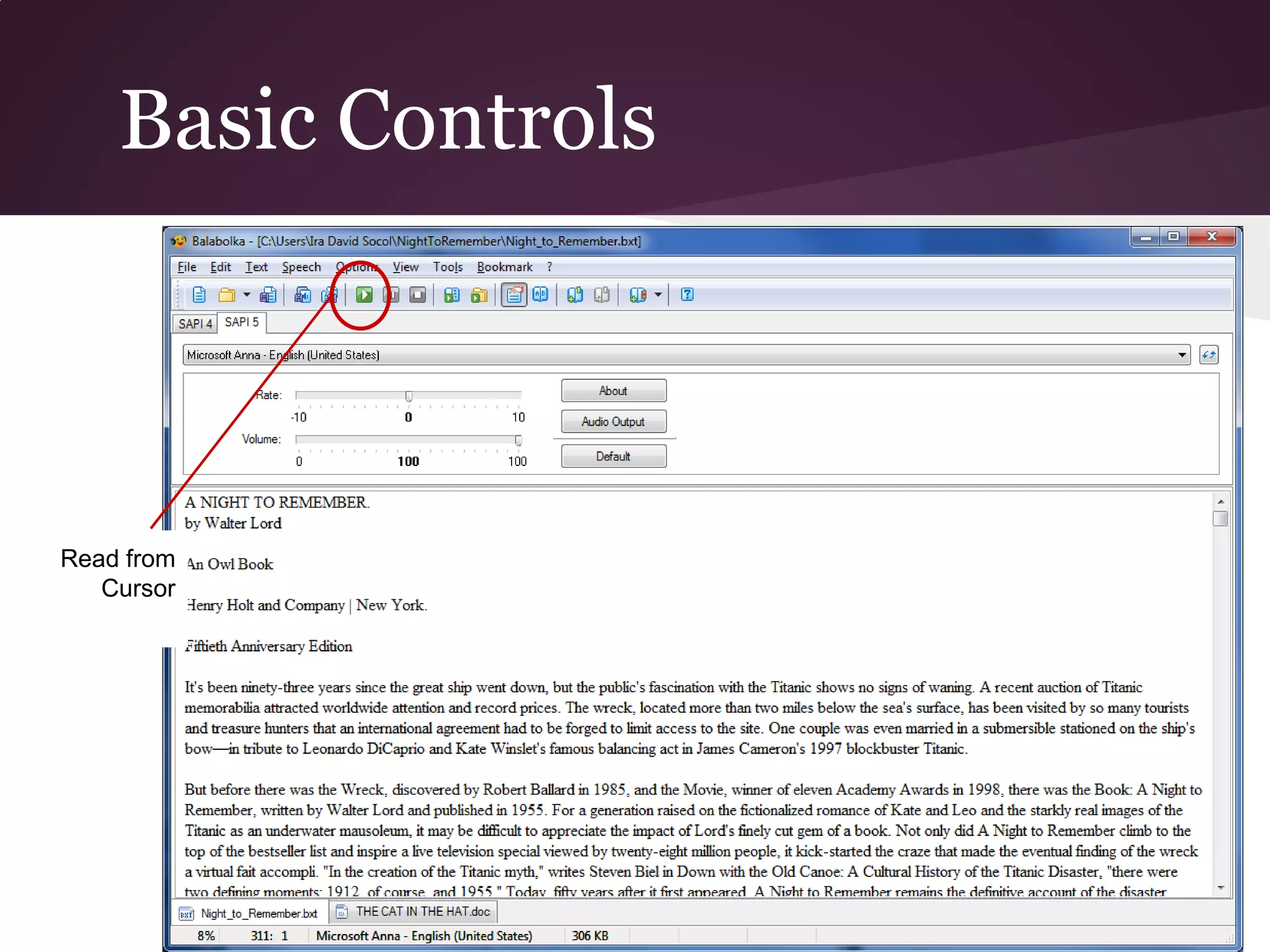
Basic Controls


Read from
   Cursor
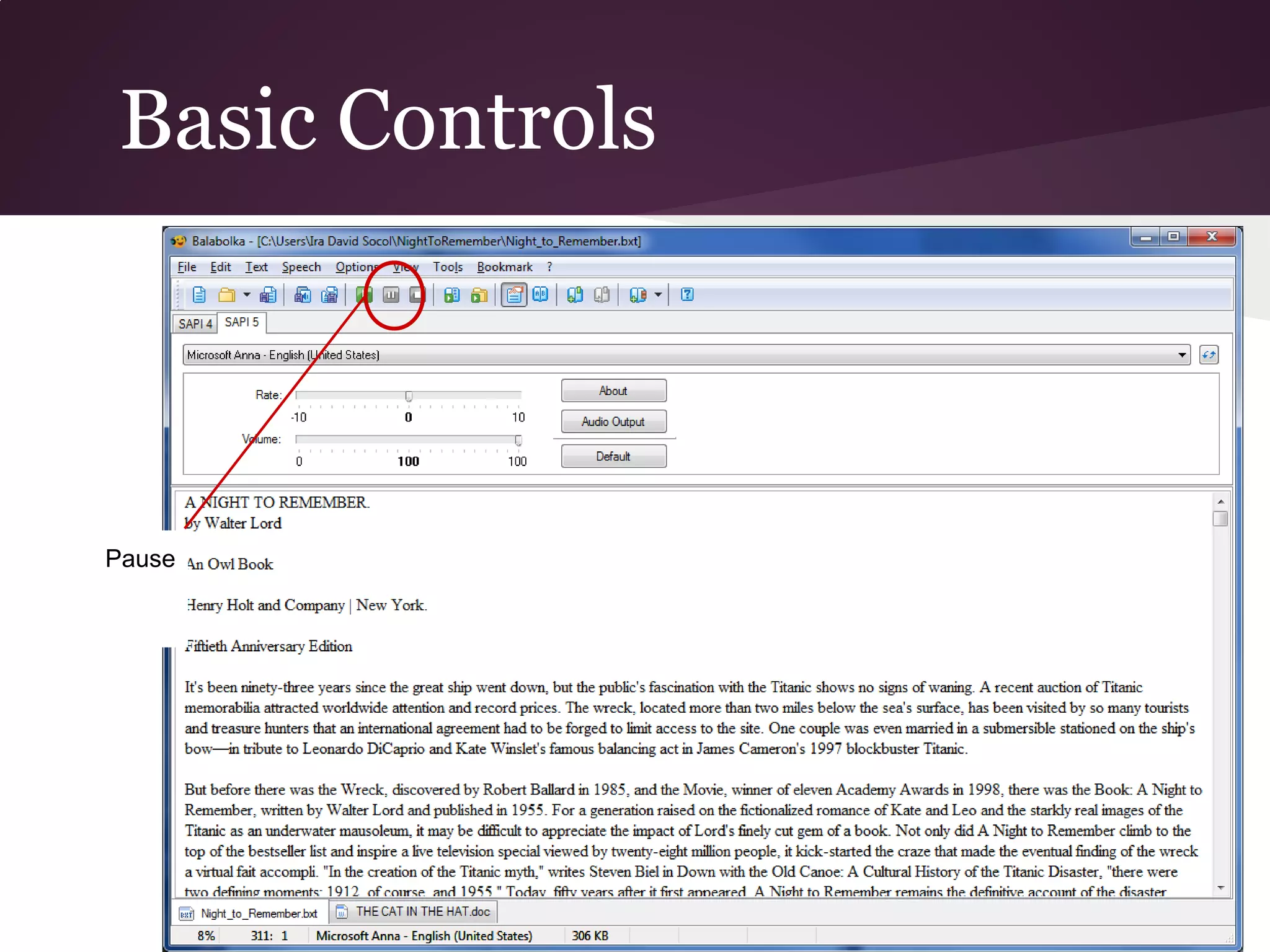
Basic Controls


Pause
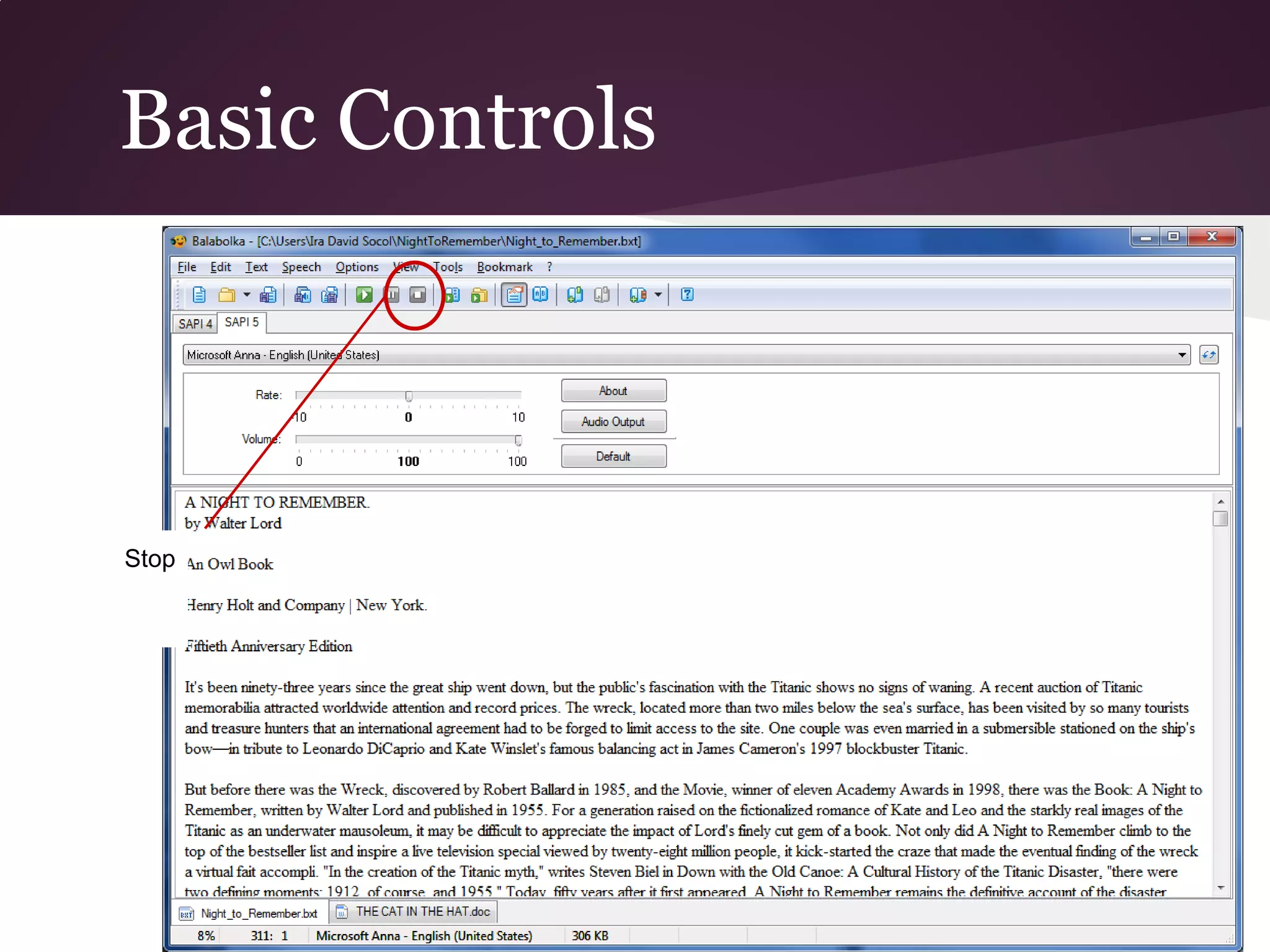
Basic Controls


Stop
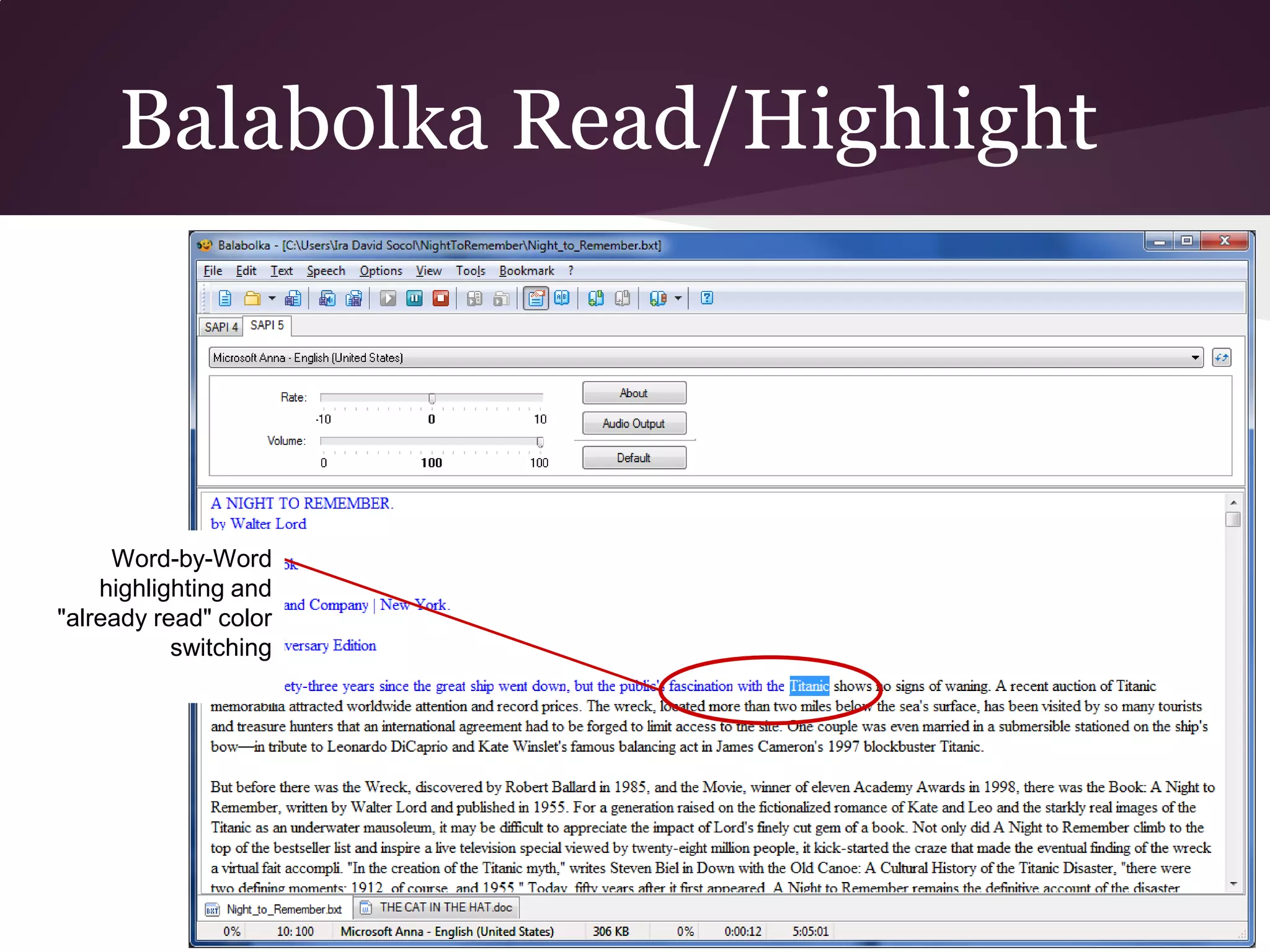
Balabolka Read/Highlight


     Word-by-Word
    highlighting and
"already read" color
           switching
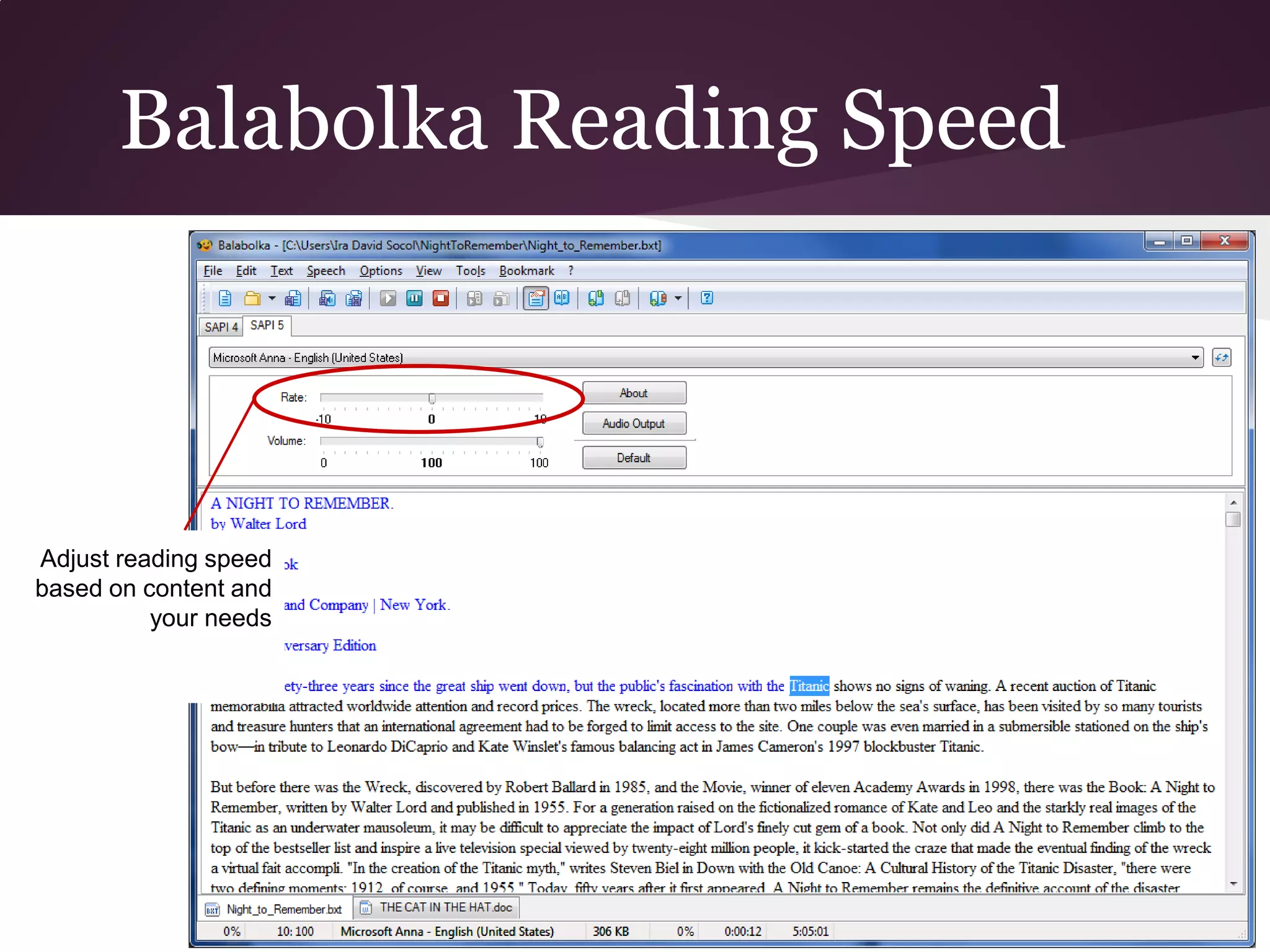
Balabolka Reading Speed


Adjust reading speed
based on content and
          your needs
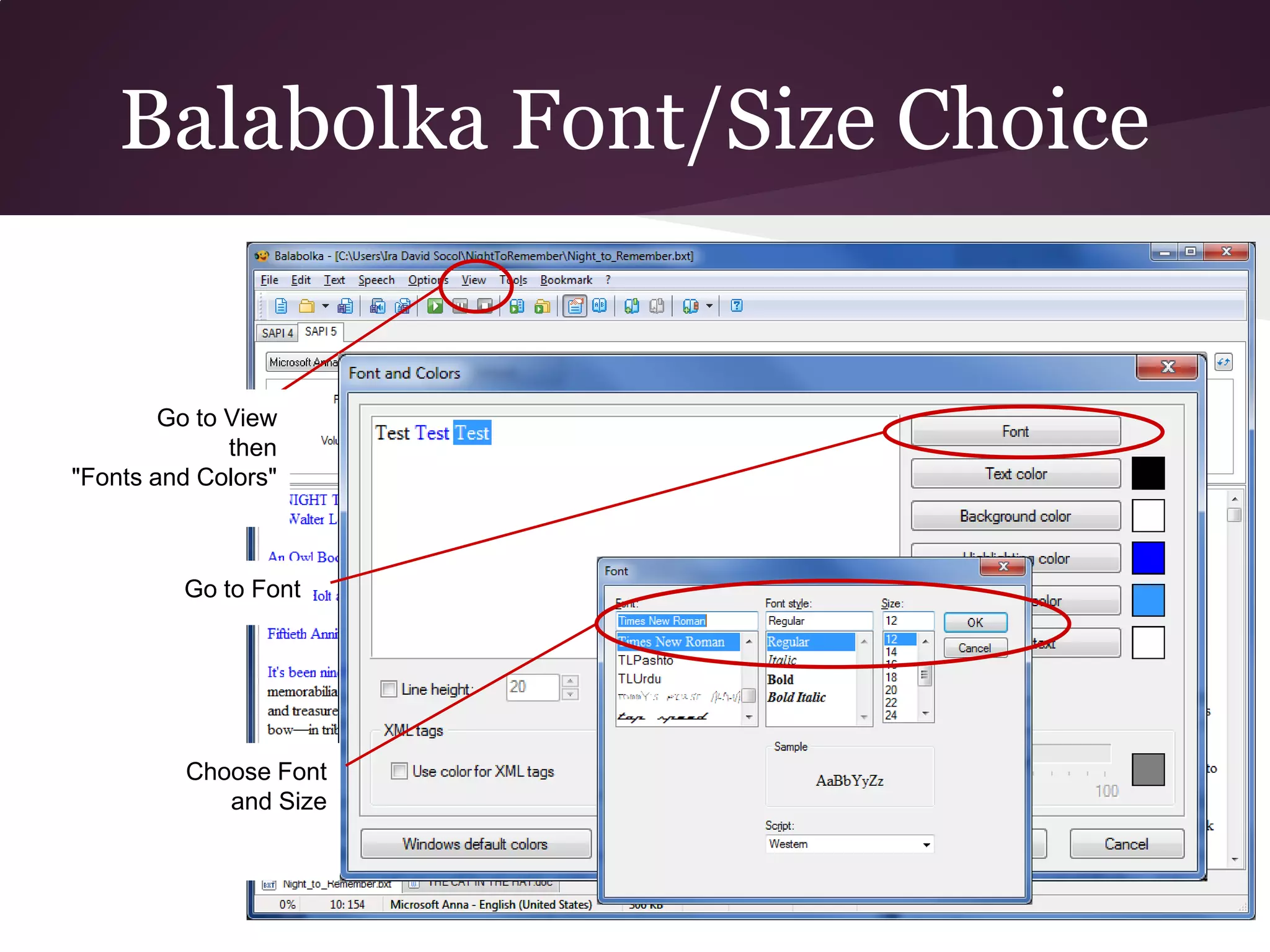
Balabolka Font/Size Choice


        Go to View
              then
"Fonts and Colors"


         Go to Font


         Choose Font
            and Size
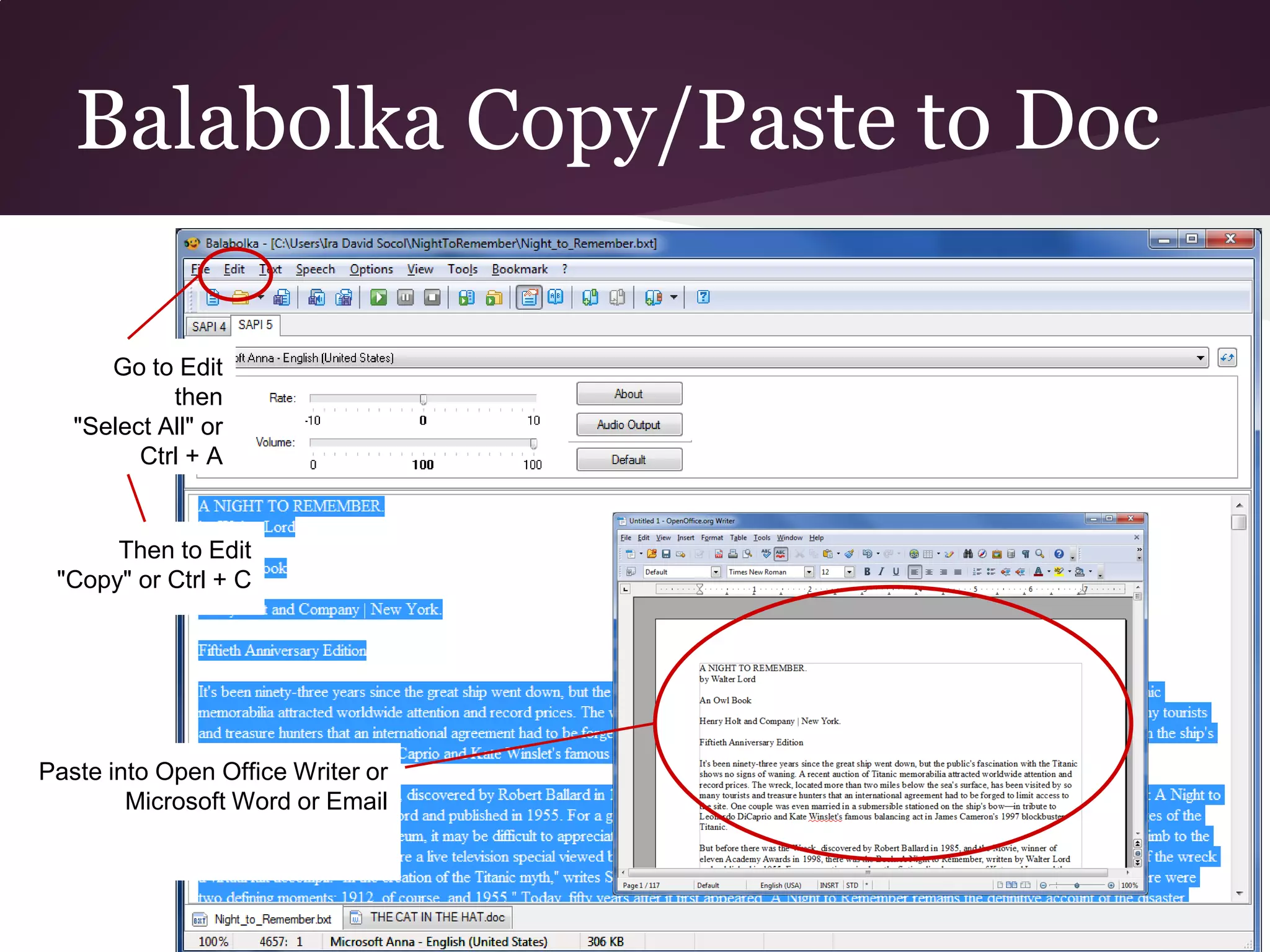
Balabolka Copy/Paste to Doc

      Go to Edit
            then
   "Select All" or
         Ctrl + A


      Then to Edit
 "Copy" or Ctrl + C


Paste into Open Office Writer or
        Microsoft Word or Email
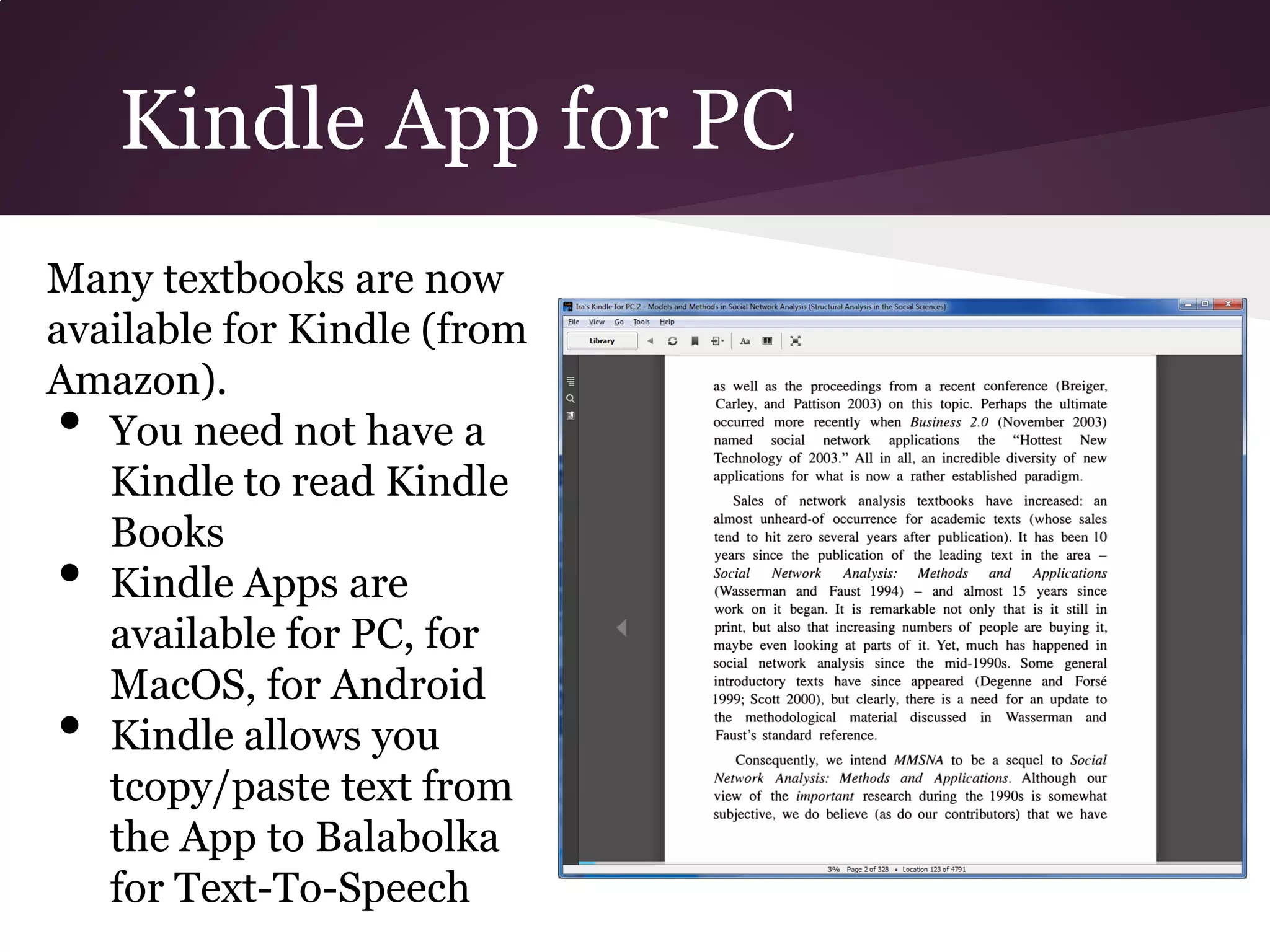
Kindle App for PC
Many textbooks are now
available for Kindle (from
Amazon).
•  You need not have a
   Kindle to read Kindle
   Books
•  Kindle Apps are
   available for PC, for
   MacOS, for Android
•  Kindle allows you
   tcopy/paste text from
   the App to Balabolka
   for Text-To-Speech
Kindle App for PC
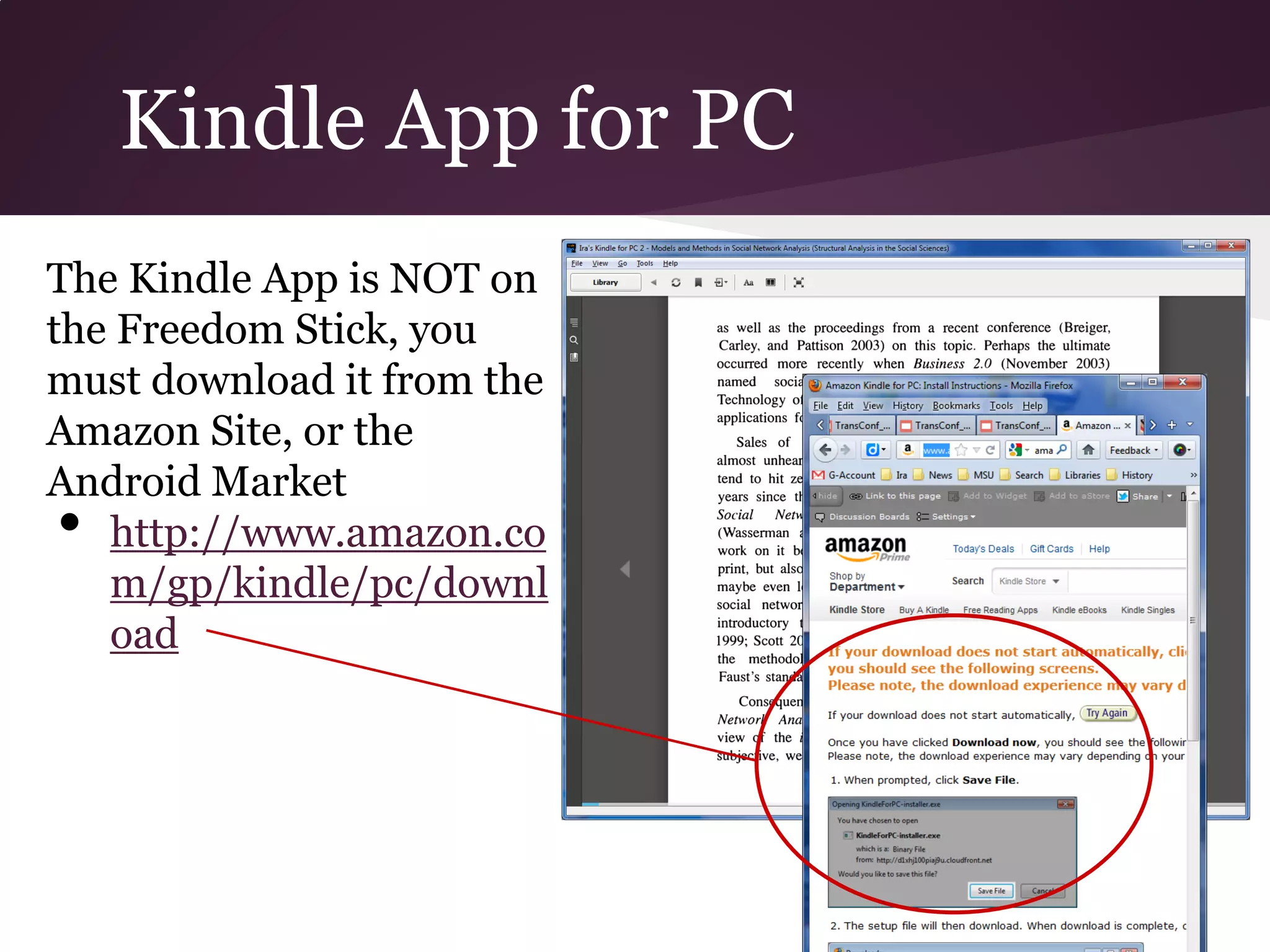
The Kindle App is NOT on
the Freedom Stick, you
must download it from the
Amazon Site, or the
Android Market
•  http://www.amazon.co
   m/gp/kindle/pc/downl
   oad
Copying from Kindle


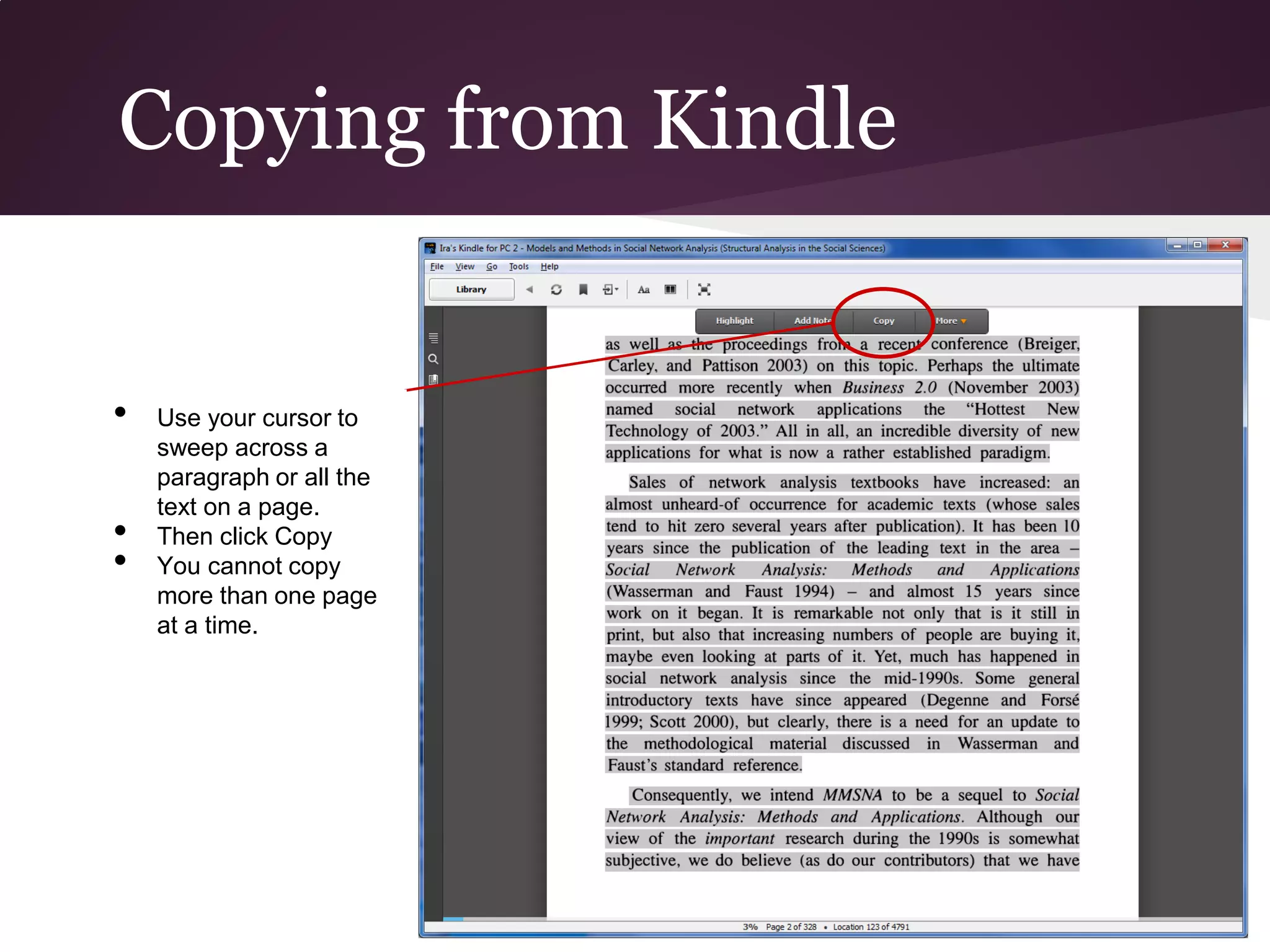
•   Use your cursor to
    sweep across a
    paragraph or all the
    text on a page.
•   Then click Copy
•   You cannot copy
    more than one page
    at a time.
Pasting to Balabolka

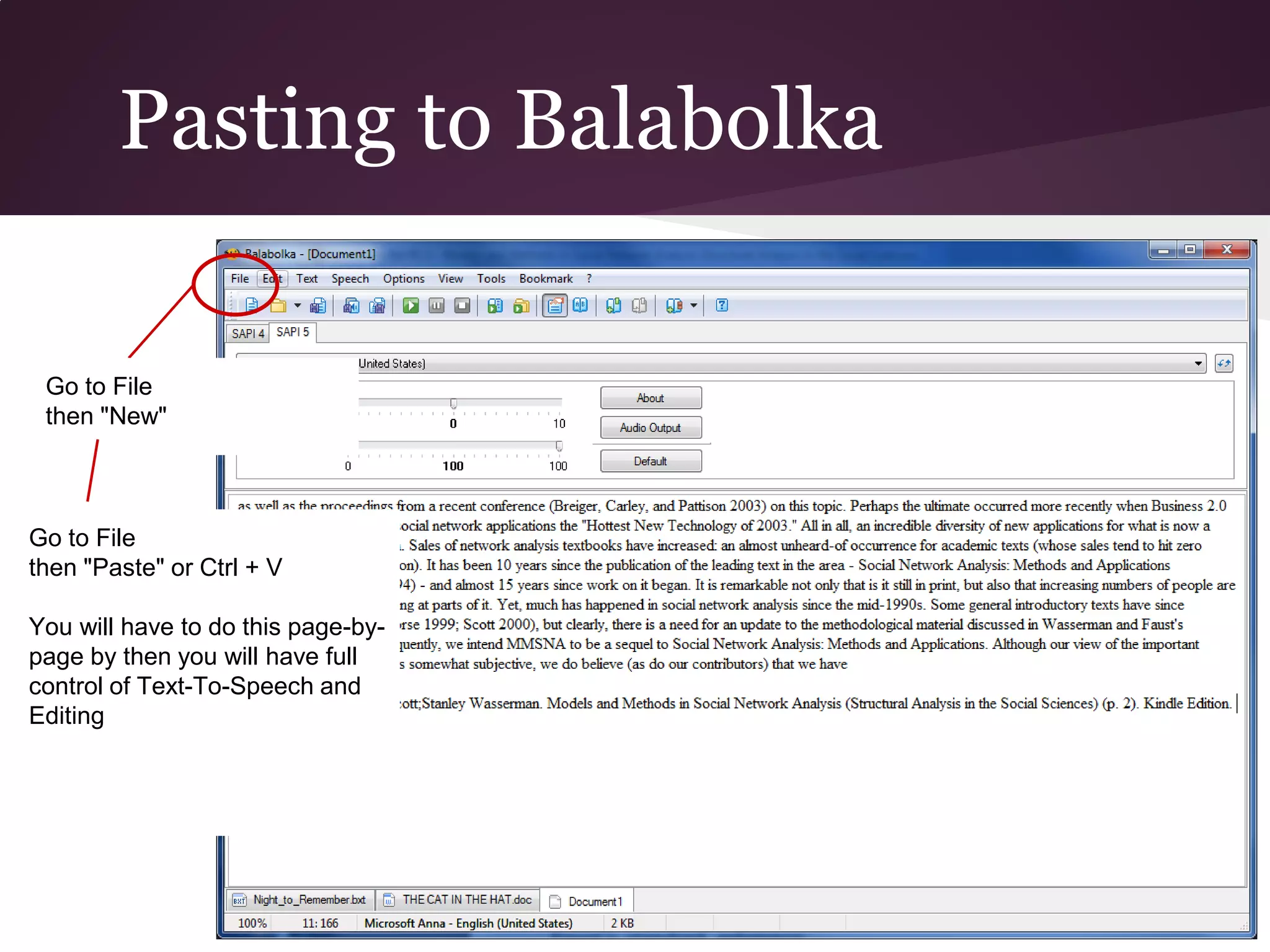
 Go to File
 then "New"


Go to File
then "Paste" or Ctrl + V

You will have to do this page-by-
page by then you will have full
control of Text-To-Speech and
Editing
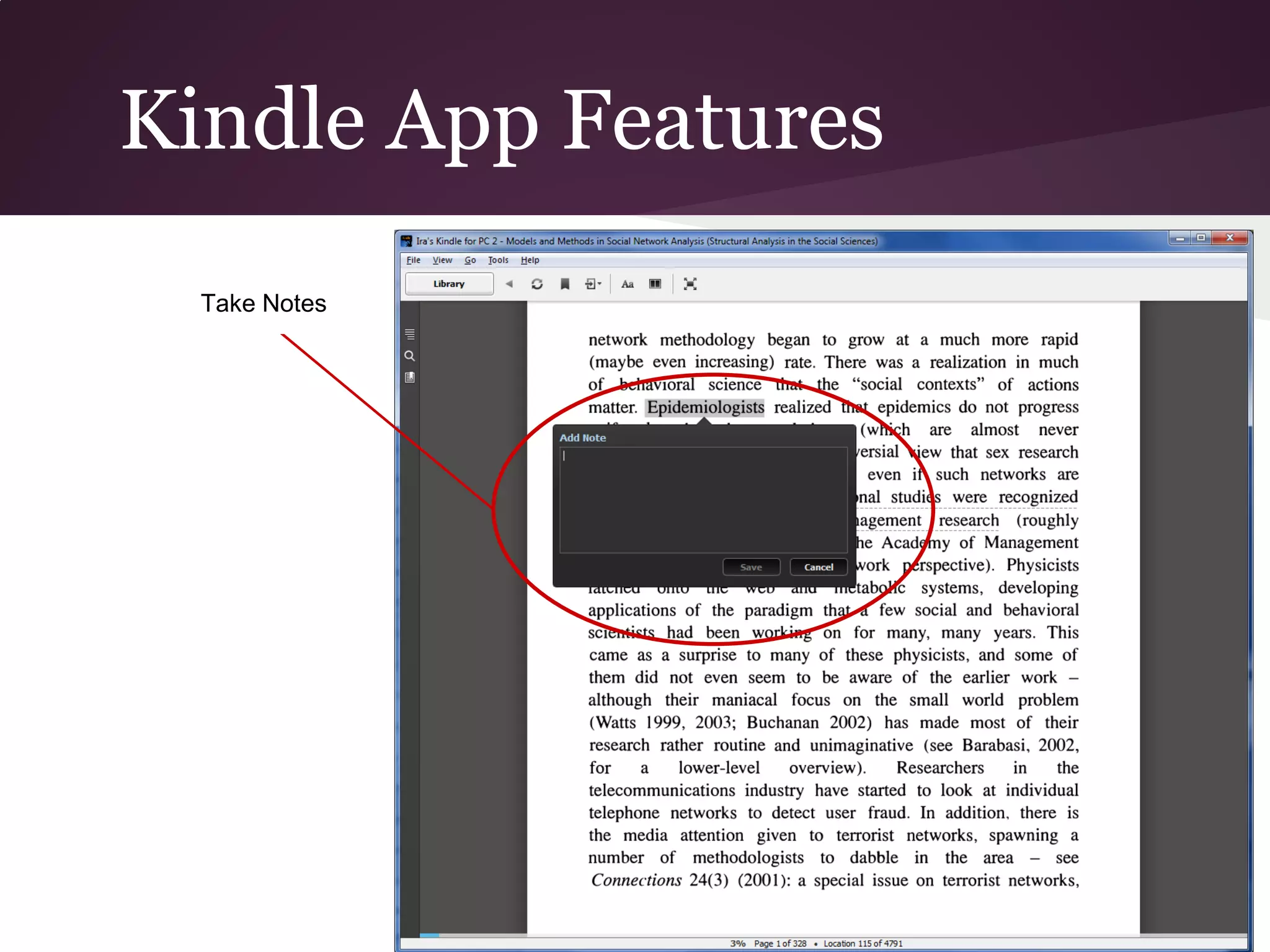
Kindle App Features
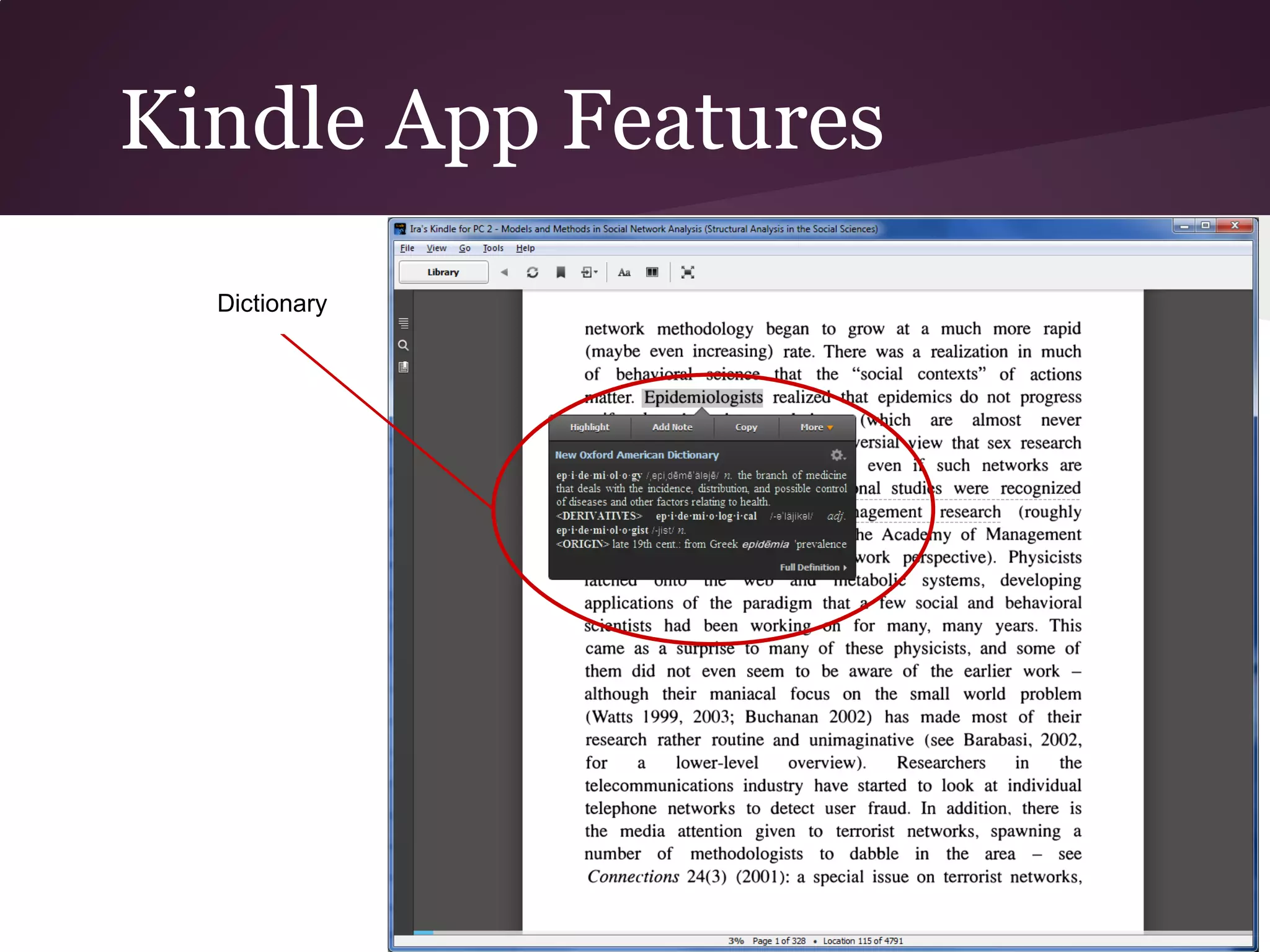
  Dictionary
Kindle App Features
  Take Notes
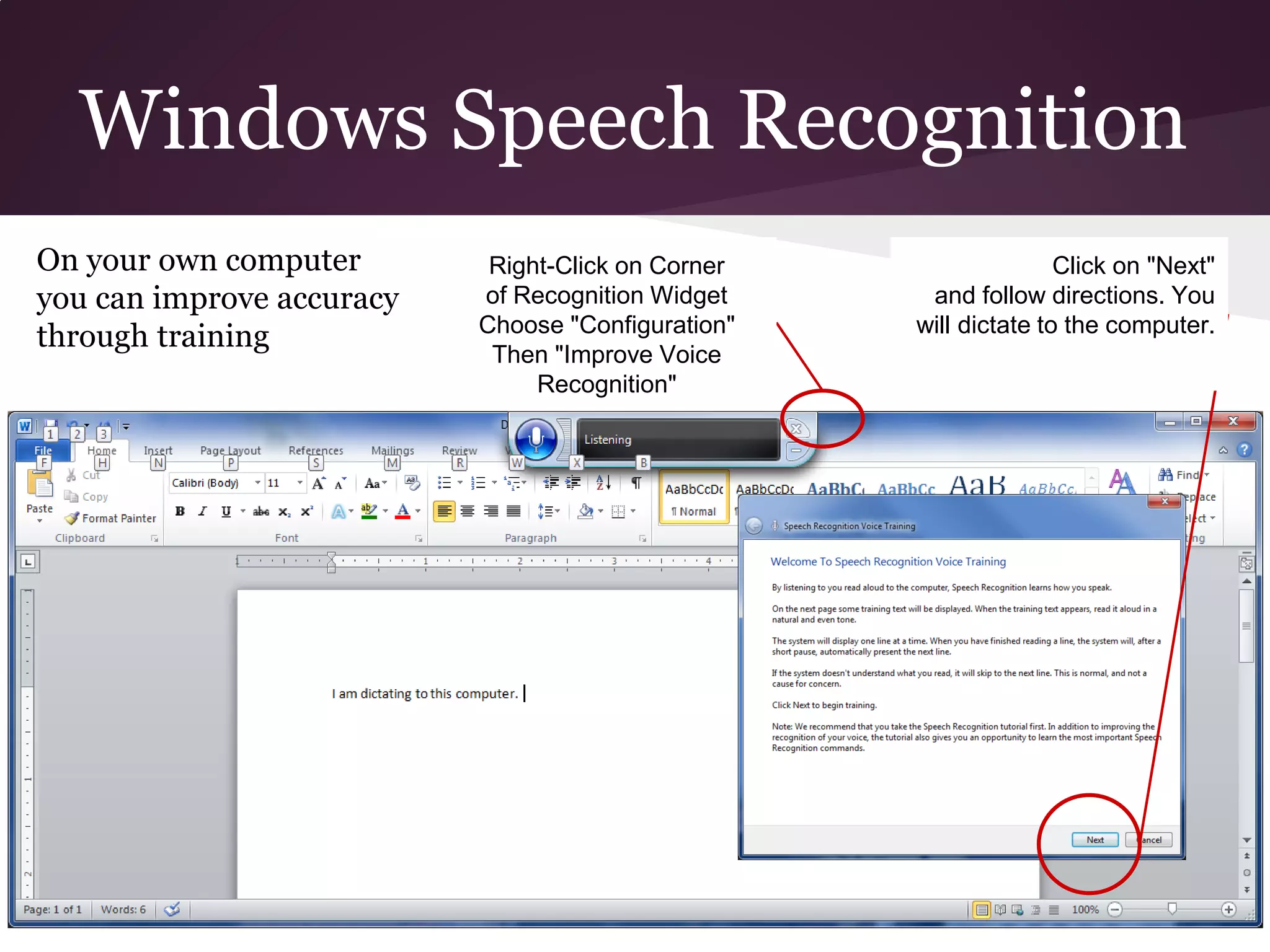
Windows Speech Recognition
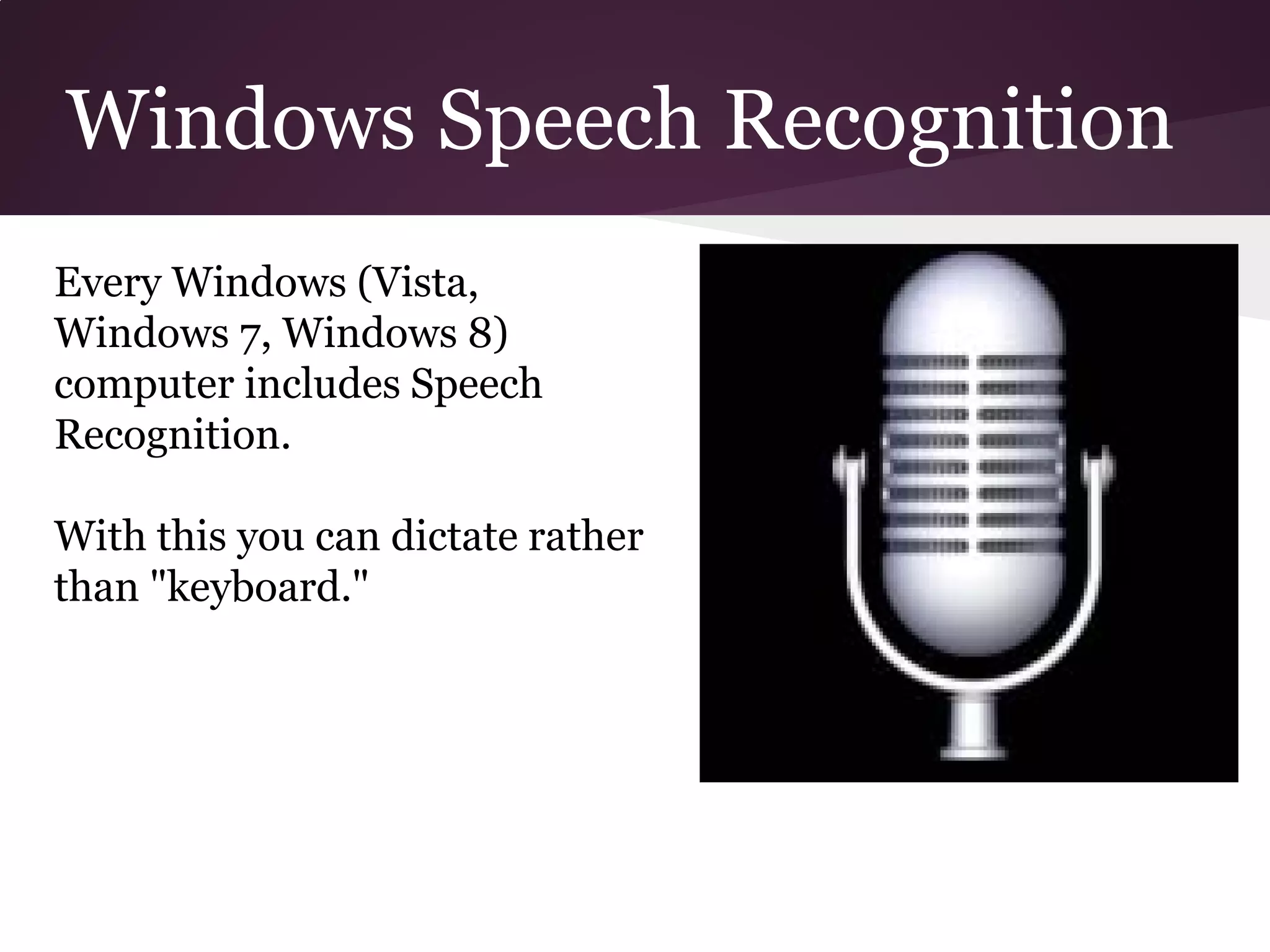
Every Windows (Vista,
Windows 7, Windows 8)
computer includes Speech
Recognition.

With this you can dictate rather
than "keyboard."
Windows Speech Recognition


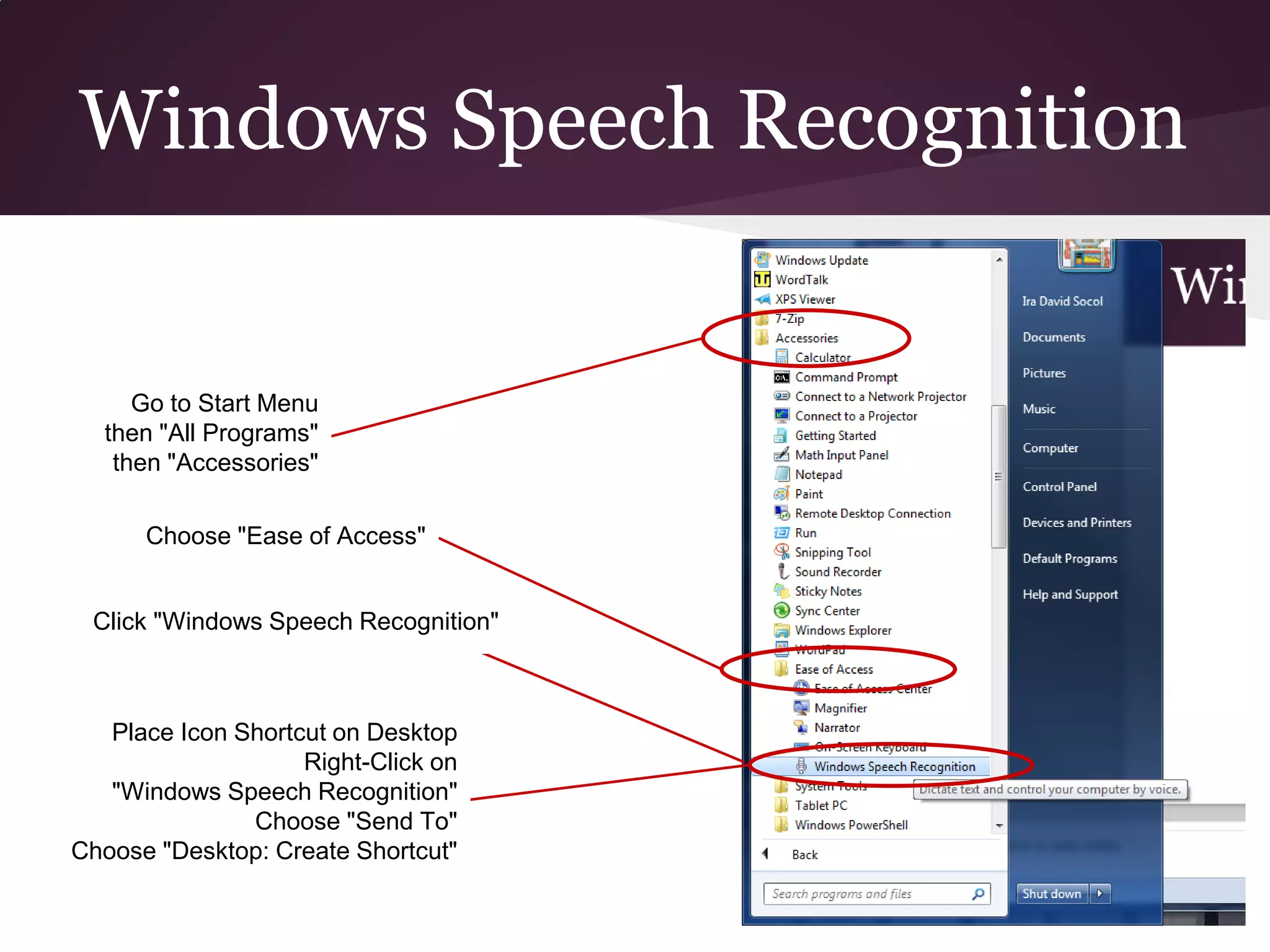
     Go to Start Menu
  then "All Programs"
   then "Accessories"

      Choose "Ease of Access"


 Click "Windows Speech Recognition"


   Place Icon Shortcut on Desktop
                    Right-Click on
   "Windows Speech Recognition"
               Choose "Send To"
Choose "Desktop: Create Shortcut"
Windows Speech Recognition
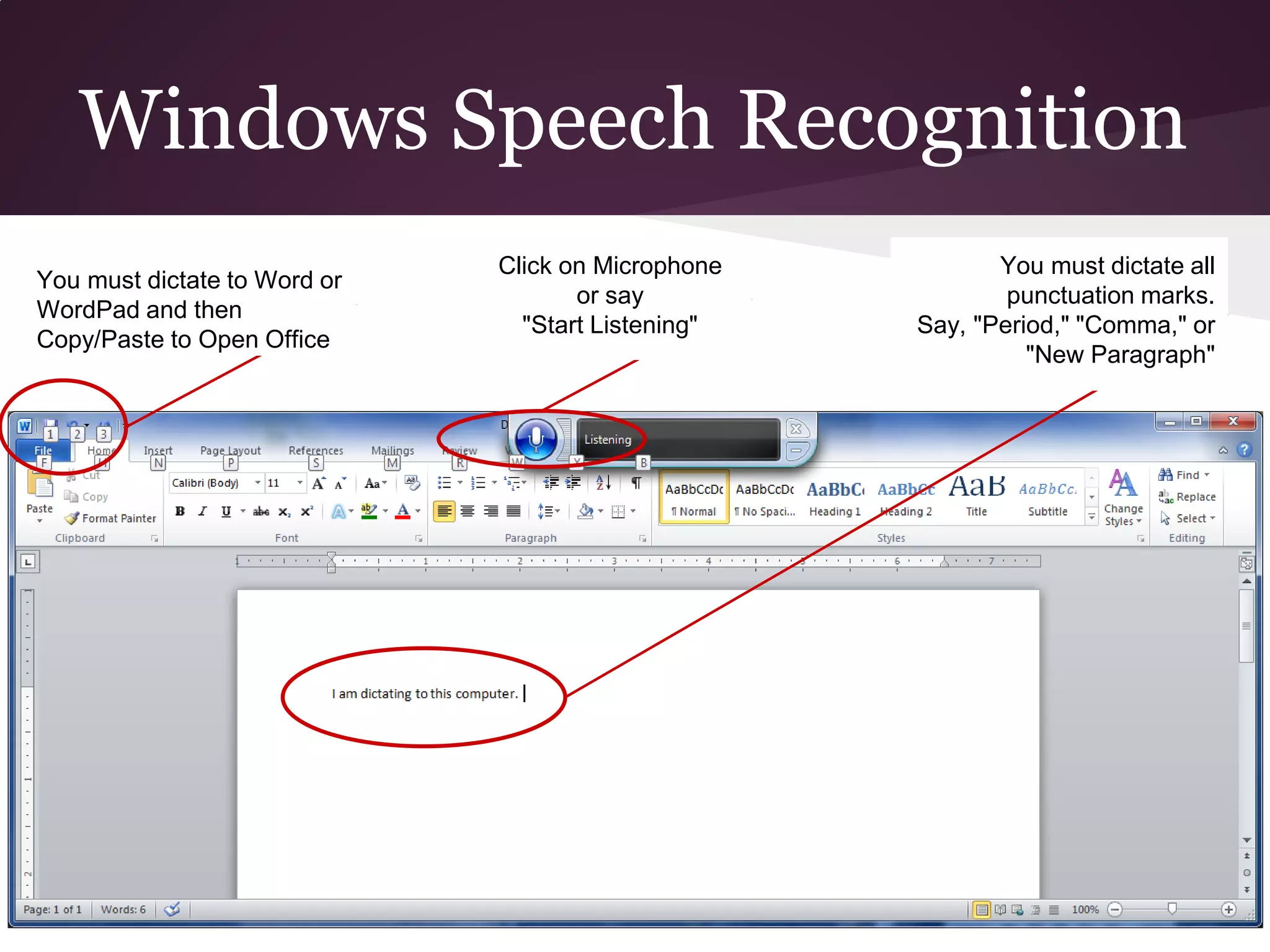
                              Click on Microphone          You must dictate all
You must dictate to Word or
                                     or say                 punctuation marks.
WordPad and then
                                "Start Listening"   Say, "Period," "Comma," or
Copy/Paste to Open Office
                                                              "New Paragraph"
Windows Speech Recognition
On your own computer        Right-Click on Corner                  Click on "Next"
you can improve accuracy   of Recognition Widget     and follow directions. You
                           Choose "Configuration"   will dictate to the computer.
through training
                            Then "Improve Voice
                                Recognition"
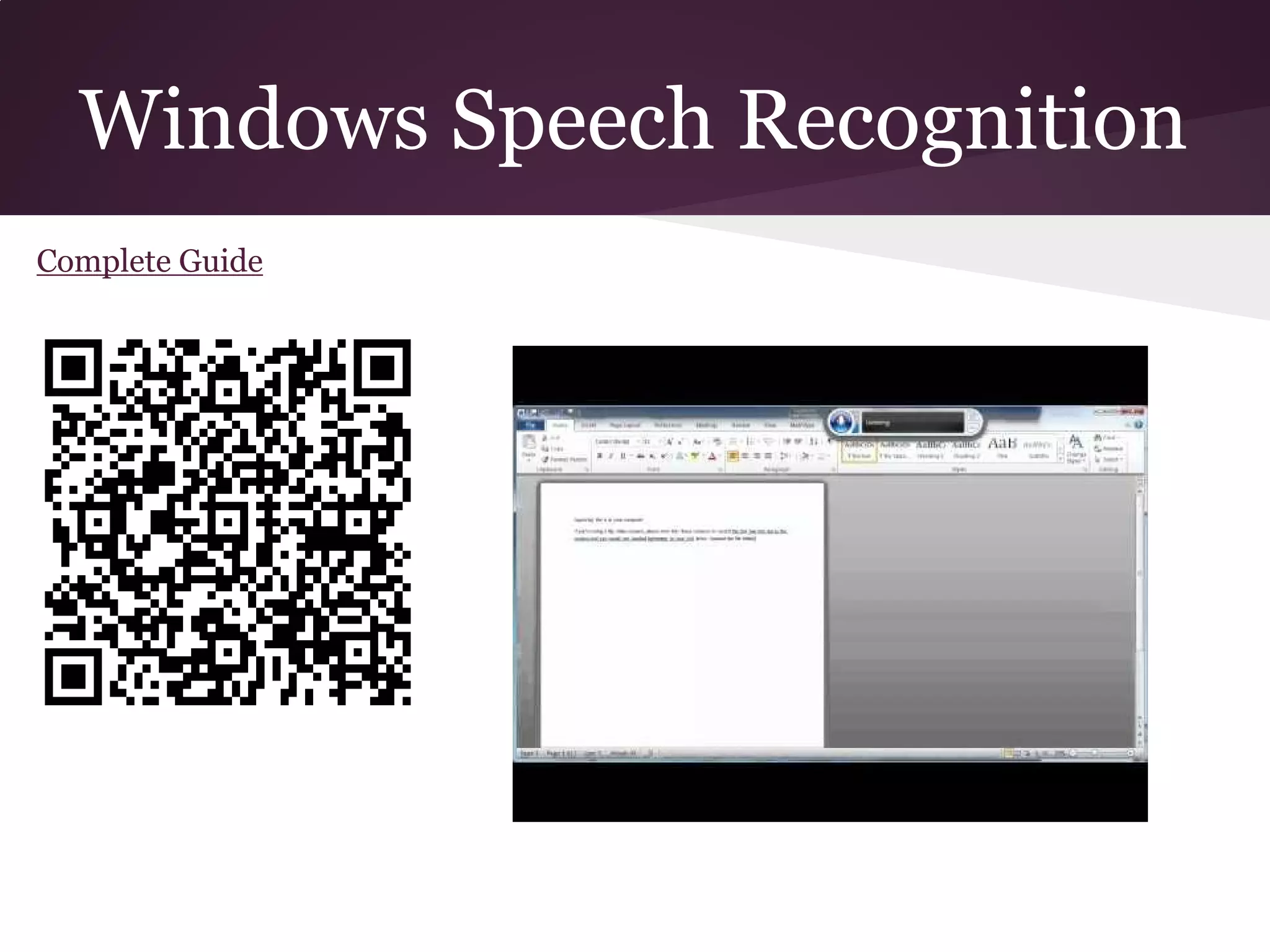
Windows Speech Recognition
Complete Guide
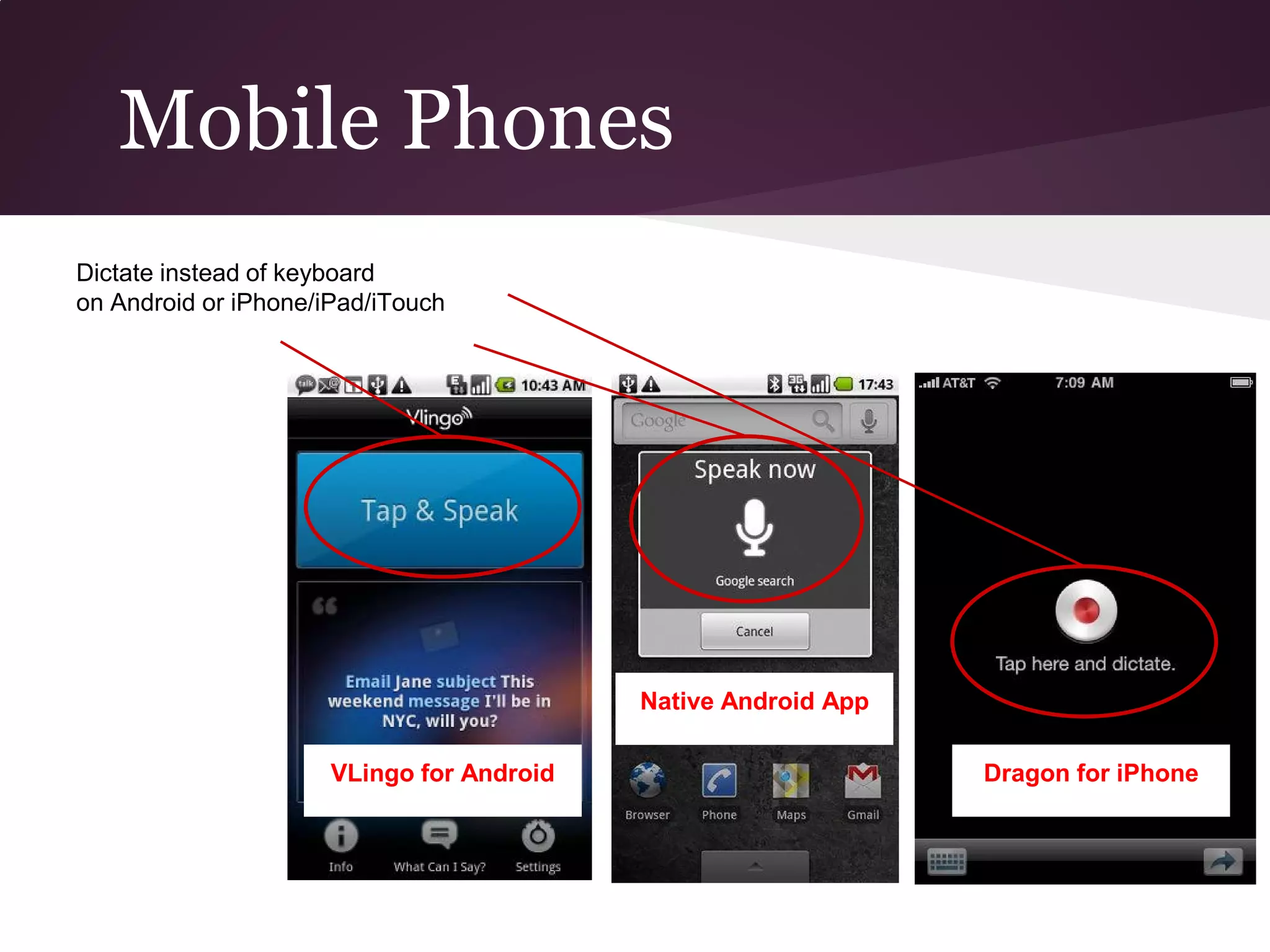
Mobile Phones
Dictate instead of keyboard
on Android or iPhone/iPad/iTouch


                                           Native Android App

                      VLingo for Android                        Dragon for iPhone
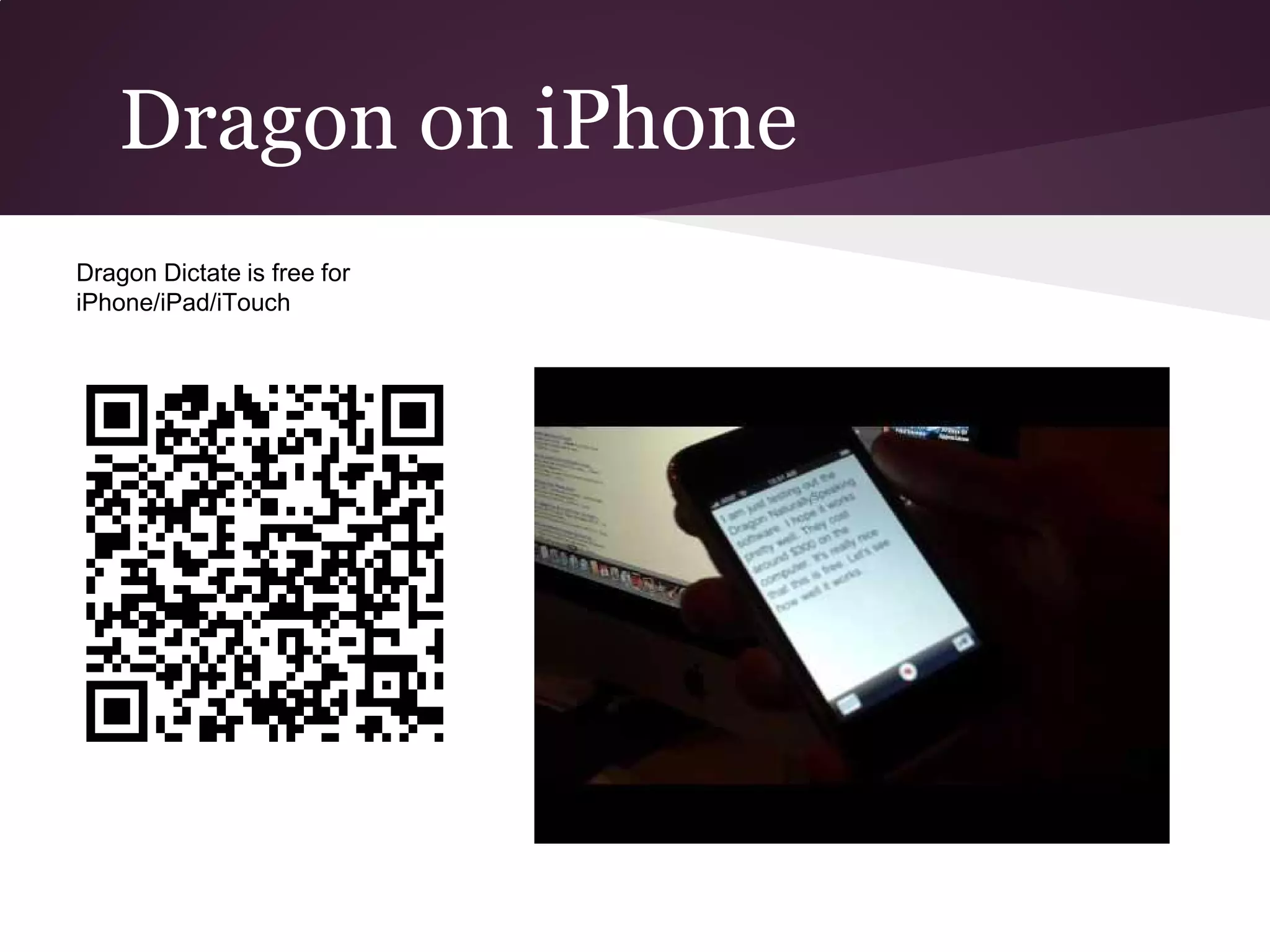
Dragon on iPhone
Dragon Dictate is free for
iPhone/iPad/iTouch
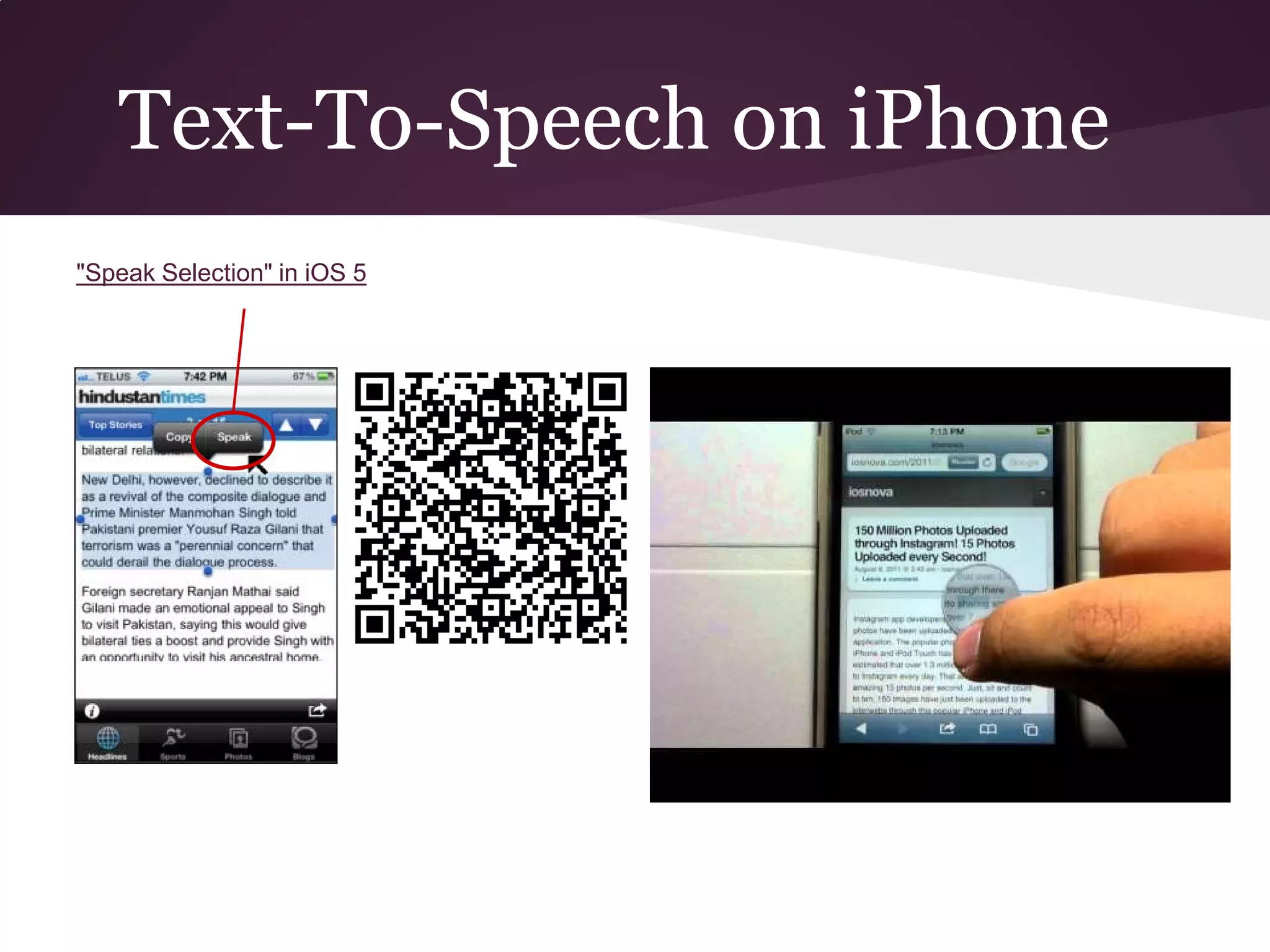
Text-To-Speech on iPhone
"Speak Selection" in iOS 5
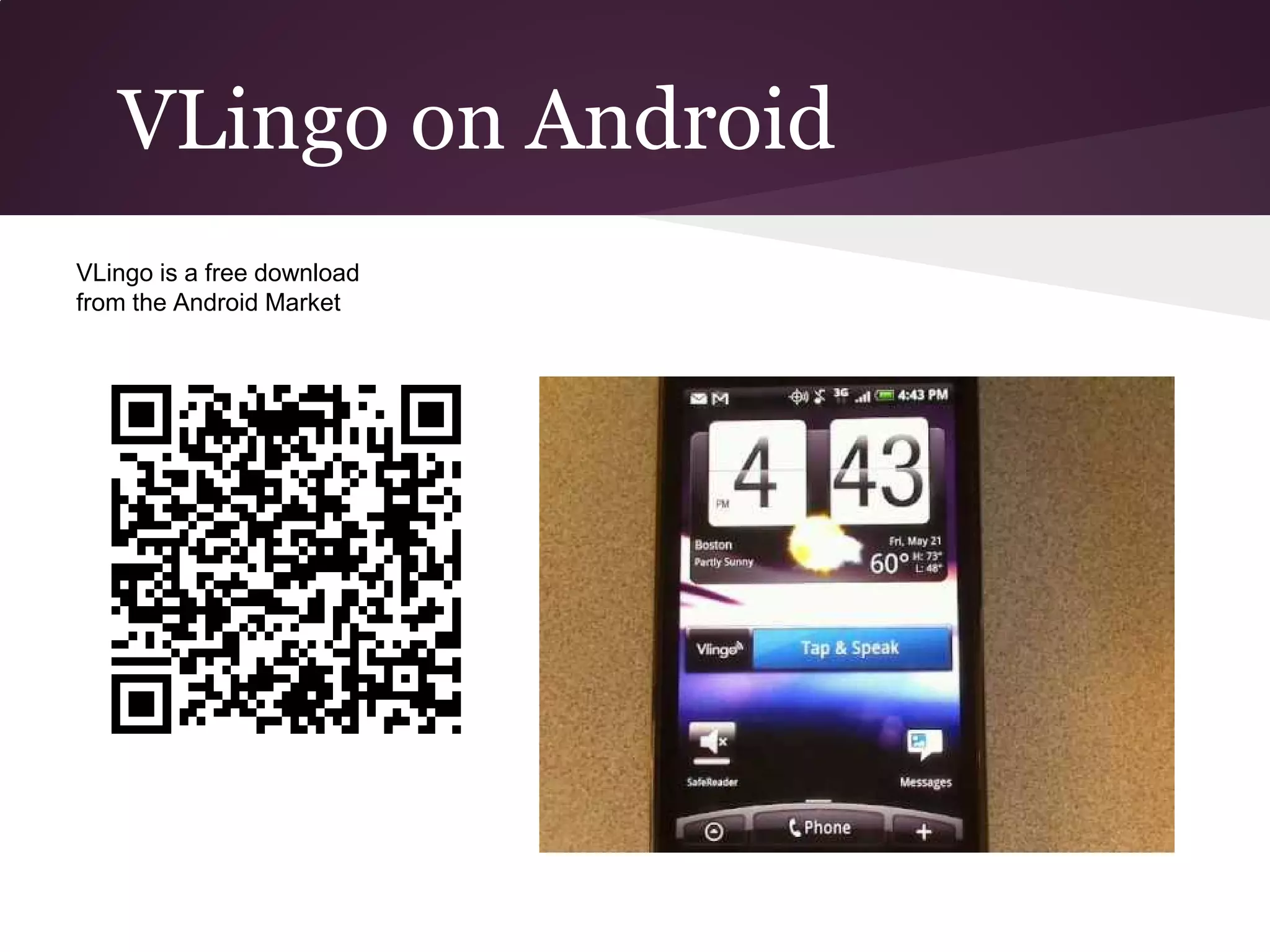
VLingo on Android
VLingo is a free download
from the Android Market
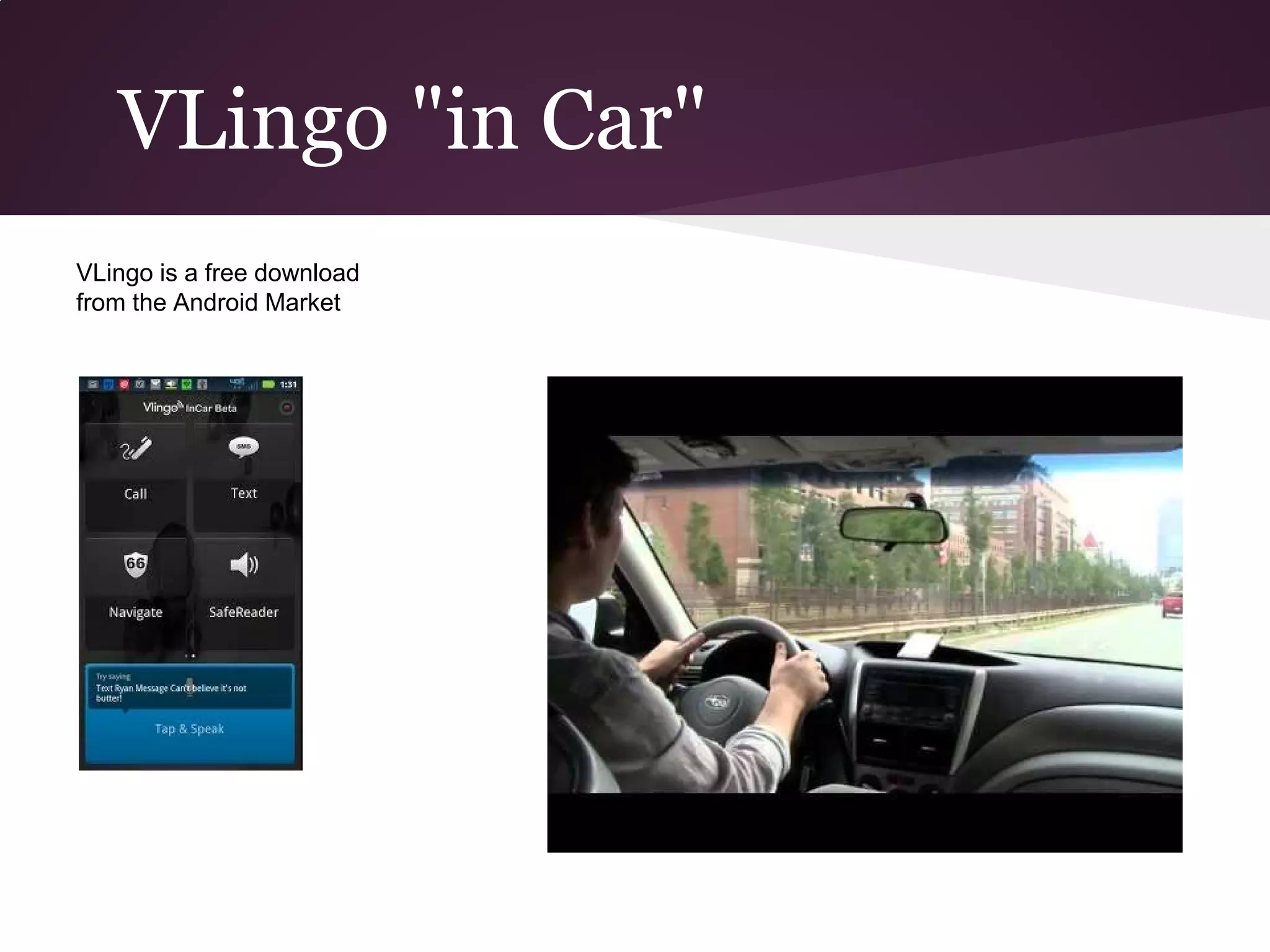
VLingo "in Car"
VLingo is a free download
from the Android Market
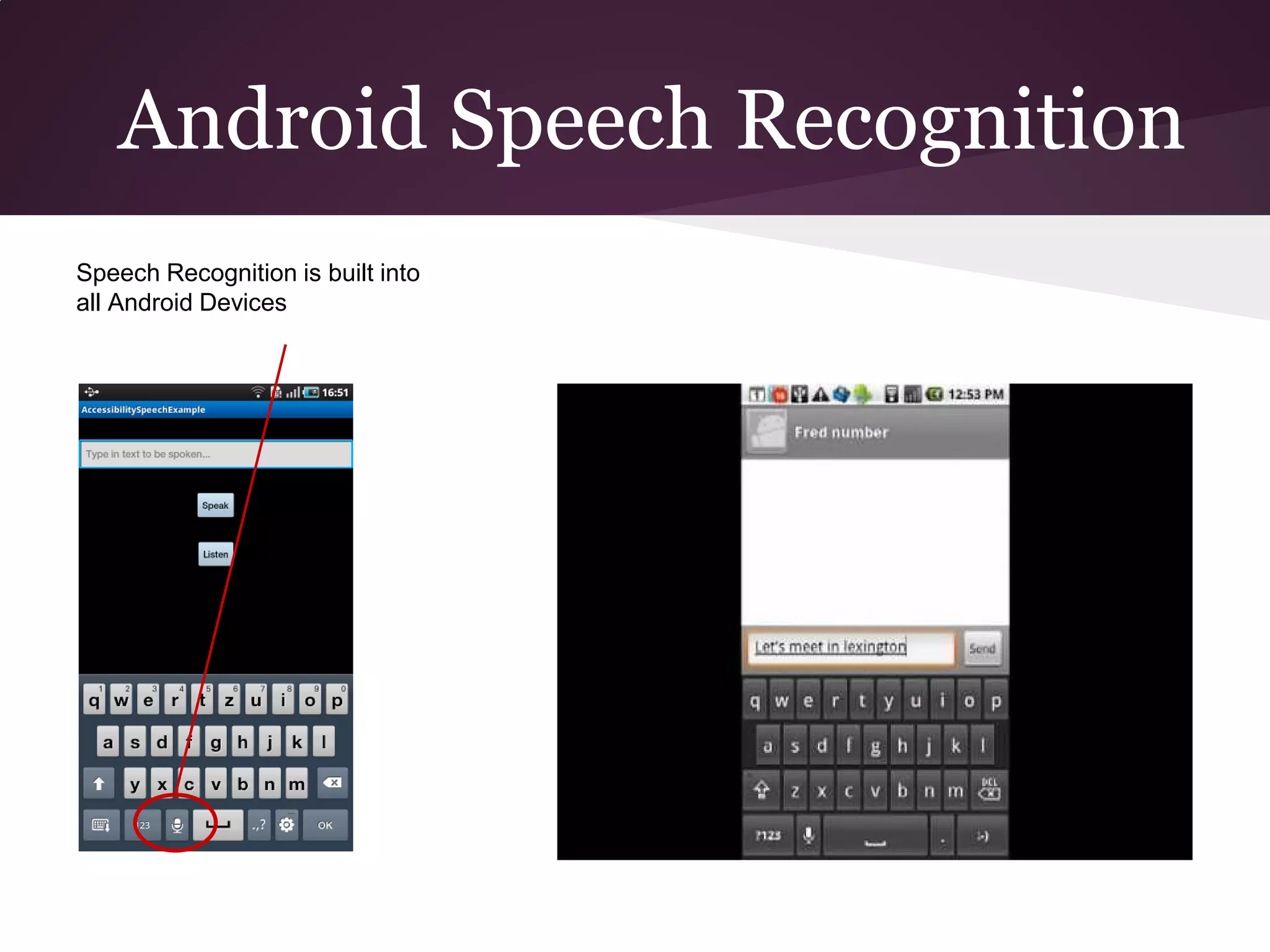
Android Speech Recognition
Speech Recognition is built into
all Android Devices
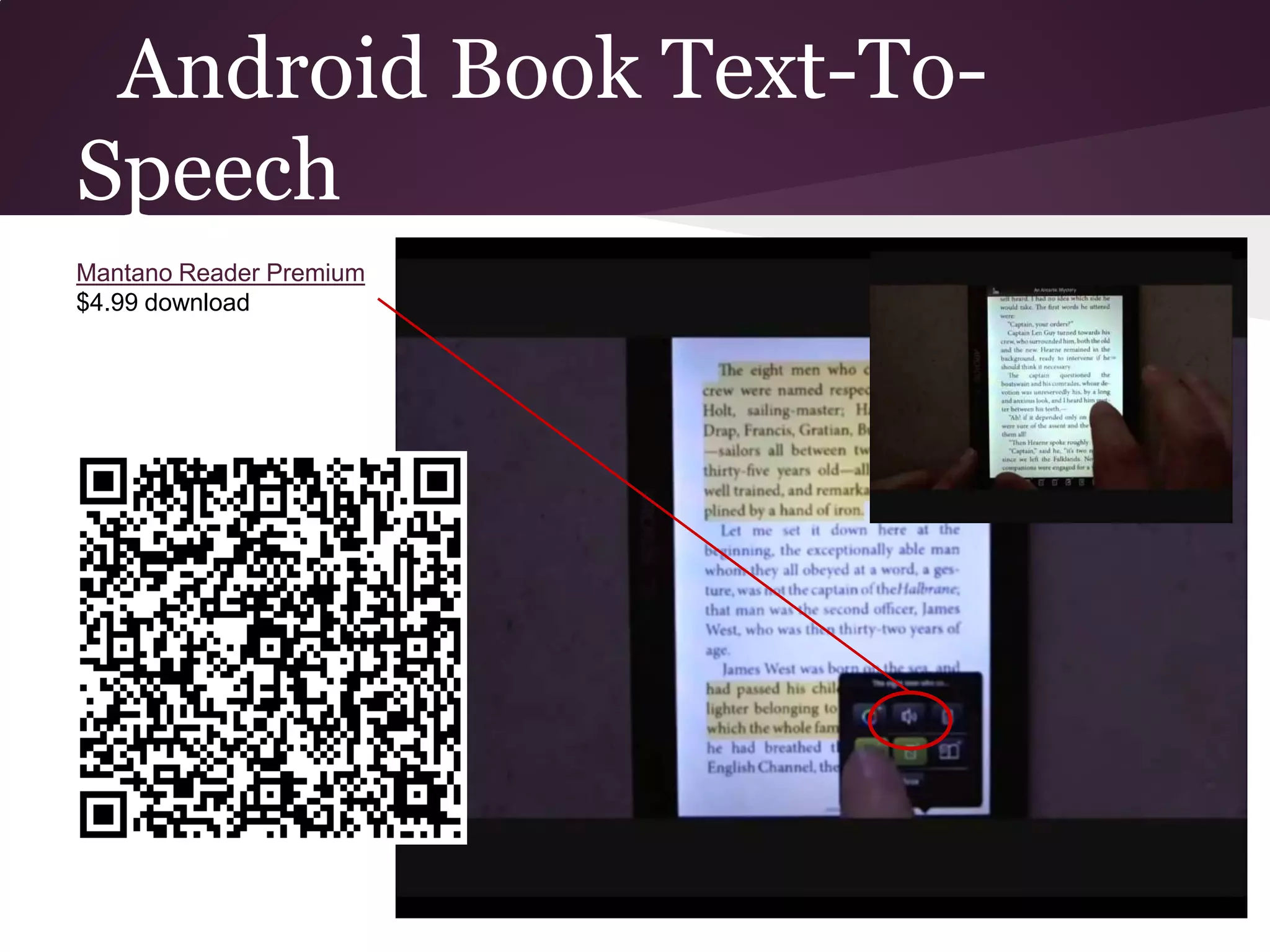
Android Book Text-To-
Speech
Mantano Reader Premium
$4.99 download
PowerTalk
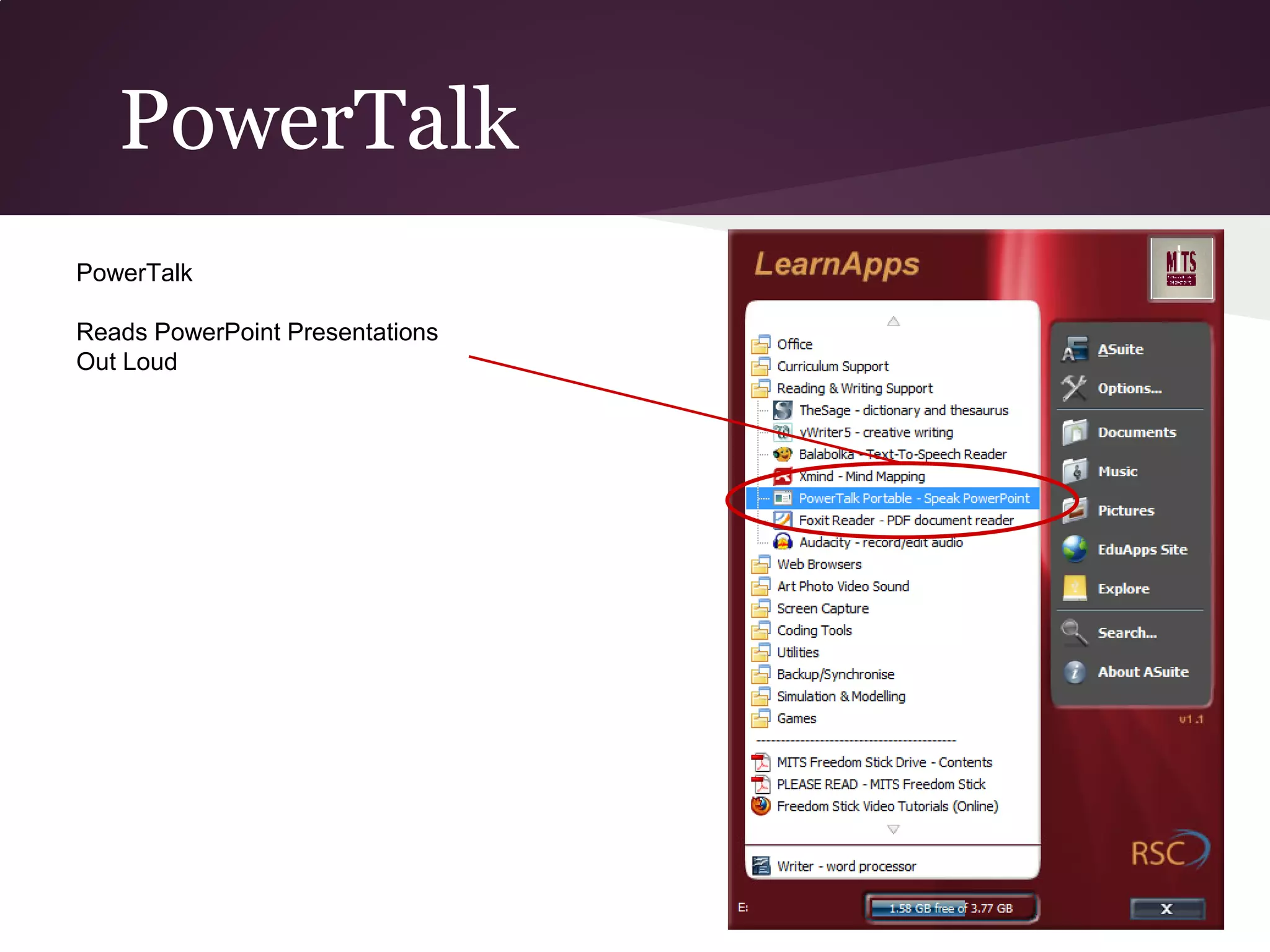
PowerTalk

Reads PowerPoint Presentations
Out Loud
PowerTalk
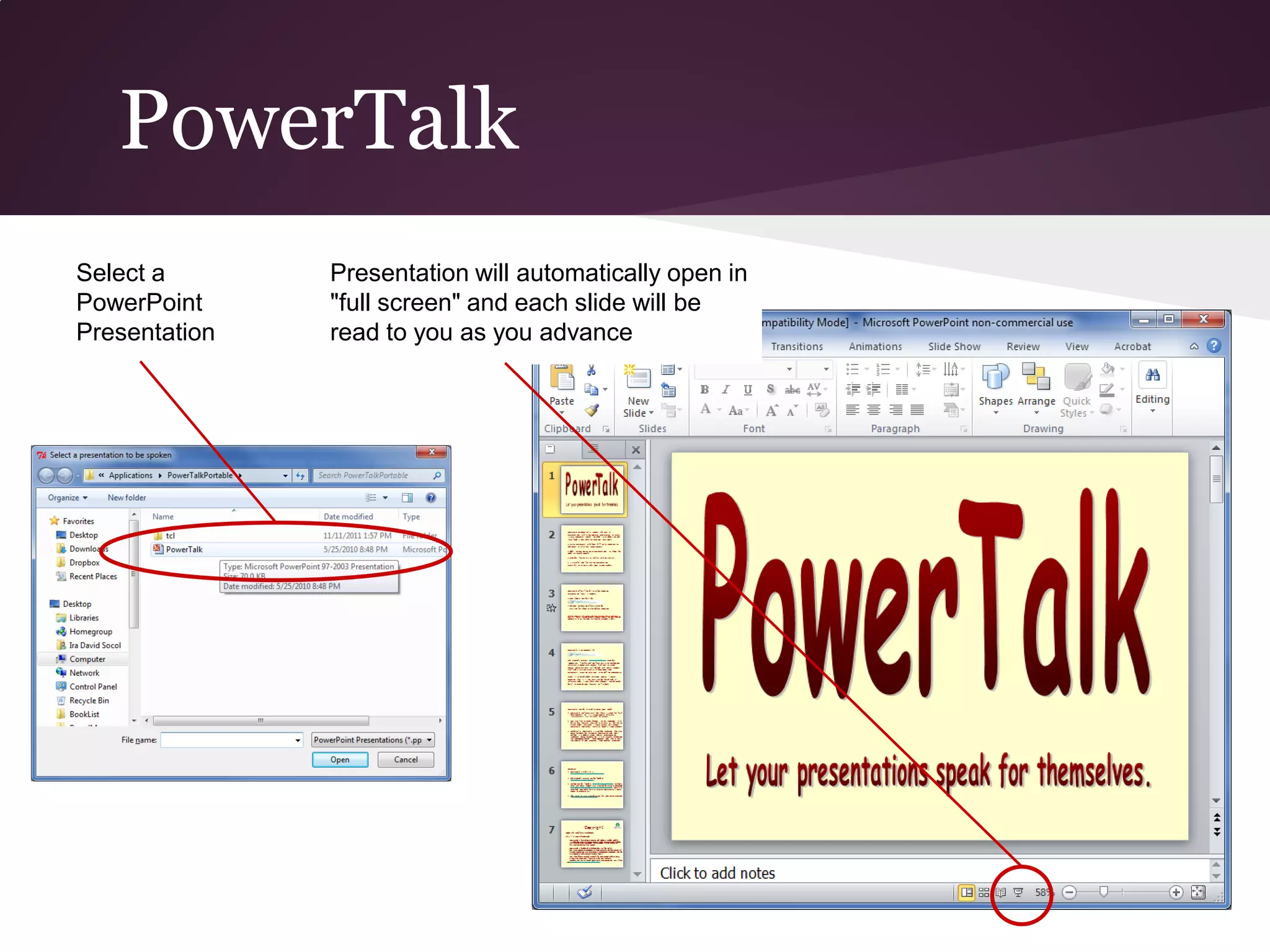
Select a       Presentation will automatically open in
PowerPoint     "full screen" and each slide will be
Presentation   read to you as you advance
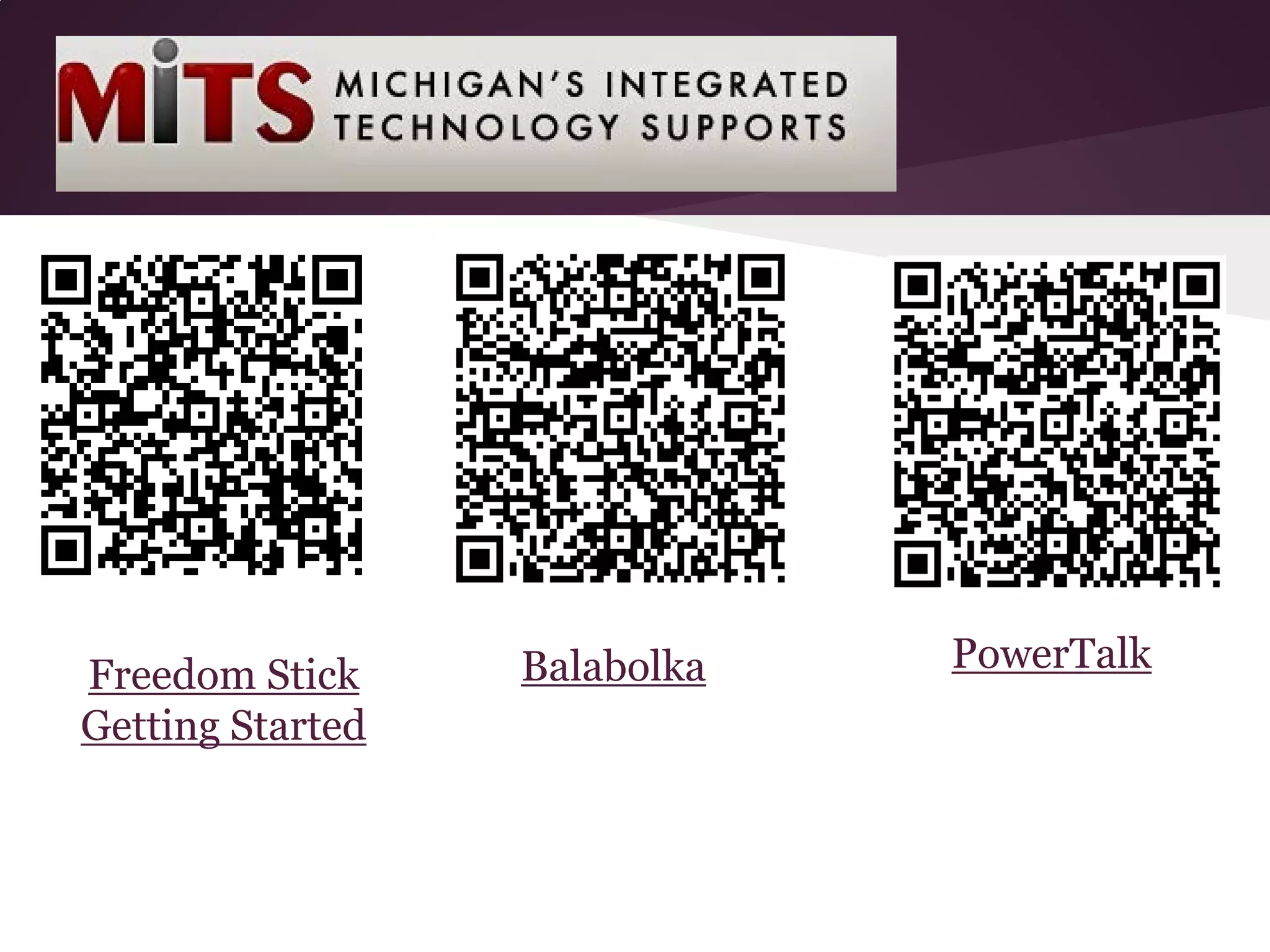
Balabolka   PowerTalk
Freedom Stick
Getting Started

Transition to College - Reading and Writing