COMMUNICATIONS TECHNOLOGY


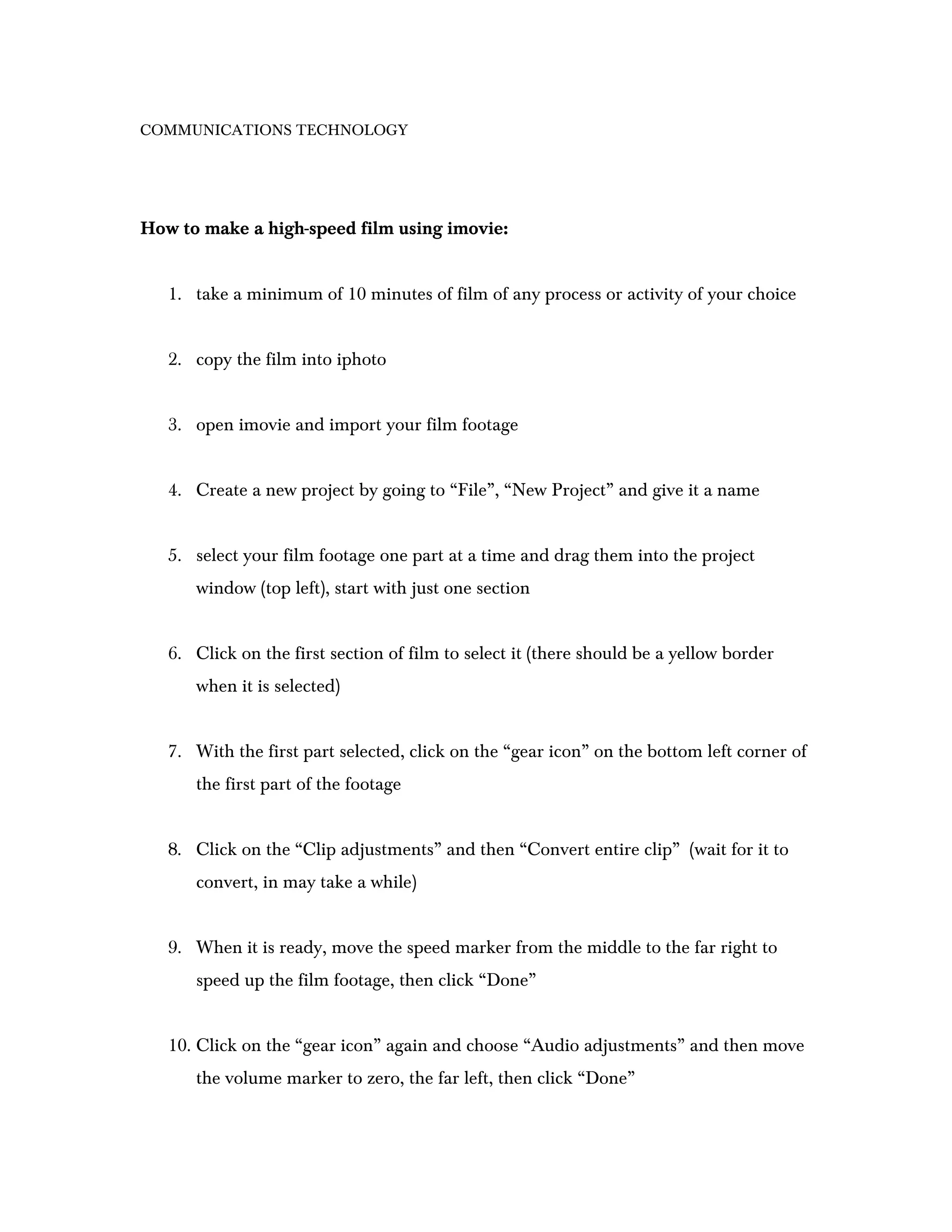
How to make a high-speed film using imovie:


   1. take a minimum of 10 minutes of film of any process or activity of your choice


   2. copy the film into iphoto


   3. open imovie and import your film footage


   4. Create a new project by going to “File”, “New Project” and give it a name


   5. select your film footage one part at a time and drag them into the project
      window (top left), start with just one section


   6. Click on the first section of film to select it (there should be a yellow border
      when it is selected)


   7. With the first part selected, click on the “gear icon” on the bottom left corner of
      the first part of the footage


   8. Click on the “Clip adjustments” and then “Convert entire clip” (wait for it to
      convert, in may take a while)


   9. When it is ready, move the speed marker from the middle to the far right to
      speed up the film footage, then click “Done”


   10. Click on the “gear icon” again and choose “Audio adjustments” and then move
      the volume marker to zero, the far left, then click “Done”
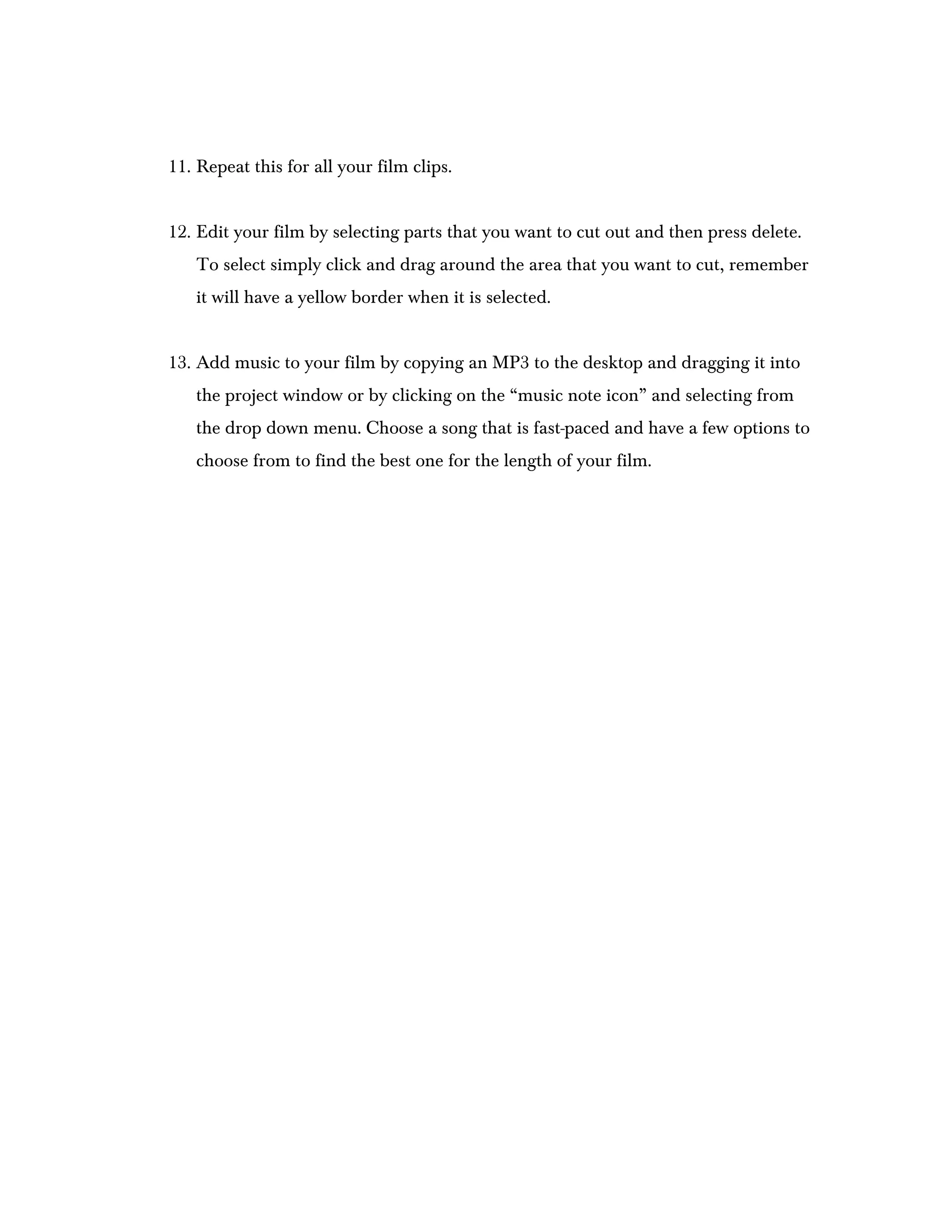
11. Repeat this for all your film clips.


12. Edit your film by selecting parts that you want to cut out and then press delete.
   To select simply click and drag around the area that you want to cut, remember
   it will have a yellow border when it is selected.


13. Add music to your film by copying an MP3 to the desktop and dragging it into
   the project window or by clicking on the “music note icon” and selecting from
   the drop down menu. Choose a song that is fast-paced and have a few options to
   choose from to find the best one for the length of your film.

How to high speed film

  • 1.
    COMMUNICATIONS TECHNOLOGY How tomake a high-speed film using imovie: 1. take a minimum of 10 minutes of film of any process or activity of your choice 2. copy the film into iphoto 3. open imovie and import your film footage 4. Create a new project by going to “File”, “New Project” and give it a name 5. select your film footage one part at a time and drag them into the project window (top left), start with just one section 6. Click on the first section of film to select it (there should be a yellow border when it is selected) 7. With the first part selected, click on the “gear icon” on the bottom left corner of the first part of the footage 8. Click on the “Clip adjustments” and then “Convert entire clip” (wait for it to convert, in may take a while) 9. When it is ready, move the speed marker from the middle to the far right to speed up the film footage, then click “Done” 10. Click on the “gear icon” again and choose “Audio adjustments” and then move the volume marker to zero, the far left, then click “Done”
  • 2.
    11. Repeat thisfor all your film clips. 12. Edit your film by selecting parts that you want to cut out and then press delete. To select simply click and drag around the area that you want to cut, remember it will have a yellow border when it is selected. 13. Add music to your film by copying an MP3 to the desktop and dragging it into the project window or by clicking on the “music note icon” and selecting from the drop down menu. Choose a song that is fast-paced and have a few options to choose from to find the best one for the length of your film.