Zooming an image in Visual Basic (VB.NET)
We have an example project for VB.NET that shows how to zoom in and zoom out of an image
using the csXImage ActiveX control. Download the project code.
The demo uses the trial version of csXImage, which must must be registered on the development
computer and the licence file must be in the same folder as the .ocx control. Running our
installer will have performed the registration and unpacking of files.
The form has two instances of csXImage and this project will show how to copy an image from
one to the other.
When the Load File button is pressed the LoadDialog command is called. This is a useful
command because it allows the user to select an image from disk without using the common
dialogue box. If an image is successfully loaded the DrawZoomRect subroutine is called, which
is really the working part of the demo.
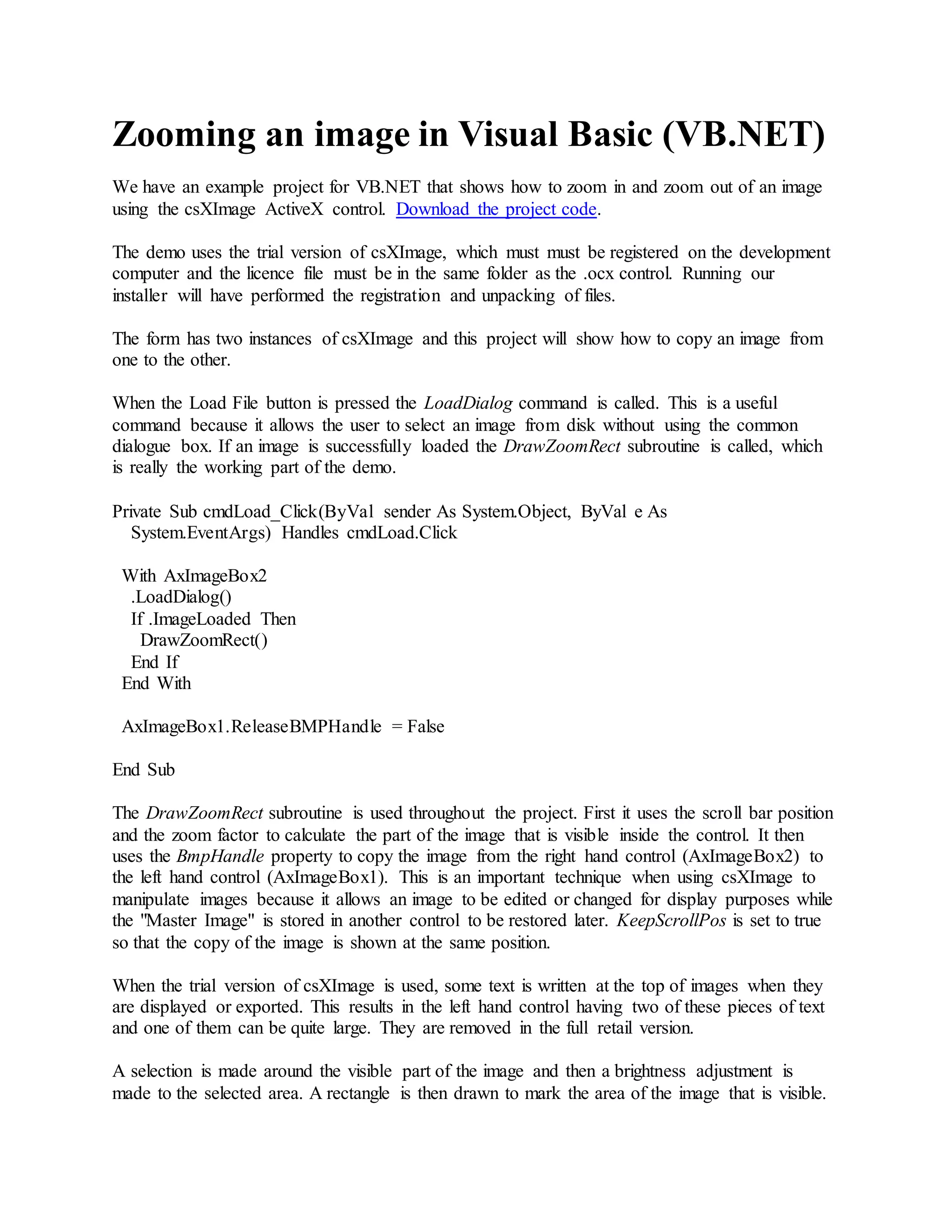
Private Sub cmdLoad_Click(ByVal sender As System.Object, ByVal e As
System.EventArgs) Handles cmdLoad.Click
With AxImageBox2
.LoadDialog()
If .ImageLoaded Then
DrawZoomRect()
End If
End With
AxImageBox1.ReleaseBMPHandle = False
End Sub
The DrawZoomRect subroutine is used throughout the project. First it uses the scroll bar position
and the zoom factor to calculate the part of the image that is visible inside the control. It then
uses the BmpHandle property to copy the image from the right hand control (AxImageBox2) to
the left hand control (AxImageBox1). This is an important technique when using csXImage to
manipulate images because it allows an image to be edited or changed for display purposes while
the "Master Image" is stored in another control to be restored later. KeepScrollPos is set to true
so that the copy of the image is shown at the same position.
When the trial version of csXImage is used, some text is written at the top of images when they
are displayed or exported. This results in the left hand control having two of these pieces of text
and one of them can be quite large. They are removed in the full retail version.
A selection is made around the visible part of the image and then a brightness adjustment is
made to the selected area. A rectangle is then drawn to mark the area of the image that is visible.
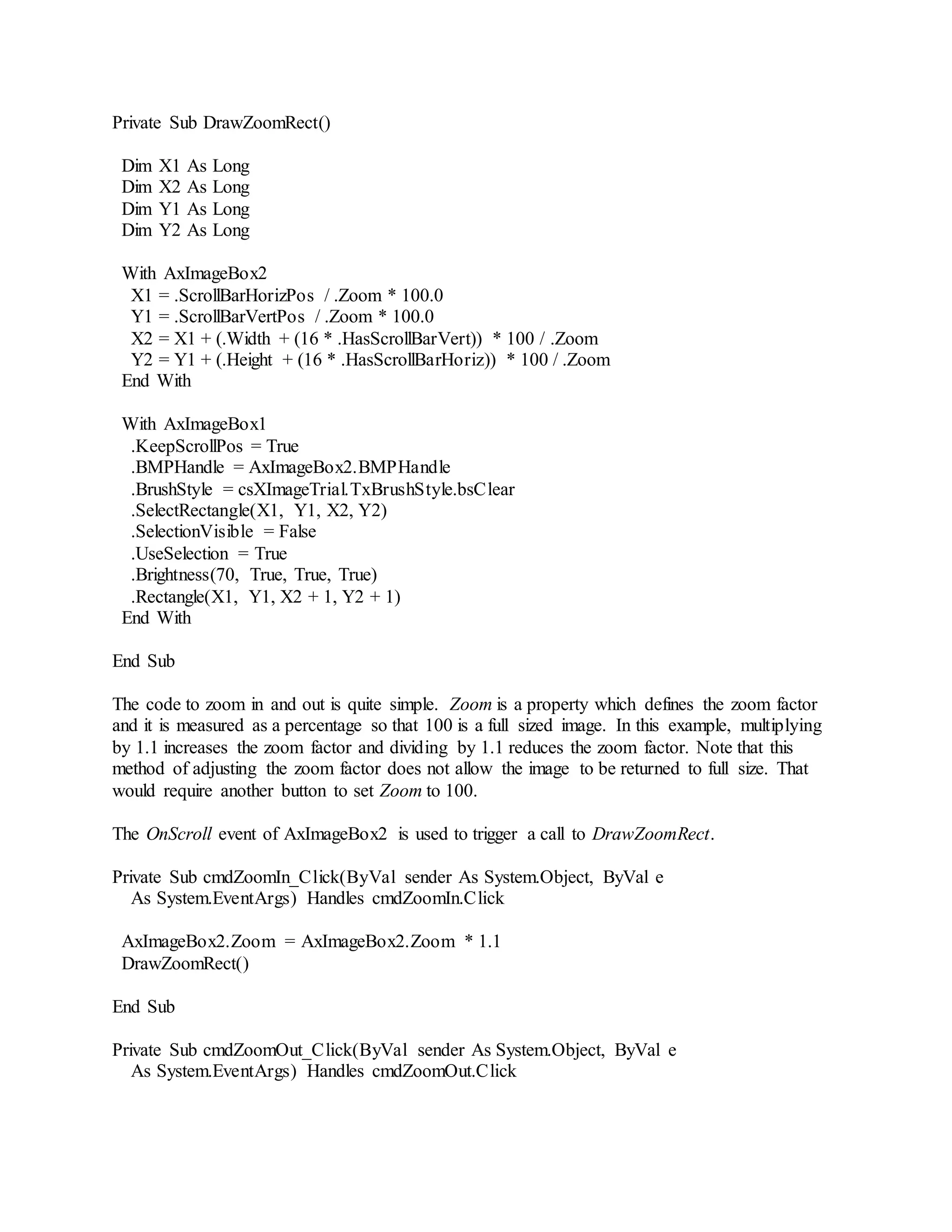
Private Sub DrawZoomRect()
Dim X1 As Long
Dim X2 As Long
Dim Y1 As Long
Dim Y2 As Long
With AxImageBox2
X1 = .ScrollBarHorizPos / .Zoom * 100.0
Y1 = .ScrollBarVertPos / .Zoom * 100.0
X2 = X1 + (.Width + (16 * .HasScrollBarVert)) * 100 / .Zoom
Y2 = Y1 + (.Height + (16 * .HasScrollBarHoriz)) * 100 / .Zoom
End With
With AxImageBox1
.KeepScrollPos = True
.BMPHandle = AxImageBox2.BMPHandle
.BrushStyle = csXImageTrial.TxBrushStyle.bsClear
.SelectRectangle(X1, Y1, X2, Y2)
.SelectionVisible = False
.UseSelection = True
.Brightness(70, True, True, True)
.Rectangle(X1, Y1, X2 + 1, Y2 + 1)
End With
End Sub
The code to zoom in and out is quite simple. Zoom is a property which defines the zoom factor
and it is measured as a percentage so that 100 is a full sized image. In this example, multiplying
by 1.1 increases the zoom factor and dividing by 1.1 reduces the zoom factor. Note that this
method of adjusting the zoom factor does not allow the image to be returned to full size. That
would require another button to set Zoom to 100.
The OnScroll event of AxImageBox2 is used to trigger a call to DrawZoomRect.
Private Sub cmdZoomIn_Click(ByVal sender As System.Object, ByVal e
As System.EventArgs) Handles cmdZoomIn.Click
AxImageBox2.Zoom = AxImageBox2.Zoom * 1.1
DrawZoomRect()
End Sub
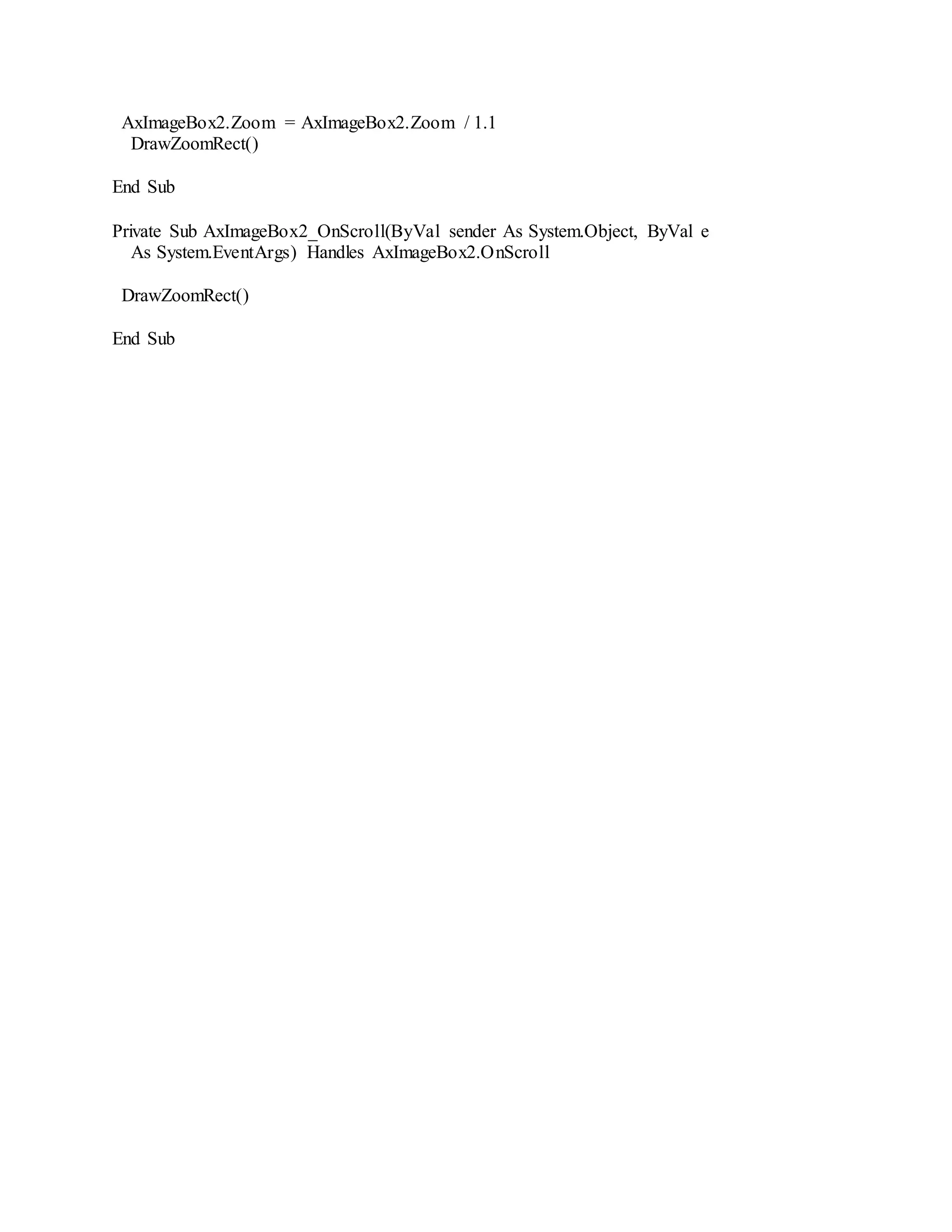
Private Sub cmdZoomOut_Click(ByVal sender As System.Object, ByVal e
As System.EventArgs) Handles cmdZoomOut.Click
AxImageBox2.Zoom = AxImageBox2.Zoom / 1.1
DrawZoomRect()
End Sub
Private Sub AxImageBox2_OnScroll(ByVal sender As System.Object, ByVal e
As System.EventArgs) Handles AxImageBox2.OnScroll
DrawZoomRect()
End Sub

Zooming an image in visual basic

  • 1.
    Zooming an imagein Visual Basic (VB.NET) We have an example project for VB.NET that shows how to zoom in and zoom out of an image using the csXImage ActiveX control. Download the project code. The demo uses the trial version of csXImage, which must must be registered on the development computer and the licence file must be in the same folder as the .ocx control. Running our installer will have performed the registration and unpacking of files. The form has two instances of csXImage and this project will show how to copy an image from one to the other. When the Load File button is pressed the LoadDialog command is called. This is a useful command because it allows the user to select an image from disk without using the common dialogue box. If an image is successfully loaded the DrawZoomRect subroutine is called, which is really the working part of the demo. Private Sub cmdLoad_Click(ByVal sender As System.Object, ByVal e As System.EventArgs) Handles cmdLoad.Click With AxImageBox2 .LoadDialog() If .ImageLoaded Then DrawZoomRect() End If End With AxImageBox1.ReleaseBMPHandle = False End Sub The DrawZoomRect subroutine is used throughout the project. First it uses the scroll bar position and the zoom factor to calculate the part of the image that is visible inside the control. It then uses the BmpHandle property to copy the image from the right hand control (AxImageBox2) to the left hand control (AxImageBox1). This is an important technique when using csXImage to manipulate images because it allows an image to be edited or changed for display purposes while the "Master Image" is stored in another control to be restored later. KeepScrollPos is set to true so that the copy of the image is shown at the same position. When the trial version of csXImage is used, some text is written at the top of images when they are displayed or exported. This results in the left hand control having two of these pieces of text and one of them can be quite large. They are removed in the full retail version. A selection is made around the visible part of the image and then a brightness adjustment is made to the selected area. A rectangle is then drawn to mark the area of the image that is visible.
  • 2.
    Private Sub DrawZoomRect() DimX1 As Long Dim X2 As Long Dim Y1 As Long Dim Y2 As Long With AxImageBox2 X1 = .ScrollBarHorizPos / .Zoom * 100.0 Y1 = .ScrollBarVertPos / .Zoom * 100.0 X2 = X1 + (.Width + (16 * .HasScrollBarVert)) * 100 / .Zoom Y2 = Y1 + (.Height + (16 * .HasScrollBarHoriz)) * 100 / .Zoom End With With AxImageBox1 .KeepScrollPos = True .BMPHandle = AxImageBox2.BMPHandle .BrushStyle = csXImageTrial.TxBrushStyle.bsClear .SelectRectangle(X1, Y1, X2, Y2) .SelectionVisible = False .UseSelection = True .Brightness(70, True, True, True) .Rectangle(X1, Y1, X2 + 1, Y2 + 1) End With End Sub The code to zoom in and out is quite simple. Zoom is a property which defines the zoom factor and it is measured as a percentage so that 100 is a full sized image. In this example, multiplying by 1.1 increases the zoom factor and dividing by 1.1 reduces the zoom factor. Note that this method of adjusting the zoom factor does not allow the image to be returned to full size. That would require another button to set Zoom to 100. The OnScroll event of AxImageBox2 is used to trigger a call to DrawZoomRect. Private Sub cmdZoomIn_Click(ByVal sender As System.Object, ByVal e As System.EventArgs) Handles cmdZoomIn.Click AxImageBox2.Zoom = AxImageBox2.Zoom * 1.1 DrawZoomRect() End Sub Private Sub cmdZoomOut_Click(ByVal sender As System.Object, ByVal e As System.EventArgs) Handles cmdZoomOut.Click
  • 3.
    AxImageBox2.Zoom = AxImageBox2.Zoom/ 1.1 DrawZoomRect() End Sub Private Sub AxImageBox2_OnScroll(ByVal sender As System.Object, ByVal e As System.EventArgs) Handles AxImageBox2.OnScroll DrawZoomRect() End Sub