

Zoom Tutorial
English Language and Literature
Department
Punjab University
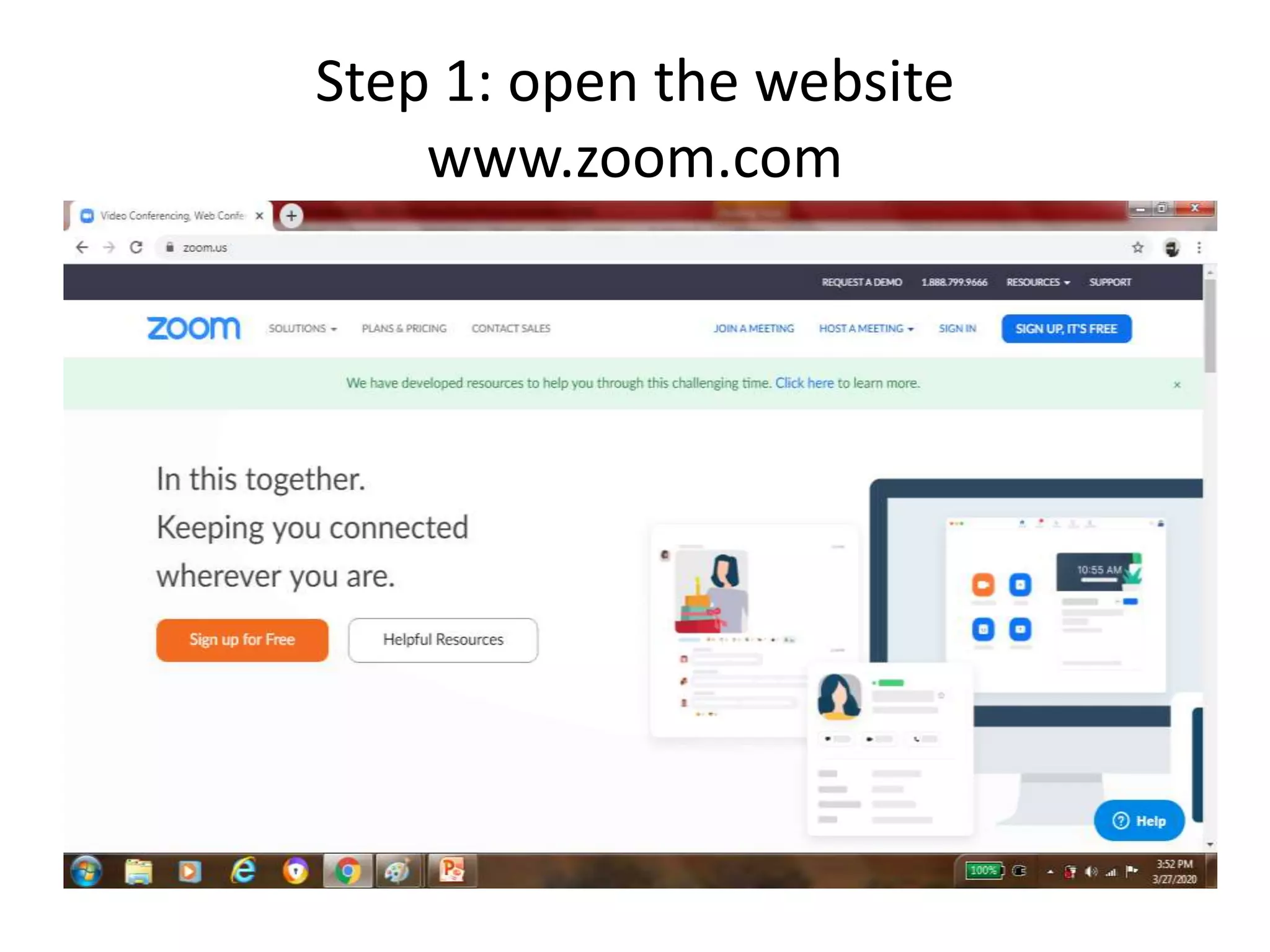
Step 1: open the website
www.zoom.com
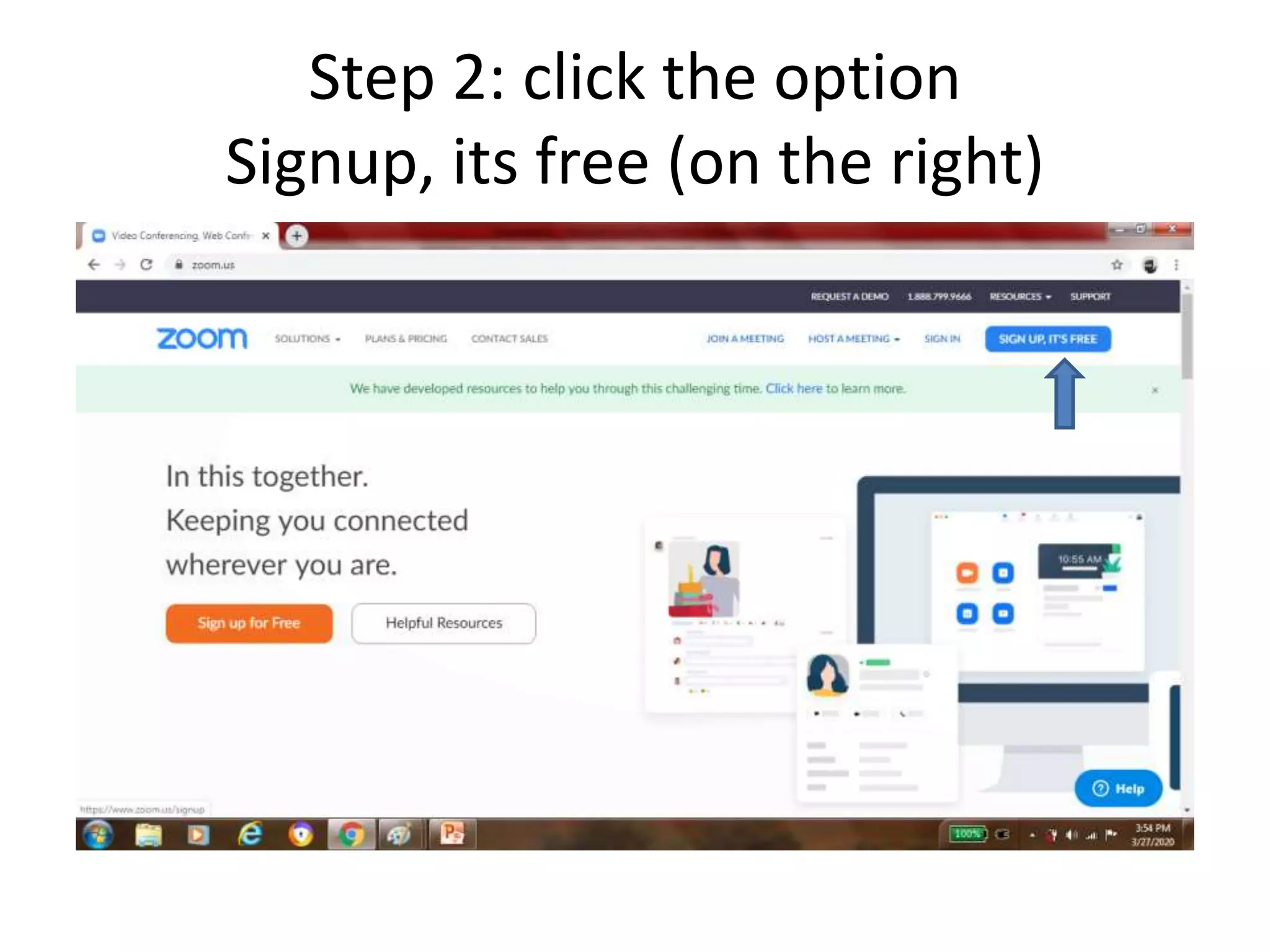
Step 2: click the option
Signup, its free (on the right)
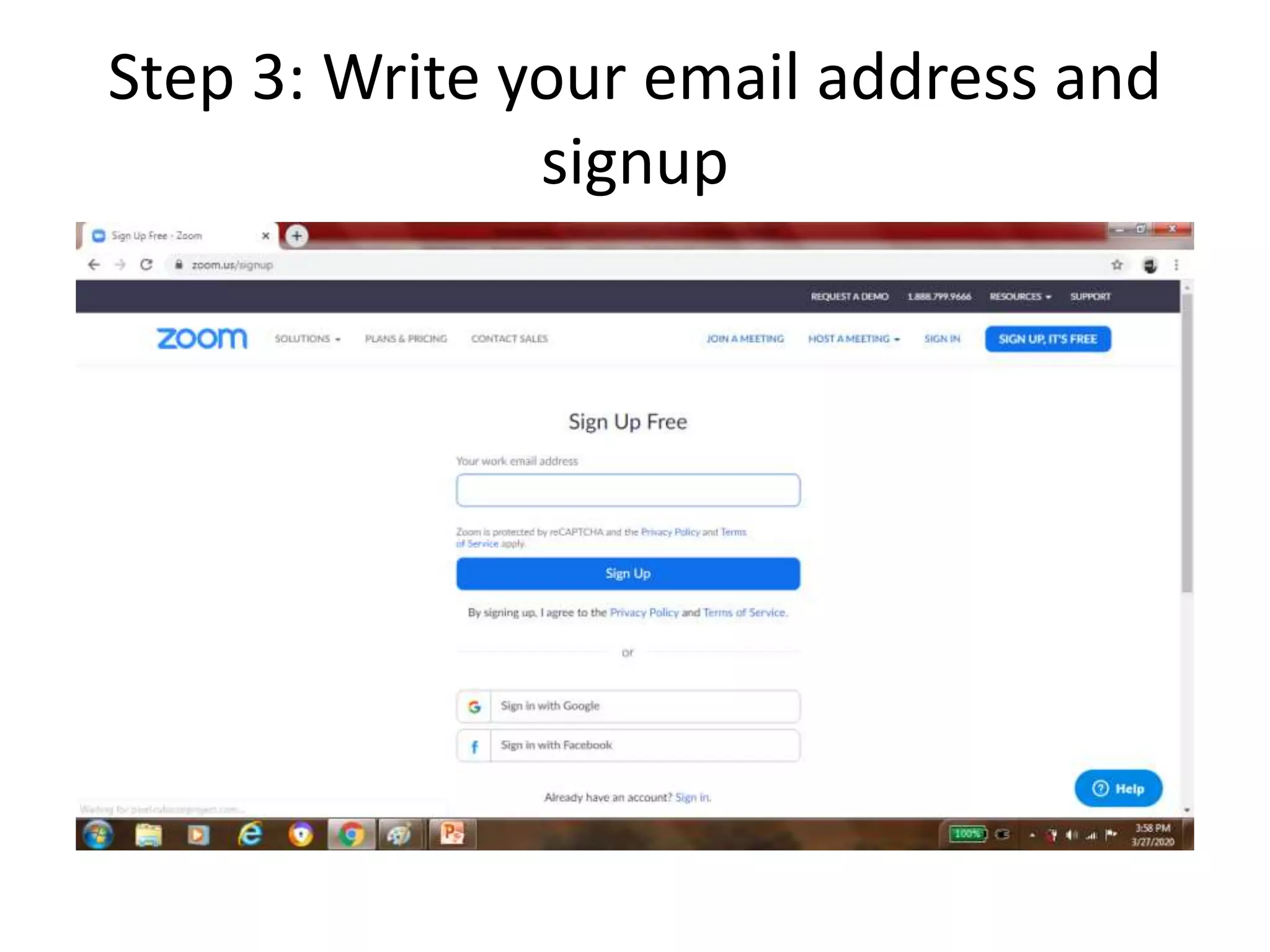
Step 3: Write your email address and
signup
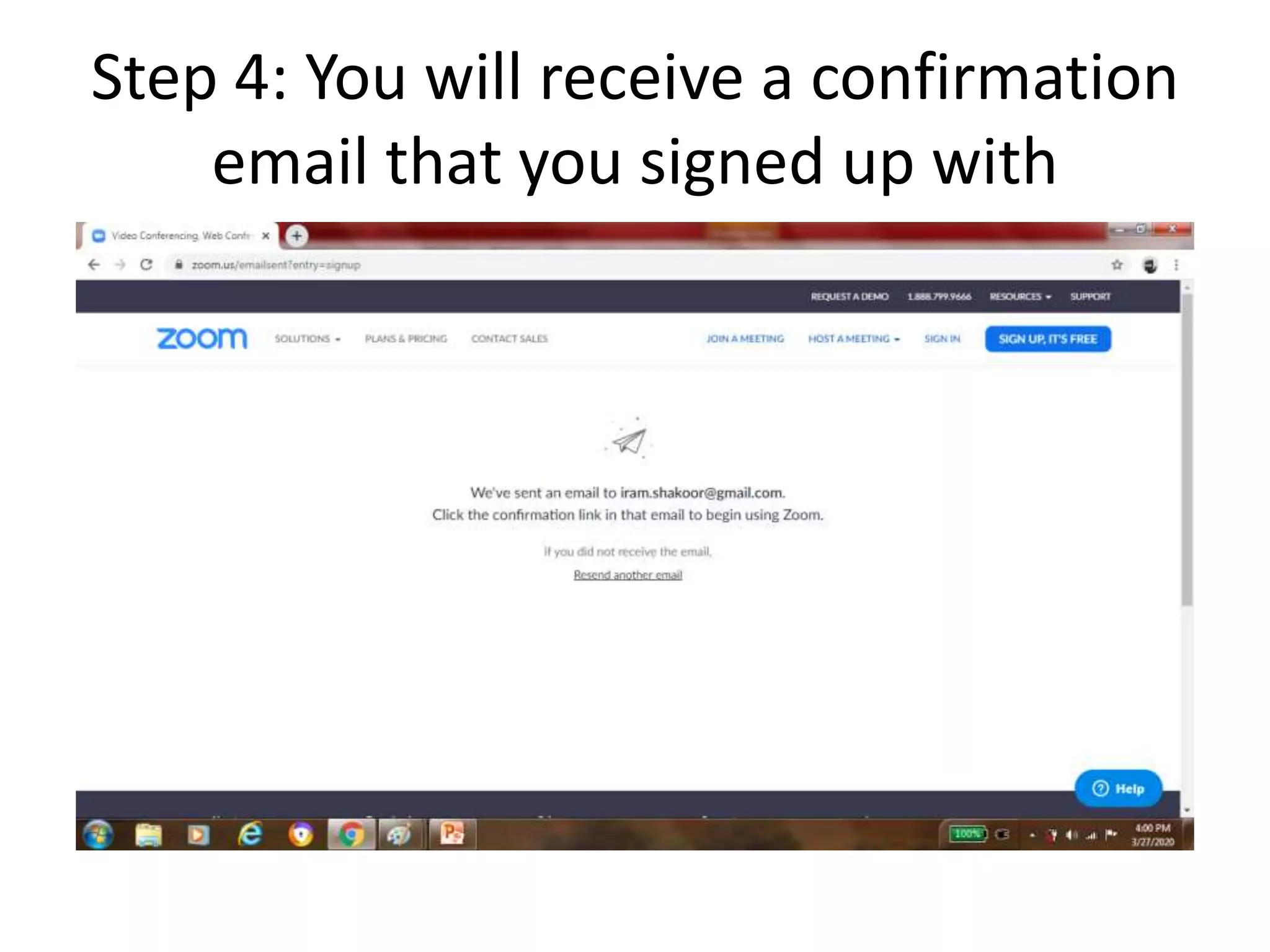
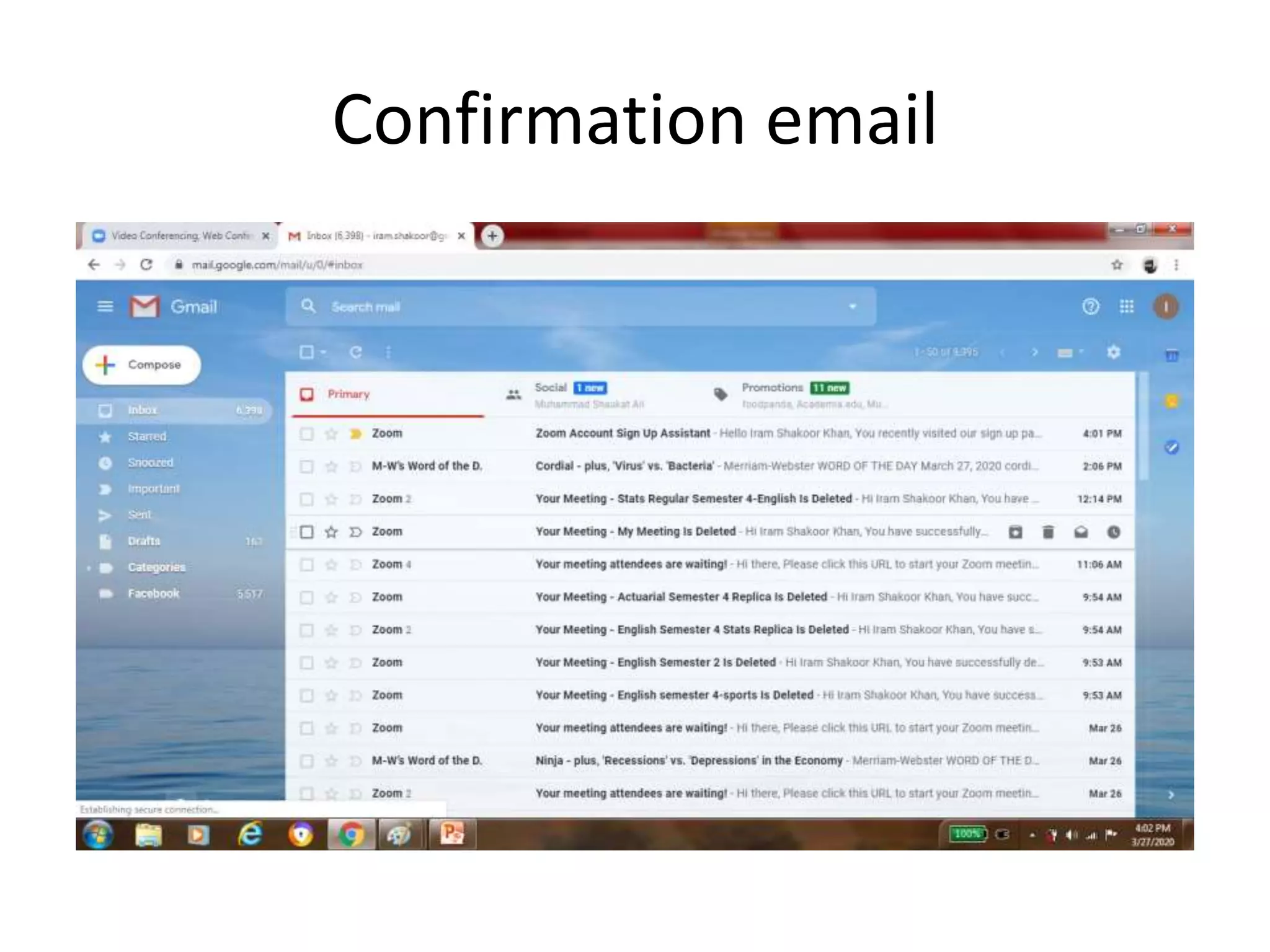
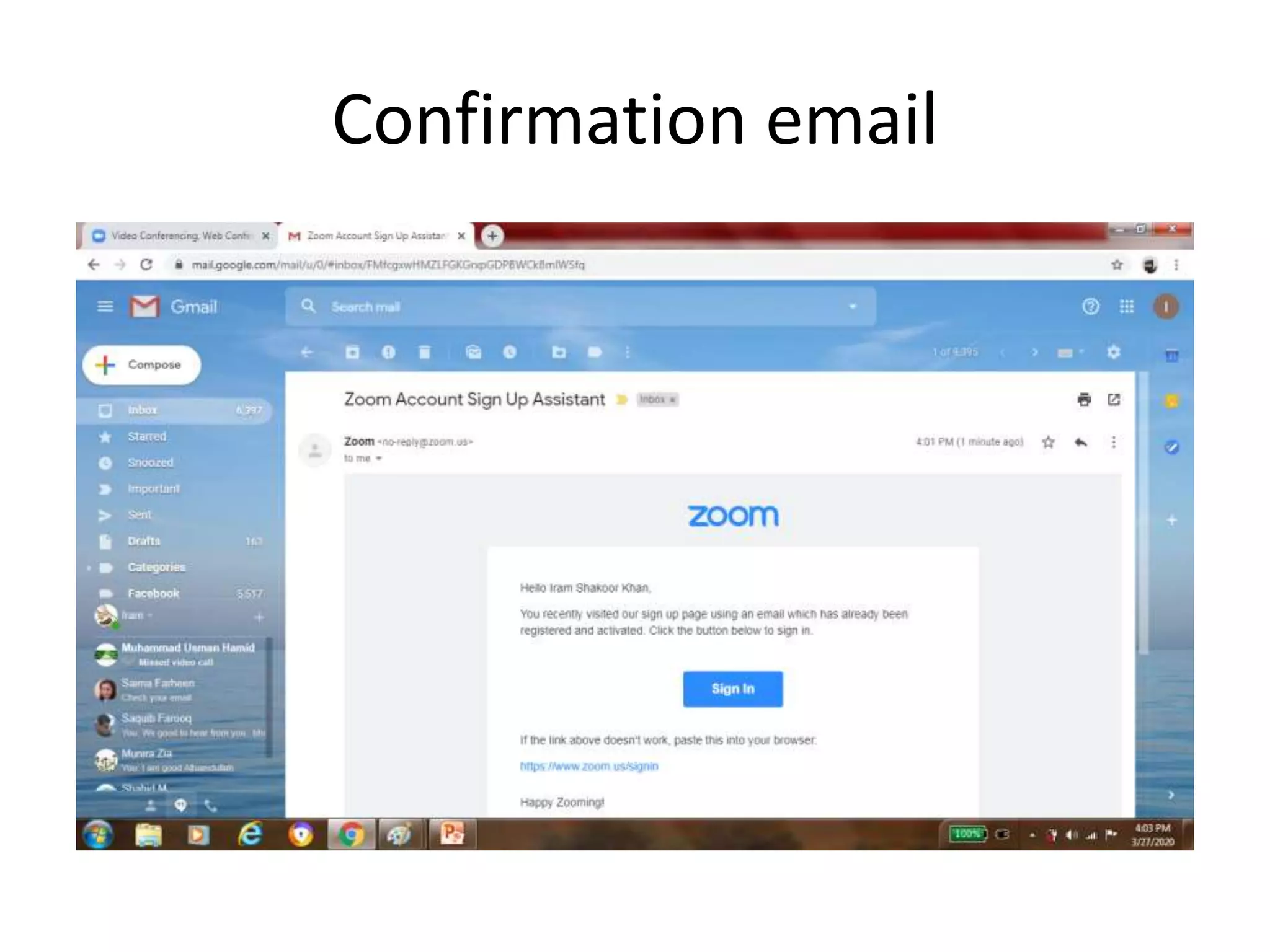
Step 4: You will receive a confirmation
email that you signed up with
Confirmation email
Confirmation email
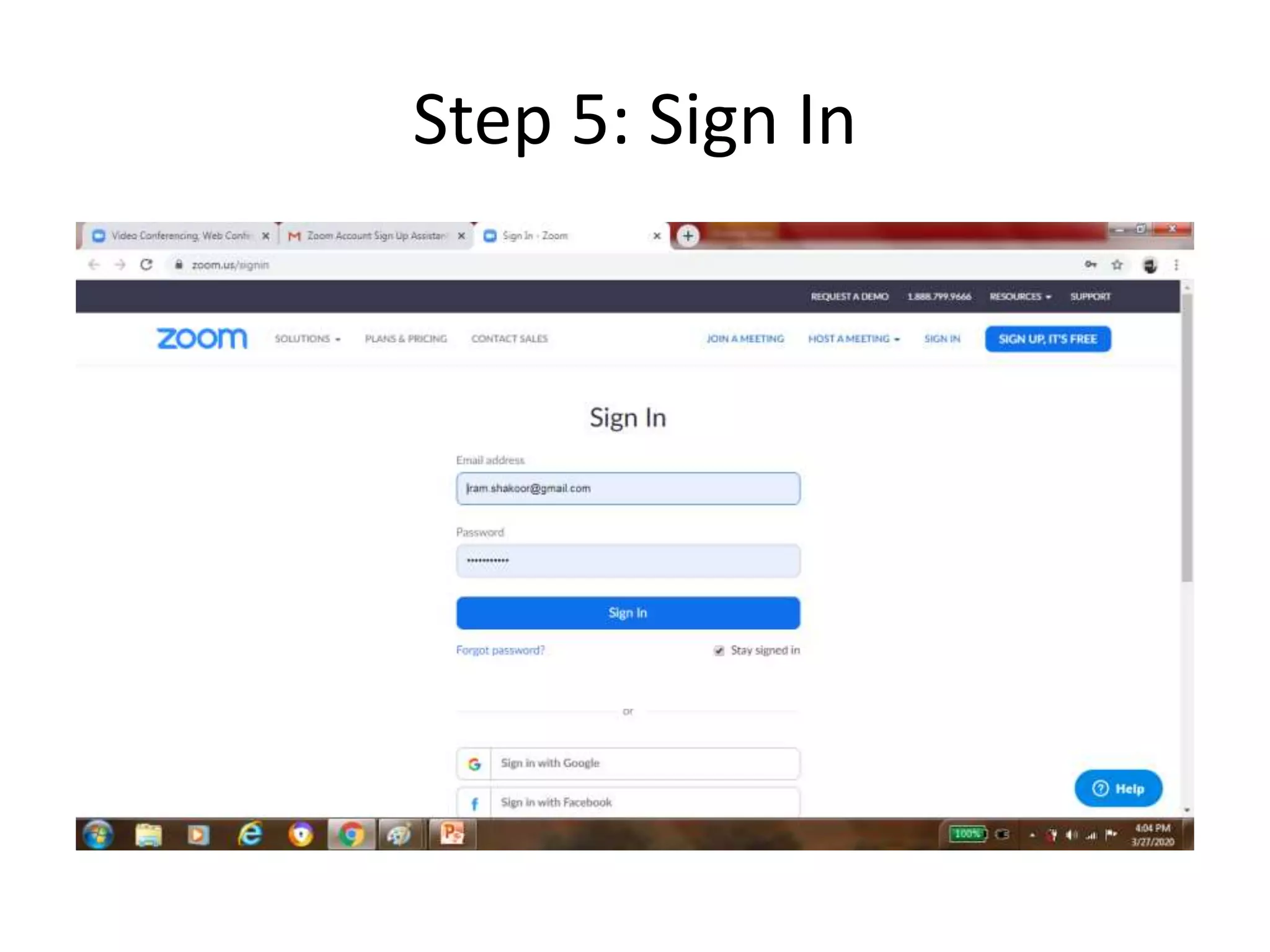
Step 5: Sign In
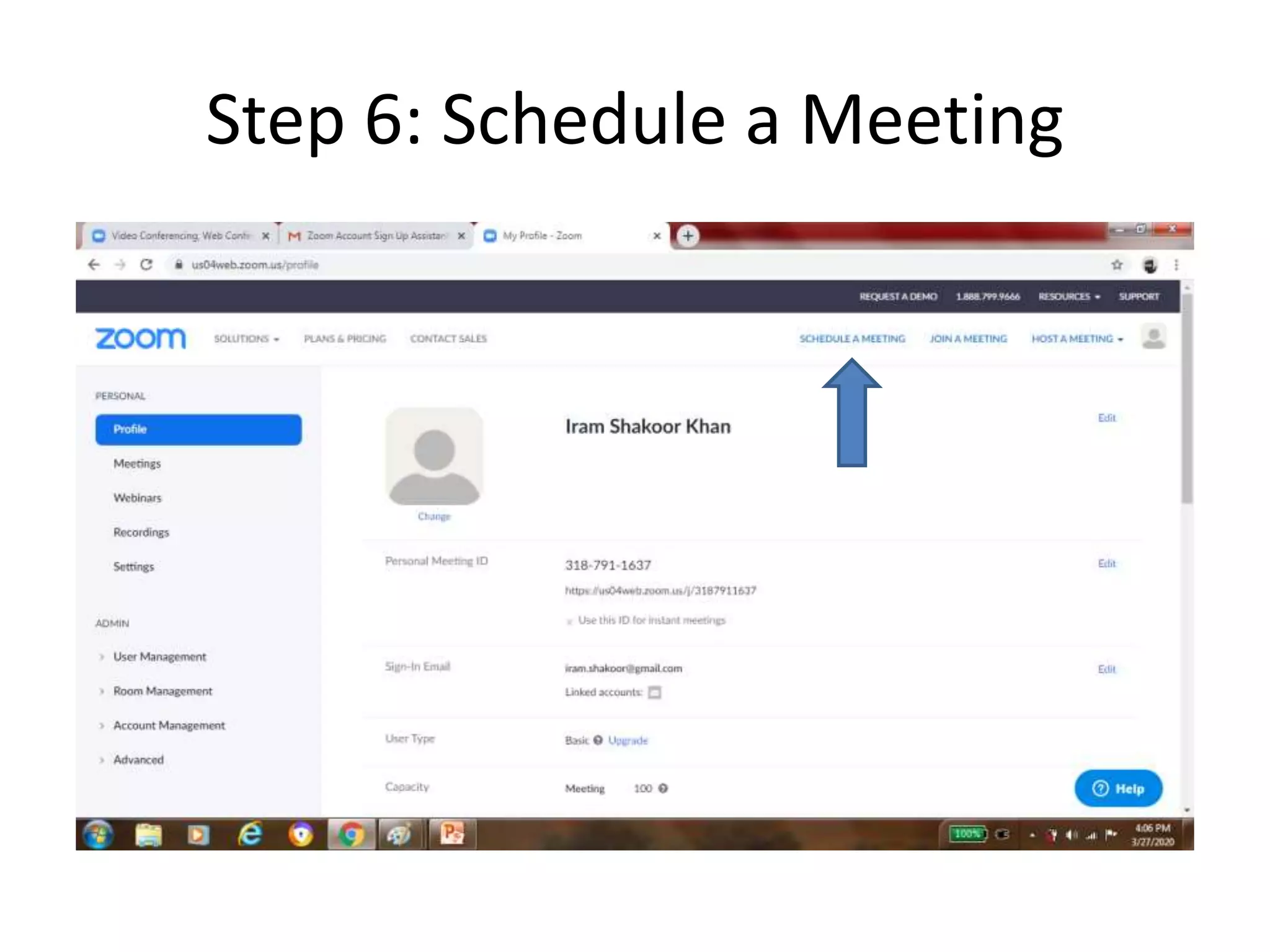
Step 6: Schedule a Meeting
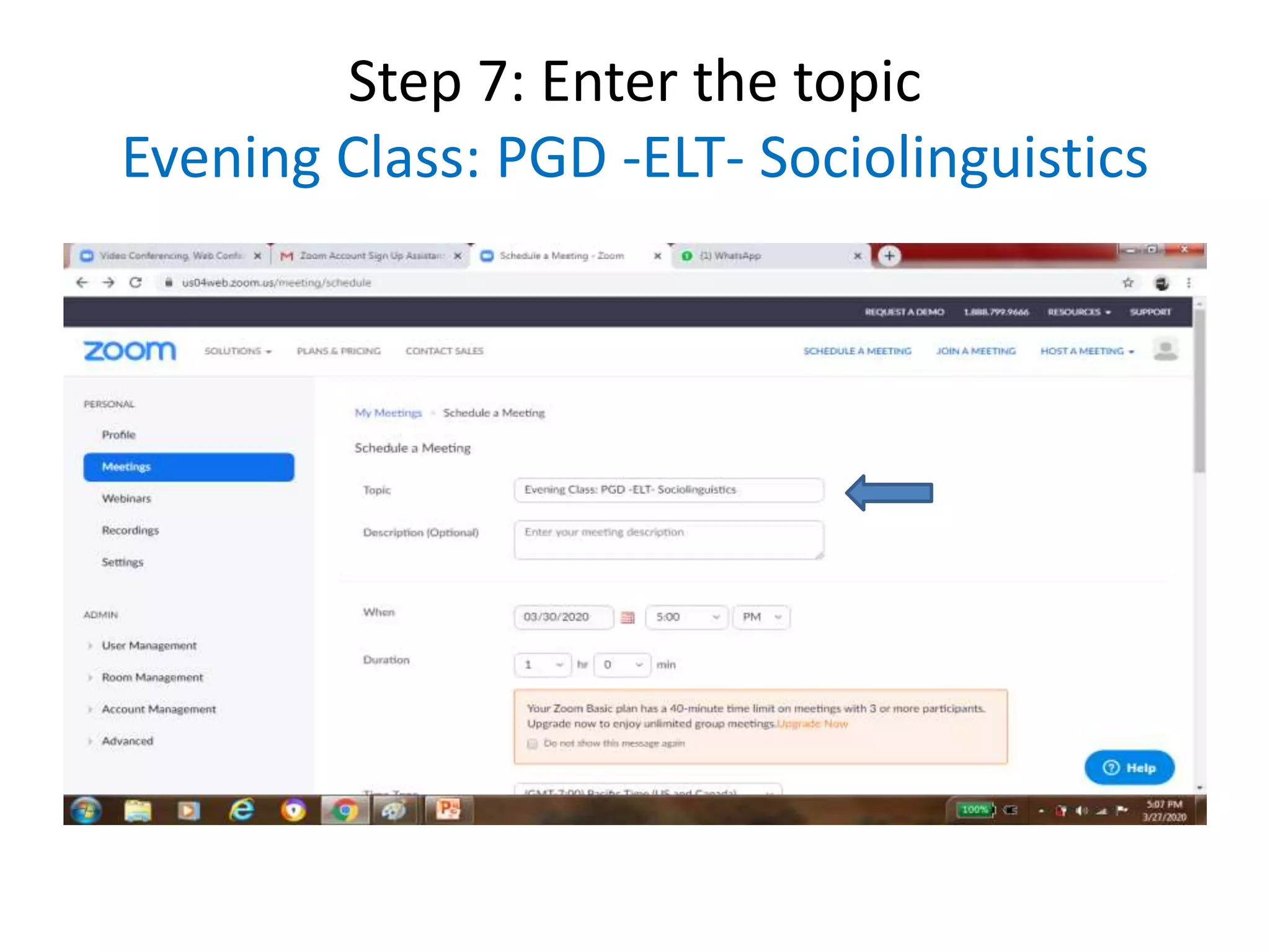
Step 7: Enter the topic
Evening Class: PGD -ELT- Sociolinguistics
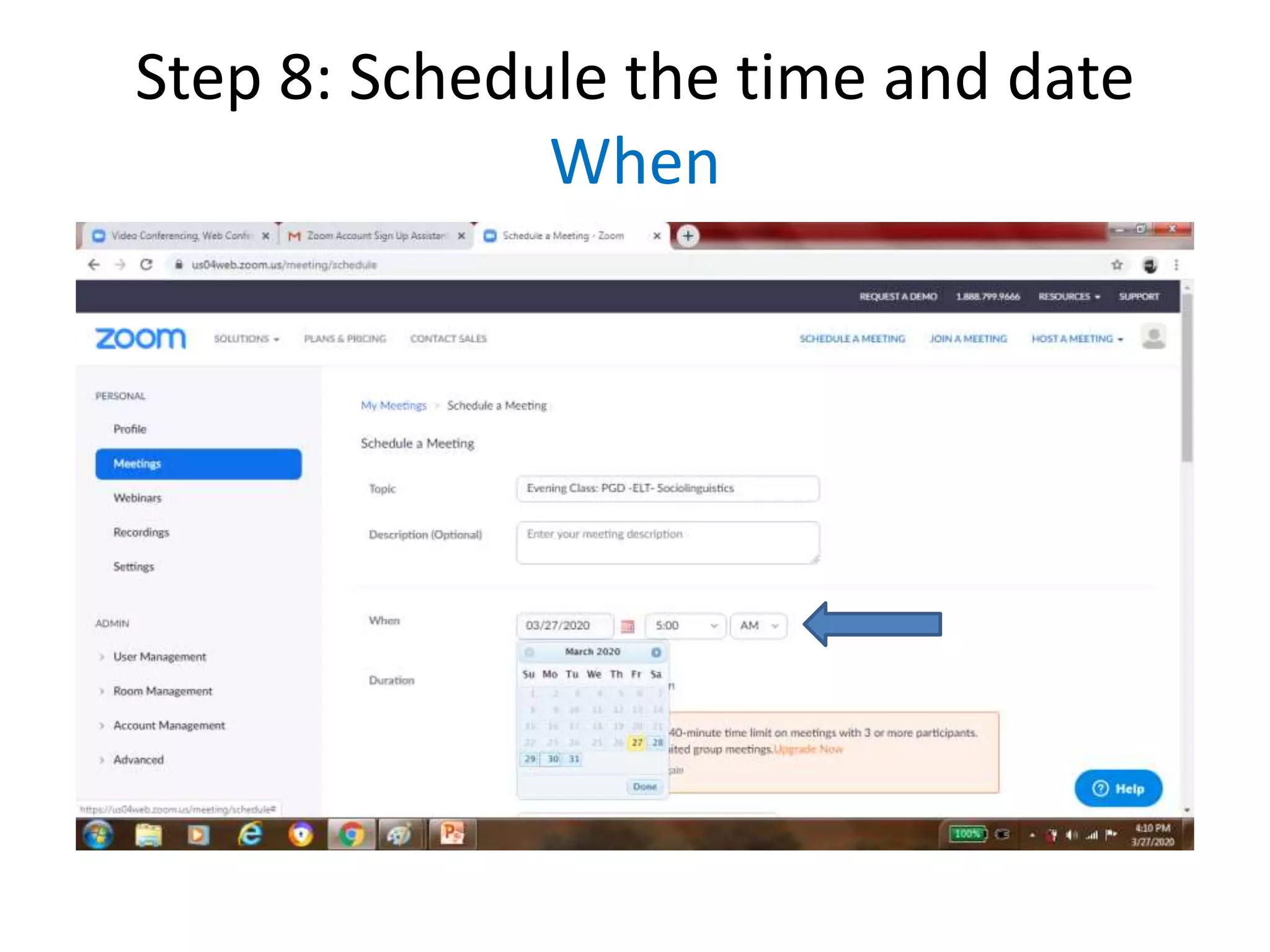
Step 8: Schedule the time and date
When
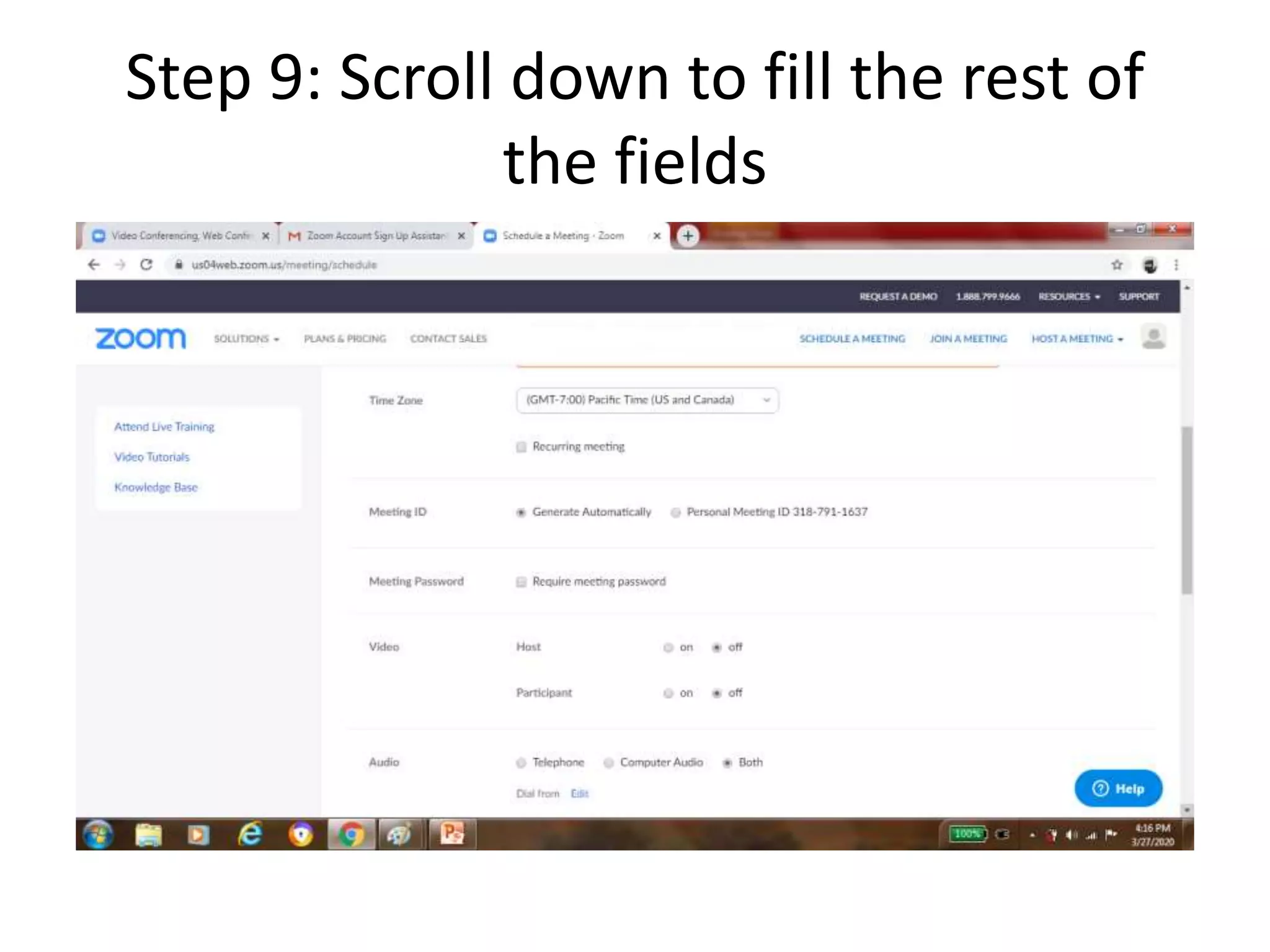
Step 9: Scroll down to fill the rest of
the fields
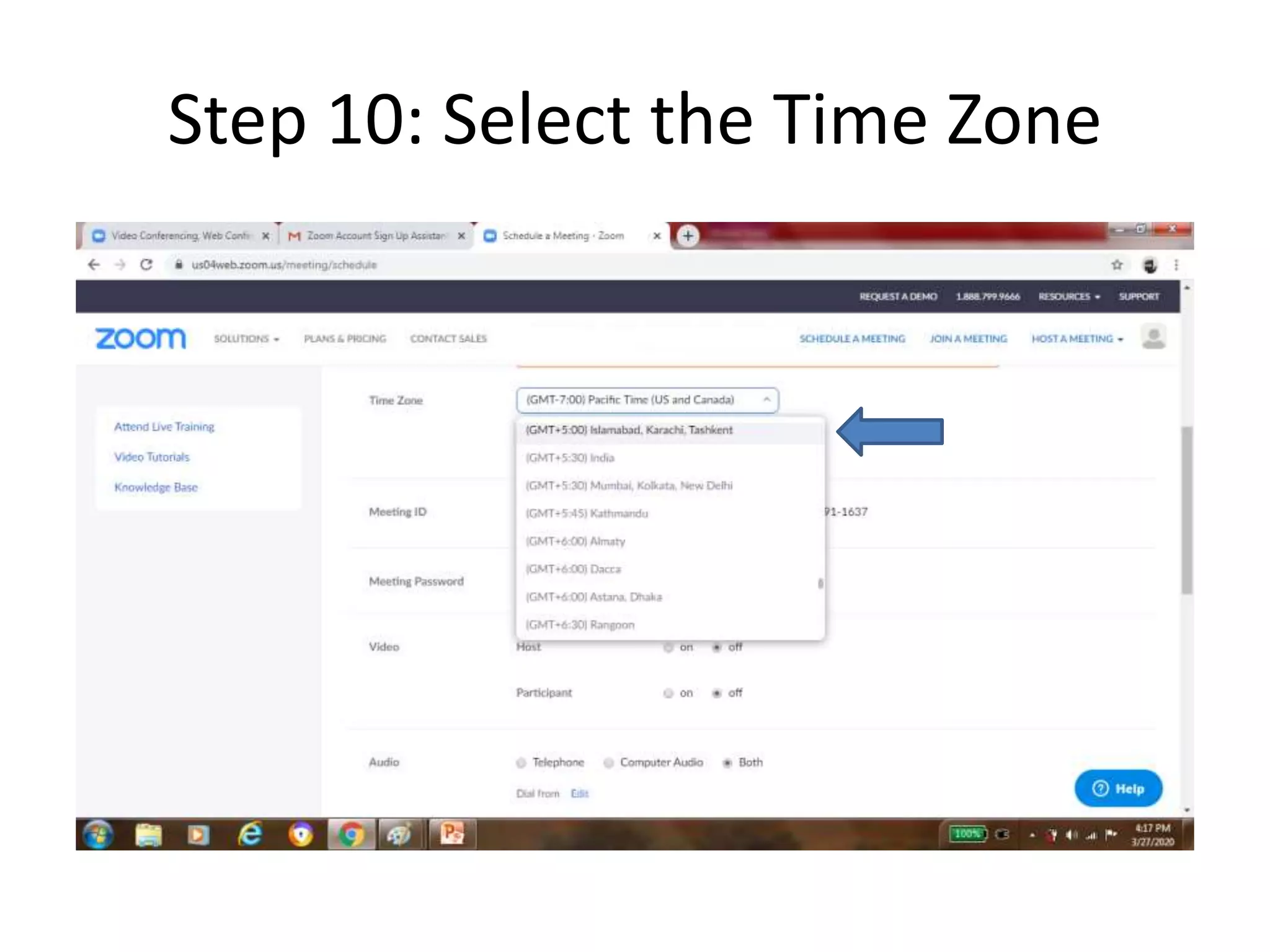
Step 10: Select the Time Zone
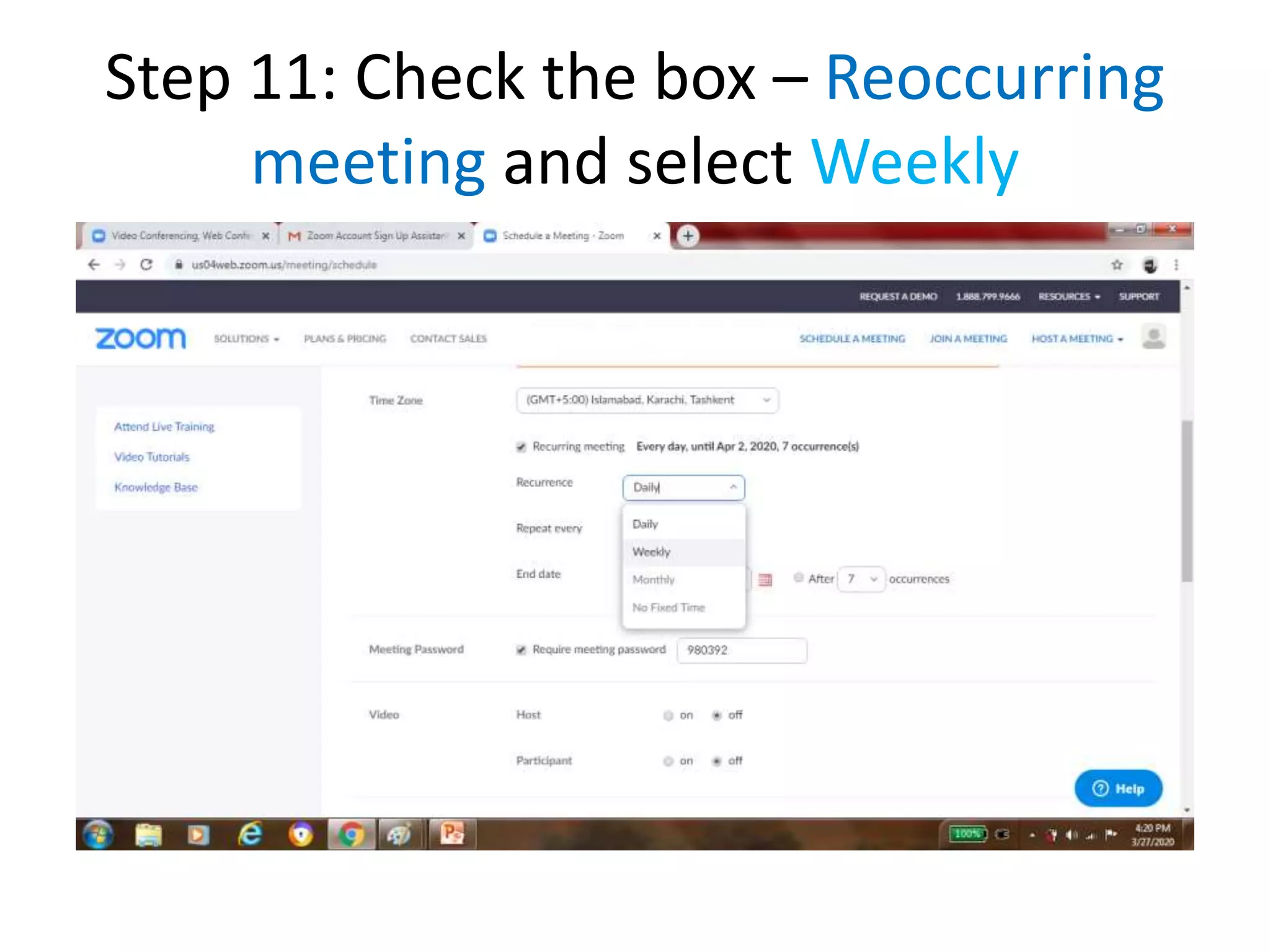
Step 11: Check the box – Reoccurring
meeting and select Weekly
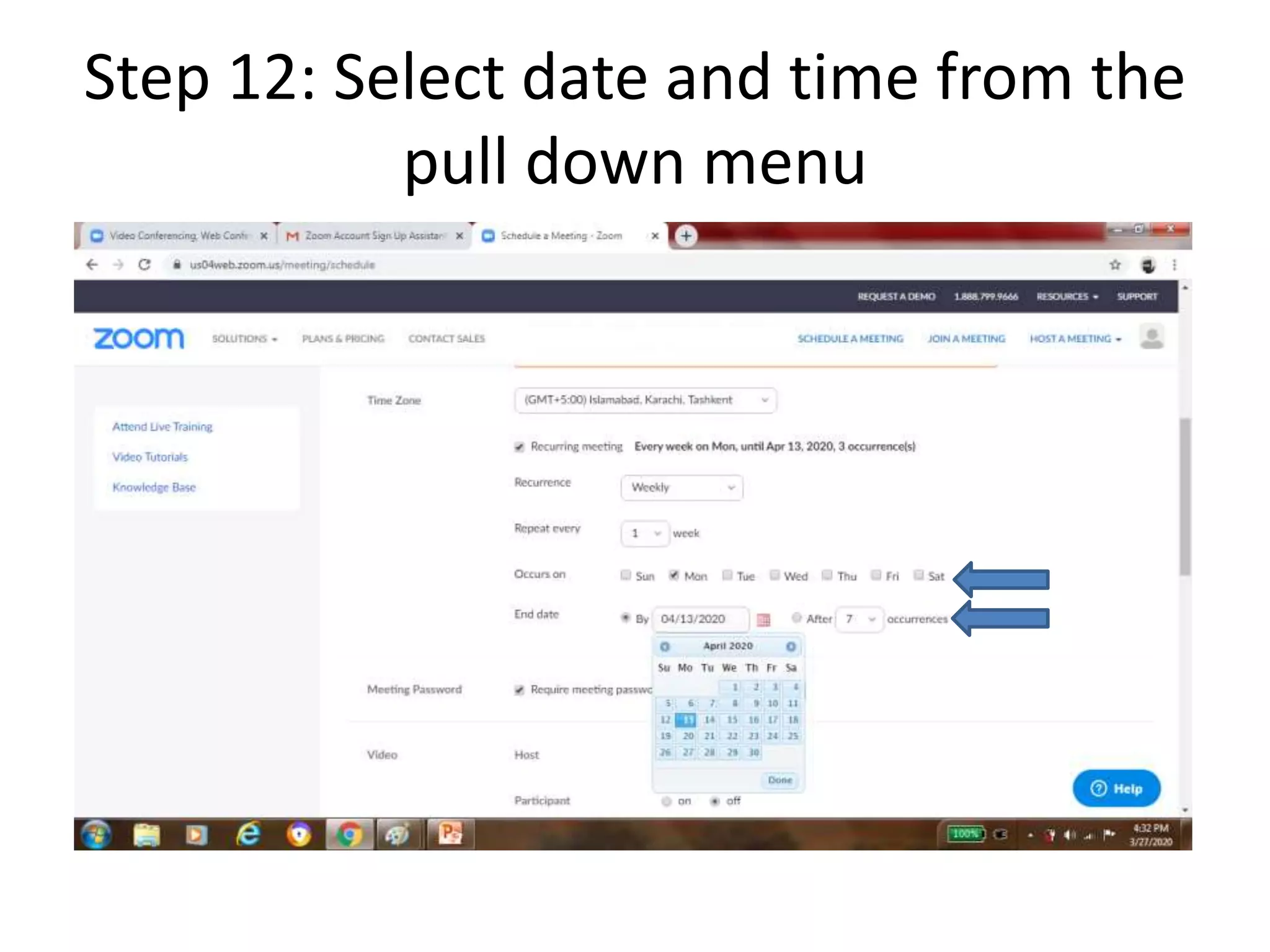
Step 12: Select date and time from the
pull down menu
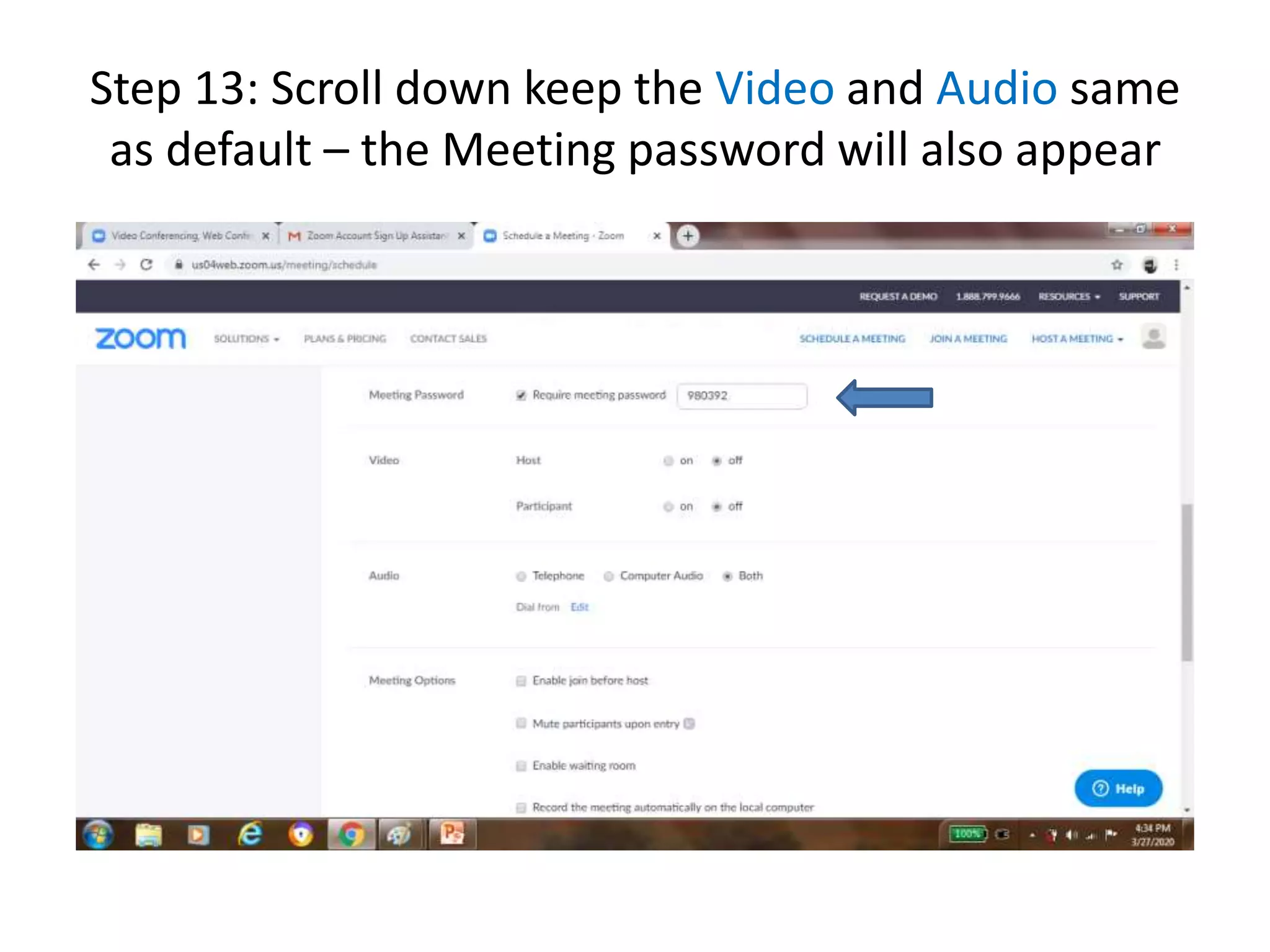
Step 13: Scroll down keep the Video and Audio same
as default – the Meeting password will also appear
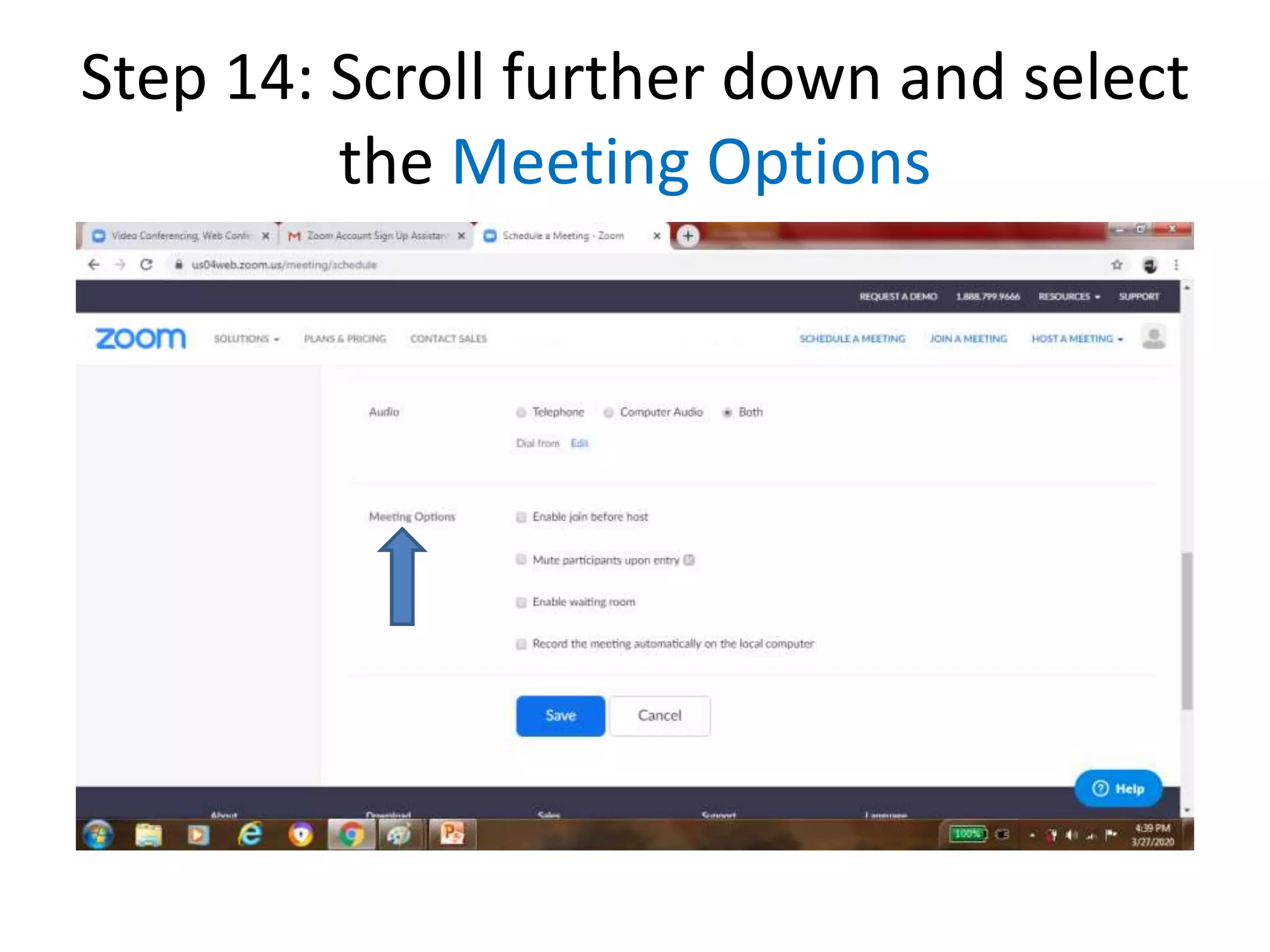
Step 14: Scroll further down and select
the Meeting Options
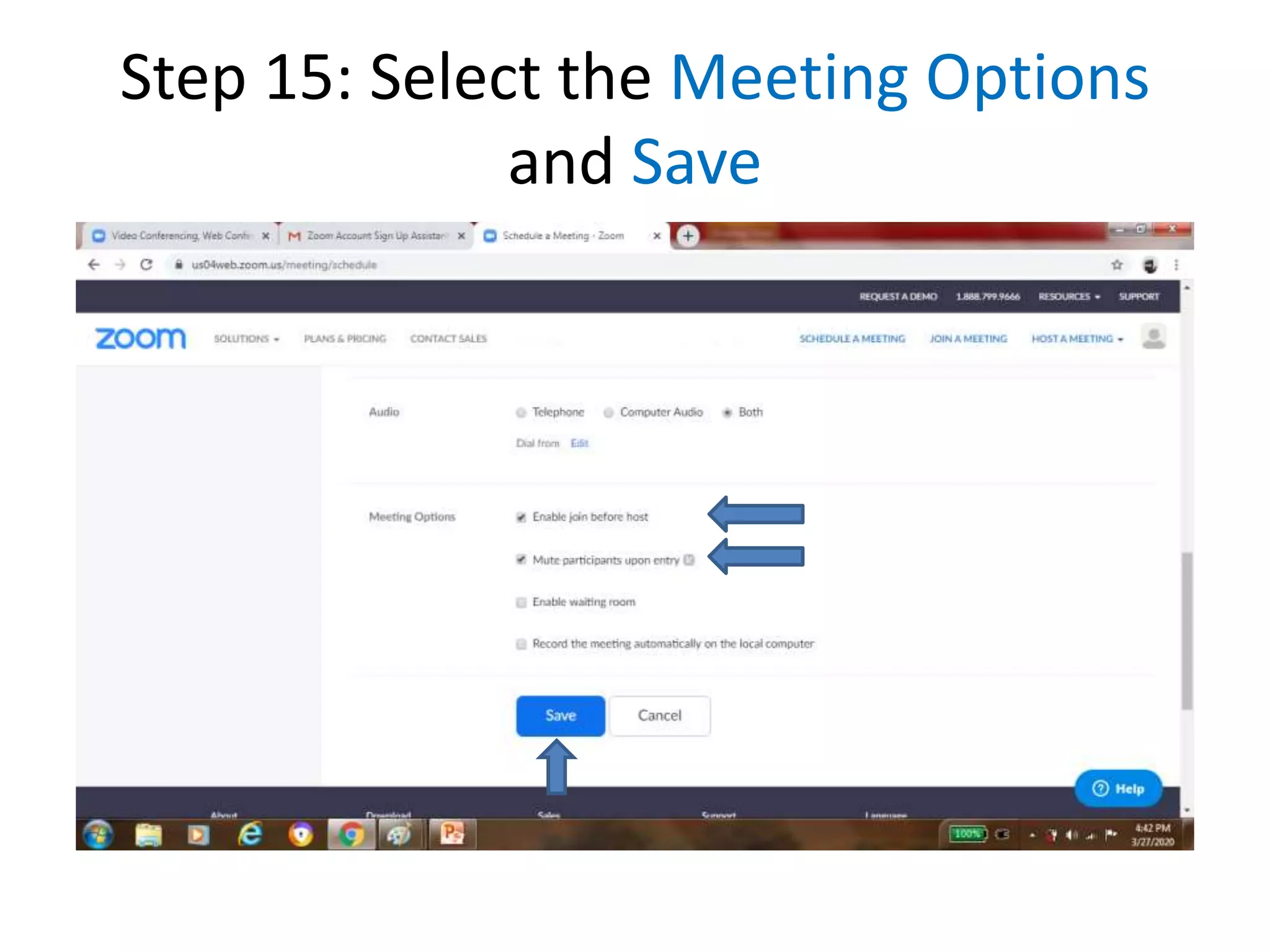
Step 15: Select the Meeting Options
and Save
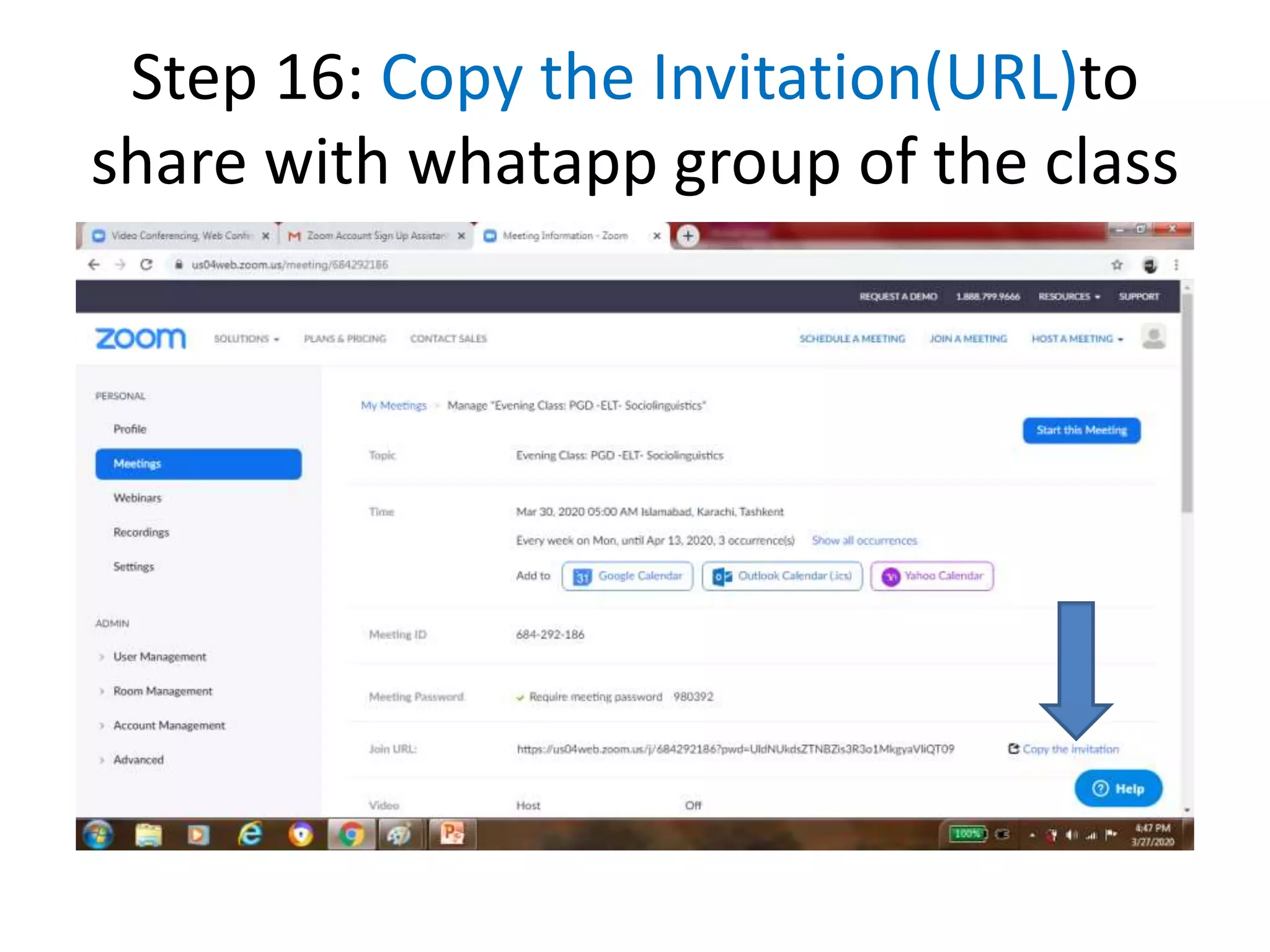
Step 16: Copy the Invitation(URL)to
share with whatapp group of the class
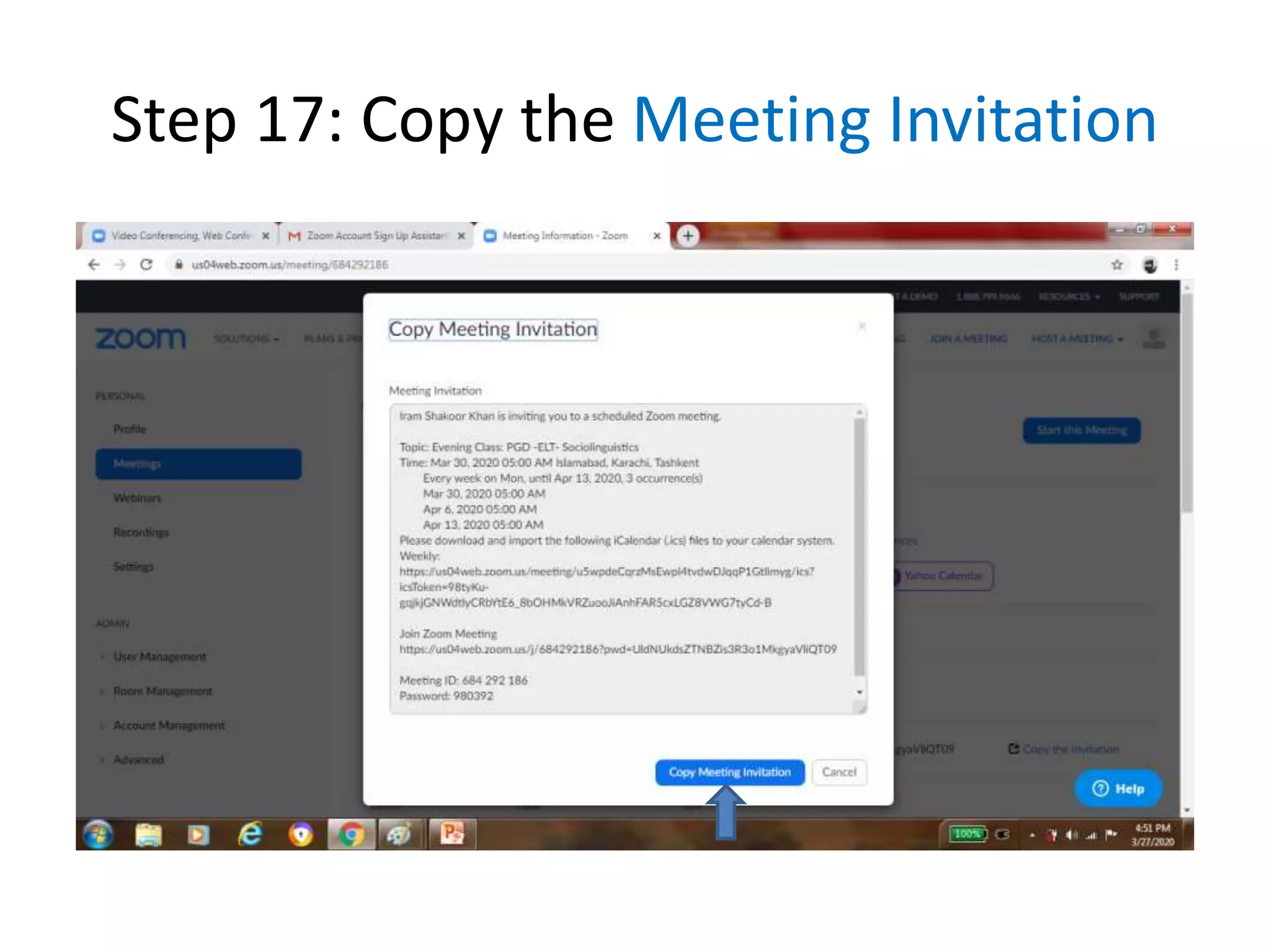
Step 17: Copy the Meeting Invitation
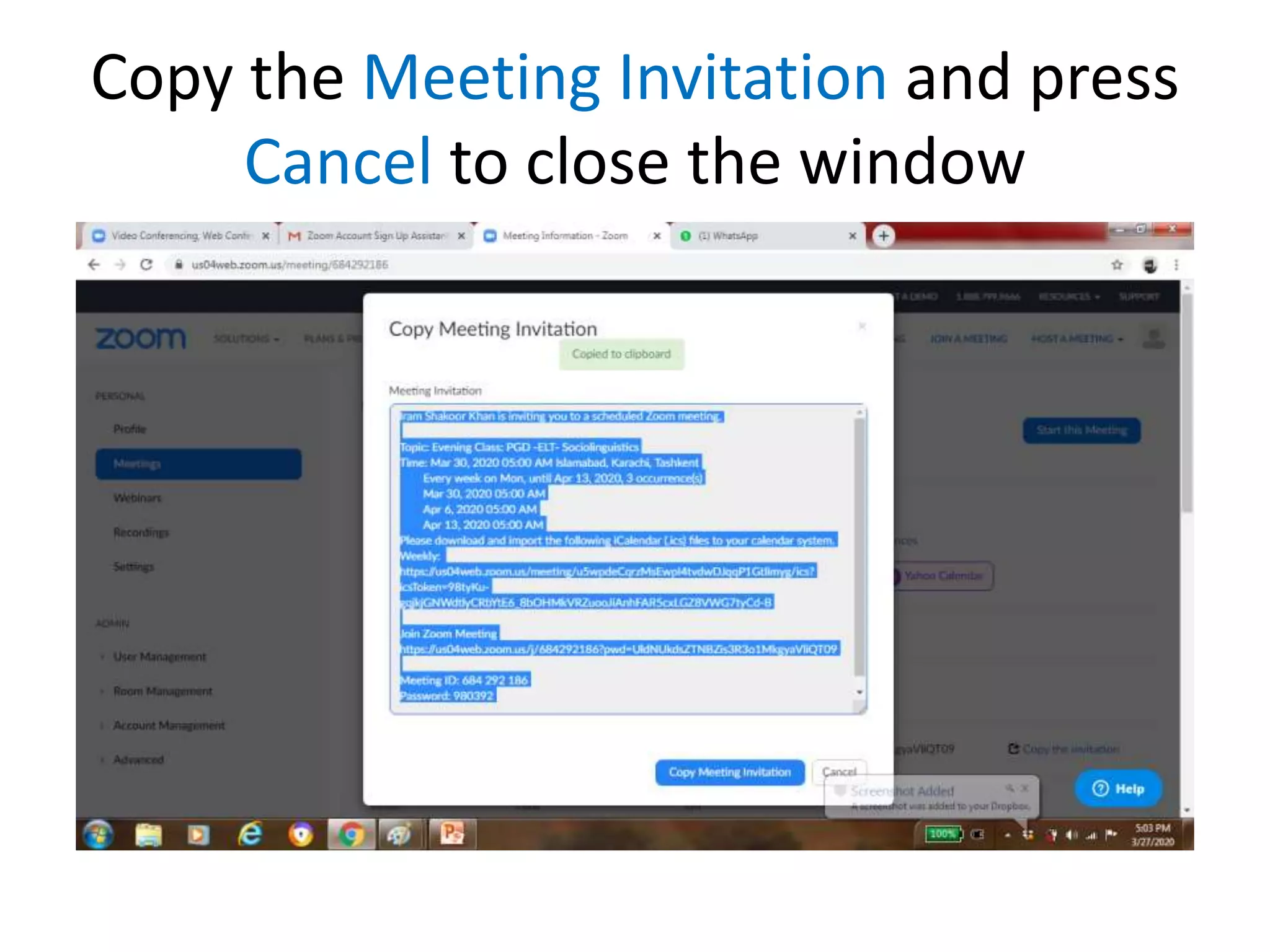
Copy the Meeting Invitation and press
Cancel to close the window
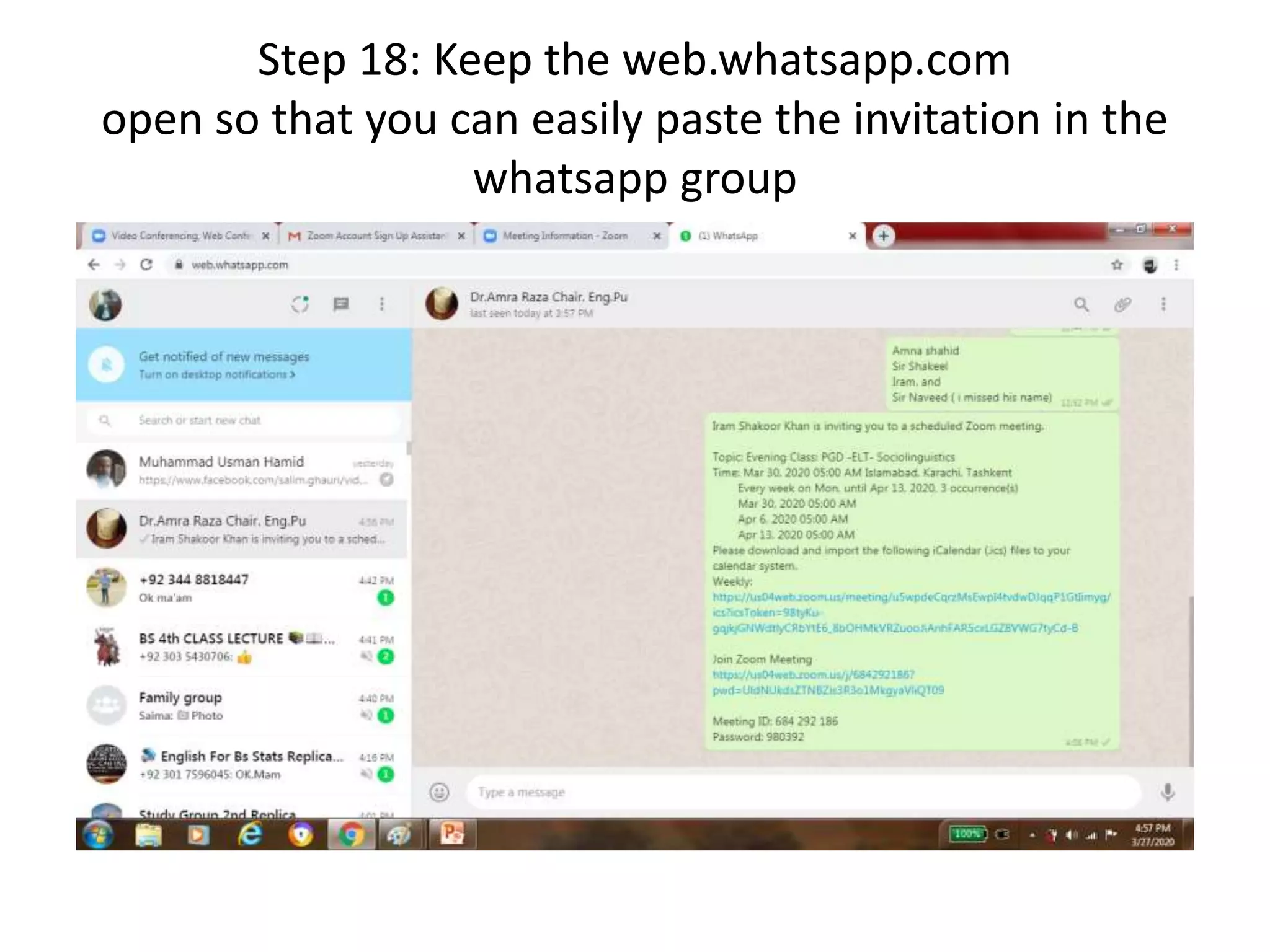
Step 18: Keep the web.whatsapp.com
open so that you can easily paste the invitation in the
whatsapp group
40 mins Free Class
• You need to re-login to complete the class and
ask the students to do the same.
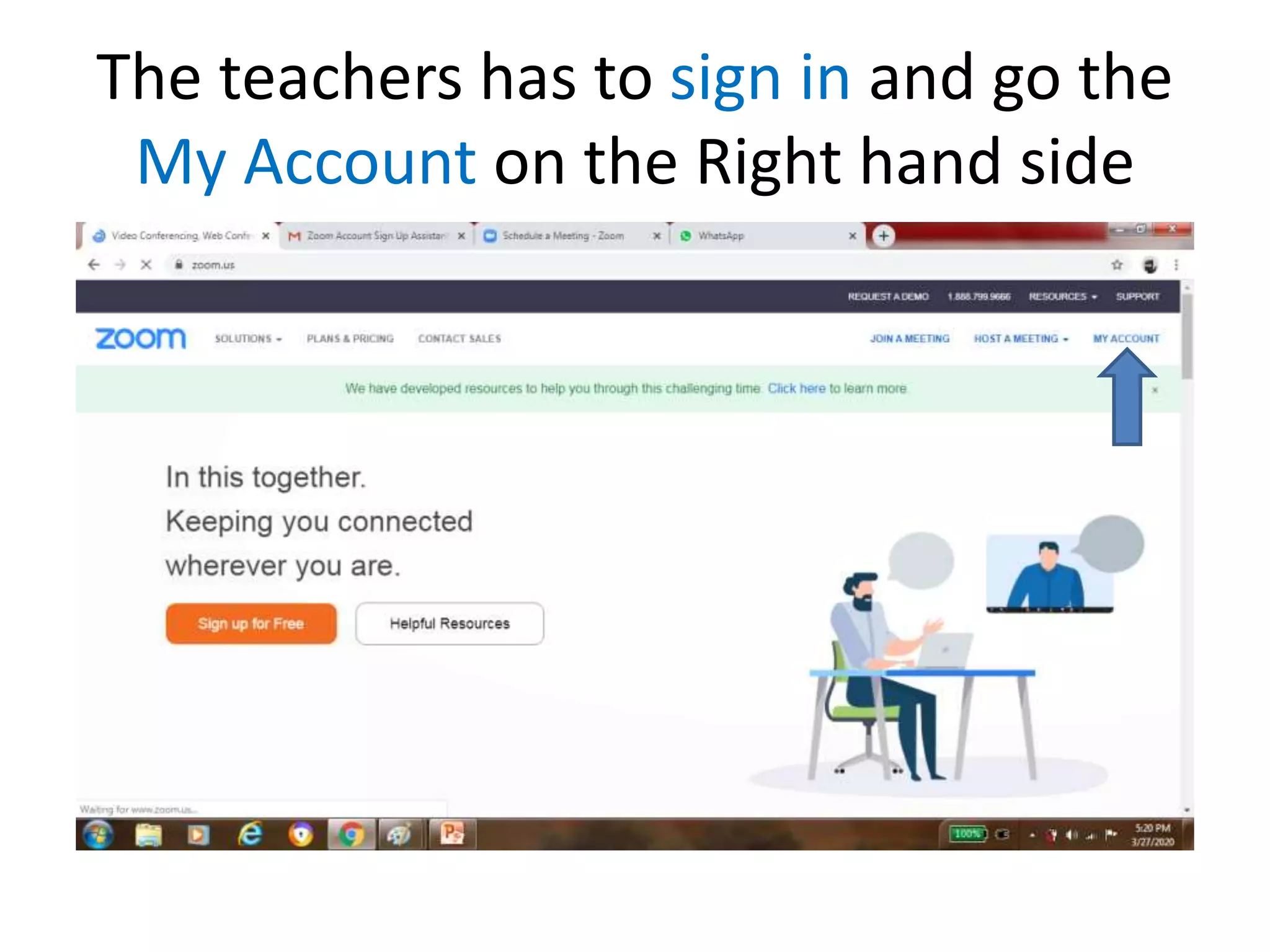
• The teachers has to sign in (save you password-
will save a lot of time) and go the My Account on
the Right hand side.
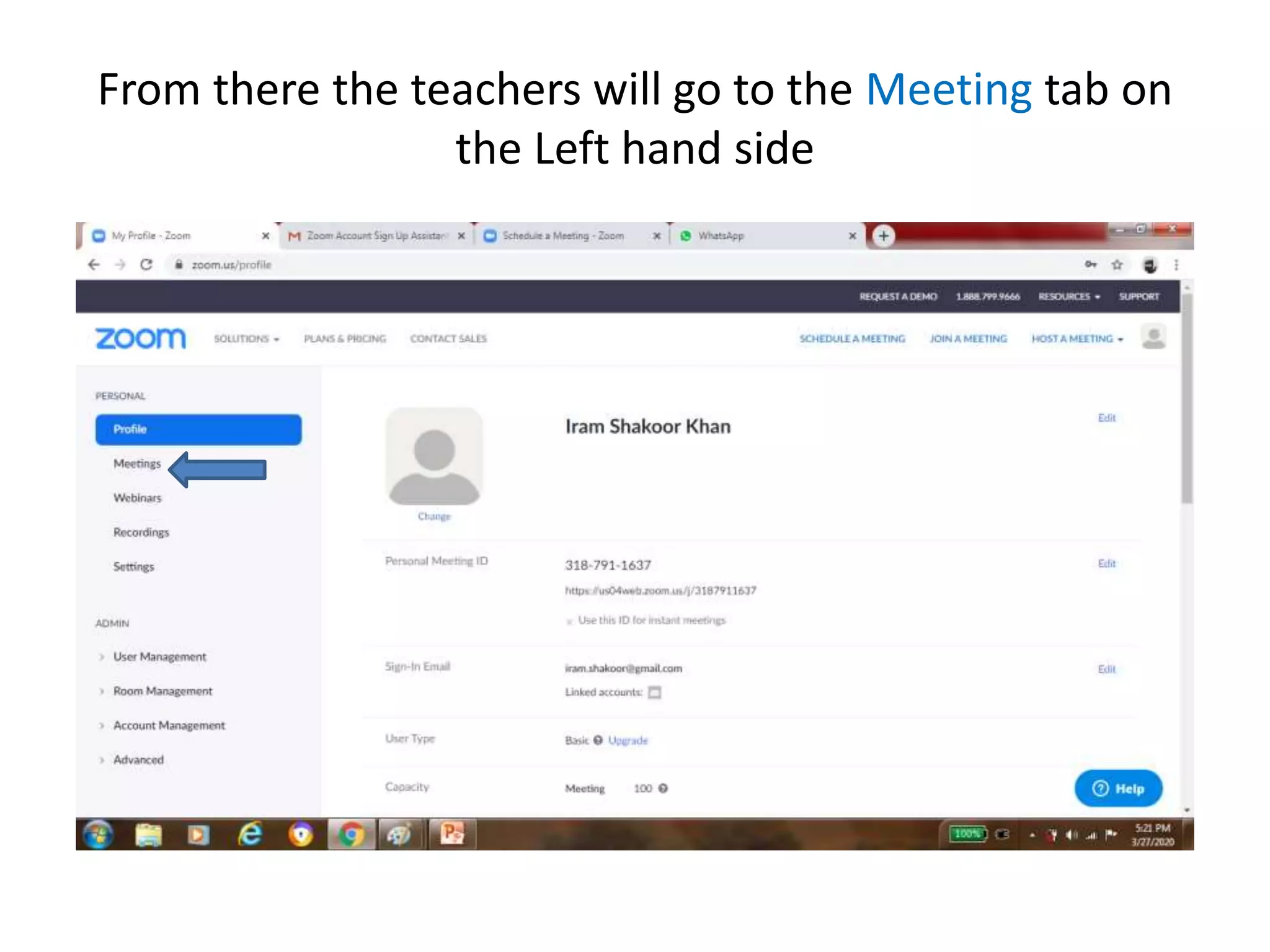
• From there, the teachers will go to the Meeting
tab on the right and Click on Start Meeting ( it
does not take more than a min)
• The students will re-login with same URL link that
you sent as invitation.
The teachers has to sign in and go the
My Account on the Right hand side
From there the teachers will go to the Meeting tab on
the Left hand side
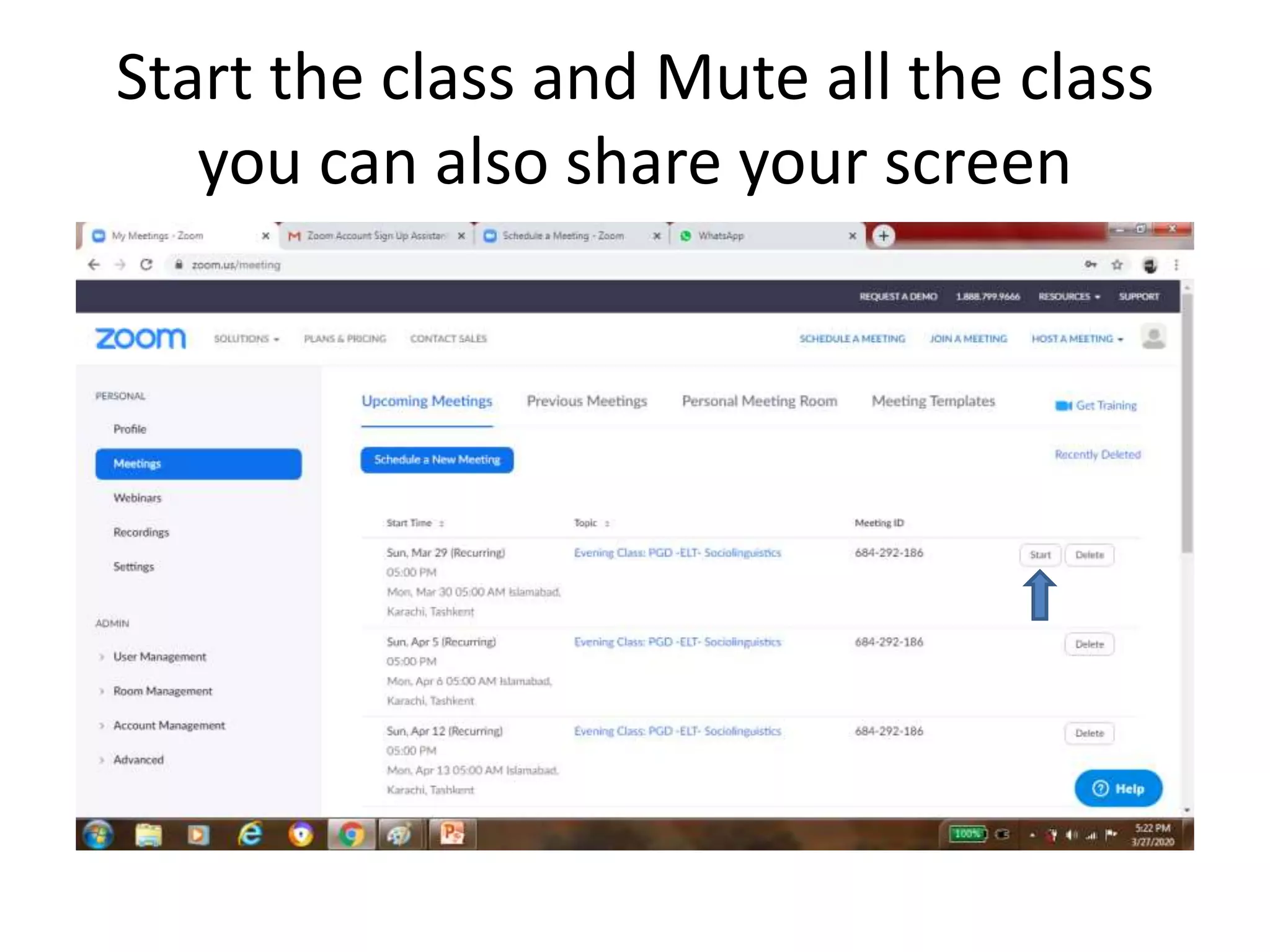
Start the class and Mute all the class
you can also share your screen
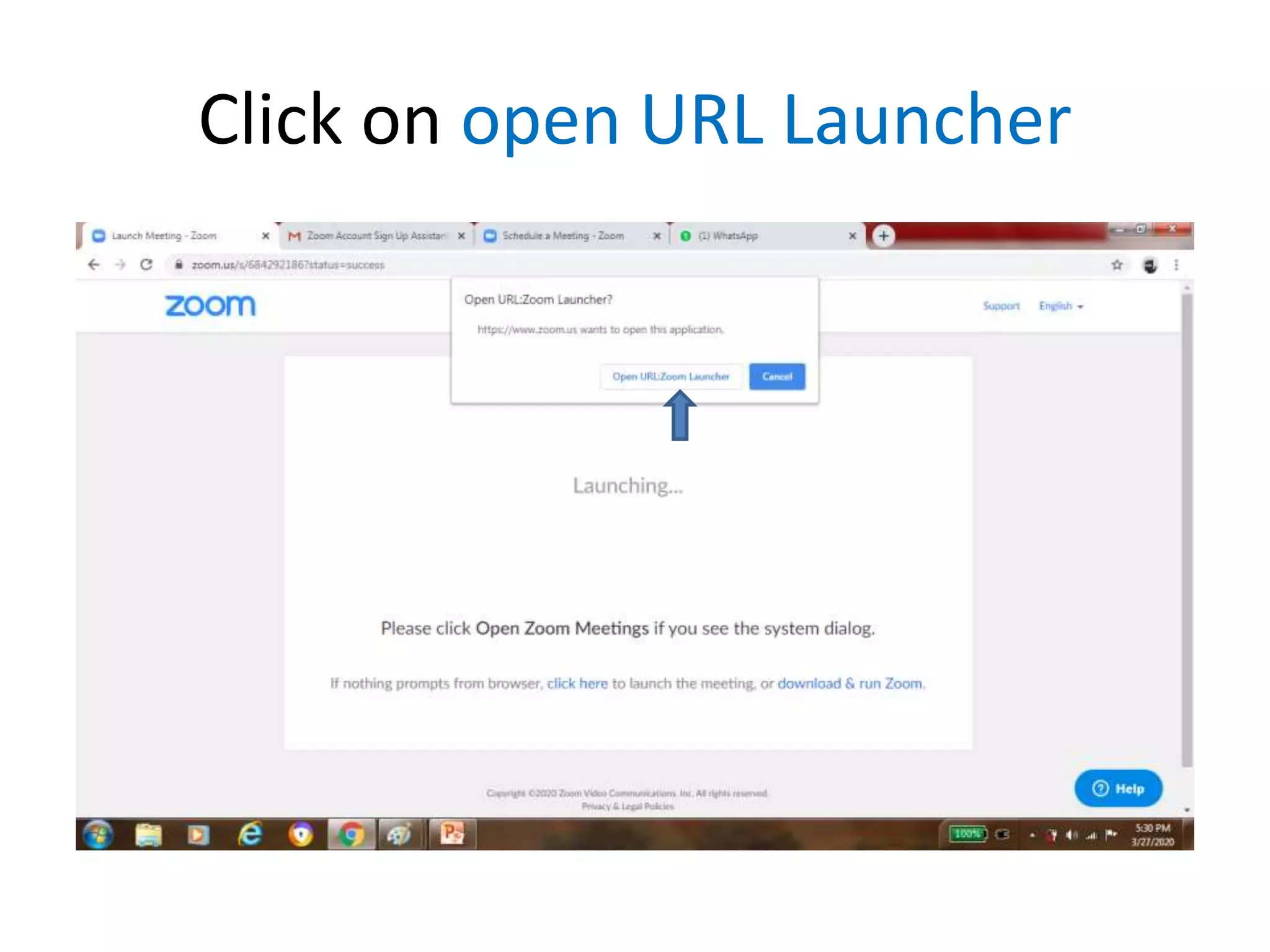
Click on open URL Launcher
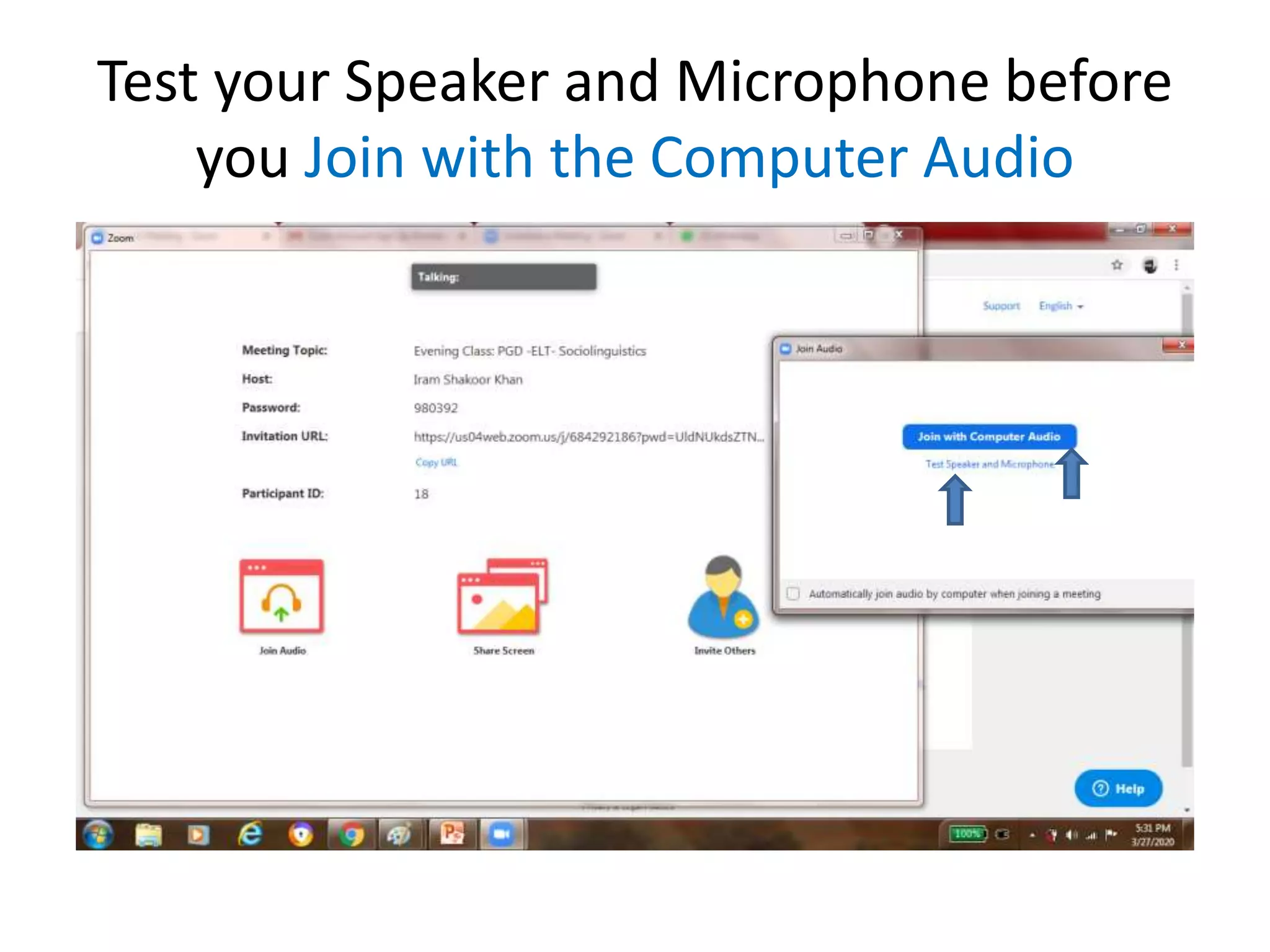
Test your Speaker and Microphone before
you Join with the Computer Audio
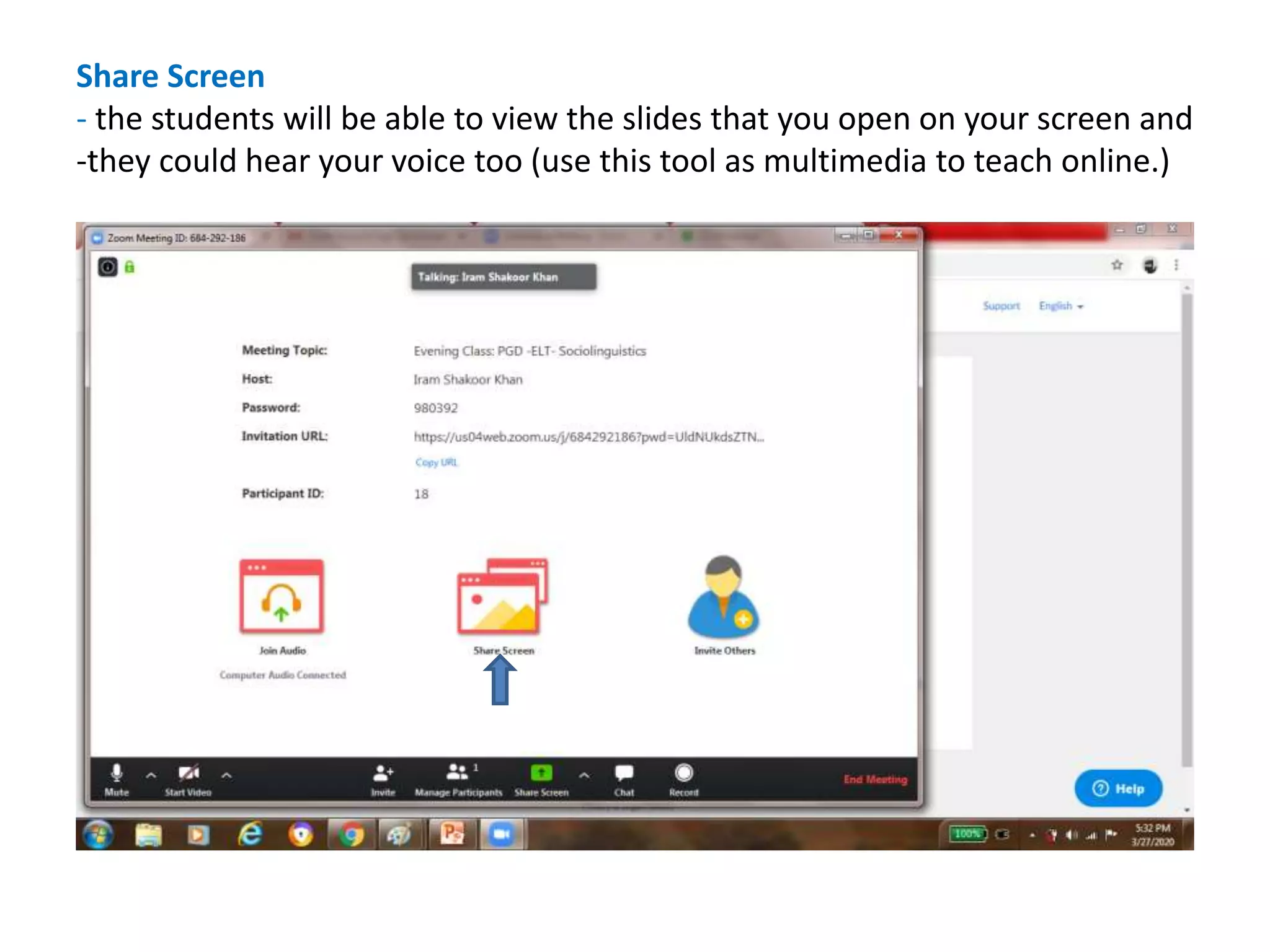
Share Screen
- the students will be able to view the slides that you open on your screen and
-they could hear your voice too (use this tool as multimedia to teach online.)
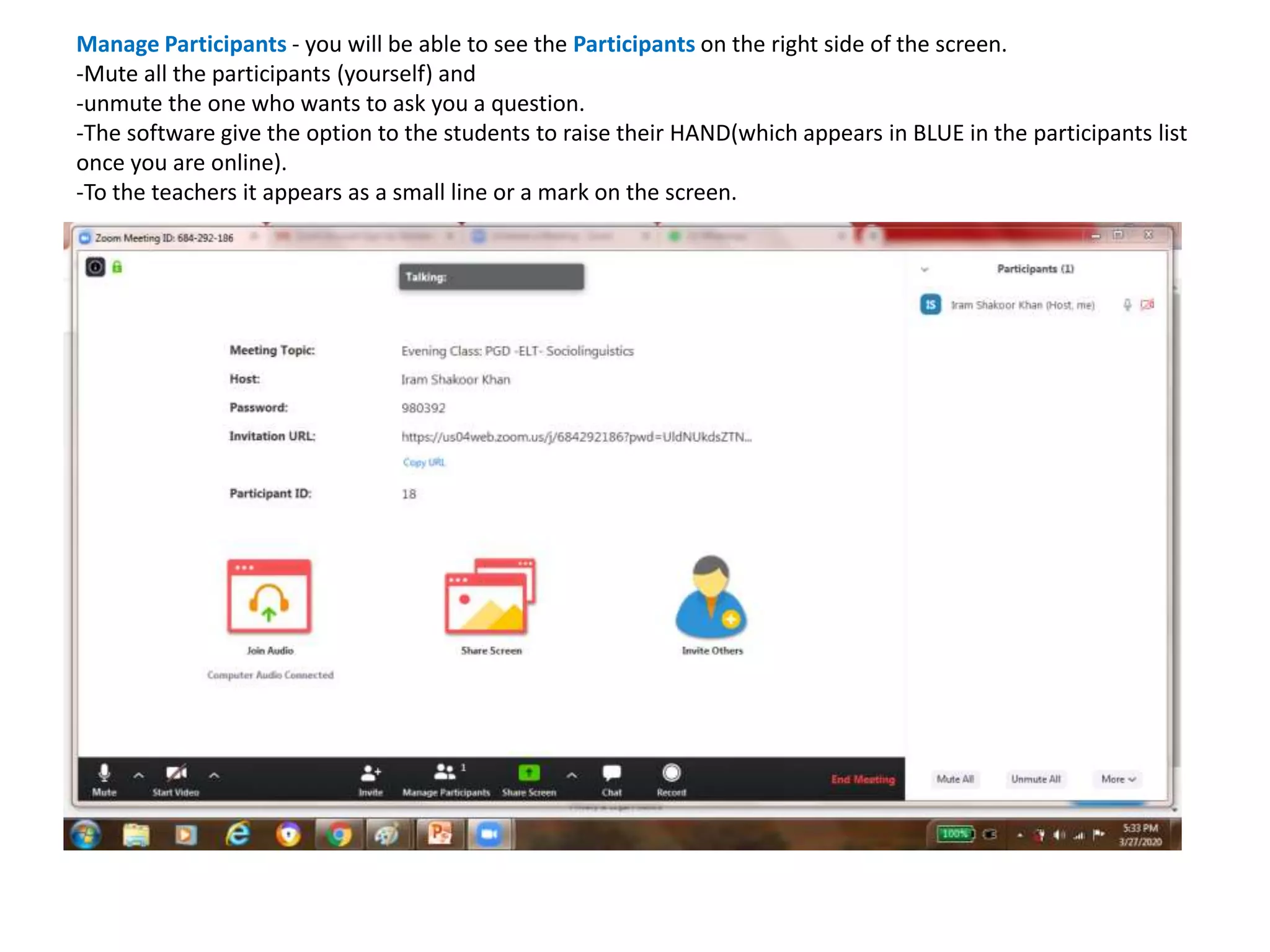
Manage Participants - you will be able to see the Participants on the right side of the screen.
-Mute all the participants (yourself) and
-unmute the one who wants to ask you a question.
-The software give the option to the students to raise their HAND(which appears in BLUE in the participants list
once you are online).
-To the teachers it appears as a small line or a mark on the screen.
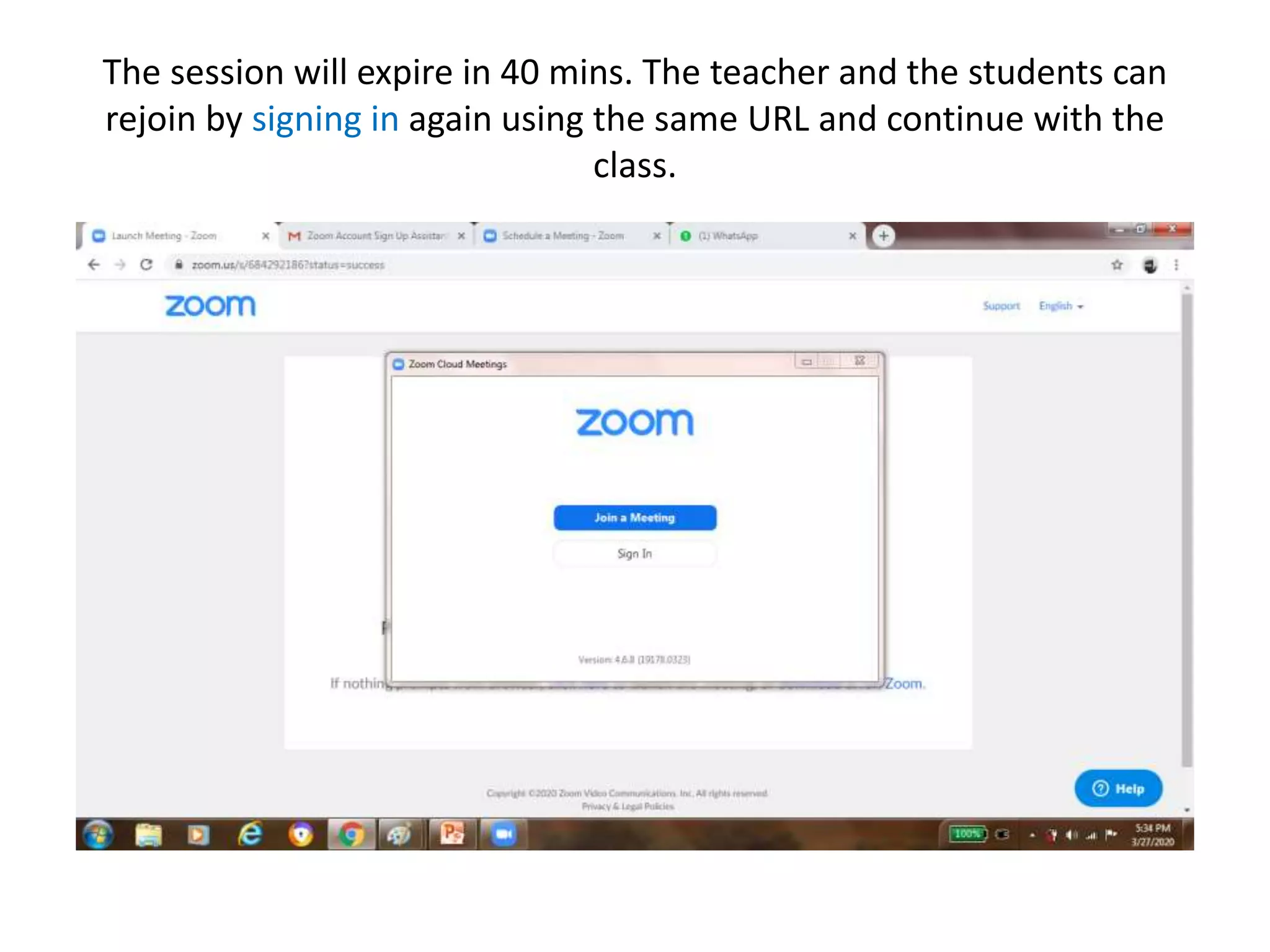
The session will expire in 40 mins. The teacher and the students can
rejoin by signing in again using the same URL and continue with the
class.
THANK YOU

Zoom tutorial

  • 1.
    Zoom Tutorial English Languageand Literature Department Punjab University
  • 2.
    Step 1: openthe website www.zoom.com
  • 3.
    Step 2: clickthe option Signup, its free (on the right)
  • 4.
    Step 3: Writeyour email address and signup
  • 5.
    Step 4: Youwill receive a confirmation email that you signed up with
  • 6.
  • 7.
  • 8.
  • 9.
  • 10.
    Step 7: Enterthe topic Evening Class: PGD -ELT- Sociolinguistics
  • 11.
    Step 8: Schedulethe time and date When
  • 12.
    Step 9: Scrolldown to fill the rest of the fields
  • 13.
    Step 10: Selectthe Time Zone
  • 14.
    Step 11: Checkthe box – Reoccurring meeting and select Weekly
  • 15.
    Step 12: Selectdate and time from the pull down menu
  • 16.
    Step 13: Scrolldown keep the Video and Audio same as default – the Meeting password will also appear
  • 17.
    Step 14: Scrollfurther down and select the Meeting Options
  • 18.
    Step 15: Selectthe Meeting Options and Save
  • 19.
    Step 16: Copythe Invitation(URL)to share with whatapp group of the class
  • 20.
    Step 17: Copythe Meeting Invitation
  • 21.
    Copy the MeetingInvitation and press Cancel to close the window
  • 22.
    Step 18: Keepthe web.whatsapp.com open so that you can easily paste the invitation in the whatsapp group
  • 23.
    40 mins FreeClass • You need to re-login to complete the class and ask the students to do the same. • The teachers has to sign in (save you password- will save a lot of time) and go the My Account on the Right hand side. • From there, the teachers will go to the Meeting tab on the right and Click on Start Meeting ( it does not take more than a min) • The students will re-login with same URL link that you sent as invitation.
  • 24.
    The teachers hasto sign in and go the My Account on the Right hand side
  • 25.
    From there theteachers will go to the Meeting tab on the Left hand side
  • 26.
    Start the classand Mute all the class you can also share your screen
  • 27.
    Click on openURL Launcher
  • 28.
    Test your Speakerand Microphone before you Join with the Computer Audio
  • 29.
    Share Screen - thestudents will be able to view the slides that you open on your screen and -they could hear your voice too (use this tool as multimedia to teach online.)
  • 30.
    Manage Participants -you will be able to see the Participants on the right side of the screen. -Mute all the participants (yourself) and -unmute the one who wants to ask you a question. -The software give the option to the students to raise their HAND(which appears in BLUE in the participants list once you are online). -To the teachers it appears as a small line or a mark on the screen.
  • 31.
    The session willexpire in 40 mins. The teacher and the students can rejoin by signing in again using the same URL and continue with the class.
  • 32.