WordPress Workshop
with

Tadpole Collective
Society of American Travel Writers
2013 Conference
Biloxi, MS
Tadpole Collective
●

●

●

●

WordPress Support
Website Hosting
WordPress Training
Custom Website Development
www.tadpole.cc
hello@tadpole.cc
Twitter: @TadpoleCC
Agenda
●
●
●
●
●
●

Widgets & Plugins
Choosing & Customizing Themes
Managing your Media
Security & Best Practices
SEO for WordPress*
Multiple authors blogs*
*Included in Full Day Sessions
Tell us about yourself
● What do you do?
● Do you already use WordPress?
● How hands-on are you with your site?
● What specific topics of interest should we
try to cover?
Widgets & Plugins
to enhance your site
●

●

●

●

●

●

●

●

Publicize/Sharing
WordPress.com Stats
Subscriptions
Carousel/Tiled Gallery
Spelling & Grammar
Contact Form
Extra Sidebar Widgets
VideoPress/VaultPress & more...
http://jetpack.me/
http://wordpress.org/plugins/jetpack/
Pros & Cons
● Mega-plugin that has lots of
features in one.
● Some features you can’t get anywhere
else.
● Requires a WordPress.com account.
● Too much if you only want 1-2 features.
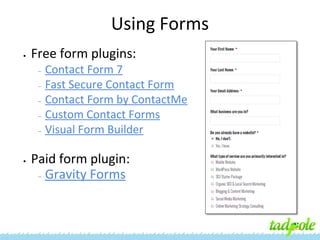
Using Forms
•

Free form plugins:
–
–
–
–
–

•

Contact Form 7
Fast Secure Contact Form
Contact Form by ContactMe
Custom Contact Forms
Visual Form Builder

Paid form plugin:
– Gravity Forms
Why pay for Gravity Forms?
●
●
●
●
●
●

Great selection of field types
Multi-page forms
Integrates with e-commerce
Conditional logic
Limit entries
Lots of additional GF add-ons to integrate
with your website/blog: polls, quizzes,
coupons, Freshbooks, SalesForce, MailChimp,
etc.
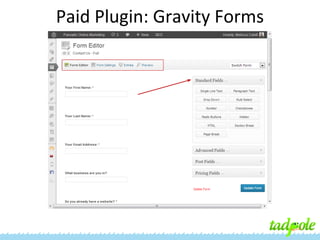
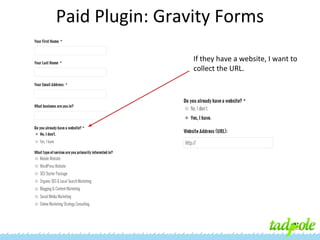
Paid Plugin: Gravity Forms
If they have a website, I want to
collect the URL.
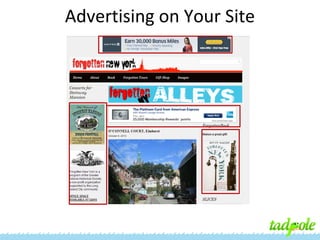
Advertising on Your Site
•
•
•
•
•
•
•
•

CMP (cost per impression)
CPA (cost per acquisition)
CPC (cost per click)
Sponsorships / Sponsored Posts (advertorial)
Text Links
Directories / Classifieds
Newsletter Advertising
Video Advertising / Image Ads
Advertising on Your Site
• Ad Networks:
– Google’s AdSense
– Chitika
– BlogHer

• Ad Management Tools:
– Ad Rotate
– BuySell Ads
– Simple Ads Management (SAM)
Ad Management Using the
SAM Plugin for WordPress
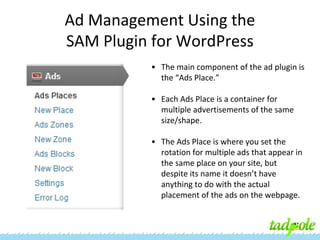
• The main component of the ad plugin is
the “Ads Place.”
• Each Ads Place is a container for
multiple advertisements of the same
size/shape.
• The Ads Place is where you set the
rotation for multiple ads that appear in
the same place on your site, but
despite its name it doesn’t have
anything to do with the actual
placement of the ads on the webpage.
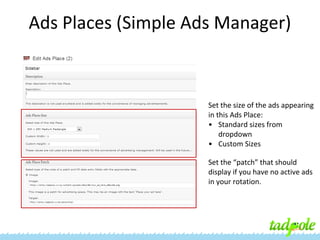
Ads Places (Simple Ads Manager)

Set the size of the ads appearing
in this Ads Place:
• Standard sizes from
dropdown
• Custom Sizes
Set the “patch” that should
display if you have no active ads
in your rotation.
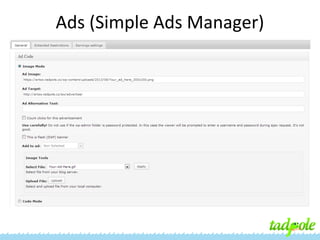
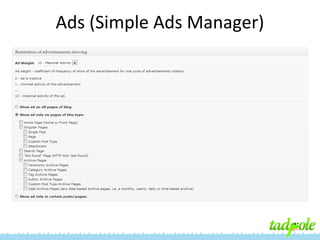
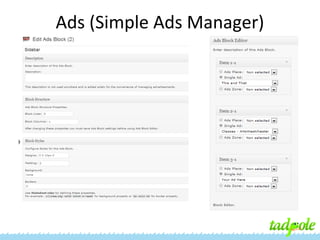
Ads (Simple Ads Manager)
Going Social
• Social Media Channel Integration
– Allowing visitors to Follow, Like, Connect, +1, etc.
on your site
– Sharing Facebook status updates, Tweets, Pins,
etc. on your site (and vice versa)

• Discussion/Commenting
• Sharing Related Content
Social Media Integration
• Display your social activities with plugins:
–
–
–
–
–
–

Rotating Tweets / MP Tweet List
Facebook (official plugin)
Google+
Pinterest
Simply Instagram
Linked In

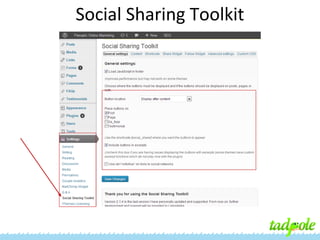
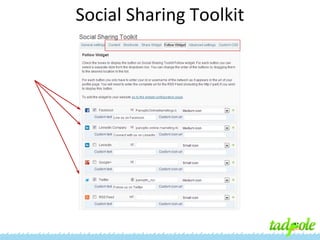
• Or use an integrated solution, like Social
Sharing Toolkit
Social Sharing Toolkit
Discussions / Commenting
• Everything you can do with Posts you can do
with Comments:
– RSS Feeds
– Social sharing

• Other things you might want to do:
– Limit length, extend with smileys, allow ratings,
disallow links, send automated “thank you’s”

• Disqus
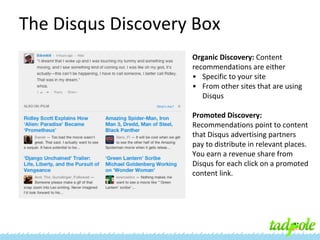
The Disqus Discovery Box
Organic Discovery: Content
recommendations are either
• Specific to your site
• From other sites that are using
Disqus
Promoted Discovery:
Recommendations point to content
that Disqus advertising partners
pay to distribute in relevant places.
You earn a revenue share from
Disqus for each click on a promoted
content link.
Related Content
•
•
•
•

YARPP (Yet Another Related Posts Plugin)
Link Within
Outbrain
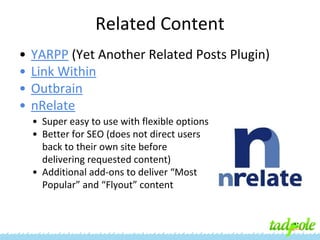
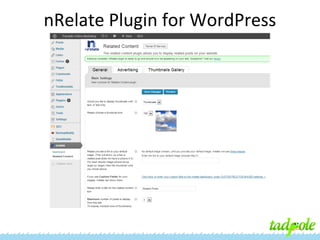
nRelate
• Super easy to use with flexible options
• Better for SEO (does not direct users
back to their own site before
delivering requested content)
• Additional add-ons to deliver “Most
Popular” and “Flyout” content
nRelate Plugin for WordPress
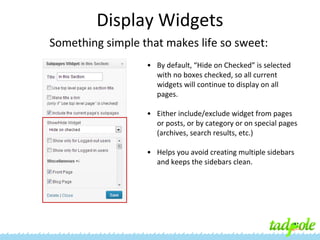
Display Widgets
Something simple that makes life so sweet:
• By default, “Hide on Checked” is selected
with no boxes checked, so all current
widgets will continue to display on all
pages.
• Either include/exclude widget from pages
or posts, or by category or on special pages
(archives, search results, etc.)
• Helps you avoid creating multiple sidebars
and keeps the sidebars clean.
Integrating Newsletter Sign-Up
•
•
•
•

Constant Contact
Emma
Vertical Response
MailChimp
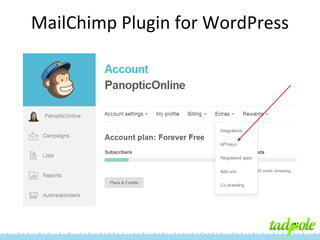
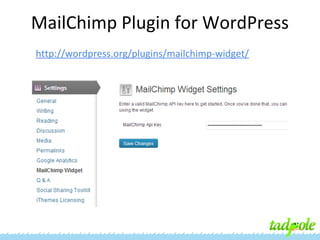
MailChimp Plugin for WordPress
http://wordpress.org/plugins/mailchimp-widget/
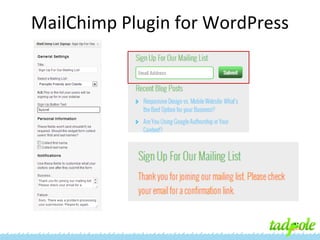
MailChimp Plugin for WordPress
[shortcodes]
• WordPress Shortcodes
• Column Shortcodes
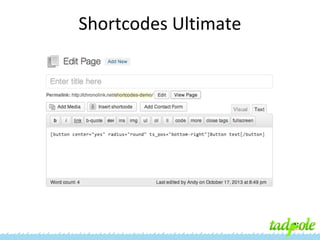
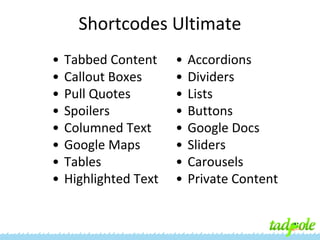
• Shortcodes Ultimate
Shortcodes Ultimate
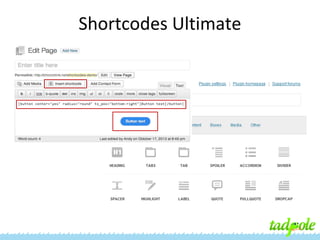
Shortcodes Ultimate
Shortcodes Ultimate
•
•
•
•
•
•
•
•

Tabbed Content
Callout Boxes
Pull Quotes
Spoilers
Columned Text
Google Maps
Tables
Highlighted Text

•
•
•
•
•
•
•
•

Accordions
Dividers
Lists
Buttons
Google Docs
Sliders
Carousels
Private Content
Selecting a Theme
Free

Commercial

• Try as many as you
want.

• Are supported by the
theme author.

• Generally not
supported by author.

• Not necessarily better
than free themes.

• Thousands from
WordPress.org/themes

• Sometimes have too
many features.
What to Consider?
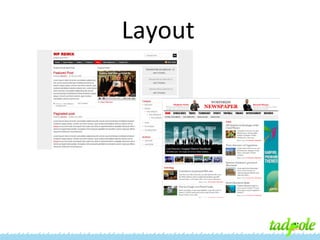
Layout
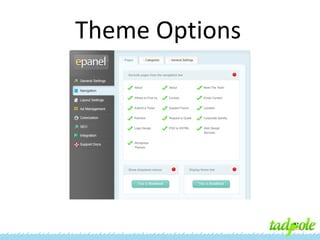
Theme Options
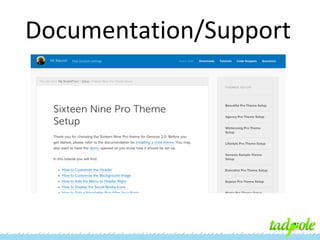
Documentation/Support
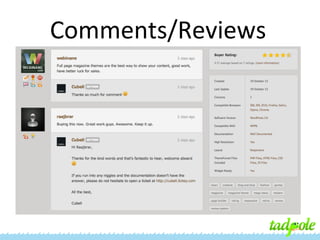
Comments/Reviews
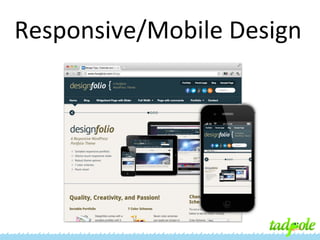
Responsive/Mobile Design
Are you going to
customize your theme?

Beware
Option-itis!
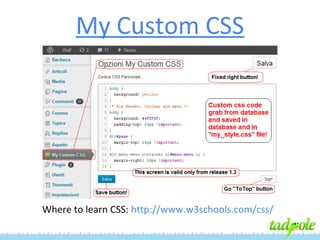
My Custom CSS

Where to learn CSS: http://www.w3schools.com/css/
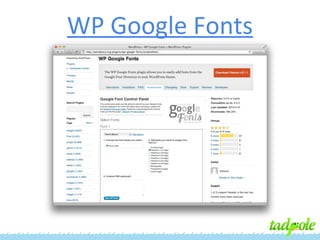
WP Google Fonts
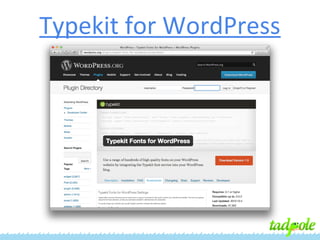
Typekit for WordPress
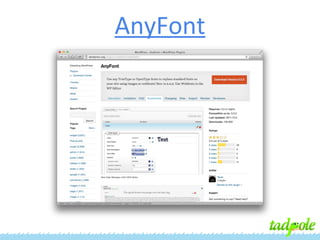
AnyFont
Managing Media
in WordPress
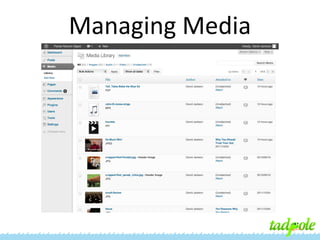
Managing Media
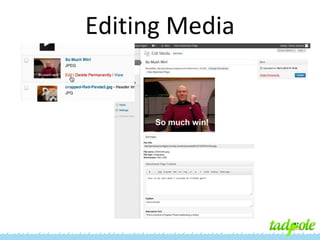
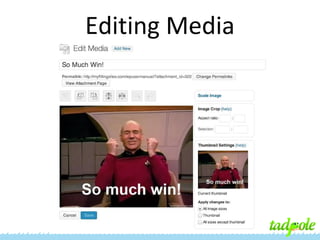
Editing Media
Editing Media
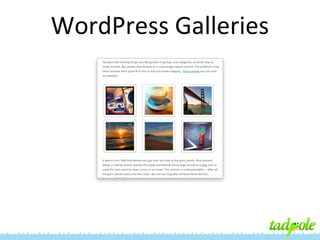
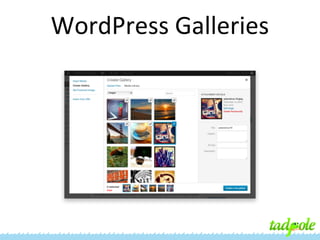
WordPress Galleries
WordPress Galleries
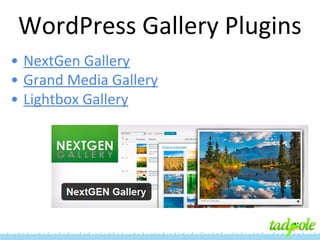
WordPress Gallery Plugins
• NextGen Gallery
• Grand Media Gallery
• Lightbox Gallery
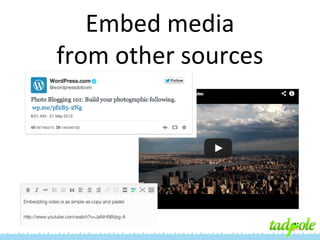
Embed media
from other sources
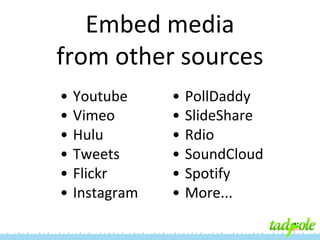
Embed media
from other sources
•
•
•
•
•
•

Youtube
Vimeo
Hulu
Tweets
Flickr
Instagram

•
•
•
•
•
•

PollDaddy
SlideShare
Rdio
SoundCloud
Spotify
More...
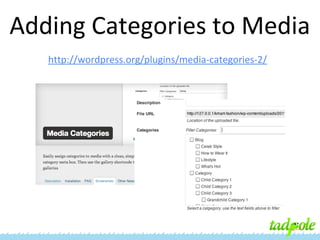
Adding Categories to Media
http://wordpress.org/plugins/media-categories-2/
WordPress Best
Practices & Security
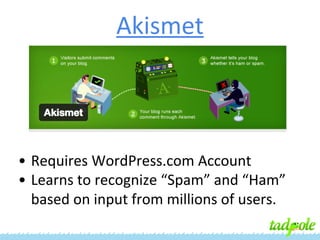
Akismet

• Requires WordPress.com Account
• Learns to recognize “Spam” and “Ham”
based on input from millions of users.
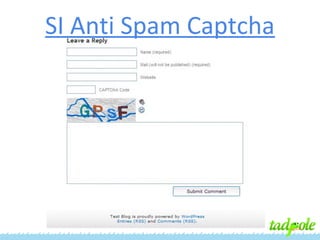
SI Anti Spam Captcha
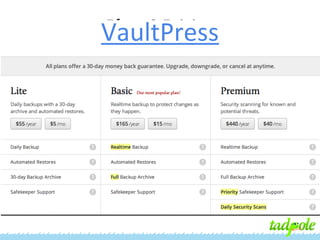
VaultPress
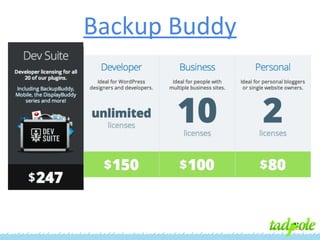
Backup Buddy
WordPress Security
•
•
•
•
•
•
•

Keep everything up to date.
Don’t use “admin” user.
Use a secure password.
Create a non-administrator user.
Use a secure password.
Practice safe browsing.
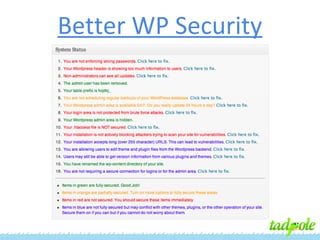
Plugins like “Better WP Security”
Better WP Security
SEO (with WordPress)
• Basic SEO concepts
• Keyword research: How to select effective
keywords
• Keyword implementation: Understand the purpose
of each implementation location, and learn how to
use the Yoast SEO plugin
• Learn More About SEO (Free Tools and Resources)
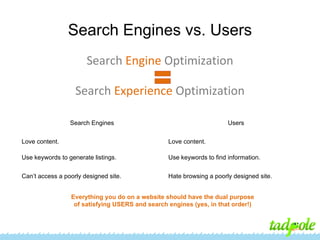
Search Engines vs. Users
Search Engine Optimization
Search Experience Optimization
Search Engines

Users

Love content.

Love content.

Use keywords to generate listings.

Use keywords to find information.

Can’t access a poorly designed site.

Hate browsing a poorly designed site.

Everything you do on a website should have the dual purpose
of satisfying USERS and search engines (yes, in that order!)
SEO is OK with Google
Many people confuse search engine optimization with spamming. Spamming and SEO
are two totally different things. A recent announcement from Google contains a
statement about “white hat” SEO:
Effective search engine optimization can make a site more crawlable and make
individual pages more accessible and easier to find…
“White hat” search engine optimizers often improve the usability of a site, help
create great content, or make sites faster, which is good for both users and
search engines.

Watch Google’s Matt Cutts talk about SEO on YouTube:
http://www.youtube.com/watch?
feature=player_embedded&v=BS75vhGO-kk
How Do I Improve My Ranking?
On-Site Factors:
• What you say about yourself
– Keywords you use on your website

Off-Site Factors:
• What other websites say about you
– Inbound Links (and words they use in the link)
On-Site Factors for SEO
1. What keywords to use?
– Targeted (to a specific product/service/audience)
– Traffic-bearing (Average Search Volume [ASV])

2. Where to put them on your site?
– Page Titles & Meta-Description Tags…
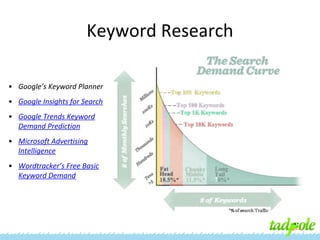
Keyword Research
What keywords to use?
– Targeted (to a specific product/service/audience)
– Traffic-bearing (Average Search Volume [ASV])
– Not ridiculously competitive

TIPS!
• Brainstorm, but keep it simple.
• Don’t spread yourself too thin.
• Be specific about what you’re selling.
Keyword Research
• Google’s Keyword Planner
• Google Insights for Search
• Google Trends Keyword
Demand Prediction
• Microsoft Advertising
Intelligence
• Wordtracker’s Free Basic
Keyword Demand
Implementation Locations
Where should I use keywords?
1.

Domain name (http://www.YourDomainName.com/)

2.

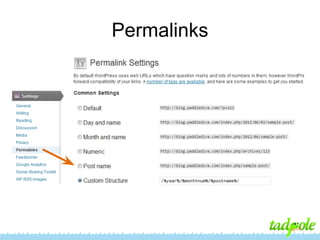
Sub-page URLs (permalinks):
(http://www.YourDomainName.com/YourPageName)

3.

Title

4.

Meta-Description

5.

Headers (h1, h2, h3; descending importance)

6.

Internal links

7.

Website copy (written content on the page)

8.

Bold text
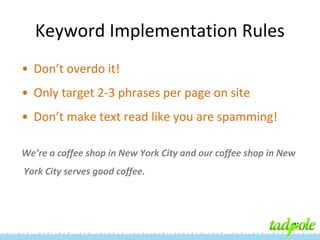
Keyword Implementation Rules
• Don’t overdo it!
• Only target 2-3 phrases per page on site
• Don’t make text read like you are spamming!
We’re a coffee shop in New York City and our coffee shop in New
York City serves good coffee.
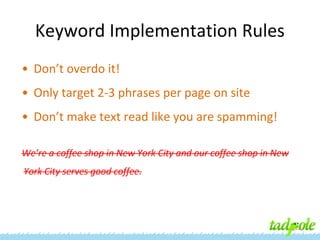
Keyword Implementation Rules
• Don’t overdo it!
• Only target 2-3 phrases per page on site
• Don’t make text read like you are spamming!
We’re a coffee shop in New York City and our coffee shop in New
York City serves good coffee.
Permalinks
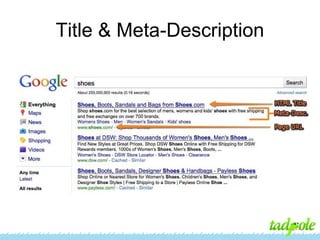
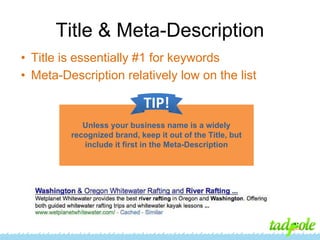
Title & Meta-Description
• Title is essentially #1 for keywords
• Meta-Description relatively low on the list

TIP!
Unless your business name is a widely
recognized brand, keep it out of the Title, but
include it first in the Meta-Description
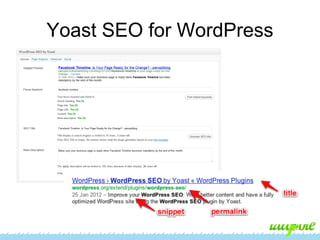
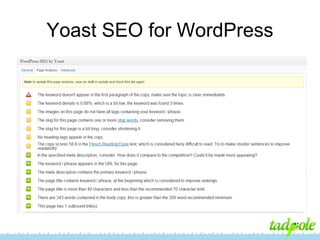
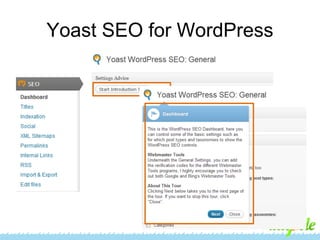
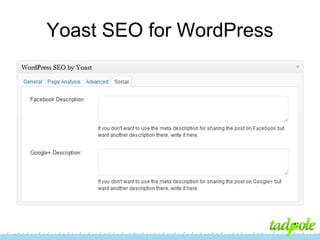
Yoast SEO for WordPress
Headers
h1, h2, h3, h4, h5
Descending weight on SEO
• h1 – One of the main keywords of page
• h2, h3 – secondary/topical keywords
• h4, h5 – not crucial to use/embed
Website Copy
• At least one paragraph of copy should be
found on each page
• Keyword Density
– Not imminently important

• Learn how to write copy for the web
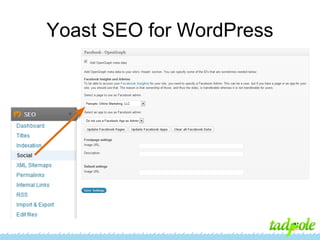
Yoast SEO for WordPress
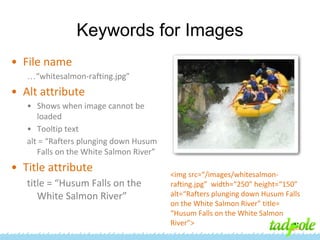
Keywords for Images
• File name
…“whitesalmon-rafting.jpg”

• Alt attribute
• Shows when image cannot be
loaded
• Tooltip text
alt = “Rafters plunging down Husum
Falls on the White Salmon River”

• Title attribute
title = “Husum Falls on the
White Salmon River”

<img src=“/images/whitesalmonrafting.jpg” width=“250” height=“150”
alt=“Rafters plunging down Husum Falls
on the White Salmon River” title=
“Husum Falls on the White Salmon
River”>
Internal Links
• Can be helpful within the copy, especially at the
end of articles
• Should not be overused
• Should have the same anchor text as your main
navigation or inbound links
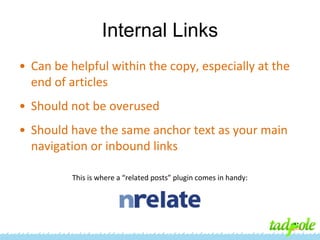
This is where a “related posts” plugin comes in handy:
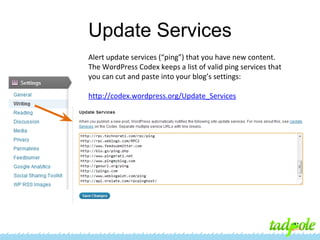
Update Services
Alert update services (“ping”) that you have new content.
The WordPress Codex keeps a list of valid ping services that
you can cut and paste into your blog’s settings:
http://codex.wordpress.org/Update_Services
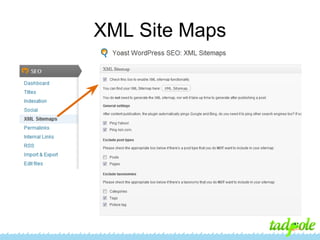
XML Site Maps
Yoast SEO for WordPress
Advanced Features
1.
2.
3.
4.
5.
6.
7.

Robots Meta configuration
Canonical
Breadcrumbs
Permalink clean up
XML Sitemaps
RSS enhancements
Edit your robots.txt and .htaccess
Yoast SEO for WordPress
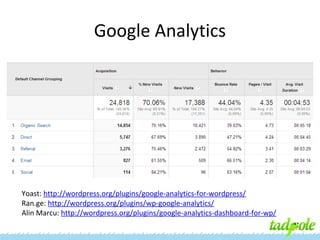
Google Analytics

Yoast: http://wordpress.org/plugins/google-analytics-for-wordpress/
Ran.ge: http://wordpress.org/plugins/wp-google-analytics/
Alin Marcu: http://wordpress.org/plugins/google-analytics-dashboard-for-wp/
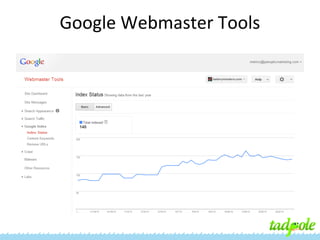
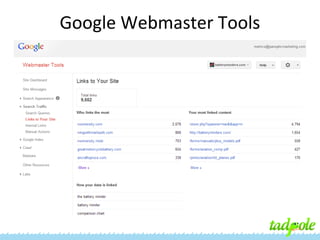
Google Webmaster Tools
Off-site SEO
How Links Affect Rankings
Search engines currently base relevancy primarily on linkage
patterns. Who links to you, and how they link to you, are what
determines where your site will rank for competitive search
queries.
• Link building: directories, link exchange, articles, press
releases, advertising, organic
http://training.seobook.com/link-building
• Social Interaction
• Public Relations
• Branding
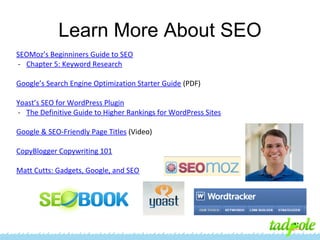
Learn More About SEO
SEOMoz’s Beginniners Guide to SEO
- Chapter 5: Keyword Research
Google’s Search Engine Optimization Starter Guide (PDF)
Yoast’s SEO for WordPress Plugin
- The Definitive Guide to Higher Rankings for WordPress Sites
Google & SEO-Friendly Page Titles (Video)
CopyBlogger Copywriting 101
Matt Cutts: Gadgets, Google, and SEO
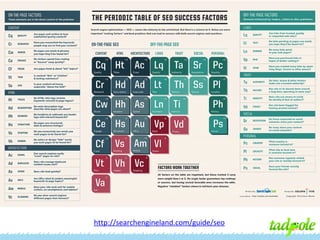
http://searchengineland.com/guide/seo
Multiple Author Blogs
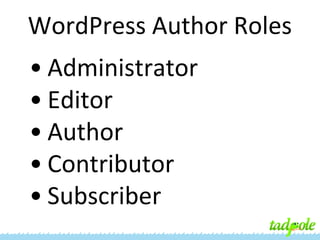
WordPress Author Roles
• Administrator
• Editor
• Author
• Contributor
• Subscriber
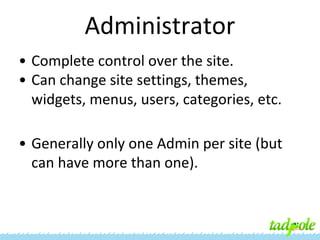
Administrator
• Complete control over the site.
• Can change site settings, themes,
widgets, menus, users, categories, etc.
• Generally only one Admin per site (but
can have more than one).
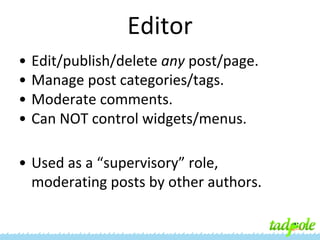
Editor
•
•
•
•

Edit/publish/delete any post/page.
Manage post categories/tags.
Moderate comments.
Can NOT control widgets/menus.

• Used as a “supervisory” role,
moderating posts by other authors.
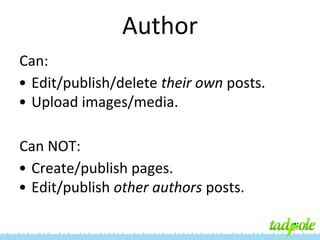
Author
Can:
• Edit/publish/delete their own posts.
• Upload images/media.
Can NOT:
• Create/publish pages.
• Edit/publish other authors posts.
Contributor
Can:
• Create/edit their own posts before they
are published.
• Submit post for Editor review.
Can NOT:
• Publish their own posts.
• Upload images/media.
• Edit their posts after an Editor publishes.
Subscriber
Can:
• Comment on posts/pages.
Can NOT:
• Do anything else.
Plugins for
Multiple Author Blogs
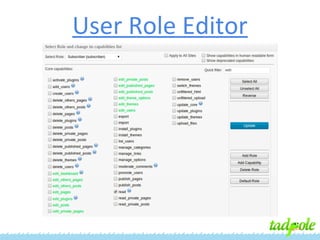
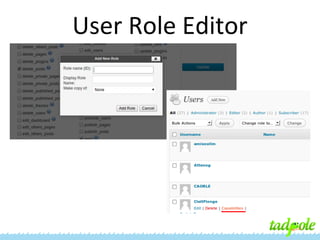
User Role Editor
User Role Editor
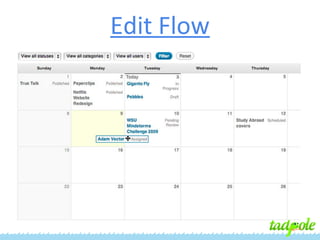
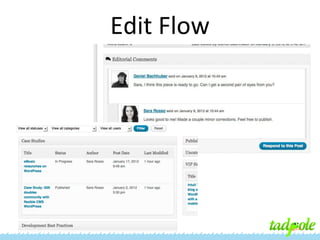
Edit Flow
Edit Flow
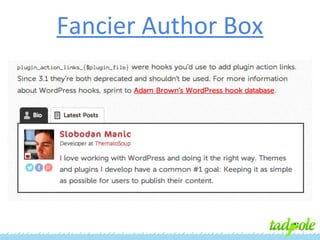
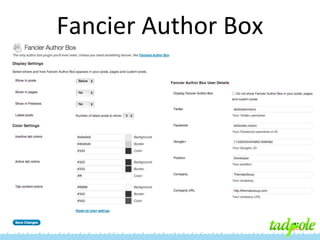
Fancier Author Box
Fancier Author Box
Thank You!
www.tadpole.cc
hello@tadpole.cc
Twitter: @TadpoleCC
Andy Christian
@andrew_cpht

Melissa Cahill
@panoptic_nyc

WordPress Workshop with Tadpole, SATW 2013 Conference

  • 1.
    WordPress Workshop with Tadpole Collective Societyof American Travel Writers 2013 Conference Biloxi, MS
  • 2.
    Tadpole Collective ● ● ● ● WordPress Support WebsiteHosting WordPress Training Custom Website Development www.tadpole.cc hello@tadpole.cc Twitter: @TadpoleCC
  • 3.
    Agenda ● ● ● ● ● ● Widgets & Plugins Choosing& Customizing Themes Managing your Media Security & Best Practices SEO for WordPress* Multiple authors blogs* *Included in Full Day Sessions
  • 4.
    Tell us aboutyourself ● What do you do? ● Do you already use WordPress? ● How hands-on are you with your site? ● What specific topics of interest should we try to cover?
  • 5.
    Widgets & Plugins toenhance your site
  • 7.
    ● ● ● ● ● ● ● ● Publicize/Sharing WordPress.com Stats Subscriptions Carousel/Tiled Gallery Spelling& Grammar Contact Form Extra Sidebar Widgets VideoPress/VaultPress & more... http://jetpack.me/ http://wordpress.org/plugins/jetpack/
  • 8.
    Pros & Cons ●Mega-plugin that has lots of features in one. ● Some features you can’t get anywhere else. ● Requires a WordPress.com account. ● Too much if you only want 1-2 features.
  • 9.
    Using Forms • Free formplugins: – – – – – • Contact Form 7 Fast Secure Contact Form Contact Form by ContactMe Custom Contact Forms Visual Form Builder Paid form plugin: – Gravity Forms
  • 10.
    Why pay forGravity Forms? ● ● ● ● ● ● Great selection of field types Multi-page forms Integrates with e-commerce Conditional logic Limit entries Lots of additional GF add-ons to integrate with your website/blog: polls, quizzes, coupons, Freshbooks, SalesForce, MailChimp, etc.
  • 11.
  • 12.
    Paid Plugin: GravityForms If they have a website, I want to collect the URL.
  • 13.
  • 14.
    Advertising on YourSite • • • • • • • • CMP (cost per impression) CPA (cost per acquisition) CPC (cost per click) Sponsorships / Sponsored Posts (advertorial) Text Links Directories / Classifieds Newsletter Advertising Video Advertising / Image Ads
  • 15.
    Advertising on YourSite • Ad Networks: – Google’s AdSense – Chitika – BlogHer • Ad Management Tools: – Ad Rotate – BuySell Ads – Simple Ads Management (SAM)
  • 16.
    Ad Management Usingthe SAM Plugin for WordPress • The main component of the ad plugin is the “Ads Place.” • Each Ads Place is a container for multiple advertisements of the same size/shape. • The Ads Place is where you set the rotation for multiple ads that appear in the same place on your site, but despite its name it doesn’t have anything to do with the actual placement of the ads on the webpage.
  • 17.
    Ads Places (SimpleAds Manager) Set the size of the ads appearing in this Ads Place: • Standard sizes from dropdown • Custom Sizes Set the “patch” that should display if you have no active ads in your rotation.
  • 18.
  • 19.
  • 20.
  • 21.
    Going Social • SocialMedia Channel Integration – Allowing visitors to Follow, Like, Connect, +1, etc. on your site – Sharing Facebook status updates, Tweets, Pins, etc. on your site (and vice versa) • Discussion/Commenting • Sharing Related Content
  • 22.
    Social Media Integration •Display your social activities with plugins: – – – – – – Rotating Tweets / MP Tweet List Facebook (official plugin) Google+ Pinterest Simply Instagram Linked In • Or use an integrated solution, like Social Sharing Toolkit
  • 23.
  • 24.
  • 25.
    Discussions / Commenting •Everything you can do with Posts you can do with Comments: – RSS Feeds – Social sharing • Other things you might want to do: – Limit length, extend with smileys, allow ratings, disallow links, send automated “thank you’s” • Disqus
  • 26.
    The Disqus DiscoveryBox Organic Discovery: Content recommendations are either • Specific to your site • From other sites that are using Disqus Promoted Discovery: Recommendations point to content that Disqus advertising partners pay to distribute in relevant places. You earn a revenue share from Disqus for each click on a promoted content link.
  • 27.
    Related Content • • • • YARPP (YetAnother Related Posts Plugin) Link Within Outbrain nRelate • Super easy to use with flexible options • Better for SEO (does not direct users back to their own site before delivering requested content) • Additional add-ons to deliver “Most Popular” and “Flyout” content
  • 28.
  • 29.
    Display Widgets Something simplethat makes life so sweet: • By default, “Hide on Checked” is selected with no boxes checked, so all current widgets will continue to display on all pages. • Either include/exclude widget from pages or posts, or by category or on special pages (archives, search results, etc.) • Helps you avoid creating multiple sidebars and keeps the sidebars clean.
  • 30.
    Integrating Newsletter Sign-Up • • • • ConstantContact Emma Vertical Response MailChimp
  • 31.
  • 32.
    MailChimp Plugin forWordPress http://wordpress.org/plugins/mailchimp-widget/
  • 33.
  • 34.
    [shortcodes] • WordPress Shortcodes •Column Shortcodes • Shortcodes Ultimate
  • 35.
  • 36.
  • 37.
    Shortcodes Ultimate • • • • • • • • Tabbed Content CalloutBoxes Pull Quotes Spoilers Columned Text Google Maps Tables Highlighted Text • • • • • • • • Accordions Dividers Lists Buttons Google Docs Sliders Carousels Private Content
  • 38.
  • 39.
    Free Commercial • Try asmany as you want. • Are supported by the theme author. • Generally not supported by author. • Not necessarily better than free themes. • Thousands from WordPress.org/themes • Sometimes have too many features.
  • 40.
  • 41.
  • 42.
  • 43.
  • 44.
  • 45.
  • 46.
    Are you goingto customize your theme? Beware Option-itis!
  • 47.
    My Custom CSS Whereto learn CSS: http://www.w3schools.com/css/
  • 48.
  • 49.
  • 50.
  • 51.
  • 52.
  • 53.
  • 54.
  • 55.
  • 56.
  • 57.
    WordPress Gallery Plugins •NextGen Gallery • Grand Media Gallery • Lightbox Gallery
  • 58.
  • 59.
    Embed media from othersources • • • • • • Youtube Vimeo Hulu Tweets Flickr Instagram • • • • • • PollDaddy SlideShare Rdio SoundCloud Spotify More...
  • 60.
    Adding Categories toMedia http://wordpress.org/plugins/media-categories-2/
  • 61.
  • 63.
    Akismet • Requires WordPress.comAccount • Learns to recognize “Spam” and “Ham” based on input from millions of users.
  • 64.
    SI Anti SpamCaptcha
  • 66.
  • 67.
  • 69.
    WordPress Security • • • • • • • Keep everythingup to date. Don’t use “admin” user. Use a secure password. Create a non-administrator user. Use a secure password. Practice safe browsing. Plugins like “Better WP Security”
  • 70.
  • 71.
  • 72.
    SEO (with WordPress) •Basic SEO concepts • Keyword research: How to select effective keywords • Keyword implementation: Understand the purpose of each implementation location, and learn how to use the Yoast SEO plugin • Learn More About SEO (Free Tools and Resources)
  • 73.
    Search Engines vs.Users Search Engine Optimization Search Experience Optimization Search Engines Users Love content. Love content. Use keywords to generate listings. Use keywords to find information. Can’t access a poorly designed site. Hate browsing a poorly designed site. Everything you do on a website should have the dual purpose of satisfying USERS and search engines (yes, in that order!)
  • 74.
    SEO is OKwith Google Many people confuse search engine optimization with spamming. Spamming and SEO are two totally different things. A recent announcement from Google contains a statement about “white hat” SEO: Effective search engine optimization can make a site more crawlable and make individual pages more accessible and easier to find… “White hat” search engine optimizers often improve the usability of a site, help create great content, or make sites faster, which is good for both users and search engines. Watch Google’s Matt Cutts talk about SEO on YouTube: http://www.youtube.com/watch? feature=player_embedded&v=BS75vhGO-kk
  • 75.
    How Do IImprove My Ranking? On-Site Factors: • What you say about yourself – Keywords you use on your website Off-Site Factors: • What other websites say about you – Inbound Links (and words they use in the link)
  • 76.
    On-Site Factors forSEO 1. What keywords to use? – Targeted (to a specific product/service/audience) – Traffic-bearing (Average Search Volume [ASV]) 2. Where to put them on your site? – Page Titles & Meta-Description Tags…
  • 77.
    Keyword Research What keywordsto use? – Targeted (to a specific product/service/audience) – Traffic-bearing (Average Search Volume [ASV]) – Not ridiculously competitive TIPS! • Brainstorm, but keep it simple. • Don’t spread yourself too thin. • Be specific about what you’re selling.
  • 78.
    Keyword Research • Google’sKeyword Planner • Google Insights for Search • Google Trends Keyword Demand Prediction • Microsoft Advertising Intelligence • Wordtracker’s Free Basic Keyword Demand
  • 79.
    Implementation Locations Where shouldI use keywords? 1. Domain name (http://www.YourDomainName.com/) 2. Sub-page URLs (permalinks): (http://www.YourDomainName.com/YourPageName) 3. Title 4. Meta-Description 5. Headers (h1, h2, h3; descending importance) 6. Internal links 7. Website copy (written content on the page) 8. Bold text
  • 80.
    Keyword Implementation Rules •Don’t overdo it! • Only target 2-3 phrases per page on site • Don’t make text read like you are spamming! We’re a coffee shop in New York City and our coffee shop in New York City serves good coffee.
  • 81.
    Keyword Implementation Rules •Don’t overdo it! • Only target 2-3 phrases per page on site • Don’t make text read like you are spamming! We’re a coffee shop in New York City and our coffee shop in New York City serves good coffee.
  • 82.
  • 83.
  • 84.
    Title & Meta-Description •Title is essentially #1 for keywords • Meta-Description relatively low on the list TIP! Unless your business name is a widely recognized brand, keep it out of the Title, but include it first in the Meta-Description
  • 85.
    Yoast SEO forWordPress
  • 86.
    Headers h1, h2, h3,h4, h5 Descending weight on SEO • h1 – One of the main keywords of page • h2, h3 – secondary/topical keywords • h4, h5 – not crucial to use/embed
  • 87.
    Website Copy • Atleast one paragraph of copy should be found on each page • Keyword Density – Not imminently important • Learn how to write copy for the web
  • 88.
    Yoast SEO forWordPress
  • 89.
    Keywords for Images •File name …“whitesalmon-rafting.jpg” • Alt attribute • Shows when image cannot be loaded • Tooltip text alt = “Rafters plunging down Husum Falls on the White Salmon River” • Title attribute title = “Husum Falls on the White Salmon River” <img src=“/images/whitesalmonrafting.jpg” width=“250” height=“150” alt=“Rafters plunging down Husum Falls on the White Salmon River” title= “Husum Falls on the White Salmon River”>
  • 90.
    Internal Links • Canbe helpful within the copy, especially at the end of articles • Should not be overused • Should have the same anchor text as your main navigation or inbound links This is where a “related posts” plugin comes in handy:
  • 91.
    Update Services Alert updateservices (“ping”) that you have new content. The WordPress Codex keeps a list of valid ping services that you can cut and paste into your blog’s settings: http://codex.wordpress.org/Update_Services
  • 92.
  • 93.
    Yoast SEO forWordPress
  • 94.
    Advanced Features 1. 2. 3. 4. 5. 6. 7. Robots Metaconfiguration Canonical Breadcrumbs Permalink clean up XML Sitemaps RSS enhancements Edit your robots.txt and .htaccess
  • 95.
    Yoast SEO forWordPress
  • 96.
    Yoast SEO forWordPress
  • 97.
    Google Analytics Yoast: http://wordpress.org/plugins/google-analytics-for-wordpress/ Ran.ge:http://wordpress.org/plugins/wp-google-analytics/ Alin Marcu: http://wordpress.org/plugins/google-analytics-dashboard-for-wp/
  • 98.
  • 99.
  • 100.
    Off-site SEO How LinksAffect Rankings Search engines currently base relevancy primarily on linkage patterns. Who links to you, and how they link to you, are what determines where your site will rank for competitive search queries. • Link building: directories, link exchange, articles, press releases, advertising, organic http://training.seobook.com/link-building • Social Interaction • Public Relations • Branding
  • 101.
    Learn More AboutSEO SEOMoz’s Beginniners Guide to SEO - Chapter 5: Keyword Research Google’s Search Engine Optimization Starter Guide (PDF) Yoast’s SEO for WordPress Plugin - The Definitive Guide to Higher Rankings for WordPress Sites Google & SEO-Friendly Page Titles (Video) CopyBlogger Copywriting 101 Matt Cutts: Gadgets, Google, and SEO
  • 102.
  • 103.
  • 104.
    WordPress Author Roles •Administrator • Editor • Author • Contributor • Subscriber
  • 105.
    Administrator • Complete controlover the site. • Can change site settings, themes, widgets, menus, users, categories, etc. • Generally only one Admin per site (but can have more than one).
  • 106.
    Editor • • • • Edit/publish/delete any post/page. Managepost categories/tags. Moderate comments. Can NOT control widgets/menus. • Used as a “supervisory” role, moderating posts by other authors.
  • 107.
    Author Can: • Edit/publish/delete theirown posts. • Upload images/media. Can NOT: • Create/publish pages. • Edit/publish other authors posts.
  • 108.
    Contributor Can: • Create/edit theirown posts before they are published. • Submit post for Editor review. Can NOT: • Publish their own posts. • Upload images/media. • Edit their posts after an Editor publishes.
  • 109.
    Subscriber Can: • Comment onposts/pages. Can NOT: • Do anything else.
  • 110.
  • 111.
  • 112.
  • 113.
  • 114.
  • 115.
  • 116.
  • 117.
    Thank You! www.tadpole.cc hello@tadpole.cc Twitter: @TadpoleCC AndyChristian @andrew_cpht Melissa Cahill @panoptic_nyc