@lujeffcoat
THE BIGGEST
WORDPRESS
MYTHS
UNCOVERED
1
@lujeffcoat
Lauren Jeffcoat
http://www.wpgroupie.com/wordpress-myths-uncovered/
@lujeffcoat
it’s just
for blogs
Myth No. 1
@lujeffcoat
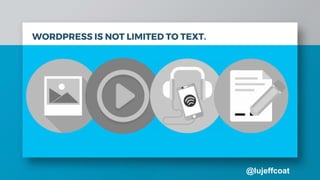
WORDPRESS IS NOT LIMITED TO TEXT.
@lujeffcoat
IF YOU CAN DREAM IT,
YOU CAN BUILD IT WITH WORDPRESS.
@lujeffcoat
plugins =
problems
Myth No. 2
@lujeffcoat
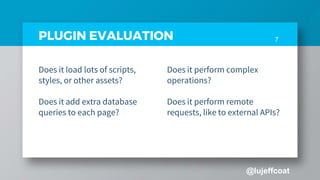
7PLUGIN EVALUATION
Does it load lots of scripts,
styles, or other assets?
Does it add extra database
queries to each page?
Does it perform complex
operations?
Does it perform remote
requests, like to external APIs?
@lujeffcoat
8
Is it true that if you don’t use it, you lose it?
@lujeffcoat
@lujeffcoat
if you don’t
use it, lose it.
@lujeffcoat
it’s too
complicated
Myth No. 3
@lujeffcoat
@lujeffcoat
12Customization
Customizing a
WordPress
theme is not
difficult, but
also sometimes
not necessary.
@lujeffcoat
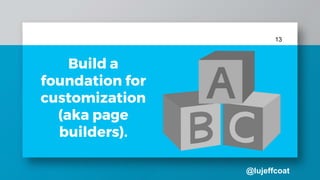
13
Build a
foundation for
customization
(aka page
builders).
@lujeffcoat
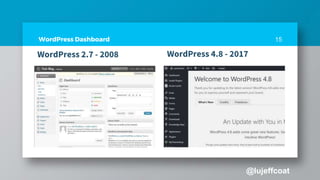
The WordPress
backend is
flexible, easy to
use and highly
intuitive.
@lujeffcoat
15WordPress Dashboard
WordPress 4.8 - 2017WordPress 2.7 - 2008
@lujeffcoat
it’s not
secure
Myth No. 4
@lujeffcoat
It’s not that
WordPress is
insecure – it’s
just popular.
@lujeffcoat
Security is
comprised of
three domains:
People, Process,
and Technology.
@lujeffcoat
19
A good hosting
company can
help boost your
site’s security.
@lujeffcoat
The site itself likely
works just fine. The
ability to access it,
maybe not so much.
@lujeffcoat
Use SSL certificates
and 3rd party
payment gateways
to enhance security
for your sites.
WordPress Security Plugins
@lujeffcoat
UPDATE
UPDATE
UPDATE
@lujeffcoat
BACKUP
BACKUP
BACKUP
@lujeffcoat
25
BONUS TIP:
Never use Admin as
your username.
@lujeffcoat
hide your
identity
@lujeffcoat
it’s not
scalable
Myth No. 5
@lujeffcoat
DOES SIZE MATTER?
@lujeffcoat
29
@lujeffcoat
FUTURE-PROOF YOUR WEBSITE
@lujeffcoat
31FUTURE-PROOF YOUR WEBSITE
1. Sign Up With A Reputable
Hosting Provider
@lujeffcoat
32FUTURE-PROOF YOUR WEBSITE
1. Sign Up With A Reputable
Hosting Provider
2. Create Regular Backups of
Your Website
@lujeffcoat
33FUTURE-PROOF YOUR WEBSITE
3. Select Themes And Plugins
From Trustworthy Developers
1. Sign Up With A Reputable
Hosting Provider
2. Create Regular Backups of
Your Website
@lujeffcoat
34FUTURE-PROOF YOUR WEBSITE
3. Select Themes And Plugins
From Trustworthy Developers
4. Use A Child Theme
1. Sign Up With A Reputable
Hosting Provider
2. Create Regular Backups of
Your Website
@lujeffcoat
you get
what you
pay for
Myth No. 6
@lujeffcoat
Cutting Corners?
Bureaucracy?
Big Budgets?
Somebody oughta tell these guys they are missing out
on an opportunity to save a lot of money.
@lujeffcoat
37
no support
@lujeffcoat
1-800-WORDPRESS
@lujeffcoat
@lujeffcoat
WordPress Groups
1. WordPress Help for Beginners
2. Intermediate WordPress
3. Advanced WordPress
4. WordPress Hosting
5. WordPress Speed Up
6. WordPress Front End Developers
7. WordPress Designers
8. Plugin Suggestions
9. WordPress Plugins
10. WooCommerce Help & Share
@lujeffcoat
Panel Discussion, WordCamp San Antonio, 2016
@lujeffcoat
The truth is, there’s no
reason people should avoid
using WordPress.
@lujeffcoat
THANKS!
ANY QUESTIONS?
Slides are available at http://www.wpgroupie.com/wordpress-myths-uncovered/

WordPress Myths Uncovered

Editor's Notes

  • #2 How many people have heard the following about WordPress? 1. It’s not safe enough for my website. 2. My site is too big to build on WordPress 3. WordPress is just for bloggers. 4. WordPress is too hard to use. This presentation is not only about explaining why these theories about WordPress are not true, but also to arm you with the tools needed to overcome objections when your potential clients mention “my site is too big for this, i need better security, etc
  • #3 I am part of the customer support team for WPML.org, the WordPress Multilingual Plugin created by OnTheGoSystems. I have been working with them for a year and a half now, and before that I was a freelance web designer. As a freelance web designer, I often had objections to working with WordPress. From the client standpoint, their objections usually came from a previous developer they had worked with.
  • #4 So some people still believe they shouldn’t build their website on a WordPress platform because it’s just a blogging platform, and well, they are wrong. Yes, in the beginning WordPress focused on blog posts, but it has since evolved. Just because WordPress makes it easy to write blog posts, it doesn’t mean you have to. The same features that make publishing articles a snap, make it very simple to publish web pages to your website. While WordPress is a great platform for blogging, it’s has also become the most powerful Content Management System in the world.
  • #5 WordPress is not limited to text. It supports images, audio, video, and document files. Likewise, there are plugins and themes for everything, including classified listings, membership sites, affiliates, marketplace, eCommerce sites, and more. At the moment, there are more than tens of thousands of plugins available in the WordPress repository – many of which are free.
  • #6 So essentially if you can dream it, you can build it using WordPress. When you use WordPress as your CMS, you can customize as much as you need. It’s easy to register custom types or use plugins, making it easy to build anything. If you are comfortable digging into the code, then you can access the files and register as many custom post types as you like. If you are not as comfortable with code, you can use a plugin such as Toolset to create custom post types, custom fields, and custom taxonomies, essentially creating anything you could possibly want.
  • #7 It’s a common misconception that too many plugins automatically slow down your site. Well, it’s not entirely true. It doesn’t matter if you have 50+ if they are well structured and coded. The main point is, One badly written plugin can affect your site performance than twenty well written plugins. It’s not about the quantity of plugins, it’s about the quality of plugins.
  • #8 The trick isn’t how many plugins you have, but what operations they need to perform in order to render your site in a visitor’s browser. Most plugins are pretty simple, but some will perform complex actions that are “expensive” in terms of backend processing, and will slow a website down. In other words, you could have a quickly loading website with 80 plugins, and add a single, complicated plugin and lose half a second (or more) of loading time! Well coded plugins will not slow down your WordPress site. Use plugins like Query Monitor, Asset Queue Manager, What’s running, WP Simple Debug, WP Performance Profiler and Wixiweb FirePHP Queries to identify which plugin(s) is slowing your site down and find alternatives.
  • #9 @lujeffcoat
  • #10 Inactive plugins doesn’t pose security risk A plugin that has security holes is a problem, whether or not it is activated. So, here are some reasons why it is often recommended to remove plugins that you are not using. If you have plugins that you aren’t using, you often don’t care about keeping them updated. As a result, they won’t get any security updates, and that will be a vulnerability on your site.
  • #11 WordPress itself is not complicated. It’s a simple matter of perception.
  • #12 First, let’s talk about the install. How many people here have installed WordPress on their own? The setup is super easy and if you aren’t comfortable doing it yourself, you can most likely “phone a friend” to find someone who could do this for you or look online for WordPress tutorials. https://codex.wordpress.org/Installing_WordPress Download the files Edit Config Run the Install What’s so complicated about that?

  • #13 This myth centers around the belief that WordPress sites are built with templates and therefore cannot be customized.This misconception has arisen due to the ease at which you can change your theme, along with the vast number of them available to you. After all, with so much choice at your fingertips, there’s seemingly little reason to bother with customization when you can simply choose a suitable one. However, customizing a WordPress theme isn’t difficult, and your customizations aren’t restricted to the front end, either. It’s also easy to customize the back end and tailor its design to include elements such as client branding, or restrict access to certain admin panels, for example.
  • #14 You can even allow your non-techies or business owners to customize their site without ever having to touch the code. Themes can also be customized using a page builder plugin such as Elementor Page Builder or Beaver Builder, and this also enables you to ‘teach clients to fish’. Ultimately, you offer clients the ability to handle any changes on their own time rather than yours, which saves them money and could potentially improve their long-term relationship with you. Simple as A, B, C!
  • #15 Compared to many other CMS dashboards, I find that the WordPress back-end is easy to use and highly intuitive. Combined with the fact that you can use plugins to hide parts of the site to your users, it gives you the flexibility to make the dashboard as simple and clean as you like. The other thing I like about it is that unlike other content management systems, it’s not constantly changing with updates. WordPress keeps its users in mind.
  • #17 As you’re no doubt aware, WordPress is open-source – to a layperson, this could translate as free and vulnerable. However, WordPress takes security incredibly seriously,
  • #18 Because WordPress has been around for so long (since 2001!) and so many millions of people now use it for their websites, it has a big target on its back for hackers. But the reality is, big and small platforms alike are under attack on a regular basis. It’s not that WordPress is vulnerable or insecure – it’s just popular, making it a bigger target. Given the amount of attention that WordPress gets from would-be damage-doers, it’s actually very safe.
  • #19 Security also transcends the WordPress application. It's as much about securing and hardening your local environment, online behaviors and internal processes, as it is physically tuning and configuring your installation. Security is comprised of three domains: People, Process, and Technology. Each work in a synchronous harmony with each other, without the people, and their processes, the technology itself would be useless. Always keep this in mind.
  • #20 There’s another layer here that you need to know about, though. Your hosting company is another element in your overall security package. Depending on the quality of your hosting company, they can actually help boost your WordPress site’s security quite a bit, keeping it extra safe from pesky hackers. AUDIENCE RECOMMENDATIONS
  • #21 Websites can go down because of too much traffic, too. But that has nothing to do with the strength or stability of your WordPress site, which is its own entity apart from your hosting. The responsibility for your site’s stability (or not crashing when you have something that goes viral) falls on your own development decisions and your hosting company’s ability to manage strong servers, not on WordPress. The site itself likely works just fine — but the ability to access it, maybe not so much. That’s why you’ve got to be careful and choose a reliable hosting company when it’s time to take your site live.

  • #22 To get started, you’ll want to install an SSL certificate on your WordPress site if you haven’t done so already. Both WordPress and Google will clamp down on potentially unsecured sites across the board, so it’s a good idea to get onboard now. Let’s Encrypt is a good place to get free SSL certificates, but you need to make sure they are compatible with your hosting company. SSL certificates ensure the data transferred between your site and your customer’s browser is encrypted. This simple functionality greatly enhances the security WordPress-based eCommerce sites can provide. While WordPress doesn’t offer this out of the box, its functionality makes it a simple element to implement.
  • #24 WordPress frequently releases updates for the core. They are automatic updates so there is no reason that anyone should not be using the latest version. Same goes for plugins. Often times, plugins are updated to make sure they are still compatible with latest WordPress updates or to prevent security issues. Always always always update your core, theme and plugins.
  • #25 Has anyone in this room after updated a site only to find something broke? No big deal, right? I’ll just install the backup. Until you realize there is no backup.
  • #27 Some people think that hiding the fact that their site is build on WordPress makes their site more secure, but that’s not really true. There are hundreds of ways that someone could find out about your dirty little WordPress secret, and it’s not just in the table prefixes. It would take hours and hours of manual code to catch every instance. Going through the hassles of hiding your WordPress won’t do much good. You should better invest your time on keeping yourself up to date with themes/plugins and WordPress core. Hiding a WordPress site won’t be easy for you and it’s probably overkill. Even if you get it finally get it right, you’ll probably have to do it all over again at your next plugin or WordPress udpate.
  • #28 We don’t know whether that’s because WordPress is “free” or just “a community project” that came out of the blues, but you’ll often see comments questioning the scalability of the platform. How will my site perform when traffic grows? Which features will suffer in case of a traffic spike? Will WordPress come crashing when you become popular?
  • #29 Perhaps it’s the idea that WordPress was once a blogging platform that evolved into a CMS, but more often than not, you’ll find a client who’s worried WordPress will crumble under increased load. Not true. From small-scale bloggers all the way to big multinational corporations, everybody site is buildable on the WordPress platform.
  • #31 Worried your WordPress install won’t play well with advanced web functionality? Future technologies? Well, guess what, you needn’t worry one bit if WordPress is future proof because…well…it is! With regular updates and the best web standards, WordPress is always primed for the future. Future-proofing your WordPress website sounds pretty complex, but in reality, all you’re doing is making sure that your site is protected from any updates that could wreak havoc with it, or that customizations you make to your site aren’t going to be obliterated by future developments.
  • #32 Speed and load times are a major Google ranking factor, and aside from this, factors such as server uptime, site bandwidth, and security are also an important consideration. Therefore, choosing a reputable hosting provider – one that can provide all of these elements satisfactorily and consistently – is a key step for future-proofing your site. Although you may sometimes balk at the cost of some of the high-ranked solutions, a few bucks spent in the beginning will save you hundreds in the long run. To begin selecting a good hosting provider, look into the elements that marry up with your needs as a starting point for whittling down the options, such as cost, scalability, bandwidth, customer service, etc.
  • #33 Creating regular backups is one of the first things you should do when future-proofing your website. Simply put, it’s your way back to a working site if the unthinkable happens, such as a server crash, a hacking attempt, or even an unforeseen software bug wreaking havoc on your site. A managed host will do backups for you, but it’s always a good idea to keep remote backups too. There are plenty of plugins, free and paid options, that can help with this.
  • #34 As we’ve mentioned, WordPress rolls out updates regularly. It means that ensuring your themes and plugins are compatible with the latest version is vital. Those that fail to adhere to the latest standards may potentially harm your website – or worse, put your visitors at risk. WordPress has a plethora of free and premium themes and plugins available, with two directories – one for plugins, and another for themes. They’re both great places to start if you’re looking for a free solution. However, premium options can offer more bang for your buck, and the offerings found at marketplaces such as ThemeForest and CodeCanyon are often of a higher quality. There are a few key factors you’ll need to evaluate: 1. Download figures. Simply put, how many times was it downloaded? A highly popular theme or plugin has a reputation that precedes it, and it’s more likely to have a regular maintenance schedule to boot. 2. User ratings. This is a simple reflection of quality and gives an insight into what actual users think of it. You should delve even further by reading the comments users left behind – especially the poor reviews – before making a decision. 3. Currently supported version. It’s important to check to see if the plugin or theme supports the latest version of WordPress. If it doesn’t, it could cause problems in the future. 4. Last updated. If the plugin or theme hasn’t been updated recently, say six months, it’s likely not being maintained by the developers. WordPress handily alerts users if the last update was over two years ago. 5. Support forums. Finally, support forums give you detailed information about how many support threads have been resolved in the last two months, how many were received in total, and what kind of support users looking for. Of course, you should steer clear of those themes and plugins with forums containing a lot of unresolved issues. While you can’t always guarantee a theme or plugin will play nicely, setting some boundaries up front will help you pare down your selection to the cream of the crop. However, when it comes to themes, there’s one more thing you can do with regard to future-proofing.
  • #35 This is a no-brainer, basic aspect that a shockingly large number of users forgo. Child themes are simply those that inherit the design and functionality of their parents, enabling users to make changes to the theme without affecting the parent. They often consist solely of a style.css file (though you may also find a functions.php file), and although they’re simple to implement, they’re a lifesaver for future-proofing your site. When WordPress’ core, themes, or plugins are updated, the changes you’ve made are overwritten with new files. However, by incorporating a child theme, any changes you make stay in place. That way, WordPress (and its underlying functionality and elements) can be updated to the latest version, while preserving your customized theme.
  • #36 For the guys who love free stuff, and this means every single one of us, WordPress being a free product is indeed great news. But what does free exactly mean where WordPress is concerned? For starters, WordPress is free in terms of liberty (read usage rights). What that means is you can take WordPress, tear it down, modify it, make copies and/or create your own unique version without seeking permission from any authority. It’s open-source; software built by a community of contributors, meaning it belongs to no particular company or person. Secondly, you don’t pay to use WordPress, the CMS – you just need to download the script from WordPress.org, install it wherever and you’re good to go.
  • #37 So why is it that big companies are weary of jumping on the WordPress bandwagon? Perhaps it’s the bureaucracy, big budgets or someone trying to cut corners, but somebody gotta tell these guys (and their gray suits) that they are obviously missing out on an opportunity to save big money and get a platform that’s extremely versatile.
  • #38 With a free platform comes the concern of no support. Where do I go if something goes wrong? That’s easy.
  • #39 When it comes to WordPress, no single company or person owns the platform, nobody pays to use it and when you’re stuck…well…you’re stuck. Wrong.
  • #40 While it’s true that WordPress does not have an official support staff where you can call and ask questions, we’ve got something better. We have community. WordPress has a great community of developers, designers, translators, bloggers, support reps etc who have gone to great lengths to build the WordPress Codex; a state-of-the-art documentation the like of which you’ve never seen. That’s not all, WordPress boasts of a very active support forum frequented by members of the community. Have a problem today? Stop by the Happiness Bar. It’s free, and people are willing and happy to help you. Don’t be intimidated to ask for help. It’s likely how many in the community got started, and this community loves to give back.
  • #42 You probably paid around $40 to come to this WordCamp. You probably came expecting to sit in on some great sessions, get a t-shirt, and enjoy the after party. But you may not have known that there are hundreds of people here ready and willing to offer help and assistance. This is a panel discussion that I was part of in WordCamp San Antonio. Every single person on this panel came ready with ideas and advice to share with each other and attendees. What other community has that kind of a support team?
  • #43 The truth is, there’s no reason people should avoid using WordPress. It’s is an awesome application full of possibilities. As a bonus, there are plenty of online resources available that help in managing WordPress. Even from the financial point of view, having WordPress as a website, eCommerce store, membership portal, forum or other kinds of portal, is affordable with higher standards. It’s a cost effective venture because it gives access to unlimited interesting designs for a low price. On average, most of the themes cost less than $50, and plugins are mostly around $5. Everyone has access to this excellent, open-source software that can be used for everything from blogging to managing the content of websites it powers. Simply follow safety precautions to protect yourself from hackers, and enjoy its features. WordPress is one of the best online applications for any web portal service and CMS.