Секреты виртуализации
Windows Server 2012 Hyper-V (Введение)
Алексей Кибкало www.stars-s.ru
Hyper-V Virtualization Technology Overview
Hyper-V technology virtualizes hardware to allow for running
multiple operating systems at the same time on a single physical
computer
Each operating system runs isolated in a virtual machine also
called a Guest
Hyper-V role provides management tools in the form of the
Hyper-V Manager UI or the new inbox PowerShell module
System Center 2012 SP1
Applications of this technology include:
Establishing a Private Cloud environment
Increasing hardware utilization which can lead to cost savings
Improving business continuity
Establishing or expanding a VDI environment
Improving efficiencies in Test and Development
FL2012HVS: Введение в виртуализацию Windows Server 2012 Hyper-V06/11/20121
Scaling Mission Critical Workloads
Windows Server 2008 R2 limited to 4 VPs and 64 GB memory per
virtual machine
Mission critical Tier-1 applications typically run with 16 or more
processors and 8 GB RAM per logical processor (SQL workloads as an
example)
Current systems available with 10-core processors, 16-sockets in a system and
supporting 2TB or more of physical memory
Hyper-V in Windows Server 2012 supports up to 320 LPs and 4TB of
system memory on the Host. Virtual machines can be configured with
up to 64 VPs and 1TB memory each
Hosts are limited to 2,048 VPs and 1,024 VMs
NUMA (Non-Uniform Memory Access) – implementation where
processors have faster access to local memory. Modern operating
systems and applications can take advantage of the NUMA architecture
Can project a virtual NUMA topology into a virtual machine.
Default is to match Host NUMA topology (Dynamic Memory configuration
results in a ‘flat’ (one NUMA node) NUMA topology being projected into the
Guest)
FL2012HVS: Введение в виртуализацию Windows Server 2012 Hyper-V06/11/20122
Scaling Mission Critical Workloads (Part 2)
Dynamic Memory
Higher consolidation numbers
Using Minimum RAM setting
Lowers costs in environments that have many idle or low-load VMs
such as in pooled VDI environments
Ability to change some memory runtime configurations provides
increased agility to respond to requirement changes (increase
Maximum memory and decrease Minimum memory)
Smart Paging for reliable virtual machine restart allows for assigning
lower amounts of minimum memory
Uses disk resources for temporary storage when physical memory not
available
Temporary until Memory Manager (Host) can allocate sufficient memory to
the VM
Only used when a VM is restarted
Hyper-V Failover Clusters
Scale to 64 nodes supporting 8,000 virtual machines
FL2012HVS: Введение в виртуализацию Windows Server 2012 Hyper-V06/11/20123
Networking
Core functionality remains (Virtual Switch supports virtual networks)
Hyper-V Networking development transitioned to the Networking Product Team
Bandwidth Management
Configure minimum and maximum (QoS) bandwidth
Per virtual network configuration
Hardware Acceleration (physical NIC support required)
Dynamic Virtual Machine Queuing (VMQ)
Adaptive network processing across CPUs
IPsec Offloading
SR-IOV(Single-Root I/O Virtualization)
System chipset + Network card support required
Remapping of interrupts and DMA allows SR-IOV capable devices to be assigned to VMs (Virtual
Function (VF) of physical adapter is assigned to a VM) thus bypassing the virtual switch
Increases network throughput, reduces latency, and decreases CPU overhead
Associated only with External Virtual Switches
Advanced Features
MAC Address management and MAC address spoofing
DHCP and Router Guard
Port Mirroring
Monitoring VM network traffic
Network Adapter Teaming
Team virtual NICs
Must use Mac address spoofing
FL2012HVS: Введение в виртуализацию Windows Server 2012 Hyper-V06/11/20124
Networking (Part 2)
Virtual Switch Extensibility
Non-Microsoft extensions (3rd Party) written to emulate full capabilities
of hardware-based devices
Supports NDIS filter drivers and Windows Filtering Platform (WFP)
Allows software vendors to add monitoring, filtering, forwarding
functionality without replacing all of the vSwitch functionality
Extensions can extend or replace three aspects of switch processing –
ingress filtering, destination look-up and forwarding and egress
filtering.
Extensions can also gather statistical data by monitoring traffic at
different layers of the vSwitch
NIC Teaming (LBFO)
Inbox NIC teaming solution
Works with all vendor adapters (must be RSS capable adapters)
Allows for NIC teaming in VMs
Incompatible with SR-IOV, RDMA, and TCP Chimney
FL2012HVS: Введение в виртуализацию Windows Server 2012 Hyper-V06/11/20125
Networking (Part 3)
Network Virtualization
Infrastructure as a Service (IaaS) scenarios
Provide on demand server instances to multiple customers (Multi-Tenant scenario) in a Dynamic
Datacenter environment and guarantee secure isolation of all workloads
Current solution is to use Virtual LANs (VLANs)
Cumbersome re-configuration if moving workloads within a datacenter
Limited scalability
VLANs cannot span multiple logical subnets
Virtual Machine IP Addressing
Moving to the cloud requires re-assigning IP addresses
Policies are tied to IP addresses
Physical locations determine VM IP address
Topological dependencies of VM deployments and traffic isolation
Key Benefits
Uncouples workloads from internal IP addresses
Decouples server and network administration
Removes tenant isolation dependency on VLANs
Enables flexible workload placement
Simplifies the network and improves server and network resource utilization
Works with existing infrastructure and emerging technologies
Support configuration by using PowerShell and WMI
System Center Virtual Machine Manager (SCVMM) in System Center 2012 SP1
Custom management application
FL2012HVS: Введение в виртуализацию Windows Server 2012 Hyper-V06/11/20126
Storage
New VHD Format (VHDX)
VHDX supports capacities up to 64TB
Data corruption protection during power failures
Uses internal log data for change tracking
Improved alignment to work better with large sector disks
Larger block sizes for dynamic and differencing disks
4KB logical sector disk that allows for increased performance when used by workloads designed
for 4KB sectors
Supports ‘trim’ which results in smaller file sizes and allows underlying storage to reclaim unused
space
Support for Native 4K Drives
Support for VHDs on native 4K drives (4K aligned with ‘padding’)
Improved performance of VHDs on 512e disks
Read-Modify-Write (RMW)
Offload Data Transfer (ODX)
Hyper-V storage stack can take advantage of ODX
Hyper-V over SMB
Storing VM files on SMB file shares
Takes advantage of SMBv3 features
Virtual Fibre Channel
Virtualized FC adapters in VM
Virtual Machine Snapshots
Live merge of snapshots
FL2012HVS: Введение в виртуализацию Windows Server 2012 Hyper-V06/11/20127
Virtual Machine Mobility
Export-Import
New Import Virtual Machine functionality
Quick Migration
Same as in Windows Server 2008 + 2008 R2
Live Migration
Faster with multiple, simultaneous Live Migrations in a cluster
Live Migration outside of a cluster
Live Storage Migration
Just migrate VM storage
Hyper-V Replica
Inbox DR solution that provides Business Continuity
FL2012HVS: Введение в виртуализацию Windows Server 2012 Hyper-V06/11/20128
Hyper-V Resource Metering
Provides capability for organizations to track resource
usage (CPU, memory, network bandwidth) and then charge
tenants appropriately
Organizations can adjust resource requirements to match
needs resulting in savings
Service providers and software vendors can develop more
reliable chargeback solutions
Can obtain usage data using Hyper-V PowerShell or new
APIs in Hyper-V WMIv2 provider
Resource Pools are logical containers that collect resource
usage by a tenant’s virtual workloads. Data is collected and
reports generated on configured pools
FL2012HVS: Введение в виртуализацию Windows Server 2012 Hyper-V06/11/20129
Security
Inbox Hyper-V security implemented by Authorization
Manager
Still present but is being deprecated moving forward
Outside of Hyper-V, SCVMM is used
Installation of Hyper-V role creates a Virtualization
Administrators group
Members of this group have unrestricted access to all Hyper-V
features
Part of new Simple Authorization model
Access to VMConnect interface can also be restricted
Must configure with PowerShell
FL2012HVS: Введение в виртуализацию Windows Server 2012 Hyper-V06/11/201210
Automation and Manageability
Primary manageability interfaces:
Hyper-V Manager UI
Remote Server Administration Tools (RSAT)
WMI Scripting
System Center Virtual Machine Manager (SCVMM)
Beginning with WS2012, Hyper-V has a PowerShell Module
that can be used for automation and management
FL2012HVS: Введение в виртуализацию Windows Server 2012 Hyper-V06/11/201211
Client Hyper-V
Hyper-V capabilities in specific Windows 8 Client SKUs
Enterprise and Professional
Client Hyper-V has same requirements as server version
with the additional requirement for a SLAT capable
processor
Wireless Network adapters are supported
VMs can run on either version of Hyper-V
Features not included in client:
RemoteFX
Live Migration of VMs (Live Storage migration is available)
Hyper-V Replica
SR-IOV networking
Synthetic Fibre Channel
FL2012HVS: Введение в виртуализацию Windows Server 2012 Hyper-V06/11/201212
Installing the Hyper-V Role
Server Manager
Add roles and Features Wizard (ARFW)
Additional configurations:
Virtual SwitchesVirtual SANs
Migration settings
Default stores for virtual hard disk and configuration files
Server Manager PowerShell Module
Install-WindowsFeature –Name Hyper-V –IncludeManagementTools
Reboot is required
Add –Restart to PowerShell
Hyper-V Navigation pane entry in Server Manager
Numerous firewall rules configured
Hyper-V Replica HTTP/HTTPS Listener rules not enabled by default
FL2012HVS: Введение в виртуализацию Windows Server 2012 Hyper-V06/11/201213
Upgrading to Windows Server 2012 Hyper-V
Upgrade Scenarios
WS2012 RC to WS2012 RTM – not supported
Hyper-V Server 2012 RC to Hyper-V Server RTM – not supported
Windows Server 2008 (SP2) both Full and CORE to WS2012 –
Standalone is supported. Hyper-V Failover Clusters are not supported
Delete saved states. Saved states for snapshots will also have to be deleted
Windows Server 2008 R2 (SP1) both Full and Core to WS2012 -
Standalone is supported. Hyper-V Failover Clusters are not supported
Delete saved states. Saved states for snapshots will also have to be deleted
Hyper-V Server 2008 (SP2) to Hyper-V Server 2012 - Standalone is
supported. Hyper-V Failover Clusters are not supported
Delete saved states. Saved states for snapshots will also have to be deleted
Hyper-V Server 2008 R2 (SP1) to Hyper-V Server 2012 - Standalone is
supported. Hyper-V Failover Clusters are not supported
Delete saved states. Saved states for snapshots will also have to be deleted
FL2012HVS: Введение в виртуализацию Windows Server 2012 Hyper-V06/11/201214
Virtual Machine Migrations
For scenarios not supporting in-place upgrades, virtual
machines must be migrated
Recommended steps:
Verify Guest OS is supported in WS2012 Hyper-V
It is highly recommended that Integration Services in supported
Guests be updated to the latest version before migration
All VM Saved States must be discarded. Recommendation is to
properly shutdown VM
Exporting VM is not required
If HA VM, use Migrate Role functionality in Failover Cluster
Do not delete VMs in Hyper-V Manager
Recommend compacting all dynamic disks
Formulate a plan for transporting VM files to WS2012 machines
Use Import Virtual Machine Wizard in Hyper-V Manager
Verify all VMs start after import process completes
FL2012HVS: Введение в виртуализацию Windows Server 2012 Hyper-V06/11/201215
Hyper-V Integration Services
All Integration Services are back
One new Integration Service – Hyper-V Remote Desktop Virtualization
Service
Designed to work with Remote Desktop Virtualization Host in VDI scenarios
Integration Services are user mode components
Parent Partition loads a series of DLLs to interface with Child Partition
components
Vmickvpexchange.dll
Vmicshutdown.dll
Vmicheartbeat.dll
Vmicrdv.dll
Vmicteimesync.dll
Vmicvss.dll
Integration Component installation has not changed
Determining if Guest ICs are out of synch with Host
Event ID 1040 in Hyper-V-IntegrationAdmin log
Hyper-V BPA
Hyper-V PowerShell (Get-VMIntegrationService)
In Hyper-V Failover Cluster, run Hyper-V validation module
FL2012HVS: Введение в виртуализацию Windows Server 2012 Hyper-V06/11/201216
Hyper-V Management Interface
Hyper-V in Server Manager Navigation pane
Can add all servers with Hyper-V role installed to centrally manage
Multiple Tiles
Events Tile
Services Tile
Best Practice Analyzer Tile
Performance Tile
Roles and Features Tile
Access Hyper-V Manager in Servers tile, Tools in Menu Bar, Start
screen, Apps screen, Administrative Tools in Control Panel, add
to blank MMC
New additions
Import Virtual Machine
Virtual Switch Manager
Virtual SAN Manager
Enable Replication (VM context)
FL2012HVS: Введение в виртуализацию Windows Server 2012 Hyper-V06/11/201217
Hyper-V Server Settings
For the most part, on the surface looks the same
Important changes in:
Hyper-V Server Settings
Physical GPUs
NUMA Spanning
Live Migrations
Storage Migrations
Replication Configuration
Virtual Switch Manager
Extensions
Virtual SAN Manager
Create Virtual Fibre Channel to support Virtual Fibre Channel Adapters
in VMs
Can configure many of these settings using Hyper-V
PowerShell module
FL2012HVS: Введение в виртуализацию Windows Server 2012 Hyper-V06/11/201218
Hyper-V Security Model
Hyper-V and Authorization Manager still present but being
deprecated going forward
Simple Authorization Model
Enterprise customers – complex authorization. Use SCVMM
AzMan not capable of handling complex authorization policies
Small and Medium Businesses – use AzMan
Simple Authorization uses a Local and Domain-level security group
called Hyper-V Administrators which is created when the Hyper-V
role is installed
Gives users Hyper-V administrator privileges without making them local
administrators on the Hyper-V server
Virtual Machine Connection (VMConnect) Authorization
Use PowerShell to restrict access to VMConnect
Grant-VMConnectAccess and Revoke-VMConnectAccess
Uses an ACL placed on the VM configuration file
FL2012HVS: Введение в виртуализацию Windows Server 2012 Hyper-V06/11/201219
Creating Virtual Machines
Major change in Windows Server 2012 Hyper-V is that
there is a built-in Hyper-V PowerShell module. This can be
used to create virtual machines
New-VM cmdlet
Script examples in the Module
Creating virtual machines using the New Virtual Machine
Wizard in Hyper-V Manager remains the same as before
New functionality in Windows Server 2012 Hyper-V is now
virtual machine files can be stored on SMBv3 File Shares
Dynamic Memory can also be enabled when the virtual
machine is created
The default virtual hard disk format is VHDX thus allowing
disks up to 64 TB in size
FL2012HVS: Введение в виртуализацию Windows Server 2012 Hyper-V06/11/201220
Virtual Machine Settings
Add Hardware
Virtual Fibre Channel Adapter
Memory Settings
Minimum RAM setting
Maximum RAM is now 1 TB
Smart Paging
Processor Settings
Maximum processors per VM is 64
Processor compatibility setting moved to its own section under Processor
NUMA Configuration
Network Adapters
Bandwidth Management (QoS)
Hardware Acceleration
VMQ, IPSec, SR-IOV
NIC must support these features
Advanced Features
DHCP Guard, Router Guard, Port mirroring, Network adapter teaming
FL2012HVS: Введение в виртуализацию Windows Server 2012 Hyper-V06/11/201221
Virtual Machine Connection (VMConnect) Interface
Installed with Hyper-V role, Client Hyper-V and Remote
Server Administration Tools (RSAT)
VMConnect in Client Hyper-V can connect to Hyper-V
servers running in Windows Server 2012 or Hyper-V Server
2012
Biggest change is with respect to security
PowerShell can be used to restrict access to virtual machines using
VMConnect
Grant-VMConnectAccess –VMName VM1 –UserName Contosotsmith
Revoke-VMConnectAccess –VMName VM1 –UserName Contosotsmith
FL2012HVS: Введение в виртуализацию Windows Server 2012 Hyper-V06/11/201222
Migrating Virtual Machines to Windows Server 2012
Customers will want to move virtual workloads from Windows Server
2008 and Windows Server 2008 R2 Hyper-V servers to Windows Server
2012
In the past one had to Export and then Import virtual machines
Time consuming process
Hardware configuration differences not accounted for and manual
reconfiguration was required
ExportImport process is still supported, however, the Export piece is
no longer required
New Import process only requires the folder containing the virtual
machine data files be accessible to the Hyper-V server
New Import wizard detects and fixes more than 40 different types of
incompatibilities
Import process:
Creates a copy of virtual machine configuration file
Validates hardware configuration settings
Compiles a list of incompatibilities
Displays relevant pages allowing the user to update configuration settings
Removes copy of configuration file when virtual machine is ready to start
FL2012HVS: Введение в виртуализацию Windows Server 2012 Hyper-V06/11/201223
Migration Scenarios
Migrate from Windows Server 2008 or 2008 R2 (also includes Hyper-V
Server 2008 and 2008 R2)
Shutdown all virtual machines ensuring no Saved States
Place the virtual machine data folders in a location accessible to the Windows
Server 2012 Hyper-V server
Use the Import Virtual Machine Wizard to import each VM
Make configuration changes as needed
Start each VM and update Integration Services
Migrate from standalone Hyper-V servers to a Windows Server 2012
Failover Cluster
Place the VM data files on a shared cluster disk, preferably a CSV volume
Use the Import Virtual Machine Wizard to import the VM into Hyper-V
Use Failover Cluster Manager to make the VM highly available
Start the virtual machine and update Integration Services
Migrate from Windows Server 2008 Failover Clusters
Use Migrate Role functionality. Documented in Failover Cluster training
Migrate from Windows Server 2008 R2 Failover Cluster
Use Migrate Role functionality. Documented in Failover Cluster training
FL2012HVS: Введение в виртуализацию Windows Server 2012 Hyper-V06/11/201224
Hyper-V Server Management
Hyper-V Server management is accomplished using
Hyper-V Manager UI
Hyper-V PowerShell Module
System Center 2012 SP1 Virtual Machine Manager
Sconfig in Hyper-V Server 2012 for basic server configuration outside of the
Hyper-V role itself
Hyper-V Manager
Part of Hyper-V Management Tools installed as part of the Hyper-V role
Also part of the Remote Server Administration Tools (RSAT)
Hyper-V PowerShell Module
Installed as part of the Hyper-V Management Tools
In Windows Server 2012 CORE or Hyper-V Server 2012, only the PowerShell
module is available locally. The Hyper-V Manager UI is used remotely
System Center 2012 SP1 Virtual Machine Manager
Should be available shortly after Windows Server 2012 releases (GA)
System Center 2012 is a suite of products classified as ‘Microsoft Private Cloud
Products’
FL2012HVS: Введение в виртуализацию Windows Server 2012 Hyper-V06/11/201225
Hyper-V PowerShell Module
Windows PowerShell® is a task-based command-line shell and scripting
language designed especially for system administration
Windows PowerShell helps IT professionals and power users control and
automate the administration of the Windows operating system and
applications that run on Windows (e.g. SQL and Exchange)
The Windows PowerShell Integrated Scripting Environment (ISE) is a host
application for Windows PowerShell
Run commands, write, test and debug scripts in a GUI
PowerShell V3.0 is installed as part of the Windows Server 2012 (and
Windows 8 Client)
Access PowerShell environment:
On the Desk Top click on the icon in the taskbar
In the Start screen, the PowerShell tile is available
Server Manager allows for PowerShell remoting to other servers in the environment
Accessing PowerShell ISE
Can be found in Apps under Administrative Tools
In Control Panel under Administrative Tools
Can be pinned to the Start screen or the Taskbar
Provides help about PowerShell Modules containing over 2300 cmdlets
More difficult to find in Client but it is there
FL2012HVS: Введение в виртуализацию Windows Server 2012 Hyper-V06/11/201226
Hyper-V Networking
Development of the Hyper-V Virtual Switch was moved to
the Networking team
Changes in support model and call routing
Does not necessarily apply to all regions
Changes to case coding using MSSolve (Support Topics)
Hyper-V Engineers still require a good understanding of
Hyper-V networking features and functionality
Material in this part of the training has been pulled in from
the Networking training
Possibility of supplemental training for Hyper-V engineers delivered
by Networking specialty trainers
FL2012HVS: Введение в виртуализацию Windows Server 2012 Hyper-V06/11/201227
Hyper-V Networking Overview
The ‘basics’ have not changed
Virtual machines still have communication requirements on
different types of virtual networks mapped to properly
configured virtual switches
External, Internal, Private
Virtual machines will still be configured to use Network (Synthetic)
Adapters or Legacy Network Adapters
Proper functioning of Network Adapters requires the correct version of
Integration Services be installed in a virtual machine
Hyper-V Virtual Switch Manager module in Hyper-V
Manager, or the corresponding PowerShell cmdlets are
used to configure Hyper-V Networking
System Center 2012 SP1 (SCVMM) can also be used
FL2012HVS: Введение в виртуализацию Windows Server 2012 Hyper-V06/11/201228
Hyper-V Networking Features
Virtual Switch Manager module
Dynamic Switch Ports
Virtual Switch Expanded Functionality
Single Root I/O Virtualization (SR-IOV)
Dynamic Virtual Machine Queuing (VMQ)
IPSec Task Offload
Network Adapter Teaming in virtual machines
Network Virtualization
FL2012HVS: Введение в виртуализацию Windows Server 2012 Hyper-V06/11/201229
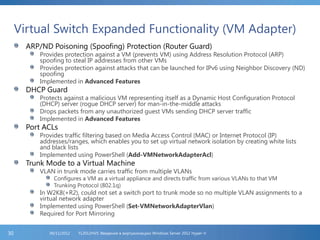
Virtual Switch Expanded Functionality (VM Adapter)
ARP/ND Poisoning (Spoofing) Protection (Router Guard)
Provides protection against a VM (prevents VM) using Address Resolution Protocol (ARP)
spoofing to steal IP addresses from other VMs
Provides protection against attacks that can be launched for IPv6 using Neighbor Discovery (ND)
spoofing
Implemented in Advanced Features
DHCP Guard
Protects against a malicious VM representing itself as a Dynamic Host Configuration Protocol
(DHCP) server (rogue DHCP server) for man-in-the-middle attacks
Drops packets from any unauthorized guest VMs sending DHCP server traffic
Implemented in Advanced Features
Port ACLs
Provides traffic filtering based on Media Access Control (MAC) or Internet Protocol (IP)
addresses/ranges, which enables you to set up virtual network isolation by creating white lists
and black lists
Implemented using PowerShell (Add-VMNetworkAdapterAcl)
Trunk Mode to a Virtual Machine
VLAN in trunk mode carries traffic from multiple VLANs
Configures a VM as a virtual appliance and directs traffic from various VLANs to that VM
Trunking Protocol (802.1q)
In W2K8(+R2), could not set a switch port to trunk mode so no multiple VLAN assignments to a
virtual network adapter
Implemented using PowerShell (Set-VMNetworkAdapterVlan)
Required for Port Mirroring
FL2012HVS: Введение в виртуализацию Windows Server 2012 Hyper-V06/11/201230
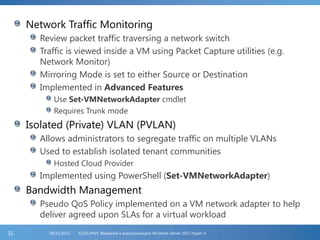
Network Traffic Monitoring
Review packet traffic traversing a network switch
Traffic is viewed inside a VM using Packet Capture utilities (e.g.
Network Monitor)
Mirroring Mode is set to either Source or Destination
Implemented in Advanced Features
Use Set-VMNetworkAdapter cmdlet
Requires Trunk mode
Isolated (Private) VLAN (PVLAN)
Allows administrators to segregate traffic on multiple VLANs
Used to establish isolated tenant communities
Hosted Cloud Provider
Implemented using PowerShell (Set-VMNetworkAdapter)
Bandwidth Management
Pseudo QoS Policy implemented on a VM network adapter to help
deliver agreed upon SLAs for a virtual workload
FL2012HVS: Введение в виртуализацию Windows Server 2012 Hyper-V06/11/201231
Virtual Switch Extensibility
Extend vSwitch functionality so 3rd Parties can add
monitoring, filtering and forwarding functionality without
having to replace vSwitch functionality
Extensions are implemented as either NDS Filter drivers or
Windows Filtering Platform (WFP) callout drivers
NDIS - An NDIS filter driver is a filtering service to monitor or
modify network packets in Windows
WFP – allows vendors to filter and modify TCP/IP packets, monitor
or authorize connections, filter Internet Protocol security (IPsec)-
protected traffic, and filter remote procedure calls (RPCs)
Extensions may extend or replace three aspects of vSwitch
processing – ingress filtering, address look-up and
forwarding, and egress filtering
Extensions support VM mobility scenarios
FL2012HVS: Введение в виртуализацию Windows Server 2012 Hyper-V06/11/201232
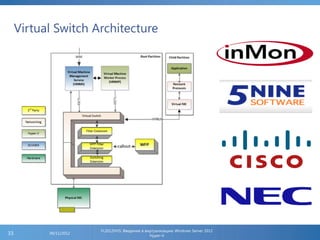
Virtual Switch Architecture
FL2012HVS: Введение в виртуализацию Windows Server 2012
Hyper-V
06/11/201233
Single Root I/O Virtualization (SR-IOV)
Requires support in the Hyper-V server chipset (firmware)
and in a Network Adapter (NIC) (driver + firmware) in the
host
Remaps interrupts and provides Direct Memory Access to virtual
machines
Increases network throughput
Reduces network latency
Reduces CPU overhead on the Hyper-V host
Virtual Functions (VF) in the SR-IOV-capable adapter are
mapped directly to the virtual machine
VM network traffic bypasses the vSwitch
Very similar to basic RDMA functionality
SR-IOV is supported in VM mobility scenarios
Not enabled if a destination Host does not support SR-IOV
FL2012HVS: Введение в виртуализацию Windows Server 2012 Hyper-V06/11/201234
Dynamic Virtual Machine Queuing (VMQ)
VMQ support first introduced in W2K8R2
Requires support in the Network Adapter in the Host
Physical NIC inspects incoming packets for destination MAC addresses
VMQ-capable NIC uses receive queues based on VM MAC addresses to
route traffic to the designated VM (Network Adapter)
Very efficient transfer of received network traffic to a VM
VMQ-capable NICs use DMA functionality thus reducing CPU overhead
on the Host
VMQ provides the most benefit to virtual workloads that receive large
amounts of network traffic (e.g. file backup, database replication,
database mirroring, printer servers, etc…)
WS2012 supports automatic configuration and tuning for VMQ
VMQ is enabled automatically on the VM Network Adapter (Hardware
Acceleration settings) but will not be used unless the NIC supports it
and it is enabled
VMQ functionality on the Host level is enableddisabled on the physical NIC
itself
PowerShell can also be used to enable VMQ (Set-VMNetworkAdapter)
FL2012HVS: Введение в виртуализацию Windows Server 2012 Hyper-V06/11/201235
IPSec Task Offload
EncryptionDecryption places an increased load on the Hyper-V server
processors
Checksum calculations (in software) also place an increased load on the
Hyper-V server processors
WS2012 provides the capability to offload checksum calculations to an
NIC that also supports IPSec offloading
Check the NIC capabilities to see if the NIC supports coexistence of Checksum
and IPsec offload
Check if the outbound Security Association (SA) is already offloaded to the NIC
Check if the packet is not going to benefit from the implicit checksum offload
that is part of the LSO fast path
Determine if the endpoint of the transport connection is local to this box (IPsec
SA is transport mode)
IPSec Task Offloading is enabled automatically on the VM Network
Adapter (Hardware Acceleration settings) but will not be used unless
the NIC supports it and it is enabled
IPSec Offload functionality on the Host level is enableddisabled on the physical
NIC itself
PowerShell can also be used to enable VMQ (Set-VMNetworkAdapter)
FL2012HVS: Введение в виртуализацию Windows Server 2012 Hyper-V06/11/201236
Network Adapter Teaming in Virtual Machines
WS2012 provides inbox NIC Teaming functionality
Virtual Machines can also take advantage of this capability
Allows a VM to have Network Adapters connected to more than
one External vSwitch thus allowing network connectivity if the Host
looses connectivity
Important when using SR-IOV because SR-IOV traffic does not go
through the vSwitch
VM with NIC teaming enabled that is connected to vSwitches
supported by SR-IOV-capable adapters, can failover VFs
Configured in Advanced Features
At the Host level, NIC Teaming is not supported with SR-
IOV, RDMA, or TCP Chimney
SR-IOV and RDMA data is delivered directly to the adapter
bypassing the network stack therefore not allowing path redirection
TCP chimney is not supported with NIC Teaming
FL2012HVS: Введение в виртуализацию Windows Server 2012 Hyper-V06/11/201237
Hyper-V Network Virtualization
A feature specifically targeted for the Cloud and Cloud Service
Providers that support multiple tenants
Decouples a tenant’s logical topology from a datacenter’s physical
topology
Virtualizes tenant networks providing the illusion of their own IP address space
regardless of the Provider’s address space
Implemented by the Hyper-V vSwitch and the Hyper-V Parent Partition
networking stack
Separates the Customer Address (CA) (Tenant) space from the Provider Address
(PA) space which the Cloud Provider manages
Requires Datacenter Management Software (DCM) such as System
Center 2012 SP1 Virtual Machine Manager to configure the IP mapping
tables (Policies) for the CA and PA address spaces for each tenant
When implemented, Tenant VMs can be arbitrarily placed on any physical host
in the datacenter
Tenants can communicate with non-virtualized workloads (using
normal physical IP addresses) by way of a Network Virtualization
Gateway
FL2012HVS: Введение в виртуализацию Windows Server 2012 Hyper-V06/11/201238
Multi-Tenant Environments Today
VLANs are used today as an isolation mechanism in multi-tenant
environments
Cumbersome configuration when VMs need to be moved within a
datacenter. Could result in an inadvertent network outage
Limited scalability (maximum of 4094 VLANs)
Physical switch support may be limited as well
VLANs cannot span multiple subnets
WS2012 Hyper-V vSwitch also supported PVLANs
Addresses some of the scalability issues associated with VLANs
Designed to reduce the number of IP subnets and VLANs for some
types of network configurations
vSwitch can restrict communications of VMs on the same VLAN or
network segment
PVLANs are more suitable for Public Clouds where a tenant VM only
requires internet connectivity (e.g. web hosting)
Port ACLs can also be used as an isolation technique
Challenge is managing and keeping ACLs updated
FL2012HVS: Введение в виртуализацию Windows Server 2012 Hyper-V06/11/201239
Benefits and Capabilities of Network Virtualization
Shift workloads to shared IaaS with few changes on the
customer (tenant) side
Flexible placement or workloads within a datacenter
Multi-tenant isolation without VLANs
IP Address re-use without VLANs
Decouples server and network administration
PowerShell and WMI used to script automated tasks
FL2012HVS: Введение в виртуализацию Windows Server 2012 Hyper-V06/11/201240
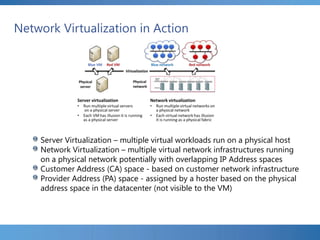
Network Virtualization in Action
Server Virtualization – multiple virtual workloads run on a physical host
Network Virtualization – multiple virtual network infrastructures running
on a physical network potentially with overlapping IP Address spaces
Customer Address (CA) space - based on customer network infrastructure
Provider Address (PA) space - assigned by a hoster based on the physical
address space in the datacenter (not visible to the VM)
Network Virtualization Policies
FL2012HVS: Введение в виртуализацию Windows Server 2012
Hyper-V
06/11/201242
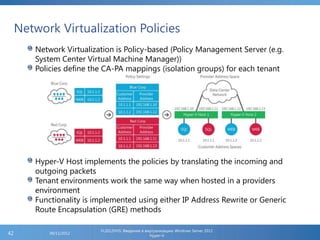
Network Virtualization is Policy-based (Policy Management Server (e.g.
System Center Virtual Machine Manager))
Policies define the CA-PA mappings (isolation groups) for each tenant
Hyper-V Host implements the policies by translating the incoming and
outgoing packets
Tenant environments work the same way when hosted in a providers
environment
Functionality is implemented using either IP Address Rewrite or Generic
Route Encapsulation (GRE) methods
FL2012HVS: Введение в виртуализацию Windows Server 2012
Hyper-V
06/11/201243
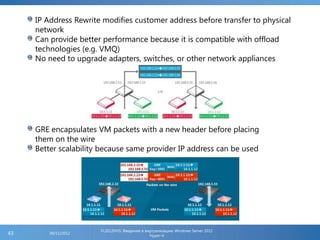
IP Address Rewrite modifies customer address before transfer to physical
network
Can provide better performance because it is compatible with offload
technologies (e.g. VMQ)
No need to upgrade adapters, switches, or other network appliances
GRE encapsulates VM packets with a new header before placing
them on the wire
Better scalability because same provider IP address can be used
Hyper-V Storage
Functionality in W2K8R2 carried forward
WS2012 Storage Enhancements
Native 4K drive support
New virtual hard disk format
Support for SMB 3.0 file shares
Support for Virtual Fibre Channel in Guests
Live Storage Migration
Support for Offloaded Data Transfer (ODX) functionality
Cluster Shared Volumes v2.0
Storage Resource Pools
FL2012HVS: Введение в виртуализацию Windows Server 2012 Hyper-V06/11/201244
Native 4K Drive Support
Today, most drives support default standard of 512 byte sector sizes
Standard is moving to 4KB sector sizes
Transitional 512e drives available
Improved format efficiencies
Improved schemes for error correction codes (ECC)
Addresses compatibility issues
Cannot directly write a 512-byte sector to the drive
Uses a Read-Modify-Write (RMW) process
Performance drops for writes that are not 4K aligned
VHD 1.0 dynamic and differencing disks have performance problems
on disks with other than 512-byte sectors
512-byte sector bitmap in front of data payloads
512-byte sector alignments
Applications commonly issue reads and writes in multiples of 4KB sizes. Because of
the 512-byte bitmap in front of the data payload, the 4KB blocks are not aligned to
the physical boundary
WS2012 mitigates performance effects on 512e disks on the VHD stack
by preparing VHD structures for alignment on 4KB boundaries
Done using a RMW process in software at the VHD layer
New VHDX format does not have this problem and is not backward compatible
FL2012HVS: Введение в виртуализацию Windows Server 2012 Hyper-V06/11/201245
New Virtual Hard Disk Format
Format is VHDX
VHD still available
Supports larger disks up to 64 TB
Additional protection against data corruption during power failures by
logging updates to the VHDX metadata structures (transaction tracking)
Improved alignment of the virtual hard disk format to work well on large
sector disks
Larger block sizes (32 MB for fixed and dynamic and 2 MB for differencing
disks), which allows these disks to tune to the needs of the workload
4-KB logical sector virtual disk that allows for increased performance when
used by applications and workloads that are designed for 4-KB sectors
The ability to store custom metadata about the file that the user might
want to record, such as operating system version, or patches applied
Efficiency (called trim) in representing data, resulting in smaller file sizes
and allowing the underlying physical storage device to reclaim unused
space. (Trim requires pass-through or SCSI disks and trim-compatible
hardware on the backend)
FL2012HVS: Введение в виртуализацию Windows Server 2012 Hyper-V06/11/201246
Support for SMB 3.0 File Shares
Virtual machine data files are now supported on a File Server
supporting the SMBv3 protocol
New File Server features provide a similar level of reliability,
availability, manageability and high performance that you would
expect from SAN storage
Advantages:
Ease of provisioning and management - managing files shares is much
easier than managing a storage fabric and logical unit numbers (LUNS)
Increased flexibility - provides for dynamic relocation of virtual
machines within a data center
Ability to take advantage of existing investments in a converged
network - use an existing converged network with no requirement for
specialized storage networking hardware
Reduced Capital expenditures - capital expenses (acquisition costs) are
significantly reduced
Reduced operating expenditures - reduced operating costs because
there is no need for specialized storage expertise
FL2012HVS: Введение в виртуализацию Windows Server 2012 Hyper-V06/11/201247
SMB Features
SMB Transparent Failover
HA File Servers provide zero downtime (Continuous Availability)
Requires WS2012 Failover Cluster
Preferred configuration would be a Scale-Out File Server so CSV volumes could be used to
store data
SMB Multi-Channel
Aggregate network bandwidth and provide fault tolerance
Requires Windows 8 Client or Windows Server 2012
Leverages NIC teaming configurations
Multiple NICs, adapter support for RSS, one or more adapters that support RDMA
Get-SmbServerNetworkInterface
SMB Direct
Adapter must support RDMA
Requires Windows 8 Client or Windows Server 2012
VSS Provider for Remote File Shares
New VSS Provider allows for app-consistent shadow copies of application data on
WS2012 file shares
Inbox Windows Server Backup does not support this functionality
SMB PowerShell cmdlets
Can manage SMBv3 end-to-end in PowerShell
FL2012HVS: Введение в виртуализацию Windows Server 2012 Hyper-V06/11/201248
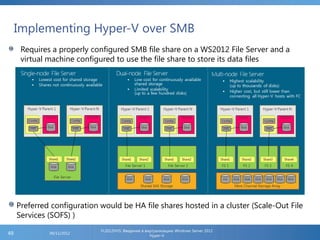
Implementing Hyper-V over SMB
FL2012HVS: Введение в виртуализацию Windows Server 2012
Hyper-V
06/11/201249
Requires a properly configured SMB file share on a WS2012 File Server and a
virtual machine configured to use the file share to store its data files
Preferred configuration would be HA file shares hosted in a cluster (Scale-Out File
Services (SOFS) )
Support for Virtual Fibre Channel Adapters
Previous versions of Hyper-V supported only IDE, SCSI or iSCSI
connections to storage supported in VM
Virtual Fibre Channel Adapter in a VM provides access to SAN storage
where Host is connected by way of FC HBAs
Virtual SAN Manager in Hyper-V Manager is used to configure a Virtual
SAN that maps to the physical HBA(s) configured in the Host
Fibre Channel Adapter in the VM connects to the Virtual SAN
Storage hardware (HBA and SAN) must support NPIV (N_Port ID
Virtualization)
Single FC HBA supports multiple logical ports by creating virtual pairs (WWNN,
WWPN)
Storage Administrator uses LUN maskingzoning paradigm to map
LUNs to Host and to VM using the provided WWNN and WWPN
information
When configuring HA VMs in a cluster, multiple WWNNWWPN
information must be provided to support mobility scenarios (LMQM)
FL2012HVS: Введение в виртуализацию Windows Server 2012 Hyper-V06/11/201250
Live Storage Migration
Live Migration in WS2012 has multiple aspects associated with it
Live Migration of a virtual machine in a Failover Cluster
One or more simultaneous live migrations between cluster nodes
Live Migration of a virtual machine between two non-clustered Hyper-
V servers
Live Migration of only the virtual machine storage
Most common scenario for Live Storage Migration is when
upgrading physical storage devices
Can also use when moving to more economical storage such a
SMB shares on a WS2012 File Server
Only supported when VM is using VHDVHDX, Snapshot files
(AVHDAVHDX)
Pass-through disks are not supported
VM data files can be moved to the same or different locations
FL2012HVS: Введение в виртуализацию Windows Server 2012 Hyper-V06/11/201251
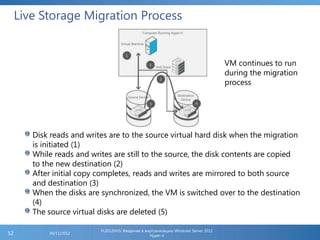
Live Storage Migration Process
FL2012HVS: Введение в виртуализацию Windows Server 2012
Hyper-V
06/11/201252
Disk reads and writes are to the source virtual hard disk when the migration
is initiated (1)
While reads and writes are still to the source, the disk contents are copied
to the new destination (2)
After initial copy completes, reads and writes are mirrored to both source
and destination (3)
When the disks are synchronized, the VM is switched over to the destination
(4)
The source virtual disks are deleted (5)
VM continues to run
during the migration
process
53
FL2012HVS: Введение в виртуализацию Windows Server 2012
Hyper-V
06/11/2012
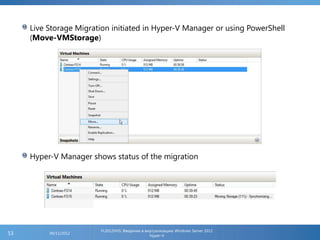
Live Storage Migration initiated in Hyper-V Manager or using PowerShell
(Move-VMStorage)
Hyper-V Manager shows status of the migration
Support for Offloaded Data Transfer (ODX)
Traditional file transfers travel via the operating system on the source and destination machines
Source reads and transfers and then the destination writes data back to the storage
Inefficient and time consuming
New Offloaded Data Transfer (ODX) (also referred to as Copy Offloading) technology is
designed to work with storage that supports the functionality
ODX uses the copy manager function on the storage device to perform the move based on
information received in the token provided by the operating system
ODX functionality is part of the Windows copy engine
Windows queries storage devices for ODX capability when the storage is enumerated
To be supported, the source and destination storage must be managed by the same storage-
side copy manager
If copy offloading fails, Windows reverts back to traditional methods
In WS2012 Hyper-V, the VHDVHDX driversparsers can take advantage of ODX when available
Guest takes advantage of this by way of StorVSC and StorVSP
Applies only to VM storage attached to SCSI controllers (IDE controllers do not support the
SCSI command set)
Compressed or encrypted files are not supported
Sparse files (much of the data is zeros and is represented by metadata) are not supported
Bitlocker protected volumes are not supported
Scenarios that can take advantage of this include Live Storage Migration and snapshot merging
FL2012HVS: Введение в виртуализацию Windows Server 2012 Hyper-V06/11/201254
Dynamic Memory
Dynamic Memory was first introduced in W2K8R2 SP1
Dynamic Memory helps use physical memory more
efficiently
Hyper-V treats memory as a shared resource that can be
automatically reallocated among virtual machines based on
demand and configuration settings set by the
administrator
Redistribution of memory is based on priority and the level
of memory pressure
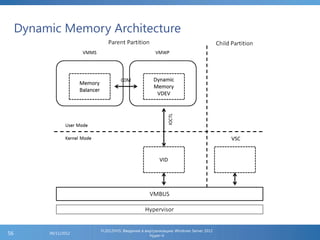
Dynamic Memory VSC running in the Guest communicates memory
pressure to the VSP in the Host via the VMBus
VSP communicates the information to the Memory Balancer
running in VMMS
Memory Balancer makes decisions to redistribute memory amongst
the VMs
FL2012HVS: Введение в виртуализацию Windows Server 2012 Hyper-V06/11/201255
Dynamic Memory Architecture
FL2012HVS: Введение в виртуализацию Windows Server 2012
Hyper-V
06/11/201256
Windows Server 2012 Dynamic Memory Changes
Core functionality remains the same
Improvements allow for greater VM densities in the Host
Leads to lower costs especially in VDI scenarios
Dynamic Memory settings in WS2012 have changed slightly
Startup RAM: memory VM is given to start with
Minimum RAM: memory VM is assigned when running
This can be decreased while the VM is running
Can be less than Startup RAM
Allows Hyper-V to reclaim unused memory once VM has started
Can cause problems if VM is restarted and memory pressure across the Host does not allow for
required memory allocation(S)
Maximum RAM: maximum memory a VM can be assigned
This can be increased while the VM is running
Second Level Paging
Memory Management technique that uses physical disk resources as temporary memory
storage during VM restart only
May temporarily degrade VM performance
Usage is not expected to be for periods longer than 10 minutes
Not used when VM is started from an Off state
Not used during Live or Quick Migration in a cluster
Not used for oversubscription in a running VM
Use internal Guest paging, which is managed by the Windows Memory Manager
Hyper-V removes additional allocated memory from a VM after restart is successful
FL2012HVS: Введение в виртуализацию Windows Server 2012 Hyper-V06/11/201257
RemoteFx
First introduced in W2K8-R2 SP1
Enhances the end user experience in remote desktop computing
by providing a rich, local-like desktop environment over the
network
Most applicable in a VDI scenario
Allows for minimum hardware requirements on the endpoint
device (e.g. Thin Clients)
Requirements
WS2012 and hardware that supports Hyper-V
SLAT-capable processors (EPT for Intel, NPT for AMD)
GPU that is compatible with RemoteFx
WS2012 RemoteFx feature set
RemoteFx integration across the entire Remote Desktop feature set
RemoteFx for WAN
RemoteFx Adaptive Graphics
RemoteFx Media Remoting
RemoteFx Multi-touch
FL2012HVS: Введение в виртуализацию Windows Server 2012 Hyper-V06/11/201258
RemoteFx (Part 2)
GPU Management in Hyper-V Manager
Displays which GPUs are installed and which are compatible with RemoteFx
View the capabilities of each GPU
Filter out which GPUs are being used by the Host and which ones can be used
by RemoteFx
Shows which VMs are associated with each GPU that is being used by RemoteFx
Shows GPU resource usage by virtual machine
Managing a RemoteFx Virtual Machine
In W2K8-R2 SP1, a RemoteFx enabled VM could not be managed by the Virtual
Machine Connection (VMConnect) interface. Had to RDP into the VM
In WS2012, VMConnect can be used as long as an RDP session to the VM does
not exist. Once an RDP connection is made, VMConnect is disconnected
Multi-monitor Support
RemoteFx Codec Improvements
Increased compression ratios that helps reduce bandwidth consumption
FL2012HVS: Введение в виртуализацию Windows Server 2012 Hyper-V06/11/201259
Backup and Restore
Hyper-V servers, and the virtual machines running in them, can be
backed up using Windows Server Backup (WSB) or 3rd Party
applications written to use the Hyper-V VSS writer
WSB is a feature and must be enabled in the Host
WSB cannot be used to backup a Guest if it is configured with a Pass-Through
disk, a disk connected via iSCSI, a disk connected via Synthetic Fibre Channel,
disk cannot be on an SMB share
Backup applications running in the Guest can be used to overcome the documented
restrictions
WSB UI or PowerShell module can be used
The expectation is 3rd Party applications or Data Protection Manager
(DPM) will be used as the preferred backup solution
Windows Server backup capabilities
Backup a Hyper-V server including virtual machines (note restrictions previously
mentioned)
Including virtual machines that have snapshots
Selectively Backup only the Hyper-V server or only VMs (running or not)
Backup VSS and Non-VSS capable operating systems running in the Guest
Does not conflict with other 3rd Party backup applications
FL2012HVS: Введение в виртуализацию Windows Server 2012 Hyper-V06/11/201260
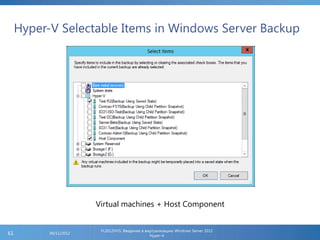
Hyper-V Selectable Items in Windows Server Backup
FL2012HVS: Введение в виртуализацию Windows Server 2012
Hyper-V
06/11/201261
Virtual machines + Host Component
Virtual Machine Snapshots
Snapshot is a point-in-time picture of a virtual machine
Snapshots can be taken in a VM as long as it is not in a Paused state
Snapshot files use the *.avhd (*.avhdx) extension
Snapshots are intended to be used in a Test and Development
scenario
Snapshots should not be used in a production environment and
are not a replacement for a backup strategy
Snapshots have been used by customers in production environments
as a way to back out of problems encountered when patching a virtual
machine. This is a temporary measure
Snapshots are used by Hyper-V Replica and are stored on Replica
servers
Snapshots can be taken using Hyper-V Manager, VMConnect,
SCVMM (called Checkpoints in SCVMM) or the Checkpoint-VM
PowerShell cmdlet
WS2012 snapshot behavior has changed in that when snapshots
are deleted, the merging process (if needed) occurs
(asynchronously) while the VM is still running
FL2012HVS: Введение в виртуализацию Windows Server 2012 Hyper-V06/11/201262
Virtual Machine Mobility Scenarios
Importing Virtual Machines (Module 3)
Hyper-V Replica (Module 5)
Live Migration within a Failover Cluster
Available since W2K8-R2
Not under control of cluster service
Limited to one in-progress LM between same pair of cluster nodes
WS2012
Cluster service handles the live migration via a handoff from Hyper-V
(virtual machine resource DLL (vmclusres.dll) is used)
Hyper-V Failover clusters, by default, can execute 2 simultaneous live
migrations but can be configured (Hyper-V Server setting) to allow more
Failover Cluster Network module is used to configure Live Migration
Settings (enable and prioritize networks)
Failover Cluster Manager allows user to multi-select VM roles and execute
multiple live migrations up to the configured limit
Anything above the limit is queued for execution
FL2012HVS: Введение в виртуализацию Windows Server 2012 Hyper-V06/11/201263
Virtual Machine Mobility Scenarios (Part 2)
Live Migration Outside a Failover Cluster
Live Migration outside of a Failover Cluster can be executed when
the VM is using local storage (on the source Hyper-V server) or
SMB File Shares (File Server outside the Hyper-V server)
If using local storage, the VM storage is mirrored to the destination
Hyper-V server over the network while the VM continues to run
If using an SMB file share, the VM is moved to another Hyper-V server
but the storage remains on the file server
The Live Migration process outside of Failover Cluster is basically a
combination of the live migration process executed within a cluster
and a Live Storage Migration process (previously described in this
module)
The Live Storage Migration piece executes first except for the deletion
of the files on the source Hyper-V server (local storage only) which
does not happen until the VM is running on the destination
FL2012HVS: Введение в виртуализацию Windows Server 2012 Hyper-V06/11/201264
Hyper-V Replica Scenario Overview
FL2012HVS: Введение в виртуализацию Windows Server 2012
Hyper-V
06/11/201265
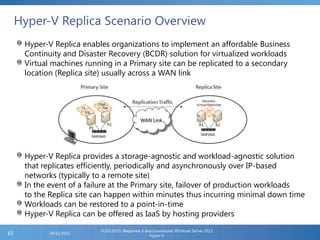
Hyper-V Replica enables organizations to implement an affordable Business
Continuity and Disaster Recovery (BCDR) solution for virtualized workloads
Virtual machines running in a Primary site can be replicated to a secondary
location (Replica site) usually across a WAN link
Hyper-V Replica provides a storage-agnostic and workload-agnostic solution
that replicates efficiently, periodically and asynchronously over IP-based
networks (typically to a remote site)
In the event of a failure at the Primary site, failover of production workloads
to the Replica site can happen within minutes thus incurring minimal down time
Workloads can be restored to a point-in-time
Hyper-V Replica can be offered as IaaS by hosting providers
Technical Overview - Prerequisites
Hardware that supports the Hyper-V role in Windows
Server 2012
Sufficient storage at the Primary and Replica sites to host
virtual workloads
Network connectivity between the Primary and Replica
sites
Properly configured firewall rules to permit replication
Configured by default but not enabled
X.509v3 certificate(s) to support Mutual Authentication
with certificates (if needed but not reauired)
FL2012HVS: Введение в виртуализацию Windows Server 2012 Hyper-V06/11/201266
Hyper-V Replica: Technical Overview – Functional Description
67 www.stars-s.ru
Technical Overview – Functional Description
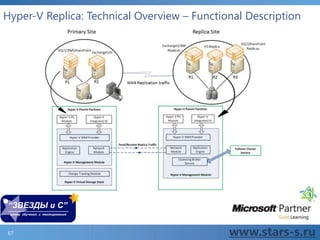
Replication Engine
Heart of Hyper-V Replica
Manages replication configuration details and handles initial replication, delta
replication, failover, and test-failover operations
Tracks virtual machine and storage mobility events
Change Tracking
Virtual machine level change tracking mechanism
Storage agnostic
Network Module
Provides secure and efficient network channel to transfer replicas between sites
Communications use HTTPHTTPS protocols
Hyper-V Replica Broker Role
Configured in Windows Server 2012 Failover (Replica) Clusters
Provides seamless replication even if virtual workloads change node ownership
Redirects all virtual machine specific events to the correct node in the cluster
Management Experience
Hyper-V Manager, Failover Cluster Manager, PowerShell scripting, Hyper-V WMI
module, remote management using RSAT
FL2012HVS: Введение в виртуализацию Windows Server 2012 Hyper-V06/11/201268
Security Considerations
No requirement for Hyper-V servers to be members of an AD
Domain unless a Failover (Replica) Cluster is involved
Hyper-V Replica can also be implemented between un-trusted
domains/workgroups
Uses Hyper-V Simple Authorization Model
Hyper-V Replica can be configured to restrict replication traffic to
specific Primary servers
Firewall rules must be configured to allow incoming replication
connections
Mutual Authentication can use Integrated Authentication (AD
Domain) or certificates
Certificates are required by all Hyper-V servers and the CAP associated
with a Hyper-V Replica Broker in a Failover Cluster
Additional security is provided by configuring a Replication
Authorization Tag
FL2012HVS: Введение в виртуализацию Windows Server 2012 Hyper-V06/11/201269
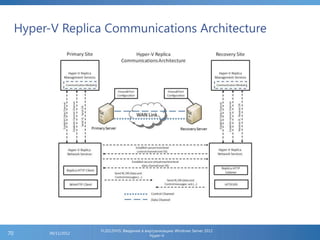
Hyper-V Replica Communications Architecture
FL2012HVS: Введение в виртуализацию Windows Server 2012
Hyper-V
06/11/201270
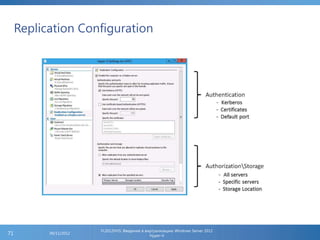
Replication Configuration
FL2012HVS: Введение в виртуализацию Windows Server 2012
Hyper-V
06/11/201271
InstallingEnabling Hyper-V Replica
Hyper-V Replica is installed as part of the Hyper-V role
Each Hyper-V server must be enabled for replication
Replication Configuration under Hyper-V Server Settings
Firewall rules (inbound) must be enabled on each Hyper-V
server based on the Authentication method selected
Replication can be allowed for any authenticated server or
restricted to specific servers
Configure storage location and Security Tag settings
Failover (Replica) Clusters require Hyper-V Replica Broker
role be installed and CAP be used as the connection point
for replicating virtual machines
Use the Broker to configure replication settings across all
cluster nodes
Enable the correct firewall rules on each node in the cluster
FL2012HVS: Введение в виртуализацию Windows Server 2012 Hyper-V06/11/201272
Enabling Virtual Machines for Replication
Replication is enabled on a per virtual machine basis
Enable Replication Wizard
Replica server FQDN
Verify connection parameters
Choose which VHDs to replicate
Configure Recovery History
Latest Recovery Point
Additional Recovery Points (Standard Replica)
Incremental VSS (application-Consistent Replica)
Choose Initial Replication Method
Failover TCP/IP Settings
Pre-configure IP addressing for replicated virtual machines if DR
site uses different addressing scheme
Requires Windows Server 2012 Integration Components
FL2012HVS: Введение в виртуализацию Windows Server 2012 Hyper-V06/11/201273
Client Hyper-V Platform
Deficiencies in current client virtualization product – Virtual
PC with XP Mode
Will not have a Windows 8 version
Client Hyper-V enables developers and IT Professionals to
develop and test on Windows 8 Client machines
(Professional and Enterprise SKUs only)
After testing on client, can deploy to server
Leveraged by consultants, sales force, and MVPs who have
been asking for years for efficient ways to rundemo
software on laptops
User experience is the same as in Windows Server 2012
Hyper-V Manager and Hyper-V PowerShell module
FL2012HVS: Введение в виртуализацию Windows Server 2012 Hyper-V06/11/201274
Hardware Requirements
Hardware assisted virtualization enabled in the BIOS
Processor must support Second Level Address Translation
(SLAT)
EPT on Intel
RVI on AMD
Run msinfo32.exe on client before enabling Client Hyper-V
feature
Run systeminfo.exe and look at the output (Hyper-V
Requirements)
Download Sysinternals tool coreinfo.exe and run it before
enabling the Client Hyper-V feature
FL2012HVS: Введение в виртуализацию Windows Server 2012 Hyper-V06/11/201275
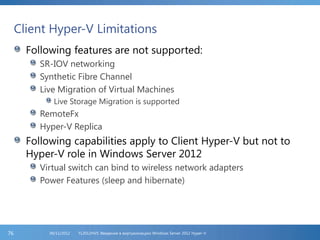
Client Hyper-V Limitations
Following features are not supported:
SR-IOV networking
Synthetic Fibre Channel
Live Migration of Virtual Machines
Live Storage Migration is supported
RemoteFx
Hyper-V Replica
Following capabilities apply to Client Hyper-V but not to
Hyper-V role in Windows Server 2012
Virtual switch can bind to wireless network adapters
Power Features (sleep and hibernate)
FL2012HVS: Введение в виртуализацию Windows Server 2012 Hyper-V06/11/201276
Install and Configure Client Hyper-V
FL2012HVS: Введение в виртуализацию Windows Server 2012
Hyper-V
06/11/201277
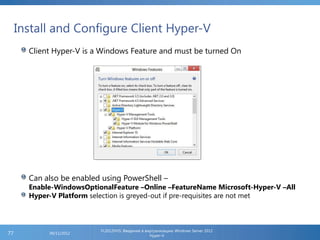
Client Hyper-V is a Windows Feature and must be turned On
Can also be enabled using PowerShell –
Enable-WindowsOptionalFeature –Online –FeatureName Microsoft-Hyper-V –All
Hyper-V Platform selection is greyed-out if pre-requisites are not met
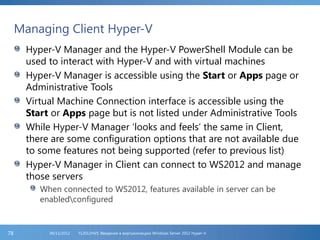
Managing Client Hyper-V
Hyper-V Manager and the Hyper-V PowerShell Module can be
used to interact with Hyper-V and with virtual machines
Hyper-V Manager is accessible using the Start or Apps page or
Administrative Tools
Virtual Machine Connection interface is accessible using the
Start or Apps page but is not listed under Administrative Tools
While Hyper-V Manager ‘looks and feels’ the same in Client,
there are some configuration options that are not available due
to some features not being supported (refer to previous list)
Hyper-V Manager in Client can connect to WS2012 and manage
those servers
When connected to WS2012, features available in server can be
enabledconfigured
FL2012HVS: Введение в виртуализацию Windows Server 2012 Hyper-V06/11/201278
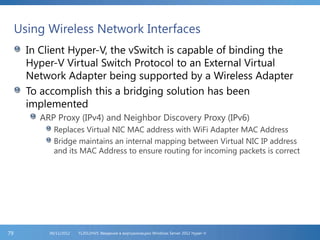
Using Wireless Network Interfaces
In Client Hyper-V, the vSwitch is capable of binding the
Hyper-V Virtual Switch Protocol to an External Virtual
Network Adapter being supported by a Wireless Adapter
To accomplish this a bridging solution has been
implemented
ARP Proxy (IPv4) and Neighbor Discovery Proxy (IPv6)
Replaces Virtual NIC MAC address with WiFi Adapter MAC Address
Bridge maintains an internal mapping between Virtual NIC IP address
and its MAC Address to ensure routing for incoming packets is correct
FL2012HVS: Введение в виртуализацию Windows Server 2012 Hyper-V06/11/201279

Секреты виртуализации - Windows Server 2012 Hyper-V

  • 1.
    Секреты виртуализации Windows Server2012 Hyper-V (Введение) Алексей Кибкало www.stars-s.ru
  • 2.
    Hyper-V Virtualization TechnologyOverview Hyper-V technology virtualizes hardware to allow for running multiple operating systems at the same time on a single physical computer Each operating system runs isolated in a virtual machine also called a Guest Hyper-V role provides management tools in the form of the Hyper-V Manager UI or the new inbox PowerShell module System Center 2012 SP1 Applications of this technology include: Establishing a Private Cloud environment Increasing hardware utilization which can lead to cost savings Improving business continuity Establishing or expanding a VDI environment Improving efficiencies in Test and Development FL2012HVS: Введение в виртуализацию Windows Server 2012 Hyper-V06/11/20121
  • 3.
    Scaling Mission CriticalWorkloads Windows Server 2008 R2 limited to 4 VPs and 64 GB memory per virtual machine Mission critical Tier-1 applications typically run with 16 or more processors and 8 GB RAM per logical processor (SQL workloads as an example) Current systems available with 10-core processors, 16-sockets in a system and supporting 2TB or more of physical memory Hyper-V in Windows Server 2012 supports up to 320 LPs and 4TB of system memory on the Host. Virtual machines can be configured with up to 64 VPs and 1TB memory each Hosts are limited to 2,048 VPs and 1,024 VMs NUMA (Non-Uniform Memory Access) – implementation where processors have faster access to local memory. Modern operating systems and applications can take advantage of the NUMA architecture Can project a virtual NUMA topology into a virtual machine. Default is to match Host NUMA topology (Dynamic Memory configuration results in a ‘flat’ (one NUMA node) NUMA topology being projected into the Guest) FL2012HVS: Введение в виртуализацию Windows Server 2012 Hyper-V06/11/20122
  • 4.
    Scaling Mission CriticalWorkloads (Part 2) Dynamic Memory Higher consolidation numbers Using Minimum RAM setting Lowers costs in environments that have many idle or low-load VMs such as in pooled VDI environments Ability to change some memory runtime configurations provides increased agility to respond to requirement changes (increase Maximum memory and decrease Minimum memory) Smart Paging for reliable virtual machine restart allows for assigning lower amounts of minimum memory Uses disk resources for temporary storage when physical memory not available Temporary until Memory Manager (Host) can allocate sufficient memory to the VM Only used when a VM is restarted Hyper-V Failover Clusters Scale to 64 nodes supporting 8,000 virtual machines FL2012HVS: Введение в виртуализацию Windows Server 2012 Hyper-V06/11/20123
  • 5.
    Networking Core functionality remains(Virtual Switch supports virtual networks) Hyper-V Networking development transitioned to the Networking Product Team Bandwidth Management Configure minimum and maximum (QoS) bandwidth Per virtual network configuration Hardware Acceleration (physical NIC support required) Dynamic Virtual Machine Queuing (VMQ) Adaptive network processing across CPUs IPsec Offloading SR-IOV(Single-Root I/O Virtualization) System chipset + Network card support required Remapping of interrupts and DMA allows SR-IOV capable devices to be assigned to VMs (Virtual Function (VF) of physical adapter is assigned to a VM) thus bypassing the virtual switch Increases network throughput, reduces latency, and decreases CPU overhead Associated only with External Virtual Switches Advanced Features MAC Address management and MAC address spoofing DHCP and Router Guard Port Mirroring Monitoring VM network traffic Network Adapter Teaming Team virtual NICs Must use Mac address spoofing FL2012HVS: Введение в виртуализацию Windows Server 2012 Hyper-V06/11/20124
  • 6.
    Networking (Part 2) VirtualSwitch Extensibility Non-Microsoft extensions (3rd Party) written to emulate full capabilities of hardware-based devices Supports NDIS filter drivers and Windows Filtering Platform (WFP) Allows software vendors to add monitoring, filtering, forwarding functionality without replacing all of the vSwitch functionality Extensions can extend or replace three aspects of switch processing – ingress filtering, destination look-up and forwarding and egress filtering. Extensions can also gather statistical data by monitoring traffic at different layers of the vSwitch NIC Teaming (LBFO) Inbox NIC teaming solution Works with all vendor adapters (must be RSS capable adapters) Allows for NIC teaming in VMs Incompatible with SR-IOV, RDMA, and TCP Chimney FL2012HVS: Введение в виртуализацию Windows Server 2012 Hyper-V06/11/20125
  • 7.
    Networking (Part 3) NetworkVirtualization Infrastructure as a Service (IaaS) scenarios Provide on demand server instances to multiple customers (Multi-Tenant scenario) in a Dynamic Datacenter environment and guarantee secure isolation of all workloads Current solution is to use Virtual LANs (VLANs) Cumbersome re-configuration if moving workloads within a datacenter Limited scalability VLANs cannot span multiple logical subnets Virtual Machine IP Addressing Moving to the cloud requires re-assigning IP addresses Policies are tied to IP addresses Physical locations determine VM IP address Topological dependencies of VM deployments and traffic isolation Key Benefits Uncouples workloads from internal IP addresses Decouples server and network administration Removes tenant isolation dependency on VLANs Enables flexible workload placement Simplifies the network and improves server and network resource utilization Works with existing infrastructure and emerging technologies Support configuration by using PowerShell and WMI System Center Virtual Machine Manager (SCVMM) in System Center 2012 SP1 Custom management application FL2012HVS: Введение в виртуализацию Windows Server 2012 Hyper-V06/11/20126
  • 8.
    Storage New VHD Format(VHDX) VHDX supports capacities up to 64TB Data corruption protection during power failures Uses internal log data for change tracking Improved alignment to work better with large sector disks Larger block sizes for dynamic and differencing disks 4KB logical sector disk that allows for increased performance when used by workloads designed for 4KB sectors Supports ‘trim’ which results in smaller file sizes and allows underlying storage to reclaim unused space Support for Native 4K Drives Support for VHDs on native 4K drives (4K aligned with ‘padding’) Improved performance of VHDs on 512e disks Read-Modify-Write (RMW) Offload Data Transfer (ODX) Hyper-V storage stack can take advantage of ODX Hyper-V over SMB Storing VM files on SMB file shares Takes advantage of SMBv3 features Virtual Fibre Channel Virtualized FC adapters in VM Virtual Machine Snapshots Live merge of snapshots FL2012HVS: Введение в виртуализацию Windows Server 2012 Hyper-V06/11/20127
  • 9.
    Virtual Machine Mobility Export-Import NewImport Virtual Machine functionality Quick Migration Same as in Windows Server 2008 + 2008 R2 Live Migration Faster with multiple, simultaneous Live Migrations in a cluster Live Migration outside of a cluster Live Storage Migration Just migrate VM storage Hyper-V Replica Inbox DR solution that provides Business Continuity FL2012HVS: Введение в виртуализацию Windows Server 2012 Hyper-V06/11/20128
  • 10.
    Hyper-V Resource Metering Providescapability for organizations to track resource usage (CPU, memory, network bandwidth) and then charge tenants appropriately Organizations can adjust resource requirements to match needs resulting in savings Service providers and software vendors can develop more reliable chargeback solutions Can obtain usage data using Hyper-V PowerShell or new APIs in Hyper-V WMIv2 provider Resource Pools are logical containers that collect resource usage by a tenant’s virtual workloads. Data is collected and reports generated on configured pools FL2012HVS: Введение в виртуализацию Windows Server 2012 Hyper-V06/11/20129
  • 11.
    Security Inbox Hyper-V securityimplemented by Authorization Manager Still present but is being deprecated moving forward Outside of Hyper-V, SCVMM is used Installation of Hyper-V role creates a Virtualization Administrators group Members of this group have unrestricted access to all Hyper-V features Part of new Simple Authorization model Access to VMConnect interface can also be restricted Must configure with PowerShell FL2012HVS: Введение в виртуализацию Windows Server 2012 Hyper-V06/11/201210
  • 12.
    Automation and Manageability Primarymanageability interfaces: Hyper-V Manager UI Remote Server Administration Tools (RSAT) WMI Scripting System Center Virtual Machine Manager (SCVMM) Beginning with WS2012, Hyper-V has a PowerShell Module that can be used for automation and management FL2012HVS: Введение в виртуализацию Windows Server 2012 Hyper-V06/11/201211
  • 13.
    Client Hyper-V Hyper-V capabilitiesin specific Windows 8 Client SKUs Enterprise and Professional Client Hyper-V has same requirements as server version with the additional requirement for a SLAT capable processor Wireless Network adapters are supported VMs can run on either version of Hyper-V Features not included in client: RemoteFX Live Migration of VMs (Live Storage migration is available) Hyper-V Replica SR-IOV networking Synthetic Fibre Channel FL2012HVS: Введение в виртуализацию Windows Server 2012 Hyper-V06/11/201212
  • 14.
    Installing the Hyper-VRole Server Manager Add roles and Features Wizard (ARFW) Additional configurations: Virtual SwitchesVirtual SANs Migration settings Default stores for virtual hard disk and configuration files Server Manager PowerShell Module Install-WindowsFeature –Name Hyper-V –IncludeManagementTools Reboot is required Add –Restart to PowerShell Hyper-V Navigation pane entry in Server Manager Numerous firewall rules configured Hyper-V Replica HTTP/HTTPS Listener rules not enabled by default FL2012HVS: Введение в виртуализацию Windows Server 2012 Hyper-V06/11/201213
  • 15.
    Upgrading to WindowsServer 2012 Hyper-V Upgrade Scenarios WS2012 RC to WS2012 RTM – not supported Hyper-V Server 2012 RC to Hyper-V Server RTM – not supported Windows Server 2008 (SP2) both Full and CORE to WS2012 – Standalone is supported. Hyper-V Failover Clusters are not supported Delete saved states. Saved states for snapshots will also have to be deleted Windows Server 2008 R2 (SP1) both Full and Core to WS2012 - Standalone is supported. Hyper-V Failover Clusters are not supported Delete saved states. Saved states for snapshots will also have to be deleted Hyper-V Server 2008 (SP2) to Hyper-V Server 2012 - Standalone is supported. Hyper-V Failover Clusters are not supported Delete saved states. Saved states for snapshots will also have to be deleted Hyper-V Server 2008 R2 (SP1) to Hyper-V Server 2012 - Standalone is supported. Hyper-V Failover Clusters are not supported Delete saved states. Saved states for snapshots will also have to be deleted FL2012HVS: Введение в виртуализацию Windows Server 2012 Hyper-V06/11/201214
  • 16.
    Virtual Machine Migrations Forscenarios not supporting in-place upgrades, virtual machines must be migrated Recommended steps: Verify Guest OS is supported in WS2012 Hyper-V It is highly recommended that Integration Services in supported Guests be updated to the latest version before migration All VM Saved States must be discarded. Recommendation is to properly shutdown VM Exporting VM is not required If HA VM, use Migrate Role functionality in Failover Cluster Do not delete VMs in Hyper-V Manager Recommend compacting all dynamic disks Formulate a plan for transporting VM files to WS2012 machines Use Import Virtual Machine Wizard in Hyper-V Manager Verify all VMs start after import process completes FL2012HVS: Введение в виртуализацию Windows Server 2012 Hyper-V06/11/201215
  • 17.
    Hyper-V Integration Services AllIntegration Services are back One new Integration Service – Hyper-V Remote Desktop Virtualization Service Designed to work with Remote Desktop Virtualization Host in VDI scenarios Integration Services are user mode components Parent Partition loads a series of DLLs to interface with Child Partition components Vmickvpexchange.dll Vmicshutdown.dll Vmicheartbeat.dll Vmicrdv.dll Vmicteimesync.dll Vmicvss.dll Integration Component installation has not changed Determining if Guest ICs are out of synch with Host Event ID 1040 in Hyper-V-IntegrationAdmin log Hyper-V BPA Hyper-V PowerShell (Get-VMIntegrationService) In Hyper-V Failover Cluster, run Hyper-V validation module FL2012HVS: Введение в виртуализацию Windows Server 2012 Hyper-V06/11/201216
  • 18.
    Hyper-V Management Interface Hyper-Vin Server Manager Navigation pane Can add all servers with Hyper-V role installed to centrally manage Multiple Tiles Events Tile Services Tile Best Practice Analyzer Tile Performance Tile Roles and Features Tile Access Hyper-V Manager in Servers tile, Tools in Menu Bar, Start screen, Apps screen, Administrative Tools in Control Panel, add to blank MMC New additions Import Virtual Machine Virtual Switch Manager Virtual SAN Manager Enable Replication (VM context) FL2012HVS: Введение в виртуализацию Windows Server 2012 Hyper-V06/11/201217
  • 19.
    Hyper-V Server Settings Forthe most part, on the surface looks the same Important changes in: Hyper-V Server Settings Physical GPUs NUMA Spanning Live Migrations Storage Migrations Replication Configuration Virtual Switch Manager Extensions Virtual SAN Manager Create Virtual Fibre Channel to support Virtual Fibre Channel Adapters in VMs Can configure many of these settings using Hyper-V PowerShell module FL2012HVS: Введение в виртуализацию Windows Server 2012 Hyper-V06/11/201218
  • 20.
    Hyper-V Security Model Hyper-Vand Authorization Manager still present but being deprecated going forward Simple Authorization Model Enterprise customers – complex authorization. Use SCVMM AzMan not capable of handling complex authorization policies Small and Medium Businesses – use AzMan Simple Authorization uses a Local and Domain-level security group called Hyper-V Administrators which is created when the Hyper-V role is installed Gives users Hyper-V administrator privileges without making them local administrators on the Hyper-V server Virtual Machine Connection (VMConnect) Authorization Use PowerShell to restrict access to VMConnect Grant-VMConnectAccess and Revoke-VMConnectAccess Uses an ACL placed on the VM configuration file FL2012HVS: Введение в виртуализацию Windows Server 2012 Hyper-V06/11/201219
  • 21.
    Creating Virtual Machines Majorchange in Windows Server 2012 Hyper-V is that there is a built-in Hyper-V PowerShell module. This can be used to create virtual machines New-VM cmdlet Script examples in the Module Creating virtual machines using the New Virtual Machine Wizard in Hyper-V Manager remains the same as before New functionality in Windows Server 2012 Hyper-V is now virtual machine files can be stored on SMBv3 File Shares Dynamic Memory can also be enabled when the virtual machine is created The default virtual hard disk format is VHDX thus allowing disks up to 64 TB in size FL2012HVS: Введение в виртуализацию Windows Server 2012 Hyper-V06/11/201220
  • 22.
    Virtual Machine Settings AddHardware Virtual Fibre Channel Adapter Memory Settings Minimum RAM setting Maximum RAM is now 1 TB Smart Paging Processor Settings Maximum processors per VM is 64 Processor compatibility setting moved to its own section under Processor NUMA Configuration Network Adapters Bandwidth Management (QoS) Hardware Acceleration VMQ, IPSec, SR-IOV NIC must support these features Advanced Features DHCP Guard, Router Guard, Port mirroring, Network adapter teaming FL2012HVS: Введение в виртуализацию Windows Server 2012 Hyper-V06/11/201221
  • 23.
    Virtual Machine Connection(VMConnect) Interface Installed with Hyper-V role, Client Hyper-V and Remote Server Administration Tools (RSAT) VMConnect in Client Hyper-V can connect to Hyper-V servers running in Windows Server 2012 or Hyper-V Server 2012 Biggest change is with respect to security PowerShell can be used to restrict access to virtual machines using VMConnect Grant-VMConnectAccess –VMName VM1 –UserName Contosotsmith Revoke-VMConnectAccess –VMName VM1 –UserName Contosotsmith FL2012HVS: Введение в виртуализацию Windows Server 2012 Hyper-V06/11/201222
  • 24.
    Migrating Virtual Machinesto Windows Server 2012 Customers will want to move virtual workloads from Windows Server 2008 and Windows Server 2008 R2 Hyper-V servers to Windows Server 2012 In the past one had to Export and then Import virtual machines Time consuming process Hardware configuration differences not accounted for and manual reconfiguration was required ExportImport process is still supported, however, the Export piece is no longer required New Import process only requires the folder containing the virtual machine data files be accessible to the Hyper-V server New Import wizard detects and fixes more than 40 different types of incompatibilities Import process: Creates a copy of virtual machine configuration file Validates hardware configuration settings Compiles a list of incompatibilities Displays relevant pages allowing the user to update configuration settings Removes copy of configuration file when virtual machine is ready to start FL2012HVS: Введение в виртуализацию Windows Server 2012 Hyper-V06/11/201223
  • 25.
    Migration Scenarios Migrate fromWindows Server 2008 or 2008 R2 (also includes Hyper-V Server 2008 and 2008 R2) Shutdown all virtual machines ensuring no Saved States Place the virtual machine data folders in a location accessible to the Windows Server 2012 Hyper-V server Use the Import Virtual Machine Wizard to import each VM Make configuration changes as needed Start each VM and update Integration Services Migrate from standalone Hyper-V servers to a Windows Server 2012 Failover Cluster Place the VM data files on a shared cluster disk, preferably a CSV volume Use the Import Virtual Machine Wizard to import the VM into Hyper-V Use Failover Cluster Manager to make the VM highly available Start the virtual machine and update Integration Services Migrate from Windows Server 2008 Failover Clusters Use Migrate Role functionality. Documented in Failover Cluster training Migrate from Windows Server 2008 R2 Failover Cluster Use Migrate Role functionality. Documented in Failover Cluster training FL2012HVS: Введение в виртуализацию Windows Server 2012 Hyper-V06/11/201224
  • 26.
    Hyper-V Server Management Hyper-VServer management is accomplished using Hyper-V Manager UI Hyper-V PowerShell Module System Center 2012 SP1 Virtual Machine Manager Sconfig in Hyper-V Server 2012 for basic server configuration outside of the Hyper-V role itself Hyper-V Manager Part of Hyper-V Management Tools installed as part of the Hyper-V role Also part of the Remote Server Administration Tools (RSAT) Hyper-V PowerShell Module Installed as part of the Hyper-V Management Tools In Windows Server 2012 CORE or Hyper-V Server 2012, only the PowerShell module is available locally. The Hyper-V Manager UI is used remotely System Center 2012 SP1 Virtual Machine Manager Should be available shortly after Windows Server 2012 releases (GA) System Center 2012 is a suite of products classified as ‘Microsoft Private Cloud Products’ FL2012HVS: Введение в виртуализацию Windows Server 2012 Hyper-V06/11/201225
  • 27.
    Hyper-V PowerShell Module WindowsPowerShell® is a task-based command-line shell and scripting language designed especially for system administration Windows PowerShell helps IT professionals and power users control and automate the administration of the Windows operating system and applications that run on Windows (e.g. SQL and Exchange) The Windows PowerShell Integrated Scripting Environment (ISE) is a host application for Windows PowerShell Run commands, write, test and debug scripts in a GUI PowerShell V3.0 is installed as part of the Windows Server 2012 (and Windows 8 Client) Access PowerShell environment: On the Desk Top click on the icon in the taskbar In the Start screen, the PowerShell tile is available Server Manager allows for PowerShell remoting to other servers in the environment Accessing PowerShell ISE Can be found in Apps under Administrative Tools In Control Panel under Administrative Tools Can be pinned to the Start screen or the Taskbar Provides help about PowerShell Modules containing over 2300 cmdlets More difficult to find in Client but it is there FL2012HVS: Введение в виртуализацию Windows Server 2012 Hyper-V06/11/201226
  • 28.
    Hyper-V Networking Development ofthe Hyper-V Virtual Switch was moved to the Networking team Changes in support model and call routing Does not necessarily apply to all regions Changes to case coding using MSSolve (Support Topics) Hyper-V Engineers still require a good understanding of Hyper-V networking features and functionality Material in this part of the training has been pulled in from the Networking training Possibility of supplemental training for Hyper-V engineers delivered by Networking specialty trainers FL2012HVS: Введение в виртуализацию Windows Server 2012 Hyper-V06/11/201227
  • 29.
    Hyper-V Networking Overview The‘basics’ have not changed Virtual machines still have communication requirements on different types of virtual networks mapped to properly configured virtual switches External, Internal, Private Virtual machines will still be configured to use Network (Synthetic) Adapters or Legacy Network Adapters Proper functioning of Network Adapters requires the correct version of Integration Services be installed in a virtual machine Hyper-V Virtual Switch Manager module in Hyper-V Manager, or the corresponding PowerShell cmdlets are used to configure Hyper-V Networking System Center 2012 SP1 (SCVMM) can also be used FL2012HVS: Введение в виртуализацию Windows Server 2012 Hyper-V06/11/201228
  • 30.
    Hyper-V Networking Features VirtualSwitch Manager module Dynamic Switch Ports Virtual Switch Expanded Functionality Single Root I/O Virtualization (SR-IOV) Dynamic Virtual Machine Queuing (VMQ) IPSec Task Offload Network Adapter Teaming in virtual machines Network Virtualization FL2012HVS: Введение в виртуализацию Windows Server 2012 Hyper-V06/11/201229
  • 31.
    Virtual Switch ExpandedFunctionality (VM Adapter) ARP/ND Poisoning (Spoofing) Protection (Router Guard) Provides protection against a VM (prevents VM) using Address Resolution Protocol (ARP) spoofing to steal IP addresses from other VMs Provides protection against attacks that can be launched for IPv6 using Neighbor Discovery (ND) spoofing Implemented in Advanced Features DHCP Guard Protects against a malicious VM representing itself as a Dynamic Host Configuration Protocol (DHCP) server (rogue DHCP server) for man-in-the-middle attacks Drops packets from any unauthorized guest VMs sending DHCP server traffic Implemented in Advanced Features Port ACLs Provides traffic filtering based on Media Access Control (MAC) or Internet Protocol (IP) addresses/ranges, which enables you to set up virtual network isolation by creating white lists and black lists Implemented using PowerShell (Add-VMNetworkAdapterAcl) Trunk Mode to a Virtual Machine VLAN in trunk mode carries traffic from multiple VLANs Configures a VM as a virtual appliance and directs traffic from various VLANs to that VM Trunking Protocol (802.1q) In W2K8(+R2), could not set a switch port to trunk mode so no multiple VLAN assignments to a virtual network adapter Implemented using PowerShell (Set-VMNetworkAdapterVlan) Required for Port Mirroring FL2012HVS: Введение в виртуализацию Windows Server 2012 Hyper-V06/11/201230
  • 32.
    Network Traffic Monitoring Reviewpacket traffic traversing a network switch Traffic is viewed inside a VM using Packet Capture utilities (e.g. Network Monitor) Mirroring Mode is set to either Source or Destination Implemented in Advanced Features Use Set-VMNetworkAdapter cmdlet Requires Trunk mode Isolated (Private) VLAN (PVLAN) Allows administrators to segregate traffic on multiple VLANs Used to establish isolated tenant communities Hosted Cloud Provider Implemented using PowerShell (Set-VMNetworkAdapter) Bandwidth Management Pseudo QoS Policy implemented on a VM network adapter to help deliver agreed upon SLAs for a virtual workload FL2012HVS: Введение в виртуализацию Windows Server 2012 Hyper-V06/11/201231
  • 33.
    Virtual Switch Extensibility ExtendvSwitch functionality so 3rd Parties can add monitoring, filtering and forwarding functionality without having to replace vSwitch functionality Extensions are implemented as either NDS Filter drivers or Windows Filtering Platform (WFP) callout drivers NDIS - An NDIS filter driver is a filtering service to monitor or modify network packets in Windows WFP – allows vendors to filter and modify TCP/IP packets, monitor or authorize connections, filter Internet Protocol security (IPsec)- protected traffic, and filter remote procedure calls (RPCs) Extensions may extend or replace three aspects of vSwitch processing – ingress filtering, address look-up and forwarding, and egress filtering Extensions support VM mobility scenarios FL2012HVS: Введение в виртуализацию Windows Server 2012 Hyper-V06/11/201232
  • 34.
    Virtual Switch Architecture FL2012HVS:Введение в виртуализацию Windows Server 2012 Hyper-V 06/11/201233
  • 35.
    Single Root I/OVirtualization (SR-IOV) Requires support in the Hyper-V server chipset (firmware) and in a Network Adapter (NIC) (driver + firmware) in the host Remaps interrupts and provides Direct Memory Access to virtual machines Increases network throughput Reduces network latency Reduces CPU overhead on the Hyper-V host Virtual Functions (VF) in the SR-IOV-capable adapter are mapped directly to the virtual machine VM network traffic bypasses the vSwitch Very similar to basic RDMA functionality SR-IOV is supported in VM mobility scenarios Not enabled if a destination Host does not support SR-IOV FL2012HVS: Введение в виртуализацию Windows Server 2012 Hyper-V06/11/201234
  • 36.
    Dynamic Virtual MachineQueuing (VMQ) VMQ support first introduced in W2K8R2 Requires support in the Network Adapter in the Host Physical NIC inspects incoming packets for destination MAC addresses VMQ-capable NIC uses receive queues based on VM MAC addresses to route traffic to the designated VM (Network Adapter) Very efficient transfer of received network traffic to a VM VMQ-capable NICs use DMA functionality thus reducing CPU overhead on the Host VMQ provides the most benefit to virtual workloads that receive large amounts of network traffic (e.g. file backup, database replication, database mirroring, printer servers, etc…) WS2012 supports automatic configuration and tuning for VMQ VMQ is enabled automatically on the VM Network Adapter (Hardware Acceleration settings) but will not be used unless the NIC supports it and it is enabled VMQ functionality on the Host level is enableddisabled on the physical NIC itself PowerShell can also be used to enable VMQ (Set-VMNetworkAdapter) FL2012HVS: Введение в виртуализацию Windows Server 2012 Hyper-V06/11/201235
  • 37.
    IPSec Task Offload EncryptionDecryptionplaces an increased load on the Hyper-V server processors Checksum calculations (in software) also place an increased load on the Hyper-V server processors WS2012 provides the capability to offload checksum calculations to an NIC that also supports IPSec offloading Check the NIC capabilities to see if the NIC supports coexistence of Checksum and IPsec offload Check if the outbound Security Association (SA) is already offloaded to the NIC Check if the packet is not going to benefit from the implicit checksum offload that is part of the LSO fast path Determine if the endpoint of the transport connection is local to this box (IPsec SA is transport mode) IPSec Task Offloading is enabled automatically on the VM Network Adapter (Hardware Acceleration settings) but will not be used unless the NIC supports it and it is enabled IPSec Offload functionality on the Host level is enableddisabled on the physical NIC itself PowerShell can also be used to enable VMQ (Set-VMNetworkAdapter) FL2012HVS: Введение в виртуализацию Windows Server 2012 Hyper-V06/11/201236
  • 38.
    Network Adapter Teamingin Virtual Machines WS2012 provides inbox NIC Teaming functionality Virtual Machines can also take advantage of this capability Allows a VM to have Network Adapters connected to more than one External vSwitch thus allowing network connectivity if the Host looses connectivity Important when using SR-IOV because SR-IOV traffic does not go through the vSwitch VM with NIC teaming enabled that is connected to vSwitches supported by SR-IOV-capable adapters, can failover VFs Configured in Advanced Features At the Host level, NIC Teaming is not supported with SR- IOV, RDMA, or TCP Chimney SR-IOV and RDMA data is delivered directly to the adapter bypassing the network stack therefore not allowing path redirection TCP chimney is not supported with NIC Teaming FL2012HVS: Введение в виртуализацию Windows Server 2012 Hyper-V06/11/201237
  • 39.
    Hyper-V Network Virtualization Afeature specifically targeted for the Cloud and Cloud Service Providers that support multiple tenants Decouples a tenant’s logical topology from a datacenter’s physical topology Virtualizes tenant networks providing the illusion of their own IP address space regardless of the Provider’s address space Implemented by the Hyper-V vSwitch and the Hyper-V Parent Partition networking stack Separates the Customer Address (CA) (Tenant) space from the Provider Address (PA) space which the Cloud Provider manages Requires Datacenter Management Software (DCM) such as System Center 2012 SP1 Virtual Machine Manager to configure the IP mapping tables (Policies) for the CA and PA address spaces for each tenant When implemented, Tenant VMs can be arbitrarily placed on any physical host in the datacenter Tenants can communicate with non-virtualized workloads (using normal physical IP addresses) by way of a Network Virtualization Gateway FL2012HVS: Введение в виртуализацию Windows Server 2012 Hyper-V06/11/201238
  • 40.
    Multi-Tenant Environments Today VLANsare used today as an isolation mechanism in multi-tenant environments Cumbersome configuration when VMs need to be moved within a datacenter. Could result in an inadvertent network outage Limited scalability (maximum of 4094 VLANs) Physical switch support may be limited as well VLANs cannot span multiple subnets WS2012 Hyper-V vSwitch also supported PVLANs Addresses some of the scalability issues associated with VLANs Designed to reduce the number of IP subnets and VLANs for some types of network configurations vSwitch can restrict communications of VMs on the same VLAN or network segment PVLANs are more suitable for Public Clouds where a tenant VM only requires internet connectivity (e.g. web hosting) Port ACLs can also be used as an isolation technique Challenge is managing and keeping ACLs updated FL2012HVS: Введение в виртуализацию Windows Server 2012 Hyper-V06/11/201239
  • 41.
    Benefits and Capabilitiesof Network Virtualization Shift workloads to shared IaaS with few changes on the customer (tenant) side Flexible placement or workloads within a datacenter Multi-tenant isolation without VLANs IP Address re-use without VLANs Decouples server and network administration PowerShell and WMI used to script automated tasks FL2012HVS: Введение в виртуализацию Windows Server 2012 Hyper-V06/11/201240
  • 42.
    Network Virtualization inAction Server Virtualization – multiple virtual workloads run on a physical host Network Virtualization – multiple virtual network infrastructures running on a physical network potentially with overlapping IP Address spaces Customer Address (CA) space - based on customer network infrastructure Provider Address (PA) space - assigned by a hoster based on the physical address space in the datacenter (not visible to the VM)
  • 43.
    Network Virtualization Policies FL2012HVS:Введение в виртуализацию Windows Server 2012 Hyper-V 06/11/201242 Network Virtualization is Policy-based (Policy Management Server (e.g. System Center Virtual Machine Manager)) Policies define the CA-PA mappings (isolation groups) for each tenant Hyper-V Host implements the policies by translating the incoming and outgoing packets Tenant environments work the same way when hosted in a providers environment Functionality is implemented using either IP Address Rewrite or Generic Route Encapsulation (GRE) methods
  • 44.
    FL2012HVS: Введение ввиртуализацию Windows Server 2012 Hyper-V 06/11/201243 IP Address Rewrite modifies customer address before transfer to physical network Can provide better performance because it is compatible with offload technologies (e.g. VMQ) No need to upgrade adapters, switches, or other network appliances GRE encapsulates VM packets with a new header before placing them on the wire Better scalability because same provider IP address can be used
  • 45.
    Hyper-V Storage Functionality inW2K8R2 carried forward WS2012 Storage Enhancements Native 4K drive support New virtual hard disk format Support for SMB 3.0 file shares Support for Virtual Fibre Channel in Guests Live Storage Migration Support for Offloaded Data Transfer (ODX) functionality Cluster Shared Volumes v2.0 Storage Resource Pools FL2012HVS: Введение в виртуализацию Windows Server 2012 Hyper-V06/11/201244
  • 46.
    Native 4K DriveSupport Today, most drives support default standard of 512 byte sector sizes Standard is moving to 4KB sector sizes Transitional 512e drives available Improved format efficiencies Improved schemes for error correction codes (ECC) Addresses compatibility issues Cannot directly write a 512-byte sector to the drive Uses a Read-Modify-Write (RMW) process Performance drops for writes that are not 4K aligned VHD 1.0 dynamic and differencing disks have performance problems on disks with other than 512-byte sectors 512-byte sector bitmap in front of data payloads 512-byte sector alignments Applications commonly issue reads and writes in multiples of 4KB sizes. Because of the 512-byte bitmap in front of the data payload, the 4KB blocks are not aligned to the physical boundary WS2012 mitigates performance effects on 512e disks on the VHD stack by preparing VHD structures for alignment on 4KB boundaries Done using a RMW process in software at the VHD layer New VHDX format does not have this problem and is not backward compatible FL2012HVS: Введение в виртуализацию Windows Server 2012 Hyper-V06/11/201245
  • 47.
    New Virtual HardDisk Format Format is VHDX VHD still available Supports larger disks up to 64 TB Additional protection against data corruption during power failures by logging updates to the VHDX metadata structures (transaction tracking) Improved alignment of the virtual hard disk format to work well on large sector disks Larger block sizes (32 MB for fixed and dynamic and 2 MB for differencing disks), which allows these disks to tune to the needs of the workload 4-KB logical sector virtual disk that allows for increased performance when used by applications and workloads that are designed for 4-KB sectors The ability to store custom metadata about the file that the user might want to record, such as operating system version, or patches applied Efficiency (called trim) in representing data, resulting in smaller file sizes and allowing the underlying physical storage device to reclaim unused space. (Trim requires pass-through or SCSI disks and trim-compatible hardware on the backend) FL2012HVS: Введение в виртуализацию Windows Server 2012 Hyper-V06/11/201246
  • 48.
    Support for SMB3.0 File Shares Virtual machine data files are now supported on a File Server supporting the SMBv3 protocol New File Server features provide a similar level of reliability, availability, manageability and high performance that you would expect from SAN storage Advantages: Ease of provisioning and management - managing files shares is much easier than managing a storage fabric and logical unit numbers (LUNS) Increased flexibility - provides for dynamic relocation of virtual machines within a data center Ability to take advantage of existing investments in a converged network - use an existing converged network with no requirement for specialized storage networking hardware Reduced Capital expenditures - capital expenses (acquisition costs) are significantly reduced Reduced operating expenditures - reduced operating costs because there is no need for specialized storage expertise FL2012HVS: Введение в виртуализацию Windows Server 2012 Hyper-V06/11/201247
  • 49.
    SMB Features SMB TransparentFailover HA File Servers provide zero downtime (Continuous Availability) Requires WS2012 Failover Cluster Preferred configuration would be a Scale-Out File Server so CSV volumes could be used to store data SMB Multi-Channel Aggregate network bandwidth and provide fault tolerance Requires Windows 8 Client or Windows Server 2012 Leverages NIC teaming configurations Multiple NICs, adapter support for RSS, one or more adapters that support RDMA Get-SmbServerNetworkInterface SMB Direct Adapter must support RDMA Requires Windows 8 Client or Windows Server 2012 VSS Provider for Remote File Shares New VSS Provider allows for app-consistent shadow copies of application data on WS2012 file shares Inbox Windows Server Backup does not support this functionality SMB PowerShell cmdlets Can manage SMBv3 end-to-end in PowerShell FL2012HVS: Введение в виртуализацию Windows Server 2012 Hyper-V06/11/201248
  • 50.
    Implementing Hyper-V overSMB FL2012HVS: Введение в виртуализацию Windows Server 2012 Hyper-V 06/11/201249 Requires a properly configured SMB file share on a WS2012 File Server and a virtual machine configured to use the file share to store its data files Preferred configuration would be HA file shares hosted in a cluster (Scale-Out File Services (SOFS) )
  • 51.
    Support for VirtualFibre Channel Adapters Previous versions of Hyper-V supported only IDE, SCSI or iSCSI connections to storage supported in VM Virtual Fibre Channel Adapter in a VM provides access to SAN storage where Host is connected by way of FC HBAs Virtual SAN Manager in Hyper-V Manager is used to configure a Virtual SAN that maps to the physical HBA(s) configured in the Host Fibre Channel Adapter in the VM connects to the Virtual SAN Storage hardware (HBA and SAN) must support NPIV (N_Port ID Virtualization) Single FC HBA supports multiple logical ports by creating virtual pairs (WWNN, WWPN) Storage Administrator uses LUN maskingzoning paradigm to map LUNs to Host and to VM using the provided WWNN and WWPN information When configuring HA VMs in a cluster, multiple WWNNWWPN information must be provided to support mobility scenarios (LMQM) FL2012HVS: Введение в виртуализацию Windows Server 2012 Hyper-V06/11/201250
  • 52.
    Live Storage Migration LiveMigration in WS2012 has multiple aspects associated with it Live Migration of a virtual machine in a Failover Cluster One or more simultaneous live migrations between cluster nodes Live Migration of a virtual machine between two non-clustered Hyper- V servers Live Migration of only the virtual machine storage Most common scenario for Live Storage Migration is when upgrading physical storage devices Can also use when moving to more economical storage such a SMB shares on a WS2012 File Server Only supported when VM is using VHDVHDX, Snapshot files (AVHDAVHDX) Pass-through disks are not supported VM data files can be moved to the same or different locations FL2012HVS: Введение в виртуализацию Windows Server 2012 Hyper-V06/11/201251
  • 53.
    Live Storage MigrationProcess FL2012HVS: Введение в виртуализацию Windows Server 2012 Hyper-V 06/11/201252 Disk reads and writes are to the source virtual hard disk when the migration is initiated (1) While reads and writes are still to the source, the disk contents are copied to the new destination (2) After initial copy completes, reads and writes are mirrored to both source and destination (3) When the disks are synchronized, the VM is switched over to the destination (4) The source virtual disks are deleted (5) VM continues to run during the migration process
  • 54.
    53 FL2012HVS: Введение ввиртуализацию Windows Server 2012 Hyper-V 06/11/2012 Live Storage Migration initiated in Hyper-V Manager or using PowerShell (Move-VMStorage) Hyper-V Manager shows status of the migration
  • 55.
    Support for OffloadedData Transfer (ODX) Traditional file transfers travel via the operating system on the source and destination machines Source reads and transfers and then the destination writes data back to the storage Inefficient and time consuming New Offloaded Data Transfer (ODX) (also referred to as Copy Offloading) technology is designed to work with storage that supports the functionality ODX uses the copy manager function on the storage device to perform the move based on information received in the token provided by the operating system ODX functionality is part of the Windows copy engine Windows queries storage devices for ODX capability when the storage is enumerated To be supported, the source and destination storage must be managed by the same storage- side copy manager If copy offloading fails, Windows reverts back to traditional methods In WS2012 Hyper-V, the VHDVHDX driversparsers can take advantage of ODX when available Guest takes advantage of this by way of StorVSC and StorVSP Applies only to VM storage attached to SCSI controllers (IDE controllers do not support the SCSI command set) Compressed or encrypted files are not supported Sparse files (much of the data is zeros and is represented by metadata) are not supported Bitlocker protected volumes are not supported Scenarios that can take advantage of this include Live Storage Migration and snapshot merging FL2012HVS: Введение в виртуализацию Windows Server 2012 Hyper-V06/11/201254
  • 56.
    Dynamic Memory Dynamic Memorywas first introduced in W2K8R2 SP1 Dynamic Memory helps use physical memory more efficiently Hyper-V treats memory as a shared resource that can be automatically reallocated among virtual machines based on demand and configuration settings set by the administrator Redistribution of memory is based on priority and the level of memory pressure Dynamic Memory VSC running in the Guest communicates memory pressure to the VSP in the Host via the VMBus VSP communicates the information to the Memory Balancer running in VMMS Memory Balancer makes decisions to redistribute memory amongst the VMs FL2012HVS: Введение в виртуализацию Windows Server 2012 Hyper-V06/11/201255
  • 57.
    Dynamic Memory Architecture FL2012HVS:Введение в виртуализацию Windows Server 2012 Hyper-V 06/11/201256
  • 58.
    Windows Server 2012Dynamic Memory Changes Core functionality remains the same Improvements allow for greater VM densities in the Host Leads to lower costs especially in VDI scenarios Dynamic Memory settings in WS2012 have changed slightly Startup RAM: memory VM is given to start with Minimum RAM: memory VM is assigned when running This can be decreased while the VM is running Can be less than Startup RAM Allows Hyper-V to reclaim unused memory once VM has started Can cause problems if VM is restarted and memory pressure across the Host does not allow for required memory allocation(S) Maximum RAM: maximum memory a VM can be assigned This can be increased while the VM is running Second Level Paging Memory Management technique that uses physical disk resources as temporary memory storage during VM restart only May temporarily degrade VM performance Usage is not expected to be for periods longer than 10 minutes Not used when VM is started from an Off state Not used during Live or Quick Migration in a cluster Not used for oversubscription in a running VM Use internal Guest paging, which is managed by the Windows Memory Manager Hyper-V removes additional allocated memory from a VM after restart is successful FL2012HVS: Введение в виртуализацию Windows Server 2012 Hyper-V06/11/201257
  • 59.
    RemoteFx First introduced inW2K8-R2 SP1 Enhances the end user experience in remote desktop computing by providing a rich, local-like desktop environment over the network Most applicable in a VDI scenario Allows for minimum hardware requirements on the endpoint device (e.g. Thin Clients) Requirements WS2012 and hardware that supports Hyper-V SLAT-capable processors (EPT for Intel, NPT for AMD) GPU that is compatible with RemoteFx WS2012 RemoteFx feature set RemoteFx integration across the entire Remote Desktop feature set RemoteFx for WAN RemoteFx Adaptive Graphics RemoteFx Media Remoting RemoteFx Multi-touch FL2012HVS: Введение в виртуализацию Windows Server 2012 Hyper-V06/11/201258
  • 60.
    RemoteFx (Part 2) GPUManagement in Hyper-V Manager Displays which GPUs are installed and which are compatible with RemoteFx View the capabilities of each GPU Filter out which GPUs are being used by the Host and which ones can be used by RemoteFx Shows which VMs are associated with each GPU that is being used by RemoteFx Shows GPU resource usage by virtual machine Managing a RemoteFx Virtual Machine In W2K8-R2 SP1, a RemoteFx enabled VM could not be managed by the Virtual Machine Connection (VMConnect) interface. Had to RDP into the VM In WS2012, VMConnect can be used as long as an RDP session to the VM does not exist. Once an RDP connection is made, VMConnect is disconnected Multi-monitor Support RemoteFx Codec Improvements Increased compression ratios that helps reduce bandwidth consumption FL2012HVS: Введение в виртуализацию Windows Server 2012 Hyper-V06/11/201259
  • 61.
    Backup and Restore Hyper-Vservers, and the virtual machines running in them, can be backed up using Windows Server Backup (WSB) or 3rd Party applications written to use the Hyper-V VSS writer WSB is a feature and must be enabled in the Host WSB cannot be used to backup a Guest if it is configured with a Pass-Through disk, a disk connected via iSCSI, a disk connected via Synthetic Fibre Channel, disk cannot be on an SMB share Backup applications running in the Guest can be used to overcome the documented restrictions WSB UI or PowerShell module can be used The expectation is 3rd Party applications or Data Protection Manager (DPM) will be used as the preferred backup solution Windows Server backup capabilities Backup a Hyper-V server including virtual machines (note restrictions previously mentioned) Including virtual machines that have snapshots Selectively Backup only the Hyper-V server or only VMs (running or not) Backup VSS and Non-VSS capable operating systems running in the Guest Does not conflict with other 3rd Party backup applications FL2012HVS: Введение в виртуализацию Windows Server 2012 Hyper-V06/11/201260
  • 62.
    Hyper-V Selectable Itemsin Windows Server Backup FL2012HVS: Введение в виртуализацию Windows Server 2012 Hyper-V 06/11/201261 Virtual machines + Host Component
  • 63.
    Virtual Machine Snapshots Snapshotis a point-in-time picture of a virtual machine Snapshots can be taken in a VM as long as it is not in a Paused state Snapshot files use the *.avhd (*.avhdx) extension Snapshots are intended to be used in a Test and Development scenario Snapshots should not be used in a production environment and are not a replacement for a backup strategy Snapshots have been used by customers in production environments as a way to back out of problems encountered when patching a virtual machine. This is a temporary measure Snapshots are used by Hyper-V Replica and are stored on Replica servers Snapshots can be taken using Hyper-V Manager, VMConnect, SCVMM (called Checkpoints in SCVMM) or the Checkpoint-VM PowerShell cmdlet WS2012 snapshot behavior has changed in that when snapshots are deleted, the merging process (if needed) occurs (asynchronously) while the VM is still running FL2012HVS: Введение в виртуализацию Windows Server 2012 Hyper-V06/11/201262
  • 64.
    Virtual Machine MobilityScenarios Importing Virtual Machines (Module 3) Hyper-V Replica (Module 5) Live Migration within a Failover Cluster Available since W2K8-R2 Not under control of cluster service Limited to one in-progress LM between same pair of cluster nodes WS2012 Cluster service handles the live migration via a handoff from Hyper-V (virtual machine resource DLL (vmclusres.dll) is used) Hyper-V Failover clusters, by default, can execute 2 simultaneous live migrations but can be configured (Hyper-V Server setting) to allow more Failover Cluster Network module is used to configure Live Migration Settings (enable and prioritize networks) Failover Cluster Manager allows user to multi-select VM roles and execute multiple live migrations up to the configured limit Anything above the limit is queued for execution FL2012HVS: Введение в виртуализацию Windows Server 2012 Hyper-V06/11/201263
  • 65.
    Virtual Machine MobilityScenarios (Part 2) Live Migration Outside a Failover Cluster Live Migration outside of a Failover Cluster can be executed when the VM is using local storage (on the source Hyper-V server) or SMB File Shares (File Server outside the Hyper-V server) If using local storage, the VM storage is mirrored to the destination Hyper-V server over the network while the VM continues to run If using an SMB file share, the VM is moved to another Hyper-V server but the storage remains on the file server The Live Migration process outside of Failover Cluster is basically a combination of the live migration process executed within a cluster and a Live Storage Migration process (previously described in this module) The Live Storage Migration piece executes first except for the deletion of the files on the source Hyper-V server (local storage only) which does not happen until the VM is running on the destination FL2012HVS: Введение в виртуализацию Windows Server 2012 Hyper-V06/11/201264
  • 66.
    Hyper-V Replica ScenarioOverview FL2012HVS: Введение в виртуализацию Windows Server 2012 Hyper-V 06/11/201265 Hyper-V Replica enables organizations to implement an affordable Business Continuity and Disaster Recovery (BCDR) solution for virtualized workloads Virtual machines running in a Primary site can be replicated to a secondary location (Replica site) usually across a WAN link Hyper-V Replica provides a storage-agnostic and workload-agnostic solution that replicates efficiently, periodically and asynchronously over IP-based networks (typically to a remote site) In the event of a failure at the Primary site, failover of production workloads to the Replica site can happen within minutes thus incurring minimal down time Workloads can be restored to a point-in-time Hyper-V Replica can be offered as IaaS by hosting providers
  • 67.
    Technical Overview -Prerequisites Hardware that supports the Hyper-V role in Windows Server 2012 Sufficient storage at the Primary and Replica sites to host virtual workloads Network connectivity between the Primary and Replica sites Properly configured firewall rules to permit replication Configured by default but not enabled X.509v3 certificate(s) to support Mutual Authentication with certificates (if needed but not reauired) FL2012HVS: Введение в виртуализацию Windows Server 2012 Hyper-V06/11/201266
  • 68.
    Hyper-V Replica: TechnicalOverview – Functional Description 67 www.stars-s.ru
  • 69.
    Technical Overview –Functional Description Replication Engine Heart of Hyper-V Replica Manages replication configuration details and handles initial replication, delta replication, failover, and test-failover operations Tracks virtual machine and storage mobility events Change Tracking Virtual machine level change tracking mechanism Storage agnostic Network Module Provides secure and efficient network channel to transfer replicas between sites Communications use HTTPHTTPS protocols Hyper-V Replica Broker Role Configured in Windows Server 2012 Failover (Replica) Clusters Provides seamless replication even if virtual workloads change node ownership Redirects all virtual machine specific events to the correct node in the cluster Management Experience Hyper-V Manager, Failover Cluster Manager, PowerShell scripting, Hyper-V WMI module, remote management using RSAT FL2012HVS: Введение в виртуализацию Windows Server 2012 Hyper-V06/11/201268
  • 70.
    Security Considerations No requirementfor Hyper-V servers to be members of an AD Domain unless a Failover (Replica) Cluster is involved Hyper-V Replica can also be implemented between un-trusted domains/workgroups Uses Hyper-V Simple Authorization Model Hyper-V Replica can be configured to restrict replication traffic to specific Primary servers Firewall rules must be configured to allow incoming replication connections Mutual Authentication can use Integrated Authentication (AD Domain) or certificates Certificates are required by all Hyper-V servers and the CAP associated with a Hyper-V Replica Broker in a Failover Cluster Additional security is provided by configuring a Replication Authorization Tag FL2012HVS: Введение в виртуализацию Windows Server 2012 Hyper-V06/11/201269
  • 71.
    Hyper-V Replica CommunicationsArchitecture FL2012HVS: Введение в виртуализацию Windows Server 2012 Hyper-V 06/11/201270
  • 72.
    Replication Configuration FL2012HVS: Введениев виртуализацию Windows Server 2012 Hyper-V 06/11/201271
  • 73.
    InstallingEnabling Hyper-V Replica Hyper-VReplica is installed as part of the Hyper-V role Each Hyper-V server must be enabled for replication Replication Configuration under Hyper-V Server Settings Firewall rules (inbound) must be enabled on each Hyper-V server based on the Authentication method selected Replication can be allowed for any authenticated server or restricted to specific servers Configure storage location and Security Tag settings Failover (Replica) Clusters require Hyper-V Replica Broker role be installed and CAP be used as the connection point for replicating virtual machines Use the Broker to configure replication settings across all cluster nodes Enable the correct firewall rules on each node in the cluster FL2012HVS: Введение в виртуализацию Windows Server 2012 Hyper-V06/11/201272
  • 74.
    Enabling Virtual Machinesfor Replication Replication is enabled on a per virtual machine basis Enable Replication Wizard Replica server FQDN Verify connection parameters Choose which VHDs to replicate Configure Recovery History Latest Recovery Point Additional Recovery Points (Standard Replica) Incremental VSS (application-Consistent Replica) Choose Initial Replication Method Failover TCP/IP Settings Pre-configure IP addressing for replicated virtual machines if DR site uses different addressing scheme Requires Windows Server 2012 Integration Components FL2012HVS: Введение в виртуализацию Windows Server 2012 Hyper-V06/11/201273
  • 75.
    Client Hyper-V Platform Deficienciesin current client virtualization product – Virtual PC with XP Mode Will not have a Windows 8 version Client Hyper-V enables developers and IT Professionals to develop and test on Windows 8 Client machines (Professional and Enterprise SKUs only) After testing on client, can deploy to server Leveraged by consultants, sales force, and MVPs who have been asking for years for efficient ways to rundemo software on laptops User experience is the same as in Windows Server 2012 Hyper-V Manager and Hyper-V PowerShell module FL2012HVS: Введение в виртуализацию Windows Server 2012 Hyper-V06/11/201274
  • 76.
    Hardware Requirements Hardware assistedvirtualization enabled in the BIOS Processor must support Second Level Address Translation (SLAT) EPT on Intel RVI on AMD Run msinfo32.exe on client before enabling Client Hyper-V feature Run systeminfo.exe and look at the output (Hyper-V Requirements) Download Sysinternals tool coreinfo.exe and run it before enabling the Client Hyper-V feature FL2012HVS: Введение в виртуализацию Windows Server 2012 Hyper-V06/11/201275
  • 77.
    Client Hyper-V Limitations Followingfeatures are not supported: SR-IOV networking Synthetic Fibre Channel Live Migration of Virtual Machines Live Storage Migration is supported RemoteFx Hyper-V Replica Following capabilities apply to Client Hyper-V but not to Hyper-V role in Windows Server 2012 Virtual switch can bind to wireless network adapters Power Features (sleep and hibernate) FL2012HVS: Введение в виртуализацию Windows Server 2012 Hyper-V06/11/201276
  • 78.
    Install and ConfigureClient Hyper-V FL2012HVS: Введение в виртуализацию Windows Server 2012 Hyper-V 06/11/201277 Client Hyper-V is a Windows Feature and must be turned On Can also be enabled using PowerShell – Enable-WindowsOptionalFeature –Online –FeatureName Microsoft-Hyper-V –All Hyper-V Platform selection is greyed-out if pre-requisites are not met
  • 79.
    Managing Client Hyper-V Hyper-VManager and the Hyper-V PowerShell Module can be used to interact with Hyper-V and with virtual machines Hyper-V Manager is accessible using the Start or Apps page or Administrative Tools Virtual Machine Connection interface is accessible using the Start or Apps page but is not listed under Administrative Tools While Hyper-V Manager ‘looks and feels’ the same in Client, there are some configuration options that are not available due to some features not being supported (refer to previous list) Hyper-V Manager in Client can connect to WS2012 and manage those servers When connected to WS2012, features available in server can be enabledconfigured FL2012HVS: Введение в виртуализацию Windows Server 2012 Hyper-V06/11/201278
  • 80.
    Using Wireless NetworkInterfaces In Client Hyper-V, the vSwitch is capable of binding the Hyper-V Virtual Switch Protocol to an External Virtual Network Adapter being supported by a Wireless Adapter To accomplish this a bridging solution has been implemented ARP Proxy (IPv4) and Neighbor Discovery Proxy (IPv6) Replaces Virtual NIC MAC address with WiFi Adapter MAC Address Bridge maintains an internal mapping between Virtual NIC IP address and its MAC Address to ensure routing for incoming packets is correct FL2012HVS: Введение в виртуализацию Windows Server 2012 Hyper-V06/11/201279

Editor's Notes

  • #31 ARP = Address Resolution ProtocolND = Neighbor Discovery (replaces ARP, ICMP router Discovery, ICMP Redirect) (RFC 2461)http://msdn.microsoft.com/en-us/library/aa916049.aspx
  • #34 inMon – sFlow (Capture)5Nine - Virtual firewall (filtering)Cisco – NNexus 1000v (forwarding; UCS (forwarding for SR-IOV)NEC – OpenFlow (forwarding)