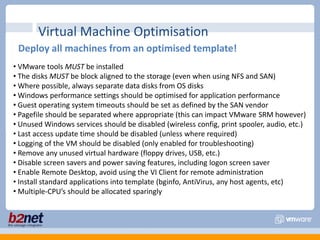
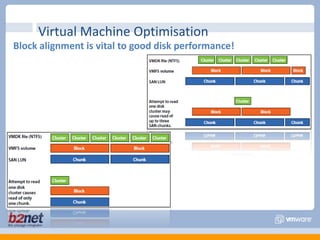
VMware Performance TroubleshootingPresented by Chris Kranz
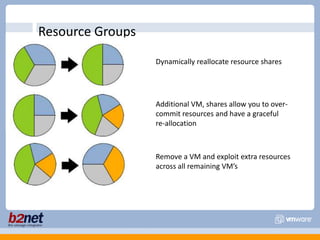
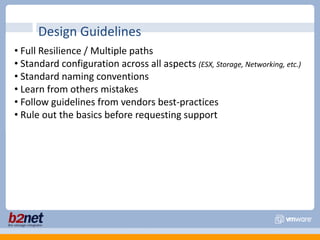
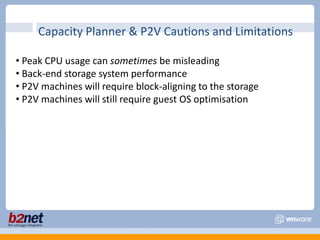
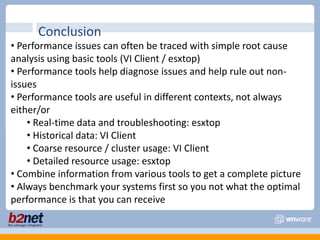
Topics CoveredIntroductionRoot Cause AnalysisPerformance CharacteristicsCPUNetworkingMemoryDiskVirtual Machine optimisationESXTopvm-supportService ConsoleResource GroupsDesign GuidelinesCapacity Planner limitations and cautionsConclusionReference Articles
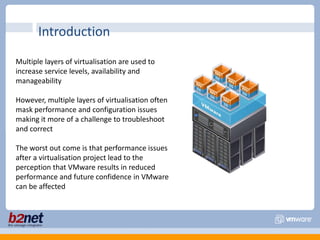
IntroductionMultiple layers of virtualisation are used to increase service levels, availability and manageabilityHowever, multiple layers of virtualisation often mask performance and configuration issues making it more of a challenge to troubleshoot and correctThe worst out come is that performance issues after a virtualisation project lead to the perception that VMware results in reduced performance and future confidence in VMware can be affected
Virtual Machine ResourcesCPUMemoryDiskNetworkingPerformance Basics
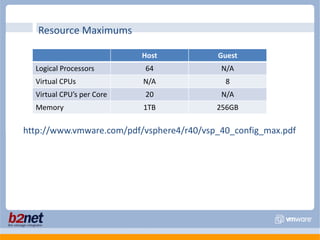
Resource Maximumshttp://www.vmware.com/pdf/vsphere4/r40/vsp_40_config_max.pdf
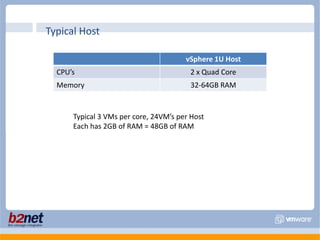
Typical HostTypical 3 VMs per core, 24VM’s per HostEach has 2GB of RAM = 48GB of RAM
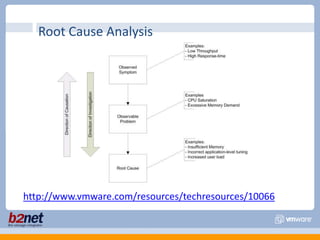
Root Cause Analysishttp://www.vmware.com/resources/techresources/10066
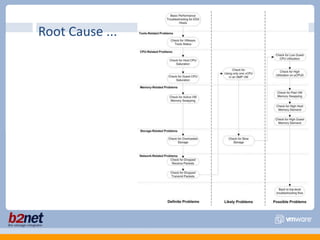
Root Cause ...
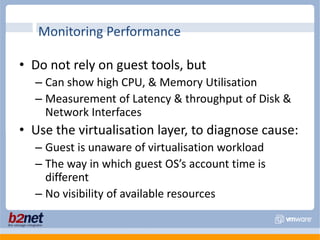
Do not rely on guest tools, butCan show high CPU, & Memory UtilisationMeasurement of Latency & throughput of Disk & Network InterfacesUse the virtualisation layer, to diagnose cause:Guest is unaware of virtualisation workloadThe way in which guest OS’s account time is differentNo visibility of available resourcesMonitoring Performance
esxtop (service console only)resxtop (remote command line utilities)Performance graphs in vCentrePerformance Analysis Tools
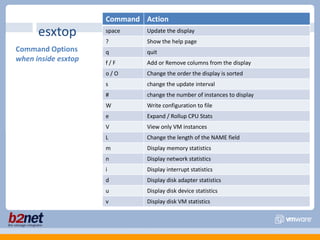
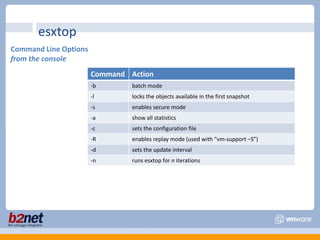
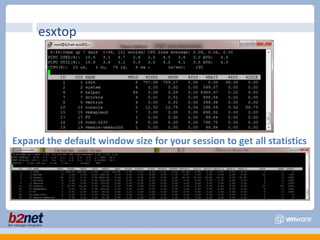
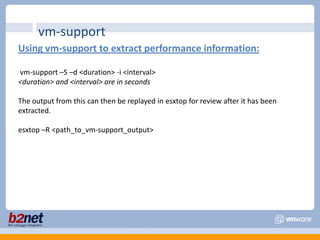
esxtop can be run:Interactively Batch  (eg. esxtop -a -b > analysis.csv)Load batch into windows perfmon or MS ExcelTwo keys to rememberH : helpF : fields to displayesxtop
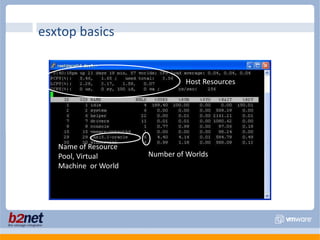
esxtop basicsHost ResourcesName of Resource Pool, Virtual Machine  or WorldNumber of Worlds
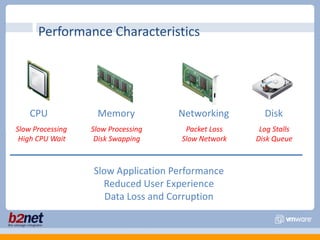
Performance CharacteristicsCPUNetworkingMemoryDiskSlow ProcessingHigh CPU WaitPacket LossSlow NetworkSlow ProcessingDisk SwappingLog StallsDisk QueueSlow Application PerformanceReduced User ExperienceData Loss and Corruption
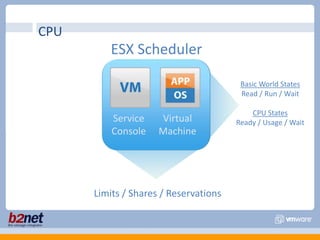
CPUESX SchedulerBasic World StatesRead / Run / WaitCPU StatesReady / Usage / WaitServiceConsoleVirtualMachineLimits / Shares / Reservations
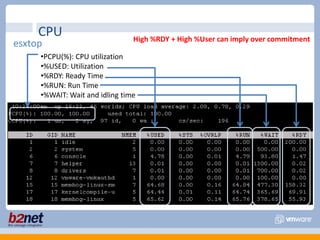
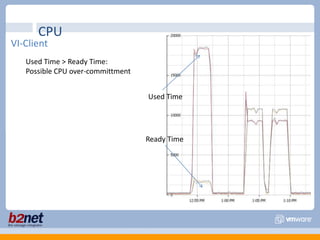
CPUHigh %RDY + High %User can imply over commitmentesxtopPCPU(%): CPU utilization
%USED: Utilization
%RDY: Ready Time
%RUN: Run Time
%WAIT: Wait and idling timeCPUVI-ClientUsed Time > Ready Time: Possible CPU over-committmentUsed TimeReady Time
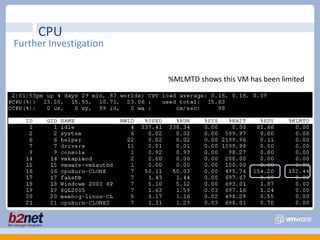
CPUFurther Investigation%MLMTD shows this VM has been limited
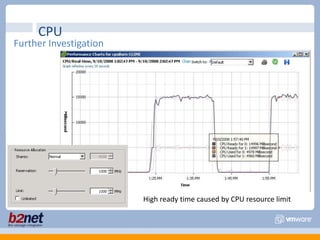
CPUFurther InvestigationHigh ready time caused by CPU resource limit
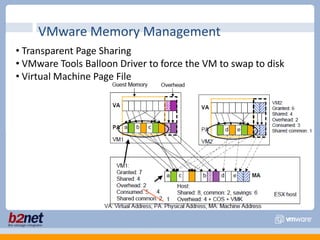
VMware Memory Management Transparent Page Sharing
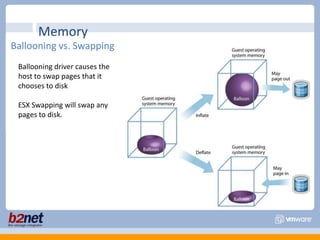
 VMware Tools Balloon Driver to force the VM to swap to disk
 Virtual Machine Page FileMemoryBallooning vs. SwappingBallooning driver causes the host to swap pages that it chooses to diskESX Swapping will swap any pages to disk.
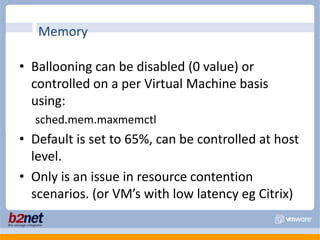
Ballooning can be disabled (0 value) or controlled on a per Virtual Machine basis using:sched.mem.maxmemctlDefault is set to 65%, can be controlled at host level.Only is an issue in resource contention scenarios. (or VM’s with low latency eg Citrix)Memory
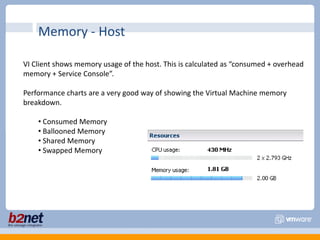
Memory - HostVI Client shows memory usage of the host. This is calculated as “consumed + overhead memory + Service Console”.Performance charts are a very good way of showing the Virtual Machine memory breakdown.  Consumed Memory
 Ballooned Memory
 Shared Memory
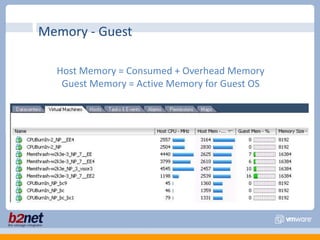
 Swapped MemoryMemory - GuestHost Memory = Consumed + Overhead MemoryGuest Memory = Active Memory for Guest OS
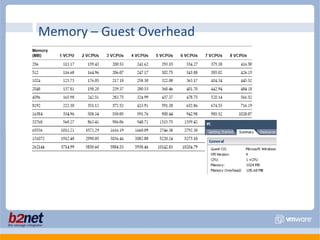
Memory – Guest Overhead
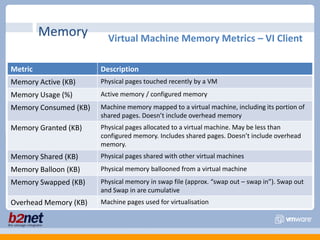
MemoryVirtual Machine Memory Metrics – VI Client
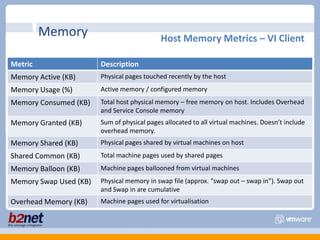
MemoryHost Memory Metrics – VI Client
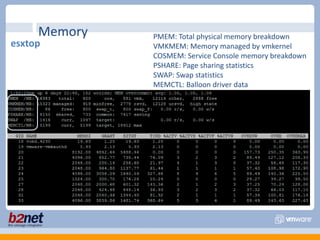
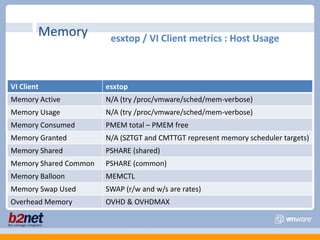
MemoryPMEM: Total physical memory breakdownVMKMEM: Memory managed by vmkernelCOSMEM: Service Console memory breakdownPSHARE: Page sharing statisticsSWAP: Swap statisticsMEMCTL: Balloon driver dataesxtop
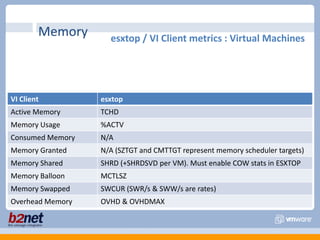
Memoryesxtop / VI Client metrics : Virtual Machines
Memoryesxtop / VI Client metrics : Host Usage
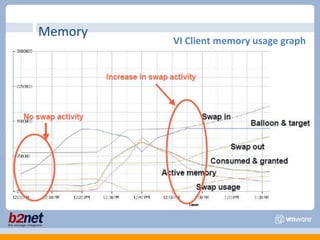
MemoryVI Client memory usage graph
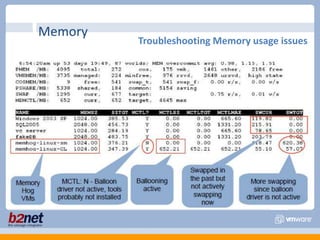
MemoryTroubleshooting Memory usage issues
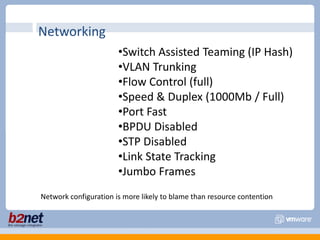
NetworkingSwitch Assisted Teaming (IP Hash)
VLAN Trunking
Flow Control (full)
Speed & Duplex (1000Mb / Full)
Port Fast
BPDU Disabled
STP Disabled
Link State Tracking
Jumbo FramesNetwork configuration is more likely to blame than resource contention
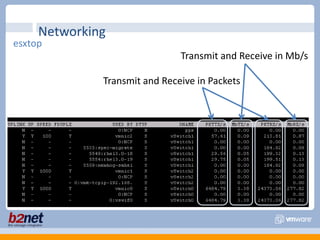
NetworkingesxtopTransmit and Receive in Mb/sTransmit and Receive in Packets
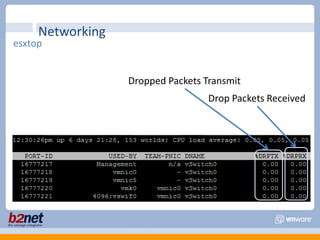
NetworkingesxtopDropped Packets TransmitDrop Packets Received
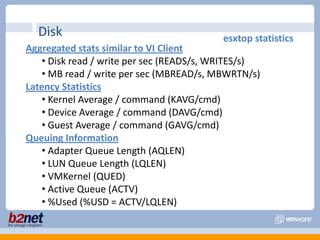
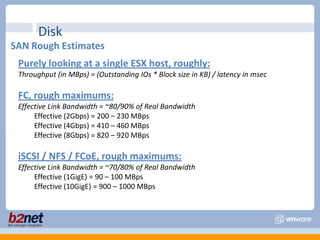
DiskVarying Factors File system performance
 Disk subsystem configuration (SAN, NAS, iSCSI, local disk)
 Disk caching
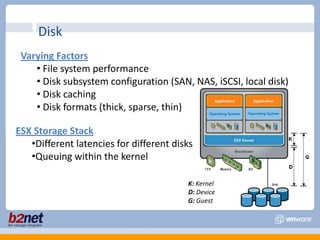
 Disk formats (thick, sparse, thin)ESX Storage StackDifferent latencies for different disks
Queuing within the kernelK: KernelD: DeviceG: Guest
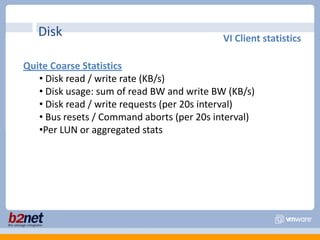
DiskVI Client statisticsQuite Coarse Statistics Disk read / write rate (KB/s)

VMware Performance Troubleshooting