Wiki What? Using Wikis for  Teaching and Learning Your facilitator: Kevin Sherman
Wiki What   will we do ? Quick Introduction 3-2-1 Activity to learn about wikis Share Ideas & Questions Make your own wiki
What is a Wiki? A webpage with an Edit button Easy to use Perfect for collaborative learning
Why Wikispaces? “ The world’s easiest to use wiki.” No experience necessary. You are up and running in minutes. There  are  other good wiki sites: PB Wiki Wetpaint
Why Bring It To The Classroom? Great motivator for students Easy to monitor Allows for creativity and innovation Encourages participation of all students Promotes communication between students, teachers, and parents A new, interesting way to learn
How Can I Use it in a Classroom? Simple websites Peer-reviewed projects Group projects Manage school and classroom documents  Classroom discussion and debate Teacher collaboration Post classroom assignments Collaborate with an international classroom
How does a wiki work?
Wiki Terms User Account:  Your identity on Wikispaces, consisting of username, password, and e-mail address Space:  A wiki on which you can collaborate Page:  Each space can consist of multiple pages
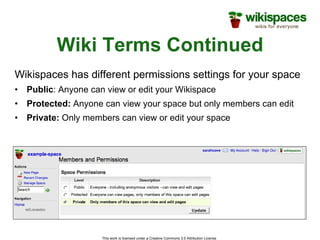
Wiki Terms Continued Wikispaces has different permissions settings for your space Public : Anyone can view or edit your Wikispace Protected:  Anyone can view your space but only members can edit Private:  Only members can view or edit your space
Editing Your Wiki Click the  Edit This Page  button at the top of your wiki. Write the text you would like on your page. You can format it with bold, underline, italics, headings, and more. Once you are done editing, click  Save .
Adding Links on Your Wiki Click  Edit This Page . Highlight the text you would like to link and click on the earth icon in the toolbar. Another window will appear allowing you to create a link to another page in your space or another website. Click  Ok .
Adding Images to Your Wiki Click  Edit This Page . Click the icon that looks like a tree. Browse  your computer for the image you would like and click  Open . Upload  the chosen picture or file. Place your cursor where you would like the image on the page. Double click the image or file to place it on the page.
Adding Media to Your Wiki Click  Edit This Page . Go to the icon of the TV in the toolbar. Choose the type of object you’d like to embed. Follow the instructions for embedding each object. Click  Save .
Time for an Activity
Getting to the Wiki Get your  guest number  from Kevin Open the .pdf “ Wiki Training Guests ” Record your  user name  and  password
Getting to the Wiki Go to  www.wikispaces.com/site/signin Enter user name and password from the .pdf “ Wiki Training Guests ” Under  Favorite Wikis , click “ ShermanTraining ”
Additional Resources for Teachers Wikispaces will create your student accounts for you! http://www.wikispaces.com/help+teachers Check out our K-12 Educational Community at: http://educationalwikis.wikispaces.com
Our Offer to Teachers Plus Plan is FREE   for Educators !
Wikis for Your School Private Label Benefits: Self-contained wiki environment Unlimited spaces and user accounts Safe and secure Administrative control Wikispaces support Learn more about Wikispaces Private Label at www.wikispaces.com/site/privatelabel
Questions? Visit us: http://www.wikispaces.com Email us: [email_address]
Thank You Thanks for listening and watching along.  We hope to hear from you soon.  Until then, - The Wikispaces Team: Adam, Bisma, Dom, James, and Sarah

Wiki ppt

  • 1.
    Wiki What? UsingWikis for Teaching and Learning Your facilitator: Kevin Sherman
  • 2.
    Wiki What will we do ? Quick Introduction 3-2-1 Activity to learn about wikis Share Ideas & Questions Make your own wiki
  • 3.
    What is aWiki? A webpage with an Edit button Easy to use Perfect for collaborative learning
  • 4.
    Why Wikispaces? “The world’s easiest to use wiki.” No experience necessary. You are up and running in minutes. There are other good wiki sites: PB Wiki Wetpaint
  • 5.
    Why Bring ItTo The Classroom? Great motivator for students Easy to monitor Allows for creativity and innovation Encourages participation of all students Promotes communication between students, teachers, and parents A new, interesting way to learn
  • 6.
    How Can IUse it in a Classroom? Simple websites Peer-reviewed projects Group projects Manage school and classroom documents Classroom discussion and debate Teacher collaboration Post classroom assignments Collaborate with an international classroom
  • 7.
    How does awiki work?
  • 8.
    Wiki Terms UserAccount: Your identity on Wikispaces, consisting of username, password, and e-mail address Space: A wiki on which you can collaborate Page: Each space can consist of multiple pages
  • 9.
    Wiki Terms ContinuedWikispaces has different permissions settings for your space Public : Anyone can view or edit your Wikispace Protected: Anyone can view your space but only members can edit Private: Only members can view or edit your space
  • 10.
    Editing Your WikiClick the Edit This Page button at the top of your wiki. Write the text you would like on your page. You can format it with bold, underline, italics, headings, and more. Once you are done editing, click Save .
  • 11.
    Adding Links onYour Wiki Click Edit This Page . Highlight the text you would like to link and click on the earth icon in the toolbar. Another window will appear allowing you to create a link to another page in your space or another website. Click Ok .
  • 12.
    Adding Images toYour Wiki Click Edit This Page . Click the icon that looks like a tree. Browse your computer for the image you would like and click Open . Upload the chosen picture or file. Place your cursor where you would like the image on the page. Double click the image or file to place it on the page.
  • 13.
    Adding Media toYour Wiki Click Edit This Page . Go to the icon of the TV in the toolbar. Choose the type of object you’d like to embed. Follow the instructions for embedding each object. Click Save .
  • 14.
    Time for anActivity
  • 15.
    Getting to theWiki Get your guest number from Kevin Open the .pdf “ Wiki Training Guests ” Record your user name and password
  • 16.
    Getting to theWiki Go to www.wikispaces.com/site/signin Enter user name and password from the .pdf “ Wiki Training Guests ” Under Favorite Wikis , click “ ShermanTraining ”
  • 17.
    Additional Resources forTeachers Wikispaces will create your student accounts for you! http://www.wikispaces.com/help+teachers Check out our K-12 Educational Community at: http://educationalwikis.wikispaces.com
  • 18.
    Our Offer toTeachers Plus Plan is FREE for Educators !
  • 19.
    Wikis for YourSchool Private Label Benefits: Self-contained wiki environment Unlimited spaces and user accounts Safe and secure Administrative control Wikispaces support Learn more about Wikispaces Private Label at www.wikispaces.com/site/privatelabel
  • 20.
    Questions? Visit us:http://www.wikispaces.com Email us: [email_address]
  • 21.
    Thank You Thanksfor listening and watching along. We hope to hear from you soon. Until then, - The Wikispaces Team: Adam, Bisma, Dom, James, and Sarah