iPads at DLS
   DLS 2012+
A New Approach
     • This is a growing wave in
       educational conversations.
     • Numerous schools
       recognizing the potential for
       improved instructional
       techniques and dynamic
       learning.
?    • Apple recently began to
       focus on creating high school
       textbooks for download.
Education Decisions
  • Every DLS student will be
    issued at iPad as part of
    their learning tools.
  • Students will be issued a
    certain set of educational
    apps but will also be able
    to personalize it with
    additional other appropriate
    apps, etc.
Why the iPad vs laptop, etc?
      1. Engages Students
          Students respond well to it,
         helps create an interactive
         learning environment.
      2. Easy to Use (battery life,
         size, boot time, intuitive, etc)
Specific Topic Apps
The iPad offers teachers
  specialized apps for
  dynamic lessons on certain
  units or content areas.

With it, students can access
  information more easily
  and more graphically than
  before. For example…
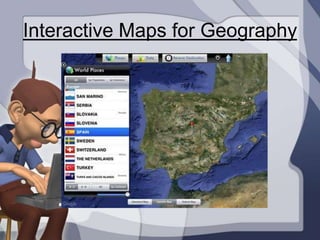
Interactive Maps for Geography
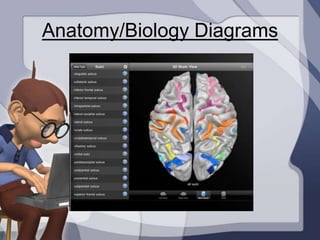
Anatomy/Biology Diagrams
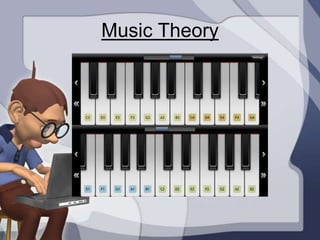
Music Theory
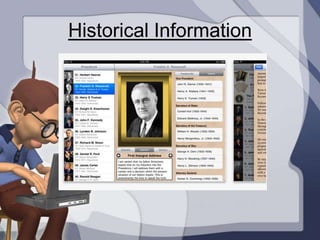
Historical Information
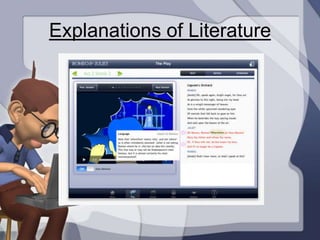
Explanations of Literature
Combine/Replace Technology
The iPad also takes existing
technology and combines it
into one device for easier access
and smoother integration.

  •Laptops          •Clickers
  •Student Slates   •Cameras
  •Interactive      •TV/Monitors
  White Boards      •Books
  •Flashcards       •Calculators
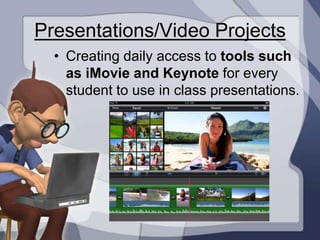
Presentations/Video Projects
  • Creating daily access to tools such
    as iMovie and Keynote for every
    student to use in class presentations.
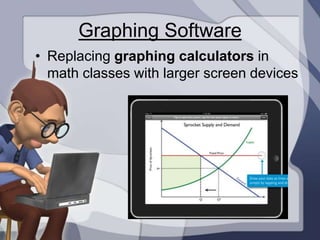
Graphing Software
• Replacing graphing calculators in
  math classes with larger screen devices
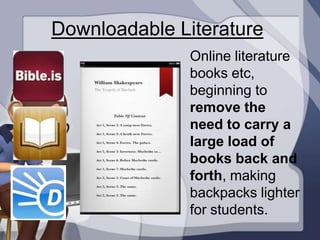
Downloadable Literature
               Online literature
               books etc,
               beginning to
               remove the
               need to carry a
               large load of
               books back and
               forth, making
               backpacks lighter
               for students.
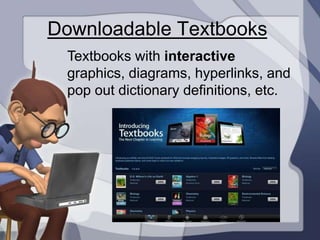
Downloadable Textbooks
 Textbooks with interactive
 graphics, diagrams, hyperlinks, and
 pop out dictionary definitions, etc.
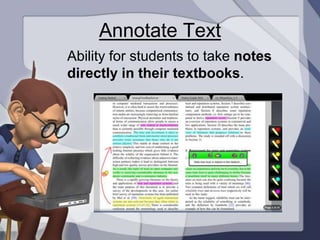
Annotate Text
Ability for students to take notes
directly in their textbooks.
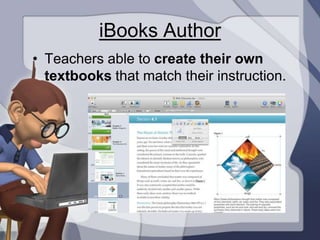
iBooks Author
• Teachers able to create their own
  textbooks that match their instruction.
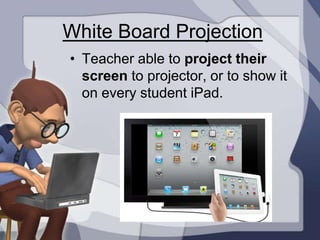
White Board Projection
• Teacher able to project their
  screen to projector, or to show it
  on every student iPad.
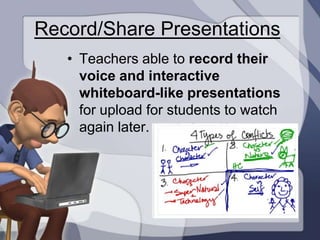
Record/Share Presentations
   • Teachers able to record their
     voice and interactive
     whiteboard-like presentations
     for upload for students to watch
     again later.
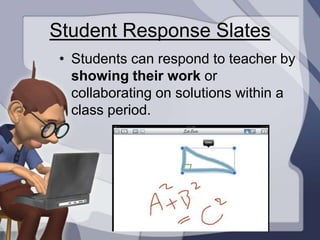
Student Response Slates
 • Students can respond to teacher by
   showing their work or
   collaborating on solutions within a
   class period.
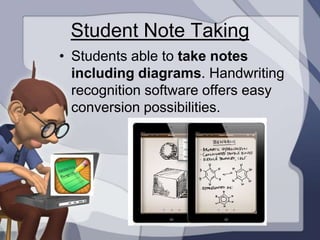
Student Note Taking
• Students able to take notes
  including diagrams. Handwriting
  recognition software offers easy
  conversion possibilities.
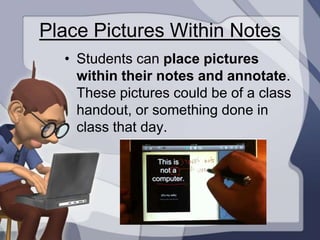
Place Pictures Within Notes
  • Students can place pictures
    within their notes and annotate.
    These pictures could be of a class
    handout, or something done in
    class that day.
Camera/Microphone
   • Use the camera to take
     pictures of the notes on the
     board or a copy of a friends
     notes if absent.
   • Microphone used to record
     voice in Spanish or music
     class and submit online.
   • Use Dragon Dictation to
     help write papers with less
     typing.
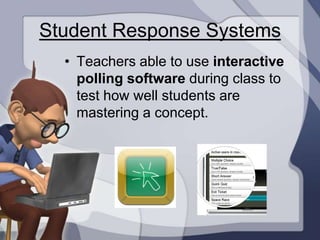
Student Response Systems
  • Teachers able to use interactive
    polling software during class to
    test how well students are
    mastering a concept.
Productivity + Communication
• In addition to classroom
  applications, iPads offer a
  different way of moving
  and sharing information .
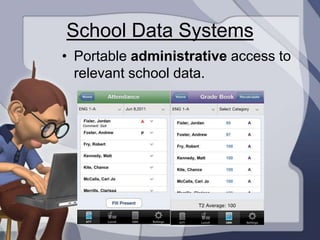
School Data Systems
• Portable administrative access to
  relevant school data.
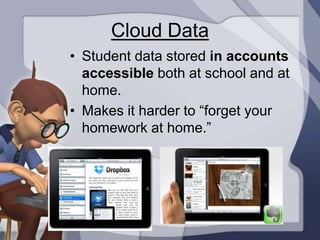
Cloud Data
• Student data stored in accounts
  accessible both at school and at
  home.
• Makes it harder to “forget your
  homework at home.”
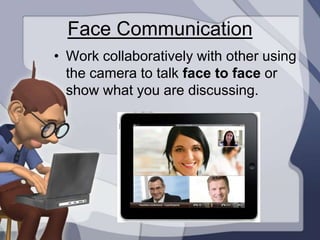
Face Communication
• Work collaboratively with other using
  the camera to talk face to face or
  show what you are discussing.
Assistance Opportunities
     • iPads offer organizational
       aids like: alarms, calendars,
       organizational apps.
     • Students with vision or
       hearing issues can change
       the font or picture size as
       well as have text read aloud
       in low light situations (like
       riding back from a game.)
Electronic Submission
    • A class worksheet can be
      distributed electronically,
      filled out by hand (or by
      stylus) on the ipad screen,
      handwriting can be
      converted to type, and
      assignments submitted
      online (from home) with a
      time stamp of when they
      were received.
Questions?
• We know that new tech
  possibilities create
  numerous questions.
• The answers we do have
  will be shared in the
  coming months.
• The answers we do not
  have we are excited to
  learn together.
iPads at DLS
   DLS 2012+

Why iPads?

  • 1.
    iPads at DLS DLS 2012+
  • 2.
    A New Approach • This is a growing wave in educational conversations. • Numerous schools recognizing the potential for improved instructional techniques and dynamic learning. ? • Apple recently began to focus on creating high school textbooks for download.
  • 3.
    Education Decisions • Every DLS student will be issued at iPad as part of their learning tools. • Students will be issued a certain set of educational apps but will also be able to personalize it with additional other appropriate apps, etc.
  • 4.
    Why the iPadvs laptop, etc? 1. Engages Students Students respond well to it, helps create an interactive learning environment. 2. Easy to Use (battery life, size, boot time, intuitive, etc)
  • 5.
    Specific Topic Apps TheiPad offers teachers specialized apps for dynamic lessons on certain units or content areas. With it, students can access information more easily and more graphically than before. For example…
  • 6.
  • 7.
  • 8.
  • 9.
  • 10.
  • 11.
    Combine/Replace Technology The iPadalso takes existing technology and combines it into one device for easier access and smoother integration. •Laptops •Clickers •Student Slates •Cameras •Interactive •TV/Monitors White Boards •Books •Flashcards •Calculators
  • 12.
    Presentations/Video Projects • Creating daily access to tools such as iMovie and Keynote for every student to use in class presentations.
  • 13.
    Graphing Software • Replacinggraphing calculators in math classes with larger screen devices
  • 14.
    Downloadable Literature Online literature books etc, beginning to remove the need to carry a large load of books back and forth, making backpacks lighter for students.
  • 15.
    Downloadable Textbooks Textbookswith interactive graphics, diagrams, hyperlinks, and pop out dictionary definitions, etc.
  • 16.
    Annotate Text Ability forstudents to take notes directly in their textbooks.
  • 17.
    iBooks Author • Teachersable to create their own textbooks that match their instruction.
  • 18.
    White Board Projection •Teacher able to project their screen to projector, or to show it on every student iPad.
  • 19.
    Record/Share Presentations • Teachers able to record their voice and interactive whiteboard-like presentations for upload for students to watch again later.
  • 20.
    Student Response Slates • Students can respond to teacher by showing their work or collaborating on solutions within a class period.
  • 21.
    Student Note Taking •Students able to take notes including diagrams. Handwriting recognition software offers easy conversion possibilities.
  • 22.
    Place Pictures WithinNotes • Students can place pictures within their notes and annotate. These pictures could be of a class handout, or something done in class that day.
  • 23.
    Camera/Microphone • Use the camera to take pictures of the notes on the board or a copy of a friends notes if absent. • Microphone used to record voice in Spanish or music class and submit online. • Use Dragon Dictation to help write papers with less typing.
  • 24.
    Student Response Systems • Teachers able to use interactive polling software during class to test how well students are mastering a concept.
  • 25.
    Productivity + Communication •In addition to classroom applications, iPads offer a different way of moving and sharing information .
  • 26.
    School Data Systems •Portable administrative access to relevant school data.
  • 27.
    Cloud Data • Studentdata stored in accounts accessible both at school and at home. • Makes it harder to “forget your homework at home.”
  • 28.
    Face Communication • Workcollaboratively with other using the camera to talk face to face or show what you are discussing.
  • 29.
    Assistance Opportunities • iPads offer organizational aids like: alarms, calendars, organizational apps. • Students with vision or hearing issues can change the font or picture size as well as have text read aloud in low light situations (like riding back from a game.)
  • 30.
    Electronic Submission • A class worksheet can be distributed electronically, filled out by hand (or by stylus) on the ipad screen, handwriting can be converted to type, and assignments submitted online (from home) with a time stamp of when they were received.
  • 31.
    Questions? • We knowthat new tech possibilities create numerous questions. • The answers we do have will be shared in the coming months. • The answers we do not have we are excited to learn together.
  • 32.
    iPads at DLS DLS 2012+