How to analyze push notification
report through NV dashboard?
The second subsection of the ANALYZE section is Notification
Report.
It lets you visualize the total no. of sent, delivered and
failed push notifications across all platforms and devices for a
specific time period. Choose to view the notification insights
either for all campaigns or for a specific campaign.
Let us how can you define them to view the sent and delivered
notifications :
• Date : View the insights of all your push notifications
for a definite time span. You can see the data upto the
maximum time range of last month.
• Graph type : View the graph type representation of the
push notification insights. You can view the data
insights on a daily,weekly,monthly or annual basis.
• Campaign : View insights for a specific campaign or for
all campaigns at one go.
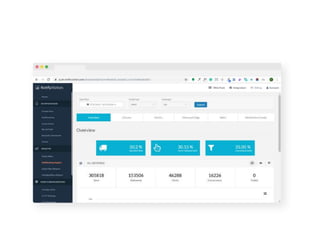
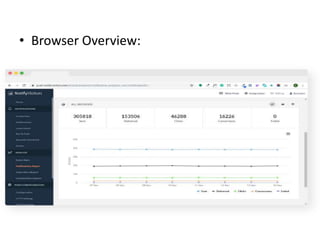
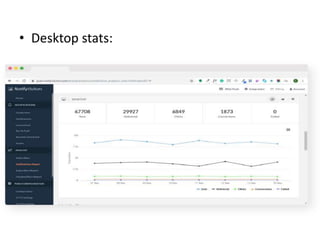
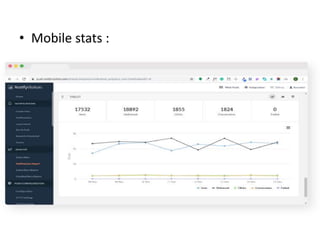
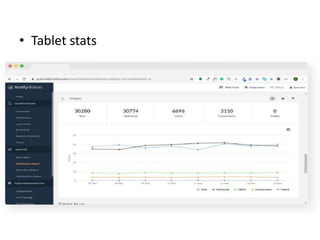
• Overview: Get an overview of the delivery rates,
CTR rates and conversion rate for the push
notifications. View the total no. of sent,
delivered, failed notifications. Also, evaluate the
total no. of clicks and the goal conversions.
• Delivery rates: It denotes the average no. of
delivered notifications.
• Click through rates: They signify the ratio of the
seen and clicked notifications.
• Conversion rates: Conversion rates signify the
ratio of your goals completed to the no. of clicks
on your push notifications.
• Browser Overview:
• Desktop stats:
• Mobile stats :
• Tablet stats
• Push notifications subscription plays a greater role in
engaging users with your marketing campaigns. The
above scenario requires to have a macro view of your
subscribers and their response over your campaigns.
The evaluation of key metrics allows you to
reevaluate your marketing strategies and optimize
them further for greater leaps of success.
BOOK A DEMO

What is the Notification report in Push Notification ?

  • 1.
    How to analyzepush notification report through NV dashboard? The second subsection of the ANALYZE section is Notification Report. It lets you visualize the total no. of sent, delivered and failed push notifications across all platforms and devices for a specific time period. Choose to view the notification insights either for all campaigns or for a specific campaign.
  • 2.
    Let us howcan you define them to view the sent and delivered notifications : • Date : View the insights of all your push notifications for a definite time span. You can see the data upto the maximum time range of last month. • Graph type : View the graph type representation of the push notification insights. You can view the data insights on a daily,weekly,monthly or annual basis. • Campaign : View insights for a specific campaign or for all campaigns at one go.
  • 4.
    • Overview: Getan overview of the delivery rates, CTR rates and conversion rate for the push notifications. View the total no. of sent, delivered, failed notifications. Also, evaluate the total no. of clicks and the goal conversions. • Delivery rates: It denotes the average no. of delivered notifications. • Click through rates: They signify the ratio of the seen and clicked notifications. • Conversion rates: Conversion rates signify the ratio of your goals completed to the no. of clicks on your push notifications.
  • 5.
  • 6.
  • 7.
  • 8.
  • 9.
    • Push notificationssubscription plays a greater role in engaging users with your marketing campaigns. The above scenario requires to have a macro view of your subscribers and their response over your campaigns. The evaluation of key metrics allows you to reevaluate your marketing strategies and optimize them further for greater leaps of success. BOOK A DEMO