Welcome to
   Computer and Business Skills
Delivered by Clay Virtual Academy

             CVA Teacher:
         Virtual Lab Assistant:
What is Clay Virtual?
• Clay Virtual Academy (also known as CVA) is a
  Clay County Public School.
• CVA offers web based courses virtually,
  through the Internet, for grades Kindergarten
  through 12th grade.
• Students may be full or part-time.
• CVA with the motto of “dream, achieve, soar”
  wants all its students to enjoy their classes
  and be successful! …including YOU!
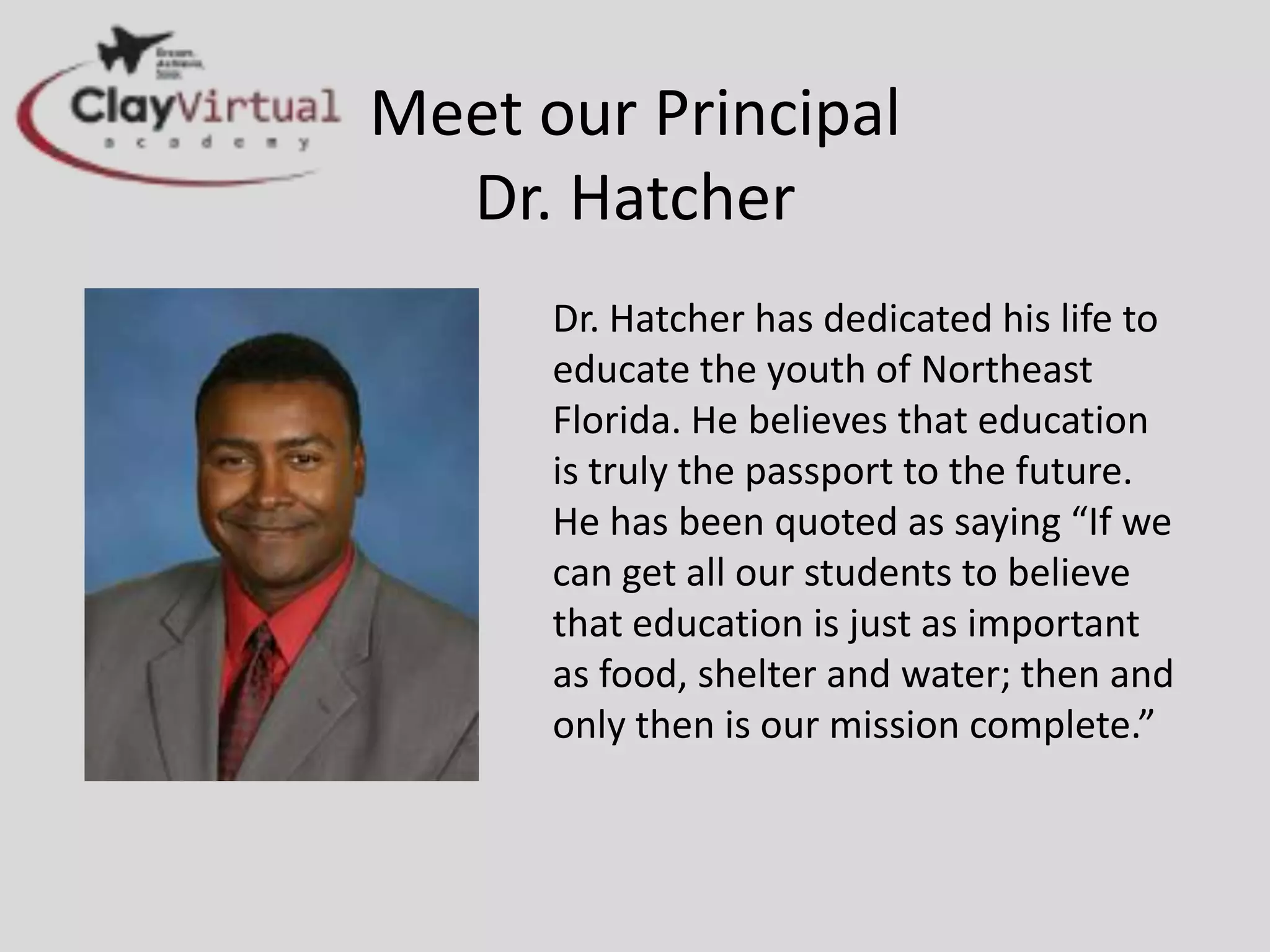
Meet our Principal
  Dr. Hatcher
      Dr. Hatcher has dedicated his life to
      educate the youth of Northeast
      Florida. He believes that education
      is truly the passport to the future.
      He has been quoted as saying “If we
      can get all our students to believe
      that education is just as important
      as food, shelter and water; then and
      only then is our mission complete.”
Meet Your Teacher
    Mrs. Kathy Barnes
    Phone: 904-339-5224
    Email: kbbarnes@mail.clay.k12.fl.us
The Role of the CVA Teacher
• A CVA teacher is available in ways that are
  different than a traditional classroom teacher.
• You can contact your CVA teacher by email,
  phone or you may be invited to a Blackboard
  Collaborate (BBC) session. Click here to see
  find out more about BBC.
• A CVA teacher is also a facilitator, guiding you
  through the lessons.
The Role of the
  Virtual Learning Lab (VLL) Assistant
• Virtual Learning Lab (VLL) is a concept that
  allows for students to attend a computer lab
  at their “brick and mortar” school while taking
  an online virtual class through CVA.
• The classroom is managed by a VLL Assistant.

      ***Introduction of VLL Assistant***
The Role of the
  Virtual Learning Lab (VLL) Assistant
• The VLL Assistant will:
  – Be the authority figure in the classroom
  – Take attendance and maintain a seating chart
  – Ensure students are progressing in their course
  – Communicate with teacher regarding student
    motivational and behavioral issues
  – Communicate with teacher about student
    questions
Student’s Classroom Behavior and Use
             of Equipment
• Although this is a CVA class, students MUST
  abide by the rules of their district school.
• Absolutely no food, drink or gum allowed in
  the lab.
• Absolutely no use of cell phones, iPod or any
  other mobile device unless specifically
  directed by VLL Assistant or CVA Teacher
Student Expectations
 The DOs & DON’Ts of using the computer lab:
              DOs                                  DON’Ts
 Come prepared to work. This          No food, gum/candy or drink is
  means coming to class with the        allowed in the lab.
  correct materials and ATTITUDE!      Do not, under any circumstances,
 Respect yourself, other people        change anything on the computer.
  and all property.                    Unauthorized access to any
                                        software is prohibited.
 Keep your behavior in check and      Don’t just sit there, work through
  follow all the school rules.          your course one step at a time!
 If you need help, ask for it!        Don’t disturb your neighbors, they are
                                        busy completing their CVA online
 Learn and explore through your
                                        course!
  CVA online course! Work steadily
                                       No use of cell phones, iPod or any
  and diligently each class period!     other mobile device unless
                                        specifically directed by VLL Assistant
                                        or CVA Teacher
Required Supplies
• Flash/Jump Drive – all work should be saved
  to a flash and student H: drive
• Spiral notebook and pen/pencil – as students
  navigate through the course, it will be
  advantageous to take notes to assist in
  completing assignments and preparing for
  quizzes and tests.
• Personal Headphones – optional – only if you
  prefer to have your own.
Good to Know . . .
• You MUST use the browser, Mozilla Firefox, to
  gain access to your Computer and Business
  Skills course through CVA.
• Use good time management; keep up to date
  on assignments. If teacher requires additional
  attempts on assignments, complete as soon as
  possible.
• Ask questions, get clarification!
Computer and Business Skills
          Course Expectations
 To be successful in today’s fast-paced office environment or
  college classes, you will need up-to-date technology and
  business skills.
 Computerization and the internet have transformed the
  workplace and college classroom. Businesses increasingly
  rely on office employees to create documents, spreadsheets,
  reports, e-mail correspondence, conduct internet research,
  and develop presentations using graphics.
Are you ready? You will be more prepared after
  completing this Computer and Business Skills
  course.
Logging on the Computer
• Username = enter your 6 digit student ID number
  (your lunch number)
• Password = Student1213
• Once you are logged on hold down
  CTRL+ALT+Delete
• Choose “Change Password”, You will need to
  reenter:
• Your “old password” which is Student1213
• Your “new password” twice (See next slide)
     LET’S ALL TRY LOGGING IN – RAISE YOUR
      HAND IF YOU ARE HAVING DIFFICULTY
My New Password
• First three letters of my last name
• The FIRST letter MUST be CAPITALIZED!
• Next, I use my birth month and birth date
  MMDD form
• Example: if my birthday is June 13, I would use
  0613
• Everyone has a zero at the end for now.
Logging in to Blackboard (Bb)
• Navigate to the CVA website:
   – http://www.clayvirtual.net
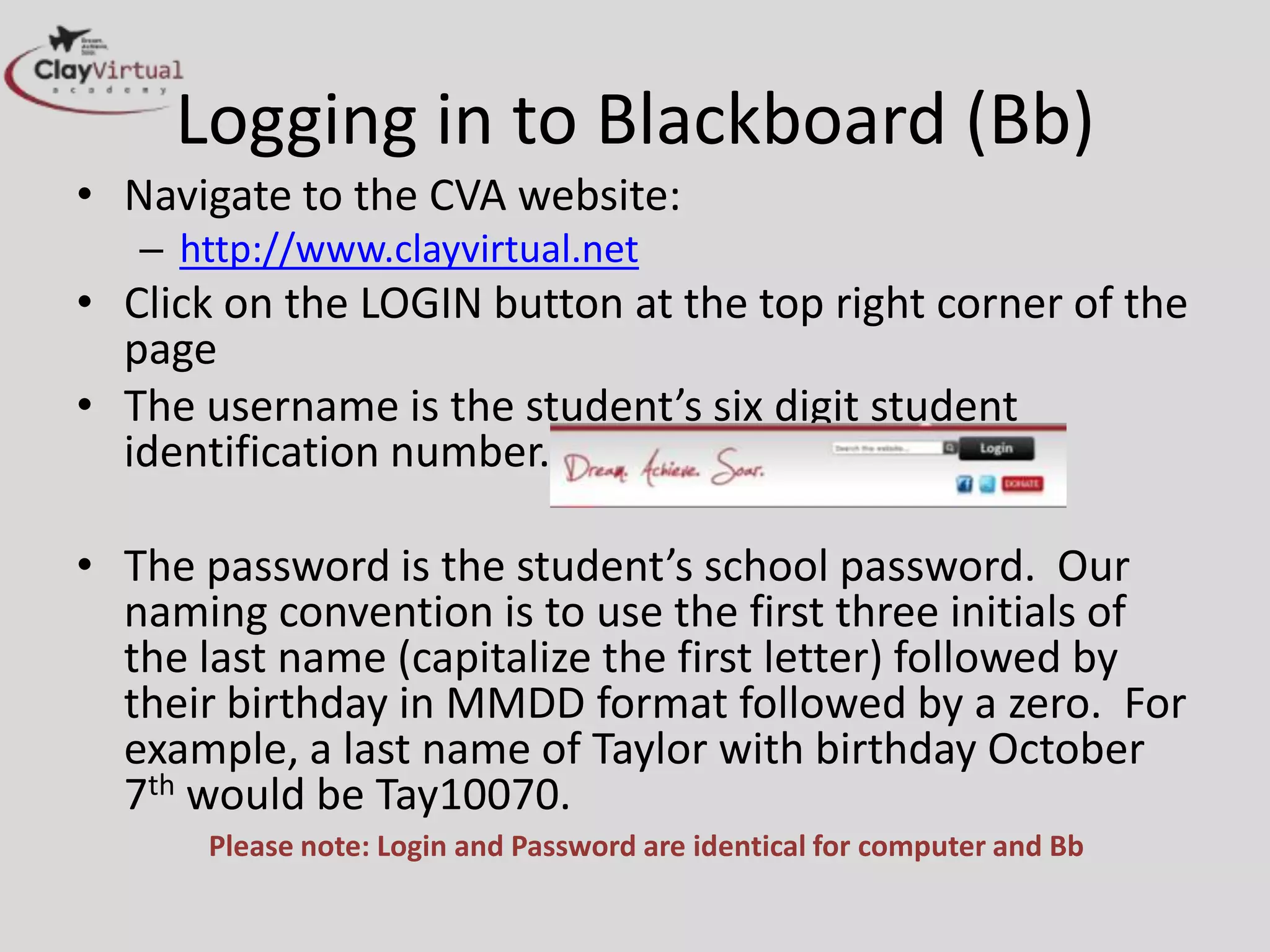
• Click on the LOGIN button at the top right corner of the
  page
• The username is the student’s six digit student
  identification number.

• The password is the student’s school password. Our
  naming convention is to use the first three initials of
  the last name (capitalize the first letter) followed by
  their birthday in MMDD format followed by a zero. For
  example, a last name of Taylor with birthday October
  7th would be Tay10070.
      Please note: Login and Password are identical for computer and Bb
Next click on the My Blackboard
 Tab and find your class: CVA
      Student Orientation
      Begin your expedition!
  Welcome to Clay Virtual Academy

Welcome to week 1

  • 1.
    Welcome to Computer and Business Skills Delivered by Clay Virtual Academy CVA Teacher: Virtual Lab Assistant:
  • 2.
    What is ClayVirtual? • Clay Virtual Academy (also known as CVA) is a Clay County Public School. • CVA offers web based courses virtually, through the Internet, for grades Kindergarten through 12th grade. • Students may be full or part-time. • CVA with the motto of “dream, achieve, soar” wants all its students to enjoy their classes and be successful! …including YOU!
  • 3.
    Meet our Principal Dr. Hatcher Dr. Hatcher has dedicated his life to educate the youth of Northeast Florida. He believes that education is truly the passport to the future. He has been quoted as saying “If we can get all our students to believe that education is just as important as food, shelter and water; then and only then is our mission complete.”
  • 4.
    Meet Your Teacher Mrs. Kathy Barnes Phone: 904-339-5224 Email: kbbarnes@mail.clay.k12.fl.us
  • 5.
    The Role ofthe CVA Teacher • A CVA teacher is available in ways that are different than a traditional classroom teacher. • You can contact your CVA teacher by email, phone or you may be invited to a Blackboard Collaborate (BBC) session. Click here to see find out more about BBC. • A CVA teacher is also a facilitator, guiding you through the lessons.
  • 6.
    The Role ofthe Virtual Learning Lab (VLL) Assistant • Virtual Learning Lab (VLL) is a concept that allows for students to attend a computer lab at their “brick and mortar” school while taking an online virtual class through CVA. • The classroom is managed by a VLL Assistant. ***Introduction of VLL Assistant***
  • 7.
    The Role ofthe Virtual Learning Lab (VLL) Assistant • The VLL Assistant will: – Be the authority figure in the classroom – Take attendance and maintain a seating chart – Ensure students are progressing in their course – Communicate with teacher regarding student motivational and behavioral issues – Communicate with teacher about student questions
  • 8.
    Student’s Classroom Behaviorand Use of Equipment • Although this is a CVA class, students MUST abide by the rules of their district school. • Absolutely no food, drink or gum allowed in the lab. • Absolutely no use of cell phones, iPod or any other mobile device unless specifically directed by VLL Assistant or CVA Teacher
  • 9.
    Student Expectations TheDOs & DON’Ts of using the computer lab: DOs DON’Ts  Come prepared to work. This  No food, gum/candy or drink is means coming to class with the allowed in the lab. correct materials and ATTITUDE!  Do not, under any circumstances,  Respect yourself, other people change anything on the computer. and all property.  Unauthorized access to any software is prohibited.  Keep your behavior in check and  Don’t just sit there, work through follow all the school rules. your course one step at a time!  If you need help, ask for it!  Don’t disturb your neighbors, they are busy completing their CVA online  Learn and explore through your course! CVA online course! Work steadily  No use of cell phones, iPod or any and diligently each class period! other mobile device unless specifically directed by VLL Assistant or CVA Teacher
  • 10.
    Required Supplies • Flash/JumpDrive – all work should be saved to a flash and student H: drive • Spiral notebook and pen/pencil – as students navigate through the course, it will be advantageous to take notes to assist in completing assignments and preparing for quizzes and tests. • Personal Headphones – optional – only if you prefer to have your own.
  • 11.
    Good to Know. . . • You MUST use the browser, Mozilla Firefox, to gain access to your Computer and Business Skills course through CVA. • Use good time management; keep up to date on assignments. If teacher requires additional attempts on assignments, complete as soon as possible. • Ask questions, get clarification!
  • 12.
    Computer and BusinessSkills Course Expectations  To be successful in today’s fast-paced office environment or college classes, you will need up-to-date technology and business skills.  Computerization and the internet have transformed the workplace and college classroom. Businesses increasingly rely on office employees to create documents, spreadsheets, reports, e-mail correspondence, conduct internet research, and develop presentations using graphics. Are you ready? You will be more prepared after completing this Computer and Business Skills course.
  • 13.
    Logging on theComputer • Username = enter your 6 digit student ID number (your lunch number) • Password = Student1213 • Once you are logged on hold down CTRL+ALT+Delete • Choose “Change Password”, You will need to reenter: • Your “old password” which is Student1213 • Your “new password” twice (See next slide) LET’S ALL TRY LOGGING IN – RAISE YOUR HAND IF YOU ARE HAVING DIFFICULTY
  • 14.
    My New Password •First three letters of my last name • The FIRST letter MUST be CAPITALIZED! • Next, I use my birth month and birth date MMDD form • Example: if my birthday is June 13, I would use 0613 • Everyone has a zero at the end for now.
  • 15.
    Logging in toBlackboard (Bb) • Navigate to the CVA website: – http://www.clayvirtual.net • Click on the LOGIN button at the top right corner of the page • The username is the student’s six digit student identification number. • The password is the student’s school password. Our naming convention is to use the first three initials of the last name (capitalize the first letter) followed by their birthday in MMDD format followed by a zero. For example, a last name of Taylor with birthday October 7th would be Tay10070. Please note: Login and Password are identical for computer and Bb
  • 16.
    Next click onthe My Blackboard Tab and find your class: CVA Student Orientation Begin your expedition! Welcome to Clay Virtual Academy