Day 2 BTOP TrainingSuzy BelongaInstructional TechnologistWeb 2.0 in the Classroom
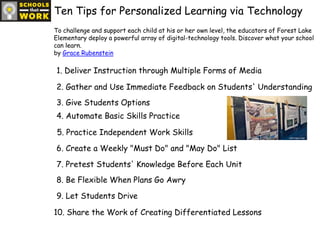
Ten Tips for Personalized Learning via TechnologyTo challenge and support each child at his or her own level, the educators of Forest Lake Elementary deploy a powerful array of digital-technology tools. Discover what your school can learn.by Grace Rubenstein1. Deliver Instruction through Multiple Forms of Media2. Gather and Use Immediate Feedback on Students' Understanding3. Give Students Options4. Automate Basic Skills Practice5. Practice Independent Work Skills6. Create a Weekly "Must Do" and "May Do" List7. Pretest Students' Knowledge Before Each Unit8. Be Flexible When Plans Go Awry9. Let Students Drive10. Share the Work of Creating Differentiated Lessons
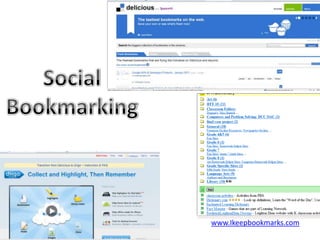
Social Bookmarkingwww.Ikeepbookmarks.com
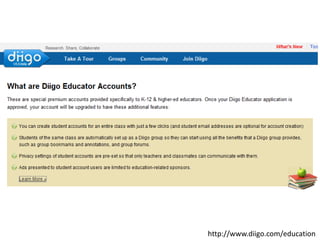
http://www.diigo.com/education
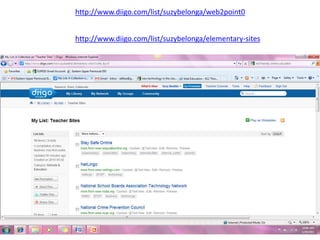
http://www.diigo.com/list/suzybelonga/web2point0http://www.diigo.com/list/suzybelonga/elementary-sites
Social Networking
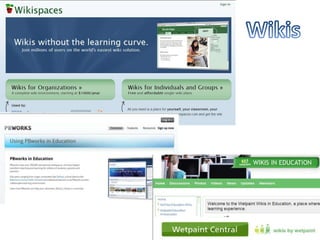
Wikis
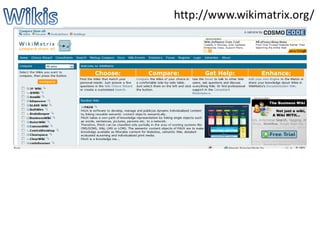
Wikishttp://www.wikimatrix.org/
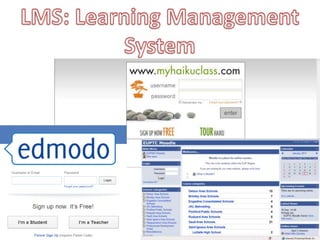
LMS: Learning Management System
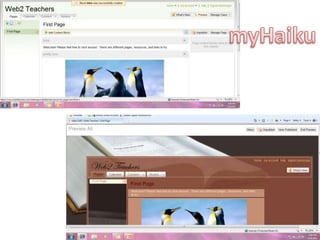
myHaiku
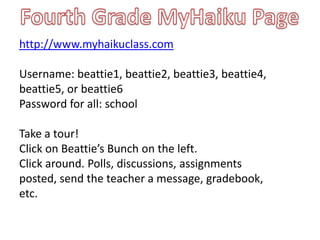
Fourth Grade MyHaiku Pagehttp://www.myhaikuclass.comUsername: beattie1, beattie2, beattie3, beattie4, beattie5, or beattie6Password for all: schoolTake a tour! Click on Beattie’s Bunch on the left.Click around. Polls, discussions, assignments posted, send the teacher a message, gradebook, etc.
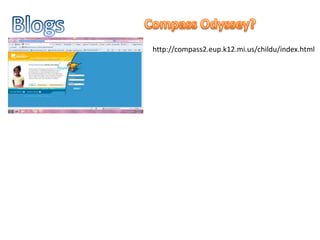
BlogsCompass Odyssey?http://compass2.eup.k12.mi.us/childu/index.html
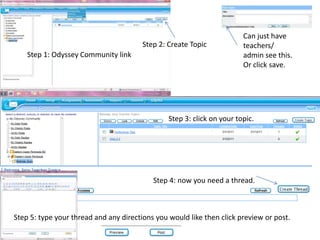
Can just have teachers/admin see this.Or click save.Step 2: Create TopicStep 1: Odyssey Community linkStep 3: click on your topic.Step 4: now you need a thread.Step 5: type your thread and any directions you would like then click preview or post.
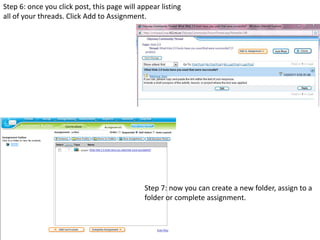
Step 6: once you click post, this page will appear listing all of your threads. Click Add to Assignment.Step 7: now you can create a new folder, assign to a folder or complete assignment.
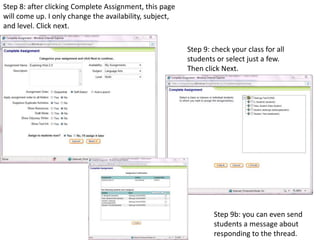
Step 8: after clicking Complete Assignment, this page will come up. I only change the availability, subject, and level. Click next.Step 9: check your class for all students or select just a few.  Then click Next.Step 9b: you can even send students a message about responding to the thread.
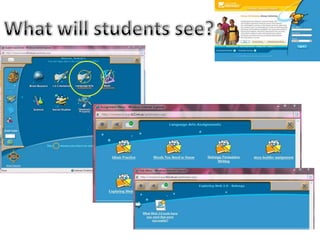
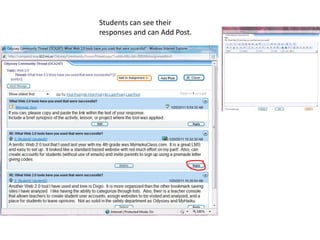
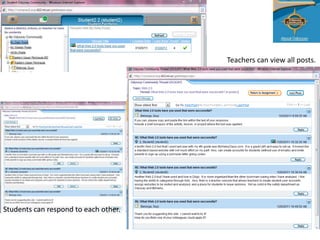
What will students see?
Students can see their responses and can Add Post.
Teachers can view all posts.Students can respond to each other.
http://www.clearvieweducation.com/blog/2009/100-best-blogs-for-teachers-of-the-future/or http://tinyurl.com/100blogs4teachersedublogglogster
Video NetworkingThe tubes: YouTube, TeacherTube, StudentTubeUnited Streaming (regional subscription)Youtube alts from freetech4http://freetech4teachers.pbworks.com/w/page/14904893/Great-Alternatives-to-YouTubeor http://tinyurl.com/youtubealts
Searching the InternetBasic searches:Yebol.comDigg.comGoogle & Google.com/scholar (or customize)Ask.comYahoo.comMetasearches:Dogpile.comWebcrawler.comAnswers.comMonstercrawler.comEn.Wikipedia.orgSearch on search engines:http://en.wikipedia.org/wiki/List_of_search_enginesAnd metasearches:http://www.dmoz.org/Computers/Internet/Searching/Metasearch
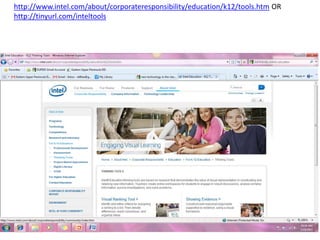
http://www.intel.com/about/corporateresponsibility/education/k12/tools.htm OR http://tinyurl.com/inteltools
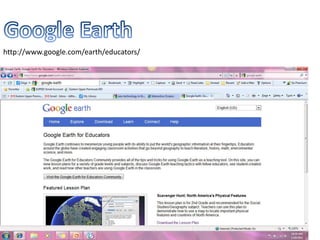
Google Earthhttp://www.google.com/earth/educators/
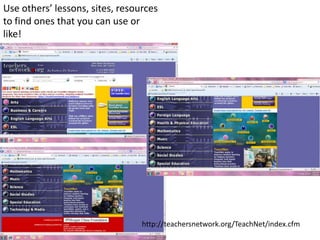
Use others’ lessons, sites, resources to find ones that you can use or like!http://teachersnetwork.org/TeachNet/index.cfm
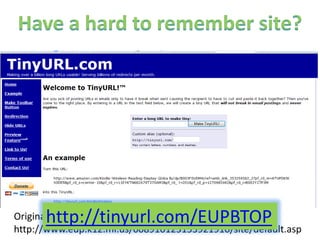
Have a hard to remember site?http://tinyurl.com/EUPBTOPOriginal ISD BTOP site: http://www.eup.k12.mi.us/608910123153921910/site/default.asp
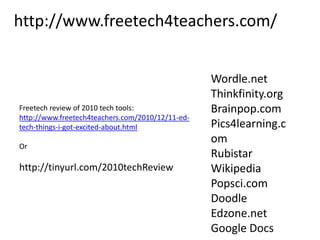
http://www.freetech4teachers.com/Wordle.netThinkfinity.orgBrainpop.comPics4learning.comRubistarWikipediaPopsci.comDoodleEdzone.netGoogle DocsFreetech review of 2010 tech tools:http://www.freetech4teachers.com/2010/12/11-ed-tech-things-i-got-excited-about.htmlOrhttp://tinyurl.com/2010techReview

Web2