A Web Inspector Tutorial
for Front-End Developers
Presented By: Er. Sudan Prajapati
Introduction
• Every browser comes with a handy tool called the Web
Inspector which can help you, the developer, get a
better grasp of the code behind any website.
• Some time their will be trickiest part of customizing site
understanding where the theme files certain CSS styles
are being set.
• For example, site may come with a mustard-colored
sidebar which you want to change to a light grey.
• For such situation their need to be dig into the
code to track down what HTML element the
sidebar is in, and also what CSS selector is setting
the color.
• Favorite and most Powerful tool for making this
process smoother is called the Web Inspector or
web developer tool and it's something built into
every browser.
• Let's pop the hood on this gadget and see how it
works.
Explorers of Internet
Using Web Inspector in Chrome
Inspecting the HTML
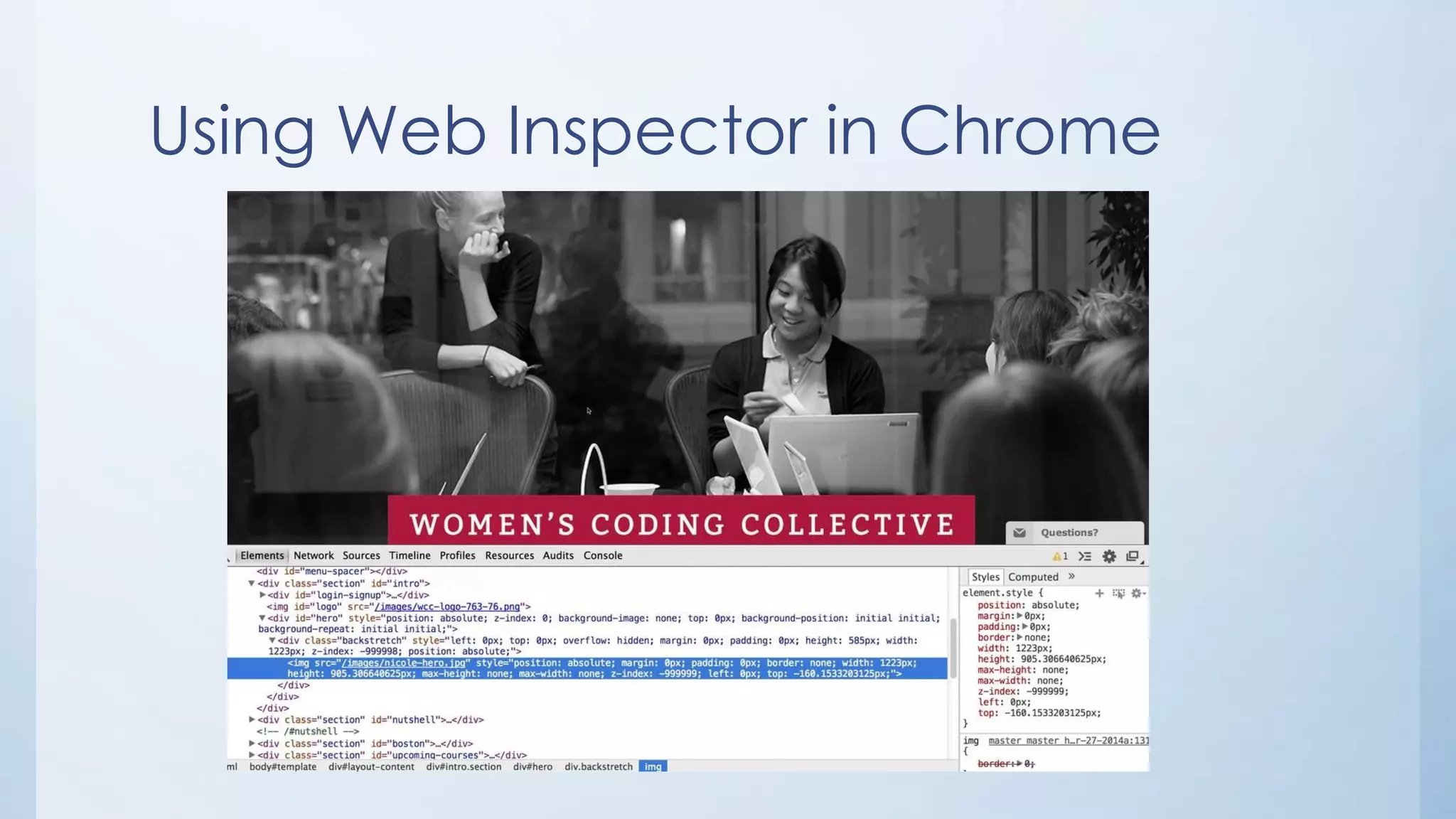
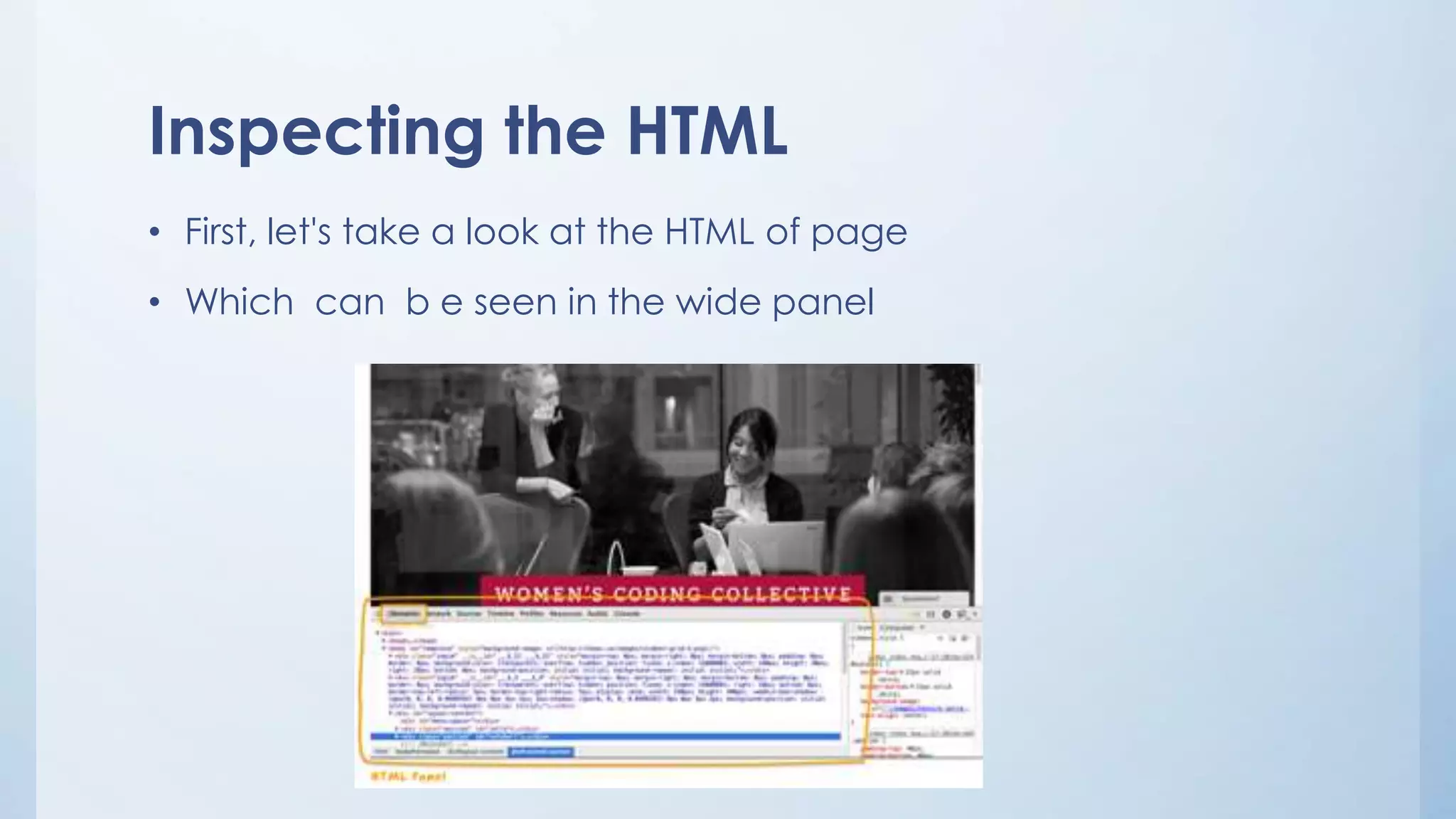
• First, let's take a look at the HTML of page
• Which can b e seen in the wide panel
Inspecting the CSS
• Now let's what the Inspect Element can tell us about the CSS of a
website.
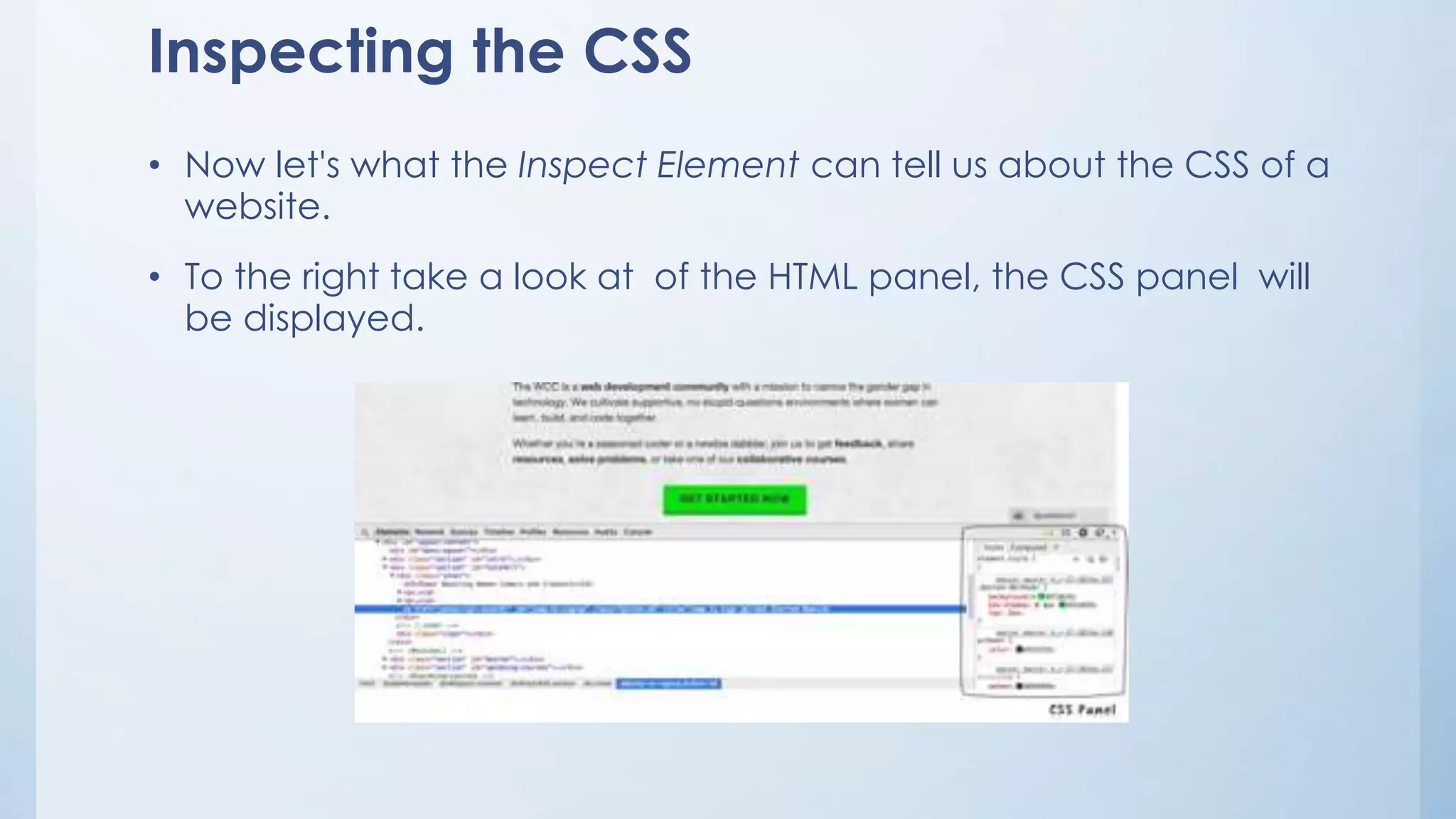
• To the right take a look at of the HTML panel, the CSS panel will
be displayed.
• Panel shows you every CSS selector that
has set some style declaration for
whichever element are inspecting.
• It mentions which .css file this declaration
is being set in, including the line number
you'll find it in the file.
• This is pure magic for tracking down styles
in HTML!
Short Cuts to use Web Inspector
• Right Click in the website and click on the
inspect element.
• Use Key Board shortcut F12.
• For full Screen use key board shortcut F11.
Any Queries ?

Web inspector for front end developers..

  • 1.
    A Web InspectorTutorial for Front-End Developers Presented By: Er. Sudan Prajapati
  • 2.
    Introduction • Every browsercomes with a handy tool called the Web Inspector which can help you, the developer, get a better grasp of the code behind any website. • Some time their will be trickiest part of customizing site understanding where the theme files certain CSS styles are being set. • For example, site may come with a mustard-colored sidebar which you want to change to a light grey.
  • 3.
    • For suchsituation their need to be dig into the code to track down what HTML element the sidebar is in, and also what CSS selector is setting the color. • Favorite and most Powerful tool for making this process smoother is called the Web Inspector or web developer tool and it's something built into every browser. • Let's pop the hood on this gadget and see how it works.
  • 4.
  • 6.
  • 7.
    Inspecting the HTML •First, let's take a look at the HTML of page • Which can b e seen in the wide panel
  • 8.
    Inspecting the CSS •Now let's what the Inspect Element can tell us about the CSS of a website. • To the right take a look at of the HTML panel, the CSS panel will be displayed.
  • 9.
    • Panel showsyou every CSS selector that has set some style declaration for whichever element are inspecting. • It mentions which .css file this declaration is being set in, including the line number you'll find it in the file. • This is pure magic for tracking down styles in HTML!
  • 10.
    Short Cuts touse Web Inspector • Right Click in the website and click on the inspect element. • Use Key Board shortcut F12. • For full Screen use key board shortcut F11.
  • 11.