Web 2.0 Tools Rachel Bartlett, Kathy Kruisenga, Mindy Linning, Kelly Wester, &   Kimberly Wilkins
Table of Contents                   Kathy Kruisenga      Kerpoof                      Slide 3                     Rachel Bartlet          VCASMO                    Slide 8                                               KimberlyWilkins      Blinkweb                    Slide 13                      Kelly Wester           Prezi                          Slide 18                                         Mindy Linning         Nirvana                      Slide 23                                                                                                                         
Multimedia Software Kerpoof’s goal is to become a leading destination site for children through mindful fun thus increasing their interest in the field of technology. This is accomplished by using a simple 3D interface to create art, stories, and animated movies. Launched September 19, 2007 The site was acquired by The Walt Disney Company February 19, 2009. The Disney site uses Kerpoof technology ( http://disney.go.com/index ). Kerpoof can be accessed in 7 languages including English. http://www.crunchbase.com/company/kerpoof Kerpoof Video Introduction
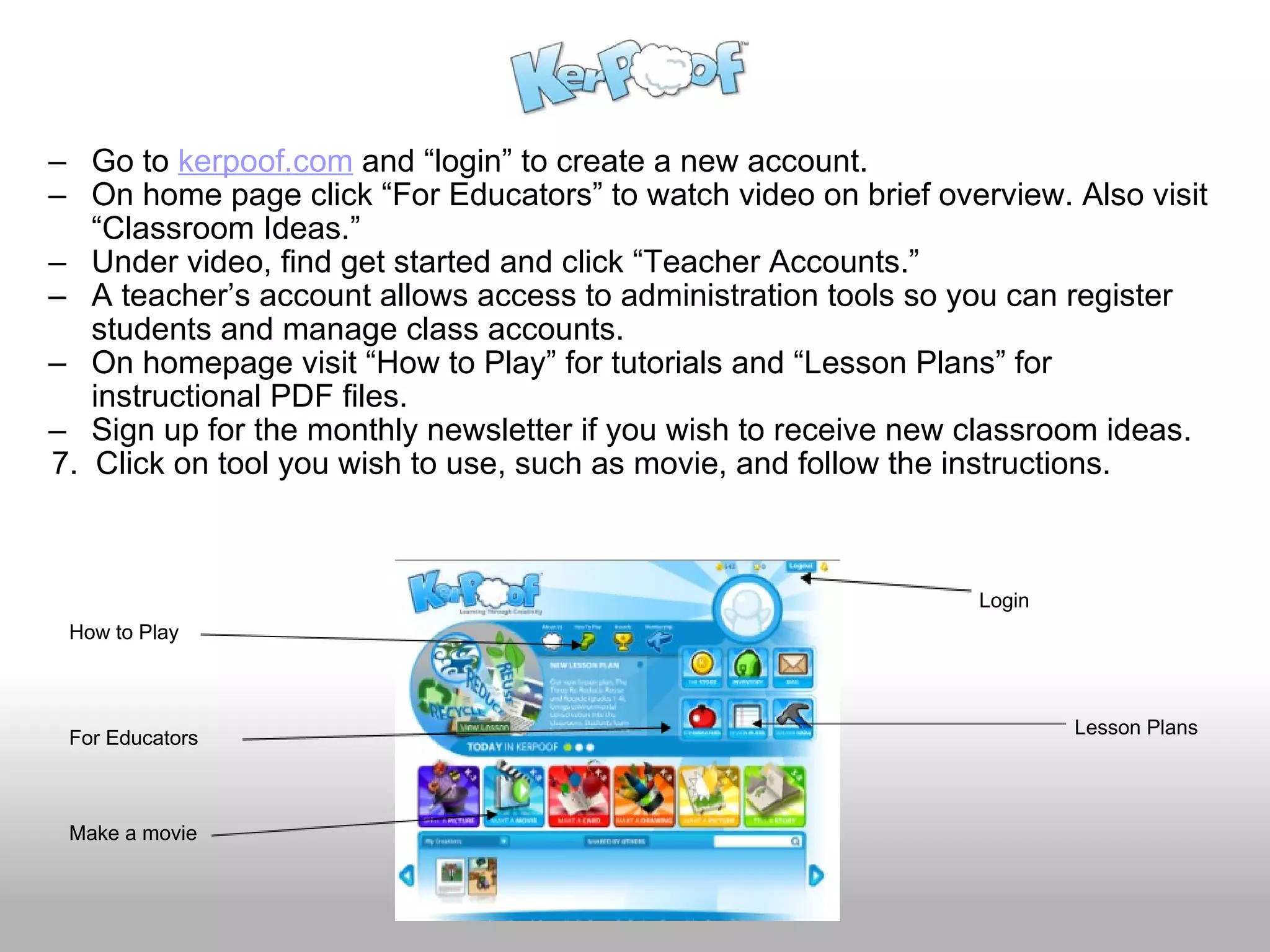
Go to  kerpoof.com  and “login” to create a new account. On home page click “For Educators” to watch video on brief overview. Also visit “Classroom Ideas.” Under video, find get started and click “Teacher Accounts.” A teacher’s account allows access to administration tools so you can register students and manage class accounts. On homepage visit “How to Play” for tutorials and “Lesson Plans” for instructional PDF files. Sign up for the monthly newsletter if you wish to receive new classroom ideas.      7.  Click on tool you wish to use, such as movie, and follow the instructions. Login For Educators How to Play Lesson Plans Make a movie
Benefits Kerpoof allows students to create animated movies, stories, and art. Provides the student with flexibility and control. A rich character library is provided, with each character having numerous, built-in animated actions, many of them humorous. Students can save work to a gallery, share creation with others, and vote on their favorites. Built-in animations with custom scripts and dialog can be mixed to create elaborate animated movies. Advanced capabilities allow children to turn their movies into interactive stories or adventure-style games. Sample storybook page Movie  Scene
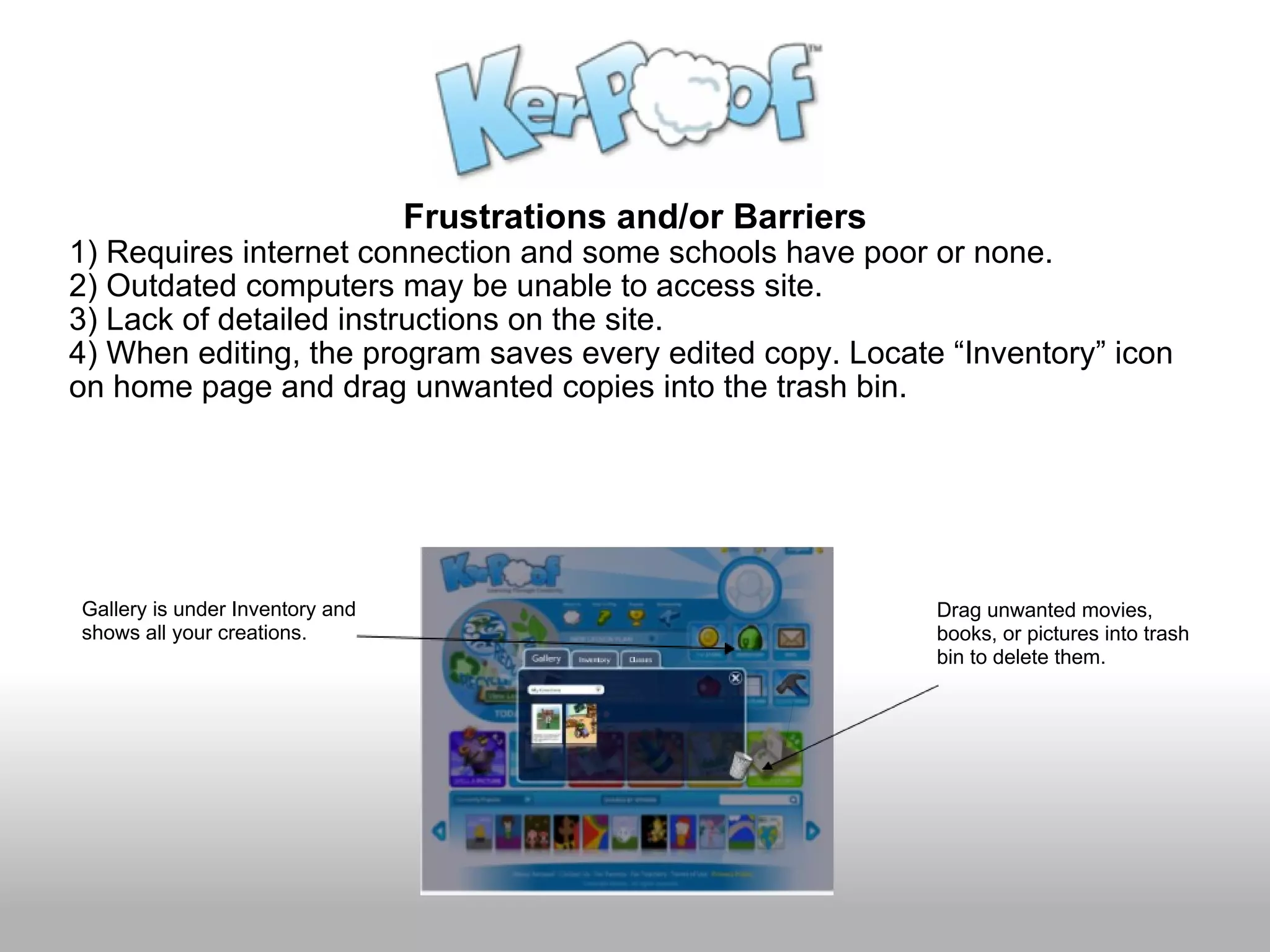
Frustrations and/or Barriers 1) Requires internet connection and some schools have poor or none. 2) Outdated computers may be unable to access site. 3) Lack of detailed instructions on the site. 4) When editing, the program saves every edited copy. Locate “Inventory” icon on home page and drag unwanted copies into the trash bin. Gallery is under Inventory and shows all your creations.     Drag unwanted movies, books, or pictures into trash bin to delete them.
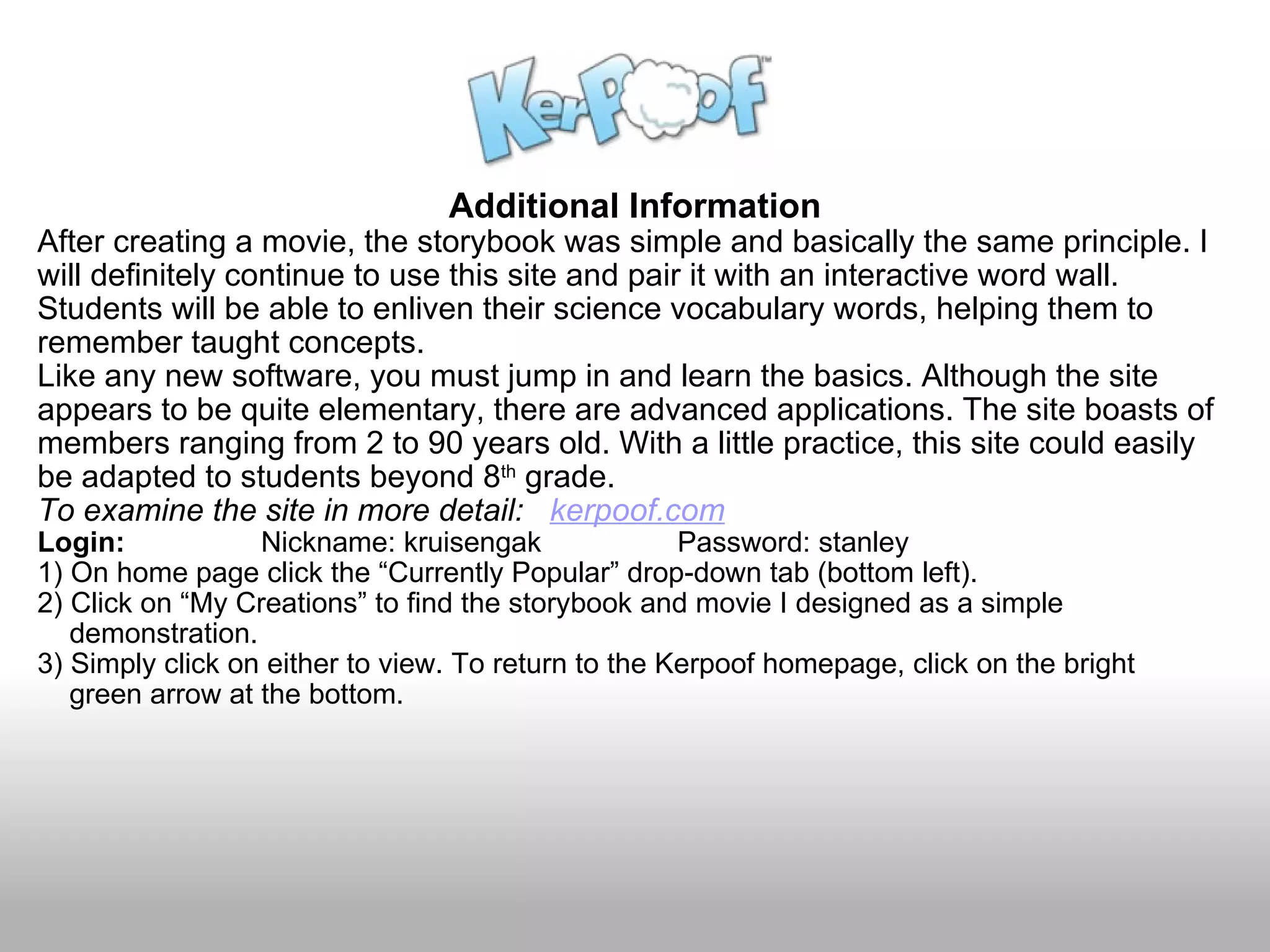
Additional Information After creating a movie, the storybook was simple and basically the same principle. I will definitely continue to use this site and pair it with an interactive word wall. Students will be able to enliven their science vocabulary words, helping them to remember taught concepts.  Like any new software, you must jump in and learn the basics. Although the site appears to be quite elementary, there are advanced applications. The site boasts of members ranging from 2 to 90 years old. With a little practice, this site could easily be adapted to students beyond 8 th  grade. To examine the site in more detail:    kerpoof.com Login:                  Nickname: kruisengak                 Password: stanley 1) On home page click the “Currently Popular” drop-down tab (bottom left).  2) Click on “My Creations” to find the storybook and movie I designed as a simple      demonstration.  3) Simply click on either to view. To return to the Kerpoof homepage, click on the bright       green arrow at the bottom. 
VCASMO  VCASMO is an online presentation tool that is based on multimedia and presentations.  The site was launched in 2007 and features a collaboration of multimedia and slides.  http://www.vcasmo.com   VCASMO stands for: V ideo Broas CAS t Pro MO tion
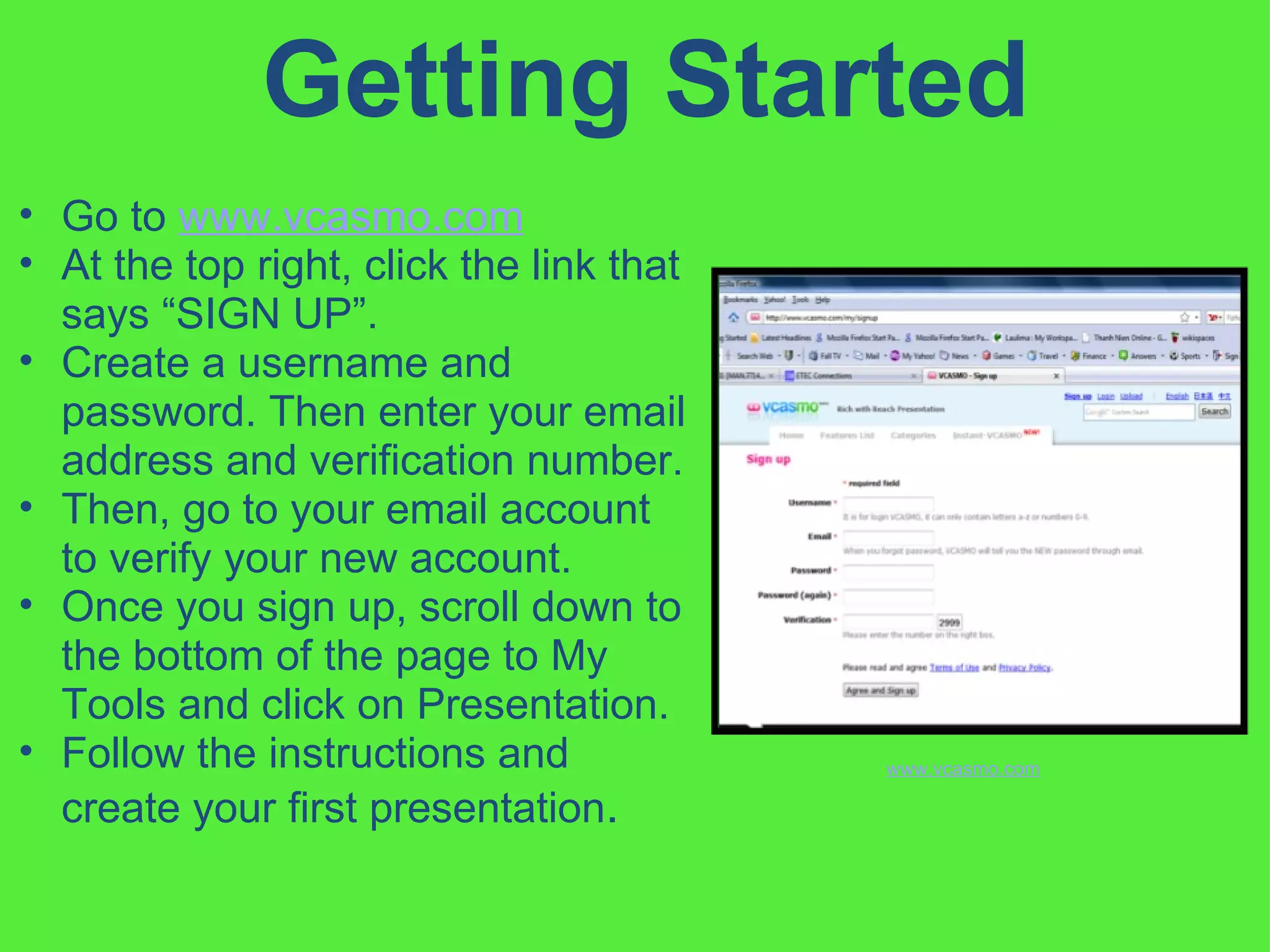
Getting Started Go to  www.vcasmo.com   At the top right, click the link that says “SIGN UP”.  Create a username and password. Then enter your email address and verification number.  Then, go to your email account to verify your new account.  Once you sign up, scroll down to the bottom of the page to My Tools and click on Presentation.  Follow the instructions and create your first presentation .  www.vcasmo.com
Benefits of Using VCASMO in the Classroom  Blogging – Helps students keep track of what is going on in the classroom each day.  Picture Slideshows – Would help to introduce a chapter or lesson with pictures Multimedia Presentations - Could take pictures, videos, and audio to link them into one presentation that could help in the classroom.  Community Tabs – Can search for presentations that can be useful to your subjects or classroom topics Ability to upload PowerPoint www.vcasmo.com www.vcasmo.com www.vcasmo.com www.vcasmo.com
Frustrations with VCASMO The following features are not included in the free version of VCASMO:  Sound Synchronization  Simple Video Editor Linkable Slides Video Seeking Embedding the Presentation into a webpage or blog Uploading was difficult and slow at first, but got better as I became more familiar with it. www.vcasmo.com www.vcasmo.com www.vcasmo.com www.vcasmo.com
VCASMO Conclusions  After using VCASMO, I feel like I will continue to use it in my own classroom. I would like to look into how much it would cost to get more of the tools that VCASMO offers. The free version is very limited, but it is simple to use. Overall, VCASMO was an interesting Web 2.0 application to use in my classroom. If you would like to see some of the work that I did using VCASMO, please check out  http://www.vcasmo.com/user/bartlettrl
Blinkweb Create your own website with the blink of an eye! YOU GET THE FOLLOWING AND MORE!  Drag and drop interface Easily create your own info product sales letter TONS of designs to choose from Testimonial boxes, order buttons, checkmarks etc. Add optin forms easily Collect your customer's name and email Add video to your website Youtube, Google Video, Flickr, and more Click on the following link to start building your customized web page today! http://business.blinkweb.com/about.html
Business or Personal Whether business or personal, Blinkweb will allow you to create your very own web site for free! It’s Easy! Go to sign up for free Enter user name, password and e-mail address Click the agree to terms and conditions button Start building
Great for adding to Wiki If you have a class wiki and you also have a personal business, ie, tutoring, you can add that web address to your wiki so your parents can access your business web address.
Professional Appearance  Send out your class newsletters and have your web address on them. When you give your business cards to your parents, it looks professional for you to have your own web address. Other educators/ and people in other professions will see you as a professional when you present a business card with your very own web address. Check out my page at the following link http://tayloreducationalservice.blinkweb.com
Show your Creativity! Whether you’re into music… Or you may be into football… Blinkweb  Blinkweb allows you to show your personal style and creativity all in one  place! This is an application that, once  created, can be added to a class wiki, or professional portfolio. All for free!
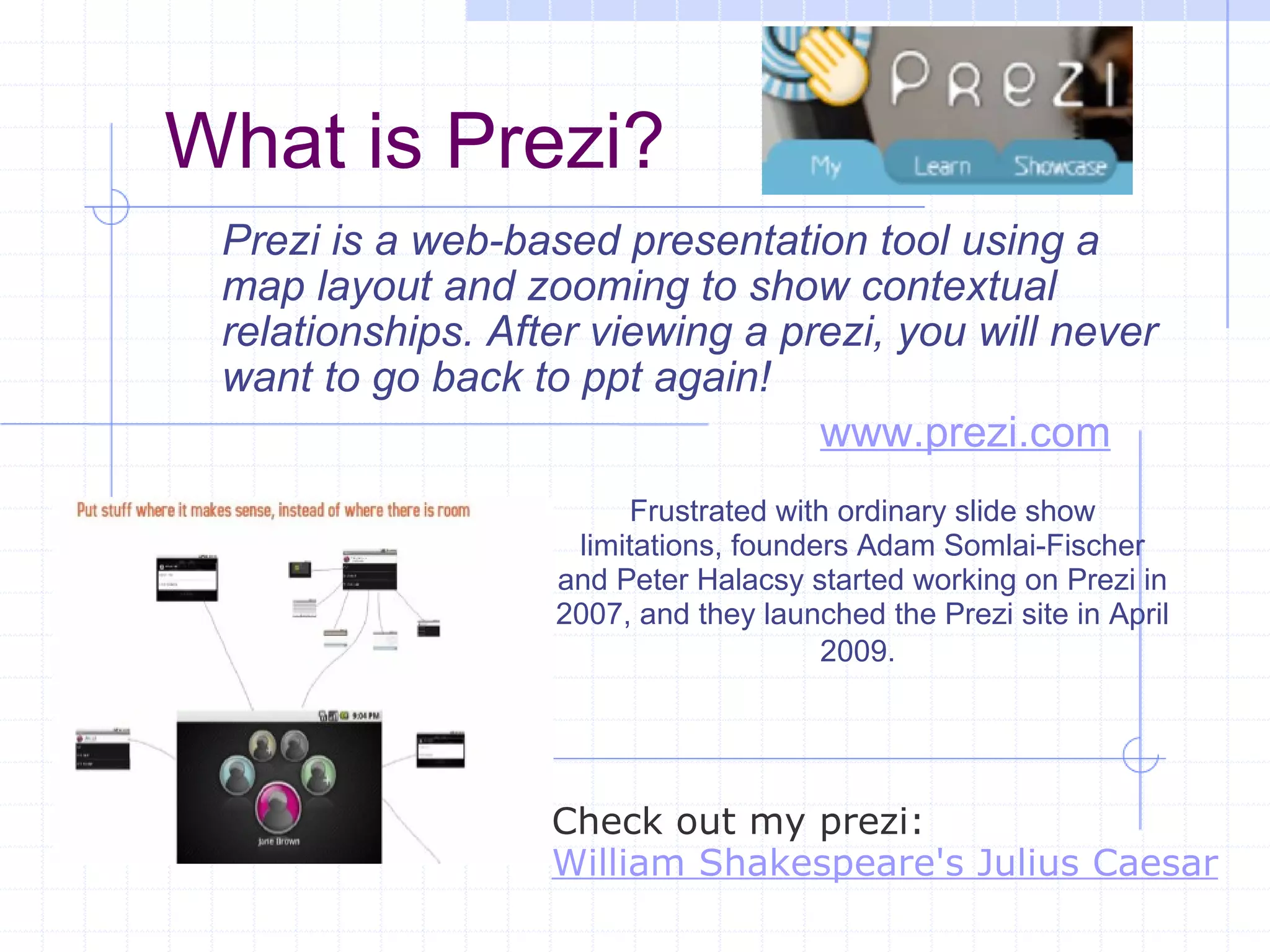
What is Prezi? Prezi is a web-based presentation tool using a map layout and zooming to show contextual relationships. After viewing a prezi, you will never want to go back to ppt again! Frustrated with ordinary slide show limitations, founders Adam Somlai-Fischer and Peter Halacsy started working on Prezi in 2007, and they launched the Prezi site in April 2009.   www.prezi.com Check out my prezi: William Shakespeare's Julius Caesar
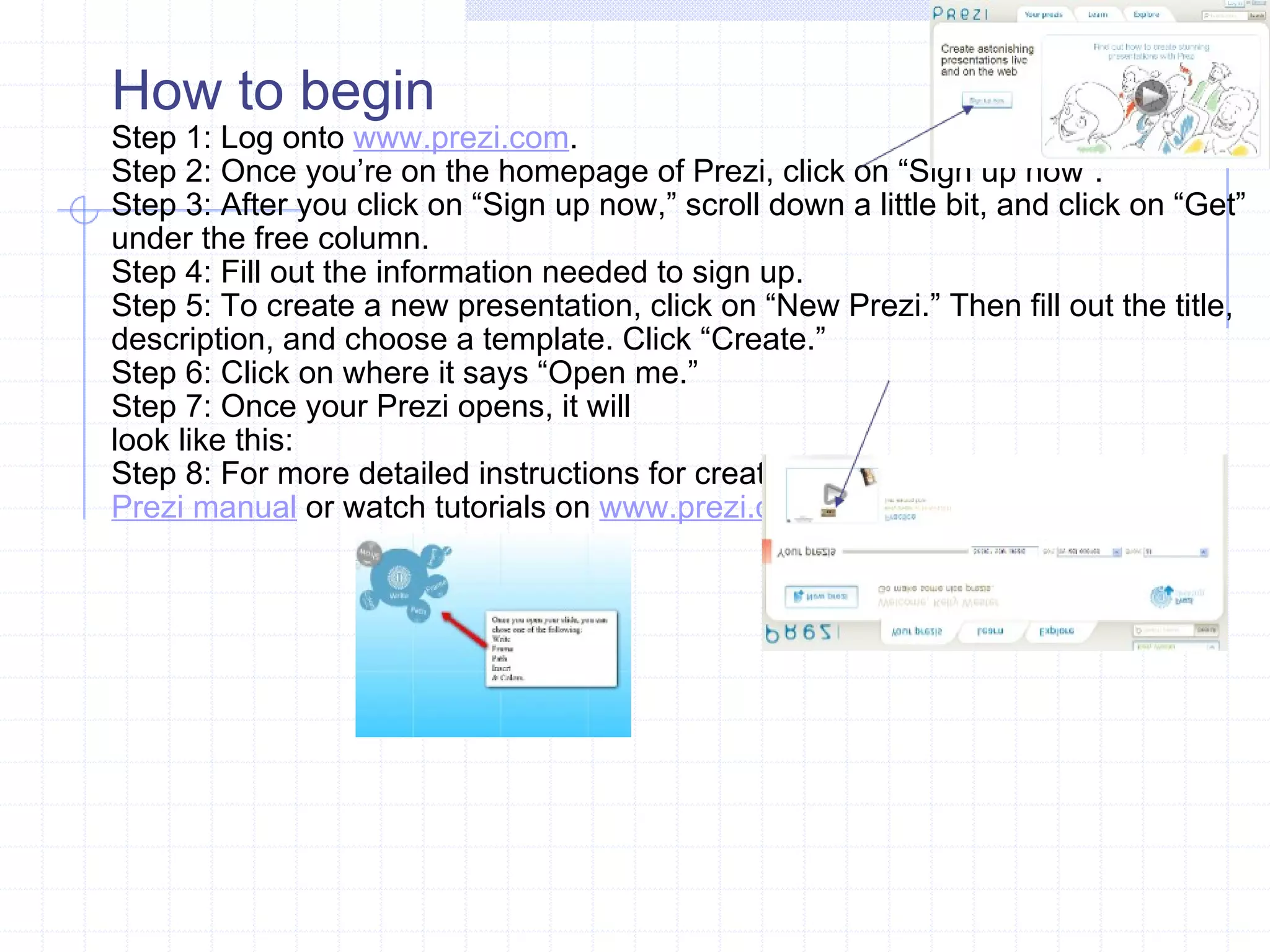
How to begin Step 1: Log onto  www.prezi.com . Step 2: Once you’re on the homepage of Prezi, click on “Sign up now”. Step 3: After you click on “Sign up now,” scroll down a little bit, and click on “Get” under the free column. Step 4: Fill out the information needed to sign up. Step 5: To create a new presentation, click on “New Prezi.” Then fill out the title, description, and choose a template. Click “Create.” Step 6: Click on where it says “Open me.”  Step 7: Once your Prezi opens, it will look like this: Step 8: For more detailed instructions for creating a prezi click on links below: Prezi manual  or watch tutorials on  www.prezi.com  or  youtube
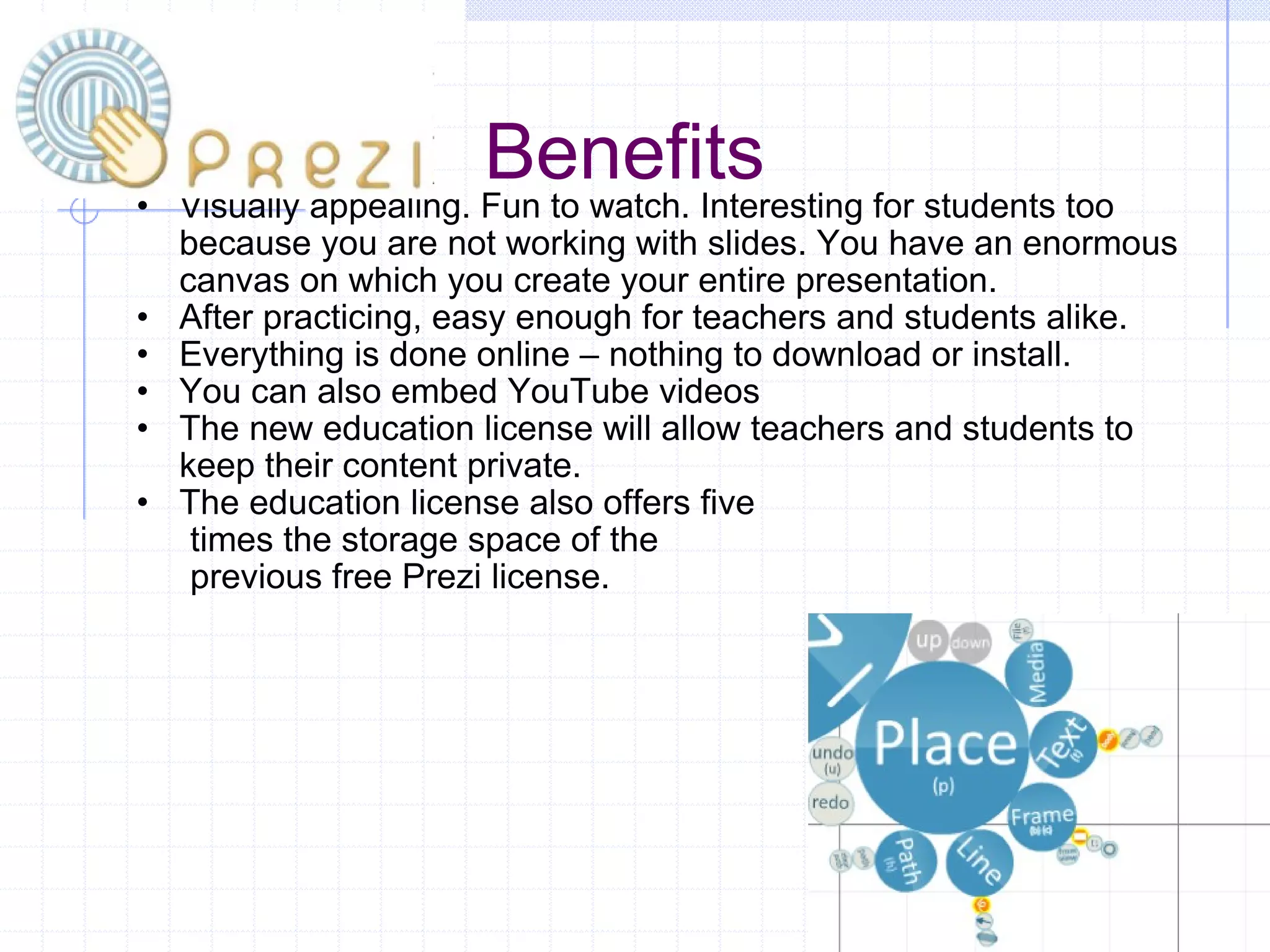
Benefits Visually appealing. Fun to watch. Interesting for students too because you are not working with slides. You have an enormous canvas on which you create your entire presentation.  After practicing, easy enough for teachers and students alike. Everything is done online – nothing to download or install.  You can also embed YouTube videos  The new education license will allow teachers and students to keep their content private.  The education license also offers five          times the storage space of the          previous free Prezi license.
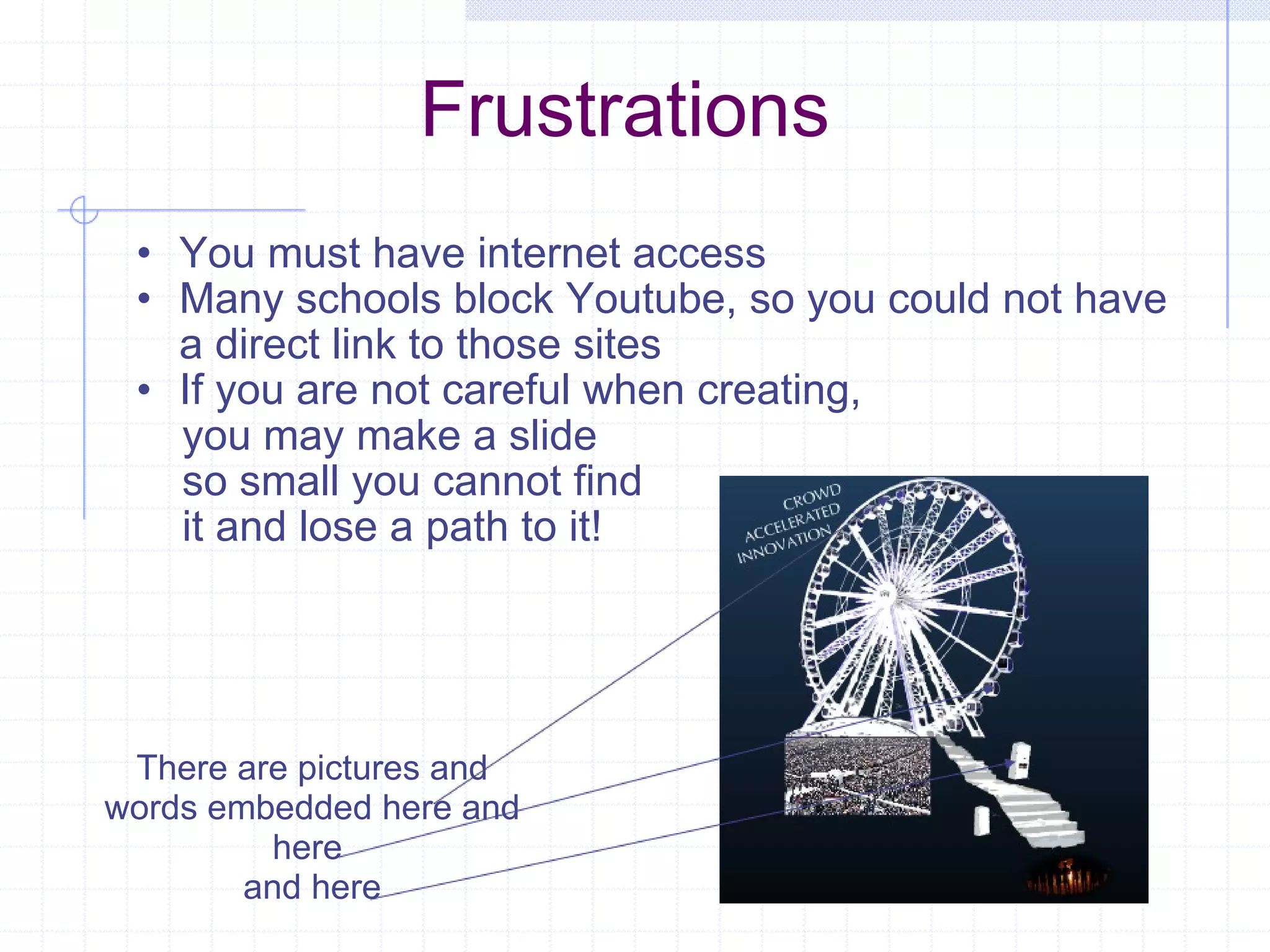
Frustrations You must have internet access Many schools block Youtube, so you could not have a direct link to those sites If you are not careful when creating,        you may make a slide        so small you cannot find        it and lose a path to it! There are pictures and words embedded here and here  and here
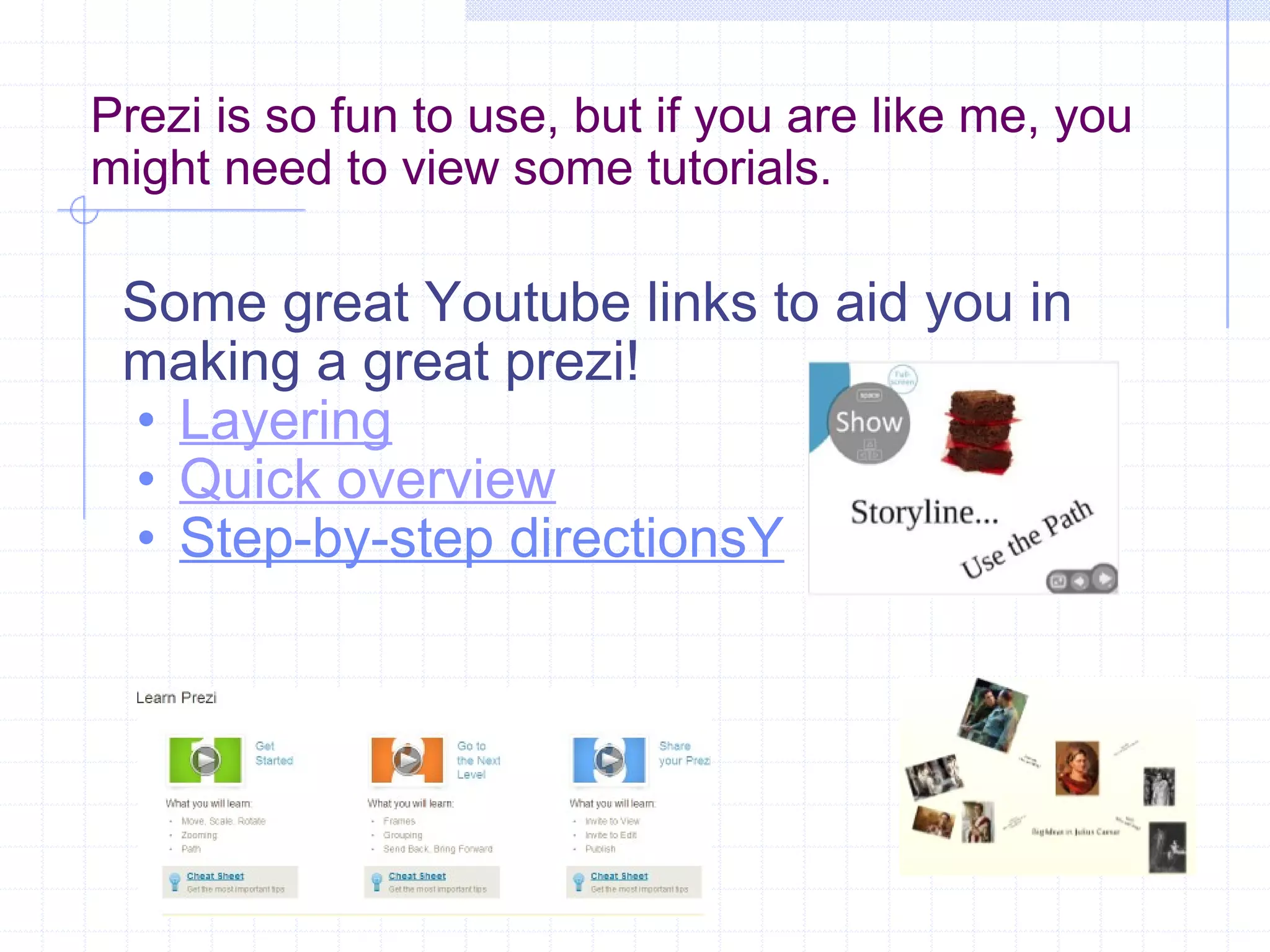
Prezi is so fun to use, but if you are like me, you might need to view some tutorials. Some great Youtube links to aid you in making a great prezi! Layering Quick overview Step-by-step directionsY
  Nirvana is a digital, online to do list organizer Categorize, prioritize, track and check off your tasks with the click of a button
To set up an account, go to   https://www.nirvanahq.com/account/signup   Enter your email and wait for them to set up your account  my account took one week could take up to a month Once you get a confirmation email, your account is ready to use and fully functional   See the website tour   https://www.nirvanahq.com/tour
Benefits for the classroom: Create multifaceted projects Share them with your colleagues Divide responsibilities Check your progress Email your task list automatically Assign and reassign tasks Spend less time managing and more time doing!
Limits Have to have access to the internet and a computer (or smart phone) Colleagues may not be willing to use the application
I will continue to use Nirvana to stay organized! It is great to have all of my to do lists in one central location. I also like the organization of the website and how you can focus on different aspects of your life.   I encourage anyone who likes keeping and checking off to do lists to use this application!
In Summary     There are many Web 2.0 applications available.  Group A explored applications that students can use as well as educators.  Some applications such as Kerpoof, VCASMO, and Prezi are great for both students and teachers, while Blinkweb and Nirvana are aimed more for teacher's use.  As the world continues to use more technology, educators can use these and other applications in their teaching and professional lives. Each one of these applications can be used in the classroom or by teachers in planning. It is important to learn how to use these types of applications so that they can be beneficial to students and teachers.   

EG5523 - Web 2.0 Technology

  • 1.
    Web 2.0 ToolsRachel Bartlett, Kathy Kruisenga, Mindy Linning, Kelly Wester, & Kimberly Wilkins
  • 2.
    Table of Contents                 Kathy Kruisenga      Kerpoof                      Slide 3                     Rachel Bartlet          VCASMO                    Slide 8                                               KimberlyWilkins      Blinkweb                    Slide 13                      Kelly Wester          Prezi                          Slide 18                                       Mindy Linning         Nirvana                      Slide 23                                                                                                                       
  • 3.
    Multimedia Software Kerpoof’sgoal is to become a leading destination site for children through mindful fun thus increasing their interest in the field of technology. This is accomplished by using a simple 3D interface to create art, stories, and animated movies. Launched September 19, 2007 The site was acquired by The Walt Disney Company February 19, 2009. The Disney site uses Kerpoof technology ( http://disney.go.com/index ). Kerpoof can be accessed in 7 languages including English. http://www.crunchbase.com/company/kerpoof Kerpoof Video Introduction
  • 4.
    Go to kerpoof.com  and “login” to create a new account. On home page click “For Educators” to watch video on brief overview. Also visit “Classroom Ideas.” Under video, find get started and click “Teacher Accounts.” A teacher’s account allows access to administration tools so you can register students and manage class accounts. On homepage visit “How to Play” for tutorials and “Lesson Plans” for instructional PDF files. Sign up for the monthly newsletter if you wish to receive new classroom ideas.    7.  Click on tool you wish to use, such as movie, and follow the instructions. Login For Educators How to Play Lesson Plans Make a movie
  • 5.
    Benefits Kerpoof allowsstudents to create animated movies, stories, and art. Provides the student with flexibility and control. A rich character library is provided, with each character having numerous, built-in animated actions, many of them humorous. Students can save work to a gallery, share creation with others, and vote on their favorites. Built-in animations with custom scripts and dialog can be mixed to create elaborate animated movies. Advanced capabilities allow children to turn their movies into interactive stories or adventure-style games. Sample storybook page Movie Scene
  • 6.
    Frustrations and/or Barriers1) Requires internet connection and some schools have poor or none. 2) Outdated computers may be unable to access site. 3) Lack of detailed instructions on the site. 4) When editing, the program saves every edited copy. Locate “Inventory” icon on home page and drag unwanted copies into the trash bin. Gallery is under Inventory and shows all your creations.    Drag unwanted movies, books, or pictures into trash bin to delete them.
  • 7.
    Additional Information Aftercreating a movie, the storybook was simple and basically the same principle. I will definitely continue to use this site and pair it with an interactive word wall. Students will be able to enliven their science vocabulary words, helping them to remember taught concepts. Like any new software, you must jump in and learn the basics. Although the site appears to be quite elementary, there are advanced applications. The site boasts of members ranging from 2 to 90 years old. With a little practice, this site could easily be adapted to students beyond 8 th grade. To examine the site in more detail:   kerpoof.com Login:                  Nickname: kruisengak                 Password: stanley 1) On home page click the “Currently Popular” drop-down tab (bottom left). 2) Click on “My Creations” to find the storybook and movie I designed as a simple      demonstration. 3) Simply click on either to view. To return to the Kerpoof homepage, click on the bright     green arrow at the bottom. 
  • 8.
    VCASMO VCASMOis an online presentation tool that is based on multimedia and presentations. The site was launched in 2007 and features a collaboration of multimedia and slides. http://www.vcasmo.com VCASMO stands for: V ideo Broas CAS t Pro MO tion
  • 9.
    Getting Started Goto www.vcasmo.com At the top right, click the link that says “SIGN UP”. Create a username and password. Then enter your email address and verification number. Then, go to your email account to verify your new account. Once you sign up, scroll down to the bottom of the page to My Tools and click on Presentation. Follow the instructions and create your first presentation . www.vcasmo.com
  • 10.
    Benefits of UsingVCASMO in the Classroom Blogging – Helps students keep track of what is going on in the classroom each day. Picture Slideshows – Would help to introduce a chapter or lesson with pictures Multimedia Presentations - Could take pictures, videos, and audio to link them into one presentation that could help in the classroom. Community Tabs – Can search for presentations that can be useful to your subjects or classroom topics Ability to upload PowerPoint www.vcasmo.com www.vcasmo.com www.vcasmo.com www.vcasmo.com
  • 11.
    Frustrations with VCASMOThe following features are not included in the free version of VCASMO: Sound Synchronization Simple Video Editor Linkable Slides Video Seeking Embedding the Presentation into a webpage or blog Uploading was difficult and slow at first, but got better as I became more familiar with it. www.vcasmo.com www.vcasmo.com www.vcasmo.com www.vcasmo.com
  • 12.
    VCASMO Conclusions After using VCASMO, I feel like I will continue to use it in my own classroom. I would like to look into how much it would cost to get more of the tools that VCASMO offers. The free version is very limited, but it is simple to use. Overall, VCASMO was an interesting Web 2.0 application to use in my classroom. If you would like to see some of the work that I did using VCASMO, please check out http://www.vcasmo.com/user/bartlettrl
  • 13.
    Blinkweb Create yourown website with the blink of an eye! YOU GET THE FOLLOWING AND MORE! Drag and drop interface Easily create your own info product sales letter TONS of designs to choose from Testimonial boxes, order buttons, checkmarks etc. Add optin forms easily Collect your customer's name and email Add video to your website Youtube, Google Video, Flickr, and more Click on the following link to start building your customized web page today! http://business.blinkweb.com/about.html
  • 14.
    Business or PersonalWhether business or personal, Blinkweb will allow you to create your very own web site for free! It’s Easy! Go to sign up for free Enter user name, password and e-mail address Click the agree to terms and conditions button Start building
  • 15.
    Great for addingto Wiki If you have a class wiki and you also have a personal business, ie, tutoring, you can add that web address to your wiki so your parents can access your business web address.
  • 16.
    Professional Appearance Send out your class newsletters and have your web address on them. When you give your business cards to your parents, it looks professional for you to have your own web address. Other educators/ and people in other professions will see you as a professional when you present a business card with your very own web address. Check out my page at the following link http://tayloreducationalservice.blinkweb.com
  • 17.
    Show your Creativity!Whether you’re into music… Or you may be into football… Blinkweb Blinkweb allows you to show your personal style and creativity all in one place! This is an application that, once created, can be added to a class wiki, or professional portfolio. All for free!
  • 18.
    What is Prezi?Prezi is a web-based presentation tool using a map layout and zooming to show contextual relationships. After viewing a prezi, you will never want to go back to ppt again! Frustrated with ordinary slide show limitations, founders Adam Somlai-Fischer and Peter Halacsy started working on Prezi in 2007, and they launched the Prezi site in April 2009. www.prezi.com Check out my prezi: William Shakespeare's Julius Caesar
  • 19.
    How to beginStep 1: Log onto www.prezi.com . Step 2: Once you’re on the homepage of Prezi, click on “Sign up now”. Step 3: After you click on “Sign up now,” scroll down a little bit, and click on “Get” under the free column. Step 4: Fill out the information needed to sign up. Step 5: To create a new presentation, click on “New Prezi.” Then fill out the title, description, and choose a template. Click “Create.” Step 6: Click on where it says “Open me.” Step 7: Once your Prezi opens, it will look like this: Step 8: For more detailed instructions for creating a prezi click on links below: Prezi manual or watch tutorials on www.prezi.com or youtube
  • 20.
    Benefits Visually appealing.Fun to watch. Interesting for students too because you are not working with slides. You have an enormous canvas on which you create your entire presentation. After practicing, easy enough for teachers and students alike. Everything is done online – nothing to download or install. You can also embed YouTube videos The new education license will allow teachers and students to keep their content private. The education license also offers five        times the storage space of the        previous free Prezi license.
  • 21.
    Frustrations You musthave internet access Many schools block Youtube, so you could not have a direct link to those sites If you are not careful when creating,      you may make a slide       so small you cannot find      it and lose a path to it! There are pictures and words embedded here and here and here
  • 22.
    Prezi is sofun to use, but if you are like me, you might need to view some tutorials. Some great Youtube links to aid you in making a great prezi! Layering Quick overview Step-by-step directionsY
  • 23.
      Nirvana isa digital, online to do list organizer Categorize, prioritize, track and check off your tasks with the click of a button
  • 24.
    To set upan account, go to   https://www.nirvanahq.com/account/signup Enter your email and wait for them to set up your account my account took one week could take up to a month Once you get a confirmation email, your account is ready to use and fully functional See the website tour https://www.nirvanahq.com/tour
  • 25.
    Benefits for theclassroom: Create multifaceted projects Share them with your colleagues Divide responsibilities Check your progress Email your task list automatically Assign and reassign tasks Spend less time managing and more time doing!
  • 26.
    Limits Have tohave access to the internet and a computer (or smart phone) Colleagues may not be willing to use the application
  • 27.
    I will continueto use Nirvana to stay organized! It is great to have all of my to do lists in one central location. I also like the organization of the website and how you can focus on different aspects of your life.   I encourage anyone who likes keeping and checking off to do lists to use this application!
  • 28.
    In Summary    There are many Web 2.0 applications available.  Group A explored applications that students can use as well as educators.  Some applications such as Kerpoof, VCASMO, and Prezi are great for both students and teachers, while Blinkweb and Nirvana are aimed more for teacher's use.  As the world continues to use more technology, educators can use these and other applications in their teaching and professional lives. Each one of these applications can be used in the classroom or by teachers in planning. It is important to learn how to use these types of applications so that they can be beneficial to students and teachers.