OPEN CAMPUS | FACULTY TRAINING


        Grading an Assignment
Faculty                                                   OPEN CAMPUS | FACULTY TRAINING


   Grade an Assignment
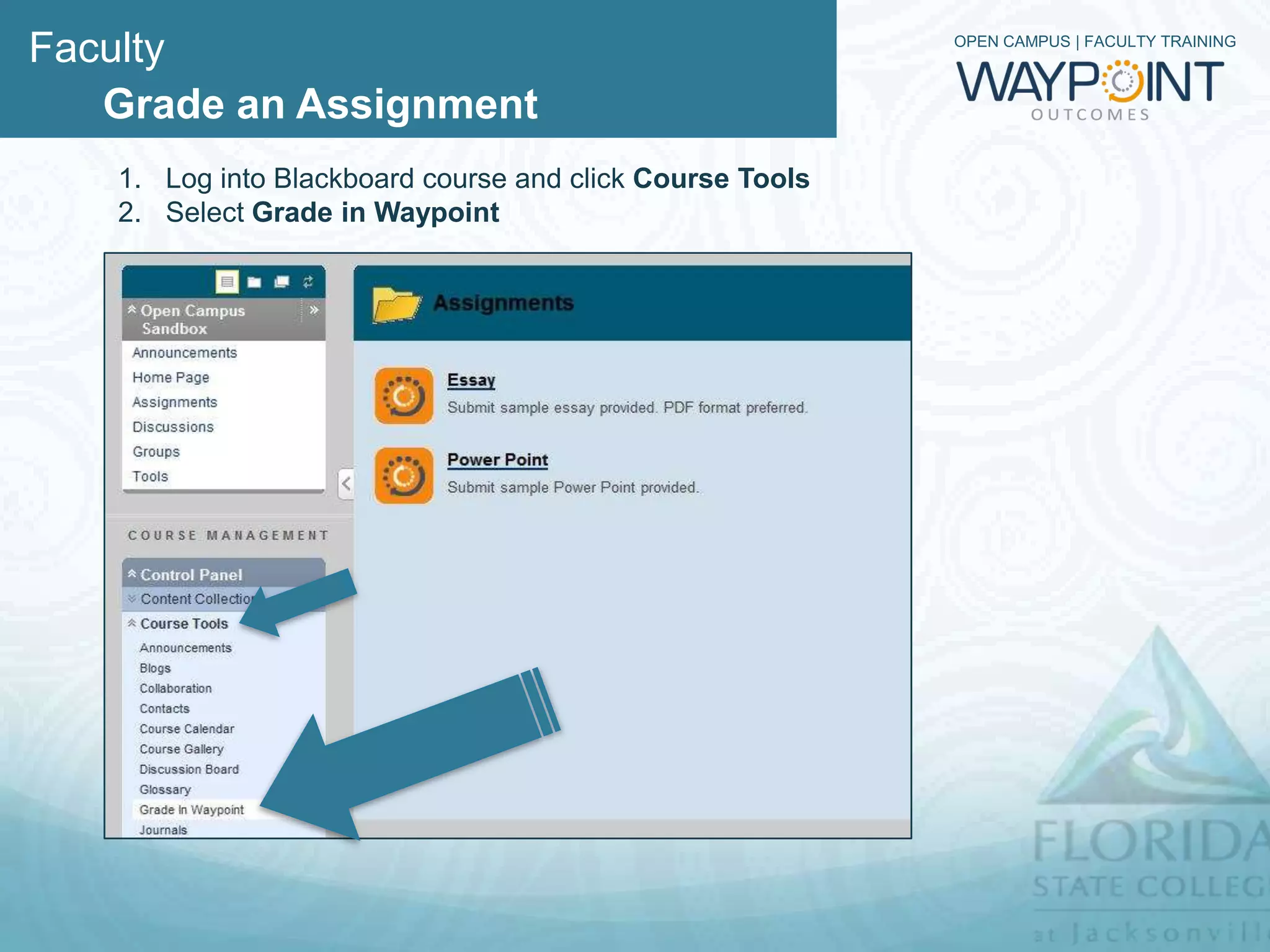
   1. Log into Blackboard course and click Course Tools
   2. Select Grade in Waypoint
Faculty                                   OPEN CAMPUS | FACULTY TRAINING


   Grade an Assignment
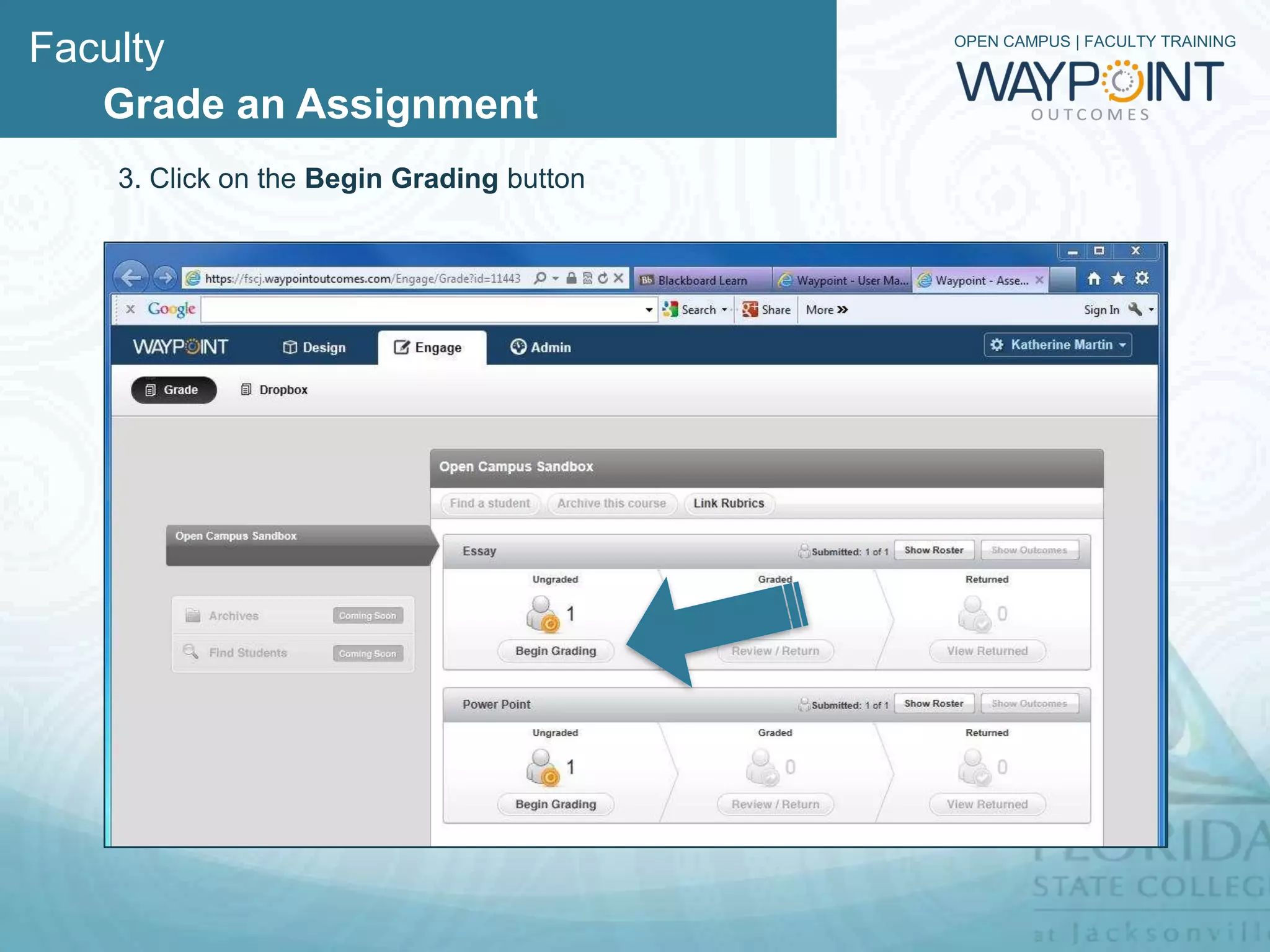
   3. Click on the Begin Grading button
Faculty                                                             OPEN CAMPUS | FACULTY TRAINING


   Grade an Assignment
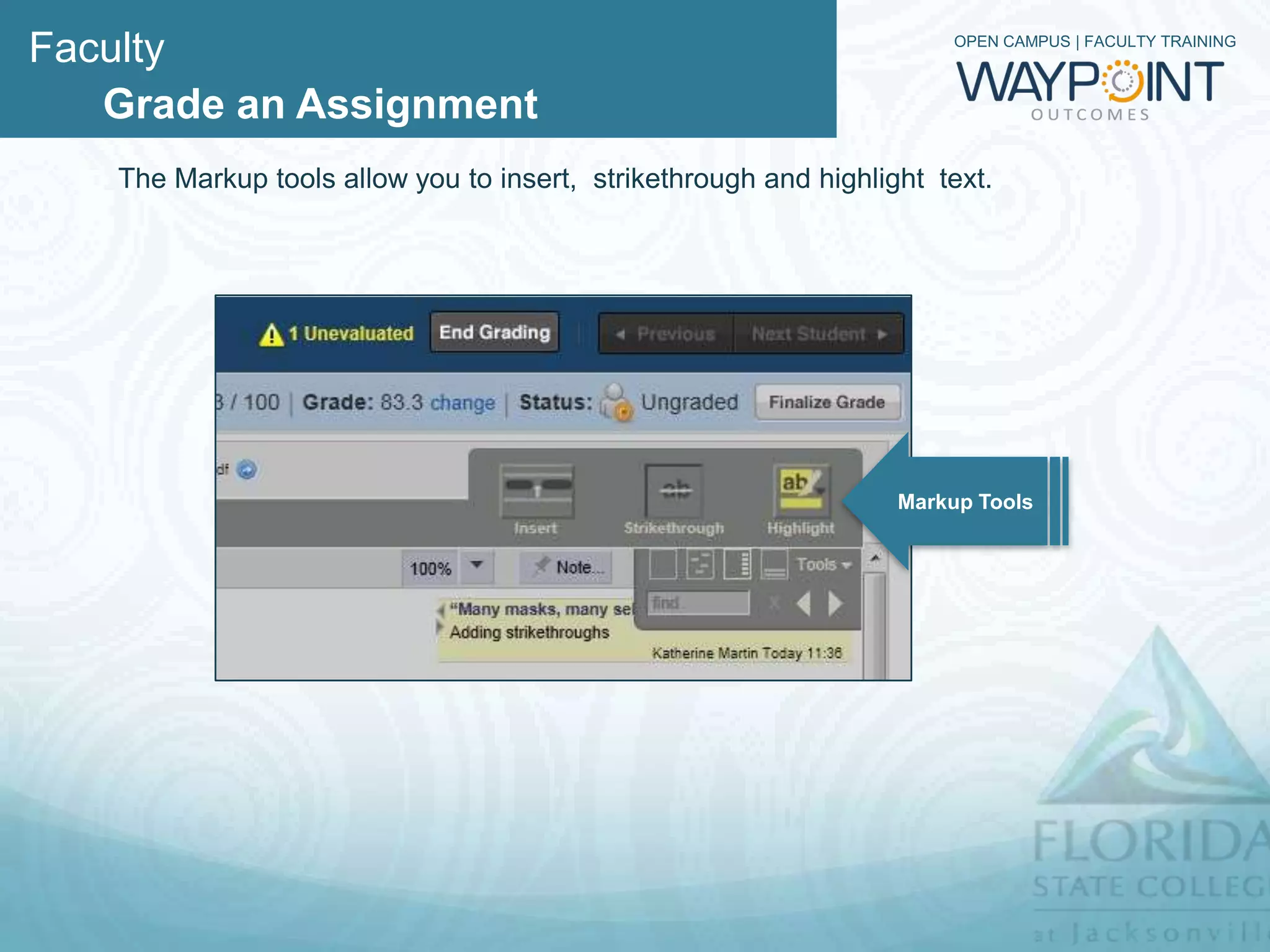
     Select the markup tool of choice: insert, strike through and highlight text.


                                                  Markup Tools
Faculty                                                            OPEN CAMPUS | FACULTY TRAINING


   Grade an Assignment
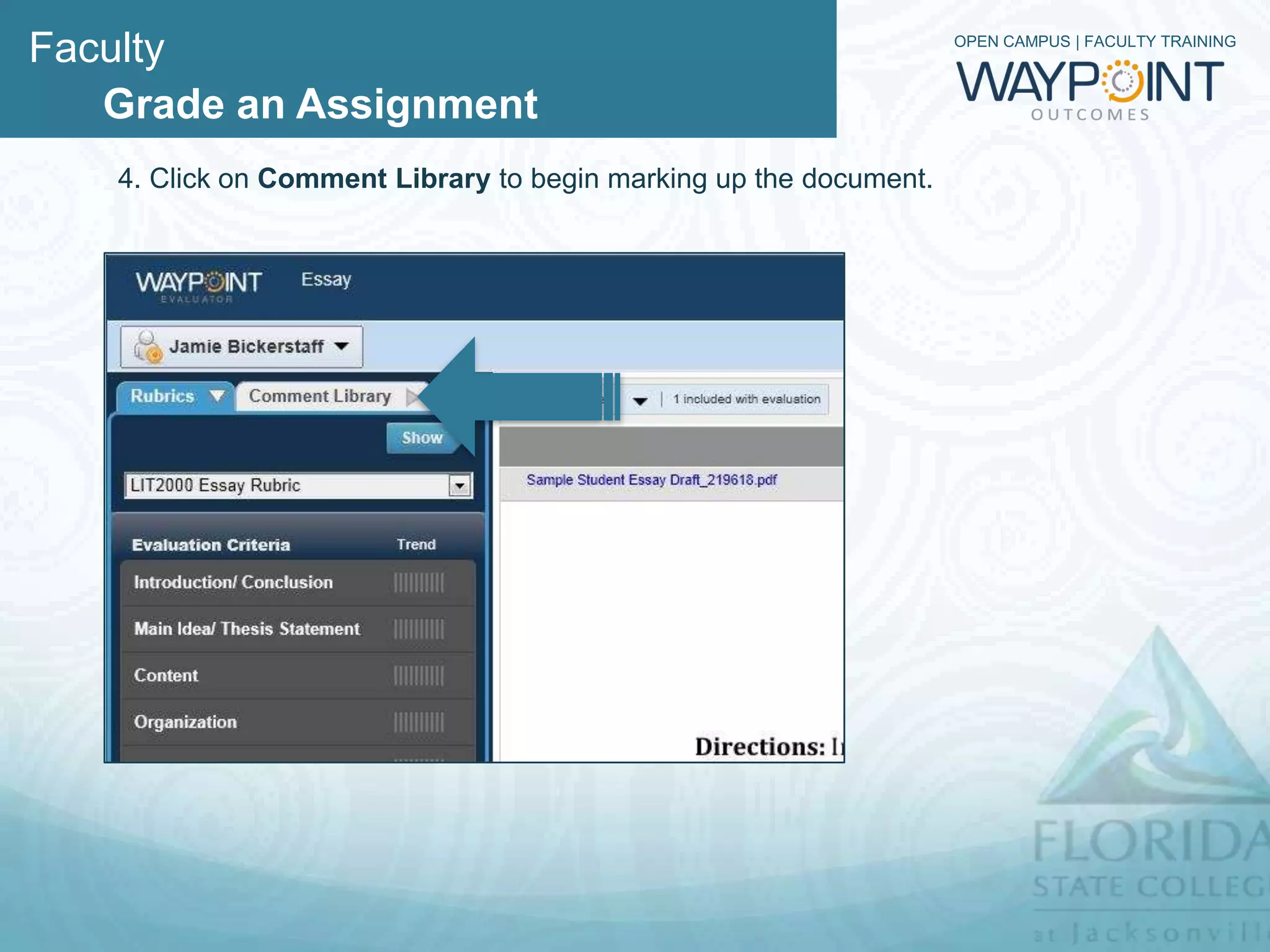
   4. Click on Comment Library to begin marking up the document.
Faculty                                                            OPEN CAMPUS | FACULTY TRAINING


   Grade an Assignment
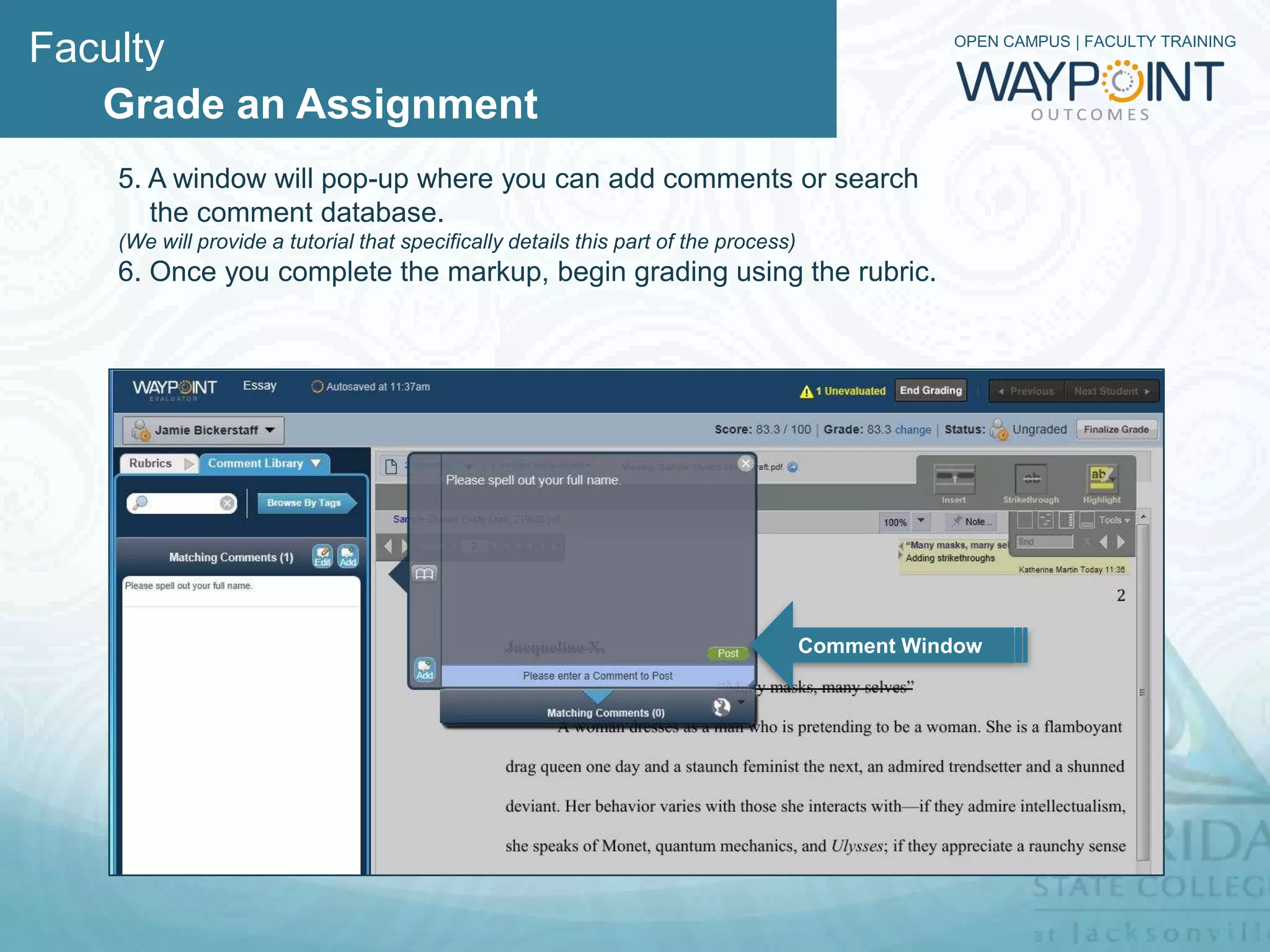
    5. A window will pop-up where you search for preformed comments or add
    personal comments. If you wish to add a comment to your personal library, you
    can push Add in the bottom left hand corner of the comment box and the
    comment library will open to the left.
    6. Once you complete the markup, begin grading using the rubric.


                        Add


                                                       Comment Window
Faculty                                                              OPEN CAMPUS | FACULTY TRAINING


   Grade an Assignment
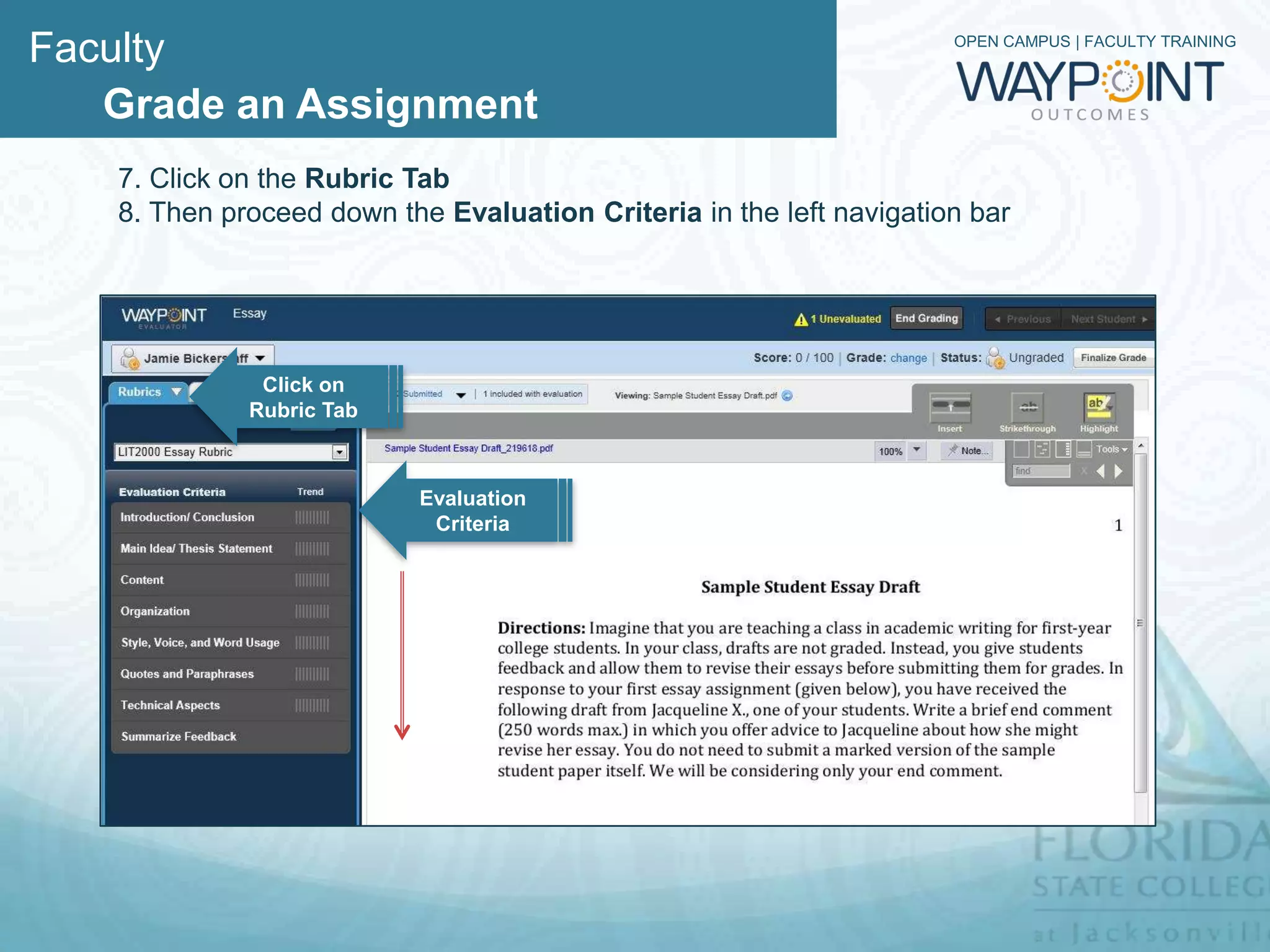
   7. Click on the Rubric Tab
   8. Then proceed down the Evaluation Criteria in the left navigation bar


              Click on
             Rubric Tab


                          Evaluation
                           Criteria
Faculty                                                               OPEN CAMPUS | FACULTY TRAINING


   Grade an Assignment
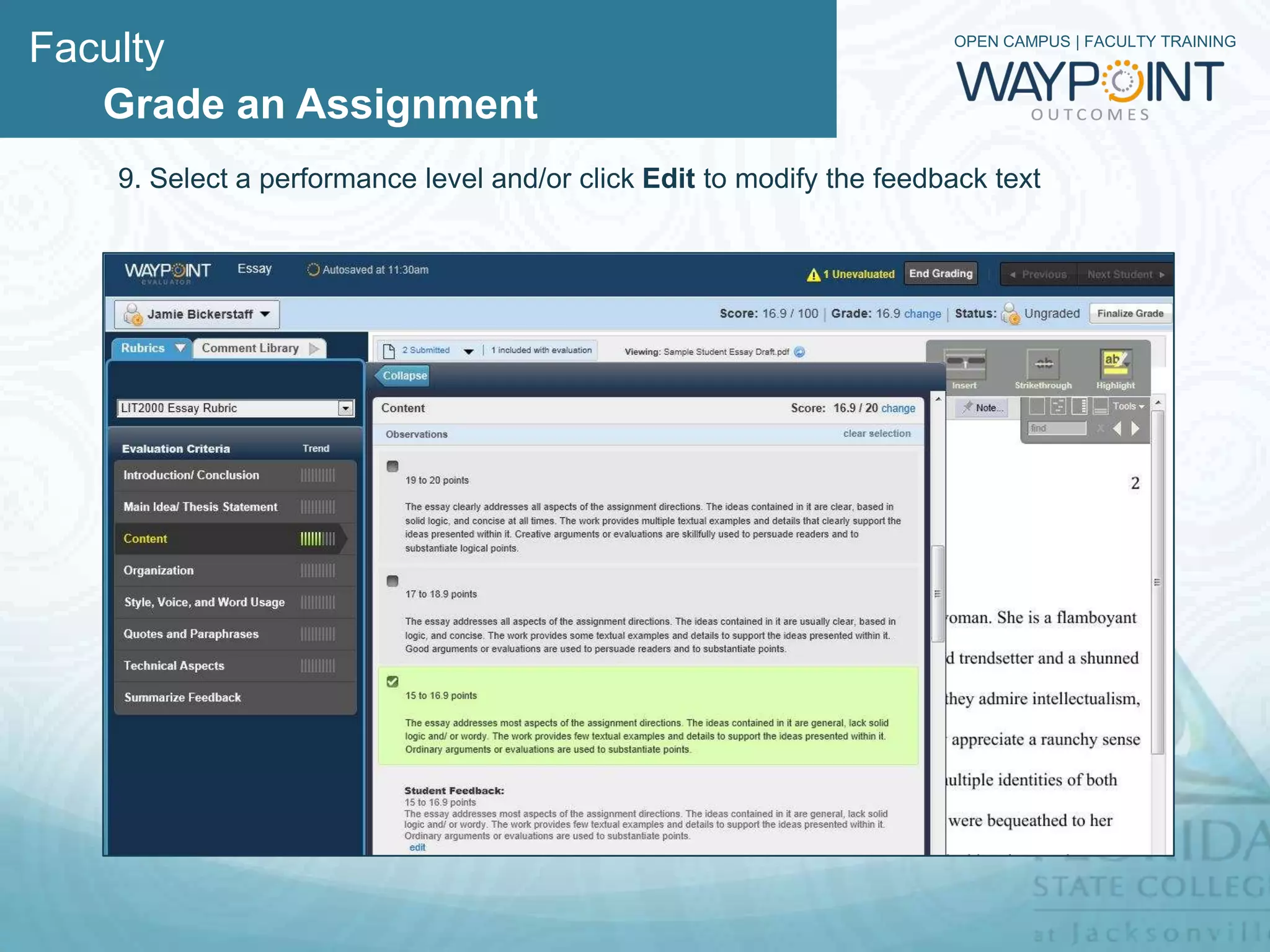
   9. Select a performance level and/or click Edit to modify the feedback text
Faculty                                                           OPEN CAMPUS | FACULTY TRAINING


   Grade an Assignment
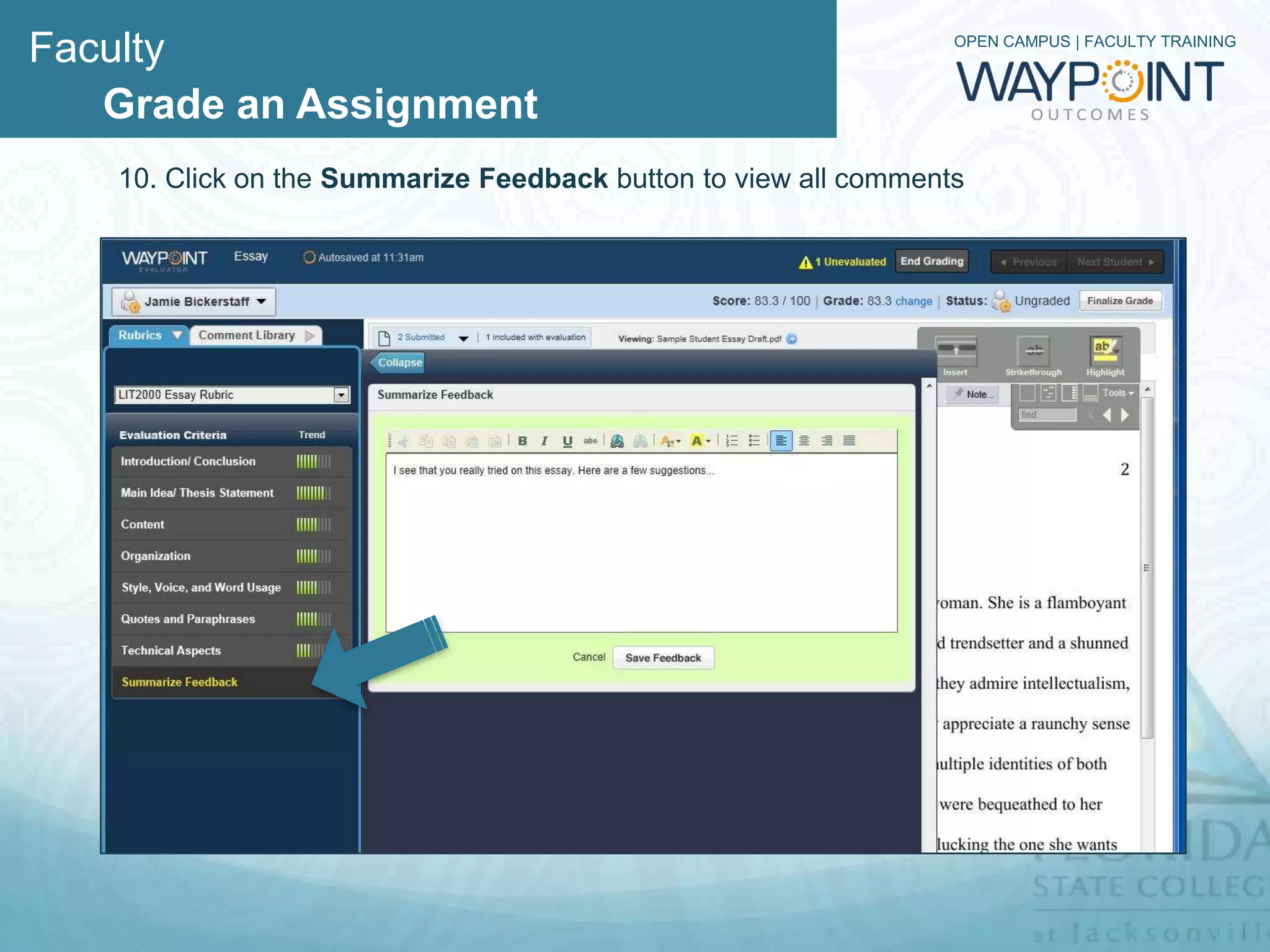
   10. Click on the Summarize Feedback button to enter additional comments.
Faculty                                                             OPEN CAMPUS | FACULTY TRAINING


   Grade an Assignment
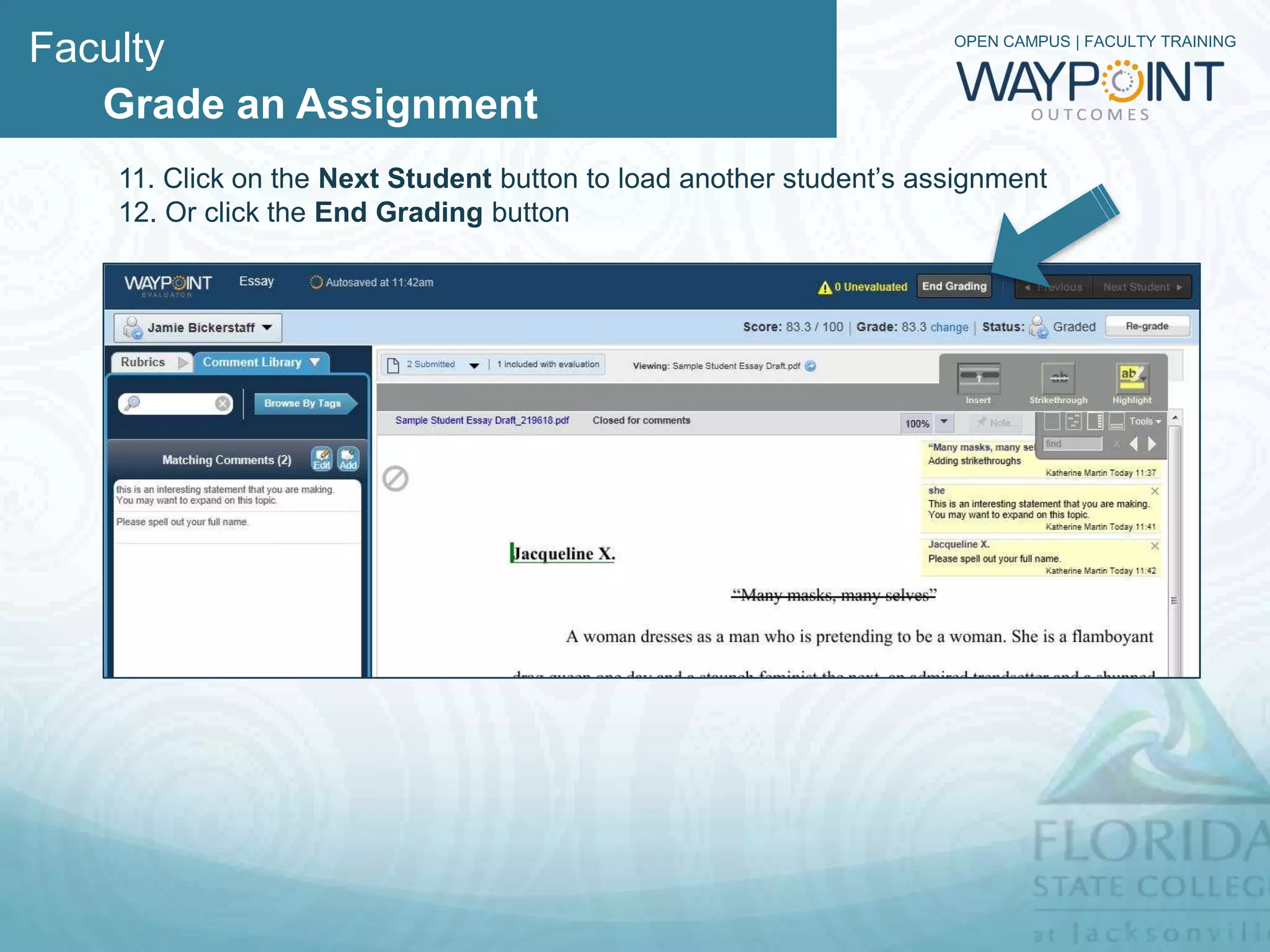
   11. Now that you are finished grading, you have some options:
        A. You can click on Next Student button to load the next student’s
           assignment or
        B. Navigate to the next student by click on the dropdown menu in the
           upper left hand corner and selecting the student to evaluate.
        C. If you want to re-grade then click on the Re-grade button
Faculty                                                      OPEN CAMPUS | FACULTY TRAINING


   Grade an Assignment
     12. When you are done grading click End Grading.
         This will take you back to the Waypoint dashboard
Faculty                                                                OPEN CAMPUS | FACULTY TRAINING


   Grade an Assignment
   Recap
   1. Log into Blackboard course and click Course Tools
   2. Select Grade in Waypoint
   3. Click on the Begin Grading button
   4. Click on Comment Library to begin marking up the document.
   5. A window will pop-up where you can add comments or search
      the comment database.
   6. Once you complete the markup, begin grading using the rubric
   7. Click on the Rubric Tab
   8. Then proceed down the Evaluation Criteria in the left navigation bar
   9. Select a performance level and/or click Edit to modify the feedback text
   10. Click on the Summarize Feedback button to view all comments
   11. Click on the Next Student button to load another student’s assignment
   12. Click the End Grading button to complete the grading process.

Waypoint - Grading an Assignment

  • 1.
    OPEN CAMPUS |FACULTY TRAINING Grading an Assignment
  • 2.
    Faculty OPEN CAMPUS | FACULTY TRAINING Grade an Assignment 1. Log into Blackboard course and click Course Tools 2. Select Grade in Waypoint
  • 3.
    Faculty OPEN CAMPUS | FACULTY TRAINING Grade an Assignment 3. Click on the Begin Grading button
  • 4.
    Faculty OPEN CAMPUS | FACULTY TRAINING Grade an Assignment Select the markup tool of choice: insert, strike through and highlight text. Markup Tools
  • 5.
    Faculty OPEN CAMPUS | FACULTY TRAINING Grade an Assignment 4. Click on Comment Library to begin marking up the document.
  • 6.
    Faculty OPEN CAMPUS | FACULTY TRAINING Grade an Assignment 5. A window will pop-up where you search for preformed comments or add personal comments. If you wish to add a comment to your personal library, you can push Add in the bottom left hand corner of the comment box and the comment library will open to the left. 6. Once you complete the markup, begin grading using the rubric. Add Comment Window
  • 7.
    Faculty OPEN CAMPUS | FACULTY TRAINING Grade an Assignment 7. Click on the Rubric Tab 8. Then proceed down the Evaluation Criteria in the left navigation bar Click on Rubric Tab Evaluation Criteria
  • 8.
    Faculty OPEN CAMPUS | FACULTY TRAINING Grade an Assignment 9. Select a performance level and/or click Edit to modify the feedback text
  • 9.
    Faculty OPEN CAMPUS | FACULTY TRAINING Grade an Assignment 10. Click on the Summarize Feedback button to enter additional comments.
  • 10.
    Faculty OPEN CAMPUS | FACULTY TRAINING Grade an Assignment 11. Now that you are finished grading, you have some options: A. You can click on Next Student button to load the next student’s assignment or B. Navigate to the next student by click on the dropdown menu in the upper left hand corner and selecting the student to evaluate. C. If you want to re-grade then click on the Re-grade button
  • 11.
    Faculty OPEN CAMPUS | FACULTY TRAINING Grade an Assignment 12. When you are done grading click End Grading. This will take you back to the Waypoint dashboard
  • 12.
    Faculty OPEN CAMPUS | FACULTY TRAINING Grade an Assignment Recap 1. Log into Blackboard course and click Course Tools 2. Select Grade in Waypoint 3. Click on the Begin Grading button 4. Click on Comment Library to begin marking up the document. 5. A window will pop-up where you can add comments or search the comment database. 6. Once you complete the markup, begin grading using the rubric 7. Click on the Rubric Tab 8. Then proceed down the Evaluation Criteria in the left navigation bar 9. Select a performance level and/or click Edit to modify the feedback text 10. Click on the Summarize Feedback button to view all comments 11. Click on the Next Student button to load another student’s assignment 12. Click the End Grading button to complete the grading process.