MyCampus Student Self-Service Tools


My Planner
 My Planner enables you to plan out a pathway to complete
 your courses in a timely fashion. It is very helpful as it links to
 information on which semester courses may be offered. It’s a
 tool to map out your own academic plan for completing your
 degree..
Click the Student Center link.
Click Plan.
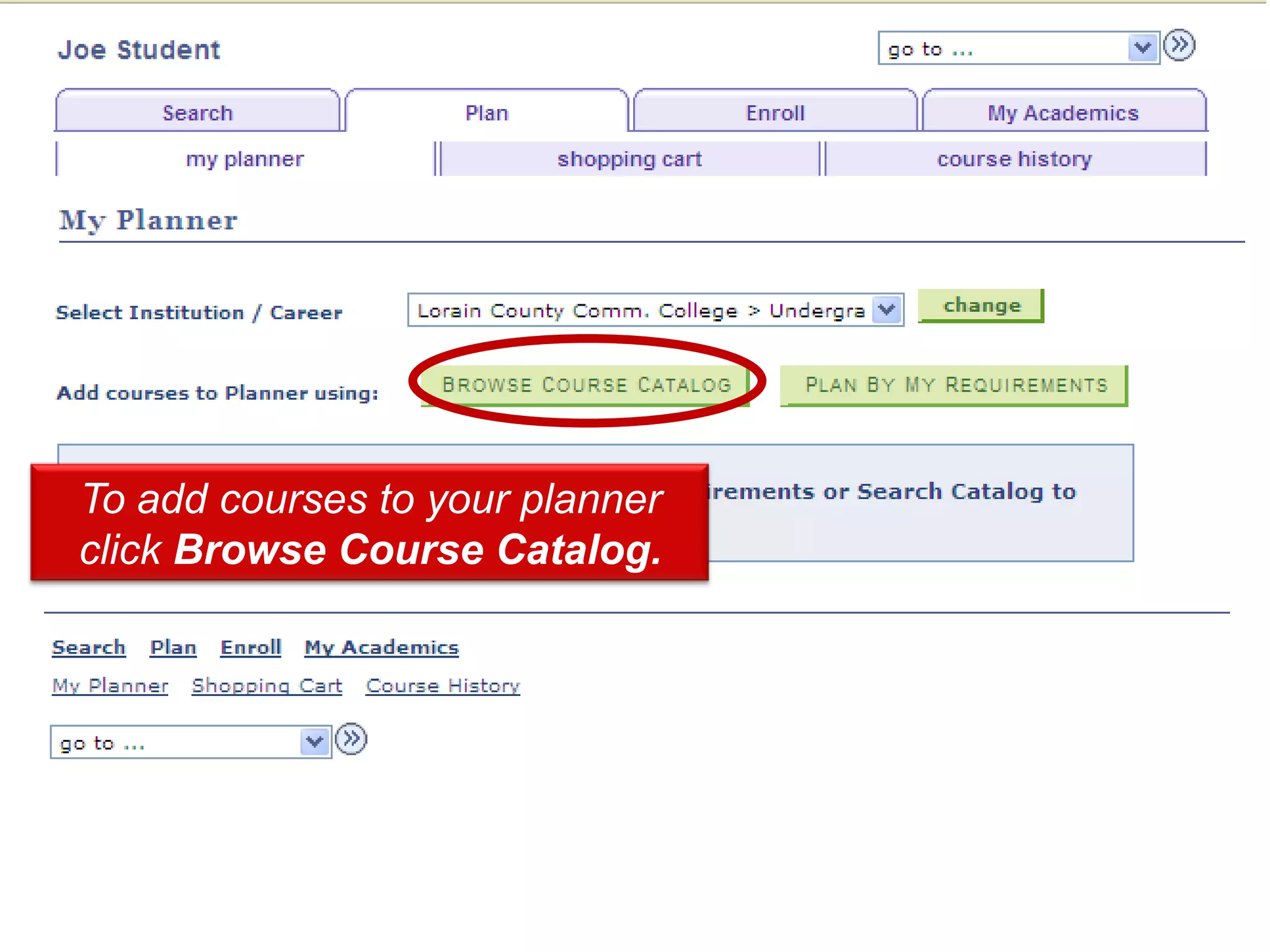
If you are a degree-seeking student,
select “Undergraduate” in the “Select
  Institution/Career” dropdown box.


                                 Continuing Education students may
                                 also enter courses into the planner.
                                 However, you will not be able to use
                               the “Plan by my Requirements” feature.
To add courses to your planner
click Browse Course Catalog.
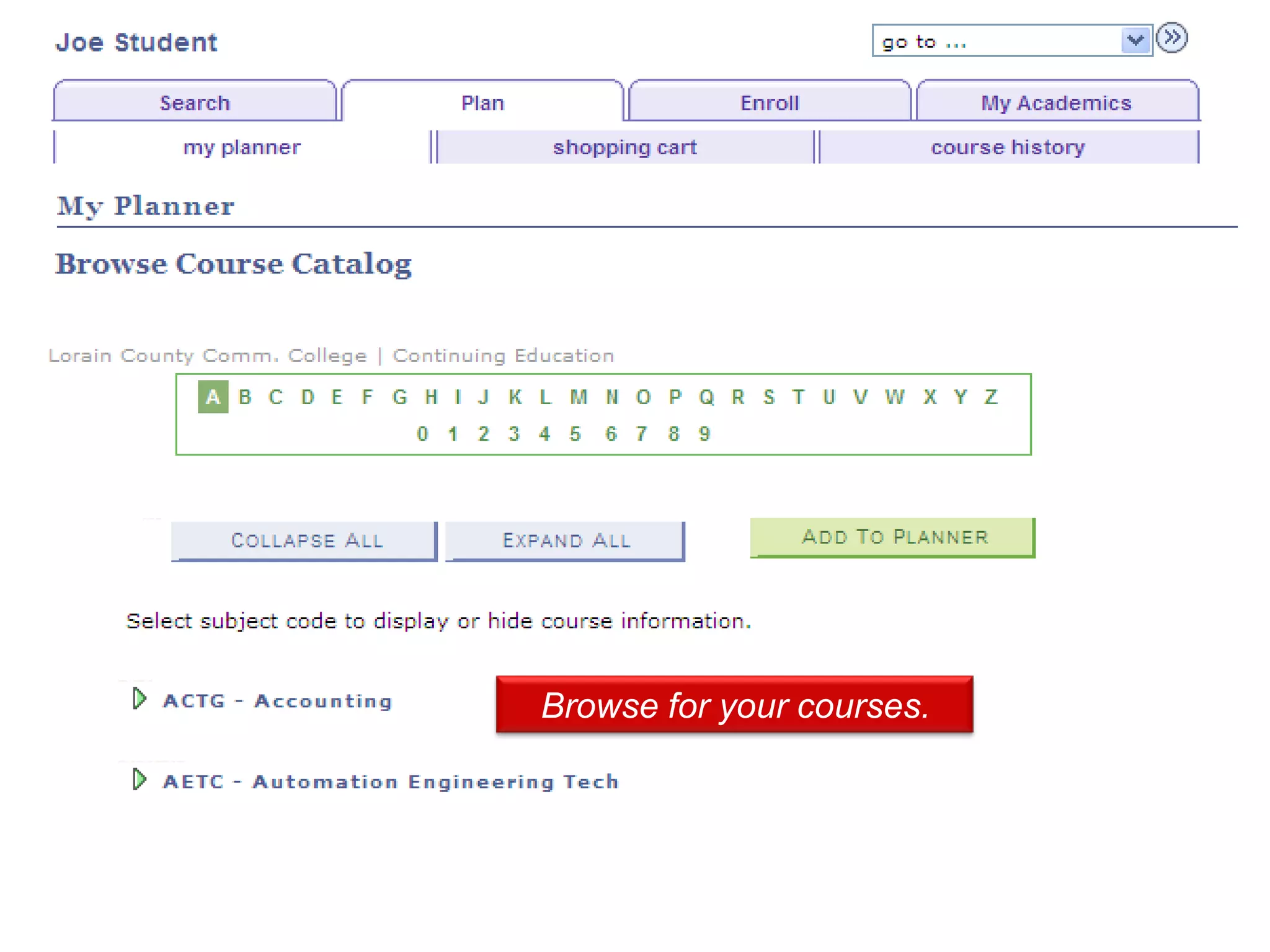
Browse for your courses.
Click on course title to
 view course details.
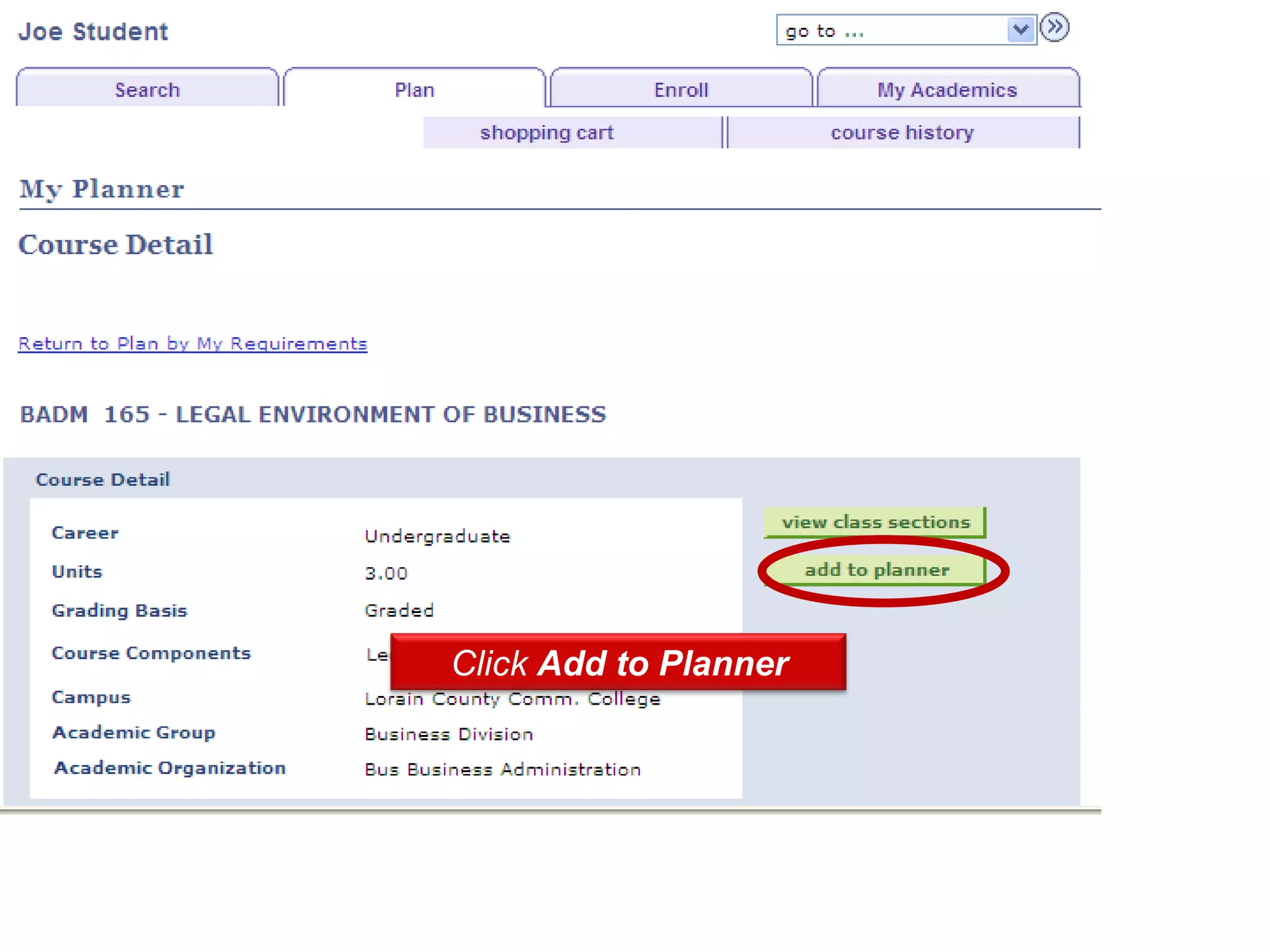
Click Add to Planner
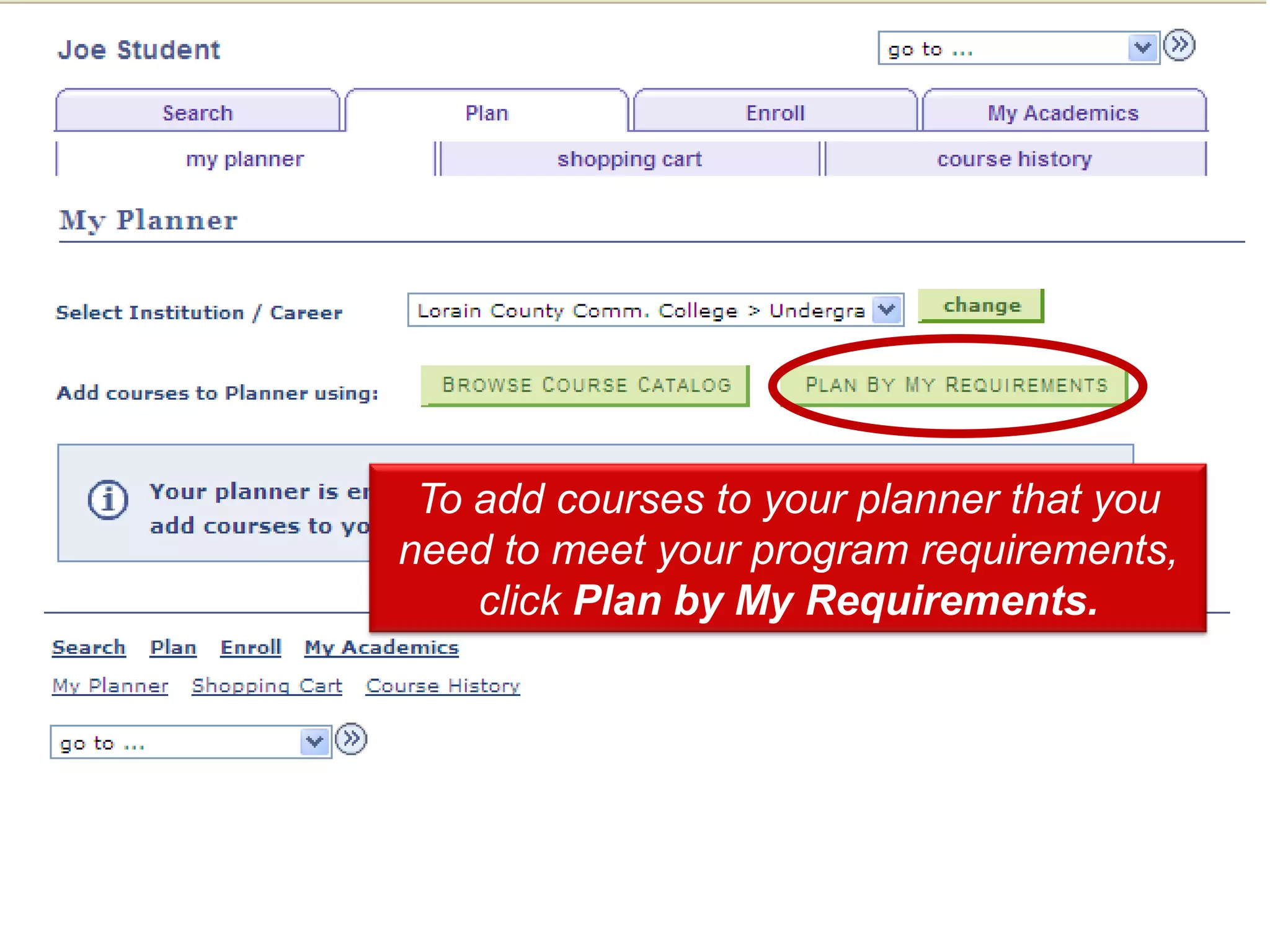
To Click the Phoneto your planner that you
    add courses Type list.
need to meet your program requirements,
     click Plan by My Requirements.
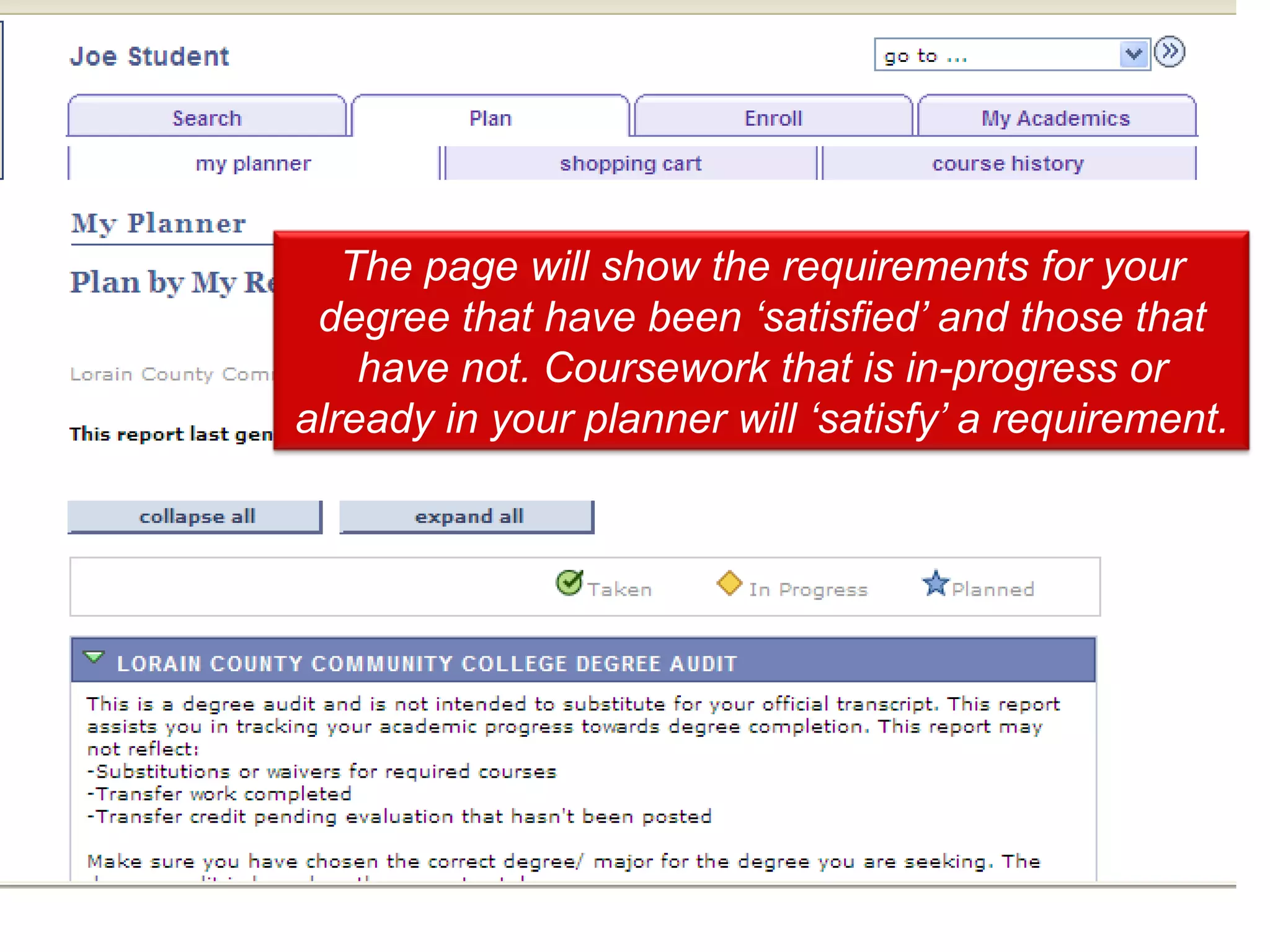
The page will show the requirements for your
 degree that have been „satisfied‟ and those that
    have not. Coursework that is in-progress or
already in your planner will „satisfy‟ a requirement.
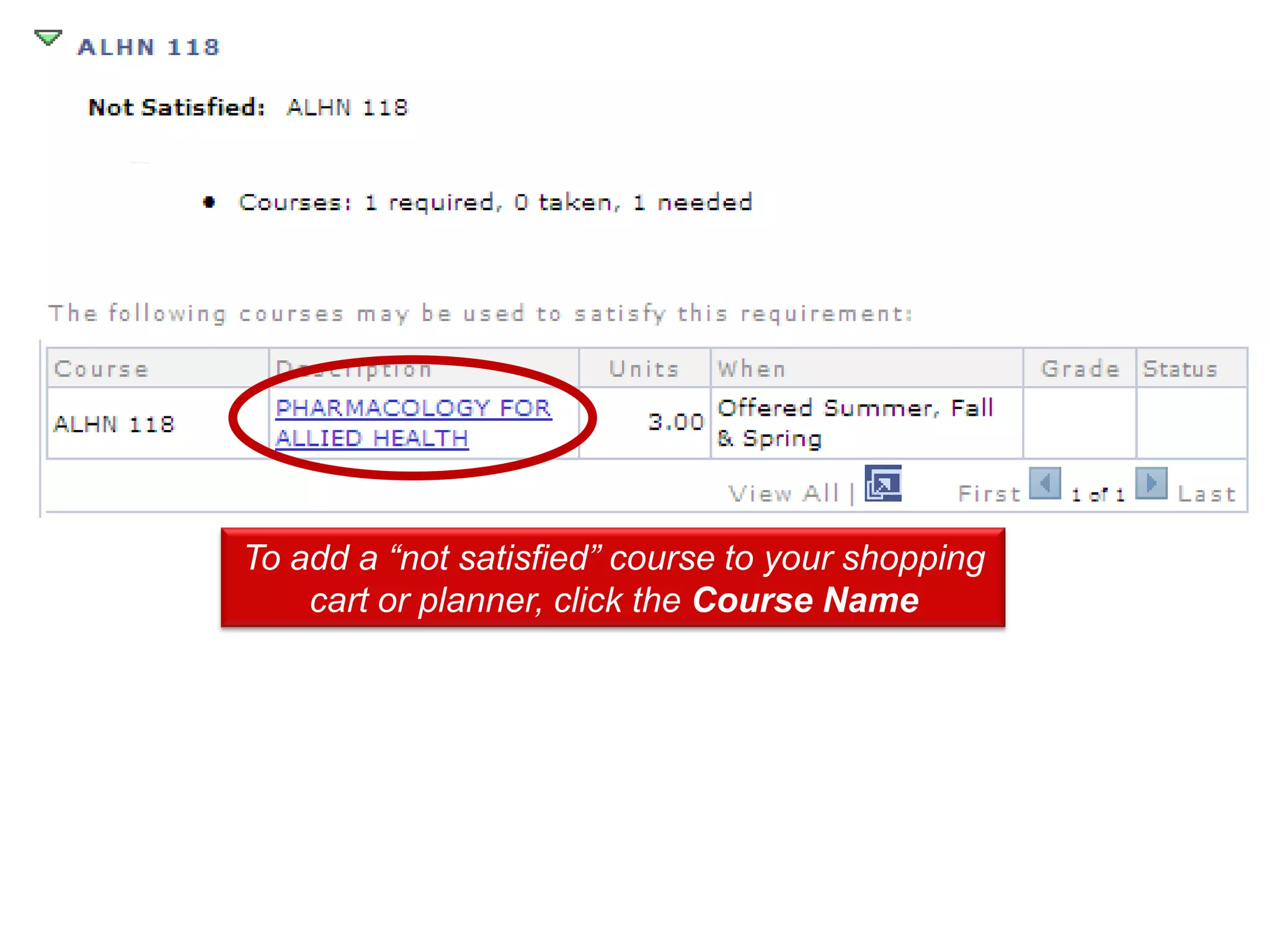
To add a “not satisfied” course to your shopping
    cart or planner, click the Course Name
If you plan to add the course to your
shopping cart, click view class sections.


                To add the course to your planner (for future
                     reference), click add to planner.
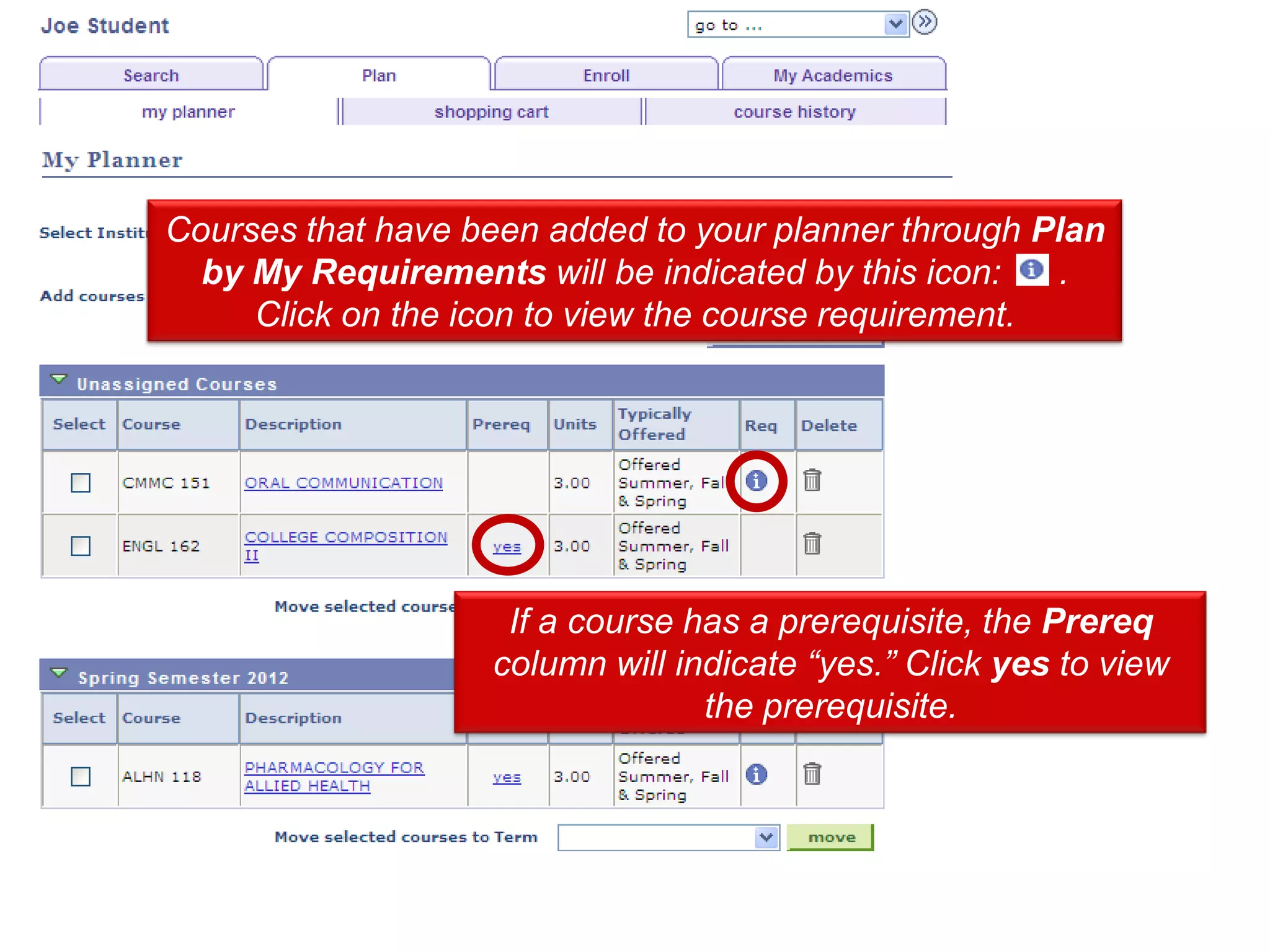
Courses that have been added to your planner through Plan
  by My Requirements will be indicated by this icon:   .
     Click on the icon to view the course requirement.


                    If a course has a prerequisite, the Prereq
                   column will indicate “yes.” Click yes to view
                                 the prerequisite.

My Planner

  • 1.
    MyCampus Student Self-ServiceTools My Planner My Planner enables you to plan out a pathway to complete your courses in a timely fashion. It is very helpful as it links to information on which semester courses may be offered. It’s a tool to map out your own academic plan for completing your degree..
  • 2.
    Click the StudentCenter link.
  • 3.
  • 4.
    If you area degree-seeking student, select “Undergraduate” in the “Select Institution/Career” dropdown box. Continuing Education students may also enter courses into the planner. However, you will not be able to use the “Plan by my Requirements” feature.
  • 5.
    To add coursesto your planner click Browse Course Catalog.
  • 6.
  • 7.
    Click on coursetitle to view course details.
  • 8.
    Click Add toPlanner
  • 9.
    To Click thePhoneto your planner that you add courses Type list. need to meet your program requirements, click Plan by My Requirements.
  • 10.
    The page willshow the requirements for your degree that have been „satisfied‟ and those that have not. Coursework that is in-progress or already in your planner will „satisfy‟ a requirement.
  • 11.
    To add a“not satisfied” course to your shopping cart or planner, click the Course Name
  • 12.
    If you planto add the course to your shopping cart, click view class sections. To add the course to your planner (for future reference), click add to planner.
  • 13.
    Courses that havebeen added to your planner through Plan by My Requirements will be indicated by this icon: . Click on the icon to view the course requirement. If a course has a prerequisite, the Prereq column will indicate “yes.” Click yes to view the prerequisite.