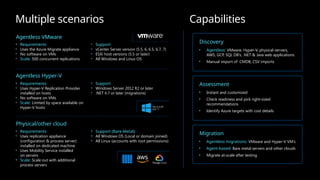
Multiple scenarios
Agentless VMware
•Requirements
• Uses the Azure Migrate appliance
• No software on VMs
• Scale: 500 concurrent replications
• Support
• vCenter Server version (5.5, 6, 6.5, 6.7, 7)
• ESXi host versions (5.5 or later)
• All Windows and Linux OS
Agentless Hyper-V
• Requirements
• Uses Hyper-V Replication Provider
installed on hosts
• No software on VMs
• Scale: Limited by space available on
Hyper-V hosts
• Support
• Windows Server 2012 R2 or later
• .NET 4.7 or later (migrations)
Physical/other cloud
• Requirements
• Uses replication appliance
(configuration & process server)
installed on dedicated machine
• Uses Mobility Service installed
on servers
• Scale: Scale out with additional
process servers
• Support (Bare-Metal):
• All Windows OS (Local or domain joined)
• All Linux (accounts with root permissions)
Capabilities
Discovery
• Agentless: VMware, Hyper-V, physical-servers,
AWS, GCP, SQL DB’s, .NET & Java web applications
• Manual import of CMDB, CSV imports
Assessment
• Instant and customized
• Check readiness and pick right-sized
recommendations
• Identify Azure targets with cost details
Migration
• Agentless migrations: VMware and Hyper-V VM’s
• Agent-based: Bare metal servers and other clouds
• Migrate at-scale after testing
3.
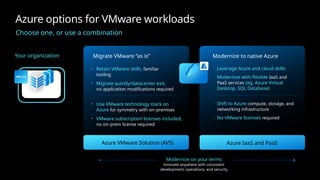
Azure options forVMware workloads
Choose one, or use a combination
Your organization Migrate VMware “as is”
• Retain VMware skills, familiar
tooling
• Migrate quickly/datacenter exit,
no application modifications required
• Use VMware technology stack on
Azure for symmetry with on-premises
• VMware subscription licenses included,
no on-prem license required
Azure VMware Solution (AVS)
Modernize to native Azure
Leverage Azure and cloud skills
Modernize with flexible IaaS and
PaaS services (eg. Azure Virtual
Desktop, SQL Database)
Shift to Azure compute, storage, and
networking infrastructure
No VMware licenses required
Azure IaaS and PaaS
Modernize on your terms
Innovate anywhere with consistent
development, operations, and security
4.
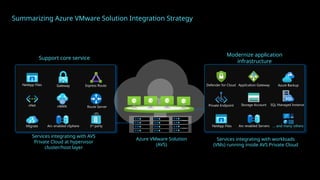
Summarizing Azure VMwareSolution Integration Strategy
Support core service
Services integrating with AVS
Private Cloud at hypervisor
cluster/host layer
NetApp Files Gateway Express Route
vNet vWAN Route Server
Migrate Arc-enabled vSphere 3rd
party
Azure VMware Solution
(AVS)
Modernize application
infrastructure
Services integrating with workloads
(VMs) running inside AVS Private Cloud
Private Endpoint
Defender for Cloud Application Gateway
SQL Managed Instance
Storage Account
Arc-enabled Servers
Azure Backup
… and many others
NetApp Files
5.
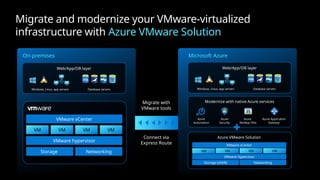
Migrate and modernizeyour VMware-virtualized
infrastructure with Azure VMware Solution
On-premises
Web/App/DB layer
Windows, Linux, app servers Database servers
VMware vCenter
VM VM VM VM
VMware hypervisor
Storage Networking
Migrate with
VMware tools
Connect via
Express Route
Microsoft Azure
Web/App/DB layer
Windows, Linux, app servers Database servers
Azure
Automation
Azure
Security
Azure
NetApp Files
Azure Application
Gateway
Modernize with native Azure services
Azure VMware Solution
VMware vCenter
VM VM VM VM
VMware Hypervisor
Storage (vSAN) Networking
6.
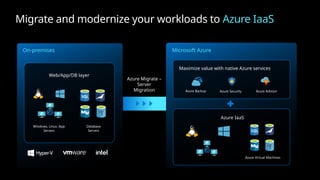
Migrate and modernizeyour workloads to Azure IaaS
On-premises
Web/App/DB layer
Windows, Linux, App
Servers
Database
Servers
Azure Migrate –
Server
Migration
Microsoft Azure
Maximize value with native Azure services
Azure Backup Azure Security Azure Advisor
Azure IaaS
Azure Virtual Machines
7.
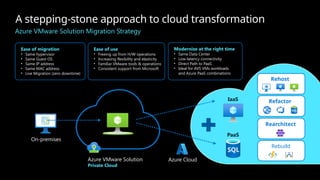
A stepping-stone approachto cloud transformation
Azure VMware Solution Migration Strategy
Ease of migration
• Same hypervisor
• Same Guest OS
• Same IP address
• Same MAC address
• Live Migration (zero downtime)
Ease of use
• Freeing up from H/W operations
• Increasing flexibility and elasticity
• Familiar VMware tools & operations
• Consistent support from Microsoft
Modernize at the right time
• Same Data Center
• Low-latency connectivity
• Direct Path to PaaS
• Ideal for AVS VMs workloads
and Azure PaaS combinations
On-premises
Azure VMware Solution
Private Cloud
Azure Cloud
IaaS
PaaS
Rearchitect
Rehost
Refactor
Rebuild
8.
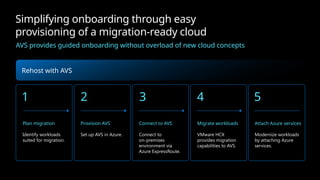
Simplifying onboarding througheasy
provisioning of a migration-ready cloud
AVS provides guided onboarding without overload of new cloud concepts
Rehost with AVS
1
Plan migration
Identify workloads
suited for migration.
2
Provision AVS
Set up AVS in Azure.
3
Connect to AVS
Connect to
on-premises
environment via
Azure ExpressRoute.
4
Migrate workloads
VMware HCX
provides migration
capabilities to AVS.
5
Attach Azure services
Modernize workloads
by attaching Azure
services.
9.
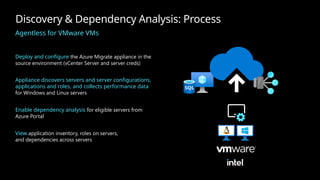
Discovery & DependencyAnalysis: Process
Agentless for VMware VMs
Deploy and configure the Azure Migrate appliance in the
source environment (vCenter Server and server creds)
Appliance discovers servers and server configurations,
applications and roles, and collects performance data
for Windows and Linux servers
Enable dependency analysis for eligible servers from
Azure Portal
View application inventory, roles on servers,
and dependencies across servers
10.
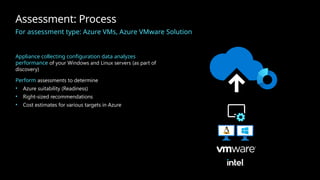
Assessment: Process
For assessmenttype: Azure VMs, Azure VMware Solution
Appliance collecting configuration data analyzes
performance of your Windows and Linux servers (as part of
discovery)
Perform assessments to determine
• Azure suitability (Readiness)
• Right-sized recommendations
• Cost estimates for various targets in Azure
11.
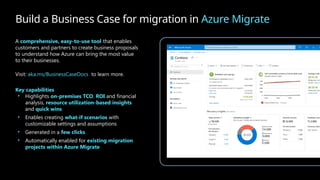
Build a BusinessCase for migration in Azure Migrate
A comprehensive, easy-to-use tool that enables
customers and partners to create business proposals
to understand how Azure can bring the most value
to their businesses.
Visit: aka.ms/BusinessCaseDocs to learn more.
Key capabilities
• Highlights on-premises TCO, ROI and financial
analysis, resource utilization-based insights
and quick wins
• Enables creating what-if scenarios with
customizable settings and assumptions
• Generated in a few clicks
• Automatically enabled for existing migration
projects within Azure Migrate
12.
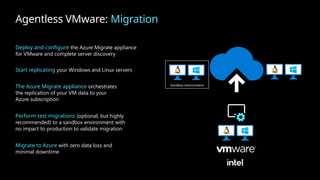
Agentless VMware: Migration
Deployand configure the Azure Migrate appliance
for VMware and complete server discovery
Start replicating your Windows and Linux servers
The Azure Migrate appliance orchestrates
the replication of your VM data to your
Azure subscription
Perform test migrations (optional, but highly
recommended) to a sandbox environment with
no impact to production to validate migration
Migrate to Azure with zero data loss and
minimal downtime
Sandbox environment
13.
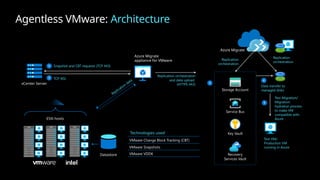
Agentless VMware: Architecture
AzureMigrate
appliance for VMware
Replication orchestration
and data upload
(HTTPS 443)
vCenter Server
Snapshot and CBT requests (TCP 443)
1
TCP 902
2
Replication data
Datastore
ESXi hosts
Technologies used
VMware Change Block Tracking (CBT)
VMware Snapshots
VMware VDDK
3
Azure Migrate
Storage Account
Service Bus
Key Vault
Data transfer to
managed disks
Recovery
Services Vault
Replication
orchestration
Replication
orchestration
4
5
Test Migration/
Migration:
hydration process
to make VM
compatible with
Azure
Test VM/
Production VM
running in Azure
14.
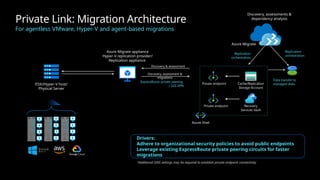
Private Link: MigrationArchitecture
For agentless VMware, Hyper-V and agent-based migrations
Azure Migrate appliance
Hyper-V replication provider/
Replication appliance
ESXi/Hyper-V host/
Physical Server
ExpressRoute private peering
/ S2S VPN
Discovery & assessment
Discovery, assessment &
migrations
Azure Migrate
Cache/Replication
Storage Account
Data transfer to
managed disks
Recovery
Services Vault
Replication
orchestration
Replication
orchestration
Private endpoint
Private endpoint
Azure Vnet
Discovery, assessments &
dependency analysis
Drivers:
Adhere to organizational security policies to avoid public endpoints
Leverage existing ExpressRoute private peering circuits for faster
migrations
*Additional DNS settings may be required to establish private endpoint connectivity.
15.
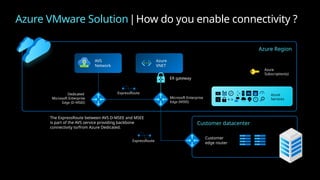
Azure VMware Solution| How do you enable connectivity ?
Azure Region
Microsoft Enterprise
Edge (MSEE)
Azure
VNET
Azure
Services
Azure
Subscription(s)
Dedicated
Microsoft Enterprise
Edge (D-MSEE)
ExpressRoute
ER gateway
AVS
Network
The ExpressRoute between AVS D-MSEE and MSEE
is part of the AVS service providing backbone
connectivity to/from Azure Dedicated.
ExpressRoute
Customer datacenter
Customer
edge router
16.
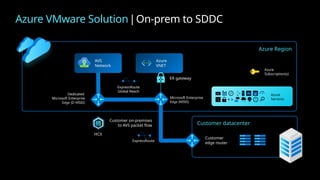
Azure VMware Solution| On-prem to SDDC
Azure Region
Microsoft Enterprise
Edge (MSEE)
Azure
VNET
Azure
Services
Azure
Subscription(s)
Dedicated
Microsoft Enterprise
Edge (D-MSEE)
ExpressRoute
Global Reach
ER gateway
AVS
Network
HCX
Customer on-premises
to AVS packet flow
ExpressRoute
Customer datacenter
Customer
edge router
17.
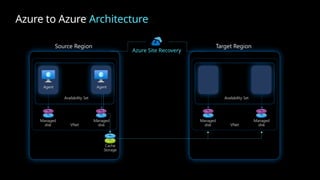
Azure to AzureArchitecture
Source Region
Agent Agent
Availability Set
Managed
disk
Managed
disk
VNet
Cache
Storage
Azure Site Recovery
Target Region
Availability Set
VNet
Managed
disk
Managed
disk
18.
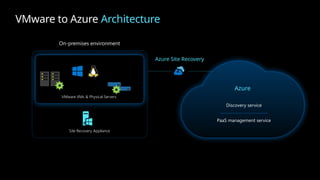
VMware to AzureArchitecture
On-premises environment
VMware VMs & Physical Servers
Site Recovery Appliance
Azure Site Recovery
Azure
Discovery service
PaaS management service
Editor's Notes
#2 The Migration and modernization tool helps in migrating servers to Azure:
Migrate
On-premises VMware VMs:
Migrate VMs to Azure using agentless or agent-based migration
For agentless migration, the Migration and modernization tool uses the same appliance that is used by Discovery and assessment tool for discovery and assessment of servers.
For agent-based migration, the Migration and modernization tool uses a replication appliance.
On-premises Hyper-V VMs:
The Migration and modernization tool uses provider agents installed on Hyper-V host for the migration
On-premises physical servers or servers hosted on other clouds
You can migrate physical servers to Azure. You can also migrate other virtualized servers, and VMs from other public clouds, by treating them as physical servers for the purpose of migration. The Migration and modernization tool uses a replication appliance for the migration.
Web apps hosted on Windows OS in a VMware environment
You can perform agentless migration of ASP.NET web apps at-scale to Azure App Service using Azure Migrate.
#3 For many customers, they find that the fastest path to cloud is migrating VMware workloads “as is” to Azure VMware Solution.
The same VMware technology used on-premises is offered in an Azure service.
Includes all VMware licenses–bundled with Azure compute costs–in an easy monthly subscription (no more on-prem licenses required).
Customers continue to leverage their familiar VMware skills–this is a great option for customers with low cloud skills.
No refactoring of applications required.
There are larger instance types that are faster
The other option is to modernize your workloads with native Azure IaaS or PaaS services.
Moving to Azure compute, storage, and networking services means no more VMware licenses are required.
This option puts you on the path to take advantage of more cloud benefits.
For example, you can convert your VDI environment to Azure Virtual Desktop or convert databases to SQL Database for a fully managed service in Azure.
Either option can take advantage of the Azure management, security and compliance services. Many of these services work across both Azure and on-premises workloads – a great option for hybrid cloud management.
Many customers are using a combination of these two options. For example, they may choose to modernize some workloads to IaaS and PaaS, while leaving older and more complex workloads running on AVS.
#4 Alright so this is my favorite slide. We will talk about the integration between AVS and Azure services.
so on the left side of the screen you will see example of services that integrate with AVS Private Cloud on the cluster or the host layer. For example without adding additional nodes you can add additional data stores to your private cloud by leveraging NETAPP files. and then you'll probably need express route with virtual network to establish connectivity with AVS. And use a route server or vWAN to add a combination of NVA and firewall. You might use Azure migrate to do assessment . And you can actually Arc enable your AVS which allows you to perform Create, Read, Update, Delete operations through Azure Resource Manager API on virtual machine running on AVS.
But today in this session will look more on the right side, where we are focusing on modernizing workloads running on AVS. Where that would be inform of Integrations with services like defender for cloud for example. Application gateway which is a layer 7 load balance balancer which can provide Web application firewall functionality to protects against common web attacks. And you use Azure backup to backup your virtual machines. Azure private endpoint to have a secure private connections to Azure services, or even net app files actually you see it here because you can do integration at the guest level different from integration at host layer. Then of course you can arc enabled your servers as you can do that from on premises and many other integration examples, that we will talk about in more in the next few slides.
#5 Integrate AVS with other Azure-native services to modernize over time.
Modernize apps, infra. and data with seamless connection to native Azure services
Easily manage and monitor VMs with Azure Update Management and Azure Monitor
Get advanced threat protection with Microsoft Defender for Cloud
Optimize storage for most demanding enterprise file-workloads with Azure NetApp Files
Build scalable and highly available web app with Azure Application Gateway
#6 Our customers have different flavors of servers in their environment including Windows, Linux, servers running databases like SQL. These servers might be running on Vmware or Hyper-V hypervisor or customers might have bare metal servers.
If your business goal is to keep control of the infrastructure, you can easily migrate all of the above mentioned servers, to Azure IaaS with Azure Migrate. In fact Azure Migrate also helps you discover, assess your environment and shows you cost, dependency and right sizing information so you can pick the correct VMs to migrate. Azure Migrate also support at-scale migration (up to 500 parallel server migrations are supported).
Once you have migrated your servers, you can maximize value by integrating with native Azure services. For instance:
You can monitor your workloads and find and fix vulnerabilities with Microsoft Defender for Cloud.
Get recommendations for high availability, security, performance, and cost for all of your VMs with Azure Advisor.
Safeguard your data against ransomware with Azure Backup
Proactively identify issues and gain intelligent insights with Azure Monitor
#7 Within Azure Migrate, you’ll have the opportunity to choose (if you’re a VMware user) to either migrate to native Azure IaaS, or move to Azure VMware Solution. Many customers think of Azure VMware solution as their last destination of a cloud migration, but in reality that's not the case. The truth is Azure VMware solution is a stepping stone into cloud transformation.
As you may already know AVS offers ease of migration - it's the same hypervisor same guest OS, you can retain your IP and MAC addresses, and even perform live migration with zero downtime to your workloads.
And after you move into AVS, it also offers you the “ease of use” freeing up from infrastructure management and operation, increasing flexibility and electricity, and also it provides the same VMware tools that admins are familiar with.
Once you’ve rehosted with AVS, you’re now running workloads inside Azure datacenters. The minimal latency allow you to integrate your AVS workloads with other Azure services.
After Rehosting, you can now consider Refactoring, where you can minimally alter your workloads to take better advantage of Azure Cloud. For example, migrating your database that’s running on AVS to an Azure PaaS service. It could be Cosmos DB, or Azure SQL. Or, using Azure Files as your cloud based file Share instead of using your AVS data store just to store data and files.
And once you invest more into those PaaS services and become more familiar with Azure, at that point you can consider rearchitecting and rebuilding your workloads to completely graduate from Infrastructure and run your workloads as cloud-first workloads.
OPTIONS
Rehost (Redeploy as-is to cloud):
Reduce Capex,
Free up datacenter space,
Quick cloud ROI
Refactor (Minimally alter to take better advantage of cloud):
Faster, shorter, updates,
Code portability
Greater cloud efficiency (resources, speed, cost)
Rearchitect (Materially alter/decompose application to services)
App scale and agility
Easier adoption of new cloud capabilities
Mix technology stacks
Rebuild (New code written with cloud native approach)
Accelerate innovation
Build apps faster
Reduce operational cost
Highlight the opportunity that AVS adds another migration option in conjunction with established motions.
AVS can leverage other Azure services and vice versa.
AVS is the accelerator to cloud adoption and integration both operationally with backup, storage, etc. as well as for long term modernization when the customer is ready to decouple applications.
#8 Key takeaway:
AVS migration path.
Talking points:
The AVS migration path is straightforward, breaking into four primary steps, including a fifth if you wish to integrate other Azure services to your existing workloads.
Migration planning is the critical first step to ensure a successful production-ready environment.
Steps two and three involve getting AVS provisioned, and networking connections established between AVS and your datacenter.
During the actual migration process, VMware HCX is the “connective tissue” between on-prem and AVS.
If and when you want to add other Azure services to your migrated workloads, you can do so, such as Azure Active Directory for identity and configuring SSO, with the on-premises environment or Azure Storage.
[Next slide]
#9 Let’s dive into the Agentless VMware migration process with Azure Migrate.
Azure Migrate uses the Azure Migrate appliance for discovery and assessment. You can deploy the appliance as a server in your VMware environment by using a VMware Open Virtualization Appliance (OVA) template that's imported into vCenter Server or by using a PowerShell script.
In addition to discovering servers, Azure Migrate: Discovery and assessment can perform software inventory on servers. Software inventory provides the list of applications, roles and features running on Windows and Linux servers, discovered using Azure Migrate. It allows you to identify and plan a migration path tailored for your on-premises workloads.
Dependency analysis helps you analyze the dependencies between the discovered servers, which can be easily visualized with a map view in Azure Migrate project and can be used to group related servers for migration to Azure. Dependency information between servers is gathered by using VMware Tools installed on the server running vCenter Server. The appliance will gather information from the server by using vSphere APIs. No agent is installed on the server, and the appliance doesn’t connect directly to servers.
#10 There are a couple of ways to run an assessment.
Assess servers by using server metadata collected by a lightweight Azure Migrate appliance. The appliance discovers on-premises servers. It then sends server metadata and performance data to Azure Migrate.
Assess servers by using server metadata that's imported in a comma-separated values (CSV) format.
The assessment uses the on-premises servers' metadata and performance data to calculate assessments. If you deploy the Azure Migrate appliance, assessment uses the data the appliance collects. But if you run an assessment imported using a CSV file, you provide the metadata for the calculation.
Calculations occur in these three stages:
Calculate Azure readiness: Assess whether servers are suitable for migration to Azure.
Calculate sizing recommendations: Estimate compute, storage, and network sizing.
Calculate monthly costs: Calculate the estimated monthly compute and storage costs for running the servers in Azure after migration.
Calculations are in the preceding order. A server moves to a later stage only if it passes the previous one. For example, if a server fails the Azure readiness stage, it's marked as unsuitable for Azure. Sizing and cost calculations aren't done for that server.
The Azure VM Assessment will provide a readiness score based on a variety of factors like preferred Datacenter Location, Sizing Criteria, Savings Options, AHB eligibility, and others.
Calculate readiness
Not all servers are suitable to run in Azure. An Azure VM Assessment assesses all on-premises servers and assigns them a readiness category.
Ready for Azure: The server can be migrated as-is to Azure without any changes. It will start in Azure with full Azure support.
Conditionally ready for Azure: The server might start in Azure but might not have full Azure support. For example, Azure doesn't support a server that's running an old version of Windows Server. You must be careful before you migrate these servers to Azure. To fix any readiness problems, follow the remediation guidance the assessment suggests.
Not ready for Azure: The server won't start in Azure. For example, if an on-premises server's disk stores more than 64 TB, Azure can't host the server. Follow the remediation guidance to fix the problem before migration.
Readiness unknown: Azure Migrate can't determine the readiness of the server because of insufficient metadata.
Calculating sizing
After the server is marked as ready for Azure, the assessment makes sizing recommendations in the Azure VM assessment. These recommendations identify the Azure VM and disk SKU. Sizing calculations depend on whether you're using as-is on-premises sizing or performance-based sizing.
This will also include Storage and Network sizing recommendations, in addition to Compute.
Confidence ratings (performance-based)
Each performance-based Azure VM assessment in Azure Migrate is associated with a confidence rating. The rating ranges from one (lowest) to five (highest) stars. The confidence rating helps you estimate the reliability of the size recommendations Azure Migrate provides.
The confidence rating is assigned to an assessment. The rating is based on the availability of data points that are needed to compute the assessment.
For performance-based sizing, the assessment needs:
The utilization data for CPU and RAM.
The disk IOPS and throughput data for every disk attached to the server.
The network I/O to handle performance-based sizing for each network adapter attached to a server.
#11 The Business case capability in Azure Migrate helps you build business proposals to understand how Azure can bring the most value. It can help you understand the return on investment for migrating your servers, SQL Server deployments and ASP.NET web apps running in your VMware environment to Azure.
The business case can be created with just a few clicks and can help you understand:
On-premises vs Azure total cost of ownership and year on year cashflow.
Resource utilization-based insights to identify servers and workloads that are ideal for cloud and right-sized recommendations in Azure.
Quick wins for migration and modernization including end of support Windows OS and SQL versions.
Long term cost savings by moving from a capital expenditure model to an Operating expenditure model, by paying for only what you use.
When building the business case, you can choose between three types of migration strategies:
Azure recommended to minimize cost
What you get:
the most cost efficient and compatible target recommendation in Azure across Azure IaaS and Azure PaaS targets.For SQL Servers, sizing and cost comes from the Recommended report with optimization strategy - minimize cost from Azure SQL assessment.
Insights:
For web apps, sizing and cost comes from Azure App Service assessment is picked.
For general servers, sizing and cost comes from Azure VM assessment.
Migrate to all IaaS
What you get:
A quick rehosting recommendation to Azure IaaS
Insights:
For SQL Servers, sizing and cost comes from the Instance to SQL Server on Azure VM report.
For general servers and servers hosting web apps, sizing and cost comes from Azure VM assessment.
Modernize to PaaS
What you get:
A PaaS-preferred recommendation that means, the logic identifies workloads best fit for PaaS targets.
General servers are recommended with a quick rehost recommendation to Azure IaaS.
Insights:
For SQL Servers, sizing and cost comes from the Instance to Azure SQL MI report.
For web apps, sizing and cost comes from Azure App Service assessment.
For general servers, sizing and cost comes from Azure VM assessment.
The Business Case feature creates four key reports:
Overview (pictured): This report is an executive summary of the business case and covers:
Potential savings (TCO).
Estimated on-premises cost
Estimated Azure cost of all servers and workloads that are ready for Migration
Estimated year on year cashflow savings based on the estimated migration completed that year.
Savings from unique Azure benefits like Azure Hybrid Benefit.
Discovery insights covering the scope of the business case.
On-premises vs Azure: This report covers the breakdown of the total cost of ownership by cost categories and insights on savings.
Azure IaaS: This report covers the Azure and on-premises footprint of the servers and workloads recommended for migrating to Azure IaaS.
Azure PaaS: This report covers the Azure and on-premises footprint of the workloads recommended for migrating to Azure PaaS.
Check out the demo here: https://www.youtube.com/watch?v=xll1OM7Wr_Y
#12 The process for migrating servers using the Agentless VMware migration tool is relatively straightforward.
Once the Azure Migrate appliance is deployed and configured in your VMware environment, it will replicate servers, orchestrate data replication into your Azure subscription, run test migrations to validate, and then conduct the full Migration.
The specific architecture is described next.
#13 The agentless replication option works by using VMware snapshots and VMware changed block tracking (CBT) technology to replicate data from virtual machine disks.
When replication is configured for a virtual machine, it first goes through an initial replication phase. During initial replication, a VM snapshot is taken, and a full copy of data from the snapshot disks is replicated to managed disks in your target subscription.
After initial replication for the VM is complete, the replication process transitions to an incremental replication (delta replication) phase. In the incremental replication phase, data changes that have occurred since the beginning of the last completed replication cycle are replicated and written to the replica managed disks, thus keeping replication in sync with changes happening on the VM.
VMware Changed Block Tracking (CBT) technology is used to keep track of changes between replication cycles. At the start of the replication cycle, a VM snapshot is taken and changed block tracking is used to get the changes between the current snapshot and the last successfully replicated snapshot. Only the data that has changed since the previous completed replication cycle is replicated to keep replication for the VM in sync. At the end of each replication cycle, the snapshot is released, and snapshot consolidation is performed for the virtual machine.
When you perform the migrate operation on a replicating virtual machine, there's an on-demand delta replication cycle that replicates the remaining changes since the last replication cycle. After the on-demand cycle completes, the replica managed disks corresponding to the virtual machine are used to create the virtual machine in Azure. Right before triggering migrate/failover, you must shut down the on-premises virtual machine. Shutting down the virtual machine ensures zero data loss during migration.
Once the migration is successful and the VM boots up in Azure, ensure that you stop the replication of the VM. Stopping the replication will delete the intermediate disks (seed disks) that were created during data replication, and you'll also avoid incurring extra charges associated with the storage transactions on these disks.
#14 We recommend the private endpoint connectivity method when there's an organizational requirement to access Azure Migrate and other Azure resources without traversing public networks. By using Private Link, you can use your existing ExpressRoute private peering circuits for better bandwidth or latency requirements.
#15 Key takeaway:
AVS networking and interconnectivity.
Talking points:
Azure VMware Solution offers a private cloud environment accessible from on-premises and Azure-based resources.
Services such as Azure ExpressRoute, VPN connections, or Azure Virtual WAN deliver the connectivity. However, these services require specific network address ranges and firewall ports for enabling the services.
When deploying a private cloud, private networks for management, provisioning, and vMotion get created. You'll use these private networks to access vCenter and NSX-T Manager and virtual machine vMotion for deployment.
ExpressRoute is used to connect private clouds to on-premises environments. It connects circuits directly at the Microsoft Enterprise Edge (MSEE) level.
The connection requires a virtual network (vNet) with an ExpressRoute circuit to on-premises in your subscription. The reason is that vNet gateways (ExpressRoute Gateways) can't transit traffic, which means you can attach two circuits to the same gateway, but it won't send the traffic from one circuit to the other.
AVS can optionally be connected to Azure via a provided ExR circuit where all Azure services will be accessible to the AVS private cloud—or AVS can be administered using an on-prem connection.
[Next slide]
#16 Key takeaway:
Customer on-premises to AVS packet flow.
Talking points:
Here we highlight the packet flow from your on-premises datacenter to AVS.
Note that HCX is primarily used for migrating VMware workloads either live or in bulk with limited downtime.
HCX can also perform other functions such as extending L2 networks from on premises to AVS.
Intel nodes for AVS: AV-52 and AV-36
[Next slide]
#17 With disaster recovery set up, Azure VMs continuously replicate to a different target region. If an outage occurs, you can fail over VMs to the secondary region, and access them from there. When everything's running normally again, you can fail back and continue working in the primary location.
Managing target resources
You can manage target resources as follows:
You can modify target settings as you enable replication. Please note that the default SKU for the target region VM is the same as the SKU of the source VM (or the next best available SKU in comparison to the source VM SKU). The dropdown list only shows relevant SKUs of the same family as the source VM (Gen 1 or Gen 2).
You can modify target settings after replication is already working. Similar to other resources such as the target resource group, target name, and others, the target region VM SKU can also be updated after replication is in progress. A resource which cannot be updated is the availability type (single instance, set or zone). To change this setting, you need to disable replication, modify the setting, and then reenable.
Snapshots and recovery points
Recovery points are created from snapshots of VM disks taken at a specific point in time. When you fail over a VM, you use a recovery point to restore the VM in the target location.
When failing over, we generally want to ensure that the VM starts with no corruption or data loss, and that the VM data is consistent for the operating system, and for apps that run on the VM. This depends on the type of snapshots taken.
Site Recovery takes snapshots as follows:
Site Recovery takes crash-consistent snapshots of data by default, and app-consistent snapshots if you specify a frequency for them.
Recovery points are created from the snapshots, and stored in accordance with retention settings in the replication policy.
#18 Site Recovery can replicate any workload running on a supported VMware VM or physical server. Here are the things you need to check in your environment:
If you're replicating VMware VMs, are you running the right versions of VMware virtualization servers?
Are the machines you want to replicate running a supported operating system?
For Linux disaster recovery, are machines running a supported file system/guest storage?
Do the machines you want to replicate comply with Azure requirements?
Is your network configuration supported?
Is your storage configuration supported?
To set up Disaster Recovery:
Source environment: As a first step in deployment, you set up your replication source environment. You specify what you want to replicate, and where you want to replicate to.
Configuration server (applicable for Classic): You need to set up a configuration server in your on-premises source environment:
The configuration server is a single on-premises machine. For VMware disaster recovery, we recommend that you deploy it as a VMware VM that can be deployed from a downloadable OVF template.
The configuration server coordinates communications between on-premises and Azure
A couple of other components run on the configuration server machine.
The process server receives, optimizes, and sends replication data to cache storage account in Azure. It also handles automatic installation of the Mobility service on machines you want to replicate, and performs automatic discovery of VMs on VMware servers.
The master target server handles replication data during failback from Azure.
Set up includes registering the configuration server in the vault, downloading MySQL Server and VMware PowerCLI, and specifying the accounts created for automatic discovery and Mobility service installation.
Azure Site Recovery replication appliance (applicable for modernized): You need to set up a replication appliance in your on-premises source environment. The appliance is the basic building block of the entire Azure Site Recovery on-premises infrastructure. For VMware disaster recovery, we recommend that you deploy it as a VMware VM that can be deployed from a downloadable OVF template.
Target environment: You set up your target Azure environment by specifying your Azure subscription and network settings.
Replication policy: You specify how replication should occur. Settings include how often recovery points are created and stored, and whether app-consistent snapshots should be created.
Enable replication. You enable replication for on-premises machines. If you created an account to install the Mobility service, then it will be installed when you enable replication for a machine.
Learn more at https://aka.ms/SiteRecoveryDocs
Mobility Service Captures all data writes from memory
ASR Replication appliance
ASR proxy server Coordinates with management service
ASR discovery server Coordinates with discovery service
ASR process server Used for caching, compression, and encryption
ASR master target server Used for failback purposes
PaaS management service Used for centralized management
Discovery service Used for centralized discovery of source & discovery information