Video call Setup
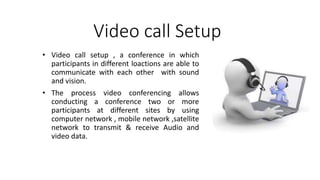
• Video call setup , a conference in which
participants in different loactions are able to
communicate with each other with sound
and vision.
• The process video conferencing allows
conducting a conference two or more
participants at different sites by using
computer network , mobile network ,satellite
network to transmit & receive Audio and
video data.
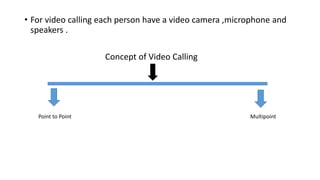
• For video calling each person have a video camera ,microphone and
speakers .
Concept of Video Calling
Point to Point Multipoint
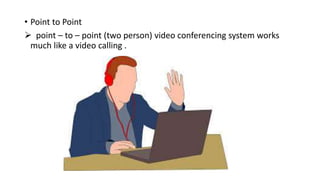
• Point to Point
 point – to – point (two person) video conferencing system works
much like a video calling .
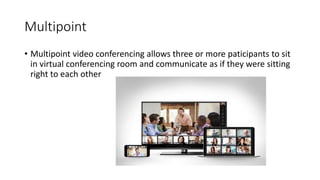
Multipoint
• Multipoint video conferencing allows three or more paticipants to sit
in virtual conferencing room and communicate as if they were sitting
right to each other
Video Conferencing Tools
• Skype
• Imo
• Jio4g voice
• Zoom meeting
• Cisco webex
• Web meeting
• Team viewer
• etc
Resources to make video call
• A working computer
• A broadband network and 4G mobile network.A dial up connection Is
too slow
• Speaker and microphone
• Web cam and front camera
• Camera flash
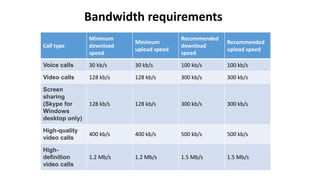
Call type
Minimum
download
speed
Minimum
upload speed
Recommended
download
speed
Recommended
upload speed
Voice calls 30 kb/s 30 kb/s 100 kb/s 100 kb/s
Video calls 128 kb/s 128 kb/s 300 kb/s 300 kb/s
Screen
sharing
(Skype for
Windows
desktop only)
128 kb/s 128 kb/s 300 kb/s 300 kb/s
High-quality
video calls
400 kb/s 400 kb/s 500 kb/s 500 kb/s
High-
definition
video calls
1.2 Mb/s 1.2 Mb/s 1.5 Mb/s 1.5 Mb/s
Bandwidth requirements
Installing and setting up Skype for Windows 8
• If Skype for Windows 8 is not yet installed on the computer, use the
following steps to get started.
1. Log in to Windows 8.
2.From the Start screen, click the Windows Store tile.
3.In Windows Store, type Skype.
4.The search bar opens, with Skype in the search field.
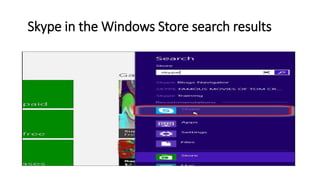
5.In the search results, click the Skype icon.
Skype in the Windows Store search results
6.In the Skype app in Windows Store, click
the Install button.
7.If prompted, log in to Windows as an
administrator, and then click Save.
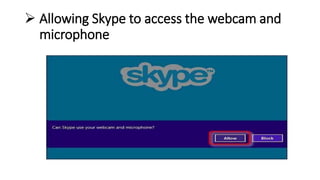
8.To allow Skype to access the webcam and
microphone, press the Allow button when
prompted.
 Allowing Skype to access the webcam and
microphone
8.To allow Skype to run in the background, press the Allow button when prompted.
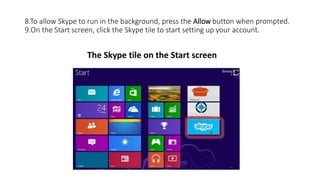
9.On the Start screen, click the Skype tile to start setting up your account.
The Skype tile on the Start screen
10.Click one of the following options depending on whether you
already have an account with Skype:
• I have a Skype account
• I'm new to Skype
11.Follow the onscreen instructions to complete the setup. When you
complete this process, log in with your Microsoft account.
Finish
Making and accepting Skype calls
• Once you have installed Skype for Windows 8 and set up your
account, you can start making and accepting calls with Skype.
Making calls in Skype for Windows 8
Follow the steps below to make Skype calls.
1. Log in to Skype.
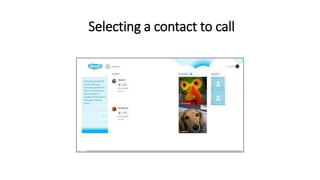
2. Under people or favorites on your account home page, click the
contact you want to call.
Selecting a contact to call
3 . In the upper-left area of the conversation window, make a video call
by clicking the video call icon; and then pressing the Enter key
The icons for video calls, voice calls, and instant messages
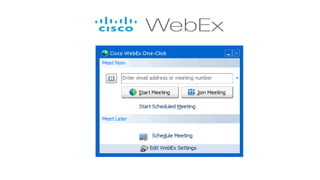
• Cisco WebEx product is part of an interoperable ecosystem of solutions for
working together remotely. While most can be purchased and used
alone, WebEx products can be combined and customised to your needs.
• WebEx products are delivered over the Cisco WebEx Cloud, a highly
available infrastructure purpose-built for real-time web communications.
• It is also usefull for Schedule and Start Mettings using web
• Its is very usefull and secure to share documents and multimedia data
• On March 15, 2007, Cisco Systems announced that it had agreed to pay
$57 per share to acquire WebEx.
Steps to Start meeting
1. user has a login into his WebEx site
2. under host a meeting click schedule meeting
3. If user see advanced scheduler, click Quick Scheduler
4. now select meeting type enter meeting topic
5. Specify date and time
6. Enter email address
7. start
• Joining a meeting
1. Open the meeting notification email
2. Click the meeting URL
current meeting displayed
3. Click connect
And start
Important links
• https://support.hp.com/in-en/document/c03806613
• https://en.wikipedia.org/wiki/WebEx
• https://www.webex.co.in/why-webex/overview.html
• https://www.webex.co.in/
•

Vc setup

  • 1.
    Video call Setup •Video call setup , a conference in which participants in different loactions are able to communicate with each other with sound and vision. • The process video conferencing allows conducting a conference two or more participants at different sites by using computer network , mobile network ,satellite network to transmit & receive Audio and video data.
  • 2.
    • For videocalling each person have a video camera ,microphone and speakers . Concept of Video Calling Point to Point Multipoint
  • 3.
    • Point toPoint  point – to – point (two person) video conferencing system works much like a video calling .
  • 4.
    Multipoint • Multipoint videoconferencing allows three or more paticipants to sit in virtual conferencing room and communicate as if they were sitting right to each other
  • 5.
    Video Conferencing Tools •Skype • Imo • Jio4g voice • Zoom meeting • Cisco webex • Web meeting • Team viewer • etc
  • 6.
    Resources to makevideo call • A working computer • A broadband network and 4G mobile network.A dial up connection Is too slow • Speaker and microphone • Web cam and front camera • Camera flash
  • 7.
    Call type Minimum download speed Minimum upload speed Recommended download speed Recommended uploadspeed Voice calls 30 kb/s 30 kb/s 100 kb/s 100 kb/s Video calls 128 kb/s 128 kb/s 300 kb/s 300 kb/s Screen sharing (Skype for Windows desktop only) 128 kb/s 128 kb/s 300 kb/s 300 kb/s High-quality video calls 400 kb/s 400 kb/s 500 kb/s 500 kb/s High- definition video calls 1.2 Mb/s 1.2 Mb/s 1.5 Mb/s 1.5 Mb/s Bandwidth requirements
  • 8.
    Installing and settingup Skype for Windows 8 • If Skype for Windows 8 is not yet installed on the computer, use the following steps to get started. 1. Log in to Windows 8. 2.From the Start screen, click the Windows Store tile. 3.In Windows Store, type Skype. 4.The search bar opens, with Skype in the search field. 5.In the search results, click the Skype icon.
  • 9.
    Skype in theWindows Store search results
  • 10.
    6.In the Skypeapp in Windows Store, click the Install button. 7.If prompted, log in to Windows as an administrator, and then click Save. 8.To allow Skype to access the webcam and microphone, press the Allow button when prompted.
  • 11.
     Allowing Skypeto access the webcam and microphone
  • 12.
    8.To allow Skypeto run in the background, press the Allow button when prompted. 9.On the Start screen, click the Skype tile to start setting up your account. The Skype tile on the Start screen
  • 13.
    10.Click one ofthe following options depending on whether you already have an account with Skype: • I have a Skype account • I'm new to Skype 11.Follow the onscreen instructions to complete the setup. When you complete this process, log in with your Microsoft account. Finish
  • 14.
    Making and acceptingSkype calls • Once you have installed Skype for Windows 8 and set up your account, you can start making and accepting calls with Skype. Making calls in Skype for Windows 8 Follow the steps below to make Skype calls. 1. Log in to Skype. 2. Under people or favorites on your account home page, click the contact you want to call.
  • 15.
  • 16.
    3 . Inthe upper-left area of the conversation window, make a video call by clicking the video call icon; and then pressing the Enter key The icons for video calls, voice calls, and instant messages
  • 17.
    • Cisco WebExproduct is part of an interoperable ecosystem of solutions for working together remotely. While most can be purchased and used alone, WebEx products can be combined and customised to your needs. • WebEx products are delivered over the Cisco WebEx Cloud, a highly available infrastructure purpose-built for real-time web communications. • It is also usefull for Schedule and Start Mettings using web • Its is very usefull and secure to share documents and multimedia data • On March 15, 2007, Cisco Systems announced that it had agreed to pay $57 per share to acquire WebEx.
  • 19.
    Steps to Startmeeting 1. user has a login into his WebEx site 2. under host a meeting click schedule meeting 3. If user see advanced scheduler, click Quick Scheduler 4. now select meeting type enter meeting topic 5. Specify date and time 6. Enter email address 7. start
  • 20.
    • Joining ameeting 1. Open the meeting notification email 2. Click the meeting URL current meeting displayed 3. Click connect And start
  • 21.
    Important links • https://support.hp.com/in-en/document/c03806613 •https://en.wikipedia.org/wiki/WebEx • https://www.webex.co.in/why-webex/overview.html • https://www.webex.co.in/ •