




























We know that photographs are a really good way of creating
an effective presentation.
The likes of iStock and Shutterstock photo libraries are nowadays
the basis of most corporate image libraries. But if you’re sick of
using the same stock photography as others, or simply don’t have
access, you can create just as impressive, if not more relevant
images simply using your phone.
This presentation has been created using
an iPhone 5 and PowerPoint 2010 only.
A walk around a city can be
really rewarding when it comes
to getting some corporate
background images.
Image: Manchester Central Library
Try getting out on a sunny day,
Shadows from the sun create much more drama in your shots.
If your image is too detailed and ends up distracting from the
content placed in front, use PowerPoint Artistic Effects to blur it.
Switching from one slide with the crisp image to the next blurred can be really effective.
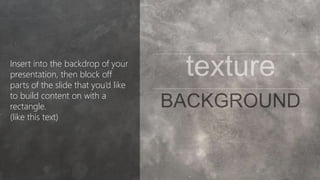
Insert into the backdrop of your
presentation, then block off
parts of the slide that you’d like
to build content on with a
rectangle.
(like this text)
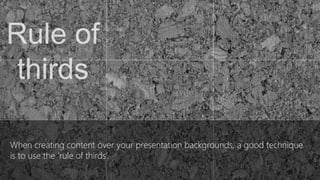
When creating content over your presentation backgrounds, a good technique
is to use the ‘rule of thirds’
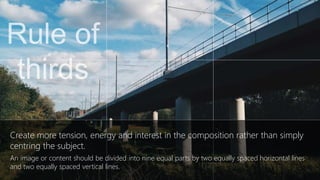
Create more tension, energy and interest in the composition rather than simply
centring the subject.
An image or content should be divided into nine equal parts by two equally spaced horizontal lines
and two equally spaced vertical lines
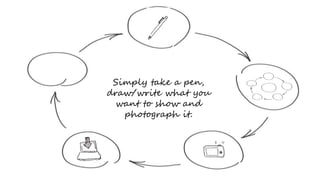
Simply take a pen,
draw/write what you
want to show and
photograph it.
The option to make your
images black and white is
another really quick way to
make your images look stylised
and consistent.
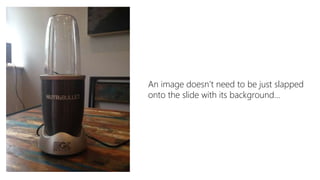
An image doesn’t need to be just slapped
onto the slide with its background
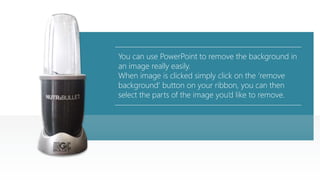
You can use PowerPoint to remove the background in
an image really easily.
When image is clicked simply click on the ‘remove
background’ button on your ribbon, you can then
select the parts of the image you’d like to remove
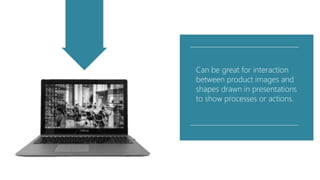
Can be great for interaction
between product images and
shapes drawn in presentations
to show processes or actions.
The remove background
tool can lead to some
pretty cool results…
Or just for having some fun…
The remove background
tool can lead to some
pretty cool results…
Or just for having some fun…
Design and content by Vincent Thompson @brightcarbon www.brightcarbon.com

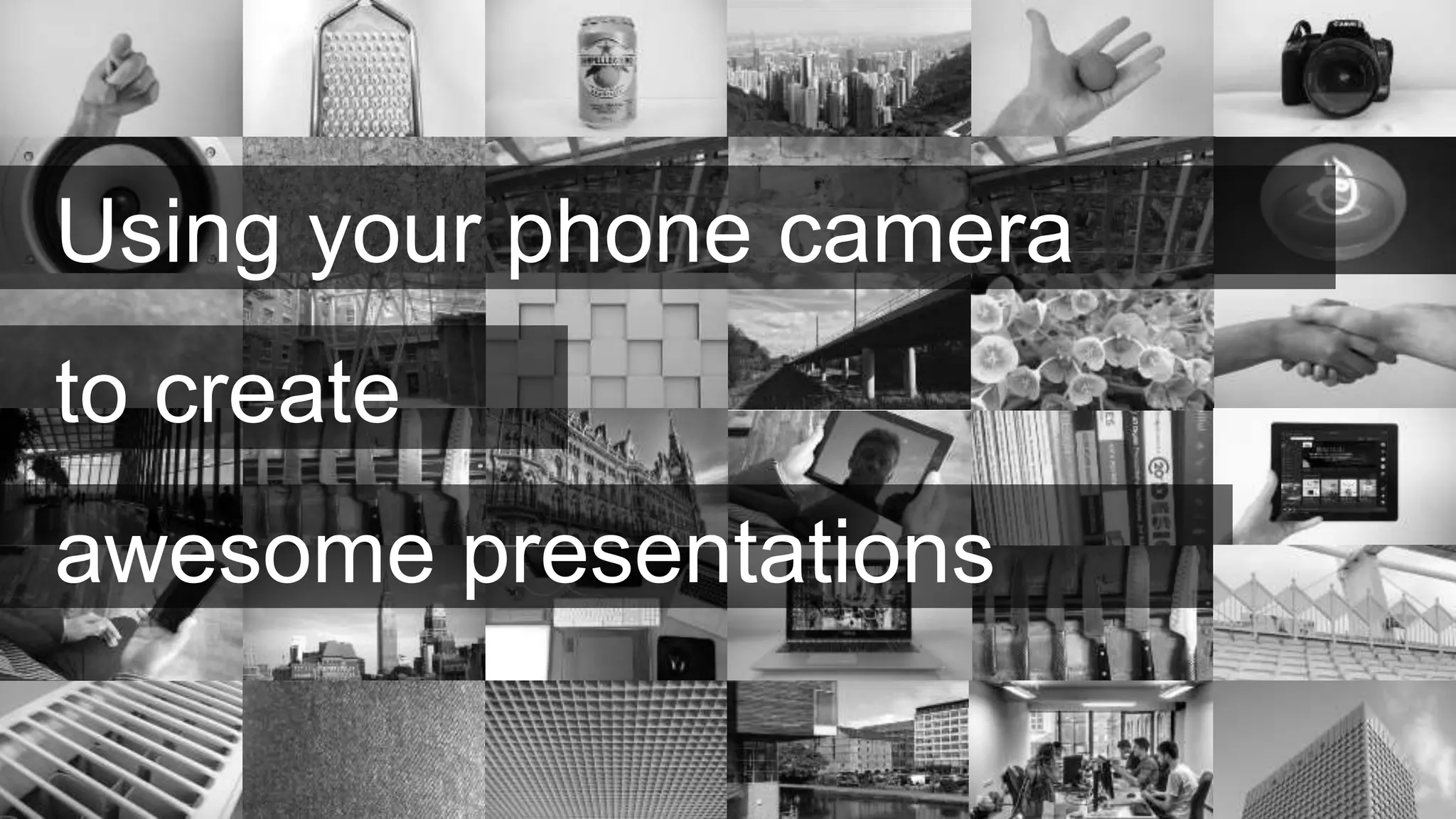
Using Your Camera Phone to Create Awesome Presentations

  • 2.
    We know thatphotographs are a really good way of creating an effective presentation. The likes of iStock and Shutterstock photo libraries are nowadays the basis of most corporate image libraries. But if you’re sick of using the same stock photography as others, or simply don’t have access, you can create just as impressive, if not more relevant images simply using your phone. This presentation has been created using an iPhone 5 and PowerPoint 2010 only.
  • 16.
    A walk arounda city can be really rewarding when it comes to getting some corporate background images. Image: Manchester Central Library
  • 17.
    Try getting outon a sunny day, Shadows from the sun create much more drama in your shots.
  • 18.
    If your imageis too detailed and ends up distracting from the content placed in front, use PowerPoint Artistic Effects to blur it. Switching from one slide with the crisp image to the next blurred can be really effective.
  • 23.
    Insert into thebackdrop of your presentation, then block off parts of the slide that you’d like to build content on with a rectangle. (like this text)
  • 24.
    When creating contentover your presentation backgrounds, a good technique is to use the ‘rule of thirds’
  • 25.
    Create more tension,energy and interest in the composition rather than simply centring the subject. An image or content should be divided into nine equal parts by two equally spaced horizontal lines and two equally spaced vertical lines
  • 32.
    Simply take apen, draw/write what you want to show and photograph it.
  • 33.
    The option tomake your images black and white is another really quick way to make your images look stylised and consistent.
  • 35.
    An image doesn’tneed to be just slapped onto the slide with its background
  • 36.
    You can usePowerPoint to remove the background in an image really easily. When image is clicked simply click on the ‘remove background’ button on your ribbon, you can then select the parts of the image you’d like to remove
  • 37.
    Can be greatfor interaction between product images and shapes drawn in presentations to show processes or actions.
  • 38.
    The remove background toolcan lead to some pretty cool results… Or just for having some fun…
  • 39.
    The remove background toolcan lead to some pretty cool results… Or just for having some fun…
  • 40.
    Design and contentby Vincent Thompson @brightcarbon www.brightcarbon.com

Editor's Notes

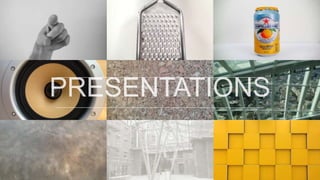
  • #23 Can be used to form some great looking abstract backgrounds. There are so many great surfaces for you to snap around your home. The kitchen is a particularly rich place to find some interesting abstract finishes.
  • #24 Once you’ve found one you’re happy with, simply insert it into the backdrop of your Slide Master, then create a transparent rectangle (like the one this text is placed within) to block off the parts of the slide that you’d like to build content on.