Using PowerPoint on the
Web
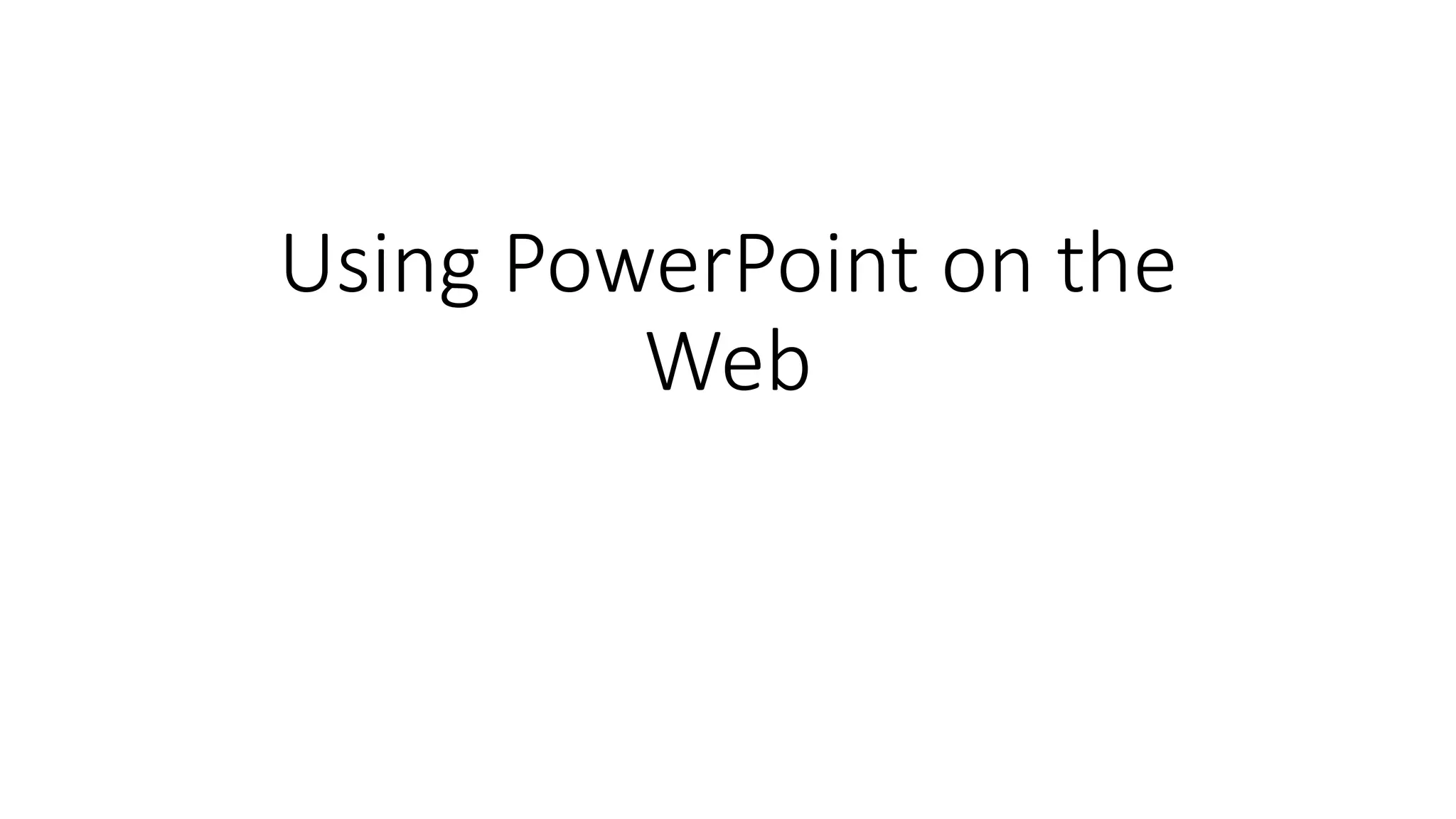
0001 - Using PowerPoint on the Web
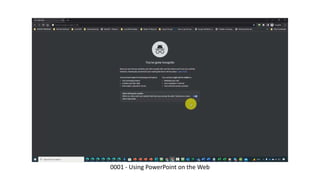
0002 - Now Type In PowerPoint.com In The Address Bar
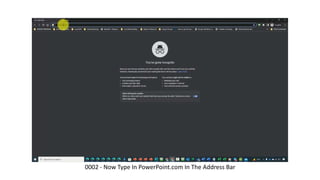
0003 - Then Sign In Into Your Microsoft Account
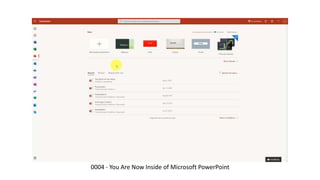
0004 - You Are Now Inside of Microsoft PowerPoint
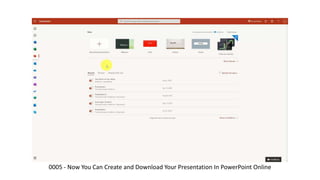
0005 - Now You Can Create and Download Your Presentation In PowerPoint Online
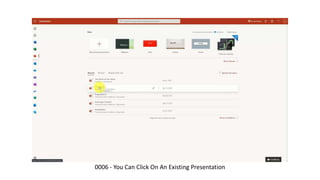
0006 - You Can Click On An Existing Presentation
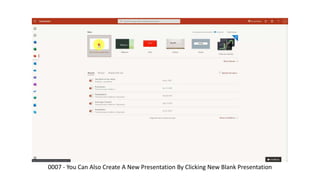
0007 - You Can Also Create A New Presentation By Clicking New Blank Presentation
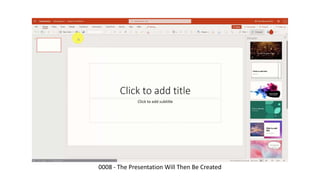
0008 - The Presentation Will Then Be Created
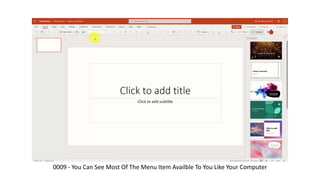
0009 - You Can See Most Of The Menu Item Availble To You Like Your Computer
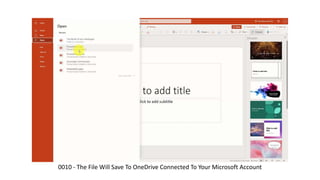
0010 - The File Will Save To OneDrive Connected To Your Microsoft Account
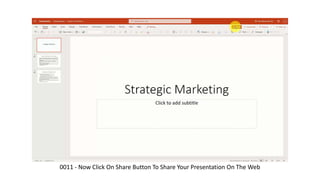
0011 - Now Click On Share Button To Share Your Presentation On The Web
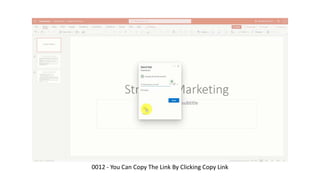
0012 - You Can Copy The Link By Clicking Copy Link
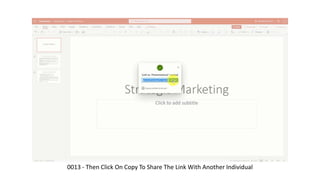
0013 - Then Click On Copy To Share The Link With Another Individual
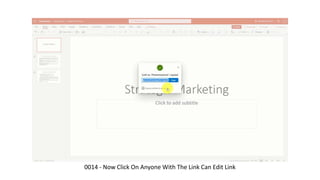
0014 - Now Click On Anyone With The Link Can Edit Link
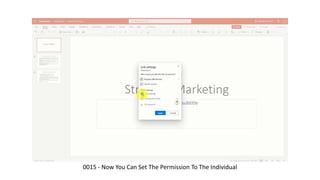
0015 - Now You Can Set The Permission To The Individual
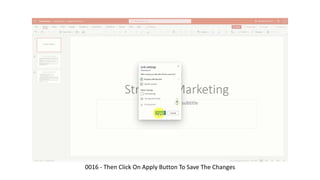
0016 - Then Click On Apply Button To Save The Changes
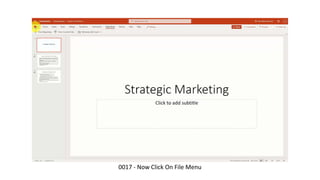
0017 - Now Click On File Menu
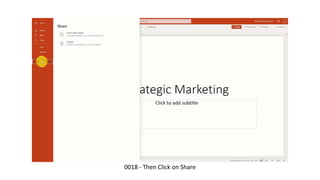
0018 - Then Click on Share
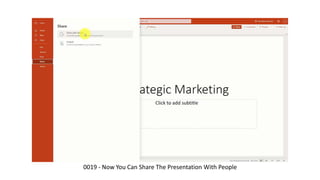
0019 - Now You Can Share The Presentation With People
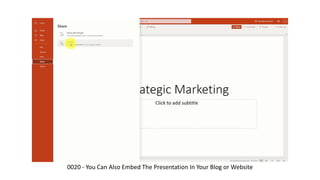
0020 - You Can Also Embed The Presentation In Your Blog or Website
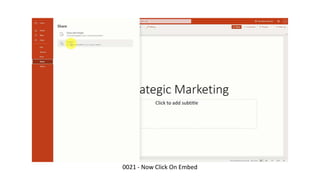
0021 - Now Click On Embed
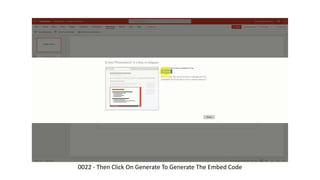
0022 - Then Click On Generate To Generate The Embed Code
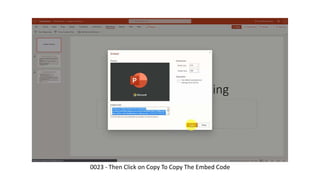
0023 - Then Click on Copy To Copy The Embed Code
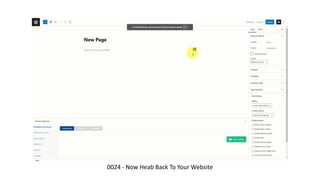
0024 - Now Heab Back To Your Website
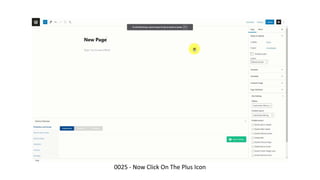
0025 - Now Click On The Plus Icon
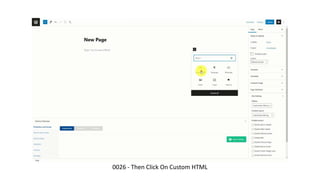
0026 - Then Click On Custom HTML
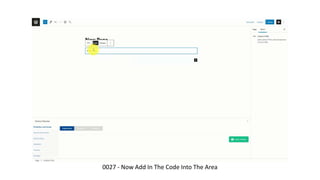
0027 - Now Add In The Code Into The Area
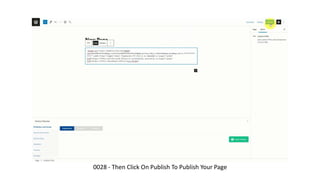
0028 - Then Click On Publish To Publish Your Page
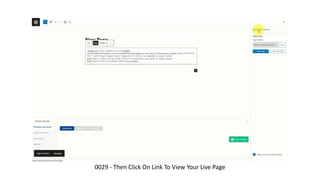
0029 - Then Click On Link To View Your Live Page
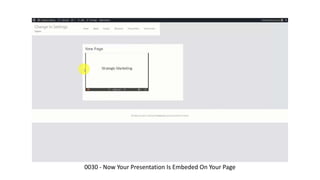
0030 - Now Your Presentation Is Embeded On Your Page

Using PowerPoint on the Web

  • 1.
  • 2.
    0001 - UsingPowerPoint on the Web
  • 3.
    0002 - NowType In PowerPoint.com In The Address Bar
  • 4.
    0003 - ThenSign In Into Your Microsoft Account
  • 5.
    0004 - YouAre Now Inside of Microsoft PowerPoint
  • 6.
    0005 - NowYou Can Create and Download Your Presentation In PowerPoint Online
  • 7.
    0006 - YouCan Click On An Existing Presentation
  • 8.
    0007 - YouCan Also Create A New Presentation By Clicking New Blank Presentation
  • 9.
    0008 - ThePresentation Will Then Be Created
  • 10.
    0009 - YouCan See Most Of The Menu Item Availble To You Like Your Computer
  • 11.
    0010 - TheFile Will Save To OneDrive Connected To Your Microsoft Account
  • 12.
    0011 - NowClick On Share Button To Share Your Presentation On The Web
  • 13.
    0012 - YouCan Copy The Link By Clicking Copy Link
  • 14.
    0013 - ThenClick On Copy To Share The Link With Another Individual
  • 15.
    0014 - NowClick On Anyone With The Link Can Edit Link
  • 16.
    0015 - NowYou Can Set The Permission To The Individual
  • 17.
    0016 - ThenClick On Apply Button To Save The Changes
  • 18.
    0017 - NowClick On File Menu
  • 19.
    0018 - ThenClick on Share
  • 20.
    0019 - NowYou Can Share The Presentation With People
  • 21.
    0020 - YouCan Also Embed The Presentation In Your Blog or Website
  • 22.
    0021 - NowClick On Embed
  • 23.
    0022 - ThenClick On Generate To Generate The Embed Code
  • 24.
    0023 - ThenClick on Copy To Copy The Embed Code
  • 25.
    0024 - NowHeab Back To Your Website
  • 26.
    0025 - NowClick On The Plus Icon
  • 27.
    0026 - ThenClick On Custom HTML
  • 28.
    0027 - NowAdd In The Code Into The Area
  • 29.
    0028 - ThenClick On Publish To Publish Your Page
  • 30.
    0029 - ThenClick On Link To View Your Live Page
  • 31.
    0030 - NowYour Presentation Is Embeded On Your Page