Reminder:
• Bring 3 sample forms from any office, agency, etc. for
  next Thursday, January 31st
• Quiz about Input Devices table (chapter 8, figure 8-
  34, 8th edition) next Tuesday, February 5th.


                                                           1
Systems Analysis and Design

Chapter 8
Output and User Interface Design
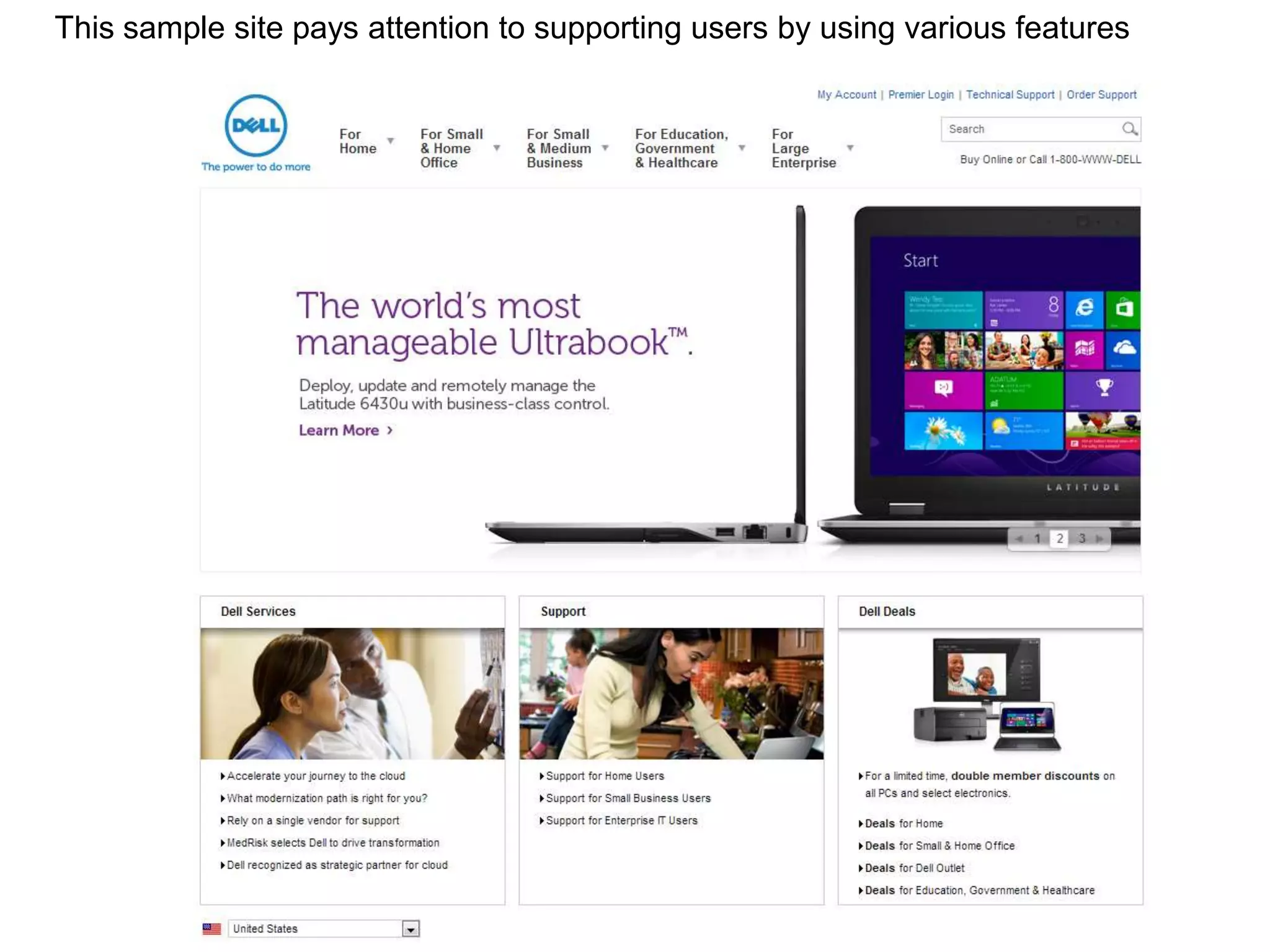
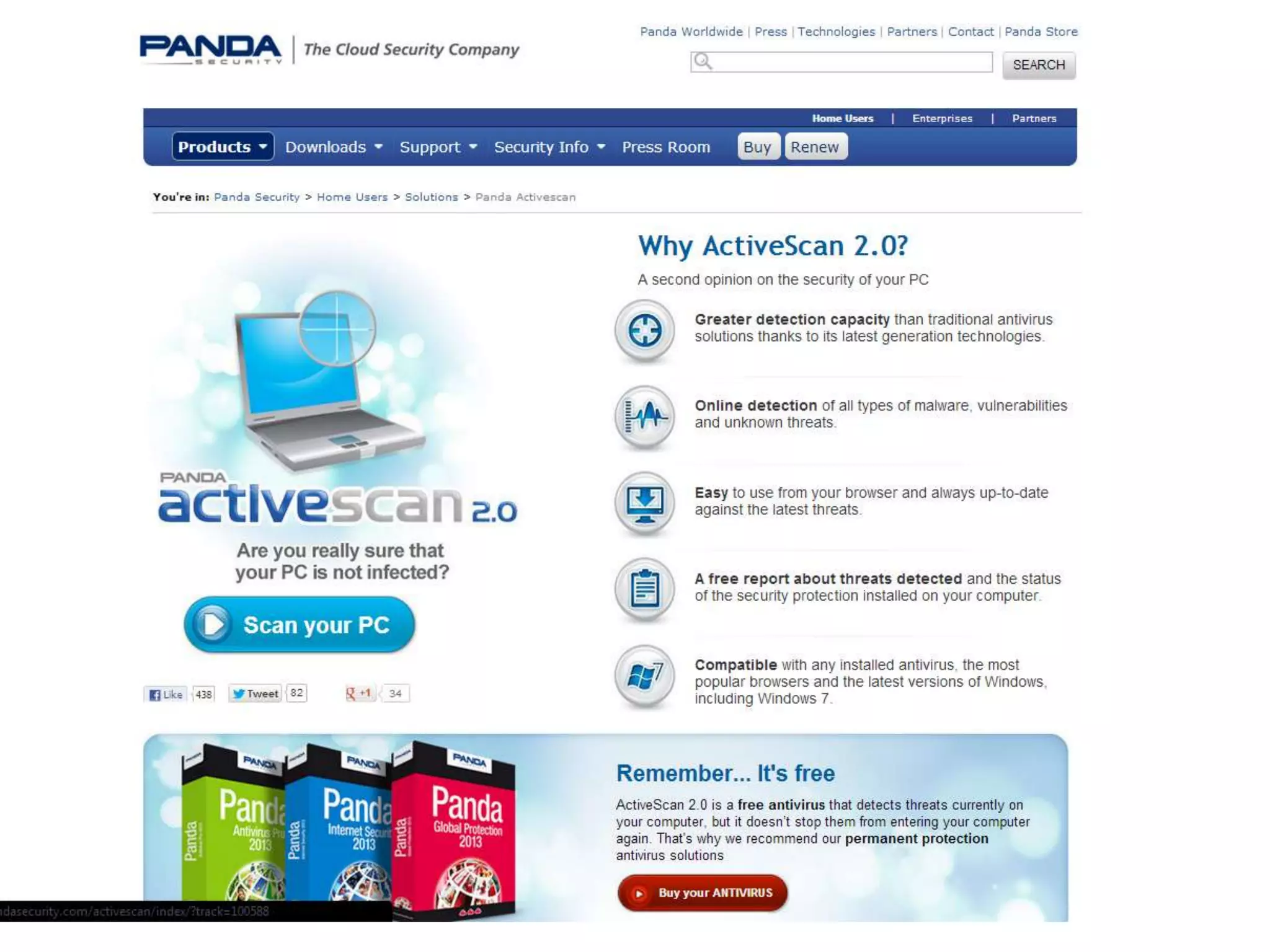
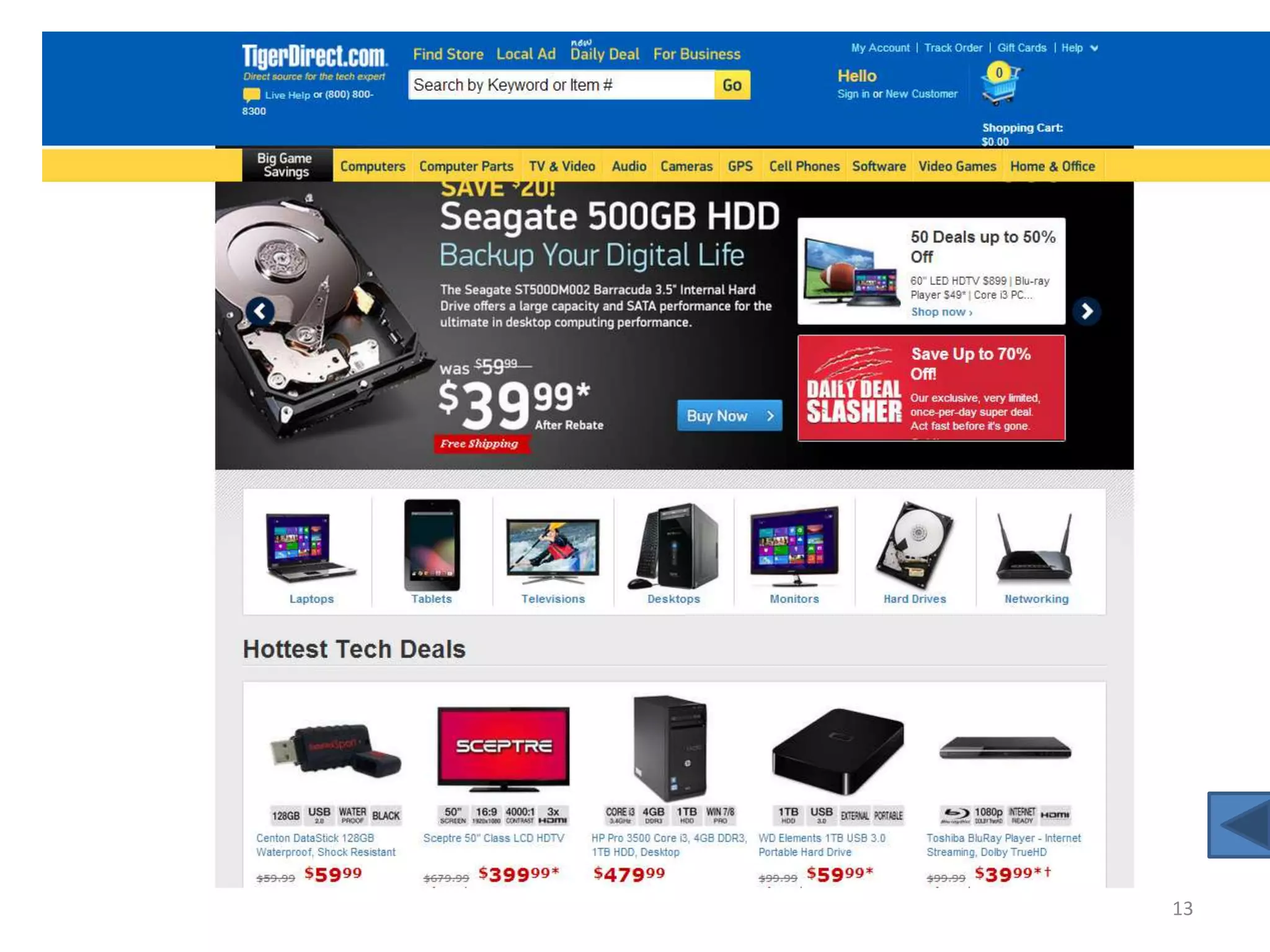
(part 2)
Designing a Web Site
• You can borrow some of the design principles from designing
  displays.
• The Web, however, is a very uncontrolled environment for
  output.
   •   Different browsers
   •   Screen resolution varies
   •   Handheld devices
   •   JavaScript, cookies, other Web programming elements affect how
       users view Web sites


                                                                        11-3
General Guidelines for Designing a
Web Site
• Use professional tools
   – Macromedia Dreamweaver
   – Faster than working directly with HTML
• Studying other sites
   – It is not legal to cut and paste pictures or codes, but you
     can learn from other sites
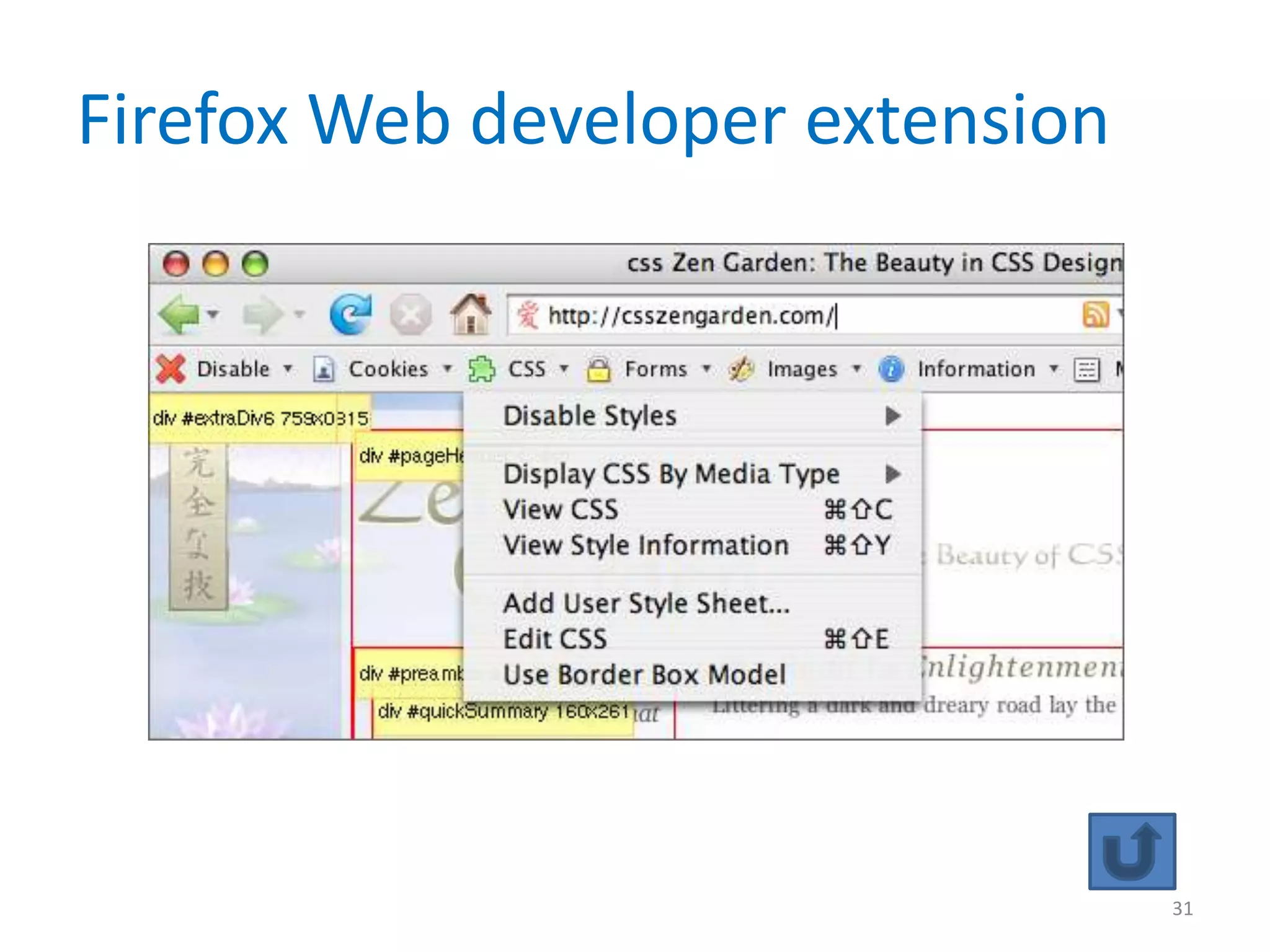
      • Firefox’s Web Developer extension
      • Palette Grabber extension
• Use Web resources
   – Nielsen Normal Group: gives hints on design & usability

                                                                   11-4
Designing a Web Site
• Examine the sites of professional Web site
  designers
• Use the tools you’ve learned
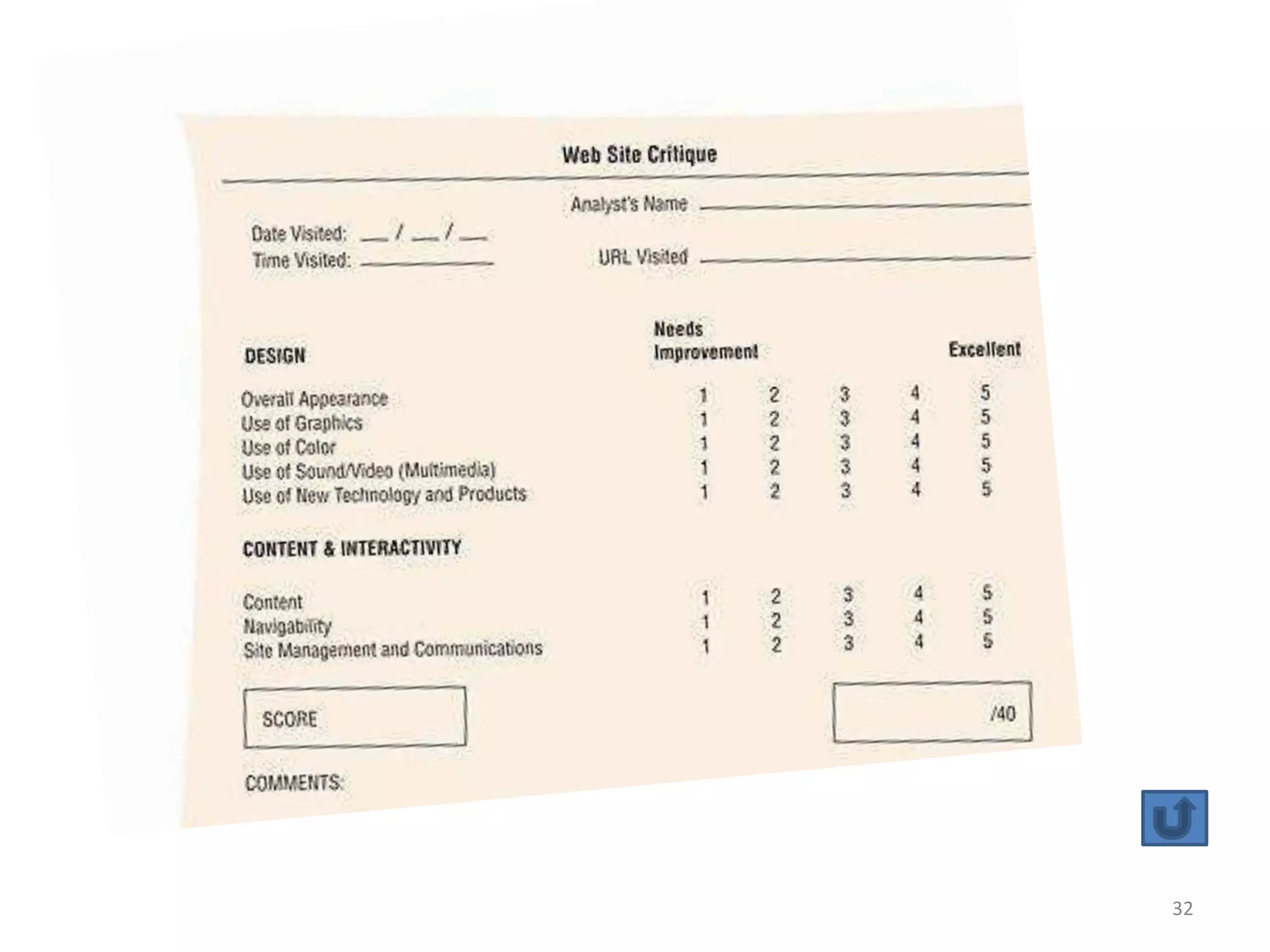
  – Use a form to evaluate sites systematically

• Consult the books
• Follow World Wide Web Consortium
  standards (W3C)


                                                  11-5
Designing a Web Site
• Examine poorly designed Web pages
  – webpagesthatsuck.com (good and bad sites)
     • Also provides links to material about Web site creation
     • www.bow-wowbooks.com (rated world’s worst site of 10/2007)
     • www.snarg.net (worst use of navigation)


                                                                 11-6
Designing a Web Site (Continued)
• Creating Web templates
  – Style sheets (CSS) allow you to format all Web
    pages in a site consistently
     • A change in the style sheet file will affect/update all
       pages using that style sheet.
• Using plug-ins, audio, and video sparingly
  – Not everyone has the latest plug-in


                                                                 11-7
Designing a Web Site (Continued)
• Plan ahead, pay attention to:
  – Structure
  – Content
  – Text
                              Good Web sites are
  – Graphics                  well thought out!
  – Presentations style
  – Navigation
  – Promotion


                                                   11-8
Structure
• One of the most important steps in developing
  a professional Web site
   – Think about your goals and objectives
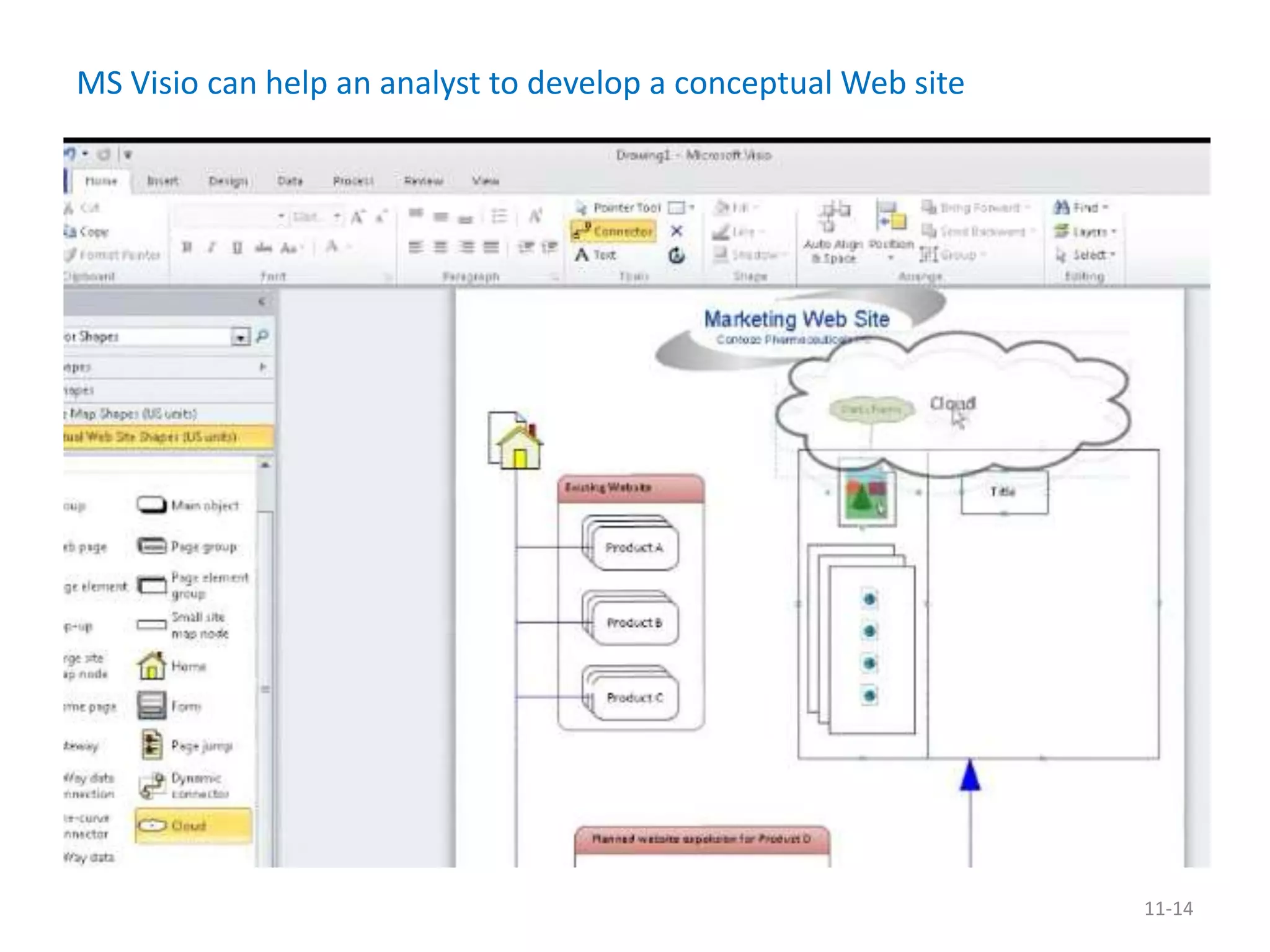
• Web designers can benefit from using Web site
  diagramming and mapping tools
   – Ex. MS Visio, SmartDraw, Omnigraffle (Mac)
• Each page in the Web structure should have a
  distinct message
   – Ecommerce? Informative? Marketing? Etc.
                    Sample Web sites shown to contrast structure 
This sample site pays attention to supporting users by using various features


                                                                                10
11
12
13
MS Visio can help an analyst to develop a conceptual Web site


                                                                11-14
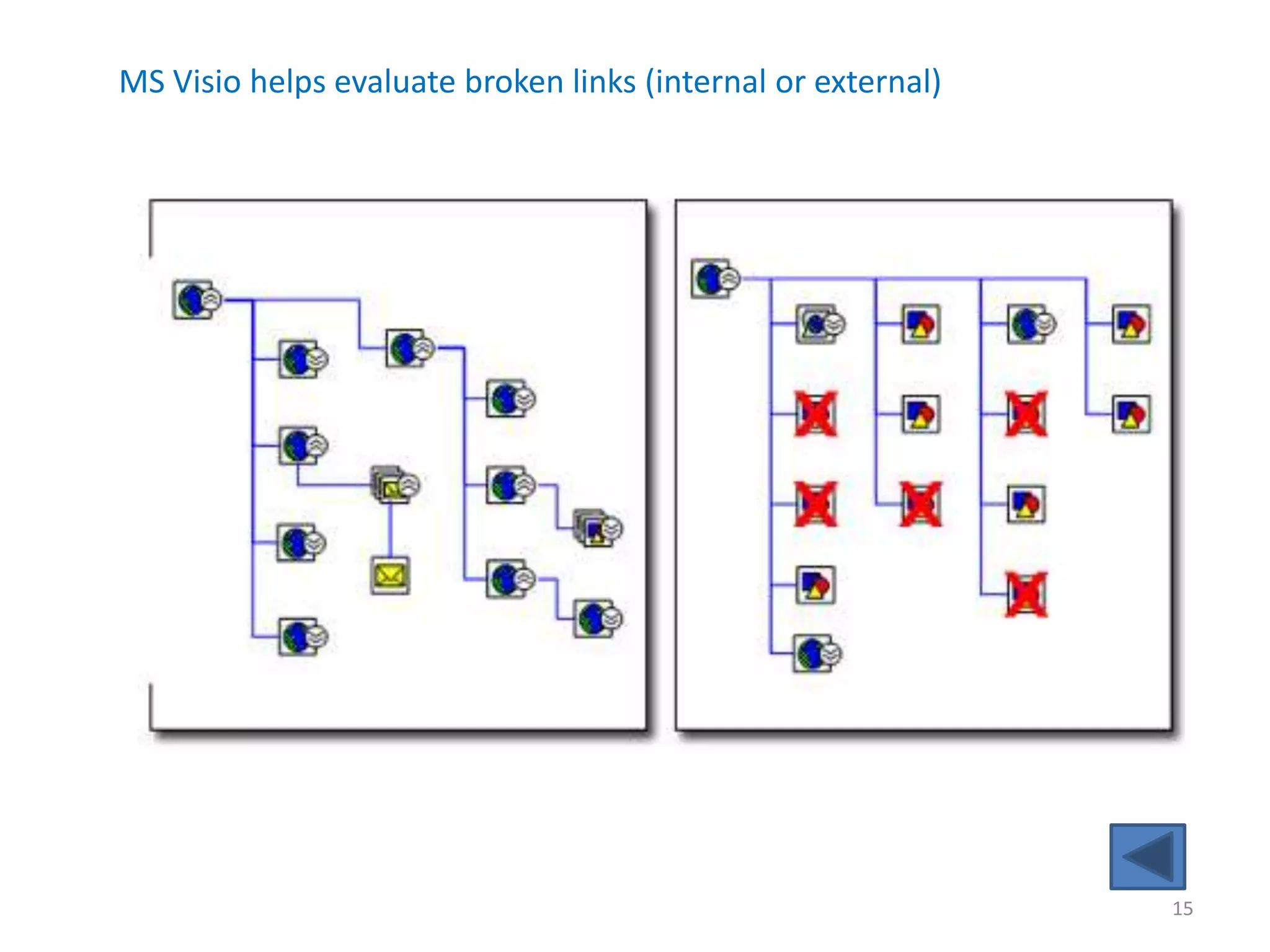
MS Visio helps evaluate broken links (internal or external)


                                                              15
Content

 • Without anything to say, your Web site will fail
 • Appropriate content is needed to keep the user
   interested
    – Stickiness: exists if a user stays for a long period of time
    – Sticky Web sites statistics
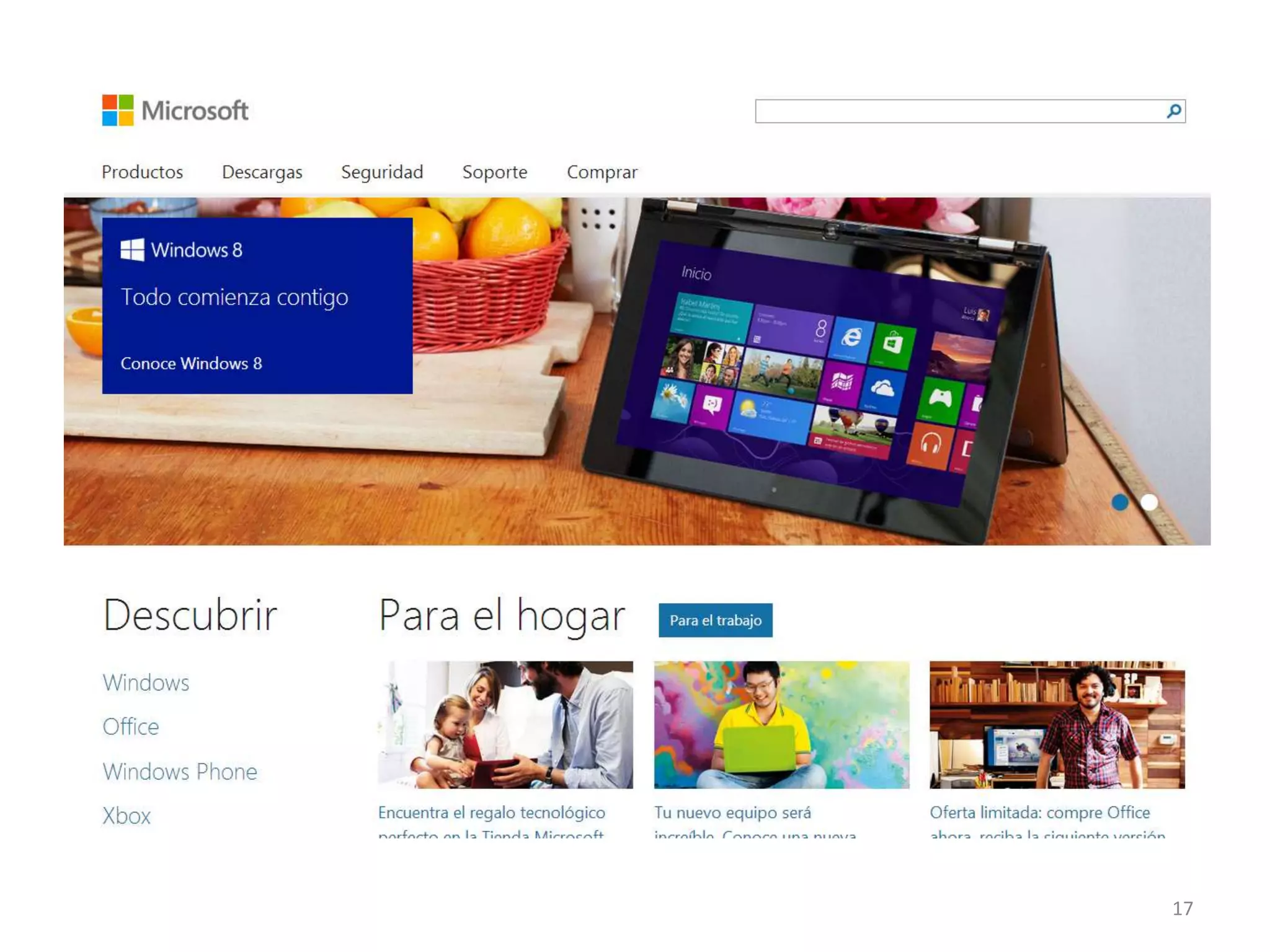
 • Use a metaphor or images that provide metaphor
   for your site
    – You can use a theme
    – Avoid overuse of cartoons and don’t be repetitive
      

                                                                     11-16
17
Content (Continued)
• Should include a FAQ page
  – based on the experiences of users and technical support people who
    identify the topics of continuing concern
• May take advantage of prewritten software (COTS)
  – Search engines, mapping software, weather info, news and
    stock tickers, etc.
      • These are bonus content for the visitor


                                                      Commercial Off-
                                                        The Shelf


                                                                    11-18
Text

• Each Web page should have a title
• Place meaningful words in the first sentence
  appearing on your Web page
• Clear writing is important
  – https://www.schooloutfitters.com/catalog/index


                                                     11-19
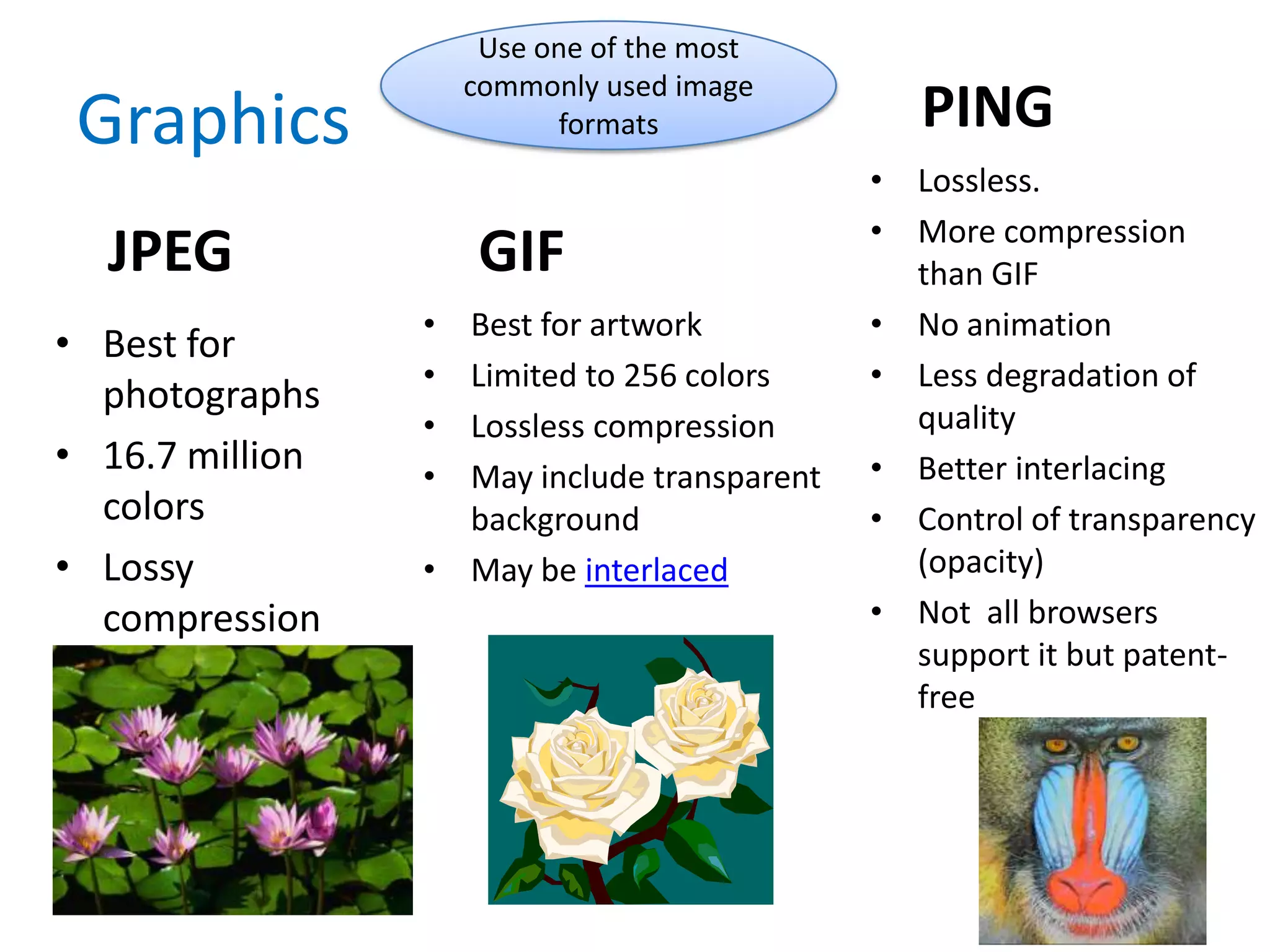
Use one of the most
                     commonly used image
 Graphics                  formats              PING
                                             • Lossless.
                                             • More compression
  JPEG                GIF                      than GIF
                 • Best for artwork          • No animation
• Best for
                 • Limited to 256 colors     • Less degradation of
  photographs                                  quality
                 • Lossless compression
• 16.7 million   • May include transparent   • Better interlacing
  colors           background                • Control of transparency
• Lossy          • May be interlaced           (opacity)
  compression                                • Not all browsers
                                               support it but patent-
                                               free


                                                              11-20
Graphics (Continued)


• Keep the background simple and readable
  • When using a background pattern, make
    sure that you can see the text clearly on top
    of it                                       11-21
Graphics (Continued)


• Keep the background simple and readable
  • When using a background pattern, make sure that
    you can see the text clearly on top of it

                                                  11-22
Graphics (Continued)
• Create a few professional-looking graphics for use on
  your pages

• Keep images small and reuse bullet or navigational
  buttons
   – Once an image has been received, it will be taken from the
     cache whenever it is used again.


                                                            11-23
Graphics (Continued)
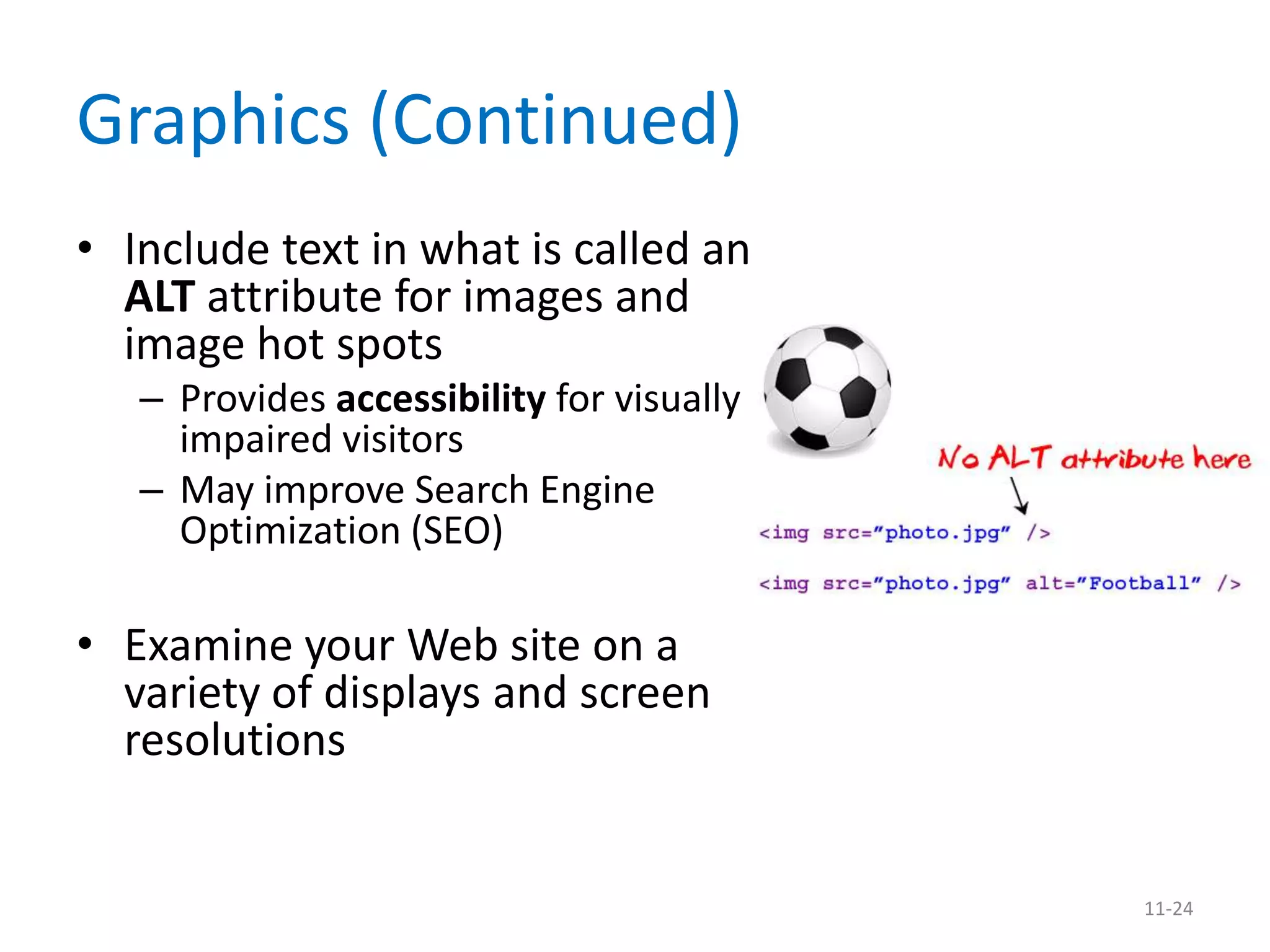
• Include text in what is called an
  ALT attribute for images and
  image hot spots
   – Provides accessibility for visually
     impaired visitors
   – May improve Search Engine
     Optimization (SEO)

• Examine your Web site on a
  variety of displays and screen
  resolutions


                                           11-24
Presentation Style
• Provide a home page (entry display)
   – Rule of thumb: Load in 4 seconds or less (broadband)
      • 100 kilobytes of data takes more than 14 seconds to download on
        a 56 kbit/s connection (users with dial up: 3% )
   – Provide a menu or choices
      • left or top of the screen
• Keep the number of graphics to a reasonable
  minimum. Why?
   – To lower download time
• Use large and colorful fonts for headings
• Use interesting images and buttons for links
                                                                    11-25
Presentation Style (Continued)
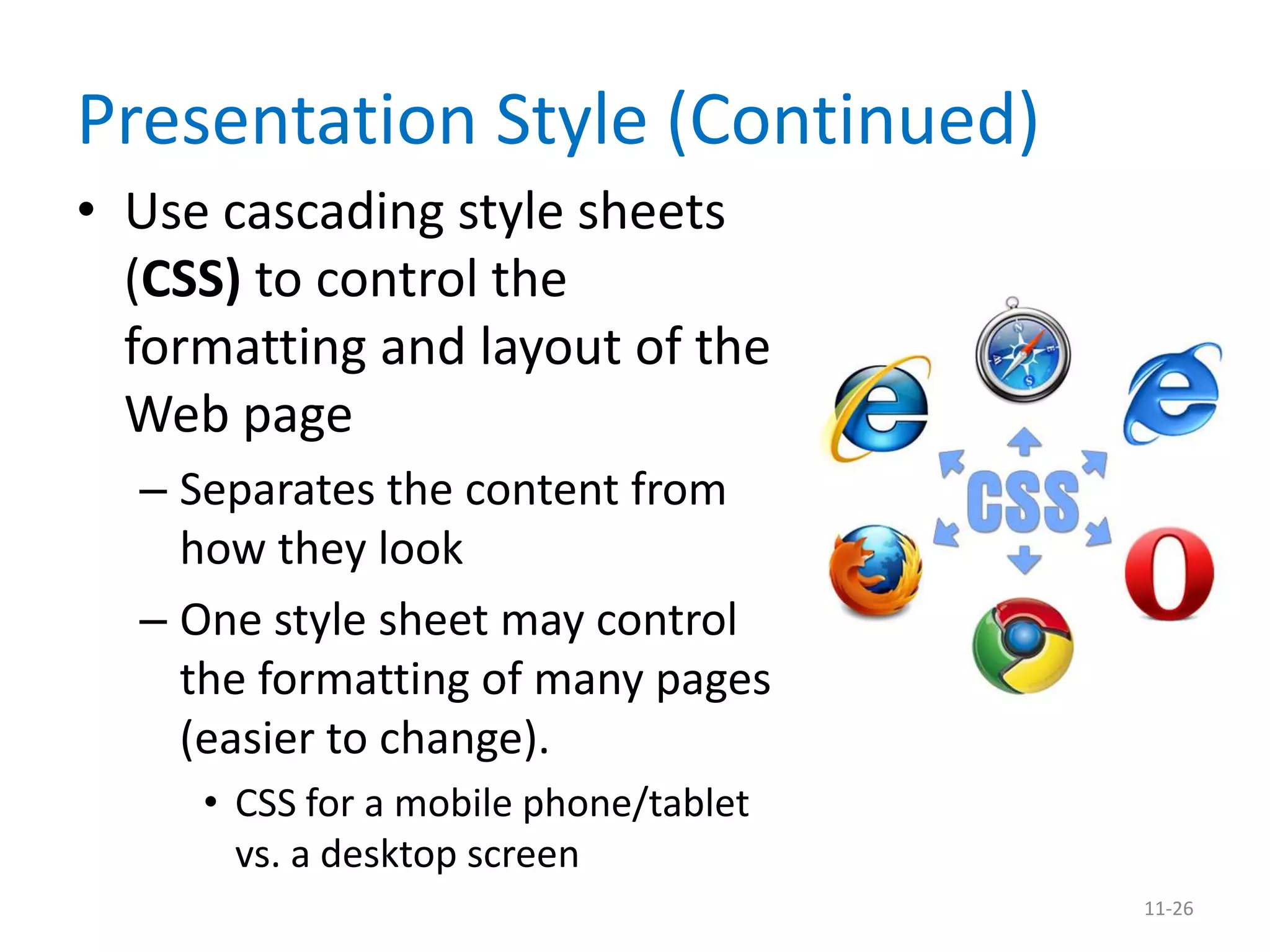
• Use cascading style sheets
  (CSS) to control the
  formatting and layout of the
  Web page
  – Separates the content from
    how they look
  – One style sheet may control
    the formatting of many pages
    (easier to change).
     • CSS for a mobile phone/tablet
       vs. a desktop screen
                                       11-26
Presentation Style (Continued)
• Use divisions and cascading styles
  – Tables are not well suited for visually impaired
    visitors 
• Use the same graphics image on several Web
  pages
  – For consistency and faster loading


                                                       11-27
Presentation Style (Continued)
• Use JavaScript to enhance Web page layout
  – Ex. Mouse rollover, expanded menu, screen
    resolution detection, international language
    detection, etc.
• Avoid overusing animation, sound, and other
  elements
  – One element at a time


                                                   11-28
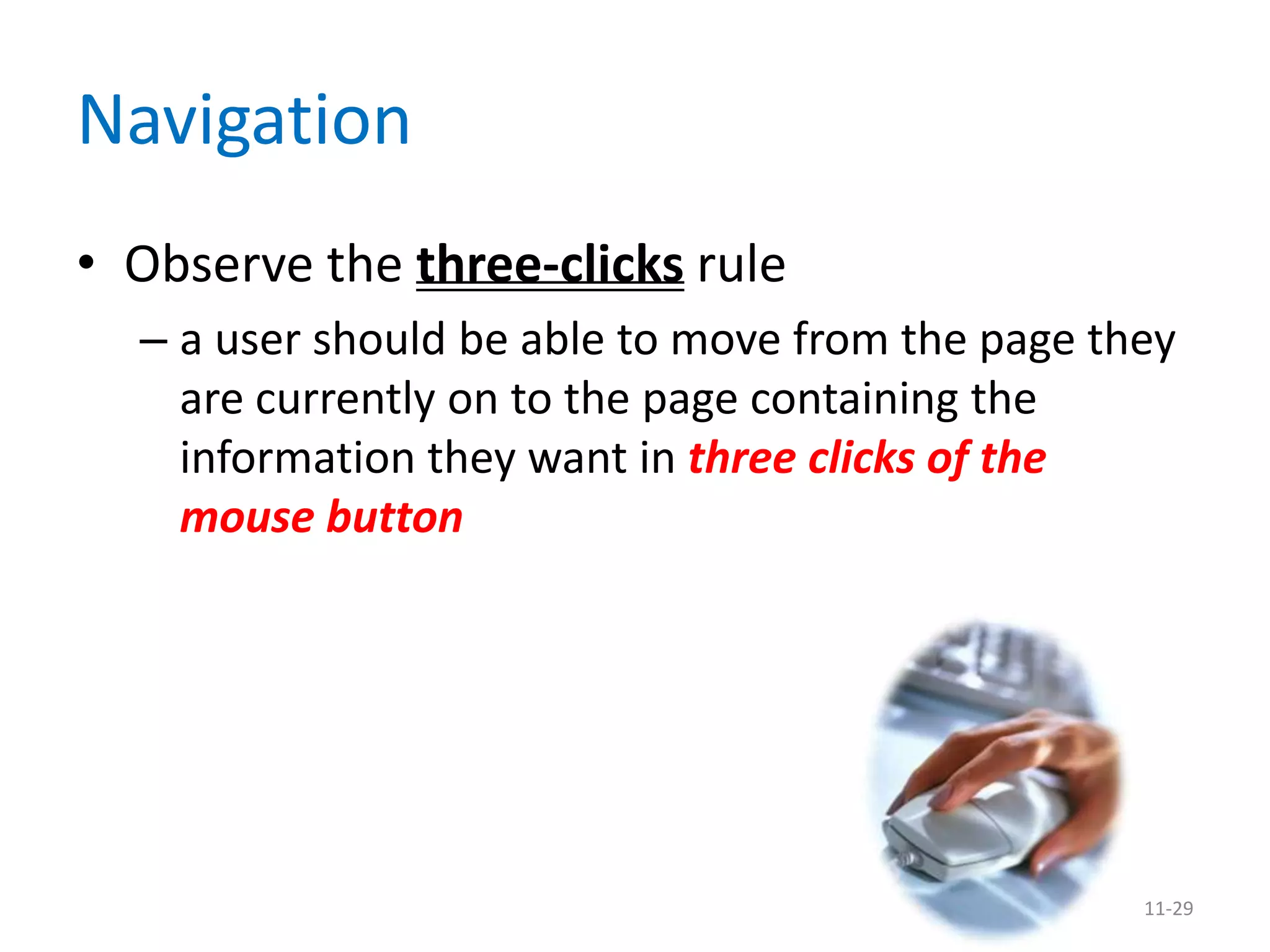
Navigation
• Observe the three-clicks rule
  – a user should be able to move from the page they
    are currently on to the page containing the
    information they want in three clicks of the
    mouse button


                                                  11-29
Web site critique exercise
• Next Tuesday, January 29th:
    – Bring a list with 3 URLs from local Web sites (no
      social networks, no UPRM) on a sheet of paper.
•   Instructions will be given that day.
•   Submit homework next Thursday, January 31st
•   Individual homework.
•   Value: 30 points


                                                          30
Firefox Web developer extension


                                  31
32
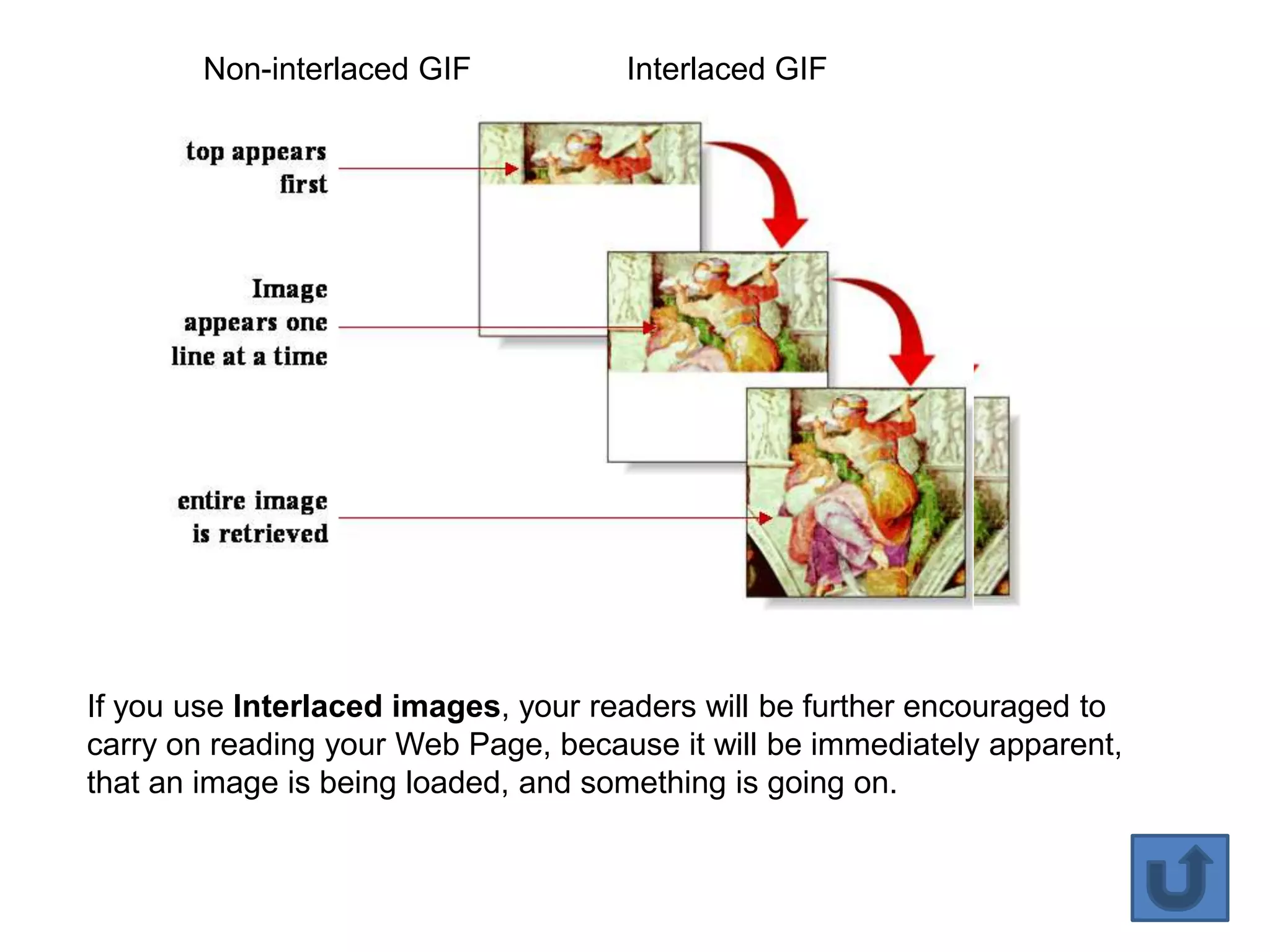
Non-interlaced GIF           Interlaced GIF


If you use Interlaced images, your readers will be further encouraged to
carry on reading your Web Page, because it will be immediately apparent,
that an image is being loaded, and something is going on.


                                                                           33

4087 chapter 08 8ed part2

  • 1.
    Reminder: • Bring 3sample forms from any office, agency, etc. for next Thursday, January 31st • Quiz about Input Devices table (chapter 8, figure 8- 34, 8th edition) next Tuesday, February 5th. 1
  • 2.
    Systems Analysis andDesign Chapter 8 Output and User Interface Design (part 2)
  • 3.
    Designing a WebSite • You can borrow some of the design principles from designing displays. • The Web, however, is a very uncontrolled environment for output. • Different browsers • Screen resolution varies • Handheld devices • JavaScript, cookies, other Web programming elements affect how users view Web sites 11-3
  • 4.
    General Guidelines forDesigning a Web Site • Use professional tools – Macromedia Dreamweaver – Faster than working directly with HTML • Studying other sites – It is not legal to cut and paste pictures or codes, but you can learn from other sites • Firefox’s Web Developer extension • Palette Grabber extension • Use Web resources – Nielsen Normal Group: gives hints on design & usability 11-4
  • 5.
    Designing a WebSite • Examine the sites of professional Web site designers • Use the tools you’ve learned – Use a form to evaluate sites systematically • Consult the books • Follow World Wide Web Consortium standards (W3C) 11-5
  • 6.
    Designing a WebSite • Examine poorly designed Web pages – webpagesthatsuck.com (good and bad sites) • Also provides links to material about Web site creation • www.bow-wowbooks.com (rated world’s worst site of 10/2007) • www.snarg.net (worst use of navigation) 11-6
  • 7.
    Designing a WebSite (Continued) • Creating Web templates – Style sheets (CSS) allow you to format all Web pages in a site consistently • A change in the style sheet file will affect/update all pages using that style sheet. • Using plug-ins, audio, and video sparingly – Not everyone has the latest plug-in 11-7
  • 8.
    Designing a WebSite (Continued) • Plan ahead, pay attention to: – Structure – Content – Text Good Web sites are – Graphics well thought out! – Presentations style – Navigation – Promotion 11-8
  • 9.
    Structure • One ofthe most important steps in developing a professional Web site – Think about your goals and objectives • Web designers can benefit from using Web site diagramming and mapping tools – Ex. MS Visio, SmartDraw, Omnigraffle (Mac) • Each page in the Web structure should have a distinct message – Ecommerce? Informative? Marketing? Etc. Sample Web sites shown to contrast structure 
  • 10.
    This sample sitepays attention to supporting users by using various features 10
  • 11.
  • 12.
  • 13.
  • 14.
    MS Visio canhelp an analyst to develop a conceptual Web site 11-14
  • 15.
    MS Visio helpsevaluate broken links (internal or external) 15
  • 16.
    Content • Withoutanything to say, your Web site will fail • Appropriate content is needed to keep the user interested – Stickiness: exists if a user stays for a long period of time – Sticky Web sites statistics • Use a metaphor or images that provide metaphor for your site – You can use a theme – Avoid overuse of cartoons and don’t be repetitive  11-16
  • 17.
  • 18.
    Content (Continued) • Shouldinclude a FAQ page – based on the experiences of users and technical support people who identify the topics of continuing concern • May take advantage of prewritten software (COTS) – Search engines, mapping software, weather info, news and stock tickers, etc. • These are bonus content for the visitor Commercial Off- The Shelf 11-18
  • 19.
    Text • Each Webpage should have a title • Place meaningful words in the first sentence appearing on your Web page • Clear writing is important – https://www.schooloutfitters.com/catalog/index 11-19
  • 20.
    Use one ofthe most commonly used image Graphics formats PING • Lossless. • More compression JPEG GIF than GIF • Best for artwork • No animation • Best for • Limited to 256 colors • Less degradation of photographs quality • Lossless compression • 16.7 million • May include transparent • Better interlacing colors background • Control of transparency • Lossy • May be interlaced (opacity) compression • Not all browsers support it but patent- free 11-20
  • 21.
    Graphics (Continued) • Keepthe background simple and readable • When using a background pattern, make sure that you can see the text clearly on top of it 11-21
  • 22.
    Graphics (Continued) • Keepthe background simple and readable • When using a background pattern, make sure that you can see the text clearly on top of it 11-22
  • 23.
    Graphics (Continued) • Createa few professional-looking graphics for use on your pages • Keep images small and reuse bullet or navigational buttons – Once an image has been received, it will be taken from the cache whenever it is used again. 11-23
  • 24.
    Graphics (Continued) • Includetext in what is called an ALT attribute for images and image hot spots – Provides accessibility for visually impaired visitors – May improve Search Engine Optimization (SEO) • Examine your Web site on a variety of displays and screen resolutions 11-24
  • 25.
    Presentation Style • Providea home page (entry display) – Rule of thumb: Load in 4 seconds or less (broadband) • 100 kilobytes of data takes more than 14 seconds to download on a 56 kbit/s connection (users with dial up: 3% ) – Provide a menu or choices • left or top of the screen • Keep the number of graphics to a reasonable minimum. Why? – To lower download time • Use large and colorful fonts for headings • Use interesting images and buttons for links 11-25
  • 26.
    Presentation Style (Continued) •Use cascading style sheets (CSS) to control the formatting and layout of the Web page – Separates the content from how they look – One style sheet may control the formatting of many pages (easier to change). • CSS for a mobile phone/tablet vs. a desktop screen 11-26
  • 27.
    Presentation Style (Continued) •Use divisions and cascading styles – Tables are not well suited for visually impaired visitors  • Use the same graphics image on several Web pages – For consistency and faster loading 11-27
  • 28.
    Presentation Style (Continued) •Use JavaScript to enhance Web page layout – Ex. Mouse rollover, expanded menu, screen resolution detection, international language detection, etc. • Avoid overusing animation, sound, and other elements – One element at a time 11-28
  • 29.
    Navigation • Observe thethree-clicks rule – a user should be able to move from the page they are currently on to the page containing the information they want in three clicks of the mouse button 11-29
  • 30.
    Web site critiqueexercise • Next Tuesday, January 29th: – Bring a list with 3 URLs from local Web sites (no social networks, no UPRM) on a sheet of paper. • Instructions will be given that day. • Submit homework next Thursday, January 31st • Individual homework. • Value: 30 points 30
  • 31.
  • 32.
  • 33.
    Non-interlaced GIF Interlaced GIF If you use Interlaced images, your readers will be further encouraged to carry on reading your Web Page, because it will be immediately apparent, that an image is being loaded, and something is going on. 33