Uploading documents to
SharePoint Document Libraries
                      By

                Robert Crane

         Computer Information Agency

             http://www.ciaops.com
2


                                      Index

               Introduction                             Page 3

               Summary                                  Page 4

               Uploading a single document via a web    Page 5
               browser

               Uploading multiple documents via a web   Page 9
               browser

               Uploading documents via mapped drives    Page 11

               Uploading documents via network places   Page 11
               in Windows XP

               Uploading documents via network places   Page 21
               in Windows 7 or Vista

               Glossary                                 Page 28

               Additional Resources                     Page 29

               About                                    Page 31


© www.ciaops.com 2010                                             7/04/2010 10:25 AM
3


Introduction
Copyright and Usage

This document has been created by the Computer Information Agency (www.ciaops.com) and
is copyright. You are however free to distribute this document to third parties only in its
entirety and without modification. For information about using all or part of this document
aside from this please contact director@ciaops.com.

Donation

This document is provided free of charge however significant time and effort is involved in
making it available. If you have found the information contained within useful you are asked to
make a donation via http://donation.ciaops.com. Any contribution, no matter what size, is used
to help us improve the quality and quantity of our offerings.

Format

Words that are displayed with an underline can be found at the glossary at the end of the
document.

Terms

This document from the Computer Information Agency is provided as is. Every effort has been
made by the author to ensure that information provided is correct however this cannot be
guaranteed.

By using this document you hereby assume full responsibility for any risk to computer systems,
now and forever arising out of, or related to the use of this document on any computer system.

Feedback

Any feedback, corrections or suggestions concerning this document can be addressed to
director@ciaops.com. For further information about the creator of this document please see
the About section at the end.

                                                  Advertisement
          The Windows SharePoint Operations Guide (http://www.wssops.com) will help the IT Professional
install, configure and maintain Windows SharePoint in a variety of environments. Since the product is
subscription based you always get access to the latest SharePoint information in a clear and concise manner. For
the price of a few hours of work you can have access to an ever growing library of SharePoint knowledge. It will
not only save you time and money but help you generate more revenue by teaching you about the fastest
growing Microsoft technology. Sign up today and start reaping the benefits.


© www.ciaops.com 2010                                                                       7/04/2010 10:25 AM
4


Summary
The Shared Documents area in SharePoint is called a Document library. In here you can
generally store any sort of file you wish including things like documents and spreadsheets
(although some executable files like .exe or .bat maybe blocked by default).

This paper will cover the following topics:

   1. Uploading a single document via a web browser
   2. Uploading multiple documents via a web browser
   3. Uploading documents via mapped drives

A video presentation of this documentation can be found at

       http://www.youtube.com/watch?v=JZYRbbPp4Es

which is part of the YouTube channel

       http://www.youtube.com/user/directorciaops

that contains many more SharePoint how videos.


© www.ciaops.com 2010                                                          7/04/2010 10:25 AM
5


Uploading a single document via a web browser
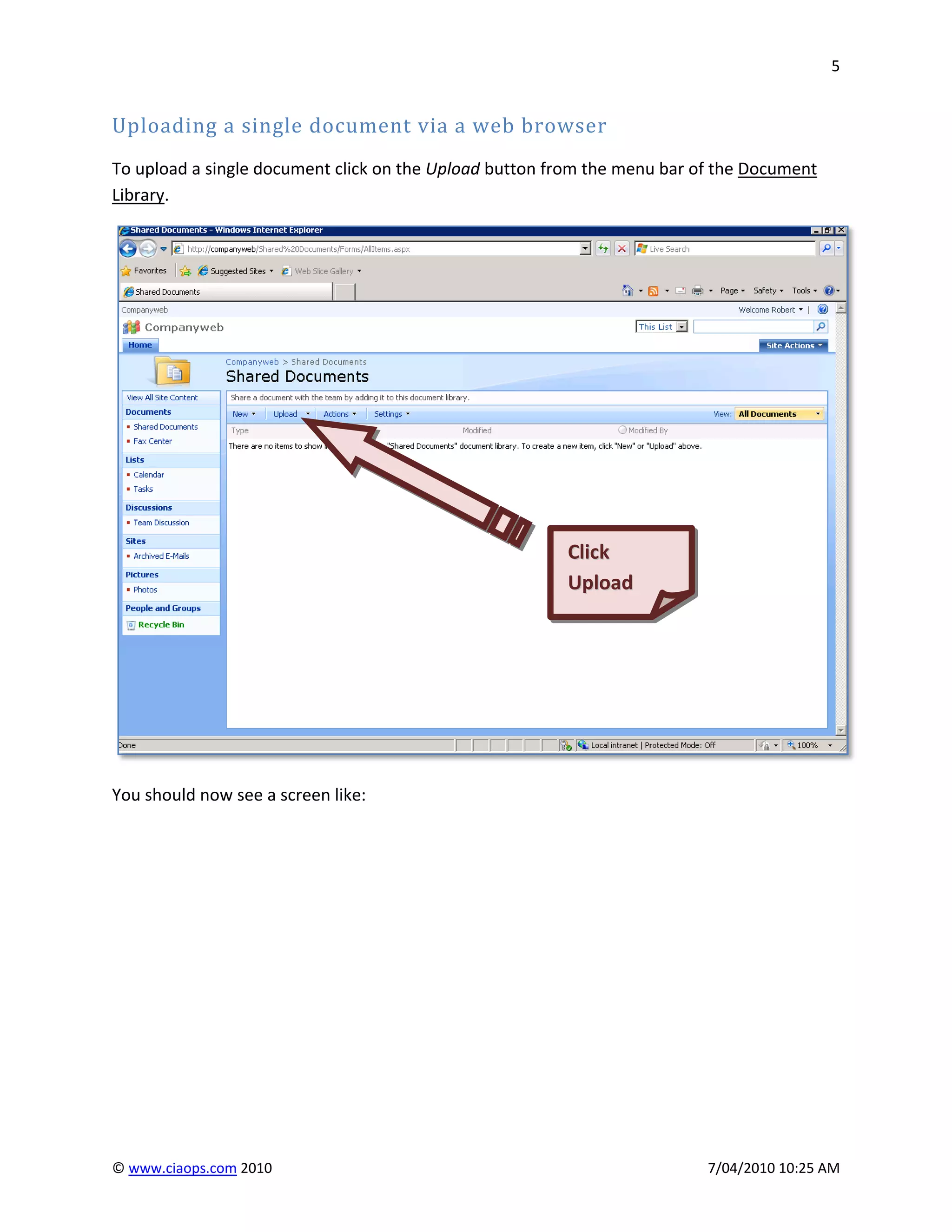
To upload a single document click on the Upload button from the menu bar of the Document
Library.


                                                        Click
                                                        Upload


You should now see a screen like:


© www.ciaops.com 2010                                                     7/04/2010 10:25 AM
6


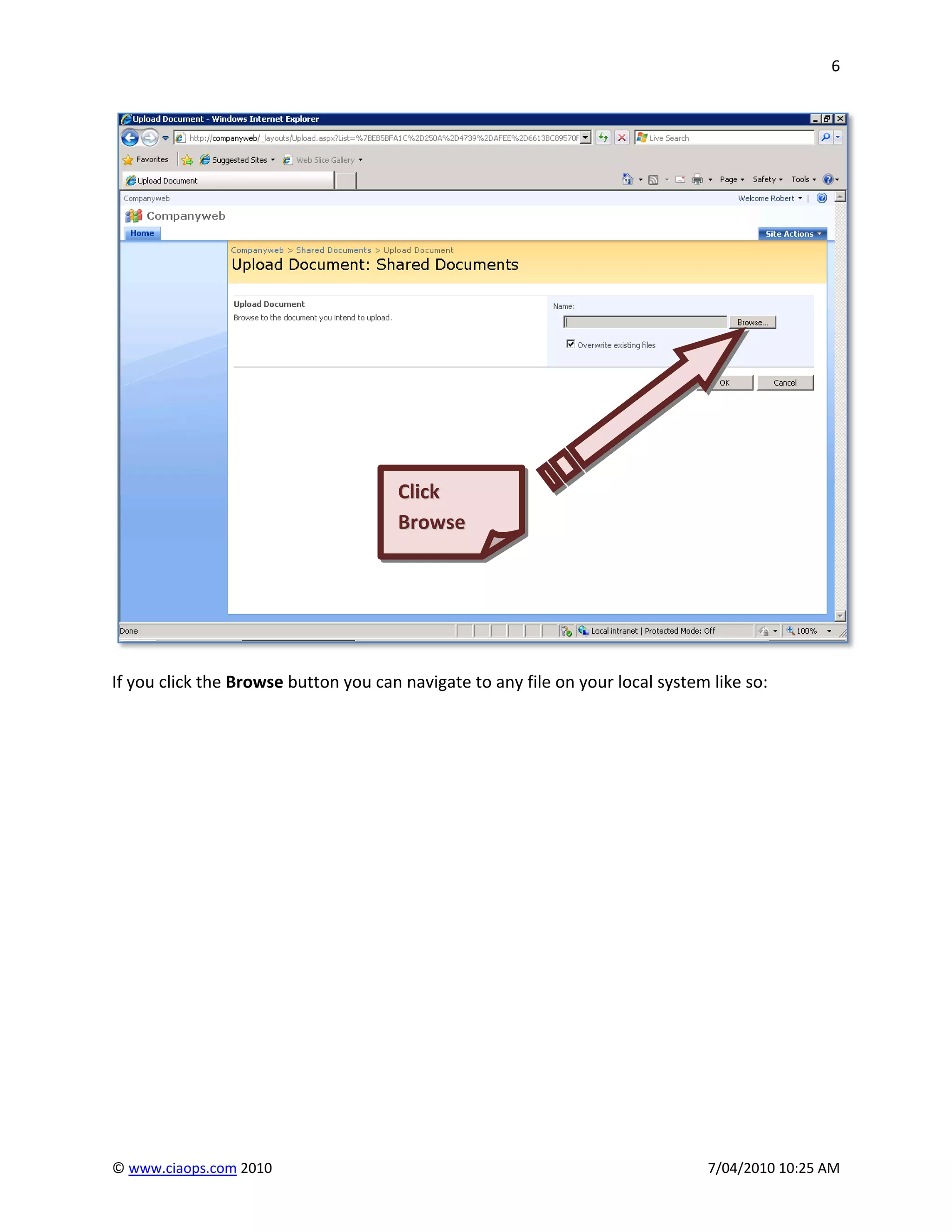
                                      Click
                                      Browse


If you click the Browse button you can navigate to any file on your local system like so:


© www.ciaops.com 2010                                                           7/04/2010 10:25 AM
7


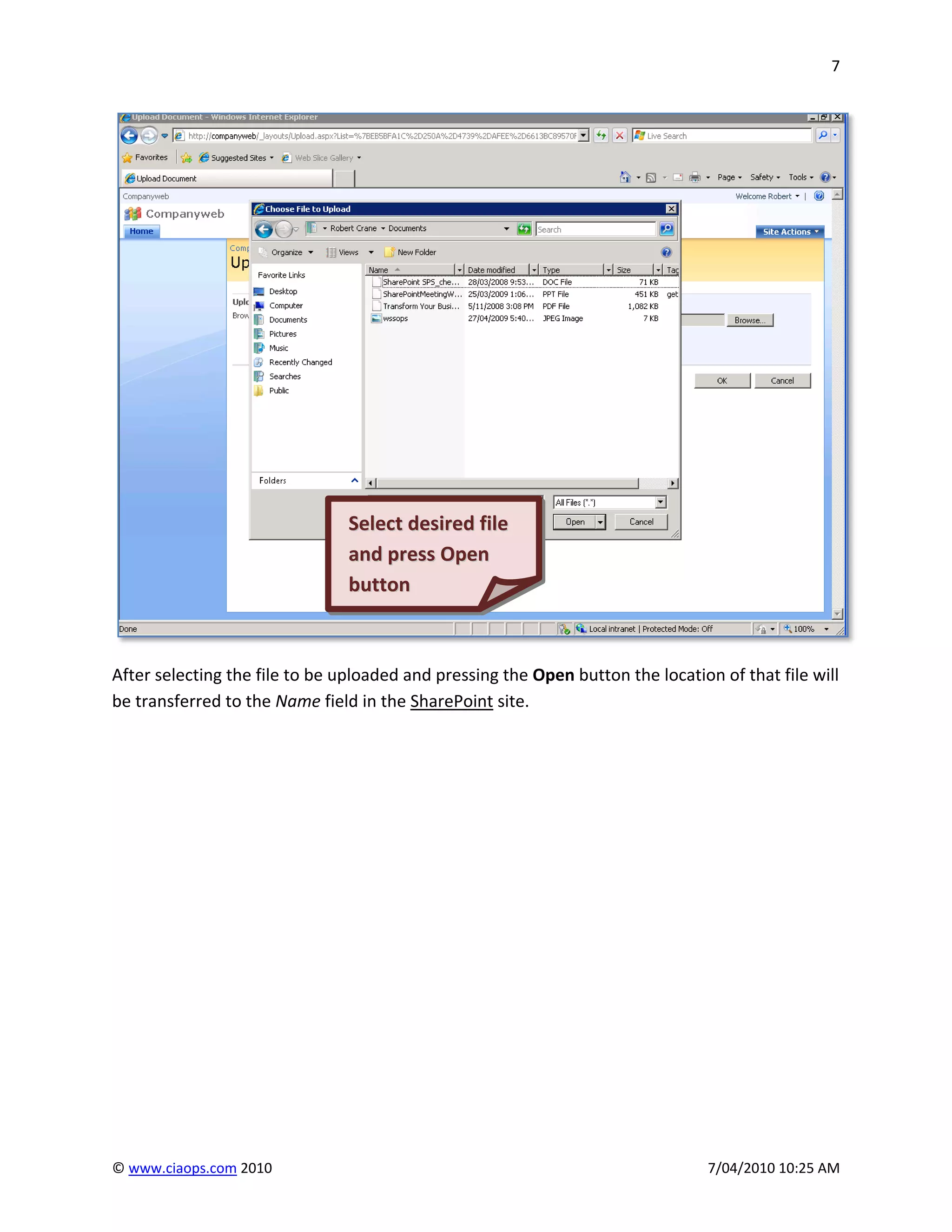
                                Select desired file
                                and press Open
                                button


After selecting the file to be uploaded and pressing the Open button the location of that file will
be transferred to the Name field in the SharePoint site.


© www.ciaops.com 2010                                                            7/04/2010 10:25 AM
8


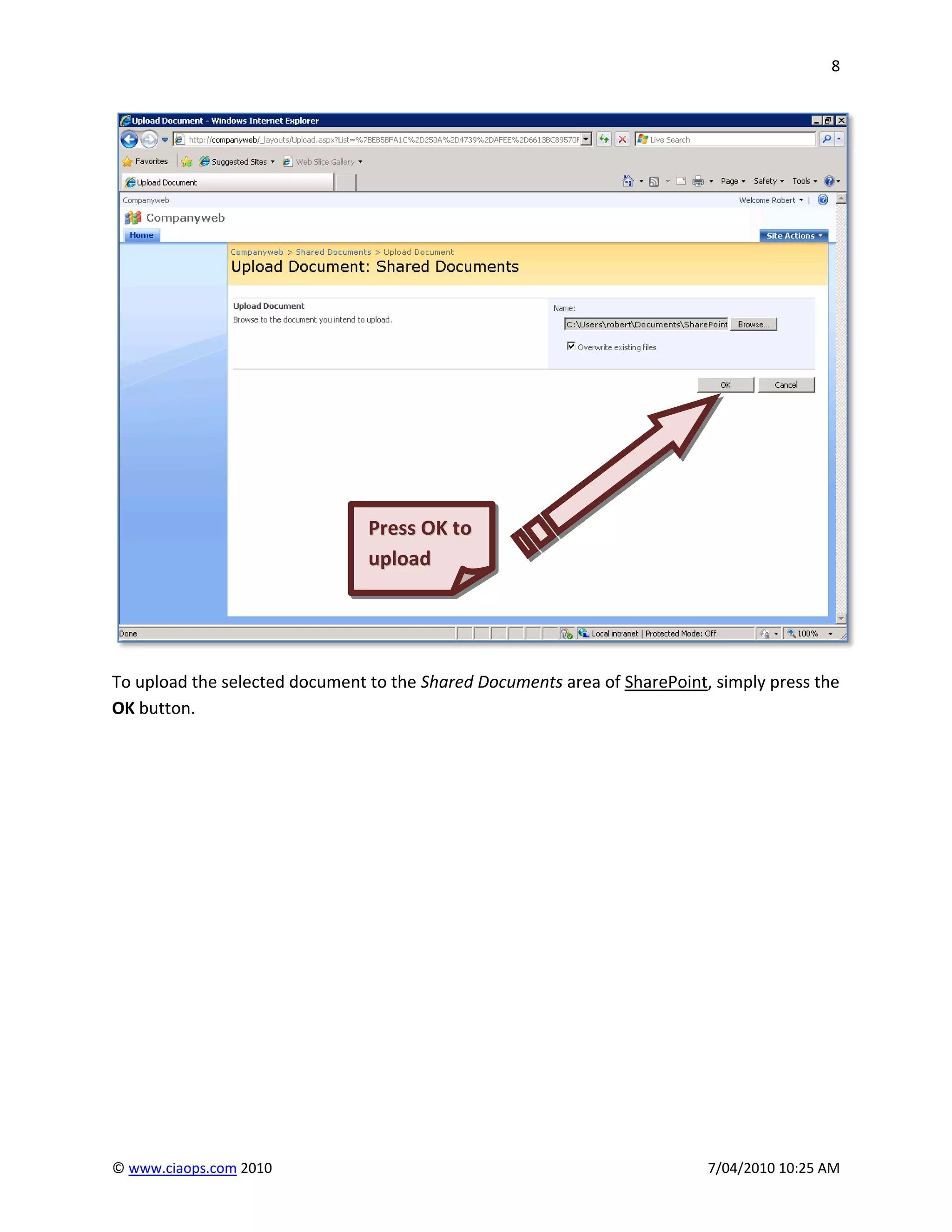
                                Press OK to
                                upload


To upload the selected document to the Shared Documents area of SharePoint, simply press the
OK button.


© www.ciaops.com 2010                                                      7/04/2010 10:25 AM
9


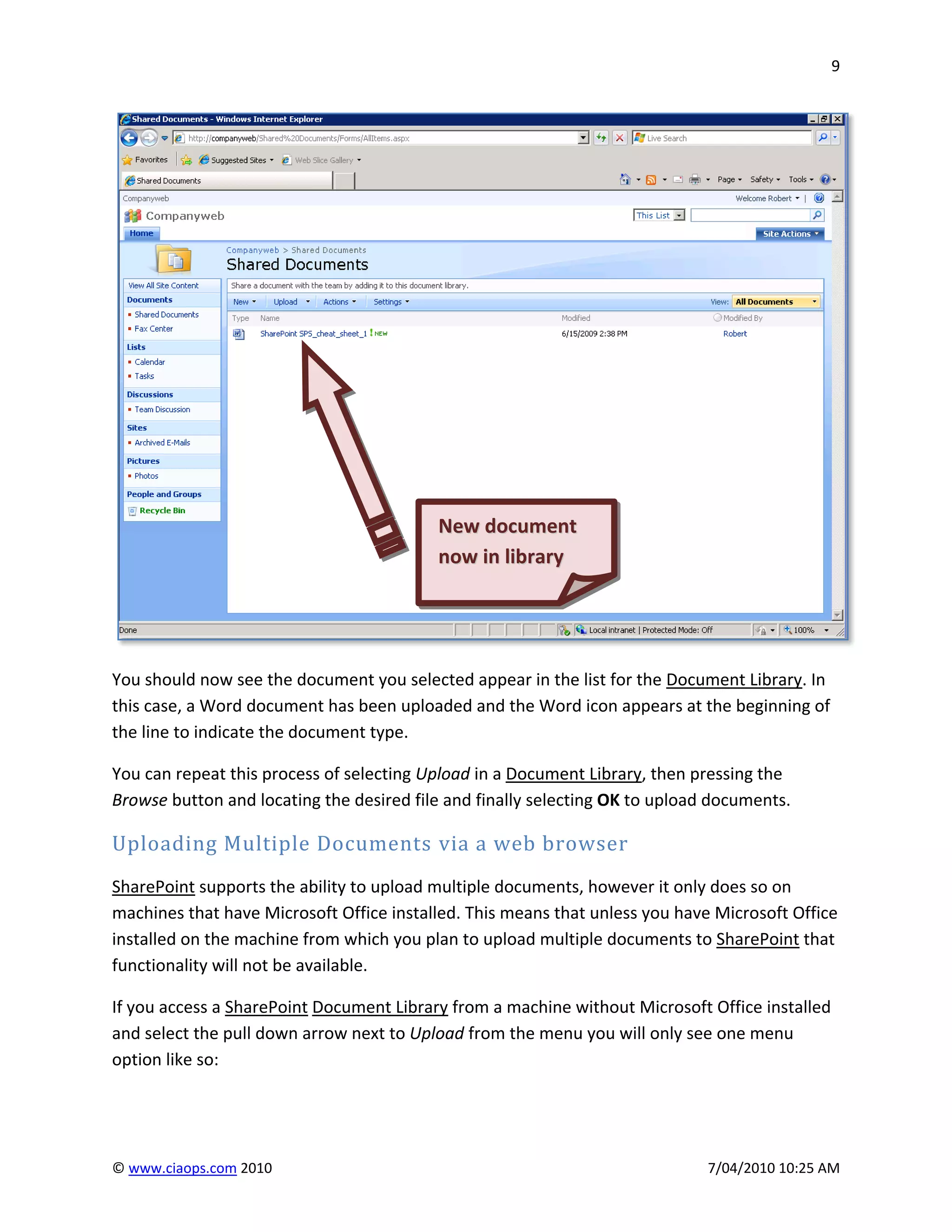
                                          New document
                                          now in library


You should now see the document you selected appear in the list for the Document Library. In
this case, a Word document has been uploaded and the Word icon appears at the beginning of
the line to indicate the document type.

You can repeat this process of selecting Upload in a Document Library, then pressing the
Browse button and locating the desired file and finally selecting OK to upload documents.

Uploading Multiple Documents via a web browser
SharePoint supports the ability to upload multiple documents, however it only does so on
machines that have Microsoft Office installed. This means that unless you have Microsoft Office
installed on the machine from which you plan to upload multiple documents to SharePoint that
functionality will not be available.

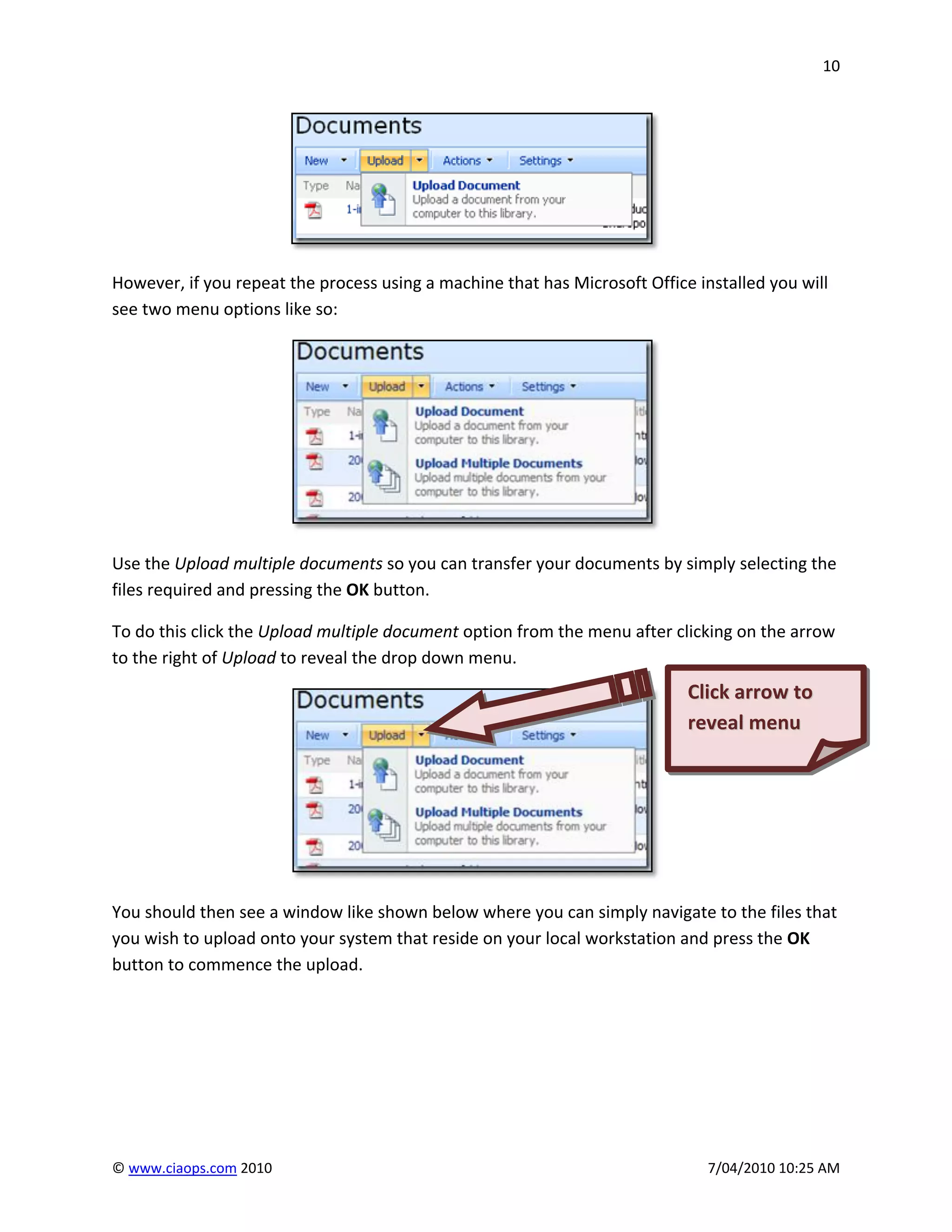
If you access a SharePoint Document Library from a machine without Microsoft Office installed
and select the pull down arrow next to Upload from the menu you will only see one menu
option like so:


© www.ciaops.com 2010                                                         7/04/2010 10:25 AM
10


However, if you repeat the process using a machine that has Microsoft Office installed you will
see two menu options like so:


Use the Upload multiple documents so you can transfer your documents by simply selecting the
files required and pressing the OK button.

To do this click the Upload multiple document option from the menu after clicking on the arrow
to the right of Upload to reveal the drop down menu.
                                                                            Click arrow to
                                                                            reveal menu


You should then see a window like shown below where you can simply navigate to the files that
you wish to upload onto your system that reside on your local workstation and press the OK
button to commence the upload.


© www.ciaops.com 2010                                                          7/04/2010 10:25 AM
11


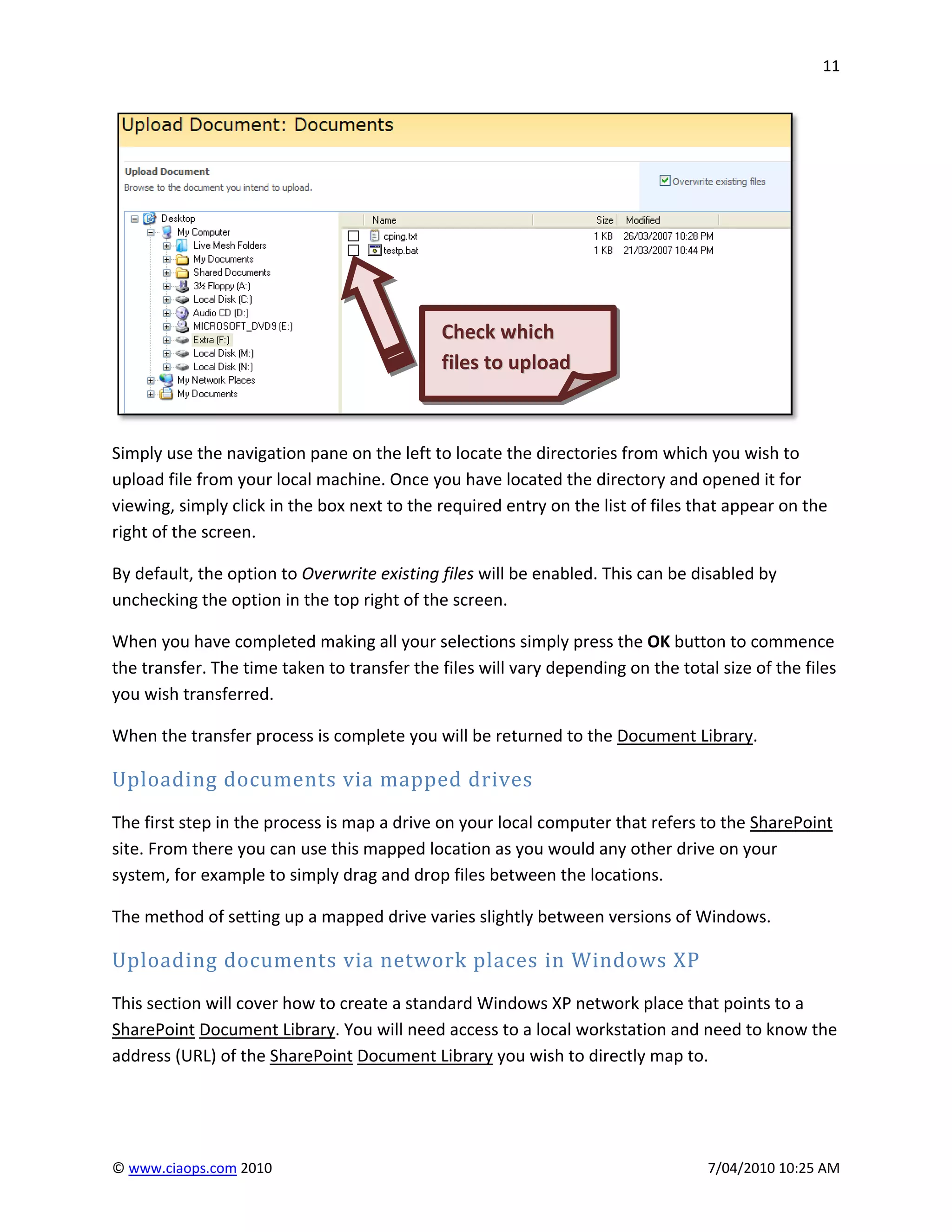
                                             Check which
                                             files to upload


Simply use the navigation pane on the left to locate the directories from which you wish to
upload file from your local machine. Once you have located the directory and opened it for
viewing, simply click in the box next to the required entry on the list of files that appear on the
right of the screen.

By default, the option to Overwrite existing files will be enabled. This can be disabled by
unchecking the option in the top right of the screen.

When you have completed making all your selections simply press the OK button to commence
the transfer. The time taken to transfer the files will vary depending on the total size of the files
you wish transferred.

When the transfer process is complete you will be returned to the Document Library.

Uploading documents via mapped drives
The first step in the process is map a drive on your local computer that refers to the SharePoint
site. From there you can use this mapped location as you would any other drive on your
system, for example to simply drag and drop files between the locations.

The method of setting up a mapped drive varies slightly between versions of Windows.

Uploading documents via network places in Windows XP
This section will cover how to create a standard Windows XP network place that points to a
SharePoint Document Library. You will need access to a local workstation and need to know the
address (URL) of the SharePoint Document Library you wish to directly map to.


© www.ciaops.com 2010                                                              7/04/2010 10:25 AM
12


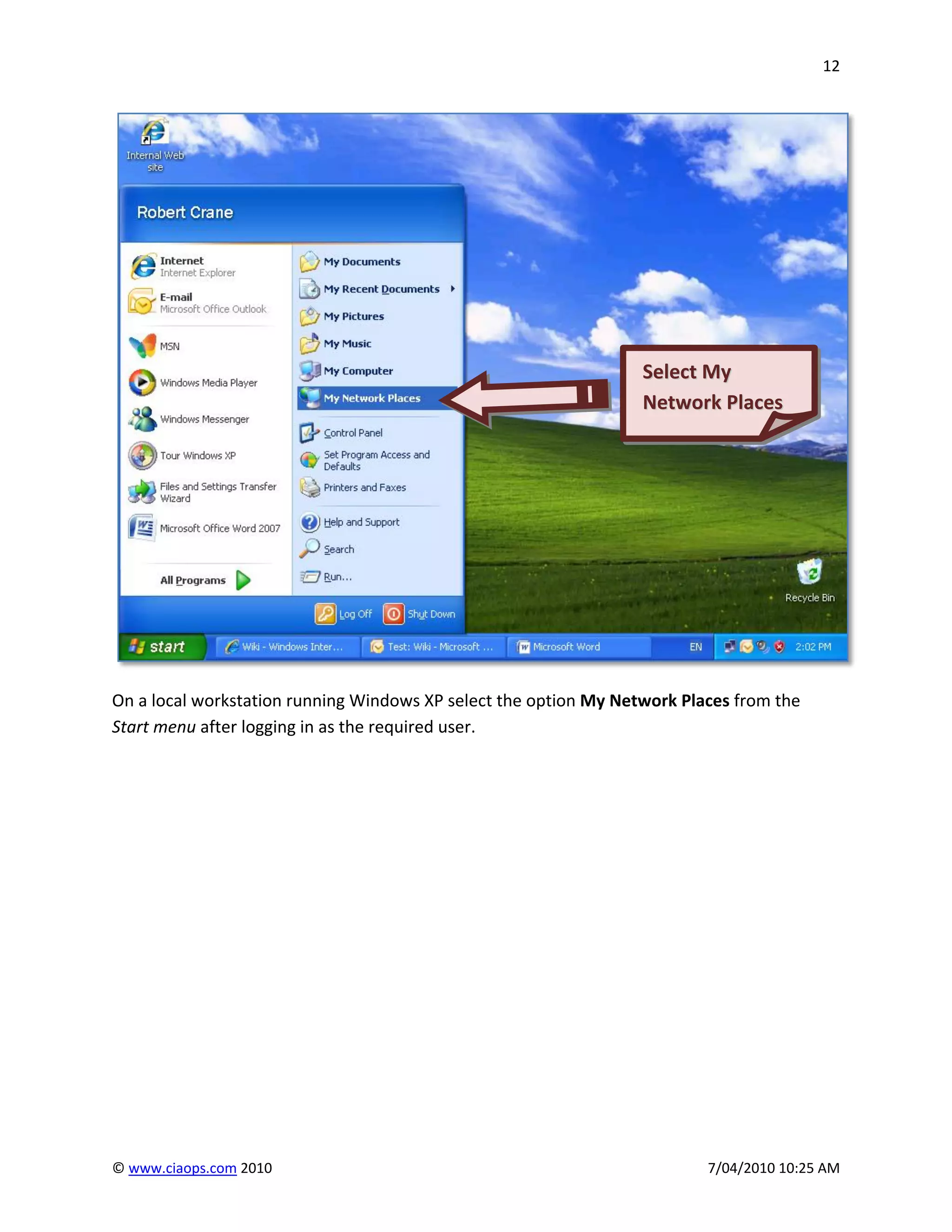
                                                                  Select My
                                                                  Network Places


On a local workstation running Windows XP select the option My Network Places from the
Start menu after logging in as the required user.


© www.ciaops.com 2010                                                     7/04/2010 10:25 AM
13


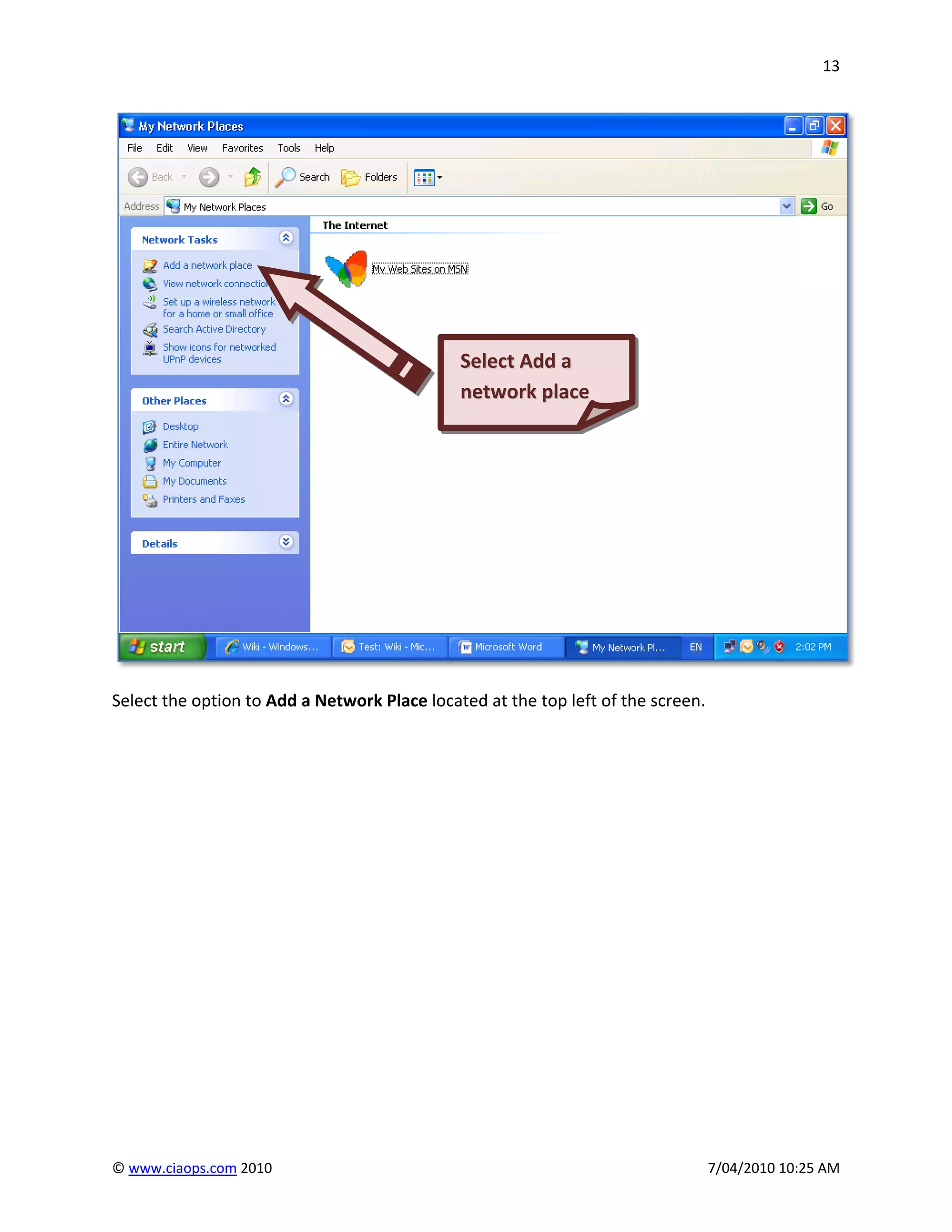
                                              Select Add a
                                              network place


Select the option to Add a Network Place located at the top left of the screen.


© www.ciaops.com 2010                                                             7/04/2010 10:25 AM
14


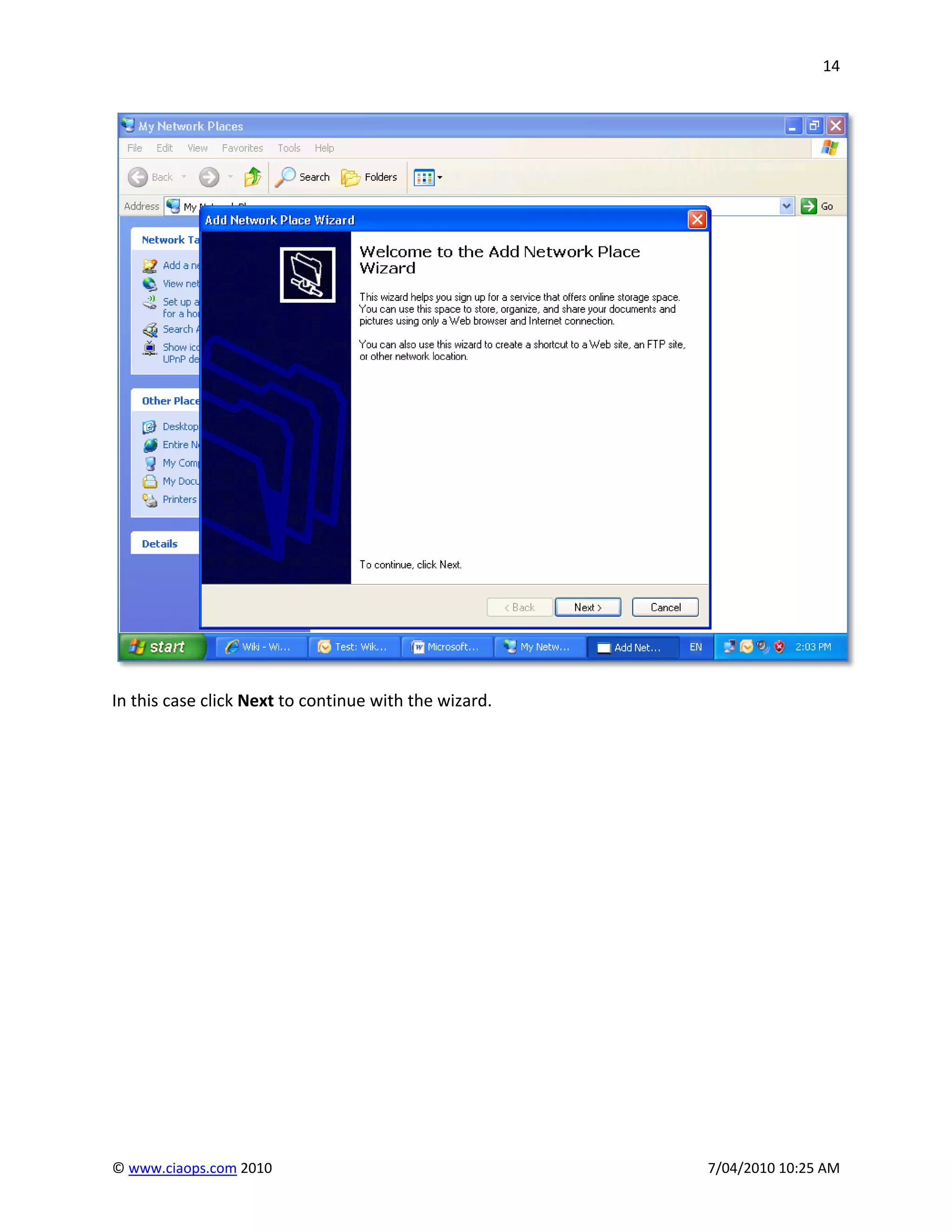
In this case click Next to continue with the wizard.


© www.ciaops.com 2010                                  7/04/2010 10:25 AM
15


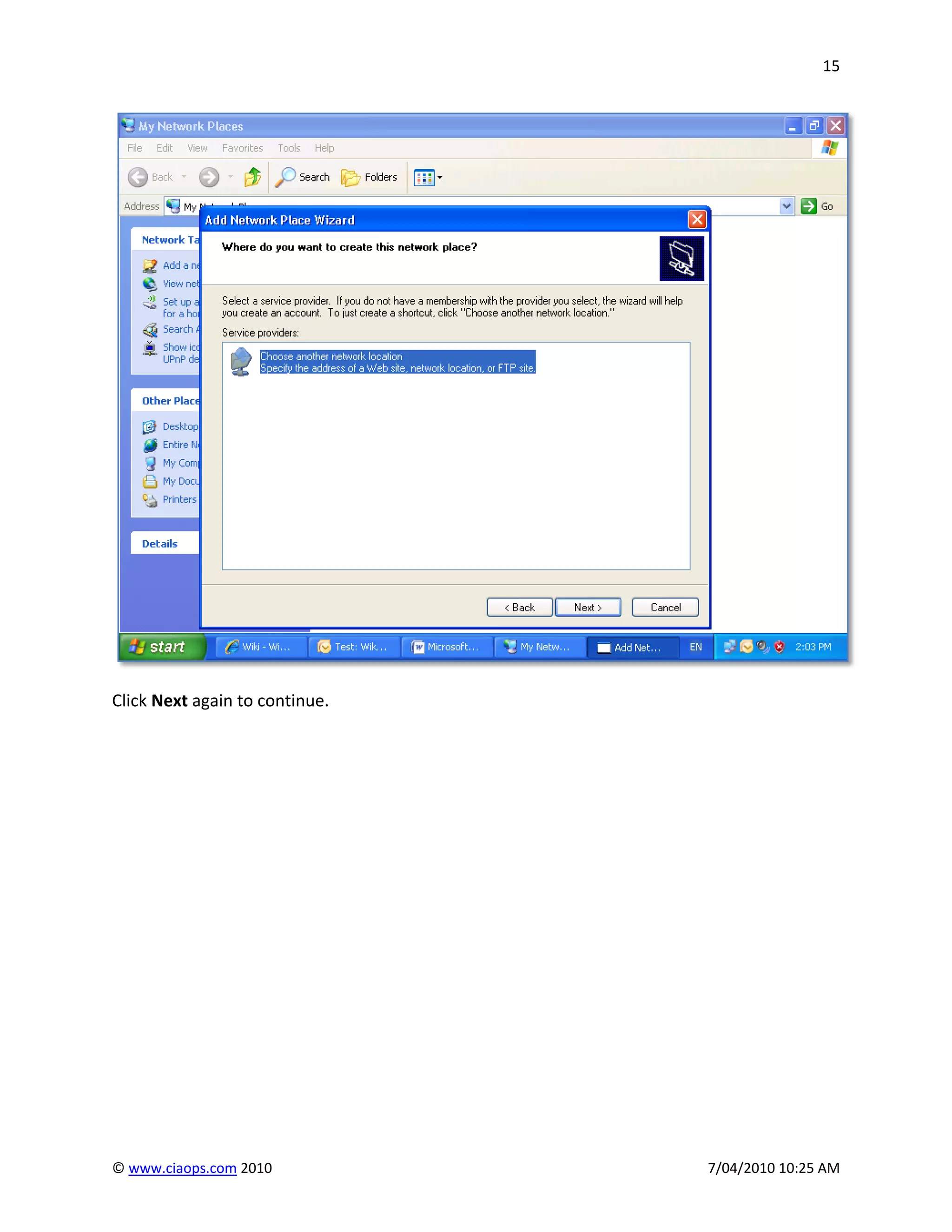
Click Next again to continue.


© www.ciaops.com 2010           7/04/2010 10:25 AM
16


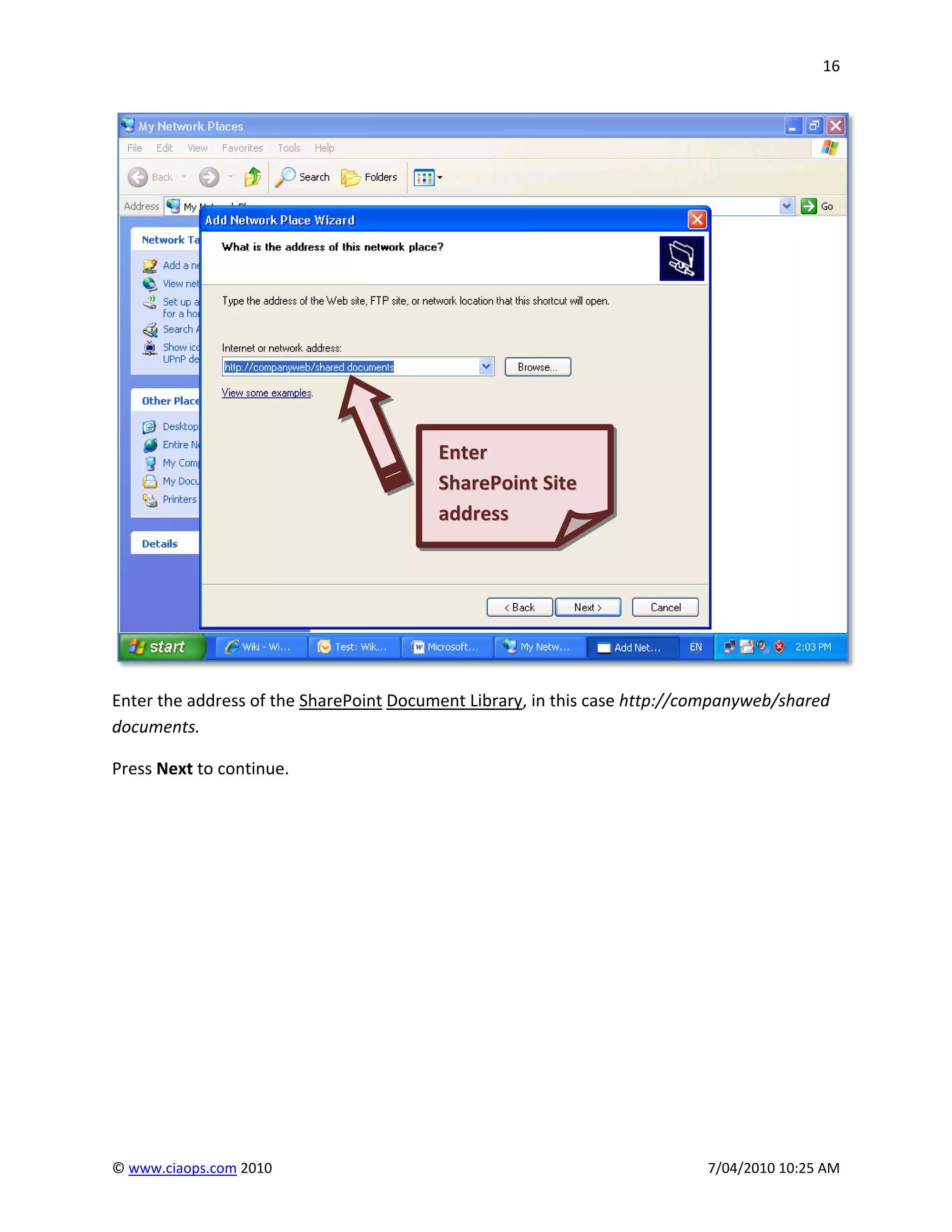
                                         Enter
                                         SharePoint Site
                                         address


Enter the address of the SharePoint Document Library, in this case http://companyweb/shared
documents.

Press Next to continue.


© www.ciaops.com 2010                                                      7/04/2010 10:25 AM
17


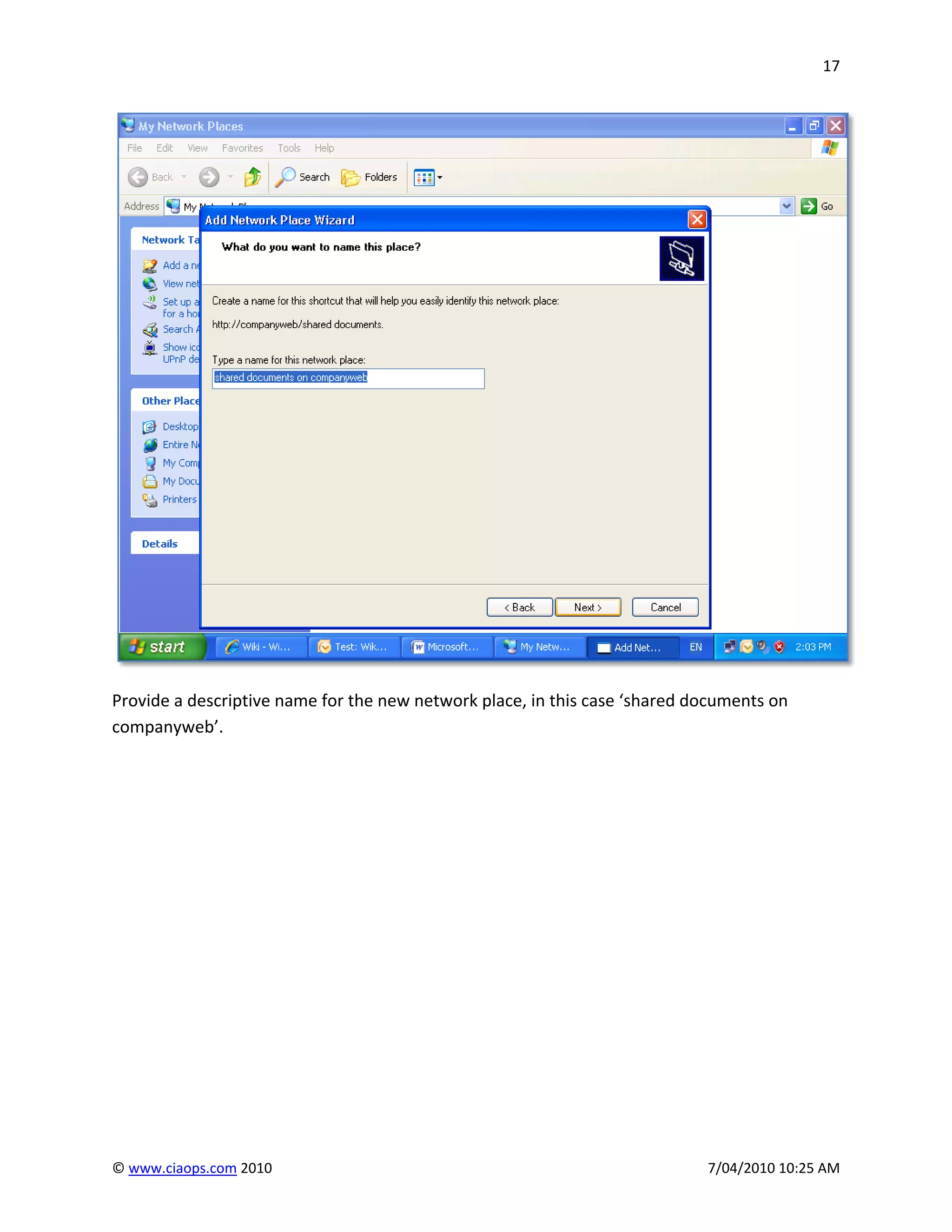
Provide a descriptive name for the new network place, in this case ‘shared documents on
companyweb’.


© www.ciaops.com 2010                                                       7/04/2010 10:25 AM
18


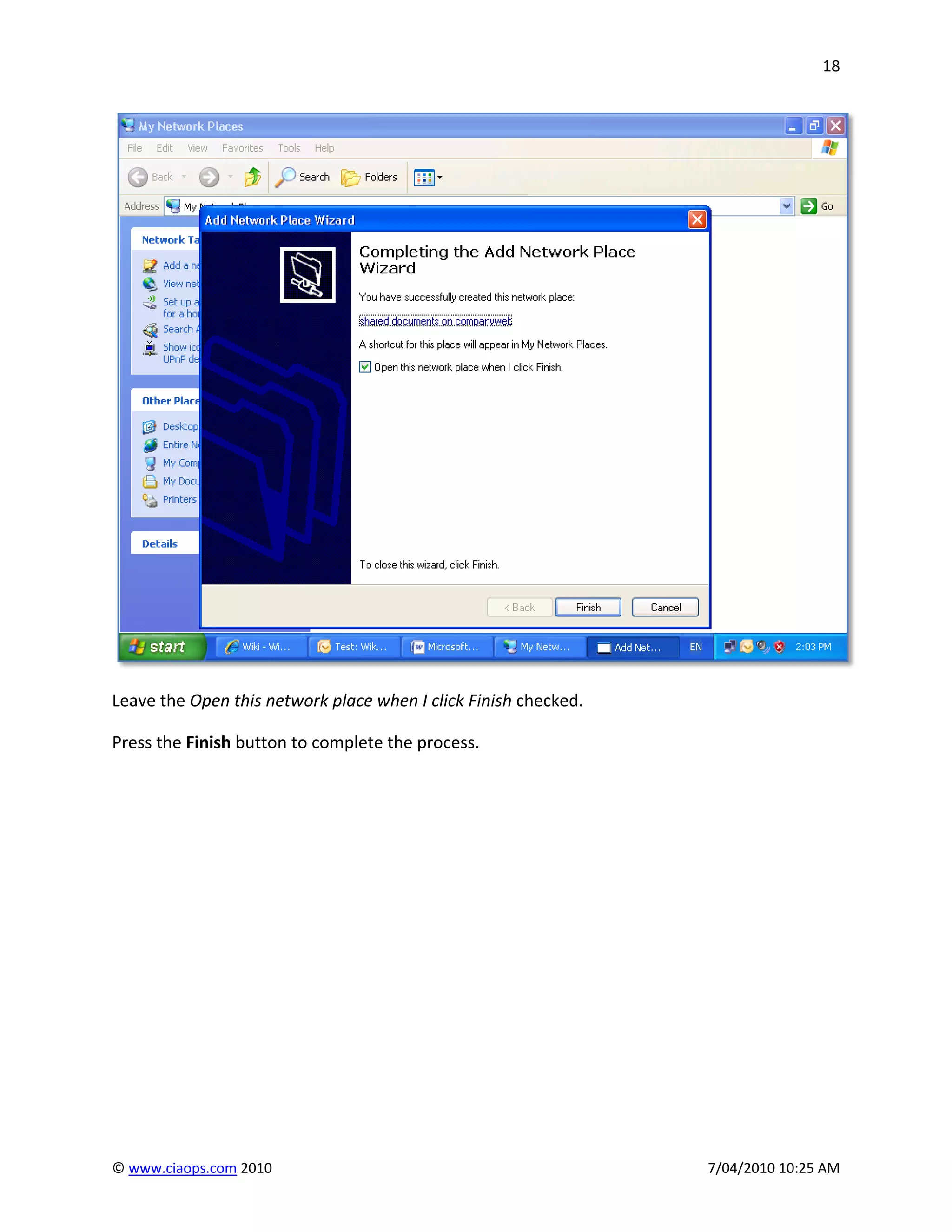
Leave the Open this network place when I click Finish checked.

Press the Finish button to complete the process.


© www.ciaops.com 2010                                            7/04/2010 10:25 AM
19


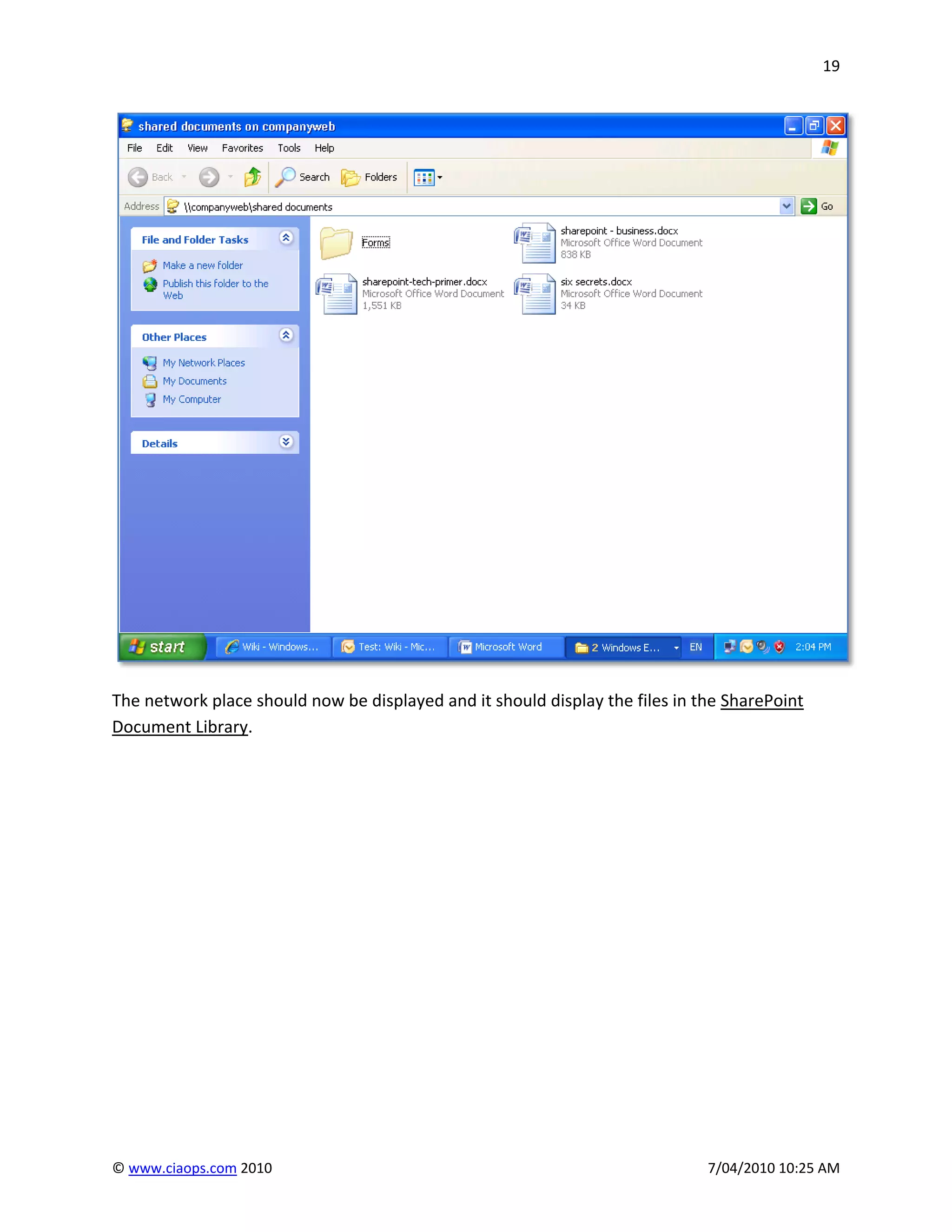
The network place should now be displayed and it should display the files in the SharePoint
Document Library.


© www.ciaops.com 2010                                                         7/04/2010 10:25 AM
20


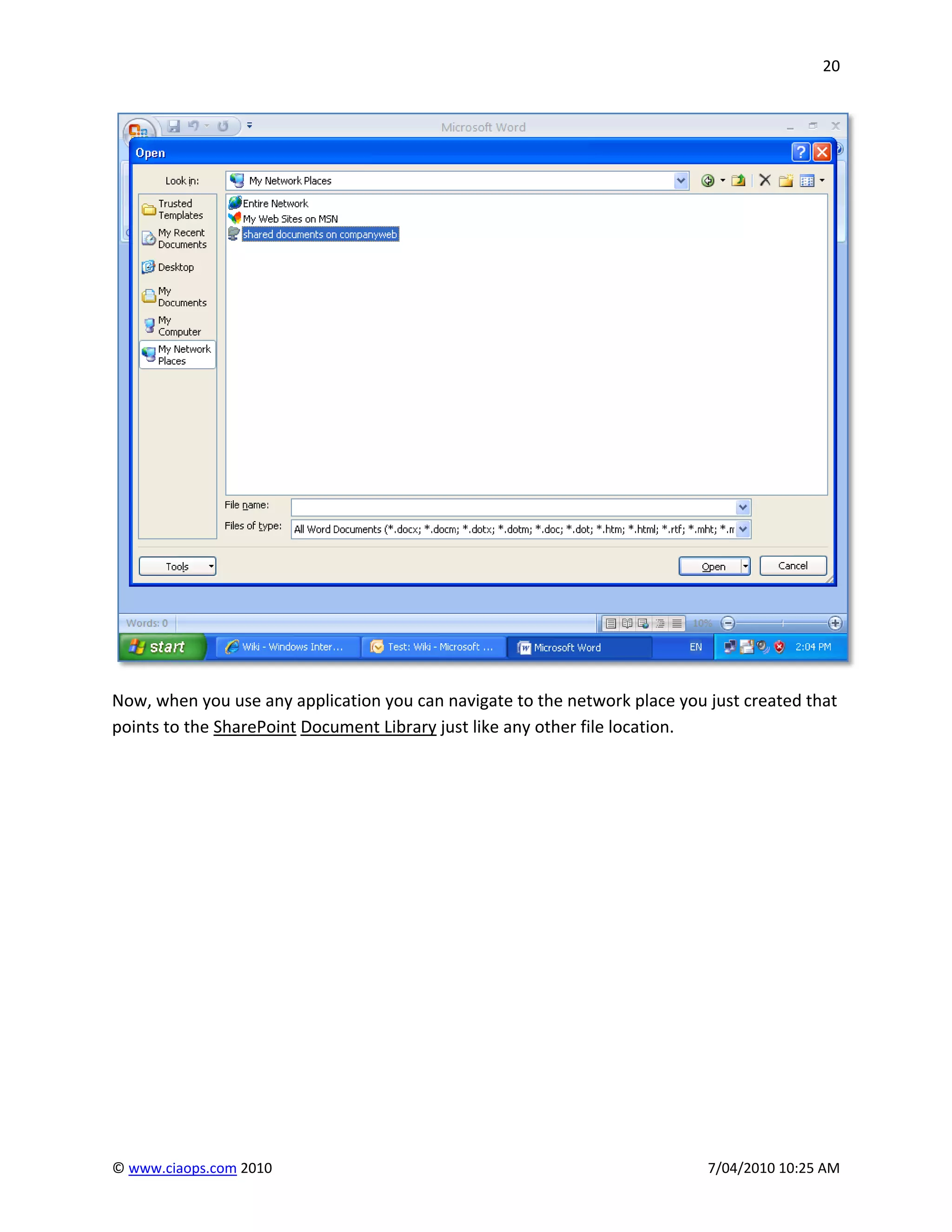
Now, when you use any application you can navigate to the network place you just created that
points to the SharePoint Document Library just like any other file location.


© www.ciaops.com 2010                                                       7/04/2010 10:25 AM
21


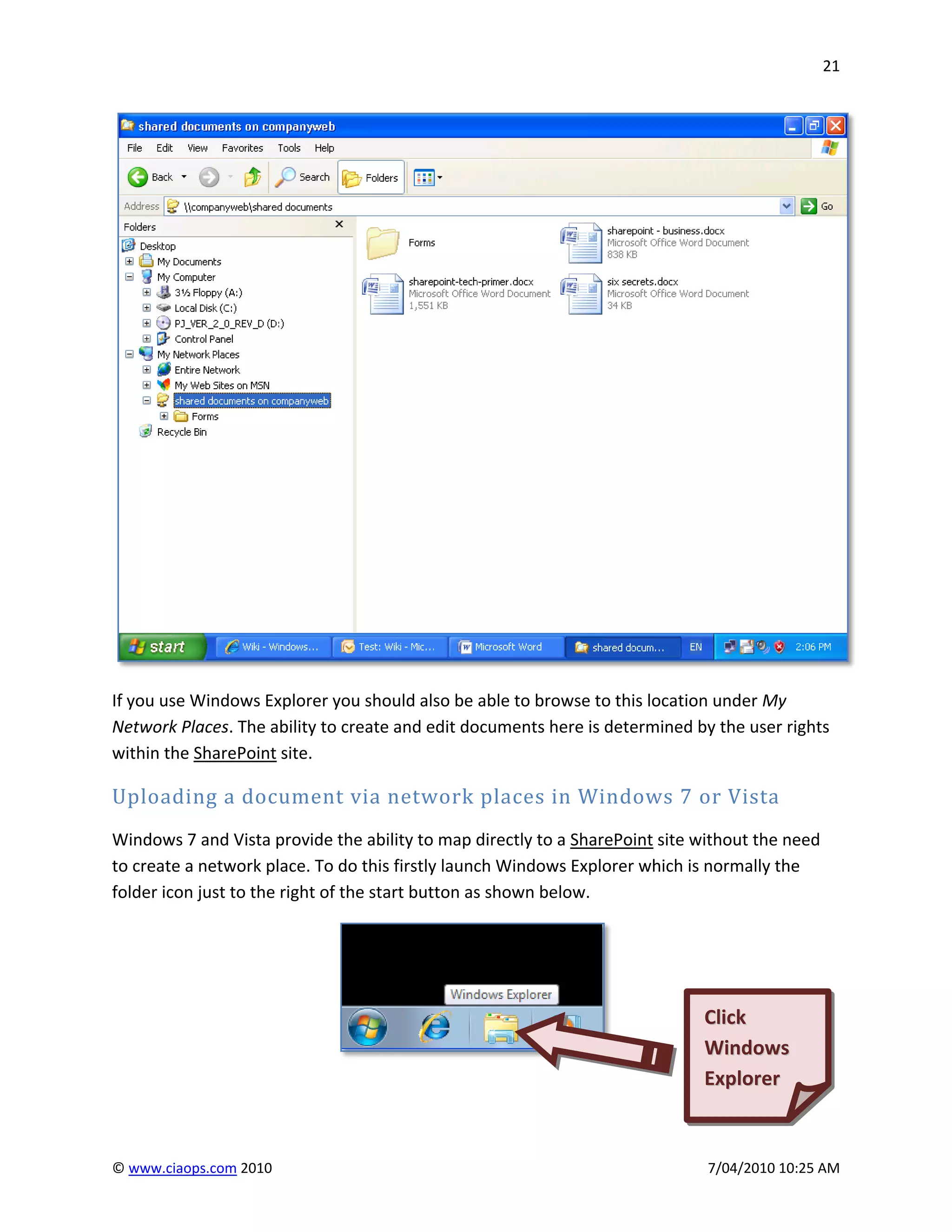
If you use Windows Explorer you should also be able to browse to this location under My
Network Places. The ability to create and edit documents here is determined by the user rights
within the SharePoint site.

Uploading a document via network places in Windows 7 or Vista
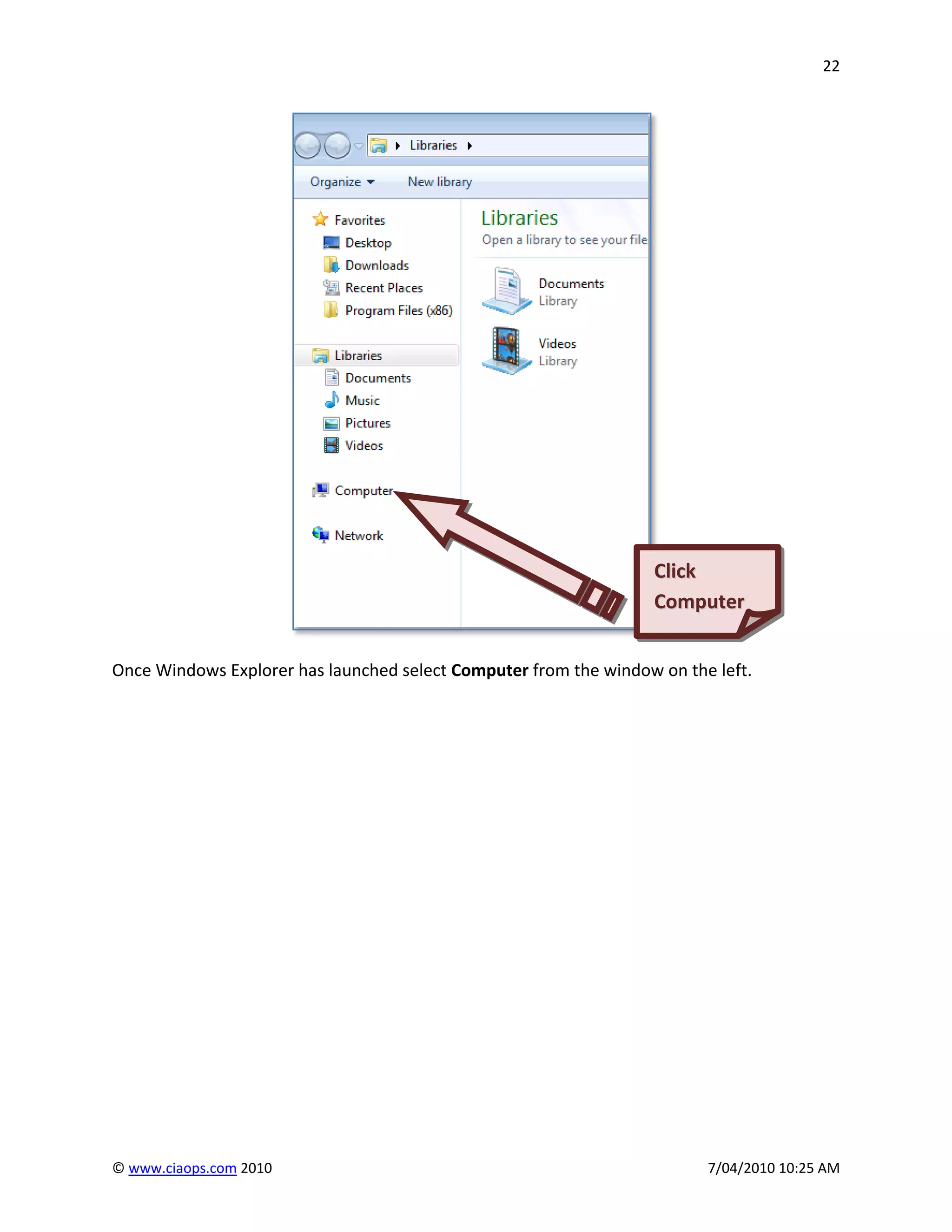
Windows 7 and Vista provide the ability to map directly to a SharePoint site without the need
to create a network place. To do this firstly launch Windows Explorer which is normally the
folder icon just to the right of the start button as shown below.


                                                                             Click
                                                                             Windows
                                                                             Explorer


© www.ciaops.com 2010                                                         7/04/2010 10:25 AM
22


                                                                  Click
                                                                  Computer


Once Windows Explorer has launched select Computer from the window on the left.


© www.ciaops.com 2010                                                    7/04/2010 10:25 AM
23


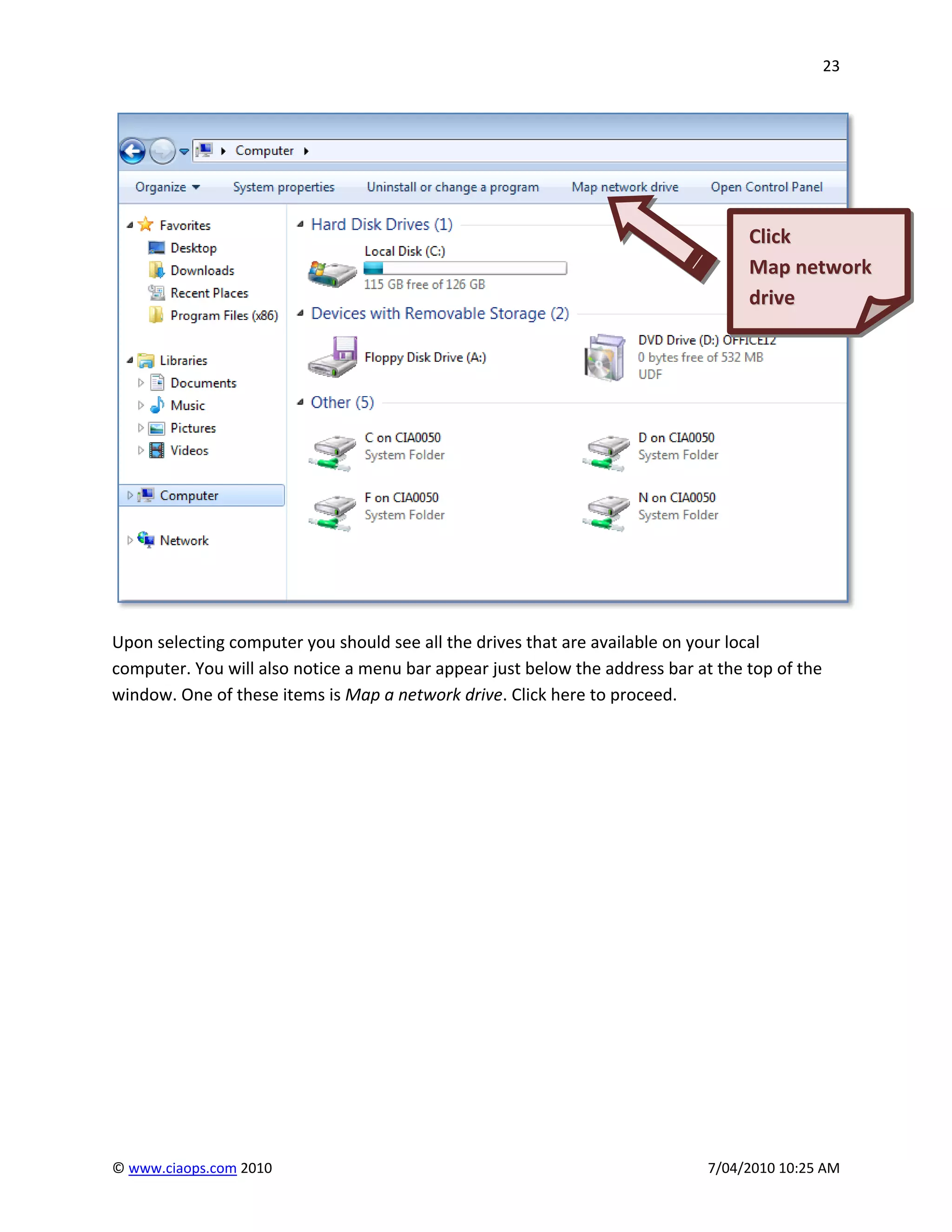
                                                                                   Click
                                                                                   Map network
                                                                                   drive


Upon selecting computer you should see all the drives that are available on your local
computer. You will also notice a menu bar appear just below the address bar at the top of the
window. One of these items is Map a network drive. Click here to proceed.


© www.ciaops.com 2010                                                         7/04/2010 10:25 AM
24


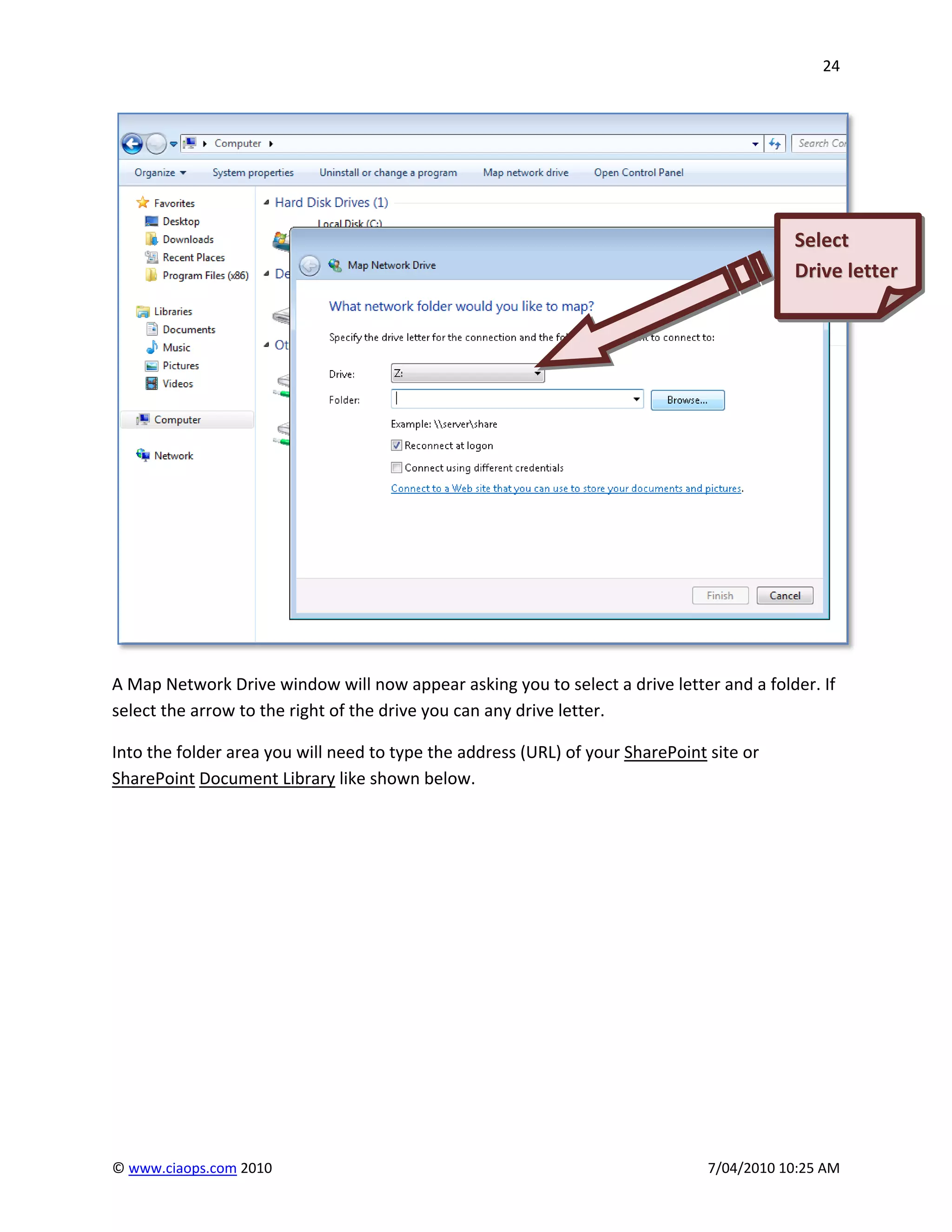
                                                                                           Select
                                                                                           Drive letter


A Map Network Drive window will now appear asking you to select a drive letter and a folder. If
select the arrow to the right of the drive you can any drive letter.

Into the folder area you will need to type the address (URL) of your SharePoint site or
SharePoint Document Library like shown below.


© www.ciaops.com 2010                                                           7/04/2010 10:25 AM
25


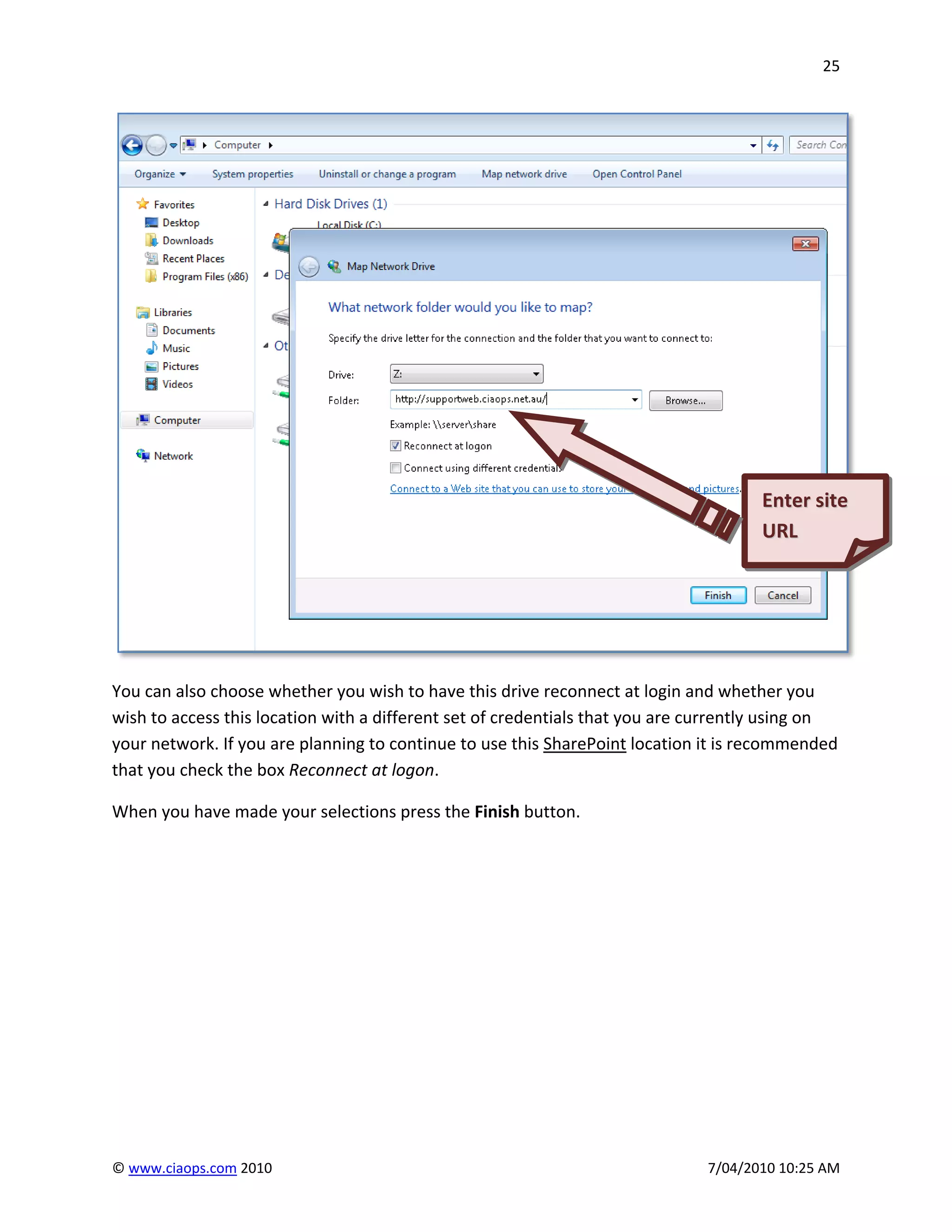
                                                                                     Enter site
                                                                                     URL
                                                                                     Upload


You can also choose whether you wish to have this drive reconnect at login and whether you
wish to access this location with a different set of credentials that you are currently using on
your network. If you are planning to continue to use this SharePoint location it is recommended
that you check the box Reconnect at logon.

When you have made your selections press the Finish button.


© www.ciaops.com 2010                                                         7/04/2010 10:25 AM
26


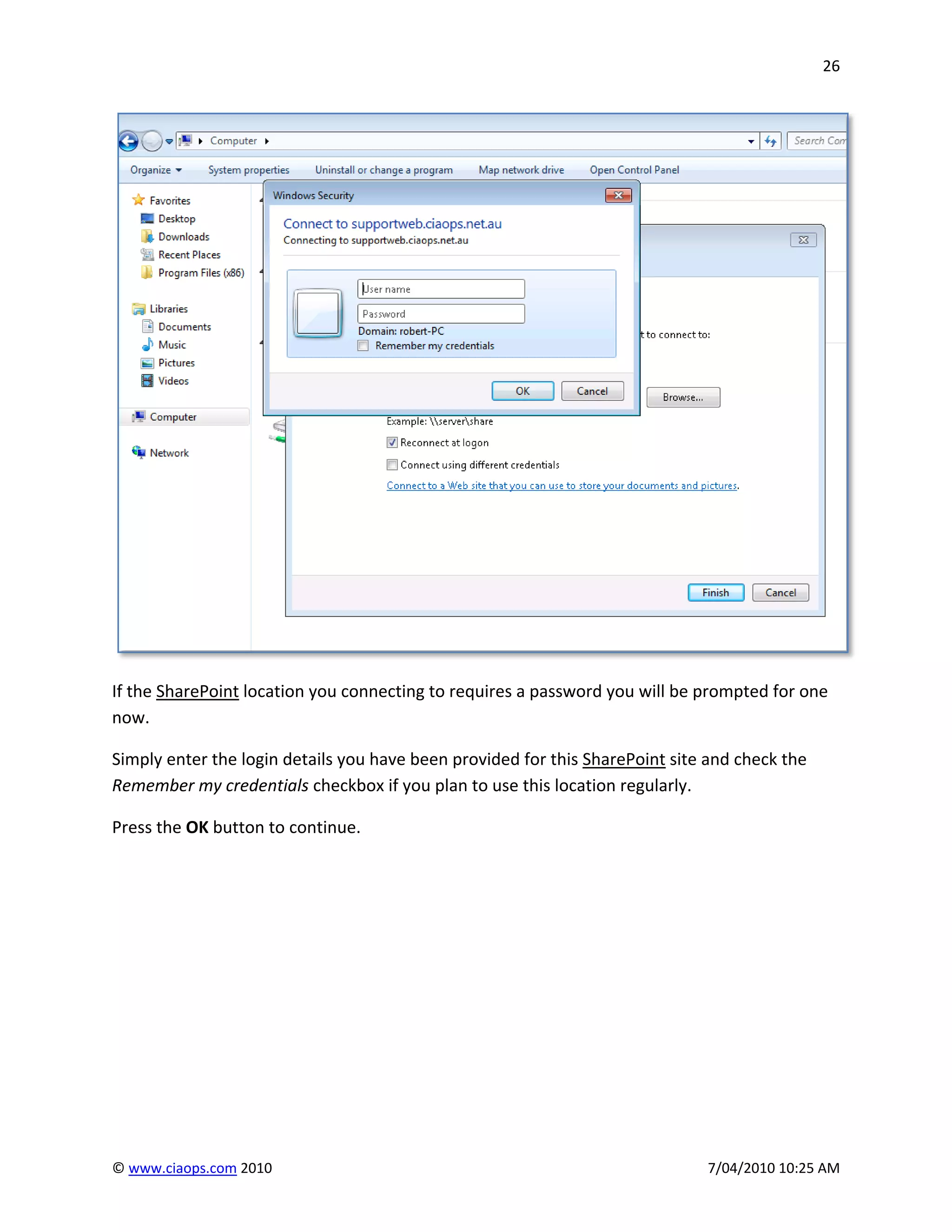
If the SharePoint location you connecting to requires a password you will be prompted for one
now.

Simply enter the login details you have been provided for this SharePoint site and check the
Remember my credentials checkbox if you plan to use this location regularly.

Press the OK button to continue.


© www.ciaops.com 2010                                                         7/04/2010 10:25 AM
27


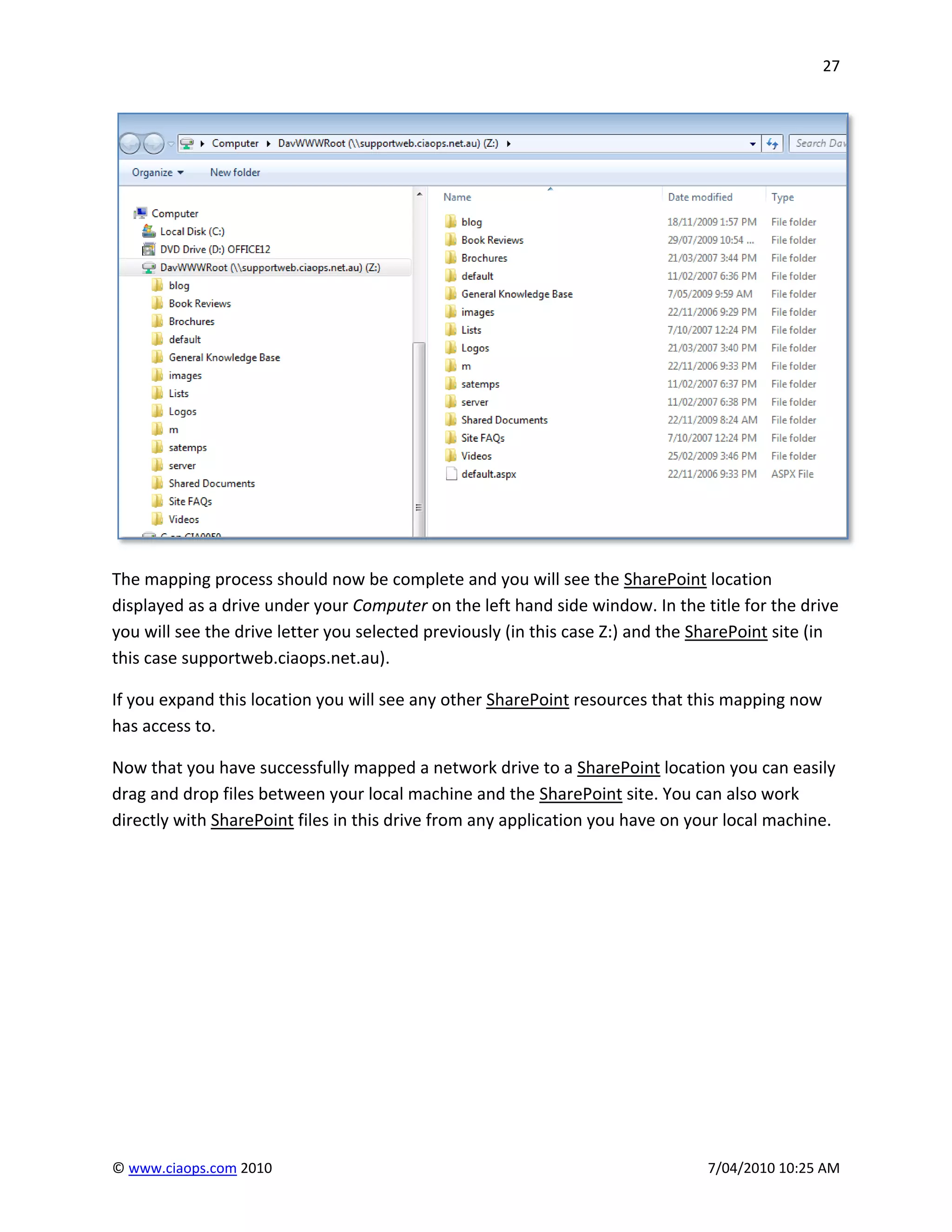
The mapping process should now be complete and you will see the SharePoint location
displayed as a drive under your Computer on the left hand side window. In the title for the drive
you will see the drive letter you selected previously (in this case Z:) and the SharePoint site (in
this case supportweb.ciaops.net.au).

If you expand this location you will see any other SharePoint resources that this mapping now
has access to.

Now that you have successfully mapped a network drive to a SharePoint location you can easily
drag and drop files between your local machine and the SharePoint site. You can also work
directly with SharePoint files in this drive from any application you have on your local machine.


© www.ciaops.com 2010                                                            7/04/2010 10:25 AM
28


Glossary
Document Library – A component of Microsoft SharePoint. This a location in which you can store a
range of files much like a folder on a network server. A SharePoint Document Library however has a
number of additional features such as version control and check in, check out to name just a few.
http://sharepoint.microsoft.com.

SharePoint – Is available from Microsoft in two versions Microsoft Office SharePoint Server (MOSS) and
Windows SharePoint Services (WSS). SharePoint provides many collaboration capabilities including
document versioning and approval, wikis, blogs, survey and project management via a graphical
interface. SharePoint can be usually be installed on any Microsoft Windows Server. More information is
available at http://sharepoint.microsoft.com.


© www.ciaops.com 2010                                                               7/04/2010 10:25 AM
29


Additional resources
From the CIAOPS

       SharePoint Guide - http://www.wssops.com

                Windows SharePoint Operations Guide Linkedin Group -
                http://www.linkedin.com/e/vgh/1922207/

                Windows SharePoint Operations Guide on Facebook -
                http://www.facebook.com/pages/Windows-SharePoint-Operations-
                Guide/167213188332

       Public SharePoint site - http://supportweb.ciaops.net.au

       Presentations and Documents - http://www.slideshare.net/directorcia

       Robert Crane’s blog – http://supportweb.ciaops.net.au/blog

   Videos

        http://www.youtube.com/user/saturnalliance

        http://www.youtube.com/user/directorciaops

Commercial internet SharePoint sites

      www.ferrari.com

      www.hawaiianair.com

      http://www.carlsberggroup.com

SharePoint product information

      Microsoft SharePoint - http://www.microsoft.com/sharepoint/default.mspx

      SharePoint product comparisons - http://office.microsoft.com/en-
      us/sharepointtechnology/FX101758691033.aspx

      Which SharePoint Technology is right for you? - http://office.microsoft.com/en-
      us/sharepointtechnology/FX101758691033.aspx?ofcresset=1

      Microsoft Search Server Express - http://www.microsoft.com/searchserver

      Microsoft SharePoint Services 3.0 Help and How to - http://office.microsoft.com/en-
      gb/sharepointtechnology/FX101494691033.aspx


© www.ciaops.com 2010                                                               7/04/2010 10:25 AM
30


      Tour a Windows SharePoint Services 3.0 site - http://office.microsoft.com/en-
      us/sharepointtechnology/HA102055631033.aspx

      Windows SharePoint Services 3.0 Overview - http://technet.microsoft.com/en-
      us/windowsserver/sharepoint/bb684453.aspx

      Windows SharePoint Services v3.0 vs Microsoft Office SharePoint Server 2007 -
      http://dotnetaddict.dotnetdevelopersjournal.com/moss_vs_wss.htm

Case Studies

           Ferrari Case Study -
           http://www.microsoft.com/casestudies/Case_Study_Detail.aspx?CaseStudyID=4000004987

           Pfizer Boosts Efficiency by 15 Percent with Easy to Use, Shared Note-Taking Program -
           http://www.microsoft.com/casestudies/Case_Study_Detail.aspx?casestudyid=4000004505

Benefits

           Five ways SharePoint can save you money -
           http://www.microsoft.com/downloads/details.aspx?displaylang=en&FamilyID=6c9db923-139c-
           4d0c-8111-a6b8c9478c1b

           Top 10 Benefits of Windows SharePoint Services 3.0- http://technet.microsoft.com/en-
           us/windowsserver/sharepoint/bb684456.aspx


© www.ciaops.com 2010                                                                 7/04/2010 10:25 AM
31


                                                   About
Author - Robert Crane BE MBA MCP

Robert has a degree in Electrical Engineering as well as Masters of Business Administration. He is also a
Small Business Specialist and Microsoft Certified SharePoint Professional. Robert has over 15 years of IT
experience in a variety of fields and positions, including working on Wall St in New York. He was the co-
founder of Saturn Alliance an IT systems integration business in Sydney, Australia. He continues his
involvement with information technology as the Principal of the Computer Information Agency. Apart
from resolving client technical issues, Robert continues to present at seminars and write on a number
for topics for the Computer Information Agency. Robert can be contacted via director@ciaops.com.


Company – Computer Information Agency ( www.ciaops.com)

Founded in 1995, the Computer Information Agency is a specialized technology consultancy in Sydney,
Australia that focuses on assisting businesses and individuals improve their productivity using
technology and smart business practices. The Computer Information Agency has high levels of
experience in technologies such as Windows Servers, including Small Business Server, and desktop
applications such as Outlook, Word, Excel and OneNote.

With special emphasis placed on the business benefits of technology the Computer Information Agency
is unique in its ability to work with companies to improve and streamline their processes utilizing the
technology they already have in place. The focus is on providing an improved end result for the business
which in the long run leads to greater productivity and profitability. More information about the
Computer Information Agency can be found at http://www.ciaops.com.


                                                  Advertisement
          The Windows SharePoint Operations Guide (http://www.wssops.com) will help the IT Professional
install, configure and maintain Windows SharePoint in a variety of environments. Since the product is
subscription based you always get access to the latest SharePoint information in a clear and concise manner. For
the price of a few hours of work you can have access to an ever growing library of SharePoint knowledge. It will
not only save you time and money but help you generate more revenue by teaching you about the fastest
growing Microsoft technology. Sign up today and start reaping the benefits.


© www.ciaops.com 2010                                                                       7/04/2010 10:25 AM

Uploading Documents To Share Point Document Library

  • 1.
    Uploading documents to SharePointDocument Libraries By Robert Crane Computer Information Agency http://www.ciaops.com
  • 2.
    2 Index Introduction Page 3 Summary Page 4 Uploading a single document via a web Page 5 browser Uploading multiple documents via a web Page 9 browser Uploading documents via mapped drives Page 11 Uploading documents via network places Page 11 in Windows XP Uploading documents via network places Page 21 in Windows 7 or Vista Glossary Page 28 Additional Resources Page 29 About Page 31 © www.ciaops.com 2010 7/04/2010 10:25 AM
  • 3.
    3 Introduction Copyright and Usage Thisdocument has been created by the Computer Information Agency (www.ciaops.com) and is copyright. You are however free to distribute this document to third parties only in its entirety and without modification. For information about using all or part of this document aside from this please contact director@ciaops.com. Donation This document is provided free of charge however significant time and effort is involved in making it available. If you have found the information contained within useful you are asked to make a donation via http://donation.ciaops.com. Any contribution, no matter what size, is used to help us improve the quality and quantity of our offerings. Format Words that are displayed with an underline can be found at the glossary at the end of the document. Terms This document from the Computer Information Agency is provided as is. Every effort has been made by the author to ensure that information provided is correct however this cannot be guaranteed. By using this document you hereby assume full responsibility for any risk to computer systems, now and forever arising out of, or related to the use of this document on any computer system. Feedback Any feedback, corrections or suggestions concerning this document can be addressed to director@ciaops.com. For further information about the creator of this document please see the About section at the end. Advertisement The Windows SharePoint Operations Guide (http://www.wssops.com) will help the IT Professional install, configure and maintain Windows SharePoint in a variety of environments. Since the product is subscription based you always get access to the latest SharePoint information in a clear and concise manner. For the price of a few hours of work you can have access to an ever growing library of SharePoint knowledge. It will not only save you time and money but help you generate more revenue by teaching you about the fastest growing Microsoft technology. Sign up today and start reaping the benefits. © www.ciaops.com 2010 7/04/2010 10:25 AM
  • 4.
    4 Summary The Shared Documentsarea in SharePoint is called a Document library. In here you can generally store any sort of file you wish including things like documents and spreadsheets (although some executable files like .exe or .bat maybe blocked by default). This paper will cover the following topics: 1. Uploading a single document via a web browser 2. Uploading multiple documents via a web browser 3. Uploading documents via mapped drives A video presentation of this documentation can be found at http://www.youtube.com/watch?v=JZYRbbPp4Es which is part of the YouTube channel http://www.youtube.com/user/directorciaops that contains many more SharePoint how videos. © www.ciaops.com 2010 7/04/2010 10:25 AM
  • 5.
    5 Uploading a singledocument via a web browser To upload a single document click on the Upload button from the menu bar of the Document Library. Click Upload You should now see a screen like: © www.ciaops.com 2010 7/04/2010 10:25 AM
  • 6.
    6 Click Browse If you click the Browse button you can navigate to any file on your local system like so: © www.ciaops.com 2010 7/04/2010 10:25 AM
  • 7.
    7 Select desired file and press Open button After selecting the file to be uploaded and pressing the Open button the location of that file will be transferred to the Name field in the SharePoint site. © www.ciaops.com 2010 7/04/2010 10:25 AM
  • 8.
    8 Press OK to upload To upload the selected document to the Shared Documents area of SharePoint, simply press the OK button. © www.ciaops.com 2010 7/04/2010 10:25 AM
  • 9.
    9 New document now in library You should now see the document you selected appear in the list for the Document Library. In this case, a Word document has been uploaded and the Word icon appears at the beginning of the line to indicate the document type. You can repeat this process of selecting Upload in a Document Library, then pressing the Browse button and locating the desired file and finally selecting OK to upload documents. Uploading Multiple Documents via a web browser SharePoint supports the ability to upload multiple documents, however it only does so on machines that have Microsoft Office installed. This means that unless you have Microsoft Office installed on the machine from which you plan to upload multiple documents to SharePoint that functionality will not be available. If you access a SharePoint Document Library from a machine without Microsoft Office installed and select the pull down arrow next to Upload from the menu you will only see one menu option like so: © www.ciaops.com 2010 7/04/2010 10:25 AM
  • 10.
    10 However, if yourepeat the process using a machine that has Microsoft Office installed you will see two menu options like so: Use the Upload multiple documents so you can transfer your documents by simply selecting the files required and pressing the OK button. To do this click the Upload multiple document option from the menu after clicking on the arrow to the right of Upload to reveal the drop down menu. Click arrow to reveal menu You should then see a window like shown below where you can simply navigate to the files that you wish to upload onto your system that reside on your local workstation and press the OK button to commence the upload. © www.ciaops.com 2010 7/04/2010 10:25 AM
  • 11.
    11 Check which files to upload Simply use the navigation pane on the left to locate the directories from which you wish to upload file from your local machine. Once you have located the directory and opened it for viewing, simply click in the box next to the required entry on the list of files that appear on the right of the screen. By default, the option to Overwrite existing files will be enabled. This can be disabled by unchecking the option in the top right of the screen. When you have completed making all your selections simply press the OK button to commence the transfer. The time taken to transfer the files will vary depending on the total size of the files you wish transferred. When the transfer process is complete you will be returned to the Document Library. Uploading documents via mapped drives The first step in the process is map a drive on your local computer that refers to the SharePoint site. From there you can use this mapped location as you would any other drive on your system, for example to simply drag and drop files between the locations. The method of setting up a mapped drive varies slightly between versions of Windows. Uploading documents via network places in Windows XP This section will cover how to create a standard Windows XP network place that points to a SharePoint Document Library. You will need access to a local workstation and need to know the address (URL) of the SharePoint Document Library you wish to directly map to. © www.ciaops.com 2010 7/04/2010 10:25 AM
  • 12.
    12 Select My Network Places On a local workstation running Windows XP select the option My Network Places from the Start menu after logging in as the required user. © www.ciaops.com 2010 7/04/2010 10:25 AM
  • 13.
    13 Select Add a network place Select the option to Add a Network Place located at the top left of the screen. © www.ciaops.com 2010 7/04/2010 10:25 AM
  • 14.
    14 In this caseclick Next to continue with the wizard. © www.ciaops.com 2010 7/04/2010 10:25 AM
  • 15.
    15 Click Next againto continue. © www.ciaops.com 2010 7/04/2010 10:25 AM
  • 16.
    16 Enter SharePoint Site address Enter the address of the SharePoint Document Library, in this case http://companyweb/shared documents. Press Next to continue. © www.ciaops.com 2010 7/04/2010 10:25 AM
  • 17.
    17 Provide a descriptivename for the new network place, in this case ‘shared documents on companyweb’. © www.ciaops.com 2010 7/04/2010 10:25 AM
  • 18.
    18 Leave the Openthis network place when I click Finish checked. Press the Finish button to complete the process. © www.ciaops.com 2010 7/04/2010 10:25 AM
  • 19.
    19 The network placeshould now be displayed and it should display the files in the SharePoint Document Library. © www.ciaops.com 2010 7/04/2010 10:25 AM
  • 20.
    20 Now, when youuse any application you can navigate to the network place you just created that points to the SharePoint Document Library just like any other file location. © www.ciaops.com 2010 7/04/2010 10:25 AM
  • 21.
    21 If you useWindows Explorer you should also be able to browse to this location under My Network Places. The ability to create and edit documents here is determined by the user rights within the SharePoint site. Uploading a document via network places in Windows 7 or Vista Windows 7 and Vista provide the ability to map directly to a SharePoint site without the need to create a network place. To do this firstly launch Windows Explorer which is normally the folder icon just to the right of the start button as shown below. Click Windows Explorer © www.ciaops.com 2010 7/04/2010 10:25 AM
  • 22.
    22 Click Computer Once Windows Explorer has launched select Computer from the window on the left. © www.ciaops.com 2010 7/04/2010 10:25 AM
  • 23.
    23 Click Map network drive Upon selecting computer you should see all the drives that are available on your local computer. You will also notice a menu bar appear just below the address bar at the top of the window. One of these items is Map a network drive. Click here to proceed. © www.ciaops.com 2010 7/04/2010 10:25 AM
  • 24.
    24 Select Drive letter A Map Network Drive window will now appear asking you to select a drive letter and a folder. If select the arrow to the right of the drive you can any drive letter. Into the folder area you will need to type the address (URL) of your SharePoint site or SharePoint Document Library like shown below. © www.ciaops.com 2010 7/04/2010 10:25 AM
  • 25.
    25 Enter site URL Upload You can also choose whether you wish to have this drive reconnect at login and whether you wish to access this location with a different set of credentials that you are currently using on your network. If you are planning to continue to use this SharePoint location it is recommended that you check the box Reconnect at logon. When you have made your selections press the Finish button. © www.ciaops.com 2010 7/04/2010 10:25 AM
  • 26.
    26 If the SharePointlocation you connecting to requires a password you will be prompted for one now. Simply enter the login details you have been provided for this SharePoint site and check the Remember my credentials checkbox if you plan to use this location regularly. Press the OK button to continue. © www.ciaops.com 2010 7/04/2010 10:25 AM
  • 27.
    27 The mapping processshould now be complete and you will see the SharePoint location displayed as a drive under your Computer on the left hand side window. In the title for the drive you will see the drive letter you selected previously (in this case Z:) and the SharePoint site (in this case supportweb.ciaops.net.au). If you expand this location you will see any other SharePoint resources that this mapping now has access to. Now that you have successfully mapped a network drive to a SharePoint location you can easily drag and drop files between your local machine and the SharePoint site. You can also work directly with SharePoint files in this drive from any application you have on your local machine. © www.ciaops.com 2010 7/04/2010 10:25 AM
  • 28.
    28 Glossary Document Library –A component of Microsoft SharePoint. This a location in which you can store a range of files much like a folder on a network server. A SharePoint Document Library however has a number of additional features such as version control and check in, check out to name just a few. http://sharepoint.microsoft.com. SharePoint – Is available from Microsoft in two versions Microsoft Office SharePoint Server (MOSS) and Windows SharePoint Services (WSS). SharePoint provides many collaboration capabilities including document versioning and approval, wikis, blogs, survey and project management via a graphical interface. SharePoint can be usually be installed on any Microsoft Windows Server. More information is available at http://sharepoint.microsoft.com. © www.ciaops.com 2010 7/04/2010 10:25 AM
  • 29.
    29 Additional resources From theCIAOPS SharePoint Guide - http://www.wssops.com Windows SharePoint Operations Guide Linkedin Group - http://www.linkedin.com/e/vgh/1922207/ Windows SharePoint Operations Guide on Facebook - http://www.facebook.com/pages/Windows-SharePoint-Operations- Guide/167213188332 Public SharePoint site - http://supportweb.ciaops.net.au Presentations and Documents - http://www.slideshare.net/directorcia Robert Crane’s blog – http://supportweb.ciaops.net.au/blog Videos  http://www.youtube.com/user/saturnalliance  http://www.youtube.com/user/directorciaops Commercial internet SharePoint sites www.ferrari.com www.hawaiianair.com http://www.carlsberggroup.com SharePoint product information Microsoft SharePoint - http://www.microsoft.com/sharepoint/default.mspx SharePoint product comparisons - http://office.microsoft.com/en- us/sharepointtechnology/FX101758691033.aspx Which SharePoint Technology is right for you? - http://office.microsoft.com/en- us/sharepointtechnology/FX101758691033.aspx?ofcresset=1 Microsoft Search Server Express - http://www.microsoft.com/searchserver Microsoft SharePoint Services 3.0 Help and How to - http://office.microsoft.com/en- gb/sharepointtechnology/FX101494691033.aspx © www.ciaops.com 2010 7/04/2010 10:25 AM
  • 30.
    30 Tour a Windows SharePoint Services 3.0 site - http://office.microsoft.com/en- us/sharepointtechnology/HA102055631033.aspx Windows SharePoint Services 3.0 Overview - http://technet.microsoft.com/en- us/windowsserver/sharepoint/bb684453.aspx Windows SharePoint Services v3.0 vs Microsoft Office SharePoint Server 2007 - http://dotnetaddict.dotnetdevelopersjournal.com/moss_vs_wss.htm Case Studies Ferrari Case Study - http://www.microsoft.com/casestudies/Case_Study_Detail.aspx?CaseStudyID=4000004987 Pfizer Boosts Efficiency by 15 Percent with Easy to Use, Shared Note-Taking Program - http://www.microsoft.com/casestudies/Case_Study_Detail.aspx?casestudyid=4000004505 Benefits Five ways SharePoint can save you money - http://www.microsoft.com/downloads/details.aspx?displaylang=en&FamilyID=6c9db923-139c- 4d0c-8111-a6b8c9478c1b Top 10 Benefits of Windows SharePoint Services 3.0- http://technet.microsoft.com/en- us/windowsserver/sharepoint/bb684456.aspx © www.ciaops.com 2010 7/04/2010 10:25 AM
  • 31.
    31 About Author - Robert Crane BE MBA MCP Robert has a degree in Electrical Engineering as well as Masters of Business Administration. He is also a Small Business Specialist and Microsoft Certified SharePoint Professional. Robert has over 15 years of IT experience in a variety of fields and positions, including working on Wall St in New York. He was the co- founder of Saturn Alliance an IT systems integration business in Sydney, Australia. He continues his involvement with information technology as the Principal of the Computer Information Agency. Apart from resolving client technical issues, Robert continues to present at seminars and write on a number for topics for the Computer Information Agency. Robert can be contacted via director@ciaops.com. Company – Computer Information Agency ( www.ciaops.com) Founded in 1995, the Computer Information Agency is a specialized technology consultancy in Sydney, Australia that focuses on assisting businesses and individuals improve their productivity using technology and smart business practices. The Computer Information Agency has high levels of experience in technologies such as Windows Servers, including Small Business Server, and desktop applications such as Outlook, Word, Excel and OneNote. With special emphasis placed on the business benefits of technology the Computer Information Agency is unique in its ability to work with companies to improve and streamline their processes utilizing the technology they already have in place. The focus is on providing an improved end result for the business which in the long run leads to greater productivity and profitability. More information about the Computer Information Agency can be found at http://www.ciaops.com. Advertisement The Windows SharePoint Operations Guide (http://www.wssops.com) will help the IT Professional install, configure and maintain Windows SharePoint in a variety of environments. Since the product is subscription based you always get access to the latest SharePoint information in a clear and concise manner. For the price of a few hours of work you can have access to an ever growing library of SharePoint knowledge. It will not only save you time and money but help you generate more revenue by teaching you about the fastest growing Microsoft technology. Sign up today and start reaping the benefits. © www.ciaops.com 2010 7/04/2010 10:25 AM