This three-day MTA Training course helps you understand the cloud, enabling, using and configuring cloud services, supporting cloud users, and administering Office 365 and Microsoft Intune.
Configuring Exchange Online
•For most organizations, email is the most
frequently use form of communication.
• There is very little configuration necessary with
Exchange Online and Outlook Online.
• You do not have to install and configure one or
more servers.
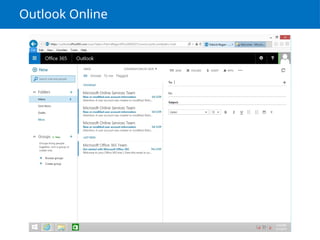
• Outlook Online is already configured to send
emails from your account after logging on.
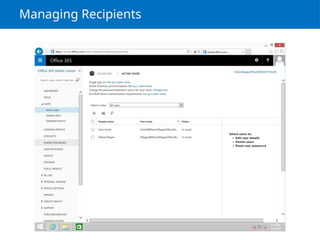
Managing Recipients
• Arecipient is the identity used in Exchange
Online that is used to identify users and
resources that can send and receive messages.
• A recipient is a mail-enabled object in Active
Directory to which Exchange can deliver or route
messages.
Managing Anti-Spam andAntivirus Settings
• Malicious software, sometimes called malware, is software
that is designed to infiltrate or affect a computer system
without the owner’s informed consent.
• A worm is a self-replicating program that copies itself to
other computers on a network without any user intervention.
• A Trojan horse is an executable program that appears as a
desirable or useful program.
• Spyware is a type of malware that is installed on a computer
to collect a user’s personal information or details about her
browsing habits, often without the user’s knowledge.
• Adware is any software package that automatically plays,
displays, or downloads ads to a computer after the software
is installed or while the application is being used.
8.
Managing Anti-Spam andAntivirus Settings
• A rootkit is a software or hardware device
designed to gain administrator-level control
over a computer system without being detected.
• A backdoor is a program that provides
someone with remote, unauthorized control of a
system or initiates an unauthorized task.
• Viruses and worms often exploit what is known
as a buffer overflow.
• Sender Policy Framework (SPF) is an email
validation system designed to prevent email
spam that uses source address spoofing.
9.
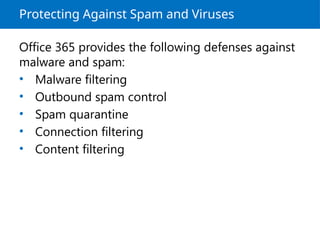
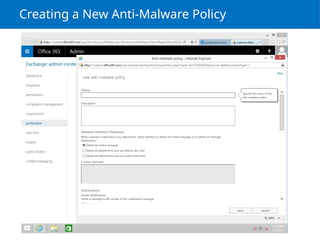
Protecting Against Spamand Viruses
Office 365 provides the following defenses against
malware and spam:
• Malware filtering
• Outbound spam control
• Spam quarantine
• Connection filtering
• Content filtering
Configuring SharePoint Online
•Microsoft SharePoint is a popular web platform
developed by Microsoft that offers a powerful,
flexible, and scalable centralized web
application.
• Although SharePoint looks like a typical web
site, it’s actually a web content management
system, a document management system, and a
collaboration tool.
Configuring SharePoint Online
•Microsoft SharePoint is a popular web platform
developed by Microsoft that offers a powerful,
flexible, and scalable centralized web
application.
• Although SharePoint looks like a typical web
site, it’s actually a web content management
system, a document management system, and a
collaboration tool.
14.
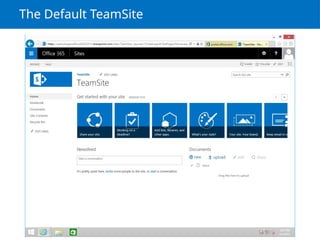
Creating SharePoint TeamSites
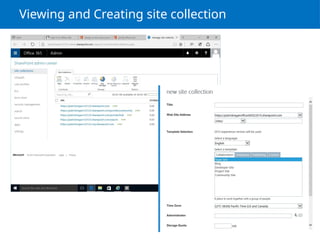
•A site collection is a grouping of sites.
• Every site collection has a single root site, under
which the other sites are built.
• All sites within the site collection have the same
site owners and share the same administrative
settings.
• A SharePoint Online administrator is responsible
for creating and deleting site collections.
Setting Up SocialFeatures
• Social networking expands collaboration by
providing additional methods for users to work
and interact inside and outside the office.
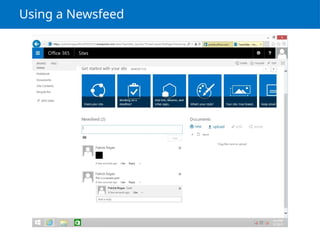
• A public newsfeed allows users to stay in tune
with conversations between groups of people
and to see updates about their activities, as
shown in next slide.
• Besides text, you can also upload pictures.
Applying Themes
• Themesdefine SharePoint site color schemes,
including those that are applied to menus,
system pages, the ribbon, etc.
• You can choose a color scheme that
complements the look and feel of your
company's web page.
• By clicking the Site tab, you can change the
look, edit the title, and change the logo.
Setting Storage andResource Limits
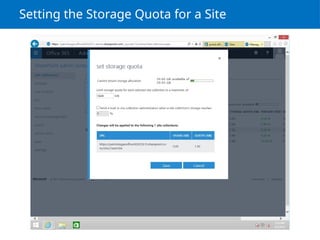
• When you sign up for SharePoint Online for
Office 365, you are allocated storage space
based on your number of users (10 GB + 500
MB * number of users).
• Therefore, if you have 10 users, you will have 10
GB + 500 MB * 10 users = 15 GB.
• If necessary, you can buy more storage through
the SharePoint Online admin center at a cost
per gigabyte (GB) per month.
Configuring OneDrive
• OneDrive,formerly named SkyDrive, is a file-
hosting service that allows you to create and
store files and folders and then share them with
other users and groups.
• The public offering of OneDrive, is intended for
personal use and is easily comparable to
Dropbox.
• You store files in in your OneDrive and access
them from anywhere.
• OneDrive for Business is different than the
public version of OneDrive.
23.
Accessing OneDrive froma Browser
• You can access OneDrive from a browser using
your Microsoft User Account from anywhere you
have an Internet connection.
• While OneDrive can be accessed from a browser
at http://onedrive.live.com, OneDrive for
Business is accessed from the Office 365 Admin
Portal.
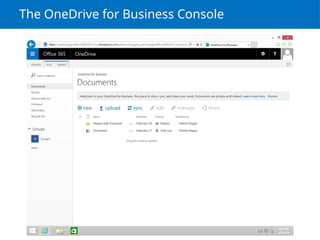
• After you are logged in to Office 365, you can
click the OneDrive button to open the OneDrive
Admin Console (see next slide).
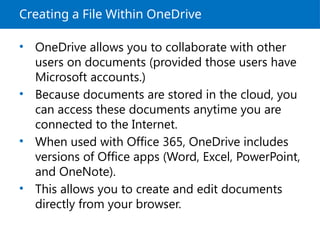
Creating a FileWithin OneDrive
• OneDrive allows you to collaborate with other
users on documents (provided those users have
Microsoft accounts.)
• Because documents are stored in the cloud, you
can access these documents anytime you are
connected to the Internet.
• When used with Office 365, OneDrive includes
versions of Office apps (Word, Excel, PowerPoint,
and OneNote).
• This allows you to create and edit documents
directly from your browser.
26.
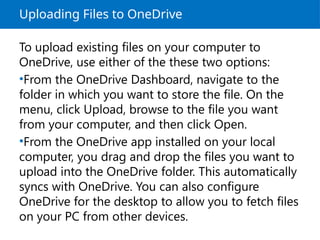
Uploading Files toOneDrive
To upload existing files on your computer to
OneDrive, use either of the these two options:
•From the OneDrive Dashboard, navigate to the
folder in which you want to store the file. On the
menu, click Upload, browse to the file you want
from your computer, and then click Open.
•From the OneDrive app installed on your local
computer, you drag and drop the files you want to
upload into the OneDrive folder. This automatically
syncs with OneDrive. You can also configure
OneDrive for the desktop to allow you to fetch files
on your PC from other devices.
27.
Sharing a Documentin OneDrive
When you want to share documents, you can use
the following options:
• Send e-mail
• Post to
• Get a link
28.
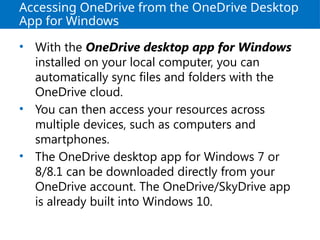
Accessing OneDrive fromthe OneDrive Desktop
App for Windows
• With the OneDrive desktop app for Windows
installed on your local computer, you can
automatically sync files and folders with the
OneDrive cloud.
• You can then access your resources across
multiple devices, such as computers and
smartphones.
• The OneDrive desktop app for Windows 7 or
8/8.1 can be downloaded directly from your
OneDrive account. The OneDrive/SkyDrive app
is already built into Windows 10.
29.
Configuring Skype forBusiness Online
• Skype is a telecommunications application that
provides video calls and voice-only calls from
computers, tablets, and mobile devices to other
devices or telephones/smartphones using an
Internet connection.
• Skype also allow users to send instant
messages, files, images, and videos.
• Calls from one Skype user to another Skype user
are free; calls from a Skype user to landline
telephones or mobile phones are charged via a
debit-based user account system called Skype
Credit.
30.
Configuring Skype forBusiness Online
• The enterprise edition of Skype is Skype for
Business, which replaced Microsoft Office
Communicator, Microsoft Lync, and Windows
Messenger used with Microsoft Exchange
Server.
• Microsoft offers an online version of Skype with
Office 365 called Skype for Business Online.
• Skype for Business includes instant messaging,
Voice over IP, and video conferencing and can
use contacts available from Microsoft
Outlook/Microsoft Exchange Servers.
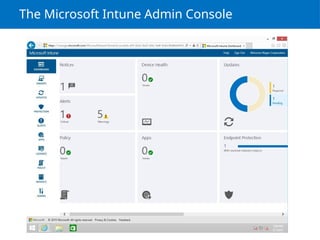
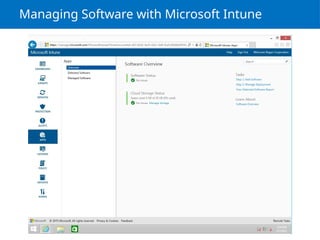
Configuring Microsoft Intune
•Microsoft Intune is a cloud-based management
solution that allows you to manage your
computers when they are not inside your
corporate network.
• Microsoft Intune helps you manage your
computers and mobile devices through a web
console.
• It provides the tools, reports, and licenses to
ensure your computers are always current and
protected.
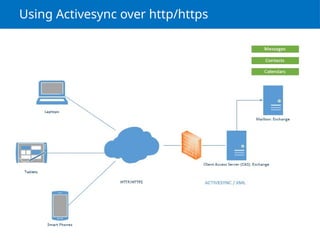
• For mobile devices, it also allows you to manage
your remote workforce by working through
ActiveSync or directly through Microsoft Intune.
Automating Installs
When deployingsoftware using Microsoft Intune,
there are two types of installations:
• A required install that automatically installs or
pushes the software to the managed computer
and requires no user interaction.
• An available install that publishes the software
to the Company Portal or on the mobile
Company Portal so your users can install the
software themselves.
35.
Sideloading and DeeplinkingSoftware
• Sideloading is the process of installing
Windows Store applications without using the
Windows Store.
• Deeplinking identifies an application in the
Windows Store by providing a link that will take
the user directly to the app in the Windows
Store.
36.
Identifying Software andHardware
Requirements
You can use a software inventory to effectively
manage the software and licenses used in your
organization. This provides the following
information:
• The types of software installed on computers
• The number of copies installed
• The version of software installed
• The publisher
• The category of software
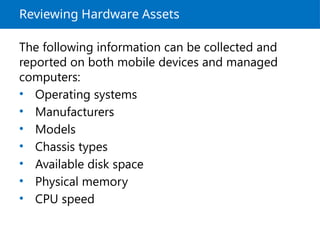
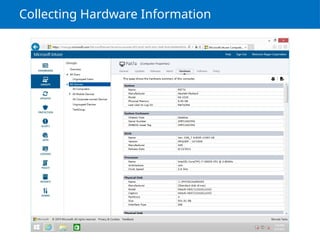
Reviewing Hardware Assets
Thefollowing information can be collected and
reported on both mobile devices and managed
computers:
• Operating systems
• Manufacturers
• Models
• Chassis types
• Available disk space
• Physical memory
• CPU speed
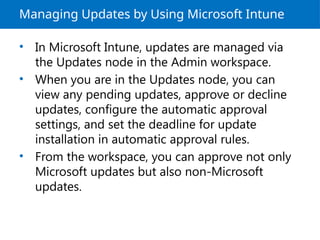
Managing Updates byUsing Microsoft Intune
• In Microsoft Intune, updates are managed via
the Updates node in the Admin workspace.
• When you are in the Updates node, you can
view any pending updates, approve or decline
updates, configure the automatic approval
settings, and set the deadline for update
installation in automatic approval rules.
• From the workspace, you can approve not only
Microsoft updates but also non-Microsoft
updates.
41.
Summary (Exchange/Outlook)
• ExchangeOnline and Outlook Online requires
very little configuration.
• A recipient is the identity used in Exchange
Online that is used to identify users and
resources that can send and receive messages.
• Viruses and spam are a threat to any computer
or corporation. The number of viruses and spam
have been growing significantly each year.
• Office 365 has several tools that minimize spam
while providing a strong defense against
malware.
42.
Summary (Sharepoint)
• SharePointis a popular web platform developed
by Microsoft that offers a powerful, flexible, and
scalable centralized web application.
• A site collection is a grouping of sites. Every site
collection has a single root site, under which the
other sites are built.
• The Sharing option on the site collection page
allows you to share the site collection with users
outside your organization.
• Themes define SharePoint site color schemes.
43.
Summary (Onedrive/Skype)
• OneDriveis a file-hosting service that allows you to
create and store files and folders and then share them
with other users and groups.
• Skype is a telecommunications application that provides
video calls and voice-only calls from computers, tablets,
and mobile devices to other devices or
telephones/smartphones using an Internet connection.
Skype also allow users to send instant messages, files,
images, and videos.
• The enterprise edition of Skype is Skype for Business,
which replaced Microsoft Office Communicator,
Microsoft Lync, and Windows Messenger used with
Microsoft Exchange Server.
• Microsoft offers an online version of Skype with Office
365 called Skype for Business Online.
44.
Summary (Intune)
• MicrosoftIntune is a cloud-based management
solution that allows you to manage your
computers when they are not inside your
corporate network.