1
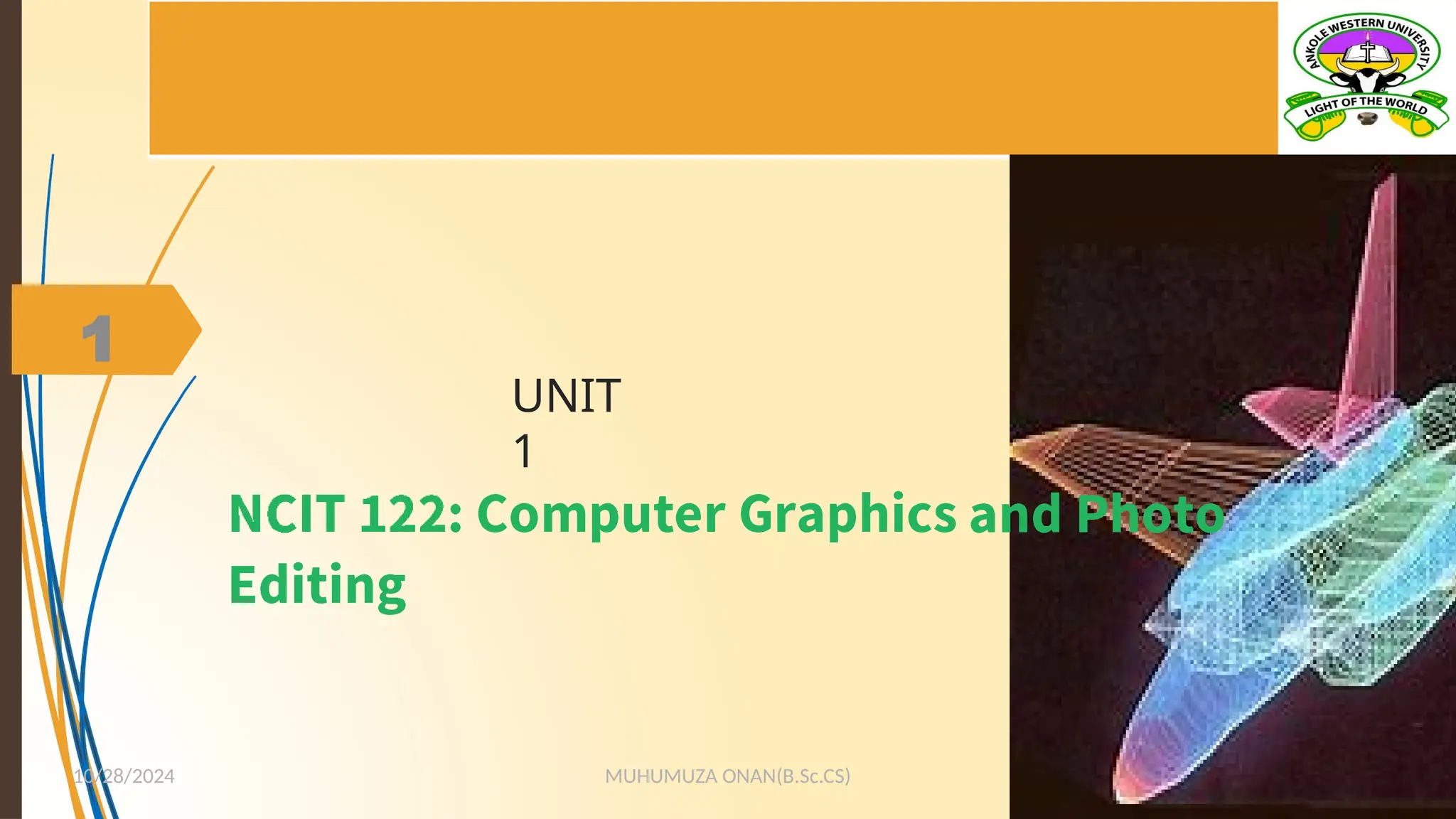
UNIT
1
10/28/2024 MUHUMUZA ONAN(B.Sc.CS)
2
1. Introduction to Computer Graphics
1.1 What is Computer Graphics?
• Definition:
• Computer graphics is the art and science of creating, manipulating,
and displaying visual content using computers. It encompasses
everything from simple 2D drawings to complex 3D animations and
simulations.
• Key Concepts:
• Visualization of data, rendering, modeling, image processing, and
graphical user interfaces (GUIs)
MUHUMUZA ONAN(B.Sc.CS)
10/28/2024
2
3
1.2 Importance of Computer Graphics
• In Various Fields: Entertainment: Used extensively in
movies, video games, and virtual reality to create realistic
animations and visual effects.
• Education and Training: Enhances learning experiences
through visual simulations, e.g., in medical training or
engineering.
• Design and Manufacturing: CAD (Computer-Aided Design)
systems rely on graphics for designing products and
structures.
• Communication and Art: Vital for digital art, graphic design,
and advertising.
MUHUMUZA ONAN(B.Sc.CS)
10/28/2024
3
4
1.3 History of Computer Graphics
MUHUMUZA ONAN(B.Sc.CS)
10/28/2024
4
Early Developments:
1960s: The beginning of computer graphics with Ivan Sutherland’s
Sketchpad, one of the first graphical user interfaces.
1970s: Introduction of raster graphics, allowing for detailed images to be
displayed on screens.
Milestones:
1980s: Development of 3D graphics and the first computer-animated
films.
1990s: The rise of graphical user interfaces (GUIs) with the Windows and
Mac operating systems, making computers more accessible.
2000s and Beyond: Real-time rendering and the explosion of CGI in
movies and games, along with the advent of VR and AR technologies.
5
1.4 Types of Computer Graphics
MUHUMUZA ONAN(B.Sc.CS)
10/28/2024
5
•2D Graphics:
•Represent flat images without depth, such as illustrations, logos, and text.
•Used in graphic design, user interfaces, and simple animations.
•3D Graphics:
•Involves the creation of images with depth, allowing for realistic renderings
of objects and environments.
•Widely used in gaming, simulations, and virtual environments.
•Interactive Graphics:
•Graphics that respond to user input, like video games and interactive data
visualizations.
6
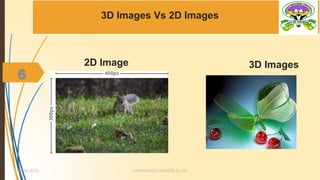
3D Images Vs 2D Images
MUHUMUZA ONAN(B.Sc.CS)
10/28/2024
6
2D Image 3D Images
7
1.5 Components of Computer Graphics
MUHUMUZA ONAN(B.Sc.CS)
10/28/2024
7
Hardware Components:
Graphics Processing Unit (GPU): Dedicated hardware for rendering images
and animations.
Monitors and Displays: Devices that output the visual content.
Input Devices: Tools like a mouse, graphics tablet, or 3D mouse used to
create and manipulate graphics.
Software Components:
Rendering Software: Tools like Blender, Maya, or Unity used to create and
animate 3D models.
Image Editing Software: Programs like Photoshop or GIMP for creating and
editing 2D images.
8
1.6 Applications of Computer Graphics
MUHUMUZA ONAN(B.Sc.CS)
10/28/2024
8
•Virtual Reality (VR) and Augmented Reality (AR): Creating
immersive environments for gaming, training, and simulations.
•Simulation and Visualization: Used in scientific research,
engineering, and architecture to model complex systems and
structures.
•Gaming and Entertainment: The backbone of modern video
games, animated movies, and special effects.
•Web and Mobile Graphics: Enhancing user experience in web
design and mobile applications.
9
1.7 Future of Computer Graphics
MUHUMUZA ONAN(B.Sc.CS)
10/28/2024
9
Trends:
AI in Graphics: Using machine learning to automate and enhance
graphics creation.
Photorealism: Achieving near-perfect realism in real-time rendering.
XR (Extended Reality): Combining VR, AR, and MR (Mixed Reality) for
more immersive experiences.
Challenges:
Computational Power: The need for more powerful hardware to
handle complex graphics tasks.
Ethical Considerations: Issues like deepfakes and the impact of hyper-
realistic graphics on society.
10
2. Basics of Digital Imaging
2.1 Understanding Pixels and Resolution
• Pixels:
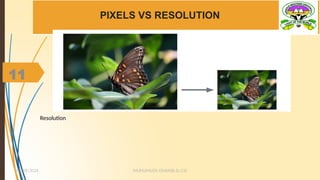
• Definition: The smallest unit of a digital image,
• typically square, that contains color and
• brightness information.
• Pixel Density: Measured in pixels per inch (PPI);
• higher PPI means finer detail.
• Image Resolution:
• Definition: The total number of pixels in an image, typically expressed
as width × height (e.g., 1920×1080).
• Impact on Quality: Higher resolution images have more detail and are
sharper, especially when enlarged.
MUHUMUZA ONAN(B.Sc.CS)
10/28/2024
10
11
PIXELS VS RESOLUTION
Resolution
MUHUMUZA ONAN(B.Sc.CS)
10/28/2024
11
12
2.2 Color Models and Representation
MUHUMUZA ONAN(B.Sc.CS)
10/28/2024
12
RGB (Red, Green, Blue):
 Additive Color Model: Used in screens where colors are created by
combining red, green, and blue light.
 Color Depth: Measured in bits, defines how many colors can be represented
(e.g., 8-bit, 16-bit).
CMYK (Cyan, Magenta, Yellow, Key/Black):
 Subtractive Color Model: Used in printing; colors are created by subtracting
light using inks.
 Color Gamut: The range of colors that can be represented by the CMYK
model.
Other Models:
 HSV/HSB (Hue, Saturation, Value/Brightness): Used for color selection in
design tools.
 Grayscale: Images composed only of shades of gray, without color.
13
2.3 Image Formats and Their Uses
JPEG (Joint Photographic Experts Group):
• Usage: Common for photos; supports millions of colors but uses lossy
compression.
• Advantages: Small file sizes.
• Disadvantages: Quality loss with each edit/save.
PNG (Portable Network Graphics):
• Usage: Ideal for web graphics, supports transparency (alpha channels).
• Advantages: Lossless compression; no quality loss.
• Disadvantages: Larger file sizes than JPEG.
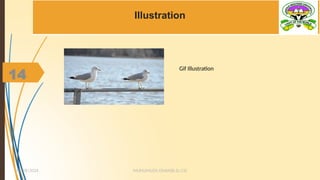
GIF (Graphics Interchange Format):
• Usage: Best for simple graphics, animations; limited to 256 colors.
• Advantages: Supports animations and transparency.
• Disadvantages: Not suitable for photos due to limited color range.
MUHUMUZA ONAN(B.Sc.CS)
10/28/2024
13
Raster Image Formats:
14
Illustration
Gif Illustration
MUHUMUZA ONAN(B.Sc.CS)
10/28/2024
14
15
Vector Image Formats:
MUHUMUZA ONAN(B.Sc.CS)
10/28/2024
15
SVG (Scalable Vector Graphics):
•Usage: Best for logos, icons, and other designs that require
scaling.
•Advantages: Infinitely scalable without loss of quality.
•Disadvantages: Limited to simple graphics, not suitable for
detailed images.
Other Formats:
•TIFF (Tagged Image File Format): Often used in professional
photography and printing for its high quality.
•BMP (Bitmap): Uncompressed format, rarely used due to large file
sizes.
16
3.0 Digital Image Processing
MUHUMUZA ONAN(B.Sc.CS)
10/28/2024
16
Definition: The manipulation of digital images to improve quality or extract
information.
•Basic Operations:
•Cropping: Cutting out unwanted parts of an image.
•Resizing: Changing the dimensions of an image.
•Filtering: Applying effects like blur, sharpen, or noise reduction.
•Image Compression:
•Lossy vs. Lossless:
•Lossy Compression: Reduces file size by discarding some image data (e.g.,
JPEG).
•Lossless Compression: Reduces file size without any loss of image data (e.g.,
PNG).
Introduction to Image Processing:
17
Photo Editing
3.1 Overview of Photo Editing
• Definition:
• Photo editing involves altering and enhancing images using various techniques to improve
their appearance or achieve a desired effect.
• Importance:
• Used in industries such as photography, advertising, media, and digital marketing to
produce professional-quality images.
• Common Uses:
• Portrait Retouching: Smoothing skin, removing blemishes, and adjusting lighting.
• Product Photography: Enhancing product images for e-commerce.
• Creative Effects: Applying artistic filters or combining images.
MUHUMUZA ONAN(B.Sc.CS)
10/28/2024
17
18
3.2 Popular Photo Editing Software
MUHUMUZA ONAN(B.Sc.CS)
10/28/2024
18
1. Adobe Photoshop:
Features: Industry standard for professional editing; offers advanced tools like layers,
masks, and filters.
Usage: Used for everything from simple edits to complex compositions.
Pros: Powerful and versatile with extensive plugin support.
Cons: Subscription-based, may have a steep learning curve.
GIMP (GNU Image Manipulation Program):
2. Features: Open-source alternative to Photoshop; includes most essential editing
tools.
Usage: Suitable for general photo editing and creative projects.
Pros: Free to use, community-supported with frequent updates.
Cons: Interface can be less intuitive than Photoshop.
19
Canva
• Features: Web-based design tool for quick edits and graphic
design.
• Usage: Ideal for social media graphics and basic photo
enhancements.
• Pros: User-friendly, with many templates and elements
available.
• Cons: Limited in advanced editing capabilities.
MUHUMUZA ONAN(B.Sc.CS)
10/28/2024
19
20
3.3 Basic Photo Editing Techniques
Cropping and Resizing:
• Cropping: Removing unwanted areas from the image to focus on the subject.
• Resizing: Changing the dimensions of the image while maintaining or adjusting aspect
ratio.
Color Correction:
• Brightness and Contrast: Adjusting lightness and darkness to enhance the overall look.
• Saturation and Hue: Modifying the intensity and tone of colors in the image.
• White Balance: Correcting the color cast to make the image look more natural.
Retouching and Healing:
• Spot Healing Brush: Removing minor blemishes, dust, and scratches.
• Clone Stamp Tool: Copying one part of the image over another to remove or replace
elements.
• Dodge and Burn: Lightening or darkening specific areas of the image to add depth and
focus.
MUHUMUZA ONAN(B.Sc.CS)
10/28/2024
20
21
Filters and Effects:
• Pre-set Filters: Applying ready-made filters for quick
enhancements (e.g., sepia, black and white).
• Custom Effects: Creating and applying unique effects like
blur, vignette, and shadow.
MUHUMUZA ONAN(B.Sc.CS)
10/28/2024
21
22
Getting Started with Adobe Photoshop
1. Introduction to Adobe Photoshop
• Overview:
• Adobe Photoshop is a powerful image editing software used by professionals and
hobbyists alike for photo retouching, graphic design, digital art, and more.
• Why Photoshop?:
• Versatility: It offers a wide range of tools for both basic and advanced editing.
• Industry Standard: Used globally across various industries, including photography, design,
and marketing.
MUHUMUZA ONAN(B.Sc.CS)
10/28/2024
22
23
Downloading and Installing Adobe Photoshop
2.1 System Requirements
• Operating System: Ensure your system meets the minimum requirements for
running Photoshop.
• Windows: Windows 10 (64-bit) or later.
• Mac: macOS 10.14 (Mojave) or later.
• Processor: Intel® or AMD processor with 64-bit support; 2 GHz or faster processor.
• RAM: At least 8 GB (16 GB or more recommended).
• Graphics Card: GPU with DirectX 12 support; 2 GB GPU memory (4 GB
recommended).
• Storage: Minimum 4 GB of available hard-disk space for installation; additional free
space required during installation.
MUHUMUZA ONAN(B.Sc.CS)
10/28/2024
23
24
2.2 Downloading Photoshop
MUHUMUZA ONAN(B.Sc.CS)
10/28/2024
24
•Step 1: Adobe Creative Cloud Account
•Sign Up: Visit Adobe's website to create a free Adobe ID if you don't
have one.
•Subscription Plans: Choose a plan that suits your needs
(Photography plan, Single App, or All Apps).
•Step 2: Download Creative Cloud
•Installation: Download and install the Adobe Creative Cloud
desktop app from Adobe's website.
•Accessing Photoshop: Once installed, open Creative Cloud and
search for "Photoshop" in the apps section.
25
Step 3: Install Photoshop
MUHUMUZA ONAN(B.Sc.CS)
10/28/2024
25
•Installation: Click on the "Install" button next to
Adobe Photoshop.
•Wait for Download and Installation: The app will
download and install automatically. This may take
some time depending on your internet speed.
26
2.3 First-Time Setup
MUHUMUZA ONAN(B.Sc.CS)
10/28/2024
26
•Launching Photoshop: Open Adobe Photoshop from the Creative Cloud app
or directly from your desktop/start menu.
Interface Overview:
•Home Screen: Introduction to recent files, quick actions, and tutorials
available on the home screen.
•Workspace: Familiarize with the workspace layout, including the toolbar,
options bar, panels (like Layers, Color, etc.), and the canvas area.
•Customizing Your Workspace:
•Workspace Presets: Choose a workspace that fits your needs (Essentials,
Photography, Graphic and Web, etc.).
•Docking Panels: Learn how to move, dock, and arrange panels to create a
personalized workspace.
27
3.1 Opening and Creating New Files
MUHUMUZA ONAN(B.Sc.CS)
10/28/2024
27
•Opening Files: Demonstrate how to open an existing image or project
by selecting
File > Open.
•Creating a New Document:
•Presets: Use predefined document presets (e.g., for web, print, or
mobile).
•Custom Sizes: Set custom dimensions, resolution, and color mode.
•Artboards: Introduction to using artboards for multi-page designs.
28
Illustration of Photoshop
MUHUMUZA ONAN(B.Sc.CS)
10/28/2024
28
29
3.2 Introduction to the Toolbar
MUHUMUZA ONAN(B.Sc.CS)
10/28/2024
29
Selection Tools:
Move Tool: For moving layers and objects.
Marquee Tools: For selecting rectangular or elliptical areas.
Lasso Tools: For freehand selection of objects.
Quick Selection and Magic Wand: For selecting areas based on color and
texture.
Editing Tools:
Brush Tool: For painting and retouching.
Eraser Tool: For removing parts of an image or layer.
Clone Stamp Tool: For duplicating parts of an image.
30
MUHUMUZA ONAN(B.Sc.CS)
10/28/2024
30
Navigation Tools:
•Hand Tool: For panning around the canvas.
•Zoom Tool: For zooming in and out of the canvas.
31
Simple Editing Task
MUHUMUZA ONAN(B.Sc.CS)
10/28/2024
31
4.1 Importing an Image
Step-by-Step: Walk students through importing a sample image into
Photoshop.
4.2 Basic Edits
 Cropping: Use the Crop Tool to adjust the composition of the
image.
 Color Adjustment:
 Brightness/Contrast: Simple adjustments to enhance the
image.
 Hue/Saturation: Changing the overall color tone.
Saving Your Work:
Saving as PSD: Discuss the importance of saving in Photoshop’s native
format for preserving layers.
Exporting as JPEG/PNG: How to save the final image for web or print
32
5. Troubleshooting Common Installation Issues
MUHUMUZA ONAN(B.Sc.CS)
10/28/2024
32
•5.1 Installation Errors
•Error Messages: Address common installation errors, such as
"Installation Failed" or issues related to system compatibility.
•5.2 Activation Problems
•License Activation: Steps to troubleshoot if Photoshop
doesn’t activate correctly.
•5.3 Performance Issues
•Lagging and Freezing: Tips to optimize Photoshop
performance by adjusting Preferences > Performance settings.

UNIT 1 UNIT 1 INTRODUCTION TO PHOTO EDDITING

  • 1.
  • 2.
    2 1. Introduction toComputer Graphics 1.1 What is Computer Graphics? • Definition: • Computer graphics is the art and science of creating, manipulating, and displaying visual content using computers. It encompasses everything from simple 2D drawings to complex 3D animations and simulations. • Key Concepts: • Visualization of data, rendering, modeling, image processing, and graphical user interfaces (GUIs) MUHUMUZA ONAN(B.Sc.CS) 10/28/2024 2
  • 3.
    3 1.2 Importance ofComputer Graphics • In Various Fields: Entertainment: Used extensively in movies, video games, and virtual reality to create realistic animations and visual effects. • Education and Training: Enhances learning experiences through visual simulations, e.g., in medical training or engineering. • Design and Manufacturing: CAD (Computer-Aided Design) systems rely on graphics for designing products and structures. • Communication and Art: Vital for digital art, graphic design, and advertising. MUHUMUZA ONAN(B.Sc.CS) 10/28/2024 3
  • 4.
    4 1.3 History ofComputer Graphics MUHUMUZA ONAN(B.Sc.CS) 10/28/2024 4 Early Developments: 1960s: The beginning of computer graphics with Ivan Sutherland’s Sketchpad, one of the first graphical user interfaces. 1970s: Introduction of raster graphics, allowing for detailed images to be displayed on screens. Milestones: 1980s: Development of 3D graphics and the first computer-animated films. 1990s: The rise of graphical user interfaces (GUIs) with the Windows and Mac operating systems, making computers more accessible. 2000s and Beyond: Real-time rendering and the explosion of CGI in movies and games, along with the advent of VR and AR technologies.
  • 5.
    5 1.4 Types ofComputer Graphics MUHUMUZA ONAN(B.Sc.CS) 10/28/2024 5 •2D Graphics: •Represent flat images without depth, such as illustrations, logos, and text. •Used in graphic design, user interfaces, and simple animations. •3D Graphics: •Involves the creation of images with depth, allowing for realistic renderings of objects and environments. •Widely used in gaming, simulations, and virtual environments. •Interactive Graphics: •Graphics that respond to user input, like video games and interactive data visualizations.
  • 6.
    6 3D Images Vs2D Images MUHUMUZA ONAN(B.Sc.CS) 10/28/2024 6 2D Image 3D Images
  • 7.
    7 1.5 Components ofComputer Graphics MUHUMUZA ONAN(B.Sc.CS) 10/28/2024 7 Hardware Components: Graphics Processing Unit (GPU): Dedicated hardware for rendering images and animations. Monitors and Displays: Devices that output the visual content. Input Devices: Tools like a mouse, graphics tablet, or 3D mouse used to create and manipulate graphics. Software Components: Rendering Software: Tools like Blender, Maya, or Unity used to create and animate 3D models. Image Editing Software: Programs like Photoshop or GIMP for creating and editing 2D images.
  • 8.
    8 1.6 Applications ofComputer Graphics MUHUMUZA ONAN(B.Sc.CS) 10/28/2024 8 •Virtual Reality (VR) and Augmented Reality (AR): Creating immersive environments for gaming, training, and simulations. •Simulation and Visualization: Used in scientific research, engineering, and architecture to model complex systems and structures. •Gaming and Entertainment: The backbone of modern video games, animated movies, and special effects. •Web and Mobile Graphics: Enhancing user experience in web design and mobile applications.
  • 9.
    9 1.7 Future ofComputer Graphics MUHUMUZA ONAN(B.Sc.CS) 10/28/2024 9 Trends: AI in Graphics: Using machine learning to automate and enhance graphics creation. Photorealism: Achieving near-perfect realism in real-time rendering. XR (Extended Reality): Combining VR, AR, and MR (Mixed Reality) for more immersive experiences. Challenges: Computational Power: The need for more powerful hardware to handle complex graphics tasks. Ethical Considerations: Issues like deepfakes and the impact of hyper- realistic graphics on society.
  • 10.
    10 2. Basics ofDigital Imaging 2.1 Understanding Pixels and Resolution • Pixels: • Definition: The smallest unit of a digital image, • typically square, that contains color and • brightness information. • Pixel Density: Measured in pixels per inch (PPI); • higher PPI means finer detail. • Image Resolution: • Definition: The total number of pixels in an image, typically expressed as width × height (e.g., 1920×1080). • Impact on Quality: Higher resolution images have more detail and are sharper, especially when enlarged. MUHUMUZA ONAN(B.Sc.CS) 10/28/2024 10
  • 11.
  • 12.
    12 2.2 Color Modelsand Representation MUHUMUZA ONAN(B.Sc.CS) 10/28/2024 12 RGB (Red, Green, Blue):  Additive Color Model: Used in screens where colors are created by combining red, green, and blue light.  Color Depth: Measured in bits, defines how many colors can be represented (e.g., 8-bit, 16-bit). CMYK (Cyan, Magenta, Yellow, Key/Black):  Subtractive Color Model: Used in printing; colors are created by subtracting light using inks.  Color Gamut: The range of colors that can be represented by the CMYK model. Other Models:  HSV/HSB (Hue, Saturation, Value/Brightness): Used for color selection in design tools.  Grayscale: Images composed only of shades of gray, without color.
  • 13.
    13 2.3 Image Formatsand Their Uses JPEG (Joint Photographic Experts Group): • Usage: Common for photos; supports millions of colors but uses lossy compression. • Advantages: Small file sizes. • Disadvantages: Quality loss with each edit/save. PNG (Portable Network Graphics): • Usage: Ideal for web graphics, supports transparency (alpha channels). • Advantages: Lossless compression; no quality loss. • Disadvantages: Larger file sizes than JPEG. GIF (Graphics Interchange Format): • Usage: Best for simple graphics, animations; limited to 256 colors. • Advantages: Supports animations and transparency. • Disadvantages: Not suitable for photos due to limited color range. MUHUMUZA ONAN(B.Sc.CS) 10/28/2024 13 Raster Image Formats:
  • 14.
  • 15.
    15 Vector Image Formats: MUHUMUZAONAN(B.Sc.CS) 10/28/2024 15 SVG (Scalable Vector Graphics): •Usage: Best for logos, icons, and other designs that require scaling. •Advantages: Infinitely scalable without loss of quality. •Disadvantages: Limited to simple graphics, not suitable for detailed images. Other Formats: •TIFF (Tagged Image File Format): Often used in professional photography and printing for its high quality. •BMP (Bitmap): Uncompressed format, rarely used due to large file sizes.
  • 16.
    16 3.0 Digital ImageProcessing MUHUMUZA ONAN(B.Sc.CS) 10/28/2024 16 Definition: The manipulation of digital images to improve quality or extract information. •Basic Operations: •Cropping: Cutting out unwanted parts of an image. •Resizing: Changing the dimensions of an image. •Filtering: Applying effects like blur, sharpen, or noise reduction. •Image Compression: •Lossy vs. Lossless: •Lossy Compression: Reduces file size by discarding some image data (e.g., JPEG). •Lossless Compression: Reduces file size without any loss of image data (e.g., PNG). Introduction to Image Processing:
  • 17.
    17 Photo Editing 3.1 Overviewof Photo Editing • Definition: • Photo editing involves altering and enhancing images using various techniques to improve their appearance or achieve a desired effect. • Importance: • Used in industries such as photography, advertising, media, and digital marketing to produce professional-quality images. • Common Uses: • Portrait Retouching: Smoothing skin, removing blemishes, and adjusting lighting. • Product Photography: Enhancing product images for e-commerce. • Creative Effects: Applying artistic filters or combining images. MUHUMUZA ONAN(B.Sc.CS) 10/28/2024 17
  • 18.
    18 3.2 Popular PhotoEditing Software MUHUMUZA ONAN(B.Sc.CS) 10/28/2024 18 1. Adobe Photoshop: Features: Industry standard for professional editing; offers advanced tools like layers, masks, and filters. Usage: Used for everything from simple edits to complex compositions. Pros: Powerful and versatile with extensive plugin support. Cons: Subscription-based, may have a steep learning curve. GIMP (GNU Image Manipulation Program): 2. Features: Open-source alternative to Photoshop; includes most essential editing tools. Usage: Suitable for general photo editing and creative projects. Pros: Free to use, community-supported with frequent updates. Cons: Interface can be less intuitive than Photoshop.
  • 19.
    19 Canva • Features: Web-baseddesign tool for quick edits and graphic design. • Usage: Ideal for social media graphics and basic photo enhancements. • Pros: User-friendly, with many templates and elements available. • Cons: Limited in advanced editing capabilities. MUHUMUZA ONAN(B.Sc.CS) 10/28/2024 19
  • 20.
    20 3.3 Basic PhotoEditing Techniques Cropping and Resizing: • Cropping: Removing unwanted areas from the image to focus on the subject. • Resizing: Changing the dimensions of the image while maintaining or adjusting aspect ratio. Color Correction: • Brightness and Contrast: Adjusting lightness and darkness to enhance the overall look. • Saturation and Hue: Modifying the intensity and tone of colors in the image. • White Balance: Correcting the color cast to make the image look more natural. Retouching and Healing: • Spot Healing Brush: Removing minor blemishes, dust, and scratches. • Clone Stamp Tool: Copying one part of the image over another to remove or replace elements. • Dodge and Burn: Lightening or darkening specific areas of the image to add depth and focus. MUHUMUZA ONAN(B.Sc.CS) 10/28/2024 20
  • 21.
    21 Filters and Effects: •Pre-set Filters: Applying ready-made filters for quick enhancements (e.g., sepia, black and white). • Custom Effects: Creating and applying unique effects like blur, vignette, and shadow. MUHUMUZA ONAN(B.Sc.CS) 10/28/2024 21
  • 22.
    22 Getting Started withAdobe Photoshop 1. Introduction to Adobe Photoshop • Overview: • Adobe Photoshop is a powerful image editing software used by professionals and hobbyists alike for photo retouching, graphic design, digital art, and more. • Why Photoshop?: • Versatility: It offers a wide range of tools for both basic and advanced editing. • Industry Standard: Used globally across various industries, including photography, design, and marketing. MUHUMUZA ONAN(B.Sc.CS) 10/28/2024 22
  • 23.
    23 Downloading and InstallingAdobe Photoshop 2.1 System Requirements • Operating System: Ensure your system meets the minimum requirements for running Photoshop. • Windows: Windows 10 (64-bit) or later. • Mac: macOS 10.14 (Mojave) or later. • Processor: Intel® or AMD processor with 64-bit support; 2 GHz or faster processor. • RAM: At least 8 GB (16 GB or more recommended). • Graphics Card: GPU with DirectX 12 support; 2 GB GPU memory (4 GB recommended). • Storage: Minimum 4 GB of available hard-disk space for installation; additional free space required during installation. MUHUMUZA ONAN(B.Sc.CS) 10/28/2024 23
  • 24.
    24 2.2 Downloading Photoshop MUHUMUZAONAN(B.Sc.CS) 10/28/2024 24 •Step 1: Adobe Creative Cloud Account •Sign Up: Visit Adobe's website to create a free Adobe ID if you don't have one. •Subscription Plans: Choose a plan that suits your needs (Photography plan, Single App, or All Apps). •Step 2: Download Creative Cloud •Installation: Download and install the Adobe Creative Cloud desktop app from Adobe's website. •Accessing Photoshop: Once installed, open Creative Cloud and search for "Photoshop" in the apps section.
  • 25.
    25 Step 3: InstallPhotoshop MUHUMUZA ONAN(B.Sc.CS) 10/28/2024 25 •Installation: Click on the "Install" button next to Adobe Photoshop. •Wait for Download and Installation: The app will download and install automatically. This may take some time depending on your internet speed.
  • 26.
    26 2.3 First-Time Setup MUHUMUZAONAN(B.Sc.CS) 10/28/2024 26 •Launching Photoshop: Open Adobe Photoshop from the Creative Cloud app or directly from your desktop/start menu. Interface Overview: •Home Screen: Introduction to recent files, quick actions, and tutorials available on the home screen. •Workspace: Familiarize with the workspace layout, including the toolbar, options bar, panels (like Layers, Color, etc.), and the canvas area. •Customizing Your Workspace: •Workspace Presets: Choose a workspace that fits your needs (Essentials, Photography, Graphic and Web, etc.). •Docking Panels: Learn how to move, dock, and arrange panels to create a personalized workspace.
  • 27.
    27 3.1 Opening andCreating New Files MUHUMUZA ONAN(B.Sc.CS) 10/28/2024 27 •Opening Files: Demonstrate how to open an existing image or project by selecting File > Open. •Creating a New Document: •Presets: Use predefined document presets (e.g., for web, print, or mobile). •Custom Sizes: Set custom dimensions, resolution, and color mode. •Artboards: Introduction to using artboards for multi-page designs.
  • 28.
    28 Illustration of Photoshop MUHUMUZAONAN(B.Sc.CS) 10/28/2024 28
  • 29.
    29 3.2 Introduction tothe Toolbar MUHUMUZA ONAN(B.Sc.CS) 10/28/2024 29 Selection Tools: Move Tool: For moving layers and objects. Marquee Tools: For selecting rectangular or elliptical areas. Lasso Tools: For freehand selection of objects. Quick Selection and Magic Wand: For selecting areas based on color and texture. Editing Tools: Brush Tool: For painting and retouching. Eraser Tool: For removing parts of an image or layer. Clone Stamp Tool: For duplicating parts of an image.
  • 30.
    30 MUHUMUZA ONAN(B.Sc.CS) 10/28/2024 30 Navigation Tools: •HandTool: For panning around the canvas. •Zoom Tool: For zooming in and out of the canvas.
  • 31.
    31 Simple Editing Task MUHUMUZAONAN(B.Sc.CS) 10/28/2024 31 4.1 Importing an Image Step-by-Step: Walk students through importing a sample image into Photoshop. 4.2 Basic Edits  Cropping: Use the Crop Tool to adjust the composition of the image.  Color Adjustment:  Brightness/Contrast: Simple adjustments to enhance the image.  Hue/Saturation: Changing the overall color tone. Saving Your Work: Saving as PSD: Discuss the importance of saving in Photoshop’s native format for preserving layers. Exporting as JPEG/PNG: How to save the final image for web or print
  • 32.
    32 5. Troubleshooting CommonInstallation Issues MUHUMUZA ONAN(B.Sc.CS) 10/28/2024 32 •5.1 Installation Errors •Error Messages: Address common installation errors, such as "Installation Failed" or issues related to system compatibility. •5.2 Activation Problems •License Activation: Steps to troubleshoot if Photoshop doesn’t activate correctly. •5.3 Performance Issues •Lagging and Freezing: Tips to optimize Photoshop performance by adjusting Preferences > Performance settings.