Computer Graphics
Unit ‘1’
Prepared by: Abhishek Dewan
Lecturer, Computer Graphics
Trinity Int’l College
• Computer Graphics is a field related to the
generation of graphics using computers.
• It includes the creation, storage, and
manipulation of images of objects.
• These objects come from diverse fields such
as physical, mathematical, engineering,
architectural, abstract structures and natural
phenomenon.
• Computer graphics today is largely interactive,
that is , the user controls the contents,
structure, and appearance of images of the
objects by using input devices.
• Until the early 1980's computer graphics was a
small, specialized field,
• largely because the hardware was expensive
and graphics-based application programs that
were easy to use and cost-effective were few.
• Personal computers with built-in raster
graphics displays-such as Apple Macintosh and
the IBM PC- popularized the use of bitmap
graphics for user-computer interaction.
• A bitmap is a ones and zeros representation of
the rectangular array points on the screen.
• Once bitmap graphics became affordable, and
explosion of easy-to-use and inexpensive
graphics-based applications followed.
• This allowed user to represent data files,
application program, file cabinets, mailboxes,
printers, recycle bin using different icons.
• By pointing and clicking the icons, users could
activate the corresponding programs or
objects, which replaced much of the typing of
the commands used in earlier operating
systems and computer applications.
• Today, almost all interactive application
programs, even those for manipulating
text(e.g.. word processor) or numerical data
(e.g. spreadsheet programs), use graphics
extensively in the user interface and for
visualizing and manipulating the application-
specific objects
• Even people who do not use computers
encounter computer graphics in TV
commercials and as cinematic special effects.
• Thus computer graphics is and integral part of
all computer user interfaces, and is
indispensable for visualizing 2D, 3D objects in
all most all areas such as education, science,
engineering, medicine, commerce, the
military, advertising, and entertainment.
Pixel
• In digital imaging, a pixel, pel, dots, or picture element is a
physical point in a raster image, i.e. the smallest addressable
element in an all points addressable display device;
• it is the smallest controllable element of a picture represented on
the screen.
Resolution
• Maximum number of points displayed horizontally and
vertically without overlap on a display screen / image is
called resolution.
• In other ways , resolution is referred as the no of points per
inch(dpi/pixel per inch).
• Image resolution is typically expressed as a horizontal x
vertical measurement.
• So, an image resolution of 6000 x 4000 tells us that the image
measures 6000 pixels in width and 4000 pixels in height.
• Multiplying the two figures together gives us the second way
this is commonly stated, namely as megapixels.
• 6000 x 4000 equals 24,000,000, which is more commonly
written as 24 megapixels (MP).
Types of Graphics
a) Bitmap graphics
b) Vector graphics
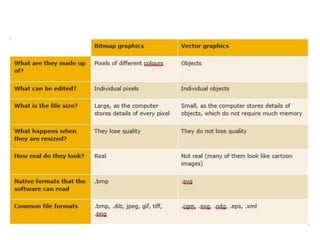
• Bitmap graphics are made up of pixels of different colors.
• Vector graphics are made up of objects.
Bitmap graphics
• It is also called a bit array, pixmap or bitmap index. meaning just
a map of bits, a spatially mapped array of bits.
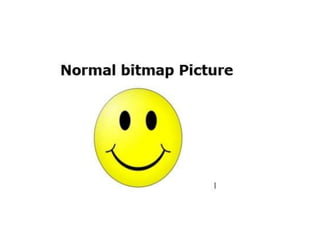
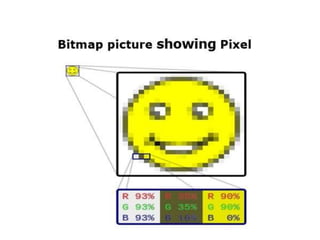
• A bitmap graphic is composed of many tiny parts, called pixels,
which are often many different colours.
• It is possible to edit each individual pixel.
• Since the computer has to store information about every
single pixel in the image, the file size of a bitmap graphic is often
quite large.
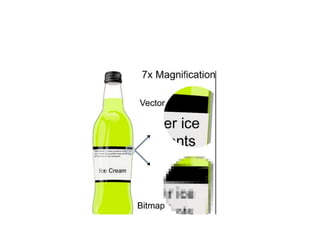
• When you resize a bitmap graphic, it tends to lose quality.
Vector graphics
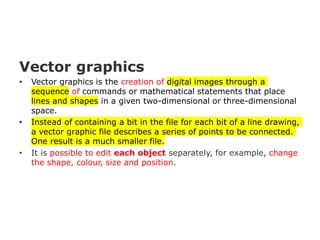
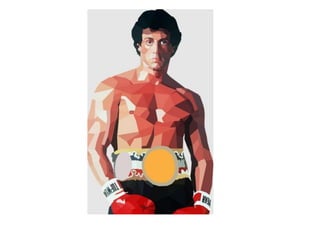
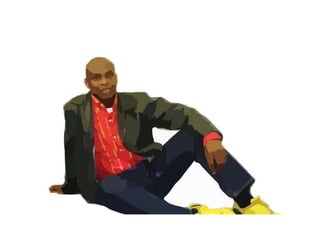
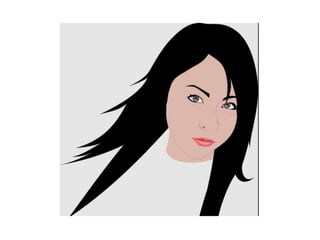
• Vector graphics is the creation of digital images through a
sequence of commands or mathematical statements that place
lines and shapes in a given two-dimensional or three-dimensional
space.
• Instead of containing a bit in the file for each bit of a line drawing,
a vector graphic file describes a series of points to be connected.
One result is a much smaller file.
• It is possible to edit each object separately, for example, change
the shape, colour, size and position.
• Even if an object in a vector graphic is quite
large, it doesn't need a lot of computer memory.
Therefore the file size of a vector graphic is often
very small.
• Vector graphics are scalable - ie when you resize
them, they do not lose quality.
Graphics software
Bitmap graphics software
Bitmap graphics can be created and edited using packages such as:
 MS Paint
 Adobe Photoshop
Vector graphics software
Vector graphics can be created using drawing packages, such as:
 Adobe Illustrator
 Adobe FreeHand
 CorelDRAW
 Pro/DESKTOP
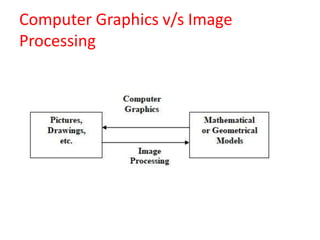
Computer Graphics v/s Image
Processing
• Image processing is a method to perform some
operations on an image, in order to get an
enhanced image or to extract some useful
information from it.
• It is a type of signal processing in which input is
an image and output may be image or
characteristics/features associated with that
image.
• Nowadays, image processing is among rapidly
growing technologies.
Image processing basically includes the
following three steps:
• Importing the image via image acquisition
tools;
• Analyzing and manipulating the image;
• Output ----- can be altered image or report
that is based on image analysis.
Fundamental Image Processing Steps:
• Image Acquisition (Preprocessing)
the action of retrieving an image from
some source.
• Image Enhancement
the action of enhancing components of
an image.
• Image Restoration
the action of restoring lost or damaged
components of an image.
• Color Image Processing
the action of enhancing color components
of an image.
• Information extraction
the action of extracting information and
pattern from an image.
There are five main types of image processing:
• Visualization - Find objects that are not visible
in the image
• Recognition - Distinguish or detect objects in
the image
• Sharpening and restoration - Create an
enhanced image from the original image
• Pattern recognition - Measure the various
patterns around the objects in the image
• Retrieval - Browse and search images from a
large database of digital images that are
similar to the original image
Applications of Computer Graphics
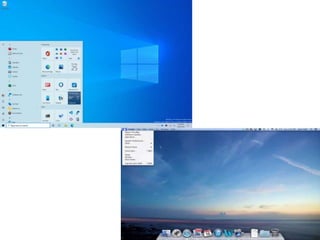
1. User interfaces
• Most applications have user interfaces that
rely on desktop windows systems to manage
multiple simultaneous activities , and on
point-and click facilities to allow users perform
various functions in just a click.
• User interfaces have menu items, icons and
objects on the screen designed with the help
of graphics.
2. Plotting
• Plotting 2D and 3D graphs of mathematical,
physical, and economic functions use computer
graphics extensively.
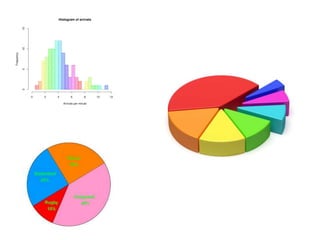
• The histograms, bar, and pie charts; the task-
scheduling charts are the most commonly used
plotting.
• These all are used to present meaningfully and
concisely the trends and patterns of complex
data.
3. Electronic publishing
• Computer graphics has facilitated electronic
publishing which is also popularly known as
desktop publishing, giving more power to the
organizations to print the meaningful materials
in-house.
• Electronic publishing can produce both traditional
printed (Hardcopy) and electronic(softcopy)
documents that contain text, tables, graphs, and
other forms of drawn or scanned-in graphics.
4. Computer Aided Design
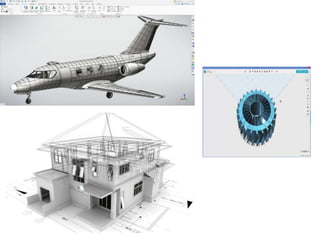
• One of the major uses of computer graphics is to
design components and systems of mechanical,
electrical, electrochemical, and electronic
devices,
• It includes structures such as buildings,
automobile bodies, airplane and ships, very large
scale integrated (VLSI) chips, optical systems, and
telephone and computer networks.
5. Scientific and business Visualization
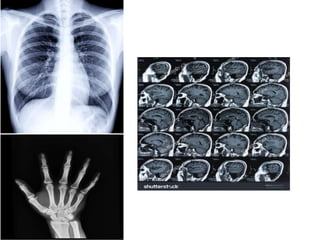
• Generating computer graphics for scientific,
engineering, and medical data sets is termed as
scientific visualization
• whereas business visualization is related with the
non scientific data sets such as those obtained in
economics.
• Visualization makes easier to understand the
trends and patterns inherent in the huge amount
of data sets. It would , otherwise , be almost
impossible to analyze those data numerically.
6. Simulation and modeling
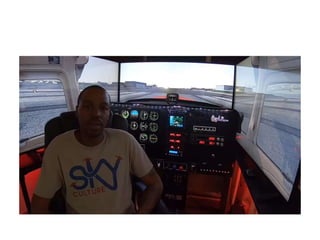
• Simulation is the imitation of the conditions
like those , which is encountered in real life.
• Simulation thus helps to learn or to feel the
conditions one might have to face in near
future without being in danger at the
beginning of the course.
• The military tank simulator, the naval
simulator, driving simulator, air traffic control
simulator, heavy-duty vehicle simulator, and
so on are some of the mostly used simulator
in practice.
7. Entertainment
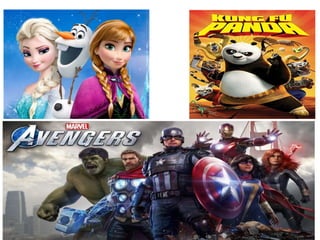
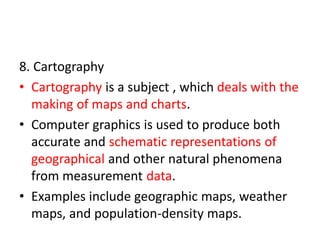
• Disney and Marvel movies such as Lion Kings
,The Beauty and the Beast, The Avengers and
other scientific movies like Jurassic Park, The
lost world etc are the best example of the
application of computer graphics in the field
of entertainment.
• Computer games such as FIFA, PubG, Freefire
are few to name where graphics is used
extensively.
8. Cartography
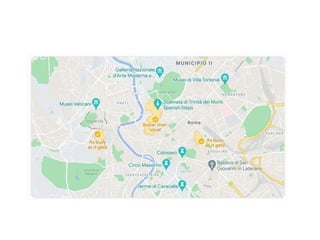
• Cartography is a subject , which deals with the
making of maps and charts.
• Computer graphics is used to produce both
accurate and schematic representations of
geographical and other natural phenomena
from measurement data.
• Examples include geographic maps, weather
maps, and population-density maps.
Hardware Concepts
Input Devices
Digitizer Tablet:
• In general a digitizer is a device which is used
to scan over an object, and to input a set of
discrete coordinate positions.
• These positions can then be joined with
straight-line segments to approximate the
shape of the original object.
• It is a tool used to convert hand-drawn images
into a format suitable for computer processing.
• Images are usually drawn onto a flat surface with
a stylus and then appear on a computer monitor
or screen.
• Digitizer tablets can also be used as an input
device, receiving information represented in
drawings and sending output to a CAD (computer
aided design) application and PC-based software
like AutoCAD.
Touch panel
• The touch panel allows the users to point at
the screen directly with a finger to move the
cursor around the screen, or to select the
icons.
• Following are the mostly used touch panels:
Optical touch panel
• It uses a series of infra-red light emitting diodes (LED)
along one vertical edge and along one horizontal edge
of the panel.
• The opposite vertical and horizontal edges contain
photo-detectors to form a grid of invisible infrared light
beams over the display area.
• Touching the screen breaks one or two vertical and
horizontal light beams, thereby indicating the finger's
position.
• The cursor is then moved to this position, or the icon at
this position is selected.
Light pen
• It is a pencil-shaped device to determine the
coordinates of a point on the screen where it is
activated such as pressing the button.
• A light pen is a light-sensitive computer input
device, basically a stylus, that is used to select
text, draw pictures and interact with user
interface elements on a computer screen or
monitor.
Keyboard
• A keyboard creates a code such as ASCII
corresponding to a pressed key.
• It is used to provide input using alphanumeric
keys, function keys, cursor-control keys.
Mouse
A mouse is a small hand-held device used to
position the cursor on the screen.
• They can be picked up, moved in space, and
then put down gain without any change in the
reported position.
• Following are the mostly used mouse in
computer graphics:
Mechanical mouse
• When a roller in the base of this mechanical
mouse is moved, a pair of orthogonally
arranged toothed wheels, each placed in
between a LED and a photo detector,
interrupts the light path.
• The interrupts so generated are used to report
the mouse movements to the computer.
Optical mouse
• A LED on the bottom of the mouse directs a
beam of light down onto the pad, from which
it is reflected and sensed by the detectors on
the bottom of the mouse.
Display devices
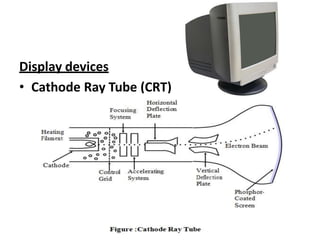
• Cathode Ray Tube (CRT)
• CRT used to be the most common display
devices.
• A CRT is an evacuated glass tube, with a
heating element on one end and a phosphor-
coated screen on the other end.
• When a current flows through this heating
element (filament) the conductivity of metal is
reduced due to high temperature, these cause
electrons to pile up on the filament.
• These electrons are attracted to a strong positive
charge from the outer surface of the focusing
anode cylinder.
• The electrons head towards the anode forced
into a beam and accelerated by the inner cylinder
walls in just the way that water is speeds up
when its flow though a small diameter pipe.
• The forwarding fast electron beam is called
Cathode Ray.
• There are two sets of weakly charged
deflection plates with oppositely charged, one
positive and another negative.
• The first set displaces the beam up and down
and the second displaces the beam left and
right.
• The electrons are sent flying out of the neck of
bottle (tube) until the smash into the
phosphor coating on the other end.
• When electrons strike on phosphor coating,
the phosphor then emits a small spot of light
at each position contacted by electron beam.
• The glowing positions are used to represent
the picture in the screen.
• The amount of light emitted by the phosphor
coating depends on the no. of electrons
striking the screen.
• The brightness of the display is controlled by
varying the voltage on the control grid.
Persistence:
• How long a phosphor continues to emit light after the
electron beam is removed
• Persistence of phosphor is defined as the time it takes
for emitted light to decay to 1/10 (10%) of its original
intensity. Range of persistence of different phosphors
can react many seconds.
• Phosphors for graphical display have persistence of 10
to 60 microseconds. Phosphors with low persistence
are useful for animation whereas high persistence
phosphor is useful for highly complex, static pictures.
Refresh Rate:
• Light emitted by phosphor fades very rapidly, so to keep the
drawn picture glowing constantly, it is required to redraw
the picture repeatedly and quickly directing the electron
beam back over the some point.
• The no of times/sec the image is redrawn to give a feeling
of non-flickering pictures is called refresh-rate.
• If Refresh rate decreases, flicker develops.
• For refresh displays, it depends on picture complexity
• Refresh rate above which flickering stops and steady it may
be called as critical fusion frequency(CFF).
Raster-Scan Display
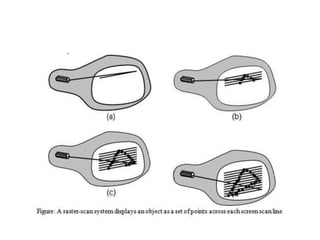
• In raster-scan the electron beam is swept
across the screen, one row at a time from top
to bottom.
• No. of scan lines scaned per second is called
horizontal scan rate.
• As electron beam moves across each row, the
beam intensity is turned on and off to create a
pattern of illuminated spots.
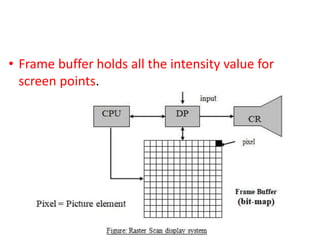
• Picture definition is stored in a memory called
frame buffer or refresh buffer.
• Frame buffer holds all the intensity value for
screen points.
• The stored intensity value is retrieved from frame
buffer and painted on the scan line at a time.
• Home television are common examples using
raster display.
• Intensity range for pixel position depends on
capability of raster system.
• For B/W system each point on screen are either
on or off, so only one bit per pixel is needed to
control the pixel intensity.
• To display color with varying intensity level,
additional bits are needed.
• Up to 24 to 32 bit per pixel are included in
high quality systems, which require more
space of storage for the frame buffer.
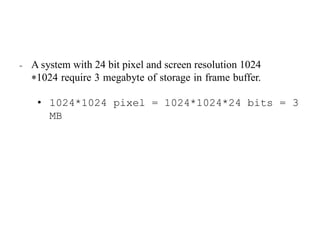
− A system with 24 bit pixel and screen resolution 1024
*1024 require 3 megabyte of storage in frame buffer.
• 1024*1024 pixel = 1024*1024*24 bits = 3
MB
• The frame butter in B/W system stores a pixel
with one bit per pixel so it is termed as
bitmap.
• The frame buffer in multi-bit per pixel storage,
is called pixmap.
Interlacing
• When referring to a computer monitor or
another display, interlace or interlacing is a
description of how the picture is created.
• With an interlaced display the picture is
created by scanning every other line, and on
the next scan, scanning every opposite line.
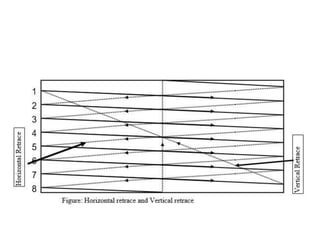
• Returning of electron beam from right end to
left end after refreshing each scan line is
horizontal retrace.
• At the end of each frame, the electron beam
returns to the top left corner to begin next
frame called vertical retrace.
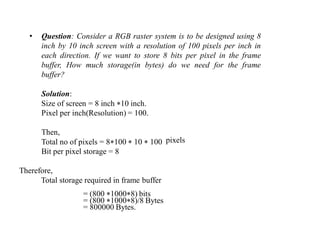
• Question: Consider a RGB raster system is to be designed using 8
inch by 10 inch screen with a resolution of 100 pixels per inch in
each direction. If we want to store 8 bits per pixel in the frame
buffer, How much storage(in bytes) do we need for the frame
buffer?
Solution:
Size of screen = 8 inch *10 inch.
Pixel per inch(Resolution) = 100.
Then,
Total no of pixels = 8*100 * 10 * 100
Bit per pixel storage = 8
Therefore,
Total storage required in frame buffer
= (800 *1000*8) bits
= (800 *1000*8)/8 Bytes
= 800000 Bytes.
pixels
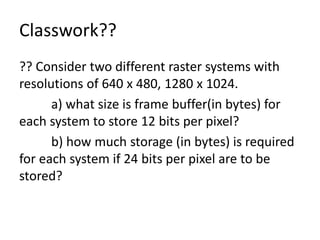
Classwork??
?? Consider two different raster systems with
resolutions of 640 x 480, 1280 x 1024.
a) what size is frame buffer(in bytes) for
each system to store 12 bits per pixel?
b) how much storage (in bytes) is required
for each system if 24 bits per pixel are to be
stored?
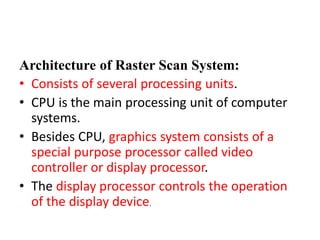
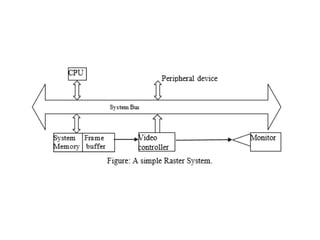
Architecture of Raster Scan System:
• Consists of several processing units.
• CPU is the main processing unit of computer
systems.
• Besides CPU, graphics system consists of a
special purpose processor called video
controller or display processor.
• The display processor controls the operation
of the display device.
• A fixed area of system memory is reserved for
the frame buffer.
• The video controller cycles through the frame
buffer, one scan line at a time, typically at 60
times per second or higher.
• The contents of frame buffer are used to
control the CRT beam's intensity or color.
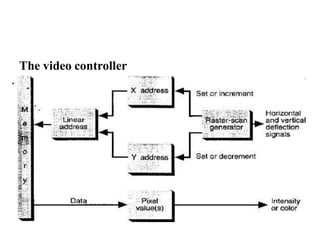
The video controller
• The raster-scan generator produces deflection signals
that generate the raster scan and also controls the X
and Y address registers, which in turn defines memory
location to be accessed next.
• As first scan line is generated, the X address is
incremented up to Xmax.
• Each pixel value is fetched and used to control the
intensity of CRT beam.
• After first scan line X address is reset to 0 and Y address
is incremented by 1. The process is continued until the
last scan line (Y=Ymax) is generated
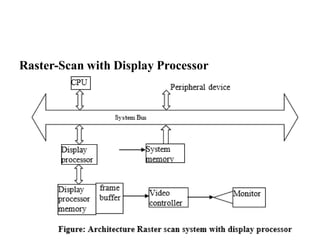
Raster-Scan with Display Processor
• Includes a separate graphics processor to
perform graphics functions such as scan
conversion and raster operation and a
separate frame buffer for image refresh.
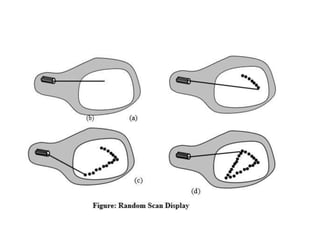
Random scan display: (Vector display)
• Electron beam that is directed only to the
parts of the screen where the picture is to be
drawn.
• It draws a picture one line at a time, so it is
also called vector display.
• The component lines of a picture are drawn
and refreshed by random scan system in any
specified order.
• refresh rate of vector display depends upon
the no. of lines to be displayed for any image.
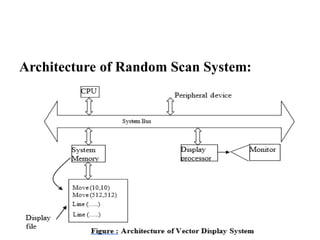
• Picture definition is stored as a set of line
drawing instructions in an area of memory
called the refresh display file.
• To display a picture, the system cycles through
the set of commands.
• After all commands have been processed, the
system cycles back to the first line command
in the list.
• Cannot display realistic scenes.
Architecture of Random Scan System:
Color CRT
• In color CRT, the phosphor on the face of CRT
screen are laid into different fashion:
1. Beam penetration method
2. Shadow mask method
Beam Penetration method:
• This method is commonly used for random
scan display or vector display.
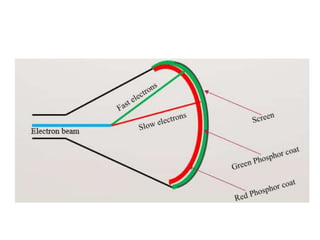
• In random scan display CRT, the two layers of
phosphor usually red and green are coated on
CRT screen.
• Display color depends upon how far electrons
beam penetrate the phosphor layers.
• Slow electron excite only red layer so
that we can see red color displayed on
the screen pixel where the beam
strikes.
• Fast electron beam excite green layer
penetrating the red layer and we can
see the green color displayed at the
corresponding position.
• Intermediate is combination of red and
green so two additional colors are
possible – orange and yellow.
• So only four colors are possible, so no
good quality picture.
Shadow Mask Method:
• Shadow mask method is used for raster scan
system so they can produce wide range of
colors.
• In shadow mask color CRT, the phosphor on
the face of the screen are laid out in a precise
geometric pattern.
• In color CRT, the neck of tube, there are three
electron guns, one for each red, green and
blue colors.
− Special metal plate called a shadow
mask is placed just behind the
phosphor coating to cover front face.
• The mask is aligned so that it simultaneously
allow each electron beam to see only the
phosphor of its assigned color.
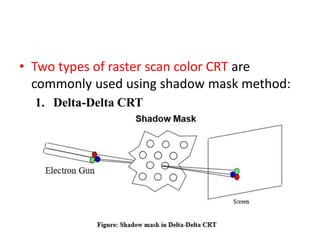
• Two types of raster scan color CRT are
commonly used using shadow mask method:
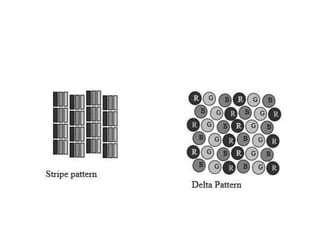
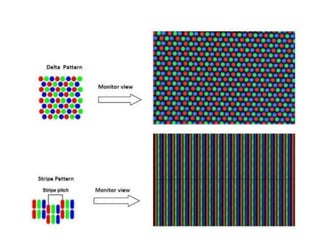
1. Delta-Delta CRT
• In delta-delta CRT, three electron beams one
for each R,G,B colors are deflected and
focused as a group onto shadow mask, which
contains a series of holes aligned with the
phosphor dots.
− Each hole aligned with respective triad.
− When three beams pass through a hole
in shadow mask, they activate the dot
triangle to illuminate an small spot
colored on the screen.
• The color variation in shadow mask CRT can
be obtained by varying the intensity level of
the three electron guns.
• Draw back of this CRT is due to difficulty for
the alignment of shadow mask hole and
respective triads.
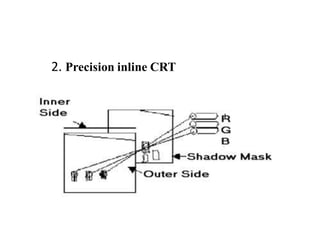
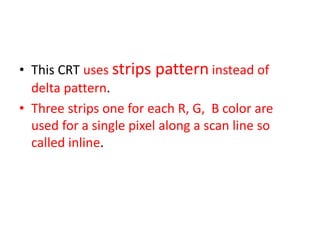
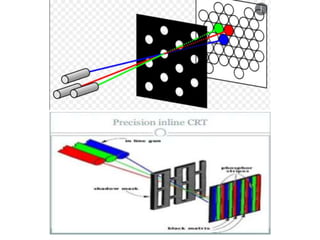
2. Precision inline CRT
• This CRT uses strips pattern instead of
delta pattern.
• Three strips one for each R, G, B color are
used for a single pixel along a scan line so
called inline.
Color Models in Computer Graphics
• Color model is a 3D color coordinate system to
produce all range of color through the primary
color set.
• There are millions of colors used in computer
graphics.
• A Color model is a hierarchical system in which
we can create every color by using:
-RGB (Red, Green, Blue) and
-CMYK (Cyan, Magenta, Yellow, Black) or other
color models.
Types of Color Model
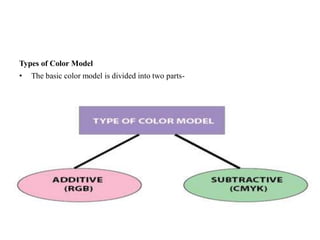
• The basic color model is divided into two parts-
Additive Color Model:
• It is also named as RGB model.
• This color space is widely used in computer
graphics.
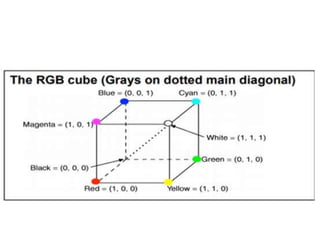
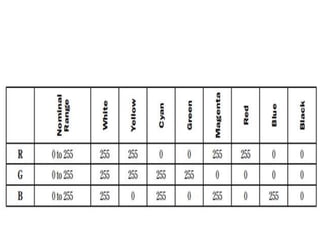
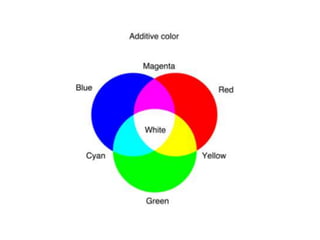
• In RGB model, the default color is black.
• It means absence of any color or the 0 values
of all R, G and B results in a black color and
presence of all R, G and B in full intensity
results in white.
• To generate primary colors, we add the
different values of R, G and B together.
• That is why it’s so called additive color model.
• RGB color model is used for digital display
devices.
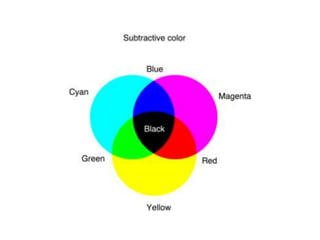
Subtractive Color Model:
• It is also named as CMYK Model.
• CMYK stands for Cyan, Magenta, Yellow, and
Black.
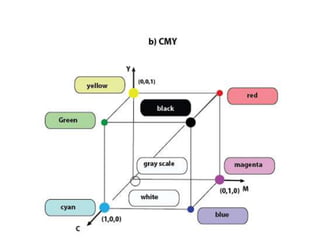
• In CMYK model, the default color is white.
• It means absence of any color or the 0 values
of all C, M and Y results in a white color and
presence of all C, M and Y in full intensity
results in black.
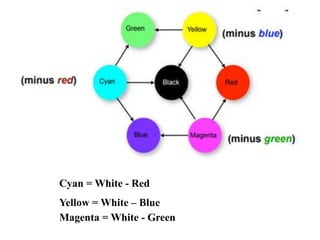
• To generate the primary colors, we subtract
the different values of R, G and B from White
color.
• That is why it’s so called subtractive color
model.
• Specified color is subtracted from the white
light rather than adding.
Cyan = White - Red
Yellow = White – Blue
Magenta = White - Green
• CMYK color model is used for printing devices.
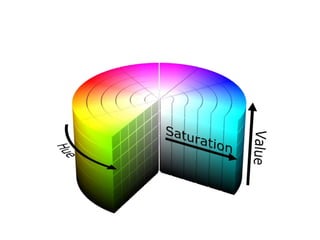
HSV Color Model:
• Unlike RGB color model which is three
dimensional model, HSV is a cylindrical color
model.
• It remaps the RGB primary colors into
cylindrical model with different dimensions.
• These dimensions are hue, saturation,
and value.
• Hue specifies the angle of the color on the
RGB color circle.
• A 0° hue results in red, 120° results in green,
and 240° results in blue.
• Saturation controls the amount of color used.
• A color with 100% saturation will be the
purest color possible, while 0% saturation
yields gray scale.
• Value controls the brightness of the color.
• Dimensions of the HSV color model are
interdependent.
• If the value dimension of a color is set to 0%,
the amount of hue and saturation does not
matter as the color will be black.
• Likewise, if the saturation of a color is set to
0%, the hue does not matter as there is no
color used.
Graphics Software
Two general classifications for graphics software:
 General programming packages
• Special purpose application packages
General programming packages
• It contains graphics functions that can be used with
high level programming languages such as C, FORTRAN,
JAVA, etc. Example: OpenGL (Graphics Library).
• A general purpose graphics package provides users
with a variety of functions for creating and manipulating
pictures.
• These graphic functions include tools for generating
picture components, setting color, and applying
transformations.
Special purpose application packages
• It is specifically designed for particular
applications.
• Maya, CINEMA 3D are particularly used for
animations, different types of CAD applications
are designed for medical and business purposes.
• These are primarily oriented to non-
programmers.
Software Standards
• Graphics packages are designed with standard
graphics functions, software can be easily
moved from one H/W system to another.
1)Graphical Kernel System (GKS)
• GKS was the first graphics software standard
adopted by the international standards
organization (ISO).
• It was originally designed as a 2-dimensional
graphics package.
• GKS supports the grouping of logically related
primitives such as lines, polygons.
2) Programmer’s Hierarchical Interactive Graphics
System (PHIGS)
• It is an extension of GKS.
• Increased capabilities in object modeling, color
specifications, surface rendering and picture
manipulation are provided in PHIGS.
• It include all primitives supported by GKS, in
addition, it also includes geometric
transformations (like Scaling, Translation,
Rotation, etc).
3) PHIGS+
• It is an extension of earlier PHIGS.
• 3D surface shading capabilities are added
to the PHIGS.
End of Unit ‘1’

Introduction to computer graphics.Basic foundation of graphics in computer system

  • 1.
    Computer Graphics Unit ‘1’ Preparedby: Abhishek Dewan Lecturer, Computer Graphics Trinity Int’l College
  • 2.
    • Computer Graphicsis a field related to the generation of graphics using computers. • It includes the creation, storage, and manipulation of images of objects. • These objects come from diverse fields such as physical, mathematical, engineering, architectural, abstract structures and natural phenomenon.
  • 3.
    • Computer graphicstoday is largely interactive, that is , the user controls the contents, structure, and appearance of images of the objects by using input devices.
  • 4.
    • Until theearly 1980's computer graphics was a small, specialized field, • largely because the hardware was expensive and graphics-based application programs that were easy to use and cost-effective were few.
  • 5.
    • Personal computerswith built-in raster graphics displays-such as Apple Macintosh and the IBM PC- popularized the use of bitmap graphics for user-computer interaction. • A bitmap is a ones and zeros representation of the rectangular array points on the screen.
  • 6.
    • Once bitmapgraphics became affordable, and explosion of easy-to-use and inexpensive graphics-based applications followed.
  • 7.
    • This alloweduser to represent data files, application program, file cabinets, mailboxes, printers, recycle bin using different icons. • By pointing and clicking the icons, users could activate the corresponding programs or objects, which replaced much of the typing of the commands used in earlier operating systems and computer applications.
  • 8.
    • Today, almostall interactive application programs, even those for manipulating text(e.g.. word processor) or numerical data (e.g. spreadsheet programs), use graphics extensively in the user interface and for visualizing and manipulating the application- specific objects
  • 9.
    • Even peoplewho do not use computers encounter computer graphics in TV commercials and as cinematic special effects. • Thus computer graphics is and integral part of all computer user interfaces, and is indispensable for visualizing 2D, 3D objects in all most all areas such as education, science, engineering, medicine, commerce, the military, advertising, and entertainment.
  • 10.
    Pixel • In digitalimaging, a pixel, pel, dots, or picture element is a physical point in a raster image, i.e. the smallest addressable element in an all points addressable display device; • it is the smallest controllable element of a picture represented on the screen.
  • 11.
    Resolution • Maximum numberof points displayed horizontally and vertically without overlap on a display screen / image is called resolution. • In other ways , resolution is referred as the no of points per inch(dpi/pixel per inch).
  • 12.
    • Image resolutionis typically expressed as a horizontal x vertical measurement. • So, an image resolution of 6000 x 4000 tells us that the image measures 6000 pixels in width and 4000 pixels in height. • Multiplying the two figures together gives us the second way this is commonly stated, namely as megapixels. • 6000 x 4000 equals 24,000,000, which is more commonly written as 24 megapixels (MP).
  • 13.
    Types of Graphics a)Bitmap graphics b) Vector graphics • Bitmap graphics are made up of pixels of different colors. • Vector graphics are made up of objects.
  • 14.
    Bitmap graphics • Itis also called a bit array, pixmap or bitmap index. meaning just a map of bits, a spatially mapped array of bits. • A bitmap graphic is composed of many tiny parts, called pixels, which are often many different colours. • It is possible to edit each individual pixel.
  • 15.
    • Since thecomputer has to store information about every single pixel in the image, the file size of a bitmap graphic is often quite large. • When you resize a bitmap graphic, it tends to lose quality.
  • 18.
    Vector graphics • Vectorgraphics is the creation of digital images through a sequence of commands or mathematical statements that place lines and shapes in a given two-dimensional or three-dimensional space. • Instead of containing a bit in the file for each bit of a line drawing, a vector graphic file describes a series of points to be connected. One result is a much smaller file. • It is possible to edit each object separately, for example, change the shape, colour, size and position.
  • 22.
    • Even ifan object in a vector graphic is quite large, it doesn't need a lot of computer memory. Therefore the file size of a vector graphic is often very small. • Vector graphics are scalable - ie when you resize them, they do not lose quality.
  • 25.
    Graphics software Bitmap graphicssoftware Bitmap graphics can be created and edited using packages such as:  MS Paint  Adobe Photoshop
  • 26.
    Vector graphics software Vectorgraphics can be created using drawing packages, such as:  Adobe Illustrator  Adobe FreeHand  CorelDRAW  Pro/DESKTOP
  • 27.
    Computer Graphics v/sImage Processing
  • 28.
    • Image processingis a method to perform some operations on an image, in order to get an enhanced image or to extract some useful information from it. • It is a type of signal processing in which input is an image and output may be image or characteristics/features associated with that image. • Nowadays, image processing is among rapidly growing technologies.
  • 29.
    Image processing basicallyincludes the following three steps: • Importing the image via image acquisition tools; • Analyzing and manipulating the image; • Output ----- can be altered image or report that is based on image analysis.
  • 30.
    Fundamental Image ProcessingSteps: • Image Acquisition (Preprocessing) the action of retrieving an image from some source. • Image Enhancement the action of enhancing components of an image.
  • 31.
    • Image Restoration theaction of restoring lost or damaged components of an image. • Color Image Processing the action of enhancing color components of an image. • Information extraction the action of extracting information and pattern from an image.
  • 32.
    There are fivemain types of image processing: • Visualization - Find objects that are not visible in the image • Recognition - Distinguish or detect objects in the image • Sharpening and restoration - Create an enhanced image from the original image
  • 33.
    • Pattern recognition- Measure the various patterns around the objects in the image • Retrieval - Browse and search images from a large database of digital images that are similar to the original image
  • 34.
    Applications of ComputerGraphics 1. User interfaces • Most applications have user interfaces that rely on desktop windows systems to manage multiple simultaneous activities , and on point-and click facilities to allow users perform various functions in just a click.
  • 36.
    • User interfaceshave menu items, icons and objects on the screen designed with the help of graphics.
  • 37.
    2. Plotting • Plotting2D and 3D graphs of mathematical, physical, and economic functions use computer graphics extensively. • The histograms, bar, and pie charts; the task- scheduling charts are the most commonly used plotting. • These all are used to present meaningfully and concisely the trends and patterns of complex data.
  • 39.
    3. Electronic publishing •Computer graphics has facilitated electronic publishing which is also popularly known as desktop publishing, giving more power to the organizations to print the meaningful materials in-house. • Electronic publishing can produce both traditional printed (Hardcopy) and electronic(softcopy) documents that contain text, tables, graphs, and other forms of drawn or scanned-in graphics.
  • 41.
    4. Computer AidedDesign • One of the major uses of computer graphics is to design components and systems of mechanical, electrical, electrochemical, and electronic devices, • It includes structures such as buildings, automobile bodies, airplane and ships, very large scale integrated (VLSI) chips, optical systems, and telephone and computer networks.
  • 43.
    5. Scientific andbusiness Visualization • Generating computer graphics for scientific, engineering, and medical data sets is termed as scientific visualization • whereas business visualization is related with the non scientific data sets such as those obtained in economics. • Visualization makes easier to understand the trends and patterns inherent in the huge amount of data sets. It would , otherwise , be almost impossible to analyze those data numerically.
  • 45.
    6. Simulation andmodeling • Simulation is the imitation of the conditions like those , which is encountered in real life. • Simulation thus helps to learn or to feel the conditions one might have to face in near future without being in danger at the beginning of the course.
  • 47.
    • The militarytank simulator, the naval simulator, driving simulator, air traffic control simulator, heavy-duty vehicle simulator, and so on are some of the mostly used simulator in practice.
  • 48.
    7. Entertainment • Disneyand Marvel movies such as Lion Kings ,The Beauty and the Beast, The Avengers and other scientific movies like Jurassic Park, The lost world etc are the best example of the application of computer graphics in the field of entertainment. • Computer games such as FIFA, PubG, Freefire are few to name where graphics is used extensively.
  • 50.
    8. Cartography • Cartographyis a subject , which deals with the making of maps and charts. • Computer graphics is used to produce both accurate and schematic representations of geographical and other natural phenomena from measurement data. • Examples include geographic maps, weather maps, and population-density maps.
  • 52.
    Hardware Concepts Input Devices DigitizerTablet: • In general a digitizer is a device which is used to scan over an object, and to input a set of discrete coordinate positions. • These positions can then be joined with straight-line segments to approximate the shape of the original object.
  • 54.
    • It isa tool used to convert hand-drawn images into a format suitable for computer processing. • Images are usually drawn onto a flat surface with a stylus and then appear on a computer monitor or screen. • Digitizer tablets can also be used as an input device, receiving information represented in drawings and sending output to a CAD (computer aided design) application and PC-based software like AutoCAD.
  • 55.
    Touch panel • Thetouch panel allows the users to point at the screen directly with a finger to move the cursor around the screen, or to select the icons. • Following are the mostly used touch panels:
  • 56.
    Optical touch panel •It uses a series of infra-red light emitting diodes (LED) along one vertical edge and along one horizontal edge of the panel. • The opposite vertical and horizontal edges contain photo-detectors to form a grid of invisible infrared light beams over the display area. • Touching the screen breaks one or two vertical and horizontal light beams, thereby indicating the finger's position. • The cursor is then moved to this position, or the icon at this position is selected.
  • 57.
    Light pen • Itis a pencil-shaped device to determine the coordinates of a point on the screen where it is activated such as pressing the button. • A light pen is a light-sensitive computer input device, basically a stylus, that is used to select text, draw pictures and interact with user interface elements on a computer screen or monitor.
  • 58.
    Keyboard • A keyboardcreates a code such as ASCII corresponding to a pressed key. • It is used to provide input using alphanumeric keys, function keys, cursor-control keys.
  • 59.
    Mouse A mouse isa small hand-held device used to position the cursor on the screen. • They can be picked up, moved in space, and then put down gain without any change in the reported position. • Following are the mostly used mouse in computer graphics:
  • 60.
    Mechanical mouse • Whena roller in the base of this mechanical mouse is moved, a pair of orthogonally arranged toothed wheels, each placed in between a LED and a photo detector, interrupts the light path. • The interrupts so generated are used to report the mouse movements to the computer.
  • 61.
    Optical mouse • ALED on the bottom of the mouse directs a beam of light down onto the pad, from which it is reflected and sensed by the detectors on the bottom of the mouse.
  • 62.
  • 63.
    • CRT usedto be the most common display devices. • A CRT is an evacuated glass tube, with a heating element on one end and a phosphor- coated screen on the other end. • When a current flows through this heating element (filament) the conductivity of metal is reduced due to high temperature, these cause electrons to pile up on the filament.
  • 64.
    • These electronsare attracted to a strong positive charge from the outer surface of the focusing anode cylinder. • The electrons head towards the anode forced into a beam and accelerated by the inner cylinder walls in just the way that water is speeds up when its flow though a small diameter pipe. • The forwarding fast electron beam is called Cathode Ray.
  • 65.
    • There aretwo sets of weakly charged deflection plates with oppositely charged, one positive and another negative. • The first set displaces the beam up and down and the second displaces the beam left and right. • The electrons are sent flying out of the neck of bottle (tube) until the smash into the phosphor coating on the other end.
  • 66.
    • When electronsstrike on phosphor coating, the phosphor then emits a small spot of light at each position contacted by electron beam. • The glowing positions are used to represent the picture in the screen.
  • 67.
    • The amountof light emitted by the phosphor coating depends on the no. of electrons striking the screen. • The brightness of the display is controlled by varying the voltage on the control grid.
  • 68.
    Persistence: • How longa phosphor continues to emit light after the electron beam is removed • Persistence of phosphor is defined as the time it takes for emitted light to decay to 1/10 (10%) of its original intensity. Range of persistence of different phosphors can react many seconds. • Phosphors for graphical display have persistence of 10 to 60 microseconds. Phosphors with low persistence are useful for animation whereas high persistence phosphor is useful for highly complex, static pictures.
  • 69.
    Refresh Rate: • Lightemitted by phosphor fades very rapidly, so to keep the drawn picture glowing constantly, it is required to redraw the picture repeatedly and quickly directing the electron beam back over the some point. • The no of times/sec the image is redrawn to give a feeling of non-flickering pictures is called refresh-rate. • If Refresh rate decreases, flicker develops. • For refresh displays, it depends on picture complexity • Refresh rate above which flickering stops and steady it may be called as critical fusion frequency(CFF).
  • 70.
    Raster-Scan Display • Inraster-scan the electron beam is swept across the screen, one row at a time from top to bottom. • No. of scan lines scaned per second is called horizontal scan rate.
  • 72.
    • As electronbeam moves across each row, the beam intensity is turned on and off to create a pattern of illuminated spots. • Picture definition is stored in a memory called frame buffer or refresh buffer.
  • 73.
    • Frame bufferholds all the intensity value for screen points.
  • 74.
    • The storedintensity value is retrieved from frame buffer and painted on the scan line at a time. • Home television are common examples using raster display. • Intensity range for pixel position depends on capability of raster system. • For B/W system each point on screen are either on or off, so only one bit per pixel is needed to control the pixel intensity.
  • 75.
    • To displaycolor with varying intensity level, additional bits are needed. • Up to 24 to 32 bit per pixel are included in high quality systems, which require more space of storage for the frame buffer.
  • 76.
    − A systemwith 24 bit pixel and screen resolution 1024 *1024 require 3 megabyte of storage in frame buffer. • 1024*1024 pixel = 1024*1024*24 bits = 3 MB
  • 77.
    • The framebutter in B/W system stores a pixel with one bit per pixel so it is termed as bitmap. • The frame buffer in multi-bit per pixel storage, is called pixmap.
  • 78.
    Interlacing • When referringto a computer monitor or another display, interlace or interlacing is a description of how the picture is created. • With an interlaced display the picture is created by scanning every other line, and on the next scan, scanning every opposite line.
  • 80.
    • Returning ofelectron beam from right end to left end after refreshing each scan line is horizontal retrace. • At the end of each frame, the electron beam returns to the top left corner to begin next frame called vertical retrace.
  • 81.
    • Question: Considera RGB raster system is to be designed using 8 inch by 10 inch screen with a resolution of 100 pixels per inch in each direction. If we want to store 8 bits per pixel in the frame buffer, How much storage(in bytes) do we need for the frame buffer? Solution: Size of screen = 8 inch *10 inch. Pixel per inch(Resolution) = 100. Then, Total no of pixels = 8*100 * 10 * 100 Bit per pixel storage = 8 Therefore, Total storage required in frame buffer = (800 *1000*8) bits = (800 *1000*8)/8 Bytes = 800000 Bytes. pixels
  • 82.
    Classwork?? ?? Consider twodifferent raster systems with resolutions of 640 x 480, 1280 x 1024. a) what size is frame buffer(in bytes) for each system to store 12 bits per pixel? b) how much storage (in bytes) is required for each system if 24 bits per pixel are to be stored?
  • 83.
    Architecture of RasterScan System: • Consists of several processing units. • CPU is the main processing unit of computer systems. • Besides CPU, graphics system consists of a special purpose processor called video controller or display processor. • The display processor controls the operation of the display device.
  • 85.
    • A fixedarea of system memory is reserved for the frame buffer. • The video controller cycles through the frame buffer, one scan line at a time, typically at 60 times per second or higher. • The contents of frame buffer are used to control the CRT beam's intensity or color.
  • 86.
  • 87.
    • The raster-scangenerator produces deflection signals that generate the raster scan and also controls the X and Y address registers, which in turn defines memory location to be accessed next. • As first scan line is generated, the X address is incremented up to Xmax. • Each pixel value is fetched and used to control the intensity of CRT beam. • After first scan line X address is reset to 0 and Y address is incremented by 1. The process is continued until the last scan line (Y=Ymax) is generated
  • 88.
  • 89.
    • Includes aseparate graphics processor to perform graphics functions such as scan conversion and raster operation and a separate frame buffer for image refresh.
  • 90.
    Random scan display:(Vector display) • Electron beam that is directed only to the parts of the screen where the picture is to be drawn. • It draws a picture one line at a time, so it is also called vector display. • The component lines of a picture are drawn and refreshed by random scan system in any specified order.
  • 92.
    • refresh rateof vector display depends upon the no. of lines to be displayed for any image. • Picture definition is stored as a set of line drawing instructions in an area of memory called the refresh display file.
  • 93.
    • To displaya picture, the system cycles through the set of commands. • After all commands have been processed, the system cycles back to the first line command in the list. • Cannot display realistic scenes.
  • 94.
  • 95.
    Color CRT • Incolor CRT, the phosphor on the face of CRT screen are laid into different fashion: 1. Beam penetration method 2. Shadow mask method
  • 96.
    Beam Penetration method: •This method is commonly used for random scan display or vector display. • In random scan display CRT, the two layers of phosphor usually red and green are coated on CRT screen. • Display color depends upon how far electrons beam penetrate the phosphor layers.
  • 98.
    • Slow electronexcite only red layer so that we can see red color displayed on the screen pixel where the beam strikes. • Fast electron beam excite green layer penetrating the red layer and we can see the green color displayed at the corresponding position.
  • 99.
    • Intermediate iscombination of red and green so two additional colors are possible – orange and yellow. • So only four colors are possible, so no good quality picture.
  • 100.
    Shadow Mask Method: •Shadow mask method is used for raster scan system so they can produce wide range of colors. • In shadow mask color CRT, the phosphor on the face of the screen are laid out in a precise geometric pattern.
  • 103.
    • In colorCRT, the neck of tube, there are three electron guns, one for each red, green and blue colors. − Special metal plate called a shadow mask is placed just behind the phosphor coating to cover front face.
  • 104.
    • The maskis aligned so that it simultaneously allow each electron beam to see only the phosphor of its assigned color.
  • 105.
    • Two typesof raster scan color CRT are commonly used using shadow mask method: 1. Delta-Delta CRT
  • 106.
    • In delta-deltaCRT, three electron beams one for each R,G,B colors are deflected and focused as a group onto shadow mask, which contains a series of holes aligned with the phosphor dots. − Each hole aligned with respective triad.
  • 107.
    − When threebeams pass through a hole in shadow mask, they activate the dot triangle to illuminate an small spot colored on the screen. • The color variation in shadow mask CRT can be obtained by varying the intensity level of the three electron guns.
  • 108.
    • Draw backof this CRT is due to difficulty for the alignment of shadow mask hole and respective triads.
  • 109.
  • 110.
    • This CRTuses strips pattern instead of delta pattern. • Three strips one for each R, G, B color are used for a single pixel along a scan line so called inline.
  • 112.
    Color Models inComputer Graphics • Color model is a 3D color coordinate system to produce all range of color through the primary color set. • There are millions of colors used in computer graphics. • A Color model is a hierarchical system in which we can create every color by using: -RGB (Red, Green, Blue) and -CMYK (Cyan, Magenta, Yellow, Black) or other color models.
  • 113.
    Types of ColorModel • The basic color model is divided into two parts-
  • 114.
    Additive Color Model: •It is also named as RGB model. • This color space is widely used in computer graphics.
  • 117.
    • In RGBmodel, the default color is black. • It means absence of any color or the 0 values of all R, G and B results in a black color and presence of all R, G and B in full intensity results in white.
  • 118.
    • To generateprimary colors, we add the different values of R, G and B together. • That is why it’s so called additive color model.
  • 120.
    • RGB colormodel is used for digital display devices.
  • 121.
    Subtractive Color Model: •It is also named as CMYK Model. • CMYK stands for Cyan, Magenta, Yellow, and Black.
  • 123.
    • In CMYKmodel, the default color is white. • It means absence of any color or the 0 values of all C, M and Y results in a white color and presence of all C, M and Y in full intensity results in black.
  • 124.
    • To generatethe primary colors, we subtract the different values of R, G and B from White color. • That is why it’s so called subtractive color model. • Specified color is subtracted from the white light rather than adding.
  • 125.
    Cyan = White- Red Yellow = White – Blue Magenta = White - Green
  • 127.
    • CMYK colormodel is used for printing devices.
  • 128.
    HSV Color Model: •Unlike RGB color model which is three dimensional model, HSV is a cylindrical color model. • It remaps the RGB primary colors into cylindrical model with different dimensions.
  • 129.
    • These dimensionsare hue, saturation, and value.
  • 131.
    • Hue specifiesthe angle of the color on the RGB color circle. • A 0° hue results in red, 120° results in green, and 240° results in blue.
  • 132.
    • Saturation controlsthe amount of color used. • A color with 100% saturation will be the purest color possible, while 0% saturation yields gray scale. • Value controls the brightness of the color.
  • 133.
    • Dimensions ofthe HSV color model are interdependent. • If the value dimension of a color is set to 0%, the amount of hue and saturation does not matter as the color will be black.
  • 134.
    • Likewise, ifthe saturation of a color is set to 0%, the hue does not matter as there is no color used.
  • 135.
    Graphics Software Two generalclassifications for graphics software:  General programming packages • Special purpose application packages
  • 136.
    General programming packages •It contains graphics functions that can be used with high level programming languages such as C, FORTRAN, JAVA, etc. Example: OpenGL (Graphics Library). • A general purpose graphics package provides users with a variety of functions for creating and manipulating pictures. • These graphic functions include tools for generating picture components, setting color, and applying transformations.
  • 137.
    Special purpose applicationpackages • It is specifically designed for particular applications. • Maya, CINEMA 3D are particularly used for animations, different types of CAD applications are designed for medical and business purposes. • These are primarily oriented to non- programmers.
  • 138.
    Software Standards • Graphicspackages are designed with standard graphics functions, software can be easily moved from one H/W system to another.
  • 139.
    1)Graphical Kernel System(GKS) • GKS was the first graphics software standard adopted by the international standards organization (ISO). • It was originally designed as a 2-dimensional graphics package. • GKS supports the grouping of logically related primitives such as lines, polygons.
  • 140.
    2) Programmer’s HierarchicalInteractive Graphics System (PHIGS) • It is an extension of GKS. • Increased capabilities in object modeling, color specifications, surface rendering and picture manipulation are provided in PHIGS. • It include all primitives supported by GKS, in addition, it also includes geometric transformations (like Scaling, Translation, Rotation, etc).
  • 141.
    3) PHIGS+ • Itis an extension of earlier PHIGS. • 3D surface shading capabilities are added to the PHIGS.
  • 143.
    End of Unit‘1’