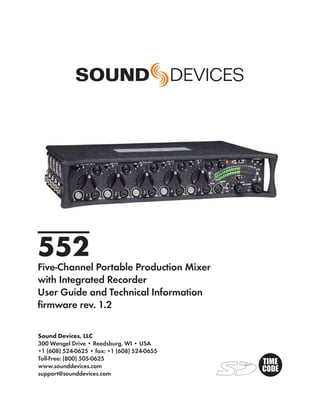
552
Five-Channel Portable Production Mixer
with Integrated Recorder
User Guide and Technical Information
firmware rev. 1.2

Sound Devices, LLC
300 Wengel Drive • Reedsburg, WI • USA
+1 (608) 524-0625 • fax: +1 (608) 524-0655
Toll-Free: (800) 505-0625
www.sounddevices.com
support@sounddevices.com
552 User Guide and Technical Information


Table of Contents
Quick Start Guide . . . . . . . . . . . . . . . . . . . . . . .3          Metering . . . . . . . . . . . . . . . . . . . . . . . . . . . . . .28
Front Panel Descriptions . . . . . . . . . . . . . . . . .8                    Meter Ballistics
                                                                                     VU
Rear Panel Descriptions . . . . . . . . . . . . . . . .11                            Peak
Left Panel Connectors and Controls . . . . . .11                                     Peak + Peak Hold
Right Panel Connectors and Controls . . . . .12                                      Peak + VU
                                                                                     Peak Hold + VU
Top and Bottom Panels . . . . . . . . . . . . . . . . . .13
                                                                               Zoom Metering
Voice Prompt . . . . . . . . . . . . . . . . . . . . . . . . . .13             Input Activity LED
Input Setup and Control . . . . . . . . . . . . . . . . .14                    Headphone Peak LED
     Mic/Line Selection                                                   Headphone Monitoring . . . . . . . . . . . . . . . . . .30
     Phantom Power                                                             Headphone Gain
     Gain - Trim and Fader Relationship                                        Headphone Source Selection
           Input Trim                                                          Headphone Tones
           Input Fader                                                               Record Start and Stop Tones
     High-Pass Filter                                                                Playback Navigation Tones
     Pan Control                                                               PFL (Channel Solo Monitor)
     Input Polarity                                                            RTN A and B
     Stereo Linking                                                                  Split Ear Return Monitoring
           Stereo Pair Linking
                                                                          Powering . . . . . . . . . . . . . . . . . . . . . . . . . . . . .32
           MS Pair Linking
                                                                               Internal Battery Powering
     Input Muting
                                                                               External Powering
Output Setup and Control . . . . . . . . . . . . . . .18                       Voltage Metering
     Master Gain Control                                                       Power Consumption
     Master Outputs
           XLR
                                                                          Slate Mic/Tone Oscillator . . . . . . . . . . . . . . . .33
           TA3                                                                 Slate Microphone
           Hirose 10-Pin                                                       Tone Oscillator
     Direct Outputs                                                       Talk Back Mode . . . . . . . . . . . . . . . . . . . . . . . .34
     Tape Outputs                                                         Time of Day/Date Clock . . . . . . . . . . . . . . . . . .36
     Mono Mic Output                                                      Mixer Linking . . . . . . . . . . . . . . . . . . . . . . . . . .36
     AES Digital Outputs
                                                                               Linking 552 Mixers
Limiters. . . . . . . . . . . . . . . . . . . . . . . . . . . . . . .21        Linking to Other Mixers
     LIM and LINK                                                                    Linking to a 302 or 442
Digital Audio Recorder . . . . . . . . . . . . . . . . . .22                         Linking to a MixPre
     File Format                                                          Accessing the Setup Menu . . . . . . . . . . . . . . .38
           WAV (Broadcast WAV)                                                 User Settings
           MP3                                                                 Factory Default Settings
     Bit Depth                                                            Setup Menu Chart . . . . . . . . . . . . . . . . . . . . . .39
           Bit Depth and Dynamic Range
     Sampling Rate                                                        Front Panel Button Shortcuts . . . . . . . . . . . .41
           Sampling Frequency and Audio Bandwidth                         Connector Pin Assignments . . . . . . . . . . . . .43
     Recording Media                                                      Specifications . . . . . . . . . . . . . . . . . . . . . . . . .44
     Folder Structure
                                                                          Block Diagram - Inputs and Outputs . . . . . . .47
     File Naming
     Automatic File Splitting                                             Block Diagram - Monitoring . . . . . . . . . . . . . .48
     Recorder Controller                                                  Block Diagram - AES . . . . . . . . . . . . . . . . . . . .49
     REC LED                                                              Accessories . . . . . . . . . . . . . . . . . . . . . . . . . .50
     Record Mode
                                                                          Wave Agent . . . . . . . . . . . . . . . . . . . . . . . . . . .51
     Record Pause
     Time Code                                                            CE Declaration of Conformity . . . . . . . . . . . .52
           Time Code to Track                                             Warranty and Technical Support . . . . . . . . . .53
           External Time Code Auto Record
     Playback


                                                                                                                                                   1
552 User Guide and Technical Information


           Welcome
             Thank you for purchasing the 552 Mixer. It is the next evolutionary step in professional, portable
             audio mixers. With a core design based on the legendary 442, it contains countless improvements
             and added flexibility.
             Developed with insight from the industry’s top audio engineers, the 552 Field Mixer encompasses
             the audio performance, feature set, and mechanical construction demanded by those who rely on
             audio gear for their livelihood. The 552 contains five high-performance microphone preamplifiers,
             multiple outputs including AES outputs, comprehensive monitoring, and a high-quality built-in
             audio recorder. Its input and output flexibility, including pre- or post- fade direct outputs on each
             channel, make the 552 at home in small “run-and-gun” applications as well as large, multiple input
             productions.
             The 552 incorporates a complete feature-set into a compact, functional design. 552 features are ac-
             cessible from the three main surfaces. The Setup Menu can be accessed at anytime to make changes
             to various parameters. The highly efficient circuitry allows the mixer to be powered by either four
             internal AA batteries or external 10-18 VDC.
             With a two-track recorder on-board, sound mixers can rest assured that audio is being recorded lo-
             cally. The 552 records polyphonic Broadcast Wave or MP3 files to removable, Secure Digital (SD) or
             Secure Digital High Capacity (SDHC) cards.
             The 552, like all Sound Devices professional audio products, is designed to withstand the physical
             and environmental extremes inherent to field production. Its compact construction strikes the perfect
             balance between performance, accessible controls, and durability.

           Copyright Notice and Release
             All rights reserved. No part of this publication may be reproduced, stored in a retrieval system, or transmitted in any form or by any
             means, electronic, mechanical, photocopying, recording, or otherwise, without the expressed written permission of SOUND DEVICES,
             LLC. SOUND DEVICES is not responsible for any use of this information.
             SOUND DEVICES, LLC shall not be liable to the purchaser of this product or third parties for damages, losses, costs, or expenses
             incurred by purchaser or third parties as a result of: accident, misuse, or abuse of this product or unauthorized modifications, repairs, or
             alterations to this product, or failure to strictly comply with SOUND DEVICES, LLC’s operating and installation instructions.
             Microsoft Windows is a registered trademark of Microsoft Corporation. Macintosh is a registered trademark of Apple Computer. Other
             product and company names mentioned herein may be the trademarks of their respective owners.
             The sound waves logo is a registered trademark of Sound Devices, LLC.


 2
       v. 1.2 Features and specifications are subject to change. Visit www.sounddevices.com for the latest documentation.
552 User Guide and Technical Information

Quick Start Guide
   This Quick Start Guide provides a brief overview for first use of the 552.
1) Connect power.
   For internal powering from AA batteries, unscrew the battery cap (counter-clock-
   wise), insert four AA batteries (not included) positive (+) side first into the battery
   tube. Thread the battery cap back on (clockwise). For external powering, connect a
   DC powering source (not included) to the DC connector on the Right Panel.


                                         +   AA    - +    AA      - +    AA    - +   AA   -

                                                         External Power Supply (not included)
2) Connect analog microphone or line sources to the XLR inputs.


                                                     552 Left Panel


                                                                                                                   Quickstart
3) Connect headphones to either the 1/4-inch or the 3.5 mm headphone outputs.


                                                             552 Right Panel


4) Power On the mixer.
   Slide the power switch to the INT position to power the mixer from AA batteries.
   Slide the power switch to the EXT position to power the mixer from external DC.
          Slide left for Internal AA Battery


          Slide right for External DC Power


                                                                                                              3
552 User Guide and Technical Information

                 5) Set Input Type – Mic or Line Level.
                    To select an input to Mic or Line level, hold an input’s PFL switch, then slide the
                    SLATE MIC/TONE switch to the left. The input’s LINE LED illuminates blue when
                    set to line level and the LED is not illuminated when set to Mic level.


                        1) Hold the Input’s PFL.                             2) Slide the SLATE MIC/TONE switch left.
                 6) Apply Phantom Power to an input.
                    The 552 supplies 48 V to inputs set to receive phantom power (PH). Phantom pow-
                    er can be set to 12 V in the Setup Menu. To apply phantom power, hold an input’s
                    PFL switch, then slide the SLATE MIC/TONE switch to the right. The input’s PH
                    LED illuminates blue when phantom power is applied.
Quickstart


                        1) Hold the Input’s PFL.                            2) Slide the SLATE MIC/TONE switch right.
                 7) Select a headphone monitor mode using the Headphone Selector.
                                                                                  MS ST    Stereo MS (mid-side)
                                                   Right Program            R
                                                 Left Program           L              REC Source         Recording Source

                             Mono (summed left and right)            M
                             Stereo (Left and Right) ProgramST
                 MS Monitor Modes are useful to listen to left/right stereo when M and S signals are routed. When
                 inputs are linked as an MS pair in the Setup Menu use the ST (Stereo program) monitor mode; this will
                 already contain the decoded MS Stereo signal.

                 8) Set the headphone level.
                    Turn the Headphone Controller to set headphone levels. The currently selected
                    headphone level is briefly indicated on the right output meter when the Head-
                    phone level control is turned.

             4
                    v. 1.2   Features and specifications are subject to change. Visit www.sounddevices.com for the latest documentation.
552 User Guide and Technical Information

9) Set Input Faders in use to unity gain (0 dB or 12 o’clock).
   Faders not used should be set to off (full counter-clockwise position).


10) Set Input Trim Levels.
    Push to release the recessed Trim (gain) Control. Turn the Trim Control clockwise to
    raise the level of the input. Once the gain has been set, push the Trim Control again
    to recess the control and remove it from the mixing surface. Use the Input Fader to
    make fine level adjustments.


                                                                                                 Quickstart
11) Route each input to either Left or Right Outputs using the Input Pan Control.
    Push to release the recessed Pan Control. Turn counter-clockwise to send the input
    to the Left Output and turn clockwise to send it to the Right Output. Once the pan
    has been set, push the Pan Control again to recess the control and remove it from
    the mixing surface.


12) Set High-Pass Filters and Limiters.
    Set the High-Pass Filter using the control adjacent to the Trim Control (full counter-
    clockwise position is off). Activate the Limiters using the switch adjacent to the
    Master Output Gain Control (Lim (dual Mono) Link (Stereo) applies to all inputs
    and outputs).
                                                                                             5
552 User Guide and Technical Information

                 13) Adjust LED Meter brightness.
                     Press and hold the Battery Check button while turning the Headphone Controller.

                 14) Check Internal and External power levels.
                     Press the Battery Check    button to display the internal and external power levels
                     on the Output Meter LEDs. The internal AA battery level is displayed on the left
                     meter and external DC voltage level is displayed on the right meter.

                 15) Connect the 552 analog outputs to the next device in the signal chain (audio
                     recorder, wireless transmitter, or camera).
                     Output levels are set (Line, -10, Mic) using the respective output’s attenuation
                     switch.


                                                                        552 Right Panel


                 16) Set the next device’s input sensitivity to receive the supplied signal.
Quickstart


                 17) Activate the 552’s Tone Generator.
                     Slide the SLATE MIC/TONE switch to the TONE position. Tone latches on if the
                     switch is held for two seconds; slide right again to turn off. A 1 kHz tone is gener-
                     ated and is sent out at 0 dB (level and frequency are menu-adjustable).

                                Slide left for Slate Mic


                                Slide right for Tone.


                 18) Adjust the input gain on the next device accordingly.


             6
                    v. 1.2   Features and specifications are subject to change. Visit www.sounddevices.com for the latest documentation.
552 User Guide and Technical Information


       Voice Prompt
        The 552 features a Synthetic Voice for Enhanced Navigation, or SVEN. SVEN provides spoken word
        feedback when Setup Menu features are adjusted. He is designed to simplify control and provide
        important information to the user. Additionally, SVEN provides status information about the digital
        audio recorder and time and date information. SVEN is routed only to the headphone outputs.


19) Setting the Time and Date.
    Press and hold the Battery Check button for the mixer to announce in headphones
    the current time and date. If the setting spoken back in headphones is incorrect see
    Time of Day/Date Clock section of the 552 User Guide.

20) Insert an SD memory card into the back panel SD Slot.
    Remove the protective rubber cover to access the SD memory card slot. Insert the
    SD card into the slot until it sits securely in the slot. The card should glide smoothly
    into the slot. Do not use excessive force when inserting the card and make certain
    that the electrical contacts are facing downwards. Push on the card to remove it.

21) Controlling the Integrated Digital Recorder.
    The Recorder Controller is used to initiate the Record, Stop, Playback, Rewind, Fast


                                                                                                                            Quickstart
    Forward functions as well as to navigate through recorded files.
                                          Push up to begin recording.


   Push left to load the previous file.                                    Push right to load the next file.
   Push left to Rewind during playback.                                   Push right to Fast Forward during playback.

                                                           Press in to Pause/Stop


                            Push down to playback the last recorded file or loaded file.


22) Making Changes in the Setup Menu.
    The 552 has many features that are accessed through its Setup Menu. For details on
    entering and controlling the Setup Menu see Accessing the Setup Menu section in
    the 552 User Guide.

23) Power Down the Mixer.
    Slide the power switch to the center position to power down. All settings are saved
    to EEPROM and will be saved and recalled upon next power on whether or not the
    unit is powered or has batteries.


                                                                                                                        7
552 User Guide and Technical Information


       Front Panel Descriptions
             All 552 settings are accessed and controlled from the Front Panel. This allows the unit to be placed in
             a production bag while having complete control of the unit.
                1    4   5    6   7   8   9   10 11                            12 13   14    15    16   17   18 19     20 21 22   23


                          2       3                                                         24    25    26   27   28   29   30


                1) Input Fader                                                      5) Input Signal LED
                   Primary control for adjusting the level                             Indicates input signal activity. LEDs il-
                   of an input during operation. Ranges                                luminate in various colors and intensi-
                   from Off to +15 dB. Nominal setting is                              ties to show signal level and activity.
                   in the middle (0 dB).                                               Green = signal presence (pre-fader),
                                                                                       yellow = limiter activity (pre- and post-
                2) Gain (Trim)                                                         fade) also flashes when solo is latched
                   Coarse input gain control. Sets the                                 on, red = signal overload/clipping
                   initial input sensitivity level so that the                         (pre- and post-fade) also solid when
                   Input Fader can be used for fine gain                                input is muted. See Metering.
                   adjustments. Range is from +22 dB to
                   +72 dB. See Input Setup and Control.                             6) Mic/Line LED
                                                                                       Illuminates blue to indicate an input is
                3) High-Pass Filter Control                                            set to Line level. To toggle between Mic
                   Adjusts corner (-3 dB) frequency of                                 and Line settings, hold the input PFL
                   high-pass filter. Full counter-clockwise                             then slide the Slate Mic/Tone Switch to
                   position (detented) deactivates the                                 the Slate position.
                   High-Pass Filter. Range is 80-240 Hz,
                   12 dB/oct to 6 dB/oct. See Input Setup                           7) PH/Phantom LED
                   and Control.                                                        Illuminates blue to indicate an input’s
                                                                                       phantom power is on. To toggle phan-
                4) PFL/Input Solo Switch                                               tom power on and off, hold the selected
                   Pre-Fade Listen. Sends the input’s                                  input’s PFL switch then slide the Slate
                   pre-fade signal to headphones for solo                              Mic/Tone switch to the Tone position.
                   monitoring, troubleshooting, and gain                               Phantom power voltage can be set to
                   setting. Does not affect Master Output                              12 or 48 V (48 V is Factory Default).
                   signal. Slide the switch left to activate,                          Phantom voltage is set in the Setup
                   and again to deactivate. For momen-                                 Menu. The phantom power voltage is
                   tary action, hold the switch left for one                           applied across all inputs with the PH
                   second or longer. The Input Signal Ac-                              LED illuminated.
                   tivity LED flashes yellow when an in-
                   put’s PFL is latched on. The Input PFL                           8) MS LED
                   Switch is also used to make changes to                              Inputs 1, 2 and 3, 4 can be linked as an
                   several input settings. See Input Setup                             MS pair. When a pair is linked, the MS
                   and Control.                                                        and LINK LED illuminate blue. Stereo
                                                                                       linking configurations are selected in
                                                                                       the Setup Menu. See Stereo Linking.


 8
       v. 1.2 Features and specifications are subject to change. Visit www.sounddevices.com for the latest documentation.
552 User Guide and Technical Information


9) Link LED                                       16) Recorder Controller
   Illuminates blue when Inputs are linked            Controls the Integrated Digital Re-
   as a stereo pair. Stereo linking configura-         corder. Record Mode is enabled in the
   tions are selected in the Setup Menu. See          Setup Menu. When enabled, push up
   Stereo Linking.                                    to Record, press in to Pause/Stop, push
                                                      down to Play, push left to Rewind, push
10) Input Pan                                         right to Fast Forward. See Digital Audio
    Controls the Left/Right balance of the            Recorder.
    input signal to the outputs.
                                                  17) Record LED
11) Input Polarity (Inputs 2 and 4 only)              Indicates the status of the recording me-
    Illuminates blue when the Input’s polar-          dia. The LED is off when the recorder is
    ity is reversed. To toggle the state of the       in standby mode. Flashes yellow when
    input polarity, hold the selected input’s         no SD card is inserted. Illuminates solid
    PFL then press the Battery Check button.          red while recording, flashes red when
                                                      record is pending. Illuminates solid
12) Zoom LED                                          green while in playback mode. Flashes
    Illuminates blue when the Output Meter            green while playback is paused. Illumi-
    is in Zoom Mode. Zoom Mode allows                 nates solid yellow when media is busy.
    the user to view higher resolution in the         The LED is off when recorder is off.
    0 to +20 dBu range on the Output Meter.
    To toggle Zoom on and off, press in on        18) Slate/Tone LED
    the Headphone Controller. The Zoom                Illuminates yellow when either the slate
    Function is defeated in the Setup Menu            mic or tone is latched on.
    Function Meter Ballistics. See Metering.
                                                  19) Slate Mic/Tone Switch
13) Time Code LED                                     Slide left to activate the Slate Micro-
    Time Code is selected from the Setup              phone, slide again to deactivate. For
    Menu. When on, the LED flashes blue                momentary action hold for one second
    when Time Code is active but not being            or longer. Slide Slate Mic/Tone switch
    received The LED Illuminates solid blue           right to activate the Tone Oscillator. Tone
    when the unit is receiving valid time             will latch if held for 2 seconds or longer,
    code. Time Code is connected to the               slide again to deactivate. This switch
    RTN B TA3 connector and is stamped to             also functions as input type and phan-
    files generated by the 552’s recorder. See         tom power select. See Tone Oscillator/
    Time Code.                                        Slate Mic. See also Talk Back for additional
                                                      features.
14) AES Out LED
    Illuminates blue when one or more of          20) Limiter LED
    the AES outputs is active. See Digital            Each Output has its own Limiter LED.
    Outputs.                                          The LEDs Illuminate yellow when the
                                                      Output Limiter is active. See Output
15) Output Meter                                      Limiter.
    Multi -segment LED output meter. Scale
    is normally -30 dBu to +20 dBu. In Zoom       21) Power LED
    Mode, scale changes from 0 dBu to                 When powering with internal AA bat-
    +20 dBu. To engage Zoom mode, press               teries, the LED illuminates green when
    in on the Headphone Controller. See               the 552 is on, turns yellow when low
    Metering.                                         voltage point is reached, and flashes
                                                      red when voltage reaches a critical level
                                                      and batteries should be changed. When
                                                      powering with external DC, the LED
                                                      illuminates green when the 552 is on,
                                                      flashes red when voltage drops below
                                                      the set threshold. See Powering.


                                                                                                     9
552 User Guide and Technical Information


       Front Panel Descriptions cont.
                1    4   5    6   7   8   9   10 11                            12 13   14    15    16   17   18 19     20 21 22   23


                          2       3                                                         24    25    26   27   28   29   30


               22) Power Switch                                                     27) RTN A/B Switch
                   Three-position slide switch, selects be-                             Two-position momentary switch. Slide
                   tween internal battery power or external                             left for RTN A headphone monitoring,
                   DC sources, middle position is Off.                                  slide right for RTN B headphone moni-
                                                                                        toring. Slide again to deactivate. For mo-
               23) Battery Check Button                                                 mentary action, hold for one second or
                   Press to display internal and external                               longer. While holding the return switch,
                   voltage levels on the Output Meter.                                  turn the Headphone Controller to adjust
                   Secondary function acts as shift key for                             RTN A and RTN B levels. When time
                   various front panel features. Press and                              code is active, the TA3 input is used ex-
                   hold to announce card space available                                clusively for time code. The 3.5 mm jack
                   and current time and date.                                           functions normally. See Return and also
                                                                                        RTN Loopback and Time Code.
               24) Master Output Level Control
                   Controls the overall signal level of the                         28) Monitor Selection Switch
                   Master Stereo Outputs. Adjustable from                               Selects program sent to the headphone
                   off to +6 dB. See Outputs.                                           monitor. ST = stereo program, M =
                                                                                        mono summed mix of Left and Right
               25) Limiter Switch                                                       program, L = mono mix of Left program,
                   Activates both Input and Output Limit-                               R = mono mix of Right program, MS
                   ers. When LIM is selected, the Output                                ST = decoded MS Stereo, REC Source =
                   Limiters act independently on the Left                               program routed to the recorder (AES A).
                   and Right Outputs. When LINK is                                      See Headphones.
                   selected, the Output Limiters are linked
                   and limiting is applied evenly across the                        29) Headphone Peak LED
                   Stereo Outputs. See Limiter.                                         Illuminates red when the headphone
                                                                                        monitor is approaching clip levels.
               26) RTN A/B LED
                   Indicates the activity for each return                           30) Headphone Controller
                   input. The LEDs illuminate in various                                Controls headphone gain. Secondary
                   colors and intensities to indicate the be-                           functions include Setup Menu control,
                   havior of the return signals. Green = re-                            Zoom Mode, LED Brightness adjust-
                   turn signal presence, Red = return signal                            ment, and Return levels control.
                   overload/clipping, Yellow = the monitor
                   return is latched on. When time code is
                   active, the TA3 input is used exclusively
                   for time code. The 3.5 mm jack functions
                   normally. See Return.


 10
       v. 1.2 Features and specifications are subject to change. Visit www.sounddevices.com for the latest documentation.
552 User Guide and Technical Information


Rear Panel Descriptions


                                          1       2


   1) SD Slot                                         1) Factory Programming Port
      Protective rubber cover for SD (Secure             Mini USB port used for initial factory
      Digital) memory card slot. Insert the              programming. This connection has no
      SD/SDHC card into the slot until it sits           user function.
      securely in the slot. The card should
      glide smoothly into the slot. To remove
      the card, push to eject. MMC and SDXC
      cards are not supported.


Left Panel Connectors and Controls
                                              1


                                              2


   1) Analog Inputs Channels 1-5                      2) Analog Direct Outputs
      Transformer-balanced analog micro-                 Balanced direct outputs on TA3 con-
      phone- or line-level inputs 1-5 on XLR             nectors. Slate Mic and Tone signals
      connectors. Pin 1 = Ground; pin 2 = Hot            appear at the direct outputs. Direct
      (+); pin 3 = Cold (-). For unbalanced              output signal is pre- or post-fader and
      inputs, tie pin 1 and pin 3 together =             level is selected in the Setup Menu be-
      ground, pin 2 = positive. Make cer-                tween Line, -10, and Mic levels. Pin 1 =
      tain phantom power is off when using               Ground; pin 2 = Hot (+); pin 3 = Cold (-)
      unbalanced inputs. See Input Setup and             float pin 3 to unbalance.
      Control.


                                                                                                     11
552 User Guide and Technical Information


       Right Panel Connectors and Controls
                                                 1    2        3   4    5   6      7           8    9


                                                          10           11              12     13    14


               1) Mono Mic Out                                                         8) Tape Output
                  Unbalanced mono mic-level output on                                     Unbalanced tape-level stereo output
                  3.5 mm female connector, designed to                                    on TA3 connector. Pin 1 = Ground,
                  connect to wireless IFB transmitters or                                 pin 2 = Left, pin 3 = Right.
                  transcription recorders. Tip = Hot (+),
                  Sleeve = Ground.                                                     9) Link I/O
                                                                                          Used to link additional Sound Devices
               2) Tape Out                                                                552, 302, 442, or MixPre mixers. See
                  Unbalanced stereo output on 3.5 mm                                      Mixer Linking.
                  female connector. Sleeve = Ground,
                  Tip = Left, Ring = Right.                                            10) Headphone Outputs
                                                                                           1/4-inch and 3.5 mm stereo connectors,
               3) RTN B In                                                                 drive headphones from 8-2000 ohm
                  Unbalanced stereo 3.5 mm female con-                                     impedances. 3.5 mm connection can be
                  nector for Return B audio input. Sleeve                                  set in the Setup Menu as an independent
                  = Ground, Tip = Left, Ring = Right. See                                  boom operator send. See Talk Back Mode.
                  RTN B and RTN Loopback Mode.
                                                                                       11) XLR Output Level
               4) 10-Pin Output Level Switch                                               Sets the nominal output level for the
                  Selects the Hirose 10-Pin Output level                                   Left and Right XLR Master Output to
                  between Line, -10, or Mic levels.                                        Line, -10, or Mic levels.

               5) 10-Pin Master Outputs and Return A                                   12) XLR Master Outputs
                  10-pin connector includes second master                                  Transformer-balanced analog out-
                  output (transformer-isolated from the                                    puts on standard 3-pin XLR connec-
                  XLR outputs) and unbalanced stereo                                       tors. Pin 1 = Ground; pin 2 = Hot (+);
                  Return A. Can be set to send out AES                                     pin 3 = Cold (-). Unbalance by tieing
                  digital signals. See AES Digit Outputs.                                  pin 3 to pin 1. Can be set to send AES3
                                                                                           digital signals in the Setup Menu. See
               6) RTN B / TC Input                                                         AES Digit Outputs.
                  Unbalanced stereo input for Return B
                  audio and Time Code input on TA3 con-                                13) Battery Compartment
                  nector. RTN B wiring pin 1 = Ground,                                     Holds four AA batteries required for
                  pin 2 = Left, pin 3 = Right. Time Code                                   internal powering. Accepts Lithium,
                  wiring pin 1 and 3 = ground, pin 2 = Hot                                 Alkaline, and NiMH rechargeable cells.
                  (+). See Time Code.
                                                                                       14) DC Input
               7) TA3 Master Outputs                                                       Accepts DC voltages from 10–18 V for
                  Line, -10, or Mic level selected in the                                  mixer powering. Pin 1 = Negative (–),
                  Setup Menu. Pin 1 = Ground, pin 2 =                                      pin 4 = Positive (+). Ext DC is complete-
                  Hot (+), pin 3 = Cold (-) float pin 3 to                                  ly isolated (floating) from the rest of the
                  unbalance.                                                               circuitry.

 12
       v. 1.2 Features and specifications are subject to change. Visit www.sounddevices.com for the latest documentation.
552 User Guide and Technical Information


Top and Bottom Panels
           1                             2


   1) Top and Bottom Panels                               2) Product Badge
      Made of molded carbon fiber, this highly                The product badge on the bottom panel
      specialized composite has nearly identi-               can be covered with a customized iden-
      cal strength-to-weight properties as                   tity tag. The label place holder on the
      die-cast magnesium. Additionally, the                  bottom panel conforms to the 4” x 1.33”
      material also has the natural RF shield-               Avery label #5162 standard. Third party
      ing abilities similar to aluminum.                     software for Avery label #5162 templates
                                                             are available online.


Voice Prompt
  The 552 features a Synthetic Voice for Enhanced Navigation, or SVEN. SVEN provides spoken word
  information in headphones when Setup Menu features are adjusted. SVEN is designed to simplify
  control and provide important information to the user. Additionally, SVEN provides status informa-
  tion about the digital audio recorder and time and date information. SVEN is sent only to the head-
  phone outputs. If Talk Back Mode is selected, SVEN only appears on the 1/4” headphone output. See
  Talk Back for details.


  The 3.5 mm headphone output does not receive SVEN announcements when Talk Back Mode is active.


                                                                                                        13
552 User Guide and Technical Information


             The following information is reported by the SVEN.

                    Function                                                      Description
              Card Space Available        Press and hold the Battery Check button to announce the remaining card space available. SVEN
                                          automatically announces remaining record time at 15, 10, 5, and 2 minutes remaining.
              Time and Date               Continue to hold the Battery Check button after Card Space Available announcement to hear the
                                          current time and date.
              Time Date Set               Hold Input 5’s PFL then press the Battery Check button and the Headphone Controller to enter
                                          Time Date Set. The unit of time and each value is announced when turning Headphone Controller.
              Setup Menu Navigation       While in the Setup Menu, the current Function or Option is announced with each turn of the
                                          Headphone Controller.
              Playback Navigation         Announces the file number of the selected file. If navigating through folders, SVEN announces the
                                          selected daily folder.
              Media Busy Indication       “Media Busy” is announced if the SD card is not available to respond to a command.
              Full SD Card                “Full SD Card” is announced when there is no space remaining on the SD card and a record com-
                                          mand has been given.
              Record Mode Off             “Record Mode Off” is announced if the recorder receives a command and the recorder is disabled
                                          in the Setup Menu.
              Next File                   Press the Recorder Controller in stand-by mode to announce the file number of the next take to
                                          be recorded.


       Input Setup and Control
             The 552’s inputs consist of five, full-featured preamplifiers. Each input has a wide gain range to ac-
             commodate nearly all signal types of microphone and line. The 552 easily accepts signals from low-
             sensitivity ribbon and dynamic microphones, medium-level wireless and condenser mic outputs,
             and “hot” line-level signals.
             The XLR inputs of the 552 are transformer-balanced. The isolation characteristics of transformers are
             superior to other balancing techniques and are ideal for the hostile and uncontrolled environments
             of field production. Transformers provide galvanic isolation from the driving source, meaning there
             is no direct electrical connection. Signals are “transformed” magnetically. The input transformers in
             the 552 use premium magnetic core material to achieve high signal-handling-capability (especially at
             low frequencies) while keeping distortion to a minimum. Because of their inherently-high common
             mode impedance, transformers are unrivaled by any other type of input for common-mode noise
             rejection.
             The inputs of the 552 can be used as balanced or unbalanced. To unbalance, tie pin-3 to pin-1 of the
             XLR connector. There is no change in gain between unbalanced and balanced connections into the
             552.

           Mic/Line Selection


             Two input modes are available, Mic and Line . When Line is selected the LINE LED is illuminated.
             Taking into account all gain stages, the 552 has 93 dB of available gain from Mic input to Line output.
             When inputs are set to the LINE position, the input sensitivity is reduced by 40 dB.
             The selected channel is set to receive a line level input when the Line LED adjacent to the input’s PFL
             is illuminated. To toggle between Mic/Line levels, hold the respective input’s PFL and then slide the
             Slate Mic/Line switch to the Slate position.


 14
       v. 1.2 Features and specifications are subject to change. Visit www.sounddevices.com for the latest documentation.
552 User Guide and Technical Information


1) Hold the Input’s PFL.                      2) Slide the SLATE MIC/TONE switch left.

Phantom Power


 Phantom powering is a fixed DC voltage of either 12 or 48 Volts. This voltage is resistively applied to
 pin 2 and pin 3 of an input’s XLR connector, relative to pin 1. In this configuration, there is no volt-
 age difference between signal pins 2 and pin 3.
 The phantom voltage is selectable between 12 and 48 Volts in the Setup Menu. The selected voltage
 level applies to all inputs with phantom power enabled. Phantom power voltage is 48V at factory
 default. See Setup Menu.
 Phantom power can be activated individually for each input. To enable or disable phantom pow-
 er, press and hold the respective input’s PFL switch then momentarily slide the Slate Mic/Tone
 switch to the Tone position. The respective input’s PH LED illuminates when phantom is enabled.


 1) Hold the Input’s PFL.                     2) Slide the SLATE MIC/TONE switch right.
 Phantom power is only applied to inputs set for Mic level at factory default. Phantom Power can be
 applied to inputs set to Line- and Mic-Level in the Setup Menu. This is useful when using micro-
 phones in high SPL environments.


 Make certain to disable phantom power with Line-level output devices that are susceptible to damage
 from DC.


 The 552 can provide up to 10 mA to each input at 48 V, sufficient for the most power-hungry con-
 denser microphones. Many phantom powered microphones do not require 48 V and can be properly
 powered with 12 V. When acceptable, use 12 V phantom to extend the 552’s battery life.
 If Phantom Power is not required, for instance with dynamic microphones, it is best practice to dis-
 able it. Phantom power can capacitively couple noise into the mic inputs with poor mic cables. When


                                                                                                           15
552 User Guide and Technical Information


             disabled, no voltage is applied to the microphone input. Do not apply power to ribbon microphones,
             improperly wired cables can permanently damage the microphone.

           Gain - Trim and Fader Relationship
             The gain of an input is adjusted by two controls, Input Trim and Input Fader. This two-stage archi-
             tecture is identical the to topology of mixing consoles and provides a great deal of flexibility. Input
             Trim is often thought of as a course gain control and the Input Fader as the fine gain control.
             Input Trim


             The 552’s input sensitivity is set with the pop-up knob Trim control. With the Input Fader set to unity
             gain (0 dB or 12 o’clock), make the appropriate adjustments using the Trim control. Once the coarse
             gain is set to the desired level, recess the Trim control to hide it from the 552’s mixing surface. Trim
             level is adjustable from 22 to 72 dB of gain.
             Input Fader


             The Input Fader is the primary control used during mixing operation. Use the Input Fader to make
             fine gain adjustments during operation. The fader can be attenuated from off (full counter-clockwise
             position) to +15 dB above the set Trim level (full clockwise position). To optimize gain structure for
             the best noise performance operate input faders at or near the 0 dB (unity gain) position.

           High-Pass Filter


             Each input channel has an adjustable high-pass filter controlled by the High-Pass Filter pop-up knob.
             High-pass (or low-cut/low roll-off) filters are useful for removing excess low frequency energy from
             audio signals. Wind noise is a common unwanted low frequency signal that can be reduced with
             the use of a high-pass filter. For most audio applications engaging the high-pass filter is beneficial,
             because audio information below 100 Hz is rarely used, especially for speech reproduction.
             The 552’s high-pass filter circuit features an adjustable corner (-3 dB) frequency over a range from 80
             to 240 Hz. Below 80 Hz, the filter’s slope is 12 dB/octave. At higher corner frequency settings, the
             slope is 6 dB/octave. See Specifications. The purpose for this compound slope is to give additional
             roll-off at the 80 Hz setting to reduce wind noise and low frequency rumble. The higher settings can
             be used to counteract the proximity effect of directional microphones where a more gentle slope is
             desired.
             When engaged or disengaged, the high-pass filter gradually fades into the selected state. This pre-
             vents sudden obvious pops in the audio.
             The 552’s high-pass filter circuit is unique because of its placement before any electronic amplifica-
             tion. Most mixer’s high-pass filter circuits are placed after the microphone preamplifier, such that all
             of the low-frequency signals get amplified. By virtue of the 552’s circuit cutting the low-frequency
             signals before amplification, higher headroom is achieved in the presence of signals with significant
             low-frequency energy.


 16
       v. 1.2 Features and specifications are subject to change. Visit www.sounddevices.com for the latest documentation.
552 User Guide and Technical Information


 When possible, attempt to equalize at the sound source with microphone selection, placement,
 windscreens, and onboard microphone filtering. Many microphones have on-board high pass filters.
 Use the high-pass filters on the 552 in conjunction with the microphone’s filter to increase the filter’s
 slope.
 The filter can be removed from the circuit completely by moving the high-pass filter control to the
 full counter-clockwise (detented) position. The high-pass filter potentiometer can be adjusted easily
 and then recessed to hide it from the mixing surface.

Pan Control


 The pop-up knob control routes inputs to the left and right output buses. For most applications, a
 channel will be panned either hard-left, hard-right, or center. The pan pot has a detent in the center
 position. After setting the pan, the pan control can be recessed to hide it from the mixing surface dur-
 ing normal operation.

Input Polarity


 The polarity (sometimes referred to as a phase inversion) of inputs 2 and 4 can be reversed. Polarity
 reversal is used to compensate for incorrectly wired balanced cables, to prevent signal cancellation
 when a source is dual-miked from opposite directions, or to reverse left/right with MS microphones.
 To toggle between normal and reverse polarity, activate the respective input’s PFL then press the
 Battery Check Button. When the front panel Input Polarity LED is lit, the polarity is reversed on that
 channel.


      1) Hold the Input’s PFL.               2) Press the Battery Check Button.


                                                                                                            17
552 User Guide and Technical Information


           Stereo Linking
             The Stereo Link feature allows two pairs of 552 inputs to be linked as stereo pairs. These are inputs
             1,2 and inputs 3,4. In the Setup Menu inputs can either be linked as either a Stereo Pair or an MS
             Stereo Pair. Input Linking is indicated by the odd channel’s (1 and 3) LINK LED. When an input pair
             is linked as an MS pair, both the Link and MS LEDs will be lit.


             Stereo Pair Linking


             When Stereo Linking, input channels 1 and 2 and/or channels 3 and 4 act as a single stereo pair, con-
             trolled by the odd channel’s Fader. The odd channel’s Pan control acts as the balance control between
             left and right. The even channel’s Fader and Pan controls are not active when inputs are linked. The
             Trim control and High-Pass Filters continue to act independently of each other. When linked, the
             channel’s Input Limiters are also linked. When inputs are linked as a stereo pair the odd input’s Link
             LED is illuminated.
             MS Pair Linking


             When Linking inputs as an MS pair, channels 1 and 2 and/or channels 3 and 4 are linked as an MS
             pair. The odd input (1 and 3) is the Mid signal and the even input (2 and 4) is the Side signal. The
             odd channel’s Pan Control functions as a left/right balance control for the matrixed MS signal. The
             even channel’s Fader and Pan controls are disabled. Each channel’s Trim control and high-pass filter
             continue to act independently of each other. Use channels 1 and 2’s Trim controls to vary the Mid
             and Side levels respectively. When linked, the Input Limiters are also linked. When inputs are linked
             as an MS pair the odd input’s Link and MS LEDs will illuminate blue.

           Input Muting
             Any input can be removed from the mix so that its signal is not sent to the master left and right out-
             puts. An input that is removed from the mix in this way is still present in the direct output and the
             isolated input selections for AES A source. See AES Digital Outputs fr details.


             1) Press in on the headphone controller                                   2) Press the input’s PFL.


 18
       v. 1.2 Features and specifications are subject to change. Visit www.sounddevices.com for the latest documentation.
552 User Guide and Technical Information


Output Setup and Control
  The 552 has stereo output bus that feeds multiple outputs. Additionally, each 552 input has its own
  direct output. This output flexibility is essential for complex, multi-camera productions.

 Master Gain Control


  The Master Gain Control adjusts the overall output level of the left and right outputs. The gain range
  of the Master Gain Control is from Off to +6 dB of gain. For most applications the Master control
  should be set at the unity gain (0) position. The master gain is on a pop-up knob so it can be set and
  hidden from the main surface. It is best practice to hide the Master Gain Control so that inadvertent
  adjustments are avoided.

 Master Outputs
  The master outputs consist of three sets of connectors XLR, TA3, and Hirose 10-pin. The XLR and 10-
  pin outputs are transformer-balanced, each driven from their own transformer windings for excel-
  lent isolation. Each output can be independently set to Line (+4 dBu nominal), -10, or Mic level (40
  dB of attenuation versus Line). The master outputs are capable of driving long cable runs.
  XLR


  The XLR outputs are generally used as analog outputs but can be selected for AES3. At Factory
  Default, the XLR Outputs are analog. Each XLR connector is configured in the Setup Menu to output
  an AES3 digital signal. See AES Digital Outputs for details. When set as analog, the XLR labeled L will
  output the Left program, XLR labled R will output the Right program. Each output can be set to
  output at Line, -10, or Mic levels using the adjacent level switches.
  TA3


  The TA3 master outputs, located above the XLR Master Outputs, are an additional set of master
  outputs. These outputs are active-balanced and can be used as either balanced or unbalanced. The
  output level is set between Line, -10, and Mic levels from the Setup Menu. At Factory default, the
  output level of the TA3 Master Outputs is Line Level.
  Hirose 10-Pin


  The 10-Pin outputs are used as either analog or digital outputs. At Factory Default, the 10-Pin Out-
  puts are analog. Each output is configured in the Setup Menu to output an AES digital signal. See
  AES Digital Outputs for details.
  The Hirose 10-Pin connector contains balanced analog Left and Right outputs. The output level is
  selectable between Mic, -10, and Line levels using the level switches located directly below the con-


                                                                                                            19
552 User Guide and Technical Information


             nector. The Hirose 10-Pin also includes an unbalanced stereo return (RTN A) input for headphone
             monitoring. The Sound Devices XL-10 Breakout Cable is an available accessory that provides easy
             access to the balanced outputs and stereo RTN A connection of the 10-pin Hirose connector. See RTN
             and Connector Pin Assignments for details about the Hirose Multi-Pin connector.

           Direct Outputs


             Each input channel has its own balanced TA3 Direct Output connection. These outputs are used to
             send the isolated channel’s audio to another destination. The Direct Output signal is menu-selectable
             as either pre- or post-fader. When activated, the Slate Microphone and Tone Oscillator signals are
             also sent to the Direct Outputs. The nominal output level is selectable in the Setup Menu as Mic, -10,
             or Line level. See Setup Menu.

           Tape Outputs


             Tape Outputs are typically used to interface with consumer devices such as MiniDisc and compact
             transcription recorders. The 552 includes two unbalanced tape level outputs, a TA3 connector and
             a 3.5 mm jack. These two connectors are resistively in parallel and are isolated from the balanced
             outputs.
             Tape Outputs, by default, send the Left and Right stereo program. Using the RTN Loopback func-
             tion, the Tape outputs can be used to send the incoming RTN A or RTN B signals directly to receiving
             devices. See RTN Loopback for more details.

           Mono Mic Output


             The Mono Mic Output is a summed mix of the left and right output channels. The 3.5 mm female
             connector outputs a mono, mic-level signal intended for connection with portable transcription
             recorders and wireless IFB transmitters.
             Using the RTN Loopback function, the Mono Mic output can be used to send the incoming RTN A or
             RTN B signals directly to receiving devices. See RTN Loopback for more details.

           AES Digital Outputs
             Each of the XLR or 10-pin Hirose outputs can be configured in the Setup Menu to output AES3
             digital signals. The front panel AES Out LED is lit when one or both of the XLR or the 10-Pin outputs
             are selected as digital outputs. The Left XLR or 10-pin output contains the two-channel AES A pair,
             the Right XLR or 10-pin output contains the two-channel AES B pair. The selected output connector’s
             Level Switch should be set to Line when using it as a Digital Output. In the Setup Menu, the fol-
             lowing routings can be sent to each one of the AES pairs. Program before the comma appears on the
             left-side of the AES Output and program after the comma appears on the right.
                         • Left Program, Right Program                  • Channel 1 Pre-Fade, Left Program
                         • Channel 1, Channel 2 Pre-Fade                • Ch 1 Pre-Fade, Left Right Program
                         • Channel 1, Channel 2 Post-Fade                 (AES A Only)
                         • Channel 3, Channel 4 Pre-Fade                • Ch 5 Pre-Fade, Left Right Program
                         • Channel 3, Channel 4 Post-Fade                 (AES B Only)
                         • Channel 5 Pre-Fade, Left Program


 20
       v. 1.2 Features and specifications are subject to change. Visit www.sounddevices.com for the latest documentation.
552 User Guide and Technical Information


  To route the desired program to AES A follow the steps below.
     1.   Enter the Setup Menu. Press and hold the Battery Check button then press the Headphone Controller.
     2.   Navigate to the Setup Menu Function AES A Source (-10 LED on the Left Meter). Turn the Headphone
          Controller to move through Setup Menu Functions. SVEN announces each function as you step through
          the menu.
     3.   Enter the Setup Menu Function AES A Source (-10). Press the Headphone Controller to select a function.
     4.   Navigate among the available routing options. SVEN announces each available routing as you step
          through the available options.
     5.   Select the routing. Press the Headphone Controller to select an option. This will exit the selected Setup
          Menu Function.
     6.   Exit the Setup Menu. Press any key other than the Headphone Controller to exit the Setup Menu.

  To switch the XLR or 10-pin Outputs from analog to digital follow the steps below.
     1.   Enter the Setup Menu. Press and hold the Battery Check button then press the Headphone Controller.
     2.   Navigate to the Setup Menu Function Digital Output (-12 LED on the Left Meter). Turn the Headphone
          Controller to move through Setup Menu Functions. SVEN announces each function as you step through
          the menu.
     3.   Enter the Setup Menu Function Digital Output (-12). Press the Headphone Controller to select a func-
          tion.
     4.   Navigate among the available options. SVEN announces each setting as you step through the menu.
     5.   Select the best option for your particular setup. Press the Headphone Controller to select an option. This
          will exit the select Setup Menu Function.
     6.   Exit the Setup Menu. Press any key other than the Headphone Controller to exit the Setup Menu.
     7.   Set the selected output’s Output Level Switch to Line.


Limiters

  When the 552 Limiters are engaged, it is nearly impossible to clip (overload) the 552 mixer. Activate
  the 552 limiters by setting the front-panel “LIM” switch to either LINK or ON. This enables both the
  input and output limiters and determines the behavior of the output limiter. Sound Devices recom-
  mends that the limiters be active at all times.
  The Input Limiters act solely as “safety” limiters. In normal operation, with a properly set gain
  structure, the threshold of the Input Limiter will not be reached. In the event of extremely high input
  signal levels, such as in high SPL environments, an Input Limiter will activate to prevent the input
  signal from clipping. Without Input Limiters, high signal conditions can overload a channel and
  cause distortion.
  The Limiters do not alter signals below the threshold. When Inputs are linked as a stereo pair, the
  Input Limiters are also linked and perform the same gain reduction equally across both inputs.
  The Input limiter is active when the respective input’s Input Activity LED illuminates yellow. If the
  Activity LED illuminates yellow substantially, reduce the amount of gain applied to the channel by
  turning down the Trim control. See Input Activity LED for additional information.
  The Output Limiters prevent the output signal from exceeding the user-set limiter threshold. In the
  Setup Menu the Output Limiter Threshold can be set in 1 dB increments from +4 dBu to +20 dBu. See


                                                                                                                       21
552 User Guide and Technical Information


             Setup Menu At Factory Default, the mixer is set to limit the output signal peak levels to +20 dBu. This
             assures that the output of the 552 will not overload inputs that accept full line-level signals.
             The orange LIM LEDs, located at the end of the meter scale, illuminate in various intensities to repre-
             sent output limiting.


          LIM and LINK


             The Output Limiters can either be linked as a stereo pair (LINK) or can work as two independent
             limiters (LIM). When linked, the limiters will apply the same gain reduction equally to both the Left
             and Right outputs. The LINK position is recommended when recording stereo program, so that level
             changes are identical for both channels. The LIM position is recommended when using the 552 Out-
             puts as two separate buses.


       Digital Audio Recorder
             The 552 incorporates a high-quality, two-track digital audio recorder. The 552 records uncompressed
             polyphonic Broadcast Wave (.WAV file extension) or compressed MP3 (.MP3 file extension) files to
             a removable SD/SDHC card (not included). The audio source assigned to AES A is the source of the
             recorded audio. The AES A source is selectable in the Setup Menu. See Digital Outputs for step-by-step
             AES A source routing instructions.
             Recording settings such as file format, bit depth, and sampling rate are set in the Setup Menu. All
             record functions are controlled using the Recorder Controller. From the factory, the recorder is set to
             record 24-Bit WAV files at 48 kHz sampling rate.
             To make changes to the recording settings follow the steps below.
                 1.   Enter the Setup Menu. Press and hold the Battery Check button, then press the Headphone Controller.
                 2.   Navigate to the Setup Menu Function Record Mode (-20 LED on the Left Meter). Turn the Headphone
                      Controller to step through the Setup Menu Functions. SVEN announces each Function as you step
                      through the menu.
                 3.   Enter the Setup Menu Function Record Mode (-20). Press the Headphone Controller to select a Function.
                 4.   Move among the available record options. SVEN announces each setting as you step through the avail-
                      able options.
                 5.   Select the option best suited for the application. Press the Headphone Controller to select an option and
                      exit Setup Menu Function.
                 6.   Navigate to the Setup Menu Function Sample Rate (-18 LED on the Left Meter).
                 7.   Press the Headphone Controller to enter the Setup Menu Function.
                 8.   Select a sampling rate best suited for the particular application.
                 9.   Press the Headphone Controller to save the option and exit the Sample Rate Function.
                 10. Exit the Setup Menu. Press any key other than the Headphone Controller to exit the Setup Menu.


 22
       v. 1.2 Features and specifications are subject to change. Visit www.sounddevices.com for the latest documentation.
552 User Guide and Technical Information


 Press and hold the Battery Check button to have SVEN announce the remaining card space available
 in headphones. SVEN automatically announces the remaining time when 15, 10, 5, and 2 minutes are
 remaining on the SD card.

File Format
 WAV (Broadcast WAV)
 The 552 records two-channel, polyphonic AES-31 Broadcast Wave formatted audio files. These files
 place additional information in the file header, called the Broadcast Audio Extension data chunk, and
 in the iXML chunk. Audio editing software that does not recognize this additional information will
 ignore it and read the file as a standard WAV file. Values recorded in the BEXT and iXML are:
            • time code stamp See Time Code                 • track names
            • time code frame rate                          • take number
            • time code user bits                           • file name
            • original date and time                        • machine serial number
            • bit depth                                     • software version
            • sampling rate

 MP3
 MPEG-1 Layer III is a lossy compression algorithm, often used for music and transcription recording
 purposes. The 552 records two-channel MP3 audio files with the following data rates.
           • 64 kb/s                                      • 192 kb/s
           • 128 kb/s                                     • 320 kb/s

Bit Depth
 When recording WAV files, the 552 records either 16 or 24 bit files. 24-bit recording provides greater
 dynamic range and addition headroom for signal peaks. Sound Devices recommends 24-bit record-
 ing for all critical production.
 Bit Depth and Dynamic Range
 Bit depth defines the digital “word length” used to represent a given sample. Bit depth correlates
 to the maximum dynamic range that is represented by the digital signal. Larger bit depths accom-
 modate more dynamic range. A quick estimate of the maximum dynamic range capable of being
 represented by a given word length is dynamic range ~= no. of bits x 6 dB. Bit depth is an exponen-
 tial measure (exponent of 2), so as bit depth increases, the amount of data it represents increases
 exponentially. The majority of field recording is done with 16-bit audio, therefore each sample is
 represented by a digital word of 2^16 (65,536) possible values. 24-bit audio has a word length of 2^24
 (16.7 million) possible values per sample.

Sampling Rate
 The 552 records WAV files at the sampling rates selected below. The sampling frequency is set in the
 Setup Menu.
           • 44.1 kHz                                     • 88.2 kHz
           • 48 kHz                                       • 96 kHz
 Sound Devices recommends 48 kHz sampling for all 552 production applications. Sampling rate op-
 tions are limited to 48 kHz and under when an MP3 or a Time Code to Track option is selected. If the
 sampling rate is set to a higher rate when an MP3 option or a Time Code to Track option is selected,
 the sampling rate defaults to 48 kHz.
 Sampling Frequency and Audio Bandwidth
 The sampling frequency is expressed in samples per second (hertz) and defines the number of times
 in a second that an analog audio signal is measured. Sampling frequency determines the audio band-


                                                                                                          23
552 User Guide and Technical Information


             width, or frequency response, that can be represented by the digital signal. To roughly estimate the
             maximum bandwidth available for recording divide the sampling frequency by two.

           Recording Media
             The 552 records to a removable Secure Digital High Capacity (SD or SDHC) media. SD cards compat-
             ible with the 552 require FAT32 formatting. To format media from the 552, press and hold the follow-
             ing buttons in order:
                 • Stop key
                 • Battery Check Button
                 • Headphone Controller
             Immediately following the above button sequence, SVEN announces “Formatting SD Card. Press
             Battery Button if ok, press Stop to cancel.” To proceed with the formatting process, press the Battery
             Check Button. To cancel, press the Stop key. If neither button is pressed in five seconds, formatting is
             canceled.
             When formatting, SVEN announces “Formatting please wait” and the REC LED illuminates a
             constant yellow. Wait until SVEN announces “Formatting complete” and the LED turns off before
             performing any other action.


             Multi Media Cards (MMC) and Secure Digital eXtreme Capacity (SDXC) cards are not supported and
             are not recognized by the 552.


             After recording, the SD/SDHC card can be mounted to Mac or Windows based computers using
             a SD Card Reader. The card will appear as a mass storage device and its contents can be copied to
             another storage device.
             The SD slot is located on the 552’s Rear Panel. It is protected by a rubber cover. Gently pry the pro-
             tective rubber cover from left to right to expose the SD Slot. Insert the SD card into the slot. The card
             should glide smoothly into the slot. DO NOT USE EXCESSIVE FORCE. Push the card so that it seats
             securely in the slot. To remove, push the card in to eject it then pull it out of the slot.
             Press and hold the Battery Check button to hear remaining card space available on the inserted SD
             card. SVEN automatically announces the remaining time when 15, 10, 5, and 2 minutes are remain-
             ing on the SD card.


 24
       v. 1.2 Features and specifications are subject to change. Visit www.sounddevices.com for the latest documentation.
552 User Guide and Technical Information


Folder Structure
 The 552 automatically generates a new Daily Folder when a recording is started. These folders are
 named according to the current date, derived from the 552’s Time and Date Clock. A daily folder
 generated on October 15, 2009 would be named 09Y10M15. Sound files recorded by the 552 are al-
 ways recorded to its own day’s daily folder.
      Example:
                                           The SOUNDDEV folder is automatically generated by the 552.
          552 SD
                                           The SDINFO.TXT file is used for 552 internal house keeping purposes only.
             SOUNDDEV
               SDINFO.TXT
                                           The SDMIX.SUP file is created when User Settings are saved. The User
               SDMIX552.SUP
                                           Settings can be recalled. See User and Factory Settings for details.
                                           Daily Folders are generated when a recording is started. They contain
             09Y10M15
               09Y10M15-001.WAV
                                           all files recorded on a given day.
               09Y10M15-002.WAV            Sound files recorded by the 552. These can be either WAV or MP3 files.


File Naming
 Audio files recorded by the 552 are named according to the current date and a three digit file/
 take number. The file number increments with each new recording. For Example, the first file re-
 corded on October 15, 2009 will be named 09Y10M15-001.WAV the next file recorded is named
 09Y10M15-002.WAV and so on.
                                    09Y10M15-001.WAV
                                        date       file number   extension

 The file number is reset to 001 when a new daily folder is generated. 552 generated files are placed
 in a daily folder at the root of the inserted SD/SDHC card. While in stand-by mode, press in on the
 Recorder Controller to hear the next file number to be recorded.
 The Take Counter (file number) can be reset to 001 at anytime. To reset the Take Counter, hold PFL 5
 then press the Stop and Battery Check buttons. If the Take Counter is reset in the middle of the day
 and there are still files residing in the daily folder, it is possible to get duplicate file names. The 552
 automatically detects if the folder has a file of the same name and will add an A after the take num-
 ber (09Y10M15-001A.WAV) to prevent accidental overwriting of the original file.

Automatic File Splitting
 While it is possible to have thousands of files on the 552 SD card, the largest any single file may be is
 2 GB. The 552 automatically splits an audio file before the 2 GB size is reached and begins writing to
 a new file. When joined in an editing program, these files are sample-continuous, with no samples
 lost.


                                                                                                                       25
552 User Guide and Technical Information


           Recorder Controller


             The 5-position Recorder Controller is used to perform all recording and playback functions.
                  Function                 Direction                                              Action
              Record                                            Push the Recorder Controller Up
                                                                In Standby, begins recording a file. If recording, begins recording a new file.


              Record/Pause                                      Press the Recorder Controller
              Stop                                              Action is dependent on Record Pause setting. When Record Pause is on,
                                                                press once to pause the recording, press again to stop. When Record
                                                                Pause is off, press once to stop.
                                                                During Playback, press once to pause, press again to stop.
              Play                                              Push the Recorder Controller Down
                                                                Begins playback of the last take recorded or file currently loaded. Playback
                                                                is sent the headphone monitor only.


              Rewind/                                           Push the Recorder Controller Left
              Load Previous                                     While in Stand-by, push left to load the previous take. While in playback,
              Take                                              push and hold left to rewind.

              Fast Forward/                                     Push the Recorder Controller Right
              Load Next Take                                    While in Stand-by, push right to load the next take. While in playback, push
                                                                and hold right to fast forward.

              Load Previous                                     Hold the Battery Check button and Push the Recorder Controller Left
              Daily Folder                +                     Loads the previous daily folder for playback.


              Load Next Daily                                   Hold the Battery Check button and Push the Recorder Controller Right
                                          +                     Loads the next daily folder for playback.


              Playback Audio to                                 Hold the Battery Check button and Push the Recorder Controller Down
              L, R Outputs                    +                 Playback audio is sent to the Left and Right Outputs.


              Next File Number                                  Press the Recorder Controller While in Stand-by
                                                                SVEN announces the file number of the next file to be recorded.


           REC LED
             The Record LED indicates the overall media status. When no media is present or detected the LED
             flashes yellow. The LED will be off when media is attached and ready. When the 552 is actively
             recording the LED illuminates solid red. When recording is paused or in the event that a record
             command is given and the media is not ready, the LED flashes red until the recorder actively starts
             recording. A solid yellow LED indicates the media is busy. The LED illuminates solid green while in
             playback mode and flashes green when playback is paused. The LED remains off when the recorder
             is disabled in the Setup Menu.


 26
       v. 1.2 Features and specifications are subject to change. Visit www.sounddevices.com for the latest documentation.
552 User Guide and Technical Information


Record Mode
 The REC LED illuminates solid red while recording. The start of a recording is indicated audibly in
 headphones by a single, 440 Hz tone. When a recording is paused, one 220 Hz tone is heard in head-
 phones and the REC LED flashes red. See Record Pause for details. When recording is stopped, two 220
 Hz tones are heard in headphones. The Setup Menu is locked out while recording.
 The 552 can be set to automatically start and stop recordings according to the incoming time code
 signal. See Time Code for details.
 If the internal batteries drop to extremely low voltage levels while recording, the recorder will au-
 tomatically close the file that it is recording to prevent it from being lost. The recorder is locked out
 until the power source is switched to external or the 552 is powered down and batteries are changed.

Record Pause
 When Record Pause is enabled in the Setup Menu, the recordings can be stopped then continued
 without creating a new file. Record Pause is useful for reporter interviews or any application that can
 benefit by stopping and starting recording without generating a new file. To use the Record Pause
 feature:
    1.   Enter the Setup Menu. Press and hold the Battery Check button then press the Headphone Controller.
    2.   Navigate to the Setup Menu Function Record Pause (-18 LED on the Left Meter). Turn the Headphone
         Controller to move through Setup Menu Functions. SVEN announces each function as you step through
         the menu.
    3.   Enter the Setup Menu Function Record Pause (-18). Press the Headphone Controller to select a function.
    4.   Navigate among the available options. SVEN announces each available routing as you step through the
         available options.
    5.   Select On (-24). Press the Headphone Controller to select an option. This will exit the selected Setup
         Menu Function.
    6.   Exit the Setup Menu. Press any key other than the Headphone Controller to exit the Setup Menu.
    7.   Press the REC key to begin recording.
    8.   Pause the recording at any time by pressing the STOP key once. When paused the REC LED flashes red.
    9.   Press the REC key again to continue recording.
    10. Press the STOP key twice to finalize the recording. At this point, the file is available for Playback and the
        next press of the REC key begins recording the next incremented take.

 Please note that the Record Pause behavior will vary depending on the set Time Code mode. When
 Time Code is set to Stamp File or Stamp File Auto Record, the Record Pause feature is ignored. This
 prevents the event of offsets in time code. Record Pause is available when Time Code is set to Re-
 place Left and Replace Right. This allows linear time code to be recorded to one of the audio tracks.
 When set to Auto Record Replace Left or Auto Record Replace Right, the 552 begins recording when
 the time code signal advances. When time code becomes stationary, the 552 stops and closes the file.
 If the recording is manually stopped by pressing the stop button the recording is paused. If time
 code is stopped then started again the recording continues recording. Press Stop twice at anytime to
 stop and close the file. See Time Code for details.

Time Code
 Time Code Mode is set off at factory default. When Time Code Mode is set to off the 552 stamps a
 start time code value that is derived from the time-of-day clock to the “BEXT” chunk of the recorded
 WAV file and no frame rate information is written. When Time Code Mode is off, no time code infor-
 mation is written to the “iXML” chunk of the recorded WAV file. MP3 files will have the start time


                                                                                                                      27
552 User Guide and Technical Information


             code value (Derived from the time-of-day clock) and a frame rate of 30ND stamped when time code
             mode is set to off.
             When time Code Mode is set to something other than off and valid time code is present at the RTN B
             TA3 connector, time code values and frame rates are written to the file at the moment the recording
             begins. This allows the Sound Mixer to sync the audio recorded by the 552 with the master source.


             Incoming Time Code signals must be running prior to pressing record to ensure proper frame rate and
             time stamps. Time Code stamping is only performed at the moment record is pressed. If the time code
             source is not running at the moment record is pressed, the 552 stamps the file according to the station-
             ary time code that it is receiving. When Time Code is enabled, RTN B monitoring and functionality only
             apply to the 3.5 mm RTN B jack.


             When Time Code Mode is set to something other than off the TC In LED will illuminate solid blue
             if valid time code is present at the RTN B TA3 input connector. A flashing blue TC In LED indicates
             that Time Code mode is set to something other than off but there is not valid time code present at the
             RTN B TA3 connector.
             Time Code to Track
             The linear time code signal connected to the RTN B TA3 input connector is recorded when either the
             Replace Left or Replace Right options are selected in the Time Code Setup Menu. The linear time
             code signal overrides the selected side of the AES A Source sent to the Recorder.
             Replace Left, Replace Right, Replace Left Auto Record, and Replace Right Auto Record modes are
             only available with 44.1 and 48 kHz sampling rates. When the sampling rate is set to 88.2 or 96 kHz
             and one of the Time Code to Track modes is selected the sampling rate is forced to 48 kHz.


             The 552 prevents sending time code signals written to track to the outputs and the headphone monitor.
             The REC SOURCE headphone monitor selection continues to monitor the AES A Source when a Time
             Code to Track option is selected. Time Code recorded to Track is muted while playing back the file from the
             552.

             External Time Code Auto Record
             The 552 can be set to automatically start and stop recordings according to the incoming time code
             signal when anyone of the Auto Record modes is selected in the Time Code Setup Menu. The 552
             enters record as the external time code advances, and the recording is stopped when the external
             code is stationary. This is appropriate when dual-system sound is used with video cameras set for
             Rec Run time code. The video camera functions as master time code and the 552 recorder “transport”
             follows the video camera transport.

           Playback
             After a file has been recorded, the 552 can play back the file. The last file recorded is always the file
             that is immediately available for playback. Playback audio is sent to the headphone monitor. The
             Headphone Selector position determines the monitoring behavior. ST = Left and Right Stereo, M =
             Left and Right Mono, L = Left Mono, R= Right Mono, MS ST = Mid Side Stereo Decoded, and REC
             SOURCE = Left and Right Stereo. The LED meter display indicates headphone monitor activity.
             To navigate among files for playback, press the rewind and fast forward keys while playback is
             stopped. To navigate among daily folders, press and hold the Battery Check button and press
             Rewind or Fast Forward to go to the previous or next day’s folder respectively. As a file or folder
             is loaded a short beep is sent to the headphone monitor followed by the file number or day of the
             folder.


 28
       v. 1.2 Features and specifications are subject to change. Visit www.sounddevices.com for the latest documentation.
552 User Guide and Technical Information


  To playback a file, push the Record Controller down toward the Play position. To pause playback,
  press the Record Controller. To Stop playback, press the Record Controller twice. To Rewind or Fast
  Forward through a file, press and hold the Record Controller to the left or right respectively while
  the file is playing back.
  By default playback audio is only sent to the headphone monitor. To send the playback audio to the
  Left and Right Outputs, press and hold Battery Check then press Play. After the file is stopped the
  outputs will return to normal program.


Metering
  The 552 features two large 21-segment LED output meters. The meters uses energy-efficient GaN
  LEDs, which can be clearly seen in full sunlight. The 552 output meters are unaffected by shock, tem-
  perature, or humidity extremes. The microcontroller-based meters provides a selection of ballistics
  and lighting intensities.


 Meter Ballistics
  The output meters display any of five types of meter ballistics: VU, Peak, Peak and Peak Hold, a
  composite of VU and Peak, and a composite of Peak Hold and VU. Meter ballistics are set in the
  Setup Menu. See the Setup Menu.
  VU
  VU (volume units) meter ballistics correspond closely to how the human ear perceives loudness.
  This provides a good visual indication of how loud a signal will be. In VU mode, the attack and
  decay of the meter signal is 300 mS. VU meters provide great visual indications of how loud a signal
  will be. However, VU meters provide poor information of actual signal peaks.
  In VU mode, the front panel meter labeling is in volume units. VU meters are always referenced to
  an actual signal level in dBu, the 552 VU meter is referenced with 0 VU corresponding to 0 dBu at the
  Line-Level outputs. If needed, the reference level can be changed in the Setup Menu to +4 or +8 dBu.
  Peak
  Peak-reading ballistics (PPM) correspond to actual signal peaks, but don’t necessarily correspond to
  perceived signal loudness. Peak meters have an instantaneous attack and a slow decay to allow the
  user to visually monitor peak activity. Peak metering is useful when interconnecting to audio inputs
  on digital equipment. In the digital realm, signal overload can cause immediate distortion.
  The peak meter’s front panel markings are calibrated in peak dBu level at the Line Level outputs.
  Peak + Peak Hold
  Peak-reading ballistics correspond to actual signal peaks, but the peak value is held in the meters for
  two seconds. Peak Hold indicators are useful for metering in applications when an overload condi-
  tion is unacceptable.
  Peak + VU
  The 552 can simultaneously display VU and Peak level information. In this mode the perceived loud-
  ness (VU) is displayed on a bar graph, and the Peak signal on a dot above the VU. With this combi-


                                                                                                            29
552 User Guide and Technical Information


             nation the user gets the best of both VU and Peak metering by seeing the “loudness” of the signal
             while observing peaks at the same time.
             Peak Hold + VU
             This is the default meter ballistics setting, it is a combination of Peak + VU and Peak Hold. The meter
             simultaneously displays the Peak and VU information while holding peak values for two seconds.

           Zoom Metering
             Zoom Mode allows the user to quickly display the output levels in 1 dB increments from 0 dBu to
             +20 dBu. Each LED represents a 1 dB change. While in Zoom Metering mode, the etched -30 LED is
             re-assigned to 0 dBu, the etched -24 is actually +1 dBu, and so on. Press the Headphone Controller to
             enter and exit Zoom Metering Mode. The blue Zoom LED indicates that the meter is in Zoom Meter-
             ing Mode. Zoom Metering Mode can be disabled in the Setup Menu Function Metering Ballistics to
             prevent accidental activation.
                                                                                                    12 13 14 15 16 17 18
                                                                                          8 9 10 11                      19 20
                                                                                    5 6 7
                                                                              2 3 4
                                  Zoom Mode Resolution                    1
                                                                      0
                         Normal Resolution (etching)


           Input Activity LED


             Each channel has its own Input Activity LED located just above the Input Fader. The LED illumi-
             nate in various colors and intensities to represent the signal level appearing at its respective input.
             Green = pre-fade signal activity, yellow = pre- and post-fader limiter activity, red = pre- and post-
             fader signal overload (peaking). Reduce the trim level control if the LEDs continuously illuminate
             yellow or red. The Input Activity LED will flash yellow when the Input PFL is latched on and illumi-
             nate solid red when the input is muted.

           Headphone Peak LED


             Like the Channel Peak LEDs, the headphone circuit also has a peak overload indicator. This LED is
             useful because headphones can often overload before overloading the 552’s stereo output bus. Moni-
             toring without a visual indication of headphone clipping can mislead the sound mixer into thinking
             that the output or return feeds are distorted.


 30
       v. 1.2 Features and specifications are subject to change. Visit www.sounddevices.com for the latest documentation.
552 User Guide and Technical Information


Headphone Monitoring
 Headphone Gain


  Headphone output level is controlled using the front panel Headphone Controller. While turning
  the Headphone Controller, the headphone gain level is temporarily displayed on the Right Output
  Meter.


  The 552 can drive headphones to dangerously high volumes. Turn down the headphone gain
  before selecting a headphone source to prevent accidental signal extremes.


 Headphone Source Selection
               MS ST
           R
       L            REC Source

  M
       ST

  The Headphone Selector sets the audio source sent to headphones. The selections available are listed
  below:

       HP Position                                               Description
   ST                 Stereo - Left program to left headphone monitor and Right program to right headphone monitor.
   M                  Mono - summed Left and Right program sent to both headphone monitors.
   L                  Left - Left program sent to both headphone monitors.
   R                  Right - Right program sent to both headphone monitors.
   MS ST              Mid-Side Stereo - decoded MS stereo to headphones, this is not used if the inputs are already linked
                      as an MS pair.
   REC Source         Recorder Source - audio program sent to the recorder, this is identical to AES A routing. .

 Headphone Tones
  Record Start and Stop Tones
  The start of a recording is indicated audibly by a single 440 Hz tone sent to headphones. When re-
  cording is stopped two 220 Hz tones are sent to the headphones.
  Playback Navigation Tones
  A single 220 Hz tone followed by an announcement of the time the file was created is sent to the
  headphones when a file is selected for playback using the Record Controller.

 PFL (Channel Solo Monitor)


  PFL (pre-fade listen) allows the user to quickly monitor the selected input’s signal pre-fader, post-
  trim, post-high-pass, and post-limiter. Slide the PFL switch left to activate, and again to deactivate.
  For momentary action, hold the switch left for one second or longer.


                                                                                                                             31
552 User Guide and Technical Information


             The left meter indicates the signal level of the soloed channel. PFL monitoring only affects the head-
             phone monitor, it does not affect audio sent to the outputs. The selected input’s Activity LED flashes
             yellow when the input’s PFL is latched on. PFL latching operation only allows for one input to be
             soloed at a time. To PFL multiple inputs, use momentary operation.

           RTN A and B


             The Return monitor switch has two positions, A and B. When switched to the left or A position, RTN
             A audio is sent to the headphones, taking precedence over the Headphone Source selection. Similar-
             ly, when held to the right or B position, RTN B audio is sent to the headphones. To latch on the return
             in the headphone monitor, slide the RTN switch towards the desired return, slide again to turn off.
             For momentary action, Hold the RTN switch for one second or longer.
             The RTN A and RTN B LEDs illuminate in various colors and intensities to indicate signal presence,
             green = signal activity, red = RTN clipping. The LEDs illuminate solid yellow to indicate the respec-
             tive return is latched on. To adjust the gain of a respective RTN, hold the RTN switch and turn the
             headphone controller.
             Return audio can be sent directly to receiving devices using the Tape or Mono Mic outputs. See
             Return Loopback for additional information. The RTN B TA3 connector can also be used as a Time Code
             input. RTN B TA3 audio is disabled when time code is enabled. See Time Code for additional informa-
             tion.
             Split Ear Return Monitoring
             Split Ear Return Monitoring allows the user to monitor two sources at the same time. RTN A split
             ear monitoring sends the RTN A summed mono signal to the left headphone monitor and the Right
             program audio to the right headphone monitor. To activate RTN A split ear monitoring, press and
             hold the Headphone Controller then slide the RTN switch left to the A position. When RTN A Split
             Ear Monitoring is active the RTN A LED flashes yellow in a two pulse sequence.
             RTN B split ear monitoring sends the RTN B summed mono signal to the right headphone monitor
             and the Left program audio to the left headphone monitor. To activate RTN B split ear monitoring,
             press and hold the Headphone Controller then slide the RTN switch right to the B position. When
             RTN B Split Ear Monitoring is active the RTN B LED flashes yellow in a two pulse sequence.
             RTN A/B split ear monitoring sends the RTN A summed mono signal to the left headphone monitor
             and the RTN B summed mono signal to the right headphone monitor. To activate RTN A/B split ear
             monitoring, press and hold the headphone controller then slide the RTN switch left to the A position
             then right to the B position. Both RTN A and RTN B LEDs illuminate solid yellow when RTN A/B
             split ear monitoring is active.

             Return Loopback
             During typical operation the 552’s Left and Right output buses are sent to both the Tape outputs and
             the Mono Mic output. When set, Return Loopback allows Return A or Return B to be directly routed
             to the Tape and Mono Mic outputs. To set Return Loopback Mode, press and hold the Battery Check
             button and slide the RTN A/B switch to the Return position. The respective return becomes the
             source for the Tape and Mono Mic outputs. To return to typical operation, press and hold the Battery
             Check button and slide the RTN A/B switch again. The respective RTN LED will flash yellow when
             Return Loopback is active.
             Return Loopback is useful for sending an IFB wireless feed of the RTN audio to the producer for
             video playback.


 32
       v. 1.2 Features and specifications are subject to change. Visit www.sounddevices.com for the latest documentation.
552 User Guide and Technical Information


   1. Press and hold the Battery Check button.
   2. Slide the RTN A/B switch.
                                                                                           1.
                                                                   2.


Powering
  The 552 is powered by either internal batteries or external DC sources. The power switch selects the
  power source, either internal or external. There is a large enough power reserve to switch back and
  forth from one source to the other without interrupting mixer operation.
  The 552 is a power-efficient device and can run from four-AA alkaline batteries for approximately
  eight hours (without phantom). As additional load is placed on the mixer, battery runtime is re-
  duced. See Power Consumption for details.


 Internal Battery Powering
  Internal batteries can be used as either a primary power source or as a back-up in the event that
  external power is removed or depleted. The 552 uses four AA-sized (LR6) batteries of various types.
  Lithium primary cells, Alkaline, and NiMH rechargeable AA battery types are all popular battery
  chemistries. The 552 achieves the longest battery runtime with Lithium and NiMH batteries.


  There are similar sized 3+ V Lithium cells on the market which are not compatible with 552.


  If the internal batteries drop to extremely low voltage levels while recording, the recorder will au-
  tomatically close the file that it is recording to prevent it from being lost. The recorder is locked out
  until the power source is switched to external or the 552 is powered down and batteries are changed.

 External Powering
  The 552 can be powered from any DC voltage from 10 to 18 VDC. Pin-4 of the locking, Hirose con-
  nector is positive (+) and pin-1 is negative (–). The external DC supply is fully isolated (floating)
  from the rest of the mixer for easy and safe interconnection with other external audio gear.

 Voltage Metering
  Press and release the Battery Check button to display the voltage levels of the internal batteries and
  external power sources. The Left meter shows the internal battery voltage level; the right meter
  shows the external voltage level. Because many different power sources can be used for external
  powering, the external DC metering is customizable for different power sources in the Setup Menu.


                                                                                                             33
552 User Guide and Technical Information


                          The Power LED lights green for any voltage higher than the Warning Point. When the voltage level
                          drops to the Warning Point, the power LED illuminates yellow (Internal power only). When the
                          Low Voltage point is reached the LED flashes red until the power source is exhausted and unable to
                          power the mixer.
                                     High      Warning   Low
                           Setting                                 Power Source
                                     Voltage   Point     Voltage
       Voltage Metering


                           1         13.0      11.5      11.0      12 V NiCad, NiMH.                                        Factory Setting
             Chart


                           2         17.0      11.5      11.0      Expanded range of setting #1
                           3         14.0      11.4      10.0      12 V Lead Acid
                           4         17.0      11.5      5.0       Full range of DC input, w/ cutoff for 12 V NiCad, etc.
                           5         16.3      13.5      12.5      14 V Li-ion rechargeables

                          Experimentation is recommended to determine battery life for each individual setup and applica-
                          tion.

                 Power Consumption
                          The 552 varies in the amount of current it draws. Several features of the 552 directly affect current
                          draw in different ways. The following list highlights the larger current drawing functions.
           1. Microphone powering - the main source of extra 552 current draw. See Phantom Power. 48 V Phantom
              can draw copious amounts of current out of the batteries, depending on what model microphone is
              used. Two phantom powered microphones draw twice as much current as one. Microphones vary
              widely in their current draw depending on type and phantom voltage applied.
           2. Integrated Audio Recorder - the recorder, whether in record or playback, increases power consump-
              tion. Turn Record Mode off in the Setup Menu when not in use to extend battery run times.
           3. Digital Outputs - disable digital outputs in the Setup Menu when they are not needed since they
              draw additional current.
           4. Output drive level - higher output drive levels into multiple, low-impedance inputs increases power
              consumption.
           5. Headphone output circuit - high headphone output levels increase current draw.
           6. LED Brightness - decrease LED brightness to extend battery runtime.


       Slate Mic/Tone Oscillator
                          A single two-position switch controls both the slate microphone and the tone oscillator.


                 Slate Microphone
                          The built-in 552 slate microphone is used to notate scenes from the mixer location. Its audio perfor-
                          mance is not suitable for critical recording applications; it should be used for documenting scenes
                          and for communication purposes only.
                          The slate mic uses the left switch position. Slide the switch to the left to activate, and again to turn
                          off. For momentary action, hold the switch to the left for 1 second or longer. The LED adjacent to the
                          Mic/Tone switch will illuminate yellow when either Slate or Tone is latched on.

 34
       v. 1.2 Features and specifications are subject to change. Visit www.sounddevices.com for the latest documentation.
552 User Guide and Technical Information


  Program audio is muted while the slate mic is active. The signal is sent to all outputs and the Inte-
  grated Digital Audio Recorder. In the Setup Menu a one second, 400 Hz tone can be set to precede
  the slate microphone. Additionally, the slate mic can be disabled to prevent unintended activation.
  The slate mic is used as a communication system between the Sound Mixer and a Boom Operator
  when using the Talk Back mode, selected in the Setup Menu. See Talk Back Mode for more details.

 Tone Oscillator
  Tone is used to set gain structure between the 552 and the next device in the signal path. The tone
  oscillator uses the right position of the slide switch. Slide right to activate, hold for two seconds to
  latch on. The LED adjacent to the Mic/Tone switch will illuminate yellow when either the Slate Mic
  or the Tone Oscillator is latched on.
  From the factory, the tone oscillator is set to output a 1 kHz sine wave at 0 dBu to the outputs (when
  the outputs are set to Line Level). Tone is also sent at the same level to each of the Direct Outputs.
  Tone level and frequency settings are configured in the Setup Menu. The 552 headphone outputs are
  attenuated when tone is activated.
  With Tone activated, press the Battery Check button to cycle the left output by -20 dB. This is used
  to verify left and right output signals. Turn off the tone oscillator or press the Battery Check button
  again to stop the output cycling.


Talk Back Mode
  Talk Back Mode allows a Sound Mixer to have a private conversation with a Boom Operator using
  the 552 slate mic. When in Talk Back mode, the Slate microphone is not routed to the 552 master
  outputs, direct outputs, or to the recorder. The slate mic is sent only to the right channel of the 1/4-
  inch and 3.5 mm headphones.
  In Talk Back mode, the two 552 headphone outputs contain two different audio sources. The 1/4-
  inch headphone output is used for the Sound Mixer’s headphones. Audio sent to the 1/4-inch
  headphones is normal program. The 3.5 mm headphone output is used for the Boom Operator’s
  headphones. Its audio source is menu-selected.
  The audio signals sent to the 3.5 mm headphone output is set in the Setup Menu. Source is set as
  slate-only, slate + left program, or slate + channel 1 post-fade. The slate mic signal is sent to the right
  headphone output and is mixed with the program selected in the Talk Back Setup Menu Function.

       Talk Back Option                              3.5 mm Headphone Audio Source
   Off - Normal Program          Standard headphone program, identical to 1/4-inch.
   Slate Only                    Active Slate Mic signal only, sent to the right headphone monitor.
   Slate + Left Program          552 Left Program sent to both monitors and active Slate Mic Signal sent to the right
                                 headphone monitor.
   Slate + Channel 1 Post-Fade   Channel 1 Post-Fader sent to both monitors and active Slate Mic Signal sent to the
                                 right headphone monitor.


                                                                                                                        35
552 User Guide and Technical Information


             To setup a communication system follow these steps.
                 1.   Connect the 552 Sound Mixer’s headphones to the 1/4-inch headphone jack.
                 2.   Connect the Boom Operator’s headphones to the 3.5 mm headphone jack.
                 3.   Enter the Setup Menu. Press and hold the Battery Check button then press the Headphone Controller.
                 4.   Navigate to the Setup Menu Function Talk Back (0 LED on the Left meter). Turn the Headphone Con-
                      troller to move through Setup Menu Functions. SVEN announces each function as you step through the
                      menu.
                 5.   Enter the Setup Menu Function Talk Back (0 LED). Press the Headphone Controller to enter a function.
                 6.   Navigate among the available options. SVEN announces each option as you step through the menu.
                 7.   Select the option best suited for your particular application. Press the Headphone Controller to select an
                      option. This will exit the Setup Menu Function.
                 8.   Exit the Setup Menu. Press any key other than the Headphone Controller to exit the Setup Menu.

             When in Talk Back mode, the 3.5 mm headphone jack has its own dedicated gain. To set levels, hold
             the Slate switch and turn the Headphone Controller. In Talk Back mode, press and hold the Battery
             Check button and the Slate switch to use the slate as an “all call”. This temporarily returns the Slate
             Mic to normal operation. That is, regular program audio will be muted and the slate mic signal will
             be sent to all outputs. If the slate mic is disabled in the Setup Menu, the “all call” is also disabled.
             The following diagram illustrates a wireless Talk Back setup using a Sound Devices MM-1.


 36
       v. 1.2 Features and specifications are subject to change. Visit www.sounddevices.com for the latest documentation.
552 User Guide and Technical Information


Time of Day/Date Clock
  The 552 has a built-in time-of-day/date clock used to stamp recorded files with the time recorded.
  All clock references are in 24-hour format.
  To check the current time, press-and-hold the Battery Check button. If an SD card is inserted, the
  Remaining Record Time will precede the Time and Date announcement.
  To set the Time and Date Clock follow these steps:
     1.   Enter the Time Date Set Menu by holding Input 5’s PFL switch then press the Battery Check button and
          the Headphone Controller. SVEN announces “Time Date Set” when in the menu. While in the menu, at
          anytime press the Battery Check button to exit the Time Date Set Menu. SVEN announces the new time
          and date information when exiting the Time Date Set Menu.
     2.   The first unit of time to be edited is the hour. SVEN announces “Hours” followed by the currently
          selected value. To change the value turn the Headphone Controller. SVEN announces each value as you
          step through the menu. Values are also indicated by the number of LEDs lit. The left meter indicates
          tens and the right meter indicates units. For example, if it is the 13th hour (1pm) the left meter -30 LED
          (1 LED) and right meter -30 to -22 LEDs (3 LEDs total) are lit.


                                    Tens Value
                                    Units Value
     3.   Press the Headphone Controller to save the selection and advance to the next unit of time.
     4.   The next unit of time to be edited is Minutes. SVEN announces “Minutes” followed by the currently
          selected value. Make appropriate edits using the same method as described in step 2.
     5.   Press the Headphone Controller to save the selection and advance to the next unit of time.
     6.   The next unit of time to be edited is Seconds. SVEN announces “Seconds” followed by the currently
          selected value. Make appropriate edits using the same method as described in step 2.
     7.   Press the Headphone Controller to save the selection and advance to the next unit of time.
     8.   The next unit of time to be edited is Month. SVEN announces “Month” followed by the name of the cur-
          rently selected month. Make appropriate edits using the same method as described in step 2.
     9.   Press the Headphone Controller to save the selection and advance to the next unit of time.
     10. The next unit of time to be edited is Day. SVEN announces “Day” followed by the currently selected
         value. Make appropriate edits using the same method as described in step 2.
     11. Press the Headphone Controller to save the selection and advance to the next unit of time.
     12. The next unit of time to be edited is Year. SVEN announces “Year” followed by the currently selected
         value. Make appropriate edits using the same method as described in step 2.
     13. Press the Headphone Controller to save the selection and exit the Time Date Set Menu. SVEN announc-
         es the new time and date information when exiting the Time Date Set Menu.


Mixer Linking
 Linking 552 Mixers
  The Link I/O function allows two 552s to be interconnected for applications requiring more inputs.
  When 522s are linked, all ten inputs appear at both mixer’s outputs. Return audio and PFL occur on
  the headphone output of both mixers. The Link I/O connector is an unbalanced TA5M wired pin-1 =
  HP L, pin-2 = HP R, pin-3 = Mix R, pin-4 = Mix L, pin-5 = link detection/ground.


                                                                                                                       37
552 User Guide and Technical Information


             To Link two 552s together:
                 1.    Connect the Link I/O of 552 A to the Link I/O of 552 B using a TA5F to TA5F cable (Sound Devices XL-
                       TA55 optional accessory). This will send the stereo mix of each 552 directly to the stereo output bus of
                       both 552s.

                                                 552 A                                                552 B


                 2.    Monitor the stereo sum of all ten input channels from either 552 headphone monitor.
                 3.    Adjust the levels on each mixer accordingly.

           Linking to Other Mixers
             The Link I/O function allows the 552 to be linked to a Sound Devices 302, 442, or MixPre mixer for
             applications requiring higher input channel counts. When the 522 is linked with another Sound
             Devices mixer, all input channels will be present on the stereo outputs of the 552. Return audio and
             PFL only occur on the headphone output of the mixer that it is performed on. The 552 Link I/O con-
             nector is an unbalanced TA5M wired pin-1 = HP L, pin-2 = HP R, pin-3 = Mix R, pin-4 = Mix L, pin-5
             = Link detection/ground.
             Linking to a 302 or 442
             The Tape Out/Mix Out of a 302 is an unbalanced stereo TA3F connector wired pin-1 = ground, pin-2
             = Left, pin-3 = Right. The 442 has two Tape Out/Mix Out connectors, 3.5 mm and TA3. For the most
             secure connection use the TA3 Tape Out/Mix Out connector. The TA3 is wired pin-1 = ground, pin-2
             = Left, pin-3 = Right. For details on the 3.5 mm connection see Linking to a MixPre.
             Sound Devices XL-TA35 is a 12-inch, TA5F to TA3F accessory cable used to link Sound Devices 302
             and 442 mixers to the 552. For more details see Accessories.
             To link a Sound Devices 302 or 442 to a 552:
                 1.    Connect the Link I/O of the 552 to the Tape Out/Mix Out of a 302 or 442 using a Sound Devices XL-
                       TA35 cable. This sends the stereo mix of both mixers directly to the stereo output bus of the 552.


                      302                                              552       442                                        552


                 2.    Monitor the stereo sum of all input channels from the 552 ST headphone monitor.
                 3.    Adjust the levels on each mixer accordingly.
             Linking to a MixPre
             The MixPre’s Tape Out 3.5 mm TRS is wired Tip = Left, Ring = Right, Sleeve = ground. Sound
             Devices XL-TA25 is a 20-inch, TA5F to 3.5 mm TRS accessory cable used to link Sound Devices Mix-
             Pre to the 552. For more details see Accessories.
             To link a Sound Devices MixPre to a 552.
                 1.    Connect the Link I/O of the 552 to the Tape Out of a MixPre using a Sound Devices XL-TA25. This
                       sends the stereo mix of both mixers directly to the stereo output bus of the 552.
                                                          TAPE OUT


                                                 MixPre                                                552


                 2.    Monitor the stereo sum of all input channels from the 552 headphone monitor.
                 3.    Adjust the levels on each mixer accordingly.

 38
       v. 1.2 Features and specifications are subject to change. Visit www.sounddevices.com for the latest documentation.
552 User Guide and Technical Information


Accessing the Setup Menu
   The Setup Menu controls a wide range of 552 settings. To enter the Setup Menu, press and hold the
   Battery Check button then press the Headphone Controller. Turn the Headphone Controller to scroll
   through the menu. Press the Headphone Controller to enter Functions and to select options. To exit
   the Setup Menu, press any key other than the Headphone Controller. The Setup Menu is locked out
   while record mode is active.


1. Press and hold the Battery Check Button.
2. Press in on the Headphone Controller.
                                                                                                   1.

                                                                2.

            Flashing LEDs indicate the selected
            Setup Menu Function or option.


Left Meter LEDs indicate Setup
Menu Functions.

Right Meter LEDs indicates the                                Turn to navigate through the Setup
active option for the select Function.                        Menu functions and options.
            Solid LEDs indicate the active
            Setup Menu Function or option.
                                                  Press to enter Setup Menu functions, press again to
                                                  select and option and exit Setup Menu Function.

 User Settings
   The 552 can save and recall a User Setup File. To save a User Setup File, hold Input 1’s PFL then press
   the Stop button. SVEN announces “Save Settings. Press Battery Button if ok, press Stop to cancel.” To
   proceed with the saving user settings, press the Battery Check Button. To cancel, press the Stop key.
   If neither button is pressed in five seconds, the save settings function is canceled. When saving, the
   REC LED illuminates a constant yellow. Wait until SVEN announces “Save complete” and the LED
   turns off before performing any other action.
   The Setup File is named SDMIX552.SUP and is placed in the SOUNDDEV folder on the SD card.
   User Setup Files contain all settings made in the Setup Menu and all Input Settings including, input
   type, phantom power, and polarity.
   To load a User Setup File, hold Input 1’s PFL then press the Headphone Controller. SVEN announces
   “Load Settings. Press Battery Button if ok, press Stop to cancel.” To proceed with loading user set-
   tings, press the Battery Check Button. To cancel, press the Stop key. If neither button is pressed in
   five seconds, the load settings function is canceled. If loading user settings, wait until SVEN an-
   nounces “Load complete” before performing any other action.

 Factory Default Settings
   To restore Factory Default Settings, hold Input 4’s PFL, then press the Headphone Controller and
   the Battery Check button. SVEN announces “Load Factory Defaults. Press Battery Button if ok, press
   Stop to cancel.” To proceed with loading factory defaults, press the Battery Check Button. To cancel,

                                                                                                             39
552 User Guide and Technical Information


              press the Stop key. If neither button is pressed in five seconds, the load settings function is canceled.
              If loading factory defaults, wait until SVEN announces “Load success” before performing any other
              action.
              Loading Factory Settings reverts all input settings to factory default. All inputs will return to Line
              level with no phantom power and normal polarity.


       Setup Menu Chart
              The chart below shows the Setup Menu number, Function name, a description of the control, options
              available within that menu, and the factory default setting. Factory Default settings are always the
              first LED position on the right meter (-30 LED).

        LED           Function                       Description                                            Options                     Factory
                                                                                                                                        Default
        -30      Output Limiter          Sets the output limiter threshold in dBu.     +4 to +20 dBu in 1 dB increments at Line Level   +20
                 Threshold                                                             output
        -24      Balanced TA3 Outputs    Selects the nominal output level of the ac-   • Line (-30)                                     Line
                                         tive balanced TA3 Left and Right Outputs.     • -10 (-24)
                                                                                       • Mic (-22)
        -22      Direct Outputs          Selects program and nominal output level      • Line Level / Pre-Fade (-30)                    Line / Pre-
                                         for the TA3 Direct Outputs.                   • Line Level / Post-Fade (-24)                   Fade
                                                                                       • -10 / Pre-Fade (-22)
                                                                                       • -10 / Post-Fade (-20)
                                                                                       • Mic Level / Pre-Fade (-18)
                                                                                       • Mic Level / Post-Fade (-16)
        -20      Record Mode             Enables/disables the Integrated Digital       • 24-Bit WAV (-30)                               24 Bit WAV
                                         Audio Recorder. Selection determines the      • 16-Bit WAV (-24)
                                         file format and the bit depth or data rate    • 64k MP3 (-22)
                                         of files to be recorded. Sampling rate is     • 128k MP3 (-20)
                                         limited to 48 kHz and under when set to       • 192k MP3 (-18)
                                         MP3. Sampling rate is forced to change if     • 320k MP3 (-16)
                                         set to higher sampling rates when select-     • Off (-14)
                                         ing MP3.
        -18      Record Pause            Allows a recording to be stopped then         • Off (-30)                                      Off
                                         continued without creating a new take or      • On (-24)
                                         file. Record Pause is ignored when the
                                         Time Code function is set to a Stamp File
                                         option.
        -16      Sample Rate             Sets the sampling rate for recordings and     • 48 kHz (-30)                                   48 kHz
                                         digital outputs. Sampling rate is limited     • 44.1 kHz (-24)
                                         to 48 kHz and under when set to record        • 88.2 kHz (-22)
                                         mp3 files.                                    • 96 kHz (-20)
        -14      Time Code               Enables Time Code mode. Connect Time          • Off (-30)                                      Off
                                         Code to RTN B TA3 connector. Time Code        • Stamp File (-24)
                                         values are stamped within a recorded          • Replace Left (-22)
                                         file. Time Code is recorded to an audio       • Replace Right (-20)
                                         track when Replace Left or Replace Right      • Stamp file Auto Record (-18)
                                         is selected. Time Code to Track options       • Replace Left Auto Record (-16)
                                         force sampling rate to 48 kHz if set to       • Replace Right Auto Record (-14)
                                         higher sampling rates. In Auto Record
                                         modes, the 552 automatically starts and
                                         stops recordings when external time code
                                         advances.


 40
       v. 1.2 Features and specifications are subject to change. Visit www.sounddevices.com for the latest documentation.
552 User Guide and Technical Information


LED        Function                       Description                                            Options                         Factory
                                                                                                                                 Default
-12   Digital Output          Enables digital outputs and routes AES3        • All Off (-30)                                     All Off
                              pairs to the XLR or 10-Pin outputs. AES        • AES A XLR (-24)
                              A uses Left XLR or 10-Pin Connector.           • AES B XLR (-22)
                              AES B uses Right XLR or 10-Pin. The            • Both XLR On (-20)
                              connector’s Level Switch should be set to      • AES A 10-Pin (-18)
                              Line-Level.                                    • AES B 10-Pin (-16)
                                                                             • Both 10-Pin On (-14)
-10   AES A Source            Selects the source for AES A. The se-          • Left, Right Program (-30)                         L,R Program
                              lected source is the program sent to the       • Inputs 1, 2 Pre-Fade (-24)
                              Recorder and the AES A Digital Output          • Inputs 1, 2 Post-Fade (-22)
                              (Left XLR), if enabled.                        • Inputs 3, 4 Pre-Fade (-20)
                                                                             • Inputs 3, 4 Post-Fade (-18)
                                                                             • Input 5 Pre-Fade, Left Program (-16)
                                                                             • Input 1 Pre-Fade, Left Program (-14)
                                                                             • Input 1 Pre-Fade, Left/Right Mono Program (-12)
-8    AES B Source            Selects the source for AES B. The              • Left, Right Program (-30)                         L,R Output
                              selected source is the program sent to         • Inputs 1, 2 Pre-Fade (-24)
                              the AES B Digital Output (Right XLR), if       • Inputs 1, 2 Post-Fade (-22)
                              enabled.                                       • Inputs 3, 4 Pre-Fade (-20)
                                                                             • Inputs 3, 4 Post-Fade (-18)
                                                                             • Input 5 Pre-Fade, Left Program (-16)
                                                                             • Input 1 Pre-Fade, Left Program (-14)
                                                                             • Input 5 Pre-Fade, Left/Right Mono Program (-12)
-6    Phantom Voltage         Sets the phantom power voltage to              • 48 Volts (-30)                                    48 Volts
                              be applied to all inputs. When 12 V is         • 12 Volts (-24)
                              selected the overall power consumption         • 48 Volts Line (-22)
                              of the 552 is lowered. Line options allow      • 12 Volts Line (-20)
                              phantom to be applied to both Mic- and
                              Line-Level inputs. Using phantom power
                              on microphones at Line-Level is useful
                              in high SPL environments. Make certain
                              to disable phantom power with Line-level
                              output devices susceptible to damage
                              from DC.
-4    Input Linking           Selects input linking for channels 1,2 and     • Unlinked (-30)                                    Unlinked
                              3,4. Inputs can be linked as stereo or MS      • Inputs 1,2 Stereo (-24)
                              pairs.                                         • Inputs 1,2 MS (-22)
                                                                             • Inputs 3,4 Stereo (-20)
                                                                             • Inputs 3,4 MS (-18)
                                                                             • Inputs 1,2 Stereo and 3,4 Stereo (-16)
                                                                             • Input 1,2 MS and 3,4 MS (-14)
                                                                             • Input 1,2 Stereo and 3,4 MS (-12)
                                                                             • Input 1,2 MS and 3,4 Stereo (-10)
-2    Slate Mic               Enables/disables the Slate Mic switch.         • On (-30)                                          On
                              Tone + Slate option adds a 400 Hz tone         • Tone + Slate (-24)
                              when slate is activated.                       • Off (-22)
0     Talk Back               Allows 3.5 mm headphone jack to be             • Off (-30)                                         Off
                              used as a communication link. Slate ap-        • Slate Only (-24)
                              pears in right ear only and is mixed with      • Slate plus Left Program (-22)
                              select audio. Slate is only sent to 1/4” and   • Slate plus Input 1 Post-Fade (-20)
                              3.5 mm headphones.
2     Meter Reference Level   Selects 0 VU to dBu reference                  • 0 dBu VU (-30)                                    0 dBu VU
                                                                             • +4 dBu VU (-24)
                                                                             • +8 dBu VU (-22)
                                                                             • +1 dBu VU / Peak (-20)
                                                                             • +2 dBu VU / Peak (-18)
                                                                             • +3 dBu VU / Peak (-16)
                                                                             • +4 dBu VU / Peak (-14)
                                                                             • +5 dBu VU / Peak (-12)
                                                                             • +6 dBu VU / Peak (-10)
                                                                             • +7 dBu VU / Peak (-8)
                                                                             • +8 dBu VU / Peak (-6)


                                                                                                                                               41
552 User Guide and Technical Information


        LED              Function                           Description                                         Options                           Factory
                                                                                                                                                  Default
        4        Meter Ballistics               Selects the metering ballistics of the        • Peak Hold plus VU(-30)                            Peak Hold
                                                Output Meter. When a No Zoom option is        • Peak Only (-24)                                   plus VU
                                                selected, the front panel zoom function is    • VU Only (-22)
                                                disabled. This prevents accidental activa-    • Peak plus Peak Hold (-20)
                                                tion. When on, press the Headphone            • Peak plus VU (-18)
                                                Controller to enter Zoom Mode. .              • Peak Hold plus VU No Zoom (-16)
                                                                                              • Peak Only No Zoom (-14)
                                                                                              • VU Only No Zoom (-12)
                                                                                              • Peak plus Peak Hold No Zoom (-10)
                                                                                              • Peak plus VU No Zoom (-8)
        6        Return Metering                Selects whether or not RTN signal activity    • On (-30)                                          On
                                                is displayed on the Output Meter when a       • Off (-24)
                                                RTN is active.
        8        Tone Frequency                 Selects the frequency (ƒ) of the sine wave    • 1000 Hz (-30)                                     1000 Hz
                                                setup tone oscillator.                        • 400 Hz (-24)
                                                                                              • 100 Hz (-22)
        12       Tone Level                     Selects the output level of the tone oscil-   • 0 dBu (-30)                                       0 dBu
                                                lator in dBu.                                 • Off (-24)
                                                                                              • -20 dBu (-22)
                                                                                              • -10 dBu (-20) to +8 dBu (20) in 1 dB increments
        16       External DC Reference          Selects the range for external power volt-    • 12 Volt Ni Cad (-30)                              12 Volt Ni
                                                age measurement. Determines external          • 12 Volt Ni Cad Wide (-24)                         Cad
                                                power metering, warning level, and low        • 12 Volt Lead Acid (-22)
                                                voltage level.                                • Full range DC Input (-20)
                                                                                              • 14 Volt Lithium Ion (-18)


       Front Panel Button Shortcuts
              To speed navigation the 552 has numerous navigation “shortcuts”. For combinations, press and hold
              down the first identified key then press the next identified key(s).

             Function          Key Sequence                                                                 Action
        Setup Menu                                            Press and hold the Battery Check button then press the Headphone Controller
                                        +                     Enters the Setup Menu.

        Card Space                                            Press and hold the Battery Check button
        Available/                                            Announces the remaining card space available (if inserted). Continue to hold the but-
        Time and Date                                         ton to hear the current Time and Date.
        Time Date Set                                         Hold PFL 5, press Battery Check button, and press the Headphone Controller
                                    +           +             Enters Time Date Set menu.

        LED Brightness                                        Hold the Battery Check button and turn the Headphone Controller
                                        +                     Adjusts the brightness level of all front panel LEDs.

        Meter Zoom                                            Press the Headphone Controller
                                                              Toggles Meter Zoom on and off. When on, the resolution of the Output Meter is
                                                              increased and ranges from 0 to 20 dB.
        3.5 mm HP Gain                                        Slide the Slate Mic/Tone Switch Slate position and turn the Headphone Control-
        (Talk Back Mode                     +                 ler
        Only)                                                 Adjusts the 3.5 mm headphone level in Talk Back mode.
        All Call (Talk                                        Press and hold the Battery Check button and slide the Slate Mic/Tone Switch to
        Back Mode                       +                     the Tone position
        Only)                                                 Temporarily returns the Slate Mic to normal operation when in Talk Back mode.
        Playback Folder                                       Hold the Battery Check button and push the Recorder Controller to the Rewind
        Navigation                      +                     and Fast Forward positions.
                                                              Loads the previous or next daily folder respectively for playback.


 42
       v. 1.2 Features and specifications are subject to change. Visit www.sounddevices.com for the latest documentation.
552 User Guide and Technical Information


  Function          Key Sequence                                                        Action
Playback to                                      Hold the Battery Check button and push the Recorder Controller to the Play
Outputs                          +               position
                                                 Sends Playback program to the Left and Right Outputs.
Mic / Line                                       Hold PFL and slide the Slate Mic/Tone Switch to the Slate position
                                 +               Toggles between Mic and Line level for the select input.
Phantom Power                                    Hold PFL and slide the Slate Mic/Tone Switch to the Tone position
                                 +               Toggles phantom power on and off for the select input.
Polarity Reverse                                 Hold PFL (Channels 2 and 4 only) and press the Battery Check button
Channel 2 and 4                      +           Reverses the polarity of channel 2 and 4.

Input Mute                                       Press and hold the headphone controller then press the PFL
                                     +
                                                 Toggles input muting for the select Input
RTN Level                                        Slide the RTN Switch to the RTN A or RTN B position and turn the Headphone
                                     +           Controller
                                                 Adjusts the RTN level.
RTN Split Ear                                    Press and hold the Headphone Controller then Slide the RTN Switch to the RTN
Monitoring                                       A or RTN B position
                                                 When RTN A is selected, a summed RTN A signal is sent to the left headphone
                                 +               output, and the Right Master Output is sent to the right headphone output. When RTN
                                                 B is selected, a summed RTN B signal is sent to the right headphone output, and the
                                                 Left Master Output is sent to the left headphone output.
RTN A/B Split                                    Press and hold the Headphone Controller, slide the RTN Switch to the RTN A,
Ear Monitoring                                   then RTN B positions
                                 +               A summed RTN A signal is sent to the left headphone output and a summed RTN B
                                                 signal is sent to the right headphone output.
RTN Loopback                                     Press and hold the Battery Check button then Slide the RTN Switch to the RTN A
                             +                   or RTN B position
                                                 Sends the select return signal directly to the Tape and Mono Mic outputs.
Left Output Tone                                 Hold the Slate Mic/Tone Switch in the Tone position and press the Battery Check
Identification                           +       Button
                                                 Cycles the Left Output Tone Oscillator by 20 dB.
Next File                                        Press the Recorder Controller
                                                 Announces next file number to be recorded.

Reset Take                                       Hold PFL 5, press the Stop and Battery Check buttons
Counter                      +           +       Resets the take number to 001.

SD Card Format                                   Press Stop, Headphone Controller, and Battery Check buttons
(Erase)              +                       +   Formats SD media. REC LED will flash then illuminate solid yellow, wait until light
                                                 goes out before performing any other action.
Save User Setup                      +           Hold PFL 1 and press the Stop button
                                                 Saves User Settings to SD Media.
Load User Setup                                  Hold PFL 1 and press the Headphone Controller
                                 +               Recalls User Settings from SD Media.

Load Factory                                     Hold PFL 4 and press the Headphone Controller and the Battery Check button
Settings                 +                   +   Restores all Setup Menu parameters to Factory Default.


Connector Pin Assignments
Connector                                        Pin Assignments             Notes
XLR F                                            1 – ground                  3.3k ohm input impedance, Mic- and Line-level Transform-
Analog Inputs 1-5                                2 – signal (+)              er Balanced. For unbalanced, pin 1 and pin 3 tied together
                                                 3 – signal (-)              = ground, pin 2 = positive.


                                                                                                                                          43
552 User Guide and Technical Information


        Connector                                    Pin Assignments              Notes
        TA3M                                         1 – ground                   Active balanced, output level is selectable in Setup Menu
        Direct Outputs 1-4                           2 – signal (+)               as Line, -10, or Mic level. For unbalanced, pin 1 = ground,
                                                     3 – signal (-)               pin 2 = positive, pin 3 = float (no connect). Mates with
                                                                                  Switchcraft TA3F-type connector.
        3.5 mm                                       tip – signal L and R         Mates with 3.5 mm TS jack. Designed to interconnect
        Mono Mic Output                              sleeve – signal ground       Wireless IFB Transmitters and Transcription Recorders,
                                                                                  signal is unbalanced.
        3.5 mm                                       tip – signal L               Mates with 3.5 mm TRS jack. Signal is unbalanced.
        Tape Output                                  ring – signal R
                                                     sleeve – signal ground
        XLR M                                        1 – ground                   Transformer balanced, Output Level is selectable using
        Master Outputs/                              2 – signal (+)               switch between Mic, -10 dB, or Line-level. For unbalanced,
        AES A,B Outputs                              3 – signal (-)               pin 1 and pin 3 tied together = ground, pin 2 = positive.
                                                                                  Balanced AES3 Out A,B on XLR connectors, 110 ohm,
                                                                                  2 V p-p, AES3 and S/PDIF compatible with RCA adaptor.
        3.5 mm                                       tip – signal L               Mates with 3.5 mm TRS jack. Signal is unbalanced.
        RTN B                                        ring – signal R
                                                     sleeve – signal ground
        10-Pin Hirose F                              1 – L (+) output             Mates with Hirose RM15TPD-10P(71) connector.
        Master Output / RTN A                        2 – L (–) output             Outputs are Transformer Balanced, output level is select-
        Input                                        3 – R (+) output             able using switch between Line, -10, or Mic level. For
                                                     4 – R (–) output             unbalanced connections XLR connectors should be wired,
                                                     5 – R (+) return A           pin 1 and pin 3 tied together = ground, pin 2 = positive.
                                                     6 – n/c                      Balanced AES3 Out A,B on 10-Pin connector, 110 ohm, 2
                                                     7 – L (+) return A           V p-p, AES3 and S/PDIF compatible with RCA adaptor.
                                                     8 – n/c
                                                     9 – ground
                                                     10 – ground
        TA3M                                         1 – ground                   Unbalanced stereo input. Used for either Return B audio
        RTN B Input or TC Input                      2 – left signal              input or time code input for the recorder. When time code
                                                     3 – right signal             is enabled, use RTN B 3.5 mm for RTN B audio input.
                                                     (For TC, 1 and 3 - ground,   Mates with Switchcraft TA3F-type connector.
                                                     pin 2 - hot +)
        TA3M                                         1 – ground                   Active balanced, output level is selectable in Setup Menu
        L and R Outputs                              2 – signal (+)               as Line, -10, or Mic level. For unbalanced, pin 1 = ground,
                                                     3 – signal (-)               pin 2 = positive, pin 3 = float (no connect). Mates with
                                                                                  Switchcraft TA3F-type connector.
        TA3M                                         1 – ground                   Unbalanced stereo output. Mates with Switchcraft TA3F-
        Tape Output                                  2 – Left Signal              type connector.
                                                     3 – Right Signal
        5-Pin                                        1 – HP L                     Used to link the 552 to Sound Devices 302, 442, 552, or
        Mixer Link I/O                               2 – HP R                     MixPre Field Mixers. Mates with Sound Devices XL-TA25,
                                                     3 – Mix R                    XL-35, and XL-TA55 optional accessory cables. See Ac-
                                                     4 – Mix L                    cessories for details.
                                                     5 – Link detection/Ground
        3.5 mm                                       tip – signal L               Mates with 3.5 mm TRS jack.
        Headphone                                    ring – signal R
                                                     sleeve – signal ground
        1/4-inch Female                              tip – signal L               Mates with 1/4-inch TRS jack.
        Headphone                                    ring – signal R
                                                     sleeve – signal ground
        Hirose 4-pin                                 1 – ground                   10-18 Volt DC input. Mates with Sound Devices XL-NPH
        DC Input                                     2 – not connected            and XL-WPH3 powering accessories. See Accessories for
                                                     3 – not connected            details.
                                                     4 – DC (+)


 44
       v. 1.2 Features and specifications are subject to change. Visit www.sounddevices.com for the latest documentation.
552 User Guide and Technical Information


Specifications
 Analog Inputs
   Frequency Response               20 Hz to 50 kHz, ± 0.5 dB
   THD + Noise                      0.09% max (50 Hz - 20 kHz, +18 dBu at line out, fader fully up)
   Equivalent Input Noise           -126 dBu (-128 dBV) maximum. (22 Hz - 22 kHz bandwidth, flat filter, trim control fully up)
   Input Type                       XLR Mic: Transformer-balanced for use with ≤600 ohm mics
                                    XLR Line: Transformer-balanced for use with ≤2k ohm outputs
                                    RTN A,B (3.5 mm/TA3/10-pin): Unbalanced stereo for use with ≤2k ohm outputs
                                    Link I/O: Unbalanced stereo for linking to Sound Devices 302, 442, 552, and MixPre.
   Input Impedance                  XLR Mic: 2k ohms
   (ohms actual)                    XLR Line: 16k ohms
                                    RTN A,B (3.5 mm/TA3/Multi-pin): 20k ohms
                                    Link I/O: 4.2k ohms
   Input Clipping Level             0 dBu minimum (trim control fully down)
   Maximum Input Level              XLR Mic: 0 dBu (0.78 Vrms)
                                    XLR Line: +40 dBu (80 Vrms)
                                    RTN A,B (3.5 mm/TA3/Multi-pin): +24 dBu (12.4 Vrms)
                                    Link I/O: +6 dBu (1.5 Vrms)
   Common Mode Rejection Ratio      120 dB minimum at 80 Hz, mic input
                                    100 dB minimum at 10 kHz, mic input
   High-Pass Filters                Sweepable 80 Hz to 240 Hz, 12 dB/oct at 80 Hz,
                                    6 dB/octave at 240 Hz


   Microphone Powering              Dynamic (no power applied),
   (each analog Input selectable)   12 V Phantom - through 680 ohm resistors, 10 mA per mic available,
                                    48 V Phantom - through 6.8k resistors, 10 mA per mic available,
   Input Limiters                   Affects the output of the mic preamps only ('Trim' stage),
                                    +18 dBu threshold, 20:1 limiting ratio,
                                    1 mS attack time, 500 mS release time.

 Analog Outputs
   Output Type                      XLR Line: Transformer-balanced for use with ≥600 ohm inputs
                                    XLR -10: Transformer-balanced for use with ≥10k ohm inputs
                                    XLR Mic: Transformer-balanced for use with ≥600 ohm inputs
                                    10-pin Hirose Line: Transformer-balanced for use with ≥600 ohm inputs
                                    10-pin Hirose -10: Transformer-balanced for use with ≥10k ohm inputs
                                    10-pin Hirose Mic: Transformer-balanced for use with ≥600 ohm inputs
                                    TA3 Active Balanced Mic/Line: pin-2 and 3 driven, for use with ≥3k ohm inputs
                                    TA3 Active Balanced Direct Outs Mic/Line: pin-2 and 3 driven, for use with ≥3k ohm inputs
                                    Tape Outs (3.5 mm and TA3-type): Unbalanced, stereo, for use with ≥6k ohm inputs
                                    Mono Mic Out: Unbalanced, mono, for use with ≥600 ohm inputs
                                    Headphones (3.5 mm and 1/4"): Unbalanced, stereo, for use with 8-2k ohm headphones


                                                                                                                                  45
552 User Guide and Technical Information


              Output Impedance                   XLR: 85 ohms at Line setting, 3.2k ohms at -10 setting, 150 ohms at Mic setting
              (ohms actual)                      10-pin Hirose: 85 ohms at Line setting, 3.2k ohms at -10 setting, 150 ohms at Mic setting
                                                 TA3 Balanced Outs: 1k ohms at Mic and Line settings
                                                 TA3 Direct Outs: 1k ohms at Mic and Line settings
                                                 Tape Outs (3.5 mm and TA3-type): 1.8k ohms
                                                 Mono Mic Out: 150 ohms
                                                 Headphones (3.5 mm and 1/4"): 50 ohms
              Line Output Clipping Level         20 dBu minimum with 10k load
              (1% THD)
              Maximum Output Level               Line (XLR, 10-pin Hirose, TA3 Balanced and Direct Outs): +20 dBu (7.8 Vrms)
                                                 -10 (XLR, 10-pin Hirose): +6 dBu (1.5 V rms)
                                                 Mic (XLR, 10-pin Hirose, TA3 Balanced and Direct Outs): -20 dBu (0.078 Vrms)
                                                 Tape Outs (3.5 mm and TA3-type): +6 dBu (1.5 Vrms)
                                                 Mono Mic Out: +6 dBu (1.5 Vrms)
              Output Limiters                    Affects the outputs of the mixer.
                                                 Threshold selectable from +4 dBu to +20 dBu,
                                                 1 dB steps, 20:1 limiting ratio, 1 mS attack time, 500 mS release time.
              Maximum Gain                                                                    MIC Level Input LINE Level Input RTN A/B
              Typical (Trim, Fader, Master,
              Phones, RTN A, RTN B fully up)      Master Outs (XLR, 10-pin, TA3) @ LINE                 93 dB               53 dB            -
                                                  Master Outs (XLR, 10-pin, TA3) @ -10                  79 dB               39 dB            -
                                                  Master Outs (XLR, 10-pin, TA3) @ MIC                  53 dB               13 dB            -
                                                  Direct Outs Post-Fade (TA3) @ LINE                    87 dB               47 dB            -
                                                  Direct Outs Post-Fader (TA3) @ -10                    73 dB               33 dB
                                                  Direct Outs Post-Fader (TA3) @ MIC                    47 dB                7 dB            -
                                                  Direct Outs Pre-Fader (TA3) @ LINE                    72 dB               32 dB            -
                                                  Direct Outs Pre-Fader (TA3) @ -10                     58 dB               18 dB            -
                                                  Direct Outs Pre-Fader (TA3) @ MIC                     32 dB               -8 dB            -
                                                  Tape Out (TA3 and 3.5 mm)                             79 dB               39 dB      6 dB
                                                  Mono Mic Out (3.5 mm)                                 53 dB               13 dB    -20 dB
                                                  Headphones (1/4” and 3.5 mm)                         107 dB               67 dB    34 dB


           Digital Outputs/Recorder
              AES3 Output:                        Transformer-balanced AES Out A,B on XLR and 10-pin Hirose connectors, 110 ohm, 2 V
                                                  p-p, AES and S/PDIF compatible with RCA adaptor
              Sampling Frequency                  44.1, 48, 88.2, 96 kHz
              A/D                                 24 bit, 96 kHz maximum sampling rate
              A/D Dynamic Range                   103 dB, A-weighted bandwidth typical
              Media Type                          Secure Digital High Capacity (SDHC), Secure Digital (SD)
                                                  FAT32 formatted, will format media on-board
              File Type                           WAV - 2-Track Polyphonic, 16 bit, 24 bit
                                                  MP3 - 2-Track Polyphonic, 64 kb/s, 128 kb/s, 192 kb/s, 320 kb/s
                                                  fixed file name using date/time as file name, daily folders
              Sampling Clock Accuracy             ± 0.5ppm
              Time Code                           Reads external time code received and stamps BEXT/iXML header for WAV, stamps ID3
                                                  tag for MP3
                                                  Frame rates - (auto-sense) 23.976, 24, 25, 29.97DF, 29.97ND, 30DF, 30ND, 30+
                                                  Input - 20k input impedance, 0.3 V - 3.0 V p-p (-17 dBu - +3 dBu).


 46
       v. 1.2 Features and specifications are subject to change. Visit www.sounddevices.com for the latest documentation.
552 User Guide and Technical Information


Power
 External Power Supply   Isolated (floating) DC input jack, 10-18 V Locking 4-pin Hirose connector, pin-4 = (+),
                         pin-1 = (-). Mates with gold Hirose #HR10A-7P-4P (DigiKey# HR110-ND) or silver Hirose
                         #HR10-7P-4P (DigiKey# HR100-ND) locking connector.
 Internal Power Supply   4-8 V range internal batteries. Accepts 4 AA-sized (LR6) batteries of various types
                         including; Alkaline, Lithium primary, and NiMH rechargeable. There are similar sized 3+ V
                         Lithium-cells that are not compatible.

Environmental
 Operation and Storage   Operating: -20°C to 60°C, 0 to 90% relative humidity; (non-condensing)
                         Storage: -40°C to 85°C

System
 Metering                Dual 21 segment, sunlight-viewable, selectable Peak, VU, Peak + VU, or Peak + Peak Hold
                         ballistics

Dimensions and Weight
 Size                    53 mm x 279 mm x 168 mm (H x W x D),
                         2.1” x 11” x 6.6”
 Weight                  unpackaged: 2.0 kg, (4 lbs 6 oz.) without AA batteries


                                                                                                                     47
552 User Guide and Technical Information


       Block Diagram - Inputs and Outputs


                                                                                                                    HIROSE R
                                                        HIROSE L


                                                                                                         MONO MIC


                                                                                                                               XLR R
                                                                            TAPE OUT
                                                        XLR L


                                                                                                           OUT


                                                                                                                                                            AES B
                                                AES A


                                                                                                                                                                    TA3 R
                                   TA3 L
                                        Headphone R
                                        Headphone L


                                                                                                                                  TO MONITOR
                                                                                                                                   SECTION


                                                                                                                                               DIRECT
                                                                                                                                                OUT
                                 LINK


                                                                                                                                                 PRE/POST
       PRE/POST


                                   FADER


                                                                                                 FADER
                      PHANTOM


                                                                                       PHANTOM
                  All Channels
                  Global for
                  12/48 V


 48
       v. 1.2 Features and specifications are subject to change. Visit www.sounddevices.com for the latest documentation.
552 User Guide and Technical Information


Block Diagram - Monitoring


                                   5
                  5


                      REC Source
      RECORDER
       FROM D/A


                                                                            49
50
                                                                                                                                                                                      AES A
                                                                                                                     LEFT, RIGHT
                                                                                                                     INPUTS 1, 2 PRE-FADE
                                                                                                                     INPUTS 1, 2 POST-FADE
                                                                                                                     INPUTS 3, 4 PRE-FADE
                                                                                                                     INPUTS 3, 4 POST-FADE                           A/D                                TO XLR L
                                                                                                                                                                                                           OR
                                                                                                                     INPUT 5 PRE-FADE, LEFT                                                             HIROSE L
                                                                                                                     INPUT 1 PRE-FADE, LEFT
                                                                                                                     INPUT 1 PRE-FADE, LEFT/RIGHT MONO
                                                                                                                                                                                                                   Block Diagram - AES


                                                                                                                                                                                      AES B
                                                                                                                     LEFT, RIGHT
                                                                                                                                                                                                                                         552 User Guide and Technical Information


                                                                                                                     INPUTS 1, 2 PRE-FADE
                                                                                                                     INPUTS 1, 2 POST-FADE
                                                                                                                     INPUTS 3, 4 PRE-FADE
                                                                                                                     INPUTS 3, 4 POST-FADE                           A/D                                TO XLR R
                                                                                                                                                                                                           OR
                                                                                                                     INPUT 5 PRE-FADE, LEFT                                                             HIROSE R
                                                                                                                     INPUT 1 PRE-FADE, LEFT
                                                                                                                     INPUT 5 PRE-FADE, LEFT/RIGHT MONO
                                                                                                                                                                                              TO MONITOR SECTION
                                                                                                                                                                                      D/A
                                                                                                                                                                                              TO MONITOR SECTION

                                                                                                                                                         TIME CODE                     SD
                                                                                                                                              TA3                          RECORDER
                                                                                                                                                                                      CARD


v. 1.2 Features and specifications are subject to change. Visit www.sounddevices.com for the latest documentation.
552 User Guide and Technical Information


Accessories
  Several high-value accessories are available for the 552, including production cases, cables, and
  power accessories. For a full list of Sound Devices products and accessories, visit our web site
  www.sounddevices.com/products.

 Optional 552 Related Accessories
   CS-5                         Production case with high-quality strap for use with the 552 with
                                integrated accessory compartment and NP-type battery compartment.
                                Built for Sound Devices by CamRade.


   CS-W                         Removable accessory case for the CS-5 Production Case. Designed to
                                hold wireless transmitters and receivers. Built for Sound Devices by
                                CamRade.


   Wave Agent Beta              Sound Devices Wave Agent file librarian for Mac OS and Windows
                                computers. Wave Agent provides a comprehensive and indispens-
                                able range of tools for preparing audio files for problem-free passage
                                through complex production workflows. For more details and down-
                                load visit www.waveagent.com.
   XL-1B                        12-inch TA3F to TA3F cable, connects the 552 Direct or TA3 Master
                                outputs to TA3 inputs of receiving devices such as the Sound Devices
                                788T’s analog inputs 5-8. XL-1B is also used for 552 unbalaced stereo
                                Tape Out and RTN B Input.
   XL-2                         25-inch TA3F to XLR-M cable, used to connect 552 Direct or TA3 Mas-
                                ter Outputs to third-party devices with XLR-F inputs; package of two.
   XL-2F                        25-inch XLR-F to TA3F cable, used to connect mixers and other devices
                                with XLR-M outputs to the 552 TA3 RTN B Input; package of two.
   XL-4                         Bag of four (4) TA3-F-type connectors.
   XL-10                        Hirose 10-pin to two-XLR (balanced L/R) and 3.5 mm plug (552 Stereo
                                Return A) breakout cable, 24-inch; includes in-line 20-foot extension
                                cable; 442 and 552-specific.
   XL-H                         Bare Hirose 4-pin locking DC connector (HR10-7P-4P).
   XL-NPH                       NP-type battery cup with 24-inch cable terminated in Hirose 4-pin
                                locking DC connector (HR10-7P-4P) at equipment end.

   XL-TA25                      TA5F to 3.5 mm TRS, 12-inch, used to connect 552 TA5M Link I/O to
                                the MixPre or 442 Tape Out/Mix Out 3.5 mm jack for mixer linking.
   XL-TA35                      TA5F to TA3F, 12-inch, used to connect 552 TA5M Link I/O to 302 or
                                442 Tape Out/Mix Out TA3M connector for mixer linking.
   XL-TA55                      TA5F to TA5F, 12-inch, used for 552-to-552 mixer linking.
   XL-WPH3                      AC to DC Power Supply (in-line) 100 - 240V 50/60 Hz input, 12 VDC
                                3.75 A (45 W) output, Hirose 4-pin DC plug. Supplied with 3-pin IEC
                                cord for use in North America and Japan.


                                                                                                        51
552 User Guide and Technical Information


       Wave Agent


             Wave Agent Beta is a WAV file librarian for Mac OS and Windows computers. Designed for Produc-
             tion Sound Mixers and Post Production Editors, Wave Agent provides a comprehensive and indis-
             pensable range of tools for preparing audio files for problem-free passage through complex produc-
             tion workflows.
             Wave Agent is an essential, time-saving tool for anyone working in Production Sound. It allows for
             the following;
                 •   Playback of polyphonic and monophonic WAV and Broadcast Wave files from any source
                 •   Viewing and editing file metadata
                 •   Changing of sampling rate, frame rate, and start time code metadata stamps
                 •   Splitting and combining polyphonic and monophonic files with selectable track assignments
                 •   Batch editing
                 •   Generating customized PDF and CSV Sound Reports
                 •   Large time code display
                 •   Monitor mixer with faders, pans, solos, mutes, and meters
                 •   Drag-and-drop operation
                 •   Comprehensive keyboard shortcuts for accelerated operation
                 •   Mac OS and Windows compatible
             Wave Agent is available as a no-charge software download for either Mac OS or Windows.
             http://www.sounddevices.com/download/waveagent.html


 52
       v. 1.2 Features and specifications are subject to change. Visit www.sounddevices.com for the latest documentation.
552 User Guide and Technical Information


CE Declaration of Conformity
  According to ISO/IEC Guide 22
  Sound Devices, LLC
  300 Wengel Drive
  Reedsburg, WI 53959 USA
  declares that the product, 552 Five Channel Portable Production Mixer with Integrated Recorder is in
  conformity with and passes:

       EN55103-1, 1997                        EMC-product family standard for audio, video, audio-visual
                                              and entertainment lighting control apparatus for professional
                                              use. Part 1: Emissions
       EN55103-2, 1997                        EMC-product family standard for audio, video, audio-visual
                                              and entertainment lighting control apparatus for professional
                                              use. Part 2: Immunity

       EN55103-1 Phenomena 2, 3, 1997         Magnetic emissions at 1 meter 50 Hz – 50 kHz
       EN55103-2 Phenomena 3, 1997            Magnetic immunity 50 Hz to 10 kHz
       EN61000-4-2 (2001)/                    ESD, ±4 kV contact, ±8 kV air discharge
       IEC61000-4-2 (2001)
       EN61000-4-3 (2001)/                    Radiated RF immunity, 10 V/m, 80% 1 kHz amplitude
       IEC1000-4-3 (2001)                     modulation
       EN61000-4-4 (2001)/                    AC power ports: EFT Burst, I/O lines, ±0.25 kV to ±1.0 kV,
       IEC61000-4-4 (2001)                    power line ±0.5 kB – ±1 kV
       EN61000-4-4 (2001)/                    EFT Burst, I/O lines, ±0.25 kV to ±1.0 kV, power line ±0.5 kB
       IEC61000-4-4 (2001)                    – ±1 kV
       EN61000-4-5 (2001)/                    Surge ±1 kV differential mode (line-to-line), ±2 kV common
       IEC61000-4-5 (2001)                    mode (line-to-ground)
       EN61000-4-6 (2001)/                    Conducted RF immunity, 3 V, 80% @1 kHz amplitude
       IEC61000-4-6 (2001)                    modulation
       IEC61000-4-11(2001)                    Voltage dips and short interruptions at test voltage level: 0%
                                              V unominal @ 70% V unominal @ 25 period

  Tested by L. S. Compliance, Inc. Cedarburg, Wisconsin
  September 6, 2009


  Matthew Anderson
  Director of Engineering
  Sound Devices, LLC


                                                                                                               53
552 User Guide and Technical Information


       Warranty and Technical Support
           Warranty & Service
             Sound Devices, LLC warrants the 552 Production Field Mixer against defects in materials and
             workmanship for a period of ONE (1) year from date of original retail purchase. This is a non-
             transferable warranty that extends only to the original purchaser. Sound Devices, LLC will repair or
             replace the product at its discretion at no charge. Warranty claims due to severe service conditions
             will be addressed on an individual basis. THE WARRANTY AND REMEDIES SET FORTH ABOVE
             ARE EXCLUSIVE. SOUND DEVICES, LLC DISCLAIMS ALL OTHER WARRANTIES, EXPRESS OR
             IMPLIED, INCLUDING WARRANTIES OF MERCHANTABILITY AND FITNESS FOR A PARTICU-
             LAR PURPOSE. SOUND DEVICES, LLC IS NOT RESPONSIBLE FOR SPECIAL, INCIDENTAL, OR
             CONSEQUENTIAL DAMAGES ARISING FROM ANY BREACH OF WARRANTY OR UNDER ANY
             OTHER LEGAL THEORY. Because some jurisdictions do not permit the exclusion or limitations set
             forth above, they may not apply in all cases.
             For all service, including warranty repair, please contact Sound Devices for an RMA (return mer-
             chandise authorization) before sending your unit in for repair. Product returned without an RMA
             number may experience delays in repair. When sending a unit for repair, please do not include accesso-
             ries, including SD cards, batteries, power supplies, carry cases, cables, or adapters unless instructed by Sound
             Devices.
             Sound Devices, LLC
             Service Repair RMA #XXXXX
             300 Wengel Drive
             Reedsburg, WI 53959 USA
             telephone: (608) 524-0625

           Technical Support / Bug Reports
             For technical support and bug reporting on all Sound Devices products contact:
             Sound Devices, LLC
             E-mail: support@sounddevices.com
             web: www.sounddevices.com/contact_support.htm
             Telephone: +1 (608) 524-0625 / Toll-Free in the U.S.A.: (800) 505-0625
             Fax: +1 (608) 524-0655
             Sound Devices cannot guarantee that a given computer, software, or operating system configura-
             tion can be used satisfactorily with 552 generated files based exclusively on the fact that it meets our
             minimum system requirements.
             Please check with your software editing application to make certain that it is compatible with the file
             type selected


 54
       v. 1.2 Features and specifications are subject to change. Visit www.sounddevices.com for the latest documentation.
552 rev. 1.2 - Printed in U.S.A.

Sound Devices 552

  • 1.
    552 Five-Channel Portable ProductionMixer with Integrated Recorder User Guide and Technical Information firmware rev. 1.2 Sound Devices, LLC 300 Wengel Drive • Reedsburg, WI • USA +1 (608) 524-0625 • fax: +1 (608) 524-0655 Toll-Free: (800) 505-0625 www.sounddevices.com support@sounddevices.com
  • 3.
    552 User Guideand Technical Information Table of Contents Quick Start Guide . . . . . . . . . . . . . . . . . . . . . . .3 Metering . . . . . . . . . . . . . . . . . . . . . . . . . . . . . .28 Front Panel Descriptions . . . . . . . . . . . . . . . . .8 Meter Ballistics VU Rear Panel Descriptions . . . . . . . . . . . . . . . .11 Peak Left Panel Connectors and Controls . . . . . .11 Peak + Peak Hold Right Panel Connectors and Controls . . . . .12 Peak + VU Peak Hold + VU Top and Bottom Panels . . . . . . . . . . . . . . . . . .13 Zoom Metering Voice Prompt . . . . . . . . . . . . . . . . . . . . . . . . . .13 Input Activity LED Input Setup and Control . . . . . . . . . . . . . . . . .14 Headphone Peak LED Mic/Line Selection Headphone Monitoring . . . . . . . . . . . . . . . . . .30 Phantom Power Headphone Gain Gain - Trim and Fader Relationship Headphone Source Selection Input Trim Headphone Tones Input Fader Record Start and Stop Tones High-Pass Filter Playback Navigation Tones Pan Control PFL (Channel Solo Monitor) Input Polarity RTN A and B Stereo Linking Split Ear Return Monitoring Stereo Pair Linking Powering . . . . . . . . . . . . . . . . . . . . . . . . . . . . .32 MS Pair Linking Internal Battery Powering Input Muting External Powering Output Setup and Control . . . . . . . . . . . . . . .18 Voltage Metering Master Gain Control Power Consumption Master Outputs XLR Slate Mic/Tone Oscillator . . . . . . . . . . . . . . . .33 TA3 Slate Microphone Hirose 10-Pin Tone Oscillator Direct Outputs Talk Back Mode . . . . . . . . . . . . . . . . . . . . . . . .34 Tape Outputs Time of Day/Date Clock . . . . . . . . . . . . . . . . . .36 Mono Mic Output Mixer Linking . . . . . . . . . . . . . . . . . . . . . . . . . .36 AES Digital Outputs Linking 552 Mixers Limiters. . . . . . . . . . . . . . . . . . . . . . . . . . . . . . .21 Linking to Other Mixers LIM and LINK Linking to a 302 or 442 Digital Audio Recorder . . . . . . . . . . . . . . . . . .22 Linking to a MixPre File Format Accessing the Setup Menu . . . . . . . . . . . . . . .38 WAV (Broadcast WAV) User Settings MP3 Factory Default Settings Bit Depth Setup Menu Chart . . . . . . . . . . . . . . . . . . . . . .39 Bit Depth and Dynamic Range Sampling Rate Front Panel Button Shortcuts . . . . . . . . . . . .41 Sampling Frequency and Audio Bandwidth Connector Pin Assignments . . . . . . . . . . . . .43 Recording Media Specifications . . . . . . . . . . . . . . . . . . . . . . . . .44 Folder Structure Block Diagram - Inputs and Outputs . . . . . . .47 File Naming Automatic File Splitting Block Diagram - Monitoring . . . . . . . . . . . . . .48 Recorder Controller Block Diagram - AES . . . . . . . . . . . . . . . . . . . .49 REC LED Accessories . . . . . . . . . . . . . . . . . . . . . . . . . .50 Record Mode Wave Agent . . . . . . . . . . . . . . . . . . . . . . . . . . .51 Record Pause Time Code CE Declaration of Conformity . . . . . . . . . . . .52 Time Code to Track Warranty and Technical Support . . . . . . . . . .53 External Time Code Auto Record Playback 1
  • 4.
    552 User Guideand Technical Information Welcome Thank you for purchasing the 552 Mixer. It is the next evolutionary step in professional, portable audio mixers. With a core design based on the legendary 442, it contains countless improvements and added flexibility. Developed with insight from the industry’s top audio engineers, the 552 Field Mixer encompasses the audio performance, feature set, and mechanical construction demanded by those who rely on audio gear for their livelihood. The 552 contains five high-performance microphone preamplifiers, multiple outputs including AES outputs, comprehensive monitoring, and a high-quality built-in audio recorder. Its input and output flexibility, including pre- or post- fade direct outputs on each channel, make the 552 at home in small “run-and-gun” applications as well as large, multiple input productions. The 552 incorporates a complete feature-set into a compact, functional design. 552 features are ac- cessible from the three main surfaces. The Setup Menu can be accessed at anytime to make changes to various parameters. The highly efficient circuitry allows the mixer to be powered by either four internal AA batteries or external 10-18 VDC. With a two-track recorder on-board, sound mixers can rest assured that audio is being recorded lo- cally. The 552 records polyphonic Broadcast Wave or MP3 files to removable, Secure Digital (SD) or Secure Digital High Capacity (SDHC) cards. The 552, like all Sound Devices professional audio products, is designed to withstand the physical and environmental extremes inherent to field production. Its compact construction strikes the perfect balance between performance, accessible controls, and durability. Copyright Notice and Release All rights reserved. No part of this publication may be reproduced, stored in a retrieval system, or transmitted in any form or by any means, electronic, mechanical, photocopying, recording, or otherwise, without the expressed written permission of SOUND DEVICES, LLC. SOUND DEVICES is not responsible for any use of this information. SOUND DEVICES, LLC shall not be liable to the purchaser of this product or third parties for damages, losses, costs, or expenses incurred by purchaser or third parties as a result of: accident, misuse, or abuse of this product or unauthorized modifications, repairs, or alterations to this product, or failure to strictly comply with SOUND DEVICES, LLC’s operating and installation instructions. Microsoft Windows is a registered trademark of Microsoft Corporation. Macintosh is a registered trademark of Apple Computer. Other product and company names mentioned herein may be the trademarks of their respective owners. The sound waves logo is a registered trademark of Sound Devices, LLC. 2 v. 1.2 Features and specifications are subject to change. Visit www.sounddevices.com for the latest documentation.
  • 5.
    552 User Guideand Technical Information Quick Start Guide This Quick Start Guide provides a brief overview for first use of the 552. 1) Connect power. For internal powering from AA batteries, unscrew the battery cap (counter-clock- wise), insert four AA batteries (not included) positive (+) side first into the battery tube. Thread the battery cap back on (clockwise). For external powering, connect a DC powering source (not included) to the DC connector on the Right Panel. + AA - + AA - + AA - + AA - External Power Supply (not included) 2) Connect analog microphone or line sources to the XLR inputs. 552 Left Panel Quickstart 3) Connect headphones to either the 1/4-inch or the 3.5 mm headphone outputs. 552 Right Panel 4) Power On the mixer. Slide the power switch to the INT position to power the mixer from AA batteries. Slide the power switch to the EXT position to power the mixer from external DC. Slide left for Internal AA Battery Slide right for External DC Power 3
  • 6.
    552 User Guideand Technical Information 5) Set Input Type – Mic or Line Level. To select an input to Mic or Line level, hold an input’s PFL switch, then slide the SLATE MIC/TONE switch to the left. The input’s LINE LED illuminates blue when set to line level and the LED is not illuminated when set to Mic level. 1) Hold the Input’s PFL. 2) Slide the SLATE MIC/TONE switch left. 6) Apply Phantom Power to an input. The 552 supplies 48 V to inputs set to receive phantom power (PH). Phantom pow- er can be set to 12 V in the Setup Menu. To apply phantom power, hold an input’s PFL switch, then slide the SLATE MIC/TONE switch to the right. The input’s PH LED illuminates blue when phantom power is applied. Quickstart 1) Hold the Input’s PFL. 2) Slide the SLATE MIC/TONE switch right. 7) Select a headphone monitor mode using the Headphone Selector. MS ST Stereo MS (mid-side) Right Program R Left Program L REC Source Recording Source Mono (summed left and right) M Stereo (Left and Right) ProgramST MS Monitor Modes are useful to listen to left/right stereo when M and S signals are routed. When inputs are linked as an MS pair in the Setup Menu use the ST (Stereo program) monitor mode; this will already contain the decoded MS Stereo signal. 8) Set the headphone level. Turn the Headphone Controller to set headphone levels. The currently selected headphone level is briefly indicated on the right output meter when the Head- phone level control is turned. 4 v. 1.2 Features and specifications are subject to change. Visit www.sounddevices.com for the latest documentation.
  • 7.
    552 User Guideand Technical Information 9) Set Input Faders in use to unity gain (0 dB or 12 o’clock). Faders not used should be set to off (full counter-clockwise position). 10) Set Input Trim Levels. Push to release the recessed Trim (gain) Control. Turn the Trim Control clockwise to raise the level of the input. Once the gain has been set, push the Trim Control again to recess the control and remove it from the mixing surface. Use the Input Fader to make fine level adjustments. Quickstart 11) Route each input to either Left or Right Outputs using the Input Pan Control. Push to release the recessed Pan Control. Turn counter-clockwise to send the input to the Left Output and turn clockwise to send it to the Right Output. Once the pan has been set, push the Pan Control again to recess the control and remove it from the mixing surface. 12) Set High-Pass Filters and Limiters. Set the High-Pass Filter using the control adjacent to the Trim Control (full counter- clockwise position is off). Activate the Limiters using the switch adjacent to the Master Output Gain Control (Lim (dual Mono) Link (Stereo) applies to all inputs and outputs). 5
  • 8.
    552 User Guideand Technical Information 13) Adjust LED Meter brightness. Press and hold the Battery Check button while turning the Headphone Controller. 14) Check Internal and External power levels. Press the Battery Check button to display the internal and external power levels on the Output Meter LEDs. The internal AA battery level is displayed on the left meter and external DC voltage level is displayed on the right meter. 15) Connect the 552 analog outputs to the next device in the signal chain (audio recorder, wireless transmitter, or camera). Output levels are set (Line, -10, Mic) using the respective output’s attenuation switch. 552 Right Panel 16) Set the next device’s input sensitivity to receive the supplied signal. Quickstart 17) Activate the 552’s Tone Generator. Slide the SLATE MIC/TONE switch to the TONE position. Tone latches on if the switch is held for two seconds; slide right again to turn off. A 1 kHz tone is gener- ated and is sent out at 0 dB (level and frequency are menu-adjustable). Slide left for Slate Mic Slide right for Tone. 18) Adjust the input gain on the next device accordingly. 6 v. 1.2 Features and specifications are subject to change. Visit www.sounddevices.com for the latest documentation.
  • 9.
    552 User Guideand Technical Information Voice Prompt The 552 features a Synthetic Voice for Enhanced Navigation, or SVEN. SVEN provides spoken word feedback when Setup Menu features are adjusted. He is designed to simplify control and provide important information to the user. Additionally, SVEN provides status information about the digital audio recorder and time and date information. SVEN is routed only to the headphone outputs. 19) Setting the Time and Date. Press and hold the Battery Check button for the mixer to announce in headphones the current time and date. If the setting spoken back in headphones is incorrect see Time of Day/Date Clock section of the 552 User Guide. 20) Insert an SD memory card into the back panel SD Slot. Remove the protective rubber cover to access the SD memory card slot. Insert the SD card into the slot until it sits securely in the slot. The card should glide smoothly into the slot. Do not use excessive force when inserting the card and make certain that the electrical contacts are facing downwards. Push on the card to remove it. 21) Controlling the Integrated Digital Recorder. The Recorder Controller is used to initiate the Record, Stop, Playback, Rewind, Fast Quickstart Forward functions as well as to navigate through recorded files. Push up to begin recording. Push left to load the previous file. Push right to load the next file. Push left to Rewind during playback. Push right to Fast Forward during playback. Press in to Pause/Stop Push down to playback the last recorded file or loaded file. 22) Making Changes in the Setup Menu. The 552 has many features that are accessed through its Setup Menu. For details on entering and controlling the Setup Menu see Accessing the Setup Menu section in the 552 User Guide. 23) Power Down the Mixer. Slide the power switch to the center position to power down. All settings are saved to EEPROM and will be saved and recalled upon next power on whether or not the unit is powered or has batteries. 7
  • 10.
    552 User Guideand Technical Information Front Panel Descriptions All 552 settings are accessed and controlled from the Front Panel. This allows the unit to be placed in a production bag while having complete control of the unit. 1 4 5 6 7 8 9 10 11 12 13 14 15 16 17 18 19 20 21 22 23 2 3 24 25 26 27 28 29 30 1) Input Fader 5) Input Signal LED Primary control for adjusting the level Indicates input signal activity. LEDs il- of an input during operation. Ranges luminate in various colors and intensi- from Off to +15 dB. Nominal setting is ties to show signal level and activity. in the middle (0 dB). Green = signal presence (pre-fader), yellow = limiter activity (pre- and post- 2) Gain (Trim) fade) also flashes when solo is latched Coarse input gain control. Sets the on, red = signal overload/clipping initial input sensitivity level so that the (pre- and post-fade) also solid when Input Fader can be used for fine gain input is muted. See Metering. adjustments. Range is from +22 dB to +72 dB. See Input Setup and Control. 6) Mic/Line LED Illuminates blue to indicate an input is 3) High-Pass Filter Control set to Line level. To toggle between Mic Adjusts corner (-3 dB) frequency of and Line settings, hold the input PFL high-pass filter. Full counter-clockwise then slide the Slate Mic/Tone Switch to position (detented) deactivates the the Slate position. High-Pass Filter. Range is 80-240 Hz, 12 dB/oct to 6 dB/oct. See Input Setup 7) PH/Phantom LED and Control. Illuminates blue to indicate an input’s phantom power is on. To toggle phan- 4) PFL/Input Solo Switch tom power on and off, hold the selected Pre-Fade Listen. Sends the input’s input’s PFL switch then slide the Slate pre-fade signal to headphones for solo Mic/Tone switch to the Tone position. monitoring, troubleshooting, and gain Phantom power voltage can be set to setting. Does not affect Master Output 12 or 48 V (48 V is Factory Default). signal. Slide the switch left to activate, Phantom voltage is set in the Setup and again to deactivate. For momen- Menu. The phantom power voltage is tary action, hold the switch left for one applied across all inputs with the PH second or longer. The Input Signal Ac- LED illuminated. tivity LED flashes yellow when an in- put’s PFL is latched on. The Input PFL 8) MS LED Switch is also used to make changes to Inputs 1, 2 and 3, 4 can be linked as an several input settings. See Input Setup MS pair. When a pair is linked, the MS and Control. and LINK LED illuminate blue. Stereo linking configurations are selected in the Setup Menu. See Stereo Linking. 8 v. 1.2 Features and specifications are subject to change. Visit www.sounddevices.com for the latest documentation.
  • 11.
    552 User Guideand Technical Information 9) Link LED 16) Recorder Controller Illuminates blue when Inputs are linked Controls the Integrated Digital Re- as a stereo pair. Stereo linking configura- corder. Record Mode is enabled in the tions are selected in the Setup Menu. See Setup Menu. When enabled, push up Stereo Linking. to Record, press in to Pause/Stop, push down to Play, push left to Rewind, push 10) Input Pan right to Fast Forward. See Digital Audio Controls the Left/Right balance of the Recorder. input signal to the outputs. 17) Record LED 11) Input Polarity (Inputs 2 and 4 only) Indicates the status of the recording me- Illuminates blue when the Input’s polar- dia. The LED is off when the recorder is ity is reversed. To toggle the state of the in standby mode. Flashes yellow when input polarity, hold the selected input’s no SD card is inserted. Illuminates solid PFL then press the Battery Check button. red while recording, flashes red when record is pending. Illuminates solid 12) Zoom LED green while in playback mode. Flashes Illuminates blue when the Output Meter green while playback is paused. Illumi- is in Zoom Mode. Zoom Mode allows nates solid yellow when media is busy. the user to view higher resolution in the The LED is off when recorder is off. 0 to +20 dBu range on the Output Meter. To toggle Zoom on and off, press in on 18) Slate/Tone LED the Headphone Controller. The Zoom Illuminates yellow when either the slate Function is defeated in the Setup Menu mic or tone is latched on. Function Meter Ballistics. See Metering. 19) Slate Mic/Tone Switch 13) Time Code LED Slide left to activate the Slate Micro- Time Code is selected from the Setup phone, slide again to deactivate. For Menu. When on, the LED flashes blue momentary action hold for one second when Time Code is active but not being or longer. Slide Slate Mic/Tone switch received The LED Illuminates solid blue right to activate the Tone Oscillator. Tone when the unit is receiving valid time will latch if held for 2 seconds or longer, code. Time Code is connected to the slide again to deactivate. This switch RTN B TA3 connector and is stamped to also functions as input type and phan- files generated by the 552’s recorder. See tom power select. See Tone Oscillator/ Time Code. Slate Mic. See also Talk Back for additional features. 14) AES Out LED Illuminates blue when one or more of 20) Limiter LED the AES outputs is active. See Digital Each Output has its own Limiter LED. Outputs. The LEDs Illuminate yellow when the Output Limiter is active. See Output 15) Output Meter Limiter. Multi -segment LED output meter. Scale is normally -30 dBu to +20 dBu. In Zoom 21) Power LED Mode, scale changes from 0 dBu to When powering with internal AA bat- +20 dBu. To engage Zoom mode, press teries, the LED illuminates green when in on the Headphone Controller. See the 552 is on, turns yellow when low Metering. voltage point is reached, and flashes red when voltage reaches a critical level and batteries should be changed. When powering with external DC, the LED illuminates green when the 552 is on, flashes red when voltage drops below the set threshold. See Powering. 9
  • 12.
    552 User Guideand Technical Information Front Panel Descriptions cont. 1 4 5 6 7 8 9 10 11 12 13 14 15 16 17 18 19 20 21 22 23 2 3 24 25 26 27 28 29 30 22) Power Switch 27) RTN A/B Switch Three-position slide switch, selects be- Two-position momentary switch. Slide tween internal battery power or external left for RTN A headphone monitoring, DC sources, middle position is Off. slide right for RTN B headphone moni- toring. Slide again to deactivate. For mo- 23) Battery Check Button mentary action, hold for one second or Press to display internal and external longer. While holding the return switch, voltage levels on the Output Meter. turn the Headphone Controller to adjust Secondary function acts as shift key for RTN A and RTN B levels. When time various front panel features. Press and code is active, the TA3 input is used ex- hold to announce card space available clusively for time code. The 3.5 mm jack and current time and date. functions normally. See Return and also RTN Loopback and Time Code. 24) Master Output Level Control Controls the overall signal level of the 28) Monitor Selection Switch Master Stereo Outputs. Adjustable from Selects program sent to the headphone off to +6 dB. See Outputs. monitor. ST = stereo program, M = mono summed mix of Left and Right 25) Limiter Switch program, L = mono mix of Left program, Activates both Input and Output Limit- R = mono mix of Right program, MS ers. When LIM is selected, the Output ST = decoded MS Stereo, REC Source = Limiters act independently on the Left program routed to the recorder (AES A). and Right Outputs. When LINK is See Headphones. selected, the Output Limiters are linked and limiting is applied evenly across the 29) Headphone Peak LED Stereo Outputs. See Limiter. Illuminates red when the headphone monitor is approaching clip levels. 26) RTN A/B LED Indicates the activity for each return 30) Headphone Controller input. The LEDs illuminate in various Controls headphone gain. Secondary colors and intensities to indicate the be- functions include Setup Menu control, havior of the return signals. Green = re- Zoom Mode, LED Brightness adjust- turn signal presence, Red = return signal ment, and Return levels control. overload/clipping, Yellow = the monitor return is latched on. When time code is active, the TA3 input is used exclusively for time code. The 3.5 mm jack functions normally. See Return. 10 v. 1.2 Features and specifications are subject to change. Visit www.sounddevices.com for the latest documentation.
  • 13.
    552 User Guideand Technical Information Rear Panel Descriptions 1 2 1) SD Slot 1) Factory Programming Port Protective rubber cover for SD (Secure Mini USB port used for initial factory Digital) memory card slot. Insert the programming. This connection has no SD/SDHC card into the slot until it sits user function. securely in the slot. The card should glide smoothly into the slot. To remove the card, push to eject. MMC and SDXC cards are not supported. Left Panel Connectors and Controls 1 2 1) Analog Inputs Channels 1-5 2) Analog Direct Outputs Transformer-balanced analog micro- Balanced direct outputs on TA3 con- phone- or line-level inputs 1-5 on XLR nectors. Slate Mic and Tone signals connectors. Pin 1 = Ground; pin 2 = Hot appear at the direct outputs. Direct (+); pin 3 = Cold (-). For unbalanced output signal is pre- or post-fader and inputs, tie pin 1 and pin 3 together = level is selected in the Setup Menu be- ground, pin 2 = positive. Make cer- tween Line, -10, and Mic levels. Pin 1 = tain phantom power is off when using Ground; pin 2 = Hot (+); pin 3 = Cold (-) unbalanced inputs. See Input Setup and float pin 3 to unbalance. Control. 11
  • 14.
    552 User Guideand Technical Information Right Panel Connectors and Controls 1 2 3 4 5 6 7 8 9 10 11 12 13 14 1) Mono Mic Out 8) Tape Output Unbalanced mono mic-level output on Unbalanced tape-level stereo output 3.5 mm female connector, designed to on TA3 connector. Pin 1 = Ground, connect to wireless IFB transmitters or pin 2 = Left, pin 3 = Right. transcription recorders. Tip = Hot (+), Sleeve = Ground. 9) Link I/O Used to link additional Sound Devices 2) Tape Out 552, 302, 442, or MixPre mixers. See Unbalanced stereo output on 3.5 mm Mixer Linking. female connector. Sleeve = Ground, Tip = Left, Ring = Right. 10) Headphone Outputs 1/4-inch and 3.5 mm stereo connectors, 3) RTN B In drive headphones from 8-2000 ohm Unbalanced stereo 3.5 mm female con- impedances. 3.5 mm connection can be nector for Return B audio input. Sleeve set in the Setup Menu as an independent = Ground, Tip = Left, Ring = Right. See boom operator send. See Talk Back Mode. RTN B and RTN Loopback Mode. 11) XLR Output Level 4) 10-Pin Output Level Switch Sets the nominal output level for the Selects the Hirose 10-Pin Output level Left and Right XLR Master Output to between Line, -10, or Mic levels. Line, -10, or Mic levels. 5) 10-Pin Master Outputs and Return A 12) XLR Master Outputs 10-pin connector includes second master Transformer-balanced analog out- output (transformer-isolated from the puts on standard 3-pin XLR connec- XLR outputs) and unbalanced stereo tors. Pin 1 = Ground; pin 2 = Hot (+); Return A. Can be set to send out AES pin 3 = Cold (-). Unbalance by tieing digital signals. See AES Digit Outputs. pin 3 to pin 1. Can be set to send AES3 digital signals in the Setup Menu. See 6) RTN B / TC Input AES Digit Outputs. Unbalanced stereo input for Return B audio and Time Code input on TA3 con- 13) Battery Compartment nector. RTN B wiring pin 1 = Ground, Holds four AA batteries required for pin 2 = Left, pin 3 = Right. Time Code internal powering. Accepts Lithium, wiring pin 1 and 3 = ground, pin 2 = Hot Alkaline, and NiMH rechargeable cells. (+). See Time Code. 14) DC Input 7) TA3 Master Outputs Accepts DC voltages from 10–18 V for Line, -10, or Mic level selected in the mixer powering. Pin 1 = Negative (–), Setup Menu. Pin 1 = Ground, pin 2 = pin 4 = Positive (+). Ext DC is complete- Hot (+), pin 3 = Cold (-) float pin 3 to ly isolated (floating) from the rest of the unbalance. circuitry. 12 v. 1.2 Features and specifications are subject to change. Visit www.sounddevices.com for the latest documentation.
  • 15.
    552 User Guideand Technical Information Top and Bottom Panels 1 2 1) Top and Bottom Panels 2) Product Badge Made of molded carbon fiber, this highly The product badge on the bottom panel specialized composite has nearly identi- can be covered with a customized iden- cal strength-to-weight properties as tity tag. The label place holder on the die-cast magnesium. Additionally, the bottom panel conforms to the 4” x 1.33” material also has the natural RF shield- Avery label #5162 standard. Third party ing abilities similar to aluminum. software for Avery label #5162 templates are available online. Voice Prompt The 552 features a Synthetic Voice for Enhanced Navigation, or SVEN. SVEN provides spoken word information in headphones when Setup Menu features are adjusted. SVEN is designed to simplify control and provide important information to the user. Additionally, SVEN provides status informa- tion about the digital audio recorder and time and date information. SVEN is sent only to the head- phone outputs. If Talk Back Mode is selected, SVEN only appears on the 1/4” headphone output. See Talk Back for details. The 3.5 mm headphone output does not receive SVEN announcements when Talk Back Mode is active. 13
  • 16.
    552 User Guideand Technical Information The following information is reported by the SVEN. Function Description Card Space Available Press and hold the Battery Check button to announce the remaining card space available. SVEN automatically announces remaining record time at 15, 10, 5, and 2 minutes remaining. Time and Date Continue to hold the Battery Check button after Card Space Available announcement to hear the current time and date. Time Date Set Hold Input 5’s PFL then press the Battery Check button and the Headphone Controller to enter Time Date Set. The unit of time and each value is announced when turning Headphone Controller. Setup Menu Navigation While in the Setup Menu, the current Function or Option is announced with each turn of the Headphone Controller. Playback Navigation Announces the file number of the selected file. If navigating through folders, SVEN announces the selected daily folder. Media Busy Indication “Media Busy” is announced if the SD card is not available to respond to a command. Full SD Card “Full SD Card” is announced when there is no space remaining on the SD card and a record com- mand has been given. Record Mode Off “Record Mode Off” is announced if the recorder receives a command and the recorder is disabled in the Setup Menu. Next File Press the Recorder Controller in stand-by mode to announce the file number of the next take to be recorded. Input Setup and Control The 552’s inputs consist of five, full-featured preamplifiers. Each input has a wide gain range to ac- commodate nearly all signal types of microphone and line. The 552 easily accepts signals from low- sensitivity ribbon and dynamic microphones, medium-level wireless and condenser mic outputs, and “hot” line-level signals. The XLR inputs of the 552 are transformer-balanced. The isolation characteristics of transformers are superior to other balancing techniques and are ideal for the hostile and uncontrolled environments of field production. Transformers provide galvanic isolation from the driving source, meaning there is no direct electrical connection. Signals are “transformed” magnetically. The input transformers in the 552 use premium magnetic core material to achieve high signal-handling-capability (especially at low frequencies) while keeping distortion to a minimum. Because of their inherently-high common mode impedance, transformers are unrivaled by any other type of input for common-mode noise rejection. The inputs of the 552 can be used as balanced or unbalanced. To unbalance, tie pin-3 to pin-1 of the XLR connector. There is no change in gain between unbalanced and balanced connections into the 552. Mic/Line Selection Two input modes are available, Mic and Line . When Line is selected the LINE LED is illuminated. Taking into account all gain stages, the 552 has 93 dB of available gain from Mic input to Line output. When inputs are set to the LINE position, the input sensitivity is reduced by 40 dB. The selected channel is set to receive a line level input when the Line LED adjacent to the input’s PFL is illuminated. To toggle between Mic/Line levels, hold the respective input’s PFL and then slide the Slate Mic/Line switch to the Slate position. 14 v. 1.2 Features and specifications are subject to change. Visit www.sounddevices.com for the latest documentation.
  • 17.
    552 User Guideand Technical Information 1) Hold the Input’s PFL. 2) Slide the SLATE MIC/TONE switch left. Phantom Power Phantom powering is a fixed DC voltage of either 12 or 48 Volts. This voltage is resistively applied to pin 2 and pin 3 of an input’s XLR connector, relative to pin 1. In this configuration, there is no volt- age difference between signal pins 2 and pin 3. The phantom voltage is selectable between 12 and 48 Volts in the Setup Menu. The selected voltage level applies to all inputs with phantom power enabled. Phantom power voltage is 48V at factory default. See Setup Menu. Phantom power can be activated individually for each input. To enable or disable phantom pow- er, press and hold the respective input’s PFL switch then momentarily slide the Slate Mic/Tone switch to the Tone position. The respective input’s PH LED illuminates when phantom is enabled. 1) Hold the Input’s PFL. 2) Slide the SLATE MIC/TONE switch right. Phantom power is only applied to inputs set for Mic level at factory default. Phantom Power can be applied to inputs set to Line- and Mic-Level in the Setup Menu. This is useful when using micro- phones in high SPL environments. Make certain to disable phantom power with Line-level output devices that are susceptible to damage from DC. The 552 can provide up to 10 mA to each input at 48 V, sufficient for the most power-hungry con- denser microphones. Many phantom powered microphones do not require 48 V and can be properly powered with 12 V. When acceptable, use 12 V phantom to extend the 552’s battery life. If Phantom Power is not required, for instance with dynamic microphones, it is best practice to dis- able it. Phantom power can capacitively couple noise into the mic inputs with poor mic cables. When 15
  • 18.
    552 User Guideand Technical Information disabled, no voltage is applied to the microphone input. Do not apply power to ribbon microphones, improperly wired cables can permanently damage the microphone. Gain - Trim and Fader Relationship The gain of an input is adjusted by two controls, Input Trim and Input Fader. This two-stage archi- tecture is identical the to topology of mixing consoles and provides a great deal of flexibility. Input Trim is often thought of as a course gain control and the Input Fader as the fine gain control. Input Trim The 552’s input sensitivity is set with the pop-up knob Trim control. With the Input Fader set to unity gain (0 dB or 12 o’clock), make the appropriate adjustments using the Trim control. Once the coarse gain is set to the desired level, recess the Trim control to hide it from the 552’s mixing surface. Trim level is adjustable from 22 to 72 dB of gain. Input Fader The Input Fader is the primary control used during mixing operation. Use the Input Fader to make fine gain adjustments during operation. The fader can be attenuated from off (full counter-clockwise position) to +15 dB above the set Trim level (full clockwise position). To optimize gain structure for the best noise performance operate input faders at or near the 0 dB (unity gain) position. High-Pass Filter Each input channel has an adjustable high-pass filter controlled by the High-Pass Filter pop-up knob. High-pass (or low-cut/low roll-off) filters are useful for removing excess low frequency energy from audio signals. Wind noise is a common unwanted low frequency signal that can be reduced with the use of a high-pass filter. For most audio applications engaging the high-pass filter is beneficial, because audio information below 100 Hz is rarely used, especially for speech reproduction. The 552’s high-pass filter circuit features an adjustable corner (-3 dB) frequency over a range from 80 to 240 Hz. Below 80 Hz, the filter’s slope is 12 dB/octave. At higher corner frequency settings, the slope is 6 dB/octave. See Specifications. The purpose for this compound slope is to give additional roll-off at the 80 Hz setting to reduce wind noise and low frequency rumble. The higher settings can be used to counteract the proximity effect of directional microphones where a more gentle slope is desired. When engaged or disengaged, the high-pass filter gradually fades into the selected state. This pre- vents sudden obvious pops in the audio. The 552’s high-pass filter circuit is unique because of its placement before any electronic amplifica- tion. Most mixer’s high-pass filter circuits are placed after the microphone preamplifier, such that all of the low-frequency signals get amplified. By virtue of the 552’s circuit cutting the low-frequency signals before amplification, higher headroom is achieved in the presence of signals with significant low-frequency energy. 16 v. 1.2 Features and specifications are subject to change. Visit www.sounddevices.com for the latest documentation.
  • 19.
    552 User Guideand Technical Information When possible, attempt to equalize at the sound source with microphone selection, placement, windscreens, and onboard microphone filtering. Many microphones have on-board high pass filters. Use the high-pass filters on the 552 in conjunction with the microphone’s filter to increase the filter’s slope. The filter can be removed from the circuit completely by moving the high-pass filter control to the full counter-clockwise (detented) position. The high-pass filter potentiometer can be adjusted easily and then recessed to hide it from the mixing surface. Pan Control The pop-up knob control routes inputs to the left and right output buses. For most applications, a channel will be panned either hard-left, hard-right, or center. The pan pot has a detent in the center position. After setting the pan, the pan control can be recessed to hide it from the mixing surface dur- ing normal operation. Input Polarity The polarity (sometimes referred to as a phase inversion) of inputs 2 and 4 can be reversed. Polarity reversal is used to compensate for incorrectly wired balanced cables, to prevent signal cancellation when a source is dual-miked from opposite directions, or to reverse left/right with MS microphones. To toggle between normal and reverse polarity, activate the respective input’s PFL then press the Battery Check Button. When the front panel Input Polarity LED is lit, the polarity is reversed on that channel. 1) Hold the Input’s PFL. 2) Press the Battery Check Button. 17
  • 20.
    552 User Guideand Technical Information Stereo Linking The Stereo Link feature allows two pairs of 552 inputs to be linked as stereo pairs. These are inputs 1,2 and inputs 3,4. In the Setup Menu inputs can either be linked as either a Stereo Pair or an MS Stereo Pair. Input Linking is indicated by the odd channel’s (1 and 3) LINK LED. When an input pair is linked as an MS pair, both the Link and MS LEDs will be lit. Stereo Pair Linking When Stereo Linking, input channels 1 and 2 and/or channels 3 and 4 act as a single stereo pair, con- trolled by the odd channel’s Fader. The odd channel’s Pan control acts as the balance control between left and right. The even channel’s Fader and Pan controls are not active when inputs are linked. The Trim control and High-Pass Filters continue to act independently of each other. When linked, the channel’s Input Limiters are also linked. When inputs are linked as a stereo pair the odd input’s Link LED is illuminated. MS Pair Linking When Linking inputs as an MS pair, channels 1 and 2 and/or channels 3 and 4 are linked as an MS pair. The odd input (1 and 3) is the Mid signal and the even input (2 and 4) is the Side signal. The odd channel’s Pan Control functions as a left/right balance control for the matrixed MS signal. The even channel’s Fader and Pan controls are disabled. Each channel’s Trim control and high-pass filter continue to act independently of each other. Use channels 1 and 2’s Trim controls to vary the Mid and Side levels respectively. When linked, the Input Limiters are also linked. When inputs are linked as an MS pair the odd input’s Link and MS LEDs will illuminate blue. Input Muting Any input can be removed from the mix so that its signal is not sent to the master left and right out- puts. An input that is removed from the mix in this way is still present in the direct output and the isolated input selections for AES A source. See AES Digital Outputs fr details. 1) Press in on the headphone controller 2) Press the input’s PFL. 18 v. 1.2 Features and specifications are subject to change. Visit www.sounddevices.com for the latest documentation.
  • 21.
    552 User Guideand Technical Information Output Setup and Control The 552 has stereo output bus that feeds multiple outputs. Additionally, each 552 input has its own direct output. This output flexibility is essential for complex, multi-camera productions. Master Gain Control The Master Gain Control adjusts the overall output level of the left and right outputs. The gain range of the Master Gain Control is from Off to +6 dB of gain. For most applications the Master control should be set at the unity gain (0) position. The master gain is on a pop-up knob so it can be set and hidden from the main surface. It is best practice to hide the Master Gain Control so that inadvertent adjustments are avoided. Master Outputs The master outputs consist of three sets of connectors XLR, TA3, and Hirose 10-pin. The XLR and 10- pin outputs are transformer-balanced, each driven from their own transformer windings for excel- lent isolation. Each output can be independently set to Line (+4 dBu nominal), -10, or Mic level (40 dB of attenuation versus Line). The master outputs are capable of driving long cable runs. XLR The XLR outputs are generally used as analog outputs but can be selected for AES3. At Factory Default, the XLR Outputs are analog. Each XLR connector is configured in the Setup Menu to output an AES3 digital signal. See AES Digital Outputs for details. When set as analog, the XLR labeled L will output the Left program, XLR labled R will output the Right program. Each output can be set to output at Line, -10, or Mic levels using the adjacent level switches. TA3 The TA3 master outputs, located above the XLR Master Outputs, are an additional set of master outputs. These outputs are active-balanced and can be used as either balanced or unbalanced. The output level is set between Line, -10, and Mic levels from the Setup Menu. At Factory default, the output level of the TA3 Master Outputs is Line Level. Hirose 10-Pin The 10-Pin outputs are used as either analog or digital outputs. At Factory Default, the 10-Pin Out- puts are analog. Each output is configured in the Setup Menu to output an AES digital signal. See AES Digital Outputs for details. The Hirose 10-Pin connector contains balanced analog Left and Right outputs. The output level is selectable between Mic, -10, and Line levels using the level switches located directly below the con- 19
  • 22.
    552 User Guideand Technical Information nector. The Hirose 10-Pin also includes an unbalanced stereo return (RTN A) input for headphone monitoring. The Sound Devices XL-10 Breakout Cable is an available accessory that provides easy access to the balanced outputs and stereo RTN A connection of the 10-pin Hirose connector. See RTN and Connector Pin Assignments for details about the Hirose Multi-Pin connector. Direct Outputs Each input channel has its own balanced TA3 Direct Output connection. These outputs are used to send the isolated channel’s audio to another destination. The Direct Output signal is menu-selectable as either pre- or post-fader. When activated, the Slate Microphone and Tone Oscillator signals are also sent to the Direct Outputs. The nominal output level is selectable in the Setup Menu as Mic, -10, or Line level. See Setup Menu. Tape Outputs Tape Outputs are typically used to interface with consumer devices such as MiniDisc and compact transcription recorders. The 552 includes two unbalanced tape level outputs, a TA3 connector and a 3.5 mm jack. These two connectors are resistively in parallel and are isolated from the balanced outputs. Tape Outputs, by default, send the Left and Right stereo program. Using the RTN Loopback func- tion, the Tape outputs can be used to send the incoming RTN A or RTN B signals directly to receiving devices. See RTN Loopback for more details. Mono Mic Output The Mono Mic Output is a summed mix of the left and right output channels. The 3.5 mm female connector outputs a mono, mic-level signal intended for connection with portable transcription recorders and wireless IFB transmitters. Using the RTN Loopback function, the Mono Mic output can be used to send the incoming RTN A or RTN B signals directly to receiving devices. See RTN Loopback for more details. AES Digital Outputs Each of the XLR or 10-pin Hirose outputs can be configured in the Setup Menu to output AES3 digital signals. The front panel AES Out LED is lit when one or both of the XLR or the 10-Pin outputs are selected as digital outputs. The Left XLR or 10-pin output contains the two-channel AES A pair, the Right XLR or 10-pin output contains the two-channel AES B pair. The selected output connector’s Level Switch should be set to Line when using it as a Digital Output. In the Setup Menu, the fol- lowing routings can be sent to each one of the AES pairs. Program before the comma appears on the left-side of the AES Output and program after the comma appears on the right. • Left Program, Right Program • Channel 1 Pre-Fade, Left Program • Channel 1, Channel 2 Pre-Fade • Ch 1 Pre-Fade, Left Right Program • Channel 1, Channel 2 Post-Fade (AES A Only) • Channel 3, Channel 4 Pre-Fade • Ch 5 Pre-Fade, Left Right Program • Channel 3, Channel 4 Post-Fade (AES B Only) • Channel 5 Pre-Fade, Left Program 20 v. 1.2 Features and specifications are subject to change. Visit www.sounddevices.com for the latest documentation.
  • 23.
    552 User Guideand Technical Information To route the desired program to AES A follow the steps below. 1. Enter the Setup Menu. Press and hold the Battery Check button then press the Headphone Controller. 2. Navigate to the Setup Menu Function AES A Source (-10 LED on the Left Meter). Turn the Headphone Controller to move through Setup Menu Functions. SVEN announces each function as you step through the menu. 3. Enter the Setup Menu Function AES A Source (-10). Press the Headphone Controller to select a function. 4. Navigate among the available routing options. SVEN announces each available routing as you step through the available options. 5. Select the routing. Press the Headphone Controller to select an option. This will exit the selected Setup Menu Function. 6. Exit the Setup Menu. Press any key other than the Headphone Controller to exit the Setup Menu. To switch the XLR or 10-pin Outputs from analog to digital follow the steps below. 1. Enter the Setup Menu. Press and hold the Battery Check button then press the Headphone Controller. 2. Navigate to the Setup Menu Function Digital Output (-12 LED on the Left Meter). Turn the Headphone Controller to move through Setup Menu Functions. SVEN announces each function as you step through the menu. 3. Enter the Setup Menu Function Digital Output (-12). Press the Headphone Controller to select a func- tion. 4. Navigate among the available options. SVEN announces each setting as you step through the menu. 5. Select the best option for your particular setup. Press the Headphone Controller to select an option. This will exit the select Setup Menu Function. 6. Exit the Setup Menu. Press any key other than the Headphone Controller to exit the Setup Menu. 7. Set the selected output’s Output Level Switch to Line. Limiters When the 552 Limiters are engaged, it is nearly impossible to clip (overload) the 552 mixer. Activate the 552 limiters by setting the front-panel “LIM” switch to either LINK or ON. This enables both the input and output limiters and determines the behavior of the output limiter. Sound Devices recom- mends that the limiters be active at all times. The Input Limiters act solely as “safety” limiters. In normal operation, with a properly set gain structure, the threshold of the Input Limiter will not be reached. In the event of extremely high input signal levels, such as in high SPL environments, an Input Limiter will activate to prevent the input signal from clipping. Without Input Limiters, high signal conditions can overload a channel and cause distortion. The Limiters do not alter signals below the threshold. When Inputs are linked as a stereo pair, the Input Limiters are also linked and perform the same gain reduction equally across both inputs. The Input limiter is active when the respective input’s Input Activity LED illuminates yellow. If the Activity LED illuminates yellow substantially, reduce the amount of gain applied to the channel by turning down the Trim control. See Input Activity LED for additional information. The Output Limiters prevent the output signal from exceeding the user-set limiter threshold. In the Setup Menu the Output Limiter Threshold can be set in 1 dB increments from +4 dBu to +20 dBu. See 21
  • 24.
    552 User Guideand Technical Information Setup Menu At Factory Default, the mixer is set to limit the output signal peak levels to +20 dBu. This assures that the output of the 552 will not overload inputs that accept full line-level signals. The orange LIM LEDs, located at the end of the meter scale, illuminate in various intensities to repre- sent output limiting. LIM and LINK The Output Limiters can either be linked as a stereo pair (LINK) or can work as two independent limiters (LIM). When linked, the limiters will apply the same gain reduction equally to both the Left and Right outputs. The LINK position is recommended when recording stereo program, so that level changes are identical for both channels. The LIM position is recommended when using the 552 Out- puts as two separate buses. Digital Audio Recorder The 552 incorporates a high-quality, two-track digital audio recorder. The 552 records uncompressed polyphonic Broadcast Wave (.WAV file extension) or compressed MP3 (.MP3 file extension) files to a removable SD/SDHC card (not included). The audio source assigned to AES A is the source of the recorded audio. The AES A source is selectable in the Setup Menu. See Digital Outputs for step-by-step AES A source routing instructions. Recording settings such as file format, bit depth, and sampling rate are set in the Setup Menu. All record functions are controlled using the Recorder Controller. From the factory, the recorder is set to record 24-Bit WAV files at 48 kHz sampling rate. To make changes to the recording settings follow the steps below. 1. Enter the Setup Menu. Press and hold the Battery Check button, then press the Headphone Controller. 2. Navigate to the Setup Menu Function Record Mode (-20 LED on the Left Meter). Turn the Headphone Controller to step through the Setup Menu Functions. SVEN announces each Function as you step through the menu. 3. Enter the Setup Menu Function Record Mode (-20). Press the Headphone Controller to select a Function. 4. Move among the available record options. SVEN announces each setting as you step through the avail- able options. 5. Select the option best suited for the application. Press the Headphone Controller to select an option and exit Setup Menu Function. 6. Navigate to the Setup Menu Function Sample Rate (-18 LED on the Left Meter). 7. Press the Headphone Controller to enter the Setup Menu Function. 8. Select a sampling rate best suited for the particular application. 9. Press the Headphone Controller to save the option and exit the Sample Rate Function. 10. Exit the Setup Menu. Press any key other than the Headphone Controller to exit the Setup Menu. 22 v. 1.2 Features and specifications are subject to change. Visit www.sounddevices.com for the latest documentation.
  • 25.
    552 User Guideand Technical Information Press and hold the Battery Check button to have SVEN announce the remaining card space available in headphones. SVEN automatically announces the remaining time when 15, 10, 5, and 2 minutes are remaining on the SD card. File Format WAV (Broadcast WAV) The 552 records two-channel, polyphonic AES-31 Broadcast Wave formatted audio files. These files place additional information in the file header, called the Broadcast Audio Extension data chunk, and in the iXML chunk. Audio editing software that does not recognize this additional information will ignore it and read the file as a standard WAV file. Values recorded in the BEXT and iXML are: • time code stamp See Time Code • track names • time code frame rate • take number • time code user bits • file name • original date and time • machine serial number • bit depth • software version • sampling rate MP3 MPEG-1 Layer III is a lossy compression algorithm, often used for music and transcription recording purposes. The 552 records two-channel MP3 audio files with the following data rates. • 64 kb/s • 192 kb/s • 128 kb/s • 320 kb/s Bit Depth When recording WAV files, the 552 records either 16 or 24 bit files. 24-bit recording provides greater dynamic range and addition headroom for signal peaks. Sound Devices recommends 24-bit record- ing for all critical production. Bit Depth and Dynamic Range Bit depth defines the digital “word length” used to represent a given sample. Bit depth correlates to the maximum dynamic range that is represented by the digital signal. Larger bit depths accom- modate more dynamic range. A quick estimate of the maximum dynamic range capable of being represented by a given word length is dynamic range ~= no. of bits x 6 dB. Bit depth is an exponen- tial measure (exponent of 2), so as bit depth increases, the amount of data it represents increases exponentially. The majority of field recording is done with 16-bit audio, therefore each sample is represented by a digital word of 2^16 (65,536) possible values. 24-bit audio has a word length of 2^24 (16.7 million) possible values per sample. Sampling Rate The 552 records WAV files at the sampling rates selected below. The sampling frequency is set in the Setup Menu. • 44.1 kHz • 88.2 kHz • 48 kHz • 96 kHz Sound Devices recommends 48 kHz sampling for all 552 production applications. Sampling rate op- tions are limited to 48 kHz and under when an MP3 or a Time Code to Track option is selected. If the sampling rate is set to a higher rate when an MP3 option or a Time Code to Track option is selected, the sampling rate defaults to 48 kHz. Sampling Frequency and Audio Bandwidth The sampling frequency is expressed in samples per second (hertz) and defines the number of times in a second that an analog audio signal is measured. Sampling frequency determines the audio band- 23
  • 26.
    552 User Guideand Technical Information width, or frequency response, that can be represented by the digital signal. To roughly estimate the maximum bandwidth available for recording divide the sampling frequency by two. Recording Media The 552 records to a removable Secure Digital High Capacity (SD or SDHC) media. SD cards compat- ible with the 552 require FAT32 formatting. To format media from the 552, press and hold the follow- ing buttons in order: • Stop key • Battery Check Button • Headphone Controller Immediately following the above button sequence, SVEN announces “Formatting SD Card. Press Battery Button if ok, press Stop to cancel.” To proceed with the formatting process, press the Battery Check Button. To cancel, press the Stop key. If neither button is pressed in five seconds, formatting is canceled. When formatting, SVEN announces “Formatting please wait” and the REC LED illuminates a constant yellow. Wait until SVEN announces “Formatting complete” and the LED turns off before performing any other action. Multi Media Cards (MMC) and Secure Digital eXtreme Capacity (SDXC) cards are not supported and are not recognized by the 552. After recording, the SD/SDHC card can be mounted to Mac or Windows based computers using a SD Card Reader. The card will appear as a mass storage device and its contents can be copied to another storage device. The SD slot is located on the 552’s Rear Panel. It is protected by a rubber cover. Gently pry the pro- tective rubber cover from left to right to expose the SD Slot. Insert the SD card into the slot. The card should glide smoothly into the slot. DO NOT USE EXCESSIVE FORCE. Push the card so that it seats securely in the slot. To remove, push the card in to eject it then pull it out of the slot. Press and hold the Battery Check button to hear remaining card space available on the inserted SD card. SVEN automatically announces the remaining time when 15, 10, 5, and 2 minutes are remain- ing on the SD card. 24 v. 1.2 Features and specifications are subject to change. Visit www.sounddevices.com for the latest documentation.
  • 27.
    552 User Guideand Technical Information Folder Structure The 552 automatically generates a new Daily Folder when a recording is started. These folders are named according to the current date, derived from the 552’s Time and Date Clock. A daily folder generated on October 15, 2009 would be named 09Y10M15. Sound files recorded by the 552 are al- ways recorded to its own day’s daily folder. Example: The SOUNDDEV folder is automatically generated by the 552. 552 SD The SDINFO.TXT file is used for 552 internal house keeping purposes only. SOUNDDEV SDINFO.TXT The SDMIX.SUP file is created when User Settings are saved. The User SDMIX552.SUP Settings can be recalled. See User and Factory Settings for details. Daily Folders are generated when a recording is started. They contain 09Y10M15 09Y10M15-001.WAV all files recorded on a given day. 09Y10M15-002.WAV Sound files recorded by the 552. These can be either WAV or MP3 files. File Naming Audio files recorded by the 552 are named according to the current date and a three digit file/ take number. The file number increments with each new recording. For Example, the first file re- corded on October 15, 2009 will be named 09Y10M15-001.WAV the next file recorded is named 09Y10M15-002.WAV and so on. 09Y10M15-001.WAV date file number extension The file number is reset to 001 when a new daily folder is generated. 552 generated files are placed in a daily folder at the root of the inserted SD/SDHC card. While in stand-by mode, press in on the Recorder Controller to hear the next file number to be recorded. The Take Counter (file number) can be reset to 001 at anytime. To reset the Take Counter, hold PFL 5 then press the Stop and Battery Check buttons. If the Take Counter is reset in the middle of the day and there are still files residing in the daily folder, it is possible to get duplicate file names. The 552 automatically detects if the folder has a file of the same name and will add an A after the take num- ber (09Y10M15-001A.WAV) to prevent accidental overwriting of the original file. Automatic File Splitting While it is possible to have thousands of files on the 552 SD card, the largest any single file may be is 2 GB. The 552 automatically splits an audio file before the 2 GB size is reached and begins writing to a new file. When joined in an editing program, these files are sample-continuous, with no samples lost. 25
  • 28.
    552 User Guideand Technical Information Recorder Controller The 5-position Recorder Controller is used to perform all recording and playback functions. Function Direction Action Record Push the Recorder Controller Up In Standby, begins recording a file. If recording, begins recording a new file. Record/Pause Press the Recorder Controller Stop Action is dependent on Record Pause setting. When Record Pause is on, press once to pause the recording, press again to stop. When Record Pause is off, press once to stop. During Playback, press once to pause, press again to stop. Play Push the Recorder Controller Down Begins playback of the last take recorded or file currently loaded. Playback is sent the headphone monitor only. Rewind/ Push the Recorder Controller Left Load Previous While in Stand-by, push left to load the previous take. While in playback, Take push and hold left to rewind. Fast Forward/ Push the Recorder Controller Right Load Next Take While in Stand-by, push right to load the next take. While in playback, push and hold right to fast forward. Load Previous Hold the Battery Check button and Push the Recorder Controller Left Daily Folder + Loads the previous daily folder for playback. Load Next Daily Hold the Battery Check button and Push the Recorder Controller Right + Loads the next daily folder for playback. Playback Audio to Hold the Battery Check button and Push the Recorder Controller Down L, R Outputs + Playback audio is sent to the Left and Right Outputs. Next File Number Press the Recorder Controller While in Stand-by SVEN announces the file number of the next file to be recorded. REC LED The Record LED indicates the overall media status. When no media is present or detected the LED flashes yellow. The LED will be off when media is attached and ready. When the 552 is actively recording the LED illuminates solid red. When recording is paused or in the event that a record command is given and the media is not ready, the LED flashes red until the recorder actively starts recording. A solid yellow LED indicates the media is busy. The LED illuminates solid green while in playback mode and flashes green when playback is paused. The LED remains off when the recorder is disabled in the Setup Menu. 26 v. 1.2 Features and specifications are subject to change. Visit www.sounddevices.com for the latest documentation.
  • 29.
    552 User Guideand Technical Information Record Mode The REC LED illuminates solid red while recording. The start of a recording is indicated audibly in headphones by a single, 440 Hz tone. When a recording is paused, one 220 Hz tone is heard in head- phones and the REC LED flashes red. See Record Pause for details. When recording is stopped, two 220 Hz tones are heard in headphones. The Setup Menu is locked out while recording. The 552 can be set to automatically start and stop recordings according to the incoming time code signal. See Time Code for details. If the internal batteries drop to extremely low voltage levels while recording, the recorder will au- tomatically close the file that it is recording to prevent it from being lost. The recorder is locked out until the power source is switched to external or the 552 is powered down and batteries are changed. Record Pause When Record Pause is enabled in the Setup Menu, the recordings can be stopped then continued without creating a new file. Record Pause is useful for reporter interviews or any application that can benefit by stopping and starting recording without generating a new file. To use the Record Pause feature: 1. Enter the Setup Menu. Press and hold the Battery Check button then press the Headphone Controller. 2. Navigate to the Setup Menu Function Record Pause (-18 LED on the Left Meter). Turn the Headphone Controller to move through Setup Menu Functions. SVEN announces each function as you step through the menu. 3. Enter the Setup Menu Function Record Pause (-18). Press the Headphone Controller to select a function. 4. Navigate among the available options. SVEN announces each available routing as you step through the available options. 5. Select On (-24). Press the Headphone Controller to select an option. This will exit the selected Setup Menu Function. 6. Exit the Setup Menu. Press any key other than the Headphone Controller to exit the Setup Menu. 7. Press the REC key to begin recording. 8. Pause the recording at any time by pressing the STOP key once. When paused the REC LED flashes red. 9. Press the REC key again to continue recording. 10. Press the STOP key twice to finalize the recording. At this point, the file is available for Playback and the next press of the REC key begins recording the next incremented take. Please note that the Record Pause behavior will vary depending on the set Time Code mode. When Time Code is set to Stamp File or Stamp File Auto Record, the Record Pause feature is ignored. This prevents the event of offsets in time code. Record Pause is available when Time Code is set to Re- place Left and Replace Right. This allows linear time code to be recorded to one of the audio tracks. When set to Auto Record Replace Left or Auto Record Replace Right, the 552 begins recording when the time code signal advances. When time code becomes stationary, the 552 stops and closes the file. If the recording is manually stopped by pressing the stop button the recording is paused. If time code is stopped then started again the recording continues recording. Press Stop twice at anytime to stop and close the file. See Time Code for details. Time Code Time Code Mode is set off at factory default. When Time Code Mode is set to off the 552 stamps a start time code value that is derived from the time-of-day clock to the “BEXT” chunk of the recorded WAV file and no frame rate information is written. When Time Code Mode is off, no time code infor- mation is written to the “iXML” chunk of the recorded WAV file. MP3 files will have the start time 27
  • 30.
    552 User Guideand Technical Information code value (Derived from the time-of-day clock) and a frame rate of 30ND stamped when time code mode is set to off. When time Code Mode is set to something other than off and valid time code is present at the RTN B TA3 connector, time code values and frame rates are written to the file at the moment the recording begins. This allows the Sound Mixer to sync the audio recorded by the 552 with the master source. Incoming Time Code signals must be running prior to pressing record to ensure proper frame rate and time stamps. Time Code stamping is only performed at the moment record is pressed. If the time code source is not running at the moment record is pressed, the 552 stamps the file according to the station- ary time code that it is receiving. When Time Code is enabled, RTN B monitoring and functionality only apply to the 3.5 mm RTN B jack. When Time Code Mode is set to something other than off the TC In LED will illuminate solid blue if valid time code is present at the RTN B TA3 input connector. A flashing blue TC In LED indicates that Time Code mode is set to something other than off but there is not valid time code present at the RTN B TA3 connector. Time Code to Track The linear time code signal connected to the RTN B TA3 input connector is recorded when either the Replace Left or Replace Right options are selected in the Time Code Setup Menu. The linear time code signal overrides the selected side of the AES A Source sent to the Recorder. Replace Left, Replace Right, Replace Left Auto Record, and Replace Right Auto Record modes are only available with 44.1 and 48 kHz sampling rates. When the sampling rate is set to 88.2 or 96 kHz and one of the Time Code to Track modes is selected the sampling rate is forced to 48 kHz. The 552 prevents sending time code signals written to track to the outputs and the headphone monitor. The REC SOURCE headphone monitor selection continues to monitor the AES A Source when a Time Code to Track option is selected. Time Code recorded to Track is muted while playing back the file from the 552. External Time Code Auto Record The 552 can be set to automatically start and stop recordings according to the incoming time code signal when anyone of the Auto Record modes is selected in the Time Code Setup Menu. The 552 enters record as the external time code advances, and the recording is stopped when the external code is stationary. This is appropriate when dual-system sound is used with video cameras set for Rec Run time code. The video camera functions as master time code and the 552 recorder “transport” follows the video camera transport. Playback After a file has been recorded, the 552 can play back the file. The last file recorded is always the file that is immediately available for playback. Playback audio is sent to the headphone monitor. The Headphone Selector position determines the monitoring behavior. ST = Left and Right Stereo, M = Left and Right Mono, L = Left Mono, R= Right Mono, MS ST = Mid Side Stereo Decoded, and REC SOURCE = Left and Right Stereo. The LED meter display indicates headphone monitor activity. To navigate among files for playback, press the rewind and fast forward keys while playback is stopped. To navigate among daily folders, press and hold the Battery Check button and press Rewind or Fast Forward to go to the previous or next day’s folder respectively. As a file or folder is loaded a short beep is sent to the headphone monitor followed by the file number or day of the folder. 28 v. 1.2 Features and specifications are subject to change. Visit www.sounddevices.com for the latest documentation.
  • 31.
    552 User Guideand Technical Information To playback a file, push the Record Controller down toward the Play position. To pause playback, press the Record Controller. To Stop playback, press the Record Controller twice. To Rewind or Fast Forward through a file, press and hold the Record Controller to the left or right respectively while the file is playing back. By default playback audio is only sent to the headphone monitor. To send the playback audio to the Left and Right Outputs, press and hold Battery Check then press Play. After the file is stopped the outputs will return to normal program. Metering The 552 features two large 21-segment LED output meters. The meters uses energy-efficient GaN LEDs, which can be clearly seen in full sunlight. The 552 output meters are unaffected by shock, tem- perature, or humidity extremes. The microcontroller-based meters provides a selection of ballistics and lighting intensities. Meter Ballistics The output meters display any of five types of meter ballistics: VU, Peak, Peak and Peak Hold, a composite of VU and Peak, and a composite of Peak Hold and VU. Meter ballistics are set in the Setup Menu. See the Setup Menu. VU VU (volume units) meter ballistics correspond closely to how the human ear perceives loudness. This provides a good visual indication of how loud a signal will be. In VU mode, the attack and decay of the meter signal is 300 mS. VU meters provide great visual indications of how loud a signal will be. However, VU meters provide poor information of actual signal peaks. In VU mode, the front panel meter labeling is in volume units. VU meters are always referenced to an actual signal level in dBu, the 552 VU meter is referenced with 0 VU corresponding to 0 dBu at the Line-Level outputs. If needed, the reference level can be changed in the Setup Menu to +4 or +8 dBu. Peak Peak-reading ballistics (PPM) correspond to actual signal peaks, but don’t necessarily correspond to perceived signal loudness. Peak meters have an instantaneous attack and a slow decay to allow the user to visually monitor peak activity. Peak metering is useful when interconnecting to audio inputs on digital equipment. In the digital realm, signal overload can cause immediate distortion. The peak meter’s front panel markings are calibrated in peak dBu level at the Line Level outputs. Peak + Peak Hold Peak-reading ballistics correspond to actual signal peaks, but the peak value is held in the meters for two seconds. Peak Hold indicators are useful for metering in applications when an overload condi- tion is unacceptable. Peak + VU The 552 can simultaneously display VU and Peak level information. In this mode the perceived loud- ness (VU) is displayed on a bar graph, and the Peak signal on a dot above the VU. With this combi- 29
  • 32.
    552 User Guideand Technical Information nation the user gets the best of both VU and Peak metering by seeing the “loudness” of the signal while observing peaks at the same time. Peak Hold + VU This is the default meter ballistics setting, it is a combination of Peak + VU and Peak Hold. The meter simultaneously displays the Peak and VU information while holding peak values for two seconds. Zoom Metering Zoom Mode allows the user to quickly display the output levels in 1 dB increments from 0 dBu to +20 dBu. Each LED represents a 1 dB change. While in Zoom Metering mode, the etched -30 LED is re-assigned to 0 dBu, the etched -24 is actually +1 dBu, and so on. Press the Headphone Controller to enter and exit Zoom Metering Mode. The blue Zoom LED indicates that the meter is in Zoom Meter- ing Mode. Zoom Metering Mode can be disabled in the Setup Menu Function Metering Ballistics to prevent accidental activation. 12 13 14 15 16 17 18 8 9 10 11 19 20 5 6 7 2 3 4 Zoom Mode Resolution 1 0 Normal Resolution (etching) Input Activity LED Each channel has its own Input Activity LED located just above the Input Fader. The LED illumi- nate in various colors and intensities to represent the signal level appearing at its respective input. Green = pre-fade signal activity, yellow = pre- and post-fader limiter activity, red = pre- and post- fader signal overload (peaking). Reduce the trim level control if the LEDs continuously illuminate yellow or red. The Input Activity LED will flash yellow when the Input PFL is latched on and illumi- nate solid red when the input is muted. Headphone Peak LED Like the Channel Peak LEDs, the headphone circuit also has a peak overload indicator. This LED is useful because headphones can often overload before overloading the 552’s stereo output bus. Moni- toring without a visual indication of headphone clipping can mislead the sound mixer into thinking that the output or return feeds are distorted. 30 v. 1.2 Features and specifications are subject to change. Visit www.sounddevices.com for the latest documentation.
  • 33.
    552 User Guideand Technical Information Headphone Monitoring Headphone Gain Headphone output level is controlled using the front panel Headphone Controller. While turning the Headphone Controller, the headphone gain level is temporarily displayed on the Right Output Meter. The 552 can drive headphones to dangerously high volumes. Turn down the headphone gain before selecting a headphone source to prevent accidental signal extremes. Headphone Source Selection MS ST R L REC Source M ST The Headphone Selector sets the audio source sent to headphones. The selections available are listed below: HP Position Description ST Stereo - Left program to left headphone monitor and Right program to right headphone monitor. M Mono - summed Left and Right program sent to both headphone monitors. L Left - Left program sent to both headphone monitors. R Right - Right program sent to both headphone monitors. MS ST Mid-Side Stereo - decoded MS stereo to headphones, this is not used if the inputs are already linked as an MS pair. REC Source Recorder Source - audio program sent to the recorder, this is identical to AES A routing. . Headphone Tones Record Start and Stop Tones The start of a recording is indicated audibly by a single 440 Hz tone sent to headphones. When re- cording is stopped two 220 Hz tones are sent to the headphones. Playback Navigation Tones A single 220 Hz tone followed by an announcement of the time the file was created is sent to the headphones when a file is selected for playback using the Record Controller. PFL (Channel Solo Monitor) PFL (pre-fade listen) allows the user to quickly monitor the selected input’s signal pre-fader, post- trim, post-high-pass, and post-limiter. Slide the PFL switch left to activate, and again to deactivate. For momentary action, hold the switch left for one second or longer. 31
  • 34.
    552 User Guideand Technical Information The left meter indicates the signal level of the soloed channel. PFL monitoring only affects the head- phone monitor, it does not affect audio sent to the outputs. The selected input’s Activity LED flashes yellow when the input’s PFL is latched on. PFL latching operation only allows for one input to be soloed at a time. To PFL multiple inputs, use momentary operation. RTN A and B The Return monitor switch has two positions, A and B. When switched to the left or A position, RTN A audio is sent to the headphones, taking precedence over the Headphone Source selection. Similar- ly, when held to the right or B position, RTN B audio is sent to the headphones. To latch on the return in the headphone monitor, slide the RTN switch towards the desired return, slide again to turn off. For momentary action, Hold the RTN switch for one second or longer. The RTN A and RTN B LEDs illuminate in various colors and intensities to indicate signal presence, green = signal activity, red = RTN clipping. The LEDs illuminate solid yellow to indicate the respec- tive return is latched on. To adjust the gain of a respective RTN, hold the RTN switch and turn the headphone controller. Return audio can be sent directly to receiving devices using the Tape or Mono Mic outputs. See Return Loopback for additional information. The RTN B TA3 connector can also be used as a Time Code input. RTN B TA3 audio is disabled when time code is enabled. See Time Code for additional informa- tion. Split Ear Return Monitoring Split Ear Return Monitoring allows the user to monitor two sources at the same time. RTN A split ear monitoring sends the RTN A summed mono signal to the left headphone monitor and the Right program audio to the right headphone monitor. To activate RTN A split ear monitoring, press and hold the Headphone Controller then slide the RTN switch left to the A position. When RTN A Split Ear Monitoring is active the RTN A LED flashes yellow in a two pulse sequence. RTN B split ear monitoring sends the RTN B summed mono signal to the right headphone monitor and the Left program audio to the left headphone monitor. To activate RTN B split ear monitoring, press and hold the Headphone Controller then slide the RTN switch right to the B position. When RTN B Split Ear Monitoring is active the RTN B LED flashes yellow in a two pulse sequence. RTN A/B split ear monitoring sends the RTN A summed mono signal to the left headphone monitor and the RTN B summed mono signal to the right headphone monitor. To activate RTN A/B split ear monitoring, press and hold the headphone controller then slide the RTN switch left to the A position then right to the B position. Both RTN A and RTN B LEDs illuminate solid yellow when RTN A/B split ear monitoring is active. Return Loopback During typical operation the 552’s Left and Right output buses are sent to both the Tape outputs and the Mono Mic output. When set, Return Loopback allows Return A or Return B to be directly routed to the Tape and Mono Mic outputs. To set Return Loopback Mode, press and hold the Battery Check button and slide the RTN A/B switch to the Return position. The respective return becomes the source for the Tape and Mono Mic outputs. To return to typical operation, press and hold the Battery Check button and slide the RTN A/B switch again. The respective RTN LED will flash yellow when Return Loopback is active. Return Loopback is useful for sending an IFB wireless feed of the RTN audio to the producer for video playback. 32 v. 1.2 Features and specifications are subject to change. Visit www.sounddevices.com for the latest documentation.
  • 35.
    552 User Guideand Technical Information 1. Press and hold the Battery Check button. 2. Slide the RTN A/B switch. 1. 2. Powering The 552 is powered by either internal batteries or external DC sources. The power switch selects the power source, either internal or external. There is a large enough power reserve to switch back and forth from one source to the other without interrupting mixer operation. The 552 is a power-efficient device and can run from four-AA alkaline batteries for approximately eight hours (without phantom). As additional load is placed on the mixer, battery runtime is re- duced. See Power Consumption for details. Internal Battery Powering Internal batteries can be used as either a primary power source or as a back-up in the event that external power is removed or depleted. The 552 uses four AA-sized (LR6) batteries of various types. Lithium primary cells, Alkaline, and NiMH rechargeable AA battery types are all popular battery chemistries. The 552 achieves the longest battery runtime with Lithium and NiMH batteries. There are similar sized 3+ V Lithium cells on the market which are not compatible with 552. If the internal batteries drop to extremely low voltage levels while recording, the recorder will au- tomatically close the file that it is recording to prevent it from being lost. The recorder is locked out until the power source is switched to external or the 552 is powered down and batteries are changed. External Powering The 552 can be powered from any DC voltage from 10 to 18 VDC. Pin-4 of the locking, Hirose con- nector is positive (+) and pin-1 is negative (–). The external DC supply is fully isolated (floating) from the rest of the mixer for easy and safe interconnection with other external audio gear. Voltage Metering Press and release the Battery Check button to display the voltage levels of the internal batteries and external power sources. The Left meter shows the internal battery voltage level; the right meter shows the external voltage level. Because many different power sources can be used for external powering, the external DC metering is customizable for different power sources in the Setup Menu. 33
  • 36.
    552 User Guideand Technical Information The Power LED lights green for any voltage higher than the Warning Point. When the voltage level drops to the Warning Point, the power LED illuminates yellow (Internal power only). When the Low Voltage point is reached the LED flashes red until the power source is exhausted and unable to power the mixer. High Warning Low Setting Power Source Voltage Point Voltage Voltage Metering 1 13.0 11.5 11.0 12 V NiCad, NiMH. Factory Setting Chart 2 17.0 11.5 11.0 Expanded range of setting #1 3 14.0 11.4 10.0 12 V Lead Acid 4 17.0 11.5 5.0 Full range of DC input, w/ cutoff for 12 V NiCad, etc. 5 16.3 13.5 12.5 14 V Li-ion rechargeables Experimentation is recommended to determine battery life for each individual setup and applica- tion. Power Consumption The 552 varies in the amount of current it draws. Several features of the 552 directly affect current draw in different ways. The following list highlights the larger current drawing functions. 1. Microphone powering - the main source of extra 552 current draw. See Phantom Power. 48 V Phantom can draw copious amounts of current out of the batteries, depending on what model microphone is used. Two phantom powered microphones draw twice as much current as one. Microphones vary widely in their current draw depending on type and phantom voltage applied. 2. Integrated Audio Recorder - the recorder, whether in record or playback, increases power consump- tion. Turn Record Mode off in the Setup Menu when not in use to extend battery run times. 3. Digital Outputs - disable digital outputs in the Setup Menu when they are not needed since they draw additional current. 4. Output drive level - higher output drive levels into multiple, low-impedance inputs increases power consumption. 5. Headphone output circuit - high headphone output levels increase current draw. 6. LED Brightness - decrease LED brightness to extend battery runtime. Slate Mic/Tone Oscillator A single two-position switch controls both the slate microphone and the tone oscillator. Slate Microphone The built-in 552 slate microphone is used to notate scenes from the mixer location. Its audio perfor- mance is not suitable for critical recording applications; it should be used for documenting scenes and for communication purposes only. The slate mic uses the left switch position. Slide the switch to the left to activate, and again to turn off. For momentary action, hold the switch to the left for 1 second or longer. The LED adjacent to the Mic/Tone switch will illuminate yellow when either Slate or Tone is latched on. 34 v. 1.2 Features and specifications are subject to change. Visit www.sounddevices.com for the latest documentation.
  • 37.
    552 User Guideand Technical Information Program audio is muted while the slate mic is active. The signal is sent to all outputs and the Inte- grated Digital Audio Recorder. In the Setup Menu a one second, 400 Hz tone can be set to precede the slate microphone. Additionally, the slate mic can be disabled to prevent unintended activation. The slate mic is used as a communication system between the Sound Mixer and a Boom Operator when using the Talk Back mode, selected in the Setup Menu. See Talk Back Mode for more details. Tone Oscillator Tone is used to set gain structure between the 552 and the next device in the signal path. The tone oscillator uses the right position of the slide switch. Slide right to activate, hold for two seconds to latch on. The LED adjacent to the Mic/Tone switch will illuminate yellow when either the Slate Mic or the Tone Oscillator is latched on. From the factory, the tone oscillator is set to output a 1 kHz sine wave at 0 dBu to the outputs (when the outputs are set to Line Level). Tone is also sent at the same level to each of the Direct Outputs. Tone level and frequency settings are configured in the Setup Menu. The 552 headphone outputs are attenuated when tone is activated. With Tone activated, press the Battery Check button to cycle the left output by -20 dB. This is used to verify left and right output signals. Turn off the tone oscillator or press the Battery Check button again to stop the output cycling. Talk Back Mode Talk Back Mode allows a Sound Mixer to have a private conversation with a Boom Operator using the 552 slate mic. When in Talk Back mode, the Slate microphone is not routed to the 552 master outputs, direct outputs, or to the recorder. The slate mic is sent only to the right channel of the 1/4- inch and 3.5 mm headphones. In Talk Back mode, the two 552 headphone outputs contain two different audio sources. The 1/4- inch headphone output is used for the Sound Mixer’s headphones. Audio sent to the 1/4-inch headphones is normal program. The 3.5 mm headphone output is used for the Boom Operator’s headphones. Its audio source is menu-selected. The audio signals sent to the 3.5 mm headphone output is set in the Setup Menu. Source is set as slate-only, slate + left program, or slate + channel 1 post-fade. The slate mic signal is sent to the right headphone output and is mixed with the program selected in the Talk Back Setup Menu Function. Talk Back Option 3.5 mm Headphone Audio Source Off - Normal Program Standard headphone program, identical to 1/4-inch. Slate Only Active Slate Mic signal only, sent to the right headphone monitor. Slate + Left Program 552 Left Program sent to both monitors and active Slate Mic Signal sent to the right headphone monitor. Slate + Channel 1 Post-Fade Channel 1 Post-Fader sent to both monitors and active Slate Mic Signal sent to the right headphone monitor. 35
  • 38.
    552 User Guideand Technical Information To setup a communication system follow these steps. 1. Connect the 552 Sound Mixer’s headphones to the 1/4-inch headphone jack. 2. Connect the Boom Operator’s headphones to the 3.5 mm headphone jack. 3. Enter the Setup Menu. Press and hold the Battery Check button then press the Headphone Controller. 4. Navigate to the Setup Menu Function Talk Back (0 LED on the Left meter). Turn the Headphone Con- troller to move through Setup Menu Functions. SVEN announces each function as you step through the menu. 5. Enter the Setup Menu Function Talk Back (0 LED). Press the Headphone Controller to enter a function. 6. Navigate among the available options. SVEN announces each option as you step through the menu. 7. Select the option best suited for your particular application. Press the Headphone Controller to select an option. This will exit the Setup Menu Function. 8. Exit the Setup Menu. Press any key other than the Headphone Controller to exit the Setup Menu. When in Talk Back mode, the 3.5 mm headphone jack has its own dedicated gain. To set levels, hold the Slate switch and turn the Headphone Controller. In Talk Back mode, press and hold the Battery Check button and the Slate switch to use the slate as an “all call”. This temporarily returns the Slate Mic to normal operation. That is, regular program audio will be muted and the slate mic signal will be sent to all outputs. If the slate mic is disabled in the Setup Menu, the “all call” is also disabled. The following diagram illustrates a wireless Talk Back setup using a Sound Devices MM-1. 36 v. 1.2 Features and specifications are subject to change. Visit www.sounddevices.com for the latest documentation.
  • 39.
    552 User Guideand Technical Information Time of Day/Date Clock The 552 has a built-in time-of-day/date clock used to stamp recorded files with the time recorded. All clock references are in 24-hour format. To check the current time, press-and-hold the Battery Check button. If an SD card is inserted, the Remaining Record Time will precede the Time and Date announcement. To set the Time and Date Clock follow these steps: 1. Enter the Time Date Set Menu by holding Input 5’s PFL switch then press the Battery Check button and the Headphone Controller. SVEN announces “Time Date Set” when in the menu. While in the menu, at anytime press the Battery Check button to exit the Time Date Set Menu. SVEN announces the new time and date information when exiting the Time Date Set Menu. 2. The first unit of time to be edited is the hour. SVEN announces “Hours” followed by the currently selected value. To change the value turn the Headphone Controller. SVEN announces each value as you step through the menu. Values are also indicated by the number of LEDs lit. The left meter indicates tens and the right meter indicates units. For example, if it is the 13th hour (1pm) the left meter -30 LED (1 LED) and right meter -30 to -22 LEDs (3 LEDs total) are lit. Tens Value Units Value 3. Press the Headphone Controller to save the selection and advance to the next unit of time. 4. The next unit of time to be edited is Minutes. SVEN announces “Minutes” followed by the currently selected value. Make appropriate edits using the same method as described in step 2. 5. Press the Headphone Controller to save the selection and advance to the next unit of time. 6. The next unit of time to be edited is Seconds. SVEN announces “Seconds” followed by the currently selected value. Make appropriate edits using the same method as described in step 2. 7. Press the Headphone Controller to save the selection and advance to the next unit of time. 8. The next unit of time to be edited is Month. SVEN announces “Month” followed by the name of the cur- rently selected month. Make appropriate edits using the same method as described in step 2. 9. Press the Headphone Controller to save the selection and advance to the next unit of time. 10. The next unit of time to be edited is Day. SVEN announces “Day” followed by the currently selected value. Make appropriate edits using the same method as described in step 2. 11. Press the Headphone Controller to save the selection and advance to the next unit of time. 12. The next unit of time to be edited is Year. SVEN announces “Year” followed by the currently selected value. Make appropriate edits using the same method as described in step 2. 13. Press the Headphone Controller to save the selection and exit the Time Date Set Menu. SVEN announc- es the new time and date information when exiting the Time Date Set Menu. Mixer Linking Linking 552 Mixers The Link I/O function allows two 552s to be interconnected for applications requiring more inputs. When 522s are linked, all ten inputs appear at both mixer’s outputs. Return audio and PFL occur on the headphone output of both mixers. The Link I/O connector is an unbalanced TA5M wired pin-1 = HP L, pin-2 = HP R, pin-3 = Mix R, pin-4 = Mix L, pin-5 = link detection/ground. 37
  • 40.
    552 User Guideand Technical Information To Link two 552s together: 1. Connect the Link I/O of 552 A to the Link I/O of 552 B using a TA5F to TA5F cable (Sound Devices XL- TA55 optional accessory). This will send the stereo mix of each 552 directly to the stereo output bus of both 552s. 552 A 552 B 2. Monitor the stereo sum of all ten input channels from either 552 headphone monitor. 3. Adjust the levels on each mixer accordingly. Linking to Other Mixers The Link I/O function allows the 552 to be linked to a Sound Devices 302, 442, or MixPre mixer for applications requiring higher input channel counts. When the 522 is linked with another Sound Devices mixer, all input channels will be present on the stereo outputs of the 552. Return audio and PFL only occur on the headphone output of the mixer that it is performed on. The 552 Link I/O con- nector is an unbalanced TA5M wired pin-1 = HP L, pin-2 = HP R, pin-3 = Mix R, pin-4 = Mix L, pin-5 = Link detection/ground. Linking to a 302 or 442 The Tape Out/Mix Out of a 302 is an unbalanced stereo TA3F connector wired pin-1 = ground, pin-2 = Left, pin-3 = Right. The 442 has two Tape Out/Mix Out connectors, 3.5 mm and TA3. For the most secure connection use the TA3 Tape Out/Mix Out connector. The TA3 is wired pin-1 = ground, pin-2 = Left, pin-3 = Right. For details on the 3.5 mm connection see Linking to a MixPre. Sound Devices XL-TA35 is a 12-inch, TA5F to TA3F accessory cable used to link Sound Devices 302 and 442 mixers to the 552. For more details see Accessories. To link a Sound Devices 302 or 442 to a 552: 1. Connect the Link I/O of the 552 to the Tape Out/Mix Out of a 302 or 442 using a Sound Devices XL- TA35 cable. This sends the stereo mix of both mixers directly to the stereo output bus of the 552. 302 552 442 552 2. Monitor the stereo sum of all input channels from the 552 ST headphone monitor. 3. Adjust the levels on each mixer accordingly. Linking to a MixPre The MixPre’s Tape Out 3.5 mm TRS is wired Tip = Left, Ring = Right, Sleeve = ground. Sound Devices XL-TA25 is a 20-inch, TA5F to 3.5 mm TRS accessory cable used to link Sound Devices Mix- Pre to the 552. For more details see Accessories. To link a Sound Devices MixPre to a 552. 1. Connect the Link I/O of the 552 to the Tape Out of a MixPre using a Sound Devices XL-TA25. This sends the stereo mix of both mixers directly to the stereo output bus of the 552. TAPE OUT MixPre 552 2. Monitor the stereo sum of all input channels from the 552 headphone monitor. 3. Adjust the levels on each mixer accordingly. 38 v. 1.2 Features and specifications are subject to change. Visit www.sounddevices.com for the latest documentation.
  • 41.
    552 User Guideand Technical Information Accessing the Setup Menu The Setup Menu controls a wide range of 552 settings. To enter the Setup Menu, press and hold the Battery Check button then press the Headphone Controller. Turn the Headphone Controller to scroll through the menu. Press the Headphone Controller to enter Functions and to select options. To exit the Setup Menu, press any key other than the Headphone Controller. The Setup Menu is locked out while record mode is active. 1. Press and hold the Battery Check Button. 2. Press in on the Headphone Controller. 1. 2. Flashing LEDs indicate the selected Setup Menu Function or option. Left Meter LEDs indicate Setup Menu Functions. Right Meter LEDs indicates the Turn to navigate through the Setup active option for the select Function. Menu functions and options. Solid LEDs indicate the active Setup Menu Function or option. Press to enter Setup Menu functions, press again to select and option and exit Setup Menu Function. User Settings The 552 can save and recall a User Setup File. To save a User Setup File, hold Input 1’s PFL then press the Stop button. SVEN announces “Save Settings. Press Battery Button if ok, press Stop to cancel.” To proceed with the saving user settings, press the Battery Check Button. To cancel, press the Stop key. If neither button is pressed in five seconds, the save settings function is canceled. When saving, the REC LED illuminates a constant yellow. Wait until SVEN announces “Save complete” and the LED turns off before performing any other action. The Setup File is named SDMIX552.SUP and is placed in the SOUNDDEV folder on the SD card. User Setup Files contain all settings made in the Setup Menu and all Input Settings including, input type, phantom power, and polarity. To load a User Setup File, hold Input 1’s PFL then press the Headphone Controller. SVEN announces “Load Settings. Press Battery Button if ok, press Stop to cancel.” To proceed with loading user set- tings, press the Battery Check Button. To cancel, press the Stop key. If neither button is pressed in five seconds, the load settings function is canceled. If loading user settings, wait until SVEN an- nounces “Load complete” before performing any other action. Factory Default Settings To restore Factory Default Settings, hold Input 4’s PFL, then press the Headphone Controller and the Battery Check button. SVEN announces “Load Factory Defaults. Press Battery Button if ok, press Stop to cancel.” To proceed with loading factory defaults, press the Battery Check Button. To cancel, 39
  • 42.
    552 User Guideand Technical Information press the Stop key. If neither button is pressed in five seconds, the load settings function is canceled. If loading factory defaults, wait until SVEN announces “Load success” before performing any other action. Loading Factory Settings reverts all input settings to factory default. All inputs will return to Line level with no phantom power and normal polarity. Setup Menu Chart The chart below shows the Setup Menu number, Function name, a description of the control, options available within that menu, and the factory default setting. Factory Default settings are always the first LED position on the right meter (-30 LED). LED Function Description Options Factory Default -30 Output Limiter Sets the output limiter threshold in dBu. +4 to +20 dBu in 1 dB increments at Line Level +20 Threshold output -24 Balanced TA3 Outputs Selects the nominal output level of the ac- • Line (-30) Line tive balanced TA3 Left and Right Outputs. • -10 (-24) • Mic (-22) -22 Direct Outputs Selects program and nominal output level • Line Level / Pre-Fade (-30) Line / Pre- for the TA3 Direct Outputs. • Line Level / Post-Fade (-24) Fade • -10 / Pre-Fade (-22) • -10 / Post-Fade (-20) • Mic Level / Pre-Fade (-18) • Mic Level / Post-Fade (-16) -20 Record Mode Enables/disables the Integrated Digital • 24-Bit WAV (-30) 24 Bit WAV Audio Recorder. Selection determines the • 16-Bit WAV (-24) file format and the bit depth or data rate • 64k MP3 (-22) of files to be recorded. Sampling rate is • 128k MP3 (-20) limited to 48 kHz and under when set to • 192k MP3 (-18) MP3. Sampling rate is forced to change if • 320k MP3 (-16) set to higher sampling rates when select- • Off (-14) ing MP3. -18 Record Pause Allows a recording to be stopped then • Off (-30) Off continued without creating a new take or • On (-24) file. Record Pause is ignored when the Time Code function is set to a Stamp File option. -16 Sample Rate Sets the sampling rate for recordings and • 48 kHz (-30) 48 kHz digital outputs. Sampling rate is limited • 44.1 kHz (-24) to 48 kHz and under when set to record • 88.2 kHz (-22) mp3 files. • 96 kHz (-20) -14 Time Code Enables Time Code mode. Connect Time • Off (-30) Off Code to RTN B TA3 connector. Time Code • Stamp File (-24) values are stamped within a recorded • Replace Left (-22) file. Time Code is recorded to an audio • Replace Right (-20) track when Replace Left or Replace Right • Stamp file Auto Record (-18) is selected. Time Code to Track options • Replace Left Auto Record (-16) force sampling rate to 48 kHz if set to • Replace Right Auto Record (-14) higher sampling rates. In Auto Record modes, the 552 automatically starts and stops recordings when external time code advances. 40 v. 1.2 Features and specifications are subject to change. Visit www.sounddevices.com for the latest documentation.
  • 43.
    552 User Guideand Technical Information LED Function Description Options Factory Default -12 Digital Output Enables digital outputs and routes AES3 • All Off (-30) All Off pairs to the XLR or 10-Pin outputs. AES • AES A XLR (-24) A uses Left XLR or 10-Pin Connector. • AES B XLR (-22) AES B uses Right XLR or 10-Pin. The • Both XLR On (-20) connector’s Level Switch should be set to • AES A 10-Pin (-18) Line-Level. • AES B 10-Pin (-16) • Both 10-Pin On (-14) -10 AES A Source Selects the source for AES A. The se- • Left, Right Program (-30) L,R Program lected source is the program sent to the • Inputs 1, 2 Pre-Fade (-24) Recorder and the AES A Digital Output • Inputs 1, 2 Post-Fade (-22) (Left XLR), if enabled. • Inputs 3, 4 Pre-Fade (-20) • Inputs 3, 4 Post-Fade (-18) • Input 5 Pre-Fade, Left Program (-16) • Input 1 Pre-Fade, Left Program (-14) • Input 1 Pre-Fade, Left/Right Mono Program (-12) -8 AES B Source Selects the source for AES B. The • Left, Right Program (-30) L,R Output selected source is the program sent to • Inputs 1, 2 Pre-Fade (-24) the AES B Digital Output (Right XLR), if • Inputs 1, 2 Post-Fade (-22) enabled. • Inputs 3, 4 Pre-Fade (-20) • Inputs 3, 4 Post-Fade (-18) • Input 5 Pre-Fade, Left Program (-16) • Input 1 Pre-Fade, Left Program (-14) • Input 5 Pre-Fade, Left/Right Mono Program (-12) -6 Phantom Voltage Sets the phantom power voltage to • 48 Volts (-30) 48 Volts be applied to all inputs. When 12 V is • 12 Volts (-24) selected the overall power consumption • 48 Volts Line (-22) of the 552 is lowered. Line options allow • 12 Volts Line (-20) phantom to be applied to both Mic- and Line-Level inputs. Using phantom power on microphones at Line-Level is useful in high SPL environments. Make certain to disable phantom power with Line-level output devices susceptible to damage from DC. -4 Input Linking Selects input linking for channels 1,2 and • Unlinked (-30) Unlinked 3,4. Inputs can be linked as stereo or MS • Inputs 1,2 Stereo (-24) pairs. • Inputs 1,2 MS (-22) • Inputs 3,4 Stereo (-20) • Inputs 3,4 MS (-18) • Inputs 1,2 Stereo and 3,4 Stereo (-16) • Input 1,2 MS and 3,4 MS (-14) • Input 1,2 Stereo and 3,4 MS (-12) • Input 1,2 MS and 3,4 Stereo (-10) -2 Slate Mic Enables/disables the Slate Mic switch. • On (-30) On Tone + Slate option adds a 400 Hz tone • Tone + Slate (-24) when slate is activated. • Off (-22) 0 Talk Back Allows 3.5 mm headphone jack to be • Off (-30) Off used as a communication link. Slate ap- • Slate Only (-24) pears in right ear only and is mixed with • Slate plus Left Program (-22) select audio. Slate is only sent to 1/4” and • Slate plus Input 1 Post-Fade (-20) 3.5 mm headphones. 2 Meter Reference Level Selects 0 VU to dBu reference • 0 dBu VU (-30) 0 dBu VU • +4 dBu VU (-24) • +8 dBu VU (-22) • +1 dBu VU / Peak (-20) • +2 dBu VU / Peak (-18) • +3 dBu VU / Peak (-16) • +4 dBu VU / Peak (-14) • +5 dBu VU / Peak (-12) • +6 dBu VU / Peak (-10) • +7 dBu VU / Peak (-8) • +8 dBu VU / Peak (-6) 41
  • 44.
    552 User Guideand Technical Information LED Function Description Options Factory Default 4 Meter Ballistics Selects the metering ballistics of the • Peak Hold plus VU(-30) Peak Hold Output Meter. When a No Zoom option is • Peak Only (-24) plus VU selected, the front panel zoom function is • VU Only (-22) disabled. This prevents accidental activa- • Peak plus Peak Hold (-20) tion. When on, press the Headphone • Peak plus VU (-18) Controller to enter Zoom Mode. . • Peak Hold plus VU No Zoom (-16) • Peak Only No Zoom (-14) • VU Only No Zoom (-12) • Peak plus Peak Hold No Zoom (-10) • Peak plus VU No Zoom (-8) 6 Return Metering Selects whether or not RTN signal activity • On (-30) On is displayed on the Output Meter when a • Off (-24) RTN is active. 8 Tone Frequency Selects the frequency (ƒ) of the sine wave • 1000 Hz (-30) 1000 Hz setup tone oscillator. • 400 Hz (-24) • 100 Hz (-22) 12 Tone Level Selects the output level of the tone oscil- • 0 dBu (-30) 0 dBu lator in dBu. • Off (-24) • -20 dBu (-22) • -10 dBu (-20) to +8 dBu (20) in 1 dB increments 16 External DC Reference Selects the range for external power volt- • 12 Volt Ni Cad (-30) 12 Volt Ni age measurement. Determines external • 12 Volt Ni Cad Wide (-24) Cad power metering, warning level, and low • 12 Volt Lead Acid (-22) voltage level. • Full range DC Input (-20) • 14 Volt Lithium Ion (-18) Front Panel Button Shortcuts To speed navigation the 552 has numerous navigation “shortcuts”. For combinations, press and hold down the first identified key then press the next identified key(s). Function Key Sequence Action Setup Menu Press and hold the Battery Check button then press the Headphone Controller + Enters the Setup Menu. Card Space Press and hold the Battery Check button Available/ Announces the remaining card space available (if inserted). Continue to hold the but- Time and Date ton to hear the current Time and Date. Time Date Set Hold PFL 5, press Battery Check button, and press the Headphone Controller + + Enters Time Date Set menu. LED Brightness Hold the Battery Check button and turn the Headphone Controller + Adjusts the brightness level of all front panel LEDs. Meter Zoom Press the Headphone Controller Toggles Meter Zoom on and off. When on, the resolution of the Output Meter is increased and ranges from 0 to 20 dB. 3.5 mm HP Gain Slide the Slate Mic/Tone Switch Slate position and turn the Headphone Control- (Talk Back Mode + ler Only) Adjusts the 3.5 mm headphone level in Talk Back mode. All Call (Talk Press and hold the Battery Check button and slide the Slate Mic/Tone Switch to Back Mode + the Tone position Only) Temporarily returns the Slate Mic to normal operation when in Talk Back mode. Playback Folder Hold the Battery Check button and push the Recorder Controller to the Rewind Navigation + and Fast Forward positions. Loads the previous or next daily folder respectively for playback. 42 v. 1.2 Features and specifications are subject to change. Visit www.sounddevices.com for the latest documentation.
  • 45.
    552 User Guideand Technical Information Function Key Sequence Action Playback to Hold the Battery Check button and push the Recorder Controller to the Play Outputs + position Sends Playback program to the Left and Right Outputs. Mic / Line Hold PFL and slide the Slate Mic/Tone Switch to the Slate position + Toggles between Mic and Line level for the select input. Phantom Power Hold PFL and slide the Slate Mic/Tone Switch to the Tone position + Toggles phantom power on and off for the select input. Polarity Reverse Hold PFL (Channels 2 and 4 only) and press the Battery Check button Channel 2 and 4 + Reverses the polarity of channel 2 and 4. Input Mute Press and hold the headphone controller then press the PFL + Toggles input muting for the select Input RTN Level Slide the RTN Switch to the RTN A or RTN B position and turn the Headphone + Controller Adjusts the RTN level. RTN Split Ear Press and hold the Headphone Controller then Slide the RTN Switch to the RTN Monitoring A or RTN B position When RTN A is selected, a summed RTN A signal is sent to the left headphone + output, and the Right Master Output is sent to the right headphone output. When RTN B is selected, a summed RTN B signal is sent to the right headphone output, and the Left Master Output is sent to the left headphone output. RTN A/B Split Press and hold the Headphone Controller, slide the RTN Switch to the RTN A, Ear Monitoring then RTN B positions + A summed RTN A signal is sent to the left headphone output and a summed RTN B signal is sent to the right headphone output. RTN Loopback Press and hold the Battery Check button then Slide the RTN Switch to the RTN A + or RTN B position Sends the select return signal directly to the Tape and Mono Mic outputs. Left Output Tone Hold the Slate Mic/Tone Switch in the Tone position and press the Battery Check Identification + Button Cycles the Left Output Tone Oscillator by 20 dB. Next File Press the Recorder Controller Announces next file number to be recorded. Reset Take Hold PFL 5, press the Stop and Battery Check buttons Counter + + Resets the take number to 001. SD Card Format Press Stop, Headphone Controller, and Battery Check buttons (Erase) + + Formats SD media. REC LED will flash then illuminate solid yellow, wait until light goes out before performing any other action. Save User Setup + Hold PFL 1 and press the Stop button Saves User Settings to SD Media. Load User Setup Hold PFL 1 and press the Headphone Controller + Recalls User Settings from SD Media. Load Factory Hold PFL 4 and press the Headphone Controller and the Battery Check button Settings + + Restores all Setup Menu parameters to Factory Default. Connector Pin Assignments Connector Pin Assignments Notes XLR F 1 – ground 3.3k ohm input impedance, Mic- and Line-level Transform- Analog Inputs 1-5 2 – signal (+) er Balanced. For unbalanced, pin 1 and pin 3 tied together 3 – signal (-) = ground, pin 2 = positive. 43
  • 46.
    552 User Guideand Technical Information Connector Pin Assignments Notes TA3M 1 – ground Active balanced, output level is selectable in Setup Menu Direct Outputs 1-4 2 – signal (+) as Line, -10, or Mic level. For unbalanced, pin 1 = ground, 3 – signal (-) pin 2 = positive, pin 3 = float (no connect). Mates with Switchcraft TA3F-type connector. 3.5 mm tip – signal L and R Mates with 3.5 mm TS jack. Designed to interconnect Mono Mic Output sleeve – signal ground Wireless IFB Transmitters and Transcription Recorders, signal is unbalanced. 3.5 mm tip – signal L Mates with 3.5 mm TRS jack. Signal is unbalanced. Tape Output ring – signal R sleeve – signal ground XLR M 1 – ground Transformer balanced, Output Level is selectable using Master Outputs/ 2 – signal (+) switch between Mic, -10 dB, or Line-level. For unbalanced, AES A,B Outputs 3 – signal (-) pin 1 and pin 3 tied together = ground, pin 2 = positive. Balanced AES3 Out A,B on XLR connectors, 110 ohm, 2 V p-p, AES3 and S/PDIF compatible with RCA adaptor. 3.5 mm tip – signal L Mates with 3.5 mm TRS jack. Signal is unbalanced. RTN B ring – signal R sleeve – signal ground 10-Pin Hirose F 1 – L (+) output Mates with Hirose RM15TPD-10P(71) connector. Master Output / RTN A 2 – L (–) output Outputs are Transformer Balanced, output level is select- Input 3 – R (+) output able using switch between Line, -10, or Mic level. For 4 – R (–) output unbalanced connections XLR connectors should be wired, 5 – R (+) return A pin 1 and pin 3 tied together = ground, pin 2 = positive. 6 – n/c Balanced AES3 Out A,B on 10-Pin connector, 110 ohm, 2 7 – L (+) return A V p-p, AES3 and S/PDIF compatible with RCA adaptor. 8 – n/c 9 – ground 10 – ground TA3M 1 – ground Unbalanced stereo input. Used for either Return B audio RTN B Input or TC Input 2 – left signal input or time code input for the recorder. When time code 3 – right signal is enabled, use RTN B 3.5 mm for RTN B audio input. (For TC, 1 and 3 - ground, Mates with Switchcraft TA3F-type connector. pin 2 - hot +) TA3M 1 – ground Active balanced, output level is selectable in Setup Menu L and R Outputs 2 – signal (+) as Line, -10, or Mic level. For unbalanced, pin 1 = ground, 3 – signal (-) pin 2 = positive, pin 3 = float (no connect). Mates with Switchcraft TA3F-type connector. TA3M 1 – ground Unbalanced stereo output. Mates with Switchcraft TA3F- Tape Output 2 – Left Signal type connector. 3 – Right Signal 5-Pin 1 – HP L Used to link the 552 to Sound Devices 302, 442, 552, or Mixer Link I/O 2 – HP R MixPre Field Mixers. Mates with Sound Devices XL-TA25, 3 – Mix R XL-35, and XL-TA55 optional accessory cables. See Ac- 4 – Mix L cessories for details. 5 – Link detection/Ground 3.5 mm tip – signal L Mates with 3.5 mm TRS jack. Headphone ring – signal R sleeve – signal ground 1/4-inch Female tip – signal L Mates with 1/4-inch TRS jack. Headphone ring – signal R sleeve – signal ground Hirose 4-pin 1 – ground 10-18 Volt DC input. Mates with Sound Devices XL-NPH DC Input 2 – not connected and XL-WPH3 powering accessories. See Accessories for 3 – not connected details. 4 – DC (+) 44 v. 1.2 Features and specifications are subject to change. Visit www.sounddevices.com for the latest documentation.
  • 47.
    552 User Guideand Technical Information Specifications Analog Inputs Frequency Response 20 Hz to 50 kHz, ± 0.5 dB THD + Noise 0.09% max (50 Hz - 20 kHz, +18 dBu at line out, fader fully up) Equivalent Input Noise -126 dBu (-128 dBV) maximum. (22 Hz - 22 kHz bandwidth, flat filter, trim control fully up) Input Type XLR Mic: Transformer-balanced for use with ≤600 ohm mics XLR Line: Transformer-balanced for use with ≤2k ohm outputs RTN A,B (3.5 mm/TA3/10-pin): Unbalanced stereo for use with ≤2k ohm outputs Link I/O: Unbalanced stereo for linking to Sound Devices 302, 442, 552, and MixPre. Input Impedance XLR Mic: 2k ohms (ohms actual) XLR Line: 16k ohms RTN A,B (3.5 mm/TA3/Multi-pin): 20k ohms Link I/O: 4.2k ohms Input Clipping Level 0 dBu minimum (trim control fully down) Maximum Input Level XLR Mic: 0 dBu (0.78 Vrms) XLR Line: +40 dBu (80 Vrms) RTN A,B (3.5 mm/TA3/Multi-pin): +24 dBu (12.4 Vrms) Link I/O: +6 dBu (1.5 Vrms) Common Mode Rejection Ratio 120 dB minimum at 80 Hz, mic input 100 dB minimum at 10 kHz, mic input High-Pass Filters Sweepable 80 Hz to 240 Hz, 12 dB/oct at 80 Hz, 6 dB/octave at 240 Hz Microphone Powering Dynamic (no power applied), (each analog Input selectable) 12 V Phantom - through 680 ohm resistors, 10 mA per mic available, 48 V Phantom - through 6.8k resistors, 10 mA per mic available, Input Limiters Affects the output of the mic preamps only ('Trim' stage), +18 dBu threshold, 20:1 limiting ratio, 1 mS attack time, 500 mS release time. Analog Outputs Output Type XLR Line: Transformer-balanced for use with ≥600 ohm inputs XLR -10: Transformer-balanced for use with ≥10k ohm inputs XLR Mic: Transformer-balanced for use with ≥600 ohm inputs 10-pin Hirose Line: Transformer-balanced for use with ≥600 ohm inputs 10-pin Hirose -10: Transformer-balanced for use with ≥10k ohm inputs 10-pin Hirose Mic: Transformer-balanced for use with ≥600 ohm inputs TA3 Active Balanced Mic/Line: pin-2 and 3 driven, for use with ≥3k ohm inputs TA3 Active Balanced Direct Outs Mic/Line: pin-2 and 3 driven, for use with ≥3k ohm inputs Tape Outs (3.5 mm and TA3-type): Unbalanced, stereo, for use with ≥6k ohm inputs Mono Mic Out: Unbalanced, mono, for use with ≥600 ohm inputs Headphones (3.5 mm and 1/4"): Unbalanced, stereo, for use with 8-2k ohm headphones 45
  • 48.
    552 User Guideand Technical Information Output Impedance XLR: 85 ohms at Line setting, 3.2k ohms at -10 setting, 150 ohms at Mic setting (ohms actual) 10-pin Hirose: 85 ohms at Line setting, 3.2k ohms at -10 setting, 150 ohms at Mic setting TA3 Balanced Outs: 1k ohms at Mic and Line settings TA3 Direct Outs: 1k ohms at Mic and Line settings Tape Outs (3.5 mm and TA3-type): 1.8k ohms Mono Mic Out: 150 ohms Headphones (3.5 mm and 1/4"): 50 ohms Line Output Clipping Level 20 dBu minimum with 10k load (1% THD) Maximum Output Level Line (XLR, 10-pin Hirose, TA3 Balanced and Direct Outs): +20 dBu (7.8 Vrms) -10 (XLR, 10-pin Hirose): +6 dBu (1.5 V rms) Mic (XLR, 10-pin Hirose, TA3 Balanced and Direct Outs): -20 dBu (0.078 Vrms) Tape Outs (3.5 mm and TA3-type): +6 dBu (1.5 Vrms) Mono Mic Out: +6 dBu (1.5 Vrms) Output Limiters Affects the outputs of the mixer. Threshold selectable from +4 dBu to +20 dBu, 1 dB steps, 20:1 limiting ratio, 1 mS attack time, 500 mS release time. Maximum Gain MIC Level Input LINE Level Input RTN A/B Typical (Trim, Fader, Master, Phones, RTN A, RTN B fully up) Master Outs (XLR, 10-pin, TA3) @ LINE 93 dB 53 dB - Master Outs (XLR, 10-pin, TA3) @ -10 79 dB 39 dB - Master Outs (XLR, 10-pin, TA3) @ MIC 53 dB 13 dB - Direct Outs Post-Fade (TA3) @ LINE 87 dB 47 dB - Direct Outs Post-Fader (TA3) @ -10 73 dB 33 dB Direct Outs Post-Fader (TA3) @ MIC 47 dB 7 dB - Direct Outs Pre-Fader (TA3) @ LINE 72 dB 32 dB - Direct Outs Pre-Fader (TA3) @ -10 58 dB 18 dB - Direct Outs Pre-Fader (TA3) @ MIC 32 dB -8 dB - Tape Out (TA3 and 3.5 mm) 79 dB 39 dB 6 dB Mono Mic Out (3.5 mm) 53 dB 13 dB -20 dB Headphones (1/4” and 3.5 mm) 107 dB 67 dB 34 dB Digital Outputs/Recorder AES3 Output: Transformer-balanced AES Out A,B on XLR and 10-pin Hirose connectors, 110 ohm, 2 V p-p, AES and S/PDIF compatible with RCA adaptor Sampling Frequency 44.1, 48, 88.2, 96 kHz A/D 24 bit, 96 kHz maximum sampling rate A/D Dynamic Range 103 dB, A-weighted bandwidth typical Media Type Secure Digital High Capacity (SDHC), Secure Digital (SD) FAT32 formatted, will format media on-board File Type WAV - 2-Track Polyphonic, 16 bit, 24 bit MP3 - 2-Track Polyphonic, 64 kb/s, 128 kb/s, 192 kb/s, 320 kb/s fixed file name using date/time as file name, daily folders Sampling Clock Accuracy ± 0.5ppm Time Code Reads external time code received and stamps BEXT/iXML header for WAV, stamps ID3 tag for MP3 Frame rates - (auto-sense) 23.976, 24, 25, 29.97DF, 29.97ND, 30DF, 30ND, 30+ Input - 20k input impedance, 0.3 V - 3.0 V p-p (-17 dBu - +3 dBu). 46 v. 1.2 Features and specifications are subject to change. Visit www.sounddevices.com for the latest documentation.
  • 49.
    552 User Guideand Technical Information Power External Power Supply Isolated (floating) DC input jack, 10-18 V Locking 4-pin Hirose connector, pin-4 = (+), pin-1 = (-). Mates with gold Hirose #HR10A-7P-4P (DigiKey# HR110-ND) or silver Hirose #HR10-7P-4P (DigiKey# HR100-ND) locking connector. Internal Power Supply 4-8 V range internal batteries. Accepts 4 AA-sized (LR6) batteries of various types including; Alkaline, Lithium primary, and NiMH rechargeable. There are similar sized 3+ V Lithium-cells that are not compatible. Environmental Operation and Storage Operating: -20°C to 60°C, 0 to 90% relative humidity; (non-condensing) Storage: -40°C to 85°C System Metering Dual 21 segment, sunlight-viewable, selectable Peak, VU, Peak + VU, or Peak + Peak Hold ballistics Dimensions and Weight Size 53 mm x 279 mm x 168 mm (H x W x D), 2.1” x 11” x 6.6” Weight unpackaged: 2.0 kg, (4 lbs 6 oz.) without AA batteries 47
  • 50.
    552 User Guideand Technical Information Block Diagram - Inputs and Outputs HIROSE R HIROSE L MONO MIC XLR R TAPE OUT XLR L OUT AES B AES A TA3 R TA3 L Headphone R Headphone L TO MONITOR SECTION DIRECT OUT LINK PRE/POST PRE/POST FADER FADER PHANTOM PHANTOM All Channels Global for 12/48 V 48 v. 1.2 Features and specifications are subject to change. Visit www.sounddevices.com for the latest documentation.
  • 51.
    552 User Guideand Technical Information Block Diagram - Monitoring 5 5 REC Source RECORDER FROM D/A 49
  • 52.
    50 AES A LEFT, RIGHT INPUTS 1, 2 PRE-FADE INPUTS 1, 2 POST-FADE INPUTS 3, 4 PRE-FADE INPUTS 3, 4 POST-FADE A/D TO XLR L OR INPUT 5 PRE-FADE, LEFT HIROSE L INPUT 1 PRE-FADE, LEFT INPUT 1 PRE-FADE, LEFT/RIGHT MONO Block Diagram - AES AES B LEFT, RIGHT 552 User Guide and Technical Information INPUTS 1, 2 PRE-FADE INPUTS 1, 2 POST-FADE INPUTS 3, 4 PRE-FADE INPUTS 3, 4 POST-FADE A/D TO XLR R OR INPUT 5 PRE-FADE, LEFT HIROSE R INPUT 1 PRE-FADE, LEFT INPUT 5 PRE-FADE, LEFT/RIGHT MONO TO MONITOR SECTION D/A TO MONITOR SECTION TIME CODE SD TA3 RECORDER CARD v. 1.2 Features and specifications are subject to change. Visit www.sounddevices.com for the latest documentation.
  • 53.
    552 User Guideand Technical Information Accessories Several high-value accessories are available for the 552, including production cases, cables, and power accessories. For a full list of Sound Devices products and accessories, visit our web site www.sounddevices.com/products. Optional 552 Related Accessories CS-5 Production case with high-quality strap for use with the 552 with integrated accessory compartment and NP-type battery compartment. Built for Sound Devices by CamRade. CS-W Removable accessory case for the CS-5 Production Case. Designed to hold wireless transmitters and receivers. Built for Sound Devices by CamRade. Wave Agent Beta Sound Devices Wave Agent file librarian for Mac OS and Windows computers. Wave Agent provides a comprehensive and indispens- able range of tools for preparing audio files for problem-free passage through complex production workflows. For more details and down- load visit www.waveagent.com. XL-1B 12-inch TA3F to TA3F cable, connects the 552 Direct or TA3 Master outputs to TA3 inputs of receiving devices such as the Sound Devices 788T’s analog inputs 5-8. XL-1B is also used for 552 unbalaced stereo Tape Out and RTN B Input. XL-2 25-inch TA3F to XLR-M cable, used to connect 552 Direct or TA3 Mas- ter Outputs to third-party devices with XLR-F inputs; package of two. XL-2F 25-inch XLR-F to TA3F cable, used to connect mixers and other devices with XLR-M outputs to the 552 TA3 RTN B Input; package of two. XL-4 Bag of four (4) TA3-F-type connectors. XL-10 Hirose 10-pin to two-XLR (balanced L/R) and 3.5 mm plug (552 Stereo Return A) breakout cable, 24-inch; includes in-line 20-foot extension cable; 442 and 552-specific. XL-H Bare Hirose 4-pin locking DC connector (HR10-7P-4P). XL-NPH NP-type battery cup with 24-inch cable terminated in Hirose 4-pin locking DC connector (HR10-7P-4P) at equipment end. XL-TA25 TA5F to 3.5 mm TRS, 12-inch, used to connect 552 TA5M Link I/O to the MixPre or 442 Tape Out/Mix Out 3.5 mm jack for mixer linking. XL-TA35 TA5F to TA3F, 12-inch, used to connect 552 TA5M Link I/O to 302 or 442 Tape Out/Mix Out TA3M connector for mixer linking. XL-TA55 TA5F to TA5F, 12-inch, used for 552-to-552 mixer linking. XL-WPH3 AC to DC Power Supply (in-line) 100 - 240V 50/60 Hz input, 12 VDC 3.75 A (45 W) output, Hirose 4-pin DC plug. Supplied with 3-pin IEC cord for use in North America and Japan. 51
  • 54.
    552 User Guideand Technical Information Wave Agent Wave Agent Beta is a WAV file librarian for Mac OS and Windows computers. Designed for Produc- tion Sound Mixers and Post Production Editors, Wave Agent provides a comprehensive and indis- pensable range of tools for preparing audio files for problem-free passage through complex produc- tion workflows. Wave Agent is an essential, time-saving tool for anyone working in Production Sound. It allows for the following; • Playback of polyphonic and monophonic WAV and Broadcast Wave files from any source • Viewing and editing file metadata • Changing of sampling rate, frame rate, and start time code metadata stamps • Splitting and combining polyphonic and monophonic files with selectable track assignments • Batch editing • Generating customized PDF and CSV Sound Reports • Large time code display • Monitor mixer with faders, pans, solos, mutes, and meters • Drag-and-drop operation • Comprehensive keyboard shortcuts for accelerated operation • Mac OS and Windows compatible Wave Agent is available as a no-charge software download for either Mac OS or Windows. http://www.sounddevices.com/download/waveagent.html 52 v. 1.2 Features and specifications are subject to change. Visit www.sounddevices.com for the latest documentation.
  • 55.
    552 User Guideand Technical Information CE Declaration of Conformity According to ISO/IEC Guide 22 Sound Devices, LLC 300 Wengel Drive Reedsburg, WI 53959 USA declares that the product, 552 Five Channel Portable Production Mixer with Integrated Recorder is in conformity with and passes: EN55103-1, 1997 EMC-product family standard for audio, video, audio-visual and entertainment lighting control apparatus for professional use. Part 1: Emissions EN55103-2, 1997 EMC-product family standard for audio, video, audio-visual and entertainment lighting control apparatus for professional use. Part 2: Immunity EN55103-1 Phenomena 2, 3, 1997 Magnetic emissions at 1 meter 50 Hz – 50 kHz EN55103-2 Phenomena 3, 1997 Magnetic immunity 50 Hz to 10 kHz EN61000-4-2 (2001)/ ESD, ±4 kV contact, ±8 kV air discharge IEC61000-4-2 (2001) EN61000-4-3 (2001)/ Radiated RF immunity, 10 V/m, 80% 1 kHz amplitude IEC1000-4-3 (2001) modulation EN61000-4-4 (2001)/ AC power ports: EFT Burst, I/O lines, ±0.25 kV to ±1.0 kV, IEC61000-4-4 (2001) power line ±0.5 kB – ±1 kV EN61000-4-4 (2001)/ EFT Burst, I/O lines, ±0.25 kV to ±1.0 kV, power line ±0.5 kB IEC61000-4-4 (2001) – ±1 kV EN61000-4-5 (2001)/ Surge ±1 kV differential mode (line-to-line), ±2 kV common IEC61000-4-5 (2001) mode (line-to-ground) EN61000-4-6 (2001)/ Conducted RF immunity, 3 V, 80% @1 kHz amplitude IEC61000-4-6 (2001) modulation IEC61000-4-11(2001) Voltage dips and short interruptions at test voltage level: 0% V unominal @ 70% V unominal @ 25 period Tested by L. S. Compliance, Inc. Cedarburg, Wisconsin September 6, 2009 Matthew Anderson Director of Engineering Sound Devices, LLC 53
  • 56.
    552 User Guideand Technical Information Warranty and Technical Support Warranty & Service Sound Devices, LLC warrants the 552 Production Field Mixer against defects in materials and workmanship for a period of ONE (1) year from date of original retail purchase. This is a non- transferable warranty that extends only to the original purchaser. Sound Devices, LLC will repair or replace the product at its discretion at no charge. Warranty claims due to severe service conditions will be addressed on an individual basis. THE WARRANTY AND REMEDIES SET FORTH ABOVE ARE EXCLUSIVE. SOUND DEVICES, LLC DISCLAIMS ALL OTHER WARRANTIES, EXPRESS OR IMPLIED, INCLUDING WARRANTIES OF MERCHANTABILITY AND FITNESS FOR A PARTICU- LAR PURPOSE. SOUND DEVICES, LLC IS NOT RESPONSIBLE FOR SPECIAL, INCIDENTAL, OR CONSEQUENTIAL DAMAGES ARISING FROM ANY BREACH OF WARRANTY OR UNDER ANY OTHER LEGAL THEORY. Because some jurisdictions do not permit the exclusion or limitations set forth above, they may not apply in all cases. For all service, including warranty repair, please contact Sound Devices for an RMA (return mer- chandise authorization) before sending your unit in for repair. Product returned without an RMA number may experience delays in repair. When sending a unit for repair, please do not include accesso- ries, including SD cards, batteries, power supplies, carry cases, cables, or adapters unless instructed by Sound Devices. Sound Devices, LLC Service Repair RMA #XXXXX 300 Wengel Drive Reedsburg, WI 53959 USA telephone: (608) 524-0625 Technical Support / Bug Reports For technical support and bug reporting on all Sound Devices products contact: Sound Devices, LLC E-mail: support@sounddevices.com web: www.sounddevices.com/contact_support.htm Telephone: +1 (608) 524-0625 / Toll-Free in the U.S.A.: (800) 505-0625 Fax: +1 (608) 524-0655 Sound Devices cannot guarantee that a given computer, software, or operating system configura- tion can be used satisfactorily with 552 generated files based exclusively on the fact that it meets our minimum system requirements. Please check with your software editing application to make certain that it is compatible with the file type selected 54 v. 1.2 Features and specifications are subject to change. Visit www.sounddevices.com for the latest documentation.
  • 58.
    552 rev. 1.2- Printed in U.S.A.