101
@alexputman
Twitter Introduction
Creating an Account
•   Twitter.com
•   Username (Letters, numbers & underscore)
•   Email Address
•   Password
What’s in a Name?
• Use name from other site/blogs
• Real name or business name makes it easier
  to find you
• If using a pseudo name, ensure it is part of
  your brand:
  o SocialTRex
  o RecruiterChicks
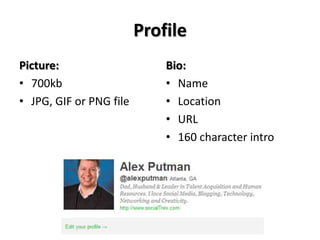
Profile
Picture:                     Bio:
• 700kb                      • Name
• JPG, GIF or PNG file       • Location
                             • URL
                             • 160 character intro
Definitions
• Tweets: messages/links/info you post
• Friend: Person you follow
• Follower: Person who follow you
• Retweet: posting a tweet from someone else
• Hashtag #: used to tag or categorize tweets
• @reply: reply to other users or tag them in your tweets
  by using @username
• DM: send private direct messages to other users by
  using DM username (only dm people following you)
• Link Shorteners: services like bi.tly or ow.ly that
  shorten URLs to conserve tweet space
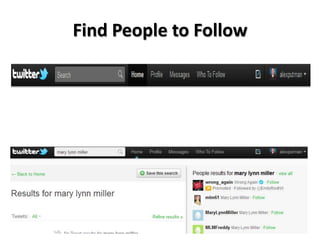
Find People to Follow
Finding Followers
You can use the various Twitter user directories to find followers based on:

    • Location www.Twellow.com
    • Interests www.FollowerWonk.com
    • Job Title www.FollowerWonk.com

You can also find followers using Twitter search by using:

    • Keyphrases
    • Hashtags
    • Location

    But don’t forget the simple Google Search…

                   Or looking at who other people follow…
What to Retweet
• News (especially breaking news)!
• Links of interest
• Search on the #hashtag
   o #shrmatl11
• Tweets from other people you follow
• Retweets are a simple way of sharing other peoples tweets

• If your content is retweeted, it will reach a wider audience as
  the followers of the people that retweet your content will also
  have your tweet in their feed

Remember: Tweets appear in the stream of people who follow
you. Gain followers via Golden Rule!
@ Reply
By using the @reply, you are ‘tagging’ another user
in your tweet – this is then flagged up to them

The @reply can be used in a number of ways:
  1. To reply to another tweet i.e. @socialtrex thanks for
     your assistance
  2. To flag up a tweet to a certain user i.e. thanks for
     the link about browsers http://www.google.com
     @socialtrex
  3. To credit another user for a link or something else
     i.e. Great blog about social media
     http://www.socialtrex.com via @socialtrex
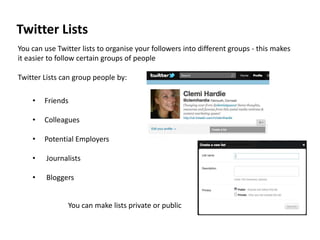
Twitter Lists
You can use Twitter lists to organise your followers into different groups - this makes
it easier to follow certain groups of people

Twitter Lists can group people by:

    •   Friends

    •   Colleagues

    •   Potential Employers

    •    Journalists

    •    Bloggers


                You can make lists private or public
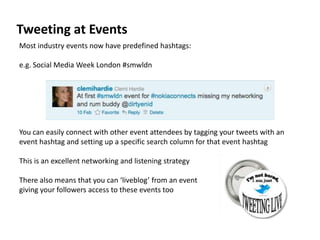
Tweeting at Events
Most industry events now have predefined hashtags:

e.g. Social Media Week London #smwldn


You can easily connect with other event attendees by tagging your tweets with an
event hashtag and setting up a specific search column for that event hashtag

This is an excellent networking and listening strategy

There also means that you can ‘liveblog’ from an event
giving your followers access to these events too
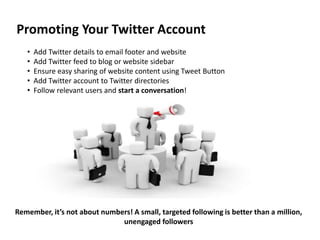
Promoting Your Twitter Account
   •   Add Twitter details to email footer and website
   •   Add Twitter feed to blog or website sidebar
   •   Ensure easy sharing of website content using Tweet Button
   •   Add Twitter account to Twitter directories
   •   Follow relevant users and start a conversation!


Remember, it’s not about numbers! A small, targeted following is better than a million,
                              unengaged followers
Hashtag #
• 3 is the max you can have on a tweet
• # on public tweets can be searched by
  everyone
• Not case sensitive
• #FF
• Follow conversations at
  o Tweetchat.com
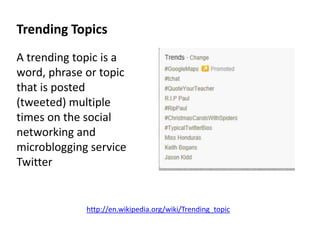
Trending Topics
A trending topic is a
word, phrase or topic
that is posted
(tweeted) multiple
times on the social
networking and
microblogging service
Twitter


             http://en.wikipedia.org/wiki/Trending_topic
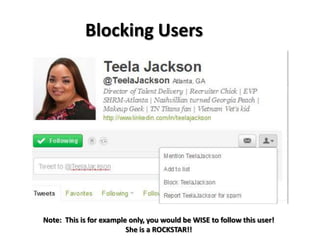
Blocking Users


Note: This is for example only, you would be WISE to follow this user!
                         She is a ROCKSTAR!!
@alexputman
      @socialtrex
www.socialtrex.com

Twitter 101

  • 1.
  • 2.
  • 3.
    Creating an Account • Twitter.com • Username (Letters, numbers & underscore) • Email Address • Password
  • 4.
    What’s in aName? • Use name from other site/blogs • Real name or business name makes it easier to find you • If using a pseudo name, ensure it is part of your brand: o SocialTRex o RecruiterChicks
  • 5.
    Profile Picture: Bio: • 700kb • Name • JPG, GIF or PNG file • Location • URL • 160 character intro
  • 6.
    Definitions • Tweets: messages/links/infoyou post • Friend: Person you follow • Follower: Person who follow you • Retweet: posting a tweet from someone else • Hashtag #: used to tag or categorize tweets • @reply: reply to other users or tag them in your tweets by using @username • DM: send private direct messages to other users by using DM username (only dm people following you) • Link Shorteners: services like bi.tly or ow.ly that shorten URLs to conserve tweet space
  • 7.
  • 8.
    Finding Followers You canuse the various Twitter user directories to find followers based on: • Location www.Twellow.com • Interests www.FollowerWonk.com • Job Title www.FollowerWonk.com You can also find followers using Twitter search by using: • Keyphrases • Hashtags • Location But don’t forget the simple Google Search… Or looking at who other people follow…
  • 9.
    What to Retweet •News (especially breaking news)! • Links of interest • Search on the #hashtag o #shrmatl11 • Tweets from other people you follow • Retweets are a simple way of sharing other peoples tweets • If your content is retweeted, it will reach a wider audience as the followers of the people that retweet your content will also have your tweet in their feed Remember: Tweets appear in the stream of people who follow you. Gain followers via Golden Rule!
  • 10.
    @ Reply By usingthe @reply, you are ‘tagging’ another user in your tweet – this is then flagged up to them The @reply can be used in a number of ways: 1. To reply to another tweet i.e. @socialtrex thanks for your assistance 2. To flag up a tweet to a certain user i.e. thanks for the link about browsers http://www.google.com @socialtrex 3. To credit another user for a link or something else i.e. Great blog about social media http://www.socialtrex.com via @socialtrex
  • 11.
    Twitter Lists You canuse Twitter lists to organise your followers into different groups - this makes it easier to follow certain groups of people Twitter Lists can group people by: • Friends • Colleagues • Potential Employers • Journalists • Bloggers You can make lists private or public
  • 12.
    Tweeting at Events Mostindustry events now have predefined hashtags: e.g. Social Media Week London #smwldn You can easily connect with other event attendees by tagging your tweets with an event hashtag and setting up a specific search column for that event hashtag This is an excellent networking and listening strategy There also means that you can ‘liveblog’ from an event giving your followers access to these events too
  • 13.
    Promoting Your TwitterAccount • Add Twitter details to email footer and website • Add Twitter feed to blog or website sidebar • Ensure easy sharing of website content using Tweet Button • Add Twitter account to Twitter directories • Follow relevant users and start a conversation! Remember, it’s not about numbers! A small, targeted following is better than a million, unengaged followers
  • 14.
    Hashtag # • 3is the max you can have on a tweet • # on public tweets can be searched by everyone • Not case sensitive • #FF • Follow conversations at o Tweetchat.com
  • 15.
    Trending Topics A trendingtopic is a word, phrase or topic that is posted (tweeted) multiple times on the social networking and microblogging service Twitter http://en.wikipedia.org/wiki/Trending_topic
  • 16.
    Blocking Users Note: Thisis for example only, you would be WISE to follow this user! She is a ROCKSTAR!!
  • 17.
    @alexputman @socialtrex www.socialtrex.com

Editor's Notes

  • #9 Definition of Social MediaBrief description and examples of each.
  • #12 Definition of Social MediaBrief description and examples of each.
  • #13 Definition of Social MediaBrief description and examples of each.
  • #14 Definition of Social MediaBrief description and examples of each.
  • #16 Definition of Social MediaBrief description and examples of each.