.NET Data Access and Manipulation
ADO.NET
Overview
 What is ADO.NET?
 Disconnected vs. connected data access models
 ADO.NET Architecture
 ADO.NET Core Objects
 Steps of Data Access
 Advanced Techniques and UI Tools
What is ADO.NET?
 A data-access technology that enables applications to
connect to data stores and manipulate data contained
in them in various ways
 Former version was ADO (ActiveX Data Object)
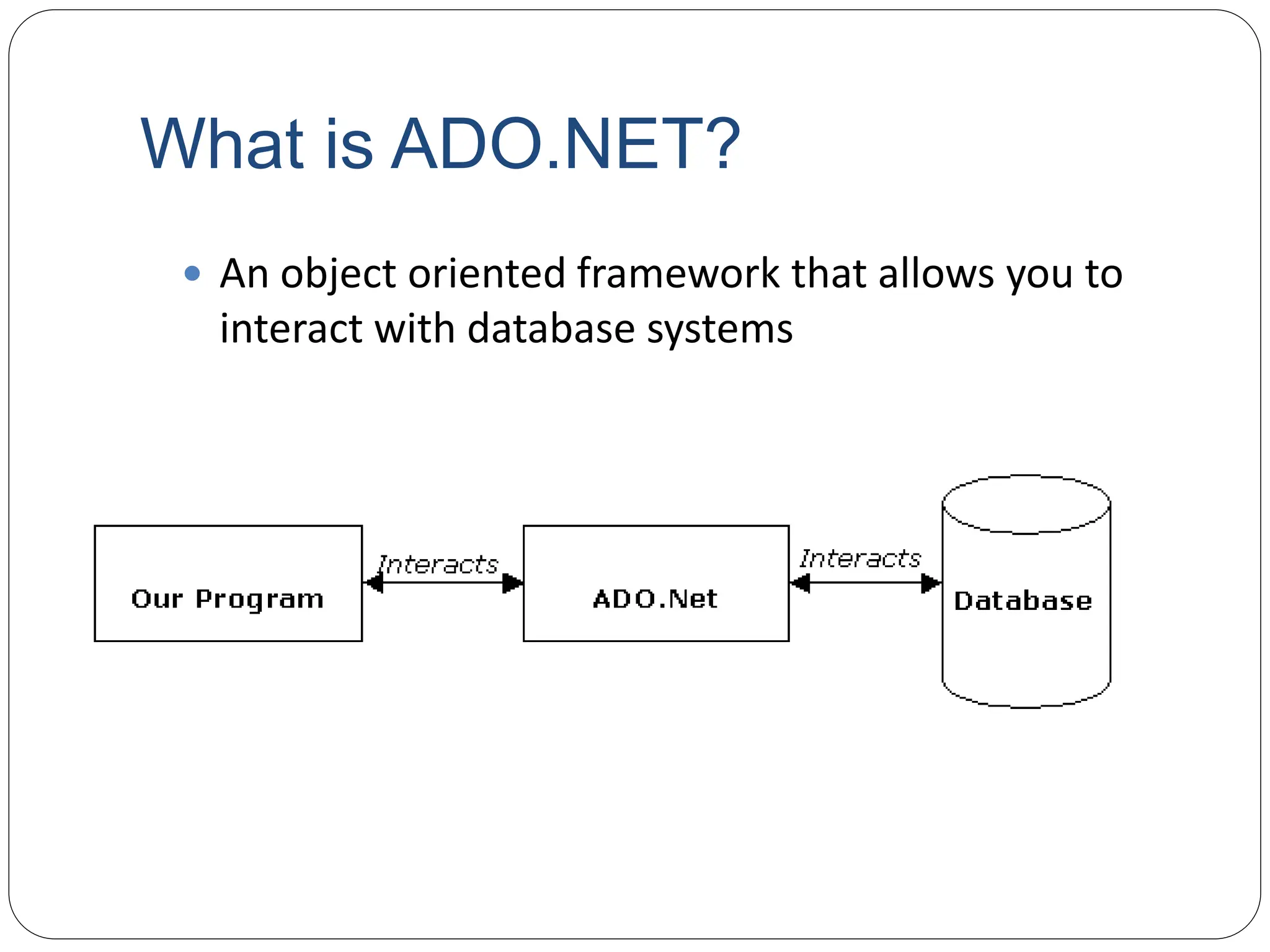
What is ADO.NET?
 An object oriented framework that allows you to
interact with database systems
Objective of ADO.NET
 Support disconnected data architecture,
 Tight integration with XML,
 Common data representation
 Ability to combine data from multiple and varied data
sources
 Optimized facilities for interacting with a database
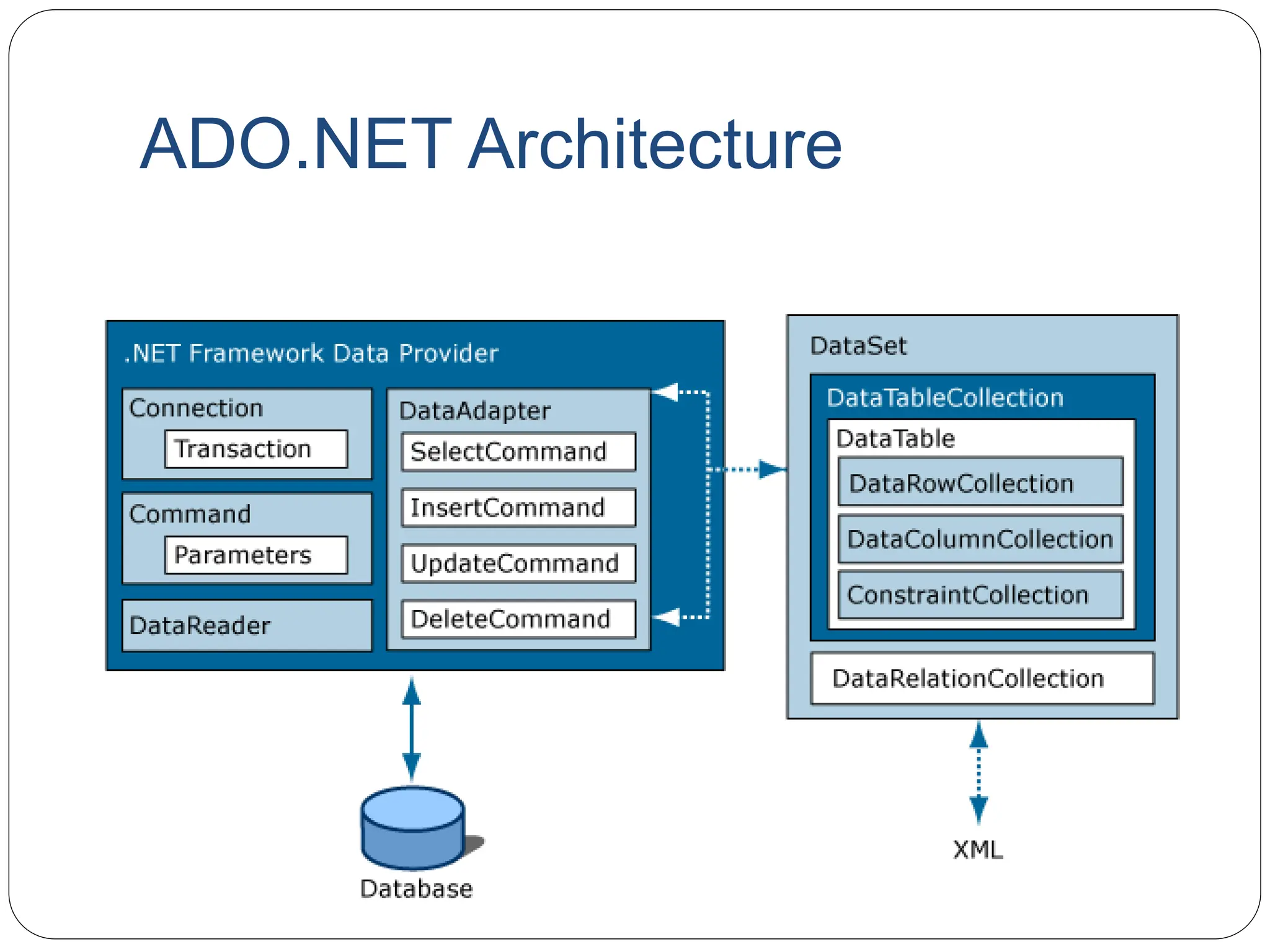
ADO.NET Architecture
ADO.NET Core Objects
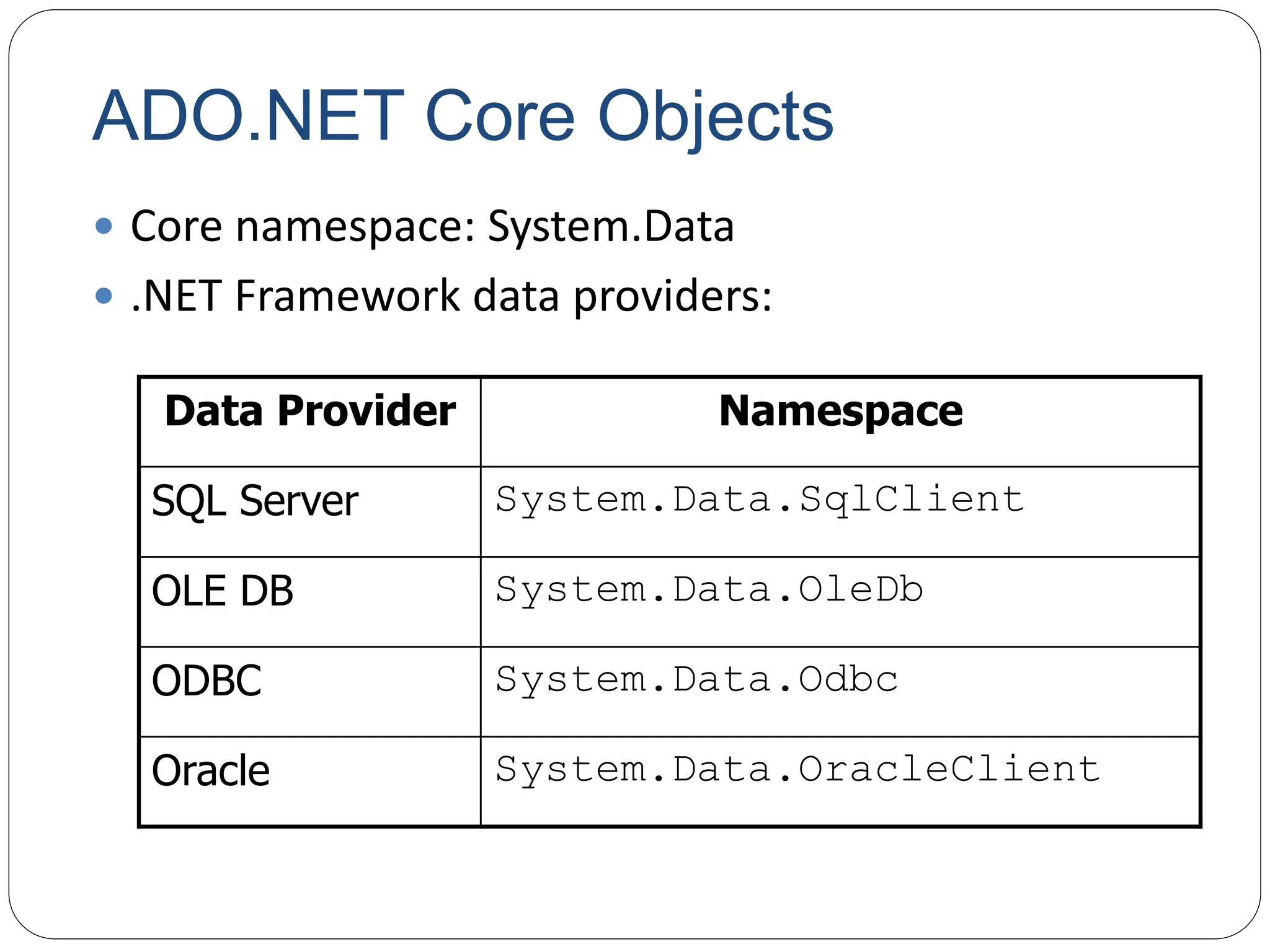
 Core namespace: System.Data
 .NET Framework data providers:
Data Provider Namespace
SQL Server System.Data.SqlClient
OLE DB System.Data.OleDb
ODBC System.Data.Odbc
Oracle System.Data.OracleClient
ADO.NET Core Objects
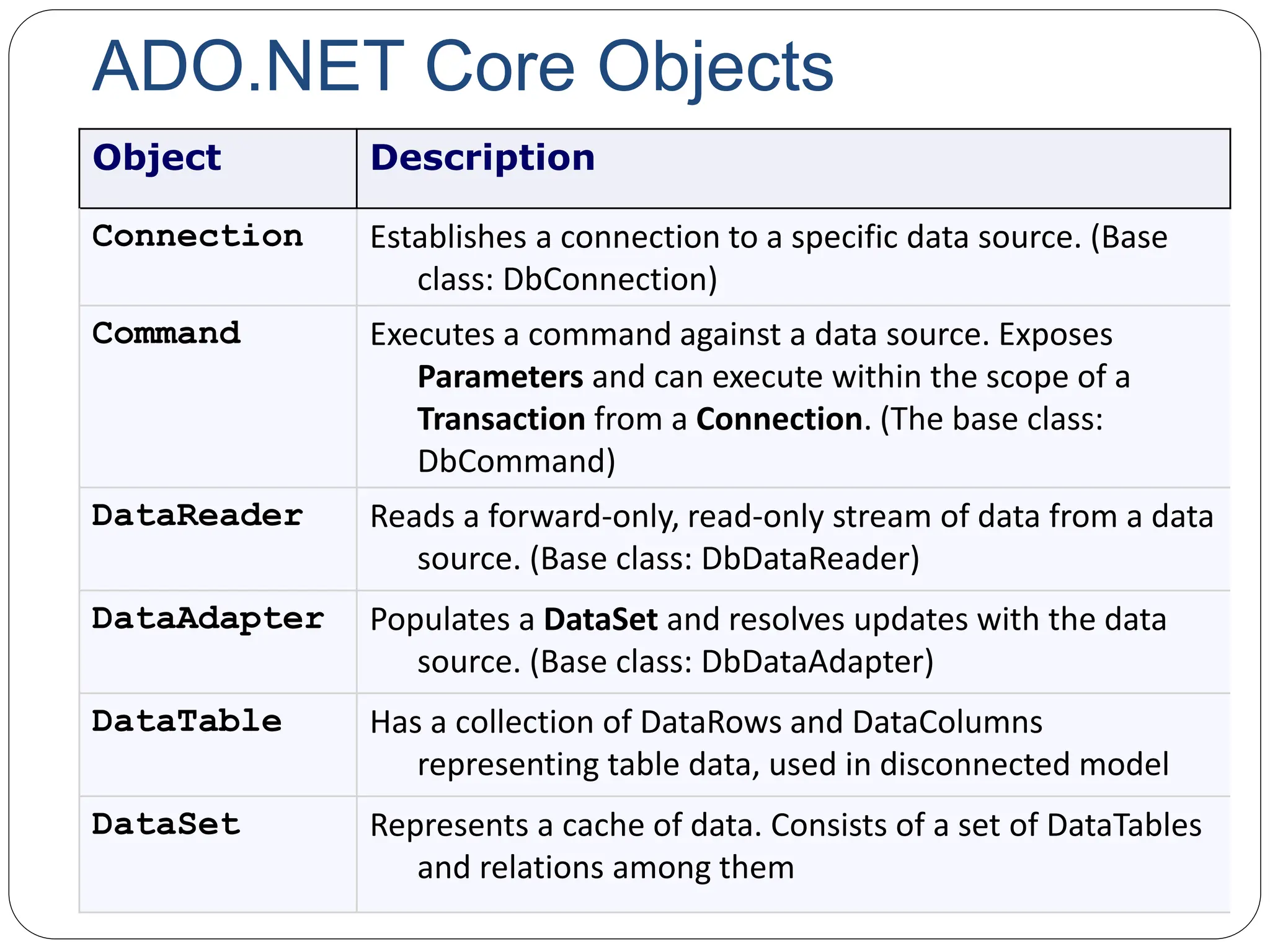
Object Description
Connection Establishes a connection to a specific data source. (Base
class: DbConnection)
Command Executes a command against a data source. Exposes
Parameters and can execute within the scope of a
Transaction from a Connection. (The base class:
DbCommand)
DataReader Reads a forward-only, read-only stream of data from a data
source. (Base class: DbDataReader)
DataAdapter Populates a DataSet and resolves updates with the data
source. (Base class: DbDataAdapter)
DataTable Has a collection of DataRows and DataColumns
representing table data, used in disconnected model
DataSet Represents a cache of data. Consists of a set of DataTables
and relations among them
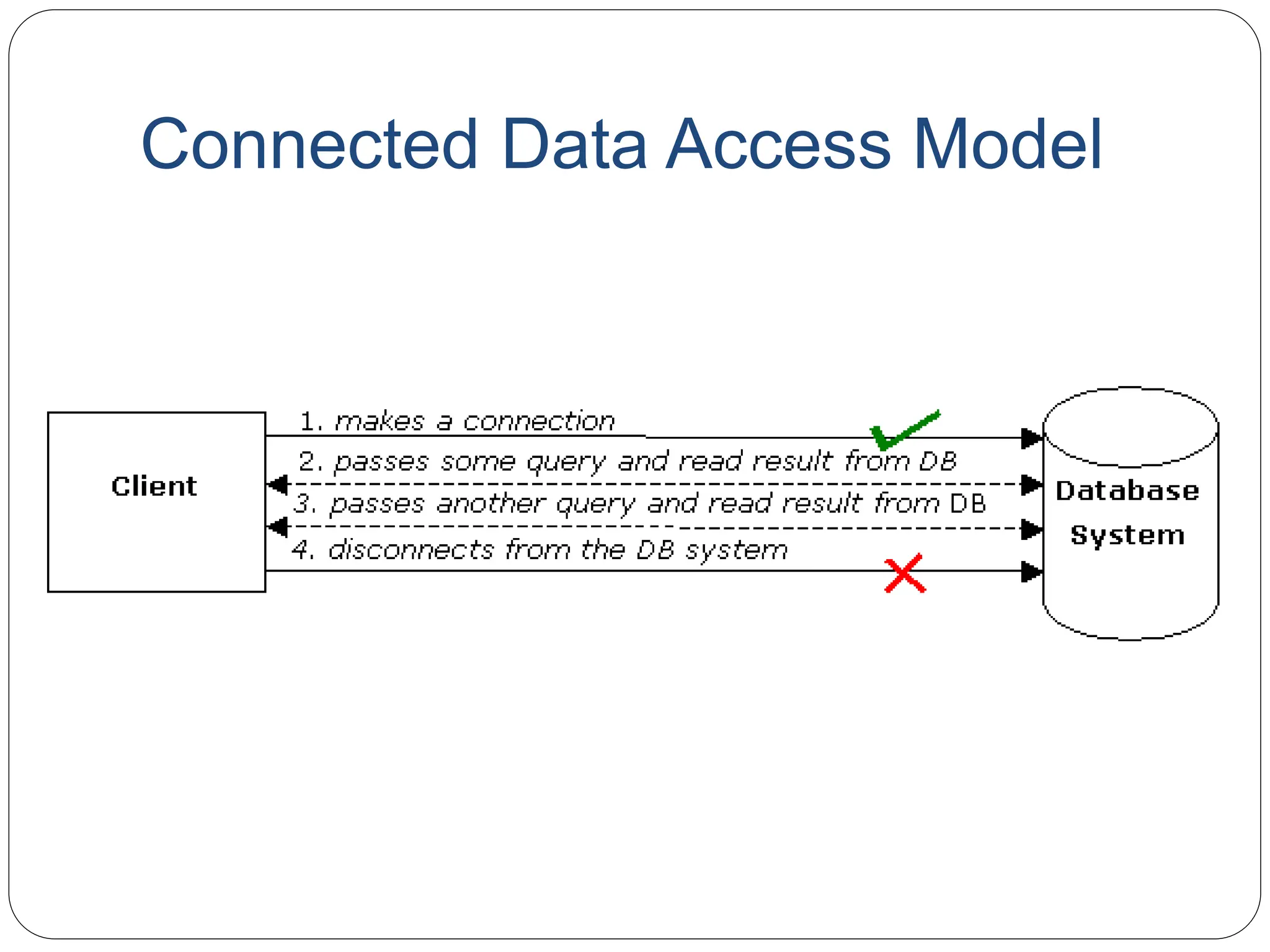
Connected Data Access Model
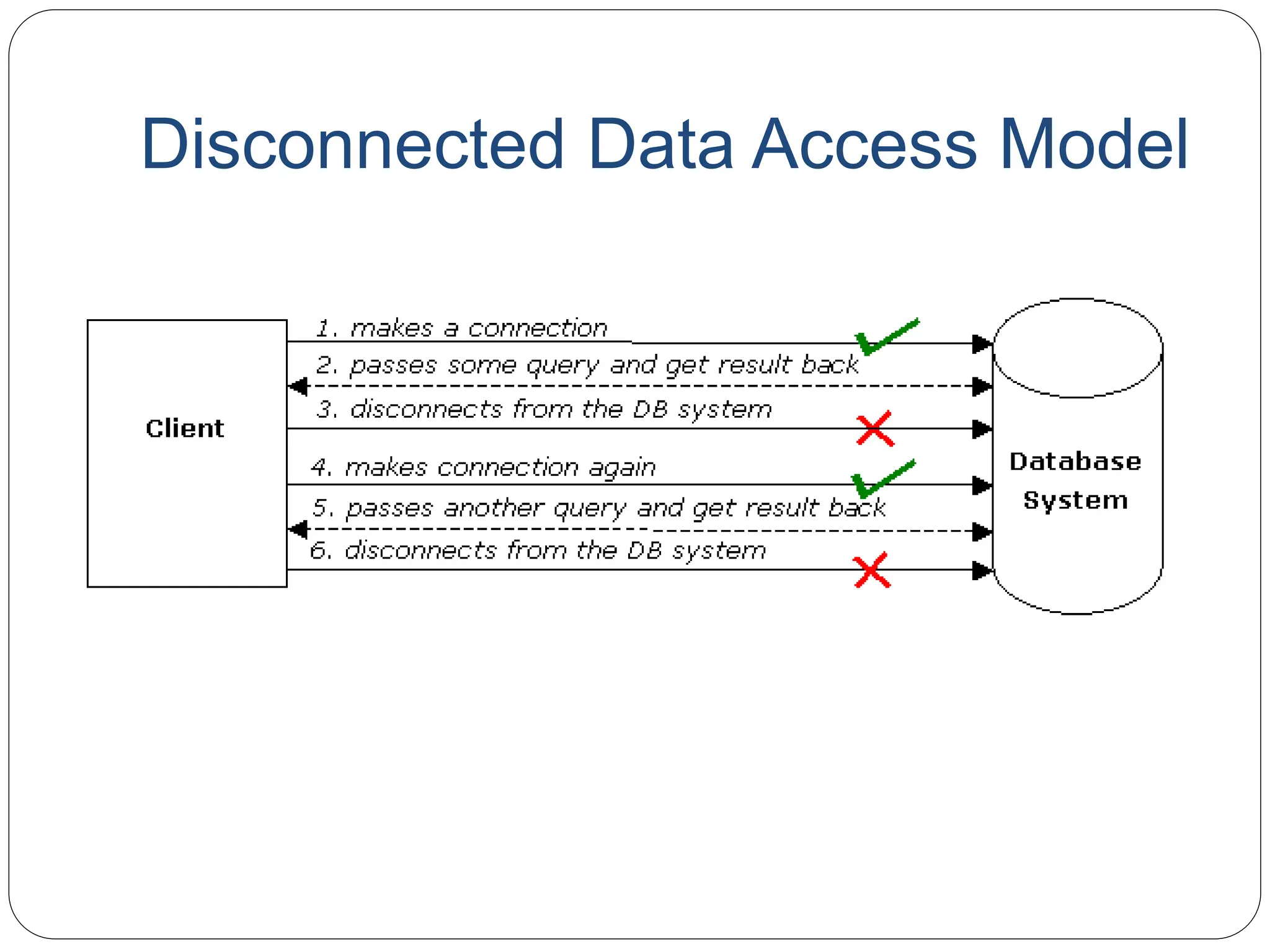
Disconnected Data Access Model
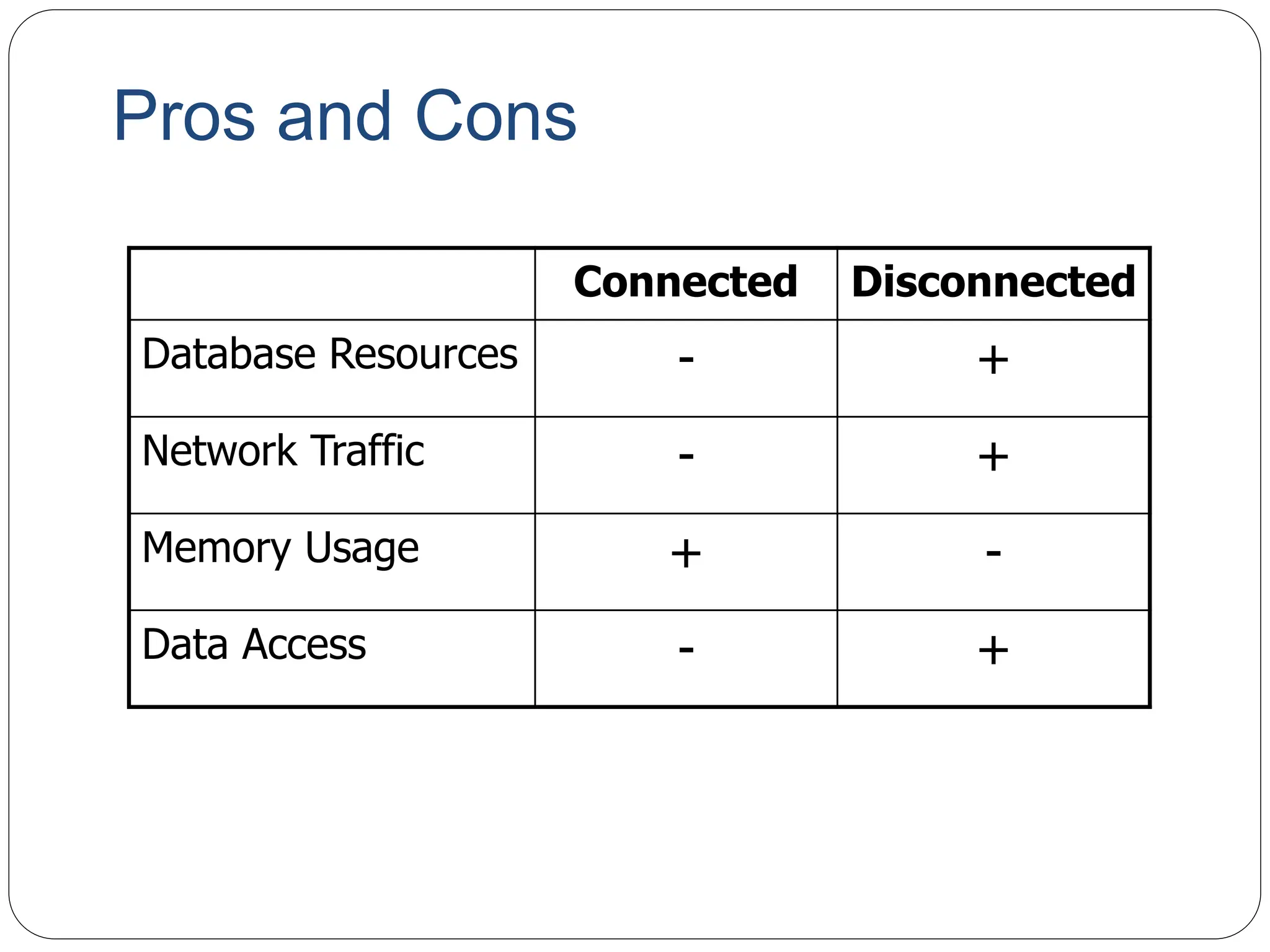
Pros and Cons
Connected Disconnected
Database Resources - +
Network Traffic - +
Memory Usage + -
Data Access - +
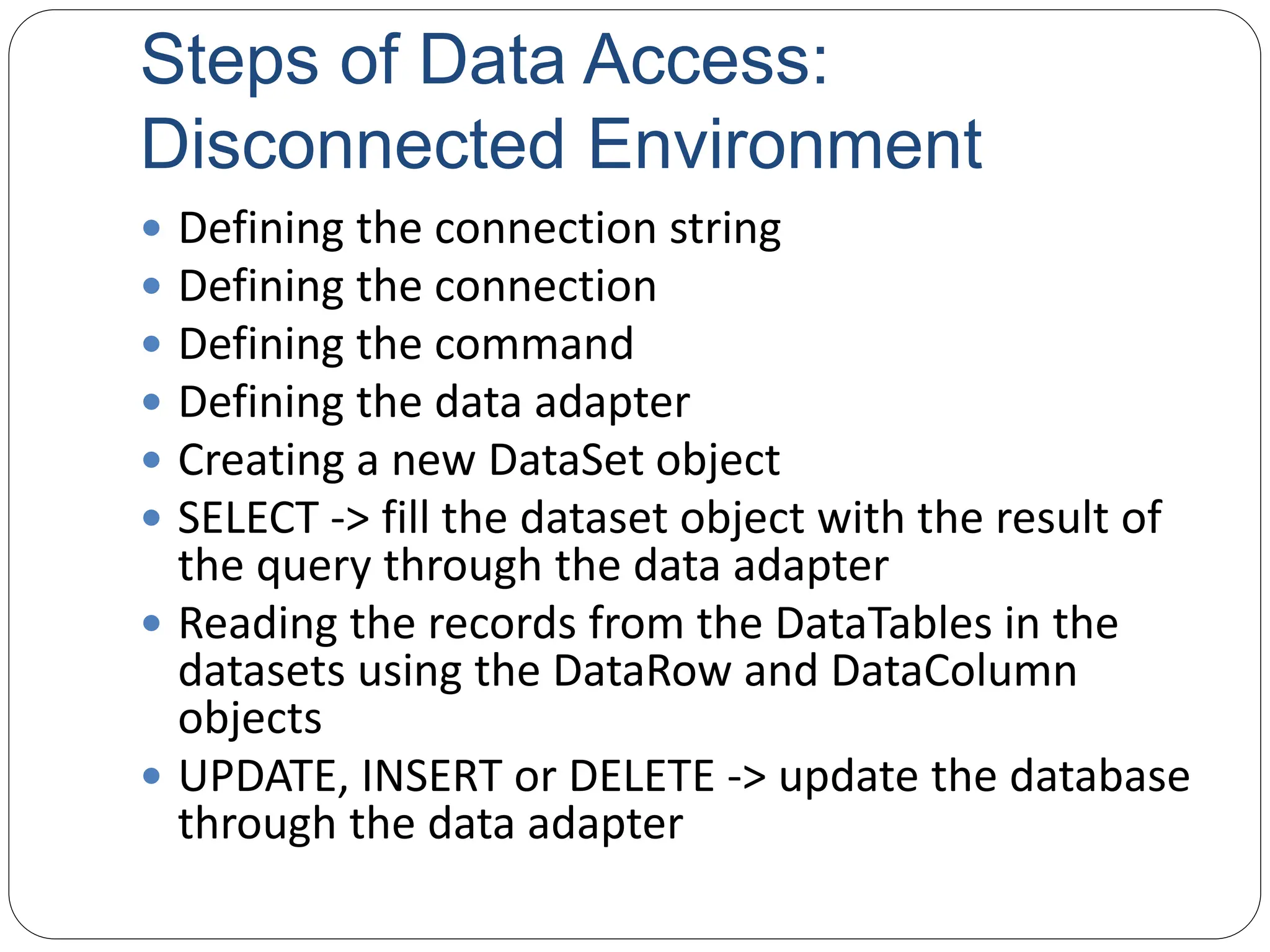
Steps of Data Access:
Disconnected Environment
 Defining the connection string
 Defining the connection
 Defining the command
 Defining the data adapter
 Creating a new DataSet object
 SELECT -> fill the dataset object with the result of
the query through the data adapter
 Reading the records from the DataTables in the
datasets using the DataRow and DataColumn
objects
 UPDATE, INSERT or DELETE -> update the database
through the data adapter
using System;
using System.Data;
using System.Data.SqlClient;
namespace SampleClass
{
class Program
{
static void Main(string[] args)
{
string connStr =
Properties.Settings.Default.connStr;
SqlConnection conn = new SqlConnection(connStr);
string queryString = "SELECT * from titles;";
SqlDataAdapter da = new
SqlDataAdapter(queryString,conn);
DataSet ds = new DataSet();
da.fill(ds);
// Work on the data in memory using
// the DataSet (ds) object
}
}
}
EXAMPLE
Disconnected –
Update, Delete, Insert
SqlDataAdapter da = new SqlDataAdapter();
DataSet ds = new DataSet();
SqlCommandBuilder cmdBuilder = new
SqlCommandBuilder(da);
da.Fill(ds);
DataRow dr = ds.Tables[0].Rows[0];
dr.Delete();
da.UpdateCommand = builder.GetUpdateCommand();
da.Update(ds);
DataRow dr = ds.Tables[0].Rows[0];
dr["CustomerName"] = "John";
da.UpdateCommand = builder.GetUpdateCommand();
da.Update(ds);
DELETE
UPDATE
INITIAL CODE
DataRow dr = ds.Tables[0].NewRow();
dr["CustomerName"] = "John";
dr["CustomerSurName"] = "Smith";
ds.Tables[0].Rows.Add(dr);
da.UpdateCommand = builder.GetUpdateCommand();
da.Update(ds);
INSERT
Steps of Data Acces : Connected
Environment
 Create connection
 Create command (select-insert-update-delete)
 Open connection
 If SELECT -> use a DataReader to fetch data
 If UPDATE,DELETE, INSERT -> use command
object’s methods
 Close connection
static void Main()
{
string connectionString =
Properties.Settings.Default.connStr;
string queryString = "SELECT CategoryID, CategoryName FROM
dbo.Categories;";
SqlConnection connection = new
SqlConnection(connectionString);
SqlCommand command = new SqlCommand(queryString,connection);
try
{
connection.Open();
SqlDataReader reader = command.ExecuteReader();
while (reader.Read())
{
Console.WriteLine("t{0}t{1}“,reader[0],reader[1]);
}
reader.Close();
connection.close();
}
catch (Exception ex)
{
Console.WriteLine(ex.Message);
}
}
EXAMPLE
Connected – Update, Delete,
Insert
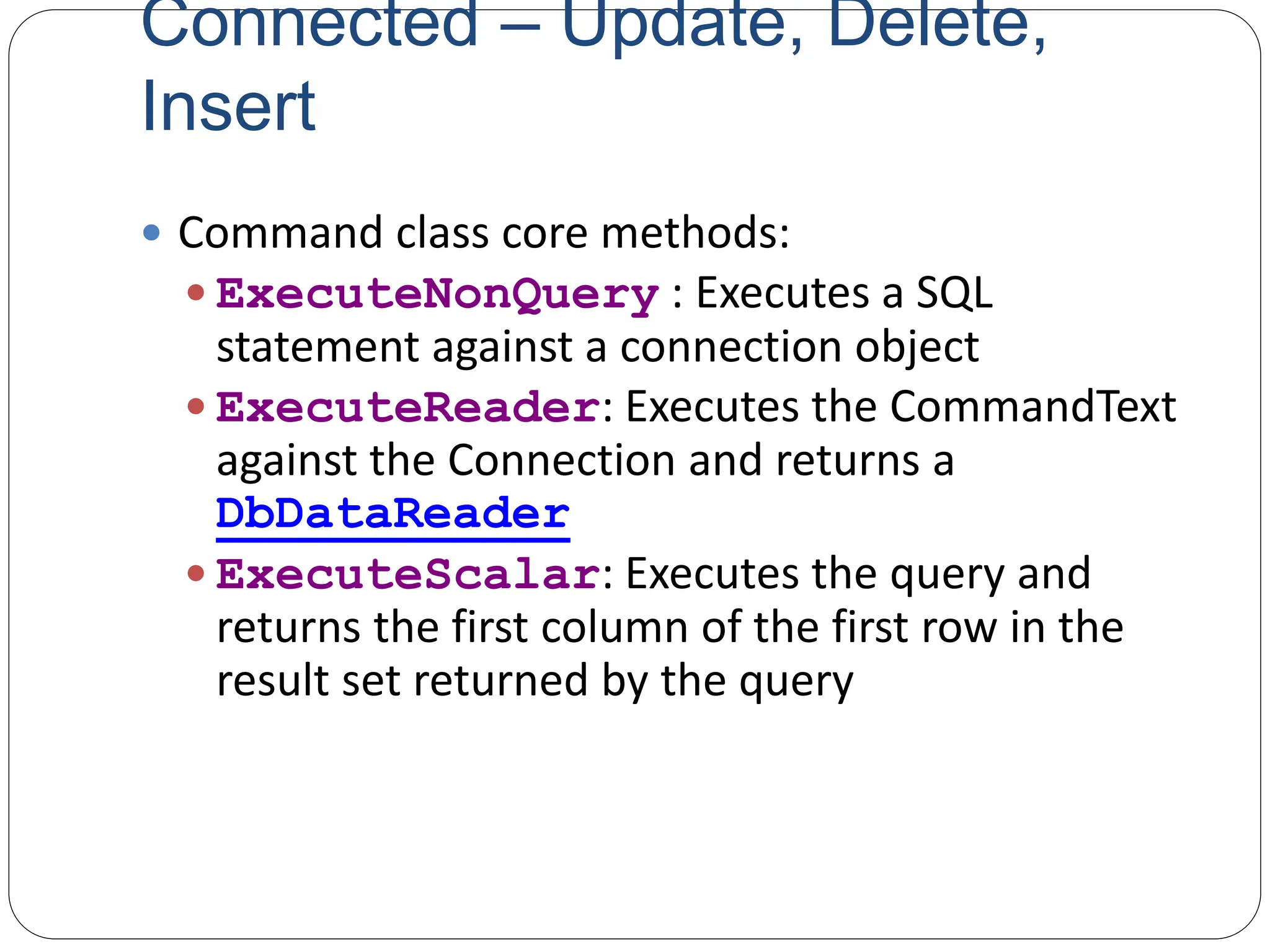
 Command class core methods:
 ExecuteNonQuery : Executes a SQL
statement against a connection object
 ExecuteReader: Executes the CommandText
against the Connection and returns a
DbDataReader
 ExecuteScalar: Executes the query and
returns the first column of the first row in the
result set returned by the query
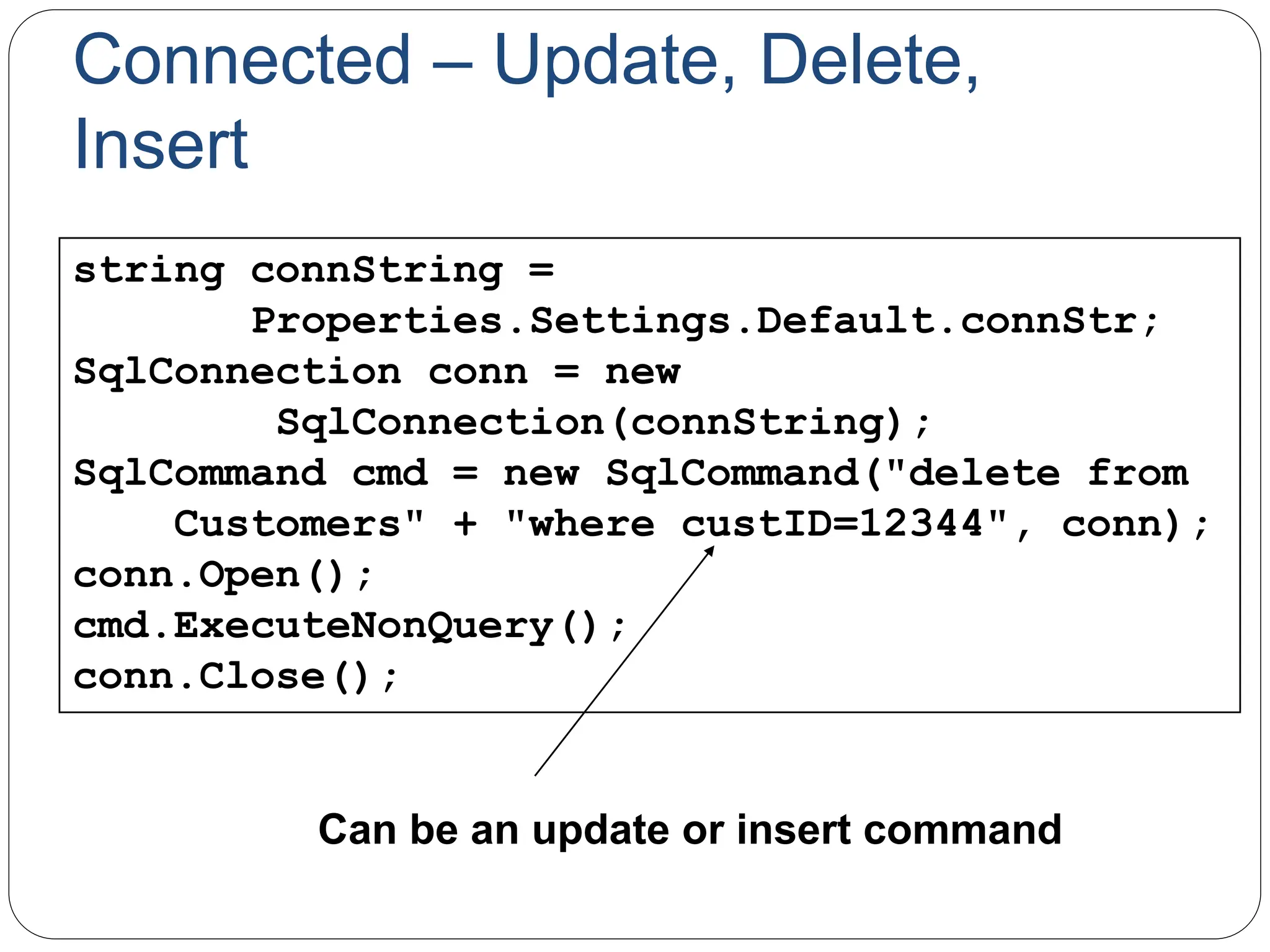
Connected – Update, Delete,
Insert
string connString =
Properties.Settings.Default.connStr;
SqlConnection conn = new
SqlConnection(connString);
SqlCommand cmd = new SqlCommand("delete from
Customers" + "where custID=12344", conn);
conn.Open();
cmd.ExecuteNonQuery();
conn.Close();
Can be an update or insert command
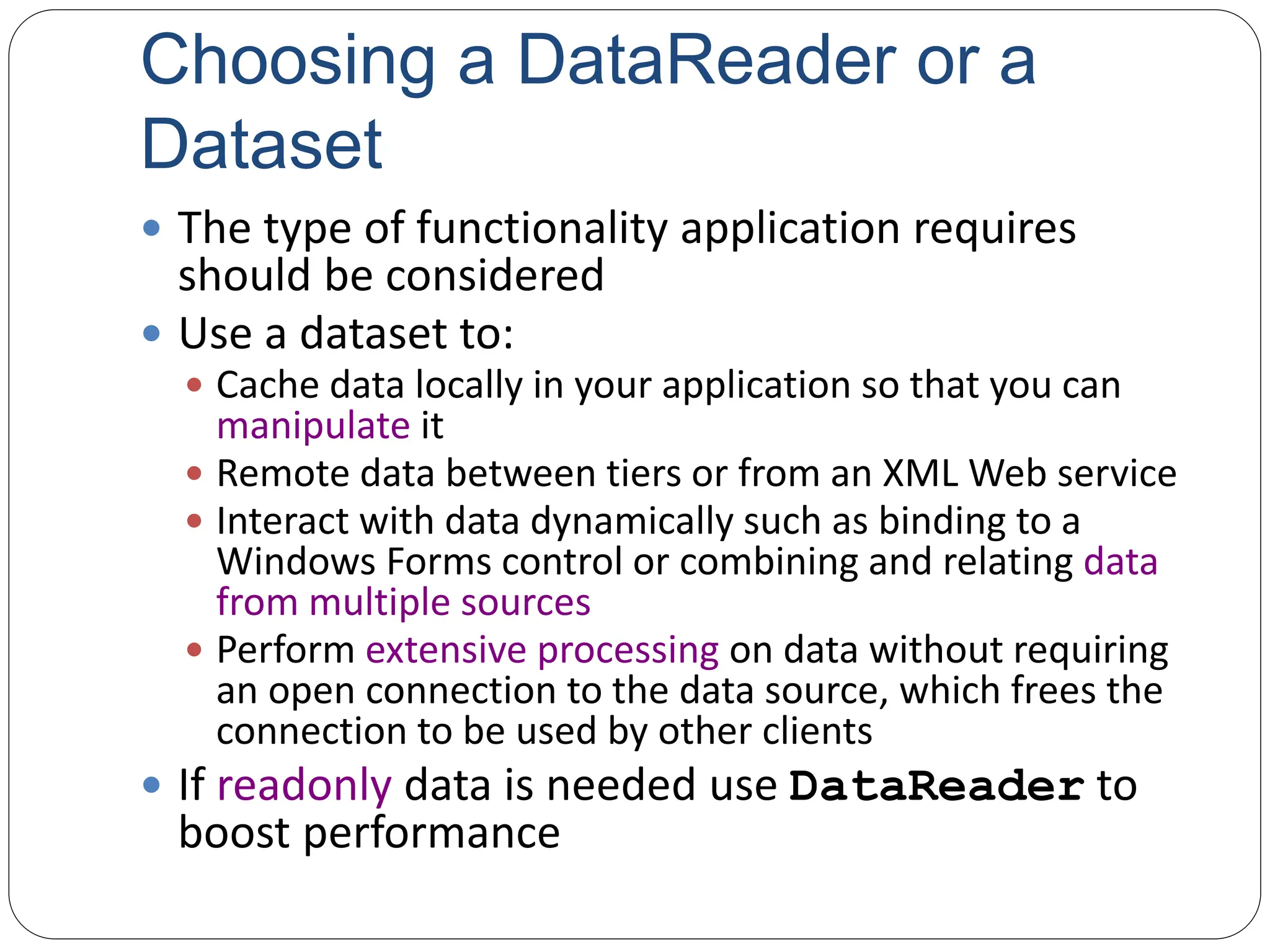
Choosing a DataReader or a
Dataset
 The type of functionality application requires
should be considered
 Use a dataset to:
 Cache data locally in your application so that you can
manipulate it
 Remote data between tiers or from an XML Web service
 Interact with data dynamically such as binding to a
Windows Forms control or combining and relating data
from multiple sources
 Perform extensive processing on data without requiring
an open connection to the data source, which frees the
connection to be used by other clients
 If readonly data is needed use DataReader to
boost performance
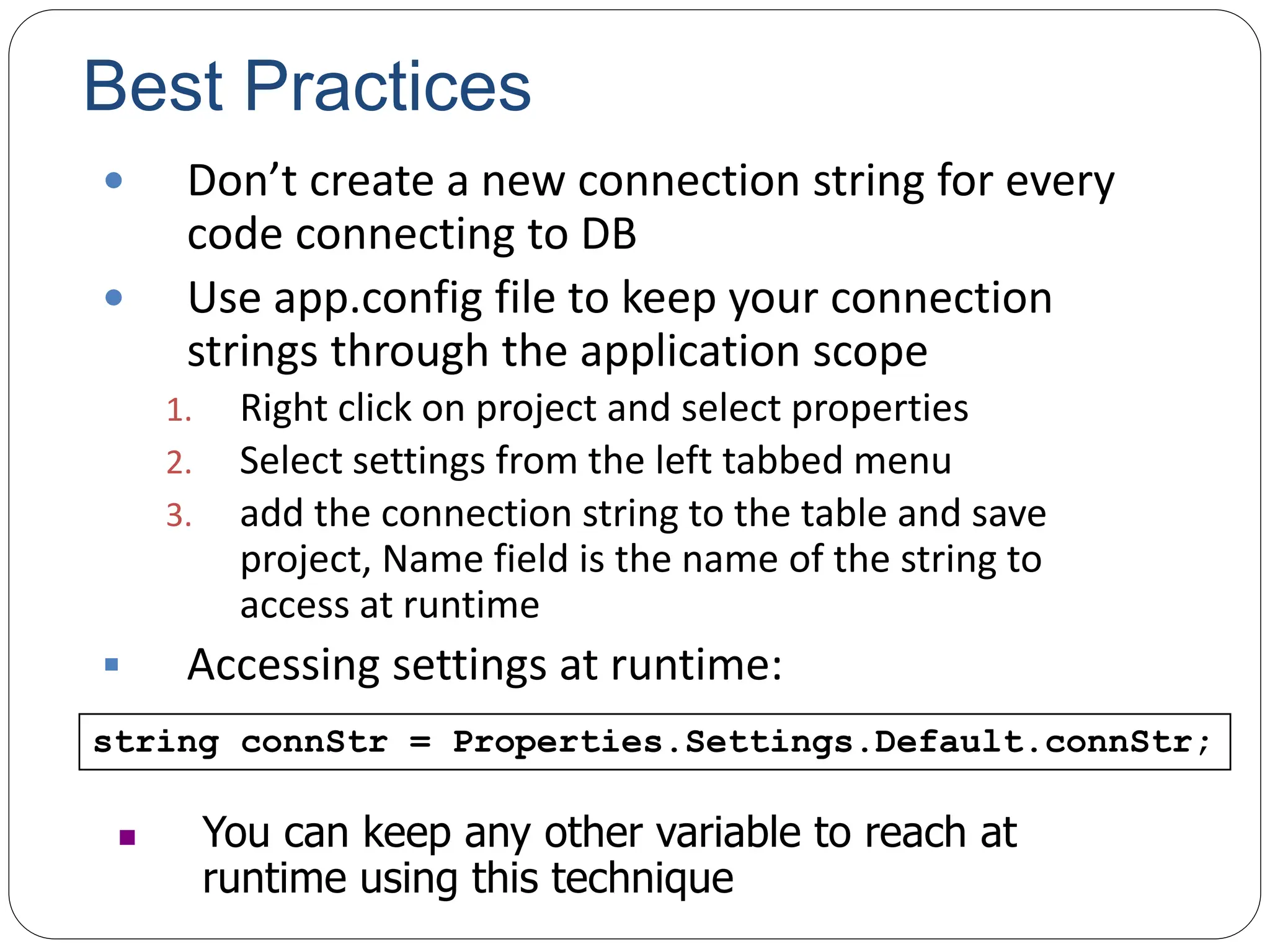
Best Practices
 Don’t create a new connection string for every
code connecting to DB
 Use app.config file to keep your connection
strings through the application scope
1. Right click on project and select properties
2. Select settings from the left tabbed menu
3. add the connection string to the table and save
project, Name field is the name of the string to
access at runtime
 Accessing settings at runtime:
string connStr = Properties.Settings.Default.connStr;
 You can keep any other variable to reach at
runtime using this technique
After .NET Framework 2.0
 To minimize the code written by developers new UI
tools and objects have been intoduced with .NET
Framework 2.0
After .NET Framework 2.0
 Strongly Typed vs Untyped Datasets
 Untyped: DataSet and DataTables included are created at
runtime completely using code
 Strongly Typed: Dataset is created at design time, it is
defined by an xsd schema
After .NET Framework 2.0
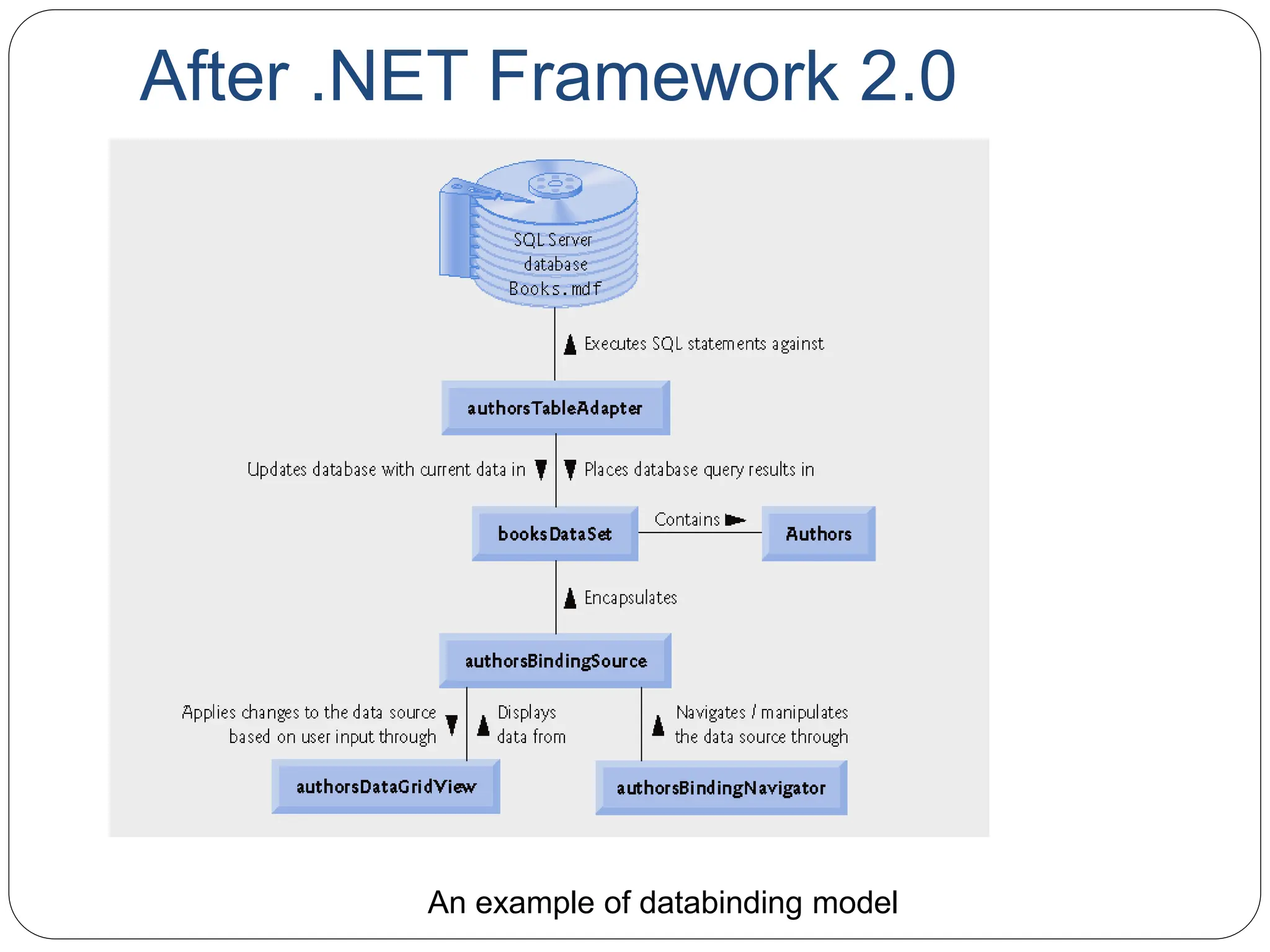
 TableAdapter
 provides communication between your application and a
database
 Provides update/delete/insert functions
 Encapsulates a SQLDataAdapter object
 MSDN link:
 http://msdn.microsoft.com/en-
us/library/bz9tthwx(VS.80).aspx
After .NET Framework 2.0
 BindingSource
 Binds UI components to a strongly typed Dataset
 Ex: Binds a DataGridView to a DataTable
 Sets a DataSet as a datasource and datamember as a
dataset table
 EndEdit() method: Applies changes made to data
through a GUI control to the data source bound to that
control
 MSDN link:
 http://msdn.microsoft.com/en-
us/library/xxxf124e(VS.80).aspx
After .NET Framework 2.0
An example of databinding model
After .NET Framework 2.0
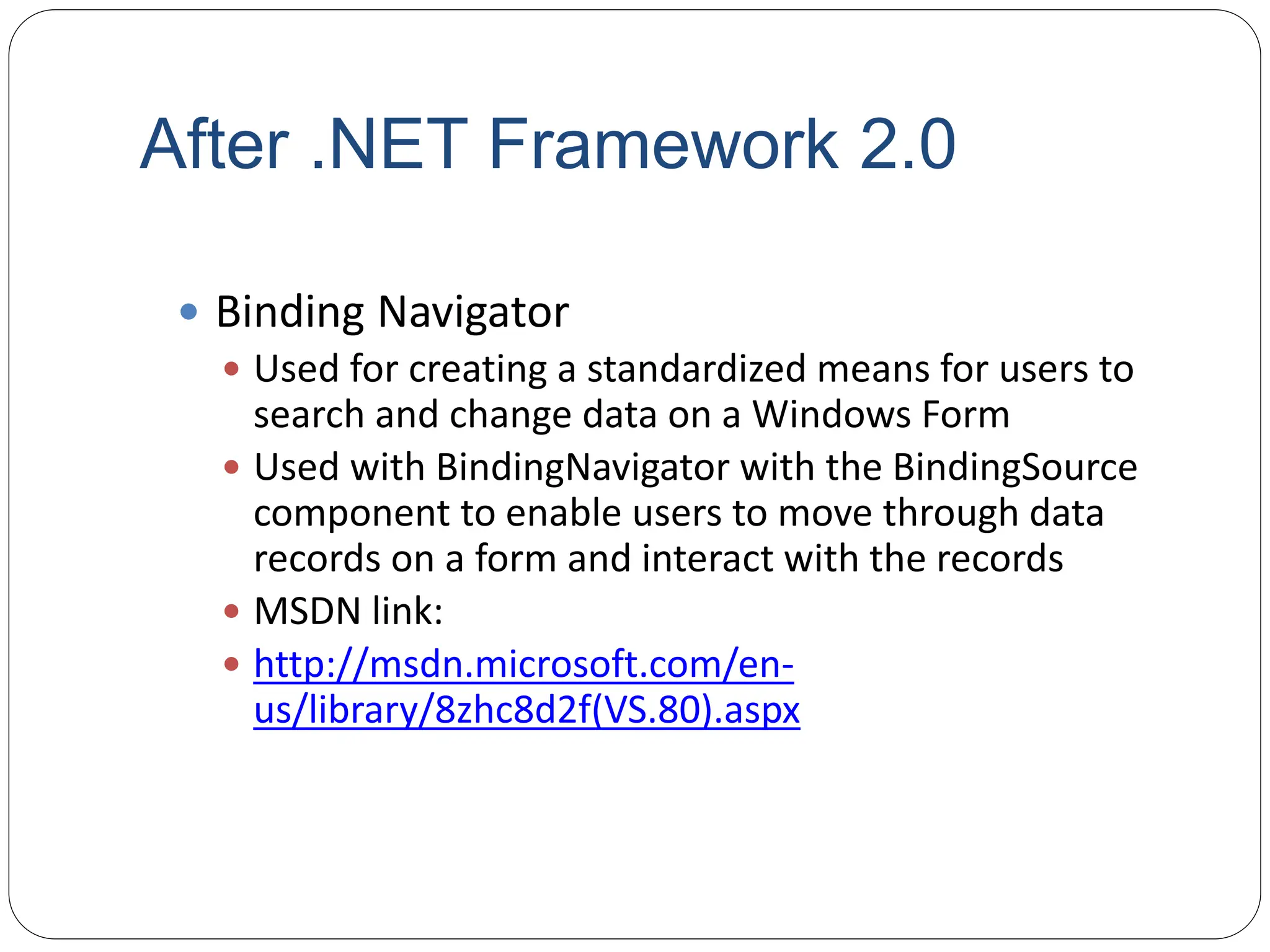
 Binding Navigator
 Used for creating a standardized means for users to
search and change data on a Windows Form
 Used with BindingNavigator with the BindingSource
component to enable users to move through data
records on a form and interact with the records
 MSDN link:
 http://msdn.microsoft.com/en-
us/library/8zhc8d2f(VS.80).aspx
After .NET Framework 2.0
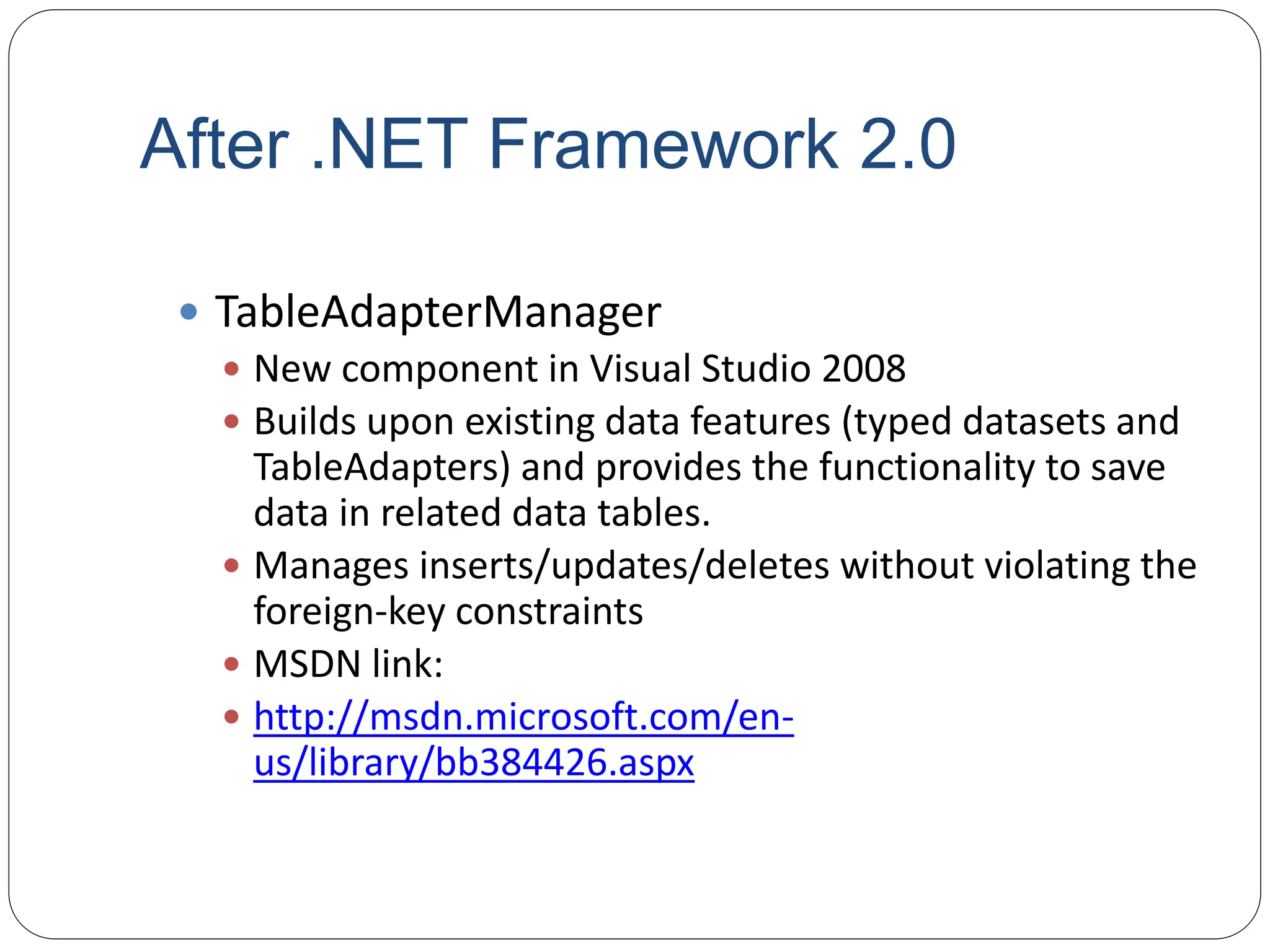
 TableAdapterManager
 New component in Visual Studio 2008
 Builds upon existing data features (typed datasets and
TableAdapters) and provides the functionality to save
data in related data tables.
 Manages inserts/updates/deletes without violating the
foreign-key constraints
 MSDN link:
 http://msdn.microsoft.com/en-
us/library/bb384426.aspx
Hands On: Create a DB
Navigator
 Create a DB navigator with UI components and
wizards
Hands On: Custom queries
 Create a filter mechanism on an DataGridView with
using custom queries
 Manage datatables and TableAdapters
Hands On: Managing multiple tables
 Create a navigation system with using the relations
between two tables

the .NET Framework. It provides the claf

  • 1.
    .NET Data Accessand Manipulation ADO.NET
  • 2.
    Overview  What isADO.NET?  Disconnected vs. connected data access models  ADO.NET Architecture  ADO.NET Core Objects  Steps of Data Access  Advanced Techniques and UI Tools
  • 3.
    What is ADO.NET? A data-access technology that enables applications to connect to data stores and manipulate data contained in them in various ways  Former version was ADO (ActiveX Data Object)
  • 4.
    What is ADO.NET? An object oriented framework that allows you to interact with database systems
  • 5.
    Objective of ADO.NET Support disconnected data architecture,  Tight integration with XML,  Common data representation  Ability to combine data from multiple and varied data sources  Optimized facilities for interacting with a database
  • 6.
  • 7.
    ADO.NET Core Objects Core namespace: System.Data  .NET Framework data providers: Data Provider Namespace SQL Server System.Data.SqlClient OLE DB System.Data.OleDb ODBC System.Data.Odbc Oracle System.Data.OracleClient
  • 8.
    ADO.NET Core Objects ObjectDescription Connection Establishes a connection to a specific data source. (Base class: DbConnection) Command Executes a command against a data source. Exposes Parameters and can execute within the scope of a Transaction from a Connection. (The base class: DbCommand) DataReader Reads a forward-only, read-only stream of data from a data source. (Base class: DbDataReader) DataAdapter Populates a DataSet and resolves updates with the data source. (Base class: DbDataAdapter) DataTable Has a collection of DataRows and DataColumns representing table data, used in disconnected model DataSet Represents a cache of data. Consists of a set of DataTables and relations among them
  • 9.
  • 10.
  • 11.
    Pros and Cons ConnectedDisconnected Database Resources - + Network Traffic - + Memory Usage + - Data Access - +
  • 12.
    Steps of DataAccess: Disconnected Environment  Defining the connection string  Defining the connection  Defining the command  Defining the data adapter  Creating a new DataSet object  SELECT -> fill the dataset object with the result of the query through the data adapter  Reading the records from the DataTables in the datasets using the DataRow and DataColumn objects  UPDATE, INSERT or DELETE -> update the database through the data adapter
  • 13.
    using System; using System.Data; usingSystem.Data.SqlClient; namespace SampleClass { class Program { static void Main(string[] args) { string connStr = Properties.Settings.Default.connStr; SqlConnection conn = new SqlConnection(connStr); string queryString = "SELECT * from titles;"; SqlDataAdapter da = new SqlDataAdapter(queryString,conn); DataSet ds = new DataSet(); da.fill(ds); // Work on the data in memory using // the DataSet (ds) object } } } EXAMPLE
  • 14.
    Disconnected – Update, Delete,Insert SqlDataAdapter da = new SqlDataAdapter(); DataSet ds = new DataSet(); SqlCommandBuilder cmdBuilder = new SqlCommandBuilder(da); da.Fill(ds); DataRow dr = ds.Tables[0].Rows[0]; dr.Delete(); da.UpdateCommand = builder.GetUpdateCommand(); da.Update(ds); DataRow dr = ds.Tables[0].Rows[0]; dr["CustomerName"] = "John"; da.UpdateCommand = builder.GetUpdateCommand(); da.Update(ds); DELETE UPDATE INITIAL CODE DataRow dr = ds.Tables[0].NewRow(); dr["CustomerName"] = "John"; dr["CustomerSurName"] = "Smith"; ds.Tables[0].Rows.Add(dr); da.UpdateCommand = builder.GetUpdateCommand(); da.Update(ds); INSERT
  • 15.
    Steps of DataAcces : Connected Environment  Create connection  Create command (select-insert-update-delete)  Open connection  If SELECT -> use a DataReader to fetch data  If UPDATE,DELETE, INSERT -> use command object’s methods  Close connection
  • 16.
    static void Main() { stringconnectionString = Properties.Settings.Default.connStr; string queryString = "SELECT CategoryID, CategoryName FROM dbo.Categories;"; SqlConnection connection = new SqlConnection(connectionString); SqlCommand command = new SqlCommand(queryString,connection); try { connection.Open(); SqlDataReader reader = command.ExecuteReader(); while (reader.Read()) { Console.WriteLine("t{0}t{1}“,reader[0],reader[1]); } reader.Close(); connection.close(); } catch (Exception ex) { Console.WriteLine(ex.Message); } } EXAMPLE
  • 17.
    Connected – Update,Delete, Insert  Command class core methods:  ExecuteNonQuery : Executes a SQL statement against a connection object  ExecuteReader: Executes the CommandText against the Connection and returns a DbDataReader  ExecuteScalar: Executes the query and returns the first column of the first row in the result set returned by the query
  • 18.
    Connected – Update,Delete, Insert string connString = Properties.Settings.Default.connStr; SqlConnection conn = new SqlConnection(connString); SqlCommand cmd = new SqlCommand("delete from Customers" + "where custID=12344", conn); conn.Open(); cmd.ExecuteNonQuery(); conn.Close(); Can be an update or insert command
  • 19.
    Choosing a DataReaderor a Dataset  The type of functionality application requires should be considered  Use a dataset to:  Cache data locally in your application so that you can manipulate it  Remote data between tiers or from an XML Web service  Interact with data dynamically such as binding to a Windows Forms control or combining and relating data from multiple sources  Perform extensive processing on data without requiring an open connection to the data source, which frees the connection to be used by other clients  If readonly data is needed use DataReader to boost performance
  • 20.
    Best Practices  Don’tcreate a new connection string for every code connecting to DB  Use app.config file to keep your connection strings through the application scope 1. Right click on project and select properties 2. Select settings from the left tabbed menu 3. add the connection string to the table and save project, Name field is the name of the string to access at runtime  Accessing settings at runtime: string connStr = Properties.Settings.Default.connStr;  You can keep any other variable to reach at runtime using this technique
  • 21.
    After .NET Framework2.0  To minimize the code written by developers new UI tools and objects have been intoduced with .NET Framework 2.0
  • 22.
    After .NET Framework2.0  Strongly Typed vs Untyped Datasets  Untyped: DataSet and DataTables included are created at runtime completely using code  Strongly Typed: Dataset is created at design time, it is defined by an xsd schema
  • 23.
    After .NET Framework2.0  TableAdapter  provides communication between your application and a database  Provides update/delete/insert functions  Encapsulates a SQLDataAdapter object  MSDN link:  http://msdn.microsoft.com/en- us/library/bz9tthwx(VS.80).aspx
  • 24.
    After .NET Framework2.0  BindingSource  Binds UI components to a strongly typed Dataset  Ex: Binds a DataGridView to a DataTable  Sets a DataSet as a datasource and datamember as a dataset table  EndEdit() method: Applies changes made to data through a GUI control to the data source bound to that control  MSDN link:  http://msdn.microsoft.com/en- us/library/xxxf124e(VS.80).aspx
  • 25.
    After .NET Framework2.0 An example of databinding model
  • 26.
    After .NET Framework2.0  Binding Navigator  Used for creating a standardized means for users to search and change data on a Windows Form  Used with BindingNavigator with the BindingSource component to enable users to move through data records on a form and interact with the records  MSDN link:  http://msdn.microsoft.com/en- us/library/8zhc8d2f(VS.80).aspx
  • 27.
    After .NET Framework2.0  TableAdapterManager  New component in Visual Studio 2008  Builds upon existing data features (typed datasets and TableAdapters) and provides the functionality to save data in related data tables.  Manages inserts/updates/deletes without violating the foreign-key constraints  MSDN link:  http://msdn.microsoft.com/en- us/library/bb384426.aspx
  • 28.
    Hands On: Createa DB Navigator  Create a DB navigator with UI components and wizards
  • 29.
    Hands On: Customqueries  Create a filter mechanism on an DataGridView with using custom queries  Manage datatables and TableAdapters
  • 30.
    Hands On: Managingmultiple tables  Create a navigation system with using the relations between two tables